
CyberView X5 - Scanner BRAUN - Free user manual and instructions
Find the device manual for free CyberView X5 BRAUN in PDF.
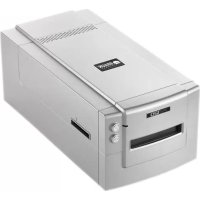



| Product type | Film scanner |
| Brand | Braun |
| Model | CyberView X5 |
| Supported film formats | 135 (35 mm), 120 (medium format: 6x4.5, 6x6, 6x7, 6x8, 6x9, 6x12 cm) |
| Optical resolution | 7200 dpi |
| Color depth | 48 bits (16 bits per RGB channel) |
| Interface | USB 2.0 |
| Power supply | AC/DC power adapter 12 V, 1.5 A (model A2-36SG12R-V) |
| Power consumption | 18 W (max) |
| Dimensions (L x W x H) | 17 x 12 x 8 cm |
| Weight | 1.5 kg |
| Operating temperature | 10 °C to 40 °C |
| Operating humidity | 15 % to 76 % (non-condensing) |
| Included software | CyberView (driver) + image editing software (Adobe Photoshop Elements or equivalent) |
| Main functions | Scan of positive, negative and B&W films; pre-scan; advanced adjustments (curves, levels, exposure); Magic Touch (dust and scratch removal); Auto Color |
| Cleaning and maintenance | Clean the casing with a soft dry cloth; avoid any liquid; do not touch internal optics |
| Safety | Use only the supplied adapter; do not expose to moisture; unplug before cleaning |
| Spare parts and repairability | Power adapter, USB cables, film holders available; repair by authorized service |
| Warranty | 2 years (domestic use) or 20,000 scans |
| General information | LED flatbed scanner; compatible with Windows and macOS; FCC Class B declaration |
Frequently Asked Questions - CyberView X5 BRAUN
User questions about CyberView X5 BRAUN
0 question about this device. Answer the ones you know or ask your own.
Ask a new question about this device
Download the instructions for your Scanner in PDF format for free! Find your manual CyberView X5 - BRAUN and take your electronic device back in hand. On this page are published all the documents necessary for the use of your device. CyberView X5 by BRAUN.
USER MANUAL CyberView X5 BRAUN
CyberView 35 User's Manual
FEDERAL COMMUNICATIONS COMMISSION
(FCC) STATEMENT
This equipment has been tested and found to comply with the limits for a Class B digital device, pursuant to Part 15 of the FCC rules. These limits are designed to provide reasonable protection against harmful interference in a residential installation. This equipment generates, uses, and can radiate radio frequency energy and, if not installed and used in accordance with the instructions, may cause harmful interference to radio communications. However, there is no guarantee that interference will not occur in a particular installation. If this equipment does cause harmful interference to radio or television reception, which can be determined by turning the equipment off and on, the user is encouraged to try to correct the interference by one or more of the following measures:
Re-orient or relocate the receiving antenna. Increase the separation between the equipment and receiver. Connect the equipment into an outlet on a circuit different from that to which the receiver is connected. Consult the dealer or an experienced radio/TV technician for help.
Warning:
Use only shielded signal cables to connect I/O devices to this equipment. You are cautioned that changes or modifications not expressly approved by the party responsible for compliance could void your authority to operate the equipment.
TABLE OF CONTENTS
Getting Started 4 Quick Installation Guide (QIG) 6
Installing Software and Driver 8
8
Loading 120 Films into the Holder 10
Loading 120 Film Holder into the Scanner 13
Loading 135 Film into the Holder 14
Loading 135 Mounted Slides into the Holder 16
Loading 135 Film and Slide Holder into Scanner 16
How to Scan 17
STEP 1 - Powering On the Scanner 17
STEP 2 - Select Film Type 17
STEP 3 - Optional Prescan 18
STEP 4 - Set Scan Settings 18
STEP 5 - Set Scan Preferences 20
STEP 6 - Scan 23
STEP 7 - Exit 24
User Interface 25
Menu Commands 26
Scan 26
Preview 26
Image Adjustments 29
Window 32
Help 32
Function Bar Diagram/Toolbar Diagram 35
Active Frame Setting Area 35
Technical Support 36
GETTING STARTED
Check the package content before getting started.
For Quick Installation please refer to Quick Installation Guide. (Pg. 9).

Important! Save the original box, receipt and packing material for future shipping needs or to return for warranty issues.
Package Contents
• Scanner unit. Medium format file holder for one or two frames (6 x 4.5 cm, 6 x 6 cm), one frame (6 x 7 cm, 6 x 8 cm, 6 x 9 cm, 6 x 12 cm). • 135 film holder. 135 slide holder. • Power Adapter.
AC ADAPTER
MODEL: A2-36SG12R-V
INPUT: 100-240V, 1.2A, 50-60Hz
OUTPUT: 12V-3.0A (36W Max.)
Warning! Using any other power adapter may severely damage the scanner and will void the product warranty.
♠ USB 2.0 Cable. ♠ CyberView Driver. ♠ Application software CD for scan editing. ♠ Printed User's Manual.
NOTE:
♠ Application software means the imaging software such as Adobe Photoshop Elements, this is subject to change without notice.
GENERAL GUIDANCE:
♣ Only use the supplied USB-cable. Connect the scanner to the computer directly using the USB 2.0 cable. ♣ Do not use a Hub or extension cable. Only use the USB ports on the back of desktop computers. - If there are any other devices (multifunction device, printers, scanners, webcam) connected to the computer through USB disconnect them. A minimum of 1GB RAM (PC/Mac) is required.
| Operating Ambient Temperature Range 50° to 104°F (10° to 40°C) |
| Note: Do not turn on the scanner unless it is within this range. If the scanner has been stored or transported outside of this range, allow it to return to within this range before turning it on. |
| Operating Ambient Humidity Range 15% to 76% relative humidity (non-condensing) |
| Note: If the scanner is stored or to be transported in cold temperature and then brought into a warm / humid environment condensation may occur. |
This device is designed solely for private use and is not intended for commercial use. The warranty is reduced from 2 years to 1 year if errors or defects arising from inappropriate use, improper operation or stress occur. The guarantee period of the device for private use is 2 years or 20,000 scans.
QUICK INSTALLATION GUIDE (QIG)

Scanner - front view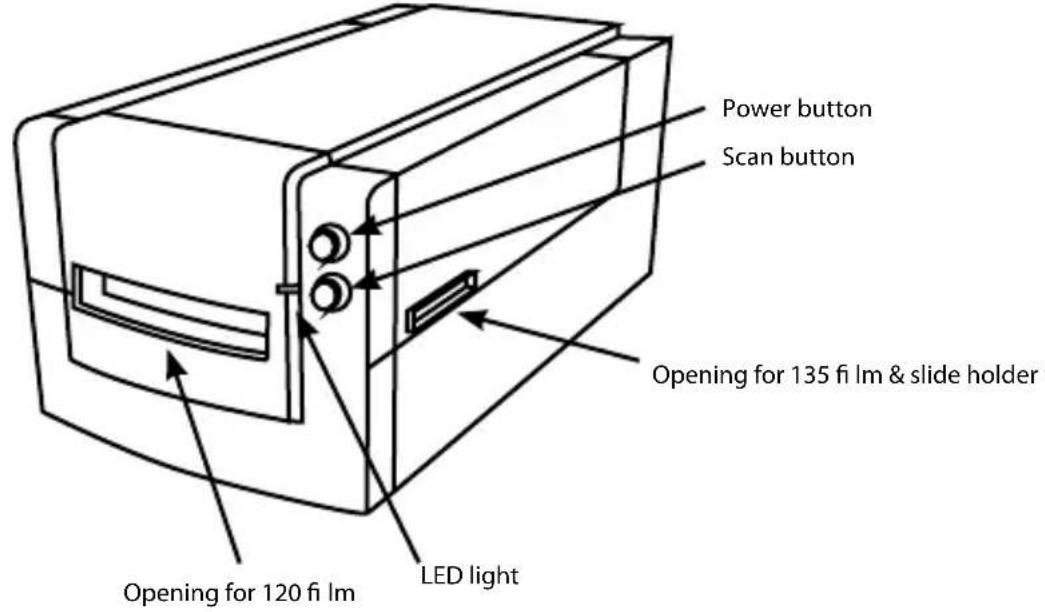
Scanner - rear view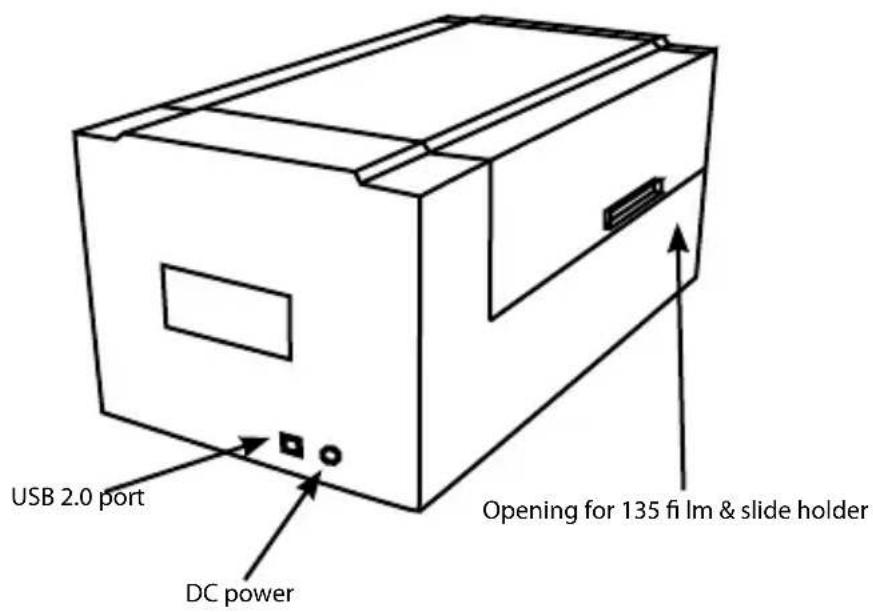
INSTALLING SOFTWARE AND DRIVER
for PC (Windows) User
WINDOWS SYSTEMS INSTALLATION: DURING DRIVER INSTALLATION A WARNING DIALOGUE BOX MAY APPEAR, IF THIS IS THE CASE PLEASE SELECT "INSTALL THIS DRIVER ANYWAY".

Be sure to install the Application Software (ex: Adobe Photoshop Elements) BEFORE installing the CyberView scanner driver software.
You may install the scanner driver directly if you have already installed TWAIN compliant application software on your computer (i.e. photo editing software). Mac users can use iPhoto for editing.
- Place the application software DVD into the DVD drive. If you have CD autopsy disabled, right click and select "Explore". Select "AutoPlay.exe" and follow the on-screen instructions to complete the installation.
- Place the CyberView CD into the drive. If you have CD/DVD autoplay disabled, right click and select "Explore" (e.g., D:\Install\Drivers\Package\CVX.exe), double click the file "CVX.EXE" and follow the on-screen instructions to complete the installation.
- Restart your computer.
- Once the drivers have been installed, connect the scanner. Verify that the scanner is switched OFF (light on the front is not lit) and connect the scanner to a power source. Then connect the scanner to a live USB port. When using a desktop PC, connect the scanner to rear ports only; hub extensions and long USB cables are not supported.
- Switch on the power. The scanner is now ready to work.
Windows operating system should state "New hardware detected", and should begin installing or request to select an option - select "Locate and install driver software".
NOTE: Not all PCs will display the found new hardware window; some will install in the background.
INSTALLING SOFTWARE AND DRIVER
for Mac (OSX) User
Before Installing the scanner driver...
If you choose to use the provided application for image editing, install the application software (e.g., Adobe Photoshop Elements) by inserting the application CD into the computer's CD/DVD drive. Follow the instructions that will be displayed in a window that opens automatically. If you have the iPhoto application (or other photo editing software) installed on your Mac, you can skip this step.
Installing Scanner Driver
a. Insert driver CD into the computer CD/DVD drive and look at the contents with "Finder". b. Double click the "CyberView" icon to begin the installation process. Follow the on-screen prompts to complete the installation process.
NOTE: Make sure the scanner is NOT connected to the computer during the CyberView driver installation.
c. Restart the computer once the installation process is complete.
INSTALLING HARDWARE
For PC (Windows) and Mac (OSX) Users
Connect the scanner to a power source:
- Plug the AC adapter into an AC power source FIRST before plugging it into the scanner.
- Attach the USB cable to the computer using the standard USB adapter end. Attach the USB adapter end of the cable to the back panel of the scanner.
- Switch on the power on the front side of the scanner.
For instructions on loading film into holders continue on p. 11. If you are familiar with loading film into film holders skip to p. 18.
TWAIN scanner plug-in Installation Guide for Adobe Photoshop Elements 9 and newer versions
The TWAIN scanner plug-in is no longer installed with Photoshop Elements 9. In order to be able to import scanner device through Adobe Photoshop Elements, please follow the instructions below after installing Adobe Photoshop Elements 9 to find where and how to install the TWAIN component which was previously installed with the application for versions earlier than Photoshop Elements 9.
Important: Do not move plug-ins from previous versions of Photoshop Elements into the Photoshop Elements 9 > Plug-Ins folder, or set the Photoshop Elements 8 (or earlier) > Plug-In folder as the Additional Plug-Ins Folder in Preferences.
Find complete information at the official Adobe website: http://kb2.adobe.com/cps/849/cpsid_84933.html
Macintosh
To install the legacy TWAIN plug-in for Macintosh, copy the TWAIN-plugin folder from: //Applications/Adobe Photoshop Elements 9/Optional Plug-Ins/Import-Modules/
Into: //Applications/Adobe Photoshop Elements 9/Locales/ /Plug-Ins/
Windows
To install the legacy TWAIN plug-in for Windows, copy twain_32.8ba from: C:\Program Files\Adobe Photoshop Elements 9\Optional Plug-Ins\Import-Export\
Into: C:\Program Files\AdobePhotoshop Elements 9\Locales \Plug-Ins\Import-Export\
64-bit Windows
Photoshop Elements 9 is a 32-bit application. When installed on a 64-bit version of Windows the path is slightly modified.
To install the legacy TWAIN plug-in for Windows, copy twain_32.8ba from: C:\Program Files (x86)\AdobePhotoshop Elements 9\Optional Plug-Ins\Import-Export\
Into: C:\Program Files (x86)\AdobePhotoshop Elements 9\Locales \Plug-Ins\Import-Export\
Loading 120 film into the holder
120 film holder

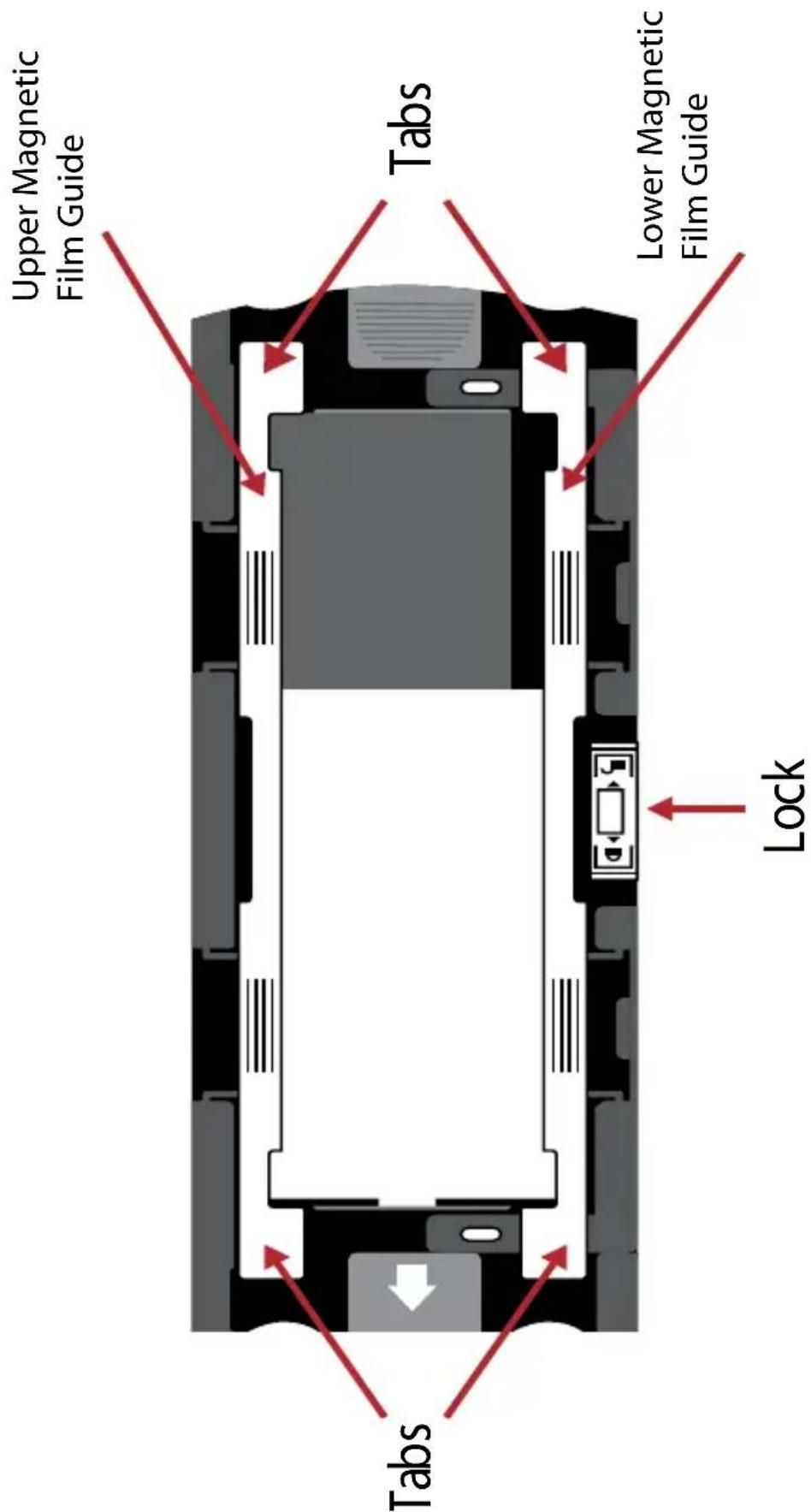
Loading 120 film into the holder (continued)
Upper Magnetic Film Guide
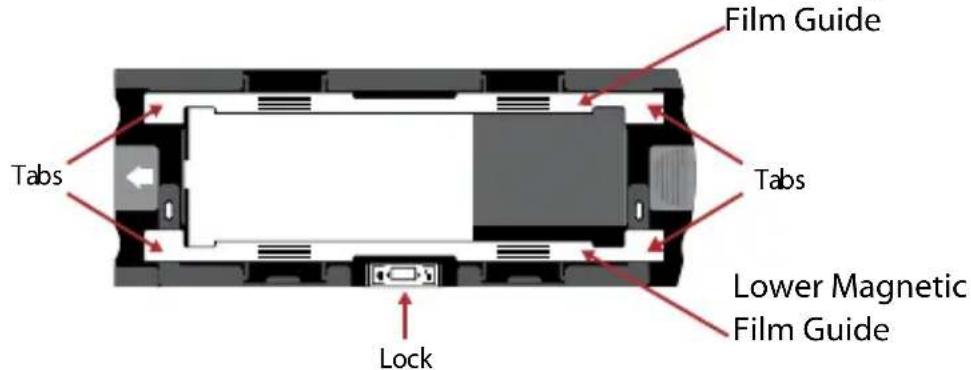
- As illustrated above, turn the holder with the embossed arrow facing towards the left, so that the lock on the holder is at the bottom.
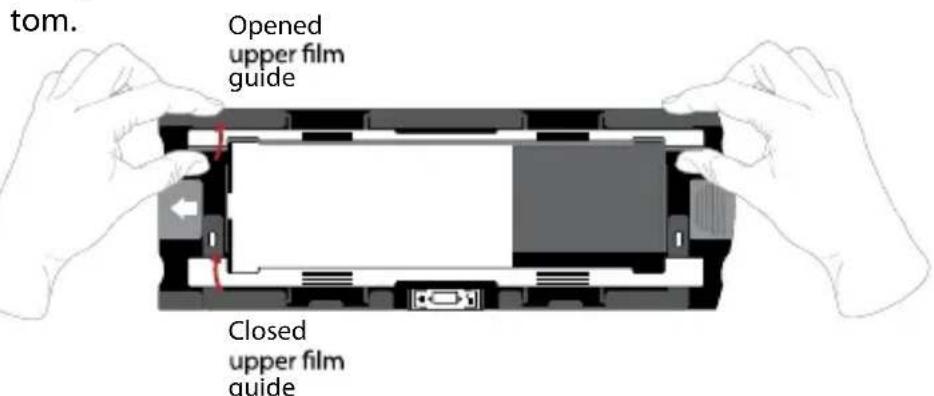
- Open the two magnetic film holder guides on the sides of the holder by pulling on the tabs of the guides upwards.
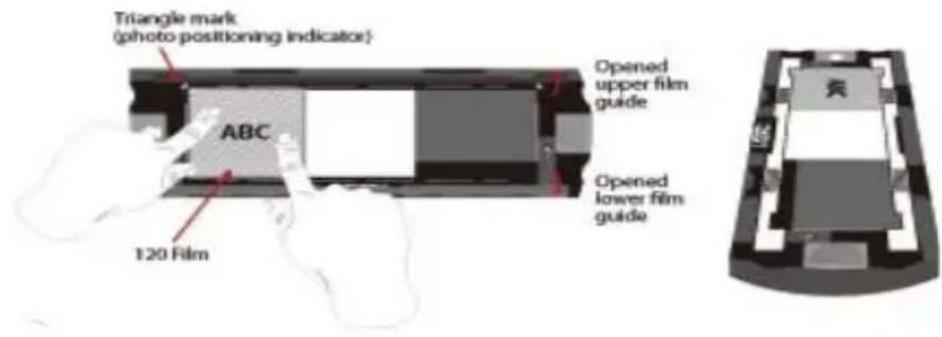
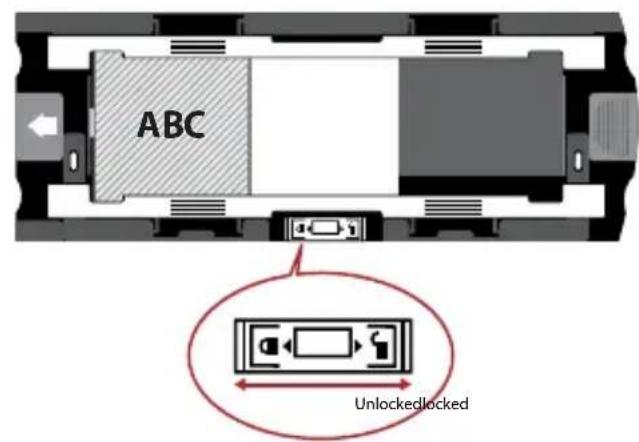

- To scan a 3rd frame in the strip you will need to remove the strip and rotate it 180 degrees so the writing on the edges is now inverted.
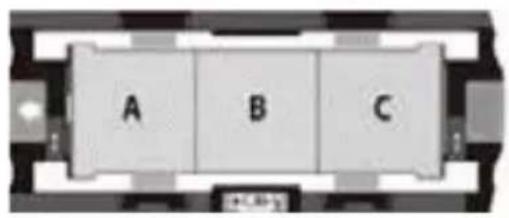
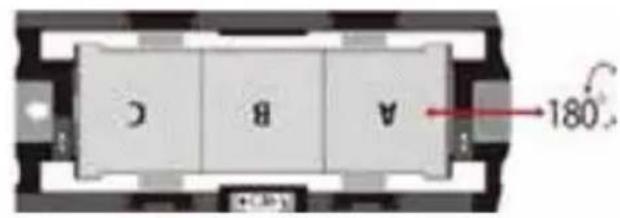
- Orient the film as illustrated the text on the film edges will read ABC. Align the film with the triangle mark in the upper left corner. Close the upper film guide first.
NOTE: Make sure that the film is as flat as possible between the film guide holders (see below).
ex.: flattened film CORRECT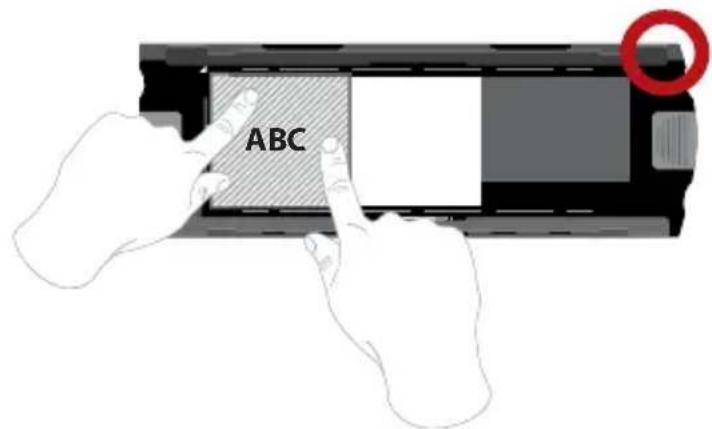
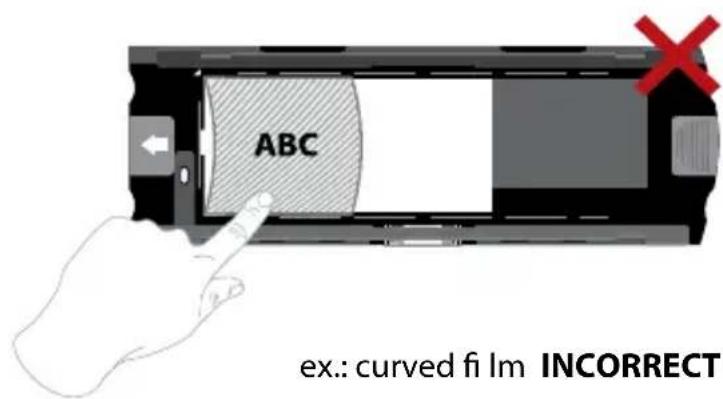
Loading 120 ft lm into the holder (continued)
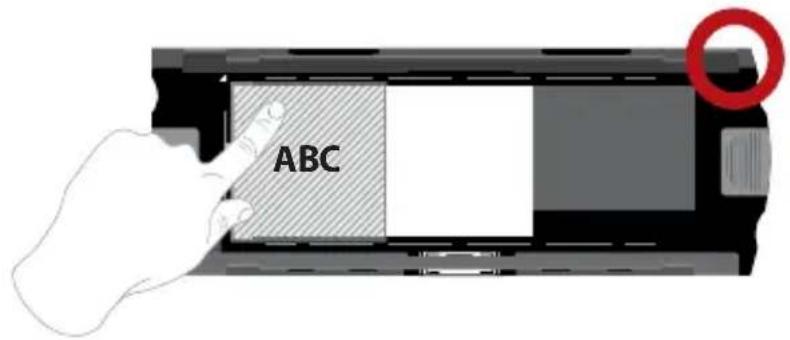
Example: correctly positioned film, lower left corner at the triangle mark
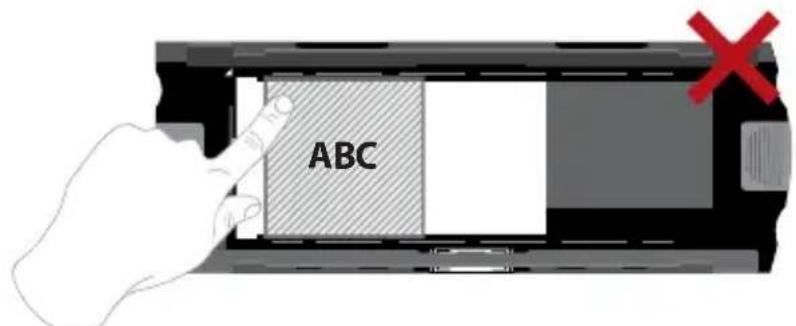
Example: incorrectly positioned film, not aligned with triangle mark
Loading 120 film holder into scanner
Insert the holder into the front of the scanner, pushing it in as far as it will go. To release the holder, gently pull it out.
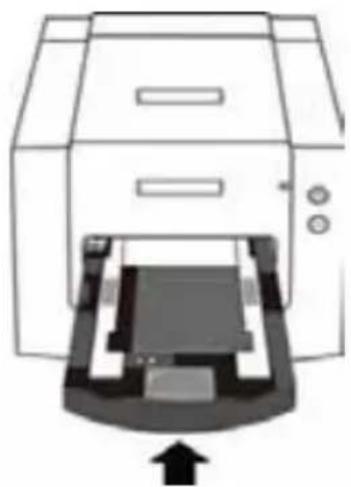
Note: Orientation of scanner in the diagrams is from the front of the unit. Take note of the curved edge of the 120 film holder also facing towards the front of the scanner for correct orientation when loading the scanner.
Loading 135 film into the holder

135 film holder
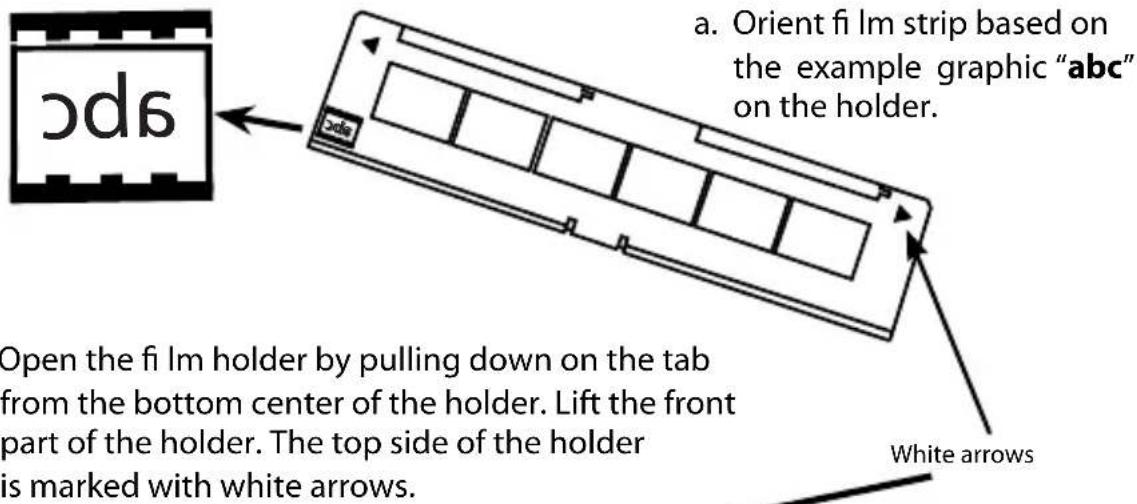
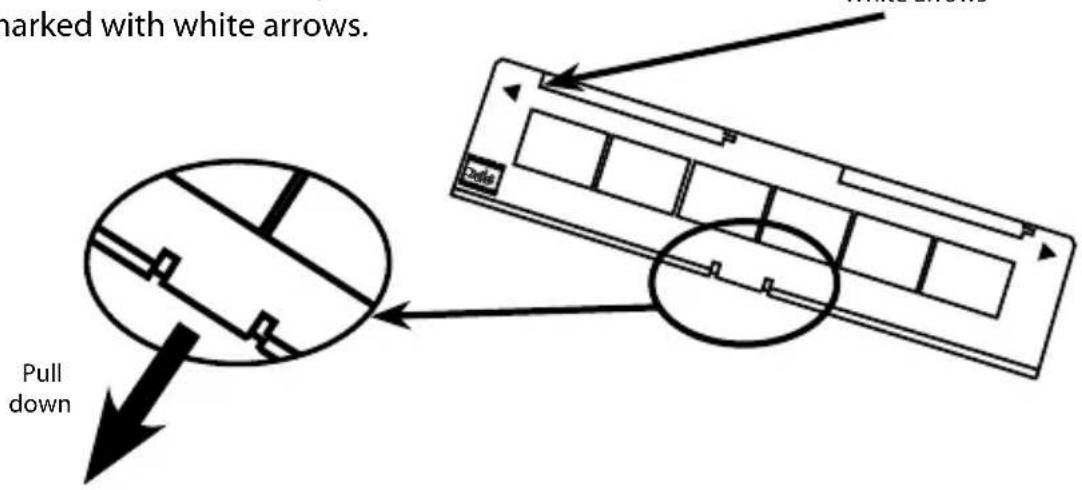
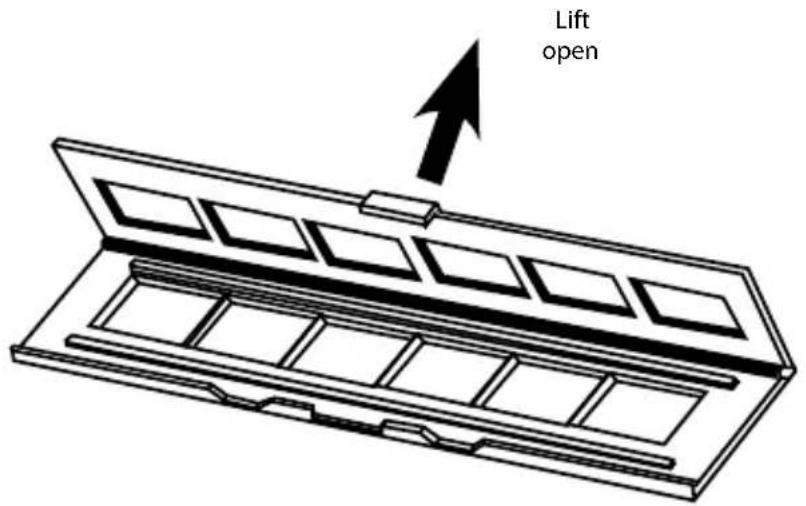
b. Open the film holder by pulling down on the tab from the bottom center of the holder. Lift the front part of the holder. The top side of the holder is marked with white arrows.
Loading 135 film into the holder (continued)
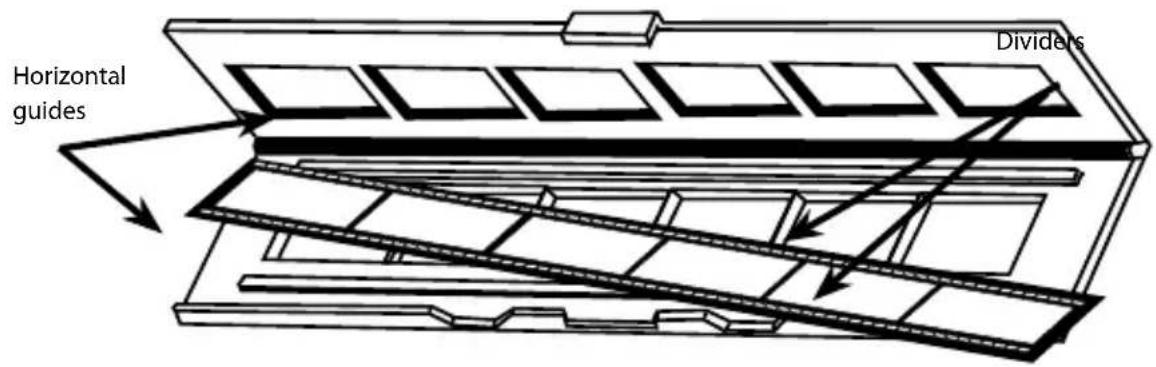
c. Insert the orientated film negative into the holder between the horizontal guides. Carefully line up the dividers on the film negative with the dividers on the holder.
d. Close the holder and push the tab to the closed position.
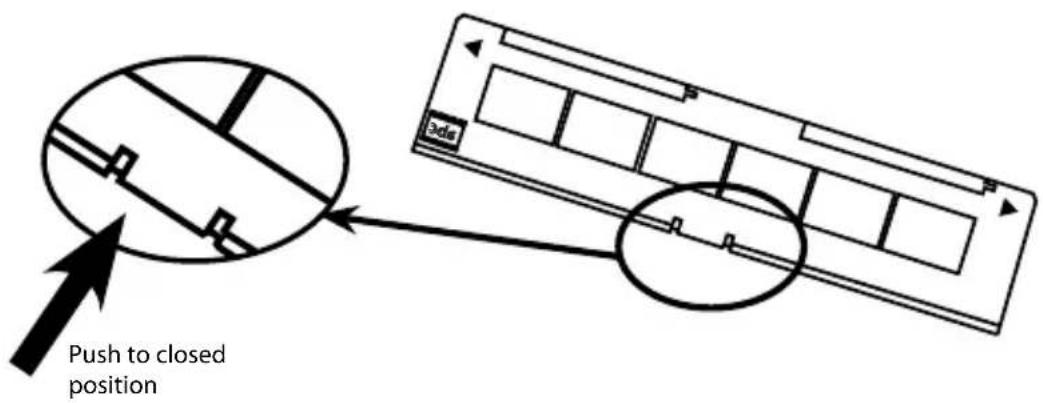
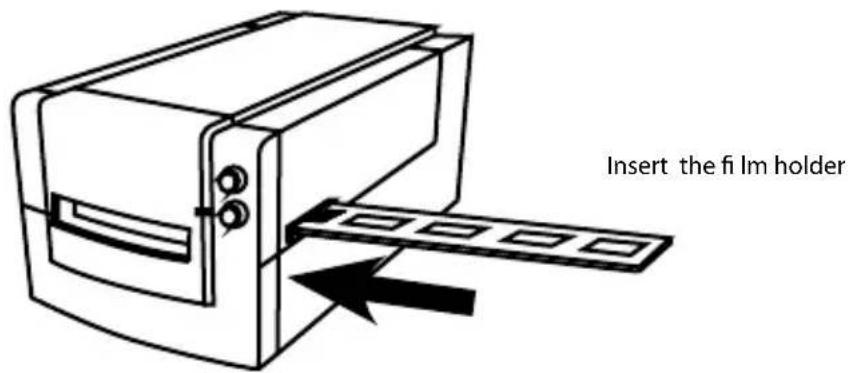
e. Insert the film holder into the scanner from the left or right side into the small opening. Push the holder inside until you feel it hit a stop, then scan. After the scan is done, push the holder farther into the scanner until it hits another stop, and scan again. Repeat until the end of the holder.
Make sure that the orientation of white arrows on the holder correspond with the triangle mark on the scanner.
Loading 135 mounted slides into the holder


a. Orient slides based on the example graphic "abc" on the holder. b. Insert mounted slides into the holder.
INCORRECT CORRECT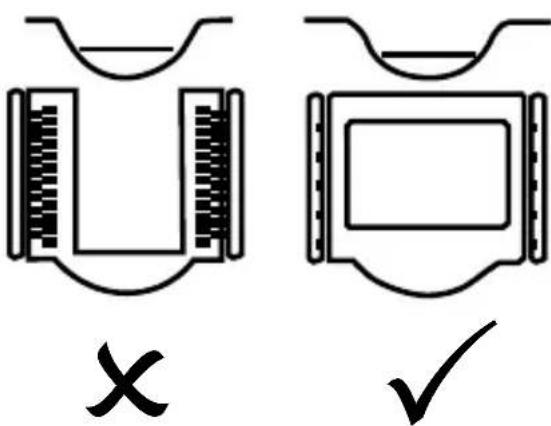
Loading 135 film and slide holder into the scanner
Insert the film holder into the scanner from the left or right side into the small opening. Push the holder inside until you feel it hit a stop, then scan. After the scan is done, push the holder farther into the scanner until it hits another stop, and scan again. Repeat until the end of the holder.
Make sure that the orientation of white arrows on the holder correspond with the triangle mark on the scanner. (see previous page for illustration).
HOW TO SCAN
Scanning process step-by-step:
Powering on the scanner > Select film type > Optional Prescan >
Set scan settings > Scan
STEP 1 - Powering on the scanner
| Status LED Scanner Status | |
| Power on Cycle Unit will take approx. 40-50 sec. to calibrate. The power LED will be solid blue (not blinking) to indicate that the scanner is ready to use. | |
| LED Status Flashing indicates the scanner is busy, do not insert/remove fi lm holders | |
| Flashes several times, then a pause, then flashes again | Scanner is malfunctioning. Turn the unit off, close the software, power on the scanner, wait for calibration, then re-open CyberView. |
STEP 2 - Select film type
a. Open the CyberView scanning interface. b. Select the film type to be scanned - Positive, Negative or B&W (Black and
White).

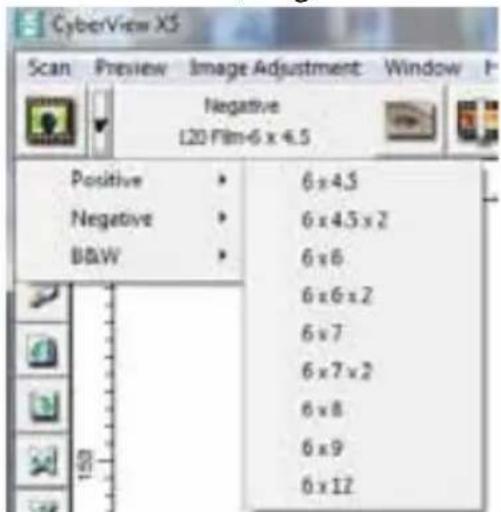
c. Once you have selected a film type you will have the option to select the frame sizes for the various 120 format films, after you have inserted the film holder into the unit.
NOTE: The 135 film will be auto-detected, a frame selection is not necessary.
STEP 3 – Optional Prescan
Pre-Scanning should be used to manually adjust color/edit settings before doing a final scan.
- In the CyberView interface, click on the "Prescan" menu bar icon. The scanner will initialize the prescanning process.

- Once the prescan is complete, the image will appear in the CyberView interface:
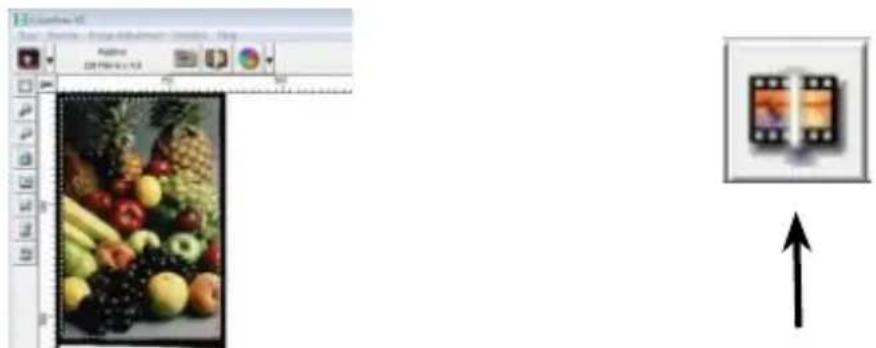
- When the image appears on the screen, select the "Final scan icon" to scan the file into a folder on the hard drive.
3a. Editing of the prescanned image before saving can also be done by clicking on the "Image Adjustment" icon (for more, see "Advanced scanning options" Page 23).
STEP 4 - Set Scan Settings
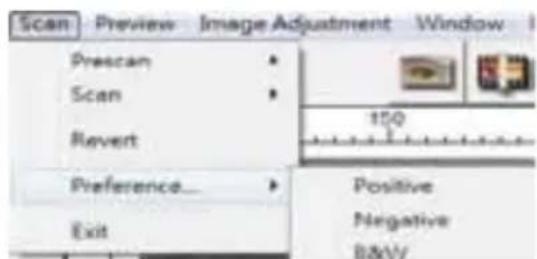
- After clicking on "Scan" from the menu, then click on Preference, select the film type. The "Scan setting" setup dialog box will appear:
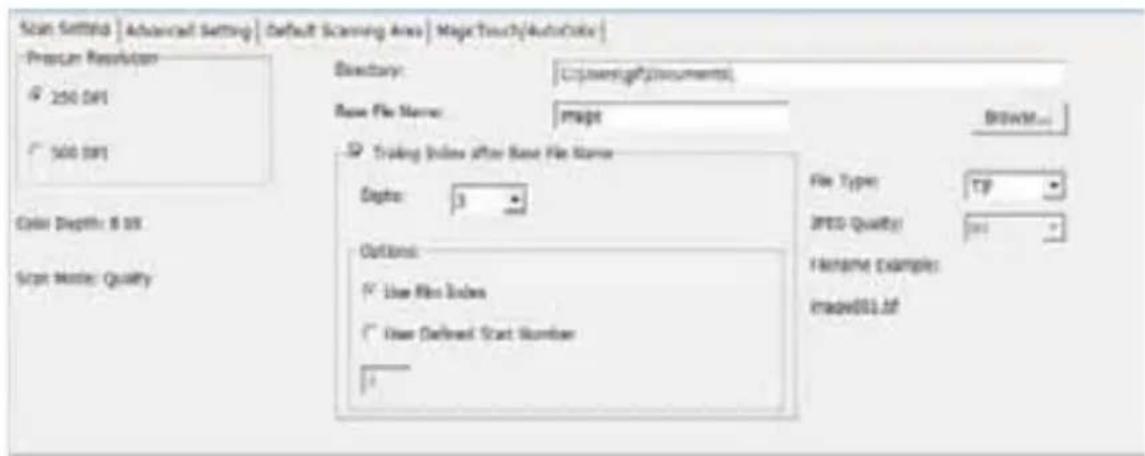
Set Scan Settings (Continued)
a. Resolution
The default scanning resolution is 1000dpi. Additional resolution options are listed below.
Notice: Higher scanning resolutions result in greater scanning time and hard disk space requirements.
b. Color Depth
Choose between 8 and 16 bit. A higher color depth setting will result in a larger range of colors in the final scanned image.
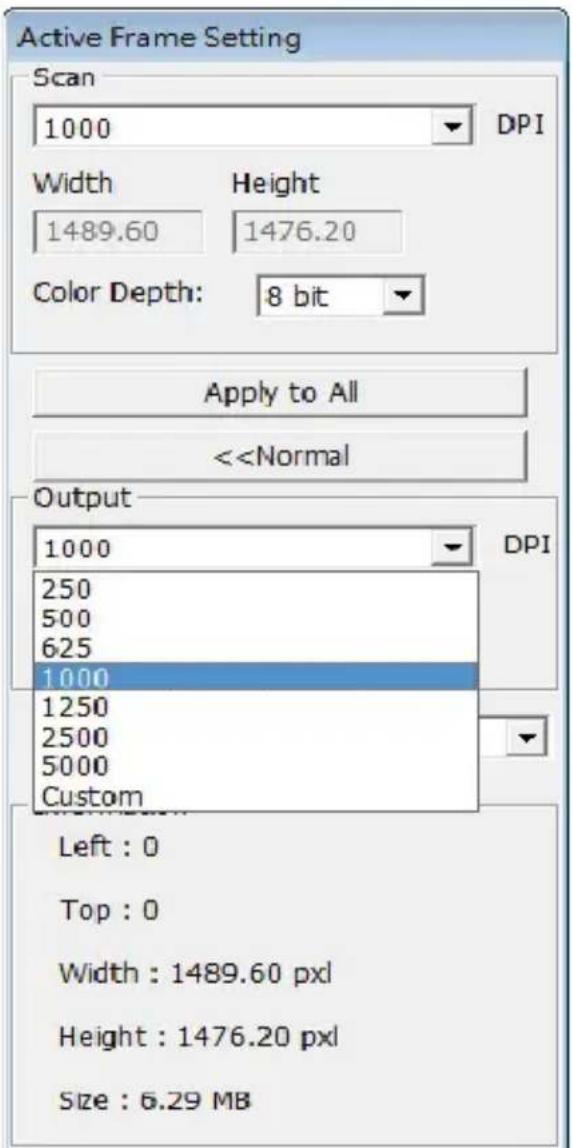
Scan Mode - Normal mode produces a scan in JPEG format, while Quality produces a non-compressed, "loss-less" TIFF image.
Set Scan Settings (continued...)
The Film Scanner color depth is 48 bit true color.
The scanning software has the capability of selecting 8 bit color mode or 16 bit color mode when scanning. This will produce 24 or 48 bit color images, 8 bits or 16 bits per Red, Green and Blue color channels.
Example:
8 bit mode = 8 Red, 8 Green, and 8 Blue for a total of 24 bit color.
16 bit mode = 16 Red, 16 Green, and 16 Blue for a total of 48 bit color.
c. Note: Color image file size of different resolutions and color depths:
| Default Scanning Resolution | Color Depth per RGB channel | Color Mode (24-bit/48-bit) | Film Size (mm) | Approx. File Size* |
| 1000dpi 8 bit | 24-bit 35 3.93 MB | |||
| 1000dpi 8 bit | 24-bit 60 x 45 11.97 MB | |||
| 1000dpi 8 bit | 24-bit 60 x 60 15.96 MB | |||
| 1000dpi 8 bit | 24-bit 60 x 70 18.63 MB | |||
| 1000dpi 8 bit | 24-bit 60 x 90 23.94 MB | |||
| 1000dpi 8 bit | 24-bit 60 x 120 31.92 MB | |||
| 1000dpi | 16 | bit | 48-bit 35 7.8 | 7 MB |
| 1000dpi | 16 bit | 48-bit 60 x 45 23.95 MB | ||
| 1000dpi | 16 bit | 48-bit 60 x 60 31.92 MB | ||
| 1000dpi | 16 bit | 48-bit 60 x 70 37.21 MB | ||
| 1000dpi | 16 bit | 48-bit 60 x 90 47.89 MB | ||
| 1000dpi | 16 bit | 48-bit 60 x 120 63.85 MB |
- For TIFF = uncompressed format, higher resolution will create larger file sizes.
NOTE: Make sure there is enough space available on the computer when changing the Scanning Resolution. A high scanning resolution results in large files that may prove difficult to save.
STEP 5 - Set Scan Preferences
Select Scan - Preference - Film Type - Scan Setting.
Set Scan Preferences (Continued...)
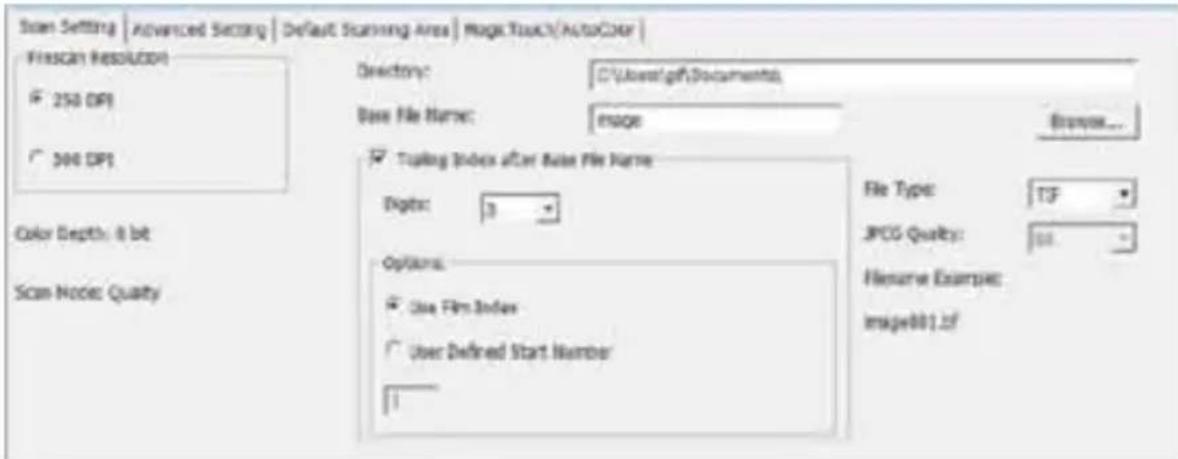
"Prescan Resolution" - Default pre-scan resolution.
"Color Depth" - Default color depth while scanning.
"Scan Mode" - Default scan mode while scanning.
Configuring Scan settings
- Select Browse and choose the designated folder to save the scanned image to.
- Enter the file name.
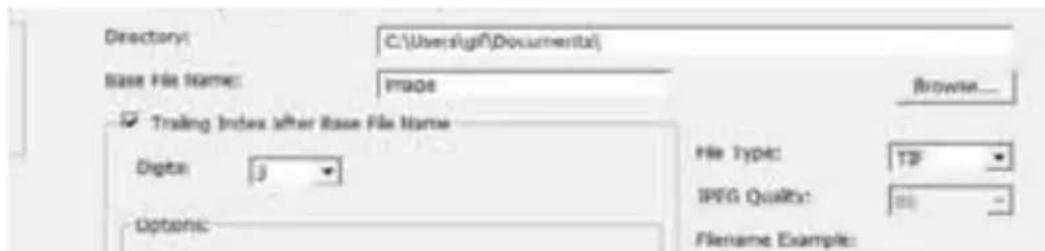
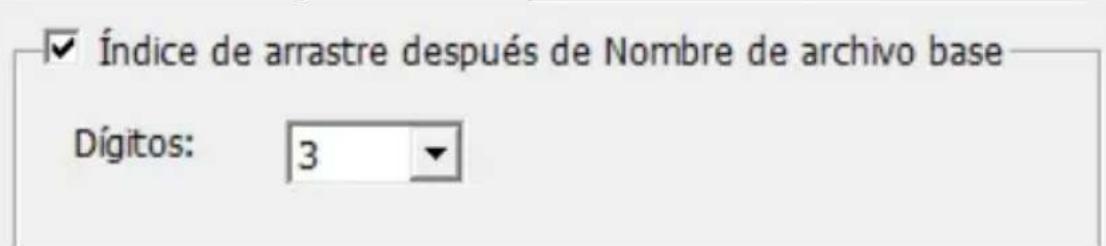
- Trailing Index after Base File Name Digits: Defines the length of the file name and numbering sequence up to 6 digits. Example: image1 or image000001.

- Options - Use Film Index: Use the number assigned to the slide based on its position in the cartridge.
User Defined Start Number: Enter a specific start number.
- Choose the file type, "TIF" or "JPG". (TIF uncompressed or JPG Compressed - Choose image quality for JPEG. (20-100) 100 offers the least amount of compression.)
Advanced Setting
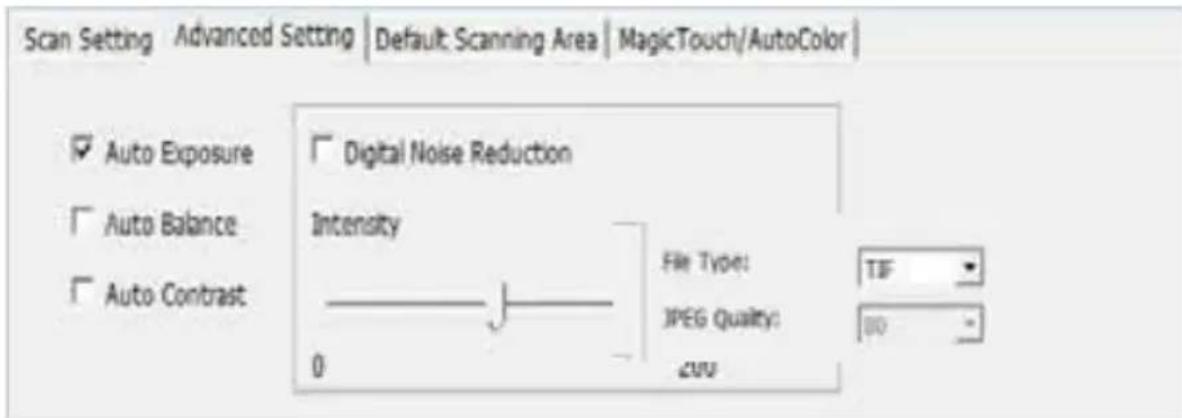
"Auto Exposure" - Attempts to find the correct exposure to get the widest range of whites and blacks while putting the middle grays at around the middle of the data range.
"Auto Balance" - Using the image histogram to balance RGB channels. It estimates the image's color cast and adjusts the images accordingly.
"Auto Contrast" - The scanner software analyzes the data and automatically adjusts the settings for the White and Black Points.
"Digital Noise Reduction" - Applies a filter, reducing the film grain.
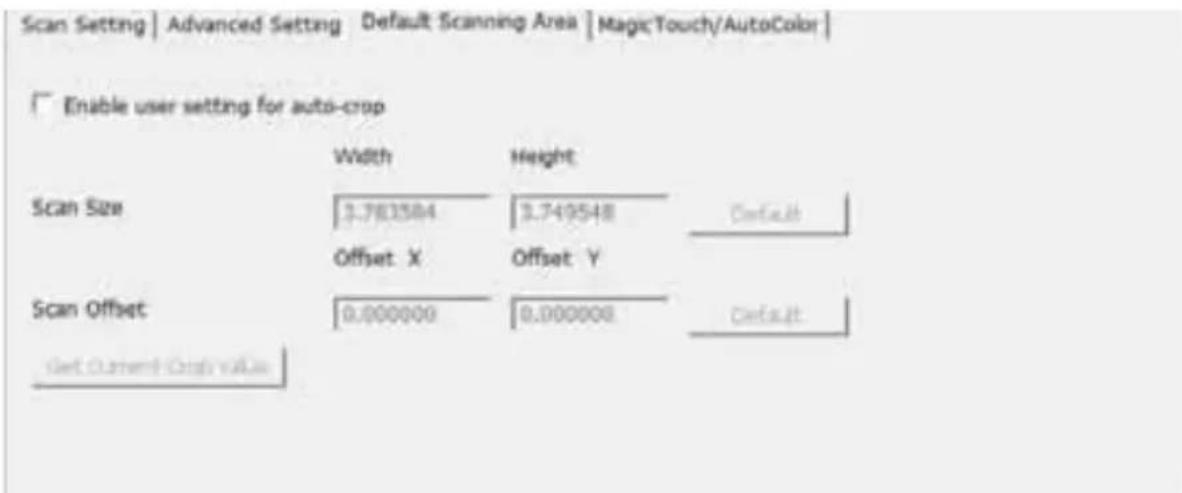
Default Scanning Area
Adjust the scanning size as well as adjust the "Scan Offset" setting to move the image position of the slide.
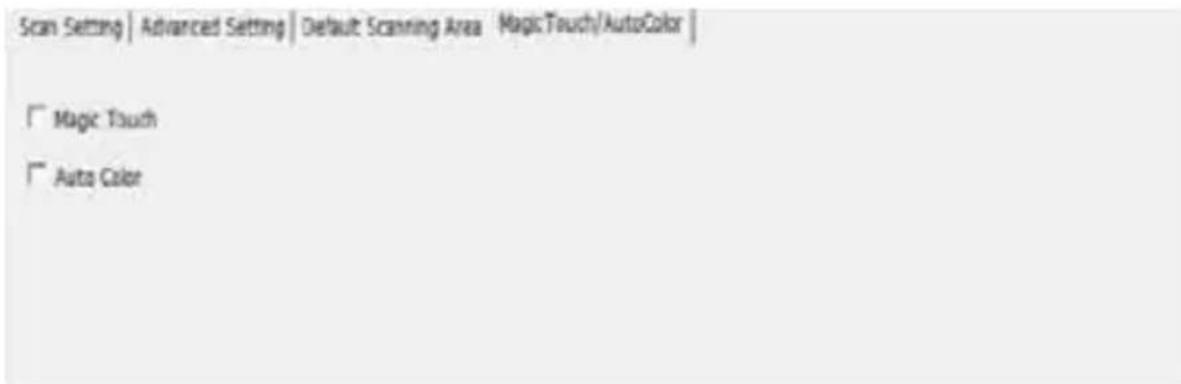
Magic Touch / Auto Color
Enable or disable Magic Touch and Auto Color adjustment for scans.
Magic Touch is a powerful dust and scratch removal technology that eliminates the need to learn complex and tedious software techniques. Being hardware-based, it works seamlessly with the scanning process to ensure the best possible results when bringing images into the computer. Dust, scratches, and other flaws are intelligently detected and eliminated, restoring the image to its original beauty.
Scanning with Magic Touch requires longer scanning times; the feature is turned off by default.
Auto Color takes the guesswork out of the scanning process to streamline the workflow and achieve the best results. Proprietary color enhancement technology is applied to scanned images to provide the most accurate color adjustment, resulting in vibrant images with optimal brightness, contrast, and saturation.
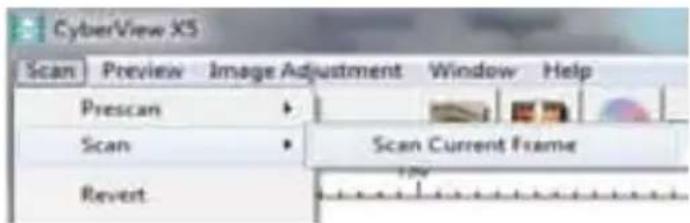
STEP 6 - Scan
Scan - Scan - Scan Current Frame
Scan (Continued...)
This begins the scan-to-file process.
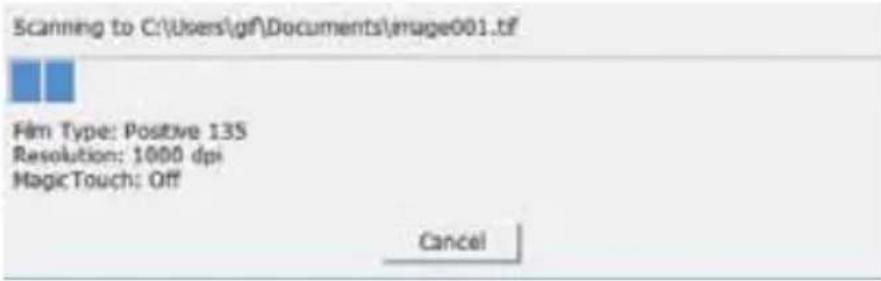
All scanned images will be saved to the directory location set previously. The factory default locations are:
Windows: C:\Users\YOUR NAME\Documents; Mac: Mac HD\Users\YOUR NAME\Pictures\Cyberview Images.
STEP 7 - Exit
Select "Scan > Exit" to close the driver. Scanned image files can be opened/edited with any image editing software.
NOTE: If using the supplied image editor, for help with this application see the user's Help from within the application or browse the supplied DVD for the help documentation.

USER INTERFACE
There are three major parts of the CyberView user interface:
I. Menu Commands [Overview + Full] II. Function Bar Diagram / Toolbar Diagram III. Active Frame Settings Area
I. Menu Commands [Overview]
Zoom, Rotate & Flip features.
Settings for the CyberView window and Exposure adjustment for the scanner.
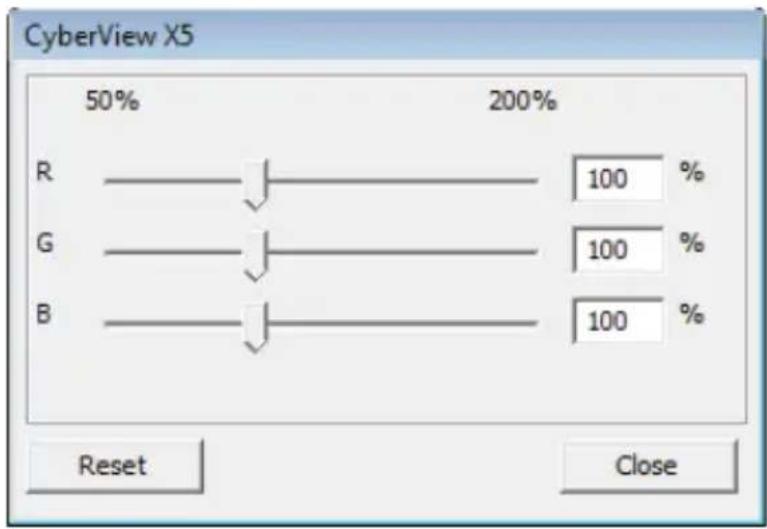
Default "Exposure Setting" is 100% for all 3 color channels. Increase the exposure of the scanning light source if images are too dark. Decrease exposure if images are too bright.
![BRAUN CyberView X5 - Menu Commands [Overview] - 1](/content/2026/03/528065/images/3109c5025a335a10364c3480be00e5ab158849159a58176ad47f09ae66b8b284.jpg)
![BRAUN CyberView X5 - Menu Commands [Overview] - 2](/content/2026/03/528065/images/0c397c29ac3aa430e09b67d3fdc5c237964a0c3f61389e63856195f498eea1df.jpg)
Menu Commands - Scan
a. Prescan
Prescan the existing film.
b. Scan
- Scan Selected to File... > Scan the selected file to a specified path.
Preference - See Scan Setting (See Page 13)
c. Revert
Discards all modifications and restores the image back to the original state.
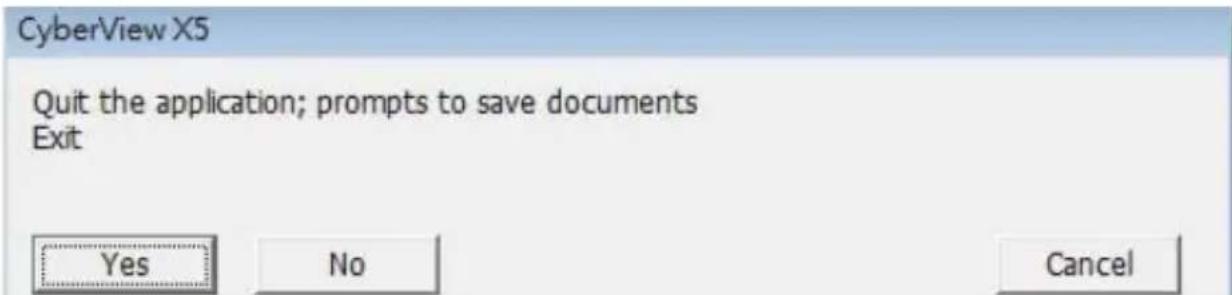
Exit
Closes the CyberView X5 user interface.
There is a message pop-up "Quit the application prompts to save documents?" click "Yes" to save, "No" to discard the current settings or "Cancel" to return to CyberView X.
II. Function Bar Diagram
In order to optimize scanned image quality, please select your film type and brand from the toolbar:

Prescan: Pre-scan the current film.
Scan: Scan film.
Image Adjustment: Press drop down button for more options.

Auto Calibrate: Calibrates the Scanner
Toolbar Diagram

- Un/Lock scanning area.
- Zoom In: Magnify image.
- Zoom Out: Reduce image.
- Rotate 90 Left: Turn the image 90 degrees counter clockwise.
- Rotate 90 Right: Turn the image 90 degrees clockwise.
- Flip Horizontal: Flip the image horizontally.
- Flip Vertical: Flip the image vertically.
- Revert: Discard all modifications and restore the image.
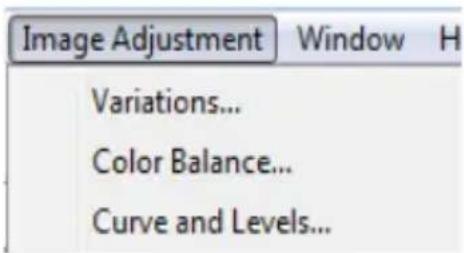
Menu Commands - Image Adjustment
a. Image Adjustment
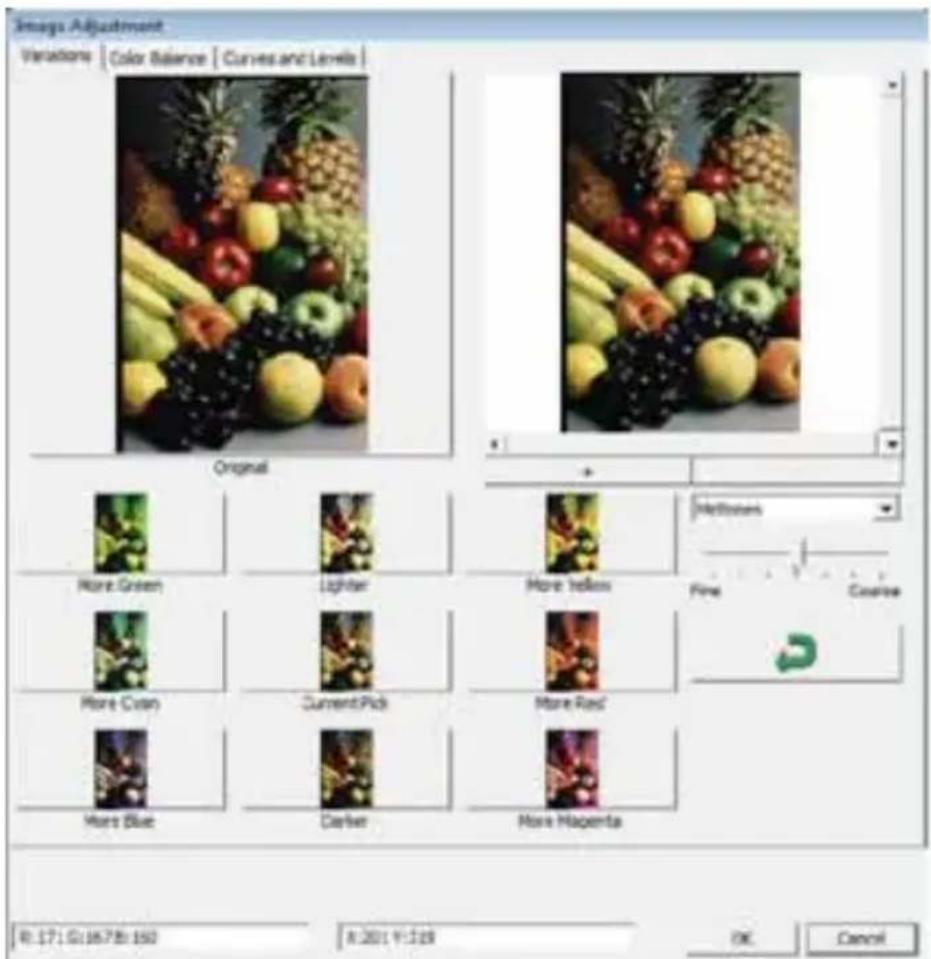
- Variations: Generates different views of image with options to make changes to highlights, midtones, etc.
2. Color Balance
To adjust the brightness, contrast, saturation, and color (CMY or RGB) of the image. Comparisons between before and after adjusted images are shown for reference.
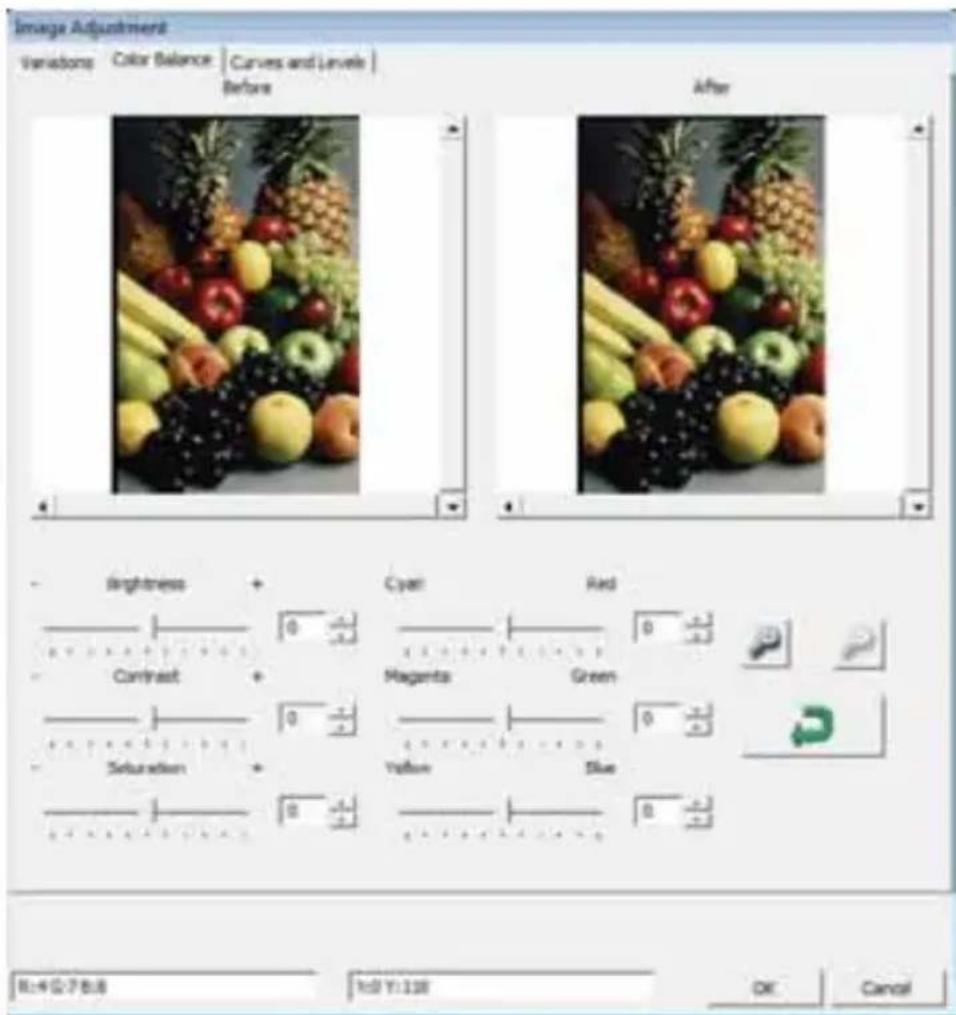
Example: If a previewed image appears too dark, use the "Brightness" slider in the "Color Balance" window to adjust the image by selecting the slider in the center and moving it to the right. The image's "After" view becomes lighter. Select "OK" to accept the changes which will be sent to the scanning hardware. This can also be used to adjust each of the functions in "Color Balance" by contrast, saturation and specific color ranges of cyan, magenta and yellow.
3. Curves and Levels
Adjust image settings by moving Curve and Levels settings.
Comparison between before and after adjustment is displayed for reference.
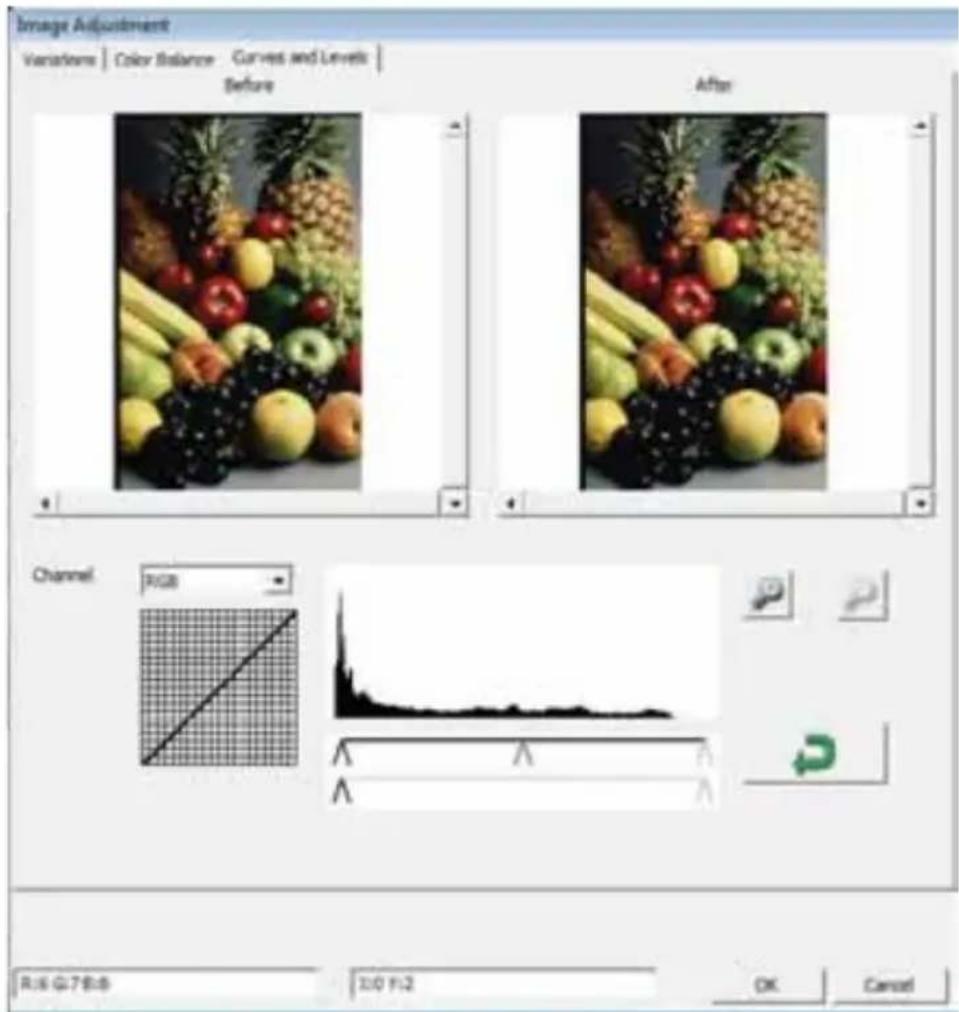
Example: When the previewed image appears to be too dark, adjustments with the Input slider in the Curves and Levels window can be made to correct the image. Selecting the Gray slider in the center and moving it to the left will result in changes in the "After" view resulting in a lighter image. Once the adjusted image is acceptable select "OK" to send changes to the scanning hardware. The same method can also be used to adjust each color channel independently, using the channel drop down menu "RGB = All colors" R = Red, G = Green, and B = Blue.
Menu Commands - Windows
Exposure Setting: To adjust the exposure time (R, G, B) press "Reset" to restore to the default setting.

Menu Commands - Help
Update Firmware: Upgrade the firmware version, select the path where the file of firmware has been saved. (These files may be downloaded from our website) About: Display system information (including operation system, CPU), product information (including product name, model name, hardware version, firmware version, software version, device information including interface and optical resolution). This information is helpful to provide when requesting technical support.
Preview Window
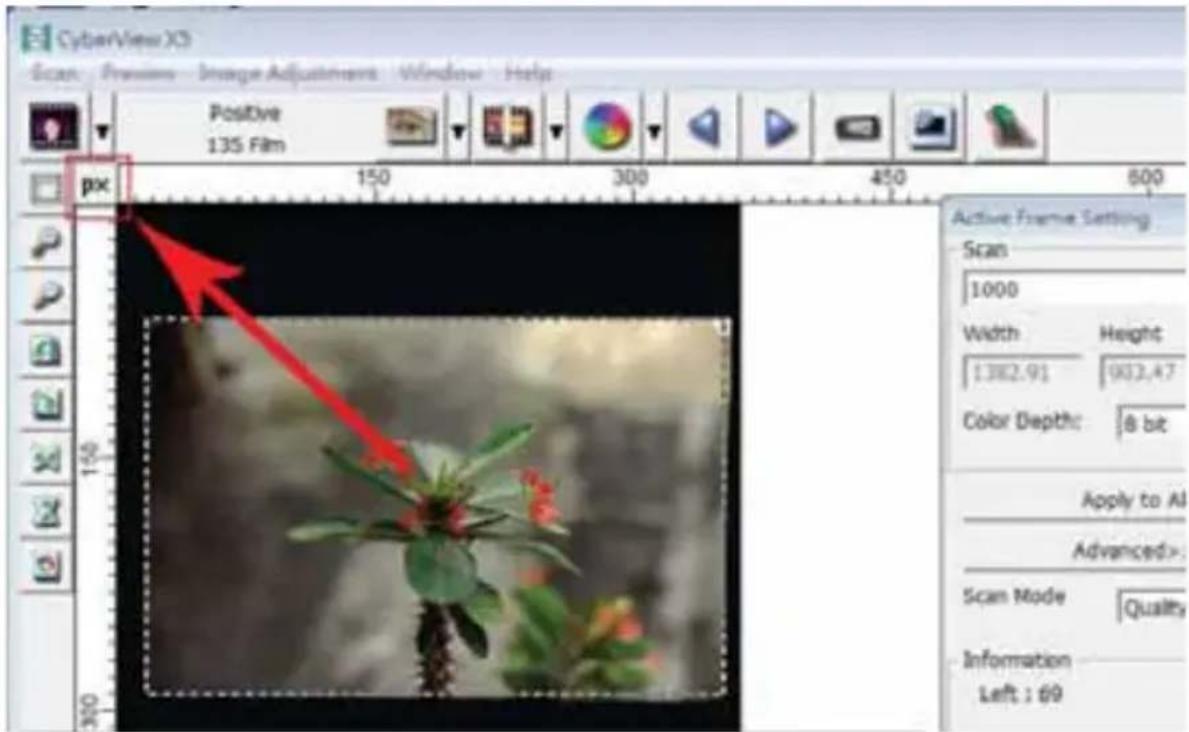
Preview the pre-scan image by selecting the measurement unit "in"-inches, "cm"-centimeters, "px"-pixels by clicking the upper-left corner.
Status Line
In the lower left hand corner, the color level (RGB: red, green, blue) and coordinates of the location [ex: I] are displayed. The zoom scale, the current slide magazine location and how many areas selected to scan (2 or or higher indicates: Multiple scan areas on one slide [ex: II].
1.
R:228 G:197 B:110 X:136 Y:256
II.
Exposure R:100% G:100% B:100%. Zoom Scale:100% Location:1 Selections:1
III. Active Frame Setting Area
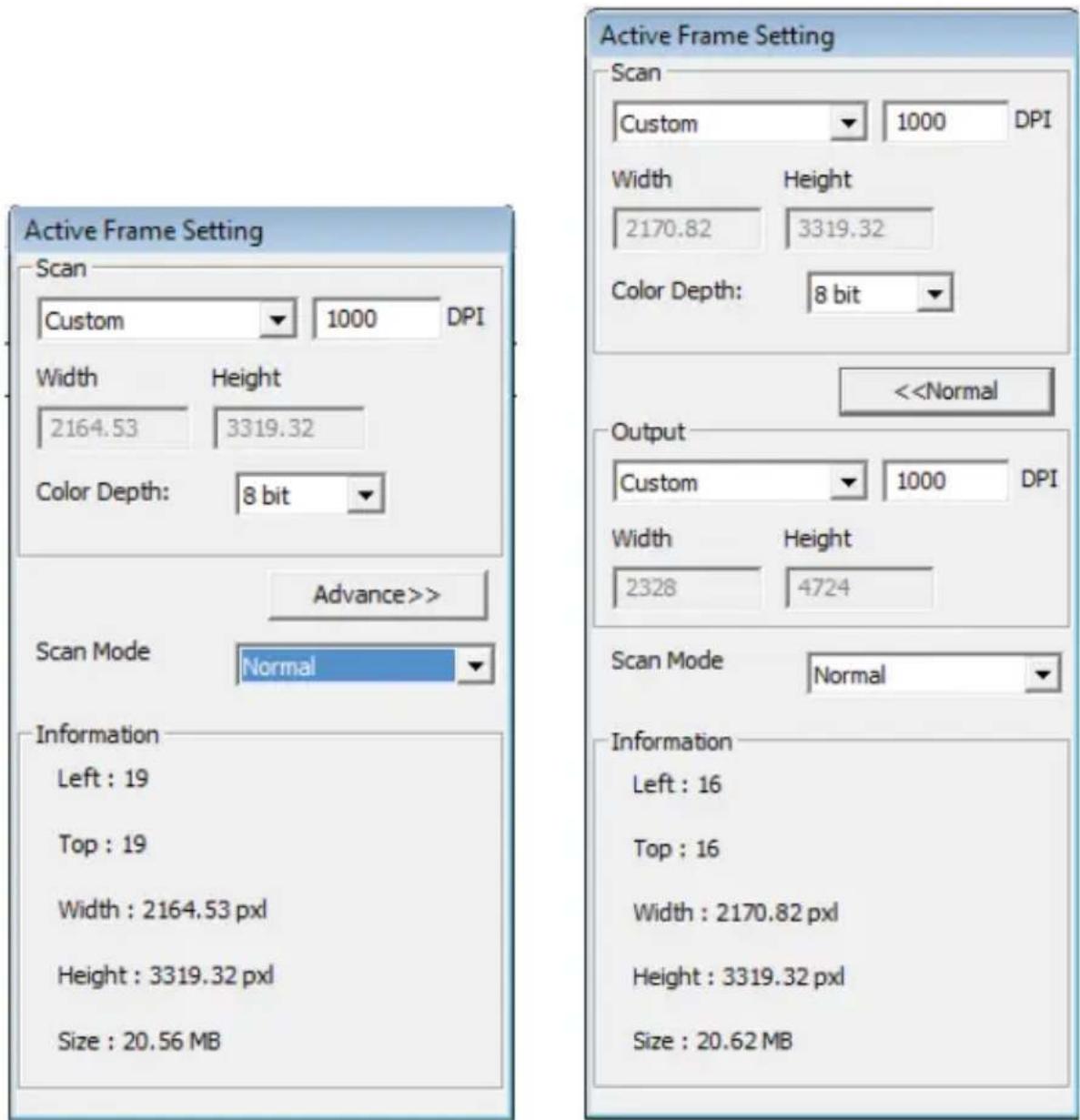
A comprehensive advanced mode is available to allow for more user defined adjustments.
Normal mode [ex: I] to input the basic parameter to scan (including scan resolution, fi lm size, color depth).
Advanced mode [ex: II] to input the parameter of scan and output (including scan resolution, size, color depth and output resolution, size, scan mode).
The "Active Frame Setting" only applies to the current preview image. Click "Apply to All" to set parameters in all previewed images. This will not apply to direct scanning to file.
II. Function Bar Diagram
In order to optimize scanned image quality, please select your film type and brand from the toolbar:


Prescan: Pre-scan the current film.
Scan: Scan film.
Image Adjustment: Press drop down button for more options.
Auto Calibrate: Calibrates the Scanner
Toolbar Diagram

- Un/Lock scanning area.
- Zoom In: Magnify image.
- Zoom Out: Reduce image.
- Rotate 90 Left: Turn the image 90 degrees counter clockwise.
- Rotate 90 Right: Turn the image 90 degrees clockwise.
- Flip Horizontal: Flip the image horizontally.
- Flip Vertical: Flip the image vertically.
- Revert: Discard all modifications and restore the image.
TECHNICAL SUPPORT
CyberView
For information regarding the f1m scanner and CyberView driver, please visit www.braun-phototechnik.de
Bundled application software
For questions regarding bundled application software, you can refer to the HELP function on the application menu bar or visit the software company's website.
**This user manual has also been archived in the packaged CD.
CyberView X5
Bedienungsanleitung
Erklärung der Federal Communications Commission (FCC)
OUTPUT: 12V = 3.0A (36W Max.)
OUTPUT: 12V = 3.0A (36W Max.)
- Trailing Index after Base File Name Digits (Add indices after the digits in the file names): Define the number of digits in the file names.
OUTPUT: 12V = 3.0A (36W Max.)
MAC: Mac HD\Users[YOUR NAME]\Pictures\CyberView Images),
STEP 7 - Exit
a. Prescan
Pre-scan the existing film.
b. Scan
Scan: Scans the film.
OUTPUT: 12V = 3.0A (36W Max.)
3. Curves and Levels
Default Scanning Area
STEP 7 - Exit

- CYBERVIEW 35 USER'S MANUAL
- FEDERAL COMMUNICATIONS COMMISSION
- (FCC) STATEMENT
- WARNING
- TABLE OF CONTENTS
- GETTING STARTED
- PACKAGE CONTENTS
- AC ADAPTER
- WARNING! USING ANY OTHER POWER ADAPTER MAY SEVERELY DAMAGE THE SCANNER AND WILL VOID THE PRODUCT WARRANTY
- NOTE
- GENERAL GUIDANCE
- QUICK INSTALLATION GUIDE (QIG)
- INSTALLING SOFTWARE AND DRIVER
- INSTALLING SCANNER DRIVER
- INSTALLING HARDWARE
- TWAIN SCANNER PLUG-IN INSTALLATION GUIDE FOR ADOBE PHOTOSHOP ELEMENTS 9 AND NEWER VERSIONS
- MACINTOSH
- WINDOWS
- BIT WINDOWS
- LOADING 120 FILM INTO THE HOLDER
- LOADING 120 FILM INTO THE HOLDER (CONTINUED)
- LOADING 120 FT LM INTO THE HOLDER (CONTINUED)
- LOADING 120 FILM HOLDER INTO SCANNER
- LOADING 135 FILM INTO THE HOLDER
- LOADING 135 FILM INTO THE HOLDER (CONTINUED)
- LOADING 135 MOUNTED SLIDES INTO THE HOLDER
- LOADING 135 FILM AND SLIDE HOLDER INTO THE SCANNER
- HOW TO SCAN
- SCANNING PROCESS STEP-BY-STEP
- STEP 1 - POWERING ON THE SCANNER
- STEP 2 - SELECT FILM TYPE
- STEP 3 – OPTIONAL PRESCAN
- STEP 4 - SET SCAN SETTINGS
- SET SCAN SETTINGS (CONTINUED)
- SET SCAN SETTINGS (CONTINUED...)
- EXAMPLE
- STEP 5 - SET SCAN PREFERENCES
- SET SCAN PREFERENCES (CONTINUED...)
- CONFIGURING SCAN SETTINGS
- ADVANCED SETTING
- DEFAULT SCANNING AREA
- STEP 6 - SCAN
- SCAN (CONTINUED...)
- STEP 7 - EXIT
- USER INTERFACE
- MENU COMMANDS [OVERVIEW]
- MENU COMMANDS - SCAN
- PREFERENCE - SEE SCAN SETTING (SEE PAGE 13)
- EXIT
- FUNCTION BAR DIAGRAM
- TOOLBAR DIAGRAM
- MENU COMMANDS - IMAGE ADJUSTMENT
- COLOR BALANCE
- CURVES AND LEVELS
- MENU COMMANDS - WINDOWS
- MENU COMMANDS - HELP
- PREVIEW WINDOW
- STATUS LINE
- ACTIVE FRAME SETTING AREA
- TECHNICAL SUPPORT
- CYBERVIEW
- BUNDLED APPLICATION SOFTWARE
- CYBERVIEW X
- BEDIENUNGSANLEITUNG
- ERKLÄRUNG DER FEDERAL COMMUNICATIONS COMMISSION (FCC)
Brand : BRAUN
Model : CyberView X5
Category : Scanner