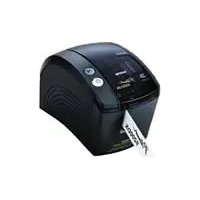
Ptouch PT9200DX - Printer BROTHER - Free user manual and instructions
Find the device manual for free Ptouch PT9200DX BROTHER in PDF.



| Product Type | Professional label printer |
| Brand | Brother |
| Model | Ptouch PT9200DX |
| Dimensions (L × w × H) | 120 × 150 × 250 mm |
| Weight | 1.5 kg |
| Power supply | AC 230 V, 50 Hz |
| Compatible ribbon widths | 6 mm, 9 mm, 12 mm, 18 mm, 24 mm, 36 mm |
| Print head resolution | 384 dots |
| Cutting type | Fully automatic cutter and pre-cutter |
| Interface ports | Serial (RS-232C), USB |
| Included software | P-touch Editor Version 3.1 (Windows and Mac) |
| Main functions | Custom label printing, barcode creation, image import, pre-formatted templates, database management |
| Maintenance | Cleaning the print head and platen with a dry cotton swab; use of TZ-CL6 cleaning cassette (optional) |
| Safety instructions | Use only Brother TZ tapes; do not touch hot print head; unplug if not used for extended periods |
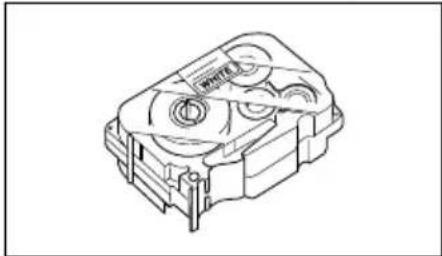
| Included accessories | Power cord, serial and USB cables, CD-ROM, 24 mm TZ cassette (black on white) |
| Available consumables | Laminated and non-laminated TZ cassettes in multiple colors and widths; TZ-CL6 cleaning cassette |
Frequently Asked Questions - Ptouch PT9200DX BROTHER
User questions about Ptouch PT9200DX BROTHER
0 question about this device. Answer the ones you know or ask your own.
Ask a new question about this device
Download the instructions for your Printer in PDF format for free! Find your manual Ptouch PT9200DX - BROTHER and take your electronic device back in hand. On this page are published all the documents necessary for the use of your device. Ptouch PT9200DX by BROTHER.
USER MANUAL Ptouch PT9200DX BROTHER
natural_image
Line drawing of a stylized airship inside a circular frame with pink geometric borders (no text or symbols)Quick Reference
Thank you for purchasing the PT-9200DX!
With your new Brother label printer, you can print personalised labels for any purpose. Simply insert a label cassette into the PT-9200DX, design your label with the enclosed P-touch Editor software, and then print it out. Your customised label prints out in seconds. Labels are available in various sizes and colours—ideal for colour-coding and your own special labelling needs.
The many features of the P-touch Editor software make creating great labels quick and easy. Not only does the software automate the more complicated layout functions, but it also includes a variety of pre-formatted templates for immediate use.
Declaration of Conformity
We, Brother Industries Ltd.
15-1, Naeshiro-cho, Mizuho-ku,
Nagoya 467-8561, Japan
declare that this product conforms with the following normative documents:
Safety: EN 60950
EMC: EN 55022 1998 Class B
EN 55024 1998
EN 61000-3-2 1995
EN 61000-3-3 1995
and follow the provisions of the Low Voltage Directive 73/23/EEC and Electromagnetic Compatibility Directive 89/336/EEC (as amended by 91/263/EEC and 92/31/EEC).
Issued by: Brother Industries Ltd.
The enclosed interface cables should be used in order to ensure compliance with the limits for EMC.
GENERAL PRECAUTIONS
- Use only Brother TZ tapes with machine. Do not use tapes that do not have the TZark.
- Do not pull on the tape being fed from the P-touch. Doing so may damage the tape cassette.
- Avoid using the machine in extremely dusty places. Keep it out of both direct sunlight and rain.
- Do not expose the machine to extremely high temperature or humidity.
- Do not leave any rubber or vinyl on the machine for an extended period of time. Doing so may cause staining.
- Do not clean the machine with alcohol or other organic solvents. Only use a soft, dry cloth.
- Do not put any foreign objects into or heavy objects on the machine.
- To avoid injuries, do not touch the cutter's edge.
- Do not touch the print head, which becomes very hot when P-touch is used. Even after the machine is turned off, the print head remains hot for some time.
- Use only the power supply cord designed exclusively for this machine. Use of any other cord will void the warranty.
- Use only the attached interface cables for this machine. Use of any other cable will void the warranty.
- When the machine is not being used for a long period of time, disconnect the power supply cord.
- Do not try to disassemble the P-touch.
- IBM ^ is trademark of International Business Machines, Inc.
- Microsoft ^® and Windows ^® are registered trademarks of Microsoft Corp. in the US and other countries.
• Macintosh and Power Macintosh are registered trademarks of Apple Computer, Inc. - All other software and product names mentioned are trademarks or registered trademarks of their respective companies.
Table of contents
General Precautions
Unpacking 2
Connecting the interface and power supply cables 4
Installing P-touch Editor 6
P-touch Editor & Printer Driver Installation (for Windows® 95/98/Me/NT 4.0/2000 Professional/XP) ..... 6
Installing P-touch Editor Version 3.1....6
Installing the printer driver 8
For a serial connection.... 8
Using the Change Baud Rate Wizard 9
For a USB connection (Windows® 98/Me/2000 Professional/XP only) 10
P-touch Editor Version 3.1 Installation (for Macintosh) 12
Installing P-touch Editor Version 3.1 12
Installing the PT-9200DX printer driver 13
Selecting the printer 14
Uninstalling P-touch Software and Printer Driver 14
Uninstalling P-touch Editor Version 3.1 (for Windows® 95/98/Me/NT 4.0/2000 Professional/XP) ...... 14
Replacing, installing or deleting the printer driver (for Windows® 95/98/Me/NT 4.0/2000 Professional/XP) ..... 15
For a serial connection.... 15
For a USB connection (Windows® 98/Me/2000 Professional/XP only) 16
Deleting P-touch Editor Version 3.1 and the printer driver (for Macintosh) 18
Using P-touch Editor.... 19
Starting up P-touch Editor....19
Displaying the Properties 20
Creating a new layout 20
Designing a layout from an Auto Format template 21
Importing a graphics file.... 22
Barcode 23
Databases 23
Reading the User's Guide 24
Reading the P-touch Editor User's Guide 24
Using the PT-9200DX 25
Installing the tape cassette 25
Printing a label 26
Maintenance 27
Cleaning the print head and rollers 27
Monitoring the P-touch Status 28
Troubleshooting 29
Changing the P-touch's Baud Rate 31
Machine Specification 32
Accessories 33
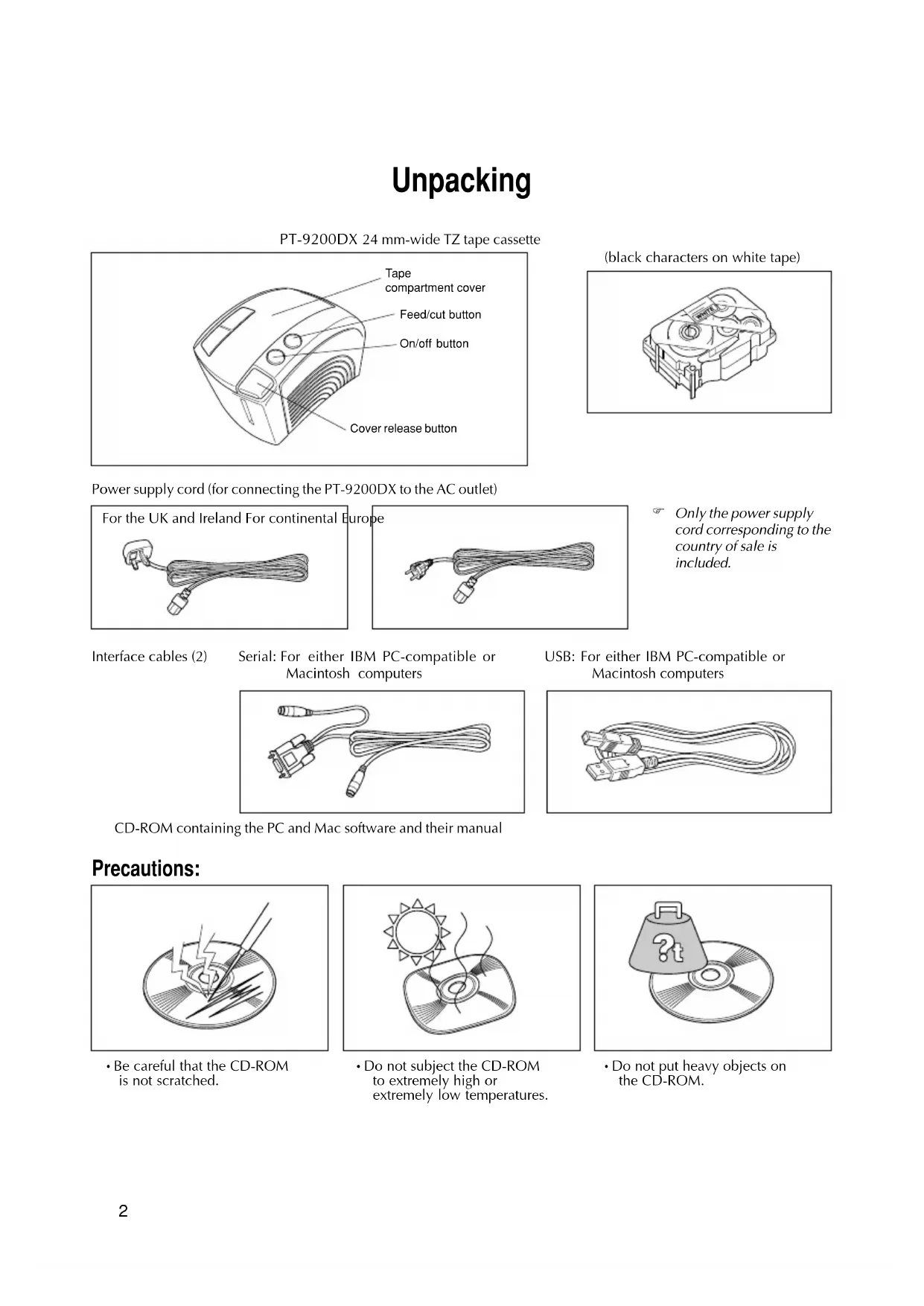
Unpacking
PT-9200DX 24 mm-wide TZ tape cassette
(black characters on white tape)
natural_image
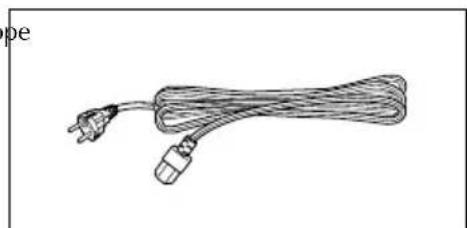
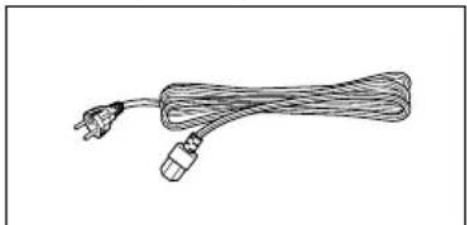
Technical line drawing of a mechanical component with no visible text or symbolsPower supply cord (for connecting the PT-9200DX to the AC outlet)

natural_image
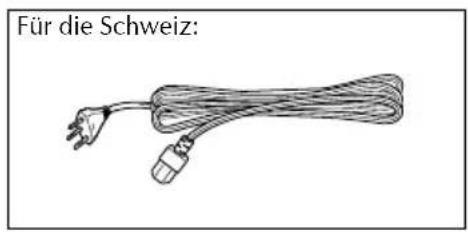
Line drawing of a coiled cable with two connectors (no text or symbols)Only the power supply cord corresponding to the country of sale is included.
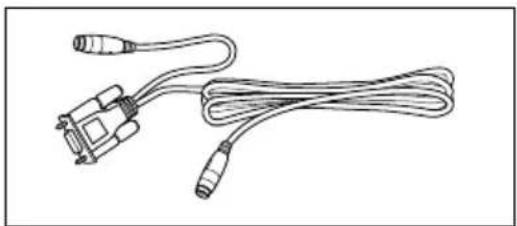
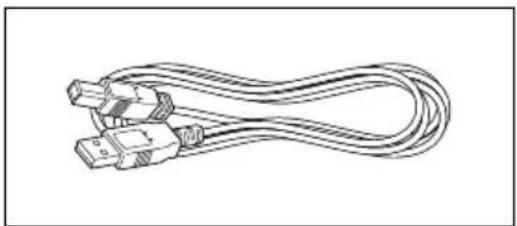
Interface cables (2)
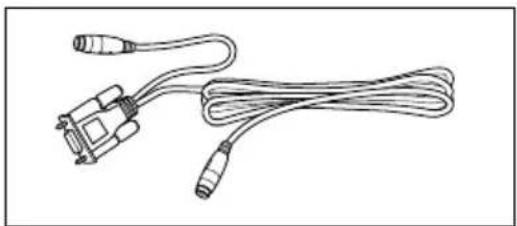
Serial: For either IBM PC-compatible or Macintosh computers
natural_image
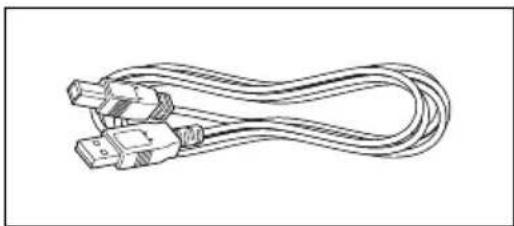
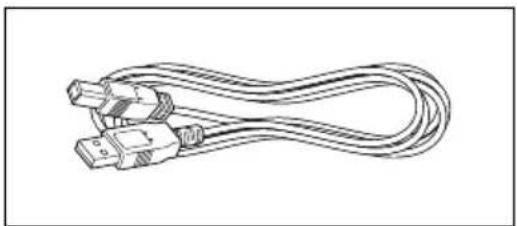
Line drawing of a broadband cable with two connectors and two leads (no text or symbols)USB: For either IBM PC-compatible or Macintosh computers
natural_image
Line drawing of a U-shaped cable with two connectors (no text or symbols)CD-ROM containing the PC and Mac software and their manual
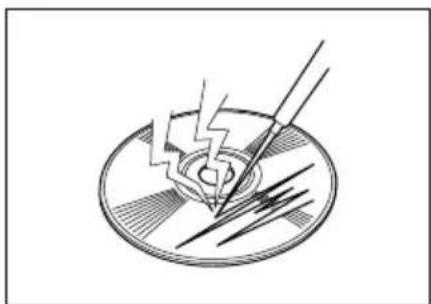
Precautions:
natural_image
Diagram of a CD or DVD disc with a pointed tip and diagonal lines, no text or symbols present- Be careful that the CD-ROM is not scratched.
natural_image
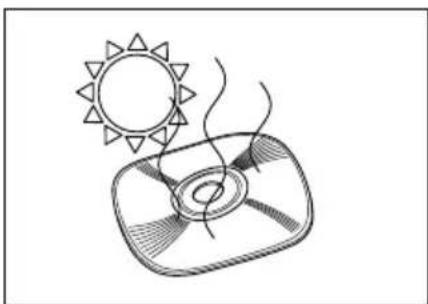
Simple line drawing of a sun heating a lamp with steam rising (no text or symbols)- Do not subject the CD-ROM to extremely high or extremely low temperatures.
natural_image
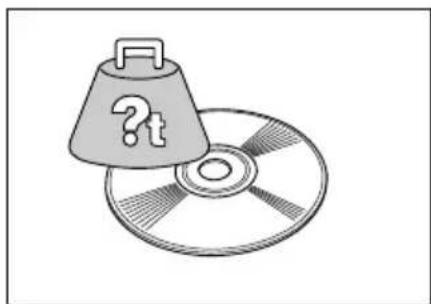
Illustration of a CD or DVD disc with a conical load and a question mark symbol on top (no text or labels)- Do not put heavy objects on the CD-ROM.
Tape Cassettes
- Do not pull on the tape, otherwise the tape cassette may be damaged.
- If the label is attached to a wet or dirty surface, it may easily peel off. Before affixing the label, clean the surface where it will be attached.
- Depending on the environmental conditions and the material, condition, roughness, and shape of the affixing surface, the label may move out of place or peel off.
- In order to test the label's adhesive strength or before using this label where safety is a particular concern, test the label by affixing a small piece of it to a hidden area of the intended surface.
- Sunlight, wind and rain may cause the color of the label to fade or the label to peel off.
- Markings made with oil-based or water-based ink may be visible through a label affixed over them. To hide the markings, use two labels layered on top of each other, or use tape with a dark background.
- This tape may not be adequate in cases where liabilities may result due to damage or injuries.
Brother Co., Ltd. and its suppliers possess all rights and copyrights to this software (including, but not limited to, the programming, images, clip art, templates, and text incorporated into the software), the text in the enclosed manuals, and duplicates of the software. This software, either in part or in whole, may not be duplicated, modified, reverse-engineered, disassembled or decompiled without permission.
Connecting the interface and power supply cables
Connect the PT-9200DX to the computer according to the instructions below.
When connecting to the serial port:
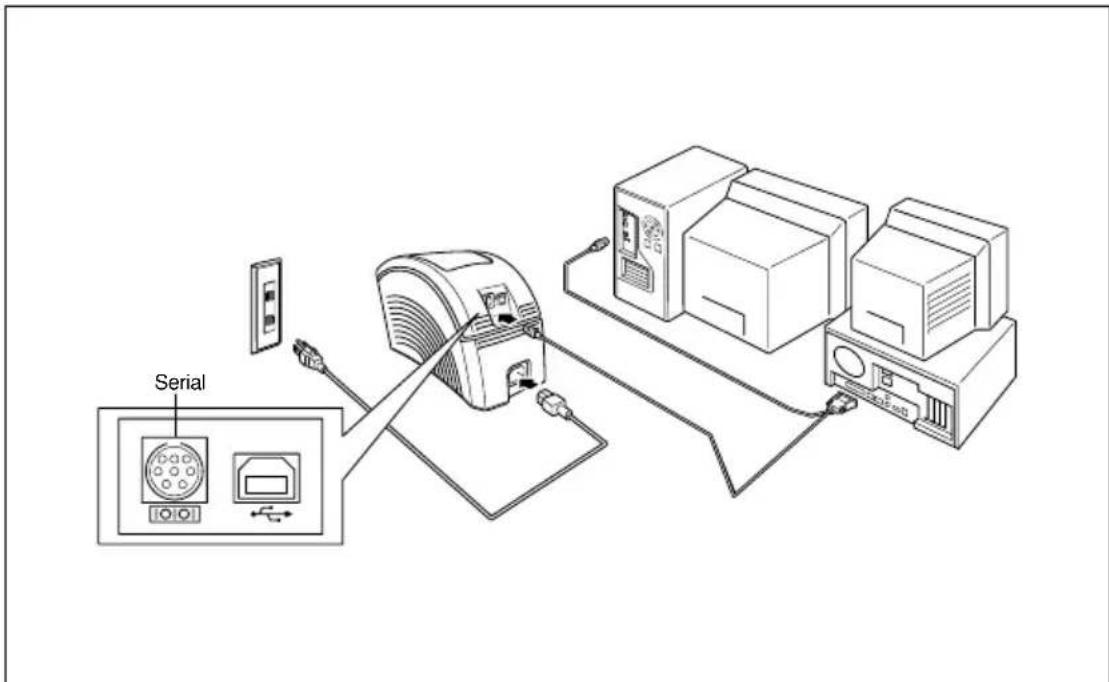
①Make sure that both the PT-9200DX and the computer are turned off.
② Connect one end of the enclosed serial interface cable to the serial connector (IOIOI) of the PT-9200DX and the other end of the cable to the serial port of the computer. For a Macintosh connection, connect the PT-9200DX to either the modem or the printer port (preferably the modem port).
The serial (RS-232C) ports of some computers are shaped so that the serial interface cable cannot be connected. If this is the case, use a commercially available adapter.
3 Insert the plug on one end of the power supply cord into the power supply jack on the PT-9200DX.
4 Insert the plug on the other end of the power supply cord into an AC outlet equipped with a grounding terminal. Some locations may require the use of an adapter provided with a grounding wire. Connect this wire to the ground terminal.
⑤Turn on the PT-9200DX, and then turn on the computer.
When connecting to the USB port:
You must install the software first before connecting to the USB interface or turning on the power. Please follow the installation procedures on pages 6 through 12 before connecting up or turning the power on. The Brother P-touch installation software will instruct you when to do this.
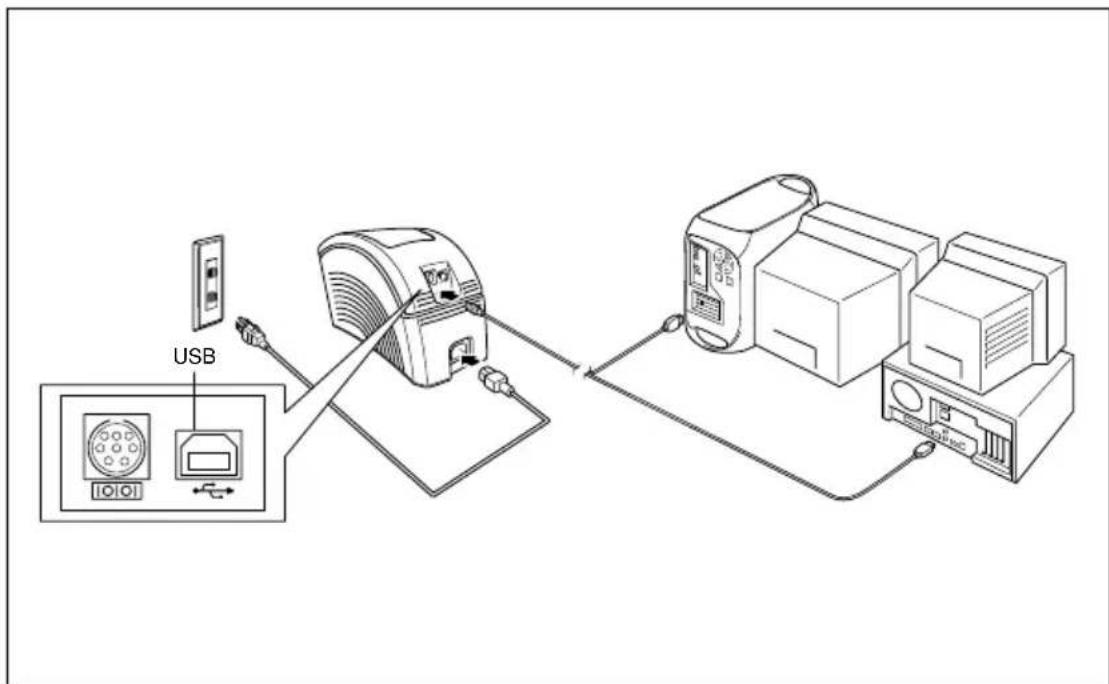
① Connect one end of the enclosed USB interface cable to the USB connector ( ) of the PT-9200DX and the other end of the cable to the USB port of the computer.
Do not connect the PT-9200DX to the computer using both the serial and the USB interface cables, otherwise the PT-9200DX may be damaged.
When making a USB connection through a hub, a proper connection may not be possible due to the type of hub used. If printing is not possible with a hub connection, try connecting the PT-9200DX directly to the computer using the USB interface cable.
② Insert the plug on one end of the power supply cord into the power supply jack on the PT-9200DX.
3 Insert the plug on the other end of the power supply cord into an AC outlet equipped with a grounding terminal. Some locations may require the use of an adapter provided with a grounding wire. Connect this wire to the ground terminal.
Installing P-touch Editor
Before labels can be printed on the PT-9200DX, the P-touch Editor software and the PT-9200DX printer driver must be installed.
P-touch Editor & Printer Driver Installation (for Windows® 95/98/Me/NT 4.0/2000 Professional/XP)
Install P-touch Editor Version 3.1 and the printer driver on a PC as described below.
Check that your system configuration meets the following requirements.
Computer: IBM PC or compatible
Operating system:
Serial interface: PC equipped with an x86 processor and a serial (RS-232C) port, and running Microsoft Windows® 95/98/Me/2000 Professional/XP or Windows® NT 4.0
USB interface: PC equipped with a USB port, and pre-installed with Microsoft ^ Windows ^ 98/Me/2000 Professional/XP
Some PCs pre-installed with Microsoft® Windows® 95/NT 4.0 do not support all USB hardware features.
Hard disk free space: At least 20 MB
A few hundred megabytes of additional free space may be needed when printing long labels or large amounts of data.
Monitor: VGA or higher graphics card
Port: Serial or USB
Available memory: Minimum 32 MB
CD-ROM drive
Installing P-touch Editor Version 3.1
For a serial connection: Before installing the P-touch Editor software and the printer driver, connect the PT-9200DX to the computer as described on page 4, and then turn them on.
For a USB connection: Do not connect the PT-9200DX to the computer before installing the P-touch Editor software, otherwise it may not be installed correctly. Be sure not to connect the PT-9200DX until you are instructed to do so.
①Insert the P-touch Editor Version 3.1 CD-ROM into the computer's CD-ROM drive. A dialogue box automatically appears, allowing you to select the language.
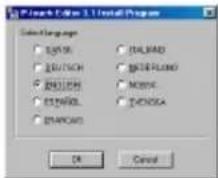
If the dialog box does not automatically appear, click "My Computer" on the desktop, and then double-click the CD-ROM drive containing the CD-ROM. (For Windows® XP, click "My Computer" in the Start menu, and then double-click the CD-ROM drive containing the CD-ROM.) Next, double-click "Setup.exe" to display the dialog box.
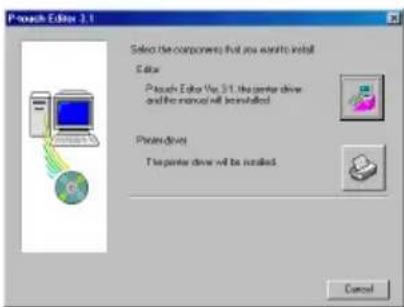
②Select the language for the Windows ^® operating system that you are using, and then click the OK button. A dialogue box appears, allowing you to select what to install.
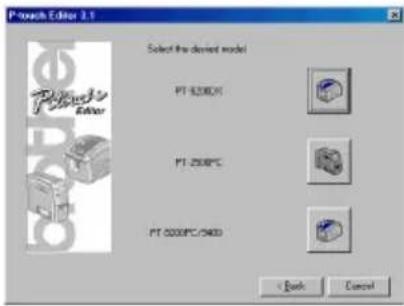
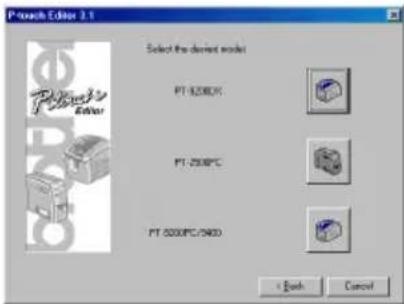
③ Click the top button (Editor). A dialogue box appears, allowing you to select the model.
To install just the printer driver, click the lower button (Printer driver).
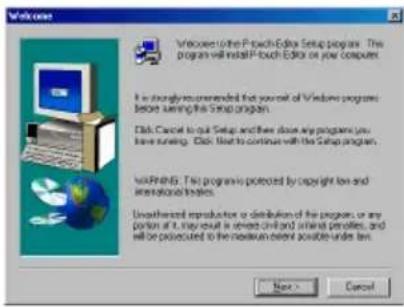
④Click the icon for the PT-9200DX. The InstallShield ^® Wizard for installing the P-touch Editor software starts up, and then the Welcome dialogue box appears.
⑤ Carefully read the contents of the dialogue box, and then click the Next button to continue. The User Information dialogue box appears.
⑥Type the necessary information into the appropriate boxes (If the information has already been registered in Windows®, it will automatically appear.), and then click the Next button. A dialogue box appears, asking for confirmation of the entered information.
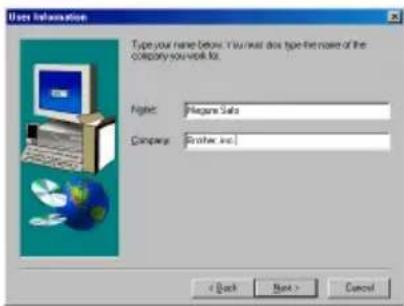
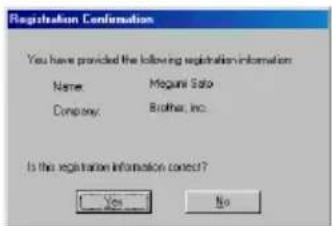
⑦ Click the Yes button to register the entered information. The Setup Type dialogue box appears.
To change the information, click the No button, and then return to step 6.
⑧Select the installation method, and then click the Next button.
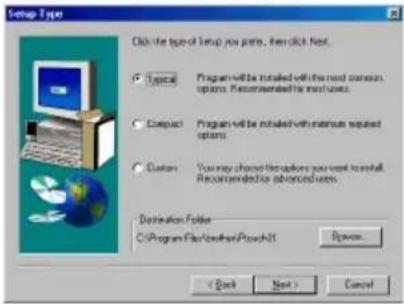
- For a Typical or Compact installation
Selecting "Typical" or "Compact", then clicking the Next button immediately starts installation.
Typical: All of the basic options (P-touch Editor Version 3.1, Clip Art, Auto Format templates, Help, and 13 fonts) are installed.
Compact: Only P-touch Editor Version 3.1 is installed.
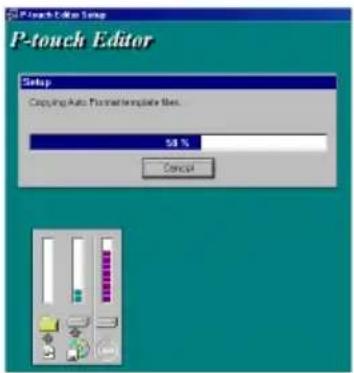
- For a Custom installation
Selecting "Custom", then clicking the Next button displays a dialogue box that allows you to select which options to install. Only the options with a check mark beside them will be installed. In addition to the basic options listed for a Typical installation, the User's Guide can also be installed.
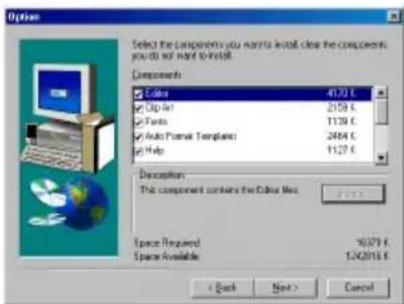
1) Select which options to install.
Editor: The P-touch Editor Version 3.1 software
Clip Art: The illustrations for the P-touch Editor Version 3.1 Clip Art function
Fonts: The 13 fonts
Auto Format
Templates: The templates for the Auto Format function
User's Guide: The User's Guide (HTML) for the P-touch Editor Version 3.1 (The User's Guide can also be viewed from the CD-ROM.)
Help: The help files for P-touch Editor Version 3.1
If the Change button can be clicked while an option is selected, sub-components can be selected. Click the Change button to display the Select Sub-components dialogue box, and then select the sub-components that you wish to install by putting a check mark beside them. If certain options or sub-components are not installed, some P-touch Editor functions may not be available. After selecting the desired sub-components, click the Continue button.
2) Click the Next button to begin installation.
⑨ After P-touch Editor is installed, a dialogue box appears, allowing you to select whether or not to install the printer driver.
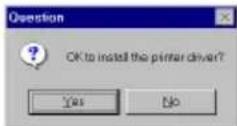
To install the printer driver, click the Yes button. The first Driver Setup dialogue box appears. Continue with the section Installing the printer driver.
If the printer driver is already installed, click the No button, restart the computer, and then remove the CD-ROM from the CD-ROM drive.
Installing the printer driver For a serial connection
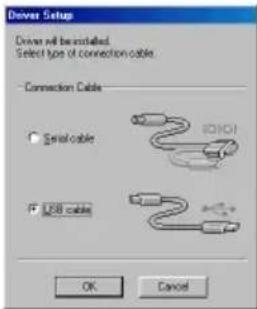
① Select "Serial cable", and then click the OK button. A dialogue box appears, allowing you to select whether to install or uninstall the printer driver.
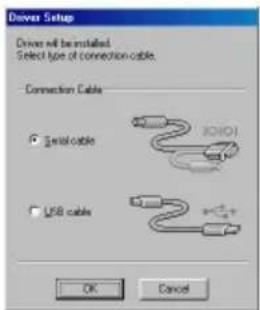
② Select "Install", and then click the Next button.
![Driver Setup - [ Brother PT-92080X ] Driver setup will begin. Driver to be set up: Brother PT-92080X Select whether to install or uninstall the application. ✓ install ✓ install OK Next > Cancel](/content/2026/03/527981/images/c633eafdcd8d1e71bf1036d03c0c3c1d408ca5d7af19838335dcc257b724a7f5.jpg)
③ For Windows® 95/98/Me users: Skip to step 4. For Windows® NT 4.0/2000 Professional/XP users: A dialogue box appears, allowing you to add a P-touch (PTCOM) port.
If a P-touch (PTCOM) port is already installed, click the Next button and continue with step 4 below. If a P-touch (PTCOM) port is not already installed, click the Add button. The Port Name dialogue box appears.
![Driver Setup - ( Brother PT-92080X ) If the partner is connected to a serial port, a dedicated port monitor is needed. A dedicated PTCOM port is not installed. Click [ADD], and then add the port. Add... < Back Next Cancel](/content/2026/03/527981/images/5930812950b79b1e11fca178299de501e4cc0c2a3cd6d79227dca32ec3f65d60.jpg)
From the list of PTCOM ports, select the port where the PT-9200DX is connected ("PTCOM1:" if the PT-9200DX is connected to the COM1 port, or "PTCOM2:" if the PT-9200DX is connected to the COM2 port), and then click the OK button. In the Driver Setup dialogue box, click the Next button.
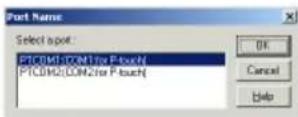
4 A dialogue box appears, allowing you to select the PTCOM port where the PT-9200DX is connected. Select "PTCOM1:" if the PT-9200DX is connected to the COM1 port, or "PTCOM2:" if the PT-9200DX is connected to the COM2 port, and then click the Next button. (On Windows® NT 4.0/2000 Professional/XP, select the port added in step 3.) A dialogue box appears, asking for confirmation on how the installation will be carried out.
![Driver Setup - [ Brother PT-92080X ] Select the port that the printer is connected to. Port PTCON:](/content/2026/03/527981/images/456c3ce934f050ed975851b2a0da7d8dbc123b497571841a1d801f50a7a3aea3.jpg)
⑤Check that the installation will be carried out as desired, and then click the Next button. A dialogue box appears, showing that the printer driver has been installed.
![Driver Setup - [ Brother PT-92080X ] Installation will be carried out as indicated below. Driver Brother PT-92080X Port PTCDM1 IFCK, click (Next) Installation will begin < Back Next > Cancel](/content/2026/03/527981/images/212dd8aa4ae6548d4405ada535226990d60ca4529097e0d7918e98c05803c1a7.jpg)
⑥ If the port where the PT-9200DX is connected supports a baud rate of 115,200 bps, click the Next button.
If the port where the PT-9200DX is connected does not support a baud rate of 115,200 bps, or if you wish to check the connection between the PT-9200DX and the computer, select "Start up the Change Baud Rate Wizard", and then click the Next button to start up the Change Baud Rate Wizard. After changing the baud rate as described by steps 3 through 6 in the section Using the Change Baud Rate Wizard on page 9, continue with step 7 below.
![Driver Setup - [ Brother PT 9208DX ] Installation progress ✓ Check file ✓ Copy file ✓ Add pages ✓ Save directory Installation is completed In order to change the communication speed [baud vird] between the PC and the main unit check the options below. Click (Next) ✓ Start up the Change [baud Rate Wizard] OK Next > Cancel](/content/2026/03/527981/images/998f08e90e950371a0640901313445497b9c5563da8b039bbb88655baa017cfc.jpg)
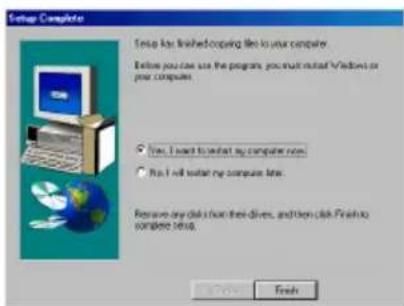
⑦A dialogue box appears, showing that installation is finished.
Select "Yes, I want to restart my computer now.", click the Finish button to restart the computer, and then remove the CD-ROM from the computer.
Using the Change Baud Rate Wizard
If the PT-9200DX is connected to a port that does not support a baud rate of 115,200 bps, or if you wish to check the connection between the PT-9200DX and the computer, start up the Change Baud Rate Wizard and select the desired settings as described below.
From the Start menu, point to "Settings", and then click "Printers" to open the Printers folder. (For Windows® XP, click "Printers and Faxes" in the Start menu to open the Printers and Faxes folder.)
② With Windows® 95, 98, 98SE and Me: Right-click the Brother PT-9200DX icon, and then click "Properties" in the pop-up menu that appears. On the Advanced tab of the dialog box that appears, click the Baudrate button to start up the Change Baud Rate Wizard.
With Windows ^® NT 4.0:
Right-click the Brother PT-9200DX icon, and then click "Properties" in the pop-up menu that appears. On the Device Settings tab of the dialog box that appears, click "Baud Rate..." in the tree view to display the Change 'Baud Rate' Setting section at the bottom of the dialog box. Click the Baud Rate... button to start up the Change Baud Rate Wizard.
With Windows ^® 2000 and XP:
Right-click the Brother PT-9200DX icon, and then click "Properties" in the pop-up menu that appears. On the Device Settings tab of the dialog box that appears, click "Baud Rate..." in the tree view, and then click the Properties... button that appears on the right side to start up the Change Baud Rate Wizard.
③A dialogue box appears, allowing you to select the serial port where the PT-9200DX is connected.
Select the appropriate serial port, and then click the Next button. A dialogue box appears, allowing you to select the desired baud rate.
![Change Batch Rate Wizard [ Brother PT-82000X ] Change the batch rate Select the post that the Pt-touch is connected to Send Port: PTCOM1 [COM1 for Pt-touch ]](/content/2026/03/527981/images/63aeb82000610958c11349c7e56b2ee19384093c1de285adf4d0131d540dfdc4.jpg)
④Select the desired baud rate, and then click the Next button.
Normally "115,200 bps" is selected; however, your computer may not be able to support a baud rate of 115,200 bps. If this is the case, refer to the your computer's instruction manual and select the maximum possible baud rate.
A dialogue box appears, asking for confirmation of the selected baud rate settings.
![Change Base Rate Wizard [ Brother PT-92600X ] Select the desired base rate New Base Rate: 115.000 bps 9600 bps 97600 bps 115600 bps < Back Next > Cancel](/content/2026/03/527981/images/e6117848267831c11d4b4b3bf0c069b01951fa4e15f7b71dd995f6e888ff63cc.jpg)
⑤Check that the baud rate will be changed as desired, and then click the Next button.
To change the settings, click the Back button, and return to step 4.
A dialogue box appears, showing that the baud rate has been set as specified.
![Change Baud Rate Wizard [ Brother PT-92000X ] Are the following settings OK? Port: PTCOM1. (COM1 for P-touch ) New Baud Rate: 115200bps If OK, click Next: Begin setting the new baud rate. < Back User > Cancel](/content/2026/03/527981/images/76d8b694dcb59ce098b548fc3ef101ca6ae049a8e782c38b828bddb60d6847b2.jpg)
⑥ Click the Finish button.
![Change Sound Rate Words [ Brother PT-9200DX ] The settings are changed Set Sound Rate 115200 bps Click Fresh to close the Wixed and end all operations. Finish](/content/2026/03/527981/images/d71af64603c0f6e570a9d700fed1c081f550b0b3e46ac883bf0e7493f1ce458f.jpg)
For a USB connection (Windows® 98/Me/2000 Professional/XP only)
With Plug-and-Play, new devices connected to the system are detected, and their drivers are automatically installed. If the PT-9200DX is to be connected through the USB port, its driver will be installed with Plug-and-Play. Be sure to read the installation instructions described below before installing the file supplied on the CD-ROM.
Do not connect the P-touch 9200DX to the computer until you are instructed to do so, otherwise the PT-9200DX printer driver may not be installed correctly.
With Windows® 98/98SE/Me/2000 Professional:
① Select "USB cable", and then click the OK button. The USB message dialogue box appears.
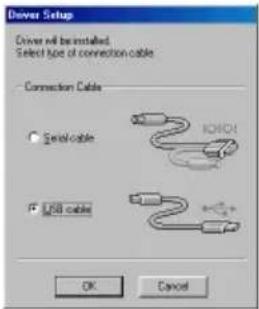
② Click the Next button. A dialogue box appears, instructing you to connect the PT-9200DX to the computer.
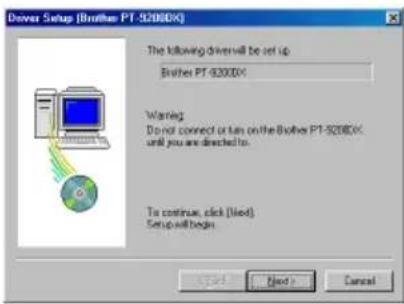
③Connect the PT-9200DX to the computer using the enclosed USB interface cable as described on page 5, and then turn on the PT-9200DX. A dialogue box appears, showing that the printer driver has been installed.
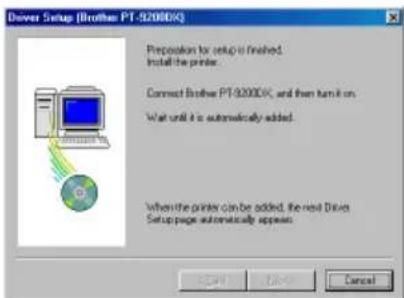
④Click the Finish button. A dialogue box appears, showing that installation is finished.
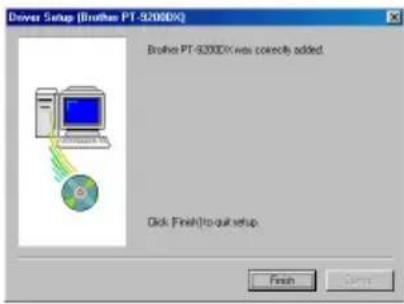
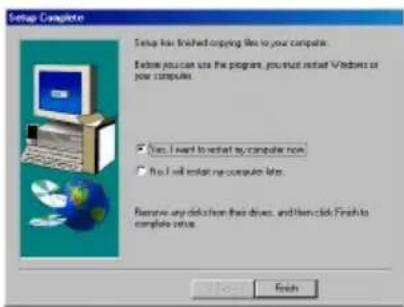
⑤ Select "Yes, I want to restart my computer now.", click the Finish button to restart the computer, and then remove the CD-ROM from the computer.
With Windows® XP:
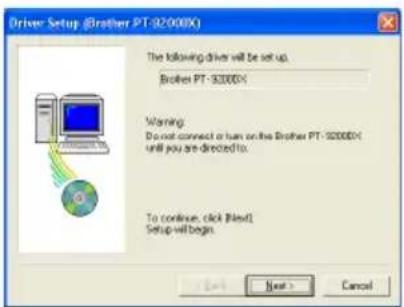
①In the dialog box that appears, informing you that the PT-9200DX printer driver will be installed, click the Next button.
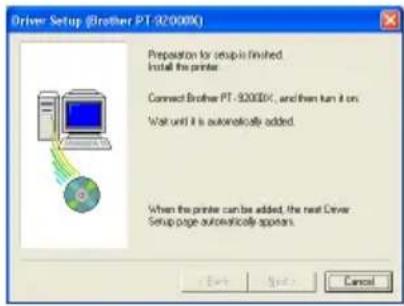
② After the dialog box appears, instructing you to connect the P-touch 9200DX and turn it on, connect the P-touch 9200DX to the computer using the enclosed USB interface cable as described on page 5, and then turn on the P-touch 9200DX.
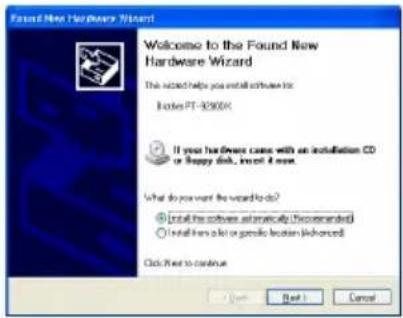
③In the first Found New Hardware Wizard dialog box that appears, select "Install the software automatically (Recommended)", and then click the Next button.
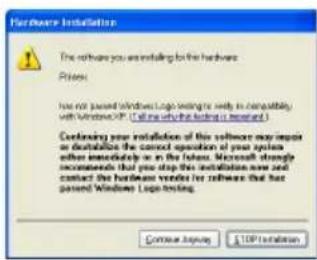
4 If the dialog box warning appears indicating the software has not passed Windows Logo testing, simply continue with the installation.
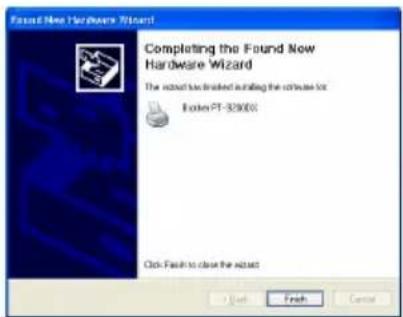
⑤ In the Found New Hardware Wizard dialog box that appears, indicating that installation of the PT-9200DX and the Found New Hardware Wizard are finished, click the Finish button.
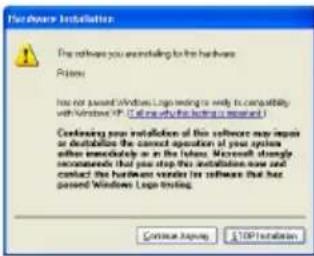
⑥ If the dialog box warning that the software has not passed Windows Logo testing appears again, click the Continue Anyway button to continue with the installation (since this printer driver has already cleared strict product quality standards of our testing).
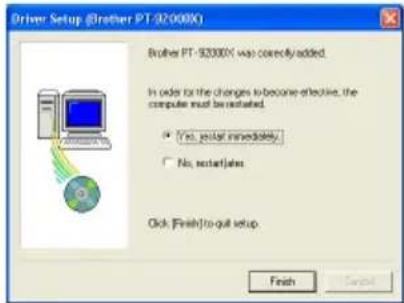
⑦ In the dialog box that appears, indicating that installation is finished, select "Yes, restart immediately.", and then click the Finish button. After the computer is restarted, the installation is fully completed.
⑧Remove the CD-ROM from the computer.
P-touch Editor Version 3.1 Installation (for Macintosh)
Follow the procedure below to install the P-touch Editor software on the Mac.
The Mac version of the software is for a Mac with an English operating system. If the software is installed on a Mac with an operating system in a different language, the software may not run properly.
Check that your system configuration meets the following requirements.
Computer: Macintosh or Power Macintosh
Operating system:
Serial interface: Macintosh equipped with a PowerPC processor and a serial port (modem or printer), and running Mac OS 8.1 or later
USB interface: Macintosh equipped with a USB port and running Mac OS 8.5.1 or later
* For previous Mac OS versions, refer to the Apple Web site for information about USB.
* This software can only run on Mac OS X in the Classic environment.
However, the Mac OS X v10.2 Classic environment is not supported.
* The application is supplied on a CD-ROM; therefore, the computer should be equipped with a CD-ROM drive.
Hard disk free space: At least 20 MB
A few hundred megabytes of additional free space may be needed when printing long labels or large amounts of data.
Port: Serial or USB
Available memory free space: Minimum 24 MB
CD-ROM drive
With the enclosed CD-ROM, the following can be installed:
• P-touch Editor Version 3.1
• PT-9200DX printer driver
Installing P-touch Editor Version 3.1
①Connect the PT-9200DX to the Macintosh using the enclosed interface cable. Be sure to leave the PT-9200DX turned off.
②Turn on the Macintosh.
③Insert the P-touch Editor CD-ROM into the computer's CD-ROM drive.
4 Double-click the P-touch Editor 3.1 Installer icon in the folder that appears.
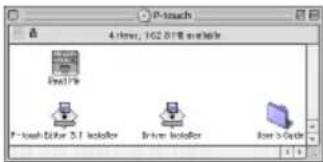
⑤ After the installer starts up, select the installation method.
Clicking the Install button immediately starts installing the most basic options. (Some clip art illustrations are not installed.)
About 20 MB of available hard-disk space is needed to begin installation. In order to install all options, about 120 MB of available hard-disk space is needed. If enough hard-disk space is available, click the Install button.
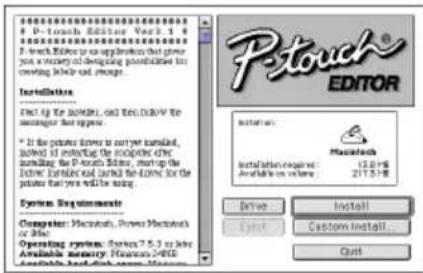
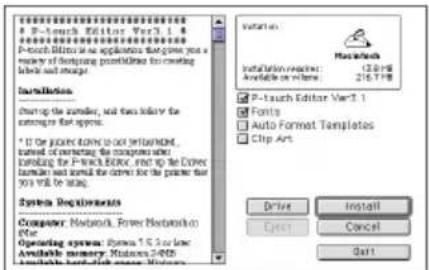
Clicking the Custom Install button displays a dialogue box that allows you to select which options to install. Only the options with a check mark beside them are installed.
Select the options that you wish to install, and then click the Install button.
Dialogue box that appears if the Custom Install button is clicked:
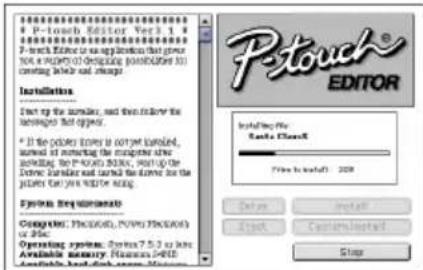
6 Installation begins.
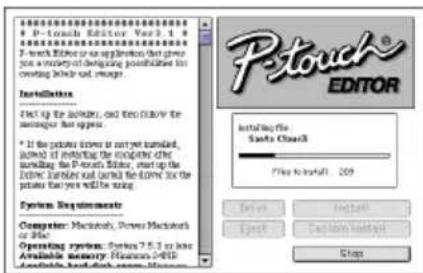
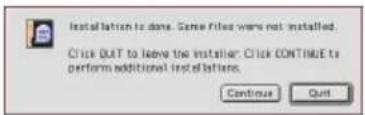
⑦ When the installation is finished and the following dialogue box appears, click the Quit button.
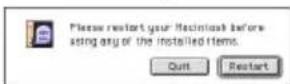
⑧When the dialogue box appears, asking if you wish to restart the computer, click the Quit button to continue and install the printer driver.
Installing the PT-9200DX printer driver
①Double-click the Driver Installer icon in the P-touch folder.
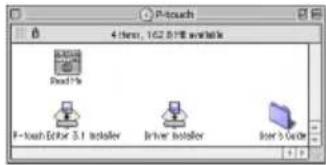
② After the installer starts up, click the Select Driver button.
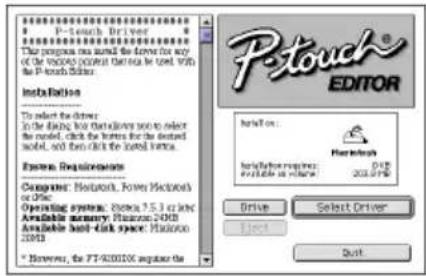
③In the dialogue box that appears, select "PT-9200DX(USB)" (for a USB port connection) or "PT-9200DX(Serial)" (for a modem or printer port connection). The printer drivers with a check mark beside them are installed. Then, click the Install button.
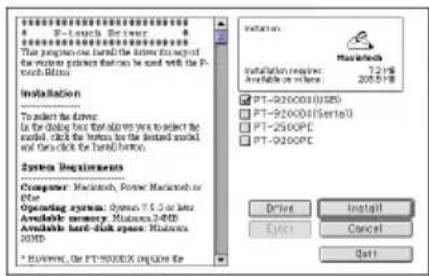
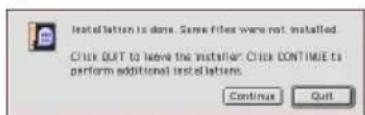
4 Installation begins. When the installation is finished and the following dialogue box appears, click the Quit button.
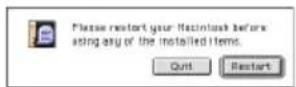
⑤When the dialogue box appears, asking if you wish to restart the computer, click the Restart button to restart the computer.
⑥ After the computer is restarted, turn on the P-touch.
Selecting the printer
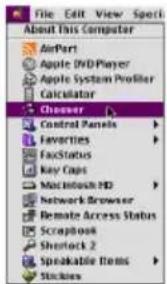
① Pull down the Apple menu and select "Chooser" to display the Chooser window.
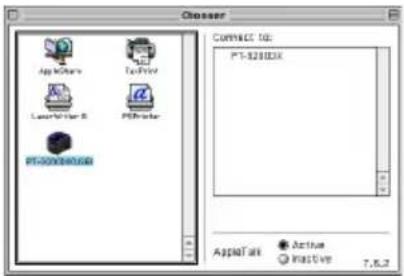
②In the list on the left, click the PT-9200DX(USB) icon (for a USB port connection) or the PT-9200DX(Serial) icon (for a modem or printer port connection). Then, select the appropriate printer driver.
③ If the PT-9200DX(Serial) icon was selected, click the icon for the port linked with PT-9200DX(Serial) from the list on the right.
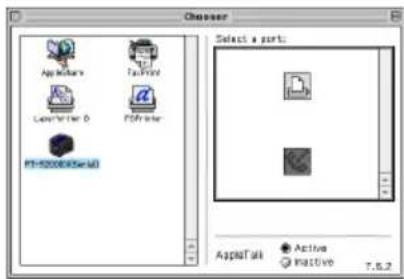
④ Close the Chooser window to confirm your settings.
Uninstalling P-touch Software and Printer Driver
Uninstall P-touch Editor Version 3.1 and the printer driver using the steps below:
Uninstalling P-touch Editor Version 3.1 (for Windows® 95/98/Me/NT 4.0/2000 Professional/XP)
① Start up Windows® 95/98/Me/NT 4.0/2000 Professional/XP.
② Click the Start button in the taskbar, select "Settings", and then click "Control Panel". With Windows® XP, click the Start button in the taskbar, and then click "Control Panel".
③ In the Control Panel window, double-click "Add/Remove Programs".
4 In the Add/Remove Programs Properties dialogue box, select "P-touch Editor 3.1", and then click the Add/Remove button.
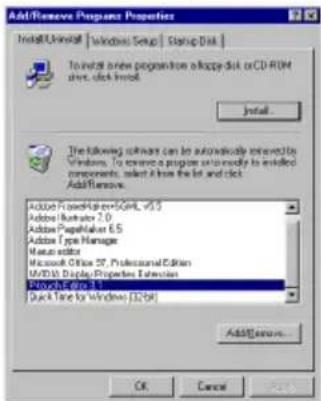
* The dialog box that appears may differ depending on the operating system being used.
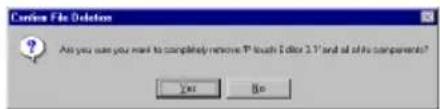
⑤ A message appears, asking if you wish to delete the selected application. Click the Yes button to delete the application. If you do not wish to delete the application, click the No button.
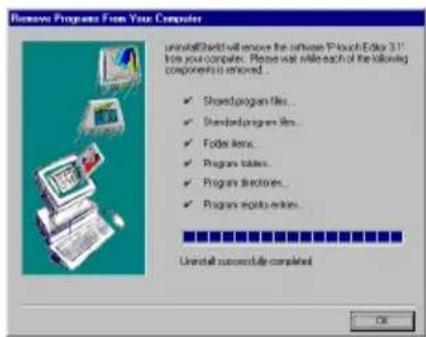
⑥ In the dialogue box that appears, indicating that the application is deleted, click the OK button.
Replacing, installing or deleting the printer driver (for Windows® 95/98/Me/NT 4.0/2000 Professional/XP)
For a serial connection
Connect the PT-9200DX to the computer using the enclosed serial interface cable as described on page 4, and then turn on the PT-9200DX.
②Insert the P-touch Editor Version 3.1 CD-ROM into the computer's CD-ROM drive. A dialogue box automatically appears, allowing you to select the language.
If the dialog box does not automatically appear, double-click "My Computer" on the desktop, and then double-click the CD-ROM drive containing the CD-ROM. (For Windows® XP, click "My Computer" in the Start menu, and then double-click the CD-ROM drive containing the CD-ROM.) Next, double-click "Setup.exe" to display the dialog box.
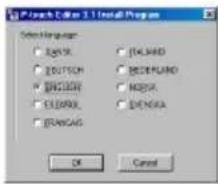
③Select the language for the Windows ^® operating system that you are using, and then click the OK button. A dialogue box appears, allowing you to select what to install.
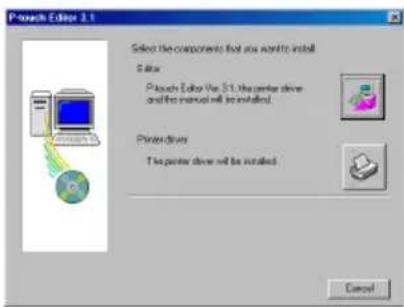
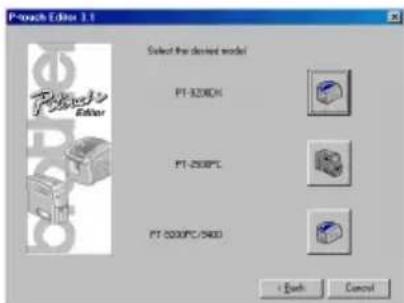
④ Click the bottom button (Printer driver). A dialogue box appears, allowing you to select the model.
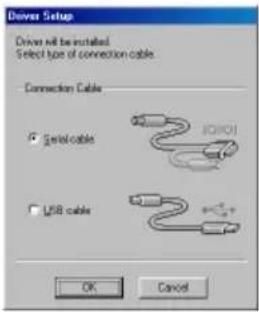
⑤Click the icon for the PT-9200DX. The first Driver Setup dialogue box appears, allowing you to select whether a serial or a USB connection is used.
⑥ Select "Serial cable", and then click the OK button. A dialogue box appears, allowing you to select whether to install or uninstall the printer driver.
⑦Select the desired operation, and then click the Next button.
8 If "Install" was selected: Perform steps 3 through 7 in the section For a Serial Connection on page 8. If "Uninstall" was selected: A dialogue box appears, asking for confirmation to uninstall the PT-9200DX printer driver.
![Driver Setup - [Brother PT-83000X] Driver set will target Driver set setup Basis PT 83000X Select another to install or install the application. * (boxed) * (boxed) OK Next > Cancel](/content/2026/03/527981/images/d15498fae9211225d77201ee6c1bfcef169b90e0c11162d4b1bdb18e29616181.jpg)
Click the Next button. A dialogue box appears, showing that the printer driver has been deleted.
![Driver Setup - [Brother PT-4330X] User rights below will be copied currently installed below Driver Brother PT-4330X OK, click [Next] Current status will begin < Back Next > Cancel](/content/2026/03/527981/images/fd6e47ab81b0906b3c24fdeb460d7a259f5f7fc1a0cefffc92668b6cae82357e.jpg)
Click the Next button. A dialogue box appears, showing that uninstallation is finished.
![Driver Setup - [Brother FT 92000X] Uninstalled progress ✓ Create printer ✓ Create IPTOM Uninstalled steps is completed Class [None]](/content/2026/03/527981/images/a853fc38fc61024b3d4843a2f96981df637c4ea2e2b402c182f3cc6ffbe03e87.jpg)
Select "Yes, I want to restart my computer now.", click the Finish button to restart the computer, and then remove the CD-ROM from the computer.
![Driver Setup - (Brother PT 4790001) Driver installation is completed You must install this computer: ■ Yes: We have the following computer name: □ No: Yes: We create any computer name: Remove any disk from each drive and then click [Private] to complete setup. Finish](/content/2026/03/527981/images/d1bcf8fb98415fac192bc51a1f3f57b5763ab76989a9835121892dc1541c4d8c.jpg)
For a USB connection (Windows® 98/Me/2000 Professional/XP only)
A PT-9200DX printer driver can be replaced, added or deleted by following the procedure below.
①Turn off the PT-9200DX, and then disconnect it from the computer.
② Insert the P-touch Editor Version 3.1 CD-ROM into the computer's CD-ROM drive. A dialogue box automatically appears, allowing you to select the language.
If the dialog box does not automatically appear, click "My Computer" on the desktop, and then double-click the CD-ROM drive containing the CD-ROM. (For Windows® XP, click "My Computer" in the Start menu, and then double-click the CD-ROM drive containing the CD-ROM.)
Next, double-click "Setup.exe" to display the dialog box.
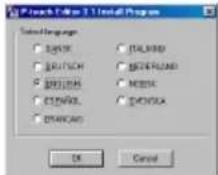
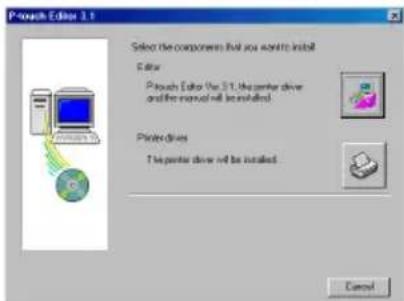
③Select the language for the Windows ^® operating system that you are using, and then click the OK button. A dialogue box appears, allowing you to select what to install.
④ Click the bottom button (Printer driver). A dialogue box appears, allowing you to select the model.
⑤Click the icon for the PT-9200DX. The first Driver Setup dialogue box appears, allowing you to select whether a serial or a USB connection is used.
⑥ Select "USB cable", and then click the OK button. A Driver Setup dialogue box appears, allowing you to select whether to replace, add or delete the PT-9200DX printer driver.
⑦Select the desired operation, and then click the Next button.
If "Replace with new Brother PT-9200DX" is selected, the previously installed printer driver is deleted, and replaced with a new one. Select this option when upgrading the printer driver, or when running Windows® 2000 Professional/XP and changing to a PT-9200DX with a different serial number.
If "Add Brother PT-9200DX" is selected, a new printer driver is added. With a USB connection on Windows® 98/Me, only a port is added without adding it as a new printer. Select this option when connecting and using multiple PT-9200DXs with the same computer.
![Driver Setup (Brother PT-9200DX) Brother PT-9200DX is currently installed Replace with new Brother PT-9200DX? ■ Replace with new Brother PT-9200DX □ Add Brother PT-9200DX □ Delete Brother PT-9200DX Warning: Does not connect to turn on the Brother PT-9200DX until you are directed to. Make your selection, and then click [Next] Setup will begin. Next > Cancel](/content/2026/03/527981/images/b5dfe8c44e2a12c0a1434d803a4c869ce576a2aa5697f53b6345ebbadb1dbce0.jpg)
⑧ If "Replace with new Brother PT-9200DX" or "Add Brother PT-9200DX" was selected:
With Windows® 98/98SE/Me/2000 Professional: A dialogue box appears, instructing you to connect the PT-9200DX to the computer.
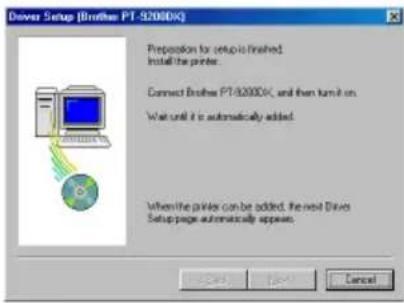
Connect the PT-9200DX to the computer using the enclosed USB interface cable as described on page 5, and then turn on the PT-9200DX. A dialogue box appears, showing that the printer driver has been installed.
Select "Yes, restart immediately.", and then click the Finish button to restart the computer.
With Windows ^® XP:
In the first Found New Hardware Wizard dialog box that appears, select "Install the software automatically (Recommended)", and then click the Next button.
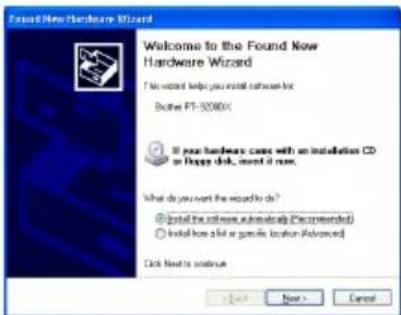
If the dialog box warning appears indicating the software has not passed Windows Logo testing, simply continue with the installation.
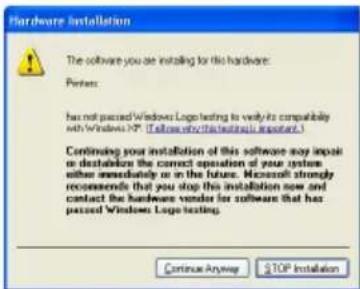
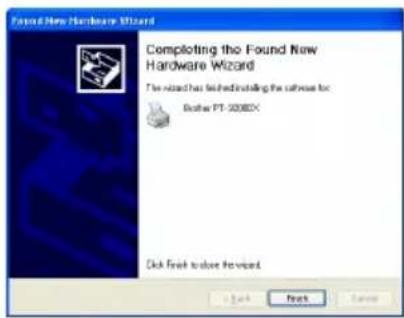
In the Found New Hardware Wizard dialog box that appears, indicating that installation of the PT-9200DX and the Found New Hardware Wizard are finished, click the Finish button.
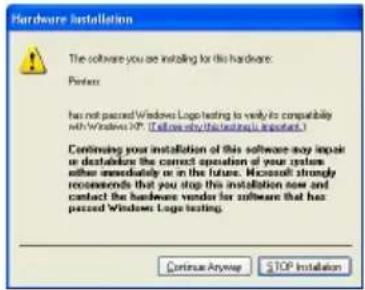
If the dialog box warning that the software has not passed Windows Logo testing appears again, click the Continue Anyway button to continue with the installation (since this printer driver has already cleared strict product quality standards of our testing).
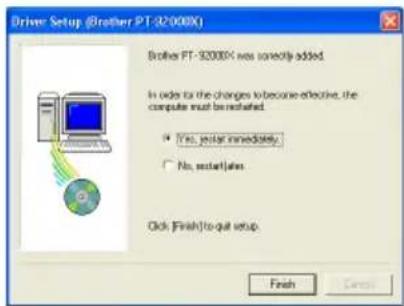
In the dialog box that appears, indicating that installation is finished, select "Yes, restart immediately.", and then click the Finish button. The computer is restarted.
Remove the CD-ROM from the computer.
If "Delete Brother PT-9200DX" was selected:
A dialogue box appears, asking for confirmation to delete all PT-9200DX printer drivers.
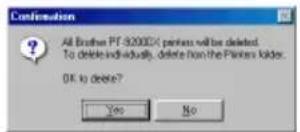
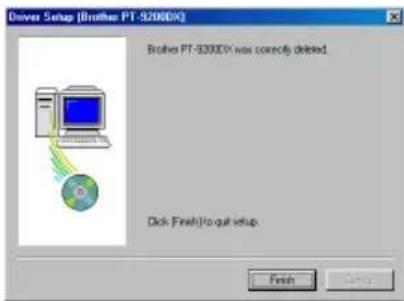
Click the Yes button. A dialogue box appears, showing that the printer drivers have been deleted.
Click the Finish button.
If a dialogue box appears, explaining that the computer should be restarted, select the option for restarting the computer, and then click the Finish button.
Deleting P-touch Editor Version 3.1 and the printer driver (for Macintosh)
Delete P-touch Editor Version 3.1 and the printer driver as described below.
When deleting the printer driver, be sure that the P-touch is turned off and unplugged.
①Drag the P-touch Editor Ver3.1 folder to the Trash icon.
②In the System Folder, open the Extensions folder.
③Drag the PT-9200DX(USB) icon and the USB PT-9200PC Extension icon (for a USB port connection) or the PT-9200DX(Serial) icon (for a modem or printer port connection) to the Trash icon.
④ In the System Folder, open the Preferences folder.
⑤Drag the P-touch Editor 3.1 Prefs icon and either the PT-9200DX(USB) Prefs icon (for a USB port connection) or the PT-9200DX(Serial) Prefs icon (for a modem or printer port connection) to the Trash icon. The P-touch Editor Version 3.1 and the printer driver are now deleted.
Using P-touch Editor
The P-touch Editor application makes it easy for anyone to design and print labels for almost any need imaginable.
Starting up P-touch Editor
On an IBM PC-compatible computer:
- By clicking the P-touch Editor icon:
Double-click the "P-touch Editor 3.1" icon in the "P-touch Editor 3.1" group window.
- With the Start button:
①Click the Start button in the taskbar to display the Start menu.
②Select "programmes".
③Select "P-touch Editor 3.1".
④ Click "P-touch Editor 3.1".
- With Windows ^® Explorer:
① Start up Windows ^® Explorer.
②Select the drive and directory where P-touch Editor is installed.
③ Double-click "Ptedit3.exe".
After P-touch Editor is started, the following window is displayed.
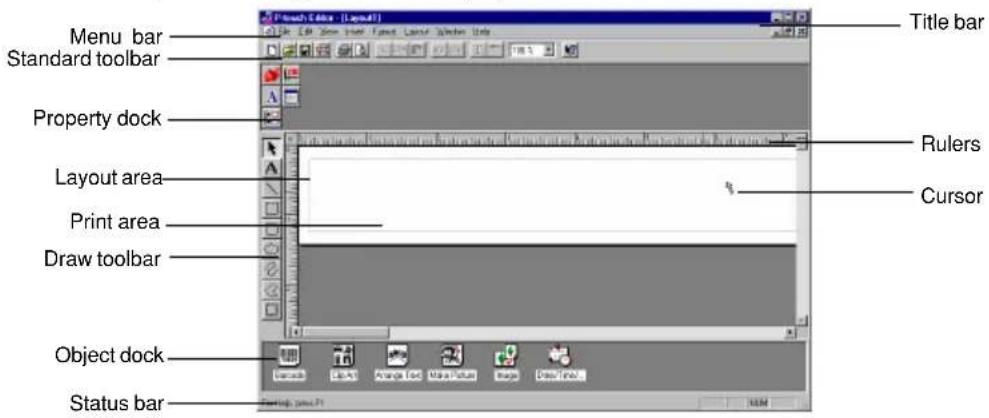
On a Macintosh computer:
- Double-click the "P-touch Editor Ver3.1" icon in the "P-touch Editor Ver3.1" folder installed on the computer. After P-touch Editor is started, the following window is displayed.
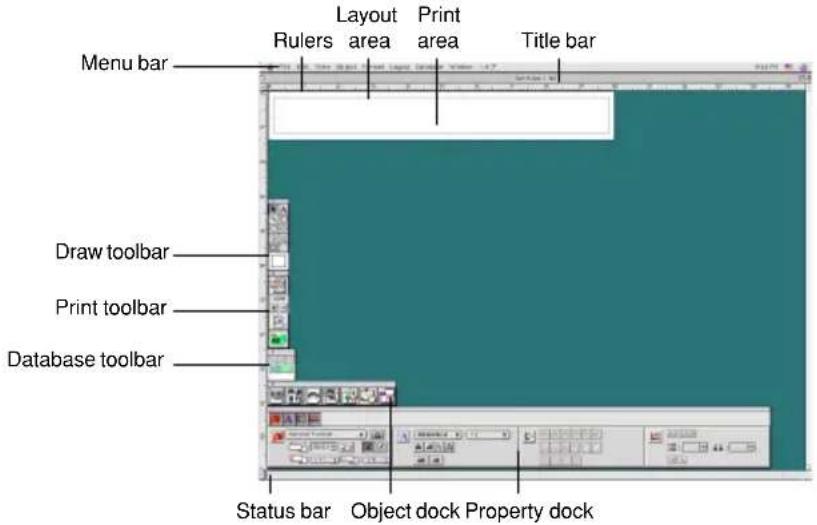
Displaying the Properties
Although the screens shown in the following explanations are for Windows® 95/98/98SE/Me, the operations for Windows® NT4.0/2000 Professional/XP and Macintosh are the same unless specifically mentioned. The desired Properties can be displayed by clicking the icon in the property dock.
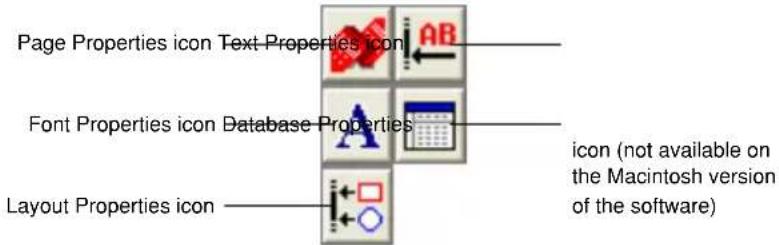
Click an icon to display its Properties.
• Page Properties ( )
Click this button to hide the Properties.
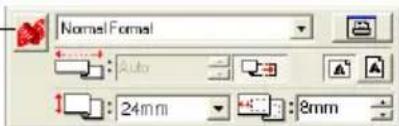
When using the P-touch 9200DX
Creating a new layout
Although the screens shown in the following explanations are for Windows® 95/98/98SE/Me, the operations for Windows® NT4.0/2000 Professional/XP and Macintosh are the same unless specifically mentioned.
- Entering text
①Click A (Text button) on the draw toolbar. Text can be typed in, and the pointer changes from ⌘ (selection pointer) to I (I-beam pointer).
②Move the I-beam pointer to the position in the layout area where you wish to type in text, and then click the left mouse button.
③The cursor flashes in the layout area to indicate that you can now type in text.
④ Use the computer keyboard to type in the text.
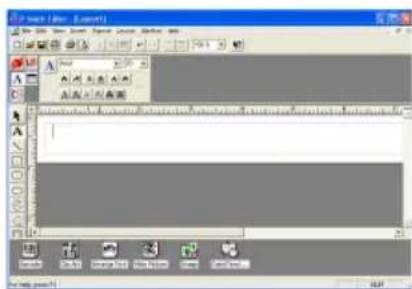
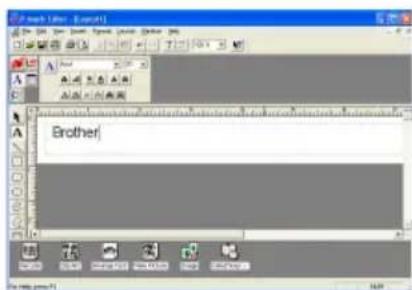
⑤To create a new line of text, press the keyboard's Enter key.
With P-touch Editor version 3.1, text is always typed in using the insert mode. The overwrite mode cannot be used to type in text.
To change the font and text size, click the appropriate icon in the property dock, and then select the desired settings from the Properties that appear.
For details, refer to Reading the User's Guide on page 24.
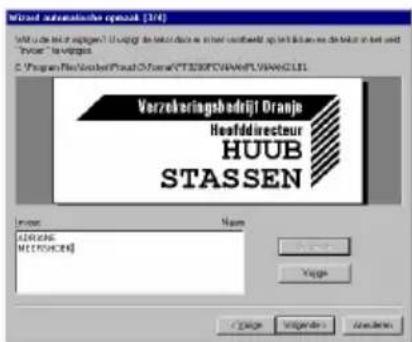
Designing a layout from an Auto Format template
In addition to allowing you to draw pictures and arrange text using any of the available fonts, sizes, and styles, P-touch Editor comes with a variety of pre-formatted templates, which make creating label layouts quick and easy. Now let's see how simple it is to create a label layout with the [Auto Format] command.
On an IBM PC-compatible computer:
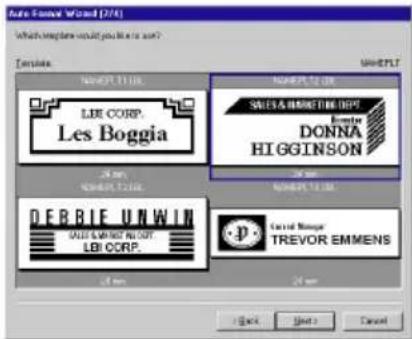
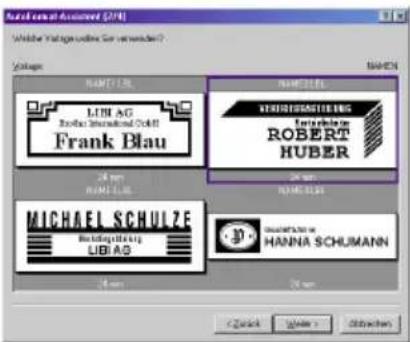
①Select the [Auto Format] command in the [File] menu to start up the Auto Format Wizard.
② In the "Category:" box, select the category containing the Auto Format template that you wish to use. As an example, let's select "NAMEPLT".
③Click the Next button.
4 In the "Template:" list view, select the template that you wish to use. Here, let's select the one named NAMEPLT2.LBL.
⑤ Click the Next button.
⑥ Click the Next or the Previous buttons until the text that you wish to change appears in the "Input:" edit box.
⑦ Change the text so that the desired text is entered.
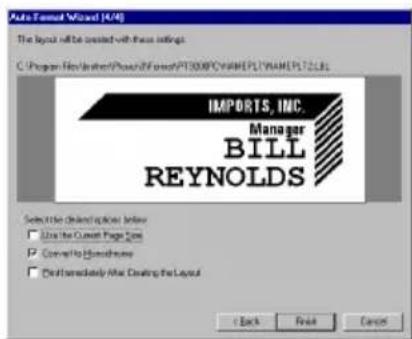
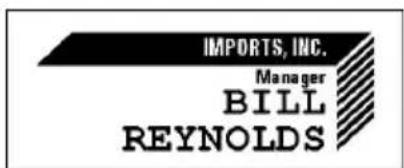
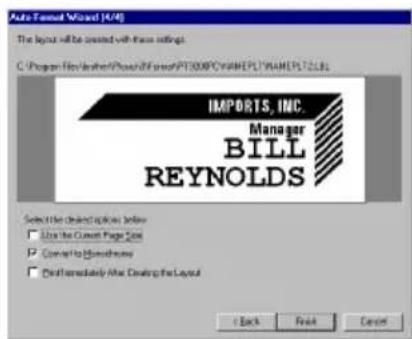
8 Repeat steps 6 and 7 until all of the text is entered in the way that you want, and then click the Next button. For this example, let's change the department name to "IMPORTS, INC.", the title to "Manager" and the name to "BILL REYNOLDS".
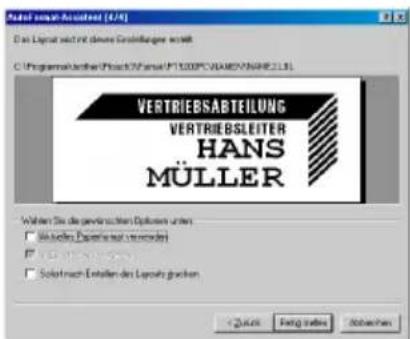
⑨Check that the layout contains the text that you want to use.
10 Click the Finish button. A new layout document containing the preformatted text is created.

![Auto Force Wizard [374] Would you like to change the text? To change the text, click the text that you would like to change in the sample area, then change the text in the "Input" with less. C:\Program Files\Host\Cloud\2.0\www.p158000.VIANMPLTVRAMMPLT2.0L IMPORTS, INC. Manager DONNA HIGGINSON Input: Name: BELL RENTOLIN Device < Back Next > Cancel](/content/2026/03/527981/images/69d0c1682b3877858df40d6596d7d739f3049c3afa0b7055d1e70fbb277e7923.jpg)
On a Macintosh computer:
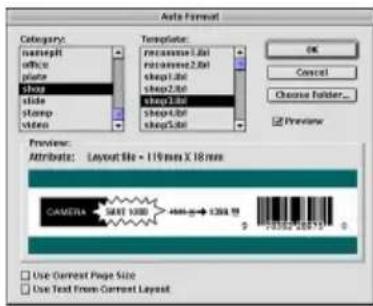
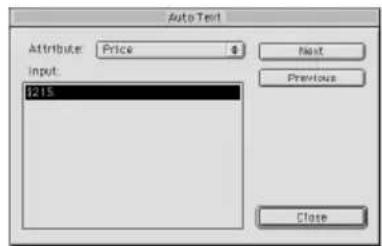
①Select the [Auto Format] command in the [File] menu to display the Auto Format dialogue box.
② In the "Category:" list box, select the category containing the template that you wish to use. For this example, let's select "shop".
③ In the "Template:" list box, select the template that you wish to use. Let's select the one named shop3.lbl.
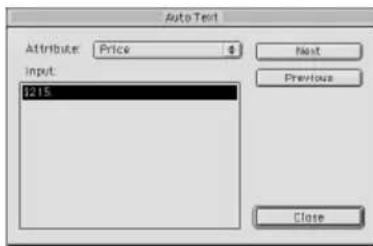
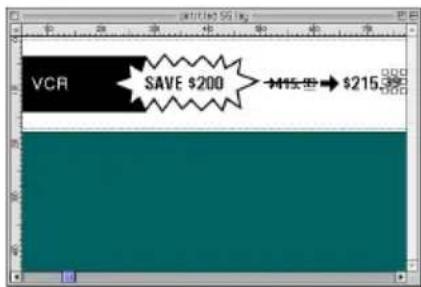
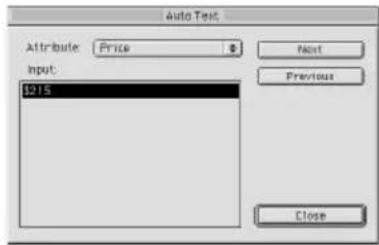
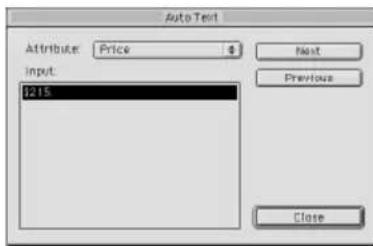
④Click the OK button. A new layout containing the selected preformatted text is created and the Auto Text dialogue box is displayed.
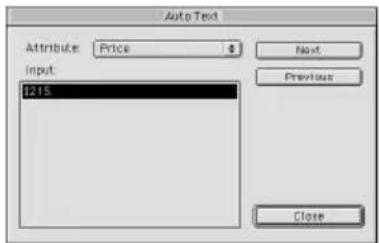
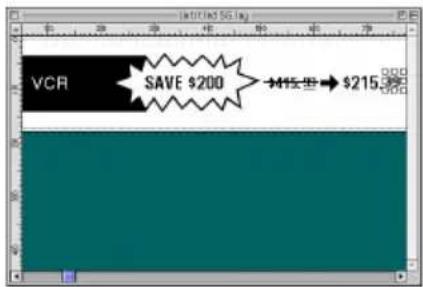
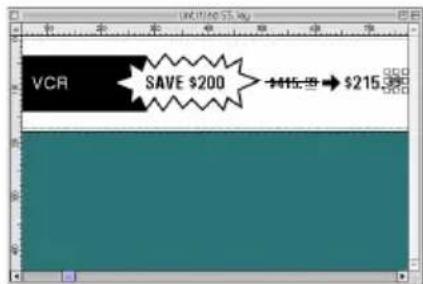
⑤Click the Next or the Previous buttons until the text that you wish to change appears in the "Input:" edit box. Here, the first line of text that we wish to change, "CAMERA", is already displayed.
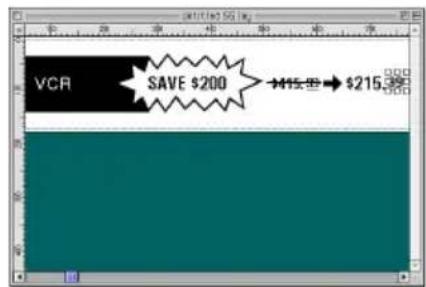
⑥ Change the text so that the desired text is entered. We can start by changing the product name to "VCR".
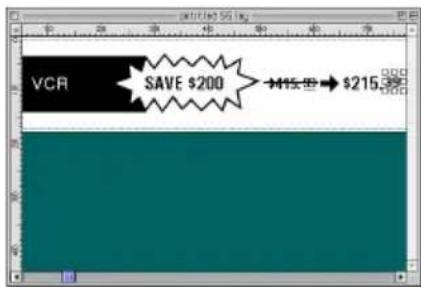
⑦ Repeat steps ⑤ and ⑥ until all of the text is entered in the way that you want, and then click the Next button. Let's finish editing the text by changing the original price to "\415." and the sale price to "\215."
⑧ Click the Close button. The text in the layout is replaced by the newly entered text.
Importing a graphics file
With the P-touch Editor application, you can also import images files in a variety of formats (.bmp, .dib, .jpg, .tif, .ico, and .wmf on the PC or PICT, JPEG, TIFF and BMP on the Mac) into your layout.
① With a layout document displayed, select the [Image] command in the [Insert] menu (in the PC software) or the [Object] menu (in the Mac software). A dialogue box that allows you to select the image file appears.
When using the P-touch Editor for the PC: When using the P-touch Editor for the Mac:
![Open Look in: 3% Flappy [A] Resource II: Sunset II Winter.JPG File name: Sunset.III File of type: All Image Files\bmp.fdb.jpg.glt.fld.foo Open Cancel](/content/2026/03/527981/images/10bba4c99478c0fbdcbcbfecc60e6e91c545fb531cf9544b661a6f2b8c406f85.jpg)
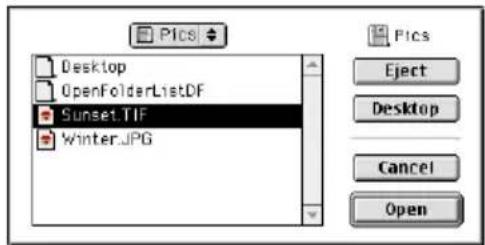
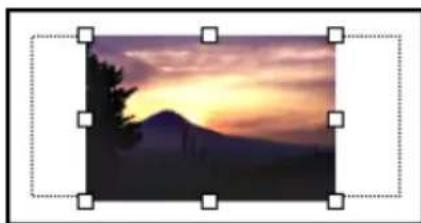
②Select the graphic file that you wish to add to the layout and double-click it. The image appears in the layout.
natural_image
Silhouette of a mountain peak at sunset with trees in the foreground (no text or symbols)Barcode
Keep the following points in mind when using P-touch Editor Version 3.1 to print barcodes.
- Barcodes should be printed on white tape. If other colours of tape are used, the barcode reader may not be able to read the barcode correctly.
- Be sure to test the barcode reader to make sure that it can read printed barcodes in the environment where you plan to use them. In some cases, the barcodes are not read correctly.
- The QR Code protocol can only be used with English. If data in any other language is entered, the barcode may not be read correctly.
Databases
- For general details, refer to the User's Guide supplied on the P-touch Editor Version 3.1 CD-ROM.
Keep the following points in mind when using the database functions of P-touch Editor Version 3.1.
- The database function of P-touch Editor Version 3.1 (Windows ^ version) uses database files that are compatible with Microsoft Access 97. By upgrading P-touch Editor Version 3.1 using a program available on the CD-ROM, P-touch Editor will become compatible with Access 2000. Refer to the Readme file located at English\Ptouch\Editor\Ac2k on the CD-ROM (the folder name for French is “Francais”), and start up the program.
- P-touch Editor Version 3.1 can import files other than mdb files, such as csv files. Files saved as csv files with an application such as Microsoft® Excel can be used with P-touch Editor. Refer to the User's Guide supplied on the P-touch Editor Version 3.1 CD-ROM for more details.
- Using a function available with Microsoft ^ Access 97, Excel files can be linked to mdb files. With this function, data changed in Excel is automatically updated with the P-touch Editor.
Reading the User's Guide
The P-touch Editor User's Guide can be read either by inserting the CD-ROM into the drive each time you wish to refer to it or by installing it onto your hard disk so that it is quickly available at any time. Since the User's Guide is an HTML document, a browser is needed to read it. If Internet Explorer is not installed, it can be installed by downloading it from the Internet.
The P-touch Editor User's Guide can be read using other browsers; however, some pages may not be displayed correctly.
Reading the P-touch Editor User's Guide
If the User's Guide was not installed onto the computer's hard disk, insert the P-touch Editor CD-ROM into the CD-ROM drive.
② Start up the User's Guide.
On an IBM PC-compatible computer:
- By clicking the P-touch Editor icon:
Double-click "The User's Guide PT-9200DX" icon in the "P-touch Editor 3.1" group window.
- With the Start button:
(a) Click the Start button in the taskbar to display the Start menu.
(b) Select "programmes".
(c) Select "P-touch Editor 3.1".
(d) Click "The User's Guide PT-9200DX".
- With Windows ^ Explorer:
(a) Start up Windows ^® Explorer.
(b) Select the CD-ROM drive (if the User's Guide is not installed on the hard disk), or select the drive and directory where P-touch Editor is installed (if the User's Guide is installed on the hard disk).
(c) Double-click "Main.htm" in the "Manual" folder.
On a Macintosh computer:
- Double-click "Main.htm" in the "User's Guide" folder of the CD-ROM's "P-touch" folder (if the User's Guide is not installed on the hard disk), or of the installed "P-touch Editor Ver3.1" folder (if the User's Guide is installed on the hard disk).
Using the PT-9200DX
After you have designed a label layout using the P-touch Editor application, you can print it out to make a label.
Installing the tape cassette
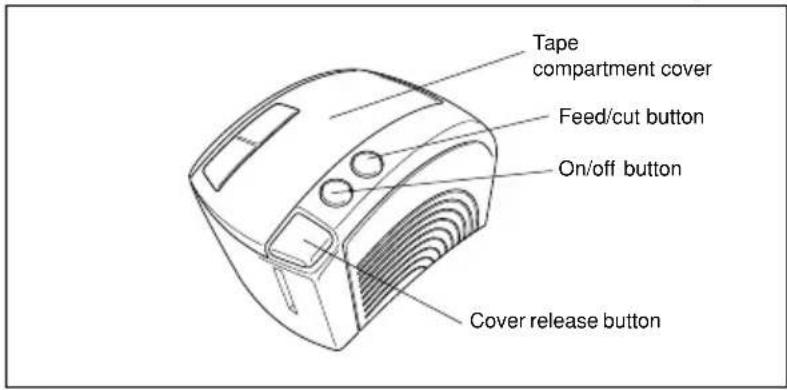
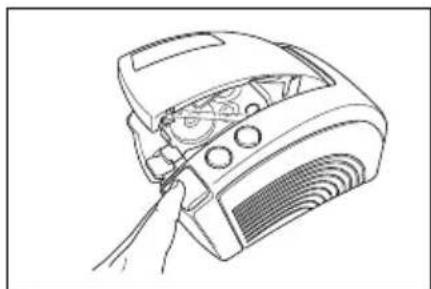
①Press down on the cover release button and lift open the tape compartment cover.
②If you are using a new tape cassette, first remove the stopper. (Some tape cassettes may not be installed with a stopper.) Make sure that the end of the tape feeds under the tape guides.
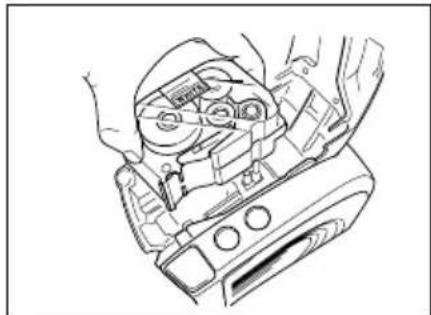
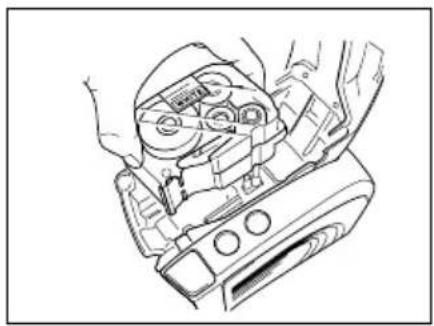
③Insert the tape cassette firmly into the compartment, making sure that the entire back of the cassette touches the bottom of the compartment.
When inserting the tape cassette, make sure that the ink ribbon does not catch on the corner of the metal guide. Be sure not to touch the print head.
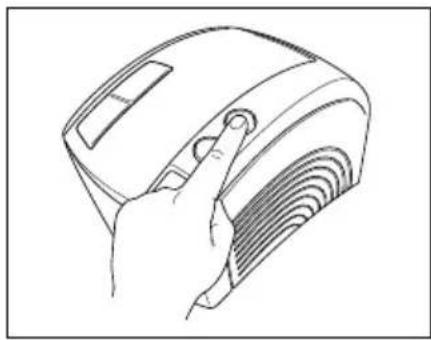
④ Close the compartment cover, and then press the on/off button to turn on the PT-9200DX.
natural_image
Line drawing of a portable electronic device with a hand inserting a cable (no text or symbols)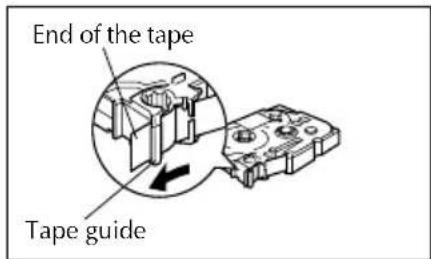
natural_image
Line drawing of a car dashboard with hands operating the wheel (no text or symbols)
natural_image
Line drawing of a hand inserting a button into a device (no text or symbols)⑤ After the on/off button lights up in green, press the feed/cut button once to remove any slack in the tape and cut off the excess.
natural_image
Line drawing of a hand pressing a button on a device (no text or symbols)Printing a label
① Turn on the PT-9200DX and start up the computer.
② Start up P-touch Editor and make sure that "PT-9200DX" is selected as the printer in the Print Setup dialogue box ([Print Setup] command in the [File] menu of the PC software) or in the Chooser (when using the Mac software).
③In the Size setting of the Page Properties, select the desired label size, and then design your label layout.

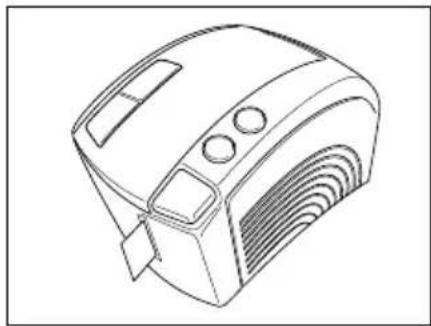
4 Click the [Print] command in the [File] menu, select the desired settings in the Print dialogue box, and then click the OK button. The on/off button on the PT-9200DX flashes in green while it is receiving the data. After the label is printed, it is fed from the tape exit slot and automatically cut off if the "Auto Cut" option was selected.
If the "Half Cut" option was selected, press the feed/cut button once to cut off the label. While printing multiple copies of labels, the printing speed may be decreased so that a high resolution can be maintained.
natural_image
Line drawing of a toaster with three buttons and ventilation grille (no text or symbols)Maintenance
Cleaning the Print Head and Roller
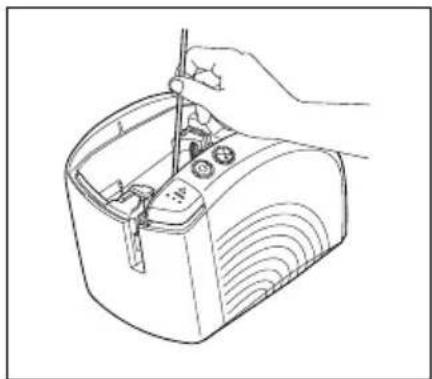
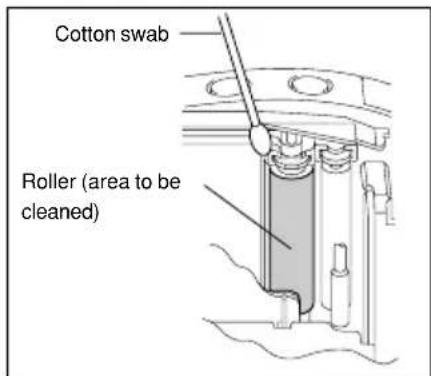
A blank horizontal line appearing through the printed label indicates that the print head and roller are dirty. Clean the print head and roller according to the following procedure.
①Turn off the PT-9200DX.
② Open the tape compartment cover.
③Remove the tape cassette if one is installed.
④ Use a dry cotton swab to gently wipe up and down along the print head and roller.
natural_image
Line drawing of a hand inserting a plug into a device housing (no text or symbols)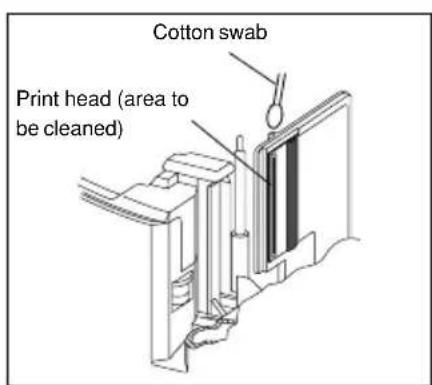
⑤Insert the tape cassette, and then close the tape compartment cover.
Caution: Be careful not to touch the cutter near the print head and roller while cleaning them. In addition, do not try to clean the print head immediately after printing, otherwise you may be burned.
* Cleaning can also be done by using the optional print head cleaning cassette (TZ-CL6).
Monitoring the P-touch Status
You can determine the status of the PT-9200DX from the power button light.
PT-9200DX status
| Power button light | Description/Remedy |
| Lights up in green | The P-touch is operating normally and is in stand-by. |
| Flashes in green | The P-touch is receiving data from the computer correctly. |
| Lights up in orange | While in stand-by, the P-touch detected that the tape cassette was not inserted correctly. Correctly insert the tape cassette. Printing will begin when the tape cassette is correctly inserted.The tape compartment cover is not completely closed. Close the tape compartment cover. |
| Flashes in orange | While receiving data, the P-touch detected that the tape compartment cover was not completely closed or that the cover was opened. Close the tape compartment cover. Printing will begin when the tape compartment cover is closed. |
| Flashes in red(Correct the problem, and then try printing again.) | While printing, the P-touch detected that a tape cassette was not inserted or that the tape cassette ran out of tape. Insert a tape cassette or replace it.Before or during printing, the tape compartment cover was opened. Close the tape compartment cover.A data transmission error occurred. After about five seconds, the P-touch will return to stand-by (the power button will light up in green). |
| Lights up in red(Correct the problem, and then try printing again.) | Turn off the P-touch, and then turn it on again.If the power button continues to light up in red, contact your service representative. |
Troubleshooting
If you think the P-touch is not printing correctly, but you cannot determine the problem with the power button light, refer to the following list of possible problems and perform the necessary operations.
| Problem | Cause | Solution |
| The P-touch does not print.A printing error is indicated. | ·The interface cable is loose.·The tape cassette is not inserted correctly.·The tape compartment cover is open. | Check that the interface cable is correctly connected, the tape cassette is correctly installed, and that the tape compartment cover is closed. |
| While printing, striped tape appears. | There is no tape in the tape cassette. | Insert a new tape cassette, and then either press the feed/cut button or turn the P-touch off, then on again. |
| The power button does not light up or flash. | The power supply cable is loose. | Check that the power supply cable is correctly connected. If the power button still does not light up or flash, contact your service representative. |
| A blank horizontal line appears through the printed label. | The print head and roller are dirty. | Clean the print head and roller according to the procedure in Cleaning the Print Head and Roller on page 27. |
| A data transmission error appears on the computer. | The wrong port is selected. | Windows®Under "Print to the following port" in the printer Properties dialogue box, select "PTUSB:" for a USB connection or select "PTCOMn:" (where "n" is 1 if the P-touch is connected to the computer's COM1 port or 2 if the P-touch is connected to the computer's COM2 port) for a serial connection.*MacFor a serial connection, select in the Chooser the port where the P-touch is connected. |
| The baud rates of the computer and the P-touch are not the same. (Only for a serial connection) | Windows®Start up the Change Baud Rate Wizard, and then select the same baud rate as the P-touch.MacThe Macintosh may not support the P-touch's default baud rate of 115,200 bps. After changing the baud rate of the P-touch according to Changing the P-touch's Baud Rate on page 31, select a baud rate of 57,600 bps in the Print dialogue box. | |
| (Windows® only)The baud rate cannot be set using the Change Baud Rate Wizard. | The computer does not support the P-touch's default baud rate of 115,200 bps. | The P-touch's default baud rate of 115,200 bps is not supported by some computers.After changing the baud rate of the P-touch according to Changing the P-touch's Baud Rate on page 31, start up the Change Baud Rate Wizard, and select a baud rate of 57,600 or 9,600 bps. |
| Error 99The computer cannot detect the P-touch. | Check the following:·Is the P-touch turned on?·Is the interface cable correctly connected?·Has the COM port where the P-touch is connected been selected with the Change Baud Rate Wizard? (Many PCs have more than one COM port.) | |
| Error 1,5The computer's serial port cannot be used. | The COM ports on some PCs are turned off as a default. Check the computer's manual or ask the computer manufacturer, and then turn on the COM port.<Checking the COM port (Windows® 95/98)>Double-click "System" in the Control Panel window. Click the Device Manager tab, and then click the plus sign next to "Ports (COM & LPT)". Check that COM1 and COM2 are listed and that there is no error symbol displayed. |
* If two or more of the same P-touch models are connected through their USB ports, select "PTUSB (PT-9200DX-XXXXXXXXX):" (where XXXXXXXXX is the serial number) instead of "PTUSB:".
* The serial number is written above the barcode on the silver label attached to the bottom of the P-touch.
| Problem Remedy | |
| • The tape is not ejected correctly after being automatically cut. | • Turn off the machine, open the tape compartment cover, and remove the tape cassette if one is installed.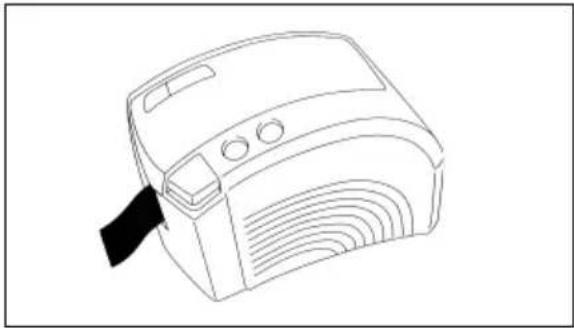 Using a cotton swab dipped in isopropyl (rubbing) alcohol, clean off the metal piece in the exit slot to the left of the cutter. Using a cotton swab dipped in isopropyl (rubbing) alcohol, clean off the metal piece in the exit slot to the left of the cutter.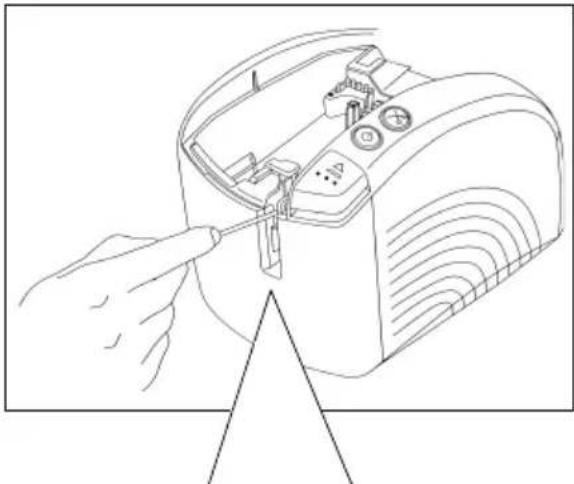  |
Changing the P-touch's Baud Rate
The PT-9200DX's default baud rate for a serial connection is 115,200 bps. Some computers may not support a serial port baud rate of 115,200 bps. If so, follow the procedure below to change the P-touch's baud rate to 9,600 bps. In addition, the baud rate for the port must also be set to 9,600 bps.
① Turn off the PT-9200DX.
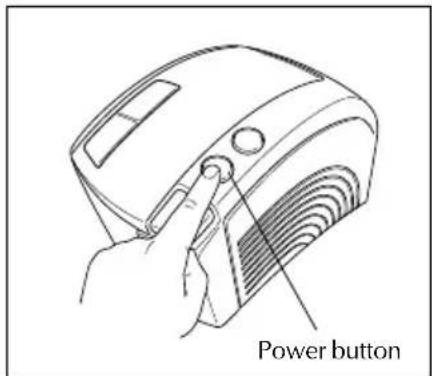
②Hold down the power button for about five seconds.
③Release the power button when it begins flashing in red and green.
④The baud rate of the PT-9200DX has been set to the slower baud rate of 9,600 bps.
Machine Specification
Power supply: Input AC 230 V 50Hz
Print tape: 6 widths available:
6 mm
9 mm
12 mm
18 mm
24 mm
36 mm
Print head: 384 dots
360 dpi
Tape cutter: Auto full cutter
Auto half cutter
Port: Serial, USB
Dimensions:
120 × 150 × 250 mm
Weight: 1.5 kg
Accessories
- Supplies
Obtain tape cassettes from your nearest authorised dealer. Brother cannot be held responsible for trouble caused by the use of unauthorised supplies.
Use only Brother TZ tapes with this machine. Do not use tapes that do not have the TZ mark.
| Stock No. Description |
| 36 mm laminated tapes |
| TZ-161 Black characters on clear adhesive |
| TZ-261 Black characters on white adhesive |
| TZ-461 Black characters on red adhesive |
| TZ-561 Black characters on blue adhesive |
| TZ-661 Black characters on yellow adhesive |
| TZ-M961 Black characters on silver (matt) adhesive |
| TZ-262 Red characters on white adhesive |
| TZ-263 Blue characters on white adhesive |
| TZ-364 Gold characters on black adhesive |
| TZ-365 White characters on black adhesive |
| 24 mm laminated tapes |
| TZ-151 Black characters on clear adhesive |
| TZ-M51 Black characters on clear (matt) adhesive |
| TZ-M951 Black characters on silver (matt) adhesive |
| TZ-251 Black characters on white adhesive |
| TZ-451 Black characters on red adhesive |
| TZ-551 Black characters on blue adhesive |
| TZ-651 Black characters on yellow adhesive |
| TZ-751 Black characters on green adhesive |
| TZ-951 Black characters on silver adhesive |
| TZ-C51 Black characters on fluorescent yellow adhesive |
| TZ-B51 Black characters on fluorescent orange adhesive |
| TZ-D51 Black characters on fluorescent green adhesive |
| TZ-152 Red characters on clear adhesive |
| TZ-252 Red characters on white adhesive |
| TZ-153 Blue characters on clear adhesive |
| TZ-253 Blue characters on white adhesive |
| TZ-354 Gold characters on black adhesive |
| TZ-155 White characters on clear adhesive |
| TZ-355 White characters on black adhesive |
| TZ-455 White characters on red adhesive |
| TZ-555 White characters on blue adhesive |
| TZ-655 White characters on orange fluorescent adhesive |
| TZ-755 White characters on green adhesive |
| 18 mm laminated tapes |
| TZ-141 Black characters on clear adhesive |
| TZ-241 Black characters on white adhesive |
| TZ-242 Red characters on white adhesive |
| TZ-243 Blue characters on white adhesive |
| TZ-344 Gold characters on black adhesive |
| TZ-345 White characters on black adhesive |
| TZ-441 Black characters on red adhesive |
| TZ-541 Black characters on blue adhesive |
| TZ-641 Black characters on yellow adhesive |
| TZ-741 Black characters on green adhesive |
| 12 mm laminated tapes |
| TZ-131 Black characters on clear adhesive |
| TZ-132 Red characters on clear adhesive |
| TZ-133 Blue characters on clear adhesive |
| TZ-135 White characters on clear adhesive |
| TZ-231 Black characters on white adhesive |
| TZ-232 Red characters on white adhesive |
| TZ-233 Blue characters on white adhesive |
| TZ-334 Gold characters on black adhesive |
| TZ-335 White characters on black adhesive |
| TZ-431 Black characters on red adhesive |
| TZ-435 White characters on red adhesive |
| TZ-531 Black characters on blue adhesive |
| TZ-535 White characters on blue adhesive |
| TZ-631 Black characters on yellow adhesive |
| TZ-635 White characters on orange adhesive |
| TZ-731 Black characters on green adhesive |
| TZ-735 White characters on green adhesive |
| TZ-931 Black characters on silver adhesive |
| TZ-B31 Black characters on fluorescent orange adhesive |
| TZ-C31 Black characters on fluorescent yellow adhesive |
| TZ-D31 Black characters on fluorescent green adhesive |
| TZ-M31 Black characters on clear (matt) adhesive |
| TZ-M931 Black characters on silver (matt) adhesive |
| 9 mm laminated tapes |
| TZ-121 Black characters on clear adhesive |
| TZ-122 Red characters on clear adhesive |
| TZ-123 Blue characters on clear adhesive |
| TZ-221 Black characters on white adhesive |
| TZ-222 Red characters on white adhesive |
| TZ-223 Blue characters on white adhesive |
| TZ-324 Gold characters on black adhesive |
| TZ-325 White characters on black adhesive |
| TZ-421 Black characters on red adhesive |
| TZ-521 Black characters on blue adhesive |
| TZ-621 Black characters on yellow adhesive |
| TZ-721 Black characters on green adhesive |
| TZ-A25 White characters on grey adhesive |
| TZ-M21 Black characters on clear (matt) adhesive |
| 6 mm laminated tapes |
| TZ-111 Black characters on clear adhesive |
| TZ-211 Black characters on white adhesive |
| TZ-315 White characters on black adhesive |
| TZ-611 Black characters on yellow adhesive |
| 24 mm non-laminated tapes |
| TZ-N251 Black characters on white adhesive |
| Stock No. | Description |
| 18 mm non-laminated tapes | |
| TZ-N241 Black characters on white adhesive | |
| TZ-N242 Red characters on white adhesive | |
| TZ-N243 Blue characters on white adhesive | |
| TZ-N541 Black characters on blue adhesive | |
| TZ-N641 Black characters on yellow adhesive | |
| TZ-N741 Black characters on green adhesive | |
| TZ-NF41 Black characters on purpul adhesive | |
| TZ-PH41 Black characters on adhesive with a heart design | |
| TZ-PF41 Black characters on adhesive with a fruit design | |
| TZ-PM41 Black characters on adhesive with a marine design | |
| TZ-N841 Black characters on gold adhesive | |
| 12 mm non-laminated tapes | |
| TZ-N231 Black characters on white adhesive | |
| TZ-N232 Red characters on white adhesive | |
| TZ-N233 Blue characters on white adhesive | |
| TZ-N531 Black characters on blue adhesive | |
| TZ-N631 Black characters on yellow adhesive | |
| TZ-N731 Black characters on green adhesive | |
| TZ-NF31 Black characters on purple adhesive | |
| 9 mm non-laminated tapes | |
| TZ-N221 Black characters on white adhesive | |
| 6 mm laminated tapes | |
| TZ-N211 Black characters on white adhesive | |
Strong adhesive tapes
| Stock No. | Description |
| TZ-S251 24 | mm strong adhesive tape (black characters on white adhesive) |
| TZ-S241 18 | mm strong adhesive tape (black characters on white adhesive) |
| TZ-S231 12 | mm strong adhesive tape (black characters on white adhesive) |
| TZ-S221 9 | mm strong adhesive tape (black characters on white adhesive) |
| TZ-S211 6 | mm strong adhesive tape (black characters on white adhesive) |
Special tapes
| Stock No. | Description |
| TZ-IY41 18 | mm iron-on transfer tape (black characters) |
| TZ-SE4 18 | mm security tape (black characters on white adhesive) |
| TZ-FA4 18 | mm fabric tape (blue characters on white fabric) |
| TZ-FA3 12 | mm fabric tape (blue characters on white fabric) |
Options
| Stock No. | Description |
| TZ-CL6 | Print head cleaning cassette |
15-1, Naeshiro-cho, Mizuho-ku,
Nagoya 467-8561, Japan
natural_image
Technical line drawing of a mechanical component with no visible text or symbolsnatural_image
Line drawing of a coiled electrical plug with two terminal connectors (no text or symbols)natural_image
Line drawing of a broadband cable with two connectors and two leads (no text or symbols)natural_image
Line drawing of a cable with two connectors and a connector pin (no text or symbols)natural_image
Diagram of a mechanical tool interacting with a circular component (no text or symbols)natural_image
Simple line drawing of a sun heating a box with steam rising (no text or symbols)natural_image
Illustration of a CD or DVD disc with a conical load and a question mark symbol on top (no text or labels)⑥ L'installation commence.
![P-touch Editor P - P-touch Editor Work 1.0 P - P-touch Editor P - P-touch Editor is an application that gives you a variety of designing capabilities for creating keys out more. Installation: [ ] P - P Touch Editor, and [ ] P - P Touch Editor * If the picture library is installed, located in every other case, including the P - P Touch Editor, starting up the library. Additional details are available for the picture that you will be using. System Requirements: Computer: Microsoft, Disney Macintosh or Bids Operating system: Windows 7.5.3 or less Available memory: Microsoft 2480 Available system: Microsoft](/content/2026/03/527981/images/41635b200a24caa901e83c1ef1aa813489cfc9d7d91c15cf4da17cf533b3eb3c.jpg)
natural_image
Silhouette of a mountain against a sunset sky with trees, framed by a dotted border (no text or symbols)Code barres
natural_image
Line drawing of a portable electronic device with a hand inserting a cable (no text or symbols)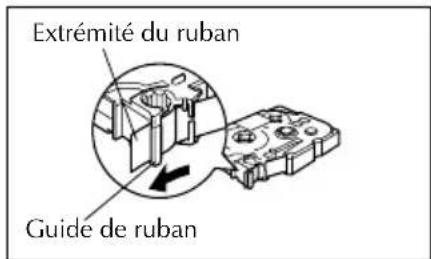
natural_image
Line drawing of a car interior showing dashboard and airway system (no text or symbols)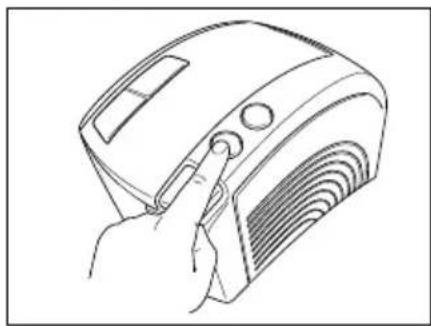
natural_image
Line drawing of a hand pressing a button on a device (no text or symbols)natural_image
Line drawing of a hand holding a device with a knob (no text or symbols)natural_image
Line drawing of a toaster oven with three buttons and ventilation slots (no text or symbols)Entretien
natural_image
Line drawing of a hand inserting a plug into a device housing (no text or symbols)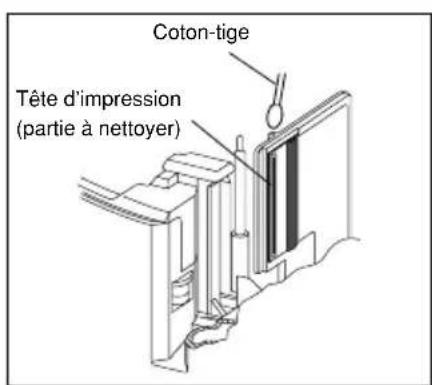
15-1, Naeshiro-cho, Mizuho-ku,
Nagoya 467-8561, Japan
natural_image
Technical line drawing of a mechanical component with no visible text or symbolsnatural_image
Line drawing of a coiled cable with two connectors (no text or symbols)Datenkabel (2)
natural_image
Line drawing of a multi-pin cable with two connectors and a coiled cable (no text or symbols)natural_image
Line drawing of a U-shaped cable with two connectors (no text or symbols)natural_image
Diagram of a mechanical tool interacting with a circular component (no text or symbols)natural_image
Simple line drawing of a sun heating a CD or DVD with visible heat and smoke (no text or symbols)natural_image
Illustration of a CD or DVD disc with a conical load and a question mark symbol (no text or labels)Editor: P-touch Editor Version 3.1

Bilder importieren
natural_image
Silhouette of a mountain peak at sunset with trees in the foreground (no text or symbols)Barcode
natural_image
Line drawing of a handheld electronic device with ports and a hand inserting a cable (no text or symbols)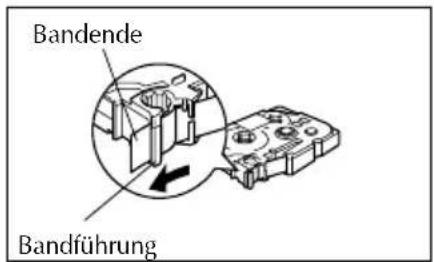
natural_image
Line drawing of a car interior showing dashboard and steering wheel (no text or symbols)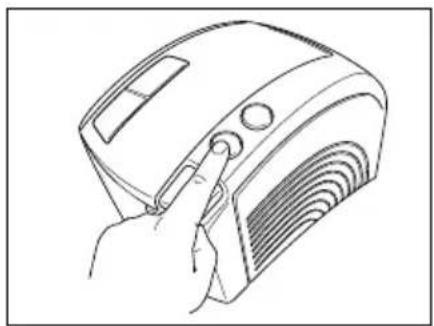
natural_image
Line drawing of a hand inserting a button into a device (no text or symbols)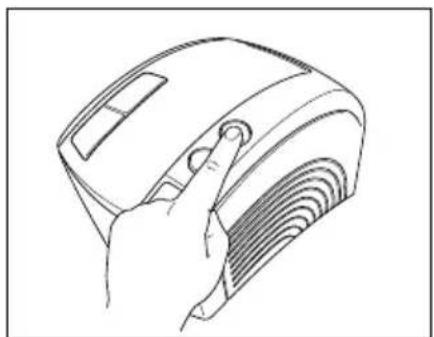
natural_image
Line drawing of a hand holding a device with a curved handle and textured surface (no text or symbols)Etikett drucken
natural_image
Line drawing of a toaster oven with three buttons and ventilation slots (no text or symbols)Wartung und Pflege
natural_image
Line drawing of a hand holding a tool inside a device casing (no text or symbols)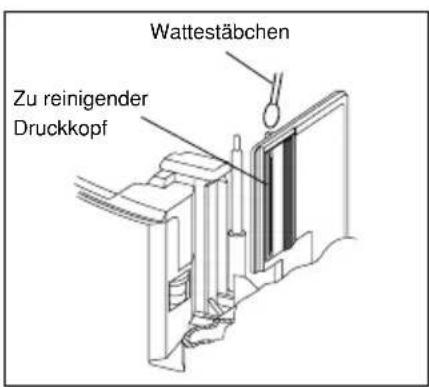
15-1, Naeshiro-cho, Mizuho-ku,
Nagoya 467-8561, Japan
natural_image
Technical line drawing of a mechanical component with no visible text or symbolsnatural_image
Line drawing of a cable with two connectors (no text or symbols)Interfacekabels (2)
natural_image
Line drawing of a broadband cable with two connectors and two leads (no text or symbols)USB: Voor IBM PC-compatibele en Macintosh computers
natural_image
Line drawing of a cable with two connectors and a connector pin (no text or symbols)natural_image
Diagram of a mechanical tool interacting with a circular component (no text or symbols)natural_image
Simple line drawing of a sun heating a box with steam rising (no text or symbols)natural_image
Illustration of a CD or DVD disc with a conical load and a question mark symbol on top (no text or labels)Computer: IBM PC of compatibel
Besturingssysteem:
Editor: De P-touch Editor Version 3.1 software
Computer: Macintosh of Power Macintosh
Besturingssysteem:
⑥De installatie begint.
natural_image
Silhouette of a mountain peak at sunset with trees, framed by a dotted border (no text or symbols)Barcode
natural_image
Line drawing of a portable electronic device with a hand inserting a cable (no text or symbols)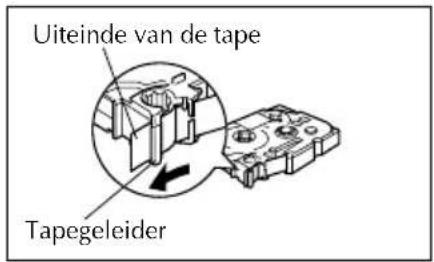
natural_image
Line drawing of a car interior showing dashboard and steering wheel (no text or symbols)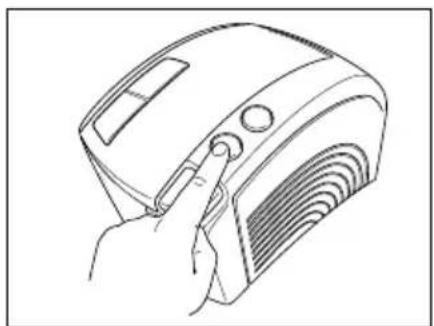
natural_image
Line drawing of a hand pressing a button on a device (no text or symbols)natural_image
Line drawing of a hand holding a device with a knob (no text or symbols)natural_image
Line drawing of a toaster oven with three buttons and ventilation slots (no text or symbols)Onderhoud
natural_image
Line drawing of a hand inserting a plug into a device housing (no text or symbols)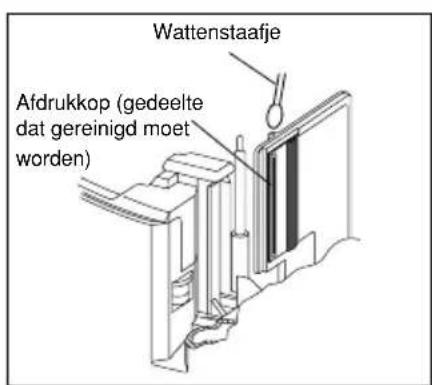
Noi Brother Industries Ltd.
15-1, Naeshiro-cho, Mizuho-ku,
Nagoya 467-8561, Japan
natural_image
Technical line drawing of a mechanical component with no visible text or symbolsnatural_image
Line drawing of a coiled cable with two connectors (no text or symbols)natural_image
Line drawing of a broadband cable with two connectors and two leads (no text or symbols)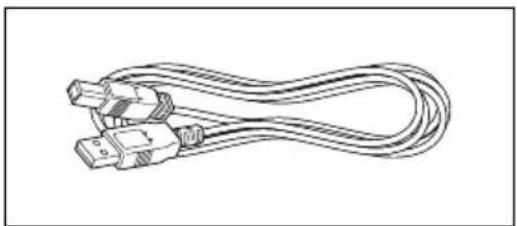
natural_image
Line drawing of a cable with two connectors and a terminal connector (no text or symbols)natural_image
Diagram of a mechanical tool interacting with a circular component (no text or symbols)natural_image
Simple line drawing of a sun heating a portable device with steam rising (no text or symbols)natural_image
Illustration of a CD or DVD disc with a conical load and a question mark symbol on top (no text or labels)Computer: Macintosh o Power Macintosh.
Sistema operativo:
![Auto composites [214] © Devoluca modulare (Hindi) - Can do Use Cdc sublodo da modulare software & regingono e pi modulare Hidro make casebo Blends "Tenscine" © Program/Another Plan 30. Form APT2000-MAWELTVAN-ETL-T2.10L. IMPORTS, INC. Manager DONNA HIGGINSON Name: BIL LEYNDLS C:\Users\Gears\Availa](/content/2026/03/527981/images/0ef3e5ebe53ef72a86236f138ef64c90297d00dc4bf08ab588e12b77c50d6762.jpg)

Su un computer Macintosh:
natural_image
Silhouette of a mountain peak at sunset with trees in the foreground (no text or symbols)Codice a barre
natural_image
Line drawing of a handheld electronic device with a hand inserting a cable (no text or symbols)natural_image
Line drawing of a car interior showing dashboard and airway components (no text or symbols)natural_image
Line drawing of a hand pressing a button on a device (no text or symbols)natural_image
Line drawing of a hand pressing a button on a device (no text or symbols)natural_image
Line drawing of a toaster oven with three buttons and heat sink (no text or symbols)Manutenzione
natural_image
Line drawing of a hand inserting a plug into a device housing (no text or symbols)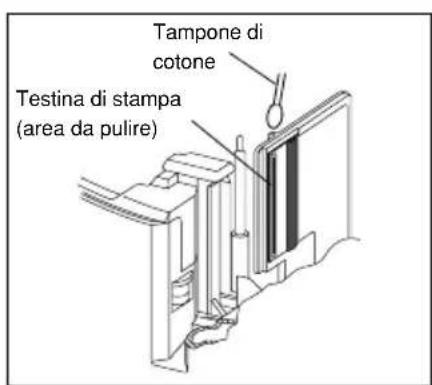
Installere P-touch Editor 6
Installere P-touch Editor & skriverdriver (for Windows® 95/98/Me/NT 4.0/2000 Professional/XP) ..... 6
Installere P-touch Editor Version 3.1....6
Installere skriverdriveren 8
For serietilkopling 8
Installere P-touch Editor Version 3.1 (for Macintosh) 12
Installere P-touch Editor Version 3.1....12
Installere PT-9200DX skriverdriveren 13
Velge skriveren.... 14
Bruke P-touch Editor 19
Starte opp P-touch Editor.... 19
Vise Egenskapene 20
natural_image
Technical line drawing of a mechanical component with no visible text or symbolsNettledning (for å kople PT-9200DX til en vekselstrømskontakt (AC))
natural_image
Line drawing of a coiled cable with two connectors (no text or symbols)Grensesnittkabler (2)
Serie: Til enten IBM PC-kompatibel eller Macintosh datamaskin
natural_image
Line drawing of a broadband cable with two connectors and two leads (no text or symbols)USB: Til enten IBM-kompatibel eller Macintosh datamaskin
natural_image
Line drawing of a U-shaped cable with two connectors (no text or symbols)natural_image
Diagram of a CD or DVD disc with a stylized pen tip and abstract patterns (no text or symbols)natural_image
Simple line drawing of a sun heating a small object with steam rising (no text or symbols)natural_image
Illustration of a CD or DVD disc with a conical load and a question mark symbol (no text or labels)Installere P-touch Editor
Før etikettene kan skrives ut på PT-9200DX, må P-touch Editor programvaren og PT-9200DX skriverdriveren installeres.
Installere P-touch Editor & skriverdriver (for Windows® 95/98/Me/NT 4.0/2000 Professional/XP)
Installer P-touch Editor Version 3.1 og skriverdriveren i en PC som beskrevet under.
Hjelp: Hjelp -filer for P-touch Editor Version 3.1
⑤ Sjekk at overføringshastigheten endres slik du ønsker og klikp på Neste-knappen.
Installere P-touch Editor 3.1 (for Macintosh)
Følg prosedyren under for å installere P-touch Editor i en Mac-datamaskin.
Mac-versjonen av programvaren er til en Mac med engelsk operativsystem. Hvis programvaren installeres i en Mac med operativsystemet på et annet språk, kan det skje at programvaren ikke fungerer korrekt.
2 I listeboksen til venstre, klikker du på PT-9200DX(USB)-ikonet (for en USB-port tilkopling) eller PT-9200DX(Serial)-ikonet (for modem- eller skriverporttilkopling). Deretter velger du passende skriverdriver.
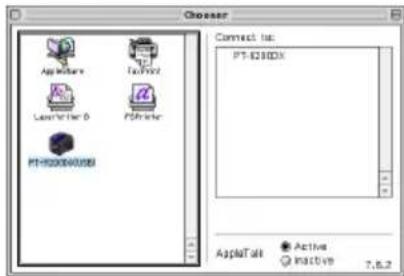
4 Klikk på den nedre knappen (Skriverdriver). En dialogboks som lar deg velge modell, vises.
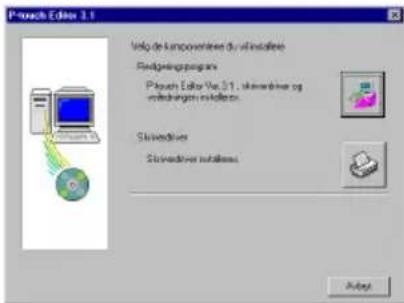
6 Velg "Seriekabel" og klikpå OK-knappen. En dialogboks som lar deg velge om skriverdriveren skal installeres eller avinstalleres, vises.
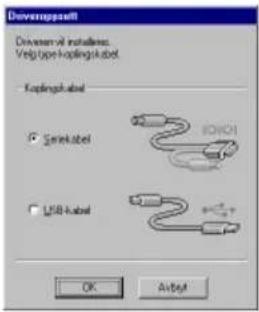
Bruke P-touch Editor
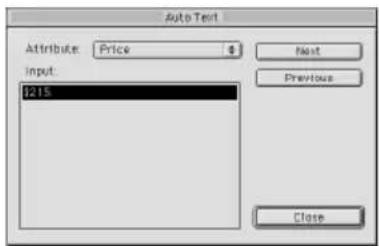
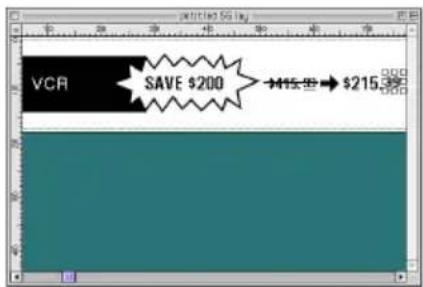
Importere en grafisk fil
natural_image
Silhouette of a mountain peak at sunset with trees in the foreground (no text or symbols)Strekkode
natural_image
Line drawing of a portable electronic device with a hand inserting a cable (no text or symbols)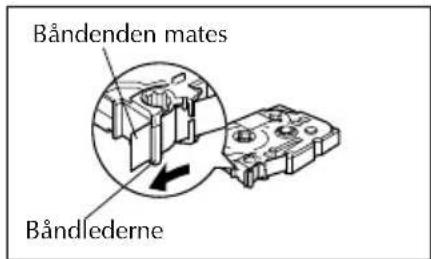
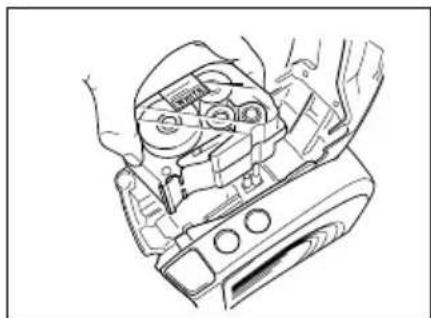
natural_image
Line drawing of a car interior showing dashboard and engine compartment (no text or symbols)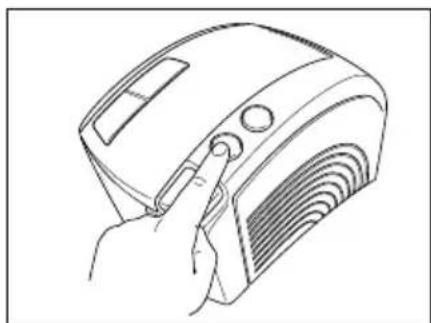
natural_image
Line drawing of a hand inserting a button into a device (no text or symbols)natural_image
Line drawing of a hand holding a device with a knob (no text or symbols)natural_image
Line drawing of a toaster with three buttons and ventilation grille (no text or symbols)Vedlikehold
natural_image
Line drawing of a hand holding a tool inside a device casing (no text or symbols)
Maskintekniske data
Strømforsyning: 230V 50Hz vekselstrøm (AC)