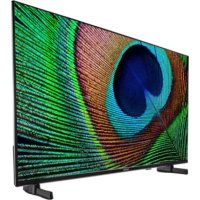
LIFE P8322500 - Television MEDION - Free user manual and instructions
Find the device manual for free LIFE P8322500 MEDION in PDF.


| Product Type | Android Smart TV |
| Brand | MEDION |
| Model | LIFE P8322500 (MD 832100) |
| Screen Size | 80 cm (32 inches) |
| Resolution | 1920 x 1080 pixels (Full HD) |
| Dimensions with stand (W x H x D) | 728 x 468 x 170 mm |
| Dimensions without stand (W x H x D) | 728 x 440 x 83 mm |
| Weight with stand | 4.0 kg |
| Weight without stand | 3.9 kg |
| Power Supply | 220-240 V ~ 50 Hz |
| Maximum Power Consumption | 60 W |
| Standby Power Consumption | < 0.50 W |
| Speaker Power | 2 x 6 W RMS |
| Wireless Connectivity | Wi-Fi 802.11 a/b/g/n, Bluetooth |
| Connections | 2 x HDMI (1 with ARC), 1 USB, 1 LAN RJ-45, AV composite (3.5 mm jack), headphone output, SPDIF coaxial, satellite input (LNB), antenna (ANT), Common Interface CI+ |
| Operating System | Android TV |
| Smart Features | Google Cast, HbbTV, Netflix, Prime Video, YouTube, Google Play, voice control |
| Supported Multimedia Formats | Photo: JPG, JPEG, BMP, PNG; Music: MP3, WMA, WAV; Video: MPEG 1/2/4, MKV, MOV, MP4, DAT, VOB, H263, FLV, HEVC |
| Max USB Storage Capacity | 1 TB |
| Wall Mount (VESA standard) | 75 x 75 mm (M4 screws) |
| Operating Temperature | +5 °C to +35 °C |
| Maintenance and Cleaning | Unplug before cleaning; use a soft, lint-free cloth; avoid solvents and corrosive detergents |
| Safety | Parental control with PIN code, channel and input locking |
| Supplied Accessories | Remote control RC1832, 2 LR03 (AAA) batteries, power cord, feet with screws, documentation |
| Repairability | Repair by qualified personnel only; spare parts specified by the manufacturer |
Frequently Asked Questions - LIFE P8322500 MEDION
User questions about LIFE P8322500 MEDION
0 question about this device. Answer the ones you know or ask your own.
Ask a new question about this device
Download the instructions for your Television in PDF format for free! Find your manual LIFE P8322500 - MEDION and take your electronic device back in hand. On this page are published all the documents necessary for the use of your device. LIFE P8322500 by MEDION.
USER MANUAL LIFE P8322500 MEDION
13. Multi Media Player (MMP) 33
MD 832100 / MD 840100 / MD 843100:
- OPEN-SOURCE-LIZENZEN
OPEN SOURCE-LIZENZEN
ANDROID TV - STARTSEITE
OPEN SOURCE-LIZENZEN
- CHROMECAST BUILT-IN
13. Multi Media Player (MMP)
| MD 824100 MD 832100 | |
| MD 840100 MD 843100 |
HOMI
HIGH-DEFINITION MULTIMEDIA INTERFACE
Covered by patents at patentlist.accessadvance.com
23. Serviceinformationen
13. Multi Media Player (MMP) 33
Risque de léssions auditives!
LICENSES OPEN SOURCE
- CHROMECAST BUILT-IN
13. Multi Media Player (MMP)
High-Definition Multimedia
Covered by patents at patentlist.accessadvance.com
Premiere installation 12
Problème 37
13. Multi Media Player (MMP) 32
WAARSCHUWING! Oververhitting! Brandgevaar!
MD 832100 / MD 840100 / MD 843100:
LIJST MET CEC-APPARATEN
OPEN-SOURCELICENTIES
ANDROID TV STARTSCHERM
OPENSOURCE-LICENTIES
Hiermee toont u de Google-opensourcelicencies.
- CHROMECAST BUILT-IN
13. Multi Media Player (MMP)
| MD 824100 MD 832100 | |
| MD 840100 MD 843100 |

HIGH-DEFINITION MULTIMEDIA INTERFACE
De termen HDMI, HDMI
Covered by patents at patentlist.accessadvance.com
23. Service-informatie
Multi Media Player (MMP) 32
Muziek. 40
0
13. Multi Media Player (MMP) 33
13.1. Menu principal del reproductor multimedia. 33
14. Google Cast 35
15. Sistema HbbTV 36
16. Proteccion de datos MEDION Smart TV 36
MD 832100 / MD 840100 / MD 843100:
BUSQUEDA MANUAL ANALOGICA
BUSCUEDA DE RF UNICA
- CHROMECAST BUILT-IN
- USO Y DIAGNOSTICOS
13. Multi Media Player (MMP)
| MD 824100 MD 832100 | |
| MD 840100 MD 843100 |
HOMI
HIGH-DEFINITION MULTIMEDIA INTERFACE
HE Advance Covered by patents at patentlist.accessadvance.com
MEDION Service Center
ENAME, S.A
Multi Media Player (MMP) 33
Música 40
P
Pagina de inicio 18
Pilas. 7, 12, 39
Pixeles muertos 37
Portal multimedia 36
Primera instalacion 12
MD 832100 / MD 840100 / MD 843100:
RICERCA MANUALE ANALOGICA
- LICENZE OPEN SOURCE
TIPO ORA DI ACCENSIONE
- CHROMECAST BUILT-IN
13. Multi Media Player (MMP)
| MD 824100 MD 832100 | |
| MD 840100 MD 843100 |

HIGH-DEFINITION MULTIMEDIA INTERFACE
TM I termini HDMI, HDMI High-Definition Multimedia Interface e il logo HDMI sono
marchi o marchi registrati di HDMI Licensing Administrator, Inc.
Covered by patents at patentlist.accessadvance.com
Multi Media Player (MMP) 32
Musica 40
P
- Information about these operating instruc-tions 3
1.1. Explanation of symbols 3
1.2. Proper use 24.4
-
Package contents 75
-
Safety instructions
4
3.1. Operating safety 4
3.2. Set-up location 5
3.3. Repairs 6
3.4. Environmental temperature 6
3.5. Safety when connecting 6
3.6. Handling batteries
- EU - Declaration of conformity 8
4.1. Information on WLAN 8
- Device overview 9
5.1. Front 9
5.2. Rear and right-hand side.. 9
5.3. Remote control 10
- Getting started 11
6.1. Unpacking 11
6.2. Mounting 11
6.3. Inserting batteries in the remote control
6.4. Connecting the antenna 12
6.5. Connecting the power supply 12
6.6. Switching the smart TV on and off 12
6.7. Initial installation after switching on for the first time. 12
6.8. Using the multimedia connections...15
- Operation 16
7.1. Channel selection 16
7.2. Sound settings 16
7.3. Displaying information 16
7.4. Selecting the source.. 17
- Teletext 17
8.1. Using the teletext 17 -
Using the On-Screen Display menu (OSD menu) 18
9.1. Navigating in the menu.. 18 -
Home page 18
-
Live TV menu 18
11.1. Channels menu 18
11.2. TV options menu.. 19
11.3. Record menu.. 30
-
Channel list 31
-
Multi Media Player (MMP) 31
13.1. Main menu for the media player... 31 - Google Cast 34
-
HbbTV system 34
-
Data protection MEDION Smart TV 34
-
Troubleshooting 35
17.1. Do you need more help? 35
17.2. Smart TV pixel faults.. 36
- Cleaning 36
1. Information about these operating instructions

Thank you for choosing our product. We hope you enjoy using it.
Read the safety instructions carefully before using the device for the first time. Note the warnings on the device and in the operating instructions.
Always keep the operating instructions close to hand. If you sell the device or give it away, please ensure that you also pass on these operating instructions. They are an essential component of the product.
1.1. Explanation of symbols
If a block of text is marked with one of the warning symbols listed below, the hazard described in that text must be avoided to prevent the potential consequences described there from occurring
| ! | DANGER! Warning of immediate risk of fatal injury! |
| ! | WARNING! Warning: possible mortal danger and/or serious irreversible injuries! |
| ! | CAUTION! Warning: possible light or moderate inju-ries! |
| ! | NOTICE! Follow these instructions to prevent dama-ge to property and other objects! |
| i | Additional information on using the appli-ance! |
| i | Read the user manual and observe its instru-tions. |
| Due to the 5 GHz frequency range of the used wireless LAN solution, use in EU countries is only permitted inside buil-dings. | |
| WARNING! Warning: danger of electric shock! | |
| WARNING! Warning: danger due to excessive volume! | |
| Protection class II Electrical appliances in protection class II are electrical appliances that permanently have double and/or reinforced insulation and do not have the option of connecting a protective earth. |
1.2. Proper use
This is an information technology device and is also suitable for multimedia applications. This device is used to receive and play back television programmes. The range of different connections supplied makes it possible to expand the input and output sources (receiver, DVD player, DVD recorder, video recorder, PC, etc.). Your device offers a number of options for usage.
The device is intended for private use only and not for industrial/commercial use.
- Please note that we shall not be liable for damage caused by improper use.
- Do not modify the device without our consent and do not use any auxiliary equipment that we have not approved or supplied.
- Use only spare parts and accessories that we have supplied or approved.
Heed all the information in these operating instructions, especially the safety information. Any other use is deemed improper and can cause personal injury or property damage. - Do not use the device in extreme environmental conditions.
- This device is intended for use in dry, indoor areas only.
- This device is not designed to be used as a data monitor for office workplaces

Please note that this device is not suitable for mobile use and must only be used when stationary at a designated place. Proper functionality cannot be guaranteed during mobile use, since this could result in reception issues or similar.
2. Package contents
Please check your purchase to ensure that all items are included. If anything is missing, contact us within 14 days of purchase.
The following items are supplied with your product:
Androidsmart TV
- Remote control (RC1832) incl. 2 x LR03 (AAA) 1.5 V batteries
Power cord
- Feet incl. fixing screws
- Documentation

Risk of choking and suffocation!
Packaging film can be swallowed or used improperly, creating a risk of choking and suffocation.
- Keep packaging material such as plastic film or plastic bags away from children.
3. Safety instructions
3.1. Operating safety
- Check the device for damage before using it for the first time. A defective or damaged device must not be placed into operation.
- This device may be used by children over the age of 8 and by persons with reduced physical, sensory or mental abilities or by those without experience and knowledge, if they are supervised or have been instructed in the safe use of the device and have understood the dangers that result from it.
- Children must not be allowed to play with the device. Cleaning and user maintenance must not be carried out by children unless they are supervised.

DANGER!
Risk of suffocation!
Packing material is not a toy! Packaging film can be swallowed or used improperly. Therefore, there is a risk of suffocation!
- Keep packaging material such as plastic film or plastic bags away from children.

WARNING!
Risk of electric shock!
Risk of electric shock, short circuit and fire!
- Never open the housing of the Smart TV and never insert any objects through the slots and openings into your Smart TV.

WARNING!
Overheating! Risk of fire!
Overheating can damage your Smart TV and lead to a risk of fire!
The slots and openings on the TV are for ventilation purposes. Do not cover these openings e.g. with newspapers, table cloths, curtains, etc.
- Do not put any pressure on the display. There is a risk that the glass on the screen may break.
- The universal remote control has a class 1 infrared diode. Never use optical devices to look at the LED.

CAUTION!
Risk of injury!
There is a risk of injury if the display is broken!
To avoid damaging the display, do not touch it with fingers or sharp objects.
Pick up the shattered pieces wearing protective gloves.
Then wash your hands with soap because chemicals may have leaked out.
- Send the broken parts to your Service Centre for professional disposal.
- Disconnect the device from the mains network immediately in the event of an emergency and only use it again when it has been checked by a qualified person or customer services. Emergency situations include e.g. when smoke or unusual noises are coming from the device, water has penetrated into it or the mains cable or housing is damaged.
Contact customer services if:
- The power cable is burnt or damaged
- Liquid has penetrated the device
- The device is not operating correctly
- The device has fallen, or the housing is damaged
- Smoke is rising from the device
3.2. Set-up location
-
The wall mounting of the TV device must not exceed a height of 2m . The device need to be mounted on rigid surfaces such as cement or concrete.
-
In the first few hours of use, new devices can give off a typical, unavoidable but totally harmless smell which wears off with time. We recommend that you ventilate the room at regular intervals to counteract the smell. We have taken appropriate measures during the development of this device to ensure that levels are significantly below legal limits.
- Keep your Smart TV and all connected appliances away from moisture and avoid dust, heat and direct sunlight.
Non-compliance with these instructions can lead to faults or damage to the Smart TV.
- Do not use the device outdoors as it could be damaged by rain, snow, etc.
- The device must not be exposed to dripping or sprayed water. Do not place vessels filled with liquid (vases or similar) on or in the vicinity of the device.
The container may tip over and the liquid may impair the electrical safety of the product.

NOTICE!
Risk of damage!
There is a risk of injury with candles and other open flames.
-
Keep candles and other open flames away from this device at all times in order to prevent the spread of fire.
-
Make sure that there is enough clearance from the sides of the furniture unit. Ensure a minimum clearance of 10 cm around the device for sufficient ventilation.
- Avoid dazzle, reflections and strong bright-dark contrast in order to protect your eyes.
- The optimal viewing distance is 3 times the screen diagonal.

DANGER!
Risk of injury! Mortal danger!
Only set up your TV on a stable surface. Televisions that tip over could cause serious injuries or death. Lots of injuries, especially to children, can be avoided by observing the following safety precautions.
- Operate all components on a stable, level and vibration-free base, to prevent the Smart TV from falling over.
Only use the stand and screws supplied with the TV.
- Only use furniture that guarantees the safe use of the TV.
- Ensure that the TV does not hang over the edges of the furniture.
- Do not place the TV on higher or high furniture such as wall cabinets or shelves without ensuring that both the furniture and the TV are safely and securely held in place.
- In order to guarantee the stability of the TV, do not place any sheets or similar under it.
- Advise children of the dangers of climbing up furniture in order to reach the TV or its operating elements.
If you are storing or moving the TV, also observe the aforementioned safety instructions.
3.3. Repairs
- Repairs to your Smart TV should only be carried out by qualified specialists.
If a repair must be carried out, please only contact our authorised service partner. - Make sure that only replacement parts provided by the manufacturer are used. The use of unsuitable replacement parts may damage the device and lead to a risk of fire.
3.4. Environmental temperature
- The device can be operated at an ambient temperature of +5^ to +35^ with a relative humidity of 20% - 85% (non-condensing).
- When switched off, the Smart TV can be stored at temperatures from -20^ to +60^ .
- Keep the product at least one metre away from sources of high-frequency and magnetic interference (television set, loudspeakers, mobile telephones, etc.) in order to avoid malfunctions.
- During thunderstorms or if the device is not going to be used for long periods, remove the plug from the socket and the aerial cable from the aerial socket.

NOTICE!
Risk of damage!
Large changes in temperature or fluctuations in humidity can cause moisture to build up due to condensation within the Smart TV, which can cause an electrical short circuit.
After transporting the Smart TV, wait until the appliance has reached ambient temperature before switching it on.
3.5. Safety when connecting
3.5.1.Power supply
- Even when deactivated, some components of the device are live. To disconnect the power from your Smart TV or to completely isolate the device from voltage sources, disconnect the device completely from the mains network. Disconnect the mains plug from the mains socket for this purpose.

DANGER!
Risk of electric shock!
There is a risk of death due to an electric shock when the housing is open!
Do not open the housing of the device. It does not contain any parts requiring maintenance.
- Only plug the Smart TV into earthed 220 - 240V 50Hz sockets. Contact your electricity provider if you are not sure if the socket is earthed or not.
- The socket must always be easily accessible so that the mains plug can be quickly disconnected from the socket in the event of an emergency.
- To disconnect the power supply to your TV, disconnect the mains plug from the mains socket.
- For extra safety, we recommend using an over-voltage protection device to prevent your Smart TV sustaining damage as a result of power surges or lightning strikes.
- Position the cables so that they cannot be stepped on or tripped over.
- Do not place any objects on the cables as they may be damaged.
- Do not touch the plug with wet hands.
- Always hold the plug by its housing and never pull it out of the socket using the cable.
- Please note that the TV also continues to consume power in standby mode.

If the device shuts down and restarts due to an electrostatic discharge while in USB mode (media player), optional HbbTV mode or optional LAN/WiFi operation (media player/portal), it will not be able to independently restore the last operating mode. Please restart the respective media or applications.
The last user settings you entered may not be restored following an electrostatic discharge that causes the TV to shut down because these settings are only saved 5 minutes after switching channels.

All multimedia devices, which are connected to the corresponding ports of the TV, must comply with the requirements of the Low Voltage Directive.
3.6. Handling batteries

WARNING!
Risk of explosion!
Batteries may contain combustible materials and leak, heat up excessively, ignite or even explode.
- Avoid improper handling of the batteries to prevent damage to your device and your health.
Please follow the safety advice below closely:
- Keep batteries away from children. If batteries are swallowed, consult a doctor immediately.
- Never charge batteries (unless they are designed to be recharged).
- Never empty the batteries by means of high power output.
- Never short-circuit the batteries.
- Never expose the batteries to excessive heat, such as sunlight, fire or similar sources of heat!
- Do not dismantle or deform the batteries.
You could injure your hands or fingers, or battery fluid could come into contact with your eyes or skin. If this happens, rinse the affected areas with plenty of clean water and consult a doctor immediately.
- Avoid heavy impacts and vibrations.
- Always observe the correct polarity.
- Make sure that the plus (+) and minus (-) poles are correctly inserted to avoid short circuits.
- Do not mix up new and old batteries or different types of batteries.
This could cause your device to malfunction. In addition, the weaker batteries would discharge too much.
-
Remove spent batteries from the device immediately.
-
Remove the batteries from the device if you do not intend to use it for a long period of time.
- Replace all of the old batteries in a device with new batteries of the same type.
- Cover the contacts of the batteries with sticky tape if you want to store or dispose of them.
- If necessary, clean the battery and device contacts before insertion.
- If the batteries have leaked, wear protective gloves and clean the contacts thoroughly.
4. EU - Declaration of conformity
MEDION AG hereby declares that this product conforms with the essential requirements and the remaining relevant regulations:
RE Directive 2014/53/EU
- Ecodesign Directive 2009/125/EC
RoHS Directive 2011/65/EU
You can download the complete EU Declaration of Conformity from www.medion.com/conformity.
CE
Use is only permitted inside buildings in all EU countries due to the 5 GHz frequency band of the inbuilt Wireless LAN solution.
| 8 | ||||
| AT BE | BG CZ DK | |||
| EE FR | DE IS IE | |||
| IT EL | ES CY LV | |||
| LI LT | LU HU MT | |||
| NL | NO | PL | PT | RO |
| SI | SK | TR FI | SE | |
| CH | UK(NI) | HR | ||
AT = Austria, BE = Belgium, BG = Bulgaria, CZ = Czech Republic, DK = Denmark, EE = Estonia, FR = France, DE = Germany, IS = Iceland, IE = Ireland, IT = Italy, EL = Greece, ES = Spain, CY = Cyprus, LV = Latvia, LI = Liechtenstein, LT = Lithuania, LU = Luxembourg, HU = Hungary, MT = Malta, NL = Netherlands, NO = Norway, PL = Poland, PT = Portugal, RO = Romania, SI = Slovenia, SK = Slovakia, TR = Turkey, FI = Finland, SE = Sweden, CH = Switzerland, UK(NI) = Northern Ireland, HR = Croatia
4.1. Information on WLAN
| WLAN | ||
| Frequency range | 2,4 GHz/ 5 GHz | |
| Wi-Fi standard | 802.11 a/b/g/n | |
| Encryption | WEP/WPA/WPA2 | |
| Frequency range/MHz | Channel | Max. transmission power/dBm |
| 2400 – 2483,5 | 1 - 13 | 19,9 |
| 5150 – 5250 | 36 – 48 | 22,4 |
| 5250 – 5350 | 52 – 64 | 22,5 |
| 5470 – 5725 | 100 – 140 | 22,5 |
5. Device overview
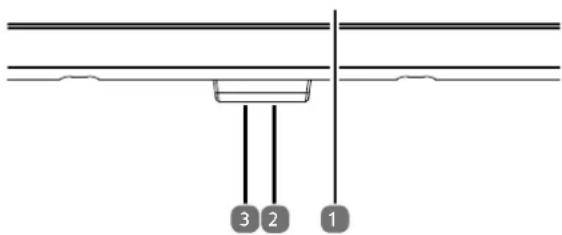
5.1. Front
MD 824100:

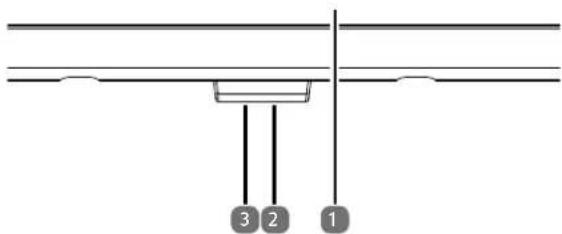
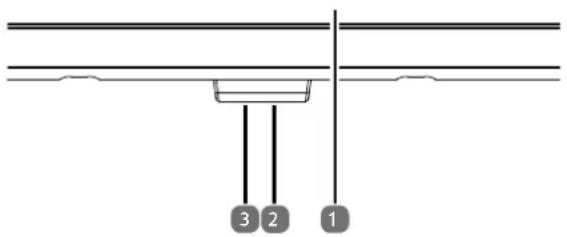
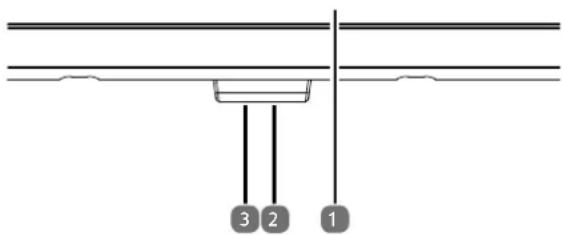
MD 832100 / MD 840100 / MD 843100:
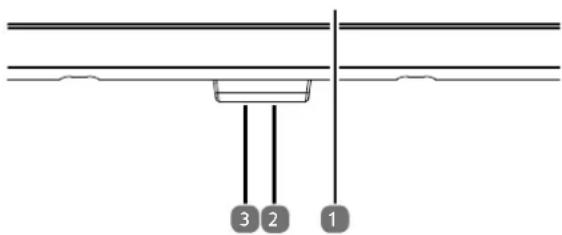
- Screen
- : Switch the device on and off
- Infrared sensor: Reception field for the infrared remote control signals.
Operating light: lights up when the device is in standby mode.
5.2. Rear and right-hand side
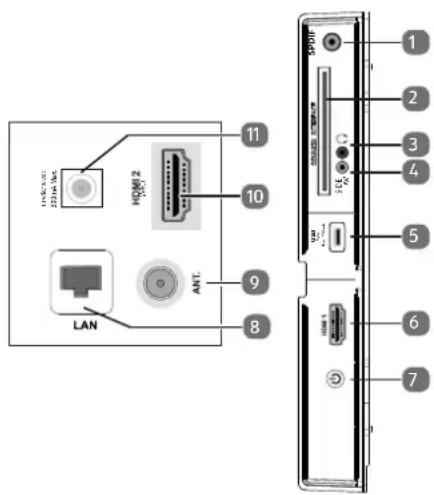
- SPDIF coaxial OUT: Digital audio output (coaxial)
- COMMON INTERFACE (CI + ) : Card slot for connecting pay TV cards
- For connecting headphones with 3.5mm jack
- SIDE AV (Composite): Audio/video input with 3.5mm jack
- USB (5 V=500 mA max.): USB connection for media playback/recording (PVR)
- HDMI 1: HDMI port for devices with HDMI output
- Switch the device on and off (MD 824100 only)
- LAN: Network connection for connection to the Internet
- ANT.: For connecting the antenna (analogue, DVB-T or DVB-C)
- HDMI 2: HDMI connection for devices with HDMI output (ARC)
- LNB (13 V/18 V---, 300 mA max.): For connecting the antenna (satellite)
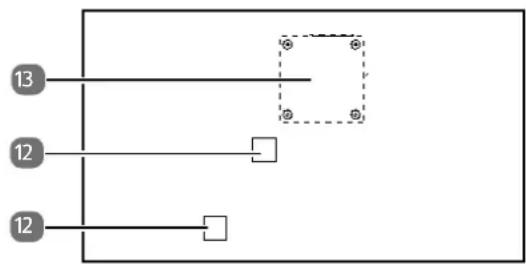
- Connection for mains plug

Please only use the mains connection cable supplied for this purpose.
- Fixing holes for a wall mount MD 824100 / MD 832100: Vesa standard, hole spacing 75× 75mm
MD 840100 / MD 843100: Vesa standard, hole spacing 100 × 100 ~mm

Wall mount not supplied. When mounting the device, make sure that you use M4 screws. The maximum length of the screws corresponds to the thickness of the wall mount plus 7mm .
The TV must not be mounted at heights exceeding 2m . The device must be mounted on a solid surface such as cement or concrete.
5.3. Remote control
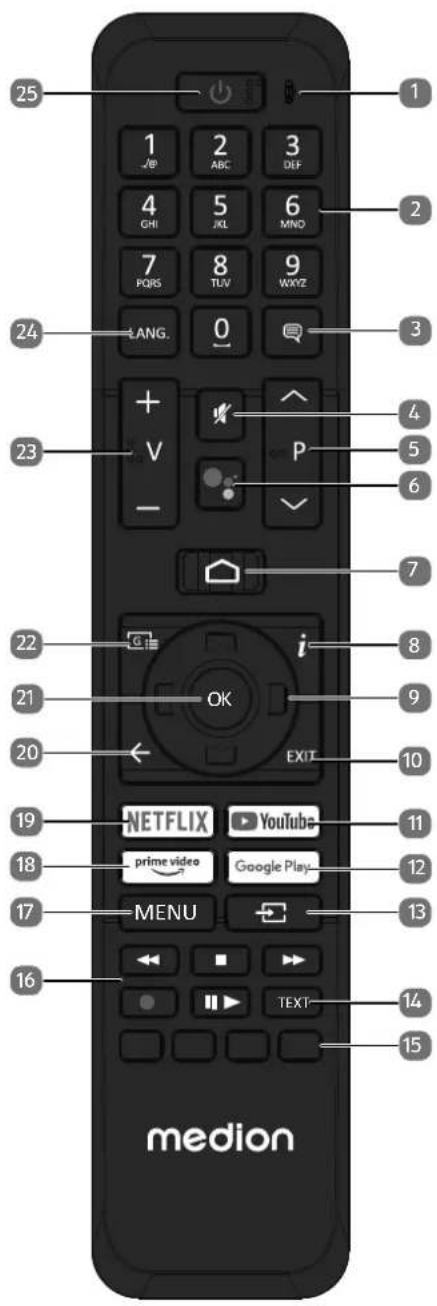
- Microphone
- Number buttons: TV: Channel selection, teletext: Page selection
- :DTV/satellite/media browser: subtitle function
- :Mute
- P : Channel selection buttons TV: select next (+) / previous (-) channel; teletext: select next (+) / previous (-) page
- Microphone button for activating voice control
- : Open the start screen
- ±b (INFO): Digital TV: show information (e.g. current channel number)
- Direction button 5: move up in menu Digital TV: select infobar for the current channel, teletext: select next page;
Direction button 6: move down in menu, Digital TV: select infobar for the current channel, teletext: select previous page;
Direction button 3: move left in menu Teletext: call up subpages;
Direction button 4: move right in menu Teletext: call up subpage - EXIT: Exit the menu
- YOUTUBE: Open the YouTube app
- GOOGLE PLAY: Open the Google Play app
- (SOURCE): Select input signal of connected devices
- TEXT: Switch teletext on and off
- Red button: For teletext or menus, HbbTV Green button: For teletext or menus Yellow button: For teletext or menus Blue button: For teletext or menus
- Media buttons
:Fast rewind;
:Stop playback;
:Fastforward;
- Start recording (PVR);
II Start playback/pause playback/start timeshift
-
MENU: Open and close menu
-
PRIMEVIDEO: Open the Prime Video app
- NETFLIX: Open the Netflix app
- Move back one step in the menu
- OK: Confirm selection in certain menus
- Digital TV: call up the electronic programme guide
- V - / + : Increase (+) or decrease (-) volume.
- LANG.: Analogue TV: stereo/mono; Digital TV: select audio language (if available)
- : Switch smart TV on/off (switch standby mode on/off).
6. Getting started

Before using for the first time, ensure you read the "Safety instructions" section.
6.1. Unpacking
- Select a suitable place for setting up the device before unpacking.
- Open the box very carefully, to avoid damaging the device. The device might get damaged if you use a knife with a long blade to open the box.
- The box contains a number of small items (including batteries). Keep these out of the reach of children, as they represent a choking hazard.
- Store the packaging material in a safe place. Only use this box to transport the TV.

DANGER!
Risk of choking and suffocation!
Packaging film can be swallowed or used improperly, creating a risk of choking and suffocation.
- Keep packaging material such as plastic film or plastic bags away from children.
6.2. Mounting
Attach the feet as shown in the illustration. Carry out this step before connecting the Smart TV.
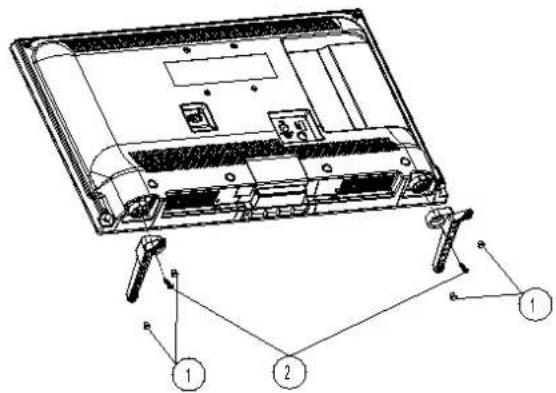
MD 824100:
- Attach the rubber buffer
- Attach the M5x20 screws
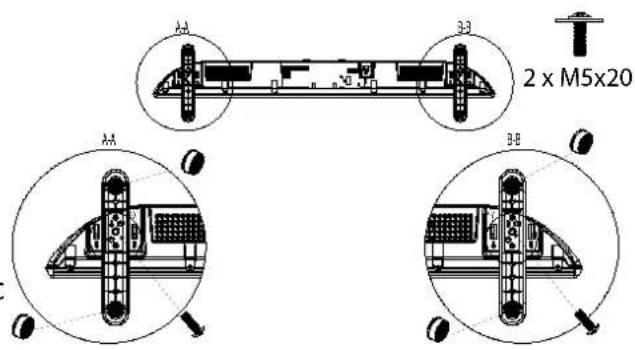
MD 832100:
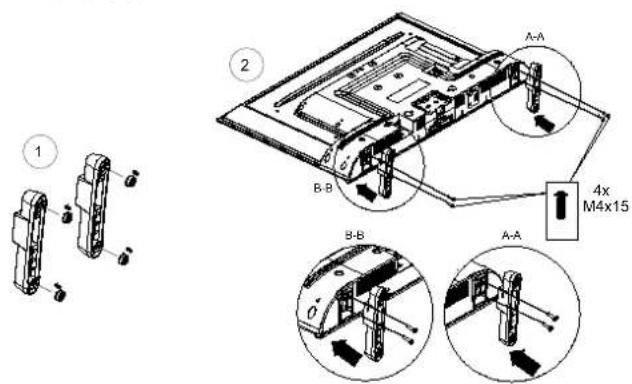
MD 840100:
- Attach the rubber buffer
- Attach the M4x15 screws
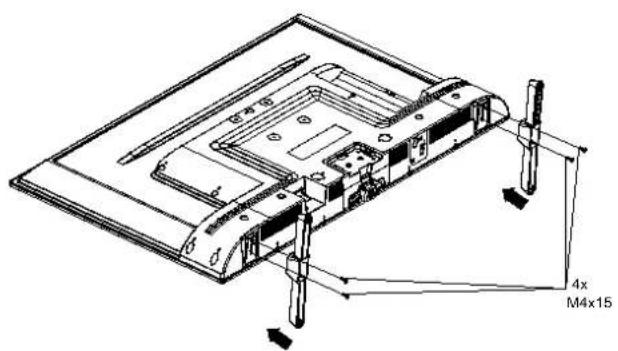
MD 843100:
6.3. Inserting batt eries in the remote control
Remove the battery compartment cover on the back of the remote control.
Insert two LR03 (AAA) 1.5 V batteries in the battery compartment of the remote control. Check the battery polarity (see label on the bottom of the battery compartment).
Close the battery compartment.

NOTICE!
Risk of damage!
The remote control can be damaged by leaking batteries if not used for a long period of time!
Remove the batteries from the remote control if the device is not going to be used for a long period.
6.4. Connecting the antenna
Your smart TV supports different antenna signals.
You can input the following image signals to the television through the socket labelled ANT.:
- Via analogue cable/an analogue house aerial
- Via a DVB-T2/DVB-T' antenna or
-
Via a DVB-C ^2 connection (digital cable connection)
-
Insert the antenna cable either from the house aerial/ analogue cable connection, a DVB-T antenna or the DVB-C connection in the antenna socket on the Smart TV.
You also have the option of connecting a digital satellite system to the socket labelled LNB.
Screw a coaxial antenna cable's F connector onto the connector on the Smart TV.

To receive encrypted/subscription channels you will need to use a CI module (Conditional Access Module) and an appropriate card. Insert a CI module (available in specialist shops) in the slot provided for this purpose on the left-hand side of the device (COMMON INTERFACE). You can then insert your provider's card in the CI module.
6.5. Connecting the power supply
Connect the supplied power cord to the mains connection socket of the device.
Connect the mains plug on the device to an easily accessible 220 to 240V 50Hz mains socket.
6.6. Switching the smart TV on and off
The device will be in standby mode as soon as you have connected the mains plug to the mains socket.
To switch on the device, press
- on the remote control: the Standby/On button one of the number buttons or one of the P / buttons;
- on the device: the multifunction button
Use the Standby/On buttah on the remote control to switch the device back into standby mode. Although the device has been switched off, it will continue to consume electricity.

If the device is not receiving an input signal, it will automatically switch to standby mode after five minutes. A countdown timer will appear on the screen until this time. This function is not available for all sources.
6.7. Initial installation after switching on for the first time
You will be guided through the initial installation after you switch on the device for the first time. You can call up the initial installation at any time via the SETTINGS > DEVICE PREFERENCES > ABOUT > FACTORY RESET menu and run it again.
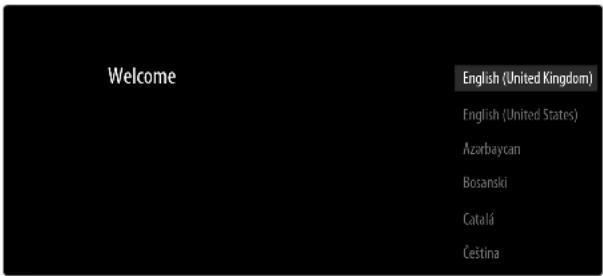
Use the buttons to select the language.
Then pres or to confirm.
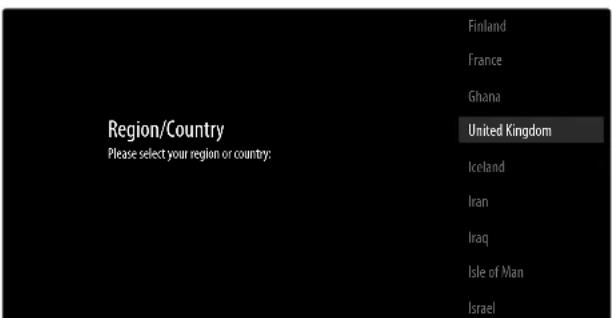
- Select the desired country using . The country setting will influence the order in which the channels are stored. In addition, there are a number of options preset for the individual countries.
Afterwards, press OK or to continue.
A message appears when the device is used for the first time. Use the buttons to select CONTINUE and press OK.
Then choose whether you want to set up the device using an Android smartphone.
To do so, use the buttons to select CONTINUE and press OK. Then follow the instructions provided.
Use the buttons to select SKIP to continue setting up the TV.
6.7.1. Network/Internet settings
Next, you can establish a connection to the network/Internet.
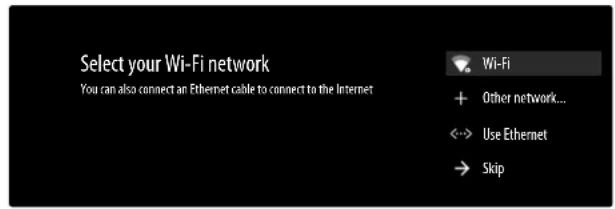
All available WLAN networks are displayed directly.
Use the buttons to select the required WLAN network and press OK. If necessary, then enter the required password using the direction buttons
then select the return key and press OK to confirm. The connection will then be established.
To establish a LAN connection using a network cable, select USE ETHERNET and press OK. If necessary, then enter the required password using the direction buttons , then select the return key and press OK to confirm. The connection will then be established.
Select OTHER NETWORK... if you want to establish a connection with another network. Then specify the name of the network. If necessary, then enter the required password using the direction buttons
then select the return key and press OK to confirm. The connection will then be established.
Depending on the country selected, it may now be necessary to specify a password and parental control settings.
6.7.2. Google sign in
You can now sign in using your Google account to optimise your device with your apps, films and recommendations etc. You can do this using your smartphone/computer by going to androidtv.com/setup and entering the six-digit numerical code for your device. This will be displayed as soon as you select USE YOUR PHONE OR COMPUTER and press OK.

Make sure that your smartphone/computer and the TV are connected to the same WLAN network during setup.
Select USE YOUR REMOTE and press OK to register the remote control on the TV. Then enter your email address to sign in.
If you do not want to sign in to Google, select SKIP and press OK to continue setup.
6.7.3. Terms of use and other default settings
At this point, you will be prompted to accept the terms of use, privacy policy and Google Play terms of use. This is essential if you intend to make use of Google services.
Read through carefully and select ACCEPT to confirm and then press OK.
If you would like to allow Google to access your location in order to optimise the functionality of certain apps and platforms, select ACCEPT now and press OK. Otherwise, select this option beforehand, press OK and deactivate this function.
If you would like to allow Google to access your usage data, select ACCEPT now and press OK. Otherwise, select this option beforehand, press OK and deactivate this function.
6.7.4. Optimising voice control for your television (optional)
You can now optimise voice control for your device. If you want to use voice control without logging into your Google account, select USE ASSISTANT WITHOUT
SIGNING IN. If you do not want to configure any settings, select SKIP.
A selection of apps will then be displayed which will be installed when you continue with the TV setup. You can select them with the arrow keys and deactivate or activate them as desired. Select CONTINUE and press OK to continue.
A range of information relating to the use of your Android TV concerning Google Play, the Google voice assistant and the Chromecast technology will then be displayed. You can press OK or the button to skip these pages.
Optional (depending on country selection): Now you will be asked to enter a 4-digit password.
Then select the desired TV mode (HOME or STORE).
- Then select the desired energy option and pre OK . Activate the Chromecast technology if you would like your TV to respond to cast commands as a cast device when in sleep mode. To do so, select ON and press OK.

Please note that enabling this function results in higher energy consumption.
6.7.5. Setting up TV reception
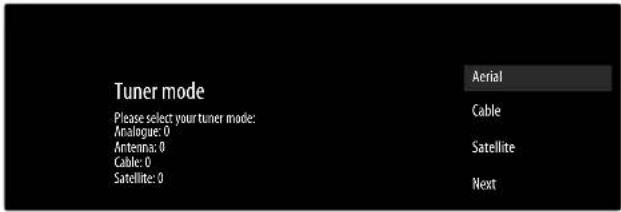
Select the required reception mode AERIAL, CABLE or SATELLITE and press OK:
6.7.6. Aerial

Make sure that you have connected a DVB-T2 antenna to the ANT. connection.
- Choose whether to search for analogue only, digital only or for both analogue and digital channels and press OK. The search then begins. If you do not want to set up any TV channels, select SKIP SCAN and press the OK or button.
6.7.7. Cable

Make sure that your cable connection is connected to the ANT. connection.
Select the desired provider.
- Choose whether to search for analogue only, digital only or for both analogue and digital channels and press OK. If you do not want to set up any TV channels, select SKIP SCAN and press the OK or button.
The following options are then available:
| Cable scan configure | |
| SCAN MODE | Select the required search mode FULL (only for provider selection OTHERS), ADVANCED or QUICK here. |
| FREQUENCY (KHZ) (only in the search mode ADVANCED or QUICK) | Set the frequency here. |
| NETWORK ID (only in the search mode ADVANCED or QUICK) | Set the network ID here. |
Then press the button to start the scan.
6.7.8. Satellite

Make sure that your satellite connection is connected to the LNB connection.
Select NEXT if you do not want to configure additional settings. Select MORE if you want configure additional settings. The following options are available here:
| MORE | |
| SINGLE | Select the required satellite here. |
| TONE BURST | If your satellite system requires a tone burst, you can set it to TONE BURST A or B here. |
| DISEQC 1.0 | If you have connected multiple LNBs or a DiSEqC switch to your satellite antenna, select DiSEqC 1.0 here. |
| DISEQC 1.1 | If you have connected multiple LNBs or a DiSEqC switch to your satellite antenna, select DiSEqC 1.1 here. |
| DISEQC 1.2 | If you have connected multiple LNBs or a DiSEqC switch to your satellite antenna, select DiSEqC 1.2 here. |
| UNICABLE I | Select the Unicable I settings (TU-NER and BAND FREQUENCY) here. |
| UNICABLE II | Select the Unicable II settings (TU-NER and BAND FREQUENCY) here. |
To start the LNB search, select NEXT > SCAN and press OK or . The LNB search is started.
Under MORE, if you have selected UNICABLE I or UNICABLE II, the following setting options are available:
| Unicable-Einstellungen | |
| TUNER Select the | desired USER BAND 1 - 8. |
| BAND FREQUENCY | Select the band frequency 1210, 1284, 1400 or USER DEFINED. |
| USER DEFINED | You can set a band frequency of your choice here using the virtual keyboard. This option can only be edited if you have previously selected USER DEFINED under BAND FREQUENCY. |
If necessary, you can now configure satellite settings for the relevant satellite:
| Satellite setup | |
| SATELLITE STATUS | Activate/deactivate the satellite status. When deactivated, LNB settings can be changed or a search started. |
| SATELLITE SELECTION | The selected satellite is displayed here. |
| SCAN MODE | Select whether you wish to search for only encrypted, only freely available channels or for all channels here. |
| SCAN TYPE | Select whether you wish to search for only digital channels, only radio stations or for all channels here. |
| STORE TYPE | Select the storage type here. |
| TRANSPOND-ER | Select the transponder on which the search will be started. |
| LNB CONFIGUATIONS | You can configure the LNB settings here. |
| SIGNAL QUALITY | The signal quality is shown in per cent. Settings here cannot be changed. |
| SIGNAL LEVEL | The signal strength is shown in per cent. Settings here cannot be changed. |
Select SCAN and preOK or .
If you do not want to set up any TV channels, select SKIP SCAN and press theOK or button.
Once the search has ended, go to receiver mode and select NEXT then confirm FINISH by pressing OK.
Then accept or skip the information on manufacturer use and diagnosis for transferring your user data to the device manufacturer. This enables the manufacturer to ensure optimal functionality of the device.
Setup is now complete and the device switches to Internet mode automatically. Press the EXIT or button to switch back to TV mode. Opening the Live TV app will also take you to TV mode.

The TV can be reconfigured at any time. To do so, use the FACTORY RESET option in the SETTINGS > DEVICE PREFERENCES > ABOUT menu.
6.8. Using the multimedia connections
0 NOTICE!
Risk of damage!
Incorrect operation can cause damage to the equipment used.
Before wiring and first use, you must also read the operating instructions of the devices you are connecting. Take care to ensure that all devices are switched off during wiring.
0 NOTICE!
Risk of damage!
If plugs and sockets are connected incorrectly it can cause damage to the contacts.
Take care to ensure that the plugs and corresponding sockets fit together precisely in order to avoid any damage to the contacts. Due to the arrangement of the contacts, many plugs will only fit into the socket in one position.
6.8.1. AV
The AV transmission (composite) works via three cinch connections, of which one transmits the video signal (yellow) and two transmit the stereo audio signal (red/white). Use a standard AV cable.
- Connect the AV output of the playback device with the AV input of the TV. If necessary, use an appropriate AV adapter.
6.8.2. HDMI
HDMI (High Definition Multimedia Interface) is an interface for digital video and audio transmission. It has the highest quality of transmission. Use a standard HDMI cable:
Connect the corresponding HDMI ports of the devices used with an HDMI cable.
6.8.3. HDMI ARC (Audio Return Channel)
If you want to use a TV set as a signal receiver AND signal source (to transmit an audio signal to an audio receiver), you must use the HDMI2 port with audio return channel (ARC). The HDMI connection to the TV then works in both directions. It can receive image and sound signals from a video device and the audio signal of the TV set can also be sent to the audio receive via the audio return channel.
Connect the video device (e.g. Blu-ray player) to the audio receiver via HDMI.
Connect the audio receiver to the TV set via HDMI/ARC.
Take care to ensure that the speaker control of the TV set is routed to the external amplifier.
6.8.4. HDMI CEC (Consumer Electronics Control)
CEC is the abbreviation for Consumer Electronics Control. If you connect different devices via CEC-enabled HDMI connections, you can control certain functions of the entire HDMI network with a single remote control (e.g. standby or record functions):
- Connect all devices via CEC-enabled HDMI ports with HDMI cables. The HDMI ports on your TV set are all CEC-enabled.
Take care to ensure that the CEC functions are enabled for all ports and that all devices are connected accordingly.
6.8.5. USB
A USB port can be used to connect and read storage media such as USB sticks or external hard drives. Use a suitable USB cable. If a suitable USB cable is supplied, you should use this (e.g. for hard drives). Always verify the power consumption of the USB storage medium used and use the corresponding USB connections.
- Connect the corresponding USB ports of the devices used with a suitable USB cable. Whenever possible, do not use a USB extension cord as this can cause problems, depending on the voltage.
6.8.6. SPDIF
SPDIF (Sony./Phillips digital interface) is an interface for transferring digital stereo or multi-channel audio signals between various devices. Usually, the digital audio signal is output via a coaxial (cinch) or an optical connection.
- Connect the corresponding SPDIF ports of the devices used with a corresponding SPDIF cable.
6.8.7. LAN
You can connect the TV set to the Internet via the LAN connection and receive online content (e.g. streaming services) via your device.
- Connect the LAN connection of the TV set to your network or router using a network cable (Ethernet cable).
Make all the necessary network settings on the devices
6.8.8. Headphone output (Headphones Out)
The headphone socket is used for connecting a pair of headphones with a stereo mini jack connection.
Connect the headphones to the stereo mini jack of the device.
- You can set the volume of the headphone signal in the sound menu. If necessary, mute the speaker of the TV.
WARNING!
Risk of hearing damage!
To prevent possible damage to your hearing, avoid listening at high volume over long periods of time.
Before pressing play, set the volume to the lowest setting.
Start playback and increase the volume to a comfortable level.
7. Operation
7.1. Channel selection
To select a channel, press either one of the P / buttons on the remote control or select the channel directly using the number buttons.
For a two- or three-figure number, press the number buttons in the corresponding order.
By pressing tck button on the remote control, you can call up the channel list, select the channel using the and buttons and call it up by pressing OK.
7.2. Sound settings
You can increase or decrease the volume by pressing the volume buttons V - / + on the remote control.
Press the mute button to switch the volume fully off and on again.
Pressing the LANG. button opens the CURRENT LANGUAGE window.
7.3. Displaying information
Press the i (INFO) button to display information about the current channel. The infobar is also displayed if different signal inputs are used.
You receive the same information when you switch over to a different channel.
If you press the i (INFO) button twice (or the i (INFO) button once and the button once), a description of the current TV channel is displayed (if available). This automatically scrolls through the text. If the information changes too quickly, you can use the and arrow buttons to scroll up and down through the text yourself.
7.4. Selecting the source
Inputs

Antenna

Cable

Satellite

ATV

Composite

HDMI 1

HDMI2

Android TV Home
Use the (SOURCE) button to select the inputs for the connected devices.

If you call up the menu with the MENU button, you also have the option of selecting the desired input source under SOURCE.
| ANTENNA | TV mode (antennas signals are played back) |
| CABLE | TV mode (cable signals are played back) |
| SATELLITE | TV mode (satellites signals are played back) |
| ATV | Analogue TV operation (analogue cable connection) |
| COMPOS-ITE | Device on composite video input |
| HDMI1 | HDMI input 1 |
| HDMI2 | HDMI input 2 (HDMI 2 can be used for ARC) |
| ANDROID | Open the home page |
| TV HOME |
Alternatively, use the direction buttons to go to the desired source. Confirm your selection with the OK button.

An input source that you want to select must be marked as visible in the SETTINGS > DEVICE PREFERENCES > INPUTS menu.

If the CEC function is enabled, the HDMI source could be renamed from the external player if necessary. The remote control of the TV set controls the connected devices.
8. Teletext
Teletext is a free service broadcast by most channels and provides the latest news, weather, TV listings, share prices, subtitles and other information. Your TV set offers many useful functions for using teletext including multipage text, subpage saving and quick navigation.
8.1. Using the teletext
Your remote control has special buttons for operating the teletext.
- Select a TV channel that broadcasts teletext.
Press the text button to display the start/index page for the teletext.
Pressing theEXT button switches the device back into TV mode.
8.1.1. Selecting a teletext page
- Enter the number of the desired teletext page as a three-digit number using the number buttons.
The selected page number is displayed in the top left corner of the screen. The teletext counter searches as long as it takes to find the selected page number.
8.1.3. Scrolling through pages
The channel selection buttons or and direction buttons can be used to scroll forwards or backwards through the teletext pages.
8.1.4. Colour butt ons
If coloured fields or text entries are displayed at the lower edge of the screen then you can select these contents directly by pressing the appropriately coloured button: RED, GREEN, YELLOW, and BLUE.
8.1.5. Subpages
Some teletext pages have subpages. The lower edge of the screen may contain something like 1/3, for example. The subpages are displayed one after another at an interval of about half a minute. You can also call up these subpages by pressing the button.
8.1.6. INDEX
Use the button to select the start page containing a list of the teletext contents.
9. Using the On-Screen Display menu (OSD menu)
9.1. Navigating in the menu
Press the menu button MENU to activate the OSD.
Select the main menu with the direction buttons.
- Select the submenu from the main menu using the direction buttons.
Press the OK button to select the selected option from the submenu.
You can use the direction buttons to select the options from a menu.
Press the button to move back one menu level and back to the main menu.
You can use the direction buttons to enter a value or make another selection.
Close the menu with tIeXIT button.
Please note that depending on the preset, the menu closes automatically if no button is pressed for a certain amount of time.

Due to technical changes, the menus described here may differ from the menus actually displayed on your screen. Not all menus are available, depending on the source you selected.
10. Home page
To enjoy the benefits of your Android TV, your TV must be connected to the Internet. Connect the TV to a home network via an Internet connection. You can connect your TV via WLAN or LAN. For more information on the Internet connection, see section Initial installation after switching on for the first time or in the menu description NETWORK & INTERNET.
The home page (Home menu) is the centre of your TV and is displayed as you switch on the device.
To access the home page during operation, press the button (Home button) on the remote control.
From the Home menu, you can start an application, switch to a TV channel, watch a film or switch to connected devices.

Depending on your TV setup and your country selection in the initial setup the Home menu may contain different items.
The available options on the home screen are arranged in rows. Use the direction buttons on the remote control to navigate through the options on the home screen. Numerous apps such as Netflix, YouTube, Google Play Movies etc. and the apps you have installed are available here.
To start an app, select it using the direction buttons and press OK.
Search tools are displayed at the top left of the screen. You can either enter a search term using a virtual keyboard or start a search by voice.
To start a search by voice, press the microphone button / and say the desired search term.
On the upper right of the screen, notifications will be displayed. You can select other input sources. Network status and the current time will be displayed. You also have the option to configure the SETTINGS.
In the first row you will find the apps. The Live TV app and the Multi-Media Player app (MMP) are listed together with other apps. Select the Live TV app and press OK to switch to TV mode. If the input source was previously set to an option other than TV, press the SOURCE button and set the source to TV to watch live TV channels.
11. Live TV menu
11.1. Channels menu
11.1.1. My favourites menu
In the CHANNELS menu you can add individual channels to up to four different favourites lists.
Pre to open the channel list.
Press the blue button to call up the favourites lists.
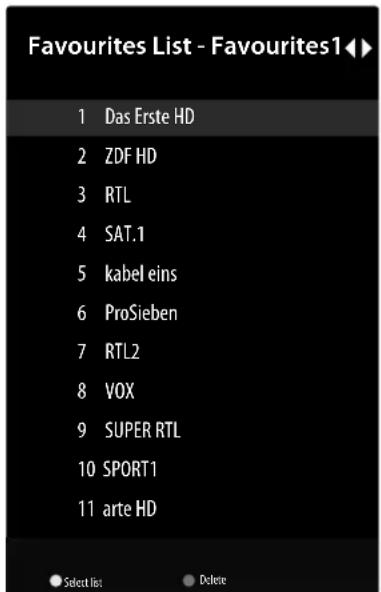
Then use the buttons to select one of the favourites lists (FAVOURITES 1 - 4).
PreXIT to exit the channel list.
Press the MENU button and use the buttons to select the CHANNELS > ADD TO MY FAVOURITES menu and press the OK button. The currently selected channel is then added to the previously selected favourites list (FAVOURITES 1 - 4). Press EXIT to exit the menu.
To call up a favourites list, open the channel list again and call up the favourites list as described above.
Here you can use the yellow button (SELECT LIST) to mark channels and move them to another position. Press OK to confirm the change.
To delete channels from the favourites list, use the buttons to mark the channel(s) in question and press the blue button (DELETE).
Then exit the menu with tIXIT button and press OK to open the channel list.
Press EXIT to exit the channel list.
To activate the favourites list, open the channel list
by pressing OK and press the yellow button (SELECT MORE). Then go to SELECT TYPE and select FAVOURITE. The next time the channel list is opened with OK, the favourites list is called up directly. To undo this and view all channels again, press the yellow button (SELECT MORE) again and select BROADCAST under SELECT TYPE. When the channel list is opened, all channels are now displayed.
11.1.2.Programmeguidemenu
Here you can open the EPG (Electronic Programme Guide). You can also open the PROGRAMME GUIDE directly by pressing the button.
You will see the current programme and the next programme for the available stations in the table.
Use to select a channel and scroll through the channel offering with .

The programme information displayed is created by the broadcaster. If no programme information is displayed, this does not mean that your Smart TV is faulty.
The next table shows the options for the PROGRAMME GUIDE:
| Menu option Settings | |
| PREVIOUS DAY | The programme guide for the previous day is displayed. |
| NEXT DAY | The programme guide for the next day is displayed. |
| VIEW DE-TAILS | Displays a detailed description of the selected programme (if available). Press the yellow button again to hide the description. If the description is longer, use the P▼/▲ buttons to sc-roll within the text. |
| FILTERYP | If you are looking for a specific programme, you can use a filter to restrict the selection. |
| ● | This function allows you to schedule recordings or reminders. Press the record button ● to open the menu. The settings are the same as those you can make under AUFNEHMEN > LISTE MIT ZEITPLÄNEN. |
11.1.3. Channel menu
You can configure the same settings here as under SET-TINGS > CHANNEL.
11.2. TV options menu
11.2.1. Source menu
You can configure the same settings in this menu as described in the "Selecting the source" section.
11.2.2. Picture menu
You can configure the same settings in this menu as under SETTINGS > DEVICE PREFERENCES > PIC-TURE.
11.2.3. Sound menu
You can configure the same settings in this menu, as described under SETTINGS > DEVICE PREFERENCES > SOUND.
11.2.4. Power menu
You can configure the same settings in this menu as under SETTINGS > DEVICE PREFERENCES > POWER.
11.2.5. Cl card menu
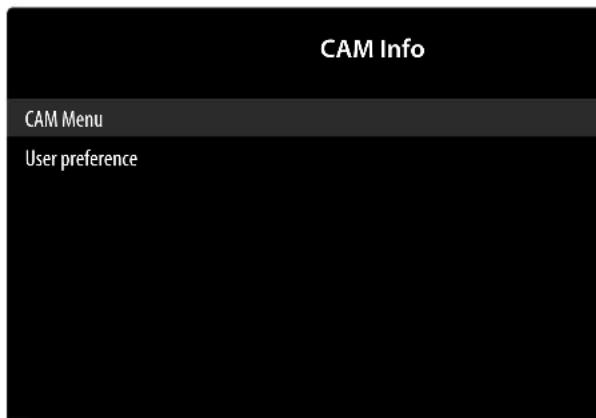
If you want to watch subscription channels, you must first register with the channel provider. Once you have registered, you will receive a Conditional Access Module (CI module) and a special card from your provider. You will find information about the settings in the documentation supplied with the module.
Install the CI components on your television in the following way:
Switch the television off and pull out the mains plug.
- First insert the CI module in the slot on the side of the Smart TV. Then insert the card.

Please note: only insert or remove the CI module after you have disconnected the device from the power supply.

NOTICE!
Risk of damage!
The CI module or the television could be damaged if you attempt to insert the CI module by force.
The CI module must be inserted correctly: it cannot be inserted if it is the wrong way round.
Connect the television to the power supply, switch it on, and wait for a moment until the card is recognised.
| Menu option Settings | |
| CAM MENU | Additional setup steps may be required for some CI modules, which you can complete here in the CI card menu. |
| USER PRE-FERENCE | Select DEFAULT, AMMI or BROADCAST from the CAM information. |
If no module is inserted, the message NO CAM CARD. appears on the screen.

The appearance and operation of the menu may vary depending on the module used.
11.2.6. Advanced options menu
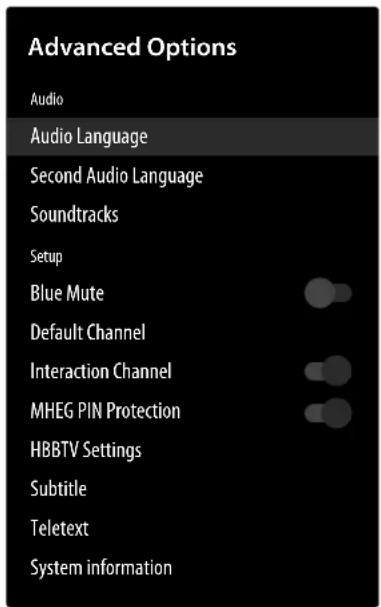
AUDIO
AUDIO LANGUAGE
Here you can set the audio language of the current programme, if more than one audio language is supported.
2ND AUDIO LANGUAGE
Select your second preferred audio language here.
SOUND TRACKS
Select the desired setting for the soundtracks option here. These menu options may vary depending on the currently selected station.
SETUP
BLUE MUTE
If the TV is not receiving a signal, the screen will turn blue rather than showing "snow" or a black background.
DEFAULT CHANNEL
Under SELECT MODE you can select the desired switch-on mode. In the setting LAST STATUS, the last selected station is called up when the device is switched on. With the USER SELECT setting, you can select a channel under SHOW CHANNELS that will be called up by default when the device is switched on.
INTERACTION CHANNEL
Activate/deactivate the interaction channel. (optional)
MHEG PIN PROTECTION
(optional)
Activate/deactivate the MHEG PIN protection function. This setting allows access to some MHEG application menus. The deactivated applications can be enabled by entering the correct PIN.
HBBTV SETTINGS
(optional)
-HBBTV SUPPORT
Activate/deactivate the HbbTV function
-DO NOT TRACK
Activate/deactivate the HbbTV/Internet Tracking option. When DEFAULT and ON are set, you enable the evaluation of your HbbTV/Internet performance to optimally adapt the service to your preferences. If you do not want this, select the OFF setting.
- COOKIE SETTINGS
Select the cookie settings for HBBTV services here: BLOCK ALL, BLOCKER THIRD COOKIES, DEFAULT.
PERSISTENT STORAGE
Activate/deactivate the permanent memory function. When ON is set, cookies with expiry dates are stored in the TV's memory.
Reset the device ID for the HBBTV services. Confirm the prompt with OK or press to cancel.
SUBTITLE
ANALOGUE SUBTITLE
Activate/deactivate the subtitle function for analogue TV. (OFF, ON or MUTE). The option MUTE displays the analogue subtitle and mutes the speakers at the same time.
-DIGITAL SUBTITLE
Activate/deactivate the subtitle function for digital TV (OFF, ON).
- SUBTITLE TRACKS
Select one of the available subtitle languages or deactivate the Untitle option (OFF)
-DIGITAL SUBTITLE LANGUAGE
Select the desired language for the digital TV sub-titles.
- SECOND DIGITAL SUBTITLE LANGUAGE
Select a second language for the digital TV subtitles. This language is then used if the first language is not available.
- SUBTITLE TYPE
Select NORMAL or HEARING IMPARED. If the HEARING IMPARED option is selected, it provides subtitle services to deaf and hard of hearing viewers with additional descriptions.
TELETEXT
(optional)
-DIGITAL TELETEXT LANGUAGE
Set the teletext language for digital broadcasts.
- DECODING PAGE LANGUAGE
Select the language of the decoding page for the teletext display.
SYSTEM INFORMATION
Displays information about the received signal.
11.2.7. Settings menu
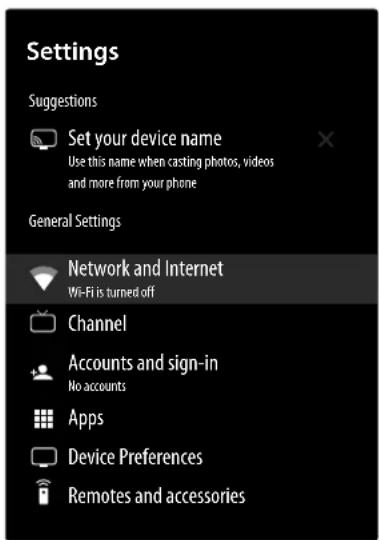
NETWORK & INTERNET
-WI-FL
Activate/deactivate the WLAN function
AVAILABLE NETWORKS
When the WLAN function is activated, the available networks are displayed here. Select the desired network and press OK. If a password is required for a network, a virtual keyboard appears which you can use to enter this with the help of the direction buttons and the OK button. After entering the password, select OK on the keyboard and press the OK button to confirm.
OTHER OPTIONS
- ADD NEW NETWORK
You can use this option to add new networks.
- SCANNING ALWAYS AVAILABLE
Activate this function if you want Google's location services and other apps to search for networks even when WLAN is deactivated.
-WOW
Activate/deactivate the Wake-On-Wireless LAN function (WoWLAN). This enables you to switch on the Smart TV via a different device. Both devices must be connected to the same network via WLAN for this purpose. The device being used as a remote control must be connected to the TV set once when it is switched on. The control function only works when the TV is in standby mode.
WOL
Activate/deactivate the Wake-On LAN function (WoL). This enables you to switch on the Smart TV via a different device. Both devices must be connected to the same network via LAN for this purpose. The device being used as a remote control must be connected to the TV set once when it is switched on. The control function only works when the TV is in standby mode.
-WOC
Activate/deactivate the Wake-On-Chromecast (WoC) function. With the built-in Google Cast technology, you can transfer content from your mobile device directly to the TV. If your mobile device has the Google Cast feature, you can mirror the screen of your mobile device to the TV via Wi-Fi.
ETHERNET
- NOT CONNECTED
The status of the Internet connection is displayed here via Ethernet, IP and MAC addresses.
-PROXY SETTINGS
Manually set an HT-TP proxy for the browser. This proxy must not be used by other apps.
-IP SETTINGS
Configure the IP settings of your TV.
Select the DHCP or STATIC setting here. If STATIC is selected, you must enter the desired IP address using the virtual keyboard.
CHANNEL
CHANNELS
The available options differ slightly here depending on the reception type:
ANTENNA / CABLE
AUTOMATIC CHANNEL SEARCH
Start a search for analogue and digital channels. You can press the button to cancel the search. The stations already found are stored in the station list.
UPDATE SCAN
(only antenna reception type)
Use this option to search for updates. This does not delete any stations. Only newly found stations are added to the existing station list.
ANALOGUE MANUAL SCAN (only antenna reception type)
Use this to start a manual search for analogue channels. Enter the START FREQUENCY and then select SCAN UP or SCAN DOWN. When a station is found, the search is completed and the station is stored in the station list.
SINGLE RF SCAN
Select an RF channel using the direction buttons
.The SIGNAL LEVEL and the SIGNAL QUALITY of the selected channel are displayed. Press OK to start scanning on the selected RF channel. The stations found are stored in the station list.
MANUAL SERVICE UPDATE
Start a service update manually.
LCN
Logical Channel Numbering: Select the ON setting if you want to sort the channels based on a preset channel list (if available from the channel supplier).
CHANNEL SCAN TYPE
Decide which channels you want to search for: ONLY FREE CHANNELS, ONLY EN-CRPTED CHANNELS or ALL (free and encrypted channels).
CHANNEL STORE TYPE
Select the channel memory type here.
ALL: Search for digital TV channels and digital radio stations.
ONLY DIGITAL CHANNELS: Search for digital TV channels.
ONLY RADIO CHANNELS: Search for digital radio stations.
FAVOURITE NETWORK SELECT
Select your favourite network here. This option is active if more than one network is available.
CHANNELSKIP
Set channels to be skipped when switching the channels on the remote control. Select the appropriate channels and press OK to highlight them.
CHANNEL SWAP
Open the channel change list here.
| PAGE UP (red but- ton) | This option takes you to the programme at the top of the displayed page. When this but- ton is pressed again, you move up through the channel list in steps of 11. |
| PAGE DOWN (green but- ton) | This option takes you to the pro- gramme at the bottom of the displayed page. When this but- ton is pressed again, you move down through the channel list in steps of 11. |
| GO TO CHANNEL (yellow button) | Enter the channel number that you wish to call up into the text field. |
| EXIT (blue but- ton) | Close the channel change list. |
CHANNEL MOVE
Move a channel to the position of another channel. Highlight the channel you want to move and press OK to select. Highlight the second channel in the same way. When the second channel is selected, the first selected channel is moved to the position of that channel. The blue button (GOTO CHANNEL) calls up an input screen where you can enter a channel number to go to it quickly.
CHANNEL EDIT
Here you can edit channels in the channel list. Edit the name and channel number of the selected channel and, if available, call up information on the network name, frequency, colour system and sound system for this channel. Other options can also be edited depending on the channel. Press the blue button to delete the highlighted channel.
CHANNEL DELETE
You can delete individual channels here.
ANALOGUE CHANNEL FINE-TUNE
Here you can fine-tune analogue channels.
CLEAR CHANNEL LIST
(only cable reception type)
You can use this option to delete the contents of the channel list.
SATELLITE
SATELLITE RE-SCAN
Select this option to start a satellite search. If the Satellite option is selected, some search configurations are not available. Therefore, the settings you made during the initial installation may not be changed. After selecting this option, select the satellite to be searched and press OK.
| NEXT | |
| SATELLI-TE STA-TUS | Activate/deactivate the satellite status |
| SATEL-LITE SE-LECTION | Displays the name of the satellite |
| SCAN-MOE | Select the desired scan mode. |
| SCANTYPE | Select the desired scan type. |
| SHOPTYPE | Select the desired storage type. |
| LNB CONFI-GURA-TIONS | LNB PO-WER | Set the LNB power here. |
| LNB FRE-QUEN-CY | Set the desired LNB frequency here. | |
| TONE 22 KHZ | Set the sound here. The default setting is AUTO-MATISCH. | |
| SIGNAL QUALI-TY | Displays the signal quality. | |
| SIGNAL LEVEL | Displays the signal level. | |
| TRANS-PONDER | Select the desired frequency, symbol rate and polarisation for the transponder here. | |
| SIGNAL QUALITY | Displays the signal quality | |
| SIGNAL LEVEL | Displays the signal level | |
| MORE | ||
| SINGLE | Select the required satellite here. | |
| TONE BURST | If your satellite system requires a tone burst, you can set it to TONE BURST A or B here. | |
| DISEQC 1.0 | If you have connected multiple LNBs or a DiSEqC switch to your satellite antenna, select DiSEqC 1.0 here. | |
| DISEQC 1.1 | If you have connected multiple LNBs or a DiSEqC switch to your satellite antenna, select DiSEqC 1.1 here. | |
| DISEQC 1.2 | If you have connected multiple LNBs or a DiSEqC switch to your satellite antenna, select DiSEqC 1.2 here. | |
| UNICABLE I | Select the Unicable I settings (TUNER and BAND FRE-QUENCY) here. | |
| UNICABLE II | Select the Unicable II settings (TUNER and BAND FRE-QUENCY) here. | |
SATELLITE ADD
Select this option to add a satellite. The setting options are the same here as under SATELLITE RE-SCAN.
SATELLITE UPDATE
Update the satellite by repeating the previous scan with the same settings. You can also change these settings before the search. The setting options are the same here as under SATELLITE RE-SCAN.
SATELLITE MANUAL TUNING
Use this option to start a manual satellite search.
CHANNELSKIP
Set channels to be skipped when switching the channels on the remove control. Highlight the desired channels in the list and press OK to select or deselect them.
CHANNEL SWAP
Open the channel change list here.
| PAGE UP (red but- ton) | This option takes you to the programme at the top of the displayed page. When this but- ton is pressed again, you move up through the channel list in steps of 11. |
| PAGE DOWN (green but- ton) | This option takes you to the pro- gramme at the bottom of the displayed page. When this but- ton is pressed again, you move down through the channel list in steps of 11. |
| GO TO CHAN- NEL (yellow button) | Enter the channel number that you wish to call up into the text field. |
| EXIT (blue but- ton) | Close the channel change list. |
CHANNEL MOVE
Move a channel to the position of another channel. Highlight the channel you want to move and press OK to select. Highlight the second channel in the same way. When the second channel is selected, the first selected channel is moved to the position of that channel.
CHANNEL EDIT
Here you can edit channels in the channel list. Edit the name and channel number of the selected channel and, if available, display information on the network name, frequency, colour system and sound system for this channel. Other options can also be edited depending on the channel. Press the blue button to delete the highlighted channel.
CHANNEL DELETE
You can delete individual channels here.
CLEAR CHANNEL LIST
You can use this option to delete the contents of the channel list.
-AUTO CHANNEL UPDATE
Activate/deactivate the automatic channel update.
- CHANNEL UPDATEMESSAGE
Activate/deactivate the channel update messages.
- PARENTAL CONTROLS
If you confirm this by pressing OK, a dialogue box opens. The password (or lock key) is requested. Enter the password that was assigned during the initial installation or the master password 1234. If the password is entered correctly, the dialogue box for security settings opens.
CHANNELS BLOCKED
Select the channels that you want to block from the channel list. Highlight a channel and press OK to select or deselect it. To watch a blocked channel, a password must be entered first.
PROGRAMM RESTRICTIONS
Block programmes according to the age rating information that is being broadcast with them. When this function is activated, you can set RATING SYSTEMS and specify RATINGS restrictions.
INPUTS BLOCKED
Prevent access to the selected input source content. Highlight the input source you want and press OK to lock or unlock it. To switch to a locked input source, a password must now be entered first.
CHANGE PIN
Change the default PIN. Select this option and press OK. You must first enter the old PIN. You can then set a new password. Enter the new password a second time to confirm. The password assigned during the initial installation cannot be reset, only the password assigned under the parental control settings.
- AUDIO CHANNEL (optional)
Select the audio channel setting, if available. This option may not be visible depending on whether the last channel accessed was analogue or not.
-OPEN-SOURCE LICENCES
Displays the licence information of the open source software.
ACCOUNTS & SIGN-IN
Your Google Account is displayed here if you have used it to sign in. Settings for data synchronisation can be configured here. You can also remove your registered account from the TV.
APPS
This option is used to manage your apps.
DEVICE PREFERENCES
-ABOUT
Here you will find a range of information about your system, including your Netflix ESN number.
The ESN number is a unique ID number created to identify your TV set. You can also log out of Netflix here.
In addition, you can search for system updates under SYSTEM UPDATE, change the name of your TV under DEVICE NAME and perform an initial installation again under RESET (RESET
ERASE EVERYTHING).
-TV LIFETIME
The total running time of the TV set is displayed here.
-DATE & TIME
Set the date and time options of your TV set here.

The timer settings only work properly if the correct time is set.
AUTOMATIC DATE & TIME
Select the option USE NETWORK-PROVIDED TIME if the date and time are to be updated automatically via the network. Select OFF if you want to make the settings manually. In this case, the desired settings can be made under SET TIME and SET DATE.
SETTIMEZONE
Select the desired time zone here. Select USE BROADCAST-PROvided TIME ZONE if this should also be updated automatically.
USE 24-HOUR FORMAT
Select the desired format for the time display.
-TIMER
Activate/deactivate an automatic switch-on and switch-off time.
POWER ON TIME TYPE
Select ON or ONCE to activate the switch-on timer setting and OFF to deactivate it. If the setting is set to ONCE the TV will switch on only once at the set time.
AUTO POWER ON TIME
Select the switch-on time here.
POWER OFF TIME TYPE
Select ON or ONCE to activate the switch-off timer setting and OFF to deactivate it. If the setting is set to ONCE the TV will switch off only once at the set time.
AUTO POWER OFF TIME
Select the switch-off time here.
LANGUAGE
Select the desired menu language.
-KEYBOARD
Select your keyboard type and manage the keyboard settings.
-INPUTS
All inputs of the TV can be shown or hidden here. You can also rename each input by selecting one of the predefined names or by assigning a name.
HDMI CONTROL
Enable this function to allow all devices that are connected via HDMI to communicate with each other. In this way, you can, for example, control the basic functions of all devices in an HDMI network using only one remote control. Activate this function if you want to configure additional settings under SETTINGS > DEVICE PREFERENCES > SOUND > EARC.
First select HDMI CONTROL and select HDMI input as the source. If you have already connected a CEC-enabled device, the name of the device is listed instead of HDMI. The basic functions of the device can then be automatically controlled using the remote control of the Smart TV.
DEVICE AUTO POWER OFF
Activate this function if you want all HDMI devices to switch off together with the TV set.
TV AUTO POWER ON
Activate this function if you want the TV set to switch on together with the HDMI devices.
HDMI EDID VERSION
Displays the HDMI EDID version
CEC DEVICE LIST
CEC-enabled devices that are connected to the TV via a HDMI port will be listed here.
- POWER

These settings can also be made in the POWER menu.
The following energy saving options are available:
SLEEP TIMER
Define an idle time after which you want your TV to enter sleep mode automatically.
PICTURE OFF
Here you can switch off the screen. Select this option and press OK. If you now press OK again when the screen is black, the picture display is activated again.
NO SIGNAL AUTO POWER OFF
Define a time after which you want your TV to turn itself off if it does not receive an input signal.
AUTO SLEEP
Select the settings for the automatic sleep mode here.
-PICTURE

Depending on the input source selected, some menu options may not be available.
PICTURE MODE
Select picture mode: USER, STANDARD, VI-VID, SPORT, MOVIE, GAME

When changing the setting, a message may occasionally appear stating that the energy consumption could increase as a result. You then have the option of cancelling or confirming with OK.
AUTO BACKLIGHT
Select a value for the backlighting: OFF, LOW, MIDDLE, ECO. When OFF is selected, you can make an individual setting under BACKLIGHT.
BRIGHTNESS
Increase or reduce brightness (on a scale of 0 to 100)
CONTRAST
Increase or reduce contrast (on a scale of 0 to 100)
COLOUR
Increase or reduce saturation (on a scale of 0 to 100)
HUE
Increase or reduce colour tone (on a scale of -50 to 50)
SHARPNESS
Increase or reduce sharpness (on a scale of 0 to 100)
GAMMA
Select the gamma setting: DUNKEL, MITTEL, HELL
COLOUR TEMPERATURE
Select colour tone: NUTZER, KUHL, STANDARD, WARM. You can also individually adjust the red, green and blue tones.
DISPLAY MODE
Select the desired display mode.
ADVANCEDVIDEO
The following options are available here:
| DNR | The dynamic noise reduction function reduces picture noise and improves picture quality when the analogue signal is weak. Select between OFF, LOW, MEDIUM, STRONG and AUTO. |
| MPEG NR | MPEG noise reduction removes image noise in MPEG-com-pressed video data for enhan-ced picture quality. Select bet-ween OFF, LOW, MEDIUM and STRONG. |
| MAX VI-VID | Activate/deactivate the MaxVivid function to achieve a more dyna-mic and smoother image display |
| ADAPTI-VE LUMA CONTROL | This function adjusts the cont-rast settings to provide deeper black and brighter white perception. Select between OFF, LOW, MEDIUM and STRONG. |
| LOCAL CON-TRAST CONTROL | This function divides the screen into smaller zones. The contrast settings for individual screen zones can then be op-timised differently according to the content. This adds more depth to dark and bright zo-nes, without losing the details and compromising other parts of the image. Select between OFF, LOW, MEDIUM and STRONG. |
| FLESH TONE | Activate/deactivate the skin tone function |
| DI FILM MODE | This function smooths the juddering effect that occurs with 24 fps image reproduc-tion. This function converts the content to 60/120 fps, enabling significantly more fluid image reproduction. Select between AUS and AUTOMATISCH. This function is not available in PC and game mode. |
| BLUE STRETCH | Cooler white tones are com-monly perceived as bright white. This function adjusts the white balance and allows mid and high grayscale to appear in a cooler colour temperature through the addition of blue tones. |
| GAME MODE | In game mode, some of the picture processing algorithms are reduced to be able to pro-cess video games that have fast frame rates. In this mode, the DI-FILMMODUS func-tion is not available. |
| PC MODE | In PC mode, some of the picture processing algorithms are reduced to keep the signal type as it is. It can be used especially for RGB inputs. |
| DE-CON-TOUR | Select the de-contour setting. |
| MJC | Select the MJC settings. |
| HDMI RGB RANGE (optional) | Select this setting according to the input RGB signal range of the HDMI source. The range can be limited (16-235) or full (0-255). Select FULL, LIMIT or AUTO. This option is only available when the input source is set to HDMI. |
| LOW BLUE LIGHT | Activate/deactivate the low blue light function to reduce blue tones in the television image. |
| COLOR SPACE | Activate/deactivate the colour space function to optimise colour reproduction |
COLOUR TUNER
Use this function to fine tune the colour. This must be activated in order to make changes to the options HUE, COLOUR, BRIGHTNESS, OFFSET and GAIN.
11 POINT WHITE BALANCE CORRECTION
This function calibrates the TV's colour temperature in detailed greyscale. This improves the greyscale uniformity. This function must be activated in order to make changes to the options GAIN, RED, GREEN and BLUE.
RESET TO DEFAULT
This function restores the factory settings for the video settings.
- SOUND
SYSTEM SOUNDS
Activate/deactivate the system sounds of the TV.
SOUND STYLE
Select the sound style here: USER, STAND-ARD, VIVID, SPORT, MOVIE, MUSIC, NEWS.
You can only access this function if DOLBY AUDIO PROCESSING has previously been deactivated.
BALANCE
Set the balance between the left and right speakers (on a scale of -50 to +50 ).
You can only access this function if DOLBY AUDIO PROCESSING has previously been deactivated.
SURROUND SOUND
Activate/deactivate the surround sound effect. You can only access this function if DOLBY AUDIO PROCESSING has previously been deactivated.
EQUALISER DETAIL
Here you can make individual sound adjustments in the frequency range of 120 HZ, 500 HZ, 1500 HZ, 5000 HZ and 10000 HZ.
You can only access this function if DOLBY AUDIO PROCESSING has previously been deactivated.
SPEAKER DELAY
Select the desired speaker delay here.
DIGITAL OUTPUT
Set the audio type for the digital output here. PCM is the standard format for stereo signal output. Select BYPASS to output a digital data stream, e.g. on an end stage with Dolby Digital decoder. With the AUTO setting, the digital output is automatically set to the external devices. You can also activate the digital type DOLBY DIGITAL or DOLBY DIGITAL PLUS.
DIGITAL OUTPUT DELAY
Set a delay for digital output here.
AUTO VOLUME CONTROL
This function sets the sound so that a constant output volume is maintained between programmes. If this function is deactivated, you will hear the original volumes. When activated, you will hear a steady volume.
You can only access this function if DOLBY AUDIO PROCESSING has previously been deactivated.
DOWNMIX MODE
Select the desired downmix mode STEREO or SURROUND.
DTS DRC
Activate/deactivate the DTS Dynamic Range Compression function. This reduces the dynamic range of the audio signal, which automatically raises the volume of very weak signals and enables improved intelligibility.
DOLBY AUDIO PROCESSING
Activate/deactivate Dolby Audio sound processing here. When activated, you can choose under SOUND MODE from the settings SMART, MOVIE, MUSIC and NEWS.

When this function is activated, many options in the TON menu cannot be edited. This option can only be deactivated if the SURROUND setting has been selected under DOWNMIX MODE.
DIALOGUE ENHANCER
Activate/deactivate digital optimisation
RESET TO DEFAULT
Use this function to restore the factory settings for the audio settings.
- STORAGE
This shows the storage status of the TV and the connected devices and storage media. To see detailed information on the usage details, highlight and press OK. In addition, there are options for ejecting and formatting the connected storage devices.
CHANNELS
HOMESCREEN
CUSTOMISE CHANNELS
Here you can select which channels are to be displayed on the home screen of your TV. You can set up the "Play Next" channel individually under PLAY NEXT.
ENABLEVIDEOPREVIEWS
Activate/deactivate the video preview function.
ENABLE AUDIO PREVIEWS
Activate/deactivate the audio pre-listening function.
DISCOVER
SETUP
This option allows you to sign in to your Google account to get the most out of your device.
APPS
REORDER APPS
Here you can rearrange the order of your apps. Highlight an app with OK and move it with the arrow buttons . When you press the button, the links to Google Play Store and Google Play Games appear above it. You can download more apps/games here.
REORDER GAMES
Here you can rearrange the order of your games. Highlight a game with OK and move it with the arrow buttons . Above you will find the links to Google Play Store and Google Play Games. You can download more apps/games here.
HELP AND FEEDBACK
SEND FEEDBACK
Here you can send comments to the manufacturer. In addition, the support Internet address is given here.
OPEN-SOURCE LICENCES
ANDROID TV HOME
Displays the open source licences of the Android TV home page.
ANDROID TV CORE SERVICES
Displays the open source licences of the Android TV main services.
-STORE MODE
Activate/deactivate demo mode.
-GOOGLE ASSISTANT ON/OFF
If you activate the Google Assistant, you can then optimize voice control by signing in to your Google account. If you do not want this, select the USE ASSISTANT WITHOUT SIGNING IN option.
ACCOUNTS
Select your active account.
VIEW PERMISSION
Here you can view your authorizations.
SEARCHABLE APPS
Determine which apps should be included in the search results.
SAFESEARCH FILTER (optional)
Activate/deactivate the safe search filter.
BLOCK OFFENSIVE WORDS (optional)
Activate/deactivate the function to block offensive words.
TEMPERATURE UNIT (optional)
Select the unit for the temperature display here.
OPEN SOURCE LICENSES
Displays the Open Source licences (Google).
- CHROMECAST BUILT-IN
You can access information about the integrated Chromecast function here.
SCREENSAVER SCREENSAVER
Select a screenshot here.
WHEN TO START
Specify when the screenshot should be switched on.
Select START NOW and pressOK to activate the settings.
-ENERGYSAVER
Select a setting to define the time after which the display automatically switches off to save energy: 15 MINUTES, 30 MINUTES, 1 HOURS, 4 HOURS, 8 HOURS, 12 HOURS, 24 HOURS, NEVER
- LOCATION
Activate/deactivate the location detection via WLAN. In addition, the recent location requests are listed here.
- USAGE & DIAGNOSTICS
Activate/deactivate the function for transmitting diagnostic information to Google.
- MANUFACTURER USAGE & DIAGNOSTICS
Activate/deactivate the function for transmitting data to the manufacturer of the TV.
- ACCESSIBILITY
AUDIO TYPE
Select the desired accessibility aid here
| NORMAL | Select this setting if you do not require any accessibility aids. |
| AUDIO DESCRIPTION | If the station transmits special audio signals for the visually impaired, you can activate this function to receive these signals. Once the AUDIO DESCRIPTION option is activated, you can make settings in the VISUALLY IMPARED menu |
| SPOKEN SUBTITLE | Activate this function if you want the subtitles of a programme to be audible. The relevant information must be provided by the respective station. |
| HEARING IMPAIRED | If the station broadcasts special signals for hearing impaired users, you can activate this function to receive these signals. The relevant information must be provided by the respective station. |
| AUDIO DESCRIPTION AND SPOKEN SUB-TITLE | Both options described above can be activated here. |
| VISUALLY IMPARED | Once the AUDIO DESCRIPTION option is activated, you can make the following settings in this menu: |
| SPEAKER: Activate this option if you want to listen to the audio description via the speakers. | |
| HEADPHONE: Activate this option if you want to listen to the audio description via the headphones. | |
| VOLUME: Adjust the volume of the audio description here. |
| WARNING! | |
| Risk of hearing damage! | |
| To prevent possible damage to your hearing, avoid listening at high volume over long periods of time. ■ Before pressing play, set the volume to the lowest setting. ■ Start playback and increase the volume to a comfortable level. | |
| PANE AND FADE: Activate this option if you want to listen to the audio descripi-on more clearly. | |
| AUDIO FOR THE VISUALLY IMPAIRED Select the audio type for visually impaired users. The options available depend on the sele-lected programme. | |
| FADER CONTROL: Set the volume ratio between the main audio signal of the TV (MAIN) and the audio description (AD) here. | |
| CAPTIONS Choose the display options and subtitle style here. | |
| HIGH CONTRAST TEXT Activate this function if you want the subtitles to be displayed with higher contrast for better visibility. | |
| TEXT TO SPEECH Configure voice output settings here. | |
-RESTART
The device can be re-started using this option. In doing so, all settings and installations that you have previously configured are retained.
BLUETOOTH REMOTES & ACCESSORIES
Here you can rename your remote control or disconnect it from the TV set. You can also integrate other Bluetooth devices into your system.
- ADD ACCESSORIES
With this option you start the search for Bluetooth devices in your surroundings.
-TV REMOTE
Here you can change the name of your Bluetooth remote control (CHANGE NAME) and cut (UNPAIR) or create (PAIR) the connection.
11.3. Record menu

Before starting a recording, ensure that you have connected a USB storage device to one of the USB ports.
11.3.1. Record list menu
In Live TV mode, select this option and press OK. Here you will find a list of all the recordings on the data medium. Select a recording and press OK to start. Press the or button to stop the recording.
The following options are available in the recording list:
| Menu option Settings | |
| PAGE UP (red button) | This option takes you to the recor-ding at the top of the list. |
| PAGE DOWN (green button) | This option takes you to the recor-ding at the bottom of the list. |
| DELETE (yellow button) | This option can be used to delete existing recordings. To do this, answer the prompt with YES. |
| INFO (blue button) | This option can be used to call up information on the selected recor-ding. |
11.3.2. Device info menu
This option can be used to make settings for the connected USB storage devices. Select a medium and press OK. The following options are then displayed:
| Menu option Settings | |
| SET TIMES-HIFT | Specify whether the selected USB storage device is to be used for the timeshift recording function. |
| SET PVR | Specify whether the selected USB storage device is to be used for the PVR recording function. |
| FORMAT | Select the FORMAT menu item. The notice FORMATTING WILL ERASE ALL DATA. ARE YOU SURE? appears. Select YES if you want to start the formatting or NO to cancel the process. Press OK to confirm. Formatting deletes ALL data stored on the USB storage device and converts the file system to FAT32. In most cases, drive errors can be repaired in this way. |
| SPEED TEST | Start a speed test for the selected USB storage device. |
11.3.3. Schedule list menu
All programmed timers are listed in the schedule list. Press the button to add additional reminders or record timers. You can then make the following settings.
| Menu option Settings | |
| SOURCE TYPE | Select the desired source (e.g. TV). |
| CHANNEL INFO | Edit the channel information here. |
| EVENT MO-DEL | Select the event model here: TI-MING PROGRAMMING or SIGNAL SUPPORTED RE-CORDING. |
| START DATE | Enter the start date here. |
| START TIME | Enter the start time here. |
| STOP TIME | Enter the end time here. |
| SCHEDULE TYPE | Select the type of timer here (RE-MINDER or RECORD). |
| REPEAT TYPE | Specify here the type of repetition ONCE, DAILY or WEEK. If you select the weekly option, you then have the option of setting the desi-red weekdays for the timer. |
| Select ADD and press OK to save the new timer. The timer is now listed in the schedule list. Existing timer programmes can also be edited or deleted in the schedule list. To do this, highlight the corresponding timer and press OK. The EDIT and DELETE options are now displayed below. Select the desired option and press OK. When deleting a timer, you must answer the prompt. After editing a timer, you can either overwrite it (REPLACE) or add it as a new timer (ADD). | |
11.3.4. Time shift menu
Activate this function to enable timeshift recording. Recording via the media buttons
You can operate the recording and playback using the media buttons.
| ● | Press this button to start recording the current programme. |
| II ➔ | Pause and restart playback with this button. |
| ■ | Stop the recording and playback with this but- ton. |
| « | During playback, activate slow or fast rewind at various speeds with this button: x1/2, x1/4, x2, x4, x8, x16, x32Press the ➔ button to return to normal play- back. |
| » | During playback, activate slow or fast forward at various speeds with this button: x1/2, x1/4, x2, x4, x8, x16, x32 Press the ➔ button to return to normal play-back. |
Timeshiftrecording
To use the timeshift recording function, the timeshift mode option must be activated in the RECORD > TIME SHIFT MODE menu. You can start a timeshift recording in TV mode to view the current channel after a delay. To do so, proceed as follows:
| II | Press this button during the current pro- gramme. The programme stops there and the timeshift recording runs in the background. Press this button again to start the timeshift playback. The channel now runs again with the delay. |
| ► | If you have previously started the timeshift re- cording using the II button, you can also start the timeshift playback with this button. |
| ■ | Stop the timeshift playback with this button. The channel is then played back normally and not with a time delay. |
12. Channel list
When the device is in use, press the OK button to open the list of channels.
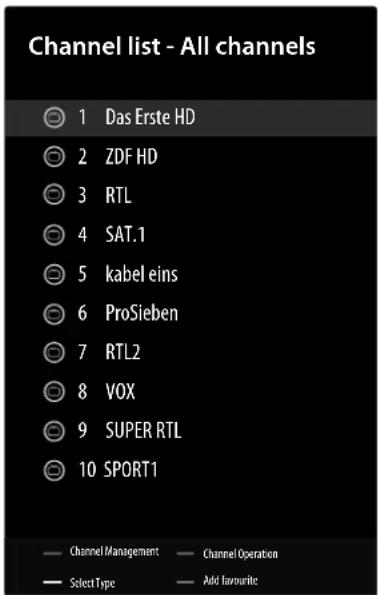
| Menu option Settings | |
| CHANNEL MANAGE-MENT(red button) | You can configure the same set-tings in channel management as under SETTINGS > CHAN-NEL. |
| CHANNEL OPERATION(green button) | Options for sorting channels and searching for channels can be found here. |
| Menu option Settings | |
| SELECT TYPE (yellow button) | You can use this function to select which channel types to display. |
| ADD FAVOURITE (blue button) | You can add the current channel to one of four favourites lists. To display the favourites lists, navi-gate to SELECT TYPE, select FAVOURS and then select the desired list. |
13. Multi Media Player (MMP)
If you connect a USB storage device to the TV, you can play back the photos, music, videos or text stored on it. Select Multi Media Player (MMP) on the home page and press OK to open it and browse the connected USB devices or media servers and play or view content.
Information about using USB
Certain types of USB devices (MP3 player) may not be compatible with this Smart TV.
Connect the USB device directly.
Do not use a separate cable, because this may cause compatibility problems.
- Never remove the USB device while a file is being played.
NOTICE!
Risk of damage!
Connecting and disconnecting USB devices quickly and repeatedly is dangerous and can physically damage the USB device and the Smart TV itself.
- Do not insert and then remove the USB device repeatedly in quick succession.
All folders and playable data are shown in the media player. Navigate in the media player using the direction buttons. Open media files using the OK button.
13.1. Main menu for the media player
The media player's main menu appears as soon as you have accessed the media player as described above.
The following selection options are available:
VIDEO - for playing back video files
- PHOTO - for playing back photo files
- MUSIC - for playing back music files
- TEXT - for playing back all available media files
Press to select a menu and confirm the selection with OK.
Now select the source from which you want to play the file (e.g. USB stick or hard drive).
- Then navigate through the folders and find the desired if you press the MENU button during playback, the following media files. The following button functions are available here:
| Direction but-tons ( )▲▼ | Navigate through the folder struc-ture. |
| OK | Selecting the folders and starting the files |
| EXIT | Exit the media player |
| Blue button Call ing up the list view | |
| MENU | The following options appear here:SORT: Choose how you want the files to be sortedMEDIA TYPE: Select which files are to be displayedTHUMBMAIL SIZE: Enlarge/reduce the folder viewCOPY: Copy selectionPASTE: Paste selectionDELETE: Delete selectionRECURSIVE Parser: Only the corresponding media files are displayed.NORMAL Parser:The corre-sponding media files and folders are displayed.PHOto FRAME:Set a picture frame mode. |
13.1.1. Video
If you select Video in the main menu, the available video files are filtered and displayed on the screen.
If the storage medium has several folders, press the buttons to first select a folder and then press OK to open it.
- Select the file you want with the arrow buttons and then press OK. Playback then starts.
The following media button functions can be used here:
| II ▶ | Start/pause playback of the selected video. |
| ■ | Stop playback with this button. |
| « | During playback, activate fast rewind at various speeds with this button: x2, x4, x8, x16, x32Press the ➔ button to return to normal play-back. |
| ► | During playback, activate fast forward at various speeds with this button: x2, x4, x8, x16, x32Press the ➔ button to return to normal play-back. |
| PLAY/ PAUSE | Start/stop playback. |
| REPEAT | Repeat the video. |
| SHOW INFO | Shows information about the displayed video file. |
| PIC-TURE SET-TINGS | You can change the settings in the PIC-TURE menu here. These are the same as in the menu SETTINGS > DEVICE PREFERENCES > PICTURE. |
| SOUND SET-TINGS | You can change the settings in the TON menu here. These are the same as in the menu SETTINGS > DEVICE PREFERENCES > SOUND. |
| AUDIO SET-TINGS | Displays information about the audio track of the video. |
| LAST MEMO-RY | Here you can save a specific part of the video. |
| SEAK | Here you can jump to a specific point in the video by entering the corresponding time using the number keys and pressing OK. |
13.1.2. Photo
If you select FOTO in the main menu, the available photo files are filtered and displayed on the screen.
If the storage medium has several folders, press the buttons to first select a folder and then press OK to open it.
- Select the file you want with the arrow buttons and then press OK. Playback then starts.
The following media button functions can be used here:
| II | Start/pause playback. |
| « | Previous photo |
| » | Next photo |
If you press the MENU button during playback, the following options appear:
| PLAY/PAUSE | Start/stop playback. |
| REPEAT | Repeat a series of photos. |
| SHUFFLE ON/OFF | Activate/deactivate the random function |
| ROTATE | Rotates the selected image by 90 degrees clockwise. If you press the green button during playback, you can rotate the photo in the same way. |
| ZOOM | Magnifies the displayed image in three steps (1 X, 2 X or 4 X). If you press the yellow button during playback, you can also skip through these three magnification levels. |
| SHOW INFO | Shows information about the displayed photo file. |
| PHOTO FRAME IM-AGE | Here you can add a picture frame to photos. |
13.1.3. Music
If you select MUSIC in the main menu, the available music files are filtered and displayed on the screen.
If the storage medium has several folders, press the
buttons to first select a folder and then press OK to open it.
- Select the file you want with the arrow buttons and then press OK. Playback then starts.
The following media button functions can be used here:
| II ➔ | Start/pause playback of the selected track. |
| ■ | Stop playback with this button. |
| ↔ | Rewind |
| ➔ | Fast forward |
If you press the MENU button during playback, the following options appear:
| PLAY/ PAUSE | Start/stop playback. |
| REPEAT | Repeat the track. |
| SHUFFLE ON/OFF | Activate/deactivate the random func- tion |
| SHOW INFO | Shows information about the dis- played music file. |
| HIDE SPECTRUM | Activate/deactivate the frequency spectrum display. |
| LYRIC OP-TIONS | If available, you can access song text options here. |
| PICTURE OFF | You can change the settings in the POWER menu here. These are the same as in the menu SETTINGS > DEVICE PREFERENCES > POWER. |
| SOUND SETTINGS | You can change the settings in the SOUND menu here. These are the same as in the menu SETTINGS > DEVICE PREFERENCES > SOUND. |
13.1.4. Text
If you select TEXT in the main menu, the available text files are filtered and displayed on the screen.
If the storage medium has several folders, press the
buttons to first select a folder and then press OK to open it.
- Select the file you want with the arrow buttons and then press OK. Playback then starts.
Use the direction buttons to navigate through the pages of a document.
The following media button functions can be used here:
| II ➔ | Start/pause playback of the selected text. |
If you press the MENU button during playback, the following options appear:
| PLAY/ PAUSE | Start/stop playback. |
| REPEAT | Repeat the text. |
| SHUFFLE ON/OFF | Activate/deactivate the random func- tion |
| FONT | Edit the font in SIZE, STYLE and COLOUR. |
| SHOW INFO | Shows information about the displayed text file. |
14. Google Cast
With the integrated Google Cast technology, you can transfer content from your mobile device directly to the TV. If your mobile device has the Google Cast function, you can mirror the screen of your mobile device to the TV via Wi-Fi.
- Select the screen display option on your Android device. Available devices in the vicinity are detected and listed.
- Select your TV from the list and tap it to start the transmission.
- You can find out the network name of your TV via the menu SETTINGS > DEVICE PREFERENCES > ABOUT. You can also change the name of the device. Highlight the DEVICE NAME option and press OK. Then select CHANGE and press OK again. You can then select one of the predefined names or enter a custom name.
To transfer the screen of your device to the TV screen:
- Call up the "Settings" on your Android device
Tap on "Device connection". - Tap on "Simple projection" and activate the option "Wireless projection". Available devices are listed.
Select the TV you want to mirror your screen to.
Alternatively
▶ Slide the notification box down
Tap on "Wireless projection".
- Select the TV you want to mirror your screen to. If the mobile app is enabled for streaming (e.g. YouTube, Netflix etc.), you can stream the content to your TV. Look for the Google Cast icon in the app and tap it. Available devices are then recognised and listed. Select your TV from the list and tap it to start the transmission.
To transfer an app to the TV screen:
- Open an app on your mobile device that supports Google Cast
Tap the Google Cast icon
Select the TV you want to mirror your screen to.
The app you selected should now play on the TV set.

Google Cast works on Android and iOS. Make sure that your mobile device is connected to the same network as the TV set. The menu options and labels for the Google Cast feature on your mobile device may vary or change depending on the brand. For information on the Google Cast function, refer to the manual of your mobile device.
15.HbbTVsystem
HbbTV (Hybrid Broadcast Broadband TV) enables a combination of broadcasting and Internet content that can usually be accessed and displayed by pressing the red button on the remote control.
HbbTV services include conventional radio/TV stations, catch-up TV, video on demand, EPG, interactive advertising, customisation options, polls, games, social networks and other multimedia applications.
HbbTV applications can only be called up if the broadcasting station transmits these signals and the TV is connected to the internet. The scope and operation vary depending on the channel and station.
Whether a station offers HbbTV applications or not, is shown via a brief on-screen display. The exact form and position depends on the individual application. Use the red button to open and close the application pages. Navigation within the applications is carried out by using the colour buttons on the remote control, but this can vary depending on the channel and the programme. Observe the messages within the applications.
16. Data protection MEDION Smart TV
Your Internet-enabled MEDION Smart TV has an Internet service function (HbbTV, portal and open browsing). These functions enable you to access services, content, software and products provided by third parties on the Internet. In addition, you have access to open Internet content. Your device checks automatically via this route whether new software versions are available for your device. When doing so, your device sends out the IP address, the software version and the MAC address of the device to ensure software updates run correctly.
This data is required to make use of the software update service. Access to applications in the portal or via HbbTV may, depending on the provider, require a registration, setting up a user account and/or a subscription when using certain services. Registration may require the provision of your personal data and the selection of a unique and secret password. Please check the privacy policy of the provider beforehand.
MEDION shall not be liable if the HbbTV, the portal or a service does not comply with the user's requirements, nor does it guarantee that safe and error-free use of such services can always occur without restrictions, or continuously, at the required time.
MEDION shall not be liable for the information or content provided via HbbTV, the portal or the open Internet, nor for its use and reliability. When you purchase your Smart TV, special warranties are provided. The validity of these warranties, including the related disclaimers, remains in force.
If you have any further questions on the subject of data protection when using your Smart TV, please contact the respective provider of the Internet service functions or contact MEDION directly on www.medion.com under the heading Data Protection.
17. Troubleshooting
Malfunctions can sometimes have quite trivial causes, but they may also be the result of defective components. We have included a brief troubleshooting guide below which may help to solve any problems. If these measures don't solve the problem, we'll be more than pleased to help you further. Just call us!
There is no picture and no sound.
- Check if the mains cable is inserted in the socket properly.
- Check if the signal reception is set to TV.
There is no picture.
- Check to ensure that the contrast and brightness settings are correct.
- Check to ensure that all external devices have been connected properly.
- Check to ensure that you have selected the correct source.
There is no sound.
- Ensure that the volume has not been set to the minimum level.
- Ensure the mute setting is not active. Do this by pressing the button with the crossed out loudspeaker symbol on the remote control.
There is no picture and no sound. I can hear noise, though.
- The reception might be poor. Check if the antenna is connected properly.
The picture is not clear.
The reception might be poor.
- Check if the antenna is connected properly.
The picture is too bright or too dark.
- Check the contrast and brightness settings.
The picture is not sharp.
The reception might be poor.
- Check if the antenna is connected properly.
- Check the sharpness and noise reduction settings in the SETTINGS > DEVICE PREFERENCES > PICTURE menu.
There is a double/triple picture.
- Check if the antenna is aligned properly.
- Waves might be reflected off buildings or hills.
The picture is pixelated.
- There might be interference from cars, trains, power lines, neon lights, etc.
- There might be interference between the antenna and power cables. Position the cables further apart.
There are stripes on the screen or the colours are faded.
- Is there interference from another device?
- Transmission antennae on radio stations, ham radios and portable phones can also cause interference.
- Operate the device as far away as possible from the device that might be causing the interference.
TV switches off
- Check whether the automatic TV switch-off function is activated under POWER > AUTO SLEEP.
The multifunction button on the device is not working.
- The child lock might be on.
No reception/poor signal via a wireless network connection (WLAN).
- Make sure that all required settings have been made.
The remote control is not working.
- Check if the batteries are fully functioning and have been inserted the right way round.
- Ensure the sensor field is not exposed to strong light.
The menu cannot be opened.
- Check whether CEC is enabled. In this case, the menu cannot be opened. This is not a defect. In some cases, the menu of the device connected via HDMI opens. This is dependent on the playback device and must be supported accordingly.
- Change the input source.
Certain options cannot be accessed because you have forgotten your password.
- Perform an initial installation again and set a new password.
No Bluetooth® connection
- Ensure that all settings on the device are correct and that the Bluetooth function has been activated.
- Check whether the device to be connected is switched on and is in search mode.
- Ensure that all settings on the device to be connected are correct and that the Bluetooth function has been activated. If necessary, refer to the user manual for the device concerned.

In many cases, it is sensible to reset to the factory settings with subsequent reinstallation.
17.1. Do you need more help?
If the suggestions in the previous sections did not solve your problem, please contact us. To make it easier for us to help you, please have the following information to hand:
- What external devices are connected?
What messages appear on the screen? - When operating the device, at which step did the problem occur?
-
If you have a PC connected to the device:
-
How is your computer configured?
-
What software were you using when the problem occurred?
-
What steps have you already taken to try and rectify the problem?
- Please provide us with your customer number if you have one.
17.2. Smart TV pixel faults
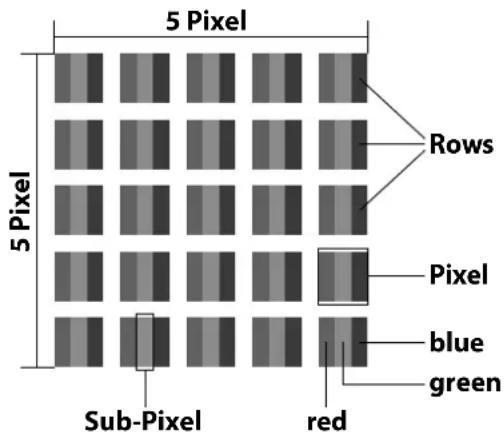
Despite the state-of-the-art production methods, in rare cases there may be individual or multiple pixel drop-outs (dead pixels) due to the highly complex technology. For active matrix TFTs with a resolution of 1920 x 1080 / 1366 x 768 (MD 824100) pixels, which are each made up of three sub-pixels (red, green, blue), there are a total of approx. 6.2 / 3,1 (MD 824100) million control elements in use. Occasionally pixels or individual sub-pixels can fail or become incorrectly controlled because of this very high number of transistors and the extremely complex manufacturing process used in this context.
| Pixel defect class | Defect type 1 Conti-nuously lit pixel | Defect type 2 Conti-nuously black pi- xel | Fehlertype3 Defective sub-pixel | |
| lit black | ||||
| 0 | 0 | 0 | 0 | |
| 1 | 1 | 110 | 1235 | |
| II 2 2 5 | 5-n*0 | 02xn*10 | ||
| III 5 15 | 50 | 50-n*0 | 02xn*100 | |
| IV 50 1 | 50500 | 500-n*0 | 02xn*1000 | |
The permitted number of defects for every type named above in each class of pixel defect refers to one million pixels and must be converted accordingly to match the physical resolution of the display.
Your device complies with the European ISO 9241-307 Class II standard (pixel defect class). Pixel defects up to the specified maximum number are not covered by the warranty
18. Cleaning
DANGER!
Risk of electric shock!
There is a risk of death due to an electric shock when the housing is open and you touch parts inside the device!
- Do not open the housing of the device. It does not contain any parts requiring maintenance. Always unplug the device and disconnect all cables before cleaning!
You can increase the lifespan of your Smart TV by taking the following measures:
- In order to protect the television from scratches, protective film has been applied to the high-gloss finish. Remove the film after you have set up the TV correctly.
- If the high-gloss finish becomes dirty, wipe off the dust first. Then wipe down gently with a cleaning cloth. If you do not wipe off the dust first, or wipe the high-gloss finish too vigorously you could scratch the high-gloss finish.
- Do not use solvents, corrosive or gaseous cleaning agents.
- Clean the screen with a soft, lint-free cloth.
- Ensure that no water droplets remain on the Smart TV. Water can cause permanent discolouration.
- In order to avoid damage to the device, water must not penetrate into the interior of the device under any circumstances.
- Do not place the screen in strong sunlight or near ultraviolet light.
- Store the packaging material in a safe place and only use this packaging to transport the Smart TV.
19. Storage when not in use
If the TV is going to be out of use for an extended period of time, store it in a cool, dry place and make sure that it is protected against dust and extreme fluctuations in temperature. Remove all connections and take the batteries out of the remote control in advance.
20. Disposal

Packaging
The product has been packaged to protect it from damage in transit. The packaging is made of materials that can be recycled in an environmentally friendly manner.
Device
The adjacent symbol showing a crossed out wheelie bin means that the device is subject to Directive 2012/19/EU. Old devices may not be disposed of with normal household waste. If you can no longer use your electrical device, dispose of it in accordance with the legal provisions applicable in your area. This involves separating the materials in the device for the purpose of recycling and minimising the environmental impact.
Take old devices to a collection point for electrical scrap or a recycling centre. Before doing so, remove the batteries from the device and take them to a separate collection point for used batteries.
Contact your local waste disposal company or your local authority for more information on this subject.
Batteries
Do not dispose of used batteries with household waste. Batteries must be disposed of correctly. Retailers that sell batteries and local collection points provide containers in which you can dispose of them.
Contact your local waste disposal company or your local authority for more information on this subject.
21. Technicalspecifications
| Smart-TV P8242500 (MD 824100) | medion |
| Device name P8242500 (MD 824100) | |
| Rated voltage 220–240 V | ~ 50 Hz |
| Rated voltage/current for satellite connection | 13 V/18 V----, 300 mA max. |
| Screen size 59,8 cm (24") | LCD; 16:9 display |
| Power consumption max | 45 Watt |
| Power consumption in standby mode | < 0.50 W |
| Power consumption in networked standby mode (WAKE ON mode) | < 2.00 W |
| Speaker output 2 x 2,5 Watt RMS | |
| Physical resolution 1366 x | 768 |
| TV system | Pal |
| Channel positions | 199 (ATV), 10,000 (DTV) |
| Smart-TV P8322500 (MD 832100) | medion |
| Device name P8322500 (MD 832100) | |
| Rated voltage 220–240 V | ~ 50 Hz |
| Rated voltage/current for satellite connection | 13 V/18 V----, 300 mA max. |
| Screen size 80 cm (32") LCD | D; 16:9 display |
| Power consumption max. | 60 Watt |
| Power consumption in standby mode | < 0.50 W |
| Power consumption in networked standby mode (WAKE ON mode) | < 2.00 W |
| Speaker output 2 x 6 Watt | RMS |
| Physical resolution 1920 x 1080 | |
| TV system | Pal |
| Channel positions | 199 (ATV), 10,000 (DTV) |
| Smart-TV P8402500 (MD 840100) | medion |
| Device name | P8402500 (MD 840100) |
| Rated voltage | 220–240 V ~ 50 Hz |
| Rated voltage/current for satellite connection | 13 V/18 V----, 300 mA max. |
| Screen size | 100,3 cm (40") LCD; 16:9 display |
| Power consumption | max. 75 Watt |
| Power consumption in standby mode | < 0.50 W |
| Power consumption in networked standby mode (WAKE ON mode) | < 2.00 W |
| Speaker output | 2 x 8 Watt RMS |
| Physical resolution | 1920 x 1080 |
| TV system | Pal |
| Channel positions | 199 (ATV), 10,000 (DTV) |
| Smart-TV P8432500 (MD 843100) | medion |
| Device name P8432500 (MD 843100) | |
| Rated voltage 220–240 V | ~ 50 Hz |
| Rated voltage/current for satellite connection | 13 V/18 V----, 300 mA max. |
| Screen size 108 cm (43") LCD; 16:9 display | |
| Power consumption max. | 75 Watt |
| Power consumption in standby mode | < 0.50 W |
| Power consumption in networked standby mode (WAKE ON mode) | < 2.00 W |
| Speaker output 2 x 8 Watt | RMS |
| Physical resolution 1920 x 1080 | |
| TV system Pal | |
| Channel positions 199 (ATV), 10,000 (DTV) | |
| Channels | |
| VHF (Band I/III) | |
| UHF (BAND U) | |
| HYPERBAND | |
| CABLE TV (S1-S20) / (S21-S41) | |
| HD DVB-T | |
| DVB-T2 HD (H.265) | |
| HD DVB-C | |
| DVB-S2 | |
| Connections | |
| Antenna connection (ana- logue TV, DVB-T/DVB-T2 or DVB-C) | |
| Satellite connection (DVB-S/ S2) | |
| 1 x USB connection | |
| 1 x LAN RJ-45 | |
| Video | |
| 2 x HDMI® 1.4 with HDCP 2.2 decoding | |
| AV In (3.5 mm jack) | |
| Audio | |
| Stereo audio in for AV (3.5 mm jack) | |
| Headphone output (3.5 mm jack) | |
| Digital Audio Out (SPDIF, co- axial) | |
| Drives/storage media | |
| Drives | USB, Common Interface (CI+) Slot |
| Supported formats via USB2 | Photo: JPG, JPEG, JPE, BMP, PNG |
| Music: MP3, WMA, WAV | |
| Film: MPEG 1/2/4, MKV, MOV, MP4, DAT, VOB, H263, FLV, HEVC | |
| Capacities USB max. 1 TB | |
| Remote control | |
| Transmission type Infrared | d |
| LED classification | 1 |
| Battery type | 2 x 1.5V AAA R03/LR03 |
| Ambient temperatures | |
| Permissible ambient temperature | +5°C to +35°C |
| Permissible relative humidity | 20% – 85% |
| Dimensions/weight P8242500 (MD 824100) | |
| Dimensions without stands (W x H x D) | Approx. 552 x 333 x 63 mm |
| Dimensions with stands (W x H x D) | Approx. 552 x 371 x 135 mm |
| Weight without stands | Approx. 3.2 kg |
| Weight with stands | Approx. 3.3 kg |
| Mounting on the wall | Vesa standard, hole spacing 75 x 75 mm³ |
| Dimensions/weight P8322500 (MD 832100) | |
| Dimensions without stands (W x H x D) | Approx. 728 x 440 x 83 mm |
| Dimensions with stands (W x H x D) | Approx. 728 x 468 x 170 mm |
| Weight without stands | Approx. 3.9 kg |
| Weight with stands | Approx. 4.0 kg |
| Mounting on the wall | Vesa standard, hole spacing 75 x 75 mm³ |
| Dimensions/weight P8402500 (MD 840100) | |
| Dimensions without stands (W x H x D) | Approx. 905 x 525 x 93 mm |
| Dimensions with stands (W x H x D) | Approx. 905 x 553 x 175 mm |
| Weight without stands | Approx. 5.9 kg |
| Weight with stands | Approx. 6.0 kg |
| Mounting on the wall | Vesa standard, hole spacing 100 x 100 mm³ |
| Dimensions/weight P8432500 (MD 843100) | |
| Dimensions without stands (W x H x D) | Approx. 964 x 565 x 94 mm |
| Dimensions with stands (W x H x D) | Approx. 964 x 605 x 255 mm |
| Weight without stands | Approx. 6,7 kg |
| Weight with stands | Approx. 7,0 kg |
| Mounting on the wall | Vesa standard, hole spacing 100 x 100 mm³ |


MD824100: ID 1111288759

MD832100: ID 1111233776

MD840100: ID 1111233775

MD843100:ID 1111220771
22. Product data sheet

Scan the QR code that matches the model on the energy label or alternatively in the operating instructions to download the product data sheet.
| MD 824100 MD 832100 | |
| MD 840100 MD 843100 |

HIGH-DEFINITION MULTIMEDIA INTERFACE
TM The terms HDMI, HDMI High-Definition Multimedia Interface, and the HDMI
Logo are trademarks or registered trademarks of HDMI Licensing Administrator, Inc.
Other trademarks are the property of their respective owners.

Advance™ Covered by patents at patentlist.accessadvance.com
23. Service information
Please contact our Customer Service team if your device ever stops working the way you want or expect it to. There are several ways for you to contact us:
- In our Service-Community, you can meet other users, as well as our staff, and you can exchange your experiences and pass on your knowledge there. You will find our Service-Community at community.medion.com.
- Alternatively, use our contact form at www.medion.com/contact.
- You can also contact our Service team via our hotline or by post.
| Opening times Hotline number UK | |
| Mon – Fri: 08.00 – 20.00Sat – Sun: 10.00 – 16.00 | ① 0333 3213106 |
| Hotline number Ireland | |
| ① 1800 992508 | |
| Service address | |
| MEDION Electronics Ltd. 120 Faraday Park, Faraday Road, Dorcan Swindon SN3 5JF, Wiltshire United Kingdom | |

You can download this and many other sets of operating instructions from our service portal at www.medionservice.com.
We have stopped providing printed copies of our warranty terms and conditions as part of our commitment to sustainability, but you can access the warranty terms and conditions on our service portal.
You can also scan the QR code on the side of the screen, to download the operating instructions onto your mobile device from the service portal.
24. Legal Notice
Copyright © 2025
Date: 21.03.2025
All rights reserved.
These operating instructions are protected by copyright. Mechanical, electronic and any other forms of reproduction are prohibited without the written permission of the manufacturer.
Copyright is owned by the company:
MEDION AG
Am Zehnhof 77
45307 Essen
Germany
Please note that you cannot use the address above for returns. Please always contact our Customer Service team first
25. Index
A
Ambient temperature 38
B
Batteries. 7, 12, 37
Bluetooth. 35
C
Channel list 16
Channels. 18
CI module. 9, 19
Cleaning. 36
Connection 6
Power supply 12
D
Data protection 34
Disposal. 37
E
Environmental temperature 6
EPG 19
F
Fault. 35
G
Getting started 11
H
HbbTV. 34
Home page 18
1
Initial installation 12
L
Live TV 18
M
Media portal 34
Mounting. 11
Multimedia connections
AV. 15
HDMI. 15
HDMIARC 15
HDMI CEC 16
LAN. 16
SPDIF 16
USB 16
Multi Media Player (MMP) 31
Music. 38
0
Operation 16
P
Package contents 4
Photo 38
Pixel faults 36
Power supply 6,37,38
Connecting the power supply 12
Programme selection 16
Proper use 4
R
Recording 30
Remote control 10
Repairs. 6
s
Safety information
Connection.. 6
Installation location 5
Operating safety 4
Power supply 6
Selecting the source 17
Settings 21
Sound settings 16
T
Technical data 39
Technical specifications 37
Teletext. 17
Timeshift recording 31
Troubleshooting 35
TV station search 12, 18
U
USB 9,31
V
Videos 38
medion

- Multi Media Player (MMP) 33
- - OPEN-SOURCE-LIZENZEN
- OPEN SOURCE-LIZENZEN
- ANDROID TV - STARTSEITE
- - CHROMECAST BUILT-IN
- Multi Media Player (MMP)
- HOMI
- Serviceinformationen
- Risque de léssions auditives!
- LICENSES OPEN SOURCE
- Multi Media Player (MMP) 32
- WAARSCHUWING! Oververhitting! Brandgevaar!
- LIJST MET CEC-APPARATEN
- OPEN-SOURCELICENTIES
- ANDROID TV STARTSCHERM
- OPENSOURCE-LICENTIES
- Service-informatie
- 0
- Google Cast 35
- Sistema HbbTV 36
- Proteccion de datos MEDION Smart TV 36
- BUSQUEDA MANUAL ANALOGICA
- BUSCUEDA DE RF UNICA
- - USO Y DIAGNOSTICOS
- P
- RICERCA MANUALE ANALOGICA
- - LICENZE OPEN SOURCE
- TIPO ORA DI ACCENSIONE
- Information about these operating instructions
- Explanation of symbols
- Proper use
- Package contents
- Risk of choking and suffocation!
- Safety instructions
- Operating safety
- DANGER!
- Risk of suffocation!
- WARNING!
- Risk of electric shock!
- Overheating! Risk of fire!
- CAUTION!
- Risk of injury!
- Set-up location
- NOTICE!
- Risk of damage!
- Risk of injury! Mortal danger!
- Repairs
- Environmental temperature
- Safety when connecting
- 3.5.1.Power supply
- Handling batteries
- Risk of explosion!
- EU - Declaration of conformity
- CE
- Information on WLAN
- Device overview
- Front
- Rear and right-hand side
- Remote control
- Getting started
- Unpacking
- Mounting
- Inserting batt eries in the remote control
- Connecting the antenna
- Connecting the power supply
- Switching the smart TV on and off
- Initial installation after switching on for the first time
- Network/Internet settings
- Google sign in
- Terms of use and other default settings
- Optimising voice control for your television (optional)
- Setting up TV reception
- Aerial
- Cable
- Satellite
- Using the multimedia connections
- NOTICE!
- AV
- HDMI
- HDMI ARC (Audio Return Channel)
- HDMI CEC (Consumer Electronics Control)
- USB
- SPDIF
- LAN
- Headphone output (Headphones Out)
- Risk of hearing damage!
- Operation
- Channel selection
- Sound settings
- Displaying information
- Selecting the source
- Inputs
- Teletext
- Using the teletext
- Selecting a teletext page
- Scrolling through pages
- Colour butt ons
- Subpages
- INDEX
- Using the On-Screen Display menu (OSD menu)
- Navigating in the menu
- Home page
- Live TV menu
- Channels menu
- My favourites menu
- 11.1.2.Programmeguidemenu
- Channel menu
- TV options menu
- Source menu
- Picture menu
- Sound menu
- Power menu
- Cl card menu
- Advanced options menu
- AUDIO LANGUAGE
- 2ND AUDIO LANGUAGE
- SOUND TRACKS
- SETUP
- BLUE MUTE
- DEFAULT CHANNEL
- INTERACTION CHANNEL
- MHEG PIN PROTECTION
- HBBTV SETTINGS
- -HBBTV SUPPORT
- -DO NOT TRACK
- - COOKIE SETTINGS
- PERSISTENT STORAGE
- SUBTITLE
- ANALOGUE SUBTITLE
- -DIGITAL SUBTITLE
- - SUBTITLE TRACKS
- -DIGITAL SUBTITLE LANGUAGE
- - SECOND DIGITAL SUBTITLE LANGUAGE
- - SUBTITLE TYPE
- TELETEXT
- -DIGITAL TELETEXT LANGUAGE
- - DECODING PAGE LANGUAGE
- SYSTEM INFORMATION
- Settings menu
- NETWORK & INTERNET
- -WI-FL
- AVAILABLE NETWORKS
- OTHER OPTIONS
- - ADD NEW NETWORK
- - SCANNING ALWAYS AVAILABLE
- -WOW
- WOL
- -WOC
- ETHERNET
- - NOT CONNECTED
- -PROXY SETTINGS
- -IP SETTINGS
- CHANNEL
- CHANNELS
- ANTENNA / CABLE
- AUTOMATIC CHANNEL SEARCH
- UPDATE SCAN
- ANALOGUE MANUAL SCAN (only antenna reception type)
- SINGLE RF SCAN
- MANUAL SERVICE UPDATE
- LCN
- CHANNEL SCAN TYPE
- CHANNEL STORE TYPE
- FAVOURITE NETWORK SELECT
- CHANNELSKIP
- CHANNEL SWAP
- CHANNEL MOVE
- CHANNEL EDIT
- CHANNEL DELETE
- ANALOGUE CHANNEL FINE-TUNE
- CLEAR CHANNEL LIST
- SATELLITE
- SATELLITE RE-SCAN
- SATELLITE ADD
- SATELLITE UPDATE
- SATELLITE MANUAL TUNING
- -AUTO CHANNEL UPDATE
- - CHANNEL UPDATEMESSAGE
- - PARENTAL CONTROLS
- CHANNELS BLOCKED
- PROGRAMM RESTRICTIONS
- INPUTS BLOCKED
- CHANGE PIN
- - AUDIO CHANNEL (optional)
- -OPEN-SOURCE LICENCES
- ACCOUNTS & SIGN-IN
- APPS
- DEVICE PREFERENCES
- -ABOUT
- -TV LIFETIME
- -DATE & TIME
- AUTOMATIC DATE & TIME
- SETTIMEZONE
- USE 24-HOUR FORMAT
- -TIMER
- POWER ON TIME TYPE
- AUTO POWER ON TIME
- POWER OFF TIME TYPE
- AUTO POWER OFF TIME
- LANGUAGE
- -KEYBOARD
- -INPUTS
- HDMI CONTROL
- DEVICE AUTO POWER OFF
- TV AUTO POWER ON
- HDMI EDID VERSION
- CEC DEVICE LIST
- - POWER
- SLEEP TIMER
- PICTURE OFF
- NO SIGNAL AUTO POWER OFF
- AUTO SLEEP
- -PICTURE
- PICTURE MODE
- AUTO BACKLIGHT
- BRIGHTNESS
- CONTRAST
- COLOUR
- HUE
- SHARPNESS
- GAMMA
- COLOUR TEMPERATURE
- DISPLAY MODE
- ADVANCEDVIDEO
- COLOUR TUNER
- POINT WHITE BALANCE CORRECTION
- RESET TO DEFAULT
- - SOUND
- SYSTEM SOUNDS
- SOUND STYLE
- BALANCE
- SURROUND SOUND
- EQUALISER DETAIL
- SPEAKER DELAY
- DIGITAL OUTPUT
- DIGITAL OUTPUT DELAY
- AUTO VOLUME CONTROL
- DOWNMIX MODE
- DTS DRC
- DOLBY AUDIO PROCESSING
- DIALOGUE ENHANCER
- - STORAGE
- HOMESCREEN
- CUSTOMISE CHANNELS
- ENABLEVIDEOPREVIEWS
- ENABLE AUDIO PREVIEWS
- DISCOVER
- REORDER APPS
- REORDER GAMES
- HELP AND FEEDBACK
- SEND FEEDBACK
- OPEN-SOURCE LICENCES
- ANDROID TV HOME
- ANDROID TV CORE SERVICES
- -STORE MODE
- -GOOGLE ASSISTANT ON/OFF
- ACCOUNTS
- VIEW PERMISSION
- SEARCHABLE APPS
- SAFESEARCH FILTER (optional)
- BLOCK OFFENSIVE WORDS (optional)
- TEMPERATURE UNIT (optional)
- OPEN SOURCE LICENSES
- SCREENSAVER SCREENSAVER
- WHEN TO START
- -ENERGYSAVER
- - LOCATION
- - USAGE & DIAGNOSTICS
- - MANUFACTURER USAGE & DIAGNOSTICS
- - ACCESSIBILITY
- AUDIO TYPE
- -RESTART
- BLUETOOTH REMOTES & ACCESSORIES
- - ADD ACCESSORIES
- -TV REMOTE
- Record menu
- Record list menu
- Device info menu
- Schedule list menu
- Time shift menu
- Timeshiftrecording
- Channel list
- Information about using USB
- Main menu for the media player
- Video
- Photo
- Music
- Text
- Google Cast
- 15.HbbTVsystem
- Data protection MEDION Smart TV
- Troubleshooting
- There is no picture and no sound.
- There is no picture.
- There is no sound.
- There is no picture and no sound. I can hear noise, though.
- The picture is not clear.
- The picture is too bright or too dark.
- The picture is not sharp.
- There is a double/triple picture.
- The picture is pixelated.
- There are stripes on the screen or the colours are faded.
- TV switches off
- The multifunction button on the device is not working.
- No reception/poor signal via a wireless network connection (WLAN).
- The remote control is not working.
- The menu cannot be opened.
- Certain options cannot be accessed because you have forgotten your password.
- No Bluetooth® connection
- Do you need more help?
- Smart TV pixel faults
- Cleaning
- Storage when not in use
- Disposal
- Packaging
- Device
- Batteries
- Technicalspecifications
- Product data sheet
- Service information
- Legal Notice
- MEDION AG
- Am Zehnhof 77
- Essen
- Germany
- Index
- medion
Brand : MEDION
Model : LIFE P8322500
Category : Television