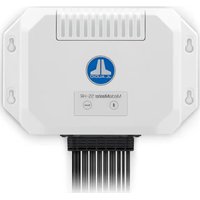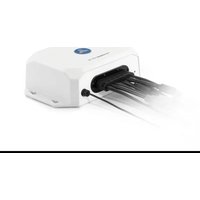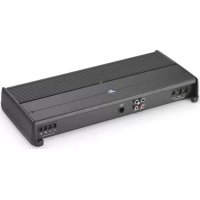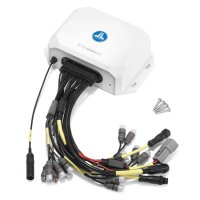
MediaMaster 105HR - Audio Amplifier JL Audio - Free user manual and instructions
Find the device manual for free MediaMaster 105HR JL Audio in PDF.


User questions about MediaMaster 105HR JL Audio
0 question about this device. Answer the ones you know or ask your own.
Ask a new question about this device
Download the instructions for your Audio Amplifier in PDF format for free! Find your manual MediaMaster 105HR - JL Audio and take your electronic device back in hand. On this page are published all the documents necessary for the use of your device. MediaMaster 105HR by JL Audio.
USER MANUAL MediaMaster 105HR JL Audio
This device complies with Part 15 of the FCC Rules. Operation is subject to the following two conditions:
(1) this device may not cause harmful interference, and (2) this device must not accept any interference received, including interference that may cause undesired operation. These limits are designed to provide reasonable protection against harmful interference in a residential installation.
This equipment generates, uses and can radiate radio frequency energy and, if not installed in accordance with the instructions, may cause harmful interference to radio communications. However, there is no guarantee that interference will not occur in a particular installation. If this equipment does cause harmful interference to radio or television reception, the user is encouraged to try to correct the interference by one or more of the following measures:
Reorient or relocate the receiving antenna. Increase separation between the equipment and the receiver.
- Connect the equipment to an outlet on a circuit different
from that to which the receiver is supported.
is connected. Consult the dealer or an experienced radio/TV technician for help.
Any changes or modifications not expressly approved by the party responsible for compliance could void the user's authority to operate this equipment.
FCC RADIATION EXPOSURE STATEMENT
This device complies with FCC radiation exposure limits set forth for an uncontrolled environment. This equipment should be installed and operated with a minimum distance of 20cm between the radiator and any part of your body.
CANADA STATEMENT
This device contains licence-exempt transmitter(s)/receiver(s) that comply with Innovation, Science and Economic Development Canada's licence-exempt RSS(s). Operation is subject to the following two conditions:
(1) This device may not cause interference.
(2) This device must accept any interference, including interference that may cause undesired operation of the device.
The device meets the exemption from the routine evaluation limits in section 2.5 of RSS 102 and compliance with RSS-102 RF exposure, users can obtain Canadian information on RF exposure and compliance. This equipment meets the exemption from the routine evaluation limits in section 2.5 of RSS-102. It should be installed and operated with a minimum distance of 20cm between the radiator and any part of your body.
SAFETY CONSIDERATIONS
- Only use this product in vehicles with 12 volt, negative-ground electrical systems. This product is not certified or approved for use in aircraft.
- Mount this product securely to prevent damage or injury in severe conditions.
- Do not replace the power wire fuse with one of a different value. Never bypass the fuse.
- Listen to your audio system at levels appropriate for operating conditions and hearing safety.
INSTALLATION CONSIDERATIONS
- Installation requires appropriate tools and safety equipment. Professional installation is recommended.
- This product is water-resistant. Do not submerge or subject to high-pressure water spray.
- Before installation, turn off the audio system and disconnect the battery system from the audio system.
- Install in a dry, well-ventilated location that does not interfere with your factory-installed systems. If a dry environment is not available, a location that is not exposed to heavy splashing may be used.
- Before cutting or drilling, check for potential obstacles behind mounting surfaces.
- Carefully route all system wiring away moving parts and sharp edges; secure with cable ties or wire clamps and use gommets and loom where appropriate to protect from sharp edges.
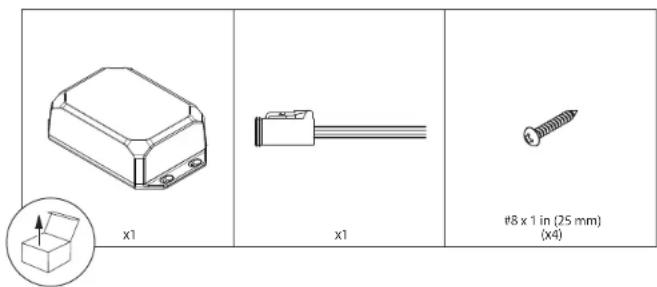
MM105-HR CONTROL OPTIONS
To operate, the MM105-HR must be connected with a compatible NMEA 2000c device (not included) using applicable NMEA 2000c cables and connectors (sold separately).
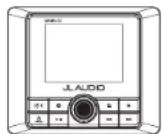
MMR-40
NMEA 2000 Network Controller with Full-Color LCD Display Full-function, water-resistant (IP66 rated) controller

NMEA 2000 MFD Control
Achieve control capabilities from compatible multi-function displays (MFD). Functionality requires compatible NMEA 2000^ entertainment protocols (PGN) and may require a software upgrade of connected MFD devices. Refer to your MFD's manufacturer for device compatibility info.
- Control functionality will vary depending on the connected MFD and/or remote controller. Full SiriusXM® functionality requires connection to an MMR-40 Network Controller (sold separately).
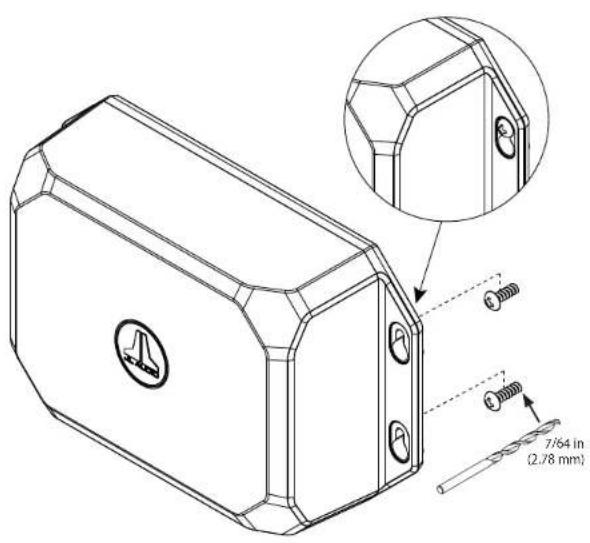
GENERAL MOUNTING
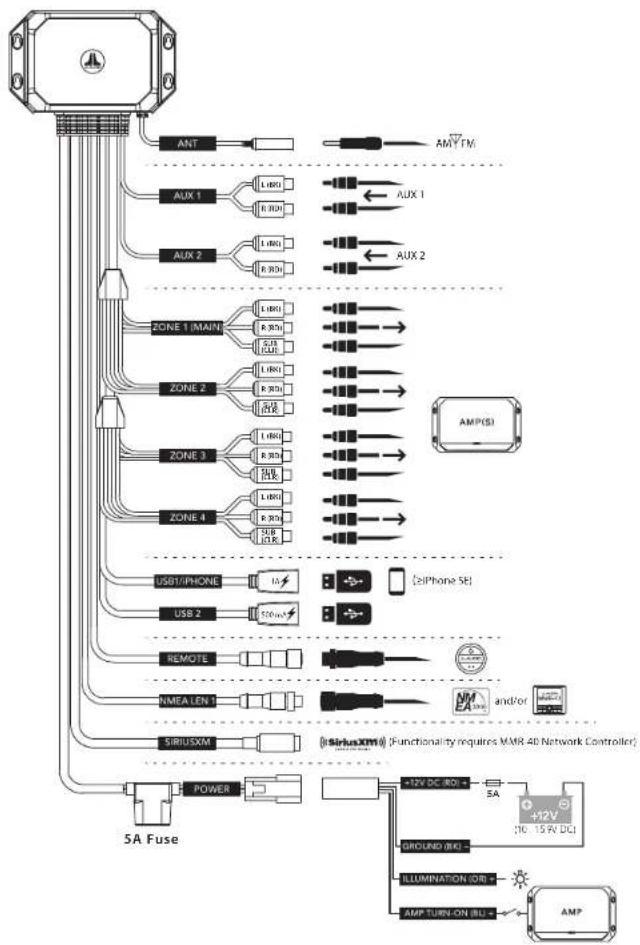
GENERAL CONNECTIONS
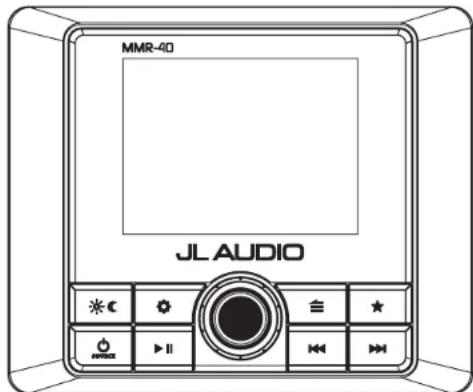
CONTROL PANEL (using MMR-40)
GENERAL CONTROL FUNCTIONS (using MMR-40)
| Control Function | ||
| SOURCE | Source/Power | • Short press to turn ON; Long press to turn OFF • When on, short press to display the SOURCE: Select menu |
| Volume/Select | • Rotate to adjust volume • Rotate/press for navigation and making selections • Long press to access Subwoofer Trim Level settings | |
| Settings | • Short press to access the Tone & Balance settings • Long press to access the System Settings: Main Menu | |
| Back/Menu | • Short press to go back one step or access source specific menus | |
| Favorites | • Short press to store stored presets • Long press to store a frequency as a preset (up to 24) | |
| II | Mute/Pause | • Short press to mute/unmute audio (AM/FM/SiriusXM/DAB+/AUX1/AUX2) or pause/resume the current selection (USB1/USB2/Bluetooth) • When the Audio Zone Levels screen is displayed, press to mute all audio (AM/FM/SiriusXM/DAB+/AUX1/AUX2/USB1/USB2/Bluetooth) |
| Forward | Short press to: • Manually adjust tuner forwards (AM/FM/SiriusXM/DAB+) • Select the next track (USB1/USB2/Bluetooth) Long press to: • Seek to the next channel (FM); Skip forward ten frequency steps (AM) • Initiate Rapid Channel Browsing forward (SiriusXM) • Fast-forward (USB1/USB2) | |
| Backward | Short press to: • Manually adjust tuner backwards (AM/FM/SiriusXM/DAB+) • Restart track/select the previous track (USB1/USB2/Bluetooth) Long press to: • Seek to the previous channel (FM); Skip backwards ten frequency steps (AM) • Initiate Rapid Channel Browsing backward (SiriusXM) • Fast-rewind (USB1/USB2) | |
| Day/Night | • Short press to switch between Day/Night display settings • Long press to access the System Settings: Display menu | |
| SYSTEM MENU SETTINGS (using MMR-40) | ||
| • Long press to access the System Settings: Main Menu | ||
| • Rotate to navigate • Press to make selections | ||
| Setting Function | ||
| Name this Device | Create a custom name to display on connected Bluetooth devices and NMEA 2000° networks | |
| Audio Zone Setup Configures each set of audio zone outputs | ||
| AUX Input Sensitivity | Configures AUX input sensitivity: 2V or 1V RMS (default) | |
| Diagnostic Displays serial number, hardware and software version info | ||
| Display Configures display and brightness settings | ||
| Battery Monitor | Built-in alert notifies when +12VDC supply voltage drops below 10 volts or above 16 volts | If triggered, the unit will enter Safe Mode with a message to turn the unit off until normal operating voltage is restored. |
| Scrolling Text Enables continuous scrolling of available RDS/track text info | ||
| Tuner Region | Configs AM/FM tuner range/scale for a specific region; DAB+ replaces SiriusXM outside of North America | |
| Power-up Settings | Configs display activation upon connection to power | |
| AUDIO ZONE MENU SETTINGS (using MMR-40) | |||
| ·Long press to access the System Settings: Main Menu | |||
| ·Rotate to navigate ·Press to make selections | |||
| Zone Function Setting 1 Setting 2 | |||
| Z1: Zone 1 Z2: Zone 2 Z3: Zone 3 Z4: Zone 4 | Level Control Mode | Absolute: Creates an independent level control for selected zones, each with its own separate volume level slider. | |
| Relative: Links the volume levels of Zones 2 - 4 with the level of Zone 1. (Linked zones will proportionally follow Zone 1's volume.) Each zone's offset level is independently adjustable, allowing you to create a customized level controller, specific to a vessel's layout. | |||
| Fixed | 4V RMS Max (default) 2V RMS Max 1V RMS Max | ||
| Off | |||
| Max Volume Limit Max Vol Limit | |||
| Rename Zone | Bow, Bridge, Cabin, Cockpit, Galley, Helm, Stateroom 1, Stateroom 2, Tower, Transom | ||
| Custom Alphanumeric Input | |||
| Factory Default | |||
| Sub 1 Sub 2 Sub 3 Sub 4 | LPF (Low Pass Filter) | Off (default) 60 Hz 80 Hz 100 Hz | |
| Sub Off | |||
| Z2: Zone 2 Z3: Zone 3 Z4: Zone 4 | Tone Control Mode | Same as Zone 1 | |
| Independent Tone Control | |||
BLUETOOTH\*AUDIO
You may wirelessly stream audio from a Bluetooth compatible device from up to 35 ft. away (11 m). Up to 8 devices can be paired to the MM105-HR, but only one streaming device can connect at one time.
| BLUETOOTH MENU SETTINGS (using MMR-40) | |
| = | With Bluetooth selected as a source, short press to display theBluetooth: Main Menu |
| Rotate to navigatePress to make selections | |
| Setting Function | |
| Now Playing Return to the Now Playing Screen | |
| Pair New Device Initiates Pairing Mode (connected devices will be disconnected) | |
| Connect PairedDevice | Display all paired devices for connection |
| Set Primary Device Assign priority to a paired device for automatic connection | |
| Delete a PairedDevice | Select from paired devices for removal |
| Delete All PairedDevices | Removes all paired devices from memory |
NOTE: When connected to +12V DC, the MM105-HR will automatically connect to any previously paired device. If a paired device is out of range, or if there are no previously paired devices, the MM105-HR will enter Bluetooth device pairing mode for sixty seconds.
USB CONNECTIONS
The MM105-HR includes two ports to connect with USB storage class devices (thumb drive, digital audio player, etc.).
USB 1: High-speed connection for use with iPhone®/iPod® (MFi Certified) or USB storage device (1 A charging output)
USB 2: Full-speed USB storage device connection (500 mA charging output)
| USB MENU SETTINGS (using MMR-40) | |
| = | With USB1 or USB2 selected as a source, short press to display the USB: Main Menu |
| Rotate to navigate Press to make selections | |
| Setting Function | |
| Now Playing Return to the Now Playing Screen | |
| Shuffle Activate Shuffle: On or Off (default) | |
| Repeat Activate Repeat: All, Song or Off (default) | |
| Playlists Displays Playlists in library | |
| Artists Displays Artists in library | |
| Songs Displays Songs in library | |
| Albums Displays Albums in library | |
| Genres Displays Genres in library | |
| Composers Displays Composers in library | |
1IMPORTANT
- Properly secure the connected device before driving to prevent damage from dropping or sudden acceleration/braking.
Control, functionality and display may vary depending on the model and version of iPhone* connected. - When connected via USB port, make sure to unpair or disable the Bluetooth connection to avoid possible playback conflicts.
- If you experience abnormal performance during operation, disconnect the iPhone and check its condition. Restart your iPhonea if performance does not improve.
- "Made for iPhone" means that an electronic accessory has been designed to connect specifically to an iPhone and has been certified by the developer to meet Apple performance standards. Apple is not responsible for the operation of this device or its compliance with safety and regulatory standards. Please note that the use of this accessory with an iPhone may affect wireless performance.
iPhone® and all related marks and logos are trademarks of Apple Inc., registered in the U.S. and other countries.
SIRIUSXM SATELLITE RADIO
(Note: Functionality requires MMR-40 Network Controller.) Only SiriusXM brings you more of what you love to listen to, all in one place. Get over 140 channels, including commercial-free music plus the best sports, news, talk, comedy and entertainment. Welcome to the world of satellite radio. A SiriusXM Vehicle Tuner and Subscription are required. For more information, visit www.siriusxm.com. (SiriusXM service is only available in the continental US and Canada.)
Activating Your SiriusXM Subscription After installing your SiriusXM Connect tuner and antenna, power on your MM105-HR and select SiriusXM mode. You should be able to hear the SiriusXM preview channel on Channel 1. If you cannot hear the preview channel, please check the installation instructions to make sure your SiriusXM Connect tuner is properly installed.
After you can hear the preview channel, tune to Channel 0 to find the Radio ID of your tuner. In addition, the Radio ID is located on the bottom of the SiriusXM Connect Vehicle Tuner and its packaging. You will need this number to activate your subscription. Write the number down for reference. Note: the SiriusXM Radio ID does not include the letters I, O, S or F.
In the USA, you can activate online or by calling Sirius XM Listener care:
Visit www.siriusxm.com/activatenow
- Call SiriusXM Listener Care at 1-866-635-2349
For Canadian Subscriptions, please contact:
Visit www.siriusxm.ca/activate
Call SiriusXM Customer Care
at 1-888-539-7474
As part of the activation process, the SiriusXM satellites will send an activation
message to your tuner. When your radio detects that the tuner has received the activation message, your radio will display: "Subscription Updated". Once subscribed, you can tune to channels in your subscription plan.
Note: The activation process usually takes 10 to 15 minutes, but may take up to an hour. Your radio will need to be powered on and receiving the SiriusXM signal to receive the activation message.
Parental Controls
Some SiriusXM channels contain mature content. When the Parental Controls feature is enabled, channels with mature content are restricted and will require a 4-digit lock code to access.
Enabling Parental Controls
- Press BACK AMEENU
SiriusXM: Main Menu.
- Turn on/Off/Status Controls and press to enter.
- Press VOUT/SELock
Mature Channels. After, you must enter a 4-digit lock code to lock mature content channels. (Parental Control default passcode:0000)
4.Use wOlySelihe 4-digit lock code and select Save when finished.
Changing the Lock Code
- Press BACKAMENU
SiriusXM: Main Menu. - Turn Off/Reli Controls and press to enter.
- Turn NDB&ck Code and press enter.
4.Use v@sE the current 4-digit lock code and select Enter when finished.
5.Use WbISeThe new lock code and select Enter to confirm. Make sure to save your 4-digit lock code for future reference.
SIRIUSXM MAIN MENU
This allows access to the SiriusXM operational menu options. Refer to the table below for available settings and functionality.
1. Press BACKAMENU
SiriusXM: Main Menu.
2. Turn on the menu settings listed in the table below and press to enter.
3. Use VOL/SEL to make selections.
Setting Function
| Now Playing Return to the Now Playing Screen | |
| Browse By Channel View list of available SiriusXM channels | |
| Browse By Category View list of available SiriusXM channels by category | |
| My Account | View your SiriusXM account status, Radio ID and Reset SiriusXM command |
| Parental Controls | Settings for access to Lock and Unlock Mature SiriusXM channels |
| Direct Tune | Allows entry for direct channel selection |
Resetting SiriusXM Settings
A reset will restore all presets and settings, including parental controls, back to their factory defaults.
1. Press BACK AMENU
SiriusXM: Main Menu.
- Turn My Account and press to enter.
- Turn MOSESIRiusXM and press to enter.
4.Use VOL/SEL to select Confirm.
Sirius, XM and all related marks and logos are trademarks of Sirius XM Radio Inc. All rights reserved.
SIRIUSXM TROUBLESHOOTING
Advisory messages may appear on the display when a SiriusXM-Connect Vehicle Tuner is connected to the MM105-HR. Refer to the table below for an explanation and suggested corrective actions.
| Advisory Message | Description |
| Check Antenna | The radio has detected a fault with the SiriusXM antenna. The antenna cable may be either disconnected or damaged.Verify that the antenna cable is connected to the SiriusXM Connect Vehicle Tuner.Inspect the antenna cable for damage and kinks. Replace the antenna if the cable is damaged.SiriusXM products are available at your local audio retailer or online at www.shop.siriussxm.com. |
| Check Tuner | The radio is having difficulty communicating with the SiriusXM Connect Vehicle Tuner. The tuneer may be disconnected or damaged.Verify that the SiriusXM Connect Vehicle Tuner cable is securely connected to the radio. |
| No Signal | The SiriusXM Connect Vehicle Tuner is having difficulty receiving the SiriusXM satellite signal.Verify that your vehicle/vessel is outdoors with a clear view of the sky.Verify that the SiriusXM antenna is mount on the exterior.Move the SiriusXM antenna away from any obstructions.Inspect the antenna cable for damage and kinks.Consult the SiriusXM Connect Vehicle tuner installation manual for more information on antenna installation. Replace the antenna if the cable is damaged. SiriusXM products are available at your local audio retailer or online at www.shop.siriussxm.com. |
| Subscription Updated | The radio has detected a change in your SiriusXM subscription status.Press VOL/SEL to clear the message.In the U.S.A., visit www.siriussxm.com or call 1-866-635-2349 if you have questions about your subscription.In Canada, visit www.siriussxm.ca or call 1-888-539-7474 if you have questions about your subscription. |
| Channel Unavailable | The channel that you have requested is not a valid SiriusXM channel or the channel you were listening to is no longer available.You may also see this message briefly when first connecting a new SiriusXM Connect Vehicle tuner.Visit www.siriussxm.com for more information about the SiriusXM channel lineup. |
| Channel Unsubscribed | The channel that you have requested is not included in your SiriusXM subscription package of the channel that you were listening to is no longer included in your SiriusXM subscription package.In the U.S.A., visit www.siriussxm.com or call 1-866-635-2349 if you have questions about your subscription package or would like to subscribe to this channel.In Canada, visit www.siriussxm.ca or call 1-877-438-9677. |
| Channel Locked | The channel that you have requested is Locked by the radio Parental Control feature. See Parental Controls, page 13 for more Information on the Parental Control feature and how to access locked channels. |
SPECIFICATIONS
| Electrical | |
| Operating Voltage | 4.4V DC (10V - 15.9V) |
| Operating Temp Range | 4 F to +158 F (-20 C to +70 C) |
| Current Draw / Fuse Value | 5 A (max) / 120 mA (standby) / 1.5 A |
| NMEA 2000* LEN | (Micro-C connector) |
| Compatible MFDs | Imrad, Lowrance, Raymarine, Garmin |
| Audio Outputs/Inputs | |
| Output Channels | one stereo pair and mono subwoofer RCA plugs per zone |
| Output Configuration | Relative, Absolute, Fixed or Off |
| Maximum Output Voltage | Relative or Absolute: 4V RMS Fixed: Selectable 4V/2V/1V RMS |
| Output Impedance | 250 Ω |
| Auxiliary Input Channels | two stereo pairs of RCA plugs (2V/1V RMS Input Sensitivity) |
| Tuner | |
| FM Tuner with RDS | 7.5 MHz to 107.9 MHz (0.2 MHz step) |
| AM Tuner | 530 kHz to 1710 kHz (10 kHz step) |
| DAB+ Tuner | 70 MHz to 230 MHz |
| Favors | 24 presets across all tuners/bands |
| Bluetooth | |
| Profile | A2DP v1.2, AVRCP v1.4 |
| Core Specification | Version 2.1 + EDR |
| Codec | SBC, Qualcomm® aptX™ audio |
| Connection Range | Up to 35 ft / 11 m |
| USB | |
| Interface | USB 2.0 |
| Charging Output | USB1: 1 A / USB2: 500 mA |
| Supported Audio Formats | MP3, MP4, WAV, AAC, M4A, M4B |
| Apple Compatibility | iPhone SE (2nd generation), iPhone 11 Pro Max, iPhone 11 Pro, iPhone 11, iPhone XS Max, iPhone XS, iPhone XR, (iPhone X, iPhone 8 Plus, iPhone 8 (functionality contingent upon compatible iOS release) |
| Dimensions | |
| Unit W x H x D | 70 in. x 2.32 in. x 4.96 in. (196 mm x 59 mm x 126 mm) |
CONTROL OPTIONS
The MM105-HR includes various options for adding control capabilities from auxiliary locations. Refer to the supplied Owner's Manual of each controller (sold separately) for specific user and installation instructions.
NMEA 2000 Connection
NMEA 2000e, Micro-C connector interfaces directly with NMEA 2000e networks using applicable NMEA 2000e cables and connectors (sold separately).

NMEA 2000 MFD Control
Achieve control capabilities from compatible multi-function displays (MFD). Functionality requires compatible NMEA 2000^ entertainment protocols (PGN) and may require a software upgrade of connected MFD devices. Refer to your MFD's manufacturer for device compatibility info.
MMR-40
NMEA 2000 Network Controller with Full-Color LCD Display Full-function, water-resistant (IP66 rated) controller

MMR-5N2K
NMEA 2000® Volume Controller
Auxiliary, water-resistant
(IPX7 rated) volume controller
BTLE Connection
Ultra-efficient Bluetooth® Low Energy technology permits wireless control from up to 35 ft (11 m) away. Add up to eight remotes (sold separately) to a single MediaMaster®.
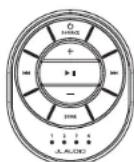
MMR-25W
Bluetooth Remote Controller
Auxiliary, water-resistant
(IP68 rated) controller.

MediaMaster Remote Controller App
Free, full-function, app based controller using your compatible wireless device. Note: App functionality requires update of source unit software. Visit: www.jaudio.com/support
REMOTE Connection
Permits direct connection of
MediaMaster® wired controllers (sol separately) using accessory control cables and splitters (sold separately Add up to three remotes to a single MediaMaster, at up to 75 ft (23 m)
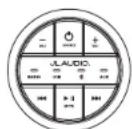
MMR-20-BE
Wired Remote Controller
Auxiliary, water-resistant
(IP67 rated) controller


MediaMaster 105-HR
MANUEL D'UTILISATION
Bluetooth
X
Qualcomm
H Radio
Phone
SiriusXM
中
3db+
图
R-D-S
中
DECLARATION DE COMPATIBILITE FCC
CONSIDERATIONS RELATIVES A
| Commande Fonction | |
| SOURCE | Source/Power |
| Volume/Select | |
| Settings | |
| Back/Menu | |
| Favorites | |
| II | Mute/Pause |
| Forward | |
| Backward | |
| Day/Night | |
OPTIONS DES COMMANDES
Commande MFD NMEA 2000
Application of the telecommande MediaMaster
| Control Función | |
| SOURCE | Source/Power |
| Volume/Select | |
| Settings | |
| Back/Menu | |
| Favorites | |
| Mute/Pause | |
| Forward | |
| Backward | |
| Day/Night | |
Lock Mature Channels, A
MedlaMaster Remote Controller App
MediaMaster Remote Controller App