 ManualGo.com
UATYQ700MCY17 - Air Conditioning DAIKIN - Free user manual and instructions
Find the device manual for free UATYQ700MCY17 DAIKIN in PDF.



Download the instructions for your Air Conditioning in PDF format for free! Find your manual UATYQ700MCY17 - DAIKIN and take your electronic device back in hand. On this page are published all the documents necessary for the use of your device. UATYQ700MCY17 by DAIKIN.
USER MANUAL UATYQ700MCY17 DAIKIN
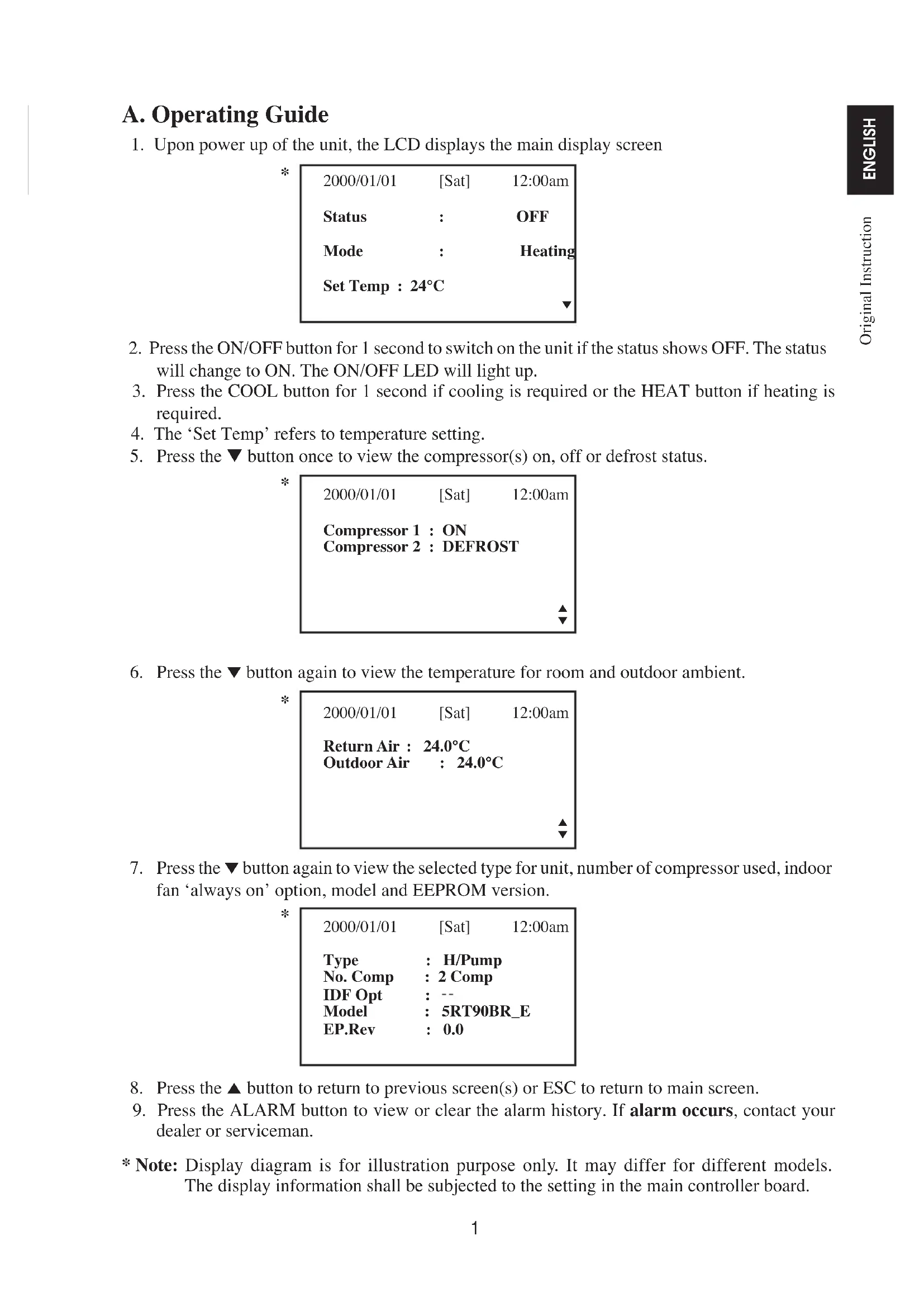
2. Press the ON/OFF button for 1 second to switch on the unit if the status shows OFF. The status
will change to ON. The ON/OFF LED will light up.
3. Press the COOL button for 1 second if cooling is required or the HEAT button if heating is
4. The ‘Set Temp’ refers to temperature setting.
5. Press the ▼ button once to view the compressor(s) on, off or defrost status.
2000/01/01 [Sat] 12:00am Compressor 1 : ON Compressor 2 : DEFROST
6. Press the ∞ button again to view the temperature for room and outdoor ambient.
8. Press the 5 button to return to previous screen(s) or ESC to return to main screen.
9. Press the ALARM button to view or clear the alarm history. If alarm occurs, contact your
dealer or serviceman.
- Note: Display diagram is for illustration purpose only. It may differ for different models. The display information shall be subjected to the setting in the main controller board.
1. Changes can be made to the factory setting parameter. This is done in the Main Menu. Press
ENTER button to go into the Main Menu.
2. The Main Menu consists of Operation Menu, Settings Menu, Timer Menu, Alarm Menu,
Warning Menu and Display Menu. How to use the Main Menu? Step 1 Press ENTER to view the sub-Menu under Main Menu. Step 2 Go to the sub-Menu you want by pressing the 5 or ∞ button. Press ENTER to select the sub-Menu. Step 3 Go to the parameter you want to change or view by pressing the 5 or ∞ button. Press ENTER to select this parameter. Step 4 Change the parameter by pressing the 5 or ∞ button. Once completed press ENTER. Press ESC to go back to previous screen until you see the initial display screen. Operation Menu This menu enables us to set the unit status (on or off), set the unit operation mode, change the temperature setting, and manually defrost the unit (applicable for heating mode only). Settings Menu This menu enables us to set the parameters for unit operation (requires password entering), user setting, change password, set panel option and unlock panel. The panel option enables us to set the LCD backlight and contrast, set the alarm buzzer, enable and disable the screen saver and set a screen saver timeout and set the temperature display in °C or °F. Note: The Set Parameter in the setting menu requires password for any changes to or to view its parameter. CAUTION: All the password entering must be done by local dealer/serviceman. User is not allowed to change the value of the set parameter as this may cause damage to unit or deter its operation. Timer Menu This menu enables us to set the clock, set the date, set a 7 days schedule to start and stop the unit and enable or disable the set schedule. Alarm Menu This menu enables us to view the alarm history and also clear the record. The panel can keep up to 20 fault / alarm records. Warning Menu This menu enables us to view the warning history and also to clear the record. The panel can keep up to 20 warning records. Display Menu This menu enables us to view the indoor heat exchanger sensor(s) temperature, outdoor heat exchanger sensor(s) temperature, discharge sensor(s) temperature, solenoid valve(s) operation status, compressor(s) run time record, EXV opening pulse, economizer operation status (applicable for unit with economizer only), fi lter checking time, control type and software version. Some of the submenu may require password for entering. 1-OM-5RTBR-0709(1)DENV-EN.indd 21-OM-5RTBR-0709(1)DENV-EN.indd 2 2/6/15 11:24:00 AM2/6/15 11:24:00 AM3 ENGLISH ENGLISH Main Menu Press ENTER to go to this menu.
Warning Menu There are 6 sub menus in [Main Menu]. Press 5 or ∞ to select sub menus, ENTER to enter into the sub menu or press ESC to exit to main display screen. Operation Menu Select [Operation Menu] in [Main Menu] and press ENTER to go to this menu. OPERATION MENU Status : OFF Mode : Heating Set Temp : 24°C Manual Defrost Some basic settings can be done here. Press 5 or ∞ to select the required setting. Then, press ENTER to enter the setting mode. Press 5 or ∞ to toggle the setting. Press ENTER again to confi rm the setting. Press ESC to exit to [Main Menu]. Settings Menu Select [Settings Menu] in [Main Menu] and press ENTER to go to this menu.
Set Parameter Change Password 1 User Setting Change Password 2 Change Password 1 Panel Option Change Password 2 Unlock Panel Panel Option Some advance settings can be found here. Press 5 or ∞ to select the required setting. Then, press ENTER to enter the setting mode. Press 5 or ∞ to toggle the setting. Press ENTER again to confi rm the setting. Press ESC to exit to [Main Menu]. Panel Option Select [Panel Option] in [Settings Menu] and press ENTER to go to this menu. Backlight ON : Normal Alarm Buzzer : ON Contrast : 50% Brightness : Medium Temp Unit : °C Idle Pg Timeout : 10 m Press 5 or ∞ to select the required setting, ENTER to enter into the setting. Press 5 or ∞ to select the required option, ENTER to select the option. Press ESC to exit to [Settings Menu].
- Note: Display diagram is for illustration purpose only. It may differ for different models. The display information shall be subjected to the setting in the main controller board.
1-OM-5RTBR-0709(1)DENV-EN.indd 31-OM-5RTBR-0709(1)DENV-EN.indd 3 2/6/15 11:24:00 AM2/6/15 11:24:00 AM4 Timer Menu Select [Timer Menu] in [Main Menu] and press ENTER to go to this menu. TIMER MENU Clock Setting Date Setting Timer Schedule Timer : Enable All the timer/schedule settings are included in this menu. Press 5 or ∞ to select the required setting. Then, press ENTER to enter the setting mode. Press 5 or ∞ to toggle the setting. Press ENTER again to confi rm the setting. Press ESC to exit to [Main Menu]. Clock Setting Select [Clock Setting] in [Timer Menu] and press ENTER to go to this menu. Set Time: hh mm 12 : 00 Press 5 or ∞ to select the required option. Then, press ENTER to enter the setting mode. Press 5 or ∞ to toggle the setting. Press ENTER again to confi rm the setting. Press ESC to exit to [Timer Menu]. Date Setting Select [Date Setting] in [Timer Menu] and press ENTER to go to this menu. Set Date: yyyy mm dd 2000 / 01 /01 Day : [Sat] Press 5 or ∞ to select the required option, ENTER to select the option. Press ESC to exit to [Timer Menu]. Timer Schedule Select [Timer Schedule] in [Timer Menu] and press ENTER to go to this menu. TIMER SETTINGS TIMER 1 ON OFF Timer 1 Sun 0800 1800 Timer 2 Mon 0800 1800 Timer 3 Tue 0800 1800 Wed 0800 1800 This is the 7 days programmable timer schedule menu. There are 3 ON/OFF events in one day. User can choose to set each day (Sunday - Saturday) ON/OFF timer. Before this schedule can function, user needs to set the [Timer] in [Timer Menu] to enable. Press ESC to exit to [Timer Menu].
- Note: Display diagram is for illustration purpose only. It may differ for different models. The display information shall be subjected to the setting in the main controller board.
Show Alarms Show Warnings Erase All Alarms Erase All Warnings This place keeps records for all previous occurred faults/alarms/warnings. User can view or clear these records. The panel can keep up to 20 faults/alarm warning records. Press ESC to exit to [Main Menu]. Show Alarms/Show Warnings Select [Show Alarms]/[Show Warnings] in [Main Menu] and press ENTER to go to this menu. Alarm 1 WARNING 1 Indoor HEX 1 Indoor HEX 1 abnormal temp deice 2000/01/01 12:00am 2000/01/01 12:00am The record shows: - Alarm/Warning description - Alarm/Warning occurance date - Alarm/Warning occurance time Besides that, user can erase the alarm/warning record(s) in this menu (password is required). Press ESC to exit to [Alarm Menu]/[Warning Menu]. Display Menu Select [Display Menu] in [Main Menu] and press ENTER to go to this menu.
DISPLAY MENU DISPLAY MENU
Indoor HEX Sensor EXV Opening Outdoor HEX Sensor Economizer Discharge Sensor Filter Check Solenoid Valve Control Type Comp Run Time Software Version This menu displays indoor heat exchanger sensor(s) temperature, outdoor heat exchanger sensor(s) temperature, discharge sensor(s) temperature, solenoid valve(s) operation status, compressor(s) run time record, EXV opening pulse, economizer operation status (applicable for unit with economizer only), fi lter checking time, control type and software version. Some of the submenu may require password for entering. Besides that, user can clear the compressor run time record (password is required). Press ESC to exit to [Main Menu].
- Note: Display diagram is for illustration purpose only. It may differ for different models. The display information shall be subjected to the setting in the main controller board.
1. A 3V DC battery is supplied with the LCD. It is used to ensure that the LCD displays real time
once the timer is set.