Hermes P3 - Keyboard Gamdias - Free user manual and instructions
Find the device manual for free Hermes P3 Gamdias in PDF.



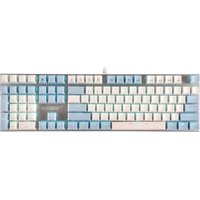
| Product type | Mechanical gaming keyboard |
| Brand | Gamdias |
| Model | Hermes P3 |
| Key switch type | Mechanical |
| Backlighting | RGB with 4 quick modes (wave, rotation, slideshow, static/off) and additional effects via software |
| Gaming profiles | 6 customizable profiles (PF1 to PF6) |
| Macro keys | 2 programmable keys per profile (FN+G1/G2) |
| Multimedia keys | 6 shortcuts (previous, next, play/pause, mute, volume -, volume +) |
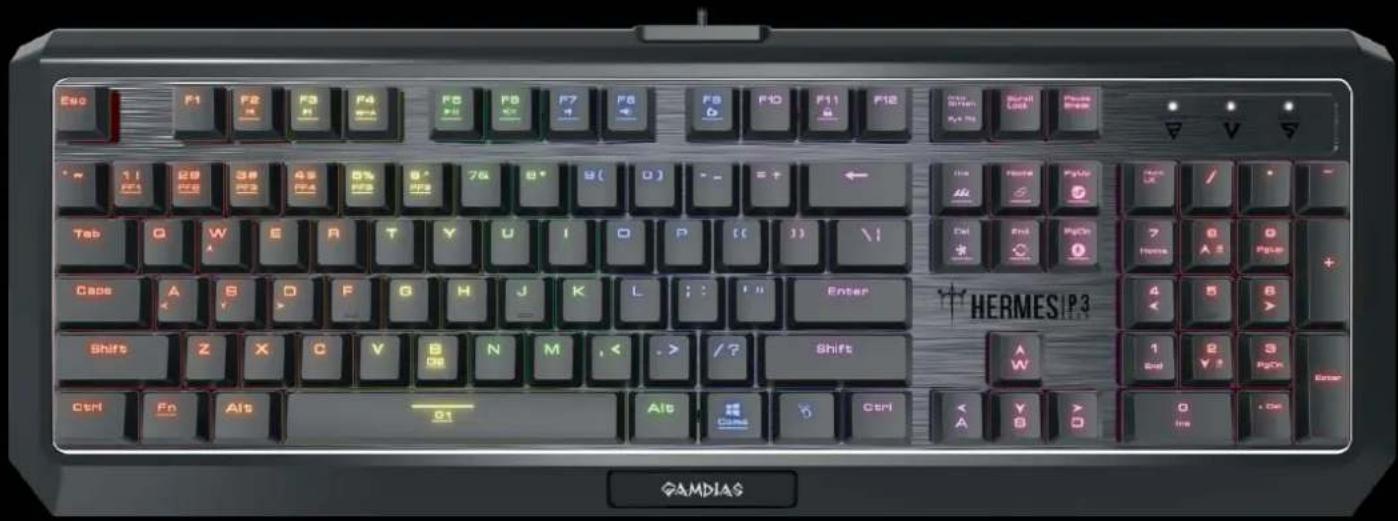
| Lighting speed adjustment | 11 levels (Fn+PgUp/PgDn) |
| Brightness adjustment | 4 levels (off, 30%, 60%, 100%) via Fn+Num8/Num2 |
| Gaming mode | Windows key lock (Fn+Win) |
| Keyboard lock | Fn+F11 |
| WASD/Arrow swap | Fn+F4 |
| On-the-fly macro recording | OTF via Fn+F9 |
| Compatible operating system | Windows XP/Vista/7/8/10 |
| Connectivity | USB wired |
| Included accessories | Keycap puller |
| Software | GAMDIAS HERA (download at www.GAMDIAS.com) |
| Product registration | Online at www.GAMDIAS.com |
Frequently Asked Questions - Hermes P3 Gamdias
User questions about Hermes P3 Gamdias
0 question about this device. Answer the ones you know or ask your own.
Ask a new question about this device
Download the instructions for your Keyboard in PDF format for free! Find your manual Hermes P3 - Gamdias and take your electronic device back in hand. On this page are published all the documents necessary for the use of your device. Hermes P3 by Gamdias.
USER MANUAL Hermes P3 Gamdias
Mechanical Gaming Keyboard
< Italiano >
< Русский >
<日本語>
<한국어>
<ภาษาไทย>
العَرَبِيْة
《English》
Thank you for purchasing the GAMDIAS™ HERMES P3 mechanical gaming keyboard. The new HERMES P3 keyboard is designed by combining user's fundamental requirements and features of the HERMES series mechanical keyboard as well as compact keypad. All these are aimed at enhanced mobility, comfort operation, and spatiality.
Your HERMES P3 comes with two programmable macro keys (FN+G1/G2), which enable playing preset macros while gaming. Its portable profile and macro saves can be shared with other gamers or automatically backed up to your computer.
System Requirements
● Windows ^® XP/Vista / 7 / 8 / 10
● PC with USB ports
- Internet connection (used to install the HERA software)
● GAMDIAS™ HERA software
Package Contents
● GAMDIAS™ HERMES P3 Mechanical Keyboard
● Keycap puller
Hardware and Software Installation
- Insert the USB plug of the GAMDIAS™ HERMES P3 keyboard into an available USB port on the computer.
- The "New Hardware Found" notification will be displayed. Follow the instructions on the screen to complete the hardware installation.
- Connect to the GAMDIAS™ website (http://www.GAMDIAS.com) and download the latest version of HERA software.
- Start installing the GAMDIAS™ HERA software and follow the instructions on the screen to complete.
Introduction to HERMES P3 Keyboard Configuration
A. Six sets of customizable gaming profiles: PF1\~PF6

B. Six multimedia shortcut keys: Previous track, next track, play/pause, mute, decrease volume, increase volume

C. Four shortcut keys for switching among four keyboard light effects.( Wave, Rotation, Slide in, Static/Light off)

* (1) Additional light effect options require HERA support
* (2) Selected light effects will be auto saved in current profile
* (3) Direction of the Wave and Rotation light effects will be changed by pressing the FN and arrow key the same time.
D. Speed adjustment of shortcut key: There are 11 speed steps in existence (0\~11 where 0 represents stop).

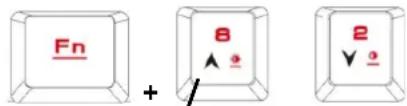
E. Keyboard backlight brightness level adjustment: [Fn + Num8] increases brightness, [Fn + Num2] decreases brightness. There are 4 phases for brightness level adjustment; OFF / 30% / 60% / 100%
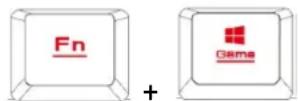
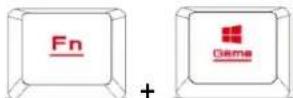
F. Game mode: Press [Fn + Win] once to lock the Windows key so there will be no response when it is pressed. Press again to unlock the key
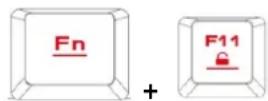
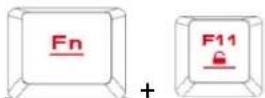
G. Lock keyboard keys: Press [Fn + F11] once to lock the keyboard keys so there will be no response when they are pressed. Press again to unlock the keys
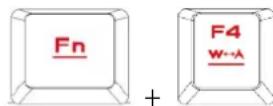
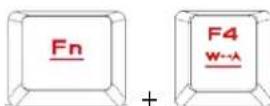
H. Swap between WASD and arrow key modes: Press [Fn + F4] once to enable swap mode. Press again to disable
I. On-The-Fly macro recording (OTF):
*[OTF record indicator] = LED on the top-right corner of the keyboard (Game light)
*[Fn + F9] = OTF Record on/off
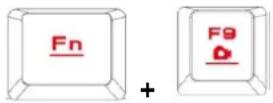
(1) Start OTF recording: Press [Fn +F9] and all keys will start flashing simultaneously
(2) OTF recording: Enter the macro action (keyboard keys) to record
(3) End OTF recording: Press [Fn+F9] and all keys will start rapidly blinking
(4) Specify macro key: Press the key to execute the macro and all keys will return from rapidly blinking to their original indicator statuses
* To cancel OTF recording during the process, press [Fn + F9] after step (3) to cancel recording; at this time the all keys will return to their original statuses
* If no keys were pressed for 20 seconds during step (2) the macro recording process or step (4) specify macro key process, macro recording will end automatically and all keys will return to their original statuses
Register your GAMDIAS™ HERMES P3 Mechanical Keyboard
Please visit www.GAMDIAS.com for online product registration
《Français》
F. Game mode: Press [Fn + Win] once to lock the Windows key so there will be no response when it is pressed. Press again to unlock the key
G. Lock keyboard keys: Press [Fn + F11] once to lock the keyboard keys so there will be no response when they are pressed. Press again to unlock the keys
H. Swap between WASD and arrow key modes: Press [Fn + F4] once to enable swap mode. Press again to disable
I. On-The-Fly macro recording (OTF):
*[OTF record indicator] = LED on the top-right corner of the keyboard (Game light)
^* [Fn + F9] = OTF Record on/off
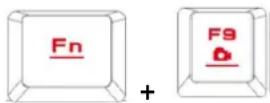
(1) Start OTF recording: Press [Fn +F9] and all keys will start flashing simultaneously
(2) OTF recording: Enter the macro action (keyboard keys) to record
(3) End OTF recording: Press [Fn+F9] and all keys will start rapidly blinking
(4) Specify macro key: Press the key to execute the macro and all keys will return from rapidly blinking to their original indicator statuses
* To cancel OTF recording during the process, press [Fn + F9] after step (3) to cancel recording; at this time the all keys will return to their original statuses
* If no keys were pressed for 20 seconds during step (2) the macro recording process or step (4) specify macro key process, macro recording will end automatically and all keys will return to their original statuses
Register your GAMDIAS™ HERMES P3 Mechanical Keyboard
Please visit www.GAMDIAS.com for online product registration
《Italiano》
natural_image
Abstract geometric logo design with interlocking black and gold shapes inside a golden triangle (no text or symbols)GAMDIAS
GAMING ART IN MOTION
Brand : Gamdias
Model : Hermes P3
Category : Keyboard