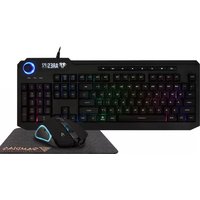
ARES P2 - Keyboard Gamdias - Free user manual and instructions
Find the device manual for free ARES P2 Gamdias in PDF.


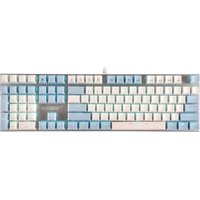
| Product Type | Mechanical Gaming Keyboard |
| Brand | Gamdias |
| Model | ARES P2 |
| Layout | Full Size (104 keys) |
| Switch Type | Mechanical (Blue/Red/Brown options) |
| Backlight | RGB per-key illumination |
| Connection | USB 2.0 (detachable cable) |
| Dimensions (L x W x H) | 440 x 140 x 40 mm |
| Weight | 1.2 kg |
| Power Source | USB bus power (5V, 500mA) |
| Polling Rate | 1000 Hz |
| Key Rollover | N-key rollover |
| Onboard Memory | Yes (for macros and lighting profiles) |
| Wrist Rest | Detachable, magnetic |
| Materials | Aluminum top plate, ABS keycaps |
| Operating System Support | Windows, macOS, Linux |
| Warranty | 2 years limited |
| Cleaning Instructions | Remove keycaps with puller, clean with isopropyl alcohol and soft cloth |
| Safety Precautions | Avoid liquid spills, use only designated cables |
| Spare Parts | Keycap sets, USB cables available separately |
| Repairability | Switches are soldered; professional repair recommended |
Frequently Asked Questions - ARES P2 Gamdias
User questions about ARES P2 Gamdias
0 question about this device. Answer the ones you know or ask your own.
Ask a new question about this device
Download the instructions for your Keyboard in PDF format for free! Find your manual ARES P2 - Gamdias and take your electronic device back in hand. On this page are published all the documents necessary for the use of your device. ARES P2 by Gamdias.
USER MANUAL ARES P2 Gamdias
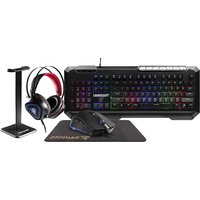
Thank you for purchasing the GAMDIAS™ ARES P2. The GAMDIAS ARES P2 gaming keyboard has a comfortable design and spill resistant structure. The GAMDIAS™ optical gaming mouse employs premium micro-processor complemented by 3,600 DPI precision-perfect optical sensor.
System Requirements
● Windows ^® XP/Vista/7/8/10
● PC with USB ports
Package Contents
● GAMDIAS™ ARES P2 Gaming Keyboard
● GAMDIAS™ Optical Gaming Mouse
● GAMDIASTM Optical Gaming Mouse Mat
Introduction to ARES P2 Keyboard Configuration
GAMDIAS ARES P2 Keyboard Layout

A. Eight multimedia shortcut keys:
My Computer, Email, Home, Calculator, Stop, Previous, Play/Pause, Next

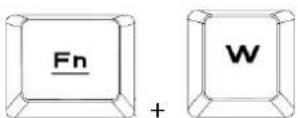
B. Swap between WASD and arrow key modes:
Press [Fn + W] once to enable swap mode. Press again to disable
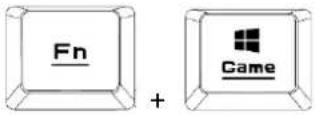
C. Game mode:
Press [Fn + Win] once to lock the Windows key so there will be no response when it is pressed. Press again to unlock the key
D. Keyboard backlight brightness level adjustment:
[Fn + Up] increases brightness, [Fn + Down] decreases brightness

chemical
Chemical reaction diagram showing formation of a FeN- radical and electron shellE. Speed adjustment of shortcut key:
[Fn + Right] increases speed, [Fn + Left] decreases speed

F. Switch keyboard lighting effects:

G. Switch the keyboard light color (Breathing & Static mode Only):

H. Increase / Decrease volume / silent mode:
Turn left knob to decrease volume and turn right to increase volume.
Press the knob to turn on silent mode
natural_image
Circular decorative pattern with repeating geometric border (no text or symbols)Mouse Default Settings


natural_image
Abstract geometric logo design with interlocking black and gold shapes inside a large golden triangle (no text or symbols)GAMDIAS
GAMING ART IN MOTION

- System Requirements
- Package Contents
- Introduction to ARES P2 Keyboard Configuration
- Eight multimedia shortcut keys:
- Swap between WASD and arrow key modes:
- Game mode:
- Keyboard backlight brightness level adjustment:
- Speed adjustment of shortcut key:
- Switch keyboard lighting effects:
- Switch the keyboard light color (Breathing & Static mode Only):
- Increase / Decrease volume / silent mode:
- Mouse Default Settings
- GAMDIAS
Brand : Gamdias
Model : ARES P2
Category : Keyboard