IHF1000 - Built-in kit MOTOROLA - Free user manual and instructions
Find the device manual for free IHF1000 MOTOROLA in PDF.



| Product Type | Bluetooth hands-free car kit (built-in) |
| Brand and Model | Motorola IHF1000 |
| Power Supply | 12 V (vehicle); consumption < 5 A; 5 A fuse required |
| Wireless Technology | Bluetooth® hands-free profiles 0.96 and 1.0 |
| Voice Recognition | Speaker-independent; languages: English, French, German, Italian, Spanish |
| Number of Phones that Can Be Paired | Up to 4 |
| Contact List | Up to 20 contacts with name and number |
| Call Functions | Dial, answer, hang up, reject, transfer, call waiting, mute, DTMF |
| Voice Announcements | Menus and notifications (call, message, low battery) – can be enabled/disabled |
| Included Components | Electronic module, control module (3 buttons), microphone, external speaker, interface cable, Velcro® fasteners |
| Installation | Must be performed by a professional; do not obstruct airbags |
| Operating Temperature | Not specified, vehicle interior use only |
| Maintenance and Cleaning | Clean with a soft, dry cloth. Do not use abrasive products. |
| Safety | Respect airbag deployment zones; disconnect battery before installation; do not modify the device |
| Spare Parts and Repairability | Repairs must be carried out by an authorized center. Spare parts available from the manufacturer. |
| Compatibility | Mobile phones with Bluetooth hands-free profile; some advanced features may be limited depending on the model |
Frequently Asked Questions - IHF1000 MOTOROLA
User questions about IHF1000 MOTOROLA
0 question about this device. Answer the ones you know or ask your own.
Ask a new question about this device
Download the instructions for your Built-in kit in PDF format for free! Find your manual IHF1000 - MOTOROLA and take your electronic device back in hand. On this page are published all the documents necessary for the use of your device. IHF1000 by MOTOROLA.
USER MANUAL IHF1000 MOTOROLA
IHF1000, Premium Speech-Operated Car Kit with Bluetooth® Wireless Technology
START HERE > COMMENCEZ ICI > HIER BEGINNEN > INTRODUZIONE > COMENZAR >
Welcome
Welcome to Motorola's "connected" world of Bluetooth® personal area wireless networking. Motorola's Premium Speech-Operated Car Kit with Bluetooth Wireless Technology makes wireless connection simple and quick.
Motorola's Premium Speech-Operated Car Kit with Bluetooth Wireless Technology offers these features:
- seamless, wireless handsfree audio through Bluetooth connection
- digital audio interface with high quality, full-duplex, handsfree speech
- Speaker Independent Speech Recognition in US English, UK English, French, German, Italian and Spanish
• voice-driven menu prompts - entertainment mute—automatically mutes radio during calls (where supported by the radio)
- noise reduction and acoustic echo cancellation
- compliance with Bluetooth Hands Free 0.96 and 1.0 profiles
- The IHF1000 car kit supports the Bluetooth "Hands-Free" Profile. In order for your compatible Bluetooth enabled phone to communicate with the IHF1000 car kit, it must also support this profile. However, even if your phone supports the Bluetooth "Hands-Free" Profile, it may not be capable of taking
1
advantage of all the advanced features/functionality and/or the functionality of such features of the IHF1000 car kit may be limited due to compatibility conflicts between the phone and the IHF1000 car kit.
Note: Any information in brackets represents the UK English version of this manual.
2
Contents
Welcome 1
Safety and General Information 5
Getting Started 7
About This Guide 7
Installing the Handsfree Kit....10
Guidelines for Installation and Connection ..... 10
How to Install the Handsfree Kit .... 11
Using Your Car Kit 19
User Interface Module (UIM) Control Buttons.....19
Connecting Your Phone to the Car Kit 23
Removing Your Phone from the Car Kit 27
Placing a Call with the Car Kit 28
Answering a Call. 32
Ending a Call 33
Using Features while on a Call 33
Managing the Contact List 37
Turning Off System Prompts. 39
Announcing a Caller 40
Audio Indicators 40
Selecting a Language. 41
If You Need Help....42
Warranty Coverage....42
Troubleshooting 42
Calling Features Quick Reference 44
Dial Number 44
Speed Dial 44
Redial 44
3
Call Contact. 45
Phone Voice Tags [Phone Voice Name] 45
Call in Progress. 45
Setup Menu. 46
Contact List 47
Appendix 48
Definitions 48
Power Connections 49
UIM Button Functions 50
UIM LED Indicator Functions 52
4
Safety and General Information
IMPORTANT INFORMATION ON SAFE AND EFFICIENT OPERATION. READ THIS INFORMATION BEFORE USING YOUR PHONE.
Users are not permitted to make changes or modify the device in any way. Changes or modifications not expressly approved by the party responsible for compliance could void the user's authority to operate the equipment. See 47 CFR Sec. 15.21.
This device complies with part 15 of the FCC rules and with RSS-210 / RSS-139 of the Industry Canada. Operation is subject to the following two conditions: (1) This device may not cause harmful interference, and (2) this device must accept any interference received, including interference that may cause undesired operation. See 47 CFR Sec. 15.19(3).
Canada Compliance (Industry Canada)
To prevent radio interference to the licensed service, this device is intended to be operated indoors and away from windows to provide maximum shielding. Equipment that is installed outdoors is subject to licensing.
Electromagnetic Interference/Compatibility
Nearly every electronic device is susceptible to electromagnetic interference (EMI) if inadequately shielded, designed, or otherwise configured for electromagnetic compatibility.
Caution: Any changes or modifications not expressly approved by the party responsible for compliance could void the user's authority to operate the equipment.
5
Declaration of Conformity
Hereby, Motorola declares that this product LV001/05/IHF1000/D is in compliance with:
• The essential requirements and other relevant provisions of Directive 1999/5/EC
• All other relevant EU Directives
CE
You can view your product's Declaration of Conformity (DoC) to Directive 1999/5/EC (to R&TTE Directive) at www.motorola.com/rtte
6
Getting Started
About This Guide
This guide describes the basic features of your IHF1000 car kit.
Advanced Feature

This icon identifies an advanced feature or functionality that is dependent on the compatibility of your mobile phone. Not all Bluetooth® enabled mobile phones that support the Bluetooth "Hands-Free" Profile will support this feature or provide the functionality described.

Getting Started

Getting Started
7
8
Installing the Handsfree Kit
Guidelines for Installation and Connection
- Only qualified personnel should install this car kit. If necessary, contact the vehicle manufacturer for air bag information specific to the vehicle.
Caution: An air bag inflates with great force. DO NOT place objects, including communication equipment, in the area over the air bag or in the air bag deployment area. If the communication equipment is improperly installed and the air bag inflates, serious injury could occur.
- Mount components securely on strong surfaces to prevent shifting that could cause injury or interfere with safe vehicle operation. Always use the supplied mounting hardware
- Mounted components and attached wires or cables must not interfere with seating or leg space.
- Route cables so they are protected from pinching, sharp edges, and crushing. Keep all in-line connectors easily accessible.
- This car kit is intended for use in 12 volt negative ground systems only. The car kit draws less than 5 amps. Confirm that the vehicle's electrical system can supply this current.

Installing the Handsfree Kit
9

Installing the Handsfree Kit
How to Install the Handsfree Kit
Caution: This car kit must be connected to a 5A fuse in the car fuse panel to prevent fire or other damages if a short circuit should occur somewhere in the electronic module. Before installing the car kit, disconnect the vehicle's battery.
Before you begin: Unpack, assemble, and test all components on a service bench.
Car Kit Contents
Interface Cable
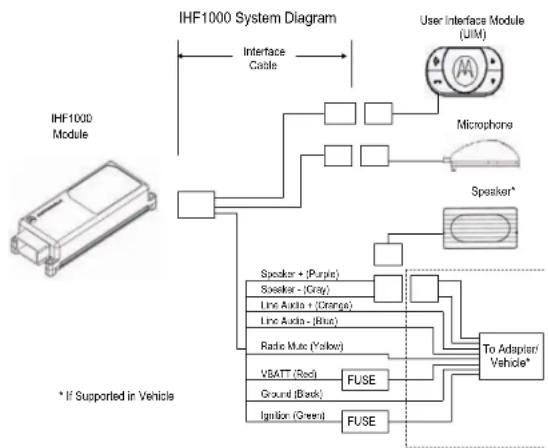
The Interface Cable connects the electronic module to the other system components. It connects the vehicle's power and ignition to the car kit and provides some optional audio connections when the car kit is used with the vehicle's radio.
Electronic Module
You can place the electronic module anywhere inside the vehicle to facilitate convenient connection between the interface cable and other system components.
Microphone
The microphone cable can be routed along the side of the vehicle, through the dash, and along the edge of the windshield. The microphone is placed best near the rearview mirror and aimed directly toward the user.
10
User Interface Module
The User Interface Module (UIM) cable can be mounted in several ways to provide a safe and comfortable environment for use.
Audio Connections
You can install the system's audio components in one of 2 ways:
External Speaker
If you are installing the system with the external speaker, you MUST leave the audio output (+/-) lines disconnected. (See "Power Connections" on page 49.) The external speaker should be connected to the interface cable.
Vehicle Radio
If you intend to connect the system to the vehicle radio to control audio level and the radio supports it, you must connect the audio output (+/-) lines to your vehicle's entertainment system.
Note: The system's handsfree audio has been optimized for the external speaker. Routing the audio output through the vehicle's entertainment system may alter the handsfree audio performance.
Installing the Electronic Module
The best location for the electronic module is under the vehicle's dash. The box must be protected from dirt and moisture and have adequate space for cooling and to allow for cable connection.

Installing the Handsfree Kit
11

For optimal Bluetooth ^® performance, mount the electronic module in a central location within the vehicle. Do not place it behind or within large areas of metal.
The location of the electronic module MUST NOT interfere with deployment of the vehicles air bags. Do NOT locate the electronic module in the vehicle's trunk (boot).
Installing the Interface Cable
Caution: Failure to follow the steps below may cause the accessory not to work properly and may cause damage to the car kit.
The interface cable has integral fuses on the power lines (VBatt and Ign).
Note: When installing the system into vehicles without an available adapter harness, remove the white 8-pin connector.
12
flowchart
graph TD
    A["IHF1000 Module"] -->|Interface Cable| B["User Interface Module (UIM)"]
    B --> C["Microphone"]
    B --> D["Speaker*"]
    C --> E["To Adapter/ Vehicle*"]
    D --> E
    E --> F["Speaker + Purple"]
    E --> G["Speaker - Gray"]
    E --> H["Line Audio + Orange"]
    E --> I["Line Audio - Blue"]
    E --> J["Radio Mute (Yellow)"]
    E --> K["VBATT (Red)"]
    E --> L["Ground (Back)"]
    E --> M["Ignition (Green)"]
    E --> N["FUSE"]
    N --> O["+"]
    O --> P["FUSE"]
    style A fill:#f9f,stroke:#333
    style B fill:#ccf,stroke:#333
    style C fill:#cfc,stroke:#333
    style D fill:#fcc,stroke:#333
    style E fill:#ffc,stroke:#333
    style F fill:#cff,stroke:#333
    style G fill:#cff,stroke:#333
    style H fill:#cff,stroke:#333
    style I fill:#cff,stroke:#333
    style J fill:#cff,stroke:#333
    style K fill:#cff,stroke:#333
    style L fill:#cff,stroke:#333
    style M fill:#cff,stroke:#333

Installing the Handsfree Kit
Note: See "Power Connections" on page 49 for more information.
1 Connect the GREEN Ignition Sense wire to an ignition-switched location on the fuse block. When the ignition is off, the ignition sense line is low.
2 Connect the YELLOW Entertainment Mute Wire to the vehicle's entertainment system.
Note: This feature is only operational if the vehicle's radio supports this capability. Installation may require an optional relay (not included). The mute line is an active low signal.

3 Connect the RED positive battery lead to a point in the vehicle's fuse box that is fused at 5 amp.
4 Connect the BLACK ground wire to the vehicle chassis.
5 Inspect all connections.
Note: The ORANGE and BLUE wires are not used. (These wires are used to connect the line-level audio to the vehicle radio, if the radio supports this feature.)
Note: The system's handsfree audio has been optimized for the external speaker. Routing the audio output through the vehicle's entertainment system may alter the handsfree audio performance.
Installing the Handsfree Kit
Installing the Microphone
Note: The microphone MUST BE positioned properly or this product WILL NOT perform optimally.
1 Attach 1 side of the VELCRO® tape to the bottom side of the microphone.
2 Securely mount the microphone on the overhead console or headliner between the driver and passenger. DO
NOT mount on the visor or windshield. Vibrations will negatively impact audio and speech recognition performance.
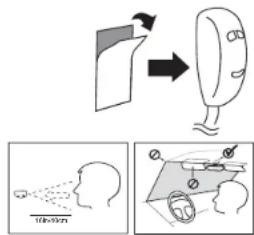
- Locate the microphone no more than 16 inches (40 cm) from the driver's mouth and out of direct air flow from vent or defrost.
- Aim the microphone directly toward the driver. The front of the mic should point toward the driver. The wire comes out the back of the mic.
- Do not allow anything (such as a rear-view mirror or sun visor) to block the path between the microphone and the driver.
- Mount the microphone firmly so that vibrations do not affect audio quality.
Caution: The location of the microphone MUST NOT interfere with the vehicle's air bag deployment.
3 Connect the microphone to the interface cable.
Installing the External Speaker
Note: Always use the supplied mounting hardware.
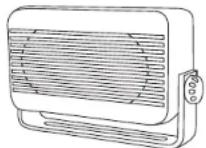
1 Securely mount the speaker in the passenger footwell, either to the transmission hump (center console) or beneath the dash. Position the speaker directly face the microphone and with either the passenger or au
Caution: The location of the external speaker MUST NOT interfere with the vehicle's air bag deployment.
2 Connect the speaker to the electronic module.

Installing the Handsfree Kit
Installing the User Interface Module

1 Remove the backing of the tape on the bottom of the User Interface Module (UIM).
2 Select a suitable location on the vehicle dash, within easy reach of the driver, and mount the UIM. The UIM can be mounted anywhere on the dash.
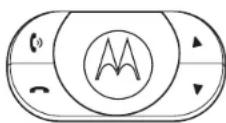
Caution: The location of the UIM MUST NOT interfere with the vehicle's air bag deployment.
Caution: The mounted UIM MUST NOT create a visual distraction.
Caution: DO NOT mount the UIM on the steering wheel.
3 Connect the UIM to the interface cable.
Installing the Handsfree Kit
Using Your Car Kit
User Interface Module (UIM) Control Buttons
The UIM enables you to set up and use the Bluetooth® Hands Free Car Kit.
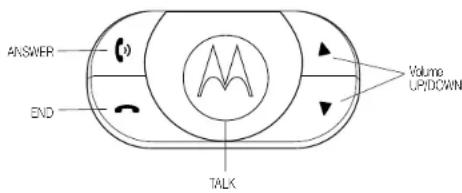
Using Your Car Kit
The buttons on the UIM are lit at different times to indicate different system states and when they may be pressed.
Note: See "UIM LED Indicator Functions" on page 52 for information on when and why the buttons light or flash.
The TALK Button
The blue TALK button has 2 functions, depending on whether you press and release it quickly or press and hold it.
Press and Release
Press and release the TALK button to initiate a Speech recognition (SR) session. When you begin a SR session, you hear a prompt and then a short beep. The beep—also
known as a listening prompt—indicates that the system is waiting for a verbal command from you.
Note: If a Press and Release of the TALK button is done during an SR prompt, the prompt will be stopped and the system will go to the listening prompt.
Press and Hold
Press and hold the TALK button to initiate the pairing process.
The ANSWER Button
The green ANSWER button has 6 functions, depending on the state of the system. These functions can be initiated by pressing and releasing or pressing and holding the button.

Using Your Car Kit
19
Press and Release
| In This Situation ... Press and Release ANSWER to ... | |
| when receiving an incoming call | answer the call |
| when system not on a call | attempt to place call using last number dialed |
| while 1 call in progress toggle between Hold & Resume | |
| while in a call & after call waiting notification is received | answer the waiting call |
| with 2 active calls toggle between calls | |
Using Your Car Kit
Press and Hold
During an active call, press and hold the ANSWER button to switch the audio between handsfree and privacy modes.
The END Button
The red END button has 5 functions. These functions can be initiated by pressing and releasing or pressing and holding the button.
20
Press and Release
| In This Situation ... Press and Release END to ... | |
| during an active call end the call | |
| when system is awaiting a command during Speech recognition mode | cancel Speech recognition mode |
| when receiving an incoming call | reject the call |
Press and Hold
| In This Situation ... Press and Hold END to ... | |
| during an active call (including multi-party calls) | end all calls |
| when system not on a call | terminate the Bluetooth® connection |
Volume UP/DOWN Buttons
During normal operation, press and release the Volume UP/DOWN buttons to increase or decrease speaker volume.
(If the system is using the vehicle radio speakers, you can also use the radio's volume controls to raise or lower volume.)
To mute the microphone, press and hold either Volume UP/DOWN button. To unmute the microphone, press and release either button.

Using Your Car Kit
Getting Help
While learning to use the system, or whenever you need a reminder, say "Help." The system includes Help prompts in every menu.
You can also say 'Repeat' whenever you are prompted for a Yes or No. The system will repeat the question.
Note: If you need to reset the system, press and hold the TALK and ANSWER buttons simultaneously for more than 2 seconds.
Connecting Your Phone to the Car Kit
Using Your Car Kit
Before you can use this car kit, you must complete a Bluetooth® connection between the kit and your phone. You establish a Bluetooth connection between your car kit and phone with a paired link.
When you set up a paired link, the car kit remembers the phone's ID. Once the car kit and phone are paired, your car kit automatically connects to your phone every time you start your vehicle or power up the car kit.
This system supports paired links with up to 4 phones.
Note: The process of initiating a Bluetooth connection with a phone varies per phone manufacturer. For more information, refer to the user's guide for your phone.
Initial Pairing
Note: Use this procedure ONLY if there are no handsets paired to the system.
With the car kit and phone in close proximity:
Action
1 Press the TALK button.
2 When prompted, say "Pair Phone."
The system responds: Set your phone in scan mode and enter 1234 when prompted for the passcode.
3 When the phone displays the device name, select the device.
The phone displays the passcode entry screen.
4 Enter the passkey (1234).
The phone displays "PIN verified," and the system says: Pairing complete. Connection in progress.
Note: Some phones ask you to accept the BT link. Enter Yes.
Upon successful completion, the system says: Connection is complete. Phone

Using Your Car Kit
Additional Pairing
To pair additional handsets to the system, with the car kit and phones in close proximity:
Action
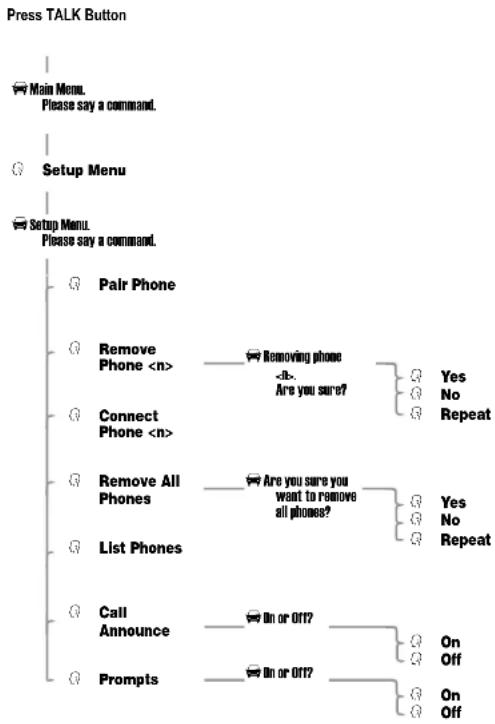
1 Press the TALK button.
2 When prompted, say "Setup Menu."
The system responds: Setup menu. Please say a command.
3 Say "Pair Phone."
The system responds: Set your phone in scan mode and enter 1234 when prompted for the passecode.
4 When the phone displays the device name, select the device.
The phone displays the passcode entry screen.
5 Enter the passkey value provided by the system.
The phone confirms that the PIN is verified and says: Pairing complete. Connection in progress.
Note: Some phones ask you to accept the BT link. Enter Yes.
Upon successful completion, the system says:
Connection is complete. Phone
Using Your Car Kit
Selecting a Phone
With the car kit and phone in close proximity:
Action
1 Press the TALK button.
2 When prompted, say "Setup Menu."
The system responds: Setup menu. Please say a command.
3 Say "Connect Phone <||>"
The system responds: Connecting phone
Upon successful completion, the system says: Connection complete.
List Phones Paired to the System
Action
1 Press the TALK button.
2 When prompted, say "Setup Menu."
The system responds: Setup menu. Please say a command.
3 Say "List Phones."
The system says: The following phones are paired: phone 1, etc.
Using Your Car Kit
Removing Your Phone from the Car Kit
Removing a Connected Phone
Action
1 Press the TALK button.
2 When prompted, say "Setup Menu."
The system responds: Setup menu. Please say a command.
3 Say "Remove phone
The system responds: Removing phone
4 Say "Yes.
The system responds: Phone
Using Your Car Kit
Removing All Phones
Action
1 Press the TALK button.
2 When prompted, say "Setup Menu."
The system responds: Setup menu. Please say a command.
3 Say "Remove all phones."
The system responds: Are you sure you want to remove all the phones?
4 Say "Yes."
The system responds: All phones removed (All phones have been removed).
Placing a Call with the Car Kit
To place a call, you must first establish a Bluetooth ^® link between the car kit and your phone (see page 22).
You can place a call with the car kit in these ways:
• Dial a number from the phone.
• Digit dial with Speech recognition.
- Use the system's Contact List.
- Speak a phone voice tag [phone voice name].
- Use the Speed Dial command.
- Use the Redial command.
- Use last number redial from the User Interface Module.
When connected, all of these calls are handsfree. You can terminate a SR session at any time by pressing the END button.
Placing a Call with Speech recognition
You can enter a phone number as 1 or more segments of digits. A segment can include up to 15 digits. An entire number can include no more than 32 digits. You can begin the number set with the * or # character.
Note: Speak numbers as continuous digits. For example, dictate 555-2211 as “5-5-5-2-2-1-1”, not
"5-5-5-twenty-two-eleven."

Using Your Car Kit
Calling with a Whole Number
| Action | |
| 1 | Press the TALK button. |
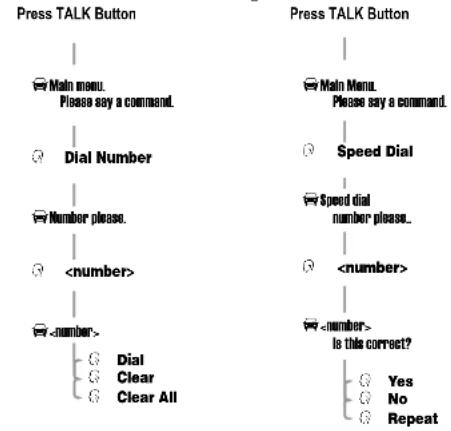
| 2 | When prompted, say “Dial Number.”The system responds: Number please?. |
| 3 | Dictate the phone number as a single set of digits (without pauses between digits).The system recites the digits heard. |
| 4 | If the number recited by the system is correct, say “Dial.” The system responds: Dialing. |
Using Your Car Kit
Calling with Digit Segments
| Action | |
| 1 | Press the TALK button. |
| 2 | When prompted, say “Dial Number.”The system responds: Number please?. |
| 3 | Dictate the first segment of digits. (For example, say the 1st 3 numbers.)The system recites the digits heard. |
| 4 | Dictate the next segment of digits. The system recites the digits heard.Repeat this step until you enter the complete phone number. |
| 5 | When the complete number is recited by the system, say “Dial.” The system responds: Dialing. |
To delete a phone number segment, say "Clear" when prompted for the next segment. The system responds Last String Cleared [Last Entry Cleared], echoes any remaining segments, and waits for you to dictate a new segment.
To clear all phone number segments dictated so far, say "Clear All" when prompted for the next segment. The system clears all segments and returns to the Number please? prompt (see step 2 above).
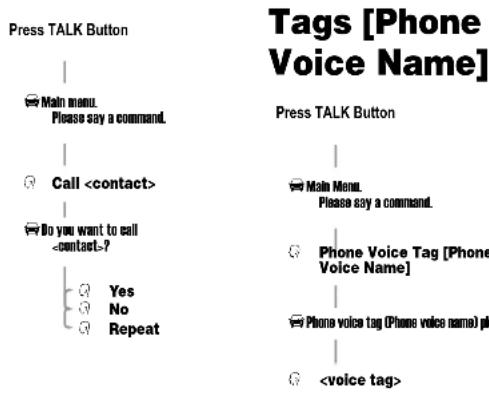
Dialing a Number from the Contact List
Action
1 Press the TALK button.
2 When prompted, say "Call
Note: The contact must be a valid contact stored in the Contact List.
The system responds: Do you want to call
3 If the number recited by the system is correct, say "Yes." The system responds: Calling.
Dialing a Number Using the Phone's Voice Tags [Phone Voice Name]
Action
1 Press the TALK button.
Using Your Car Kit
Action
2 When prompted, say "Phone voice tag [Phone Voice Name]."
Note: The voice tag must already be stored in the phone.
The system responds: Phone voice tag please, [Phone voice name, please.]
3 Say "
The system calls the number associated with the phone voice tag [phone voice name].
Using Your Car Kit
Using the Speed Dial Command
Action
1 Press the TALK button.
2 When prompted, say "Speed Dial."
The system responds: Speed dial number, please.
3 Recite the speed dial number. The system repeats the number it heard and asks: Is this correct?
4 If the number recited is correct, say "Yes."
The system responds: Dialing, and places the call.
Note: Speak speed dial numbers as continuous digits. For example, dictate speed dial location 22 as "2-2", not "twenty-two."
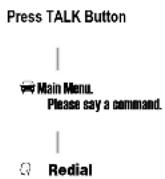
Using the Redial Command
Action
1 Press the TALK button.
2 When prompted, say "Redial".
The system responds: Redlailing.
You can also redial the last number by pressing the ANSWER button.
Answering a Call
When you receive an incoming call, the system responds: Call from
If Caller ID is not available:
- The system plays the in-band ring tone, if the phone supports it.
- If no in-band ring tone is supported, the system generates a local ring tone.
To answer an incoming call:
Action
Press the ANSWER button.
or
Press your phone's Send, OK, Answer, or Yes key (depending on your phone model), just as you would to answer a call in privacy mode.
Using Your Car Kit
31
Ending a Call
Using the Phone
Action
Press your phone's End or Hang up key (depending on your phone model).
Using the UIM
Action
Press the END button.
Using Your Car Kit
Using the End Call Command
Action
1 Press the TALK button.
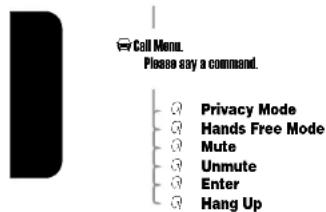
2 When prompted, say "Hang Up." The system responds: Call ended.
Using Features while on a Call
Note: To use the functions described below:
- A Bluetooth® link must be established between the car kit and your phone.
• A call must be initiating or in progress.
32
Rejecting a Call
To reject a call while the phone is ringing:
Action
Press the END button on the UIM. The system responds: Call rejected.
or
Press your phone's IGNORE key (may be a soft key, depending on phone model) or your phone's End or Hang up key. The system responds: Call ended.
Transferring a Call
From the Car Kit to Your Phone
Action
Press and hold the ANSWER button.
or
Turn OFF the vehicle ignition. (If your phone asks to switch to handset mode, press Yes.)
or
Press the TALK button. When prompted, say "Privacy Mode."

Using Your Car Kit
33
From Your Phone to the Car Kit

Action
Press and hold the ANSWER button.
or
Turn ON the vehicle ignition.
or
Press the TALK button. When prompted, say "Hands Free mode."
Muting and Unmuting a Call
Using the UIM
Action
To mute the microphone during a call, press and hold either Volume UP/DOWN button.
To unmute the microphone, press and release either Volume UP/DOWN button.
Using the MUTE and UNMUTE Commands
Action
To mute the microphone during a call, press the TALK button. When prompted, say "Mute."
To unmute the microphone, press the TALK button. When prompted, say "Unmute."
34
Call Waiting

When you are on a call, an audible beep signals a 2nd call.
Action
Press and release the ANSWER button to place the 1st call on hold and answer the incoming call.
Each time you press and release the ANSWER button, you toggle between active calls.
Note: If the ANSWER button is not pressed, the incoming call is automatically rejected and sent to voicemail (if set up on the phone).
Sending DTMF Tones
You can send DTMF tones from the phone keypad, or by using the Enter command:
Action
1 Press the TALK button.
2 When prompted, say "Enter

Using Your Car Kit
35
Managing the Contact List
You can store a list of names and phone numbers in your car kit's contact list. The list can include up to 20 entries.
Adding an Entry
Action
1 Press the TALK button.
2 When prompted, say "Contact List."
3 If the system responds: Contact list is empty. Do you wish to add a contact?, say "Yes."
or
If the system responds: Contact list. Please say a command, say "Add Contact."
4 When the system responds: Please say the name, recite the contact to be stored.
If an error is detected, the system asks you to try again.
If it accepts the name, the system responds: Please say the number for
5 Dictate the phone number as an entire number (without pauses between digits).
or
Dictate the number as a series of segments (for example, say the 1st 3 digits, then the next 3, etc.), until you have dictated the entire number.
The system repeats the number it heard.
36
Action
6 When you have correctly entered the entire phone number, say "Store."
The system responds: Contact added. Would you like to add another contact?
7 Say "No" to return to the system's ready state.
or
Say "Yes" to add another entry.
Deleting an Entry
Action
1 Press the TALK button.
2 When prompted, say "Contact List."
3 If the system responds: Contact list. Please say a command, say "Delete
or
If the system responds: Contact list is empty. Do you wish to add a contact?, say "No." The system exits to ready state.
4 When the system responds: Are you sure you want to delete the contact
The system responds: Contact deleted.

Using Your Car Kit
Listing Entries
Action
1 Press the TALK button.
2 When prompted, say "Contact List."
3 If the system responds: Contact list. Please say a command, say "List Contacts." The system begins to list the stored entries.
or
If the system responds: Contact list is empty. Do you wish to add a contact?, say "No." The system exits to ready state.
Using Your Car Kit
Tlp: To move quickly through the list, say "Previous contact" or "Next contact."
Note: It is recommended that Contact List recordings be recorded in a stationary vehicle.
Turning Off System Prompts
To turn off certain SR prompts (for example, Main Menu. Please say a command):
Action
1 Press the TALK button.
2 When prompted, say "Setup Menu."
3 Say "Prompts On" or "Prompts Off."
The system responds: Prompts On or Prompts Off.
Announcing a Caller
To turn the Caller Announce function On or Off:
Action
1 Press the TALK button.
2 When prompted, say "Setup Menu."
3 Say "Caller Announce On" or "Caller Announce Off."
The system responds: Caller Announce On or Caller Announce Off.
Audio Indicators
光
When the system is not in a call or an active SR session, you may hear the following audio indicators:
Audio Indicator Description
| You have a voicemail (You have a voicemail message). | New voicemail message received. |
| You have a new message. | New SMS message received. |
| Phone battery low. | Low battery. |
Note: These indicators are turned off when you turn off prompts.

Using Your Car Kit
Selecting a Language
Note: When you change your system's language, all contacts in your Contacts list are deleted.
Action
1 Press and hold the END button, turn on the vehicle ignition, and continue holding the END button for at least 10 seconds.
The system enters language selection and responds: Language Menu. Press volume up or down to change language.
2 Use the Volume UP/DOWN buttons to scroll through the language choices.
As you scroll to a language, the system plays the prompt for that language. (For example: English. To choose this language, restart the vehicle.)
3 When you have selected the desired language, turn off the vehicle ignition.
The next time you turn on the vehicle ignition, the new language is loaded.
Using Your Car Kit
If You Need Help
If you have any additional questions, please call your local hotline or visit us at www.hellomoto.com
Warranty Coverage
Please refer to the warranty information provided at the time of purchase.
Troubleshooting
Symptom Solution(s)
Poor SR performance.
- Enter digits in segments.
- Speak with no pauses.
- Talk loudly.
- Speak toward the direction of the microphone.
- Check position of the microphone.

If You Need Help
41
Symptom Solution(s)
| You cannot pair new phones with the car kit. | The phone must support Bluetooth® Handsfree Profile 0.96 or 1.0.The system supports a maximum of 4 phones at once. Make sure this limit is not exceeded.Remove all previous pairings using the Remove All command. The system should be reset.Delete the pairing information on the phone and ensure that the phone is removed from any other systems with which it is paired. |
| No SR or HF audio. | Check speaker connection.Check the connection to the electronic module. |
| SR does not respond, or in-vehicle audio is not heard on the remote phone. | Check microphone connection.Check the connection to the electronic module. |
| System does not respond.UIM buttons not lit. | Check UIM connection.Check the connection to the electronic module. |
If You Need Help
42
Calling Features Quick Reference
Dial Number Speed Dial
flowchart
graph TD
    A["Press TALK Button"] --> B["Main menu. Please say a command."]
    B --> C["Dial Number"]
    C --> D["Number please."]
    D --> E["<number>"]
    E --> F["<number>"]
    F --> G["Dial Clear Clear All"]

    H["Press TALK Button"] --> I["Main Menu. Please say a command."]
    I --> J["Speed Dial"]
    J --> K["Speed dial number please..."]
    K --> L["<number>"]
    L --> M["<number> is this correct?"]
    M --> N["Yes No Repeat"]
Redial
Calling Features Quick Reference

Call Contact Phone Voice
flowchart
graph TD
    A["Press TALK Button"] --> B{Main menu. Please say a command.}
    B --> C["Call <contact>"]
    C --> D{Do you want to call <contact>?}
    D --> E{Yes}
    D --> F{No}
    D --> G{Repeat}
    H["Press TALK Button"] --> I{Main Menu. Please say a command.}
    I --> J["Phone Voice Tag [Phone Voice Name"]]
    J --> K{Phone voice tag (Phone voice name) plus <voice tag>}    K --> L["End"]
Call in Progress
Press TALK Button
Setup Menu
flowchart
graph TD
    A["Press TALK Button"] --> B["Main Menu. Please say a command."]
    B --> C["Setup Menu"]
    C --> D["Setup Menu. Please say a command."]
    D --> E["Pair Phone"]
    D --> F["Remove Phone <n>"]
    D --> G["Connect Phone <n>"]
    D --> H["Remove All Phones"]
    D --> I["List Phones"]
    D --> J["Call Announce"]
    D --> K["Prompts"]
    E --> L["Removing phone <b.-Are you sure?"]
    F --> M["Are you sure you want to remove all phones?"]
    H --> N["On or 011?"]
    I --> O["On or 011?"]
    J --> P["On or 011?"]
    K --> Q["On or 011?"]
    L --> R["Yes No Repeat"]
    M --> S["Yes No Repeat"]
    N --> T["Yes No Repeat"]
    O --> U["On Off"]
    P --> V["On Off"]
Calling Features Quick Reference
45
Contact List
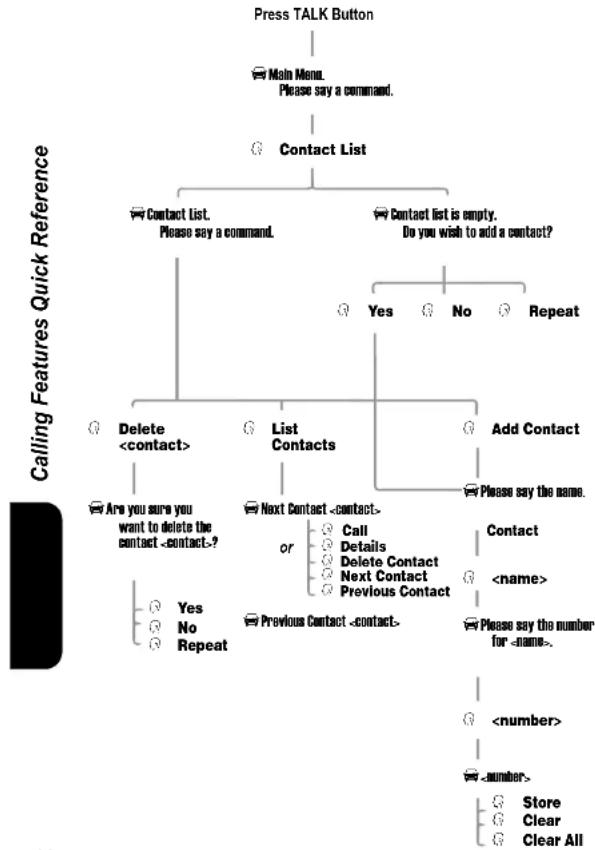
flowchart
graph TD
    A["Press TALK Button"] --> B["Main Menu. Please say a command."]
    B --> C["Contact List"]
    C --> D["Contact List. Please say a command."]
    C --> E["Contact List is empty. Do you wish to add a contact?"]
    D --> F["Delete <contact>"]
    D --> G["List Contacts"]
    G --> H["Next Contact <contact>"]
    G --> I["Add Contact"]
    I --> J["Place say the name."]
    H --> K["Are you sure you want to delete the contact <contact-?"]
    H --> L["Previous Contact <contact>"]
    J --> M["Contact <name>"]
    J --> N["Please say the number for <name>"]
    K --> O["Yes No Repeat"]
    L --> P["<number> <number> Store Clear Clear All"]
46
Appendix
Definitions
| Term Definition | |
| Continuous Speech recognition | The ability to find word boundaries without requiring pauses between words. |
| Handset | The wireless phone. |
| HF | Handsfree |
| Pair | The process used by two wireless devices, with passcodes as an input, to create the link of the Bluetooth® authentication process. |
| Passcode | A term that is generally synonymous with PIN or passkey, used in the Bluetooth specifications. The passcode is entered into the devices involved in pairing, enabling them to verify the operation.In this application, to avoid confusion, passkey is used as distinct from PIN, which is used to unlock a handset's SIM card. |
| Press and Hold | A button press of at least 1 second, also known as a LONG button press. When the listening prompt is heard, the button should be released. |
| Term Definition | |
| Press and Release | Pressing a button for 100 milliseconds, also known as a SHORT button press. |
| Ready State | The system is paired to a phone but is not in an active call. |
| SMS | Short Message Service |
| Speaker Dependence | The degree to which a speech recognition system requires knowledge of a speaker's individual voice characteristics in order to successfully process speech. |
| Speaker Independence | Describes speech recognition systems that do not need to be trained by a user. |
| Speech recognition | The method of verbal input into the speech interface. |
Power Connections
Battery, ground, and ignition must be connected regardless of the audio connections being used. If the vehicle radio and speaker are used instead of the external speaker, the audio (+/-) must be connected to the vehicle radio harness.
Note: The system's handsfree audio has been optimized for the external speaker. Routing the audio output through the vehicle's entertainment system may alter the handsfree audio performance

The table below illustrates the connections to the vehicle.
| Vehicle Color Connection | ||
| Battery + Red Required | ||
| Ground Black Required | ||
| Ignition Green Required | ||
| Radio Mute Yellow | Optional(for use with radio only) | |
| Audio + | Orange Optional(for use with radio only) | |
| Audio - | Blue | Optional(for use with radio only) |
UIM Button Functions
| Appendix | Key(s) | Action | State | ||
| Not Connected | Connected (in a call) | Connected (not in a call) | |||
| TALK (Blue) | Press & Release | SR session | activate SR session | activate SR session | |
| Press & Hold | begin pairing | N/A | begin pairing | ||

| Key(s) Action | State | |||
| Not Connected | Connected (in a call) | Connected (not in a call) | ||
| ANSWER (Green) | Press & Release | no action 1 | way = toggle between Hold and Resume2 way = Call Waiting/toggle between active calls | answer incoming call/redial last number dialed |
| Press & Hold | N/A hand | dsfree/privacy | N/A | |
| END (Red) | Press & Release | end any active sessions | end active call | reject incoming call/end any active session |
| Press & Hold | N/A end | all calls disconnect | Bluetooth® link | |
| Volume (White) | Press & Release | SR session volume control | increase or decrease volume of in-vehicle audio/unmute | SR session volume control |
| Press & Hold | N/A mute | vehicle microphone (both keys have same effect) | N/A | |
Appendix

51
UIM LED Indicator Functions
Blue TALK Key and White Volume UP/DOWN Keys
| Key(s) | Status of Connections | LED State | |||
| Power Off | Power On | Pairing in Progress | Mute Mode | ||
| TALK (Blue) | Not Connected | off off | flashing N/A | ||
| Connected (in a Call) | off on | N/A flashing | |||
| Connected (No Active Call) | off on | N/A N/A | |||
| Volume (White) | Not Connected | off off | flashing N/A | ||
| Connected (in a Call) | off on | N/A flashing | |||
| Connected (No Active Call) | off on | N/A N/A | |||
Appendix

52
Green ANSWER Key and Red END Key
| Key(s) | Status of Connections | LED State | |||
| Power Off | Power On | Pairing in Progress | Call Waiting | ||
| ANSWE R (Green) | Not Connected | off off | off N/A | ||
| Connected (in a Call) | off on | off flashing | |||
| Connected (No Active Call) | off off | off N/A | |||
| END (Red) | Not Connected | o | f | f o | n |
| Connected (in a Call) | o | f | f o | n | |
| Connected (No Active Call) | o | f | f o | n | |
0
0
0
Pronunciation chart
| Symbol Pronunciation | |
| * star | |
| # pound “or” hash | |
| + plus | |
| 0 zero “or” oh | |


53
Bienvenue
Stromanschlüsse. 152
MOTOROLA, the Stylized M Logo and all other trademarks indicated as such herein are trademarks of Motorola, Inc.® Reg. U.S. Pat. & Tm. Off. The Bluetooth® trademarks are owned by their proprietor and used by Motorola, Inc. under license. VELCRO® and VELCRO with the FLYING-V® (DESIGN) are registered trademarks of Velcro Industries B.V. All other product or service names are the property of their respective owners.
© 2005 Motorola, Inc. All rights reserved. Printed in the U.S.A.
Manual number: 6840420Z01-AD

- Welcome
- Contents
- Safety and General Information
- Declaration of Conformity
- Getting Started
- About This Guide
- Advanced Feature
- Installing the Handsfree Kit
- Guidelines for Installation and Connection
- How to Install the Handsfree Kit
- Car Kit Contents
- Interface Cable
- Electronic Module
- Microphone
- User Interface Module
- Audio Connections
- External Speaker
- Vehicle Radio
- Installing the Electronic Module
- Installing the Interface Cable
- Installing the Microphone
- Installing the External Speaker
- Installing the User Interface Module
- Using Your Car Kit
- User Interface Module (UIM) Control Buttons
- The TALK Button
- Press and Release
- Press and Hold
- The ANSWER Button
- The END Button
- Volume UP/DOWN Buttons
- Getting Help
- Connecting Your Phone to the Car Kit
- Initial Pairing
- Action
- Additional Pairing
- Selecting a Phone
- List Phones Paired to the System
- Removing Your Phone from the Car Kit
- Removing a Connected Phone
- Removing All Phones
- Placing a Call with the Car Kit
- Placing a Call with Speech recognition
- Dialing a Number from the Contact List
- Dialing a Number Using the Phone's Voice Tags [Phone Voice Name]
- Using the Speed Dial Command
- Using the Redial Command
- Answering a Call
- Ending a Call
- Using the Phone
- Using the UIM
- Using the End Call Command
- Using Features while on a Call
- Rejecting a Call
- Transferring a Call
- From Your Phone to the Car Kit
- Muting and Unmuting a Call
- Using the MUTE and UNMUTE Commands
- Call Waiting
- Sending DTMF Tones
- Managing the Contact List
- Adding an Entry
- Deleting an Entry
- Listing Entries
- Turning Off System Prompts
- Announcing a Caller
- Audio Indicators
- Selecting a Language
- If You Need Help
- Warranty Coverage
- Troubleshooting
- Calling Features Quick Reference
- Appendix
- Power Connections
- UIM Button Functions
- UIM LED Indicator Functions
- Bienvenue
Brand : MOTOROLA
Model : IHF1000
Category : Built-in kit