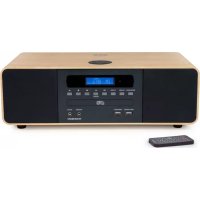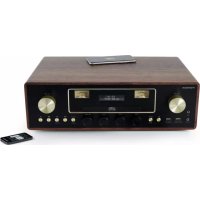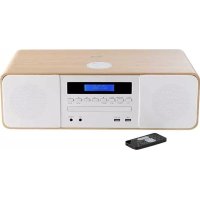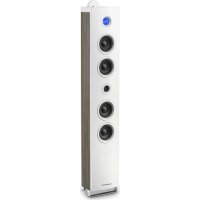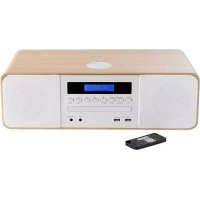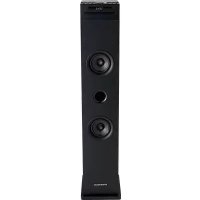
DS120ICD - Hi-Fi System THOMSON - Free user manual and instructions
Find the device manual for free DS120ICD THOMSON in PDF.



| Brand | Thomson |
| Model | DS120ICD |
| Product Type | Hi-Fi System |
| Power Supply | 230 V~ 50 Hz |
| Max. Power Consumption | 20 W |
| Audio Output Power | 2 x 5 W |
| Speaker Impedance | 4 Ω |
| Signal-to-Noise Ratio | 86 dB |
| Total Harmonic Distortion | 0.5 % (1 kHz, 1 W) |
| Frequency Response | 100 Hz - 20 kHz |
| Bluetooth Frequency Bands | 2402 - 2480 MHz |
| FM Frequencies | 88.8 - 108.0 MHz |
| Line-in Input Sensitivity | 775 mV |
| USB Charging | 5 V / 1 A max |
| Wireless Charging | Yes, Qi compatible |
| Audio Sources | CD, Bluetooth, USB, SD card, FM, Line-in (3.5 mm), Aux (RCA) |
| Special Functions | Alarm, Sleep Timer, Wake-up, Radio Preset (20 stations) |
| Disc Playback | Audio CD, MP3 |
| Bluetooth Range | Approximately 10 m |
| Care and Cleaning | Soft, dry cloth; do not use abrasive products |
| Safety | Do not expose to water, do not block ventilation openings |
| Included Accessories | Remote control, RCA cable, 3.5 mm Line-in cable, user manual |
Frequently Asked Questions - DS120ICD THOMSON
User questions about DS120ICD THOMSON
0 question about this device. Answer the ones you know or ask your own.
Ask a new question about this device
Download the instructions for your Hi-Fi System in PDF format for free! Find your manual DS120ICD - THOMSON and take your electronic device back in hand. On this page are published all the documents necessary for the use of your device. DS120ICD by THOMSON.
USER MANUAL DS120ICD THOMSON
natural_image
Black multi-tiered outdoor speaker tower with two speakers and a digital display (no visible text or symbols)MODE D'EMPLOI
LISEZ COMPLÈTEMENT CE MANUEL D'UTILISATION AVANT D'UTILISER CET APPAREIL ET CONSERVEZ CE LIVRET POUR VOUS Y RÉFÉRER ULTÉRIEUREMENT
Table des matières
CLASS 1 LASER PRODUCT
CLASS 1 LASER PRODUCT APPAREIL LASER DE CLASSE 1 PRODUCTO LASER DE CLASE 1
CAUTION INVISIBLE LASER RADIATION WHEN OPEN AND INTERLOCKS DEFEATED. AVOID EXPOSURE TO BEAM

This product contains a low power laser device.
natural_image
Line drawing of a tall multi-tiered speaker tower with two circular speakers and a front-mounted top (no text or symbols)1. MARCHE/ARRÊT
EN : https://www.bigben-interactive.co.uk/support/
natural_image
Black outdoor speaker tower with two speakers and a digital display (no visible text or symbols)OPERATING INSTRUCTIONS
PLEASE READ THIS USER MANUAL CAREFULLY BEFORE
OPERATING THIS UNIT AND RETAIN FOR
FUTURE REFERENCE
Contents
| Getting Started 1 | Power | 4 |
| Safety and Notice 1 | Play | 5 |
| Care for your product 2 | USB charging 6 | |
| Care of the environment 2 | Bluetooth Mode | 7 |
| What's in the box 2 | Product specification | 7 |
| Description of Parts 3 | Remarks: | 8 |
Getting Started
- Remove the appliance from the box.
- Remove any packaging from the product.
- Place the packaging inside the box and either or dispose of safely.
Safety and Notice
Read and understand all instructions before you use this product. If damage is caused by failure to follow the instructions, the warranty does not apply.
Safety
Warning
- Never remove the casing of this apparatus.
- Never lubricate any part of this apparatus.
- Never place this apparatus on other electrical equipment.
- Keep this apparatus away from direct sunlight, naked Fames or heat.
- Never look into the laser beam inside this apparatus.
- Ensure that you always have easy access to the power cord, plug or adaptor to disconnect this apparatus from the power.
- Minimum distances 10 cm around the apparatus for sufficient ventilations.
- The ventilation should not be impeded by covering the ventilation openings with items, such as newspapers, table-cloths, curtains, etc.
- No naked flame sources such as lighted candles should be placed on the apparatus
- Attention should be drawn to environmental aspects of battery disposal.
-
The use of apparatus in moderate climates.
-
Read these instructions.
- Keep these instructions.
- Heed all warnings.
- Follow all instructions.
- Do not use this apparatus near water.
- Clean only with dry cloth.
- Do not block any ventilation openings. Install in accordance with the manufacturer's instructions.
- Do not install near any heat sources such as radiators, heat registers, stoves, or other apparatus (including amplifiers) that produce heat.
- Protect the power cord from being walked on or pinched, particularly at plugs, convenience receptacles, and the Point where they exit from the apparatus.
- Only use attachments/accessories specified by the manufacturer.

-
Unplug this apparatus during lightning storms or when unused for long periods of time.
-
Refer all servicing to qualified service personnel. Servicing is required when the apparatus has been damaged in anyway, such as power-supply cord or plug is damaged, liquid has been spilled or objects have fallen into the apparatus, apparatus has been exposed to rain or moisture, does not operate normally, or has been dropped.
-
Apparatus shall not be exposed to dripping or splashing.
-
Do not place any sources of danger on the apparatus (e.g. liquid filled objects, lighted candles).
-
Where the MAINS plug or an appliance coupler is used as the disconnect device, the disconnect device shall remain readily operable.
-
Make sure there is enough free space around the product for ventilation.
-
Batteries (battery pack or batteries installed) shall not be exposed to excessive heat such as sunshine, fire or the like.
-
The rating label is placed on the back side of apparatus.
Care for your product
-
Always unplug the appliance when not in use and before cleaning.
-
Do not play music at excessive volume levels as damage to hearing and or the equipment may occur.
-
Do not use this unit in wet or damp conditions.
-
Always disconnect the unit from the mains power supply before cleaning. Clean the appliance with a soft, damp, lint free cloth. Do not use abrasives or harsh cleaners.
Care of the environment
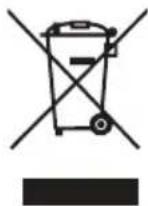
When this crossed-out wheeled bin symbol is attached to a product it means that the product is covered by the European Directive 2002/96/EC. Please inform yourself about the local separate collection system for electrical and electronic products. Please act according to your local rules and do not dispose of your old products with your normal household waste. Correct disposal of your old product helps to prevent potential negative consequences for the environment and human health.

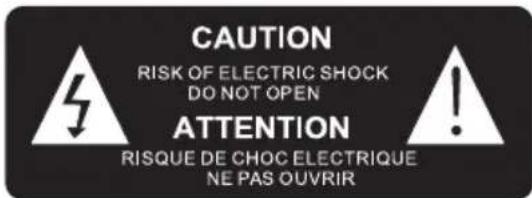
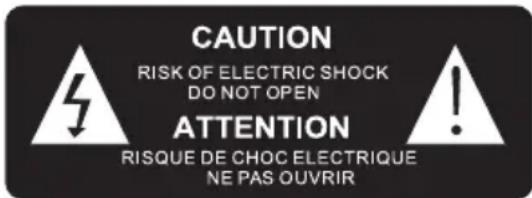
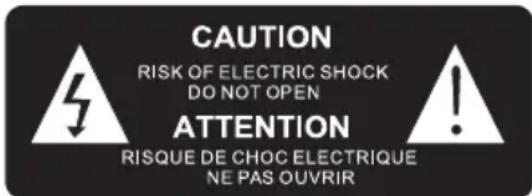
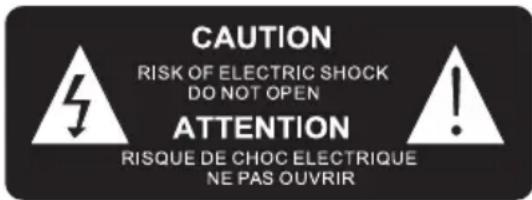
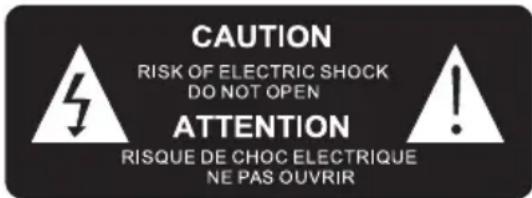
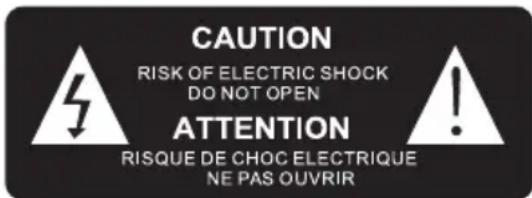
The lightning symbol inside an equilateral triangle warns the user of the presence inside the product of uninsulated hazardous electric voltages powerful enough to represent an electrocution risk.
What's in the box
Check and identify the contents of your package:
- Main unit
- Remote control
- User manual
- RCA cable
• 3.5mm Line in cable
Description of Parts
natural_image
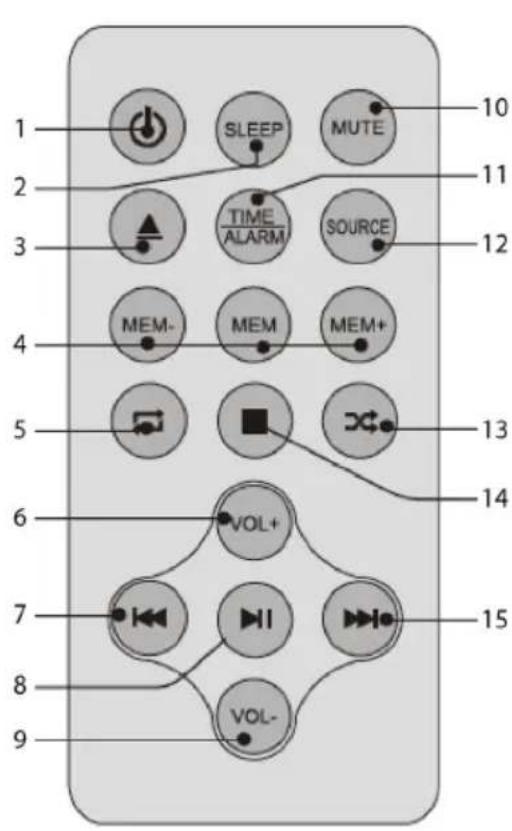
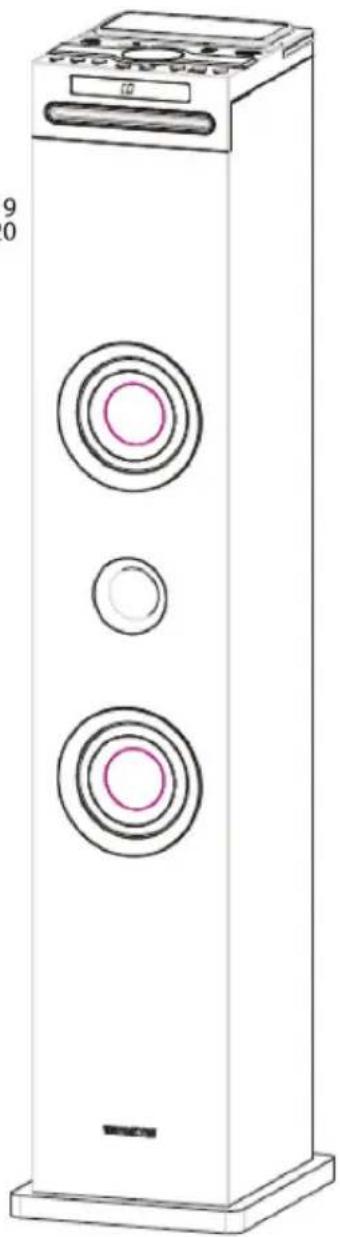
Line drawing of a multi-tiered speaker tower with two circular speakers and a front-mounted top (no text or symbols)1. POWER
Press to power the tower off and on
2. SLEEP
Press repeatedly to set a sleep timer to turn the tower off after a set amount of time has passed
3. Open or close the disc tray
4. MEM/MEM+/MEM-
Press MEM to save the current radio station to a preset channel.
Press MEM+/MEM- to choose the FM stations
5.
Select to repeat play in CD mode
6. VOLUME+
Press to adjust the volume+
7.

Skip to the previous track
8.

Start or pause play
9. VOLUME-
Press to adjust the volume-
10. MUTE
Press to mute or restore the volume
11. TIME/ALARM
Press to set time/alarm on standby
12. SOURCE
Select a source: CD, Bluetooth, USB, FM or Audio in
13.
Select the random play mode in CD mode
14.
Stop play
15.
Skip to the next track
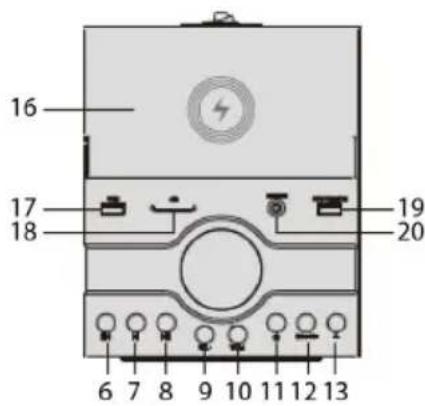
16. Wireless induction
17. USB port
18. SD card port
19. USB charge port
20. Line in port
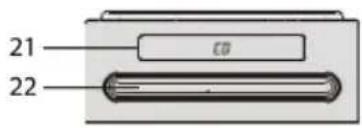
21. Display
22. CD tray
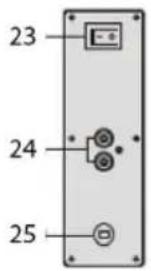
23. Power switch
24. AUX in
25. Mains plug
Power

CAUTION
- Risk of product damager! Make sure that the power voltage corresponds to the voltage printed on the back label.
- Risk of electric shock! When you unplug the AC power cord always pull the plug from the socket. Never pull the cord.
- Before connecting the AC power cord, ensure you have completed all other connections.
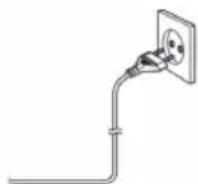
Place the unit in the desired position and unravel the mains cable. Insert the cable into the supply socket and switch on if applicable.
Auto standby
When no music play from a connected device, the product automatically switches to standby if:
- No button is pressed for 10 minutes,
- No audio from a connected device for 10 minutes.
Setting the Clock
After the unit is plugged into a mains supply or following a mains power failure, the display will show "0:00" on the LED display. The unit should be in standby mode to set the current clock.
- Press the TIME/ALARM button; the digits for the display will blink.
- Press the |◀◀/▶▶| button repeatedly until the correct hour is set. Press the TIME/ALARM button to confirm the hour setting.
- The minute digits on the display will blink.
- Press the |◀◀/▶▶| button repeatedly until the correct minute is set. Press the TIME/ALARM to confirm the minute setting.
Setting the Alarm
This unit can be used as an alarm clock, CD /USB/SD/FM is activated to play at a preset time.
- Press to switch the unit to standby mode.
- Make sure that you have set the clock correctly.
- Press and hold the TIME/ALARM button in shutdown state; the display will flash ON to select setting the alarm and the display will blink.
- Press the ALARM button to confirm; the time display will blink.
- Press the ◀◀/▶▶ button repeatedly to set the hour. Press the TIME/ALARM button to confirm.
- Press I/▶ to set the minute.
- Press ALARM to confirm, and then press |◀◀/▶▶| to select CD /USB/SD/FM status. Press TIME/ALARM to confirm.
- The volume turns up from 0 to 20 gradually.
- Press the TIME/ALARM button in shutdown state; the display will flash ON to select setting the alarm, and the display will blink.
- Press the | button to select OFF to cancel the alarm.
Sleep Mode
Press and hold the SLEEP button; the display will blink. Press the button repeatedly until the display shows the minute you want to set. You can set 10 to 90 minutes.
It blinks three times to confirm, and then returns to the previous interface. If you want to cancel the sleep mode, press OFF. After blinking three times, sleep mode will cancel.
Play
Play a disc
- Press SOURCE repeatedly to select DISC source.
- Press the ▲ to open the CD tray, put on a disc with the printed side facing upward and press ▲ again to close the CD tray.
- Play starts automatically, if not, press ▶
- Press VOL+/VOL – to adjust the volume.
Pause / resume play
- During play, press to pause/resume play.
- During play, long press the ◀◀/▶▶ button to fast forward/fast rewind.
Skip to a track
For CD:
- Press |/◄ to select another track.
- Press the VOL+/VOL – to adjust the volume.
For MP3 disc and USB/SD
- Press |/◄ to select a track or a file.
- Press the VOL+/VOL – to adjust the volume.
Search within a track
- During play, press and hold |/◄◄ ►►|
- Release to resume normal play.
Listening to the radio
You can program a maximum of 20 preset radio stations (FM).
- Press the SOURCE button to select RADIO mode. The unit will be in FM radio mode.
- Press I/▶ to search for a radio station.
- Select the desired radio station by pressing the /←/but→.
- Once you find a station you want to save, press the MEM button on the remote control, "P01" will be shown on the display, press MEM+/MEM- until the desired memory position number appears on the display. Press the MEM button again to confirm and save the current station.
- (Auto) Press and hold the MEM button. The unit will automatically start and search the frequencies. All available stations are programmed in the order of waveband reception strength; the first programmed radio station is broadcast automatically.
ATTENTION: For optimal reception, fully extend and adjust the position of the antenna
Play from external audio
You can play from an external audio device such as an MP3 player through this unit.
Line in jack (Requires a 3.5mm cable)
- Connect a 3.5mm cable to the Line in jack on the top panel. Connect the other end of the 3.5mm cable to an Mp3 player or other audio device.
- Press the button to turn the unit on.
- Press the SOURCE button to switch to Line In mode.
- Use the controls on the connected device to begin playing audio routed through the unit.
Auxiliary Input RCA (Requires an RCA cable)
- Connect an RCA cable to the Auxiliary Input. Connect the other end of the RCA cable to the audio output on your DVD player, stereo system, gaming system or television.
- Press the power button to turn the unit on.
- Press the SOURCE button to switch to Aux In mode.
- Use the controls on the connected device to begin playing audio routed through the unit.
Using the USB/SD input
- Plug your USB flash drive or SD card to the USB socket or SD slot.
- Press the SOURCE button to select USB or SD mode; the unit will play automatically. If not, press ▶II.
- Press the /ʌb to select a track.
- Press VOL+/VOL – to adjust the volume.
Remarks:
*Sensitive equipment near the USB/SD port may be affected when it is in use. The signal may be affected.
USB charging
There is a USB charger on the top of the unit to charge small devices such as smartphones that can be charged via USB.
Output power: 5V/1A max
Wireless charging
There is an induction on the top of the unit to charge small devices such as smartphones.
Please put the smartphones on the "4" center, the smartphone will automatically start charging. If not, please adjust the smartphone location.
* Your phone must be compatible with wireless chargers or Qi technology.
Bluetooth Mode
BT function
- Press the SOURCE button to select BT mode. The LED shows "BT".
- Turn on BT functionality on your BT device. Typically, BT controls are found on the device's tools or settings menu (see your user manual).
- Turn on BT connectivity and make your device 'discoverable'.
- Choose 'add a new BT device' or 'setup BT device' on your device. It will start to search. Once "DS120ICD" shows on your device, select it. If your device prompts you for a pass code, please enter 0000. If the pairing attempt fails or times out, please start the pairing procedure again (see steps above).
- After your device and the "DS120ICD" have connected to each other, a sound can be heard.
- Make sure the BT connection between the unit and the device is active.
- Press the ▶ button to pause playback. Press again to resume playback and press ▶ button to skip forward to next track and ▶ skip backward to the previous track.
Remark: The maximum connection distance is around 10 meters. Please place your Bluetooth speaker as close as possible to this device to avoid the connection being disturbed.
Product specification
Power supply: 230V\~50Hz
Max consumption: 20W
Input sensitivity: LINE IN 775MV
Speaker impedance: 4 ohm
S/N (A): 86db
THD (1kHz, 1W): 0.5%
Frequency response: 100Hz-20 KHz
Bluetooth frequency band: 2402-2480MHz
FM frequency: 88.8-108.00MHz
Total music output: 5W X2
ABOUT THE DISKS
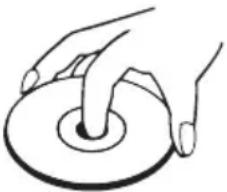 | HandlingDo not touch the underside of disks.Hold disks by the edges to avoid leaving fingerprints on the surface.Any dust, fingerprints or scratches may cause a malfunction.Never affix a label or sticky tape to the disk. |
 | StoragePut disks back in their case after use.Never expose disks to direct sunlight or heat sources. Never leave disks inside a car parked in full sunlight. |
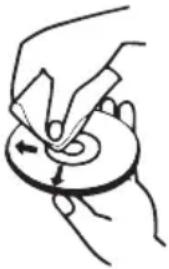 | CleaningUse a clean, soft, lint-free cloth to clean the disk, working from the centre outwards in a straight line. Do not use solvents such as petrol, thinners, commercially available cleaners or antistatic sprays for vinyl disks. |
Remarks:
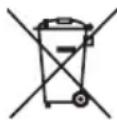
- Don't discard the electrical and electronic appliances in the regular waste disposal.
a) Take them to a collection point.
b) Some components in these appliances may be hazardous to health and the environment
- In order to save energy when the unit has no sound output for a while, the unit will be switched to stand-by automatically. It can be switched ON by using the POWER selector again.
- If there is an incoming call while DS120ICD is connected to your cell phone for music playback, it will pause at once when you answer the call and resume after the call ended. (Sometimes it will pause after end the call, it depend on your cell phone.)
- The Bluetooth® word, mark and logo are registered trademarks owned by Bluetooth SIG, Inc. and any use of such marks by Bigben Interactive is under license. Other trademarks and trade names are those of their respective owners.
- Hereby, Bigben Interactive SA, declares that the DS120ICD device complies with the essential requirements of the directive 1995/5/EC of the European Parliament and of the Council of 9 March 1999 on radio equipment and telecommunications terminal equipment and the mutual recognition of their conformity.
- THOMSON is a trademark of TECHNICOLOR SA or its affiliates used under license to Bigben Interactive.
- You can find the information on the plate located at the back of the unit.
The undersigned, Bigben Interactive declares that the radio equipment of the DS120ICD type complies with the 2014/53/EU directive.
The complete text is available at www.bigben.fr/support
To download the full statement, please visit our website:
EN : https://www.bigben-interactive.co.uk/support/
OTHER LANGUAGES : https://www.bigbeninteractive.com/support/
and the section <
Manufactured by BIGBEN INTERACTIVE SA
396, Rue de la Voyette
CRT2 - FRETIN
CS 90414
59814 LESQUIN Cedex - France
www.bigben.eu
Made in China






REACH
COMPLIANCE STRAPES

Fabricant : Bigben Interactive FRANCE
396, Rue de la Voyette, C.R.T. 2 Fretin, CS 90414 - 59814 LESQUIN Cedex, France
natural_image
Black outdoor speaker tower with two speakers and a digital display (no visible text or symbols)CLASS 1 LASER PRODUCT
CLASS 1 LASER PRODUCT APPAREIL LASER DE CLASSE 1 PRODUCTO LASER DE CLASE 1
This product contains a low power laser device.
CAUTION INVISIBLE LASER RADIATION WHEN OPEN AND INTERLOCKS DEFEATED. AVOID EXPOSURE TO BEAM

natural_image
Line drawing of a multi-tiered speaker tower with two circular speakers and a front-mounted top (no text or symbols)1. ENCENDIDO
EN: https://www.bigben-interactive.co.uk/support/
DE: https://www.bigben-interactive.de/support/
ES: https://www.bigbeninteractive.es/asistencia-tecnica/
IT: https://www.bigbeninteractive.it/supporto-tecnico/
OTROS IDIOMAS: https://www.bigbeninteractive.com/support/
y el aparatado <
compliance derivatives

Fabricant : Bigben Interactive FRANCE
396, Rue de la Voyette, C.R.T. 2 Fretin, CS 90414 - 59814 LESQUIN Cedex, France
natural_image
Black outdoor speaker tower with two speakers and a digital display (no visible text or symbols)ISTRUZIONI D'USO
PRIMA DI UTILIZZARE L'APPARECCHIO, LEGGERE PER INTERO IL PRESENTE MANUALE E CONSERVARLO PER CONSULTAZIONI FUTURE.
Indice
CLASS 1 LASER PRODUCT
CLASS 1 LASER PRODUCT APPAREIL LASER DE CLASSE 1 PRODUCTO LASER DE CLASE 1
CAUTION INVISIBLE LASER RADIATION WHEN OPEN AND INTERLOCKS DEFEATED. AVOID EXPOSURE TO BEAM

This product contains a low power laser device.
natural_image
Line drawing of a multi-tiered speaker tower with two circular speakers and a front-mounted top (no text or symbols)1. ACCENSIONE
EN: https://www.bigben-interactive.co.uk/support/
DE: https://www.bigben-interactive.de/support/
ES: https://www.bigbeninteractive.es/asistencia-tecnica/
IT: https://www.bigbeninteractive.it/supporto-tecnico/
ALTRE LINGUE: https://www.bigbeninteractive.com/support/

Fabricant : Bigben Interactive FRANCE
396, Rue de la Voyette, C.R.T. 2 Fretin, CS 90414 - 59814 LESQUIN Cedex, France
natural_image
Black multi-tiered outdoor speaker tower with two speakers and a digital display (no visible text or symbols)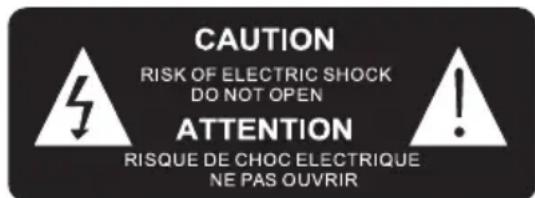
natural_image
Line drawing of a multi-tiered speaker tower with two circular speakers and a front-mounted top (no text or symbols)1. POWER
EN: https://www.bigben-interactive.co.uk/support/
DE: https://www.bigben-interactive.de/support/
ES: https://www.bigbeninteractive.es/asistencia-tecnica/
IT: https://www.bigbeninteractive.it/supporto-tecnico/
OUTRAS LÍNGUAS: https://www.bigbeninteractive.com/support/
natural_image
Black outdoor speaker tower with two speakers and a digital display (no visible text or symbols)BEDIENUNGSANLEITUNG
CLASS 1 LASER PRODUCT
CLASS 1 LASER PRODUCT APPAREIL LASER DE CLASSE 1 PRODUCTO LASER DE CLASE 1
This product contains a low power laser device.
CAUTION INVISIBLE LASER RADIATION WHEN OPEN AND INTERLOCKS DEFEATED. AVOID EXPOSURE TO BEAM

natural_image
Line drawing of a tall electronic tower with three circular speakers and a front-mounted top (no text or symbols)1. EIN/AUS
EN: https://www.bigben-interactive.co.uk/support/
DE: https://www.bigben-interactive.de/support/
ES: https://www.bigbeninteractive.es/asistencia-tecnica/
IT: https://www.bigbeninteractive.it/supporto-tecnico/
SONSTIGE SPRACHEN: https://www.bigbeninteractive.com/support/

Fabricant : Bigben Interactive FRANCE
396, Rue de la Voyette, C.R.T. 2 Fretin, CS 90414 - 59814 LESQUIN Cedex, France
natural_image
Black outdoor speaker tower with two speakers and a digital display (no visible text or symbols)HANDLEIDING
GELIEVE DEZE GEBRUIKSAANWIJZING GOED DOOR TE NEMEN VOOR U HET TOESTEL IN GEBRUIK NEEMT EN BEWAAR HET ZODAT U HET LATER NOG KAN RAADPLEGEN.
Inhoud
CLASS 1 LASER PRODUCT
CLASS 1 LASER PRODUCT APPAREIL LASER DE CLASSE 1 PRODUCTO LASER DE CLASE 1
CAUTION INVISIBLE LASER RADIATION WHEN OPEN AND INTERLOCKS DEFEATED. AVOID EXPOSURE TO BEAM

This product contains a low power laser device.
natural_image
Line drawing of a tall electronic tower with three circular speakers and a top-mounted speaker (no text or symbols)1. AAN/UIT
EN : https://www.bigben-interactive.co.uk/support/
IT: https://www.bigbeninteractive.it/supporto-tecnico/
OVERIGETALEN:https://www.bigbeninteractive.com/support/ende sectie<

Fabricant : Bigben Interactive FRANCE
396, Rue de la Voyette, C.R.T. 2 Fretin, CS 90414 - 59814 LESQUIN Cedex, France