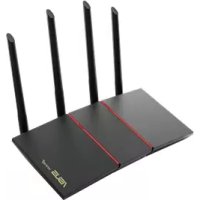
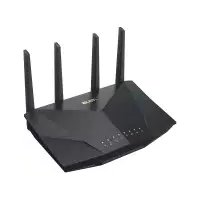
USER MANUAL RTAX1800 Plus ASUS
U16816 / First Edition / June 2020
Table of contents
English 3 Български 9 Hrvatski 15 Čeština 21 Dansk 27 Nederlands 33 Eesti 39 Français 45 Suomi 51 Deutsch 57 Ελληνικά 63 Magyar 69 Italiano 75 Lietuvių 81 Latviešu 87 Norsk 93 Português 99 Polski 105 Русский 111 Română 117 Español 123 Srpski 129 Slovenský 135 Slovenščina 141 Svenska 147 Türkçe 153 Українська 159 165
Package contents

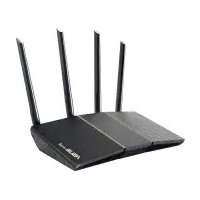
RT-AX55 Wireless Router AC adapter

Network cable (RJ-45) Quick Start Guide
A quick look at RT-AX55
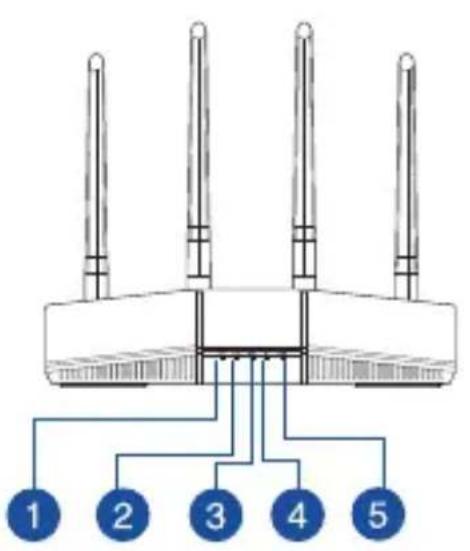
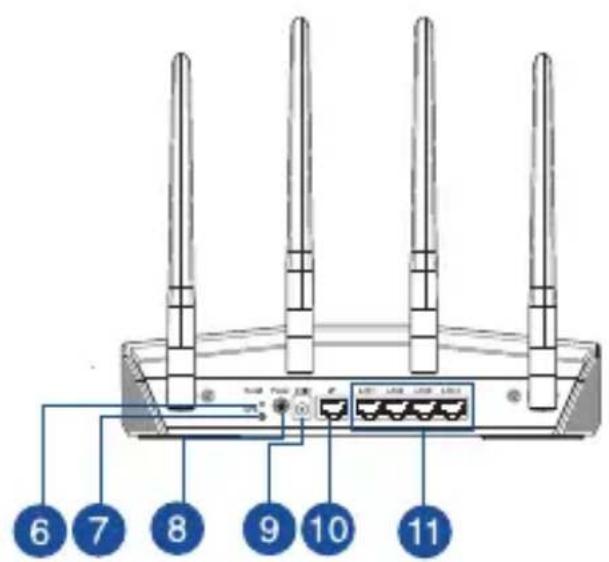
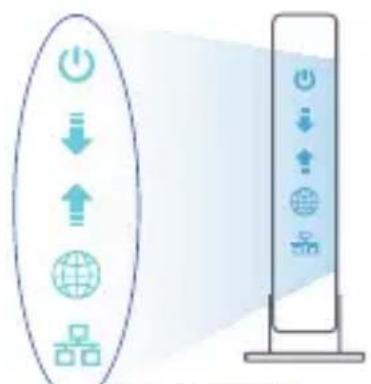
| 1 5GHz LED WPS button | 7 |
| 2 2.4GHz LED Power switch | 8 |
| 3 LAN 1~4 LEDs Power (DCIN) port |
| 4 WAN (Internet) LED WAN (Internet) port |
| 5 Power LED LAN 1 ~ 4 ports | 11 |
| 6 Reset button | |
Positioning your wireless router
For optimal wireless transmission between the wireless router and connected wireless devices, ensure that you:
- Place the wireless router in a centralized area for maximum wireless coverage for the network devices.
- Keep the wireless router away from metal obstructions and away from direct sunlight.
- Keep the wireless router away from 802.11g or 20MHz only Wi-Fi devices, 2.4GHz computer peripherals, Bluetooth devices, cordless phones, transformers, heavy-duty motors, fluorescent lights, microwave ovens, refrigerators, and other industrial equipment to prevent signal interference or loss.
- Always update to the latest firmware. Visit the ASUS website at http://www.asus.com to get the latest firmware updates.
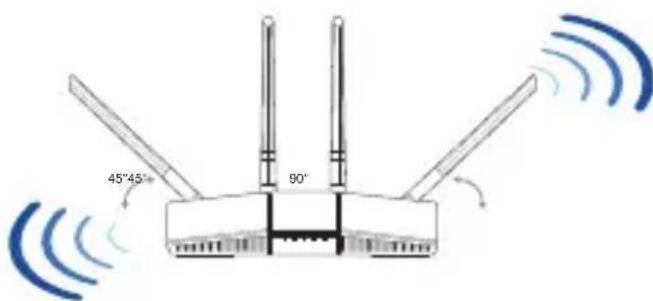
- To ensure the best wireless signal, orient the four non-detachable antennas as shown in the drawing below.
NOTES:
- Use only the adapter that came with your package. Using other adapters may damage the device.
- Specifications:
| DC Power adapter | DC Output: +12V with 1A current |
| Operating Temperature | 0~40°C Storage | 0~70 | °C |
| Operating Humidity | 50~90% Storage | 20~90% | |
Preparing your modem
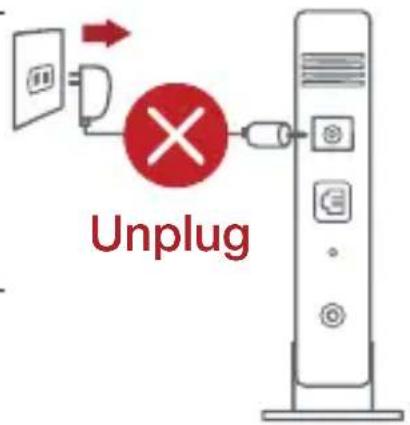
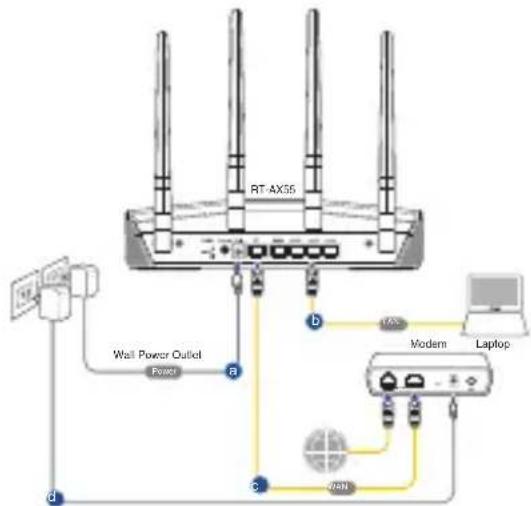
- Unplug the power cable/DSL modem. If it has a battery backup, remove the battery.
NOTE: If you are using DSL for Internet, you will need your username/password from your Internet Service Provider (ISP) to properly configure the router.
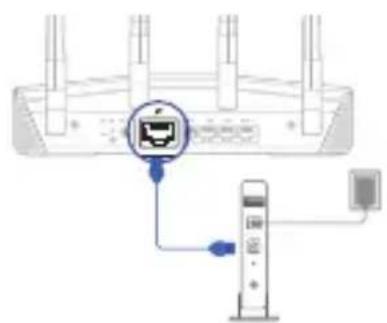
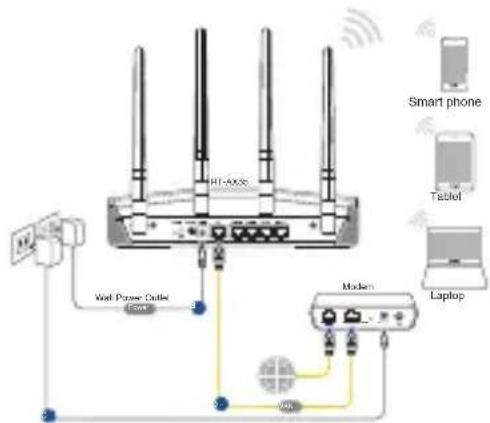
- Connect your modem to the router with the bundled network cable.
- Power on your cable/DSL modem.
- Check your cable/DSL modem LED lights to ensure the connection is active.
Setting up your RT-AX55
You can set up your router via wired or wireless connection.
A. Wired connection
- Plug your router into a power outlet and power it on. Connect the network cable from your computer to a LAN port on your router.
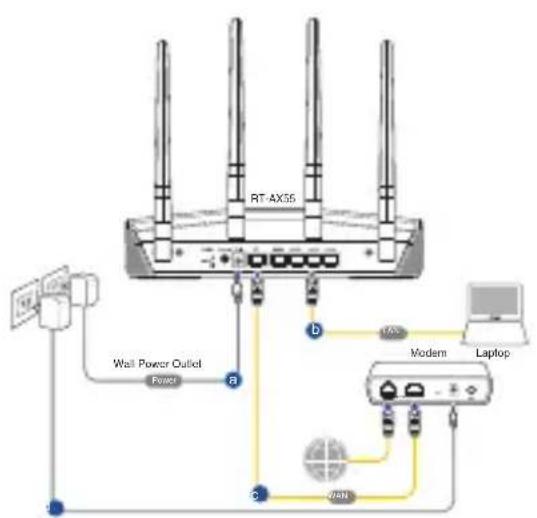
- The web GUI launches automatically when you open a web browser. If it does not auto-launch, enter http://router.asus.com.
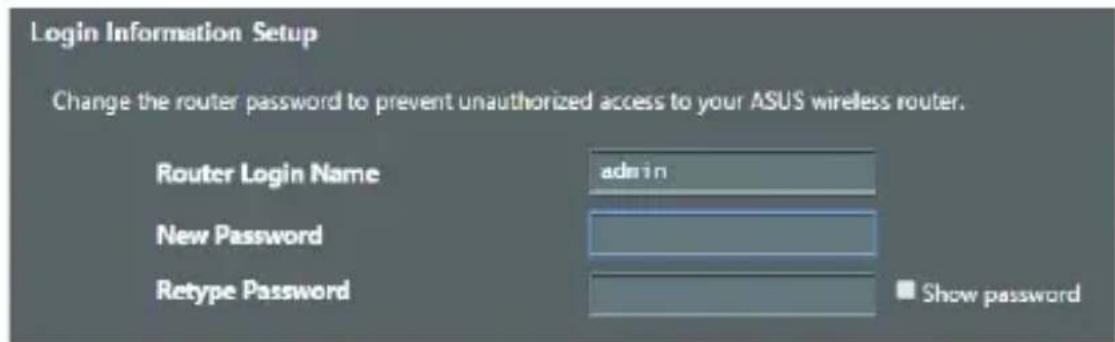
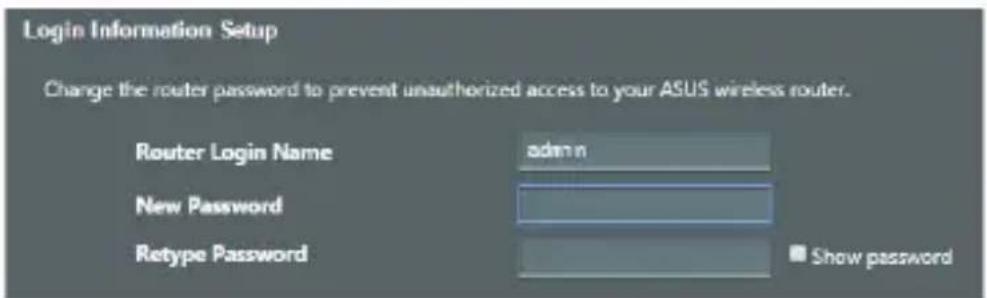
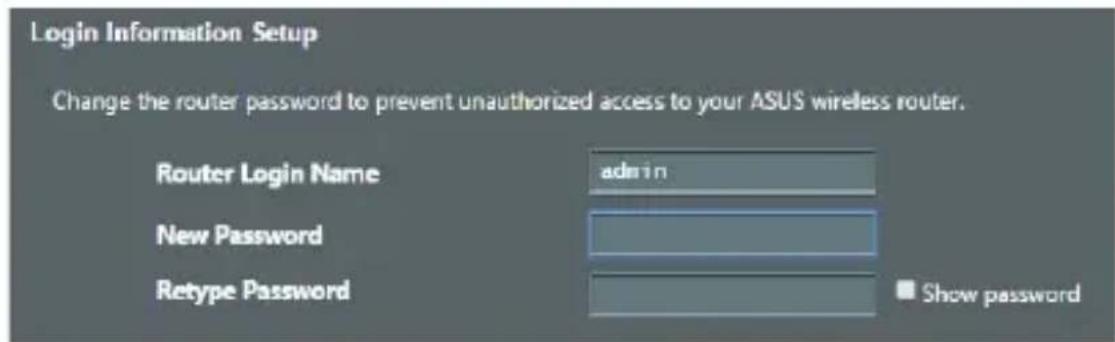
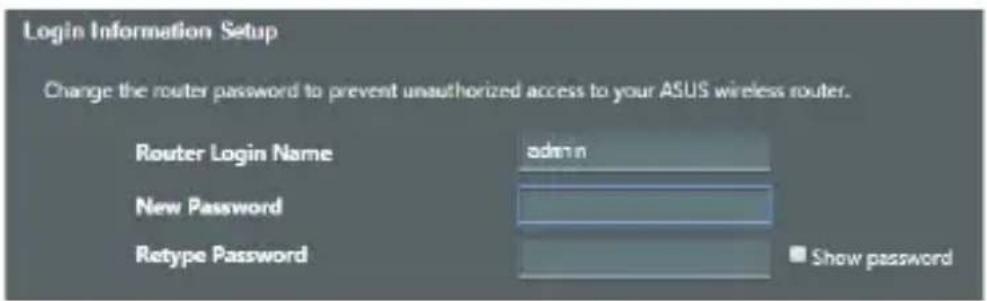
- Set up a password for your router to prevent unauthorized access.
B. Wireless connection
- Plug your router into a power outlet and power it on.
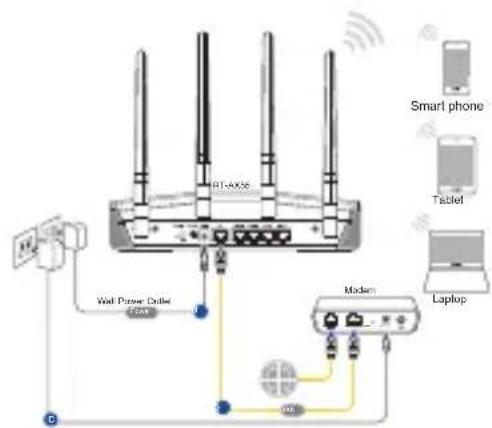
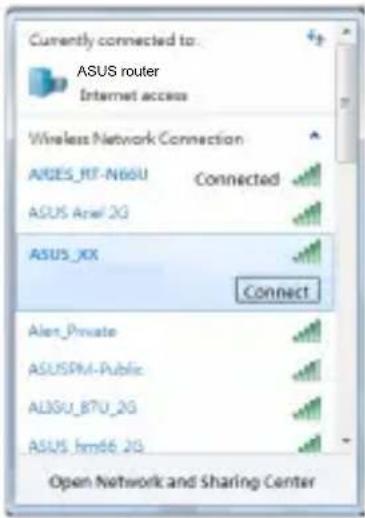
- Connect to the network with the SSID shown on the product label on the back of the router. For better network security, change to a unique SSID and assign a password.
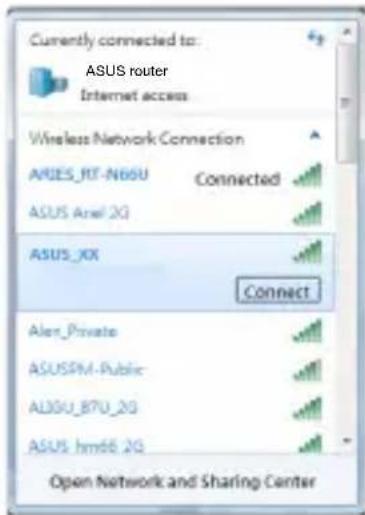
Wi-Fi Name (SSID): ASUS_XX
- XX refers to the last two digits of the MAC address. You can find it on the label on the back of your router.
- You can choose either the web GUI or the ASUS Router app to set up your router.
a. Web GUI Setup
- Once connected, the web GUI launches automatically when you open a web browser. If it does not auto-launch, enter http://router.asus.com.
- Set up a password for your router to prevent unauthorized access.
b. App Setup
Download the ASUS Router App to set up your router via your mobile devices.
- Turn on Wi-Fi on your mobile devices and connect to your router's network.
- Follow ASUS Router App setup instructions to complete the setup.
ASUS Router
Google Play
Commaed on the AppStore
ASUSRouter
Remembering your wireless router settings
- Remember your wireless settings as you complete the router setup.
| Router Name: Password: | |
| 2.4 GHz network SSID: Password: | |
| 5GHz network SSID: Password: | |
FAQFAQ
- Where can I find more information about the wireless router?
Online FAQ site: https://www.asus.com/support/faq - Technical support site: https://www.asus.com/support - You can get the user manual online at https://www.asus.com/support
Downloaded on the App Store
ASUS Router
Remembering your wireless router settings
- Remember the wireless settings after completing the router setup.
| Naziv usmjerivača: Lozinka: | |
| 2,4 GHz mrežeSSID: Lozinka: | |
| 5GHz mrežeSSID: Lozinka: | |
CPPC
- Where can I find more information about the wireless router?
- ASUS website: https://www.asus.com/support/faq Technical support page: https://www.asus.com/support You can download the user manual online at https://www.asus.com/support
Box contents Box contents

RT-AX55 Power adapter


Network cable (RJ-45) Quick start guide
Download on the App Store
ASUS Router
Sawed on the App Store

ASUS Router
Remembering the wireless router settings
- Technical support website: https://www.asus.com/support You can download the user manual from the page https://www.asus.com/support
DownLoad on the App Store
ASUS Router
Sewed on the App Store

ASUS Router
.12/DSL n 0tn nx p7tn .3
nht/DSL 4
innnnn
iINX iIX IN Nn nn nnnn nn
nwn nniynnnnnnnn .X
wnnnn nn nn nn nnnn nn nn nn nn nn .1 1 (LAN) n nn nn
http://router.asus.com n7o, nuiixn
n nn nnnnnnnnnnnnnnnnnnnnnnnnnnnn.3
inX |ixn nn nTan .
iin nnnn nn nn .1
Tn nn nnnnnnn (SSID) dnu nyann .2 .noo'oo TIN" Dnu nuu nuu,nuu nn nn
ASUS_XX :Wi-Fi(SSID) nwn nn
n nn nnnn nn nnnn nn nnnn nn nnnn nn nnnn nn nnnn nn nnnn nn nnnn nn nnnn nn nnnn nn nnnn nn nnnn nn nnnn nn nnnn nn nnnn nn nnnn nn nnnn nn nnnn nn nnnn nn nnnn nn nnnn nn nnnn nn nnnn nn nnnn nn nannn nn nnnn nn nnnn nn nnnn nn nnnn nn nnnn nn nnnn nn nnnn nn nnnn nn nnnn nn nnnn nn nnnn nn nnnn nn nnnn nn nnnn nn nnnn nn nnnn nn nnnn nn nnnn nn
TASUS Router n'7xXxXxGUI-n 7wnn7wN .3
GUI - n wannn nn n .X
1970 nnnn nn nnnn nnnn nnnn nnnn nnnn nnnn nnnn nnnn nnnn nnnn nnnn nnnn nnnn nnnn nnnn nnnn nnnn nnnn nnnn nnnn nnnn nnnn nnnn nnnn nnnn nnnn nnnn nnnn nnnn nnnn nnnn nnnn nnnn nnnn nn. http://router.asus.com
nnoo
x
.ASUS Ruter n7x nx Tn, Twn nn nn
.RT-AX55 nnnn nn Wi-Fi-n nyon
.HTTANNIOH TY ASUS Router n"79xnxnnn 197 y5
ASUS
Router
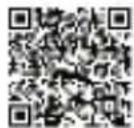

Google Play
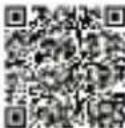

C
AppStore

ASUS Router
ASUS recycling and takeback programs come from our commitment to the highest standards for protecting our environment. We believe in providing solutions for you to be able to responsibly recycle our products, batteries, other components, as well as the packaging materials. Please go to http://csr.asus.com/english/Takeback.htm for the detailed recycling information in different regions.
REACH
Complying with the REACH (Registration, Evaluation, Authorisation, and Restriction of Chemicals) regulatory framework, we published the chemical substances in our products at ASUS REACH website at http://csr.asus.com/english/REACH.htm
Federal Communications Commission Statement
This device complies with Part 15 of the FCC Rules. Operation is subject to the following two conditions:
- This device may not cause harmful interference.
- This device must accept any interference received, including interference that may cause undesired operation.
This equipment has been tested and found to comply with the limits for a class B digital device, pursuant to part 15 of the FCC Rules. These limits are designed to provide reasonable protection against harmful interference in a residential installation.
This equipment generates, uses and can radiate radio frequency energy and, if not installed and used in accordance with the instructions, may cause harmful interference to radio communications. However, there is no guarantee that interference will not occur in a particular installation. If this equipment does cause harmful interference to radio or television reception, which can be determined by turning the equipment off and on, the user is encouraged to try to correct the interference by one or more of the following measures:
- Reorient or relocate the receiving antenna.
- Increase the separation between the equipment and receiver.
- Connect the equipment into an outlet on a circuit different from that to which the receiver is connected.
- Consult the dealer or an experienced radio/TV technician for help.

WARNING! Any changes or modifications not expressly approved by the party responsible for compliance could void the user's authority to operate the equipment.
Prohibition of Co-location
This device and its antenna(s) must not be co-located or operating in conjunction with any other antenna or transmitter.
IMPORTANT NOTE:
Radiation Exposure Statement: This equipment complies with FCC radiation exposure limits set forth for an uncontrolled environment. End users must follow the specific operating instructions for satisfying RF exposure compliance. To maintain compliance with FCC exposure compliance requirement, please follow operation instruction as documented in this manual.
WARNING! This equipment must be installed and operated in accordance with provided instructions and the antenna(s) used for this transmitter must be installed to provide a separation distance of at least 31 cm from all persons and must not be co-located or operating in conjunction with any other antenna or transmitter.
Compliance Statement of Innovation, Science and Economic Development Canada (ISED)
This device complies with Innovation, Science and Economic Development Canada licence exempt RSS standard(s). Operation is subject to the following two conditions: (1) this device may not cause interference, and (2) this device must accept any interference, including interference that may cause undesired operation of the device.
Operation in the band 5150-5250 MHz is only for indoor use to reduce the potential for harmful interference to co-channel mobile satellite systems.
CAN ICES-3(B)/NMB-3(B)
The radiated output power of the ASUS Wireless Device is below the Innovation, Science and Economic Development Canada radio frequency exposure limits. The ASUS Wireless Device should be used in such a manner such that the potential for human contact during normal operation is minimized.
This equipment should be installed and operated with a minimum distance of 31 cm between the radiator and any part of your body.
This device has been certified for use in Canada. Status of the listing in the Innovation, Science and Economic Development Canada's REL (Radio Equipment List) can be found at the following web address:
http://www.ic.qc.ca/eic/site/ceb-bbst.nsf/eng/h tt00020.html
Additional Canadian information on RF exposure also can be found at the following web: https:// www.ic.gc.ca/eic/site/smt-gst.nsf/eng/sf08792.html
Precautions for the use of the device
a. Pay particular attention to the personal safety when use this device in airports, hospitals, gas stations and professional garages. b. Medical device interference: Maintain a minimum distance of at least 15cm (6 inches) between implanted medical devices and ASUS products in order to reduce the risk of interference. c. Kindly use ASUS products in good reception conditions in order to minimize the radiation's level. d. Keep the device away from pregnant women and the lower abdomen of the teenager.
UK support e-mail: network support uk@asus.com - For more information, visit the ASUS support site at: https://www.asus.com/support/
English
CE statement
ASUSTek Computer Inc. hereby declares that this device is in compliance with the essential requirements and other relevant provisions of Directive 2014/53/EU. Full text of EU declaration of conformity is available at https://www.asus.com/Networking/RT-AX55/HelpDesk_Declaration/.
Testing for eco-design requirements according to (EC) No 1275/2008 and (EU) No 801/2013 has been conducted. When the device is in Networked Standby Mode, its I/O and network interface are in sleep mode and may not work properly. To wake up the device, press the WPS button.
This equipment complies with EU radiation exposure limits set forth for an uncontrolled environment. This equipment should be installed and operated with minimum distance 31 cm between the radiator & your body.
All operational modes:
2.4GHz: 802.11b, 802.11g, 802.11n (HT20), 802.11n (HT40), 802.11ac (VHT20), 802.11ac (VHT40), 802.11ax (HE20), 802.11ax(HE40)
5GHz: 802.11a, 802.11n (HT20), 802.11n (HT40), 802.11ac (VHT20), 802.11ac (VHT40), 802.11ac (VHT80), 802.11ax (HE20), 802.11ax(HE40), 802.11ax (HE80)
The frequency, mode and the maximum transmitted power in EU are listed below:
2412-2472MHz: 19.79dBm
5180-5240MHz VHT20 MCS0: EIRP 22.9dBm
5260-5320MHz VHT40 MCS0: EIRP 22.8dBm
5500-5700MHz VHT80 MCS0: EIRP 29.9dBm
The device is restricted to indoor use only when operating in the 5150 to 5350 MHz frequency range. The adapter shall be installed near the equipment and shall be easily accessible.
| AT BE BG CZ DK EE FR | | | | |
| DE IS IE IT EL ES CY | | | | |
| LV | LI | LT | LU | HU | MT | NL |
| NO PL PT RO SI SK TR | | | | |
| FI SE CH UK HR UA | | | | |
Safety Notices
Use this product in environments with ambient temperatures between 0°C (32°F) and 40°C (104°F). Refer to the rating label on the bottom of your product and ensure your power adapter complies with this rating. DO NOT place on uneven or unstable work surfaces. Seek servicing if the casing has been damaged. DO NOT place or drop objects on top and do not shove any foreign objects into the product. DO NOT expose to or use near liquids, rain, or moisture. DO NOT use the modem during electrical storms. DO NOT cover the vents on the product to prevent the system from getting overheated. DO NOT use damaged power cords, accessories, or other peripherals. If the Adapter is broken, do not try to fix it by yourself. Contact a qualified service technician or your retailer. To prevent electrical shock hazard, disconnect the power cable from the electrical outlet before relocating the system. DO NOT mount this equipment higher than 2 meters.