R3 - Radio Artsound - Free user manual and instructions
Find the device manual for free R3 Artsound in PDF.



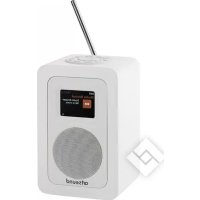
| Product type | Portable radio with alarm clock |
| Reception modes | DAB/DAB+, FM with RDS, AUX IN |
| Display | TFT color screen |
| Power supply | 9V DC 1.5A mains adapter or rechargeable battery 7.4V/2200mAh |
| Battery life | Not specified (rechargeable) |
| Number of presets | 10 for DAB, 10 for FM |
| Alarms | 2 independent alarms with snooze |
| Sleep function | Yes (15/30/45/60 minutes) |
| Equalizer | Presets: Normal, Classic, Jazz, Pop, Rock, Speech, My EQ |
| Connectors | AUX input 3.5mm, line output 3.5mm, headphone output 3.5mm, Mini USB (for updates) |
| Dimensions | Not specified |
| Weight | Not specified |
| Available languages | French, English, German, Italian |
| Automatic time update | Via DAB or FM |
| Backlight | 3 brightness levels with adjustable timeout |
| Maintenance and cleaning | Clean with a dry cloth, unplug before cleaning |
| Safety | Do not expose to water, do not open the casing, use provided mains adapter |
| Repairability | Contains no user-serviceable parts, refer to a technician |
Frequently Asked Questions - R3 Artsound
User questions about R3 Artsound
0 question about this device. Answer the ones you know or ask your own.
Ask a new question about this device
Download the instructions for your Radio in PDF format for free! Find your manual R3 - Artsound and take your electronic device back in hand. On this page are published all the documents necessary for the use of your device. R3 by Artsound.
USER MANUAL R3 Artsound
smart solutions in audio
R3
DAB/DAB+/FM/AUX radio
INHOUDSOPGAVE
Dynamic range compression
- Alarm: on/off,
Frequency: Daily, Once, Weekends of Weekdays,
Time - Source: Buzzer, Internet radio, DAB, FM
- Preset: Last listened of 1-10
Duur 15/30/45/60/90/120 minutes
Volume: 0 - max.
- Sleep
- Alarm
Equalizer
Time/Date - Backlight
Language
Factory Reset - Software upgrade
- Software version
Treble and bass audio frequencies kūnen aangepast worden evanals 'Loudness' On of Off.
6.3 Tijd
- Timeout - Light On | 10 | 20 | 30 | 45 | 60 | 90 | 120 | 180
- On level - Low | Mid | High
Dim level - Low | Mid | High
6.5 Standby
Dynamic range compression
- Enable: on/off
- Frequency: Daily, Once, Weekends ou Weekdays
Time
Mode: Buzzer, Internet radio, DAB, FM - Preset: Last listened ou 1-10,
Volume: 0 - max.
1.1 Safety Instructions
Please store this instruction manual for future reference.
- WARNING: To reduce the risk of fire or electric shock, do not expose this apparatus to rain or moisture. The apparatus shall not be exposed to dripping or splashing and that objects filled with liquids, such as vases, shall not be placed on apparatus.
- WARNING: The direct plug-in adapter is used as disconnect device, the disconnect device shall remain readily operable.
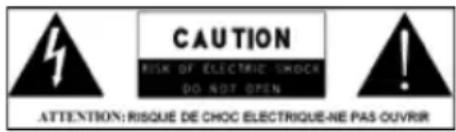
- This lightning flash with arrowhead symbol within an equilateral triangle is intended to alert the user to the presence of non-insulated "dangerous voltage" within the product's enclosure that may be of sufficient magnitude to constitute a risk of electric shock.
- Warning: To reduce the risk of electric shock, do not remove cover (or back) as there are no user-serviceable parts inside. Refer servicing to qualified personnel.
- The exclamation point within an equilateral triangle is intended to alert the user to the presence of important operating and maintenance instructions in the literature accompanying the appliance.

- Correct Disposal of this product. This marking indicates that this product should not be disposed with other household wastes throughout the EU. To prevent possible harm to the environment or human health from uncontrolled waste disposal, recycle it responsibly to promote the sustainable reuse of material resources. To return your used device, please use the return and collection systems or contact the retailer where the product was purchased. They can take this product for environmental safe recycling.
- No naked flame sources, such as lighted candles, should be placed on the apparatus.
- CAUTION: Danger of explosion if battery is incorrectly replaced. Replace only with the same or equivalent type.
- WARNING: The battery (battery or batteries or
battery pack) shall not be exposed to excessive heat such as sunshine, fire or the like.
- Do not use this product near water or moisture.
- Clean only with a dry cloth.
- Unplug this product from the wall outlet before cleaning.
- Place the unit on a solid surface.
- Do not put it in a closed bookcase or a cabinet that may keep air from flowing through its ventilation openings.
- Do not install near any heat sources, such as radiators, heat registers, stoves or other appliances that produce heat.
- Protect the power cord from being walked on or pinched, particularly at plugs and the point where they exit from the product.
Servicing is required when the product has been damaged. Do not attempt to service this product yourself. Opening or removing covers may expose you to dangerous voltages or other hazards. Please contact the manufacturer to be referred to an authorized service center near you. - To prevent risk of fire or electric shock, avoid over loading wall outlets, extension cords, or integral convenience receptacles.
- Do not let objects or liquids enter the product.
- Use proper power sources. Plug the product into a proper power source, as described in the operating instructions or as marked on the product.
1.2 Features
This manual describes how to use the R3, with the following modes:
- DAB/DAB+ digital radio with a wide choice of channels and digital quality sound broadcast free-to-air.
FM with RDS (Radio Data System) - Aux in for external music sources such as MP3 players
R3 also provides the following features:
TFT color display for DAB slideshow images, clear information display and easy option selection
- Clock with auto-update capability and dual independent alarms, - Sleep/snooze,
- Multiple operating languages
1.3 Carton contents
After you unpack the box, you will find the following items
1 R3 unit
- 1 DC 9V 1.5A power adapter and 1 Lithium battery 2 cells 7.4V/2200mA/H
- 1 User manual
1.4 External resources
To operate R3, the following external resources are needed:
- A power source (100-240 V mains power supply)
These external resources can be used for specific functions: - An external audio source (for Aux In mode).
1.5 Conventions used in this manual
Button (press) Physical button on the keypad Option (select) Menu option shown on the display
Name Menu, screen or other name
2 Controls, connectors and display
2.1 Main controls
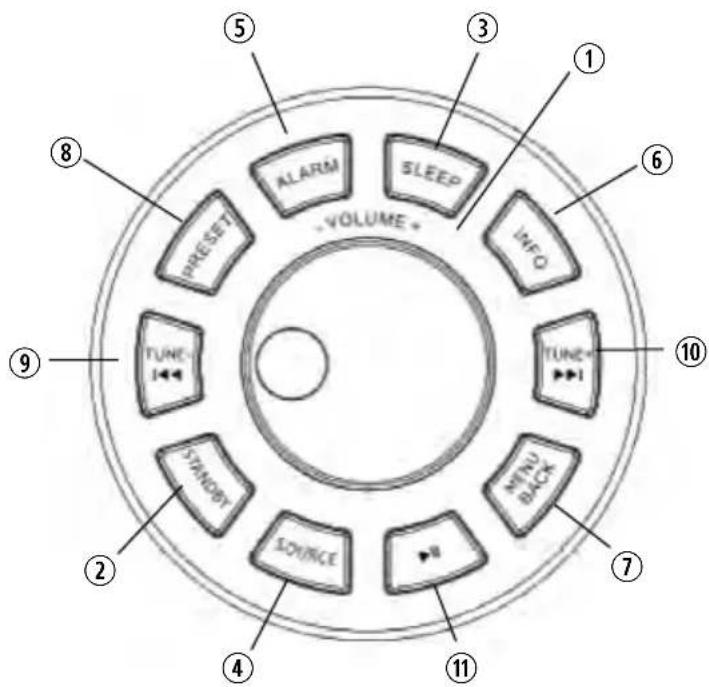
1. TUNE/SELECT/VOLUME/MUTE/
SNOOZE: Turn to Scroll through a menu or station list.
The chosen option is highlighted in reverse text (dark characters on a white background), Press to the button to select. Turn to the button to adjust the volume up or down when playback. Press to the button to mute the music when playing. Press the button to snooze a set time when alarm sounding.
- STANDBY: Turn on or back to standby mode (showing clock and date) or cancel sleep or cancel alarm function.
- SLEEP: When playing, press SLEEP, R3 will back to standby after a set time.
- SOURCE: Press to Source to select different modes DAB, FM, Aux.
- ALARM: Press to Alarm, the screen will display Alarm 1 and Alarm 2; then Rotate and press the SELECT button to select alarm 1 or alarm 2 to set up.
- INFO: View more information about the station or track playing. Press again to cycle through further information screens then return to the normal Now playing screen.
- BACK/MENU: BACK: Return to previous screen. In play mode, this button may be used to return to the last track list or station list; MENU: Show menu for the current mode. Press again to show Now playing screen.
- PRESET: Press to preset to save the favorite station (save 10 favorite stations); Press to select the favorite station or preset recall.
- TUNE-: Tune-: Press to select the next station under FM/DAB mode; Press to hold the Tune- button 2 seconds to auto-scan the stations under the FM mode.
- TUNE+:/: Press to select the next station under FM/DAB mode; Press to hold the Tune+ button 2 seconds to auto-scan the stations under the FM mode.
- : Press to perform a full scan.
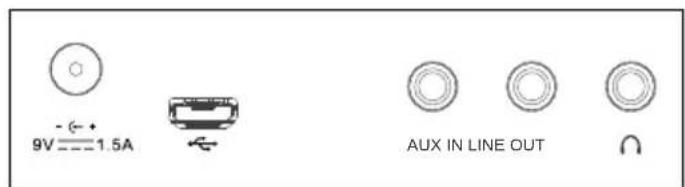
2.2 Connectors
As shown below has connectors (from left to right) for the following:
DC power in (9 V)
- Mini USB for software upgrade [service only]
- Aux in (to connect external media like iPod)
Line out (to connect to an external amplifier)
- Headphones out.
2.3 Display
The screen shows various menus, dialogues and displays as described below.
There are basically six types of screen:
- Standby (clock)
- Splash (mode)
- Now playing
Dialogue - Error/Information
- Menu
When text is too long to fit on the screen, it is first shown truncated, then after a few seconds, slowly scrolls so that you can read it all. The Standby screen shows the time, date and any active alarm times. As you cycle through the play modes using SOURCE, R3 shows a splash screen for each mode. After one second, R3 enters the selected mode and tries to start playing the last station or track that was playing in that mode. If this is not possible, R3 tries to connect to the selected source by scanning for stations, or prompting for user input as appropriate.
Now playing screens show information about the audio source and track now playing, where available.
Dialogue screens are shown to allow the user to change settings.
Error/Information screens give specific messages for a few seconds, then change automatically to another screen.
Menu
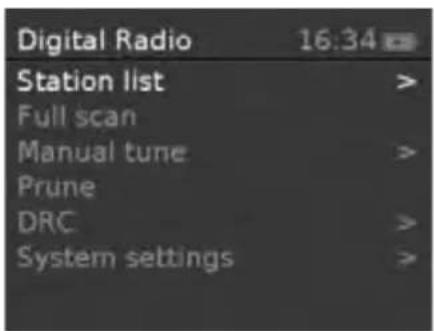
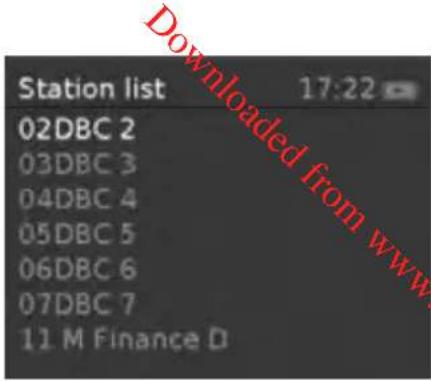
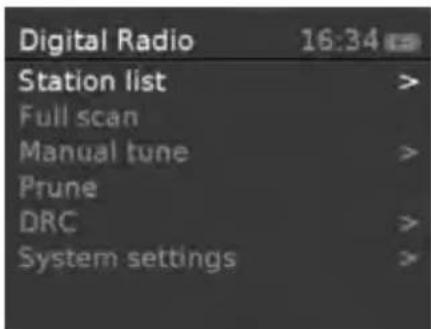
R3 has basically three types of menu. Use the Select control to step through and select options. A scroll bar on the right of the screen shows if there are further options above or below those visible.
Each mode has a Mode menu, with options specific to that mode.
For example, the FM mode menu has just two options: Scan Setting and Audio Setting

In addition, each mode menu has two final options:
System settings > and Main menu >.The '>' indicates options leading to further menus.
The System settings menu allows access to system settings and information such as time, language and software update.
Menu with more options than will fit on one screen have a scroll bar to the right. The Main menu allows access to all modes plus sleep and timer functions.
Some menus, for example the System settings menu, have several submenus.
3 Start and setup
R3 is easy to use. To play DAB or FM radio, all you need is a power source (a 100-240 V mains supply);
- Place R3 on a suitable shelf or table.
- Extend the telescopic antenna.
- Connect the power adaptor between R3 and the mains supply.
Slide the button for the first time behind the battery to activate it.
3.1 12/24 hour display
To change between 12 and 24 hour display, select Set 12/24 hour and then select your preference.
3.2 Time/date
The time and date can be updated manually or automatically.
3.3 Auto-update
Auto-update works with data sent over DAB, FM. The clock is only updated when in a corresponding mode, so it is best to select a mode you use regularly.
3.4 Manual set
If you set No update, the wizard now prompts you to set the time and date manually.
The date and time are displayed as dd-mm-yyyy and hh:mm.
4 Operation
4.1 DAB radio mode
DAB radio mode receives DAB/DAB+ digital radio and displays information about the station and programme /track as broadcast.
To enter DAB mode, either press Mode until the display shows DAB Radio or select Menu > Main menu > DAB.
4.1.1 Scanning fo stations
The first time you use R3, or if the station list is empty, the radio automatically performs a full scan to see what stations are available. You may also need to start a scan manually to update the list of stations for one of the following reasons:
- New stations may become available from time to time.
If reception was not good for the original scan (for example the antenna was not up), this may result in an empty or incomplete list of available stations. - If you have poor reception of some stations causing the audio to break up, you may wish to list only stations with good signal strength.
To do a full scan Select Menu > Full scan.
Once a scan is complete, the radio returns to play-. ing the previously-selected station or first station on the station list.
To remove stations that are listed but unavailable Select Menu > Prune invalid.
4.1.2 Presets
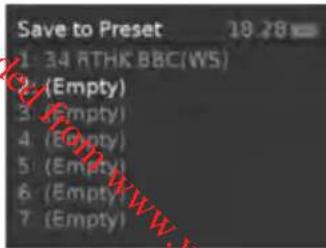
R3 has 10 preset stores for DAB stations.
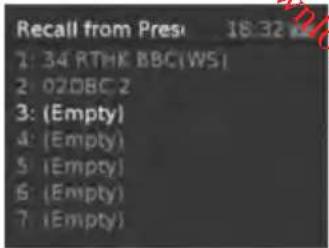
To store a station in a preset store Press and hold preset until the display shows a list of the Preset stores numbered 1 to 10 these are displayed as either Empty or with the currently stored station name. Use the Select control button to choose a preset memory then press Select to store the currently-playing station. After confirming the preset station is stored the display reverts to the Now playing screen. To recall a preset station Press Preset briefly. Select one of the listed preset stations using the select control button and press Select to choose the highlighted preset station.
4.1.3 Manual tune
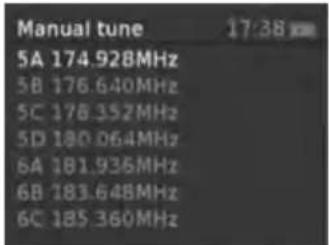
As well as the normal method of scanning, you can also manually tune to a particular channel / frequency.
To manually tune Press Menu > Manual tune then use select control button to display a particular channel/frequency, press Select to tune to that channel/frequency.
The display shows a live indication of the received signal strength on the selected frequency.
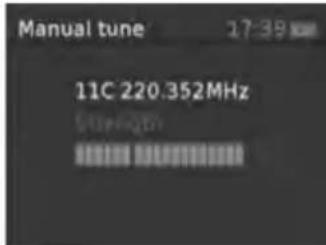
Adjustments to your antenna will be manifested in the received signal strength displayed.
4.1.4 Now playing information
While a station is playing, the screen shows its name and DLS (Dynamic Label Segment) information broadcast by the station such as programme name, track title and contact details.
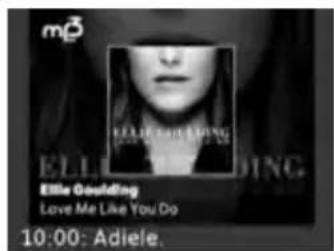
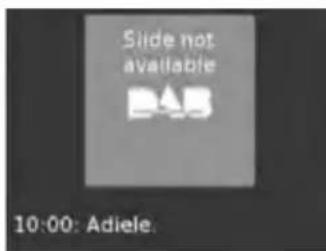
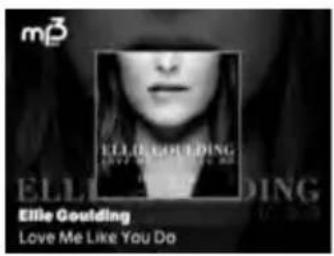
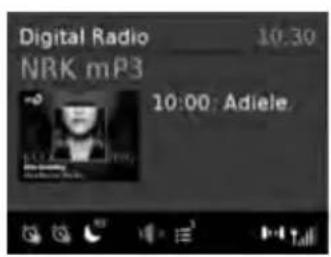
Slideshow
The normal now playing screen shows a thumbnail of the currently available slideshow image. (If no slideshow image is available a default DAB thumbnail image is displayed). The Select button cycles through the following slideshow displays.
Slideshow image and DLS text being broadcast by the current station.

To view further information Press Info. Each time you press Info, the next set of information is displayed, cycling through: DLS text, DL Plus information (this is only displayed if broadcast by the station), programme type, ensemble name, channel number/frequency, signal strength, power status (Mains/Battery), and date.
4.1.5 Other settings
Dynamic range compression (DRC)
This function reduces the difference between the
loudest and quietest audio being broadcast.
Effectively, this makes quiet sounds comparatively
louder, and loud sounds comparatively quieter.
Note: DRC only works if it is enabled by the
broadcaster for a specific station.
To change the DRC setting
Select Menu > DRC > The options available are:
DRC high | low | off.
4.2. FM radio mode
FM radio mode receives analogue radio from the FM band and displays RDS (Radio Data System) information about the station and show (where broadcast).
To enter FM mode
Press Mode until the display shows FM Mode
4.2.1 Selecting stations
To scan for a station in FM mode Press Select .R3 scans up through the FM band frequencies, showing the current frequency on the screen display. A scan stops when a signal is found. R3 can be set to stop at each station or only at stations with a strong signal. Alternatively, you can tune, using the select control button on the top or the left and right buttons on the IR remote control, in 50 kHz steps.
4.2.2 Presets
R3 has 10 preset memories for FM, which work in the same way as DAB mode presets, as described earlier in section 4.1.3 Presets.
4.2.3 Now playing information
While FM radio is playing, the screen shows its frequency, or if RDS information is available, station name and any further 'RadioText' information. If no information is available, just the frequency and a No RadioText message is shown.
To view further information about the broadcast Press Info. Each time you press Info, the next set of information is displayed, cycling through: RDS Radio text, programme type, frequency, name, mono/stereo, power status, and date. To return to the default Now playing screen Press and hold Info .
4.2.4 Settings
Scan settings
By default, FM scans stop at any available station (All stations). This may include poor quality audio from weak stations.
Options: Strong stations only | All stations To change the scan settings, to stop only at stations with good signal strength
Select Menu > Scan setting then Strong stations only.
Audio settings
By default, all stereo stations are reproduced in stereo. For weak stations, this may result in poor quality audio. The audio quality can be improved using mono.
Options: Stereo allowed | Forced mono
To play weak stations in mono Select Menu > Audio setting > Forced mono.
4.3 Aux In mode
Aux In mode plays audio from an external source such as an MP3 player.
To play audio with Aux In mode,
- Turn the volume low on both R3 and, if adjustable, the audio source device.
- Connect the external audio source to the Aux In 3.5 mm stereo socket.
- Press source until the display shows Auxiliary Input.
- Adjust the volume of R3 (and, if necessary, the audio source device) as required.

4.4. Now playing information
When in Aux In mode, the screen shows Auxiliary Input and the date.
5 Alarms snooze and sleep
As well as a clock/calendar, there are two versatile wake-up alarms with snooze facility, and a sleep function to turn the system off after a set period of time. The alarm sound for each alarm can use a buzzer or a selection from the audio sources.
To set the clock/calendar
The settings for the internal clock and setting Alarm, Snooze and Sleep function are all accessible via the Systems Setting menu.
5.1 Alarms
Note: Alarms will only function when the R3 unit is On (mains or battery power) or in Standby mode (Mains power only). Attempting to enter Standby mode when powered only by battery will turn the R3 unit Off.
An active alarm is indicated by its icon in the bottom line of the display.
Note: Alarms can be switched on or off in standby mode (see below), however, the alarm parameters can only be set when the R3 is on.
To set alarms
Press Alarm and use the Select control button to select the required Alarm 1 or 2 and press Select To accept the displayed alarm settings press
Alarm
To exit alarm setting mode, press Menu or Back (alternatively, the Alarm display will timeout and automatically return to the Now Playing screen after a short time).
The alarm setup prompts you for the following parameters. Select a value for each parameter in turn turning the select control button and press Select to confirm and move on to the next parameter.
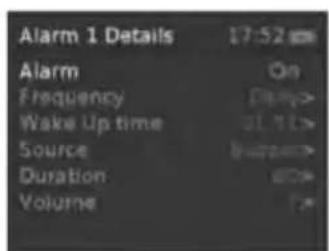
Parameters
Alarm - Off | On
Frequency - Daily | Once | Weekends | Weekdays
Choose the days on which the alarm is active.
Note: if you choose 'Once', you are prompted to enter the required date.
On time - hours and minutes
Source-BuzzerIDABIFM
If DAB or FM is chosen as the audio source you will also be prompted to select the Last played station or one of the preset stations (if set).
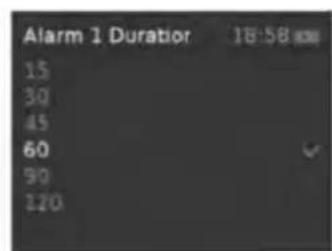
Duration - 15 | 30 | 45 | 60 | 90 | 120 minutes If the alarm is not cancelled R3 returns to standby after this time period.
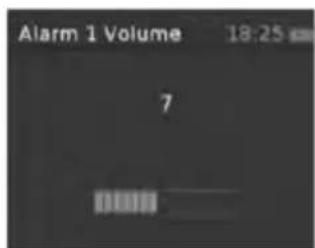
Volume - (use the TUNE-/TUNE+ button to set the required alarm volume 4-16)
This is the volume the alarm will build up to. (Initially the alarm sounds at a low volume and gradually gets louder to the set volume).
In all listening modes active alarms are indicated by displaying the relevant Alarm 1 and/or Alarm 2 icons.
At the set time, the alarm will sound, quietly at first, then gradually building up to the set volume. When an alarm sounds, the icon in the display flashes.
To cancel a sounding alarm and switch the radio to standby
Press Standby or Alarm .
5.2Snoopze
To temporarily silence a sounding alarm, press Sleep. You can change the snooze period by repeatedly pressing Sleep. Snooze periods are 5, 10, 15 and 30 minutes. The radio returns to standby for the set time period with a snooze countdown displayed. When the countdown reaches 0 (zero) the alarm is triggered again.
Press Standby or Alarm to fully cancel a sounding alarm and switch the radio to standby
5.3 Sleep
To set the sleep timer while the radio is playing Press Sleep. You can choose the sleep delay time in minutes from: Sleep Off | 15 | 30 | 45 | 60 | 90 | 120 Use select control button to cycle through the options (or press Sleep repeatedly) then press Select to choose the displayed option.
Once you select a sleep delay period, the display returns to the Now playing screen displaying a Crescent moon icon and the remaining time, in minutes, before the sleep time expires.
After the sleep delay period the radio switches to standby mode.
6 System settings
The System Settings allow you to tailor the R3 with a variety of options to suit you.
To access system settings from any mode Select Menu > System Settings > , then choose from the various options as described in the menu as below.
The System Setting Menu options are:
- Sleep
- Alarm
Equaliser
Time/Date - Backlight
Language
Factory Reset - Software upgrade
- Software version
6.1 Audio Output
Presents the option to direct audio output to the built in speakers (Speakers) or the SPDIF port on the back of the unit (SPDIF).
6.2 Equalizer
This presents a number of preset settings plus a My Equaliser option to allow you to create your own equaliser settings.
My EQ... | Normal | Classic | Jazz | Pop | Rock | Speech
6.2.1 My EQ...
This option allows you to set a bias in the treble and bass audio frequencies and turn 'Loudness' On or Off.
6.3 Time
The time and date can be updated manually or automatically. With auto-update, the time and date are automatically synchronised with national time signals broadcast over DAB and FM (when available).
You can also select the display format for the time and date.
The Time menu contains the following options:
- Set Time/Date - (see below)
- Auto update - Update from Any | Update from DAB | Update from FM | No Update
- Set 12/24 hour - 12 | 24
- Set date format - dd-mm-yyyy | mm-dd-yyyy.
Set time/date
This option is for manually setting the time and date displayed. The time displays as hh:mm, with the first value, hh, active (flashing). Adjust each value using the select control button and press Select to confirm. The next value then becomes active and flashes. The date values follow and are set in the same way.
Note: The date displays as dd-mm-yyyy or mm-dd-yyyy depending on your choice of date format (see above).
6.4 Backlight
The R3 has a backlight with three brightness settings, and adjustable timeout (this is the time delay, in seconds, after which the display switches to the Dim level).
There are three settings:
- Timeout - Light On | 10 | 20 | 30 | 45 | 60 | 90 | 120 | 180
- On level - Low | Mid | High
Dim level - Low | Mid | High
Note: a green tick indicates the currently selected value for each setting.
6.5 Inactive Standby
If the R3is not interacted with for a time it can automatically enter Standby mode.
6.6 Language
The language used for display messages can be selected from: English | Français | Deutsch | Italiano
6.7 Factory reset
A factory reset clears all user defined settings, replacing them with the original default values, so time/date, preferences/settings, DAB station list and preset stations are all lost.
If you select Factory reset, you are asked to confirm by selecting "Yes".
7 Troubleshooting and error messages
7.1 Error messages
| Message Description | |
| DAB mode | |
| Service not available | No DAB reception |
| Signal error | The DAB signal has been interrupted. |
| No DAB Station | The listed station cannot be found. |
| (No Name) The current station does not broadcast an identity name. | |
| No stations found | No DAB stations are available - check aerial. |
| FM mode | |
| No RadioText | No RDS text information is available on this station. |
| No PTY | No RDS programme type information is available. |
| No Name | No RDS station name is being broadcast |
| General messages | |
| Update failed | Software upgrade failed |
| Time is not set | No time value is currently set on this platform. |
| Time Not saved | Any changes made to the time settings will be lost. |
| Alarm Not saved | Any changes made to the Alarm settings will be lost. |
| Invalid Date | The entered value does not match a valid date. |
7.2 Probleemoplossing
| Problem Cause Solutions | ||
| FM: HissDAB: burbling/intermittent Mocut-out Rescan high-strength | Low signal strength Check/move antMove radio stations only | tenna |
| For DAB or DAB+, check the current status of local coverage with your national digital radio authority. | ||
| DAB: ‘No stations Low signal strength As above then rescan stations. | ||
| available' message | ||
8 Technical Specification
Model: R3 Portable Radio
Type: Digital Radio with FM
Power Supply: 9 V DC or Lithium battery 2cells 7.4V/2200mA/H
(to charge the battery you may need to put On the switch located inside the battery compartment. Put the switch to OFF if not used the battery for a long time). The battery can be recharged when the radio is supplied with the power supply and the switch is ON.
Specifications are subject to change without notice
UK
B^
Downloaded from www.vandenborre.be
Downloaded from www.vandenborre.be
artsound
smart solutions in audio
Discover the complete ArtSound range at www.artsound.be
House of Music nv Ronse, Belgium www.artound.be info@houseofmusic.be