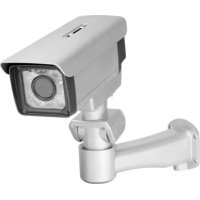
DCS7510 - Surveillance Camera D-LINK - Free user manual and instructions
Find the device manual for free DCS7510 D-LINK in PDF.



| Product Type | Outdoor Network Surveillance Camera |
| Brand | D-Link |
| Model | DCS-7510 |
| Maximum Resolution | 1920 x 1080 (2 MP) |
| Night Vision | Yes, infrared LED for visibility up to 20 meters |
| Protection Rating | IP66 (weather resistant) |
| Power Supply | PoE (Power over Ethernet) or 12 V DC, 1.25 A power adapter |
| Connectivity | Ethernet 10/100 BASE-T, RJ-45 |
| Video Compression | MJPEG, MPEG-4 |
| Viewing Angle | Motorized zoom, adjustable (short focal length for wide angle, long for zoom) |
| Max. simultaneous users | 10 |
| Main Functions | Automatic Day/Night, PoE, wall mount, motion detection |
| Mounting | Wall mount bracket with screws provided |
| Operating Temperature | -10 °C to 50 °C |
| Included Accessories | Mount bracket, Ethernet cable, power adapter, screwdriver, manual CD |
| Maintenance and Cleaning | Clean the lens with a soft, dry cloth. Avoid chemical products. |
| Security | Use a strong password, update firmware regularly. |
| Spare parts and repairability | Contact D-Link technical support. No spare parts provided. |
| General Information | Warranty: 1 year. Telephone support: 0820 0803 03 (€0.12/min) Monday to Friday 9am-7pm. |
Frequently Asked Questions - DCS7510 D-LINK
User questions about DCS7510 D-LINK
0 question about this device. Answer the ones you know or ask your own.
Ask a new question about this device
Download the instructions for your Surveillance Camera in PDF format for free! Find your manual DCS7510 - D-LINK and take your electronic device back in hand. On this page are published all the documents necessary for the use of your device. DCS7510 by D-LINK.
USER MANUAL DCS7510 D-LINK
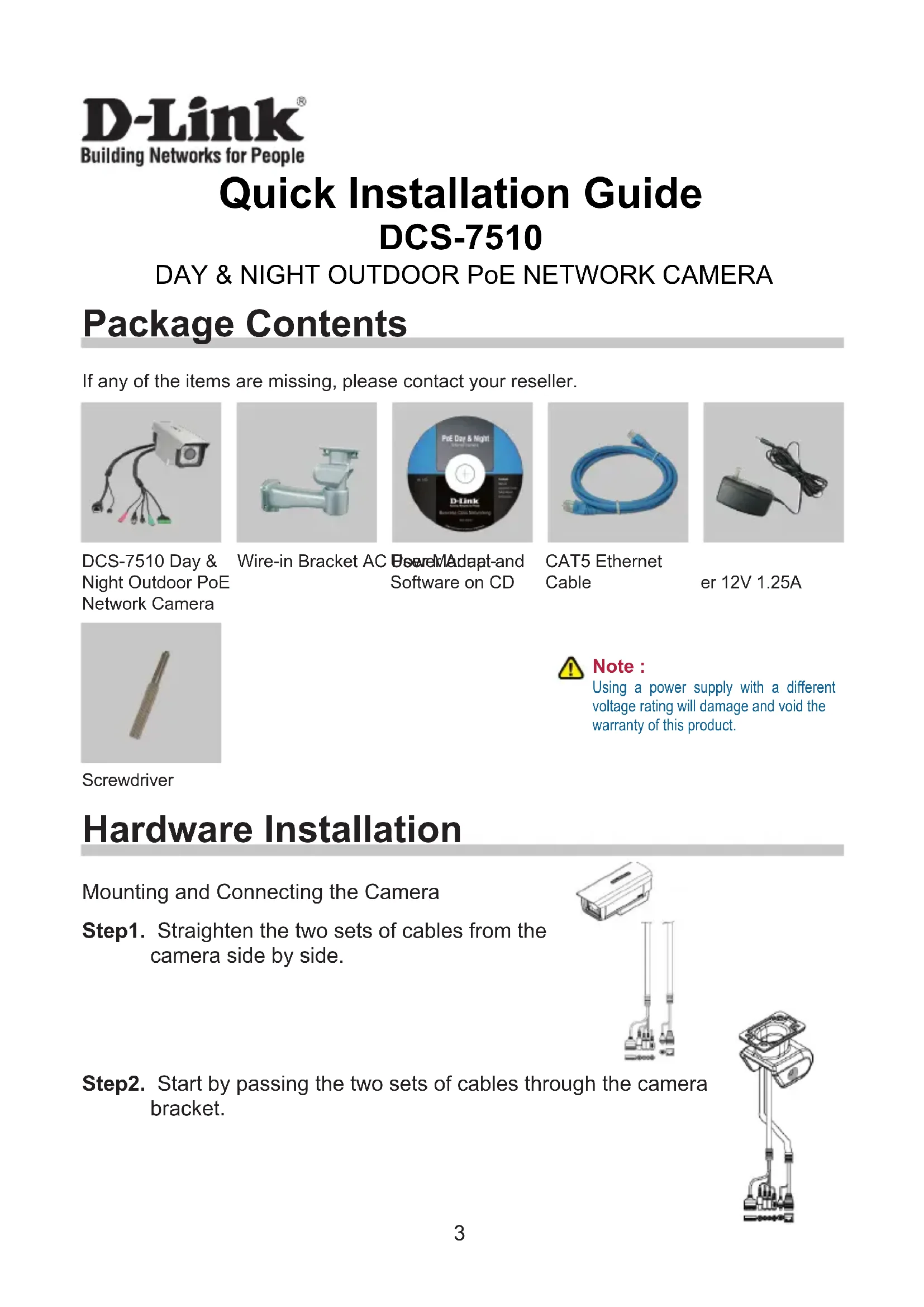
If any of the items are missing, please contact your reseller.
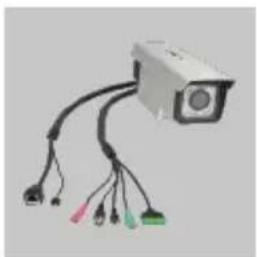
DCS-7510 Day & Night Outdoor PoE Network Camera

Wire-in Bracket AC
BareAdapt-and Software on CD
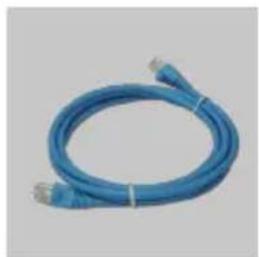
CAT5 Ethernet Cable
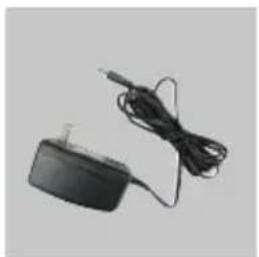
er 12V 1.25A
Screwdriver

Note :
Using a power supply with a different voltage rating will damage and void the warranty of this product.
Hardware Installation
Mounting and Connecting the Camera
Step1. Straighten the two sets of cables from the camera side by side.
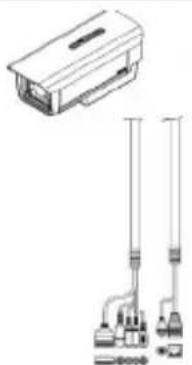
Step2. Start by passing the two sets of cables through the camera bracket.
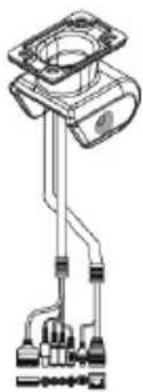
Step3. Next, continue passing the cables through the wire-in bracket, pulling them through the other end.
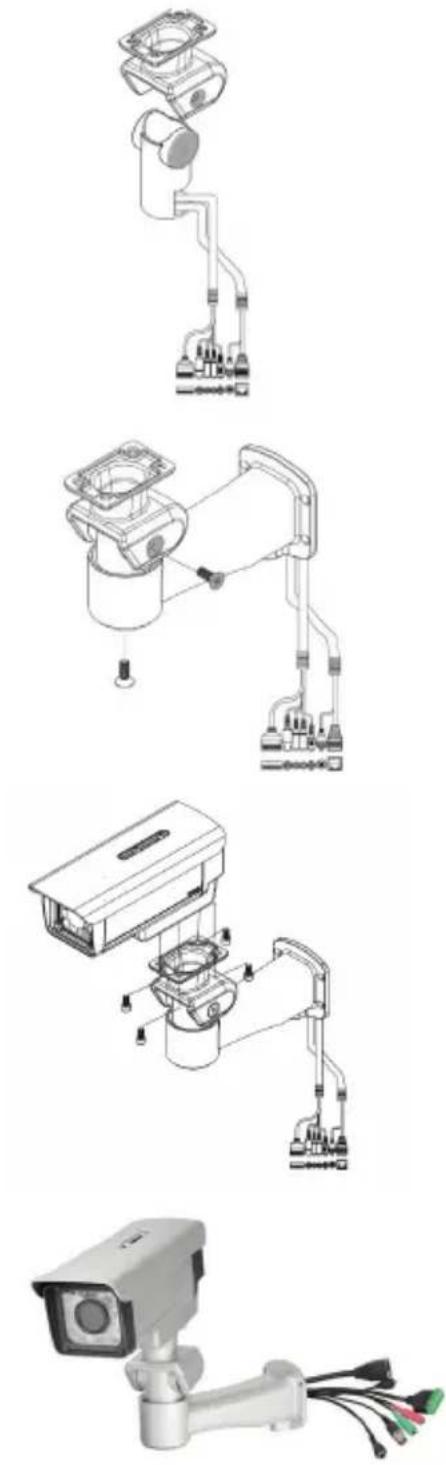
Step4. Attach the camera bracket to the wire-in bracket using screws.
Step5. Finally, attach the camera on the top of the camera bracket using screws.
Step6. Connect the cables as required.
Focus and Zoom Adjustment
The focus and zoom controls are located on the outside of the camera case for easy adjustments. Use the screwdriver provided to adjust the focus and zoom of your camera.
Note: With a shorter focal length you will get a wider field of view, whereas a longer focal length narrows the field of view and allows you to zoom in more on an area.

- What is the maximum number of users that can be allowed to access DCS-7510 simultaneously?
The maximum number of users that can log onto the Network Camera at the same time is 10. Please keep in mind that the overall performance of the transmission speed will slow down when a large number of users are logged on.
- What algorithm is used to compress the digital image?
MPEG-4 and MJPEG are used to provide high quality images at low bandwidths.
- Can the DCS-7510 be installed and work if a firewall exists on the network?
If a firewall exists on the network, port 80 needs to be opened for ordinary data communication, streaming audio, streaming video. The DCS-7510 uses port 5002 for streaming audio and port 5003 for streaming video. These ports or the ports you specify from the Advanced Tab in the Configuration screen, needs to be opened.
- Why am I unable to access the DCS-7510 from a Web browser?
Ensure that the ports configured for the DCS-7510 on the router or firewall are correct. In order to do that, you need to determine if the DCS-7510 is behind a router or firewall and then properly configure the ports of your DCS-7510. Other possible problems might be due to the network cable. Try replacing your network cable. Test the network interface of the product by connecting a local computer to the unit, with an Ethernet crossover cable. If the problem is not solved the Network Camera might be faulty.
- Why does the Network Camera work locally but not externally?
This might be caused by the firewall protection on your network. You may have to change the firewall settings in order for the Network Camera to be accessible outside your local LAN. Check with the Network Administrator and ensure that the Network Camera isn't conflicting with any Web server you may have running on your network. The default router setting might be a possible reason. Check that the configuration of the router settings allow the Network Camera to be accessed outside your local LAN.
Technical Support
United Kingdom (Mon-Fri)
Home Wireless/Broadband 0871 873 3000 (9.00am-06.00pm, Sat 10.00am-02.00pm)
Managed, Smart, & Wireless Switches, or Firewalls 0871 873 0909 (09.00am - 05.30pm)
(BT 10ppm, other carriers may vary.)
Ireland (Mon-Fri)
All Products 1890 886 899 (09.00am-06.00pm, Sat 10.00am-02.00pm)
€0.05ppm peak, €0.045ppm off peak Times
Internet
http://www.dlink.co.uk
ftp://ftp.dlink.co.uk
Notes
Schnellinstallationshandbuch
DCS-7510
DAY & NIGHT OUTDOOR PoE NETWORK CAMERA
Packungsinhalt
Assistance technique
URL: http://www.dlink.it/support
Notes
Notes
D-Link

Ver. 1.00(E)
2009/10/22
6ECS7510Q.01G
Brand : D-LINK
Model : DCS7510
Category : Surveillance Camera