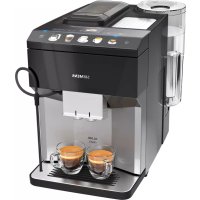
TP507RX4 - Coffee maker SIEMENS - Free user manual and instructions
Find the device manual for free TP507RX4 SIEMENS in PDF.



| Product type | Automatic coffee machine with grinder |
| Brand | Siemens |
| Model | TP507RX4 |
| Dimensions (H x W x D) | 37.3 cm x 24.9 cm x 42.8 cm |
| Empty weight | 8 to 9 kg |
| Power supply | 220-240 V ~ 50 Hz |
| Connected load | 1500 W |
| Water tank capacity | 1.7 L (without filter) |
| Bean container capacity | 270 g |
| Maximum pump pressure | 15 bar |
| Grinder type | Adjustable ceramic grinder |
| Coffee functions | Espresso, Café Crème, Cappuccino, Latte Macchiato, Ground Coffee |
| Special functions | Milk froth, Hot water, Double Shot, Two cups |
| Milk system | Milk container with hose, integrated frother |
| Display and controls | Touch screen, quick selection buttons |
| Connectivity | Integrated Wi-Fi, Home Connect (app compatible) |
| Child safety | Yes (button lock) |
| Automatic shut-off | Adjustable (via basic settings) |
| Cup warmer | Yes (removable, can be activated/deactivated) |
| Water filter | Compatible (optional filter, changed every 2 months) |
| Maintenance programs | Milk system cleaning, Descaling, Cleaning, calc'nClean |
| Parts cleaning | Dishwasher-safe parts (drip tray, container, milk system, etc.) |
| Brewing unit | Removable, manual cleaning |
| Warranty | Manufacturer's warranty (conditions vary by country) |
Frequently Asked Questions - TP507RX4 SIEMENS
User questions about TP507RX4 SIEMENS
0 question about this device. Answer the ones you know or ask your own.
Ask a new question about this device
Download the instructions for your Coffee maker in PDF format for free! Find your manual TP507RX4 - SIEMENS and take your electronic device back in hand. On this page are published all the documents necessary for the use of your device. TP507RX4 by SIEMENS.
USER MANUAL TP507RX4 SIEMENS
Register your product on My Siemens and discover exclusive services and offers. siemens-home.bsh-group.com/welcome
The future moving in.
1
2
natural_image
Illustration of a container with liquid and a submerged object, no text or symbols present3
4
natural_image
Illustration of a hand pressing a blue mechanical component with an upward arrow (no text or symbols)5
natural_image
Illustration of a showerhead spraying water with a cleaning tool nearby (no text or symbols)6
7
8
natural_image
Illustration of two hands operating a 3D printer with blue tubing, showing mechanical assembly and wiring (no text or symbols)9
flowchart
graph TD
    A["Engine"] --> B["Valve"]
    B --> C["Car"]
    C --> D["Exhaust"]
    style A fill:#f9f,stroke:#333
    style B fill:#ccf,stroke:#333
    style C fill:#cfc,stroke:#333
    style D fill:#fcc,stroke:#333
10
natural_image
Diagram of a faucet drain spraying water into a square basin, with no text or symbols present.11
12
flowchart
graph TD
    A["Engine 1"] --> B["Hybrid"]
    B --> C["Engine 2"]
    C --> D["Hybrid"]
    D --> E["Engine 3"]
13
natural_image
Illustration of a robotic device being processed into a machine, showing the process with no text or symbols.14
15
16
natural_image
Diagram showing a device with a blue arrow pointing to a component, no text or symbols present17
natural_image
Diagram of a mechanical device with a blue upward arrow indicating motion or force (no text or symbols present)18
19
natural_image
Illustration of a hand holding a tool near a window frame, with no visible text or symbols20
natural_image
Illustration of a mechanical device inside a storage unit with blue boxes and a downward arrow (no text or symbols)21
22
[Non-Text]
natural_image
Diagram of a kitchen appliance with faucet spraying water, showing hand gesture and no text or symbols23
24
natural_image
Illustration of a mechanical device with blue components and an upward arrow, no visible text or symbols25
26
en
Table of contents
Safety 8
General information 8
Intended use.... 8
Restriction on user group...... 8
Safety information 9
Environmental protection and saving energy 12
Disposing of packaging 12
Tips for saving energy...... 12
Installation and connection ...... 12
Scope of supply.... 12
Installing and connecting the appliance.... 12
Familiarising yourself with your appliance 13
Appliance 13
Controls.... 13
Display 13
Drinks overview.... 14
Accessories.... 15
Before using for the first time...... 15
Perform the initial start-up 15
Fill the water tank.... 15
Fill coffee bean container.... 15
Setting the language.... 16
Setting the water hardness.... 16
Connecting Home Connect...... 16
General information 17
Basic operation 17
Switching the appliance on and off.... 17
Dispensing drinks 17
Dispensing a coffee drink made from fresh beans 18
Dispensing a coffee drink made from ground coffee 18
Dispensing drinks with milk...... 19
Using the milk container 19
Dispensing coffee drink with milk..... 19
Dispensing special drinks 20
Dispensing milk froth 20
Dispensing hot water 20
Drink settings.... 21
Water filter 22
Childproof lock.... 23
Activating the childproof lock ...... 23
Deactivating the childproof lock ..... 23
Cup heater 23
Home Connect 23
Connecting appliance to WLAN home network (Wi-Fi) with WPS function 24
Connecting appliance to WLAN home network (Wi-Fi) without WPS function 24
Connecting appliance to Home Connect app.... 24
Remote start.... 25
Home Connect settings 25
Remote diagnostics 26
Software update.... 26
Data protection 26
Declaration of Conformity...... 27
Basic settings.... 27
Overview of the basic settings ..... 27
Changing the basic settings..... 28
Cleaning and servicing.... 28
Dishwasher-safe components ..... 28
Cleaning agent 29
Cleaning the appliance 30
Cleaning the drip tray and coffee dregs container 30
Cleaning the ground coffee compartment 30
Cleaning the milk system 31
Cleaning the milk container...... 31
Cleaning brewing unit 32
Service programmes.... 32
Troubleshooting 36
Information on display panel ...... 36
Malfunctions 38
Problem with results 39
Transportation, storage and disposal.... 42
Activate frost protection 42
Disposing of old appliance 42
Customer Service 42
Product number (E-Nr.) and production number (FD)...... 43
Warranty conditions 43
Technical specifications.... 43

Safety
Please read the safety information to ensure that you use the appliance safely.
General information
You can find general information about this instruction manual here.
- Read this instruction manual carefully. Only this will ensure you use the appliance safely and efficiently.
■ This manual is intended for the user of the appliance.
■ Follow the safety instructions and warnings. - Keep the instruction manual and the product information safe for future reference or for the next owner.
- Check the appliance after unpacking it. Do not connect the appliance if it has been damaged in transit.
Intended use
Please read the information on intended use to ensure you use the appliance correctly and safely.
Only use this appliance:
■ As specified in this instruction manual.
■ for preparing hot drinks.
■ In private households and in enclosed spaces in a domestic environment.
■ Up to an altitude of max. 2000 m above sea level.
Disconnect the appliance from the power supply when:
■ cleaning the appliance.
Restriction on user group
Avoid risks to children and vulnerable persons.
This appliance may be used by children aged 8 or over and by people who have reduced physical, sensory or mental abilities or inadequate experience and/or knowledge, provided that they are supervised or have been instructed on how to use the appliance safely and have understood the resulting dangers.
Do not let children play with the appliance.
Children must not perform cleaning or user maintenance unless they are at least 8 years old and are being supervised.
Keep children under the age of 8 years away from the appliance and power cable.
Safety information
Follow these safety instructions when using the appliance.
⚠ WARNING – Risk of suffocation!
■ Children may put packaging material over their heads or wrap themselves up in it and suffocate.
- Keep packaging material away from children.
▶ Do not let children play with packaging material.
■ Children may breathe in or swallow small parts, causing them to suffocate.
▶ Keep small parts away from children.
▶ Do not let children play with small parts.
⚠ WARNING – Risk of electric shock!
■ Improper installation is dangerous.
- Connect and operate the appliance only in accordance with the specifications on the rating plate.
▶ Connect the appliance to a power supply with alternating current only via a properly installed socket with earthing.
▶ The protective conductor system of the domestic electrical installation must be properly installed.
■ If the appliance or the power cord is damaged, this is dangerous.
▶ Never operate a damaged appliance.
▶ Never operate an appliance with a cracked or fractured surface.
en Safety
▶ Never pull on the power cord to unplug the appliance. Always unplug the appliance at the mains.
▶ If the appliance or the power cord is damaged, immediately unplug the power cord or switch off the fuse in the fuse box.
▶ Call Customer Service. → Page 42
▶ Repairs to the appliance should only be carried out by trained specialist staff.
■ Improper repairs are dangerous.
▶ Repairs to the appliance should only be carried out by trained specialist staff.
▶ Only use genuine spare parts when repairing the appliance.
If the power cord of this appliance is damaged, it must be replaced by the manufacturer, the manufacturer's Customer Service or a similarly qualified person in order to prevent any risk.
■ An ingress of moisture can cause an electric shock.
▶ Never immerse the appliance or the power cord in water.
- Liquids must not be spilled on the appliance plug connection.
▶ Only use the appliance in enclosed spaces.
▶ Never expose the appliance to intense heat or humidity.
- Do not use steam- or high-pressure cleaners to clean the appliance.
⚠ WARNING – Risk of fire!
■ The appliance will become hot.
▶ Ventilate the appliance adequately.
▶ Never operate the appliance in a cupboard.
■ It is dangerous to use an extended power cord and non-approved adapters.
▶ Do not use extension cables or multiple socket strips.
▶ If the power cord is too short, contact Customer Service.
▶ Only use adapters approved by the manufacturer.
⚠ WARNING – Risk of burns!
Some parts of the appliance become very hot.
▶ Never touch hot appliance parts.
- Allow hot appliance parts to cool down before touching them.
⚠ WARNING – Risk of scalding!
■ Freshly prepared drinks are very hot.
▶ Leave drinks to cool down if necessary.
- Do not let escaping liquids or steam come into contact with your skin.
■ A remote start via the Home Connect app while the appliance is unattended may cause scalding to third parties.
▶ Do not reach under the coffee outlet during the dispensing of drinks.
- Keep other persons, in particular children, away from the appliance.
⚠ WARNING – Risk of injury!
■ Improper use of the appliance may endanger the user.
▶ Use the appliance only for its intended purpose.
■ Trapped fingers when closing the appliance door.
▶ Be careful of your fingers when closing the appliance door.
■ The grinder rotates.
▶ Never reach into the grinder.
⚠ WARNING – Risk of magnetism!
The appliance contains permanent magnets. These may affect electronic implants, e.g. pacemakers or insulin pumps.
▶ People with electronic implants must stand at least 10 cm away from the appliance.
This minimum distance of 10 cm must also be observed for the water tank when removed.
⚠ WARNING – Risk of harm to health!
Dirt on the appliance may be dangerous to health.
▶ Follow the cleaning instructions for the appliance.
Environmental protection and saving energy
Help protect the environment by using your appliance in a way that conserves resources and by disposing of re-usable materials properly.
Disposing of packaging
The packaging materials are environmentally compatible and can be recycled.
- Sort the individual components by type and dispose of them separately. Information about current disposal methods are available from your specialist dealer or local authority.
Tips for saving energy
If you follow these instructions, your appliance will use less power.
Set the interval for automatic switch-off to the smallest value.
- If the appliance is not being used, it will switch itself off earlier.
→ "Basic settings", Page 27
Do not interrupt the dispensing process prematurely.
+ The amount of water or milk that is heated is used optimally.
Descale the appliance regularly.
+ Limescale deposits increase the appliance's energy consumption.
Installation and connection
You can find out where and how best to install your appliance here. You will also learn how to connect your appliance to the power supply.
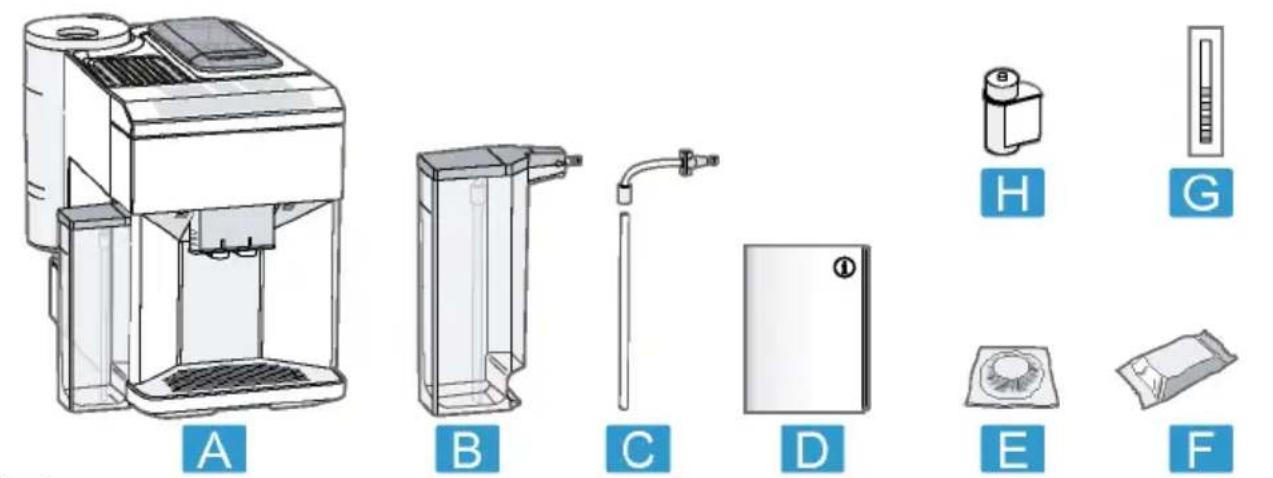
Scope of supply
After unpacking all parts, check for any damage in transit and completeness of the delivery.
→ Fig. 1
| A | Fully automatic coffee machine |
| B | Milk container |
| C | Milk tube and suction pipe |
| D | Instruction manual |
| E | Cleaning tablets ^1 |
| F | Descaling tablets ^1 |
| G | Water hardness testing strip |
| H | Water filter ^1 |
^1 Depending on the appliance specifications
Installing and connecting the appliance
ATTENTION!
Risk of damage to the appliance. If the appliance is not started up correctly, it may be damaged.
▶ Use the appliance in frost-free rooms only.
▶ If the appliance has been transported or stored below 0 °C, wait 3 hours at room temperature before starting it up.
▶ After plugging in, always wait approx. 5 seconds.
-
Remove the protective film.
-
Place the appliance on a level, water-resistant surface that is capable of bearing its weight.
- Using the mains plug, connect the appliance to an earthed socket that has been correctly installed.
Familiarising yourself with your appliance
Familiarise yourself with the parts of your appliance.
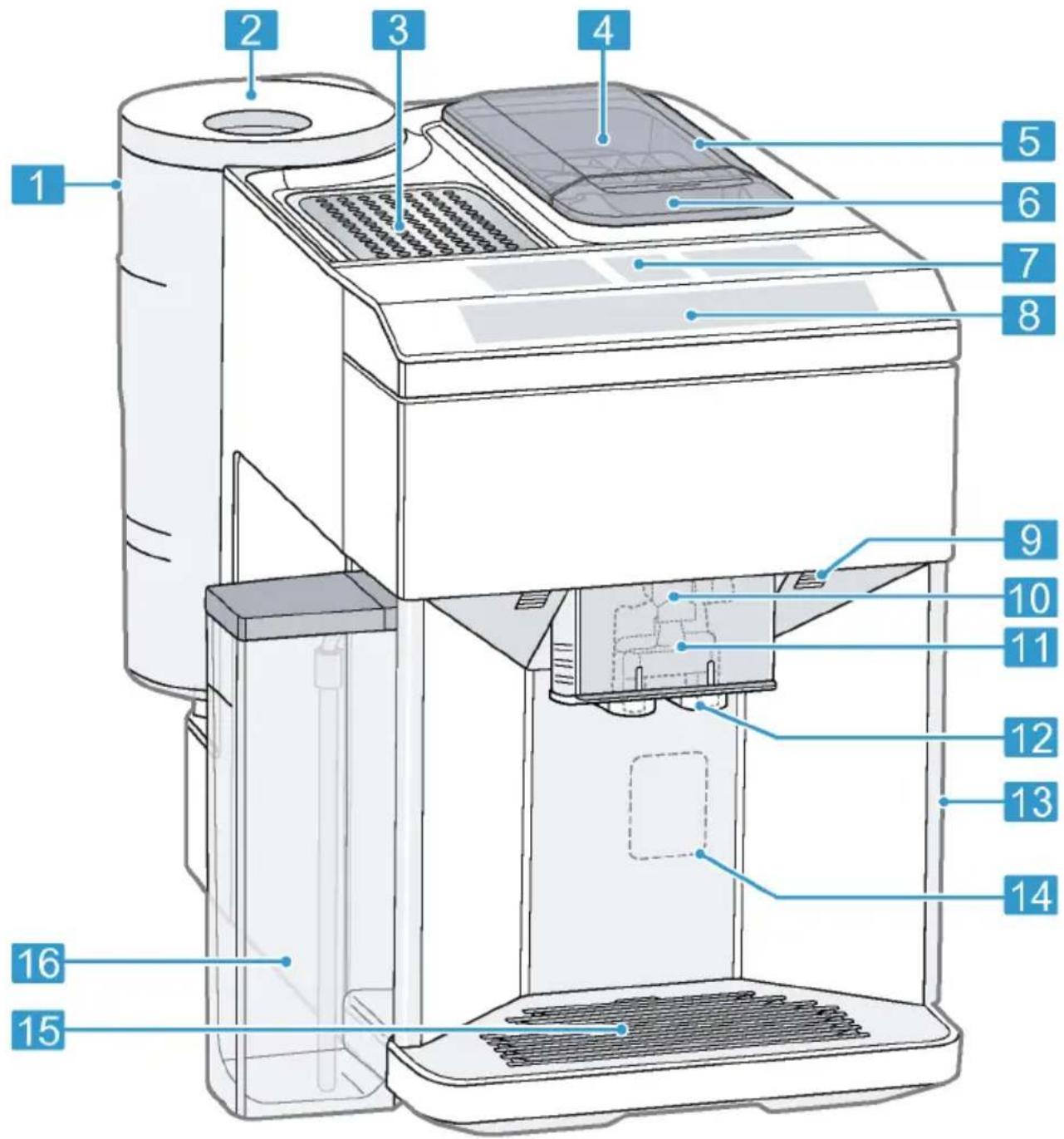
Appliance
You can find an overview of the parts of your appliance here.
Note: Individual details and colours may differ, depending on the appliance model.
→ Fig. 2
| 1 | Water tank |
| 2 | Cover for water tank |
| 3 | Cup heater |
| 4 | Aroma lid |
| 5 | Bean container |
| 6 | Ground coffee compartment |
| 7 | Display |
| 8 | Control panel |
| 10 | Cover |
| 11 | Milk system |
| 12 | Outlet system |
| 13 | Brewing chamber door |
| 14 | Rating plate |
| 15 | Drip tray |
| 16 | Milk container |
Controls
Here you can find an overview of the symbols on your appliance. Press the symbols to make a selection, start the dispensing process or make/adjust a setting.
| Symbol Explanation | |
| ➊ | Switch appliance on/off |
| menu➎ | Open menu/leave menuNote: The menu buttons are only visible when the menu is open. |
| ^ | Navigate upwards in the menu |
| √ | Navigate downwards in the menu |
| ok | Confirm/save in the menu |
| ➌ | Go back in the menu |
| ➇ | WLAN |
| ➁ | Dispense two cups |
| ➽ | Select coffee strength |
| ml | Adjusting the amount |
| startstop | Start/stop |
Display
The display shows the selected drinks, settings and setting options, as well as messages about the appliance's operating status.
The display shows additional information and action steps. The information is hidden after a short period, or by pressing a button. The action steps are hidden when they have been completed.
Drinks overview
You can prepare a wide range of different drinks with your appliance.
Quick selection
| Symbol | Designation | Explanation | Category |
 | Espresso | Concentrated coffee. Best served in small, thick-walled cups. Preheat cups with hot water. | → "Dispensing a coffee drink made from fresh beans", Page 18→ "Dispensing a coffee drink made from ground coffee", Page 18 |
 | Caffe crema | Coffee with a crema layer or large cup of coffee prepared using espresso method. | → "Dispensing a coffee drink made from fresh beans", Page 18→ "Dispensing a coffee drink made from ground coffee", Page 18 |
 | Cappuccino | Espresso with frothed milk. Best served in small cups. | → "Dispensing coffee drink with milk", Page 19 |
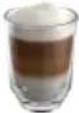 | LatteMacchiato | Coffee speciality with three layers: warm milk at the bottom, espresso in the middle, and milk froth on top. Best served in a glass. | → "Dispensing coffee drink with milk", Page 19 |
 | Special drinks | Dispense other drinks. | → "Dispensing special drinks", Page 20 |
Special drinks
| Symbol | Designation | Explanation | Category |
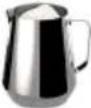 | Milk froth | For preparing speciality white coffees. | → "Dispensing milk froth", Page 20 |
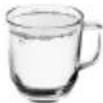 | Hot water | For preparing hot drinks, e.g. tea, or to preheat cups. | → "Dispensing hot water", Page 20 |
Note: If the appliance is connected to Home Connect, you can select and adjust additional drinks from "coffee-World" in the Home Connect app. The display will show the last drink selected from "coffeeWorld". You can adjust the drink and dispense it via the appliance.
Accessories
Only use original accessories. These have been made especially for your appliance. Here, you can find an overview of your appliance's accessories.
| Accessories Retail Customer Service | |
| Cleaning tablets TZ80001N 00311807 | |
| Descaling tablets TZ80002N 00576693 | |
| Water filter TZ70003 00575491 | |
| Water filter pack of 3 TZ70033 - | |
| Microfibre cloth - 00460770 | |
| Care set TZ80004 00576330 | |
Before using for the first time
Configure the basic settings. Clean the appliance and individual parts.
Perform the initial start-up
After connecting the appliance to the power supply, you must configure the settings for its initial start-up. The automatic display for the language selection, water hardness selection and connection to Home Connect only appears when the appliance is switched on for the first time.
Fill the water tank
Fill the water tank each day with fresh, cold, non-carbonated water.
- Open the lid.
- Remove the water tank using the recessed grip.
- Rinse the water tank.
-
If there is a water filter, insert the water filter. → "Insert water filter", Page 22
-
Fill the water tank up to the "max" mark.
-
Insert the water tank into the holder, keeping it upright.
- Close the lid.
Fill coffee bean container
ATTENTION!
Unsuitable beans can block up the grinder.
▶ Only use pure, roasted bean mixes that are suitable for use in fully automatic coffee or espresso machines.
▶ Do not use glazed coffee beans.
- Do not use caramelised coffee beans.
- Do not use coffee beans that have been treated with additives containing sugar.
▶ Do not add ground coffee.
- Open the lid.
- Fill with the coffee beans.
The appliance will adjust to the coffee beans with the next dispensing process. - Close the lid.
en Before using for the first time
Tip: To keep the coffee beans at their best, store them in a sealed container in a cool place.
You can keep the coffee beans in the bean container for a number of days without them losing their aroma.
Setting the language
- Press ☐ to switch the appliance on.
√ The display will show the language that is preset. - Press /or until the display shows the desired language.
- Press ok
Tip: You can change the language at any time.
→ "Overview of the basic settings", Page 27
Setting the water hardness
It is important to set the water hardness correctly, so that the appliance indicates in good time that it needs descaling. You can use the enclosed test strip to determine the water hardness, or ask your local water company.
- Briefly dip the test strip in fresh tap water.
- Allow the water to drip off the test strip.
√ The test strip will indicate the water hardness after 1 minute.
3. If a water softening system is installed in your house, select "Softening system".
4. Press until the display shows the desired water hardness. The table shows the allocation of the levels to the different degrees of water hardness:
| Level German degrees in °dH | Total hardness in (mmol/l) |
| 1 1-7 0.18 - 1.25 | |
| 2 8-14 1.42 - 2.49 | |
| 3 15-21 2.67 - 3.74 | |
| 4^1 | 22-30 3.92 - 5.34 |
^1 Factory setting (may vary according to model)
- Press ok
- Check whether the bean container has been filled.
- Press ok
√ The appliance now rinses itself.
√ When the symbols for drink selection and the buttons light up on the operating panel, the appliance is ready for use.
Tip: You can change the water hardness at any time.
→ "Overview of the basic settings", Page 27
Connecting Home Connect
You can now connect your appliance with the WLAN home network.
- Use or to select "Install now?"
Press OK" and press ok
If you want to connect the appliance to the WLAN home network later on, use √ or to select "Install later? Press ←" and press ok
- Read section "Home Connect" and proceed accordingly.
→ "Home Connect ", Page 23
Tip: You can connect the appliance to a mobile device or disconnect it at any time.
→ "Overview of Home Connect settings", Page 25
General information
Please bear this information in mind so that you can get the best out of your appliance.
Notes
■ The appliance has been programmed at the factory with standard settings for optimum operation.
■ The grinder has been factory-set for optimum operation. If coffee is only dispensed drop by drop or is too thin with too little crema, you can adjust the grinding level when the grinder is running.
→ "Adjusting the grinding level", Page 22
■ The appliance will switch off automatically if it has not been operated for a given period of time. You can change the duration in the basic settings.
→ "Overview of the basic settings", Page 27
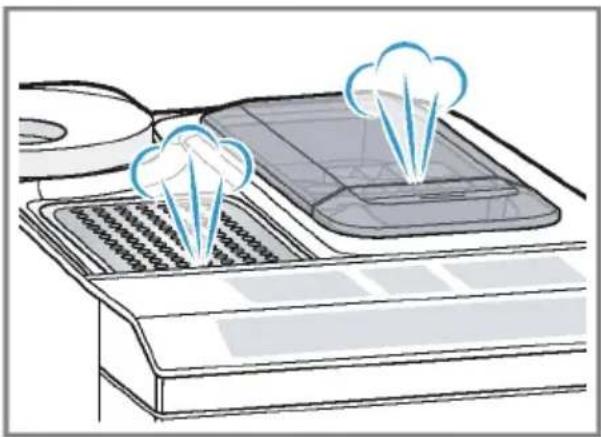
■ Water droplets may form on the ventilation slits and the lid of the ground coffee compartment while the appliance is in use.
■ For technical reasons steam can escape from the appliance.
natural_image
Illustration of a kitchen appliance with two cloud-shaped appliances above a grater (no text or symbols)Tips
■ You can switch off the button tones in the basic settings.
→ "Overview of the basic settings", Page 27
■ When you use your appliance for the first time or run a service programme, or if your appliance has not been used for a prolonged period, the first drink will not have its full aroma and should not be consumed.
■ Once you have started up your appliance and made a few cups, you will then achieve a thick, fine-pored crema every time.
Basic operation
You can find out everything you need to know about operating your appli-ance here.
Switching the appliance on and off
▶ Turn the appliance on or off by pressing ⏻.
When the appliance switches itself on, the display shows the Siemens logo. When the appliance is turned on or off it rinses itself automatically. During the rinsing process, the display shows a drop. If the appliance is still warm when switched on, or if no drink was dispensed before it was switched off, the appliance doesn't rinse itself.
Dispensing drinks
Learn how to prepare a drink of your choice.
WARNING
Risk of scalding!
Freshly prepared drinks are very hot.
Leave drinks to cool down if necessary.
▶ Do not let escaping liquids or steam come into contact with your skin.
en Basic operation
Tips
■ You can directly select the drink you want using the quick-selection buttons. The display shows you the drink and the current settings.
- Your appliance has other drinks besides the ones that you can obtain via the quick-selection buttons. "Dispensing special drinks", Page 20
■ You can adapt your drink to your personal taste.
→ "Drink settings", Page 21
■ You can use the cup heater to preheat your cups.
→ "Cup heater", Page 23
Notes
■ If you do not change any settings for approx. 5 seconds, the appliance will exit settings mode. The settings will be automatically saved.
■ With a number of settings your coffee is prepared in several steps. Wait until the process is fully completed.
Dispensing a coffee drink made from fresh beans
- Place your pre-warmed cup under the outlet system.
-
Press the drinks symbol for a coffee drink without milk.
√ The display will show the drink and your current settings.
→ "Drink settings", Page 21 -
Change the settings where necessary:
-
Use mb adjust the amount.
→ "Adjusting the amount", Page 21 -
Use to adjust the coffee strength. → "Adjusting the coffee strength", Page 21
-
Press start stop
The coffee beans are freshly ground for each brewing process.
√ The coffee is brewed and then dispensed into the cup.
Tips
■ You can press start to stop the dispensing process prematurely.
■ Find out how to make coffee drinks with milk.
→ "Dispensing drinks with milk", Page 19
Dispensing a coffee drink made from ground coffee
ATTENTION!
The ground coffee compartment can become blocked.
▶ Do not use coffee beans.
▶ Do not use instant coffee.
▶ Use a soft brush to gently direct the ground coffee residue into the shaft.
Note
When using ground coffee, the following selections are not available:
■ Two cups at once
■ Coffee strength
■ "doubleshot"
-
Place your pre-warmed cup under the outlet system.
-
Press the symbol for your desired drink.
-
Press @peatedly until the display shows "Gr. coffee".
-
Open the ground coffee compartment.
-
Add a maximum of 2 level tea-spoons of ground coffee, max. 12 g.
-
Close the ground coffee compartment.
-
Press start stop
√ The coffee is brewed and then dispensed into the cup.
Tips
■ You can press start stop to stop the dispensing process prematurely.
■ If you would like another drink with ground coffee, repeat the process.
■ Always add the ground coffee just before making the drink.
Dispensing drinks with milk
You can use your appliance to dispense coffee drinks with milk and milk froth.
Tip: You can also use plant-based alternatives to milk, e.g. soya milk.
Note: The quality of the milk froth depends on the type of milk or plant-based alternative used.

WARNING
Risk of burns!
The milk system can become extremely hot.
▶ Never touch the milk system when it is hot.
- Allow the hot milk system to cool down before touching it.
ATTENTION!
Milk residues can dry on surfaces and are difficult to remove.
- Clean the milk system after every use.
→ "Cleaning the milk system", Page 31
Using the milk container
The milk container has been specially developed for this appliance. Only use the milk container in the household and for storing milk in the refrigerator.
Note
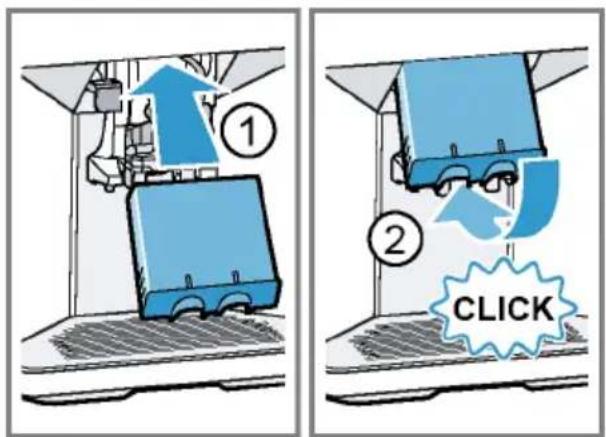
You can only connect the milk container if the milk system is installed in the outlet system with the adapter and tube.
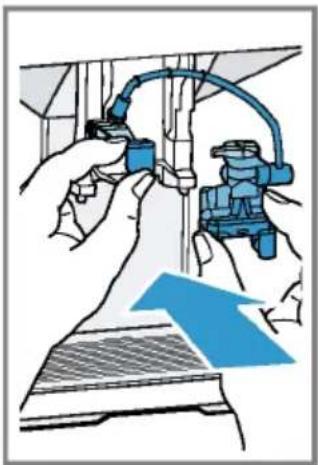
natural_image
Illustration of hands installing or adjusting a blue cable or connector component (no text or symbols visible)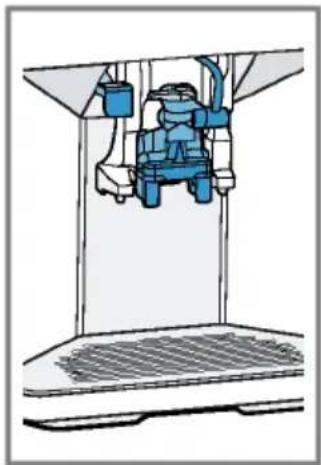
natural_image
Illustration of a blue industrial machine with attached piping and control panel (no text or symbols)- Open the lid.
- Pour in the milk.
- Close the lid.
- Insert the milk container on the left of the appliance.
√ The milk container will click into place.
Tip
Fold open the lid of the milk container, so more milk can be poured in while the drink is being dispensed.
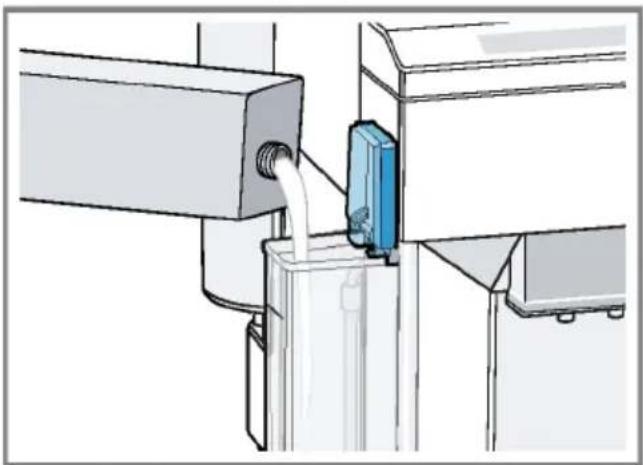
natural_image
Technical illustration of a mechanical assembly with a blue component inserted into a pipe (no text or symbols visible)Dispensing coffee drink with milk
Requirements
■ The milk container has been connected.
■ The milk container has been filled with milk.
1. Place your pre-warmed cup under the outlet system.
en Basic operation
- Press the symbol for a coffee drink with milk.
√ The display will show the drink and your current settings.
→ "Drink settings", Page 21
- Change the settings where necessary:
- Use ml to adjust the amount.
→ "Adjusting the amount", Page 21
- Use to adjust the coffee strength.
→ "Adjusting the coffee strength", Page 21
- Use the ground coffee compartment.
→ "Dispensing a coffee drink made from ground coffee", Page 18
- Press start stop and wait until the process is complete.
After preparing the drink, the milk system will automatically clean itself with a short jet of steam.
Tip: If you want to stop the dispensing process early, press start stop. If you want to stop the dispensing process altogether, press ⏻.
Dispensing special drinks
Your appliance has other drinks besides the ones that you can obtain via the quick-selection buttons.
▶ Press ⚫ several times.
→ "Drinks overview", Page 14
Dispensing milk froth
WARNING
Risk of burns!
The milk system can become extremely hot.
▶ Never touch the milk system when it is hot.
- Allow the hot milk system to cool down before touching it.
Requirements
■ The milk container has been connected.
■ The milk container has been filled with milk.
- Place your pre-warmed cup under the outlet system.
- Press 📋 repeatedly until the display shows "Milk froth".
- Change the setting if necessary:
- Use ml to adjust the amount. → "Adjusting the amount", Page 21
- Press start stop.
√ The milk froth will run out of the outlet system.
5. Press start stop to stop the dispensing process.
Dispensing hot water
WARNING
Risk of burns!
The milk system can become extremely hot.
▶ Never touch the milk system when it is hot.
- Allow the hot milk system to cool down before touching it.
Note: If the milk system has not been cleaned, small amounts of milk may be dispensed with the water.
Requirement: The milk system has been cleaned.
→ "Cleaning the milk system", Page 31.
- Place your pre-warmed cup under the outlet system.
- Press 📋 repeatedly until the display shows "Hot water".
- Change the setting if necessary:
- Use mb adjust the amount. → "Adjusting the amount", Page 21
- Press start stop
√ Hot water will run out of the outlet system.
5. Press start to stop the dispensing process.
Drink settings
Prepare a drink according to your taste.
Adjusting the coffee strength
- Press the symbol for your desired drink.
- To select the strength of the coffee, press 🔒
You can select the following coffee strengths: - "mild"
- "regular"
- "strong"
- "very strong"
- "doubleshot"
Note: The setting "doubleshot" is not available for every drink and drink volume.
Tip: For a strong taste of coffee, select a high coffee strength when setting a large capacity.
Selecting ground coffee
- Press the symbol for your desired drink.
- Press @ repeatedly until the display shows "Gr. coffee".
→ "Dispensing a coffee drink made from ground coffee", Page 18
AromaDouble Shot
You can make your coffee extra strong by using the setting "doubleshot".
The longer coffee is brewed, the more bitter substances and undesirable aromas are released. These bitter substances and undesirable aromas affect the taste and digestibility of the coffee. To ensure that only pleasant-tasting and easily digestible aromatic substances are released, fresh coffee beans are ground and brewed when half the quantity has been prepared.
Note: The setting "doubleshot" is not available for every drink and drink volume.
Adjusting the amount
- Press the symbol for your desired drink.
- Press m ^e peatedly until the desired volume is shown on the display.
Dispensing two cups at once
Depending on the appliance model, you can make two cups at the same time for certain drinks.
Note
The "Double cup" function is not available for the following selections:
■ "Gr. coffee"
■ "doubleshot"
■ Volume smaller than 35 ml
-
Press the symbol for your desired drink.
-
Press
√ The setting is shown on the display.
-
Place two cups on the left and right under the outlet system.
-
Press start stop
The drink is prepared in 2 steps. The beans are ground in 2 grinding operations.
√ The drink is brewed and then runs into the cup.
- Wait until the process is completed.
Grinder
Your appliance has an adjustable grinder, which you can use to customise the grinding level of your coffee beans.
Adjusting the grinding level
Set the desired grinding level while the coffee beans are being ground.
WARNING Risk of injury!
The grinder rotates.
▶ Never reach into the grinder.
ATTENTION!
Risk of damage to the grinder. The grinder may be damaged if the grinding level is not set properly.
▶ Only set the grinding level when the grinder is running.
- Select the grinding level using the rotary selector step by step.
| Grinding level | Setting |
| Fine grinding level for dark-roasted beans. | Turn rotary selector counter-clockwise. |
| Coarse grinding level for light-roasted beans. | Turn rotary selector clockwise. |
The setting only has an effect after the second cup of coffee.
Tip: If the coffee is only dispensed drop by drop, set a coarser grinding level.
If the coffee is too thin with too little crema, set a finer grinding level.
Water filter
You can use a water filter to minimize limescale deposits and reduce impurities in the water.
Insert water filter
ATTENTION!
Possible damage to the appliance due to limescale build-up.
▶ Change the water filter in good time.
▶ Change the water filter after 2 months at the latest.
Note: If "Replace water filter" is shown on the display, replace the water filter. If you are not inserting a new filter, select "No filter" and follow the instructions on the display.
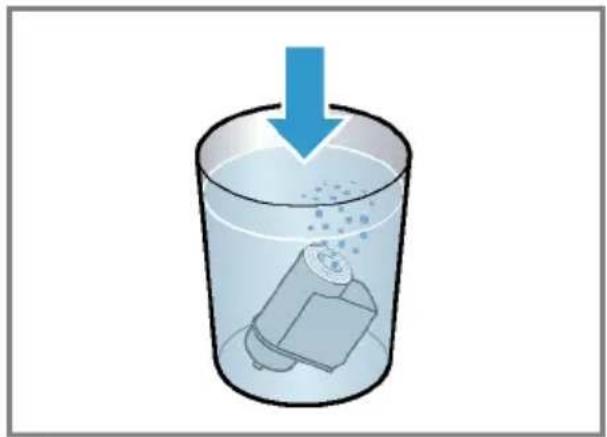
- Immerse the water filter in a glass of water until the air escapes. → Fig. 3
- Press menu.
- Press ∨ or ∧"Water filter" and ok.
- Use √ or ∧ to select "New filter" or "Replace water filter" and press ok.
- Note: If you are not inserting a new filter, select "No filter" in the menu settings.
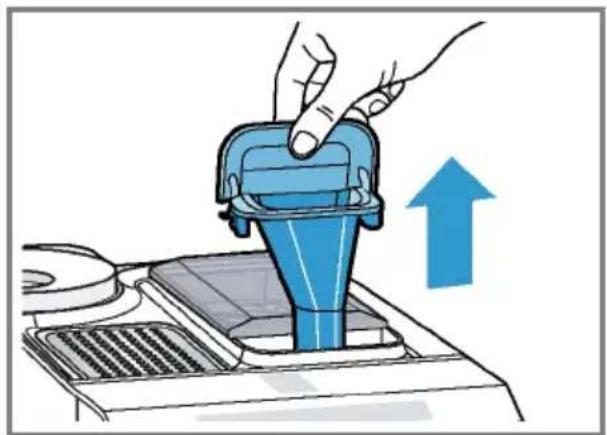
Push the water filter firmly into the water tank and press ok. → Fig. 4
-
Fill the water tank up to the "max" mark and press ok.
-
Remove the milk container on the left of the appliance.
-
Place a container with a capacity of 1 litre under the outlet system and press ok.
√ The filter will be rinsed and the following message displayed: "Rinsing complete.".
√ The appliance is ready to use.
Tips
■ You should also change your water filter for reasons of hygiene.
■ With a water filter you need to de-scale your appliance less frequently.
■ If your appliance has not been used for a long period, for example if you were on holiday, you should rinse the water filter before use by dispensing a cup of hot water.
■ The water filter can be purchased from retailers or Customer Service. → "Accessories", Page 15
- Learn how to insert the water filter. → "Insert water filter", Page 22
Childproof lock
You can lock the appliance, to protect children against scalding and burns.
Activating the childproof lock
- Press and hold ml for at least 3 seconds.
√ The following message will be displayed: "Child lock active. To deactivate press "ml" for 3 sec".
Deactivating the childproof lock
▶ Press and hold ml for at least 3 seconds.
√ The following message will be displayed: "Child lock deactivated.".
Cup heater
You can use the cup heater to pre-heat your cups.
WARNING Risk of burns!
The cup heater can become very hot.
▶ Never touch the cup heater when it is hot.
- Allow the hot cup heater to cool down before touching it.
Tips
■ You can activate and deactivate the cup heater in the basic settings.
→ "Overview of the basic settings", Page 27
■ Place the cups with their base on the cup heater to heat the cups perfectly.
Home Connect
This appliance is network-capable. Connecting your appliance to a mobile device lets you control its functions via the Home Connect app, adjust its basic settings and monitor its operating status.
Home Connect services are not available in every country. The availability of the Home Connect function depends on the availability of Home Connect services in your country. You can find information about this at: www.homeconnect.com.
To be able to use Home Connect, you must first set up the connection to the WLAN home network (Wi-Fi ^1 ) and to the Home Connect app.
There are various ways to connect to your home network, depending on the features of your appliance:
■ → "Connecting appliance to WLAN home network (Wi-Fi) with WPS function", Page 24
■ → "Connecting appliance to WLAN home network (Wi-Fi) without WPS function", Page 24
en Home Connect
The Home Connect app will guide you through the entire login process. Follow the instructions in the Home Connect app to configure the settings.
Tips
■ Please consult the Home Connect documents supplied.
■ Please also follow the instructions in the Home Connect app.
Notes
■ Please note the safety precautions in this instruction manual and make sure that they are also observed when operating the appliance via the Home Connect app.
→ "Safety", Page 8
■ Operating the appliance on the appliance itself always takes priority. During this time it is not possible to operate the appliance using the Home Connect app.
Connecting appliance to WLAN home network (Wi-Fi) with WPS function
Using your router's WPS function is the simplest way of connecting the appliance to your home network.
Requirement: Your router has a WPS button. You will find information about this in the manual for your router.
- Press menu
- Use or to select "Home Connect" and press ok
- Use of to select "Switch on Wi-Fi" and press ok
- Use or to select "Connect" and press ok
-
Use of to select "autoConnect" and press ok
√ The appliance starts the connection process. -
Press the WPS button on the router within the next 2 minutes.
If "Network connection successful." is shown on the display, the connection process is complete.
Connecting appliance to WLAN home network (Wi-Fi) without WPS function
The appliance briefly sets up its own "Home Connect" network so the mobile device can connect to it. This connection transfers the network information of your home network to the appliance.
- Press menu
- Use of to select "Home Connect" and press ok
- Use of to select "Switch on Wi-Fi" and press ok
- Use or to select "Connect" and press ok
- Use or to select "Connect manually" and press ok
√ The display shows the WLAN network SSID and the WLAN password key of the fully automatic coffee machine. - Connect the mobile device to the "HomeConnect" WLAN network SSID using the WLAN password key "HomeConnect".
- Follow the instructions in the "Home Connect" app.
√ If "Network connection successful." is shown on the display, the connection process is complete.
Connecting appliance to Home Connect app
When setting up Home Connect, connect your appliance to the Home Connect app or to an additional Home Connect account.
Requirements
■ The appliance is connected to your home network.
■ The Home Connect app has been installed on your mobile device.
-
If you are not currently in the Home Connect settings, select "Home Connect" in the basic settings and press ok.
-
Use ∨ or ∧ to select "Connect to app" and press ok.
-
Follow the instructions in the Home Connect app.
√ If "Successfully connected to app" is shown on the display, the connection process is complete.
Remote start
You can start operation using your mobile device.
WARNING
Risk of scalding!
A remote start via the Home Connect app while the appliance is unattended may cause scalding to third parties.
▶ Do not reach under the coffee outlet during the dispensing of drinks.
- Keep other persons, in particular children, away from the appliance.
Notes
■ You can only start some modes on the fully automatic coffee machine itself.
■ If you start operation on the appliance itself, remote start is automatically activated.
Activating and deactivating remote start
Requirement: The appliance is connected to your home network and your mobile device.
- Press menu.
- Use √ or ∧ to select "Home Connect" and press ok.
- Use ∨ or ∧ to select "Remote start" and press ok.
- Use ∨ or ∧ to select "Remote start on" and press ok.
√ The display shows "Legal disclaimer".
- Read the text right through and press ok.
√ The display shows "On".
-
To deactivate remote start, press "Remote start" and ok again.
-
Use ∨ or ∧ to select "Remote start off" and press ok.
√ The appliance saves the settings.
Home Connect settings
Adapt Home Connect to your needs. You can find the Home Connect settings in the basic settings for your appliance. Which settings the display shows will depend on whether Home Connect has been set up and whether the appliance is connected to your home network.
Overview of Home Connect settings
Here you can find an overview of "Home Connect" settings and network settings.
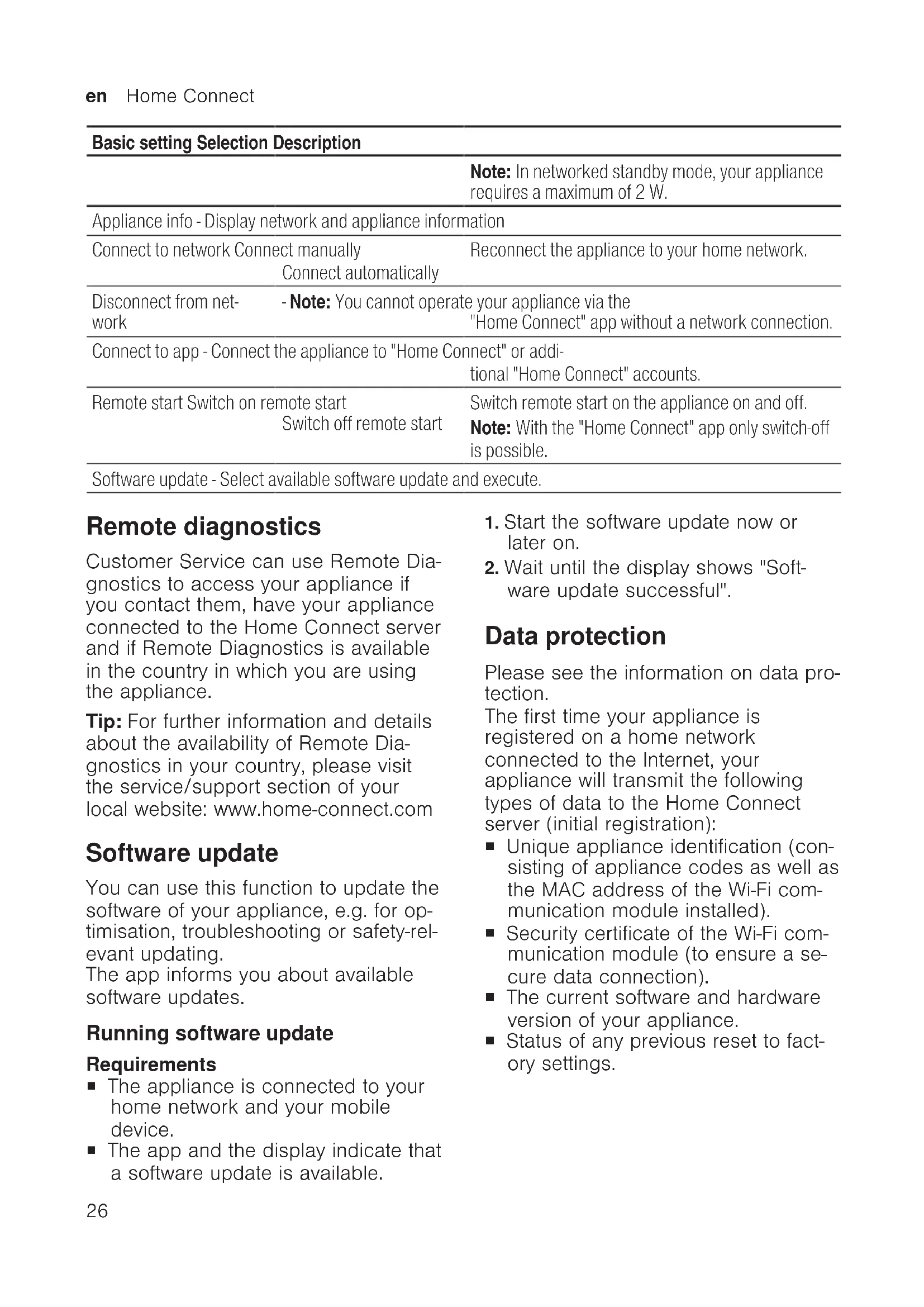
| Basic setting | Selection | Description |
| Wi-Fi | On | Switch off the wireless module with prolonged ab-sence or to save energy. |
| Off | ||
| Basic setting Selection Description | ||
| Note: In networked standby mode, your appliance requires a maximum of 2 W. | ||
| Appliance info - Display network and appliance information | ||
| Connect to network Connect manually Connect automatically | Reconnect the appliance to your home network. | |
| Disconnect from net-work | - Note: You cannot operate your appliance via the "Home Connect" app without a network connection. | |
| Connect to app - Connect the appliance to "Home Connect" or additional "Home Connect" accounts. | ||
| Remote start Switch on remote start Switch off remote start | Switch remote start on the appliance on and off. Note: With the "Home Connect" app only switch-off is possible. | |
| Software update - Select available software update and execute. | ||
Remote diagnostics
Customer Service can use Remote Diagnostics to access your appliance if you contact them, have your appliance connected to the Home Connect server and if Remote Diagnostics is available in the country in which you are using the appliance.
Tip: For further information and details about the availability of Remote Diagnostics in your country, please visit the service/support section of your local website: www.home-connect.com
Software update
You can use this function to update the software of your appliance, e.g. for optimisation, troubleshooting or safety-relevant updating.
The app informs you about available software updates.
Running software update
Requirements
■ The appliance is connected to your home network and your mobile device.
■ The app and the display indicate that a software update is available.
- Start the software update now or later on.
- Wait until the display shows "Software update successful".
Data protection
Please see the information on data protection.
The first time your appliance is registered on a home network connected to the Internet, your appliance will transmit the following types of data to the Home Connect server (initial registration):
■ Unique appliance identification (consisting of appliance codes as well as the MAC address of the Wi-Fi communication module installed).
■ Security certificate of the Wi-Fi communication module (to ensure a secure data connection).
■ The current software and hardware version of your appliance.
■ Status of any previous reset to factory settings.
This initial registration prepares the Home Connect functions for use and is only required when you want to use the Home Connect functions for the first time.
Note: Please note that the Home Connect functions can only be utilised with the Home Connect app. Information on data protection can be retrieved in the Home Connect app.
Declaration of Conformity
BSH Hausgeräte GmbH hereby declares that the appliance with Home Connect functionality meets the essen-
tial requirements and other relevant provisions of the Directive 2014/53/EU.
A detailed RED Declaration of Conformity can be found online at www.siemens-home.bsh-group.com among the additional documents on the product page for your appliance.

2.4 GHz band: 100 mW max.
5 GHz band: 100 mW max.

BE BG CZ DK DE EE IE EL
ES FR HR IT CY LV LT LU
HU MT NL AT PL PT RO SI
SK FI SE UK NO CH TR
5 GHz WLAN (Wi-Fi): For indoor use only.
Basic settings
You can configure your appliance to meet your needs and call up additional functions.
Overview of the basic settings
| Setting Selection Description | ||
| Cleaning and care Milk system | Start service programme.→ "Service programmes",Page 32 | |
| Descale | ||
| Clean | ||
| calc'nClean | ||
| Cup warmer1 | Cup warmer off2 | Switch cup heater on or off.→ "Cup heater", Page 23 |
| Cup warmer on | ||
| Water filter New filter | Set use of the water filter. | |
| No filter | ||
| 1 Depending on the appliance specifications | ||
| 2 Factory setting (may vary according to model) | ||
| Coffee temp. normal | highmax. | Set the temperature for coffee drinks.Note: The setting is effective for all preparation types. |
| Languages See options on the appliance. Set menu language. | Changes are immediately displayed. | |
| Autom. switch-off See options on the appliance. Set how long the appliance should wait after preparing the last drink before automatically switching itself off. | ||
| Water hardness 1 (soft) | 2 (medium)3 (hard) 4 (very hard)^2 Water-softening system | Set the appliance to the local water hardness. "Setting the water hardness", Page 16 |
| Key tones Key tones on | ^2 Key tones off | Switch the button tones on or off. |
| Factory settings Full reset? | Continue: OKCancel: ← | Restore settings to the factory settings.Note: All individual settings will be deleted and reset to the factory settings. |
| Home Connect The selection depends on the network status and whether the appliance is connected to "Home Connect". | Select settings for "Home Connect". "Overview of Home Connect settings", Page 25 | |
^1 Depending on the appliance specifications
^2 Factory setting (may vary according to model)
Changing the basic settings
- Press menu
- Use of to select the desired basic setting and press ok
√ The display will show the setting options and the navigation symbols will light up. The display indicates the current setting.
- Use of to make the desired selection and press ok
√ The setting is now saved. -
Use to go back.
-
Press menu to exit the menu.
Cleaning and servicing
To keep your appliance working efficiently for a long time, it is important to clean and maintain it carefully.
Dishwasher-safe components
Find out which components can be cleaned in the dishwasher.
ATTENTION!
Some components are sensitive to heat and may be damaged if they are cleaned in a dishwasher.
▶ Follow the operating instructions of the dishwasher.
▶ Only put dishwasher-safe components in the dishwasher.
▶ Only use programmes that do not heat the water above 60 °C.
Dishwasher-safe components:

■ Drip tray
- Drip plate
- Drip grate
- Coffee dregs container
- Mechanical fill level indicator
■ Milk system with adapter
■ Ground coffee compartment with hinged lid
■ Milk container with lid
Not dishwasher-safe:

■ Water tank
■ Water tank lid
■ Aroma lid
■ Brewing unit
■ Beverage dispenser cover
Cleaning agent
Find out which cleaning agents are suitable for your appliance.
WARNING
Risk of serious harm to health!
Cleaning liquids may lead to health impairments.
▶ Never drink the cleaning liquids.
▶ Use descaling and cleaning agents as described in the instructions and observe the relevant safety information.
ATTENTION!
Unsuitable cleaning products may damage the surfaces of the appliance.
- Do not use harsh or abrasive detergents.
▶ Do not use cleaning agents containing alcohol or spirits. - Do not use hard scouring pads or cleaning sponges.
- Do not use citric acid, vinegar or any vinegar-based agents to descale the appliance.
▶ For cleaning and descaling, only use suitable tablets.
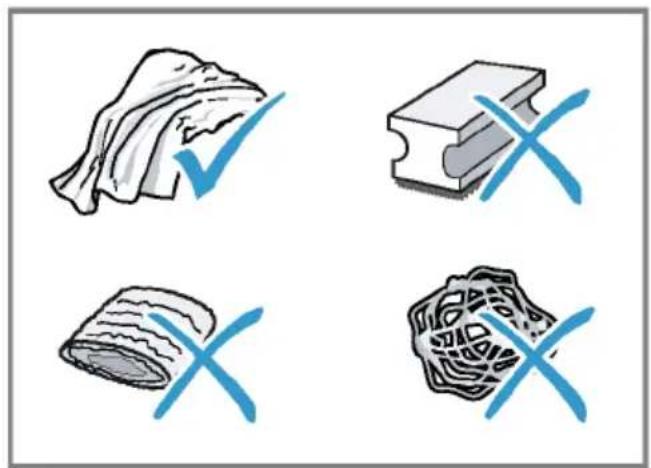
natural_image
Four hand-drawn icons showing different food items: rolled cheese, rectangular prism, rolled bread, and patterned cheese (no text or symbols)Tips
■ Use descaling and cleaning tablets that have been specially developed for your appliance. You can buy tablets from our customer service.
→ "Accessories", Page 15
■ Wash new sponge cloths thoroughly to remove any salt adhering to them. Salt can cause a rust film to develop on stainless steel surfaces.
■ Always remove any residues of limescale, coffee, milk, cleaning and descaling solutions immediately, to prevent the formation of corrosion.
Cleaning the appliance

WARNING
Risk of electric shock!
An ingress of moisture can cause an electric shock.
▶ Never immerse the appliance or the power cord in water.
▶ Liquids must not be spilled on the appliance plug connection.
- Do not use steam- or high-pressure cleaners to clean the appliance.

WARNING
Risk of burns!
Some parts of the appliance become very hot.
▶ Never touch hot appliance parts.
- Allow hot appliance parts to cool down before touching them.
- Disconnect the appliance from the mains.
- Clean the housing, the high-gloss surfaces and the control panel with a microfibre cloth. → "Accessories", Page 15
- Clean the outlet system with a soft, damp cloth after drinks have been dispensed.
- If the appliance has not been used for a long time, due to holiday for example, clean the entire appliance including the outlet system, milk system, trays and brewing unit.
Note: The appliance will rinse itself automatically if you switch it on when it is cold or switch it off after it has dispensed coffee. The system is therefore self-cleaning.
Cleaning the drip tray and coffee dregs container
Clean and empty the drip tray and coffee dregs container every day to prevent deposits.
- Open the door.
- Pull the drip tray and the coffee dregs container forwards and out.
- Remove and clean the drip plate.
- Empty and clean the drip tray and coffee dregs container.
- Clean the appliance interior and the drip tray holder.
6. Tip
If you press both brackets in, you can then remove the mechanical fill level indicator more easily.
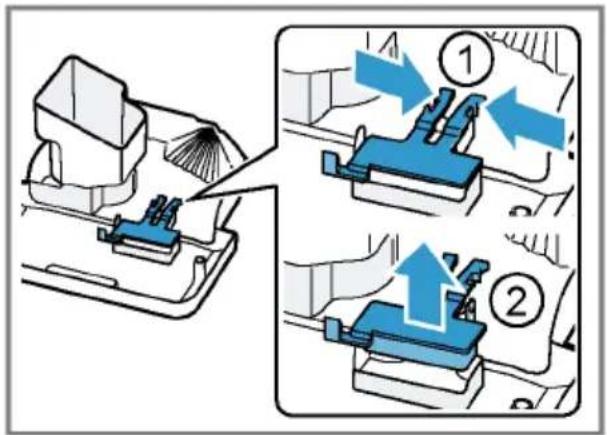
Remove the mechanical fill level indicator and clean with a damp cloth.
- Assemble the drip tray, drip plate, coffee dregs container and mechanical fill level indicator and insert in the appliance.
- Close the door.
Cleaning the ground coffee compartment
Tip: You can clean the ground coffee compartment in the dishwasher.
- Pull out the ground coffee compartment by the open lid.
- Clean the ground coffee compartment with washing-up liquid.
$$ \rightarrow \text { Fig. } ⑤ $$
$$ \rightarrow \text { Fig. } 6 $$
- Dry the ground coffee compartment and insert it into the appliance.
Cleaning the milk system
WARNING
Risk of burns!
The milk system can become extremely hot.
▶ Never touch the milk system when it is hot.
▶ Allow the hot milk system to cool down before touching it.
ATTENTION!
The appliance may be damaged by improper cleaning.
▶ Do not put the cover of the outlet system in the dishwasher.
Tips
■ If you want to give the milk system a particularly thorough clean, you can use the "Clean milk system" service programme.
→ "Using the milk system cleaning programme", Page 33
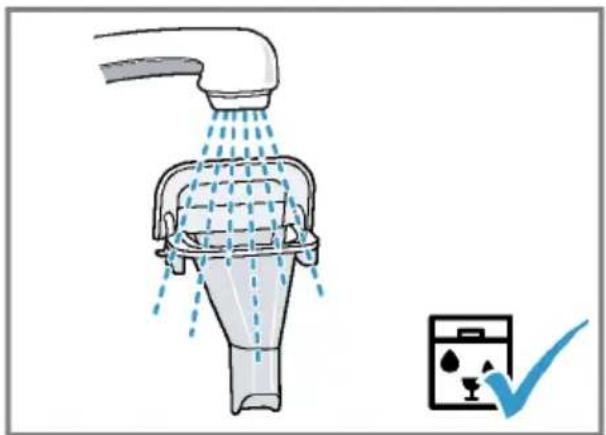
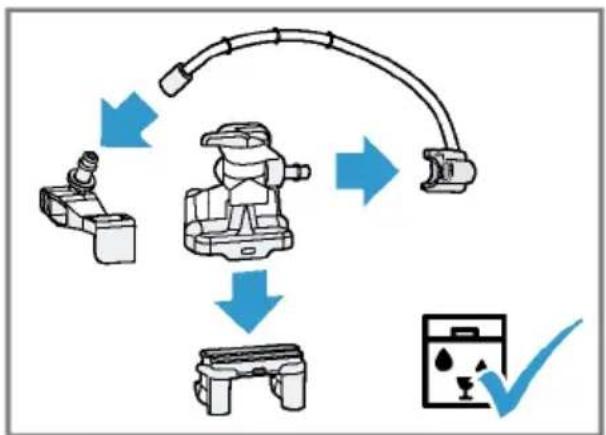
■ All of the milk system's components are dishwasher-safe.
- Find out how to clean the milk container.
→ "Cleaning the milk container", Page 31
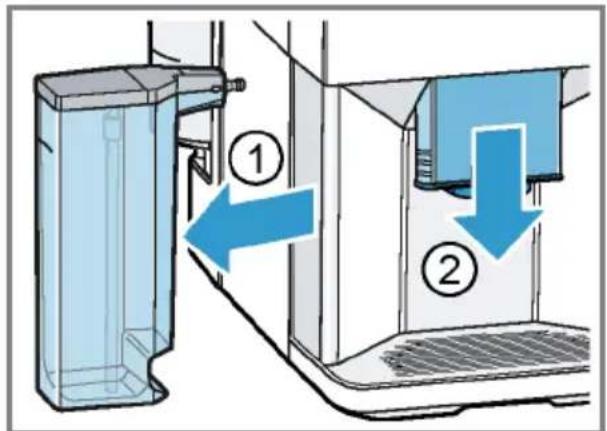
-
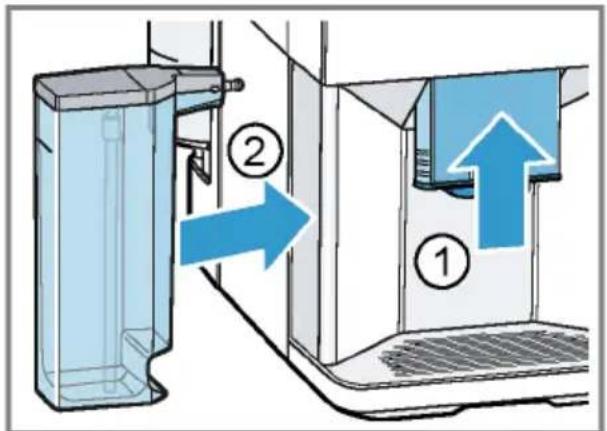
Remove the milk container from the appliance.
→ Fig. 7 -
Slide the outlet system right down.
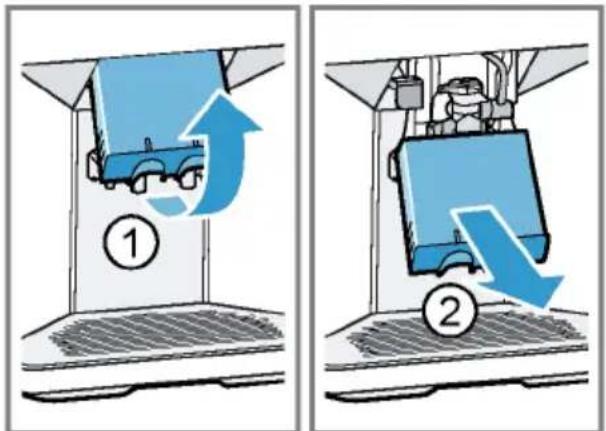
-
Hold the bottom of the cover and pull it forwards and out.
→ Fig. 8
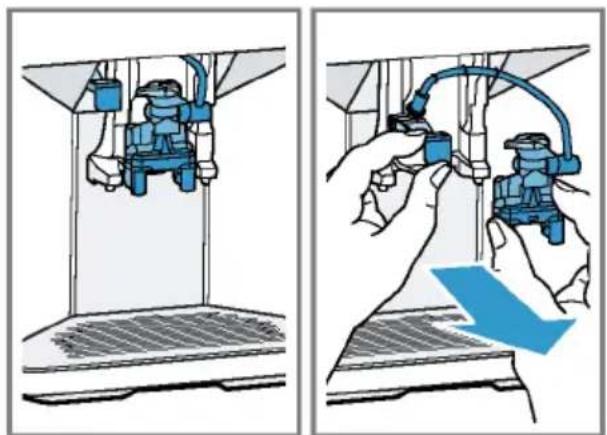
- Pull the white adapter and the milk system forwards and out.
→ Fig. 9
- Dismantle the milk system into its components.
→ Fig. 10
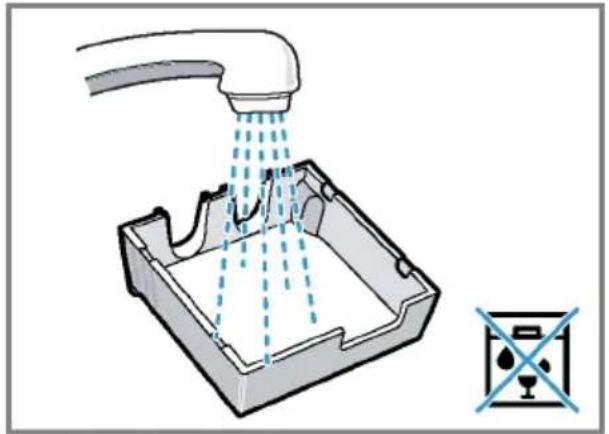
- Clean the components with detergent solution and a soft cloth.
→ Fig. 11
-
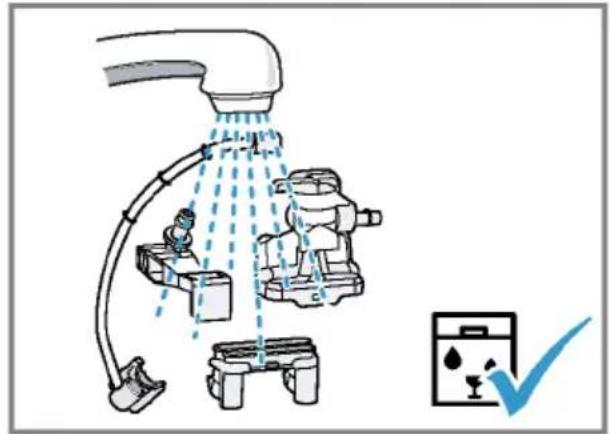
Rinse all components with clean water and dry.
→ Fig. 12 -
Any detergent residues in the milk system must be completely removed following the rinsing process.
-
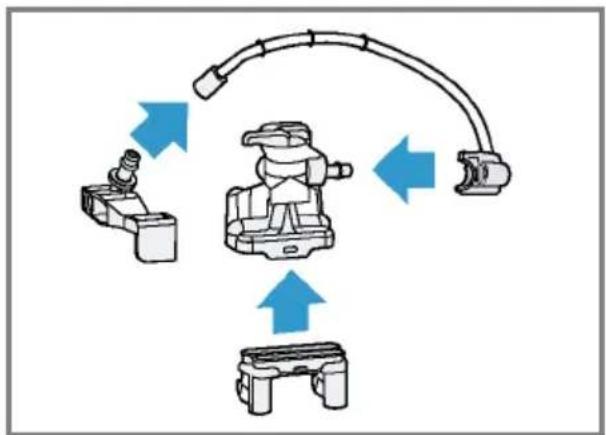
Assemble the milk system's components.
→ Fig. 13
-
Slide the outlet system right down.
-
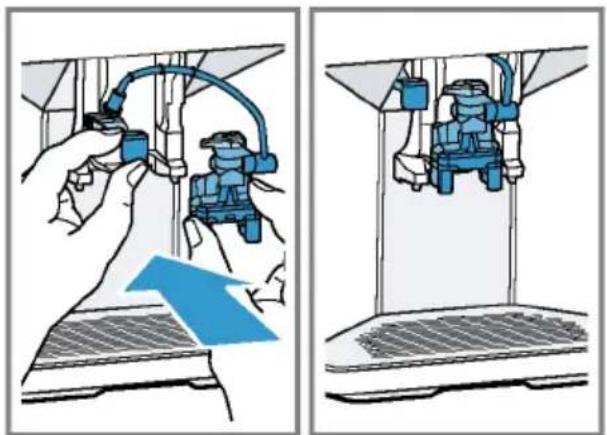
Slide the white adapter in on the left and insert the milk system into the appliance from the front, making sure it is straight.
→ Fig. 14
- Fasten the cover at the top and swivel it downwards.
→ Fig. 15
√ The cover will click into place.
- Slide the outlet system all the way up.
→ Fig. 16
- Clean and insert the milk container.
Cleaning the milk container
Clean the milk container regularly for reasons of hygiene. You can clean the milk container in the dishwasher.
-
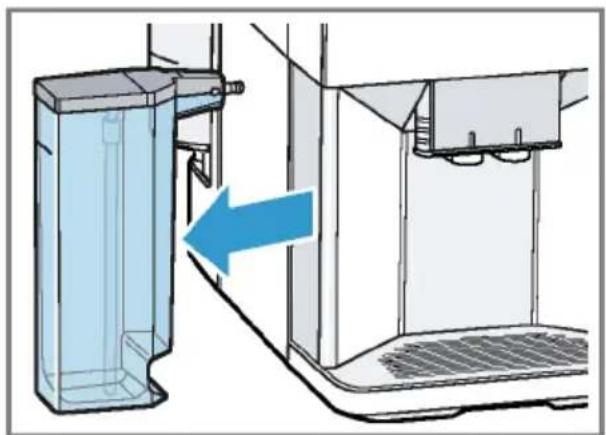
Remove the milk container.
→ Fig. 17 -
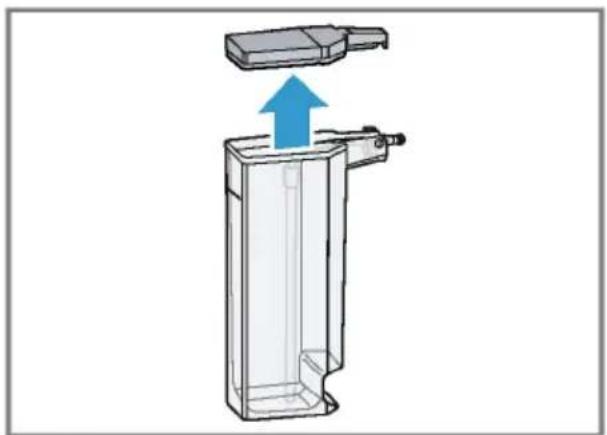
Remove the lid.
→ Fig. 18
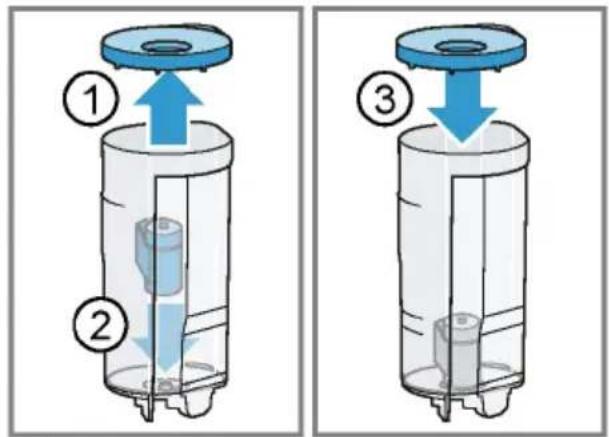
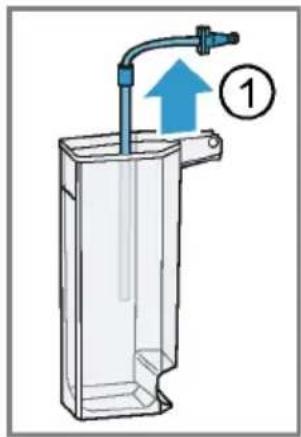
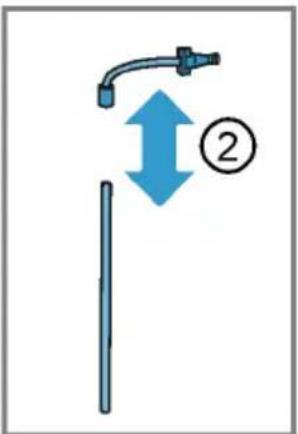
- Remove the milk tube and dismantle.
→ Fig. 19
-
Clean all the milk container's components.
-
Install all components.
Tip
Press the adapter piece firmly into the holder in the milk container.

natural_image
Technical illustration of a mechanical assembly with a blue component being inserted into a transparent housing (no text or symbols present)Cleaning brewing unit
In addition to the automatic rinsing process, regularly remove and clean the brewing unit.

WARNING
Risk of burns!
Some parts of the appliance become very hot.
▶ Never touch hot appliance parts.
- Allow hot appliance parts to cool down before touching them.
ATTENTION!
The appliance may be damaged by improper cleaning.
▶ Do not use washing-up liquid.
▶ Do not use cleaning agents containing vinegar or acids.
▶ Do not clean in the dishwasher.
- Press ⏻ to switch the appliance off.
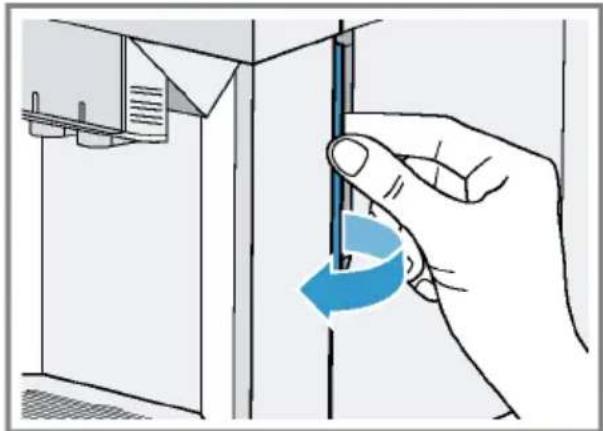
- Open the door of the brewing chamber.
$$ \rightarrow \text { Fig. } \boxed {2 0} $$
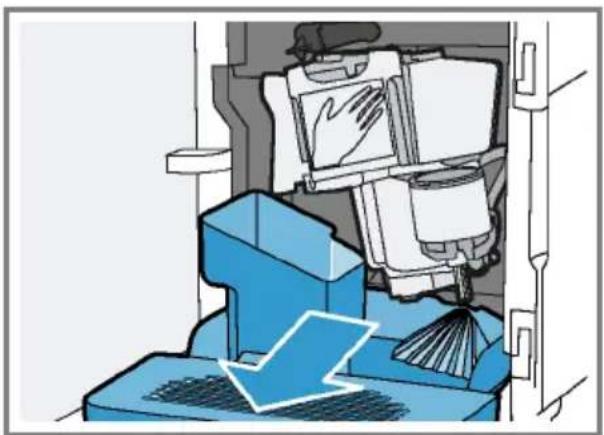
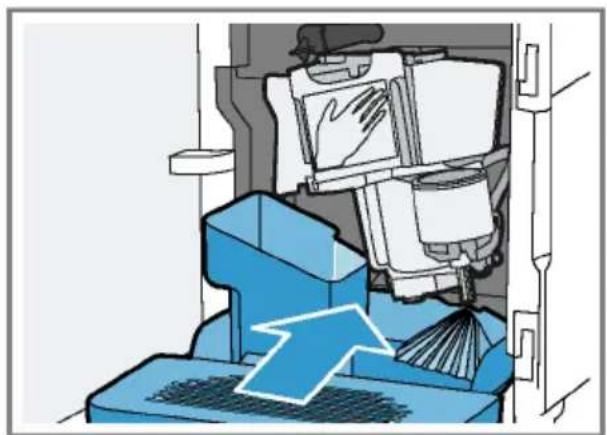
- Remove the drip tray with the coffee dregs container.
$$ \rightarrow \text { Fig. } \boxed {2 1} $$
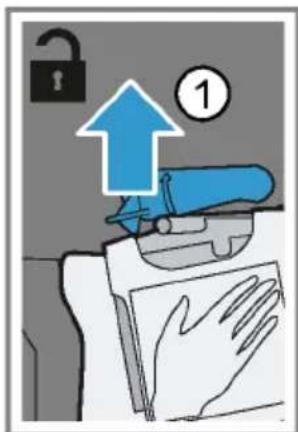
-
Push the red lever upwards.
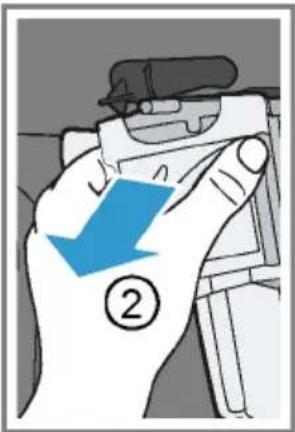
-
Hold the brewing unit by the handle and carefully pull forwards and out.
$$ \rightarrow \text { Fig. } \boxed {2 2} $$
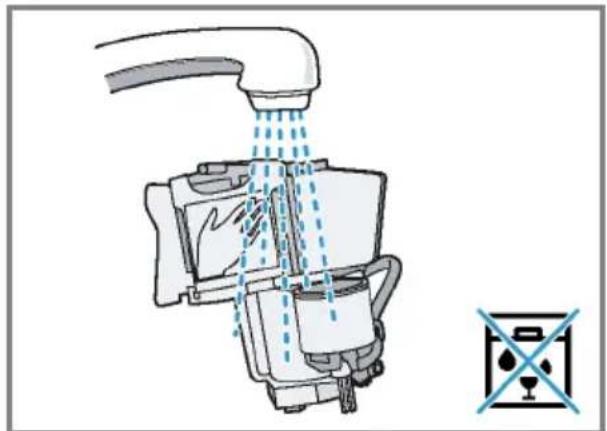
- Clean the brewing unit thoroughly under warm running water.
- Clean the appliance interior with a damp cloth and remove any coffee residues.
- Leave the brewing unit and the appliance interior to dry.
- Hold the brewing unit by the handle.
$$ \rightarrow \text { Fig. } \boxed {2 3} $$
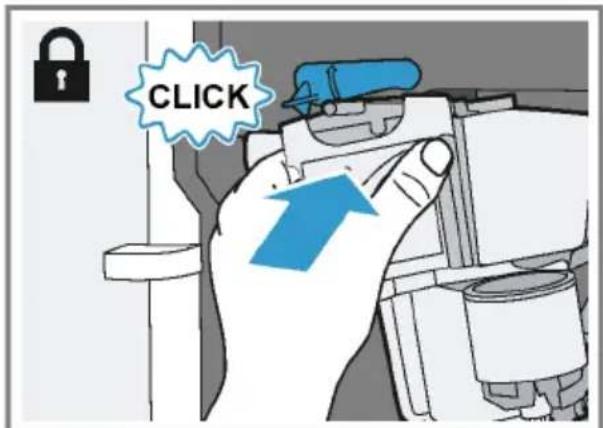
-
Push the red lever upwards.
-
Position the brewing unit under the lever and slide it back as far as it will go.
$$ \rightarrow \text { Fig. } \boxed {2 4} $$
√ The lever will click into place.
- Insert the drip tray with the coffee dregs container.
$$ \rightarrow \text { Fig. } \boxed {2 5} $$
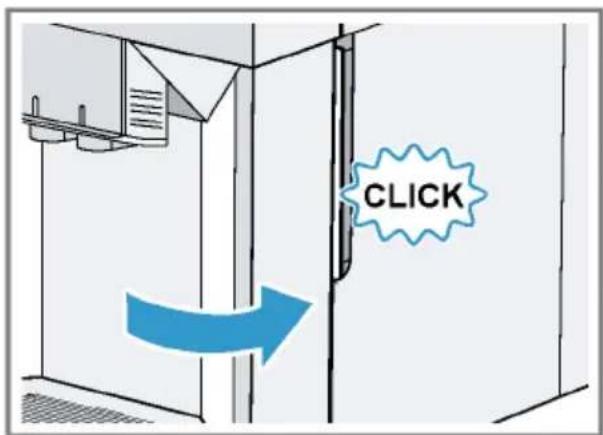
- Close the door.
$$ \rightarrow \text { Fig. } \boxed {2 6} $$
The door can only be closed if the brewing unit and drip tray are inserted correctly.
Service programmes
After certain time intervals, your appliance will recommend that you use the service programmes. Use the service programmes to clean your appliance thoroughly.
ATTENTION!
Improper cleaning and descaling or a delay in doing so may damage the appliance.
▶ Immediately perform the descaling process in accordance with the instructions.
- Do not put any descaling tablets or other products into the ground coffee compartment.
Depending on the water hardness and use of the appliance, the display will show the following messages after prior notification:
■ "Please rinse milk system."
■ "Descaling necessary. Please press menu for 3 sec."
■ "Cleaning necessary. Please press menu for 3 sec."
■ "calc'nClean nec. Please press menu for 3 sec."
Notes
■ The display indicates the progress of the descaling or cleaning process.
■ If your appliance is not descaled in good time, the display will show the following message: "Descaling overdue. Appliance is locked. Please press menu for 3 sec.".
■ If your appliance has been locked, you can only operate it again once the descaling process has been carried out.
■ If you accidentally interrupt the service programme, you must reset it. → "Resetting service programmes", Page 33
Tips
■ If you use a water filter, this prolongs the time interval until a service programmes needs to be performed.
- You can combine the cleaning and descaling programmes using the calc'nClean service programme. "Using calc'nClean", Page 34
■ Clean your appliance with a soft, damp cloth immediately after a service programme to remove any de-scaling solution residues and prevent corrosion.
Resetting service programmes
Perform the following steps if a service programme is interrupted, e.g. due to a power failure.
- Rinse out the water tank.
- Fill the water tank with fresh, non-carbonated water up to the "max" marking.
-
Press ok
√ The appliance will rinse itself for approx. 2 minutes. -
Empty and clean the drip tray.
- Insert the drip tray and close the door.
- Restart the service programme.
Using the milk system cleaning programme
Rinse the milk system with water, if necessary. The rinsing process takes approx. 1 minute.
- Press menu
- Use and to select "Cleaning and care" and press ok
- Use and to select "Milk system" and press ok
- To start the programme, press ok
√ The display will guide you through the programme. - Remove and empty the milk container.
- Clean the milk container, milk tube and suction pipe.
- Fit the components and insert the milk container.
- Place an empty glass under the outlet system and press ok
The milk system will now clean itself automatically.
√ The program has ended and the appliance is ready for operation.
Tip: If you want to clean the milk system particularly thoroughly, clean it regularly by hand.
→ "Cleaning the milk system", Page 31
Using the descaling programme
Run the descaling programme when your appliance prompts you. The process takes approx. 30 minutes.
Requirement: The brewing unit is cleaned.
→ "Cleaning brewing unit", Page 32
-
Press menu
-
Use and to select "Cleaning and care" and press ok
en Cleaning and servicing
- Use and to select "Descale" and press ok
- To start the programme, press ok
√ The display will guide you through the programme.
5. Empty and insert the drip tray.
6. Remove and empty the milk container.
7. Clean the milk container, milk tube and suction pipe.
8. Fit the components and insert the milk container.
9. If there is a water filter, remove it.
-
Press ok
-
Empty the water tank.
- Fill a container with 0.5 l lukewarm water.
- Add a Siemens descaling tablet to the water and stir until the tablet is fully dissolved.
- Pour the descaling solution into the water tank up to the calc mark and press ok
- Place the empty container under the outlet system and press ok
√ The descaling programme will run for approx. 20 minutes.
- Rinse the water tank.
- Press ok
- If there is a water filter, insert the water filter.
→ "Insert water filter", Page 22
- Press ok
-
Fill the tank with fresh water up to the "max" mark.
-
Press ok
√ The descaling programme takes approx. 1 minute and rinses the appliance.
22. Empty and insert the drip tray.
23. Remove and empty the milk container.
24. Clean the milk container, milk tube and suction pipe.
- Fit the components and insert the milk container.
√ The program has ended and the appliance is ready for operation.
Using the cleaning programme
Run the cleaning programme when your appliance prompts you. The process takes approx. 9 minutes.
Requirement: The brewing unit is cleaned.
→ "Cleaning brewing unit", Page 32
- Press menu
- Use and to select "Cleaning and care" and press ok
- Use and to select "Clean" and press ok
- To start the programme, press ok
√ The display will guide you through the programme.
- Empty and insert the drip tray.
- Open the ground coffee compartment.
- Place one Siemens cleaning tablet into the ground coffee compartment.
- Close the ground coffee compartment and press ok
- Place a container with a capacity of min. 0.5 l under the outlet system and press ok
√ The cleaning programme takes approx. 7 minutes.
- Empty and insert the drip tray.
√ The program has ended and the appliance is ready for operation.
Using calc'nClean
You can combine the cleaning and de-scaling programmes using the calc'nClean service programme. Run the calc'nClean programme when your appliance prompts you. The process takes approx. 43 minutes.
Requirement: The brewing unit is cleaned.
→ "Cleaning brewing unit", Page 32
- Press menu
- Use and to select "Cleaning and care" and press ok
-
Use \ and to select "calc'nClean" and press ok
-
To start the programme, press ok
√ The display will guide you through the programme.
-
Empty and insert the drip tray.
-
Remove and empty the milk container.
-
Clean the milk container, milk tube and suction pipe.
-
Fit the components and insert the milk container.
-
If there is a water filter, remove it.
-
Press ok
-
Empty the water tank.
-
Fill a container with 0.5 l lukewarm water.
-
Add a Siemens descaling tablet to the water and stir until the tablet is fully dissolved.
-
Pour the descaling solution into the water tank up to the calc mark and press ok
-
Place the empty container under the outlet system and press ok
√ The descaling programme will run for approx. 20 minutes.
-
Rinse the water tank.
-
Press ok
-
If there is a water filter, insert the water filter. → "Insert water filter", Page 22
-
Press ok
-
Fill the tank with fresh water up to the "max" mark.
-
Press ok
√ The programme takes approx. 1 minute and rinses the appliance.
- Empty and insert the drip tray.
23.Open the ground coffee compartment.
-
Place one Siemens cleaning tablet into the ground coffee compartment.
-
Close the ground coffee compartment and press ok
-
Place a container with a capacity of min. 0.5 l under the outlet system and press ok
√ The cleaning programme takes approx. 7 minutes.
-
Empty and insert the drip tray.
-
Remove and empty the milk container.
-
Clean the milk container, milk tube and suction pipe.
-
Fit the components and insert the milk container.
√ The program has ended and the appliance is ready for operation.
Troubleshooting
You can rectify minor faults on your appliance yourself. Read the troubleshooting information before contacting Customer Service. This will avoid unnecessary costs.

WARNING
Risk of electric shock!
Improper repairs are dangerous.
▶ Repairs to the appliance should only be carried out by trained specialist staff.
▶ Only use genuine spare parts when repairing the appliance.
If the power cord of this appliance is damaged, it must be replaced by the manufacturer, the manufacturer's Customer Service or a similarly qualified person in order to prevent any risk.
Information on display panel
| Errors | Cause | Troubleshooting |
| Display shows "Close" despite the fact that the door is closed. | Door is not properly closed. | ► Press the door firmly shut. |
| Appliance is too hot. | 1. Disconnect the appliance from the mains.2 Wait 1 hour so the appliance can cool down. | |
| Display shows "Please empty drip tray and reinsert." despite the fact that the drip tray is empty. | Appliance is switched off and does not detect emptying. | 1. Switch the appliance on, and remove the drip tray.2 Re-insert the drip tray. |
| Drip tray is soiled. | ► Clean the drip tray thoroughly. | |
| Display shows "Please refill water tank" despite the fact that the water tank is full. | Water tank is wrongly inserted. | ► Insert the water tank correctly. |
| Carbonated water is in the water tank. | ► Fill the water tank with fresh tap water. | |
| Float is stuck in the water tank. | 1. Remove the water tank.2 Clean the water tank thoroughly. | |
| New water filter was not rinsed as per instructions. | 1. Rinse the water filter according to the instructions.→ "Insert water filter", Page 222 Place the water filter into operation. | |
| Air is in the water filter. | 1. Immerse the water filter in water with the opening facing upwards until no more air bubbles escape.2 Reinsert the filter.→ "Insert water filter", Page 22 | |
| Water filter is old. | ► Insert a new water filter. | |
| Errors Cause Troubleshooting | ||
| Display shows "Please refill water tank" despite the fact that the water tank is full. | Limescale deposits in the wa-ter tank are blocking the sys-tem. | 1. Clean the water tank thoroughly.2. Start the descaling programme.→ "Using the descaling programme", Page 33 |
| Display shows "Fill the bean container with coffee beans." despite the fact that the ban container is full.The grinder is not grinding any coffee beans despite full bean container. | Beans are too oily and are not falling into the grinder. | ► Gently tap the bean container.► Change the coffee variety.Do not use oily beans.► Clean the empty bean container with a damp cloth. |
| Display shows "Please clean brewing unit, replace and close door.". | Brewing unit is soiled. | ► Clean the brewing unit.→ "Cleaning brewing unit", Page 32 |
| Mechanism of brewing unit is stiff. | ► Clean the brewing unit.→ "Cleaning brewing unit", Page 32 | |
| Too much ground coffee in the brewing unit. | ► Use no more than 2 level measuring spoons of ground coffee.→ "Cleaning brewing unit", Page 32 | |
| Display shows "Voltage (V) incorrect.". | Voltage in the house system is incorrect. | ► Only operate the appliance at 220 - 240 V. |
| Display shows "Please restart appliance.". | Brewing unit is heavily soiled or cannot be removed. | ► Restart the appliance.► Clean the brewing unit.→ "Cleaning brewing unit", Page 32 |
| Appliance has a fault. 1. Pull out the mains plug and wait 10 seconds.2. Re-insert the mains plug. | ||
| Display very frequently shows "calc'nClean". | Water is too hard. 1. Insert a new water filter.→ "Insert water filter", Page 222. Set the corresponding water hard-ness.→ "Setting the water hardness", Page 16 | |
| Incorrect or too little descal-ing agent used. | ► When descaling, only use suitable tablets. | |
| Service programme has not been carried out in its entirety. | ► Reset the service programme.→ "Resetting service programmes", Page 33 | |
Malfunctions
| Errors Cause Troubleshooting | ||
| Appliance no longer re-sponds. | Appliance has a fault.1.Pull out the mains plug and wait 10 seconds.2.Re-insert the mains plug. | |
| HomeConnect is not working correctly. | Different causes are possible. | Go to www.home-connect.com. |
| Appliance only dispenses wa-ter, not coffee. | Empty bean container is not detected by the appliance. | Pour in coffee beans. |
| Coffee shaft on brewing unit is blocked. | Clean the brewing unit.→"Cleaning brewing unit", Page 32 | |
| Beans are too oily and are not falling into the grinder. | Gently tap the bean container.Change the coffee variety.Do not use oily beans.Clean the empty bean container with a damp cloth. | |
| Brewing unit is not inserted properly. | Slide the brewing unit right back. | |
| Appliance is not dispensing milk froth. | Milk system is soiled. | Clean the milk system in the dish-washer.→"Cleaning the milk system", Page 31 |
| Milk tube not immersed in milk. | Use more milk.Check whether the milk tube is im-mersed in the milk. | |
| Heavy build-up of limescale in the appliance. | Descale the appliance.→"Using the descaling programme", Page 33 | |
| No milk intake by the milk sys-tem. | The milk system is assembled incorrectly. | Assemble the milk system correctly.→"Cleaning the milk system", Page 31 |
| Order for connecting the milk container and milk system is wrong. | First insert the milk system into the outlet and then the milk container. | |
| Milk tube not immersed in milk. | Use more milk.Check whether the milk tube is im-mersed in the milk. | |
| Milk froth is too cold. Milk is too cold. | Use lukewarm milk. | |
| Appliance is not dispensing hot water. | Milk system is soiled. | ▸ Clean the milk system in the dish-washer.→ "Cleaning the milk system", Page 31 |
| Milk system cannot be as-sembled or disassembled. | Order of assembly is wrong. | ▸ First connect the milk system and then the milk container. When disas-sembling, you must first remove the milk container and then the milk sys- tem. |
| Appliance is not dispensing drinks. | Air is in the water filter. | 1. Immerse the water filter in water with the opening facing upwards until no more air bubbles escape.2. Reinsert the filter.→ "Insert water filter", Page 22▸ Firmly press the water filter straight down into the tank connection. |
| Residues of limescale re-mover are blocking the water tank. | 1. Remove the water tank.2. Clean the water tank thoroughly. | |
| There is dripping water on the inner floor of the appliance. | Drip tray was removed too soon. | ▸ Wait a few seconds after the last drink was dispensed before removing the drip tray. |
| Brewing unit cannot be re-moved. | Brewing unit is not in the re-moval position. | ▸ Switch the appliance back on. |
| Appliance cannot be oper-ated.Change displays. | Appliance is in demo mode. | 1. Remove the water tank and fill with fresh cold water.2. Reinsert the water tank. |
| Grinder won't start. | Appliance is too hot. | 1. Disconnect the appliance from the mains.2. Wait 1 hour so the appliance can cool down. |
Problem with results
| Errors Cause Troubleshooting | ||
| Coffee or milk froth quality varies widely. | Build-up of limescale in the appliance. | ► Descale the appliance.→ "Using the descaling programme", Page 33 |
| Milk froth quality varies widely. | Milk froth quality depends on the type of milk or plant-based alternative used. | ► Optimise the result through the selection of the milk or vegetable-based drink type. |
| Coffee is not dispensed or has slowed to a trickle. Set quantity is not reached. | Grinding level is set too fine. | ► Set a coarser grinding level. → "Adjusting the grinding level", Page 22 |
| Heavy build-up of limescale in the appliance. | ► Descale the appliance. → "Using the descaling programme", Page 33 | |
| Air is in the water filter. | 1. Immerse the water filter in water with the opening facing upwards until no more air bubbles escape.2. Reinsert the filter. → "Insert water filter", Page 22 | |
| Appliance is soiled. | ► Clean the brewing unit. → "Cleaning brewing unit", Page 32► Descale and clean the appliance. → "Using calc'nClean", Page 34 | |
| Coffee strength is set too high. | ► Reduce the strength of your coffee to e.g. "regular". → "Adjusting the coffee strength", Page 21 | |
| Coffee has no crema. Type of coffee is not optimal. | ► Use a coffee variety with a higher proportion of Robusta beans.► Use beans with a darker roast. | |
| Coffee is too acidic. Grinding level is set too coarse. | ► Adjust the grinder to a finer setting. → "Adjusting the grinding level", Page 22 | |
| Type of coffee is not optimal. | ► Use a coffee variety with a higher proportion of Robusta beans.► Use beans with a darker roast. | |
| Coffee is too bitter. Grinding level is set too fine. | ► Set a coarser grinding level. → "Adjusting the grinding level", Page 22 | |
| Type of coffee is not optimal. | ► Change the coffee variety. | |
| Coffee tastes burnt. Grinding level is set too fine. | ► Set a coarser grinding level. → "Adjusting the grinding level", Page 22 | |
| Coffee tastes burnt. Type of coffee is not optimal. | ▶ Change the coffee variety. | |
| Coffee temperature setting is too high. | ▶ Set the coffee temperature lower. → "Overview of the basic settings", Page 27 | |
| Coffee grounds are not compact and are too wet. | The grinding level is not set optimally. | ▶ Adjust the grinder to a coarser or finer setting. → "Adjusting the grinding level", Page 22 |
| Too little ground coffee. | ▶ Use 2 level measuring spoons of ground coffee. | |
| Beans are too oily. | ▶ Use a different type of bean. | |
Transportation, storage and disposal
You can find out here how to prepare your appliance for transportation and storage. You will also find out how to dispose of old appliances.
Activate frost protection
Protect your appliance from frost during transport and storage.
ATTENTION!
Residues of liquid in the appliance may damage it during transport or storage.
▶ Empty the pipe system before transport or storage.
Requirements
■ The appliance is ready to use.
■ The water tank has been filled.
-
Remove the milk container.
-
Clean the brewing unit. → "Cleaning brewing unit", Page 32
-
Place a large container under the outlet system.
-
Press repeatedly until the display shows "Milk froth".
-
Press mIepeatedly until the display shows 240 ml.
-
Press start stop
-
Wait until steam escapes from the appliance.
-
Remove the water tank.
√ The appliance drains itself automatically.
-
If the message "Please refill water tank" appears, ignore it.
-
Empty and clean the water tank and drip tray.
-
Insert the water tank and drip tray.
-
Switch the appliance off and disconnect it from the power supply.
Disposing of old appliance
Valuable raw materials can be reclaimed by recycling.
- Unplug the appliance from the mains.
- Cut through the power cord.
- Dispose of the appliance in an environmentally friendly manner.
This appliance is labelled in accordance with European Directive 2012/19/EU concerning used electrical and electronic appliances (waste electrical and electronic equipment - WEEE).
The guideline determines the framework for the return and recycling of used appliances as applicable throughout the EU.
Customer Service
If you have any queries, are unable to rectify faults on the appliance yourself or if your appliance needs to be repaired, contact Customer Service.
You can solve many problems yourself by consulting the information on troubleshooting in these instructions or on our website. If this is not the case, contact our Customer Service.
We always find an appropriate solution. With any warranty claims we will make sure that your appliance is repaired by trained Customer Service technicians using genuine spare parts, including after the manufacturer's warranty has expired.
Function-relevant genuine spare parts according to the corresponding Eco-design Order can be obtained from Customer Service for a period of at least 7 years from the date on which your appliance was placed on the market within the European Economic Area.
Note: Under the terms of the manufacturer's warranty the use of Customer Service is free of charge.
Detailed information about the warranty period and terms of warranty in your country are available from Customer Service, your dealer or our website. When contacting Customer Service, you will need the product number (E-Nr.) and the production number (FD) of your appliance.
The contact details for Customer Service can be found in the Customer Service directory at the end of the manual or on our website.
Product number (E-Nr.) and production number (FD)
The product number (E-Nr.) and the production number (FD) can be found on the rating plate of the appliance. Make a note of your appliance's details and the Customer Service telephone number to find them again quickly.
Warranty conditions
You can make warranty claims for your appliance under the following conditions.
The guarantee conditions for this appli- ance are as defined by our representat- ive in the country in which it is sold. De- tails regarding these conditions can be obtained from the dealer from whom the appliance was purchased. The bill of sale or receipt must be produced when making any claim under the terms of this guarantee.
Technical specifications
Facts and figures for your appliance can be found here.
Voltage 220-240 V\~
| Frequency 50 Hz | |
| Connection rating 1500 W | |
| Maximum static pump pressure | 15 bar |
| Maximum capacity of water tank (without filter) | 1.7 l |
| Maximum capacity of bean container | 270 g |
| Length of the power cable 100 cm | |
| Appliance height 37.3 cm | |
| Appliance width 24.9 cm | |
| Appliance depth 42.8 cm | |
| Weight, empty 8-9 kg | |
| Type of grinder Ceramic | |
fr
Table des matières
Sécurité 46
Connector Home Connect
→ "Home Connect ", Page 63
natural_image
Illustration of a kitchen appliance with two cloud-shaped items on top (no text or symbols)Conseils
natural_image
Illustration of two industrial automation scenarios showing hand operating a device and robotic arm handling a machine (no text or symbols present)natural_image
Diagram of a mechanical device with a blue component inserted into a pipe, showing internal components without any text or symbols.natural_image
Four hand-drawn icons showing different food items: a rolled cheese, a rectangular block, a rolled bread, and a textured bread (no text or symbols)Conseils
natural_image
Technical illustration of a mechanical device with a blue component being inserted, showing a downward arrow and close-up detail (no text or symbols)⚠ WAARSCHUWING – Verstikkingsgevaar!
⚠ WAARSCHUWING – Risico van brand!
⚠ WAARSCHUWING – Risico van verbranding!
⚠ WAARSCHUWING – Gevaar door magnetisme!
⚠ WAARSCHUWING – Gezondheidsrisico!
natural_image
Illustration of a kitchen appliance with two cloud-shaped items on top (no text or symbols)Tips
natural_image
Illustration of hands installing or adjusting a blue cable or connector component (no text or symbols visible)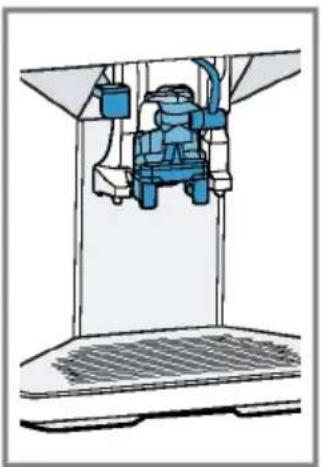
natural_image
Illustration of a blue industrial machine inside a control panel (no text or symbols visible)natural_image
Technical illustration of a mechanical device with a blue component inserted into a container (no text or symbols visible)⚠ WAARSCHUWING Risico van verbranding!
natural_image
Four hand-drawn icons: a rolled parchment, a rectangular block with X marks, a rolled parchment, and a textured rectangular block with X marks (no text or symbols)Tips
natural_image
Technical illustration of a mechanical device with a blue component inserted, showing a downward arrow and magnified detail (no text or symbols)Zetgroep reinigen
→ "Home Connect ", Strona 145
natural_image
Illustration of a kitchen appliance with two cloud-shaped items on top (no text or symbols)Rady
natural_image
Illustration of hands installing or adjusting a blue pipe fitting with a blue upward arrow (no text or symbols)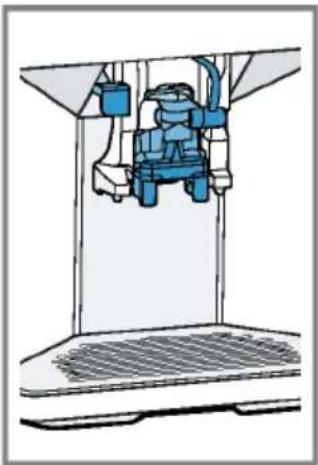
natural_image
Illustration of a blue industrial machine inside a control panel (no text or symbols visible)natural_image
Diagram of a mechanical device with a blue component inserted into a container (no text or symbols visible)natural_image
Four hand-drawn icons showing different food items: rolled cheese, rectangular plate, rolled bread, and instant noodles (no text or symbols)natural_image
Technical illustration of a mechanical assembly with a blue component being inserted into a transparent housing (no text or symbols present)→ "Home Connect ", Strana 185
natural_image
Illustration of a kitchen appliance with a grater and a tray, featuring cloud-shaped items (no text or symbols)Rady
natural_image
Illustration of hands connecting a blue cable to a mechanical component, with no visible text or symbols.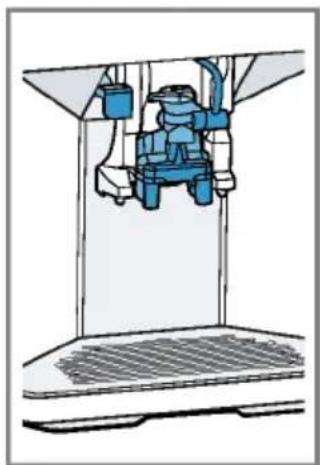
natural_image
Illustration of a blue industrial machine inside a control panel (no text or symbols visible)natural_image
Technical illustration of a mechanical device with a blue component inserted into a container (no text or symbols visible)natural_image
Four hand-drawn icons: a rolled-up document, a block with X marks, a rolled-up paper, and a textured object (no text or symbols)Rady
natural_image
Diagram showing a mechanical device with a blue arrow pointing to a component, alongside an inset close-up of its internal structure (no text or symbols present)natural_image
Illustration of a kitchen appliance with two cloud-shaped items on top (no text or symbols)Советы
natural_image
Illustration of a hand using a blue tool to interact with a device in two different states (no text or symbols present)natural_image
Diagram of a mechanical device with a blue component inserted into a container (no text or symbols visible)natural_image
Four hand-drawn icons showing different food items: rolled cheese, rectangular prism, rolled bread, and patterned bread (no text or symbols)Советы
natural_image
Diagram showing a mechanical device with a blue component inserted into a blue container, alongside its magnified view (no text or symbols present)→ "Home Connect ", Seite 266
natural_image
Illustration of a kitchen appliance with two cloud-shaped items on top (no text or symbols)Tipps
natural_image
Illustration of two industrial equipment setups: one with a blue upward arrow and the other with a blue bracket (no text or symbols)natural_image
Technical line drawing of a mechanical assembly with a blue component inserted into a container (no text or symbols visible)natural_image
Four hand-drawn icons showing different food items: a rolled cheese, a rectangular block, a rolled bread roll, and a textured cake with blue X marks (no text or symbols)Tipps
natural_image
Technical illustration of a mechanical assembly with a blue component being inserted into a transparent housing (no text or symbols present)Central Service Contacts
www.siemens-home.bsh-group.com/me
*Sun-Thu: 8.00am to 5.00 pm (exclude public holidays)
Gate 1, 1555 Centre Road
Clayton, Victoria 3168
Tel.: 1300 167 425*
mailto:aftersales.au@bshg.com
www.siemens-home.bsh-group.com/au
*Mo-Fr: 24 hours
www.siemens-home.bsh-group.com/be
Salman Highway, Tubli-701; Bahrain Manama
Tel.: 01 753 11 11*
mailto:info@bahraingas.bh
*Sun-Thu: 8.00am to 6.00 pm (exclude public holidays)
www.siemens-home.bsh-group.com/ch
CY Cyprus, Kúnpoc
BSH Ikiakes Syskeves-Service
39, Arh. Makaariou III Str.
2407 Egomi/Nikosia (Lefkosia)
Tel.: 777 78 007
mailto:EGO-CYCustomerService@bshg.com
www.siemens-home.bsh-group.com/cz
DE Deutschland, Germany
www.siemens-home.bsh-group.com/dk
ES España, Spain
www.siemens-home.bsh-group.es
FI Suomi, Finland
BSH Kodinkoneet Oy
www.siemens-home.bsh-group.com/fi
www.siemens-home.bsh-group.fr
Grand Union House, Old Wolverton Road, Wolverton
Milton Keynes MK12 5PT
To arrange an engineer visit, to order spare parts and accessories or for product advice please visit www.siemens-home.bsh-group.com/uk Or call Tel.: 0344 892 8999*
*Calls are charged at the basic rate, please check with your telephone service provider for exact charges
GR Greece, Ελλάς
BSH Ikiakes Siskeves A.B.E.
Central Branch Service
17 km E.O. Athinon-Lamias & Potamou 20
14564 Kifisia
www.siemens-home.bsh-group.com/gr
HK Hong Kong, 香港
BSH Home Appliances Limited
香港新界荃灣青山公路388號中染
Building, 388 Castle Peak Road,
Tsuen Wan, New Territories, Hong Kong
Tel.: 2565 6151 (HK)
Toll free 0800 030 (Macao)
mailto:siemens.hk.service@bshg.com
www.siemens-home.bsh-group.com.hk
IE Republic of Ireland
BSH Home Appliances Ltd.
M50 Business Park, Ballymount Road
Upper, Walkinstown
Dublin 12
To arrange an engineer visit, to order spare parts and accessories or for product advice please call Tel.: 01450 2655*
www.siemens-home.bsh-group.com/ie
*Calls are charged at the basic rate, please check with your telephone service provider for exact charges
IL Israel
C/S/B/ Home Appliance Ltd.
1, Hamasger St., North Industrial Park Lod, 7129801
Tel.: 08 9777 222
mailto:csb-serv@csb-ltd.co.il
www.siemens-home.bsh-group.com/il
IN India, Bhārat, भारत
BSH Household Appliances Mfg. Pvt. Ltd.
Arena House, Main Bldg, 2nd Floor, Plot No. 103, Road No. 12, MIDC, Andheri East
Mumbai 400093
Toll Free 1800 209 1850*
www.siemens-home.bsh-group.com/in
*Mo-Sa: 8.00am to 8.00pm (exclude public holidays)
IS Iceland
Smith & Norland hf.
Noatuni 4
105 Reykjavik
Tel.: 0520 3000
www.sminor.is
IT Italia, Italy
www.siemens-home.bsh-group.com/it
LB Lebanon, لبنان
Tehaco s.a.r.l
Boulevard Dora 4043 Beyrouth, P.O. Box 90449
Jdeideh 1202 2040
Tel.: 01 255 211
mailto:Info@Teheni-Hana.com
LU Luxembourg
www.siemens-home.bsh-group.com/lu
MT Malta
Aplan Limited The Atrium
Mriehel by Pass
BKR3000 Birkirkara
Tel.:025495122
mailto:lapap@aplan.com.mt
NL Nederland, Netherlands
www.siemens-home.bsh-group.nl
NO Norge, Norway
www.siemens-home.bsh-group.com/no
PL Polska, Poland
www.siemens-home.bsh-group.pl
PT Portugal
BSHP Electrodomésticos, Sociedade
Unipessoal Lda.
www.siemens-home.bsh-group.com/pt
RO România, Romania
BSH Electrocasnice srl
Sos. Bucuresti-Ploiesti, nr. 19-21, sect.1
13682 Bucuresti
Tel.: 021 203 9748
mailto:service.romania@bshg.com
www.siemens-home.bsh-group.com/ro
RU Russia, Россия
www.siemens-home.bsh-group.ru
SE Sverige, Sweden
BSH Home Appliances AB
Landsvägen 32
169 29 Solna
Tel.: 0771 195 500
Tel.: 0771 11 22 77
mailto:Siemens-Service-SE@bshg.com
www.siemens-home.bsh-group.com/se
SK Slovensko, Slovakia
home.bsh-group.com/sk/ alebo nás kon-
www.siemens-home.bsh-group.com/tr
www.siemens-home.bsh-group.com/ua
XK Kosovo
Service-General SH.P.K.
rr.Magjistralja Ferizaj Prishtine
70000 Ferizaj
Tel:00381(0)290330723
Tel.: 00377 44 172 309
mailto:servicegeneral527@gmail.com
ZA
South Africa
BSH Home Appliances (Pty) Ltd.
15th Road Randjespark, Private Bag X36,
Randjespark
1685 Midrand - Johannesburg
Tel.: 086 002 6724
mailto:applianceserviceza@bshg.com
www.siemens-home.bsh-group.com/za
BSH group is a Trademark Licensee of Siemens AG. Manufacturer's Service for Siemens Home Appliances.
BSH Hausgeräte GmbH
Carl-Wery-Straße 34
81739 München, GERMANY
siemens-home.bsh-group.com
Manufactured by BSH Hausgeräte GmbH under Trademark License of Siemens AG