Dock Pro 100 - Other computer accessories IOGEAR - Free user manual and instructions
Find the device manual for free Dock Pro 100 IOGEAR in PDF.

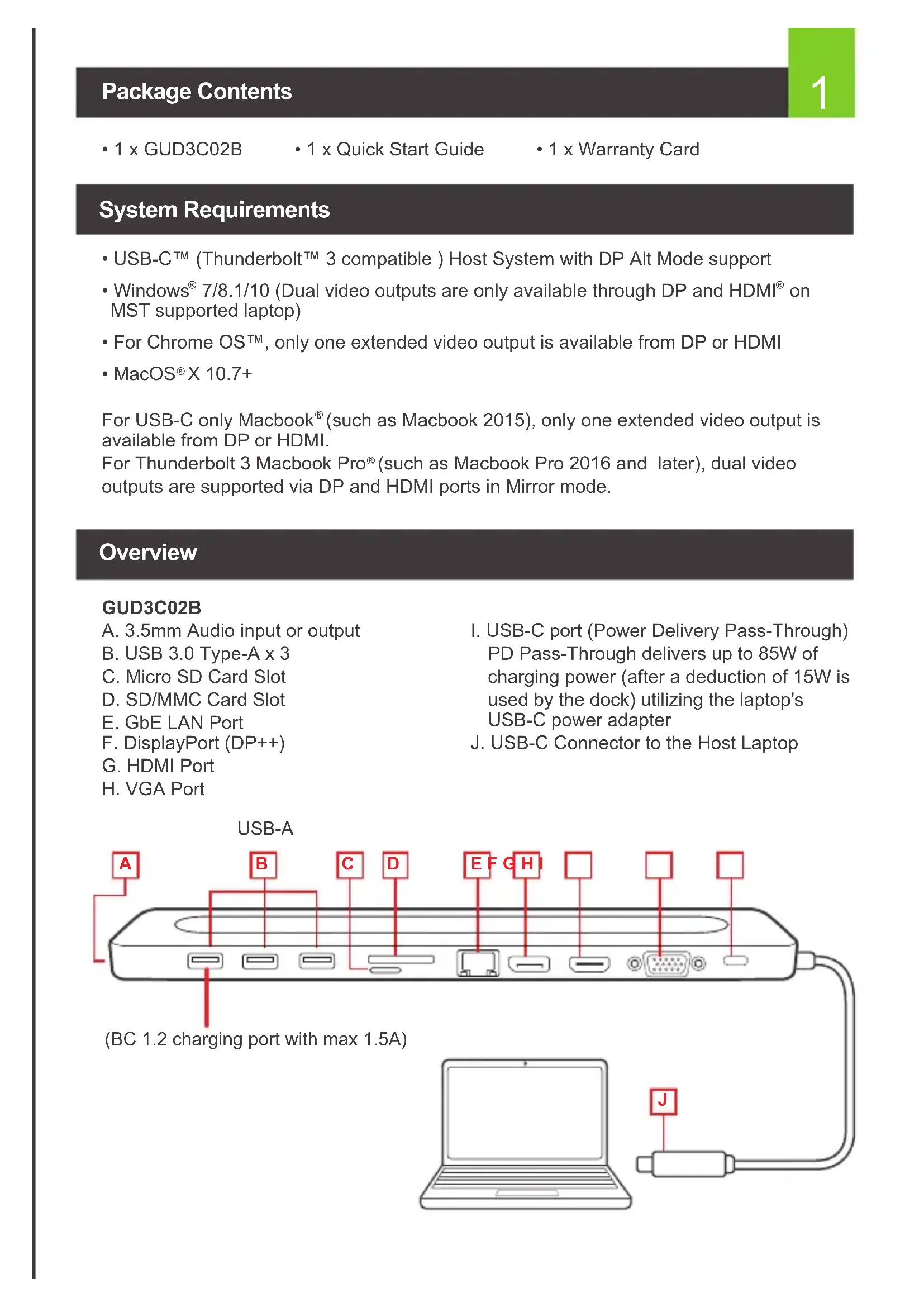


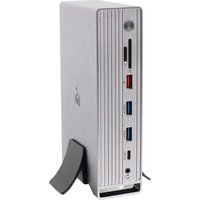
| Product Type | USB-C Docking Station |
| Brand | IOGEAR |
| Model | GUD3C02B (Dock Pro 100) |
| Host Computer Compatibility | USB-C port compatible with Thunderbolt 3 supporting DP Alt Mode |
| Supported Operating Systems | Windows 7/8/8.1/10, Chrome OS, macOS X 10.7+ |
| Video Connectivity | 1x DisplayPort (DP++), 1x HDMI, 1x VGA |
| USB Connectivity | 3x USB 3.0 Type-A (including 1 with BC 1.2 up to 1.5A) |
| Network Connectivity | 1x Gigabit Ethernet port (RJ45) |
| Memory Card Reader | SD/MMC and Micro SD |
| Audio | 3.5mm combo audio jack |
| Power | USB-C PD pass-through up to 85W (USB-C power adapter not included) |
| Maximum Video Resolution | Single: 3840x2160@30Hz (DP/HDMI), 1080P@60Hz (VGA); Dual: 1080P@60Hz (HDMI+DP) |
| Package Contents | 1x GUD3C02B, 1x Quick Start Guide, 1x Warranty Card |
| Warranty | 1-year limited |
| Care and Cleaning | Clean with a soft, dry cloth. Do not use liquids. |
| Safety Instructions | Use in a dry environment. Do not overload the ports. |
| Additional Features | Supports dual display (Windows), laptop charging via PD, card reader |
Frequently Asked Questions - Dock Pro 100 IOGEAR
User questions about Dock Pro 100 IOGEAR
0 question about this device. Answer the ones you know or ask your own.
Ask a new question about this device
Download the instructions for your Other computer accessories in PDF format for free! Find your manual Dock Pro 100 - IOGEAR and take your electronic device back in hand. On this page are published all the documents necessary for the use of your device. Dock Pro 100 by IOGEAR.
USER MANUAL Dock Pro 100 IOGEAR
- USB-C™ (Thunderbolt™ 3 compatible) Host System with DP Alt Mode support
- Windows® 7/8.1/10 (Dual video outputs are only available through DP and HDMI® on MST supported laptop)
- For Chrome OS™, only one extended video output is available from DP or HDMI
- MacOS® X 10.7+
For USB-C only Macbook ^® (such as Macbook 2015), only one extended video output is available from DP or HDMI.
For Thunderbolt 3 Macbook Pro® (such as Macbook Pro 2016 and later), dual video outputs are supported via DP and HDMI ports in Mirror mode.
Overview
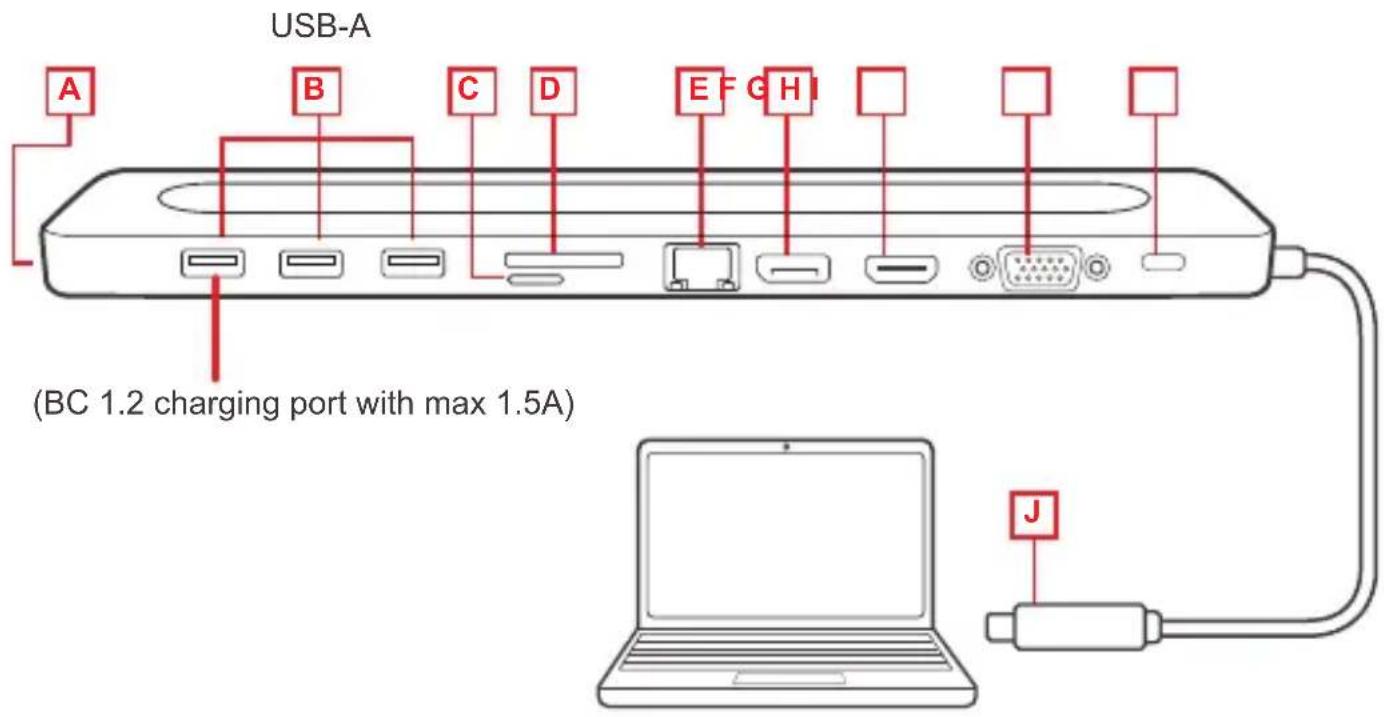
GUD3C02B
A. 3.5mm Audio input or output
B. USB 3.0 Type-A x 3
C. Micro SD Card Slot
D. SD/MMC Card Slot
E. GbE LAN Port
F. DisplayPort (DP++)
G. HDMI Port
H. VGA Port
I. USB-C port (Power Delivery Pass-Through) PD Pass-Through delivers up to 85W of charging power (after a deduction of 15W is used by the dock) utilizing the laptop's USB-C power adapter
J. USB-C Connector to the Host Laptop
text_image
USB-A A B C D E F G H I (BC 1.2 charging port with max 1.5A) JPlease follow steps below to ensure the optimal performance:
STEP 1. Turn on the host computer. Then plug in the laptop's USB-C Power adapter to the USB-C port with Power Delivery Pass-Through*
STEP 2. Connect external devices to appropriate ports as needed (refer to product overview for ports call out).
STEP 3. Connect external monitor(s) to the video output with choices in: DisplayPort and HDMI for dual monitors or via VGA port for a single monitor. Please note: VGA port cannot be used with HDMI or DisplayPort at the same time.
STEP 4. Connect the tethered USB-C cable on GUD3C02B to the USB-C port on the host computer. The computer screen might appear to flicker few times before GUD3C02B can recognize all the connected devices.
*Note: Without plugging the laptop's USB-C power adapter, GUD3C02B can still function in step 2-3, but GUD3C02B will not provide power to charge the laptop.
**Maximum resolution of 4K is dependent on the capability of the video display and its computer host sources.
MONITOR CONFIGURATION
Single Monitor
| [GHKXLaptop Laptop LaptopUp to 3840 x 2160@30 Hz | 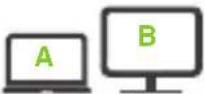 DPUp to 3840 x 2160@30 Hz DPUp to 3840 x 2160@30 Hz | 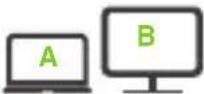 VGAUp to 1080P@60 Hz VGAUp to 1080P@60 Hz | |
| USB-C | Windows 10 / Chrome OS /Mac OS X | Windows 10 / Chrome OS /Mac OS X | Windows 10 / Chrome OS /Mac OS X |
| Thunderbolt 3 | Windows 10 / Mac OS X | Windows 10 / Mac OS X | Windows 10 / Mac OS X |
Dual Monitor
 HDMI Lapt Display PortUp to 1080P@60 Hz Up to 1080P@60 Hz HDMI Lapt Display PortUp to 1080P@60 Hz Up to 1080P@60 Hz | 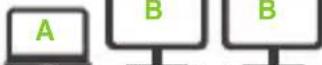 Laptop HDMI Display Port Laptop HDMI Display Port |  | |
| USB-C | Windows 10 | Windows 10 | Chrome OS / Mac OS X |
| Thunderbolt 3 | Windows 10 Windows 10 / Mac OS X | ||
Why do I have no display when the dock is connected?
The USB-C port in your host laptop needs to support USB-C DisplayPort Alternative Mode (DP Alt-Mode) for video viewing capability, otherwise the docking station can only act as a data / Ethernet hub.
I have the dock connected with HDMI and DP, but when I plug in the VGA, only VGA works? Why?
HDMI and DisplayPort (DP) are digital signals, but VGA is an analog signal. The dock can only support one type of signal at a time. Therefore, HDMI and DP will work simultaneously, but VGA will work by itself.
Can HDMI and VGA work together?
No. HDMI and VGA ports will not function simultaneously as they are two different signal types. HDMI is a digital signal, and VGA is an analog signal. Only one type of video signal can be supported at a time.
Can DP and VGA work together?
No. DP and VGA ports will not function simultaneously.
Can I use a Displayport video adapter with this dock?
Yes, DP++ allows DisplayPort to HDMI or DVI active adapters to function
When I connect to an Apple laptop, I can't extend the display of my desktop, why?
Apple's Mac OS X does not support multiple display extension when on a USB-C platform and/or connecting to a USB-C peripheral. USB-C Macbook with macOS X 10.13.3 will only support one external display. USB-C Macbook with macOS X 10.13.4 will support two external displays in mirror mode. Thunderbolt 3 Macbooks will support two external displays.
Why does the Ethernet connection not working on the docking station for my Apple laptop?
Please check your Networking Preference setting (Apple menu > System Preference > Network. The default Interface might set to Thunderbolt Bridge. Click Add button “+” at the bottom of the list at the left. Click the Interface pop-up menu, choose the “USB 10/100/1000 LAN” as network interface and create a new connection.
Can the dock charge my laptop?
No. The dock does not provide power to the connected computer or laptop. In order for the connected computer or laptop to charge, the computer needs to be USB-C Power Delivery compatible and the dock needs to be connected to an external USB-C AC power adapter.
Can I use a bigger capacity AC power adapter with the dock to charge my laptop?
Yes. You may use any available USB-C AC power adapter with the dock to charge your laptop. When the USB-C AC power adapter is plugged into the docking station, the docking station will consume a maximum of 15W power when all ports are connected and streaming data. The remaining power capacity will then be directed to the connected laptop, with a maximum of 85W power.
Will this dock work when plugging into a Thunderbolt 3 port?
Yes, it will. The dock works when plugging into a Thunderbolt 3 port on your computer. However, due to the supporting features of the operating systems, the results will be different. For instance, Mac OS X supports only single display extension when using a USB-C peripheral, but Windows OS can support multiple display extensions.
Will this dock work when plugging into a Thunderbolt 2 port?
No it will not. The dock will only function when plugging into a USB-C port or Thunderbolt 3 port.
Will the dock work with Apple Super Drive?
No. The dock does not work with Apple Super Drive. The SuperDrive requires a direct connection.
How many external hard drives can be connected to the dock?
Just one. The external hard drive must be connected to the USB port marked with "BC 1.2" or Lightning logo. This USB port supports maximum of 1.5A power and will be able to provide enough power to the external hard drive device.
My hard drive does not work when connected to the dock. Why?
Please make sure the external hard drive is connected to the USB port marked with “BC 1.2” or Lightning logo. This USB port supports a maximum of 1.5A power and will be able to provide enough power to the external hard drive device.
Limited Warranty
Warranty Information
This product carries a 1 Year Limited Warranty. For the terms and conditions of this warranty, please go to https://www.iogear.com/support/warranty
Register online at https://www.iogear.com/register
Important Product Information
Product Model
Serial Number ____
Contact
WE'RE HERE TO HELP YOU!
NEED ASSISTANCE SETTING UP THIS PRODUCT?
Make sure you:
- Visit www.iogear.com for more product information
- Visit www.iogear.com/support for live help and product support
IOGEAR
https://iogear.custhelp.com
support@iogear.com
www.iogear.com
Federal Communication Commission Interference Statement
This equipment has been tested and found to comply with the limits for a Class B digital service, pursuant to Part 15 of the FCC rules. These limits are designed to provide reasonable protection against harmful interference in a residential installation. Any changes or modifications made to this equipment may void the user's authority to operate this equipment. This equipment generates, uses, and can radiate radio frequency energy. If not installed and used in accordance with the instructions, may cause harmful interference to radio communications. However, there is no guarantee that interference will not occur in a particular installation. If this equipment does cause harmful interference to radio or television reception, which can be determined by turning the equipment off and on, the user is encouraged to try to correct the interference by one or more of the following measures:
- Reorient or relocate the receiving antenna
- Increase the separation between the equipment and receiver
- Connect the equipment into an outlet on a circuit different from that to which the receiver is connected
- Consult the dealer or an experienced radio/TV technician for help
FCC Caution: Any changes or modifications not expressly approved by the party responsible for compliance could void the user's authority to operate this equipment.
This device complies with Part 15 of the FCC Rules. Operation is subject to the following two conditions:
(1) this device may not cause harmful interference, and
(2) this device must accept any interference received, including interference that may cause undesired operation.
CE Statement:
This device has been tested and found to comply with the following European Union directives: Electromagnetic Capability (2004/108/EC), Low Voltage (2006/95/EC) and R&TTED (1999/5/EC).
https://iogear.custhelp.com
support@iogear.com
www.iogear.com
https://www.iogear.com/support/warranty
https://iogear.custhelp.com
support@iogear.com
www.iogear.com