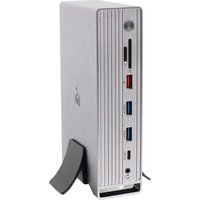
Dock Pro 4K Quad - Other computer accessories IOGEAR - Free user manual and instructions
Find the device manual for free Dock Pro 4K Quad IOGEAR in PDF.


| Product Type | Universal docking station (dock) |
| Brand | IOGEAR |
| Model | Dock Pro 4K Quad (GUD3C4K4) |
| Category | Other computer accessories |
| Dimensions | Approximately 23 x 8 x 3 cm (estimated) |
| Weight | Approximately 350 g (estimated) |
| Power Supply | DC 120 W power adapter with power cable |
| Main Functions | Quadruple display connectivity (DP/HDMI), Gigabit Ethernet, USB-A/USB-C Gen2 10 Gbit/s, SD/TF card reader, 3.5 mm audio jack, USB fast charging, USB-C 100W output |
| Available Ports | 4x DisplayPort/HDMI, 1x Gigabit Ethernet, 2x USB-A Gen2, 1x USB-A Gen1, 1x USB-C Gen2, 1x USB-C Power (100W), 1x USB-C host, 1x SD, 1x microSD, 1x 3.5 mm audio, 1x security lock, 1x power button |
| System Compatibility | Windows 10/11, macOS 10.13+ (DisplayLink driver required) |
| Required Driver | DisplayLink (download from www.displaylink.com) |
| Host Power | USB-C (Thunderbolt 3 compatible) |
| Security | Integrated security lock (Kensington port) |
| Maintenance and Cleaning | Clean with a soft, dry cloth. Do not use liquids. |
| Spare Parts and Repairability | Not user-repairable. Limited 1-year warranty. |
| General Information | 4-screen docking station for USB-C laptops. Comes with USB-A/C to Type-C cable and power adapter. |
Frequently Asked Questions - Dock Pro 4K Quad IOGEAR
User questions about Dock Pro 4K Quad IOGEAR
0 question about this device. Answer the ones you know or ask your own.
Ask a new question about this device
Download the instructions for your Other computer accessories in PDF format for free! Find your manual Dock Pro 4K Quad - IOGEAR and take your electronic device back in hand. On this page are published all the documents necessary for the use of your device. Dock Pro 4K Quad by IOGEAR.
USER MANUAL Dock Pro 4K Quad IOGEAR
Host device requirements
- USB-C™ (Thunderbolt™ 3 compatible) device
OS requirements
- Windows® 10, 11
- MacOS® 10.13+
- DisplayLink Driver installation (http://www.displaylink.com/downloads)
Notes for M1 Mac Users: For M1 Mac Users, please check DisplayLink website for latest Mac Displaylink driver at http://www.displaylink.com/downloads/macos
Product Overview
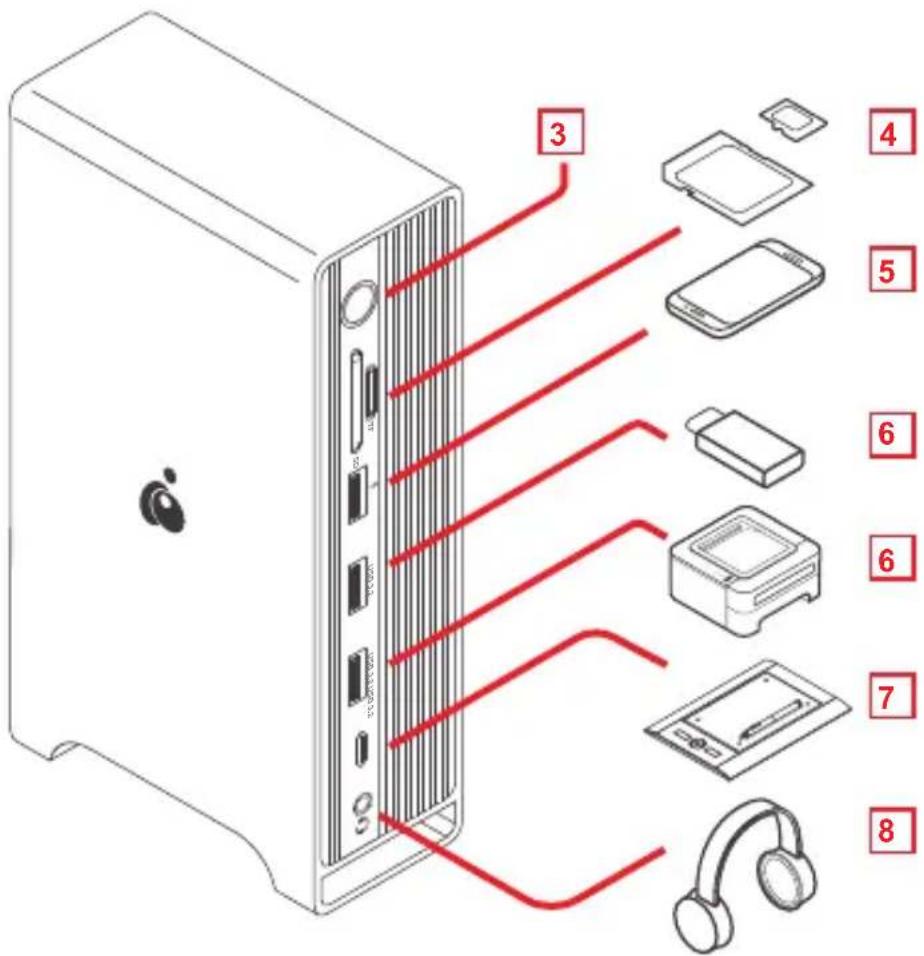
A. Power Key
B. SD 3.0 (Max: 104Mbps)
C. TF/Micro-SD 3.0 (Max: 104Mbps)
D. USB-A Quick Charge
E. USB-A Gen2 (Max: 10 Gbps)
F. USB-A Gen2 (Max: 10 Gbps)
G. USB-C Gen2 (Max: 10 Gbps)
H. 3.5mm Audio (48KHz)
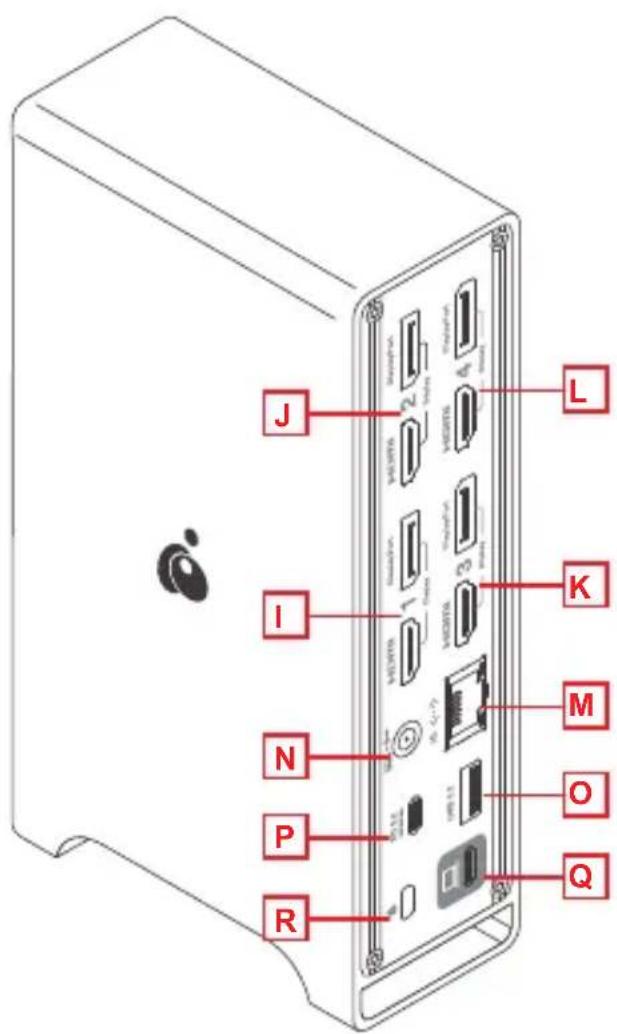
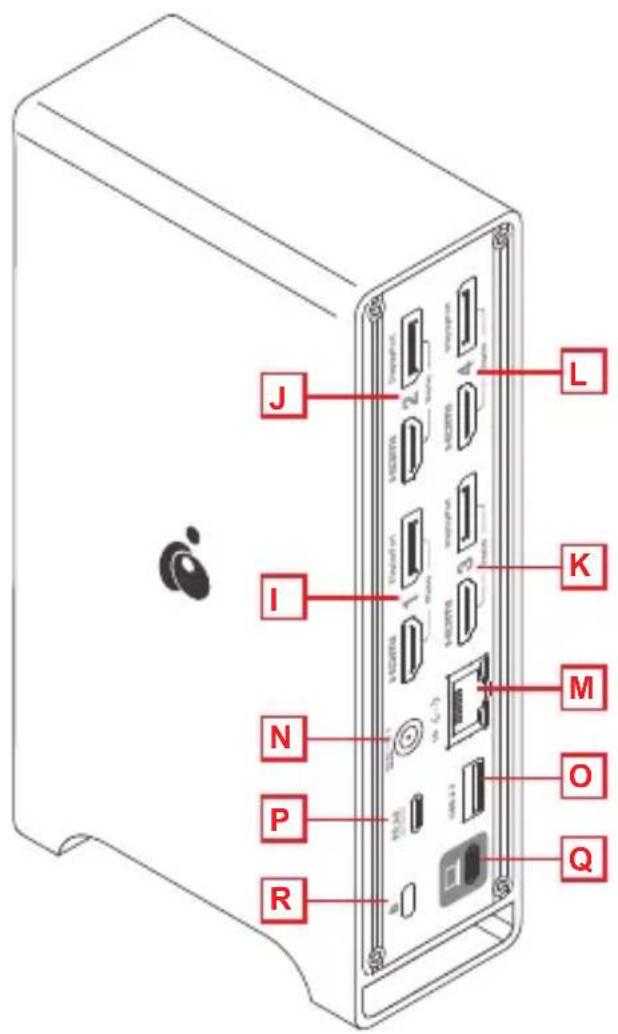
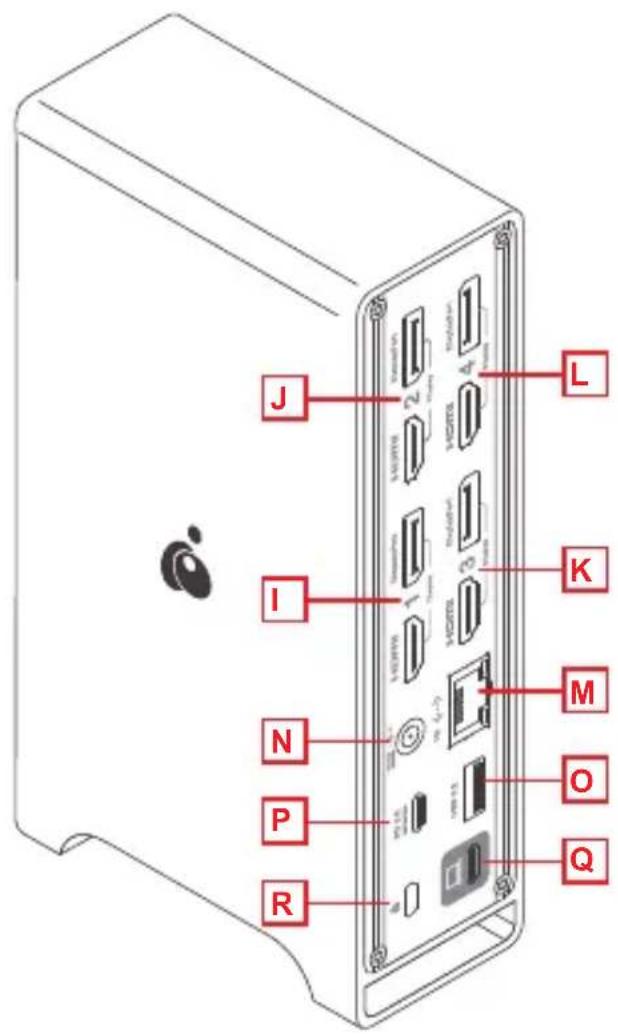
I. Display 1 (DP or HDMI)
J. Display 2 (DP or HDMI)
K. Display 3 (DP or HDMI)
L. Display 4 (DP or HDMI)
M. Gigabit Ethernet Port
N. DC Power (Max: 120W)
O. USB-A Gen1 (Max: 10 Gbps)
P. Type-C Power (Max: 100W)
Q. Type-C (Connects to Host)
R. Anti-Theft Lock
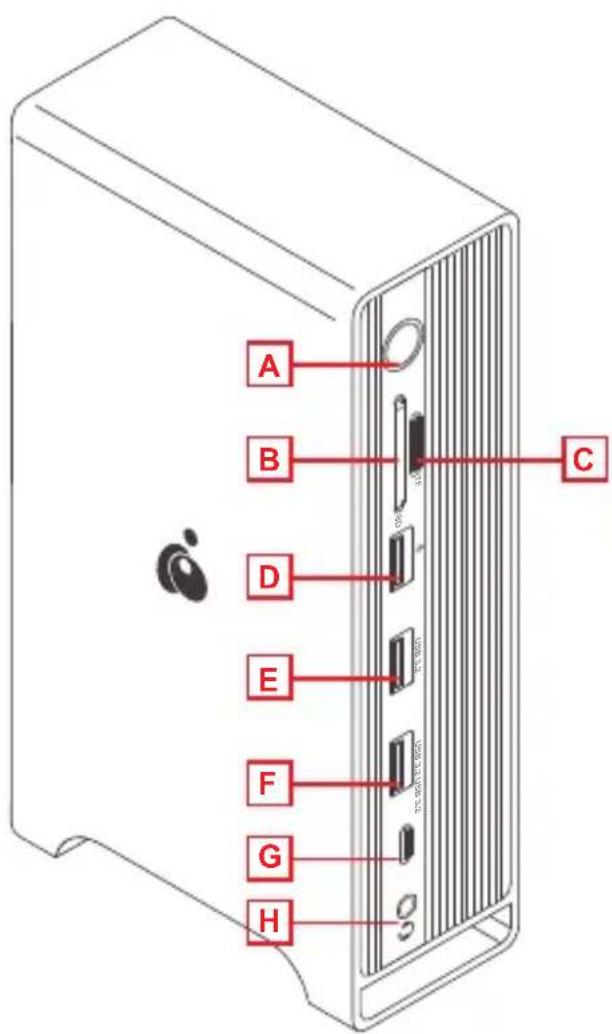
Front Back
Hardware Installation
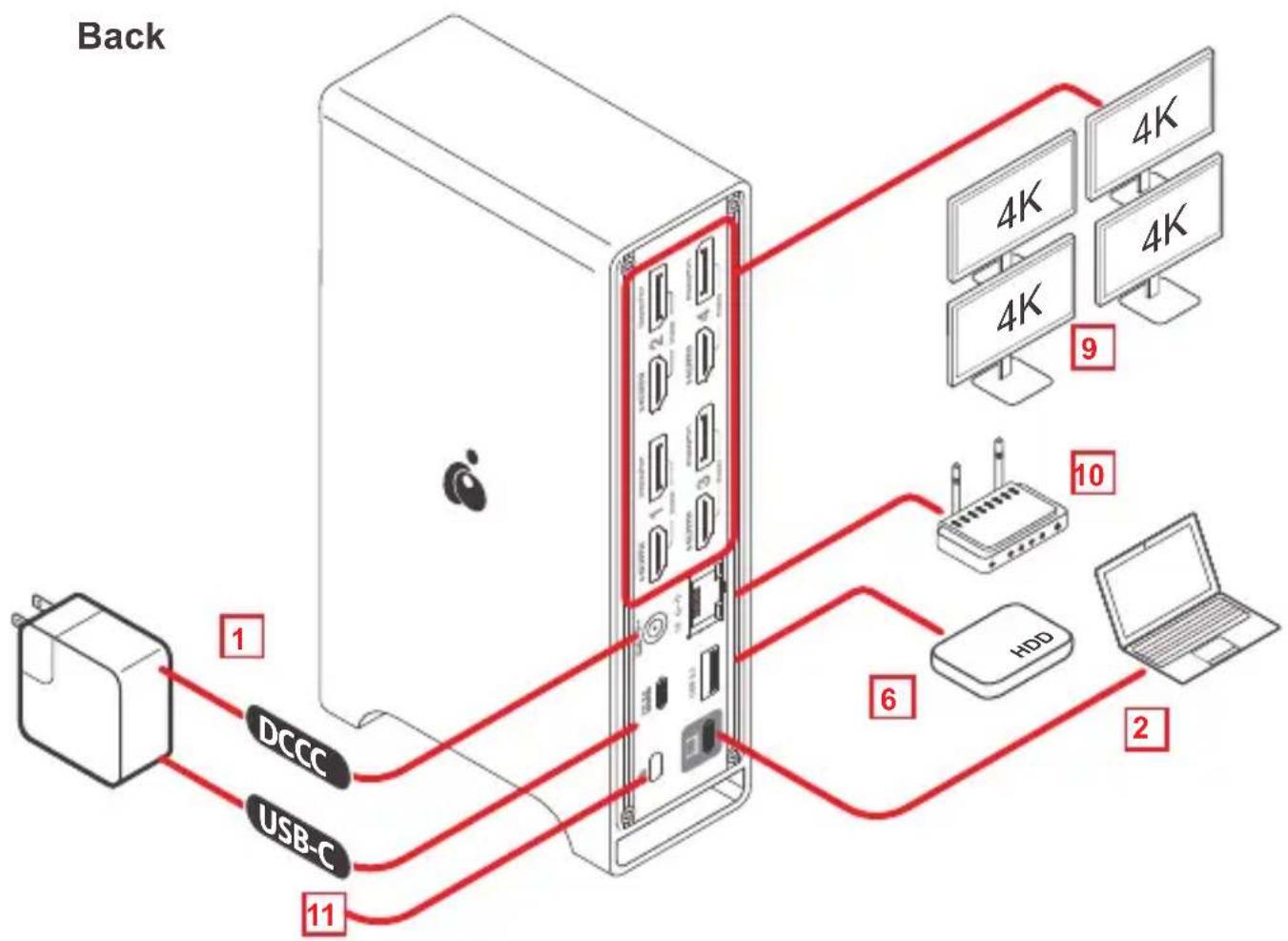
- Back: Connect Power cable or Type-C Power Adapter (Not included) to device and to outlet.
- Back: Connect USB Type-C port to host computer.
- Front: Press Power Button on Front side of device to Power On.
- Insert SD or MicroSD card to respective slot.
- Connect USB-A cable to Quick Charge port (Red) and to mobile device that needs charging.
- Connect a USB-A device to any of the 2x USB-A Gen 2 connections (Blue) to any supported peripheral or to external drives.
flowchart
graph TD
    A["Back"] --> B["Server"]
    B --> C["DCCC"]
    B --> D["USB-C"]
    B --> E["4K"]
    B --> F["4K"]
    B --> G["4K"]
    B --> H["9"]
    B --> I["10"]
    B --> J["6"]
    B --> K["2"]
    B --> L["HDD"]
- Connect USB-C device to the USB-C Gen 2 connection on the front of the docking station.
- Connect a 3.5mm device to the 3.5mm audio jack on the front of the docking station for audio out and in.
- Connect either an HDMI or DisplayPort Cable to the ports labeled Display 1, 2, 3 or 4 on the back of the device. Only one connection may be active on each respective Display.
- Connect Ethernet Cable to Gigabit Ethernet Port for network/internet access.
- Connect Anti-theft device to Anti-theft port on docking station
Front
Limited Warranty
Warranty Information
This product carries a 1 Year Limited Warranty. For the terms and conditions of this warranty, please go to https://www.iogear.com/support/warranty
Register online at https://www.iogear.com/register
Important Product Information Product Model ____ Serial Number ____
Contact
WE'RE HERE TO HELP YOU!
NEED ASSISTANCE SETTING UP THIS PRODUCT?
Make sure you:
- Visit www.iogear.com for more product information
- Visit www.iogear.com/support for live help and product support
IOGEAR
iogear.custhelp.com
support@iogear.com
www.iogear.com
Compliance Information
Federal Communication Commission Interference Statement
This equipment has been tested and found to comply with the limits for a Class B digital service, pursuant to Part 15 of the FCC rules. These limits are designed to provide reasonable protection against harmful interference in a residential installation. Any changes or modifications made to this equipment may void the user's authority to operate this equipment. This equipment generates, uses, and can radiate radio frequency energy. If not installed and used in accordance with the instructions, may cause harmful interference to radio communications.
However, there is no guarantee that interference will not occur in a particular installation. If this equipment does cause harmful interference to radio or television reception, which can be determined by turning the equipment off and on, the user is encouraged to try to correct the interference by one or more of the following measures:
- Reorient or relocate the receiving antenna
- Increase the separation between the equipment and receiver
- Connect the equipment into an outlet on a circuit different from that to which the receiver is connected
- Consult the dealer or an experienced radio/TV technician for help
FCC Caution: Any changes or modifications not expressly approved by the party responsible for compliance could void the user's authority to operate this equipment.
This device complies with Part 15 of the FCC Rules. Operation is subject to the following two conditions:
(1) this device may not cause harmful interference, and
(2) this device must accept any interference received, including interference that may cause undesired operation.
CE Statement:
This device has been tested and found to comply with the following European Union directives: Electromagnetic Capability (2004/108/EC), Low Voltage (2006/95/EC) and R&TTED (1999/5/EC).
Avant Arrière
Garantie limitée
https://iogear.custhelp.com
support@iogear.com
www.iogear.com
Information de conformité
Parte frontal
Parte trasera
Garantía limitada
https://www.iogear.com/support/warranty
https://iogear.custhelp.com
support@iogear.com
www.iogear.com
- Host device requirements
- OS requirements
- Product Overview
- Hardware Installation
- Limited Warranty
- Warranty Information
- Contact
- WE'RE HERE TO HELP YOU!
- NEED ASSISTANCE SETTING UP THIS PRODUCT?
- Make sure you:
- IOGEAR
- Compliance Information
- Federal Communication Commission Interference Statement
- CE Statement:
- Garantie limitée
- Information de conformité
- Garantía limitada
Brand : IOGEAR
Model : Dock Pro 4K Quad
Category : Other computer accessories