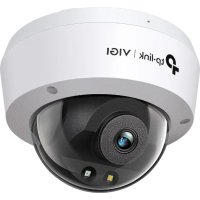
USER MANUAL VIGI C240 TP-LINK
For technical support, the user guide and more information, please visit https://www.tp-link.com/support.
7106509961 REV1.4.0@2022 TP Link
Images may differ from your actual products.
CONTENTS
01 / English 05 / Deutsch 09 / Español 13 / Ελληνικά 17 / Français 21 / Italiano 25 / Português 29 / Nederlands
33 / 日本語 37 / 한국어 41 / 繁體中文 45 / ไทย 49 / Tiếng Việt 53 /
Mount Your Camera
Mount your camera according to the diagrams in the Quick Start Guide included in the package.
Use Your Camera with an NVR
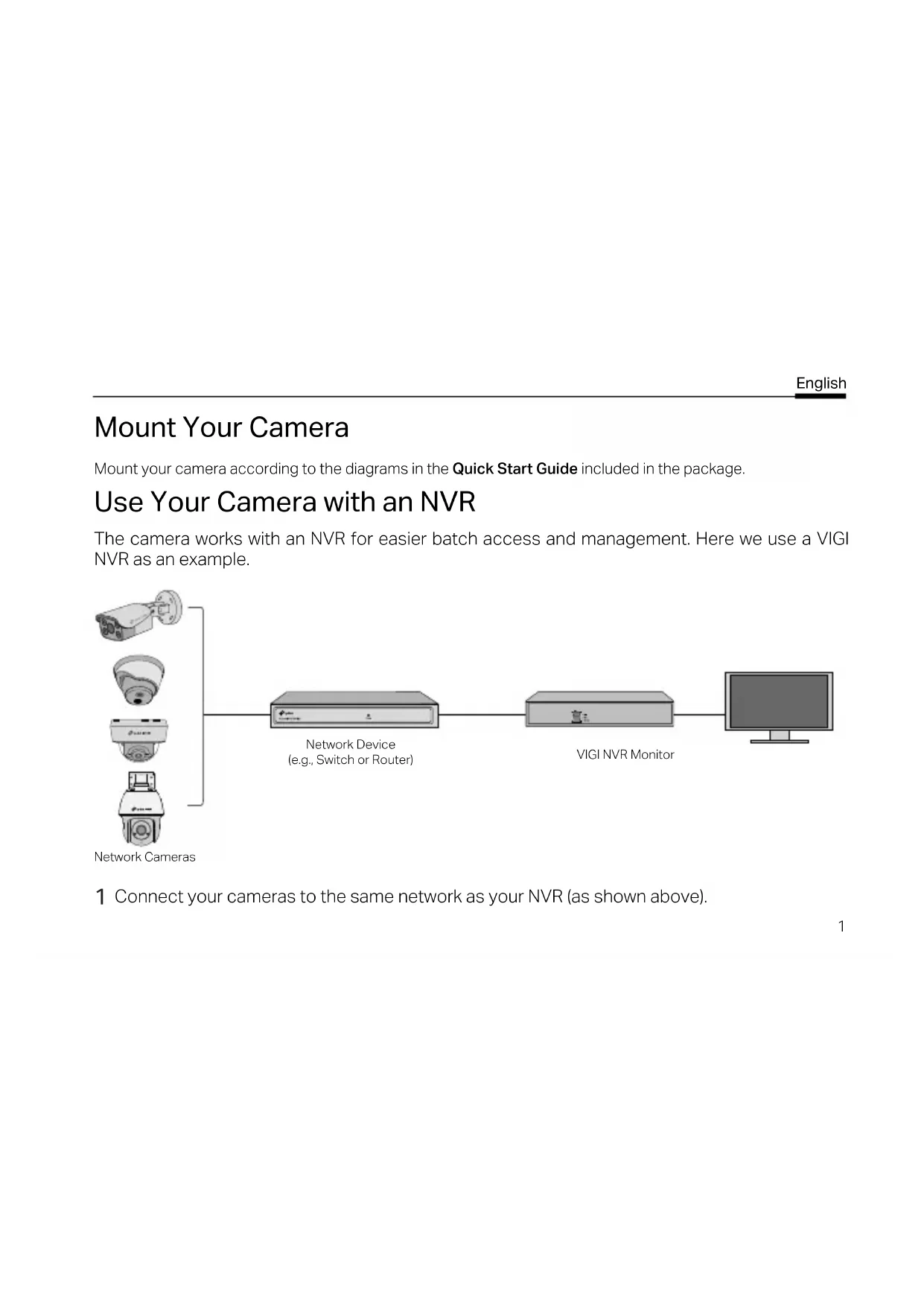
The camera works with an NVR for easier batch access and management. Here we use a VIGI NVR as an example.
![graph LR A["Camera"] --> B["Network Device (e.g., Switch or Router)"] C["Camera"] --> B D["Camera"] --> B E["Camera"] --> B F["Monitor"] --> B](/content/2026/03/493737/images/fe3c23be617577aff31940c4dd0267f2402231752fc92548e6f862d3e9ba7a03.jpg)
1 Connect your cameras to the same network as your NVR (as shown above).
English
2 Power on your cameras with the PoE power supply or an external power supply.
Note: The camera's standard power supply is 12V DC or PoE (802.3af/at). The power source should comply with Power Source Class 2 (PS2) or Limited Power Source (LPS) of IEC 62368-1. Some models do not support DC power supply. You can check the detailed specifications on the product page at https://www.tp-link.com/.
3 Add your cameras with the NVR.
Before you start, make sure the NVR is working properly. Then add your camera with the NVR.
1) Go to the NVR management page, right click on the screen, and click Add Camera.
2) Select your camera and click + to add your camera directly. If you have disabled Plug & Play on your NVR, create a password or use a preset password for your camera.

Done! You can now view live video and manage cameras.
Using your cameras with other NVR brands
1 Power on your cameras and connect them to the network. 2 Activate the camera using the VIGI Security Manager or VIGI app (refer to the next section). 3 Refer to the NVR's User Manual to add cameras.
More Management Methods
You can also access and manage your cameras via any of the methods below.
Method 1: Via the VIGI App
Remotely view live video, manage cameras, and get instant alerts.
1 Download and install the VIGI app.

2 Open the VIGI app and log in with your TP-Link ID. If you don't have an account, sign up first. 3 Tap the + button on the top right and follow the app instructions to activate and add your cameras.
Method 2: Via a Web Browser
Note: Some models do not support web management. You can check the detailed specifications on the product page at https://www.tp-link.com/.
View live video and modify camera settings via a web browser.
- Find the camera's IP address on your router's client page.
- On your local computer, open a web browser and enter https://camera's IP address
(https://192.168.0.60 by default).
- Select your Country/Region and Time Zone.
- Set a password to activate the camera.
Done. You can view the live video on the Preview page, and go to the Settings page to change camera settings.
Method 3: Via the VIGI Security Manager (Windows only)
View live video and modify camera settings on your computer.
1. Download the VIGI Security Manager on your computer at https://www.tp-link.com/download-center/ 2. Install the VIGI Security Manager and open it. 3. Cameras on the same network as your computer can be automatically discovered. Go to Settings > Discovered Devices, click + Add to activate your discovered cameras by setting passwords, and follow the instructions to add your cameras.
For frequently asked questions, please refer to https://www.tp-link.com/support/faq/2850/






(Windows) VIGI:3
https://www.tp-link.com/download-center/
- Do not attempt to disassemble, repair, or modify the device. If you need service, please contact us.
- Do not use damaged charger or USB cable to charge the device.
- Do not use any other chargers than those recommended.
For indoor camera
- Keep the device away from water, fire, humidity or hot environments.
- Adapter shall be installed near the equipment and shall be easily accessible.
For outdoor camera
- Keep the device away from fire or hot environments. DO NOT immerse in water or any other liquid.
- Adapter shall be easily accessible.
Please read and follow the above safety information when operating the device. We cannot guarantee that no accidents or damage will occur due to improper use of the device. Please use this product with care and operate at your own risk.
| 單元Unit | 限用物質及其化學符號Restricted substances and its chemical symbols |
| 鉛Lead(Pb) | 汞Mercury(Hg) | 銅Cadmium(Cd) | 六價鉻Hexavalent chromium( Cr6 ) | 多溴聯苯Polybrominated biphenyls(PBB) | 多溴二苯醚Polybrominated diphenylethers (PBDE) |
| PCB ○○ | ○○○○ | | | | | |
| 外殼 ○○ | ○○○○ | | | | | |
| 電源供應器 | -○○○○○ | | | | | |
| 其他及其配件 | -○○○○○ | | | | | |
| 備考1. “超出0.1 wt %”及“超出0.01 wt %”係指限用物質之百分比含量超出百分比含量基準值Note 1: “Exceeding 0.1 wt %” and “exceeding 0.01 wt %” indicate that the percentage content of the restricted substance exceeds the reference percentage value of presence condition.備考2. “○”係指該項限用物質之百分比含量未超出百分比含量基準值。Note 2: “○” indicates that the percentage content of the restricted substance does not exceed the percentage of reference value of presence.備考3. “—”係指該項限用物質為排除項目。Note 3: The “—” indicates that the restricted substance corresponds to the exemption. |
English:
TP-Link hereby declares that this device is in compliance with the essential requirements and other relevant provisions of directives 2014/30/EU, 2014/35/EU, 2009/125/EC, 2011/65/EU and (EU)2015/863.
The original EU declaration of conformity may be found at https://www.tp-link.com/en/ce.
TP-Link hereby declares that the device is in compliance with the essential requirements and other relevant provisions of the
Electromagnetic Compatibility Regulations 2016 and Electrical Equipment (Safety) Regulations 2016.
The original UK declaration of conformity may be found at https://www.tp-link.com/support/ukca/
German:
For TP-Link Branded Products Only. For more information about warranty, please visit https://www.tp-link.com/en/support. THIS WARRANTY GIVES YOU SPECIFIC LEGAL RIGHTS, AND YOU MAY HAVE OTHER RIGHTS THAT VARY FROM STATE TO STATE (OR BY COUNTRY OR PROVINCE).
TO THE EXTENT ALLOWED BY LOCAL LAW, THIS WARRANTY AND THE REMEDIES SET FORTH ARE EXCLUSIVE AND IN LIEU OF ALL OTHER WARRANTIES, REMEDIES AND CONDITIONS.
TP-Link warrants the TP-Link branded hardware product contained in the original packaging against defects in materials and workmanship when used normally in accordance with TP-Link's guidelines for some period which depends on the local service from the
date of original retail purchase by the end-user purchaser.