
KC300S2 - Surveillance Camera TP-LINK - Free user manual and instructions
Find the device manual for free KC300S2 TP-LINK in PDF.


| Product Type | Indoor Security Camera |
| Brand | TP-Link |
| Model | KC300S2 |
| Resolution | 1920 x 1080 (1080p Full HD) |
| Night Vision | Up to 30 ft (9 m) with infrared LEDs |
| Field of View | 130° diagonal |
| Audio | Two-way audio with built-in microphone and speaker |
| Motion Detection | Yes, with customizable zones and alerts |
| Storage | MicroSD card (up to 128 GB) and cloud storage (subscription required) |
| Connectivity | Wi-Fi 802.11 b/g/n, 2.4 GHz only |
| Power Supply | 5V DC, 1A via micro USB adapter (included) |
| Dimensions | 3.5 x 3.5 x 4.5 inches (88 x 88 x 115 mm) |
| Weight | 7.1 oz (200 g) |
| Operating Temperature | 0°C to 40°C (32°F to 104°F) |
| Compatibility | Android 4.4+, iOS 9.0+ with TP-Link Tapo app |
| Mounting | Desktop or wall mount (hardware included) |
| Care and Cleaning | Wipe with a soft, dry cloth; avoid liquid cleaners |
| Safety | Indoor use only; keep away from water and extreme temperatures |
| Spare Parts | Power adapter, mounting kit, and micro USB cable available from TP-Link |
| Repairability | No user-serviceable parts; contact TP-Link support for issues |
Frequently Asked Questions - KC300S2 TP-LINK
User questions about KC300S2 TP-LINK
0 question about this device. Answer the ones you know or ask your own.
Ask a new question about this device
Download the instructions for your Surveillance Camera in PDF format for free! Find your manual KC300S2 - TP-LINK and take your electronic device back in hand. On this page are published all the documents necessary for the use of your device. KC300S2 by TP-LINK.
USER MANUAL KC300S2 TP-LINK
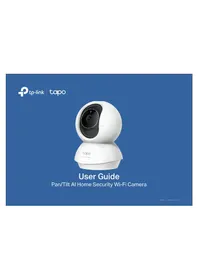
User Guide
Kasa Wire-Free Camera
Contents
About This Guide....1
Introduction 2
Appearance 3
Set Up Your Camera 5
View Your Camera 7
Configure Your Camera 8
Check Activity Notifications 9
Work with Other Smart Home Products……10
Authentication....11
About This Guide
This guide provides a brief introduction to the Indoor/Outdoor Security Camera System and the Kasa app, as well as regulatory information.
Please note that features of the product may vary slightly depending on the model and software version you have, and on your location, language and internet service provider. All images, parameters and descriptions documented in this guide are used for demonstration only.
Conventions
In this guide, the following convention is used:
| Convention | Description |
| Camera | Stands for Kasa Smart Wire-Free Camera. |
| Hub | Stands for Kasa Smart Camera Hub. |
| Teal | Key information appears in teal, including management page text such as menus, items, buttons and so on. |
| Underline | Hyperlinks are in teal and underlined. You can click to redirect to a website. |
More Info
- Specifications can be found on the product page at https://www.tp-link.com.
• Our Technical Support and troubleshooting information can be found at https://www.tp-link.com/support.
Introduction
An Indoor/Outdoor Security Camera System generally includes one Kasa Smart Camera Hub and one or more Kasa Smart Wire-Free Cameras. The Kasa Smart Wire-Free Camera monitors anywhere and everywhere. Monitor live video and recordings directly on the Kasa Smart app from the convenience of your smartphone. The Kasa Smart Camera Hub adds a layer of security with a siren, alert and audio recordings to mimic occupancy. Your home is always protected.
- Night Vision
At night, the camera will detect activity up to 25 ft. away with night vision.
- Wired or Wire-free
A camera that gives you freedom to take it anywhere you want. When connected to our adapter, the Kasa Smart camera allows for a pre-roll which begins recording a few seconds before every clip.
• Crystal Clear 1080p Video
Sharp and clear 1080p video makes sure you never miss a thing. In the dark, the camera will detect activity up to 25 feet away with Night Vision.
• Rechargeable Lithium Ion Battery*
With a low-power Wi-Fi protocol, we've extended the battery life for a longer and smarter experience.
*Optional Adapter for wired use if needed.
• Built-in Siren and 2-way Talk
Use crisp 2-way audio to communicate with the delivery person at your front door or use the camera's siren to scare away intruders.
- More Than A Hub
The hub helps save power and also plays as a secondary security alarm. Any intruder will be met with an unwelcome sound.
- Weatherproof
The Kasa Smart Wire-Free Camera is weatherproof and will be protected against rain and dust.
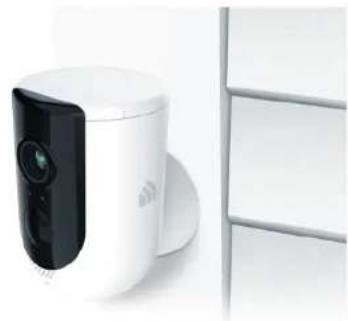
Appearance
Kasa Smart Wire-Free Camera has a system LED that changes color according to its status, speakers and microphone, and a Sync button. See the explanation below:
System LED
Alternating amber and green: Powering on or starting up
- Flashing green: Connecting to hub (Discovery mode)
Solid green: Connected to hub
- Quick flashing red: Failed to connect to or sync with hub Flashing red once per minute: Low battery (below 15%)
- Quick flashing amber: Firmware updating Flashing amber once per second: Factory resetting
Solid amber: No connection, initializing, or rebooting
Solid blue: Battery starts charging
● Off: No power or Status LED off

Sync button
- Press for 1 second during Discovery mode:
Initiates the syncing process with hub - Press and hold for about 15 seconds: Resets the camera to factory settings
Speaker and Microphone
Built-in internal speaker and microphone are protected by the waterproof membrane.
⚠ Warning: Do NOT insert objects into the holes!
Kasa Smart Camera Hub has a LED ring that changes color according to its status, a Siren Off button, and a Reset button. See the explanation below:
System LED
- Alternating amber and green:
Connected to home router but no internet connection
Alternating red and green:
Not connected to home router and internet
Quick flashing green:
Camera attempting to sync with hub (Discovery mode)
Flashing green once per second:
Connected to home router and internet
Solid green:
Camera connected to hub
Solid red:
Camera too far from hub
- Flashing red:
Siren or speaker is on
- Quick flashing amber:
Firmware updating
Flashing amber once per second:
Factory resetting
- Solid amber:
Powering on or starting up
Off:
Communicating with camera and internet, no camera connected, or no power
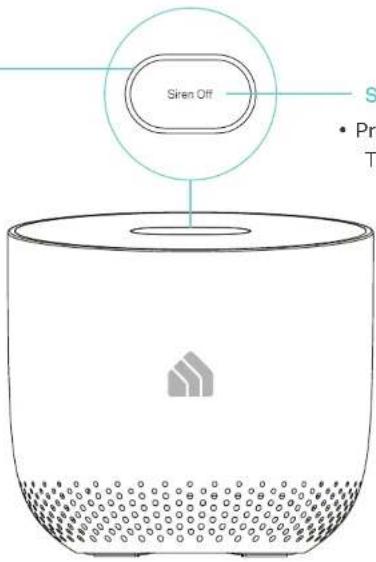
Siren Off button
- Press for 1 second when siren is on: Turns off the siren
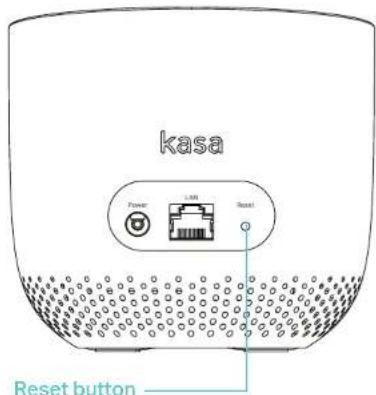
- Press and hold for about 15 seconds when neither siren nor alert is playing: Resets the hub to factory settings
Set Up Your Camera
Follow the steps below to get started with your new camera.
Step 1. Download Kasa
Get the Kasa Smart app from the Apple App Store or Google Play, or by scanning the QR code below.

Step 2. Log In
Open the app, and log in with your TP-Link ID. If you don't have an account, create one first.
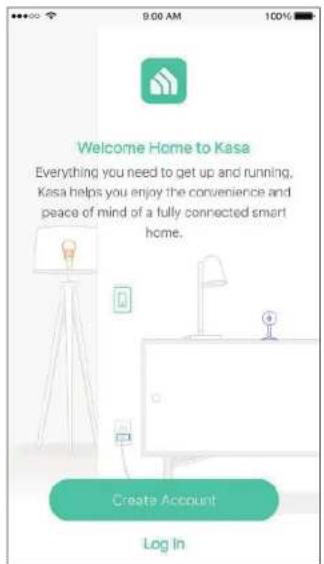
Step 3. Add Camera
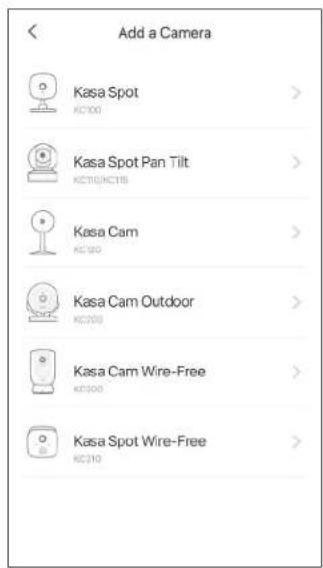
Tap the +button in the Kasa app, select Add a Device, then select Kasa Cam Wire-Free. Follow app instructions to add hub and cameras.
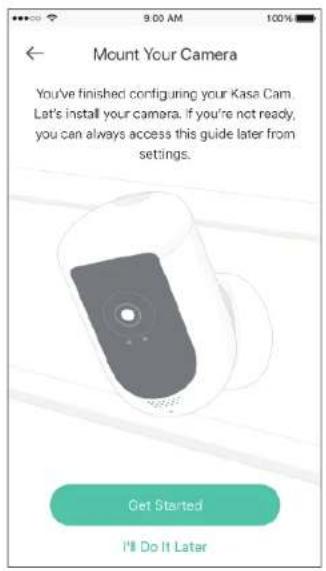
Step 4. Mount Camera
Follow mounting instructions in the app for ideal camera placement.
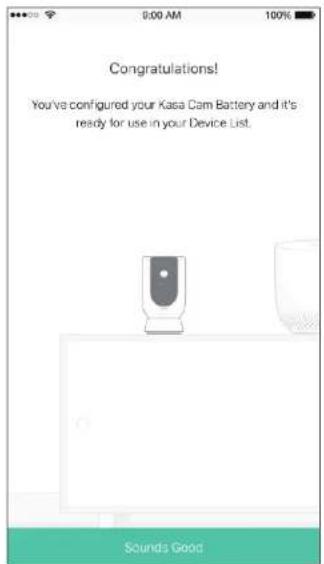
Enjoy!
Your camera is ready for use in your device list.
View Your Camera
After initial setup is complete, you can view your camera from anywhere.
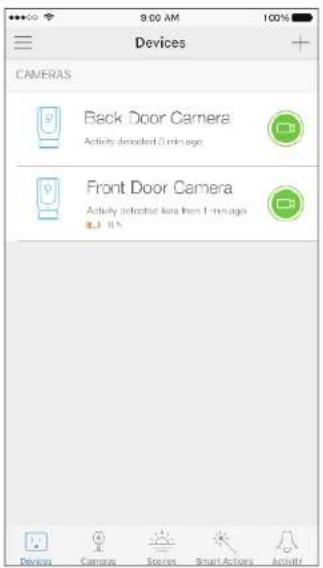
View Smart Devices List
Go to the Devices page, then you can view the list of all your cameras and any other smart devices if any.
View Cameras List
Go to the Cameras page, then you can view the list of all your cameras.
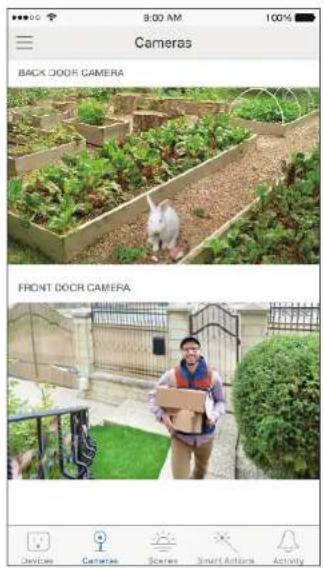
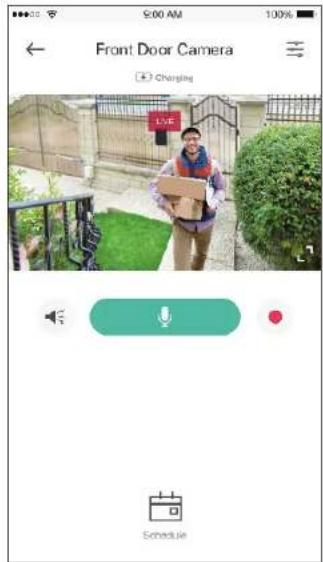
View Live Video
Tap a camera on the Devices or Cameras page, then you can view the live video, talk to a person near the camera, sound the siren to scare away intruders, and more.
Configure Your Camera
On the live video page, you can configure your camera to meet various needs.
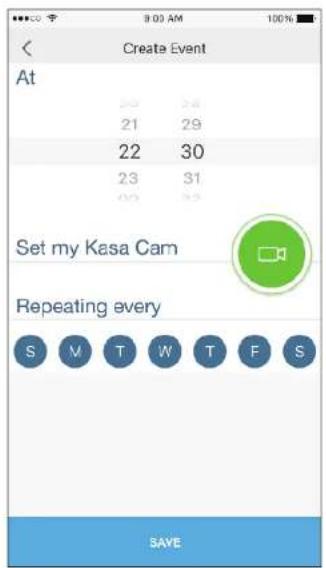
Set Schedule
Tap on the live video page, then you can schedule an automatic On/Off event for your camera to simplify your daily routine.
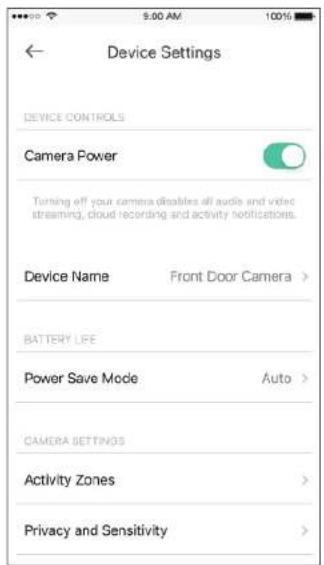
Change Camera Settings
Tap on the live video page, then you can view and change camera settings.
Check Activity Notifications
When you receive an activity notification, you can check the live video immediately, or check the recordings at any time.
Check Activity History
Go to the Activity page, then you can view the activity clips that your camera records.
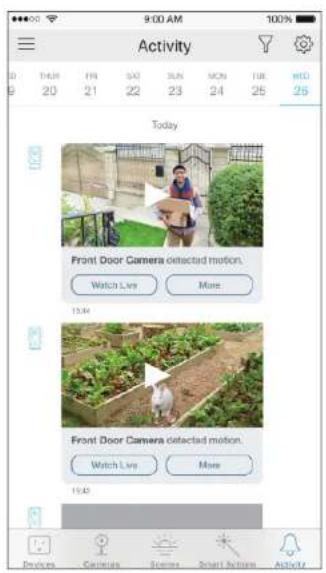
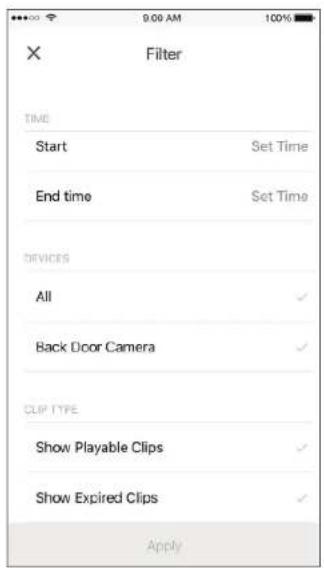
Filter Activity Clips
Tap 📋 on the Activity page, then you can filter activity clips according to your needs.
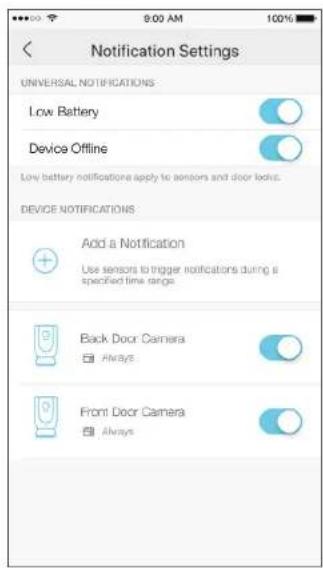
Change Notification Settings
Tap 📍 on the Activity page, then you can view and change notification settings.
Work with Other Smart Home Products
You can control your camera together with other smart home products from TP-Link, Amazon Alexa, Google Assistant, and more.
Add Other Smart Devices
Tap the + button on the Devices page, and add more TP-Link devices or other devices that work with Kasa.

Authentication
COPYRIGHT & TRADEMARKS
Specifications are subject to change without notice. TP-link and Kasa Smart are registered trademarks of TP-Link Technologies Co., Ltd. Other brands and product names are trademarks or registered trademarks of their respective holders.
No part of the specifications may be reproduced in any form or by any means or used to make any derivative such as translation, transformation, or adaptation without permission from TP-Link Technologies Co., Ltd. Copyright © 2020 TP-Link Technologies Co., Ltd. All rights reserved.
FCC compliance information statement

Product Name: Kasa Smart Wire-Free Camera
Model Number: KC300
KC300 Accessories: AC Power Adapter for Camera, Lithium Battery, Kasa Smart Camera Hub KH300 and its AC Power Adapter
| Component Name Model FCC Identifier number | ||
| AC Power Adapter for Camera | DSA-5PFU1-05 FCA 050100 NA | |
| Lithium Battery KA300B NA | ||
| Kasa Smart Camera Hub KH300 TE7KH300 | ||
| AC Power Adapter for Hub ASM159A-1201000FU NA | ||
Responsible Party:
TP-Link USA Corporation, d/b/a TP-Link North America, Inc.
Address: 145 South State College Blvd. Suite 400, Brea, CA 92821
Website: http://www.tp-link.com/us/
Tel: +1 626 333 0234
This equipment has been tested and found to comply with the limits for a Class B digital device, pursuant to part 15 of the FCC Rules. These limits are designed to provide reasonable protection against harmful interference in a residential installation. This equipment generates, uses and can radiate radio frequency energy and, if not installed and used in accordance with the instructions, may cause harmful interference to radio communications. However, there is no guarantee that interference will not occur in a particular installation. If this equipment does cause harmful interference to radio or television reception, which can be determined by turning the equipment off and on, the user is encouraged to try to correct the interference by one or more of the following measures:
- Reorient or relocate the receiving antenna.
- Increase the separation between the equipment and receiver.
- Connect the equipment into an outlet on a circuit different from that to which the receiver is connected.
- Consult the dealer or an experienced radio/ TV technician for help.
This device complies with part 15 of the FCC Rules. Operation is subject to the following two conditions:
-
This device may not cause harmful interference.
-
This device must accept any interference received, including interference that may cause undesired operation.
Any changes or modifications not expressly approved by the party responsible for compliance could void the user's authority to operate the equipment.
Note: The manufacturer is not responsible for any radio or TV interference caused by unauthorized modifications to this equipment. Such modifications could void the user's authority to operate the equipment.
FCC RF Radiation Exposure Statement
This equipment complies with FCC RF radiation exposure limits set forth for an uncontrolled environment. This device and its antenna must not be co-located or operating in conjunction with any other antenna or transmitter.
"To comply with FCC RF exposure compliance requirements, this grant is applicable to only Mobile Configurations. The antennas used for this transmitter must be installed to provide a separation distance of at least 20 cm from all persons and must not be co-located or operating in conjunction with any other antenna or transmitter."
We, TP-Link USA Corporation, has determined that the equipment shown as above has been shown to comply with the applicable technical standards, FCC part 15. There is no unauthorized change is made in the equipment and the equipment is properly maintained and operated.
Issue Date: 2019-12-05
FCC compliance information statement
Product Name: Kasa Smart Camera Hub
Model Number: KH300
Responsible Party:
TP-Link USA Corporation, d/b/a TP-Link North America, Inc.
Address: 145 South State College Blvd. Suite 400, Brea, CA 92821
Website: http://www.tp-link.com/us/
Tel: +1 626 333 0234
This equipment has been tested and found to comply with the limits for a Class B digital device, pursuant to part 15 of the FCC Rules. These limits are designed to provide reasonable protection against harmful interference in a residential installation. This equipment generates, uses and can radiate radio frequency energy and, if not installed and used in accordance with the instructions, may cause harmful interference to radio communications. However, there is no guarantee that interference will not occur in a particular installation. If this equipment does cause harmful interference to radio or television reception, which can be determined by turning the equipment off and on, the user is encouraged to try to correct the interference by one or more of the following measures:
- Reorient or relocate the receiving antenna.
- Increase the separation between the equipment and receiver.
- Connect the equipment into an outlet on a circuit different from that to which the receiver is connected.
- Consult the dealer or an experienced radio/ TV technician for help.
This device complies with part 15 of the FCC Rules. Operation is subject to the following two conditions:
-
This device may not cause harmful interference.
-
This device must accept any interference received, including interference that may cause undesired operation.
Any changes or modifications not expressly approved by the party responsible for compliance could void the user's authority to operate the equipment.
Note: The manufacturer is not responsible for any radio or TV interference caused by unauthorized modifications to this equipment. Such modifications could void the user's authority to operate the equipment.
FCC RF Radiation Exposure Statement
This equipment complies with FCC RF radiation exposure limits set forth for an uncontrolled environment. This device and its antenna must not be co-located or operating in conjunction with any other antenna or transmitter.
"To comply with FCC RF exposure compliance requirements, this grant is applicable to only Mobile Configurations. The antennas used for this transmitter must be installed to provide a separation distance of at least 20 cm from all persons and must not be co-located or operating in conjunction with any other antenna or transmitter."
We, TP-Link USA Corporation, has determined that the equipment shown as above has been shown to comply with the applicable technical standards, FCC part 15. There is no unauthorized change is made in the equipment and the equipment is properly maintained and operated.
Issue Date: 2019-12-05
FCC compliance information statement
Product Name: AC Power Adapter for Camera / Lithium Battery / AC Power Adapter for Hub
Model Number: DSA-5PFU1-05 FCA 050100 / KA300B / ASM159A-1201000FU
Responsible Party:
TP-Link USA Corporation, d/b/a TP-Link North America, Inc.
Address: 145 South State College Blvd. Suite 400, Brea, CA 92821
Website: http://www.tp-link.com/us/
Tel: +1 626 333 0234
This equipment has been tested and found to comply with the limits for a Class B digital device, pursuant to part 15 of the FCC Rules. These limits are designed to provide reasonable protection against harmful interference in a residential installation. This equipment generates, uses and can radiate radio frequency energy and, if not installed and used in accordance with the instructions, may cause harmful interference to radio communications. However, there is no guarantee that interference will not occur in a particular installation. If this equipment does cause harmful interference to radio or television reception, which can be determined by turning the equipment off and on, the user is encouraged to try to correct the interference by one or more of the following measures:
- Reorient or relocate the receiving antenna.
- Increase the separation between the equipment and receiver.
- Connect the equipment into an outlet on a circuit different from that to which the receiver is connected.
- Consult the dealer or an experienced radio/ TV technician for help.
This device complies with part 15 of the FCC Rules. Operation is subject to the following two conditions:
-
This device may not cause harmful interference.
-
This device must accept any interference received, including interference that may cause undesired operation.
Any changes or modifications not expressly approved by the party responsible for compliance could void the user's authority to operate the equipment.
We, TP-Link USA Corporation, has determined that the equipment shown as above has been shown to comply with the applicable technical standards, FCC part 15. There is no unauthorized change is made in the equipment and the equipment is properly maintained and operated.
Issue Date: 2019-12-05
Canadian Compliance Statement
This device contains licence-exempt transmitter(s)/receiver(s) that comply with Innovation, Science and Economic Development Canada's licence-exempt RSS(s). Operation is subject to the following two conditions:
- This device may not cause interference.
- This device must accept any interference, including interference that may cause undesired operation of the device.
Radiation Exposure Statement:
This equipment complies with IC radiation exposure limits set forth for an uncontrolled environment. This equipment should be installed and operated with minimum distance 20cm between the radiator & your body.
Industry Canada Statement
CAN ICES-3 (B)/NMB-3(B)
Korea Warning Statements:
Safety Information & Warnings for Camera and Hub
Safety Information
- Keep the device away from water, fire, humidity or hot environments.
- Do not attempt to disassemble, repair, or modify the device.
-
Do not use damaged charger or USB cable to charge the device.
-
Do not use any other chargers than those recommended
- Do not use the device where wireless devices are not allowed.
- Adapter shall be installed near the equipment and shall be easily accessible.
- Do not disassemble, crush, puncture, short external contacts, or dispose of the battery in fire or water.
- CAUTION: RISK OF EXPLOSION IF BATTERY IS REPLACED BY AN INCORRECT TYPE. DISPOSE OF USED BATTERIES ACCORDING TO THE INSTRUCTIONS.
- Use only power supplies which are provided by manufacturer and in the original packing of this product. If you have any questions, please don't hesitate to contact us.
Please read and follow the above safety information when operating the device. We cannot guarantee that no accidents or damage will occur due to improper use of the device. Please use this product with care and operate at your own risk.
Warnings
- Operating Temperature:
KC300: -20 °C-45 °C (-4°F-113°F)
KH300: 0 °C-40 °C (32°F-104°F)
- Operating Humidity:
KC300: 10%-65%RH, Non-condensing
KH300: 10%-90%RH, Non-condensing
Handling Instructions for Lithium Ion Rechargeable Battery
Please read and follow the handling instructions for the battery before use. Improper use of the battery may cause heat, fire explosion, damage or capacity deterioration of the battery.
WARNING
- Do not place or leave the battery and equipment in the reach of infants so that they are not able to swallow or mistreat the battery by mistake.
In case of ingestion, consult with a doctor immediately.
- Do not let leaked electrolyte come into contact with eyes or skin.
In such a case, immediately wash the area of contact with clean water and seek help from a doctor.
If not treated soon, prolonged contact may cause serious injury.
- Do not put the battery into a fire. Do not use it or leave it in a place near fire, heaters, or high temperature sources.
In such a case, the insulator in the battery may be melted, the safety vent and structure may be damaged, or the electrolyte may catch fire, all of which may cause heat generation, explosion, or fire.
- Do not submerge the battery in water, or wet the battery.
If the protecting device assembled in the battery is damaged, the battery may be charged with an abnormal current and voltage and may cause a chemical reaction within the battery, which may result in the cause of heat generation, explosion, or fire of the battery.
• Do not use any battery charger not specified by the manufacture, also follow the charge conditions specified by the manufacture.
If the battery is charged under other conditions (a high temperature, a high voltage / current, or an altered charger) not specified by the manufacture, the battery may become over-charged with an excessive current and cause heat, explosion, or fire with abnormal chemical reactions.
- Do not use, charge, or leave the battery near fire or in a car under the blazing sun. Such a high temperature may cause damage of the protecting device in the battery, which may result in an abnormal reaction, and then heat generation, explosion, or fire.
- Do not connect the battery reversed in positive (+) and negative (-) terminals in the charger or equipment.
In case the battery is connected and charged reversely, it may cause heat generation, explosion, or fire due to an abnormal chemical reaction.
- Do not let the battery terminals (+ and -) contact a wire or any metal (like a metal necklace or a hairpin) with which it carried or stored together.
In such a case, the battery will be shorted and cause an excessive current, which may result in heat generation, explosion, or fire.
- Do not connect the battery directly to an electric outlet or cigarette heater socket in car.
With a high voltage applied, the battery may overheat, explode, or cause fire.
- Do not throw or drop the battery.
Strong impact may damage the protecting device, which may cause an abnormal chemical reaction during charging and result in heat generation, explosion, or fire of the battery.
- Do not drive a nail in, hit with a hammer, or stamp on the battery.
In such a case, the battery may be deformed and shorted, which may cause heat generation, explosion, or fire of the battery.
- Do not solder the battery directly.
Heat applied during soldering may damage the insulator of the safety vent and mechanism, which may result in heat generation, explosion, or fire of the battery.
- Do not disassemble or alter the battery.
The battery employs a safety mechanism and a protecting device in order to avoid any danger.
If these are damaged, heat, explosion or fire may be caused.
CAUTION
- Do not put the battery in a microwave or a pressure cooker.
Sudden heat may damage the seal of the battery and may cause heat generation, explosion, or fire of the battery.
- Do not use the battery with other maker's batteries, different types and / or models of batteries such as dry batteries, nickel-metal hydride batteries, or nickel-cadmium batteries, or new and old lithium ion batteries together.
In such a case, over-discharge during use, or over-charge during charge may occur abnormal chemical reactions and may cause heat generation, explosion, or fire of the battery.
- Do not leave the battery in a charger or equipment if it generates an odor and /or heat, changes color and / or shape, leaks electrolyte, or causes any other abnormality.
In such a case, immediately take the battery out of the charge or equipment and keep it away from fire, otherwise, the battery might overheat, explode, or cause fire.
- Discontinue charging after specified charging time even if the charge is not complete, otherwise, the battery might cause heat generation, explosion, or fire.
- Do not use the battery in the place where the static electricity (more than the limit of the manufacturer's guarantee) occurs. Otherwise, the protecting device in the battery might be damaged and cause heat generation, explosion, or fire.
- Do not use the battery in other than the following conditions; otherwise, the battery might cause heat generation, damage, or deterioration of its performance.
Operating environment:
When the battery is charged: 0°C \~ +45°C (Humidity < 80%)
When stored 1 months: -20°C +50°C (Humidity < 80% )
When stored 3 months: -20°C \~ +45°C (Humidity < 80%)
When stored 1 year: -20°C \~ +20°C (Humidity < 80%)
Explanation of the symbols on the product label
| Symbol Explanation | |
| DC voltage | |
 | RECYCLINGThis product bears the selective sorting symbol for Waste electrical and electronic equipment (WEEE). This means that this product must be handled pursuant to European directive 2012/19/EU in order to be recycled or dismantled to minimize its impact on the environment.User has the choice to give his product to a competent recycling organization or to the retailer when he buys a new electrical or electronic equipment. |



- USER GUIDE
- CONTENTS
- ABOUT THIS GUIDE
- CONVENTIONS
- MORE INFO
- INTRODUCTION
- APPEARANCE
- SYSTEM LED
- SYNC BUTTON
- SPEAKER AND MICROPHONE
- SIREN OFF BUTTON
- SET UP YOUR CAMERA
- STEP 1. DOWNLOAD KASA
- STEP 2. LOG IN
- STEP 3. ADD CAMERA
- STEP 4. MOUNT CAMERA
- ENJOY
- VIEW YOUR CAMERA
- VIEW SMART DEVICES LIST
- VIEW CAMERAS LIST
- VIEW LIVE VIDEO
- CONFIGURE YOUR CAMERA
- SET SCHEDULE
- CHANGE CAMERA SETTINGS
- CHECK ACTIVITY NOTIFICATIONS
- CHECK ACTIVITY HISTORY
- FILTER ACTIVITY CLIPS
- CHANGE NOTIFICATION SETTINGS
- WORK WITH OTHER SMART HOME PRODUCTS
- ADD OTHER SMART DEVICES
- AUTHENTICATION
- COPYRIGHT & TRADEMARKS
- RESPONSIBLE PARTY
- FCC RF RADIATION EXPOSURE STATEMENT
- FCC COMPLIANCE INFORMATION STATEMENT
- CANADIAN COMPLIANCE STATEMENT
- RADIATION EXPOSURE STATEMENT
- INDUSTRY CANADA STATEMENT
- KOREA WARNING STATEMENTS
- SAFETY INFORMATION & WARNINGS FOR CAMERA AND HUB
- SAFETY INFORMATION
- WARNINGS
- HANDLING INSTRUCTIONS FOR LITHIUM ION RECHARGEABLE BATTERY
- WARNING
- CAUTION
- EXPLANATION OF THE SYMBOLS ON THE PRODUCT LABEL
Brand : TP-LINK
Model : KC300S2
Category : Surveillance Camera