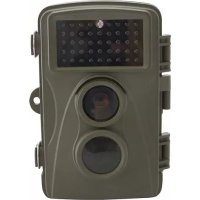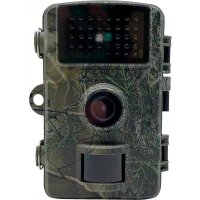
32322 - Camera Berger & Schröter - Free user manual and instructions
Find the device manual for free 32322 Berger & Schröter in PDF.

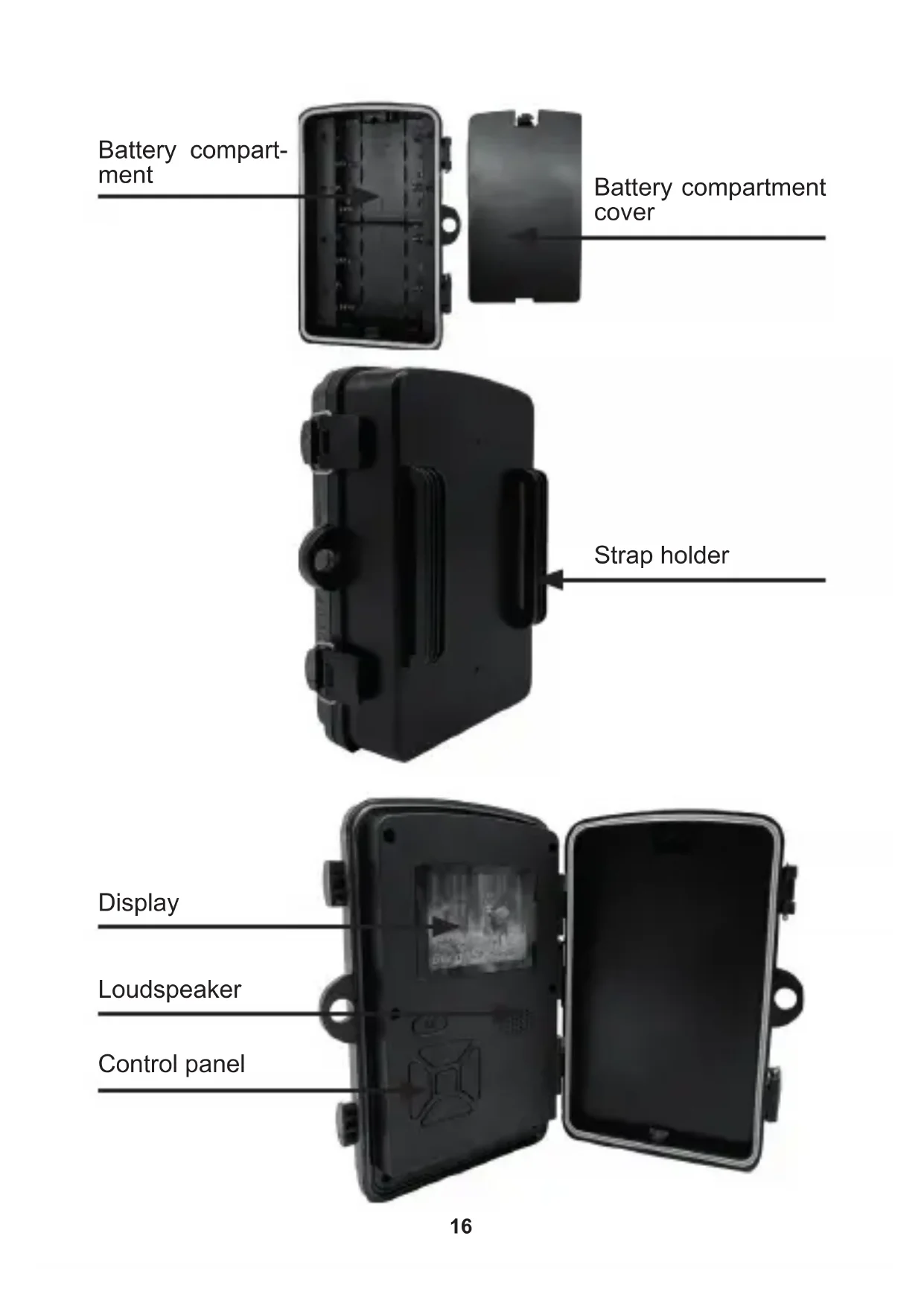


| Product type | Trail camera / Wildlife camera |
| Brand | Berger & Schröter |
| Model | 32322 (DH1) |
| Maximum photo resolution | 16 MP (options from 0.3 to 16 MP) |
| Maximum video resolution | 1920x1080 (Full HD) |
| Lens angle | 90° |
| Infrared flash range | Approximately 20 m |
| PIR sensor range | Up to 10 m (adjustable) |
| Display | 2.0 inch TFT |
| Power supply | 8 AA batteries (alkaline) or 6V DC 2A adapter (not included) |
| Standby power consumption | < 0.35 mA |
| Memory | TF card (Micro SD) up to 32 GB (not included) |
| Protection rating | IP66 (weather resistant) |
| Dimensions (W x D x H) | 135 x 95 x 65 mm |
| Main functions | Photo, video, photo+video; sound recording; automatic white balance; password protection; timestamp with date/time/moon phase/temperature |
| Trigger mode | Single image, image+video, video |
| Trigger time | 0.7 seconds (with 4 GB card) |
| Adjustable video length | 10 seconds to 3 minutes |
| Number of IR LEDs | 38 black 940 nm LEDs |
| Installation | By strap (included) or tripod (not included) |
| Maintenance | Remove batteries if not used for a long time; format the TF card regularly; clean the lens with a soft cloth |
| Safety | Use recommended AA batteries; observe polarity; do not expose to heat source |
| Spare parts / accessories | Mounting strap included; 6V power adapter optional; TF card not supplied |
| Menu languages | German, English, French, Czech, Polish, Portuguese, Dutch |
Frequently Asked Questions - 32322 Berger & Schröter
User questions about 32322 Berger & Schröter
0 question about this device. Answer the ones you know or ask your own.
Ask a new question about this device
Download the instructions for your Camera in PDF format for free! Find your manual 32322 - Berger & Schröter and take your electronic device back in hand. On this page are published all the documents necessary for the use of your device. 32322 by Berger & Schröter.
USER MANUAL 32322 Berger & Schröter
natural_image
Close-up of a black camouflage camera with visible lens and control buttons (no text or symbols)Art. Nr. 32322
text_image
M E OFF - TEST - ON5.4. ON-Modus
| Model DH1 Wildgame camera, 16MP | |
| Dimensions LxWxH: 135x95x65mm | |
| Memory size up to 32BG memory card | |
| Power supply Internal: 8x Mignon alkaline batteryExternal: 6V DC connector, 2A | |
| Standby power con-sumption | <0,35mA |
| Display 2,0" TFT Display | |
| Image size 1x to 3x, 1.3MP to 16MP | |
| Video size 1920x1080, 1280x720, 640x480 | |
| Video length 10sec. to 3min. | |
| Sound recording yes | |
| Trigger Single image, single image+video, video | |
| Trigger time 0.7sec, with 4GB Micro SD card | |
| White balance yes, automatic | |
| Lens angle 90° | |
| Infrared light 38 Black-LEDs, 940nm | |
| PIR Sensor Intensity adjustable, up to 10 m | |
| Bitz range approx. 20m | |
| Protection class | IP66 |
| Installation | Mounting tape or tripod |
| Menu languages | D, GB, F, CZ, PL, P, NL |
| Special features | Password protection, date, time, moon phase and temperature on each image |
2. Scope of delivery
1x webbing for tree attachment
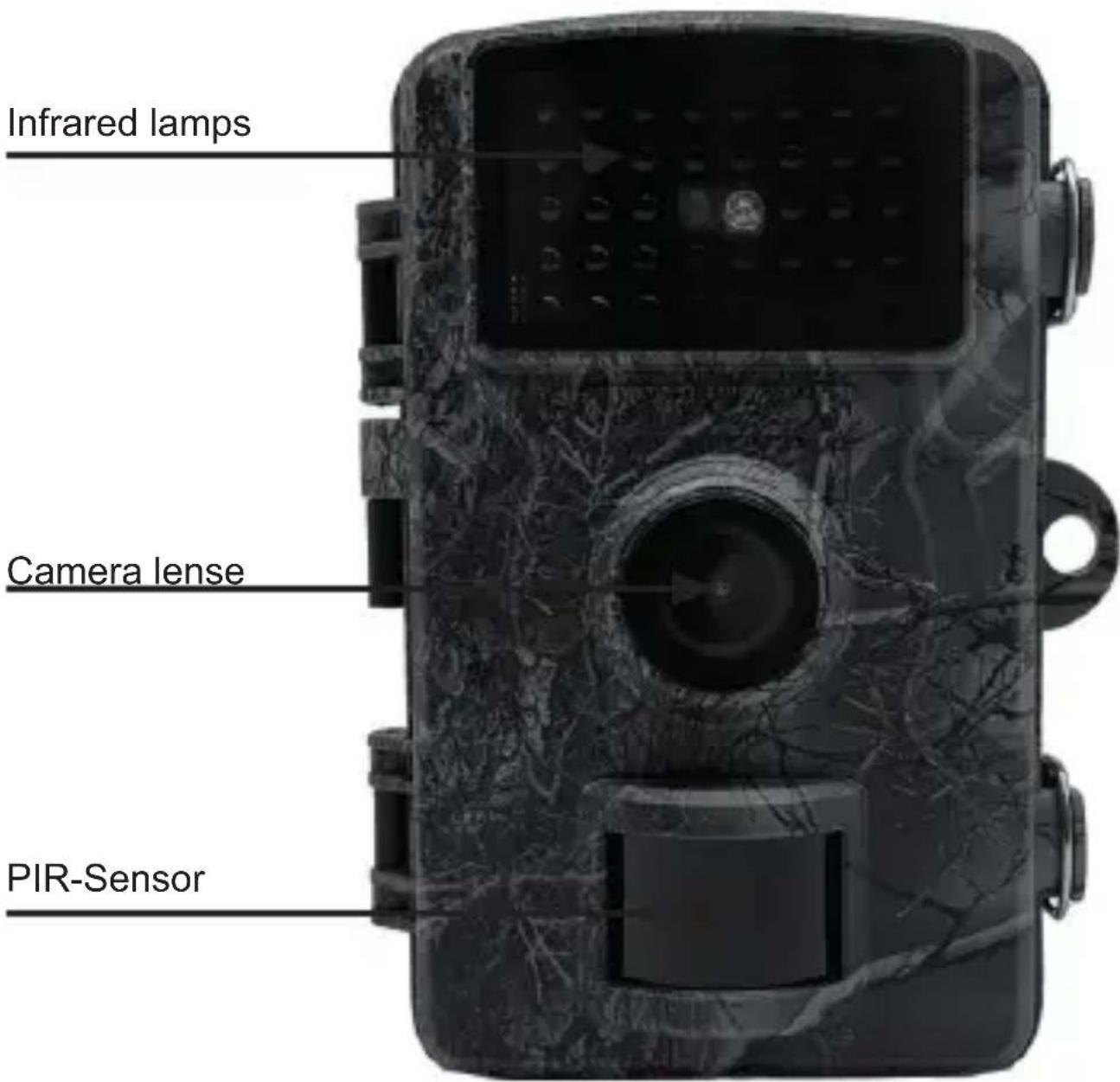
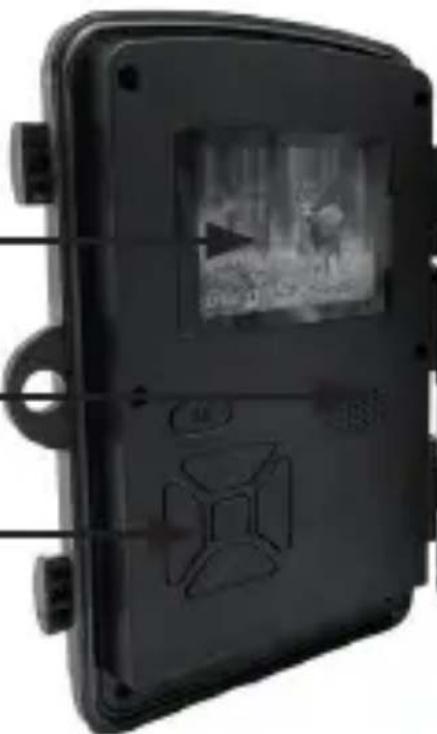
3. Designation
text_image
Infrared lamps Camera lense PIR-Sensor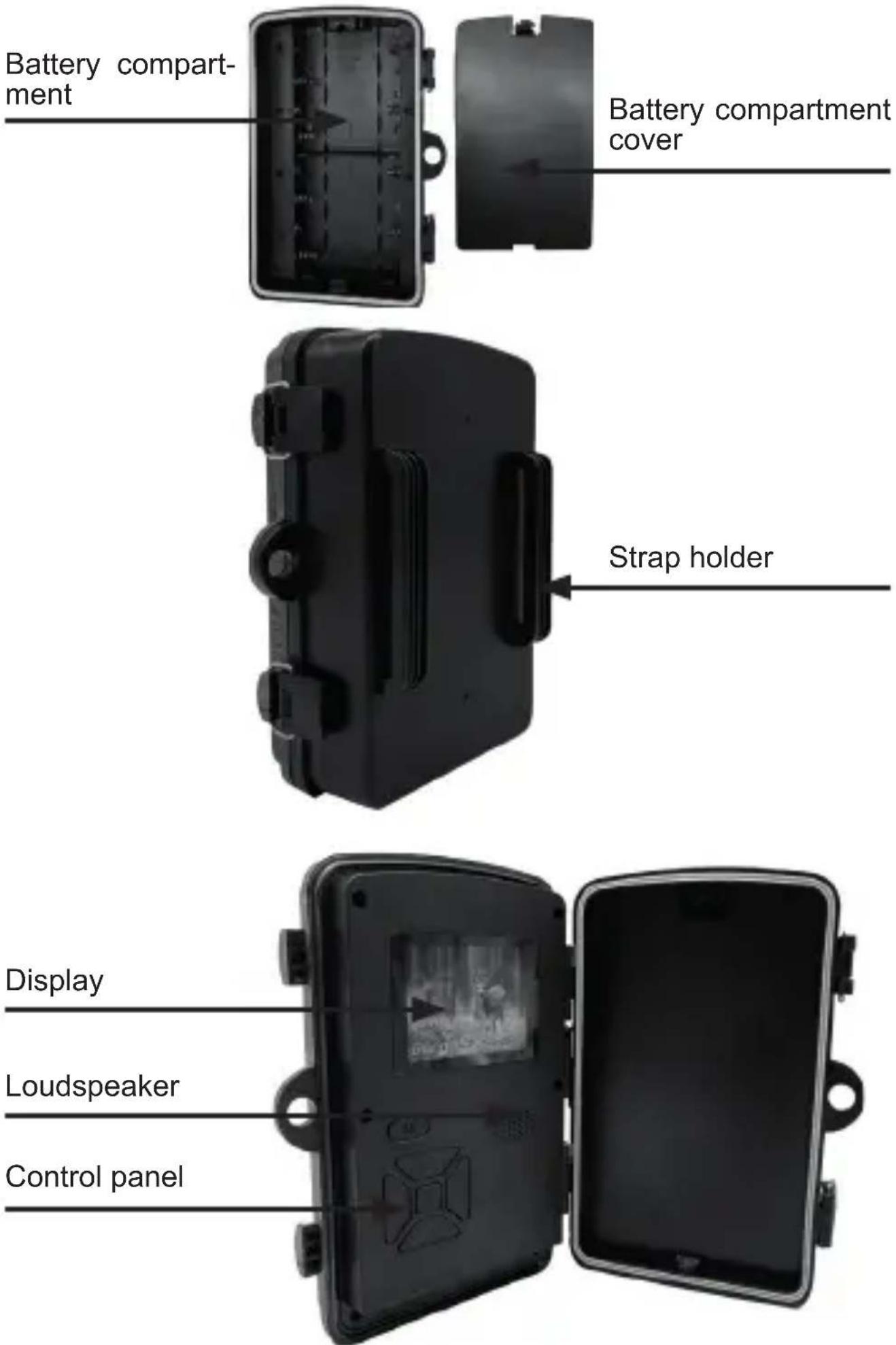
4. Description
1) This camera has the following connections: USB interface, TF card slot and external DC power connector. Three levels power/mode switch for selection: OFF/TEST/ON;
2) LED light indicator: red means PIR monitoring; white means image or video recording.
5. Use
5.1. Battery
The use of AA batteries is recommended for the power supply. Make sure that the positive and negative terminals of the battery match the symbols on the housing.
If you are not going to use the camera for a long period of time, remove the battery from the camera to avoid possible damage to the camera due to leakage; In addition, the camera can also be powered by external DC power (6V/2A), solar panels, etc. In „TEST“ mode, „Low Battery“ is shown on the display when the battery is low.
5.2. Insert TF card
This camera has no built-in memory and therefore cannot be operated without a TF card. The
TF card supports a capacity of up to 32 GB. Before inserting the TF card into the TF slot, please check if the capacity of the card exceeds 32 GB and make sure that the card has been tested.
5.3. Test mode
Turn the switch to the „TEST“ position and enter the setting mode. In this mode, as with a normal digital camera, you can take pictures or videos or enter the menu to set parameters. There are six access keys on the keyboard:
Briefly press the „▲/▼“ key to set camera/video.
Briefly press the „E“ key to set manual photo/video recording. The captured photos or videos (depending on the camera settings) are saved on the TF card.
Briefly press the „M“ key to enter the menu mode for changing settings, briefly press „E“ to confirm the setting changes.
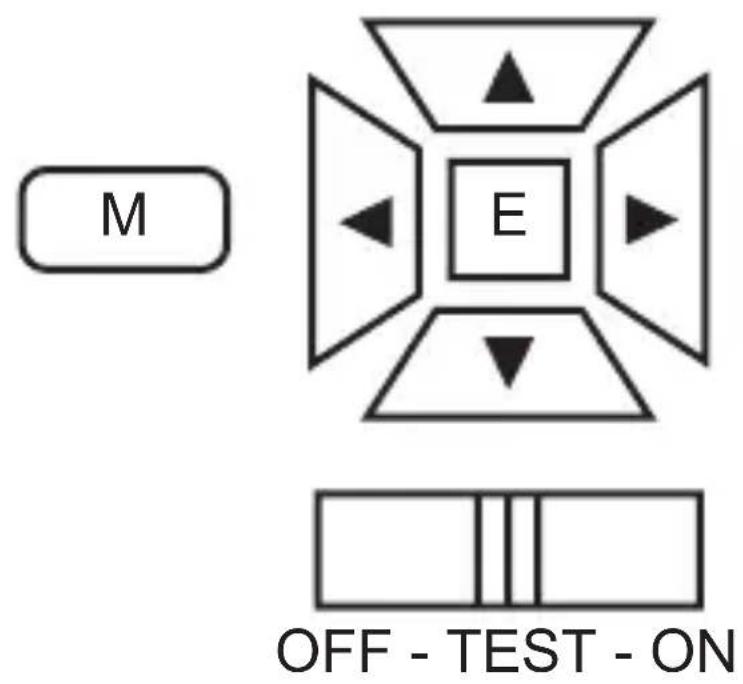
text_image
M E OFF - TEST - ON5.4. ON-Mode
When the switch is in the „ON“ position, the camera switches to real-time mode. At the same time, the camera starts working without manual operation. When game or other objects enter the PIR detection range, photos or videos are taken immediately.
When game moves out of the PIR detection range, the camera switches off and goes into standby mode.
Description:
In general, it is recommended to place the camera at a height of 1 to 2 metres above the ground.
Note:
To avoid possible false triggering due to temperature and monitoring errors, do not point the camera at a heat source (e.g. the sun) or near branches. Remove or near tree branches near the front of the camera.
6. Advanced settings
The tracking camera is delivered with factory settings. You can change the settings according to your needs, please make sure the camera is in settings mode.
6.1. Advanced settings
Briefly press the „M“ key to enter or exit the menu. Briefly press the „▲/▼“ key.
to move the cursor, briefly press the „◀/▶“ button to change the setting and briefly press the „E“ button to confirm the change; remember to briefly press the „E“ button to save the change, otherwise the new setting will be lost.
| Photo mode CameraVideoTake photo + video | Select whether you want to take a picture or record a video. In Cam+Video mode you first take a photo and then a video. | |
| Languages Enter English, Chinese (Simplified), Chinese (Traditional), Japanese, Korean, Russian, French, German, Portuguese, Polish, Turkish, Thai | ||
| Image size 16MP12MP8MP5MP3M1.3M0.3M | Choose the image pixels you want, 0.3MP to 16MP is optional, higher resolution has better image quality but takes up more TF memory so it takes longer to write larger files to the TF card and slightly slows down the exposure time | |
| Video length AVI 10 seconds10 seconds to 3 minutes. | Videos in AVI format can be played back on most video players. | |
| Date/Time Enter Briefly press the „ENTER“ key to set the date and time. Switch on „Watermark“ if you want to have a watermark for date/time on each picture. If you select „OFF“, the picture will not be watermarked. | ||
| Password protection ON OFF | Set a password to protect the camera from being used by unauthorised users. | |
| Serial number ON OFF | Select „ON“ to assign a serial number for your camera. You can use a combination of 4 digits. | |
| Sound recording | ONOFF | The default setting is on. When it is on, the camera can record, otherwise it only records silent video. |
| Formatting ON | OFF | If you format the TF card, all files will be deleted. If your TF card has been used in other devices, it is strongly recommended to format the TF card. |
| Reset factory settings | CancelConfirm | Briefly press the „E“ key to restore the factory settings. |
| Version Enter View by camera version | ||
6.2. File formatting
The pictures and videos from the camera are saved in the PHOTO or VIDEO folder on the TF card. The name of the picture file is saved as PICT0001.JPG and the name of the video file is saved as PICT0001.AVI. In Open mode, you can use the supplied USB data cable to download these files to the computer, or you can insert the TF card into the card reader and connect the computer to browse the files on the U-Disk. AVI video files can be played on most multi-media devices, e.g. Windows MediaPlayer, Quick Time, etc.
7. Questions & Answers
Question:
I have forgotten my password. What can I do?
Press and hold the „M“ + „E“ keys, switch on the unit, turn the switch to the „SET“ position and switch off the unit. The camera will be reset to factory settings, all last set parameters (including any passwords) will be deleted.
Question:
My camera displays the following „At low voltage it is difficult to obtain night video. / It is difficult to obtain night video under low voltage.“ What does this mean?
When the camera is turned on, the message „It is difficult to obtain night video under low voltage“ appears, indicating that the battery is very low. If the battery voltage is lower than 4.0 V, the infrared light cannot be switched on. The camera cannot take pictures or record videos at night. The power consumption of the infrared light is very high and exceeds normal power consumption. It is recommended to set the video length shorter or as needed during the day. The camera does not need to switch on the infrared light and can still record videos.
Bergen & Schütten
FR Mode d'emploi
text_image
M E OFF - TEST - ON5.4. Mode ON
natural_image
Close-up of a black plastic enclosure with internal compartments and mounting bracket (no visible text or symbols)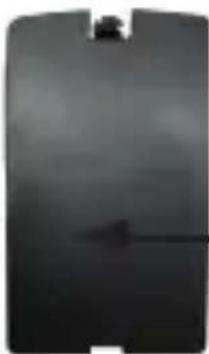
natural_image
Dark rectangular object with a small triangular mark on the left side (no visible text or symbols)natural_image
Black rectangular electronic device with multiple ports and a side panel, no visible text or symbolsRiemhouder
Display
natural_image
Close-up of a black rectangular device with a small screen showing a landscape image, and control buttons visible (no readable text or symbols)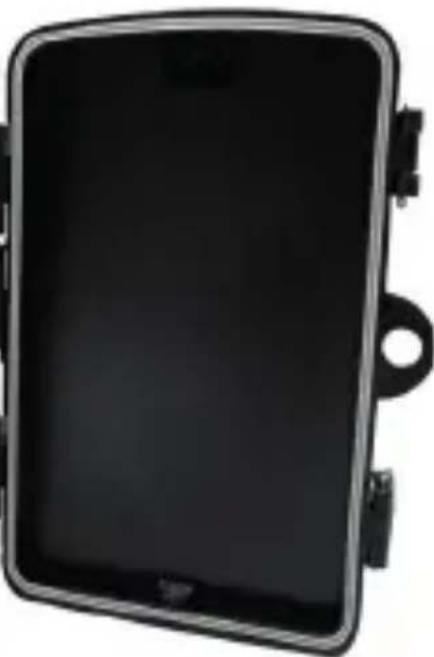
natural_image
Black rectangular electronic device with a mounting bracket and side connectors (no visible text or symbols)Luidspreker
Bedieningspaneel