
CMU-BR100 - Conference Cameras SONY - Free user manual and instructions
Find the device manual for free CMU-BR100 SONY in PDF.



| Product Type | Conference Camera |
| Brand | Sony |
| Model | CMU-BR100 |
| Dimensions (L × H × D) | 186 mm × 32 mm × 45 mm |
| Weight | 98 g |
| Power Supply | 5 V DC, 500 mA max |
| Video Resolution | 1280 × 720 pixels (HD) |
| Frame Rate | 22 fps in HD, 30 fps in VGA |
| Lens | F/2.0, horizontal field 51.75° (HD mode) |
| Microphone | 4 integrated unidirectional microphones |
| Interface | USB 2.0 |
| Main Functions | Video and voice calls via Skype, HD video capture, split screen |
| Operating Temperature | 0 °C to 40 °C |
| Included Accessories | Self-adhesive strips (1), mounting accessory (1), instruction manual (1), installation guide (1) |
| Maintenance and Cleaning | Clean with a soft cloth; for stubborn stains, use a cloth lightly dampened with warm water and mild soap. Do not use strong solvents. |
| Safety | Do not disassemble, do not expose to water or foreign objects, do not touch the lens, do not use at high temperature or near strong magnetic field, keep small accessories out of reach of children. |
| Repairability and Spare Parts | This product contains no user-repairable parts. For any repairs, contact an authorized Sony after-sales service. |
| General Information | Manufactured by Sony Corporation, 1-7-1 Konan Minato-ku Tokyo. Authorized representative: Sony Deutschland GmbH, Hedelfinger Strasse 61, 70327 Stuttgart, Germany. |
Frequently Asked Questions - CMU-BR100 SONY
User questions about CMU-BR100 SONY
0 question about this device. Answer the ones you know or ask your own.
Ask a new question about this device
Download the instructions for your Conference Cameras in PDF format for free! Find your manual CMU-BR100 - SONY and take your electronic device back in hand. On this page are published all the documents necessary for the use of your device. CMU-BR100 by SONY.
USER MANUAL CMU-BR100 SONY
Camera and Microphone Unit
Operating Instructions GB Bruksanvising NO
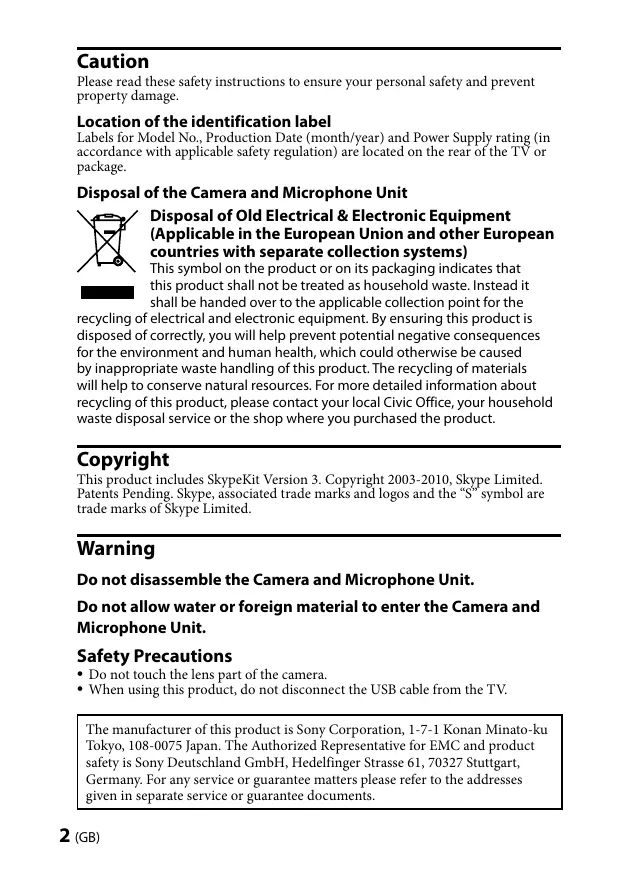
Please read these safety instructions to ensure your personal safety and prevent property damage.
Location of the identification label
Labels for Model No., Production Date (month/year) and Power Supply rating (in accordance with applicable safety regulation) are located on the rear of the TV or package.
Disposal of the Camera and Microphone Unit


Disposal of Old Electrical & Electronic Equipment (Applicable in the European Union and other European countries with separate collection systems)
This symbol on the product or on its packaging indicates that this product shall not be treated as household waste. Instead it shall be handed over to the applicable collection point for the
recycling of electrical and electronic equipment. By ensuring this product is disposed of correctly, you will help prevent potential negative consequences for the environment and human health, which could otherwise be caused by inappropriate waste handling of this product. The recycling of materials will help to conserve natural resources. For more detailed information about recycling of this product, please contact your local Civic Office, your household waste disposal service or the shop where you purchased the product.
Copyright
This product includes SkypeKit Version 3. Copyright 2003-2010, Skype Limited. Patents Pending. Skype, associated trade marks and logos and the "S" symbol are trade marks of Skype Limited.
Warning
Do not disassemble the Camera and Microphone Unit.
Do not allow water or foreign material to enter the Camera and Microphone Unit.
Safety Precautions
- Do not touch the lens part of the camera.
- When using this product, do not disconnect the USB cable from the TV.
The manufacturer of this product is Sony Corporation, 1-7-1 Konan Minato-ku Tokyo, 108-0075 Japan. The Authorized Representative for EMC and product safety is Sony Deutschland GmbH, Hedelfinger Strasse 61, 70327 Stuttgart, Germany. For any service or guarantee matters please refer to the addresses given in separate service or guarantee documents.
- Do not shake or drop this product.
- Do not use this product in a high-temperature, or near a strong magnetic field.
- Do not use this product in locations subject to dust, steam, water or smoke.
- Keep small accessories out of the reach of children, so that they are not mistakenly swallowed.
- When using this product for extended periods, the TV or this product may become hot to the touch. However, this is not a malfunction. Refer to Sony website for the latest information. http://www.sony-europe.com/myproduct
Maintenance of your Camera and Microphone Unit
- Wipe the Camera and Microphone Unit gently with a soft cloth.
- Stubborn stains may be removed with a cloth slightly moistened with a solution of mild soap and warm water.
- If using a chemically pretreated cloth, be sure to follow the instructions provided on the package.
- Never use strong solvents such as a thinner, alcohol or benzine for cleaning.
Specifications
Power Supply: DC 5 V, max. 500mA
Dimensions (Approx.) (w x h x d): 186 mm x 32 mm x 45 mm
Weight: 98 g
Operating temperature: 0°C to 40°C
Lens: F/2.0; FOV (H) 51.75° (in HD mode)
Image Device (Resolution): CMOS Sensor (1280 x 720)
Output Format: Max. 1280 x 720 (HD*)
- Output format depends on connected equipment or Internet connection speed, and may not be compliant with HD.
Frame Rate: 22 fps at HD, 30 fps at VGA
Microphone: 4 unidirectional microphones
Interface: USB 2.0
Accessories: Hook & Loop fastener (1), Attachment (1), Operating Instructions (1), Installation Guide (1)
Parts and Components
Refer to the "Installation Guide" too. (Supplied)
LED (When capturing, the indicator lights up.) 2 Lens 3 4 Microphones (not for stereo) 4 USB cable 5 Cable holder
Setting up the Camera and Microphone Unit
Refer to the "Installation Guide" too. (Supplied)
Before connecting the USB cable to a TV or USB port of connected equipment, position this product in one of the following ways:
Installing this product on a TV or its stand.
A Attach to the top of the TV. B Place the product in front of the TV.
Do not place this product too close to the speakers of the TV.
Installing this product on a wall mounted TV.
C Attach to the bottom centre of the TV using the Hook & Loop fastener.
Sufficient space is necessary to attach this product to the bottom of the TV. Depending on your TV, attachment to the bottom of the TV may not be possible.
Set the orientation of the camera image by the TV.
Using SkypeTM
This feature allows you to make video calls and voice calls.
Precautions for use
- To use this feature, the TV has to be connected to the Internet with a broadband connection.
- The quality of the voice and video call can be impacted by your internet connection speed. The use of a wireless connection can cause image and sound degradation.
- Skype operation may not be available while some other applications are being used.
- It is free to register and sign in to Skype, and audio and video calls to other people on Skype are free. For other Skype services, such as low-cost calls to mobile phones and landlines, Skype Credit or a subscription is required.
- For more information on Skype, check the website: http://www.skype.com/
No emergency calls
Skype is not a replacement for your telephone and cannot be used for emergency calling.
Starting Skype
From the Selection Home Menu, you can start Skype.
When starting Skype for the first time, you will be required to agree to a licence agreement and enter region settings according to the displayed menu.
Creating your Skype account
You can either use your existing Skype account or create a new account, as desired.
To create the account, follow the displayed menu, enter your desired [Skype Name], [Password], and your Email address.
After creating the account, sign in will be automatically continued, and the operation menu will be displayed.
Note
Be sure to remember your [Skype Name] and [Password] to sign in.
Sign in Skype
To sign in, enter your [Skype Name] and [Password], following the displayed menu.
You can set to sign into Skype automatically when the TV is turned on.
Enjoying a call with Skype
- Add to contact list
You can add both Skype and phone contacts to the contact list.
To add a Skype contact, select [Tools], then [Find Contacts]. After the setting, follow the displayed menu.
Making a call
Select a contact from the [Contacts] or [History] tab. Follow the menu display, and make a call as desired.
You can also search a contact from the [Find Contacts].
Receiving a call
If you receive a call while signed into Skype, the response menu will appear on the display. (Continuous Internet connection required.)
Follow the menu display, and answer the call if desired.
- If you stay signed into Skype, you can receive a call even while watching TV or video.
- If the TV is powered off, or if you are signed out of Skype, you cannot receive a call.
Attention
Alternatively, you can use the following method to find contacts.
Lens: F/2.0; FOV (H) 51.75° (in HD-stand)
To use Skype, you need to install it on your computer and you need to use it for outgoing calls.
Starting Skype
This product includes SkypeKit Version 3. Copyright 2003-2010, Skype Limited. Patents Pending. Skype, associated trade marks and logos and the "S" symbol are trade marks of Skype Limited.
Warning
This product includes SkypeKit Version 3. Copyright 2003-2010, Skype Limited. Patents Pending. Skype, associated trade marks and logos and the "S" symbol are trade marks of Skype Limited.
Warning
This product includes SkypeKit Version 3. Copyright 2003-2010, Skype Limited. Patents Pending. Skype, associated trade marks and logos and the "S" symbol are trade marks of Skype Limited.
Warning
Do not disassemble the camera module with microphone.
Protect the camera module with microphone from water or foreign material.
This product includes SkypeKit Version 3. Copyright 2003-2010, Skype Limited. Patents Pending. Skype, associated trade marks and logos and the "S" symbol are trade marks of Skype Limited.
Warning
Do not disassemble the camera and microphone device.
Prevent water or foreign objects from entering the camera and microphone device.
This product includes SkypeKit Version 3, Copyright 2003-2010, Skype Limited. Patents Pending. Skype, associated trade marks and logos and the "S" symbol are trade marks of Skype Limited.
Do not disassemble the web camera with built-in microphone.
Frame rate: 22 fps in HD, 30 fps in VGA
Microphone: 4 unidirectional microphones
Interface: USB 2.0
Accessories: Mounting device (1), Attachment (1), User instructions (1), Installation guide (1)
Parts and components
Refer to the "Installation Guide". (Provided)
This product includes SkypeKit Version 3, Copyright 2003-2010, Skype Limited. Patents Pending. Skype, associated trade marks and logos and the "S" symbol are trade marks of Skype Limited.
Precautions
Do not disassemble the camera and microphone kit.
Do not allow water or foreign objects to enter the camera and microphone kit.
Do not touch the camera. - When using the product, do not disconnect the USB cable from the TV. - Do not drop or throw the product. Do not use the product at high temperatures or in direct sunlight.
The manufacturer of this product is Sony Corporation, 1-7-1 Konan Minato-ku Tokyo, 108-0075 Japan. The authorized representative for EMC (electromagnetic compatibility) and product safety is Sony Deutschland GmbH, Hedelfinger Strasse 61, 70327 Stuttgart, Germany. For inquiries regarding service and warranty, please contact the dealer in accordance with the relevant service or warranty documents.
Do not use the product in places where there is dust, steam, water, or oil. Place the product on a stable surface, away from people, to avoid injury. Prolonged use of the product may cause the TV or product to become hot. This is not a malfunction. - For the latest information, visit the Sony website. http://www.sony-europe.com/myproduct
Camera with microphone kit
- Pay attention to the camera with microphone kit. The lens may be damaged if it comes into contact with hot water or steam. To avoid potential hazards, follow the instructions on the label. Never use strong solvents, such as thinners or benzene, for cleaning.
Specifications
Power: DC 5V, max. 500mA
Dimensions (approx.) (W × H × D): 186 mm × 32 mm × 45 mm
Weight: 98 g
Operating temperature: 0°C to 40°C
Lens F/2.0; FOV (H) 51.75° (in HD mode - high resolution capability)
Image device (resolution): CMOS sensor (1280 x 720)
Output format: Max. 1280 × 720 (HD*)
*HD output is only available when connected to a high-speed internet connection and is not compatible with HD.
Video: 22 fps at HD, 30 fps at VGA
Microphone: built-in microphone
Interface: USB 2.0
Package contents: mounting tape (1), power adapter (1), operating instructions (1), installation guide (1)
Parts and components
Refer to the manual and installation guide. (Provided)
1 LED indicator (when recording, the LED indicator lights up.) 2 Lens 3 4 Microphone (not for stereo) 4 USB cable 5 Cable clip
Initial setup of the camera kit with microphone
Refer to the manual and installation guide. (Provided)
To create an account, follow the on-screen instructions, enter your desired [Skype Name], [Password], and your email address.
After creating the account, you will automatically be logged in and the main menu will be displayed.
Note
Remember your [Skype Name] and [Password] to log in to your account.
Logging into Skype
To log in, enter your [Skype Name] and [Password] as shown on the screen.
The device will turn on automatically when the TV is turned on.
How to use Skype
In addition, see the "Installation Guide" (included).
1 LED indicator (lights up when recording) 2 Lens 3 Microphones (for stereo sound) 4 USB cable 5 Cable holder
Setting up the camera and microphone unit
In addition, see the "Installation Guide" (included).
Before connecting the USB cable to the TV or to the USB port of the connected equipment, place the device in one of the following ways:
Installation of this device on the TV or on its stand.
A Attach on top of the TV. B Place the device in front of the TV.
Do not place the device too close to the TV speakers.
Installation of this device on the wall on which the TV is installed.
Attach to the center below the TV with the adhesive strip.
To attach this device to the bottom of the TV, you need sufficient free space. Depending on the TV, it may not be possible to attach this device to its bottom. Adjust the orientation of the camera image using the TV.
Using SkypeTM
This function allows you to make video calls and voice calls.
The device supports connection to the Internet via broadband. The quality of video and voice calls may depend on the speed of your Internet connection. Using a dial-up connection may significantly degrade the quality of audio playback. When using third-party applications, it may not be possible to use Skype. Registration and access to Skype, as well as voice and video calls via Skype, are free. For other Skype services, such as cheap calls to mobile and landline phones, a Skype credit or subscription is required. For more information about Skype, visit the website: http://www.skype.com/
Calls to emergency services are prohibited
Skype is not a substitute for a telephone, so do not use Skype for calls to emergency services.
Starting Skype
Select in the main menu S, then start Skype.
When starting Skype for the first time, you will be required to accept the license agreement and enter your real details according to the displayed menu.
Creating a Skype account
You can use an existing Skype account or create a new one if necessary.
This product includes SkypeKit Version 3. Copyright 2003-2010, Skype Limited. Patents Pending. Skype, associated trade marks and logos and the "S" symbol are trade marks of Skype Limited.
Precautions
Do not disassemble the built-in camera and microphone.
Technical specifications
Power: 5V DC, max. 500mA
Dimensions (approx) (W x H x D): 186 mm x 32 mm x 45 mm
Bara: 98r
Operating temperature: 0°C 40circC
Lens: F/2.0, field of view (H) 51.75° (in HD mode)
Installing the camera and microphone
See also "Installation Guide" (provided).
To connect the USB cable to the TV, use the USB port on the rear panel. Select one of the following methods.
Select the input source or its type.
A. Attach to the top of the TV. Select the option above the TV.
Do not place the device too close to the TV speakers.
Place this device on the TV, if it is mounted on the wall.
C. Attach to the bottom center of the TV, using the bracket and strap.
The Skype service should not replace your regular telephone and should not be used for emergency calls.
Starting Skype
Select in the main menu S to start the Skype service.
When starting Skype for the first time, you must accept the license agreement and also set regional parameters in the displayed menu.
Do not forget [Skype Name] and [Password], which are necessary for logging into the service.
Logging into Skype service
To log in, enter [Skype Name] and [Password] in the selected menu.
It is possible to configure such a setting that when the TV is turned on, logging into the Skype service will be performed automatically.
Service shutdown via Skype
- CAMERA AND MICROPHONE UNIT
- LOCATION OF THE IDENTIFICATION LABEL
- DISPOSAL OF THE CAMERA AND MICROPHONE UNIT
- DISPOSAL OF OLD ELECTRICAL & ELECTRONIC EQUIPMENT (APPLICABLE IN THE EUROPEAN UNION AND OTHER EUROPEAN COUNTRIES WITH SEPARATE COLLECTION SYSTEMS)
- COPYRIGHT
- WARNING
- DO NOT ALLOW WATER OR FOREIGN MATERIAL TO ENTER THE CAMERA AND MICROPHONE UNIT
- SAFETY PRECAUTIONS
- MAINTENANCE OF YOUR CAMERA AND MICROPHONE UNIT
- SPECIFICATIONS
- PARTS AND COMPONENTS
- SETTING UP THE CAMERA AND MICROPHONE UNIT
- INSTALLING THIS PRODUCT ON A TV OR ITS STAND
- INSTALLING THIS PRODUCT ON A WALL MOUNTED TV
- USING SKYPETM
- PRECAUTIONS FOR USE
- NO EMERGENCY CALLS
- STARTING SKYPE
- CREATING YOUR SKYPE ACCOUNT
- NOTE
- SIGN IN SKYPE
- ENJOYING A CALL WITH SKYPE
- ADD TO CONTACT LIST
- MAKING A CALL
- RECEIVING A CALL
- ATTENTION
- DO NOT DISASSEMBLE THE CAMERA MODULE WITH MICROPHONE
- PROTECT THE CAMERA MODULE WITH MICROPHONE FROM WATER OR FOREIGN MATERIAL
- PRECAUTIONS
- CAMERA WITH MICROPHONE KIT
- INITIAL SETUP OF THE CAMERA KIT WITH MICROPHONE
- LOGGING INTO SKYPE
- HOW TO USE SKYPE
- INSTALLATION OF THIS DEVICE ON THE TV OR ON ITS STAND
- INSTALLATION OF THIS DEVICE ON THE WALL ON WHICH THE TV IS INSTALLED
- CALLS TO EMERGENCY SERVICES ARE PROHIBITED
- CREATING A SKYPE ACCOUNT
- TECHNICAL SPECIFICATIONS
- INSTALLING THE CAMERA AND MICROPHONE
- SELECT THE INPUT SOURCE OR ITS TYPE
- PLACE THIS DEVICE ON THE TV, IF IT IS MOUNTED ON THE WALL
- LOGGING INTO SKYPE SERVICE
- SERVICE SHUTDOWN VIA SKYPE
Brand : SONY
Model : CMU-BR100
Category : Conference Cameras