SAPSD5 - Home Theater System SONY - Free user manual and instructions
Find the device manual for free SAPSD5 SONY in PDF.



| Product type | 5.1-channel home theater system |
| Brand | Sony |
| Model | SAPSD5 |
| Output power (subwoofer) | 80 W (4 ohms) |
| Output power (satellite speakers) | 25 W per channel (3 ohms, 120–10,000 Hz, 10% THD) |
| Power consumption | 95 W; 3.5 W in standby |
| Supported audio formats | Dolby Digital, DTS, Dolby Pro Logic |
| Subwoofer speaker | 1 x 200 mm (7 7/8 in) cone, bass-reflex |
| Satellite speakers | 5 x 77 mm (3 1/8 in) cone, bass-reflex |
| Available sound fields | AFD, Normal Surround, Cinema Studio A/B/C, Virtual Multi Dimension, Virtual Semi Multi Dimension, Hall, Jazz Club, Live House, Game, 2CH Stereo |
| Additional functions | DVD playback, sleep timer, Sony TV control, balance adjustment, test tone |
| Connectivity | 2 digital optical inputs, 2 analog audio inputs, speaker outputs |
| Maintenance and cleaning | Soft cloth lightly moistened with a mild detergent solution. Do not use abrasives or solvents. |
| Safety | Do not open the enclosure. Disconnect if an object or liquid enters. Keep away from rain and moisture. Ensure sufficient ventilation. |
| Operating temperature | 5 °C to 35 °C |
| Operating humidity | 5% to 90% |
| Supplied accessories | Subwoofer, 5 satellite speakers, wires (5 m x3, 15 m x2), optical cable, remote control RM-UP51, R6 (AA) batteries, cushions |
| Manual | 148 pages, available in multiple languages |
Frequently Asked Questions - SAPSD5 SONY
User questions about SAPSD5 SONY
0 question about this device. Answer the ones you know or ask your own.
Ask a new question about this device
Download the instructions for your Home Theater System in PDF format for free! Find your manual SAPSD5 - SONY and take your electronic device back in hand. On this page are published all the documents necessary for the use of your device. SAPSD5 by SONY.
USER MANUAL SAPSD5 SONY
To prevent fire or shock hazard, do not expose the unit to rain or moisture. To avoid electrical shock, do not open the cabinet. Refer servicing to qualified personnel only.
Mains cord must only be changed at qualified service shop.
Precautions
Safety
- If anything falls into the cabinet, unplug the unit and have it checked by qualified personnel before operating it any further.
- The unit is not disconnected from the mains as long as it is connected to the mains outlet, even if the unit itself has been turned off.
- Unplug the unit from the wall outlet if you do not intend to use it for an extended period of time. To disconnect the cord, pull it out by the plug, never by the cord.
- Do not use the unit in a car. The operation cannot be guaranteed.
Installing
- Do not install the appliance in a confined space, such as a bookcase or built-in cabinet.
- Allow adequate air circulation to prevent internal heat buildup.
- Do not place the unit on surfaces (rugs, blankets, etc.) or near materials (curtains, draperies) that may block the ventilation slots.
- Do not install the unit near heat sources such as radiators or air ducts, or in a place subject to direct sunlight, excessive dust, mechanical vibration or shock.
- Do not install the unit in an inclined position. It is designed to be operated in a horizontal position only.
- Keep the unit away from equipment with strong magnets, such as microwave ovens or large loudspeakers.
- Do not place heavy objects on the unit.
- If the unit is brought directly from a cold to a warm location, moisture may condense inside the unit. When you first install the unit, or when you move it from a cold to a warm location, wait for about one hour before operating the unit.
Welcome!
Thank you for purchasing the Sony 5.1-channel Digital Audio System. Before operating the unit, please read this manual thoroughly and retain it for future reference.
TABLE OF CONTENTS
WARNING 2
Welcome! 2
Precautions 3
Getting Started 4
Unpacking 4
Hookup 4
Speaker Setup 7
Operations 9
Adjusting the Volume 9
Selecting the Sound Field 11
Playing the Disc on the DVD Player 13
Using the Sleep Timer 14
Controlling the TV with the Supplied Remote 15
Additional Information 16
Troubleshooting 16
Specifications 17
Index to Parts and Controls 18
"PlayStation 2" is a registered trademark of Sony Computer Entertainment.
This system incorporates Dolby* Digital and Pro Logic Surround and the DTS** Digital Surround System.
* Manufactured under license from Dolby Laboratories.
"Dolby," "Pro Logic," and the double-D symbol are trademarks of Dolby Laboratories.
Confidential unpublished works. © 1992-1997 Dolby Laboratories. All rights reserved.
**Manufactured under license from Digital Theater Systems, Inc. US Pat. No. 5,451,942 and other worldwide patents issued and pending. "DTS" and "DTS Digital Surround" are trademarks of Digital Theater Systems, Inc. © 1996 Digital Theater Systems, Inc. All rights reserved.
Precautions
On safety
- Should any solid object or liquid fall into the cabinet, unplug the system and have it checked by qualified personnel before operating it any further.
On power sources
- The system is not disconnected from the AC power source (mains) as long as it is connected to the wall outlet, even if the system itself has been turned off.
- If you are not going to use the system for a long time, be sure to disconnect the system from the wall outlet. To disconnect the AC power cord (mains lead), grasp the plug itself; never pull the cord.
- Should the AC power cord (mains lead) need to be changed, have it done at a qualified service shop only.
On placement
- Place the system in a location with adequate ventilation to prevent heat build-up in the system.
- Do not place the system by a soft surface such as a rug that might block the ventilation holes on the rear.
- Do not place the system in a location near heat sources, or in a place subject to direct sunlight, excessive dust or mechanical shock.
On adjusting volume
- Do not turn up the volume while listening to a portion with very low level inputs or no audio signals. If you do, the speakers may be damaged when a peak level portion is played.
On cleaning
- Clean the cabinet, panel and controls with a soft cloth slightly moistened with a mild detergent solution. Do not use any type of abrasive pad, scouring powder or solvent such as alcohol or benzine.
On your TV's color
- If the speakers should cause the TV screen to have color irregularity, turn off the TV at once then turn it on after 15 to 30 minutes. If color irregularity should persist, place the speakers further away from the TV.
If you have any questions or problems concerning your system, please consult your nearest Sony dealer.
Getting Started
You can connect this system to "PlayStation 2" and enjoy the surround sound.
This system can also be connected to other audio/video components such as a DVD player, CD player or VCR.
Be sure to turn off the power of each component before making the connections.
Unpacking
Check that you have the following items:
- Subwoofer (1)
- Satellite speakers (5)
- Speaker cords (5 m (17 ft) x 3, 15 m (50 ft) x 2)
• Optical digital cord (1) - Remote commander (remote) RM-UP51 (1)
• R6 (size AA) batteries (2) - Foot pads (20)
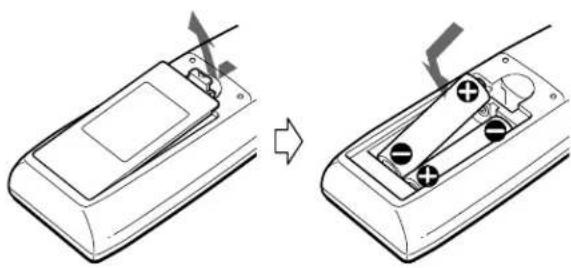
Inserting batteries into the remote
You can control the system using the supplied remote. Insert two R6 (size AA) batteries by matching the + and - on the batteries. When using the remote, point it at the remote sensor on the system.
natural_image
Diagram showing a device being adjusted to form a device with buttons and a switch (no text or symbols present)Notes
- Do not leave the remote in an extremely hot or humid place.
- Do not use a new battery with an old one.
- Do not drop any foreign object into the remote casing, particularly when replacing the batteries.
- Do not expose the remote sensor to direct sunlight or lighting apparatuses. Doing so may cause a malfunction.
- If you will not use the remote for an extended period of time, remove the batteries to avoid possible damage from battery leakage and corrosion.
Hookup
Speaker installation
For best performance, we recommend speaker placement as shown.
You can use any satellite speakers for the front, center, and rear speakers.
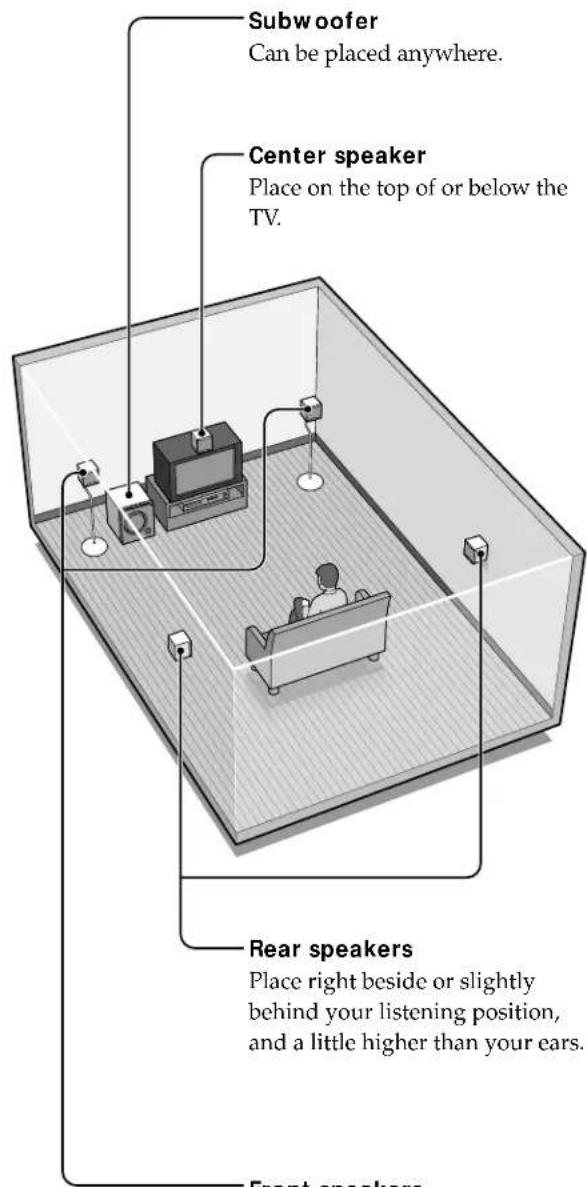
Front speakers
Place on both sides of the TV equal distances apart.
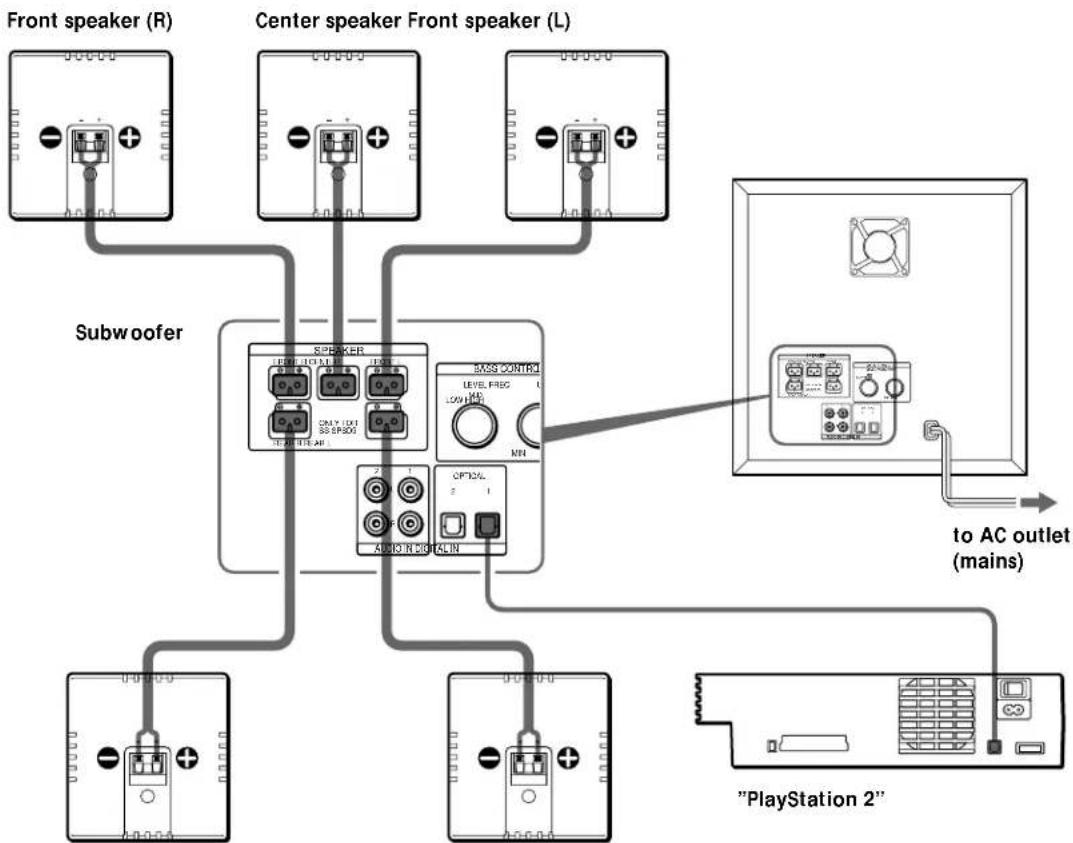
Connecting the "PlayStation 2"
Connect the "PlayStation 2" and the supplied satellite speakers to the subwoofer.
Supplied connecting cords
• Optical digital cord (1)
Use this cord to connect the "PlayStation 2" to the DIGITAL IN OPTICAL (1 or 2) jack of the subwoofer.

- Speaker cords (5)
Use these cords to connect the satellite speakers to the SPEAKER jacks of the subwoofer by matching the colors of the terminals and those of the plugs of the cords.
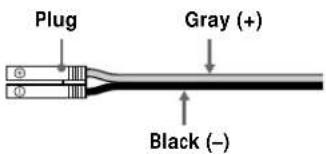
Terminals for connecting the speakers
| Connect the To the | |
| Front speakers | SPEAKER FRONT L (white) and R (red) terminals |
| Rear speakers | SPEAKER REAR L (blue) and R (gray) terminals |
| Center speaker | SPEAKER CENTER (green) terminal |
Notes
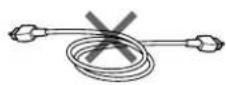
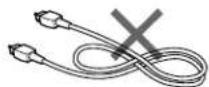
- Do not bundle or knot the optical digital cord.
- Be sure to match the speaker cord to the appropriate terminal on the components: + to + and - to -. If the cords are reversed, the sound will be distorted and will lack bass.
flowchart
graph TD
    A["Front speaker (R)"] --> B["Speaker Module"]
    C["Center speaker Front speaker (L)"] --> B
    D["PlayStation 2"] --> E["Speaker Module"]
    B --> F["Subwoofer"]
    E --> F
    F --> G["To AC outlet (mains)"]
    G --> H["AC/DC/DC"]
    H --> I["Power Supply"]
    style A fill:#f9f,stroke:#333
    style C fill:#f9f,stroke:#333
    style D fill:#f9f,stroke:#333
    style E fill:#f9f,stroke:#333
    style F fill:#ccf,stroke:#333
    style G fill:#ccf,stroke:#333
    style H fill:#ccf,stroke:#333
Rear speaker (R) Rear speaker (L)
Hookup
Connecting to other components
This system can be connected to digital audio/video components such as a DVD player or CD player, and analog components such as TV, VCR or PSone* (PlayStation 1st generation).
* PSone is a product of Sony Computer Entertainment.
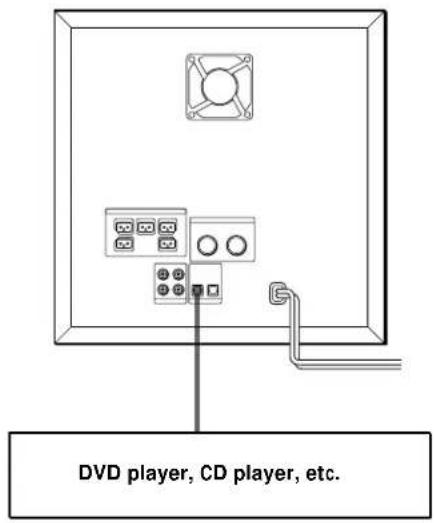
Connecting to a digital audio/video component
Connect the component to the DIGITAL IN OPTICAL (1 or 2) jack.
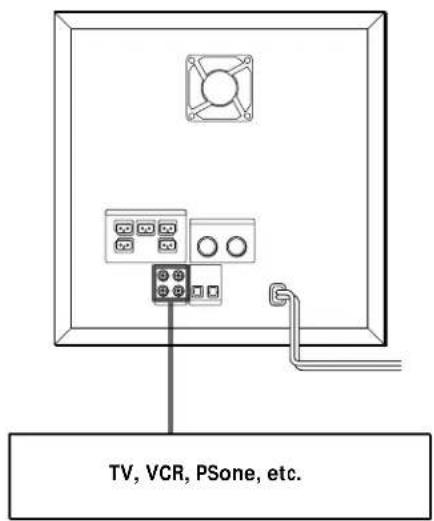
Connecting to an analog audio/video component
Connect the component to the AUDIO IN (1 or 2) jack.
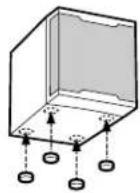
Steadying the speakers
To prevent speaker vibration or movement while listening, attach the supplied foot pads to the bottom four corners of the center speaker, front speakers, and rear speakers.
Using the optional speaker stands
For greater flexibility in the positioning of the speakers, use the optional speaker stands WS-FV10A, WS-TV10A, and WS-WV10A (available only in certain countries).

Speaker Setup
Positioning the speakers
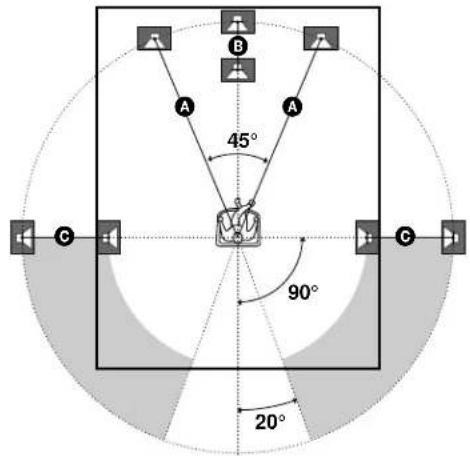
For the best possible surround sound, all the speakers other than the subwoofer should be the same distance from the listening position.
Place the front speakers within 1 to 15 meters (3 to 50 feet) from the listening position (A).
You can place the center speaker up to 1.6 meters (5 feet) closer (B) and the rear speakers up to 4.6 meters (15 feet) closer (C) to the listening position than the front speakers.
Place the rear speakers either behind you or to the side, depending on the shape of your room, etc.
You can place the subwoofer at any position.
When the rear speakers are placed to the side
When the rear speakers are placed behind you
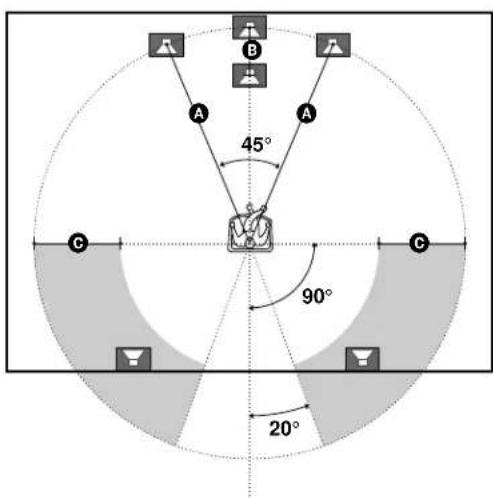
Note
Do not place the center and rear speakers farther away from the listening position than the front speakers.
Specifying the speaker parameters
For the best possible surround sound, specify the following parameters:
- Use the subwoofer or not
• Distance of the speakers from your listening position
• Position of the rear speakers
This system will reproduce the best possible surround sound by automatically adjusting the output from each speaker according to the speaker's position.
Details of each parameter will follow the description of the operation.
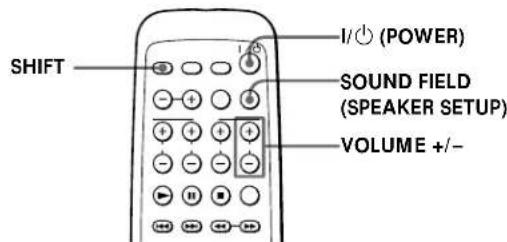
1 Press I/☐ (POWER) to turn on the system.
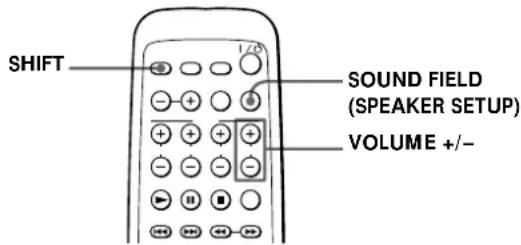
2 While pressing SHIFT, press SOUND FIELD (SPEAKER SETUP).
Each time you press SOUND FIELD (SPEAKER SETUP), the parameter is selected and displayed in the following order. See the next page for details of each parameter.
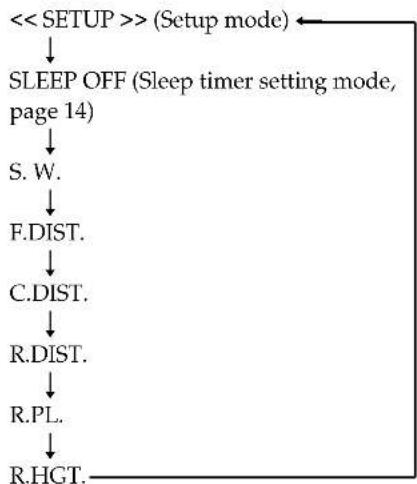
flowchart
graph TD
    A["<< SETUP >> (Setup mode)"] --> B["SLEEP OFF (Sleep timer setting mode, page 14)"]
    B --> C["S.W."]
    C --> D["F.DIST."]
    D --> E["C.DIST."]
    E --> F["R.DIST."]
    F --> G["R.PL."]
    G --> H["R.HGT."]
3 While pressing SHIFT, set the parameter using VOLUME +/-.
4 Repeat Steps 2 and 3 to set other parameters.
If you do not operate the remote for a few seconds, the parameter turns off and is stored in the system.
continued
Speaker Setup
Parameters
The following are the parameters. The default settings are underlined.
■S.W.
Set whether you output the sound from the subwoofer or not.
• YES: Normally select this.
- NO: If you will not output the sound from the subwoofer, select this.
F. DIST.
Set the distance from the front speakers to the listening position.
Front speaker distance can be set in 0.2-meter (1-foot) steps from 1 to 15 meters (3 to 50 feet). The default figure is 5 meters (17 feet).
C. DIST.
Set the distance from the center speaker to the listening position.
Center speaker distance can be set in 0.2-meter (1-foot) steps from a distance equal to the front speaker distance to a distance 1.6 meters (5 feet) closer to the listening position. The default figure is 5 meters (17 feet).
■R. DIST.
Set the distance from the rear speakers to the listening position.
Rear speaker distance can be set in 0.2-meter (1-foot) steps from a distance equal to the front speaker distance to a distance 4.6 meters (15 feet) closer to your listening position. The default figure is 3.4 meters (12 feet).
Note
If the front or rear speakers are not placed an equal distance from your listening position, set the distance of the closer speaker.
■R.PL.
Specify the position of the rear speakers, behind or side.
• BEHIND
Select this if the rear speakers are located in section B.
- SIDE
Select this if the rear speakers are located in section A.
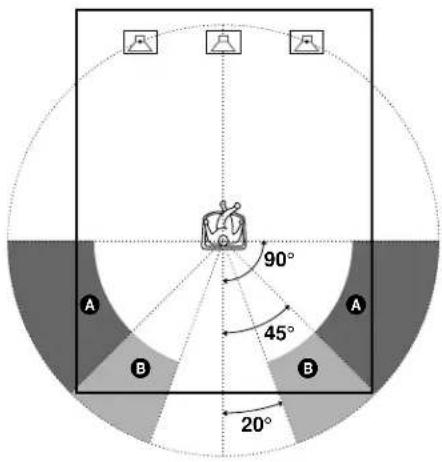
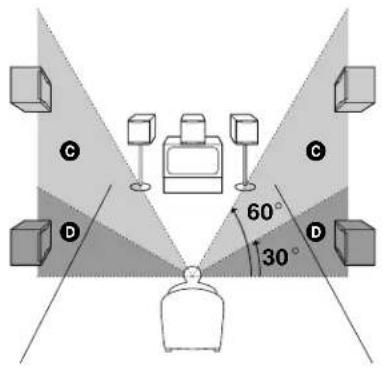
R.HGT.
Specify the height of the rear speakers.
- LOW
Select this if the rear speakers are located in section D. - HIGH
Select this if the rear speakers are located in section C.
Operations
You can enjoy surround sound by selecting a sound field mode that best suits the program from various sound field modes of this system. You can also play the disc in the DVD player or control the TV with the supplied remote.
Adjusting the Volume
Adjusting all speakers' volume together
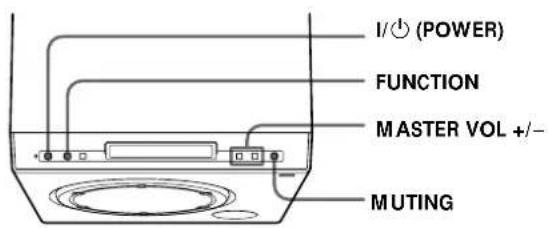
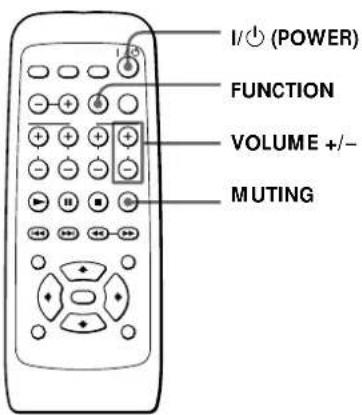
Adjusting the Volume
1 Press I/⏻ (POWER) to turn on the system.
2 Play the program source.
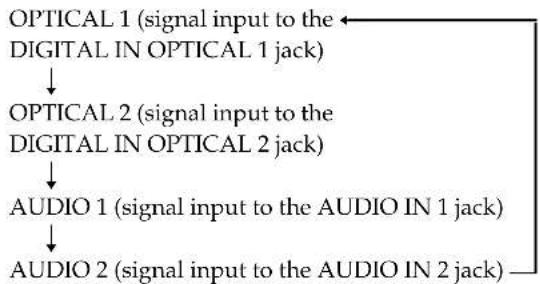
3 If there is no sound, press FUNCTION to select the input source.
Each time you press FUNCTION, the input source is selected and displayed in the following order.
flowchart
graph TD
    A["OPTICAL 1 (signal input to the DIGITAL IN OPTICAL 1 jack)"] --> B["OPTICAL 2 (signal input to the DIGITAL IN OPTICAL 2 jack)"]
    B --> C["AUDIO 1 (signal input to the AUDIO IN 1 jack)"]
    C --> D["AUDIO 2 (signal input to the AUDIO IN 2 jack)"]
4 Press MASTER VOL +/-.
On the remote, press VOLUME +/-
To mute the sound
Press MUTING.
Adjusting the Volume
Adjusting the speaker balance
You can adjust the speakers individually, except for the front speakers.
The center and rear speakers and subwoofer volume level are adjusted to the front speaker volume level as the criterion.
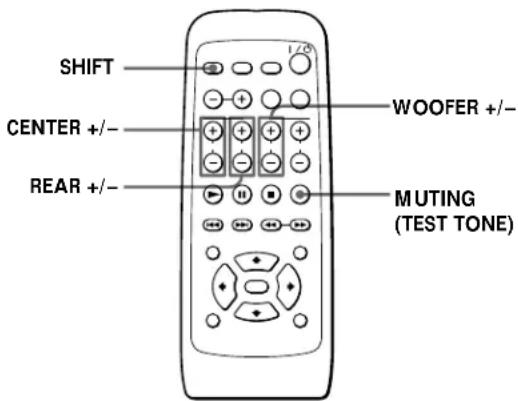
To adjust the center speaker
Press CENTER +/-
To adjust the rear speakers
Press REAR +/-.
To adjust the subwoofer
Press WOOFER +/-.
The test tone will make it easier to hear the difference in volume level of each speaker
While pressing SHIFT, press MUTING (TEST TONE).
You will hear the test tone from each speaker in sequence. Adjust the volume level so that the volume of the test tone from each speaker sounds the same.
To turn off the test tone, while pressing SHIFT, press MUTING (TEST TONE) again.
Making fine adjustment of the bass sound
You can change the tone of the subwoofer by adjusting the lowest frequency range of the playback sound band output from the subwoofer.
BASS CONTROL knobs on the rear panel
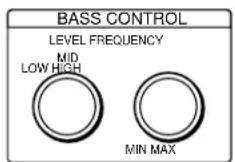
To tune in the bass frequency
Turn the FREQUENCY knob to the desired bass frequency.
Turn toward MIN (about 40 Hz) to enhance bass boost, or toward MAX (about 70 Hz) to obtain crisp bass sound.
To make fine adjustment of subwoofer volume
Set the LEVEL knob to the desired level.
Bass sound will be enhanced in the order of
LOW → MID → HIGH.
Use this function to make fine adjustment of bass sound
When you want to adjust bass sound volume in wider range, use the WOOFER +/- buttons of the remote.
Note
Setting the LEVEL knob to HIGH may weaken the bass sound.
Moreover, extraneous noise may be heard.
Selecting the Sound Field
You can enjoy surround sound simply by selecting one of the pre-programmed sound fields according to the program you want to listen to. You will get such presence that you will have the illusion that you are in a movie theater or concert hall while you are in your own room. See the table on the next page for the details on each sound field.
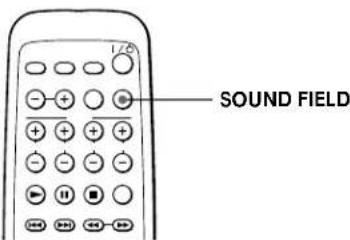
Press SOUND FIELD repeatedly until the sound field you want appears on the display window.
You can also use SOUND FIELD on the subwoofer. Each time you press SOUND FIELD, the sound field mode is selected and displayed in the following order.
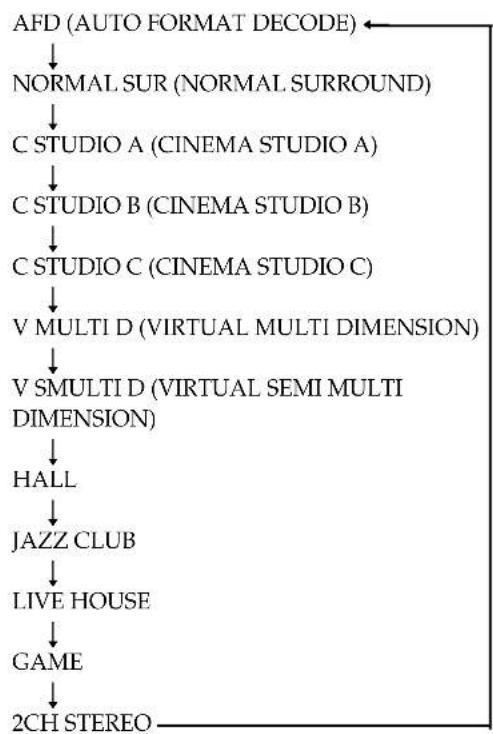
flowchart
graph TD
    A["AFD (AUTO FORMAT DECODE)"] --> B["NORMAL SUR (NORMAL SURROUND)"]
    B --> C["C STUDIO A (CINEMA STUDIO A)"]
    C --> D["C STUDIO B (CINEMA STUDIO B)"]
    D --> E["C STUDIO C (CINEMA STUDIO C)"]
    E --> F["V MULTI D (VIRTUAL MULTI DIMENSION)"]
    F --> G["V SMULTI D (VIRTUAL SEMI MULTI DIMENSION)"]
    G --> H["HALL"]
    H --> I["JAZZ CLUB"]
    I --> J["LIVE HOUSE"]
    J --> K["GAME"]
    K --> L["2CH STEREO"]
The system memorizes the last sound field selected for each source component selected by the FUNCTION button (Sound Field Link)
When you select an audio/video component by the FUNCTION button, the sound field that was last applied for the component is automatically applied. For example, suppose you select the "PlayStation 2" connected to the OPTICAL 1 jack and select GAME as the sound field, then switch to OPTICAL 2 by the FUNCTION button and select HALL as the sound field. If you switch to OPTICAL 1 again, GAME will be applied as the sound field.
You can identify the encoding format of program software by looking at its packaging
- Dolby Digital discs are labeled with the
– Dolby Surround encoded programs are labeled with the
– DTS Digital Surround discs are marked with DTS.

Note
When you play sound tracks with 96 kHz sampling frequency, the output signals will be converted to 48 kHz sampling frequency.
Selecting the Sound Field
Features of each sound field mode
| Sound field mode | Recommended cases | Effect |
| AUTO FORMAT DECODE | To listen to the original sound of the program. | Automatically detects the type of audio signal being input (Dolby Digital, DTS, Dolby Pro Logic, or standard 2 channel stereo) and performs the proper decoding if necessary. This mode presents the sound as it was recorded/encoded, without adding any effects. |
| NORMAL SURROUND | To listen to the surround sound as it was recorded. | Software with multichannel surround audio signals is played according to the way it was recorded.Software with 2 channel audio signals, is decoded with Dolby Pro Logic to create surround effects. |
| CINEMA STUDIO A* | This is a standard mode.Great for watching almost any type of movie. | Reproduces the sound characteristics of Sony Pictures Entertainment's classic editing studio. |
| CINEMA STUDIO B* | To watch science-fiction or action movies with lots of sound effects. | Reproduces the sound characteristics of Sony Pictures Entertainment's mixing studio which is one of the most up-to-date facilities in Hollywood. |
| CINEMA STUDIO C* | To watch musicals or classic films where music is featured in the sound track. | Reproduces the sound characteristics of Sony Pictures Entertainment's BGM recording studio. |
| V. MULTI DIMENSION*(Virtual Multi Dimension) | To reproduce the surround sound more clearly. | Uses 3D sound imaging to create an array of virtual rear speakers positioned higher than the listener from a single pair of actual rear speakers. This mode creates 5 sets of virtual speakers surrounding the listener at approximately a 30^ angle of elevation. |
| V. SEMI-M. DIMENSION*(Virtual Semi Multi Dimension) | To reproduce the surround sound more clearly. | Uses 3D sound imaging to create virtual rear speakers from the sound of the front speakers without using actual rear speakers. This mode creates 5 sets of virtual speakers surrounding the listener at a 30^ angle of elevation. |
| HALL | To listen to soft acoustic sounds. | Reproduces the acoustics of a rectangular concert hall. |
| JAZZ CLUB | To listen to jazz. | Reproduces the acoustics of a jazz club. |
| LIVE HOUSE | To listen to rock or pop music. | Reproduces the acoustics of a 300-seat live house. |
| GAME | For video game software.Be sure to set the game machine to stereo mode when using game software with stereo sound capabilities. | Obtains maximum audio impact from video game software. |
| 2 CH STEREO | To play any source using only the front left and right speakers and subwoofer. | Outputs the sound from the front left and right speakers and subwoofer. Standard two channel (stereo) sources completely bypass the sound field processing. Multi channel surround formats are downmixed to two channels. |
* "VIRTUAL" sound field: Sound field with virtual speakers.
Notes
- The effects provided by the virtual speakers may cause increased noise in the playback signal.
- When listening to sound fields that employ the virtual speakers, you will not be able to hear any sound coming directly from the rear speakers.
Playing the Disc on the DVD Player
You can play DVDs on the Sony DVD player using the supplied remote.
Depending on the DVD or VIDEO CD, some operations may be different or restricted. Refer to the instructions supplied with your disc.
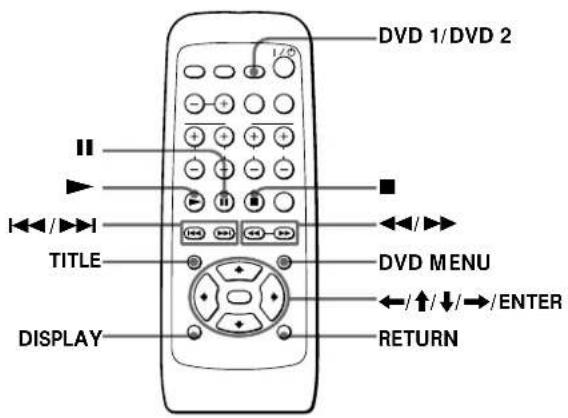
| To | Operation |
| Play a disc | Press ▶. |
| Stop | Press ■. |
| Pause | Press 11. |
| Resume play after pause | Press ▶. |
| Locate a point quickly (Scan) | Press ◀◀ or ▶▶ while playing a disc. When you find the point you want, press ▶ to return to the normal speed. |
| Go to the next chapter, track or scene in continuous play mode | Press ▶▶1. |
| Go back to the preceding chapter, track or scene in continuous play mode | Press ◀◀. |
| Turn on the DVD player | Press DVD 1.If you connect a DVD player with new signal format (available in future), press this button while pressing SHIFT to turn it on (DVD 2*). |
* In this case, press each button above while pressing SHIFT to operate the DVD player.
Using the title menu
A DVD is divided into long sections of a picture or a music piece called "titles." When you play a DVD which contains several titles, you can select the title you want using the title menu.
1 Press TITLE.
The title menu appears on the TV screen.
2 Press ←/↑/↓/→ to select the title you want to play.
3 Press ENTER.
The system starts playing the selected title.
Notes
- Depending on the DVD, you may not be able to select the title.
- Depending on the DVD, a "title menu" may simply be called a "menu" or "title" in the instructions supplied with the disc. "Press ENTER." may also be expressed as "Press SELECT."
Using the DVD menu
Some DVDs allow you to select the disc contents using the menu. When you play these DVDs, you can select the language for the subtitles, the language for the sound, etc., using the DVD menu.
1 Press DVD MENU.
The DVD menu appears on the TV screen. The contents of the menu vary from disc to disc.
2 Press ←/↑/↓/→ to select the item you want to change.
3 To change other items, repeat Step 2.
4 Press ENTER.
Note
Depending on the DVD, a "DVD menu" may simply be called a "menu" in the instructions supplied with the disc.
Playing the Disc on the DVD Player
Using the setup display
You can operate the setup display of the DVD player.
1 Press DISPLAY.
The setup display appears on the TV screen.
2 Press ←/→ to select the setup item, then press ENTER.
3 Press ↑/↓ to select the item you want to change, then press ENTER.
4 Change the item setting.
To return to the previous display
Press RETURN.
Using the Sleep Timer
You can set the system to turn off automatically at a specified time.
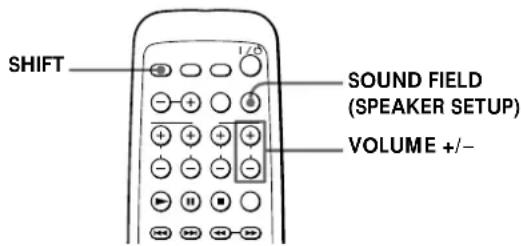
1 While pressing SHIFT, press SOUND FIELD (SPEAKER SETUP).
Each time you press SOUND FIELD (SPEAKER SETUP), the parameter is selected and displayed in the following order.
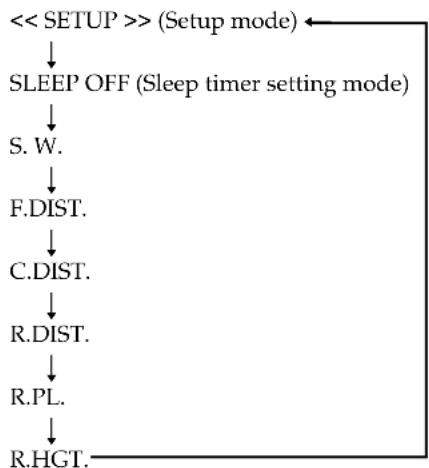
flowchart
graph TD
    A["<< SETUP >> (Setup mode)"] --> B["SLEEP OFF (Sleep timer setting mode)"]
    B --> C["S.W."]
    C --> D["F.DIST."]
    D --> E["C.DIST."]
    E --> F["R.DIST."]
    F --> G["R.PL."]
    G --> H["R.HGT."]
2 While HOUR, MIN and SEC indications are flashing, set the desired time by pressing VOLUME +/- together with SHIFT.
Each time you press VOLUME +, the time is extended up to 9.00.00 (9 hours) by 30 minutes.
Each time you press VOLUME –, the time is shortened up to OFF (timer off) by 30 minutes.
3 If you do not operate the remote for a few seconds, the time indication stops flashing and the timer is set.
While the sleep timer is activated, SLEEP appears on the front panel display.
You can check the time remaining before the system turns off
While pressing SHIFT, press SOUND FIELD (SPEAKER SETUP) twice. The remaining time appears on the front panel display.
Note
When the power is turned off, the sleep timer setting is cleared.
Controlling the TV with the Supplied Remote
You can control the Sony TV having mark with the supplied remote.
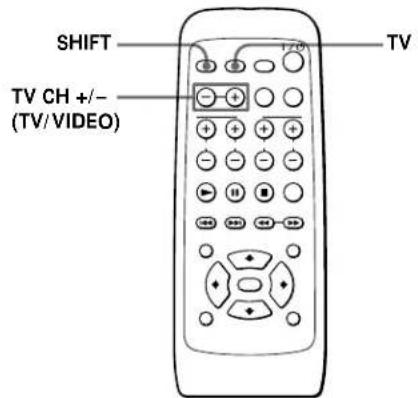
| To | Operation |
| Turn the TV on or off | Press TV. |
| Change the channel of the TV | Press TV CH +/- |
| Select the input source for the TV | While pressing SHIFT, press TV CH - (TV/VIDEO). |
Note
Depending on the TV, you may not be able to control your TV or to use some of the buttons above.
Additional Information
Troubleshooting
If you experience any of the following difficulties while using the system, use this troubleshooting guide to help you remedy the problem. Should any problem persist, consult your nearest Sony dealer.
The power is not turned on.
→Check that the AC power cord is connected securely.
There's no sound or only a very low-level sound is heard.
→Check that the speakers and components are connected correctly and securely (page 5).
→Make sure that you've selected the correct component on the system (page 9).
→Press MUTING if "MUTING ON" is displayed on the display window.
→The protective device on the system has been activated because of a short circuit. Turn off the system, eliminate the short-circuit problem and turn on the power again.
→The connecting cord is damaged. Replace it with a new one.
The left and right sounds are unbalanced or reversed.
→Check that the speakers and components are connected correctly and securely (page 5).
→Adjust the volume level of each speaker (page 10).
Severe hum or noise is heard.
→Check that the speakers and components are connected correctly and securely (page 5).
→Check that the connecting cords are away from a transformer or motor, and at least 3 meters (10 feet) away from a TV or fluorescent light.
→Move the TV away from the audio components.
→The plugs and jacks are dirty. Wipe them with a cloth slightly moistened with alcohol.
→Clean the disc.
The sound loses stereo effect when you play a VIDEO CD or a CD.
→Check that the speakers and components are connected correctly and securely (page 5).
Troubleshooting
The surround effect is difficult to hear when you are playing a Dolby Digital sound track.
→Make sure a proper sound field function is selected (page 11).
→Check the speaker connections and settings (page 5, 7).
→Depending on the DVD, the output signal may not be the entire 5.1 channel but monaural or stereo even if the sound track is recorded in Dolby Digital format.
The sound comes from the center speaker only.
→Depending on the disc, the sound may come from the center speaker only.
No sound is heard from the center speaker.
→Make sure a proper sound field function is selected (page 11).
→Select a sound field containing the word "cinema" or "virtual" (page 11).
→Adjust the speaker volume (page 9).
No sound or only a very low-level sound is heard from the rear speakers.
→Make sure a proper sound field function is selected (page 11).
→Select a sound field containing the word "cinema" or "virtual" (page 11).
→Adjust the speaker volume (page 9).
Bass sound cannot be changed by operating the BASS CONTROL knobs.
→Some discs do not include the sound of the frequency that can be changed by the bass control.
The remote does not function.
→Remove any obstacles between the remote and the system.
→Use the remote near the system.
→Point the remote at the remote sensor R on the system.
→Replace all the batteries in the remote with new ones if they are weak.
The system does not operate properly.
→Static electricity, etc., may affect the system's operation. Disconnect the AC power cord (mains lead) once, then connect it again.
Specifications
AUDIO POWER SPECIFICATIONS
POWER OUTPUT AND TOTAL HARMONIC DISTORTION:
With 3 ohm loads, both channels driven, from 120 – 10,000 Hz; rated 25 watts per channel minimum RMS power, with no more than 10 % total harmonic distortion from 250 milliwatts to rated output.
Front: 40 W + 40 W (6 ohms)
Center*: 40 W
Rear*: 40 W + 40 W
* Depending on the sound field settings and the source, there may be no sound output.
Speaker system Bass reflex
Speaker unit 200 mm (7 ^7 /s inches) dia. cone type
Rated impedance
4 ohms
Dimensions (approx.)
300 · 300 · 300 mm
(11^7/8 · 11^7/8 · 11^7/8 inches) (w/h/d, not including the projecting parts)
Mass (approx.) 9.7 kg (21 lb 6 oz)
SS-SPSD5 (satellite speakers)
Speaker system Bass reflex
Speaker unit 77 mm (3 ^1 /8 inches) dia. cone type
Rated impedance
6 ohms
Dimensions (approx.)
110 · 115 · 110 mm
(4^3 / 8 · 4^5 / 8 · 4^3 / 8 inches) (w/h/d)
Mass (approx.) 780 g (1 lb 12 oz)
General
Power requirements
220 - 240 V AC, 50/60 Hz
Power consumption
95 W
3.5 W (standby mode)
Operating temperature
5^ C to 35^ C ( 41^ F to 95^ F)
Operating humidity
5% to 90%
Supplied accessories
See page 4.
Design and specifications are subject to change without notice.
Index to Parts and Controls
Refer to the pages indicated in parentheses for details.
Subwoofer
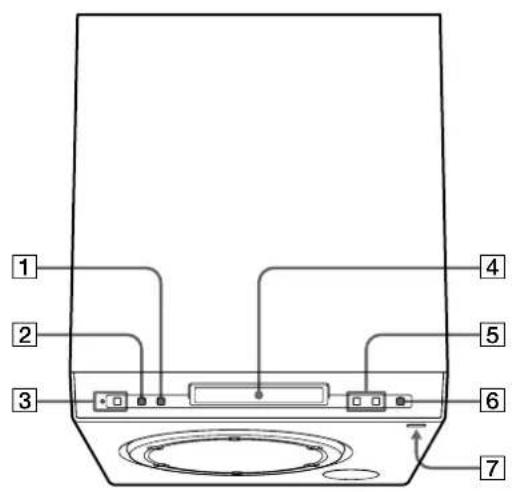
Top panel/Front panel
1 SOUND FIELD button (11)
Selects the sound field.
②FUNCTION button (9)
Selects the input signal.
3I/ (POWER) switch and indicator (9)
Turns on and off the power of the system.
4 Display window (7, 9, 11, 14)
Indicates the speaker setting, input signal, sound field mode, etc.
5 MASTER VOL (volume) +/- buttons (9)
Adjust the volume.
6 MUTING button (9)
Mutes the sound.
7 remote sensor (4)
Accepts the remote control signals.
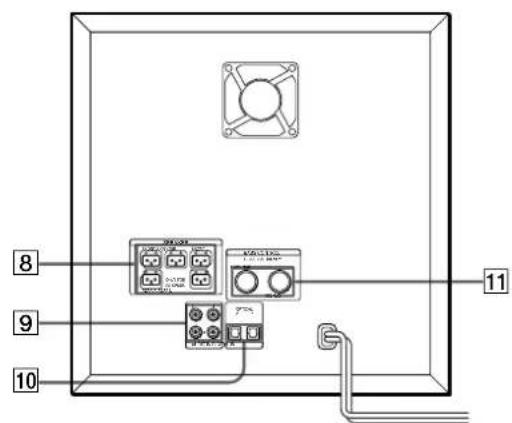
Rear panel
8 SPEAKER jacks (5)
Connect to the supplied satellite speakers.
9 AUDIO IN 1/2 jacks (6)
Connect to the audio output of a TV, VCR, PSone, etc.
10 DIGITAL IN OPTICAL 1/2 jacks (5, 6)
Connect to the DIGITAL OUT (OPTICAL) jack of the "PlayStation 2," DVD player, etc.
11 BASS CONTROL knobs (10)
Make fine adjustment of the bass sound.
Remote
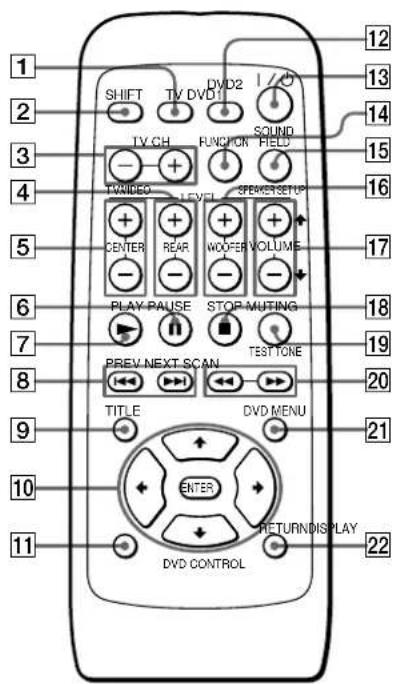
1 TV button (15)
Turns the TV on and off.
② SHIFT button (7, 10, 14, 15)
Switches the function of the buttons on the remote.
3 TV CH +/- (TV/VIDEO) buttons (15)
Changes the TV channel.
To change the TV input, press - while pressing SHIFT.
4 REAR +/- buttons (10)
Adjust the rear speakers volume.
5 CENTER +/- buttons (10)
Adjust the center speaker volume.
6 IIPAUSE button (13)
Pauses playing a disc.
7▶PLAY button (13)
Plays a disc.
8 I◀◀/▶▶IPREV/NEXT buttons (13)
Press to go to the next chapter or track, or to go back to the previous chapter or track.
9 TITLE button (13)
Displays the title menu on the TV screen.
10 ←/↑/↓/→/ENTER button
Selects and executes the items or settings.
11DISPLAY button (14)
Displays the setup display of the DVD player.
12DVD 1/DVD 2 button (13)
Turns on and off the power of the DVD player.
13I/ (POWER) switch (7, 9)
Turns on and off the system.
14FUNCTION button (9)
Selects the input signal.
15 SOUND FIELD (SPEAKER SETUP) button (7, 11, 14)
Selects the sound field mode.
Pressing this button while pressing SHIFT will select the speaker setup parameters.
16 WOOFER +/- buttons (10)
Adjust the subwoofer volume.
17 VOLUME +/- buttons (7, 9, 14)
Make the speaker settings or adjust the volume of the system.
Pressing this button while pressing SHIFT will set the speaker setup parameters.
18 ■ STOP button (13)
Stops playing a disc.
19MUTING (TEST TONE) button (9, 10)
Mutes the sound.
Pressing this button while pressing SHIFT will sound the test tone.
20◄◄/►► (SCAN) buttons (13)
Locate a point while monitoring the picture.
21 DVD MENU button (13)
Displays the DVD menu on the TV screen.
22RETURN button (14)
Returns to the previously selected screen.
AVERTISSEMENT
natural_image
Diagram showing a device being processed from a left-side box to a right-side box, with no visible text or symbols.Remarques
Avant : 40 W + 40 W (6 ohms)
Centre*: 40 W
Arrière*: 40 W + 40 W
Dimensions (approx.)
300 · 300 · 300 mm
(11^7/8 · 11^7/8 · 11^7/8 pouces)
(l/h/p, parties saillantes non incluses)
Poids (approx.) 9,7 kg (21 livres 6 onces)
SS-SPSD5 (haut-parleurs satellite)
10Prises DIGITAL IN OPTICAL 1/2 (5, 6)
2 Touche SHIFT (7, 10, 14, 15)
15 Touche SOUND FIELD (SPEAKER SETUP) (7, 11, 14)
natural_image
Diagram showing a device being processed from a left-side tool to a right-side view (no text or symbols present)Hinweise
natural_image
Line drawing of a rectangular electronic device with three ports and a stand, no text or symbols presentYou can set the system to turn off automatically at a specified time.
②Taste SHIFT (7, 10, 14, 15)
15Taste SOUND FIELD (SPEAKER SETUP) (7, 11, 14)
20 Tasten ◀◀/▶▶ (SCAN) (13)
natural_image
Diagram showing a device being adjusted to its left, with no visible text or symbolsNotas
1 Pulse I/⏻ (POWER) para activar el sistema.
2 Mientras pulsa SHIFT, pulse SOUND FIELD (SPEAKER SETUP).
1 WMientras pulsa SHIFT, pulse SOUND FIELD (SPEAKER SETUP).
Panel superior/panel frontal
4 Visor (7, 9, 11, 14)
natural_image
Diagram showing a device being processed from a left-side tool to a right-side view, with no visible text or symbols.Note
1 Premere I/ (POWER) per accendere il sistema.
2 Tenendo premuto SHIFT, premere SOUND FIELD (SPEAKER SETUP).
1 Tenendo premuto SHIFT, premere SOUND FIELD (SPEAKER SETUP).
Dimensioni (approssimative)
300 · 300 · 300 mm
(1/a/p, parti sporgenti escluse)
Dimensioni (approssimative)
110 · 115 · 110 mm
(1/a/p)
4 Display (7, 9, 11, 14)
10 Prese DIGITAL IN OPTICAL 1/2 (5, 6)
② Tasto SHIFT (7, 10, 14, 15)
natural_image
Diagram showing a device being processed from a left-side component to a right-side component, with no visible text or symbols.Opmerkingen
flowchart
graph TD
    A["<< SETUP >> (instelstand)"] --> B["SLEEP OFF (Sleep timer instelstand, pagina 14)"]
    B --> C["S. W."]
    C --> D["F.DIST."]
    D --> E["C.DIST."]
    E --> F["R.DIST."]
    F --> G["R.PL."]
    G --> H["R.HGT."]
1 Hou SHIFT ingedrukt en druk op SOUND FIELD (SPEAKER SETUP).
flowchart
graph TD
    A["<< SETUP >> (instelstand)"] --> B["SLEEP OFF (Sleep timer instelstand)"]
    B --> C["S. W."]
    C --> D["F.DIST."]
    D --> E["C.DIST."]
    E --> F["R.DIST."]
    F --> G["R.PL."]
    G --> H["R.HGT."]
INNEHÅLLSFÖRTECKNING
WARNING! 2
Välkommen! 2
Försiktighetsåtgärder 3
Komma igång 4
Packa upp 4
Anslutningar 4
Högtalarinstallation 7
Användning 9
Ställa in volymen 9
Välja ljudfält 11
natural_image
Diagram showing a device being processed from a left-side tool to a right-side view, with no visible text or symbols.Obs!
Främre: 40 W + 40 W (6 ohm)
Mitten*: 40 W
Bakre*: 40 W + 40 W
(b/h/d, exklusive utstickande delar)
Vikt (ca.) 9,7 kg
SS-SPSD5 (Satellithögtalare)
Högtalarsystem Basreflex
Högtalarelement 77 mm i diameter, av kontyp
Nominell impedans
6 ohm
Dimensioner (ca.)
110 · 115 · 110 mm
(b/h/d)
Vikt (ca.) 780 g
Allmänt
Strömförsörjning
220 - 240 V AC, 50/60 Hz
Strömförbrukning
95 W
3,5 W (i standbyläge)
Driftstemperatur
5^ till 35^ (41°F till 95°F)
Fuktighet under drift
5% till 90%
natural_image
Diagram showing a device being processed from a left-side tool to a right-side view, with no visible text or symbols.Uwagi

- Precautions
- Safety
- Installing
- Welcome!
- TABLE OF CONTENTS
- Getting Started 4
- Operations 9
- Additional Information 16
- On safety
- On power sources
- On placement
- On adjusting volume
- On cleaning
- On your TV's color
- Getting Started
- Unpacking
- Inserting batteries into the remote
- Notes
- Hookup
- Speaker installation
- Front speakers
- Connecting the "PlayStation 2"
- Supplied connecting cords
- Connecting to other components
- Connecting to a digital audio/video component
- Connecting to an analog audio/video component
- Steadying the speakers
- Using the optional speaker stands
- Speaker Setup
- Positioning the speakers
- Note
- Specifying the speaker parameters
- Parameters
- ■S.W.
- DIST.
- DIST.
- ■R. DIST.
- ■R.PL.
- R.HGT.
- Operations
- Adjusting the Volume
- Adjusting the speaker balance
- To adjust the center speaker
- To adjust the rear speakers
- To adjust the subwoofer
- The test tone will make it easier to hear the difference in volume level of each speaker
- Making fine adjustment of the bass sound
- To tune in the bass frequency
- To make fine adjustment of subwoofer volume
- Use this function to make fine adjustment of bass sound
- Selecting the Sound Field
- Press SOUND FIELD repeatedly until the sound field you want appears on the display window.
- The system memorizes the last sound field selected for each source component selected by the FUNCTION button (Sound Field Link)
- You can identify the encoding format of program software by looking at its packaging
- Playing the Disc on the DVD Player
- Using the title menu
- Press TITLE.
- Press ←/↑/↓/→ to select the title you want to play.
- Press ENTER.
- Using the DVD menu
- Press DVD MENU.
- Press ←/↑/↓/→ to select the item you want to change.
- To change other items, repeat Step 2.
- Press ENTER.
- Using the setup display
- Using the Sleep Timer
- Controlling the TV with the Supplied Remote
- Additional Information
- Troubleshooting
- The power is not turned on.
- There's no sound or only a very low-level sound is heard.
- The left and right sounds are unbalanced or reversed.
- Severe hum or noise is heard.
- The sound loses stereo effect when you play a VIDEO CD or a CD.
- The surround effect is difficult to hear when you are playing a Dolby Digital sound track.
- The sound comes from the center speaker only.
- No sound is heard from the center speaker.
- No sound or only a very low-level sound is heard from the rear speakers.
- Bass sound cannot be changed by operating the BASS CONTROL knobs.
- The remote does not function.
- The system does not operate properly.
- Specifications
- AUDIO POWER SPECIFICATIONS
- POWER OUTPUT AND TOTAL HARMONIC DISTORTION:
- Speaker system Bass reflex
- Rated impedance
- Dimensions (approx.)
- SS-SPSD5 (satellite speakers)
- General
- Power requirements
- Power consumption
- Operating temperature
- Operating humidity
- Supplied accessories
- Index to Parts and Controls
- Subwoofer
- Top panel/Front panel
- Rear panel
- Remote
- AVERTISSEMENT
- Remarques
- SS-SPSD5 (haut-parleurs satellite)
- Hinweise
- Notas
- WMientras pulsa SHIFT, pulse SOUND FIELD (SPEAKER SETUP).
- Panel superior/panel frontal
- Dimensioni (approssimative)
- Opmerkingen
- Hou SHIFT ingedrukt en druk op SOUND FIELD (SPEAKER SETUP).
- INNEHÅLLSFÖRTECKNING
- Komma igång 4
- Användning 9
- Obs!
- SS-SPSD5 (Satellithögtalare)
- Nominell impedans
- Dimensioner (ca.)
- Allmänt
- Strömförsörjning
- Strömförbrukning
- Driftstemperatur
- Fuktighet under drift
- Uwagi
Brand : SONY
Model : SAPSD5
Category : Home Theater System