Kamvas 22 Plus - Graphic tablet Huion - Free user manual and instructions
Find the device manual for free Kamvas 22 Plus Huion in PDF.


| Product type | Screen graphics tablet |
| Brand | Huion |
| Model | Kamvas 22 Plus |
| Screen size | 21.5 inches (diagonal) |
| Screen resolution | 1920 x 1080 pixels (Full HD) |
| Screen type | IPS |
| Active area | 476.64 x 268.11 mm |
| Contrast ratio | 1200:1 |
| Brightness | 220 cd/m² |
| Color gamut | 140% sRGB |
| Number of colors | 16.7 million (8 bits) |
| Touch technology | Electromagnetic (battery-free) |
| Stylus resolution | 5080 LPI |
| Pressure levels | 8192 |
| Stylus accuracy | ±0.5 mm (center), ±3 mm (corner) |
| Detection height | 10 mm |
| Included stylus | PW517 (2 customizable buttons) |
| Dimensions (without stand) | 546.06 x 323.07 x 19.1 to 26.7 mm |
| Net weight | 3.9 kg |
| Power supply | Power adapter 12 V, 3 A (included) |
| Video interface | USB-C (3-in-1 cable) and USB-C (USB 3.1) |
| System compatibility | Windows 7 or later, macOS 10.12 or later |
| Cleaning | Soft cloth, no detergent; unplug before |
| Available spare parts | Replacement nibs, cables, adapter, stand |
| Repairability | Do not disassemble yourself; contact customer service |
Frequently Asked Questions - Kamvas 22 Plus Huion
User questions about Kamvas 22 Plus Huion
0 question about this device. Answer the ones you know or ask your own.
Ask a new question about this device
Download the instructions for your Graphic tablet in PDF format for free! Find your manual Kamvas 22 Plus - Huion and take your electronic device back in hand. On this page are published all the documents necessary for the use of your device. Kamvas 22 Plus by Huion.
USER MANUAL Kamvas 22 Plus Huion
3 / Pen Basic Operation 9
3.1 Hold the Pen 9
3.2 Position the Cursor 9
3.3 Click 10
3.4 Move 10
3.5 Use the Side Buttons 10
3.6 Pen Nib Replacement 11
4/OSD Buttons. 11
5 / Function Setting 12
5.1 Working Area Setting 12
5.2 Display Setting 14
5.3 Pen Buttons Function Setting 16
5.4 Enable the Windows Ink Feature 16
5.5 Pressure Sensitivity Setting 17
5.6 Pen Pressure Testing 18
5.7 Pen Nib Activity Setting 18
5.8 Data Export and Import 19
6 / Specifications 20
7 / Trouble Shooting 21
8/After-service Contact 24
1 / Precautions

[Pleases read this manual carefully before using, and keep it well for future reference.]
--Before cleaning the display, please unplug the USB cable and wipe with a soft damp cloth, do not use any kind of detergents.
--Please don't place the display near water sources such as bathtub, washbasin, sinks, washing machine, damp basement, swimming pool, etc.
--Do not place the display on where is unstable or a height for children reaching easily in order to avoid danger.
-Do not place the display and digital pen close to the magnetic field.
--The grooves and holes on the back case is designed for ventilation to prevent the monitor from overheating. Please don't place the display on beds, sofas, carpets or in embedded device.
-Only power supplies shown on the nameplate can be used for the display. If you have questions about the power supply which you are using, please consult the distributor of your display.
--To protect your display, please switch off the power when it is not in use. During blackouts or not using for long time, please unplug the display from the socket.
--Make sure no foreign bodies get inside the monitor through grooves and prevent liquid from splashing on the display as to prevent short-circuit or fire.
--If the display has a breakdown, do not open the main case and try to repair it by yourself. Please ask for a service for proper repair and maintenance.
- When the following situations occur, please unplug the power adapter and you may need a service for full repair and maintenance:
A. The power wire or plug is damaged or worn out;
B. There is liquid splashed inside of the display;
C. The display has fallen or the LCD is broken;
D. When obvious abnormalities occur to the display.
--While getting the components replaced, you are supposed to guarantee that the repairman is using the substitute components specified by the manufacturer. Unauthorized component replacement might cause fire, electric shocks or other dangers.
2 / Product Overview
2.1 Display Introduction
Thanks for choosing HUION® KAMVAS® 22 Plus creative display. This is a new generation of desktop-level professional drawing display, which can greatly improve your work efficiency of painting and creation, and full of fun. You can freely paint and write, depicting different lines and colors, just as the pen writes on the paper, which brings you a real shock experience.
To give you a better understanding and using of your display, please read this user manual carefully. The user manual only shows the information under Windows, unless otherwise specified, this information applies to both Windows and Macintosh systems.
2.2 Product and Accessories
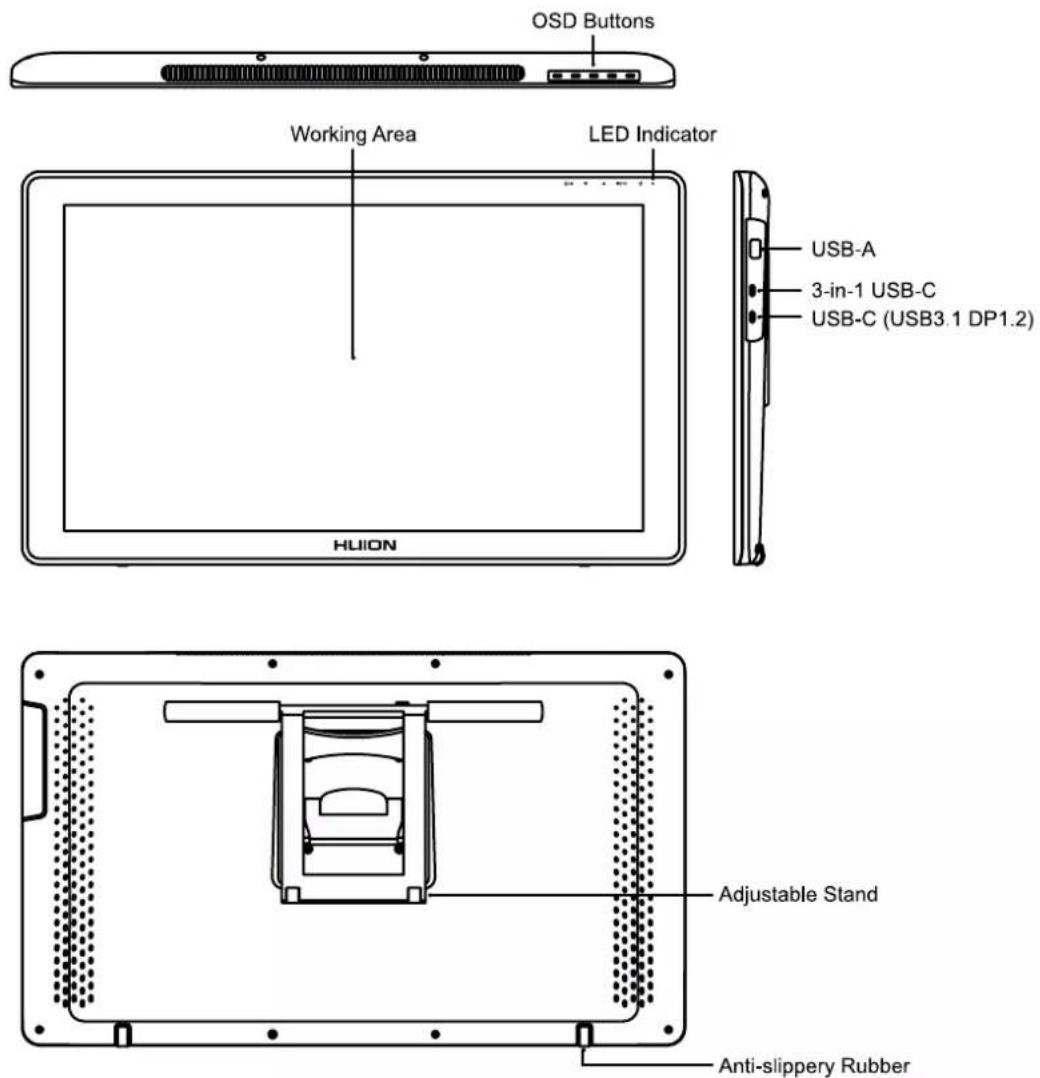
2.2.1 Accessories
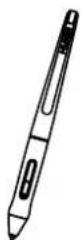
Battery-free pen
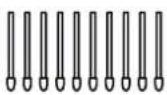
Replacement Nibs (inside the pen holder)
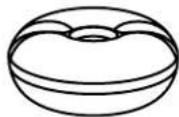
Pen Holder
Cleaning Cloth
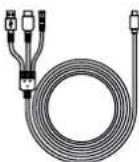
3-in-1 Cable
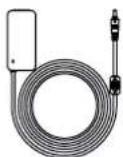
Power Adapter
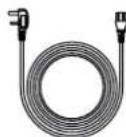
Power Cable
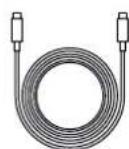
USB-C Cable
Warranty Card
Quick Start Guide
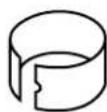
Pen Nib Clip (inside the pen holder)
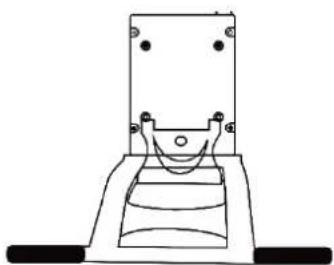
2.2.2 Adjustable Stand
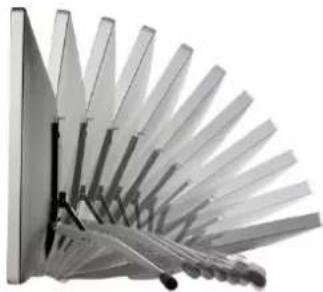
We designed this ergonomic adjustable stand specially for your KAMVAS display, you can adjust the angle of the display according to your usage habit, and make you feel more comfortable when painting and creating.
By dragging this switch to adjust the stand angle from 20^ - 80^
2.3 Setting Up Display
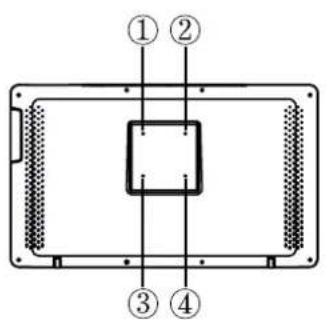
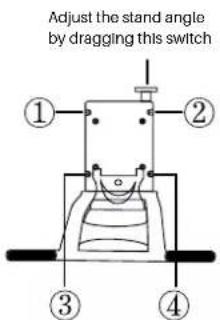
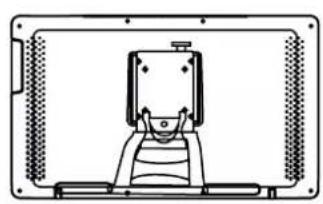
[1] Take out the pen display and stand from the package, then assemble the stand to the back of the display with attached screwdriver according to the following instruction.
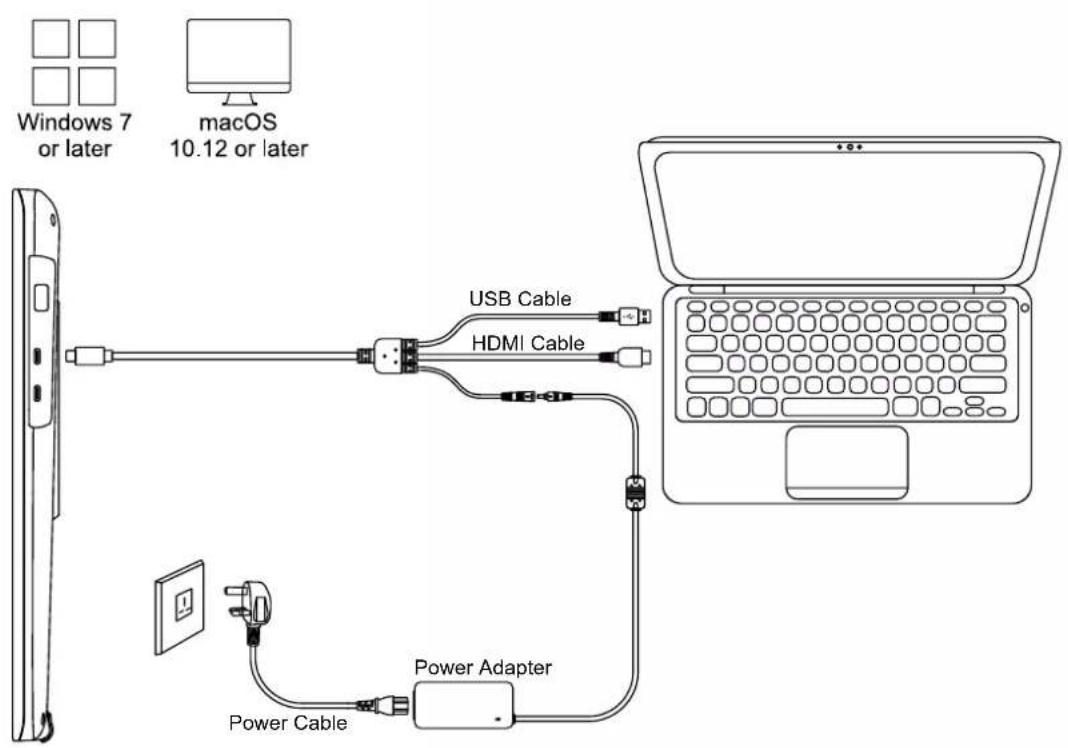
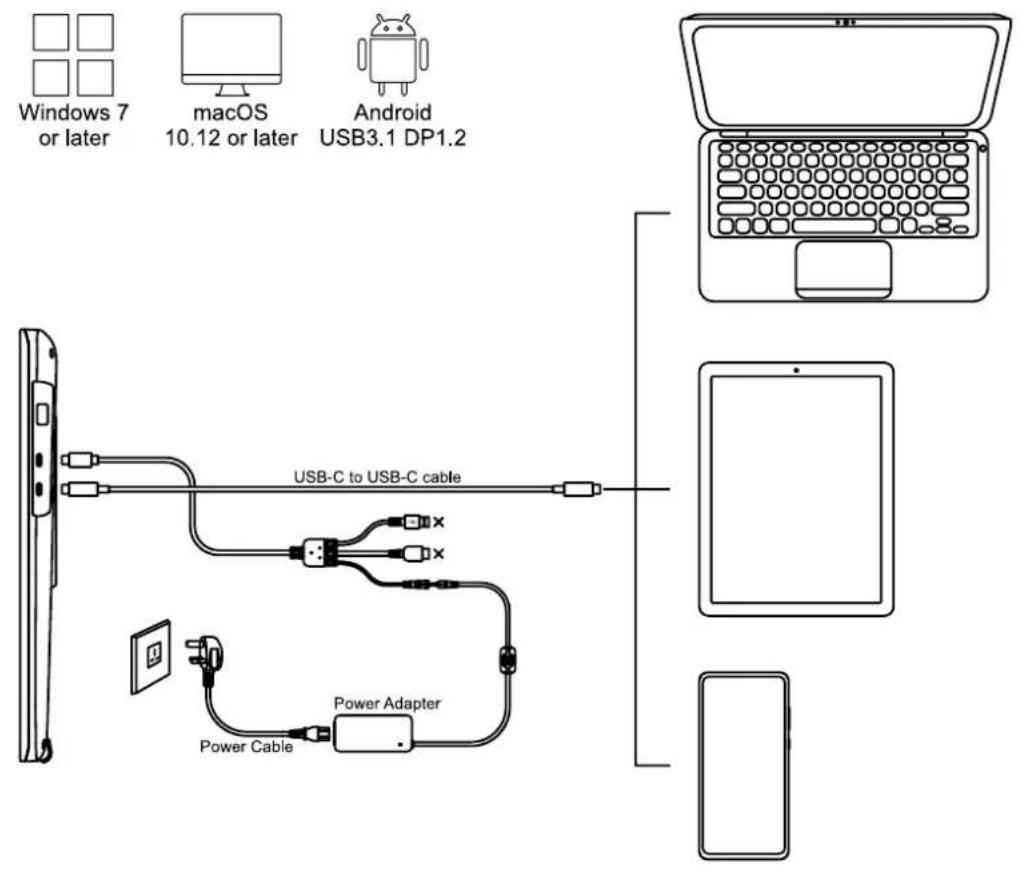
[2] Connect the pen display to your computer with 3-in-1 Cable or USB-C to USB-C Cable.
1) Connect the display to your computer with 3-in-1 cable; Connect the power adapter to the power cable.
2) Connect the display to your computer with USB-C to USB-C cable; Connect the power adapter to the power cable.
2.4 Install Driver
2.4.1 OS Support
Windows 7 or later, macOS 10.12 or later.
2.4.2 Install Driver
Please download the driver from our website: www.huion.com/download
After finishing installation, you can find the driver icon "☑" in the system tray area, which means the driver was installed successfully; when you connect the display to computer, the icon will change to color "☑", which means the driver has already recognized the display and you can start using it now.

Notes:
[1] Before installing, you need to uninstall other driver of similar products, including the old driver of this product.
[2] Before installing, please close all graphics software and anti-virus software to avoid unnecessary mistake.
2.4.3 Driver Page
After the download is successful, double-click to open the driver, connect the display to your computer with attached cables.
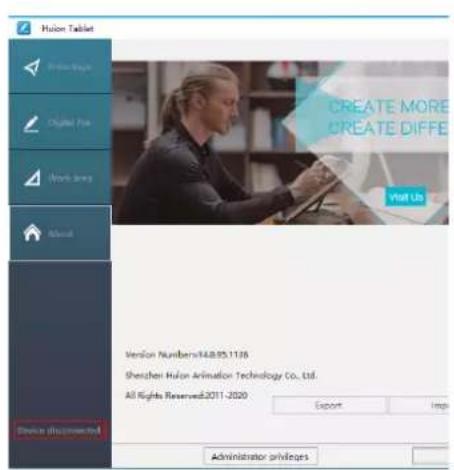
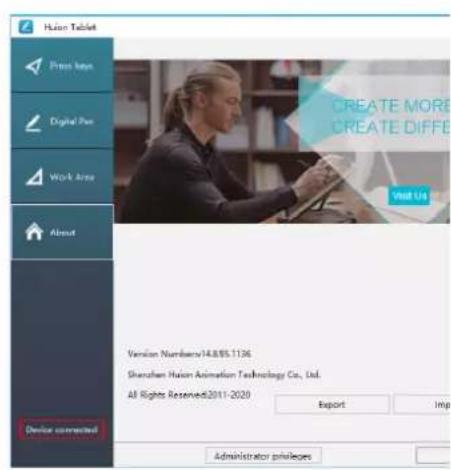
When the connection is complete, watch for a prompt at the bottom left of the driver page that display two states "Device disconnected" or "Device connected".
3 / Pen Basic Operation
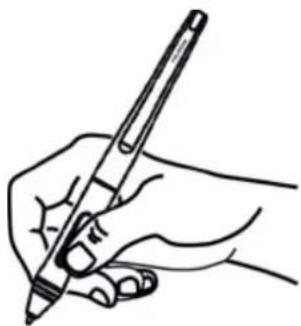
3.1 Hold the pen
Hold the pen as you hold a normal pen or pencil. Adjust your grip so that you can toggle the side switch easily with your thumb or forefinger. Be careful not to accidentally press the switch while drawing or positioning with the pen.
Notice:
When not in use, place the pen in the pen case or on the desk. Do not place the pen on the surface of screen, which may interfere with the use of other screen cursor positioning equipment, may also cause your computer can not enter the sleep mode.
3.2 Position the cursor
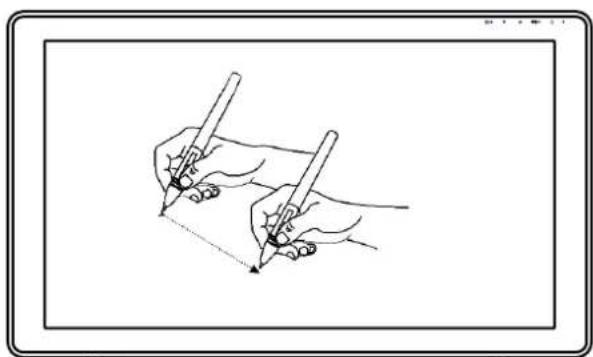
Move the pen slightly above the active area without touching the screen surface, the cursor will move to the new position accordingly.
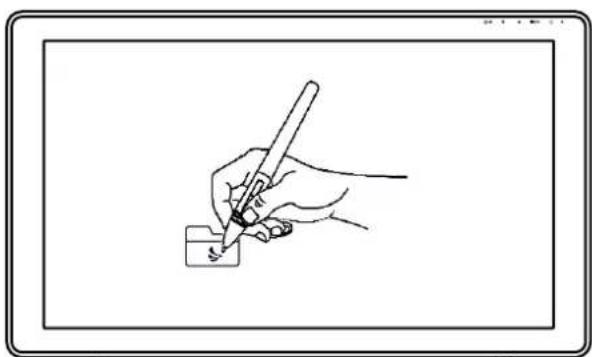
Press the pen tip on the screen to make a selection. Tap the screen once with the pen tip, or touch it to the screen with enough pressure to register a click.
3.3 Click
Use the pen tip to tap once on the screen to register a click. Tap to highlight or select an item on the screen and double-click to open it.
3.4 Move
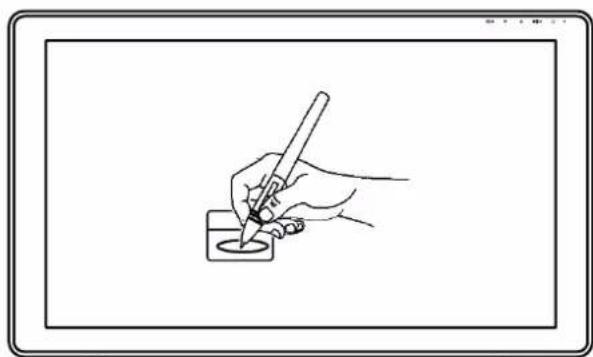
Select the object, then slide the pen tip across the screen to move it.
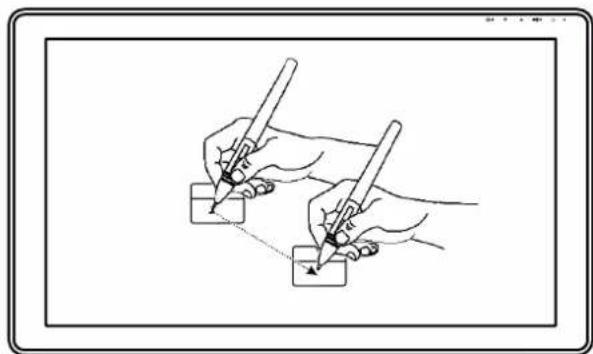
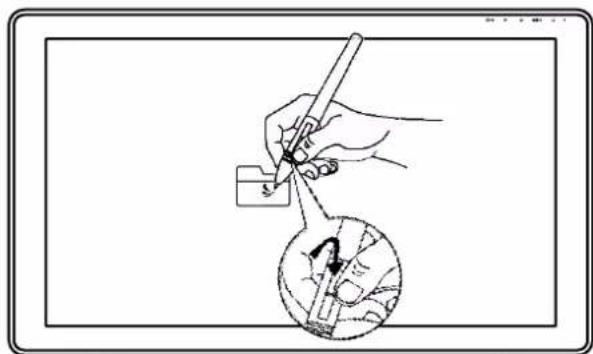
3.5 Use the side buttons
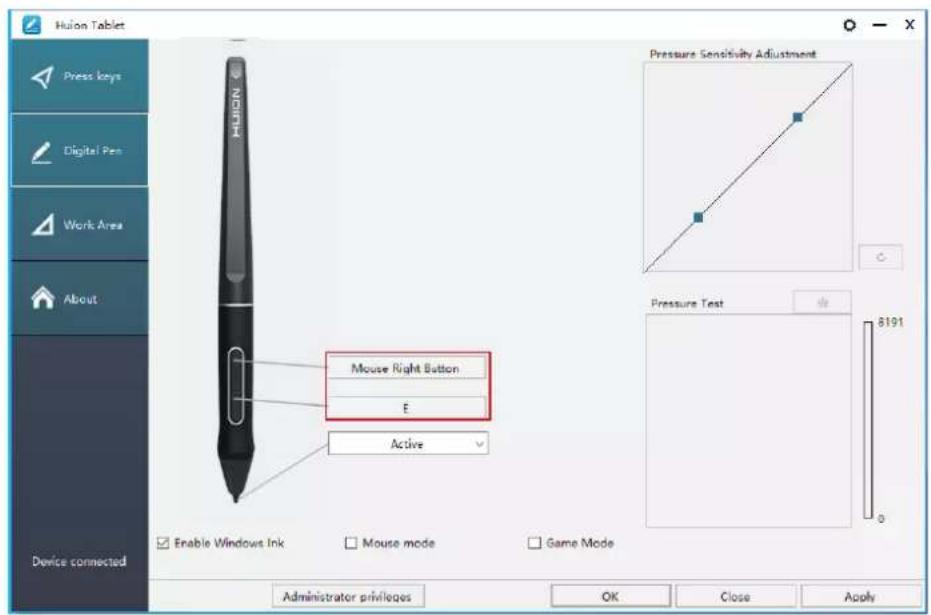
The buttons on the pen can be set to two different customizable functions.
You can use the buttons whenever the pen tip is within 10mm of the display active area. You do not have to touch the pen tip to the display in order to use the switch.
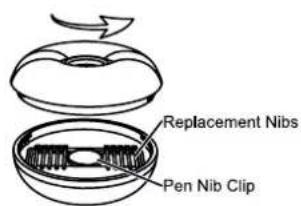
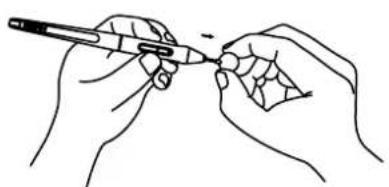
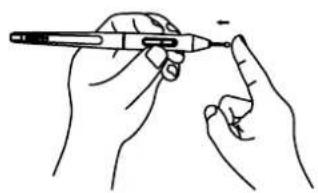
3.6 Pen Nib Replacement
The nib will be worn off after using for a long time, then you need to replace a new nib.
[1] Anticlockwise rotate the pen holder to open the cover, take a new nib out.
[2] Insert the pen nib into the pen nib clip and tilt the pen to pull out the old nib.
[3] Insert the new nib straight into the pen and push the nib slowly and firmly until it stops.
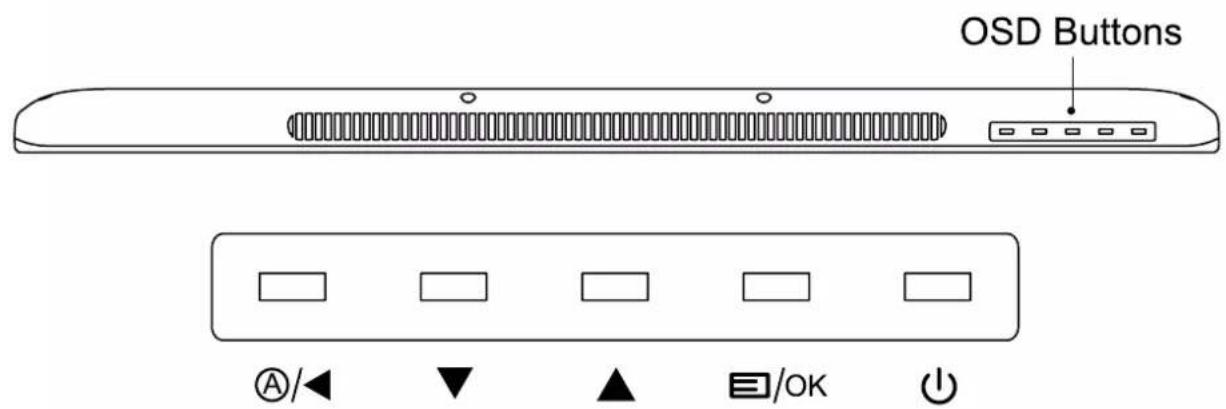
4 / OSD Buttons
OSD Buttons
:Power on/off the display.
Press to call up the menu, after entering menu, its function is "confirm".
After entering menu, its function is "to up/right/increase".
: After entering menu, its function is "to down/left/decrease".
A/Before entering menu, its function is "auto adjustment". After entering menu, its function is "back to previous menu".
5 / Function Setting
5.1 Working Area Setting
5.1.1 Using Multiple Monitors
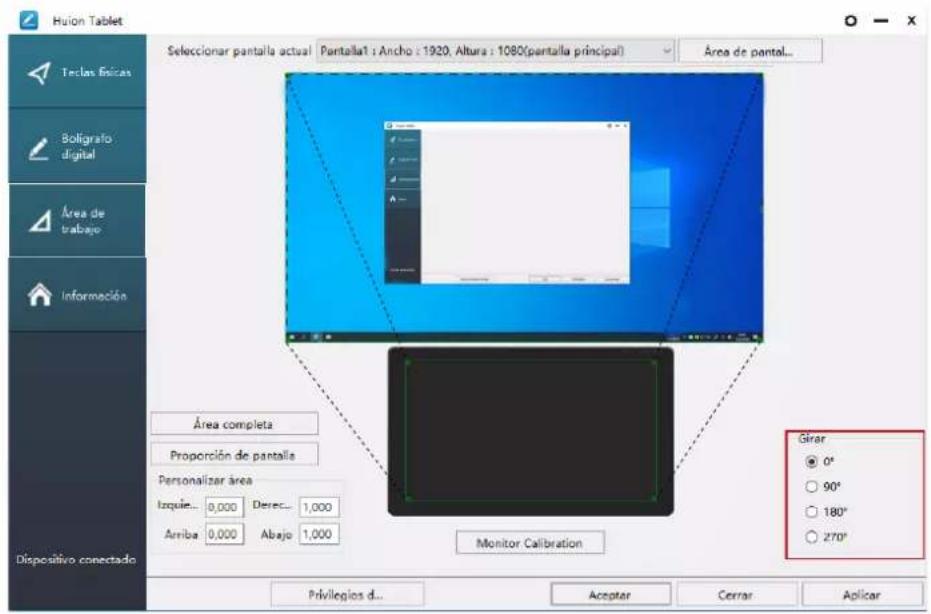
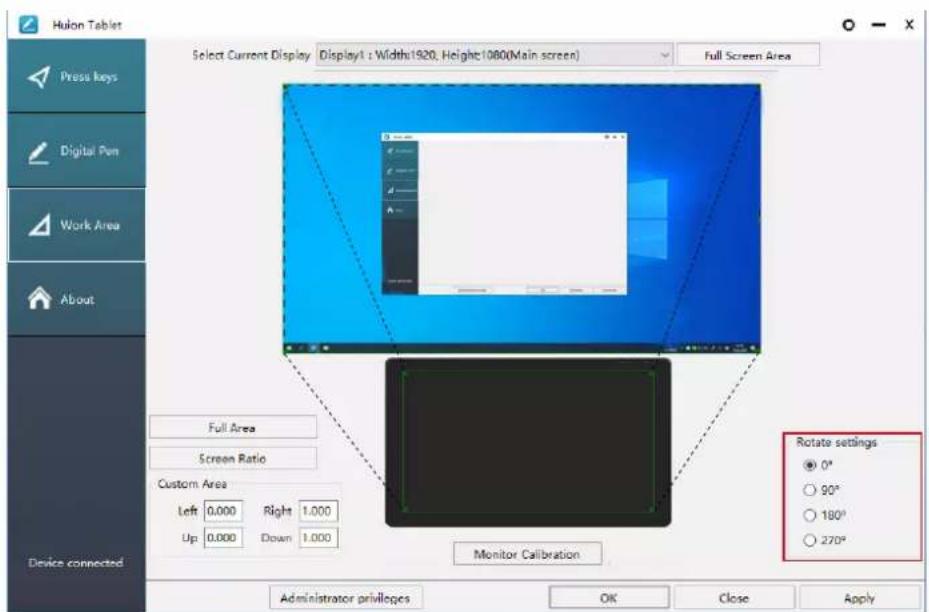
Select the Working Area tab to define the relationship between pen movement on the display and cursor movement on the monitor screen.
By default the entire active area of display maps to the entire monitor. If more than one monitor is in use and you are in extended mode, you need to choose the related monitor on the driver interface which you are going to map to.
If your monitors are in mirror mode (All monitors display the same content), the display maps to the entire space on each monitor and the screen cursor is displayed on each monitor simultaneously.
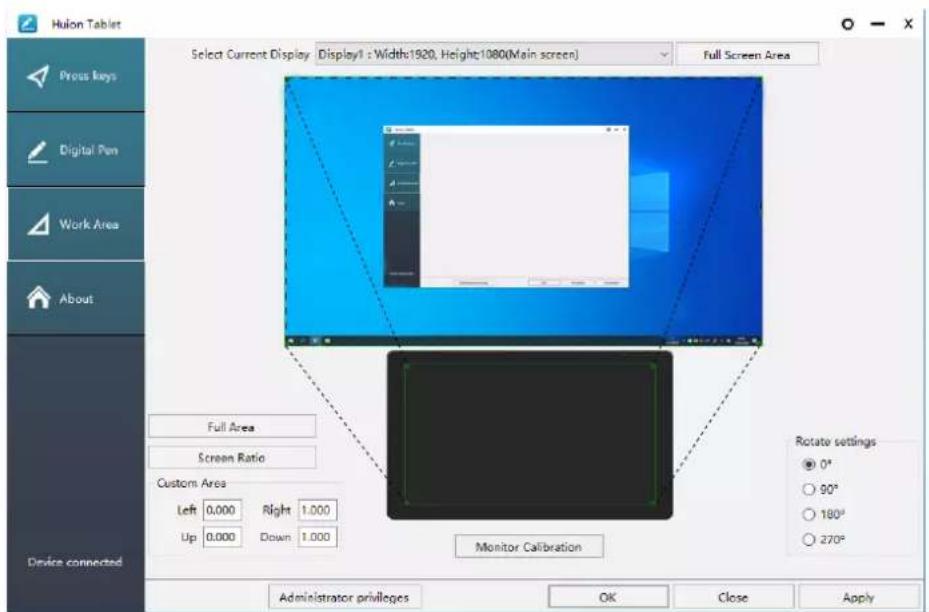
5.1.2 Working Area Setting
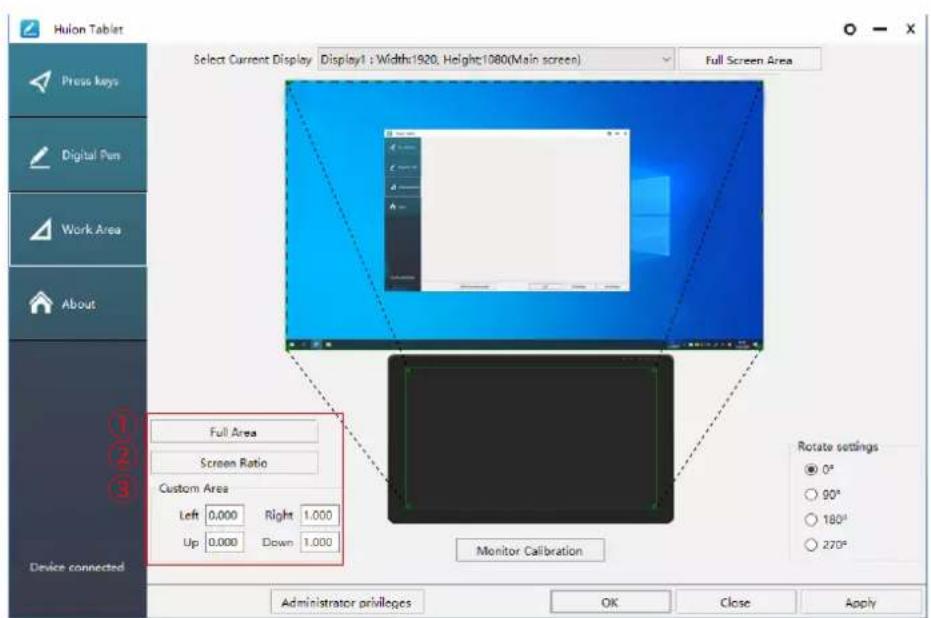
Define the display area that will be mapped to the screen area.
[1] Full Area: the entire active area of the display. This is the default setting.
[2] Screen Ratio: As a general rule, be 16:9.
[3] Customized Area:
1> Enter coordinate values.
2> Drag the corners of the foreground graphic to select the screen area.
5.1.3 Rotate Working Area
By changing the direction of the display to adapt to the left and right hand operation. You can rotate the display by 0^ , 90^ , 180^ or 270^ .
5.2 Display Setting
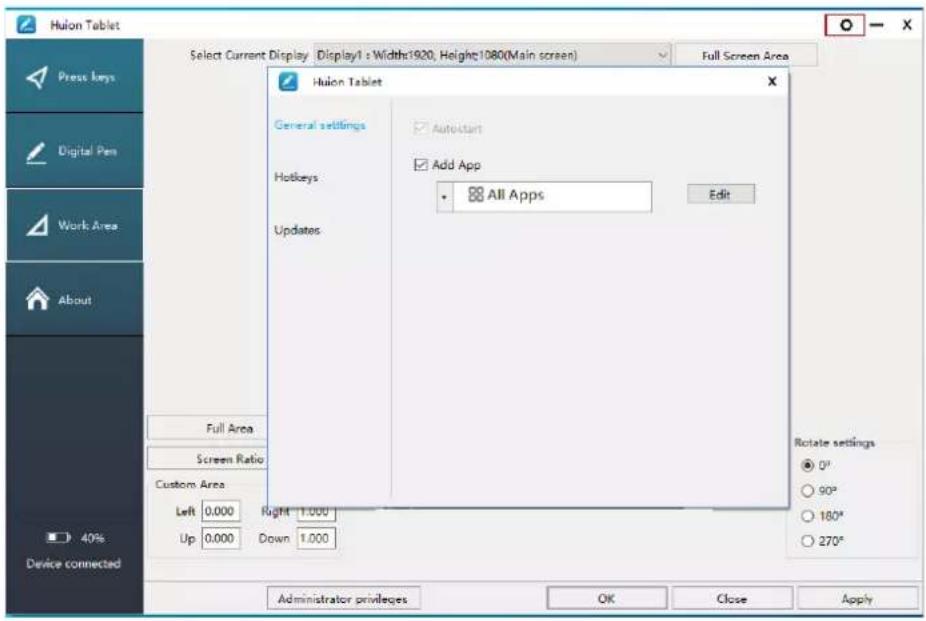
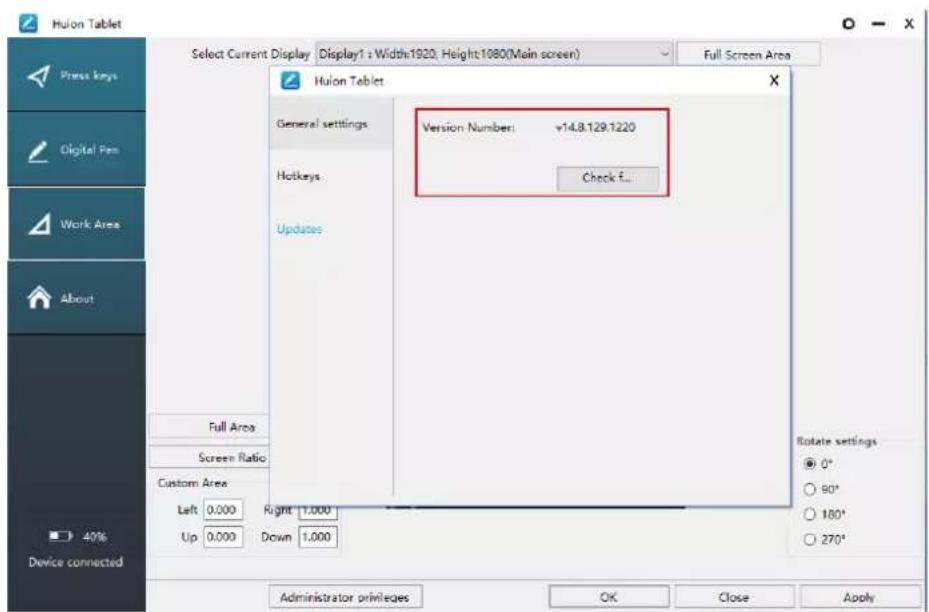
Click the "o" in the upper right corner of the driver to set the Display, including General settings, Hotkeys and Updates.
5.2.1 General settings
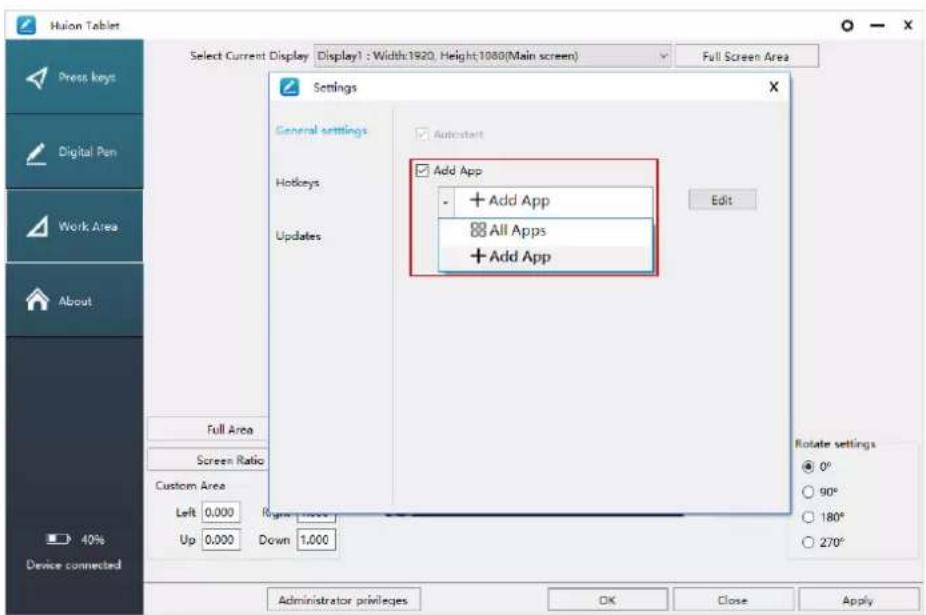
Add App: Shortcut key function can be set by adding different programs.
When opening different programs, the driver will automatically recognize that the shortcut function is the corresponding function set.
5.2.2 Hotkeys settings
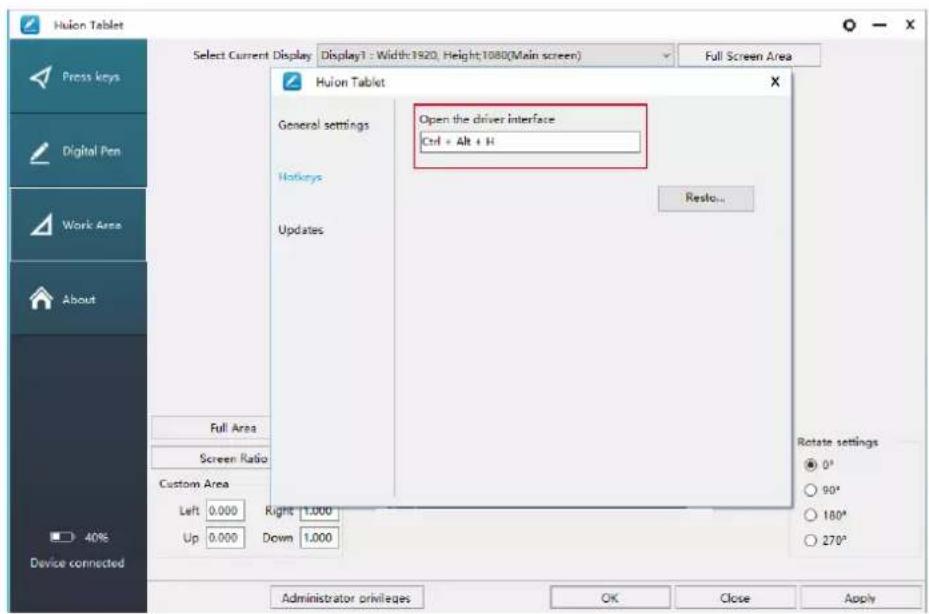
Set the shortcut key to quickly open the driver interface. The default value is Ctrl+Alt+H, which can be set according to usage habits.
5.2.3 Updates
You can view the driver version number, click "Check for Update", view the latest driver version, and update according to the system prompt.
5.3 Pen Buttons Function Setting
Select the function to be achieved on the pop-up dialog box, then click "Apply" or "OK" to take effect.
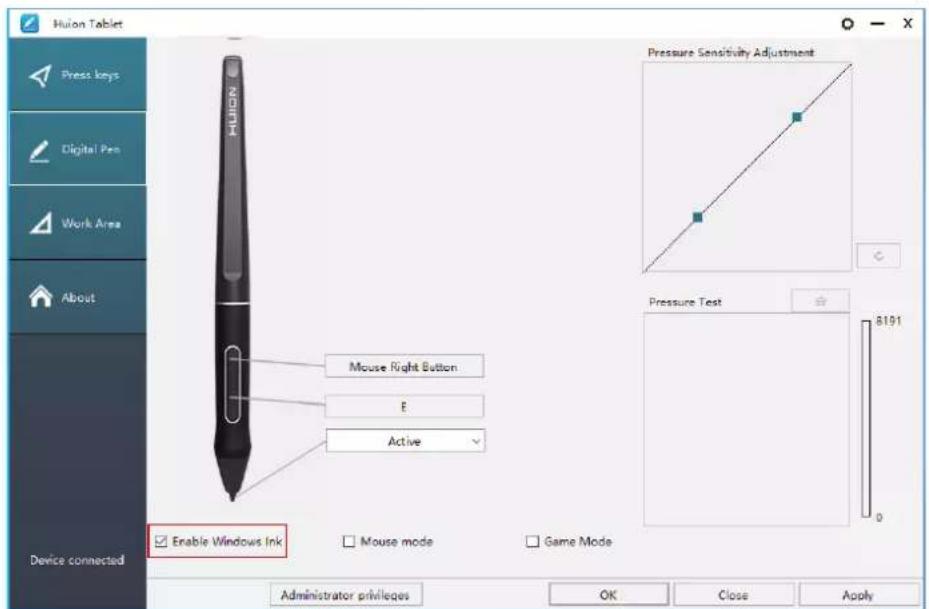
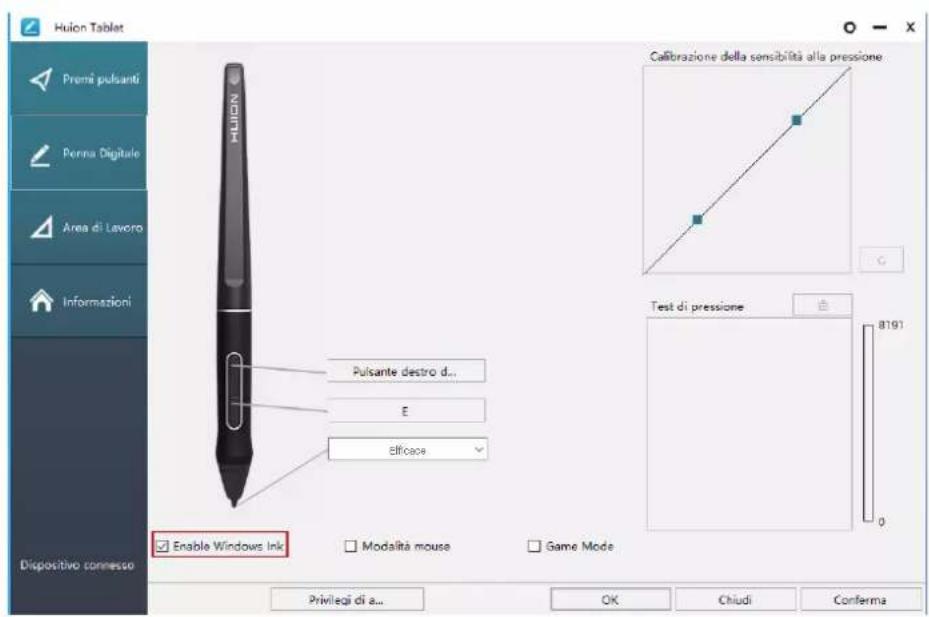
5.4 Enable the Windows Ink Feature
Microsoft Windows provides extensive support for pen input. Pen features are supported in such as Microsoft Office, Windows Journal, Adobe Photoshop CC, SketchBook 6 and so on.
5.5 Pressure Sensitivity Setting
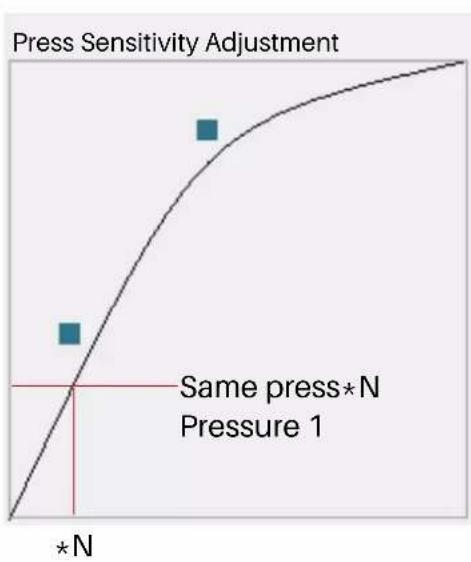
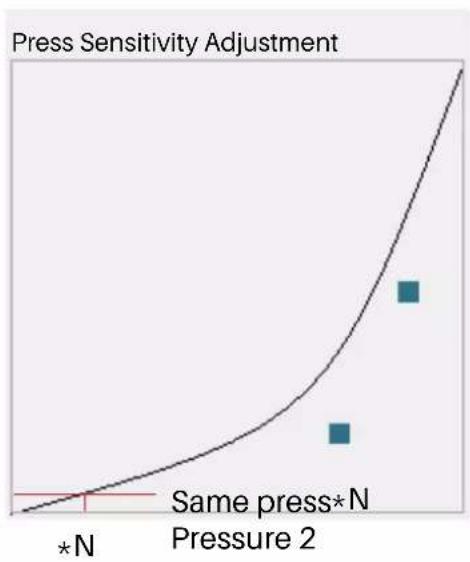
The pressure sensitivity will be changed by dragging the slider up and down, the smaller the value, the more pressure sensitive.
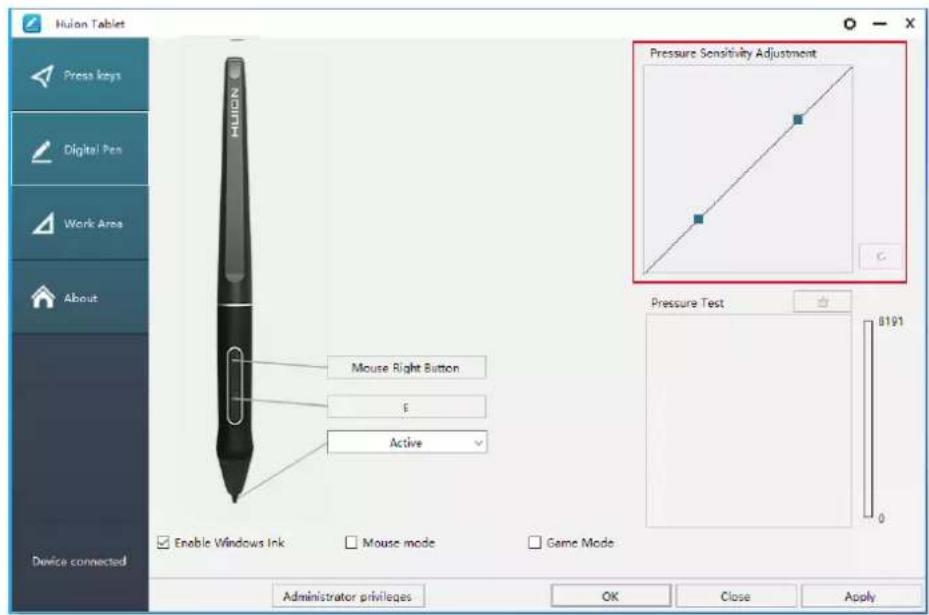
Drag upward (left): the pressure change is more obvious, small pressure produces a great pressure.
Drag down (right): pressure change is weak, a lot of pressure produces less pressure.
Click the button at the bottom right of the Settings box to reset the pressure sensitivity to the default state.
For example: apply *N respectively the same pressure, under different pressure coefficient produced different pressure effects. According to their habit of holding the pen posture and the size of the hand for the appropriate pressure Settings.
5.6 Pen Pressure Testing
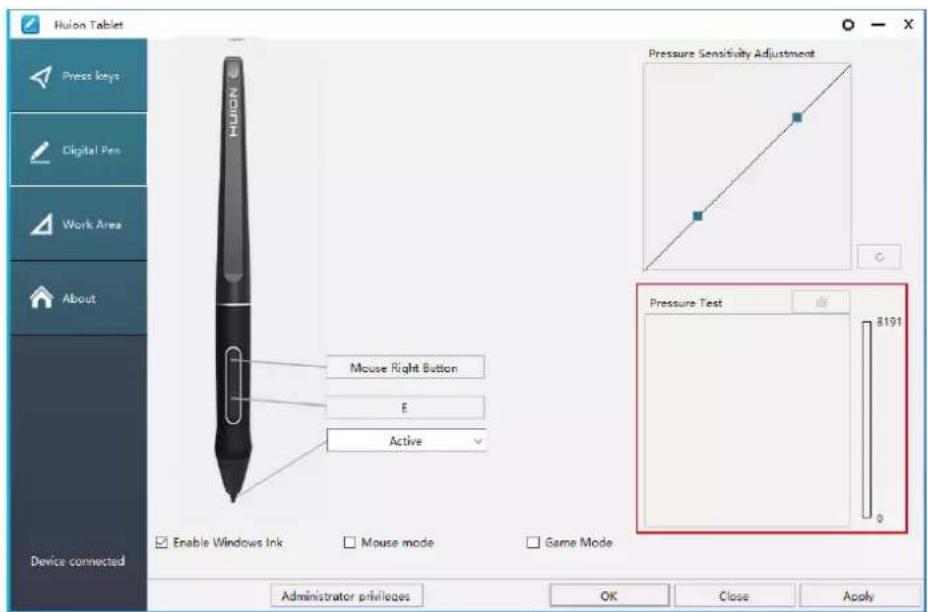
You can gradually apply pressure to the stylus on the screen to test the pressure level. Click " " button to clear all the ink.
5.7 Pen Nib Activity Setting
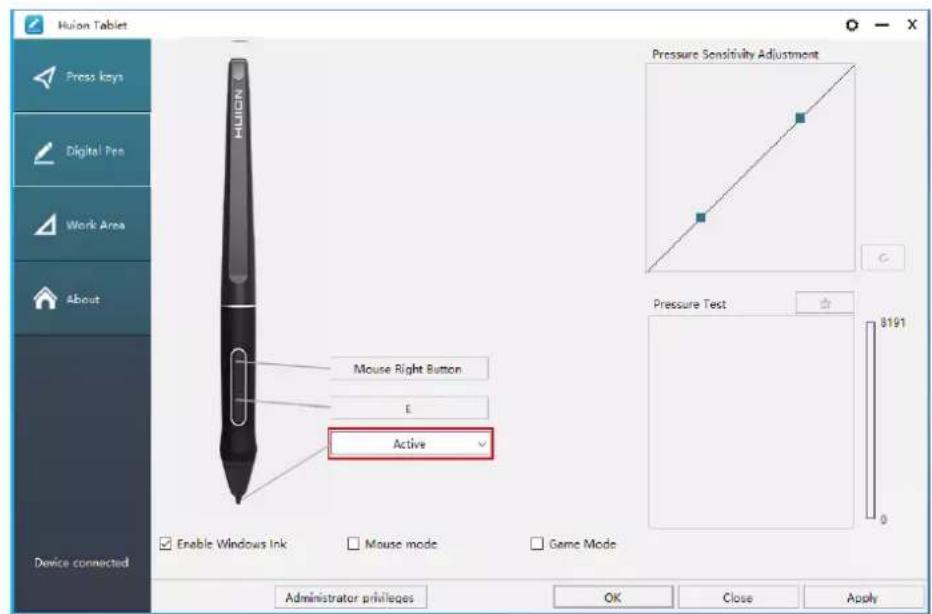
The pen nibs can be set to be Active/Inactive as needed. Click the drop-down option to select, and click OK again to save the Settings. In Active mode, the digital pen can be used normally. In Inactive mode, the digital pen has cursor movement, but cannot complete the specified action.
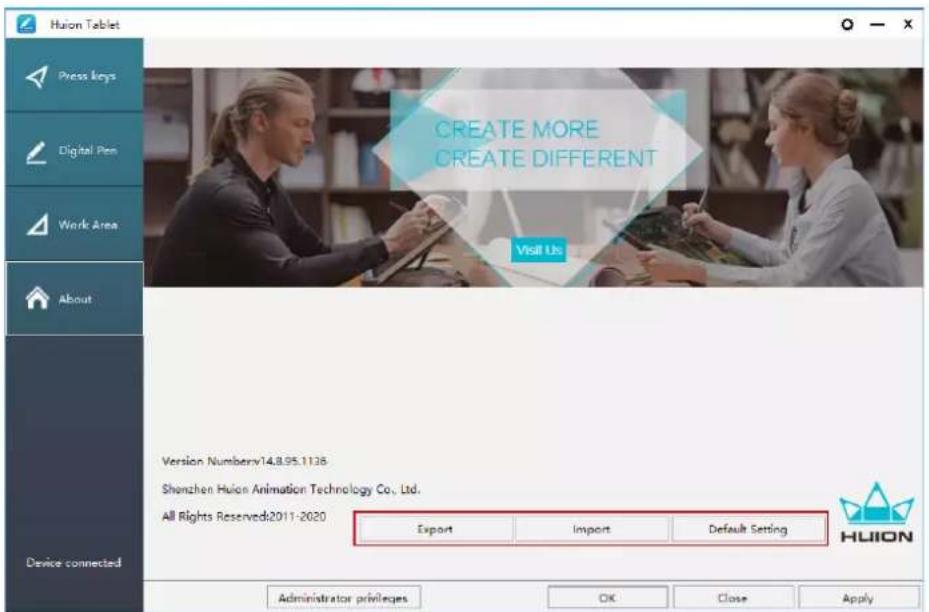
5.8 Data Export and Import
The driver supports exporting and importing your custom configuration data of the product, which is convenient for you to use different software and avoid the trouble of repeated settings.
6/Specifications
| Model GS2202 | ||
| Screen | Panel Size 21.5 inches | |
| Resolution 1920 x 1080 (16:9) | ||
| LCD Type IPS | ||
| Active Area 476.64 x 268.11mm | ||
| Contrast Ratio 1200:1 | ||
| Brightness 220cd/m2 | ||
| Response Time 14ms | ||
| View Angle 89°/89° (H) /89°/89° (V) (Typ.) (CR > 10) | ||
| Gamut 140% sRGB | ||
| Display Color 16.7M (8bit) | ||
| Touch | Touch Type Battery-Free Electromagnetic Resonance | |
| Resolution 5080LPI | ||
| Pressure Level 8192 | ||
| Accuracy ±0.5 mm (Center), ±3 mm (Corner) | ||
| Sensing Height 10mm | ||
| Pen | Model | PW517 |
| Dimension | 163.7 x Φ14.3 mm | |
| Buttons | Two Customized Press Key | |
| General | Output Voltage | 12V 3A |
| Video Interface | 3-in-1 USB-C and USB-C to USB-C | |
| Dimension | 546.06 x 323.07 x 19.1~26.7mm (Without Stand) | |
| Net Weight | 3.9kg (With stand) | |
| OS Support | Windows 7 or later, mac OS 10.12 or later | |
7 / Trouble Shooting
7.1 Possible Breakdowns Related to DISPLAY
| Abnormal Phenomena Possible Solutions | |
| Power indicator does not flash | 1. Make sure power is on. 2. Check the socket and power cable. |
| No display on the screen | 1. Make sure power is on. 2. Correctly connect the cables. 3. If you connect the display with a laptop, please make sure the display is on the right display mode: extend or duplicate mode. 4. Check whether the side indicator shows green, if not, it means no signal in. Please reboot your computer or reconnect the cable. 5. Is the signal wire broken or bent? If so, please replace the signal wire. |
| No signal | 1. Make sure the cables are well connected. 2. If you use a desktop, make sure the HDMI port is plugged into the graphic card on the tower, but not into the motherboard. 3. If you use a Windows OS computer, make sure to press "Windows+P" on keyboard, then choose Duplicate or Extend. Don't choose Computer Only or Projector Only. 4. If there is no HDMI port on your computer, you need an extra HDMI adapter. We don't recommend a USB to HDMI adapter. Also, we don't recommend a USB hub. We recommend DVI/VGA/ Display Port/ Type-C/ Thunderbolt, etc. to HDMI adapters. |
| Images are blurred Please set | the display resolution with 1920 x 1080. |
| Displays wallpaper & task bar of computer monitor only. | 1. It is because you are under extended mode right now. It is a normal situation. 2. If you are not familiar with extended mode, we recommend you to use in Duplicate/Mirror mode. Windows OS: Press keyboard combination---Windows+P---then choose Duplicate Mac OS: System Preference---Displays--- Arrangement--- Check "Mirror Displays". 3. If you decide to use in Extended mode. Make sure to choose pen display as Work Area in Driver. It is usually "Display 2". |
| Lack of colors Check the pins | of the signal wire are not bent or fractured. |
| There is chromatic aberration | As the regional color temperature is different, so minor chromatic aberration is a normal phenomenon. |
| Images jitter or ripple images appear | It is likely that there is electric equipment nearby that brings about electronic interference. |
7.2 Possible Breakdowns Related to FUNCTIONS
| Abnormal Phenomena Possible Solutions | |
| There is no pressure in the graphics software but the cursor moves | You may have installed other display drivers or opened the drawing software when installing the driver. Please uninstall all drivers and close the drawing software, then reinstall the Huion driver. It's better to restart your computer after finishing the installation. |
| The pen does not work | 1. Make sure you are using the pen that originally came with your display. 2. Make sure you installed the driver correctly. |
| Press Keys does not work | 1. Make sure the Press Keys function was enabled in the driver. 2. Make sure you have correctly defined the Press Keys. 3. Check if the press lock switch is on the unlock position. |
| The computer can't enter sleep mode | When you are not using the display, please do not put the pen on the display surface, which will keep the computer awake. |
| The side button of the pen doesn't work | When pressing the side button, please make sure that the nib didn't touch the display surface and the distance between the nib and surface is within 10mm. |
| The side button of the pen doesn't work | Make sure the USB port is functional, if not, please change to another USB port. |
| The computer can't recognize the display | Check that the USB port is normal. If there is any problem, please use another USB port. |
8 / After-service Contact
SHENZHEN HUION ANIMATION TECHNOLOGY CO., LTD.
Bldg 28, Quarter 4, HuaiDeCuiGang Industrial Park, Fuyong Street, Bao'an District, Shenzhen, 518106, China

+86-755-32998548

www.huion.com

www.facebook.com/huion

service@huion.com

huion-skype

https://twitter.com/HuionTab
Inhalt
Microsoft Windows offers a unique support for all users. The company offers a range of services including: - Microsoft Windows Professional - Windows 2013 and Windows 2014 - Windows 2015 - Windows 2016
4.1.3 Rotate Working Area
Rotar el Area de Trabajo By changing the direction of the display to adapt to the left and right hand operation. You can rotate the display by 0^, 90^, 180^ or 270^ .