Inspiroy RTS-300 - Graphic tablet Huion - Free user manual and instructions
Find the device manual for free Inspiroy RTS-300 Huion in PDF.


| Product Type | Graphics Drawing Tablet (Pen Tablet) |
| Brand | Huion |
| Model | Inspiroy RTS-300 |
| Active Area | 9.97 x 6.22 inches (253.4 x 158.0 mm) |
| Dimensions | Approximately 13.1 x 7.6 x 0.3 inches (333 x 193 x 8 mm) |
| Weight | Approximately 0.47 lbs (215 g) |
| Power Source | USB bus-powered (via USB-A to micro USB cable) |
| Pen Technology | Battery-free electromagnetic resonance (EMR) |
| Pen Pressure Levels | 8192 levels |
| Pen Buttons | 2 side buttons (programmable) |
| Express Keys | 6 programmable press keys |
| Report Rate | ≥ 230 PPS (points per second) |
| Resolution | 5080 LPI (lines per inch) |
| Operating System | Windows 7/8/10/11, macOS 10.12 or later, Linux (limited support) |
| Interface | USB 2.0 |
| Connection Cable | Micro USB to USB-A cable (approx. 1.5 m) |
| Maintenance & Cleaning | Use a soft, lint-free cloth slightly dampened with water. Avoid alcohol or abrasive cleaners. |
| Safety | Keep away from liquids and extreme temperatures. Do not disassemble. |
| Spare Parts & Repairability | Replacement pen (model PW100) and pen nibs available. Tablet not user-serviceable. |
| General Information | Designed for digital drawing, sketching, and note-taking. Compatible with popular creative software (Photoshop, Illustrator, Krita, etc.). |
Frequently Asked Questions - Inspiroy RTS-300 Huion
User questions about Inspiroy RTS-300 Huion
0 question about this device. Answer the ones you know or ask your own.
Ask a new question about this device
Download the instructions for your Graphic tablet in PDF format for free! Find your manual Inspiroy RTS-300 - Huion and take your electronic device back in hand. On this page are published all the documents necessary for the use of your device. Inspiroy RTS-300 by Huion.
USER MANUAL Inspiroy RTS-300 Huion
Product and Accessories 3
Product Connection 4
Driver and Setting 6
Install Driver 6
Driver Interface Preview 7
Pen Tablet Setting 9
Digital Pen Setting 16
Driver Setting 22
Digital Pen Basic Operation 26
Specifications 30
Troubleshooting Solutions 31
Product Overview
Tablet Introduction
natural_image
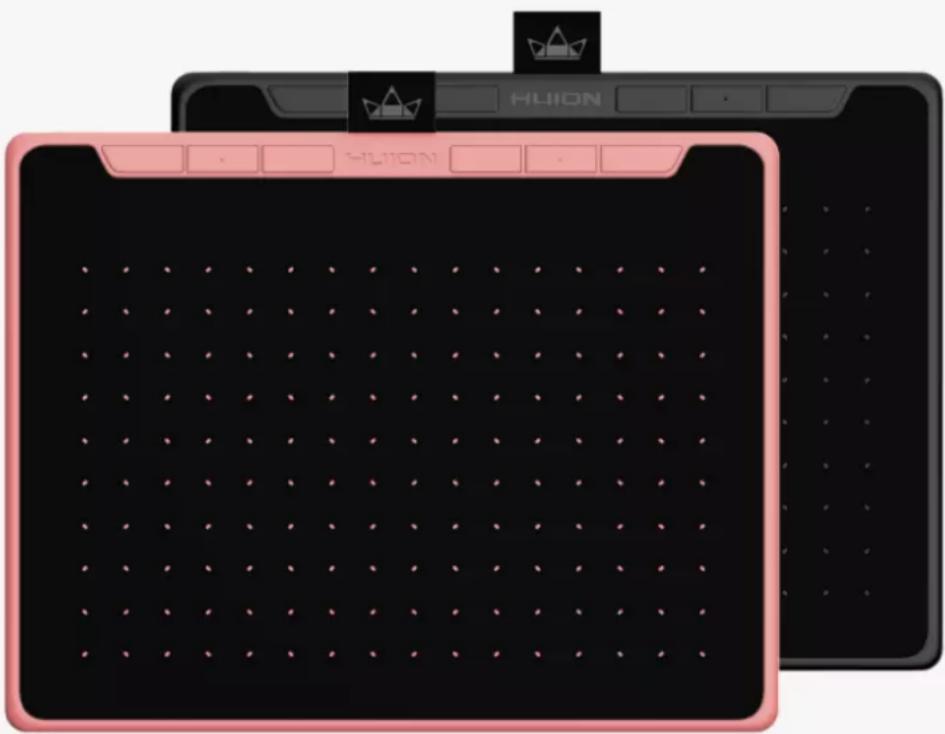
Two digital drawing pens with pink borders and black buttons, one displaying a grid pattern (no text or symbols visible)Thanks for choosing HUION INSPIROY RTS-300 creative pen tablet. This is a new generation of professional battery-free drawing tablet, which can greatly improve your work efficiency of painting and creation, and full of fun. You can freely painting and writing, depicting different lines and colors, just as the pen writes on the paper, which brings you a real shock experience.
To give you a better understanding and using of your tablet, please read this user manual carefully. The user manual only shows the information under Windows, unless otherwise specified, this information applies to both Windows and Mac systems.
Note: The pictures in the User Manual are for reference only.
Product and Accessories
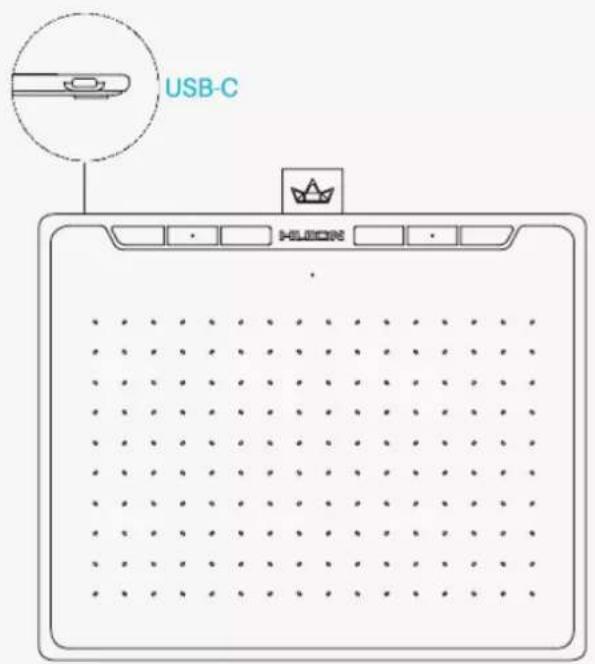
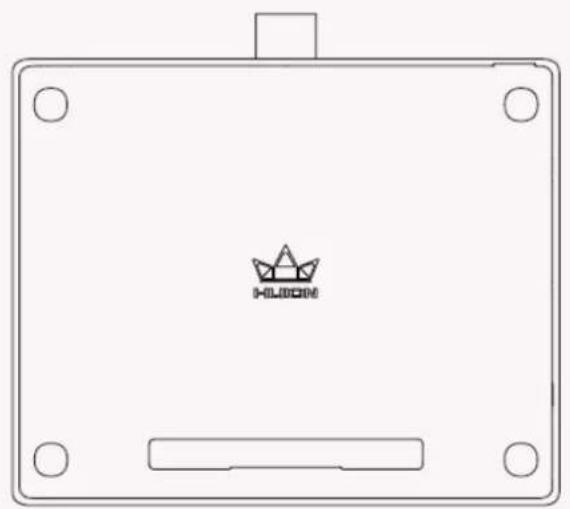
Please see the detailed product introduction.
natural_image
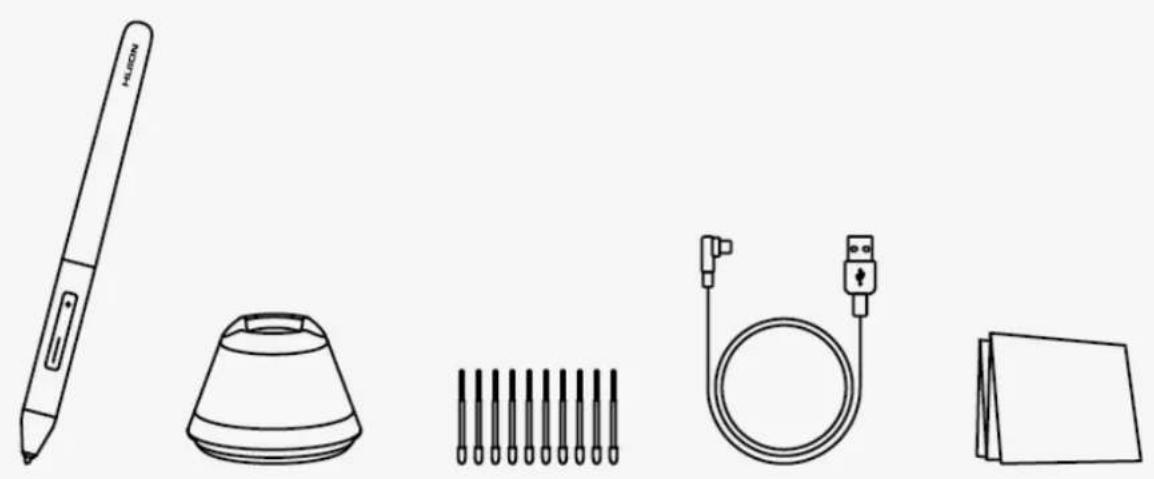
Simple line drawing of a rectangular device with a central logo and mounting holes (no text or symbols)After unboxing your package, make sure that you have the following items:
Tablet*1
Battery-free Pen*1
Pen Holder*1
Replacement Nibs*10
USB Cable*1
Quick Start Guide*1
Product Connection
1. Wired Connection
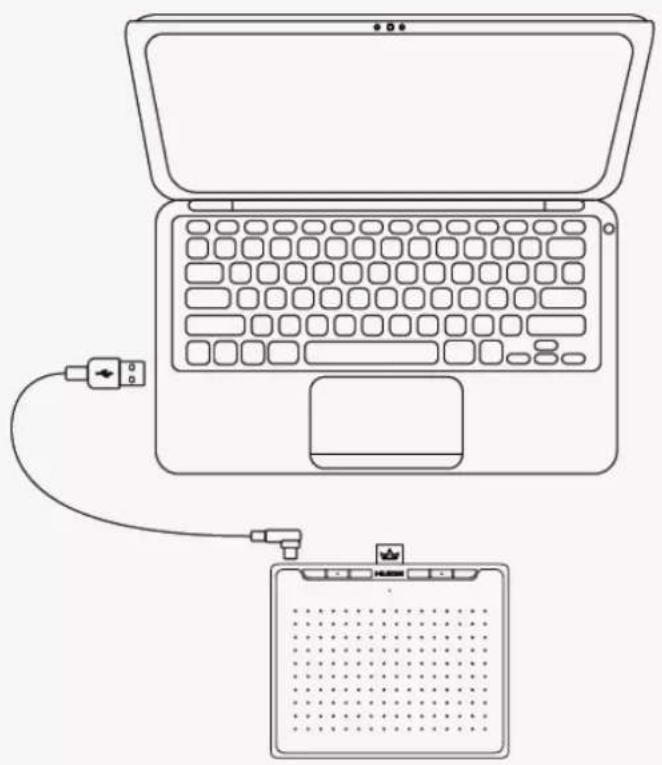
Connect the tablet to your computer with USB cable. Please follow the steps below:
- Take out the USB cable from the package, then connect tablet to your computer.
- Please download the Pen Driver from our website:Driver-RTS-300.
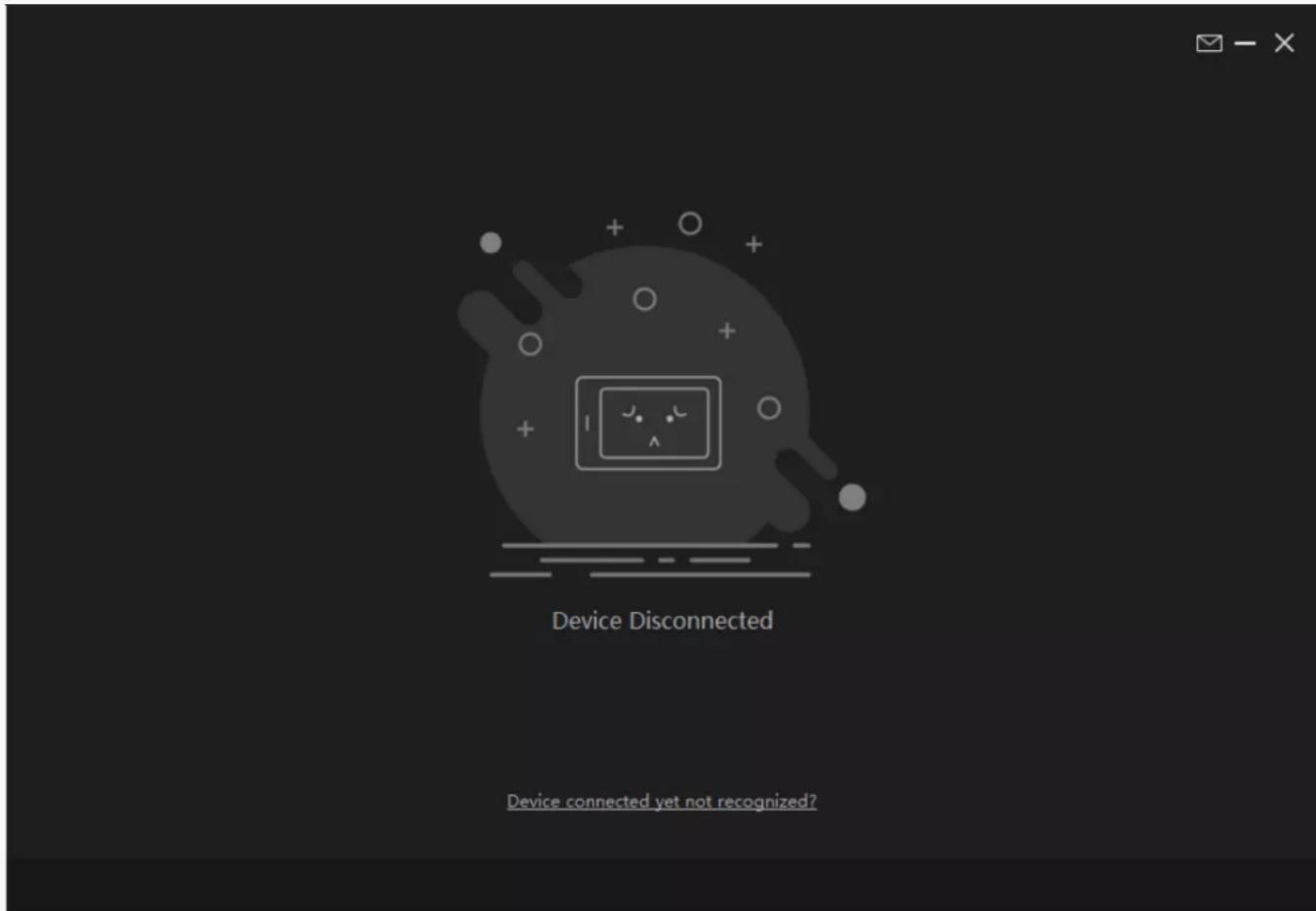
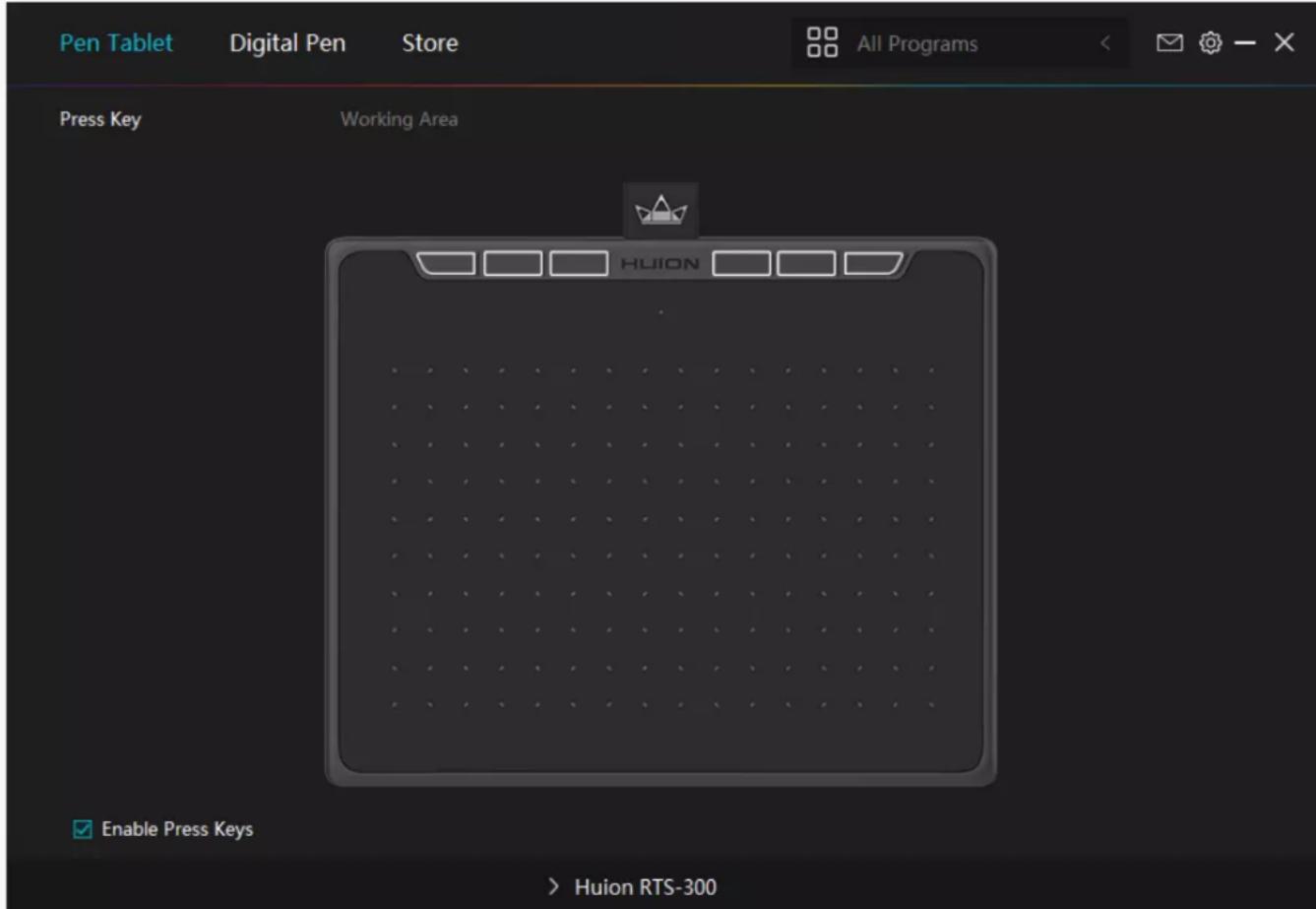
- Open the driver interface, the device picture will be displayed on the interface, indicating that the tablet is successfully connected to the computer. You can start use the tablet.
natural_image
Line drawing of a laptop connected to a digital tablet via cable (no text or symbols)2. Android connection
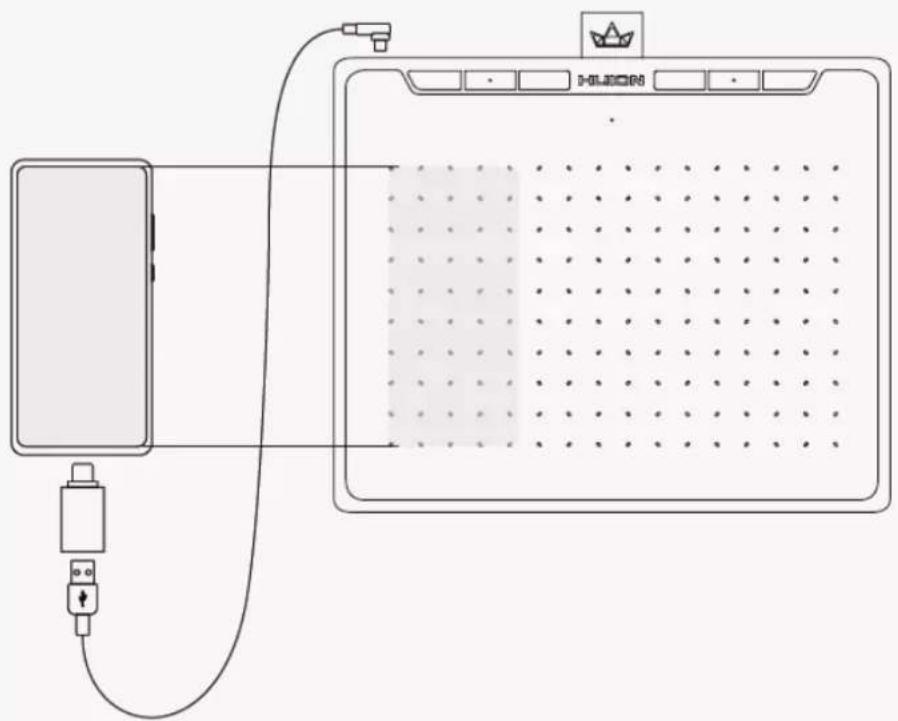
Please follow the steps below:
- Please make sure your phone & pad OS is as following: Android OS 6.0 or later.
- For some models, you need to go phone or pad "Settings" then enable "OTG" function.
- Choose OTG Adapter from package, then connect pen tablet to your phone following the illustrations below:
natural_image
Diagram of a device connected via cable to a screen, showing connections between a device and the screen (no text or symbols present)Driver and Setting
Install Driver
Please download the driver from our website: Driver-RTS-300
Note:
- Before installing driver, please close all graphic software and antivirus program.
- If you have installed other pen tablet driver, please uninstall it before you install this driver.
- Please make sure your computer OS are as following: Windows 7 or later, macOS 10.12 or later, ChromeOS 88 or later.
- Run the tablet driver program and complete the installation according to the instruction.
After the download is successful, double-click to open the driver, Connect the device to your computer.
If the connection fails, please reconnect the computer to the device, or restart the driver or computer.
RTS-300
Driver Interface Preview
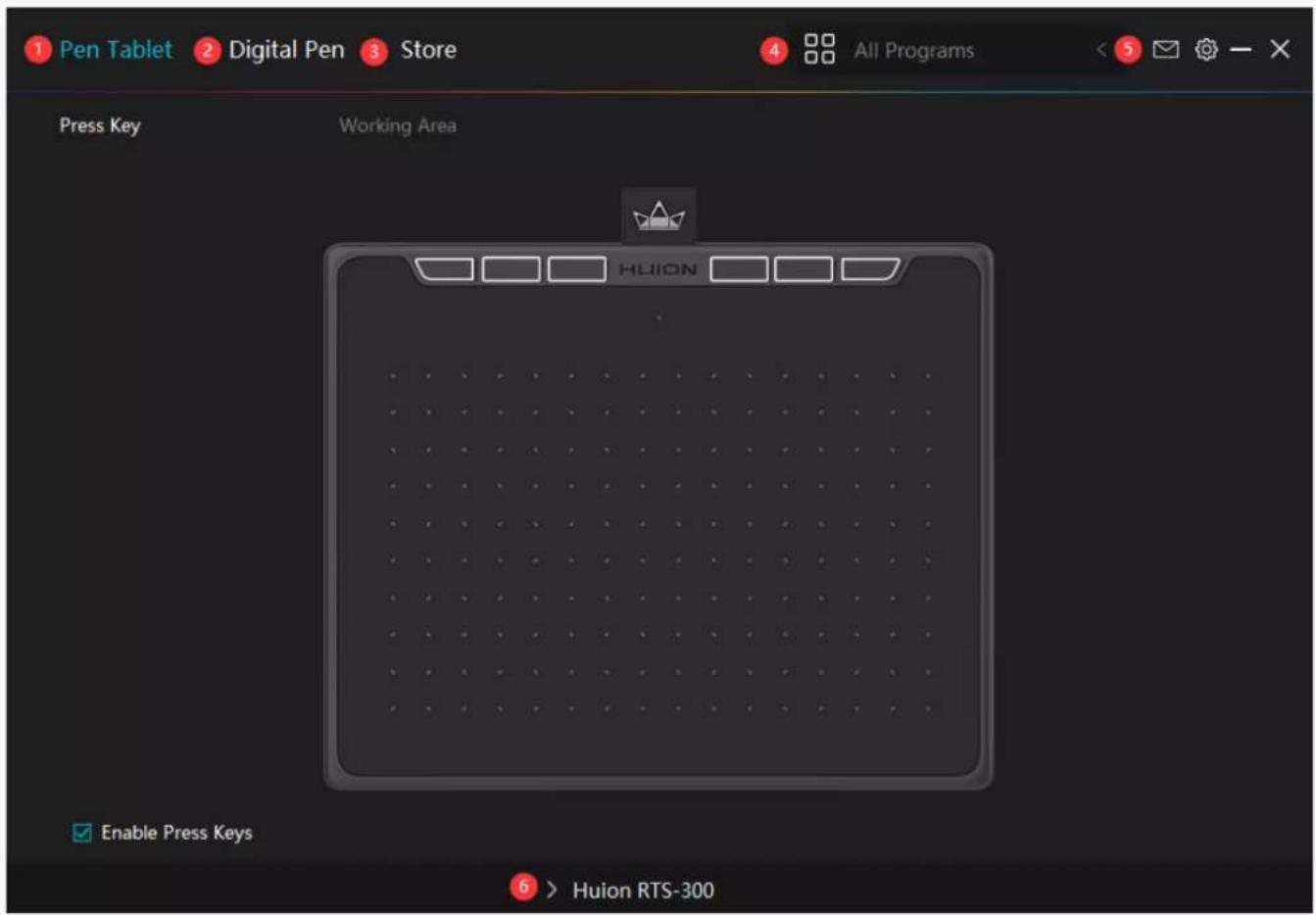
1. Pen Tablet
Pen Tablet function setting interface, the users can set the tablet function on this interface.
See Section
2. Digital Pen
The users can set the Pen function on this interface. About Press Key, Mode selection, Pressure Sensitivity Adjustment and Pressure Test.
See Section
3. Store
Huion Store, where you can get the latest information about the product such as its FAQ or sales promotion. Additionally, you can also purchase other products or accessories on Huion
Store.
4. Add Programs
You can customize different functions on the current device for different programs.
When select All programs, the setting of the device is valid for every program.
By clicking Add a Program from the drop-down list, you can set the functions for a specific program and hence have unique settings for different programs. After that, when launching a specific program, the Driver will automatically recognize it and the setting features will change to its corresponding one.
5. Setting
The users can set the Driver function on this interface. About Device Information, Backup Setting, General Setting and Driver Update.
See Section
6. Switch between Devices
Driver can support the connection to two digital drawing devices at the same time. When these devices are sharing the same Driver with the current device, users can customize the settings of the devices by switching the Driver interface to the corresponding one.
Pen Tablet Setting
Press Key
You can customize the functions of these buttons according to your own habits, and you can uncheck "Enable press keys" in the lower left corner to turn off the button function.
Place the cursor on a key to check its default value. Click the key for a pop-up dialog box and then set the function.
You can enter a name for the keystroke, then select the property of the keystroke and customize the function.
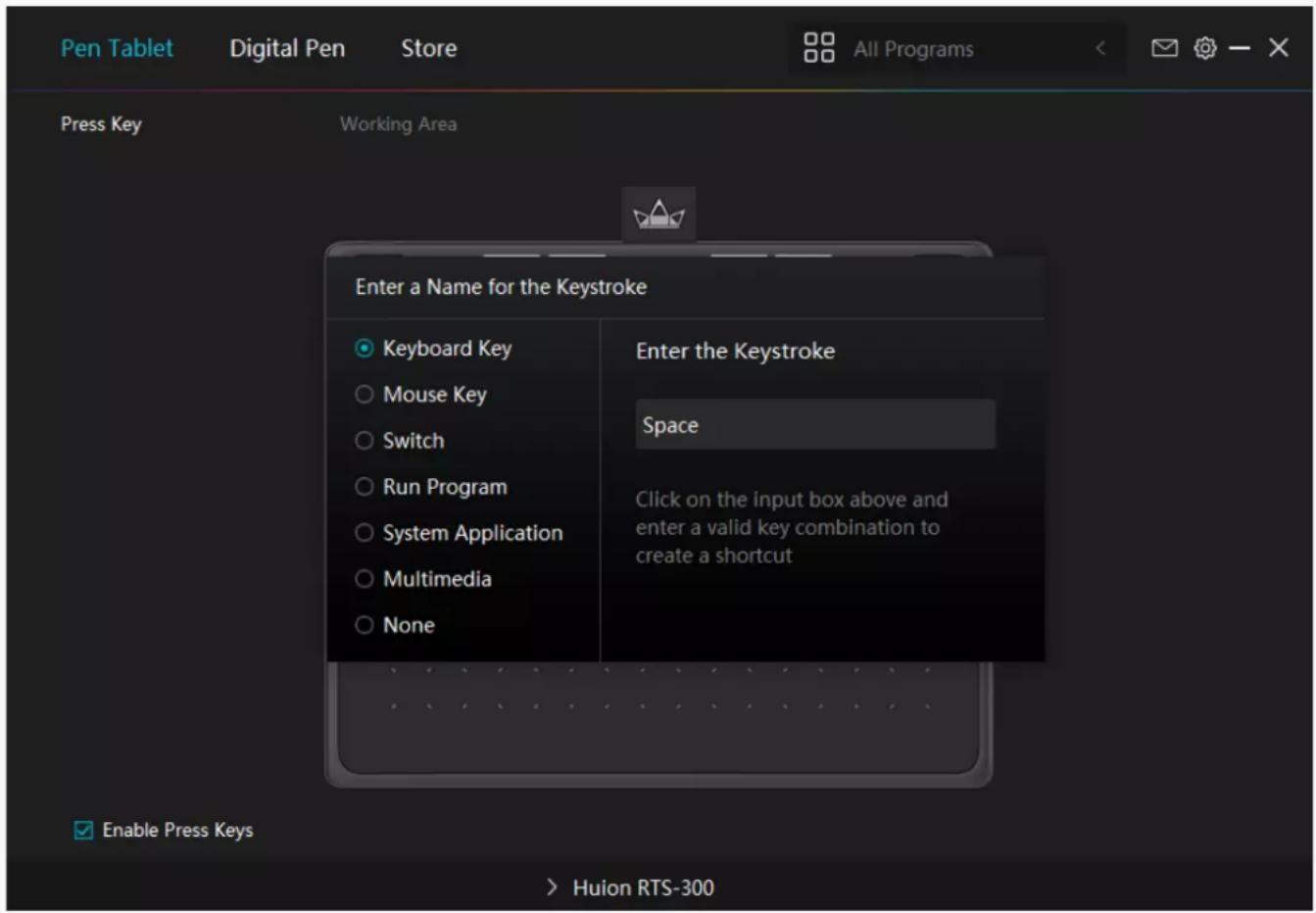
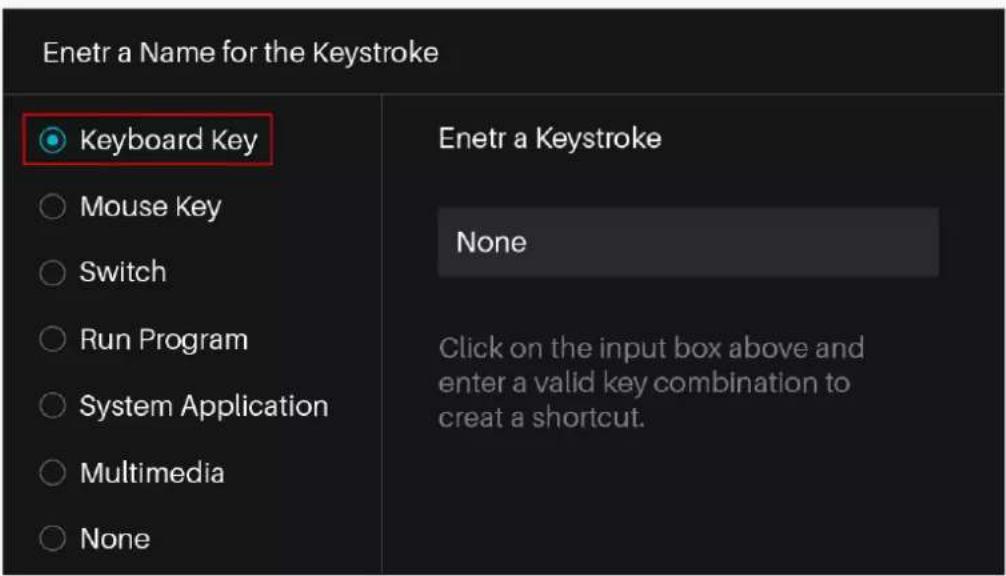
1. Keyboard Key
Click on the input box above and enter a valid key combination to create a shortcut. For example "Ctrl+A", "Ctrl+Z", and so on.
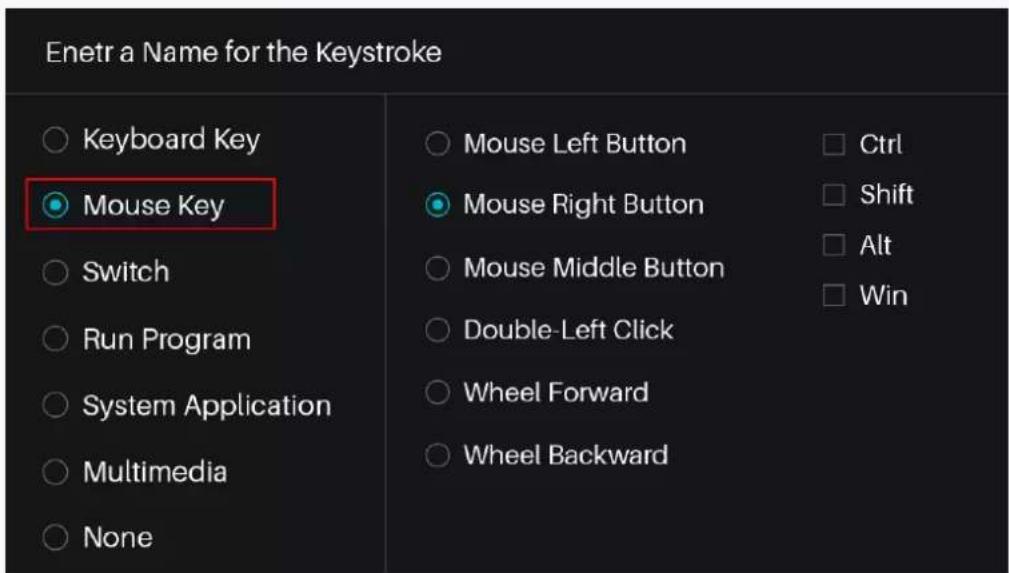
2. Mouse Key
Select the function of a Mouse or Wheel. Please see the picture below for detailed functions.
Mouse: Left Button, Right Button, Middle Button.
Wheel: Wheel Forward, Wheel Backward.
Double-Left Click.
3. Switch
Select Switch Screen or Switch Brush.
Note: Some software does not support the "Switch Brush" function.
| Enetr a Name for the Keystroke | |
| ○ Keyboard Key ○ Mouse Key ● Switch ○ Run Program ○ System Application ○ Multimedia ○ None | ○ Switch Screen ● Switch Brush |
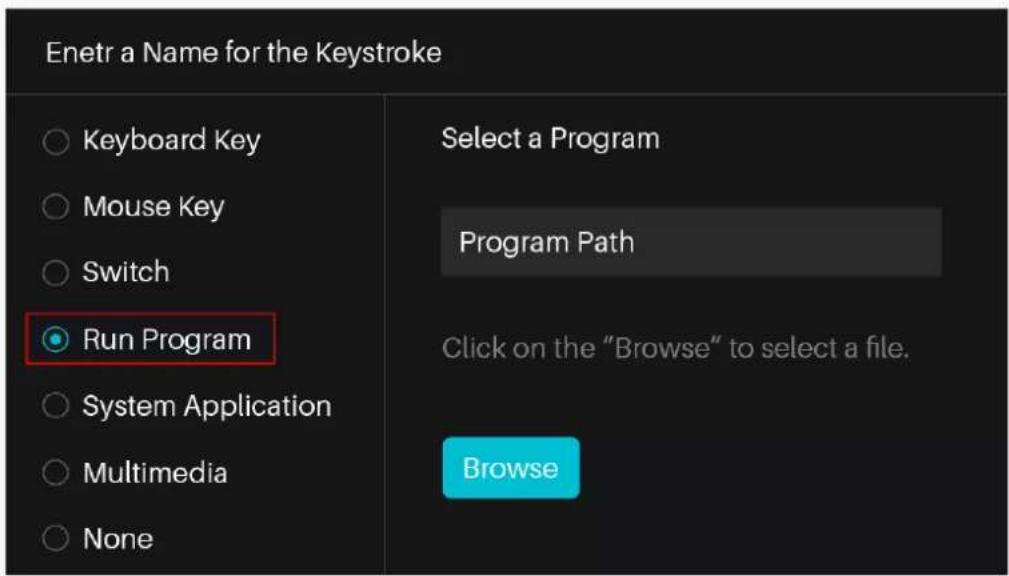
4. Run Program
Browse and select a program that you want to launch quickly. After the setting, you can launch that program with just a single press.
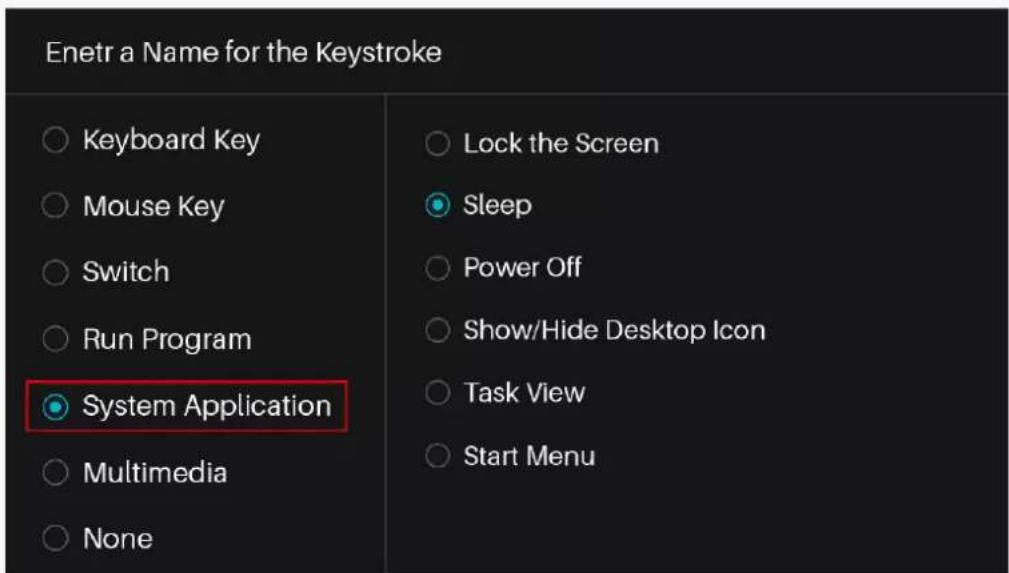
5. System Application
The table below are the functions of Windows and Mac Systems that can be customized on the Keys.
6. Multimedia
To realize the functions such as previous song, next song, play/pause, volume up, volume down.
| Enetr a Name for the Keystroke | |
| ○ Keyboard Key ○ Mouse Key ○ Switch ○ Run Program ○ System Application ● Multimedia ○ None | ○ Next Song ● Previous Song ○ Play/Pause ○ Volume Up ○ Volume Down ○ Muted |
7. None
When select None, the keys will have no function.
Working Area
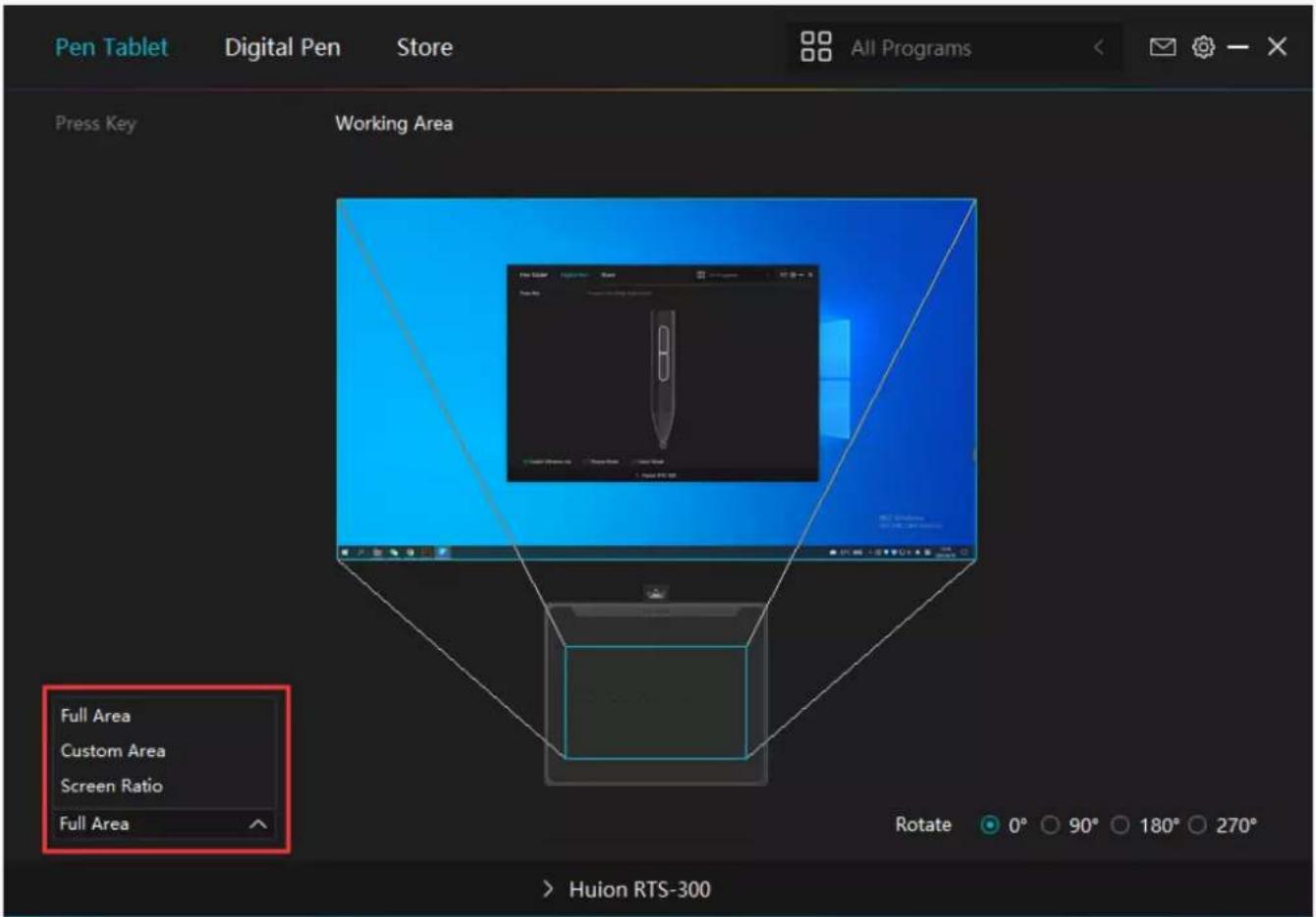
Select the Working Area tab to define the relationship between pen movement on the tablet and cursor movement on the monitor screen.
By default the entire active area of tablet maps to the entire monitor. If more than one monitor is in use and you are in extended mode, you need to choose the related monitor on the driver interface which you are going to map to.
If your monitors are in mirror mode (All monitors display the same content), the tablet maps to the entire space on each monitor and the screen cursor is displayed on each monitor simultaneously.
1. Working Area Setting
Define the tablet area that will be mapped to the screen area.
[1] Full Area: the entire active area of the tablet. This is the default setting.
[2] Screen Ratio: As a general rule, be 16:9.
[3] Customized Area:
1> Enter coordinate values.
2> Drag the corners of the foreground graphic to select the screen area.
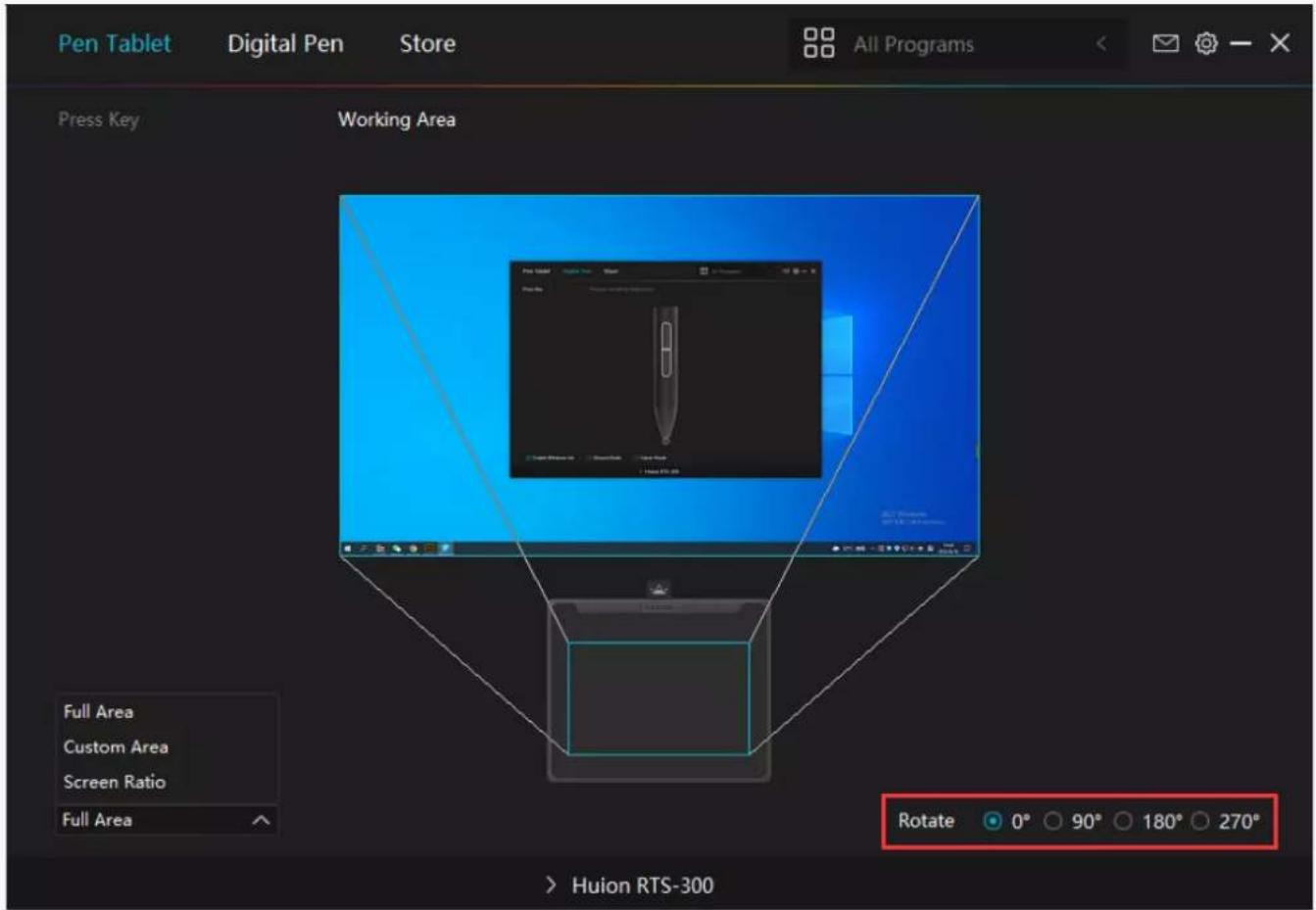
2. Rotate Working Area
By changing the direction of the tablet to adapt to the left and right hand operation. You can rotate the tablet by 0^, 90^, 180^ or 270^ .
RTS-300
Digital Pen Setting
1. Press Key
Please refer to it.
RTS-300
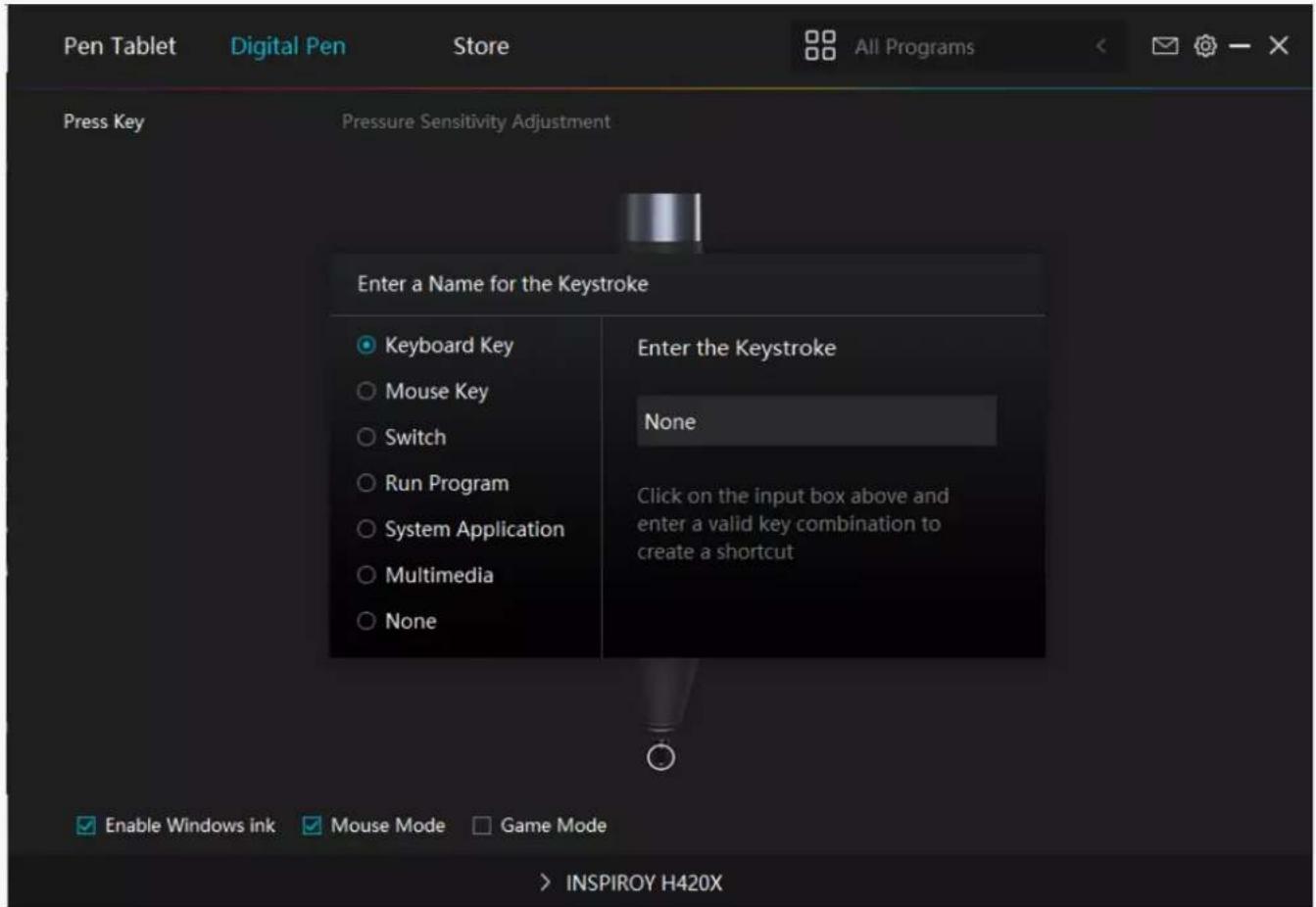
2. Pen Nib Activity
The pen nibs can be set to be Valid/Invalid as needed. Click the drop-down option to select. In Valid mode, the digital pen can be used normally. In Invalid mode, the digital pen has cursor movement, but cannot complete the specified action.
RTS-300
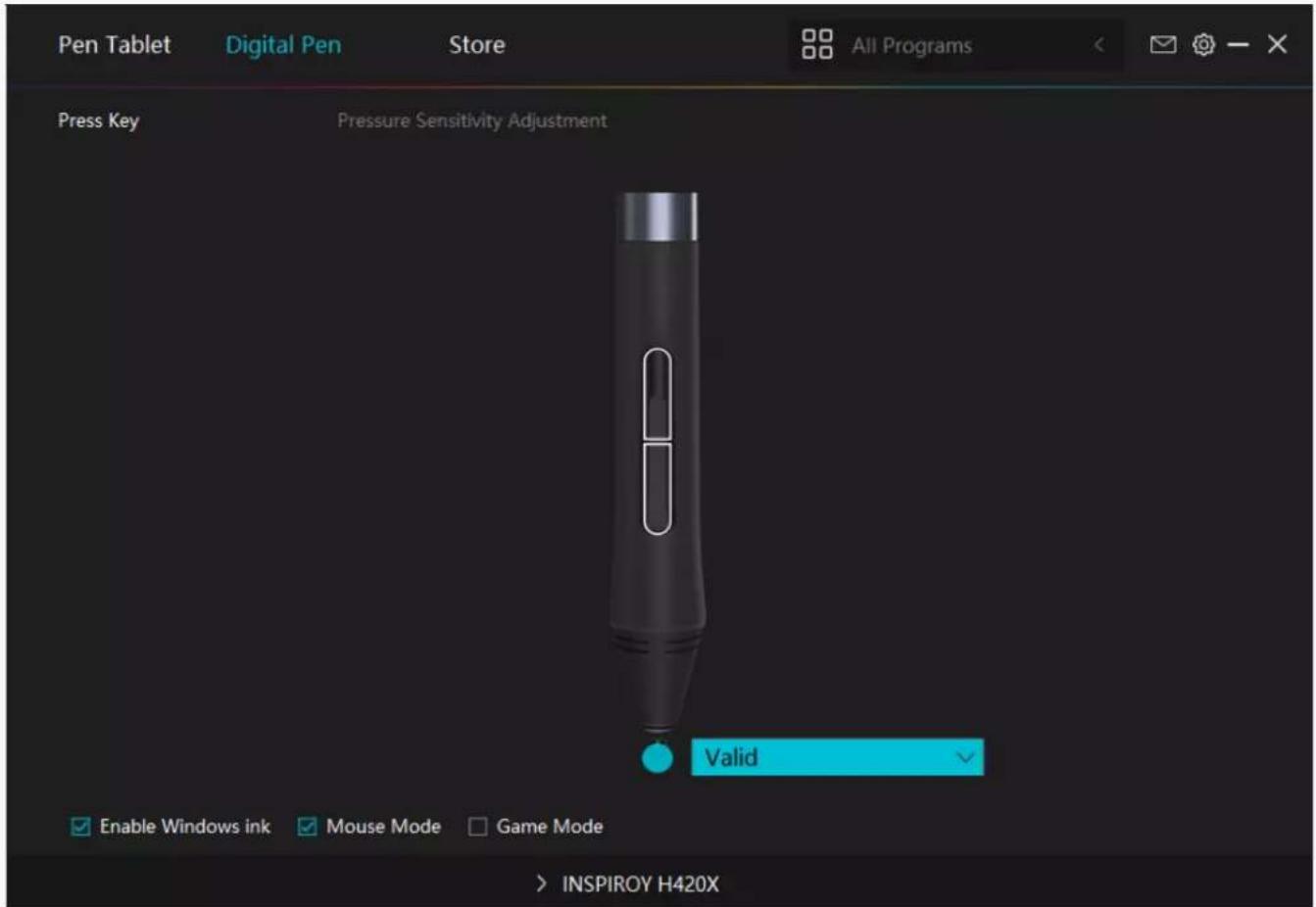
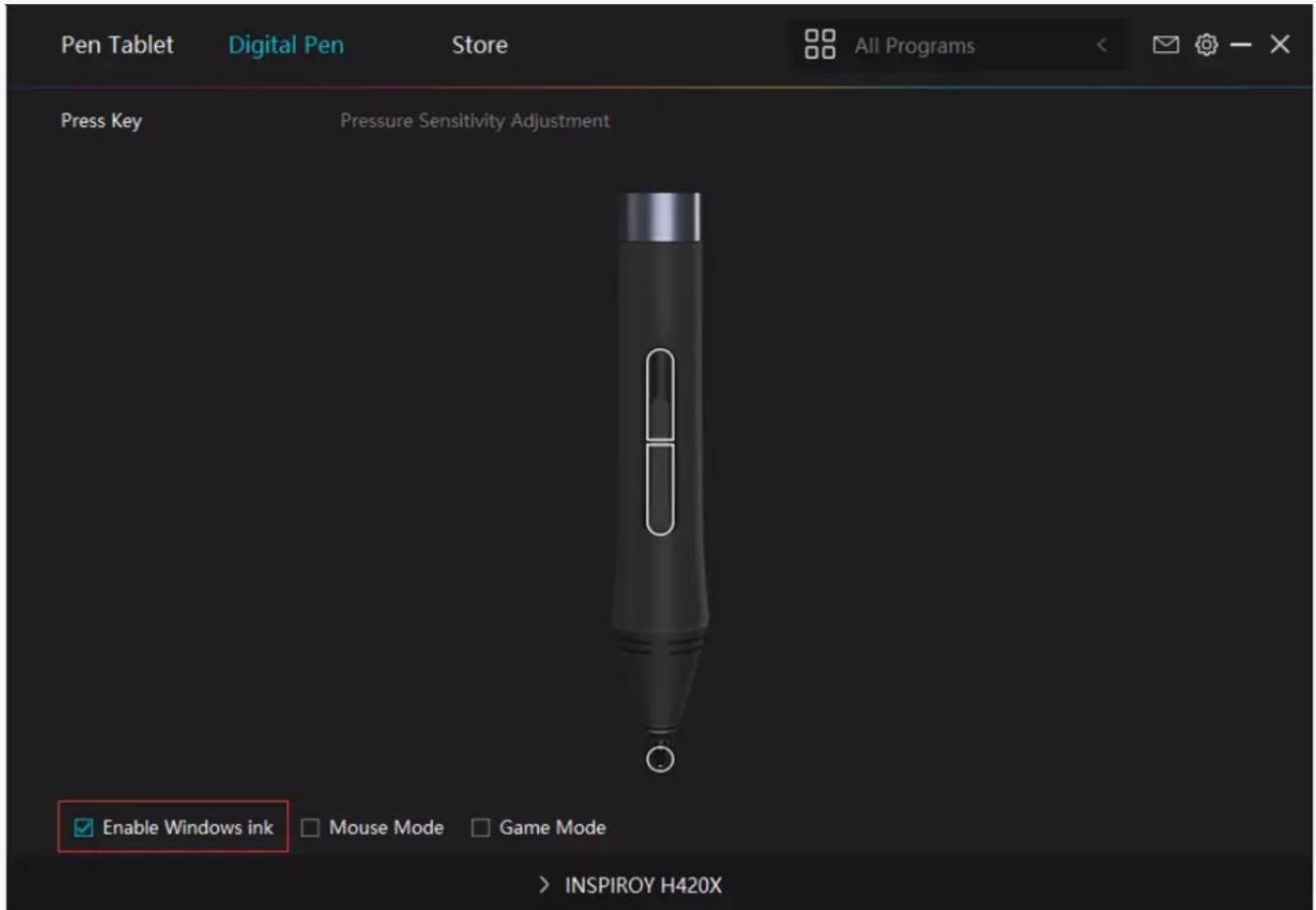
3. Enable Windows ink
Microsoft Windows provides extensive support for pen input. Pen features are supported in such as Microsoft Office, Windows Whiteboard, Adobe Photoshop CC, SketchBook 6 and so on.
RTS-300
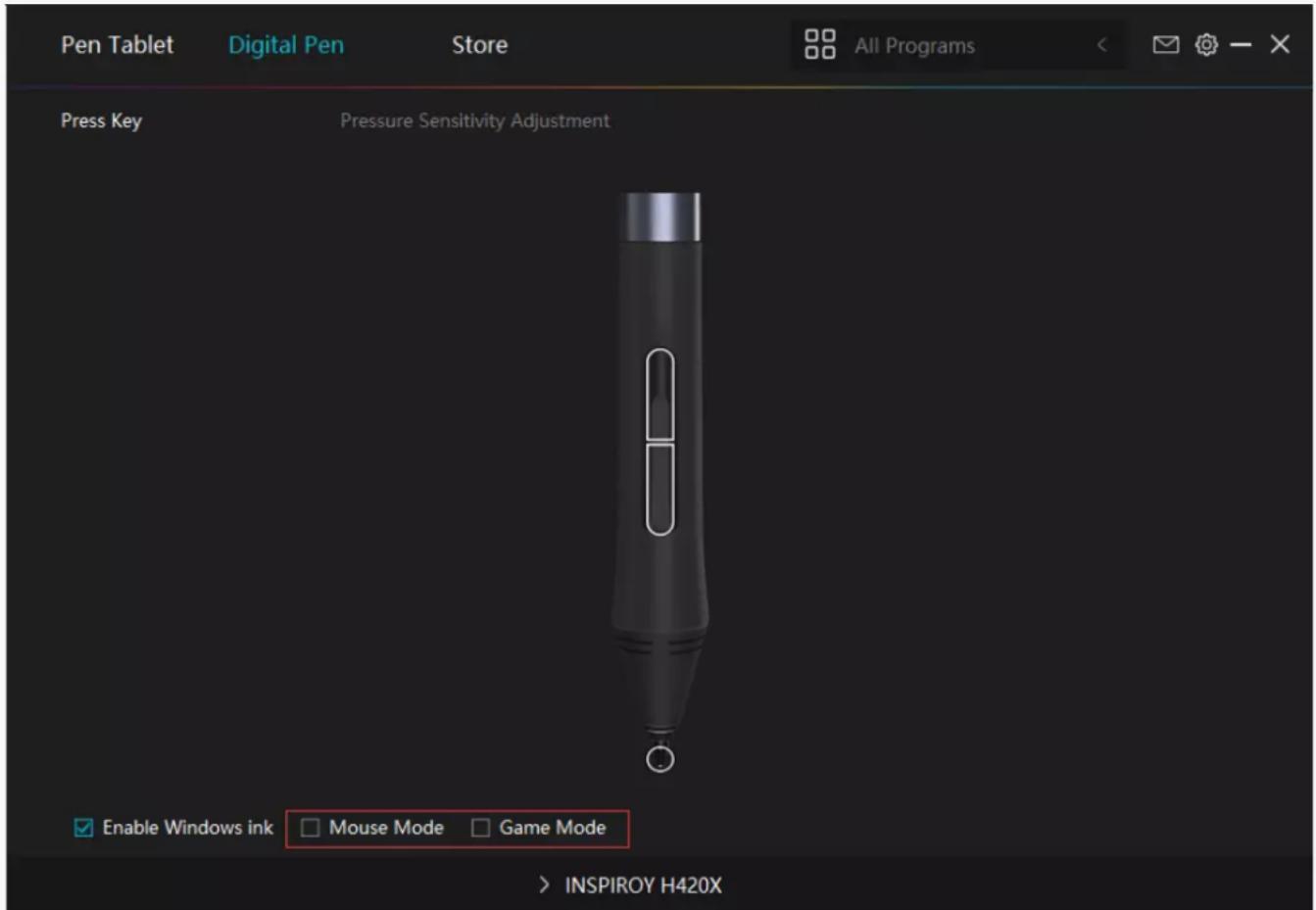
4. Mode Selection
Game Mode: This mode is specially designed for OSU games. OSU game users can turn on the "Game Mode" to increase the cursor's following speed when the pen tip moves quickly. It is not recommended for non-OSU game users.
Mouse Mode: When the digital pen moves on the tablet work area, the "absolute coordinate" mode is adopted by default. After selecting the "mouse mode", it will change to the "relative coordinate" mode. At this time, the user can use the digital pen like a mouse.
RTS-300
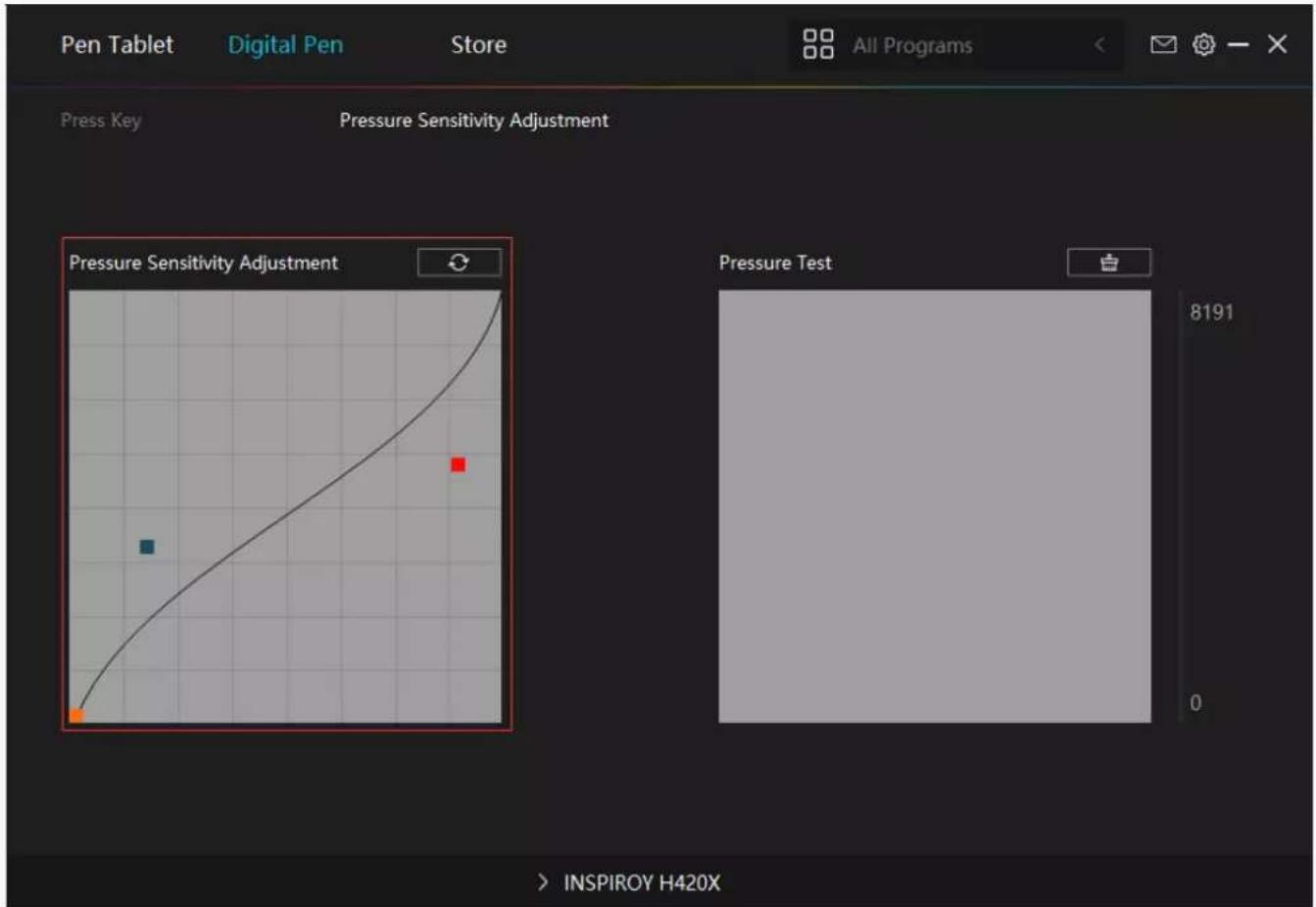
5. Pressure Sensitivity Adjustment
The pressure sensitivity will be changed by dragging the slider up and down, the smaller the value, the more pressure sensitive.
Click the Redo button at the top right of the Settings box to reset the pressure sensitivity to the default state.
RTS-300
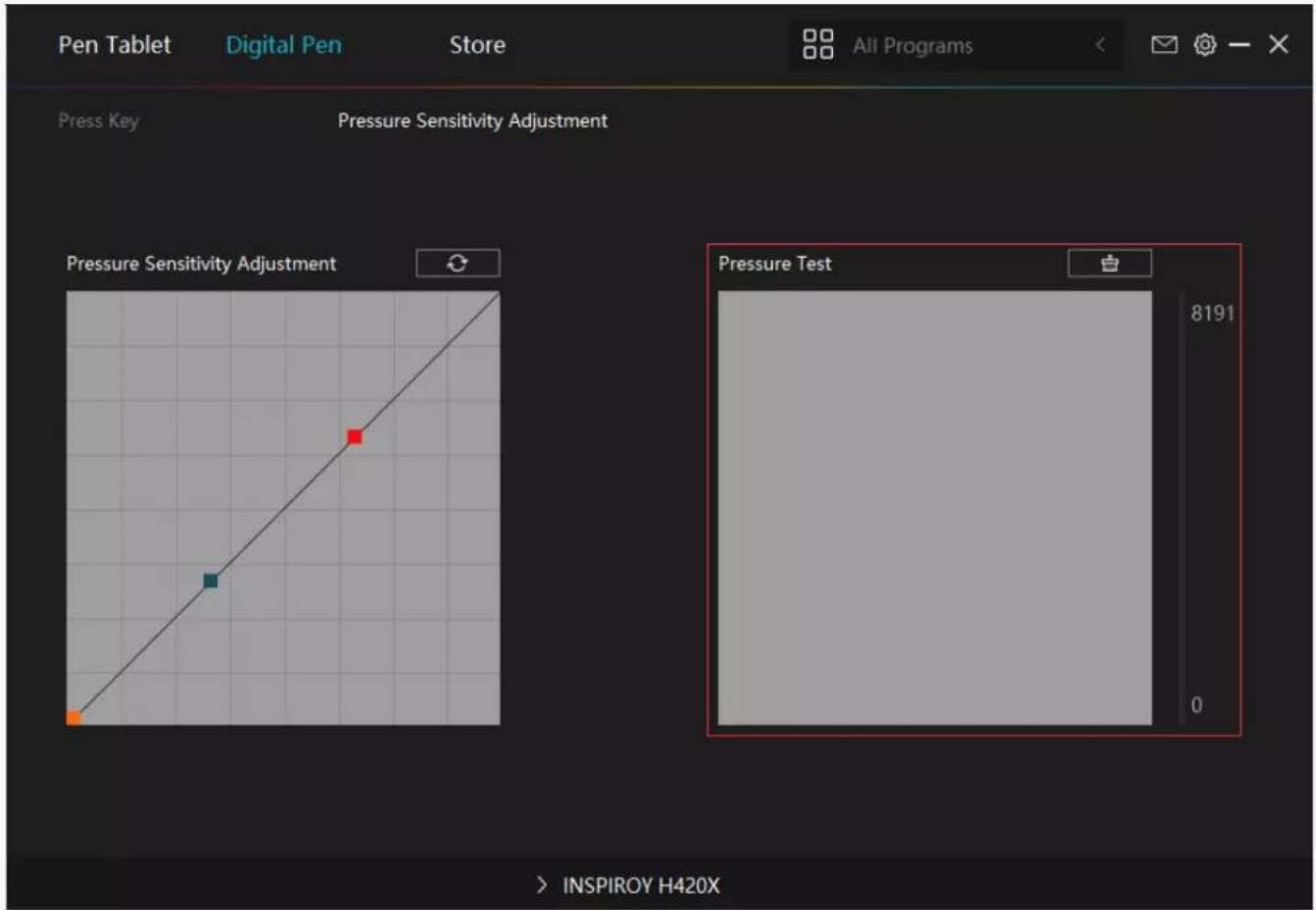
6. Pressure Test
You can gradually apply pressure to the stylus on the screen to test the pressure level. Click the Clear button to clear all the ink.
RTS-300
Driver Setting
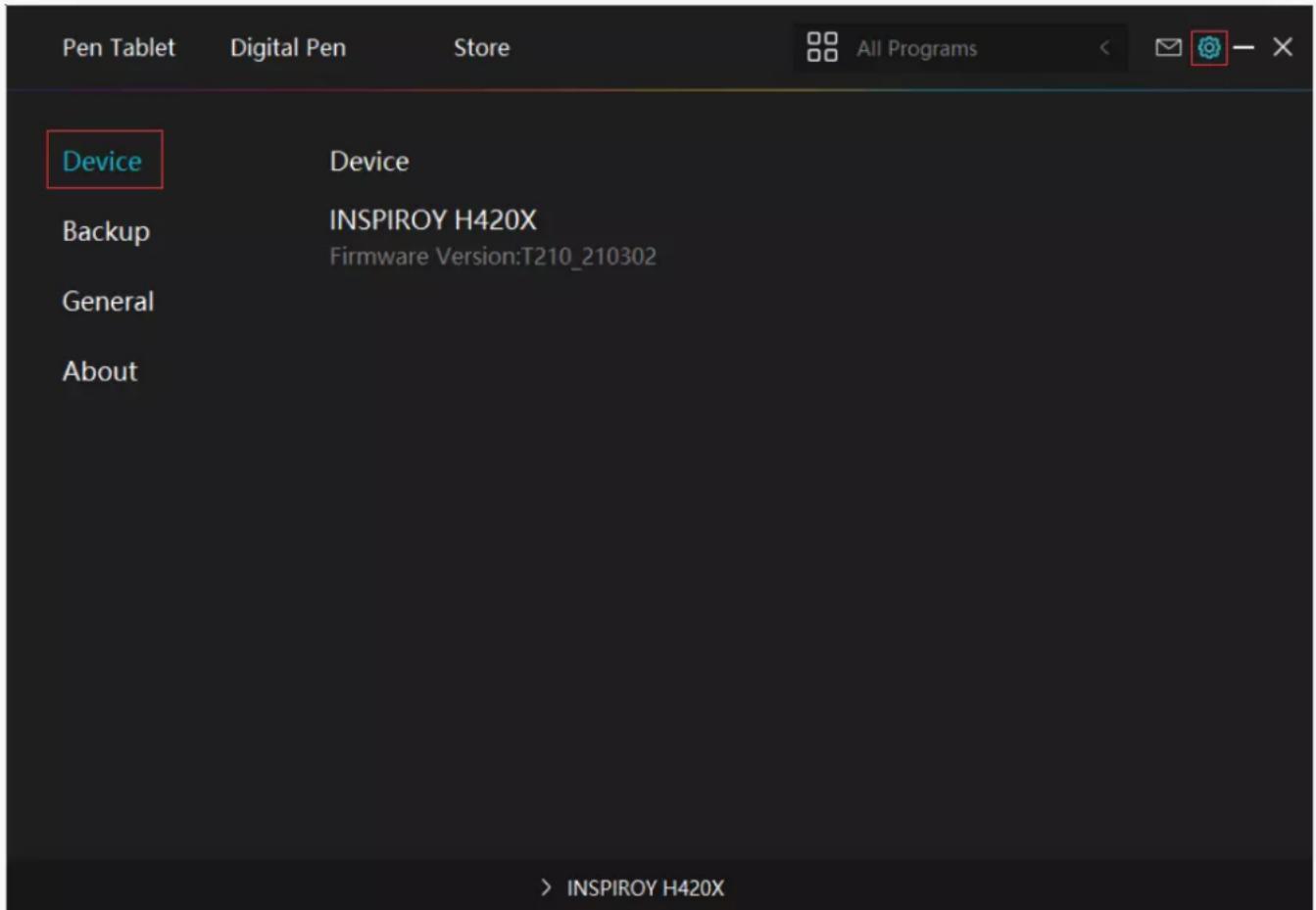
1. Device
You can view product information.
RTS-300
2. Backup
The Driver can import and export your custom settings, which helps to avoid repeated settings when launching a different program.
RTS-300

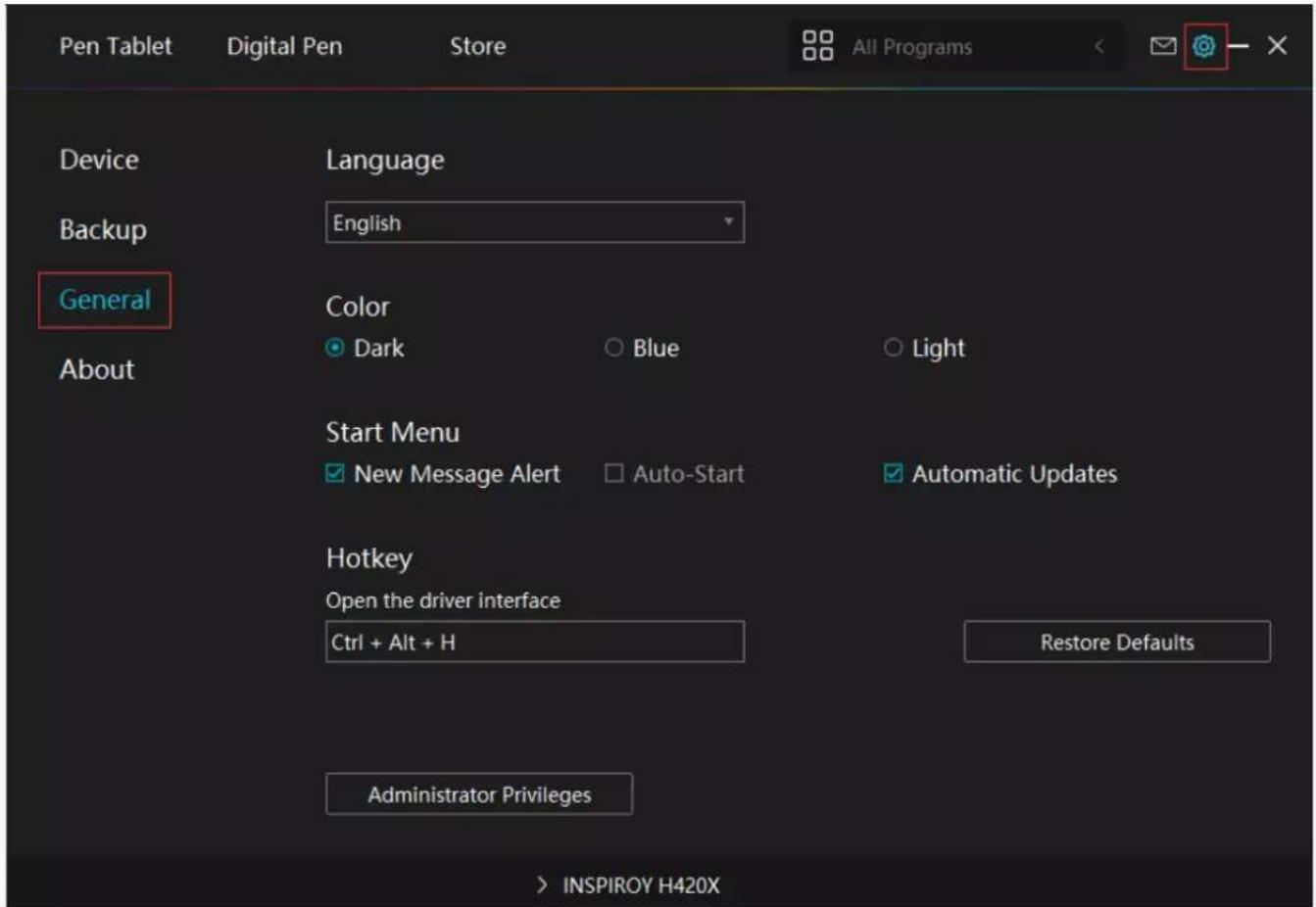
3. General Setting
[1] Language: Click the drop down menu to select a language.
[2] Color: You can select the color of the Driver interface among Dark, Blue, and Light according to your preference.
[3] Start Menu: Click to enable or disable AutoStart, New Message Alert, Automatic Updates.
[4] Hotkey: A hotkey can be used to call out the Driver interface quickly, you can set one according to your usage habits.
RTS-300
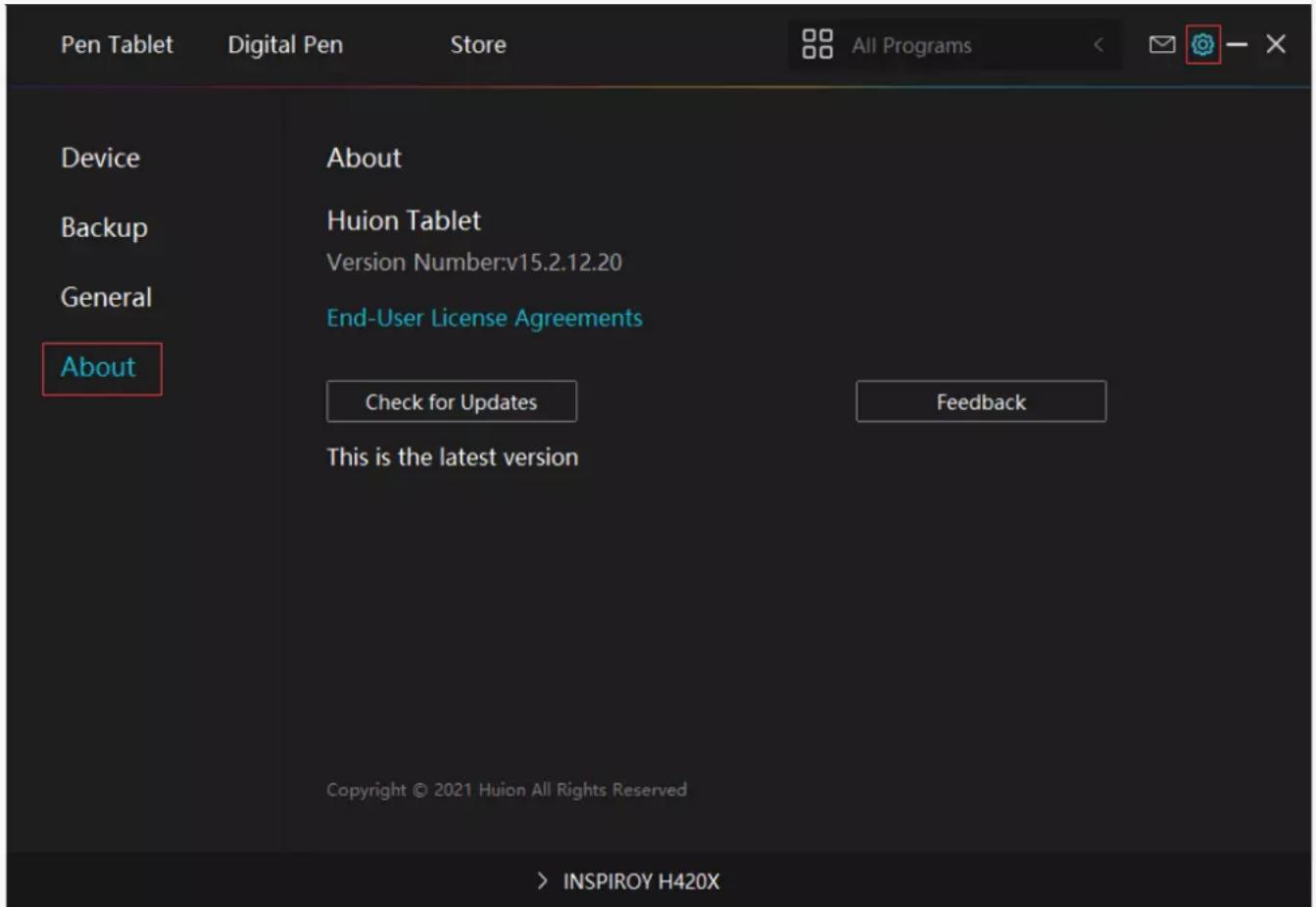
4. About
Users can check the Driver version number here. Click Check for Updates to view the latest Driver version and then follow the prompts to update the Driver if needed.
Digital Pen Basic Operation
Note: Picture shown is for illustration purposes only.
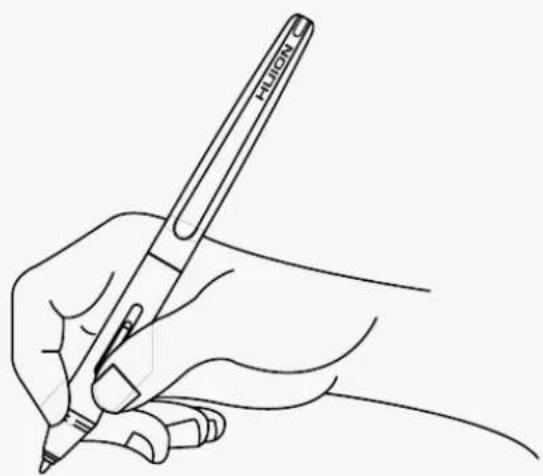
Hold the Pen
Hold the pen as you hold a normal pen or pencil. Adjust your grip so that you can toggle the side switch easily with your thumb or forefinger. Be careful not to accidentally press the switch while drawing or positioning with the pen.
Note:
When not in use, place the pen in the pen case or on the desk. Do not place the pen on the surface of screen, which may interfere with the use of other screen cursor positioning equipment, may also cause your computer can not enter the sleep mode.
natural_image
Line drawing of a hand holding a pen, no text or symbols presentPosition the cursor
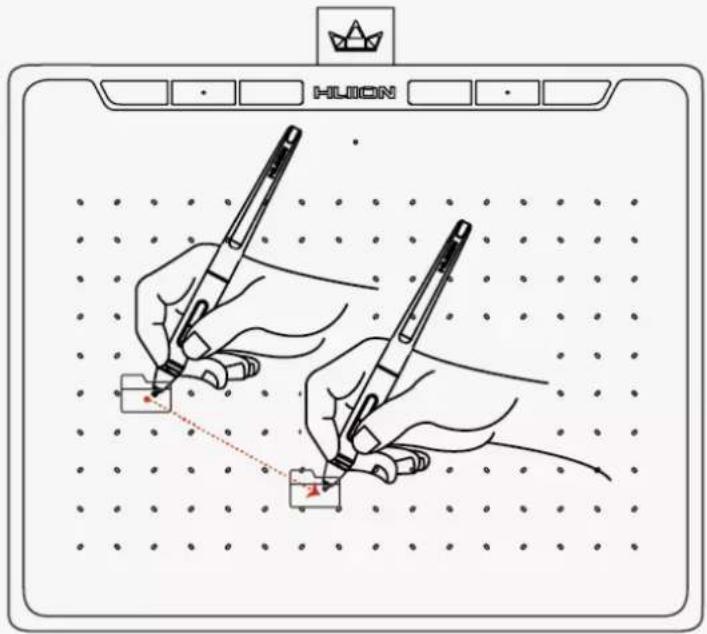
Move the pen slightly above the active area without touching the screen surface, the cursor will move to the new position accordingly.
Press the pen tip on the screen to make a selection. Tap the screen once with the pen tip, or touch it to the screen with enough pressure to register a click.

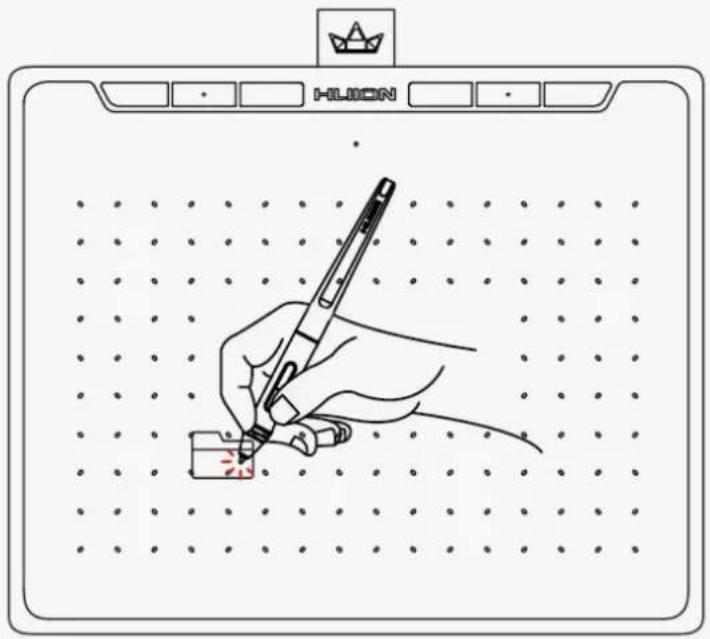
Click
Use the pen tip to tap once on the screen to register a click. Tap to highlight or select an item on the screen and double-click to open it.
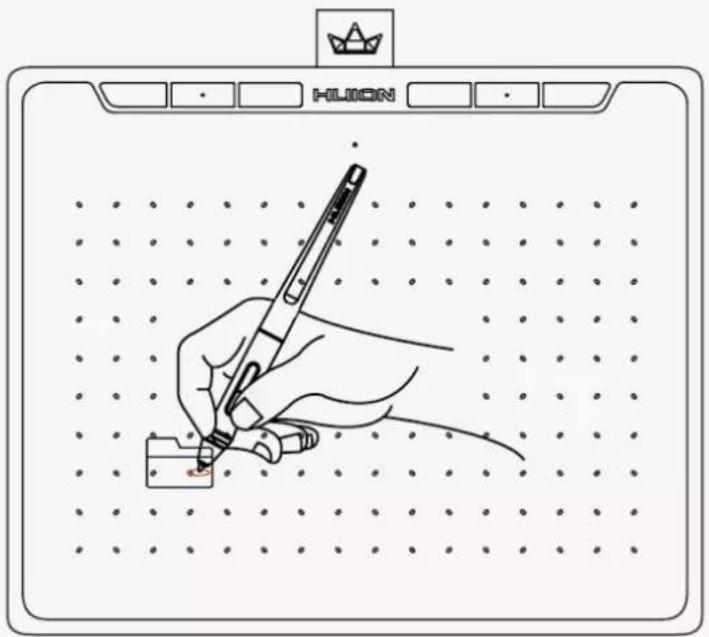
Move
Select the object, then slide the pen tip across the screen to move it.
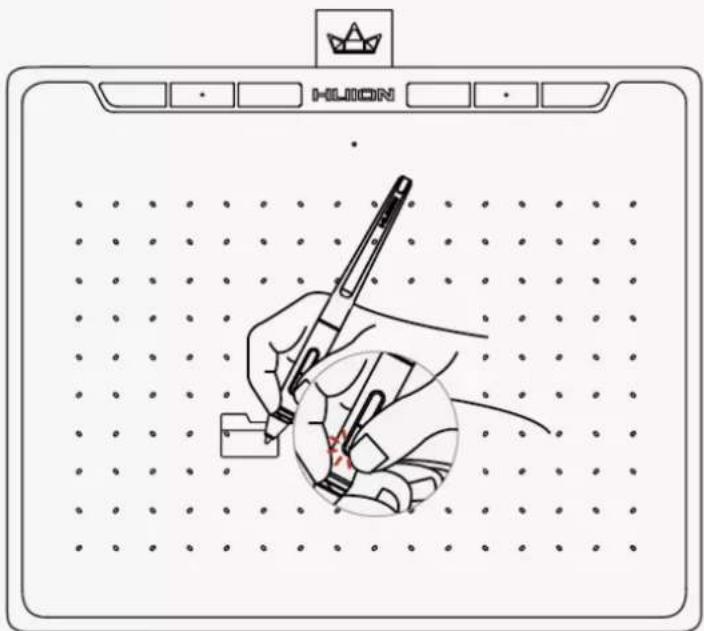
Use the side buttons
The buttons on the pen can be set to two different customizable functions. You can use the buttons whenever the pen tip is within 10mm of the tablet active area. You do not have to touch the pen tip to the tablet in order to use the switch.
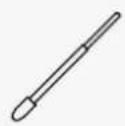
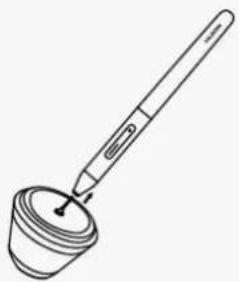
Pen Nib Replacement
The nib will be wear off after using for a long time, then you need to replace a new nib.
- Anticlockwise rotate the pen holder to open the cover, take a new nib out.
- Insert the pen nib into the pen nib clip and tilt the pen to pull out the old nib.
- Insert the new nib straight into the pen and push the nib slowly and firmly until it stops.
natural_image
Line drawing of a pen tip dispensing liquid into a cup (no text or symbols)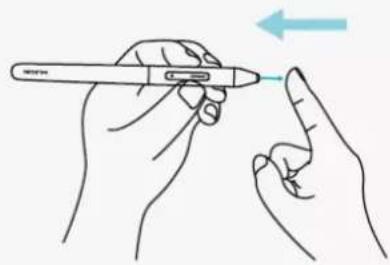
natural_image
Line drawing of two hands holding a pen, with a blue arrow indicating direction (no text or symbols)Specifications
Here are the product specifications for you to learn more about the Tablet. If you have any questions, please feel free to contact us.
The following data will vary in different usage environments and are for reference only.
Appearance
| Color: | Cosmo Black, Blossom Pink |
| Dimension: | 200 x 163 x 8.35mm |
| Workspace: | 160 x 100mm |
| Net Weight: | 229g |
| Interface: | USB-C |
Technical Specifications
| Digital Pen: | PW400 |
| Pen Technology: | Battery-Free Electromagnetic Resonance |
| Pen Resolution: | 5080 LPI |
| Pressure Sensitivity: | 8192 Levels |
| Sensing Height: | 10mm |
| Report Rate: | >300PPS |
| Accuracy: | ±0.3mm |
OS Compatibility
Windows 7 or later macOS 10.12 or later Android 6.0 or later
Troubleshooting Solutions
There is no pressure in the graphics software but the cursor moves.
You may have installed other tablet drivers or opened the drawing software when installing the driver. Please uninstall all drivers and close the drawing software, then reinstall the Huion driver. It's better to restart your computer after finishing the installation.
The pen does not work.
- Make sure you are using the pen that originally came with your tablet.
- Make sure you installed the driver correctly.
Press Keys does not work.
- Make sure the Press Keys function were enabled in the driver.
- Make sure you have correctly defined the Press Keys.
- Check if the press lock switch is on the unlock position.
The side button of the pen doesn't work.
When pressing the side button, please make sure that the nib didn't touch the tablet surface and the distance between the nib and surface is within 10mm.
If your problem is not resolved, please click FAQsto view more troubleshooting methods or email us(service@huion.com).