Attache - Turntable GPO - Free user manual and instructions
Find the device manual for free Attache GPO in PDF.



User questions about Attache GPO
0 question about this device. Answer the ones you know or ask your own.
Ask a new question about this device
Download the instructions for your Turntable in PDF format for free! Find your manual Attache - GPO and take your electronic device back in hand. On this page are published all the documents necessary for the use of your device. Attache by GPO.
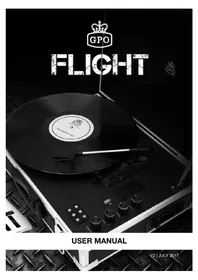
USER MANUAL Attache GPO
natural_image
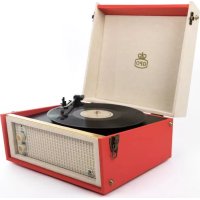
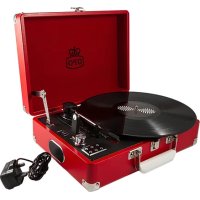
Vintage portable cassette with a red open case and a GPO logo, no visible text or symbols on the device itself.FREE USB STICK For Direct Recording To USB

text_image
GPOUser Manual
Attaché Case Turntable
Content
English....1
German....10
French....20
Spanish....30
Dutch....40
Introduction
Thanks for purchasing this product from ProtelX. Please read instructions carefully before use and store in a safe place for future reference.
Unpacking
- Remove packing material and set the unit on a flat, supportive surface. Make sure to remove additional items from packaging.
- Open the lid of the unit.
- Remove the black tie-wrap from the tone arm.
- Remove the white stylus protective cap.
- Release the tone arm's needle arm lock.
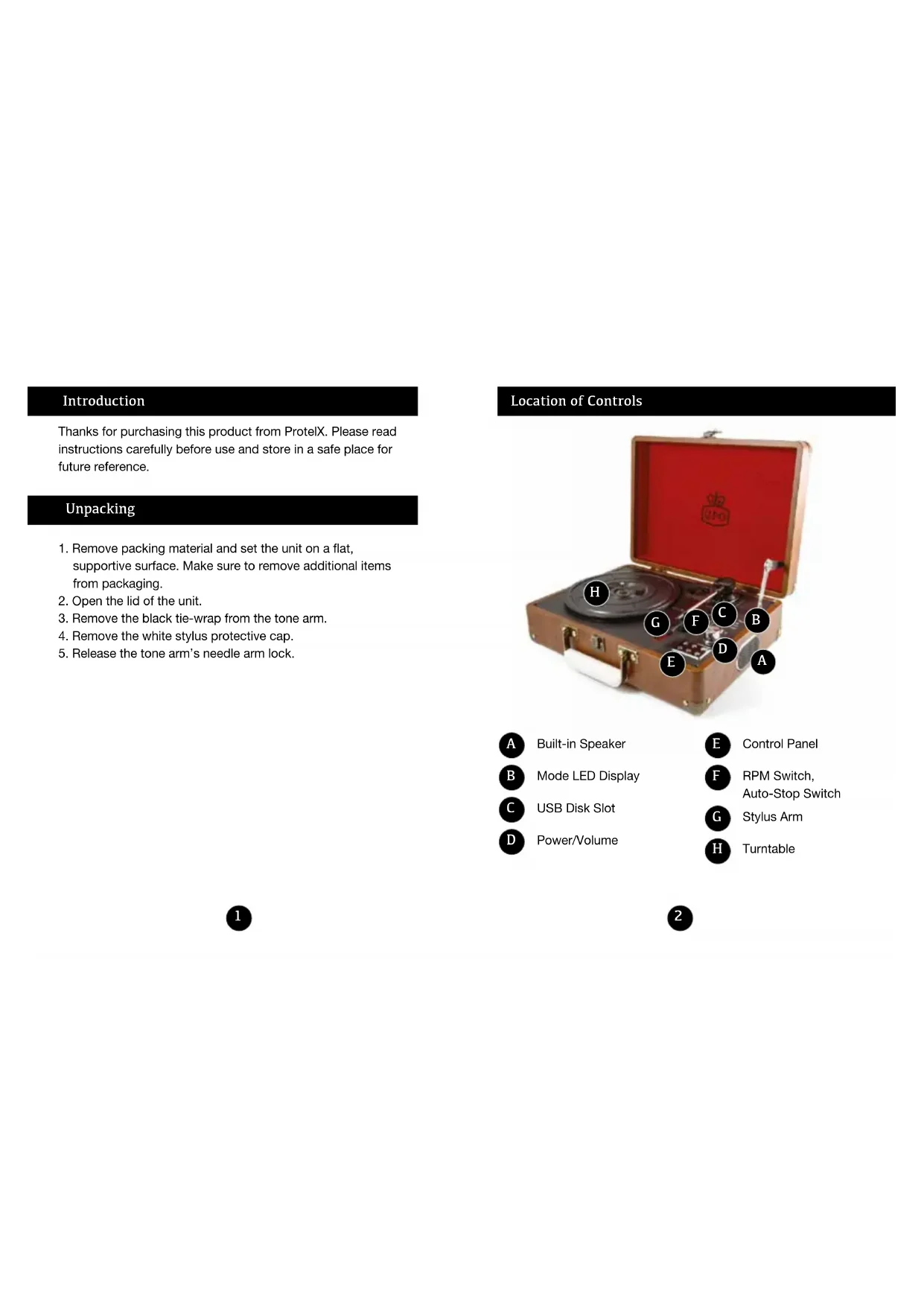
Location of Controls
text_image
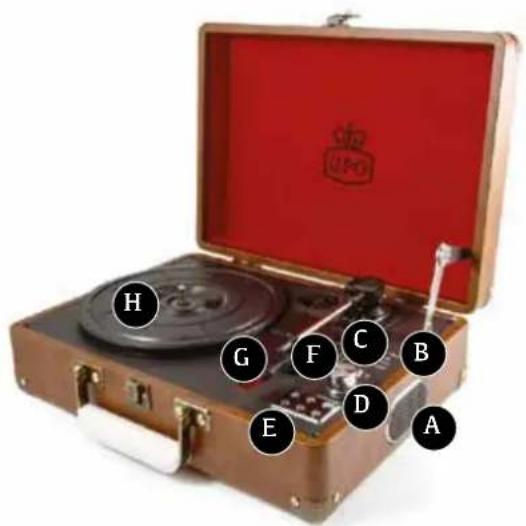
H G F C B E D AA Built-in Speaker
B Mode LED Display
C USB Disk Slot
D Power/Volume
E Control Panel
F RPM Switch, Auto-Stop Switch
G Stylus Arm
H Turntable
1
2
Control Buttons
Turntable
USB
AUX-IN
Record
Turntable Mode
Play vinyl record through built-in speakers.
USB Mode
Play MP3 files stored on USB disk.
AUX-IN Mode
Play music from you MP3, apple or smart device through built in speakers.
Record Mode
Record vinyl to USB disk.

Press this button to switch between turntable, USB and aux in mode.

Press to STOP music playing in USB mode. Press to STOP vinyl recording in Record mode.

PLAY or PAUSE the music under USB mode.

Press to record your vinyl records, more information in record section.

Press to the NEXT song under USB mode.

Press to the PREVIOUS song under USB mode.

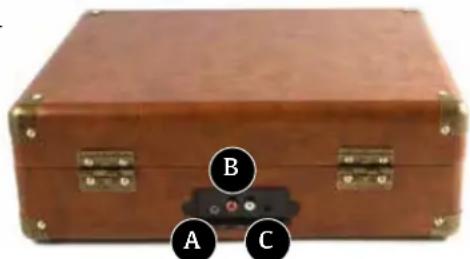
Input and Output

AUX-IN

AUX-OUT

DC-IN
natural_image
Brown leather case with three labeled buttons (A, B, C) and a small electronic component on the side (no text or symbols on the box itself)
Turntable Mode
- Connect the small DC jack into the DC-IN port.
- Connect the plug to a mains outlet.
- Place the vinyl record on to your turntable.
- Set the correct speed (rpm) of your vinyl record (33/45/78rpm)
- Turn on the power of the turntable, you can see the red indicator of turntable mode is on.
- Move the tone arm to the desired starting point on the record. The turntable starts to play. If auto-stop is on, the table will not spin until the arm is hovered over the record. If auto-stop is off, the turntable will spin continuously.
- Adjust speaker volume to the preferred level.
- At the end of the record, if auto-stop is selected on, the table will stop turning automatically. If auto-stop is off, the table will continue to spin.
AUX-IN Play Mode
- Press the mode button until the red light next to AUX IN is illuminated.
- Connect any external audio source (phone, iPad, MP3 player) to AUX-IN socket at back of the turntable
- To connect the device to the turntable, you need 3.5mm jack audio cable.
- Control the music from your external audio source
USB Play Mode
- Switch the mode button to USB play mode, the red LED indicator is ON.
- Plug the USB disk to the USB slot.
- Press play button to start playing USB disk's music.
- You can play own mp3 music or recorded vinyl music.
Vinyl Record Mode
- Press the mode button until the red LED light next to Turntbale is illuminated.
- Insert a blank USB stick into the slot
- Place the desired vinyl onto the turntabled and begin playing.
- Press the record button on the control panel, the red light next to record will begin to flash. Press the record button once to record the vinyl in one track, press the record button twice to split the tracks.
RCA Audio Out
An RCA cable is included with you GPO Attache, you will require this cable to connect to extra speakers
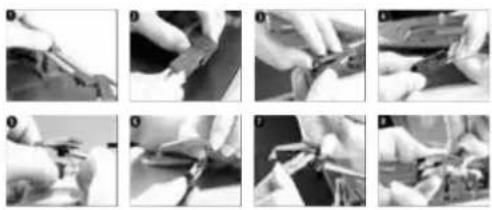
Replace Stylus
The turntable's stylus needs to be replaced every 3-4 months after continue playing. To buy a replacement stylus, go to www.gporetro.com or visit one of our stockists.
Replace Stylus
The turntable's stylus needs to be replaced every 3-4 months after continuous playing. To buy replacement stylus, go to www.gporetro.com to order.
Troubleshooting
- No power to device?
Make sure your turntable is connected to power.
Make sure that you have turned the power dial far enough around.
- Noise from the speaker?
Check your vinyl track is not damaged and your vinyl is not warped.
Your stylus needle may require replacing.
- How can I play back recorded files
You can switch to USB mode to play back recorded files through built-in speakers.
- Need more help?
Visit our website for further support or contact us on 0845 521 4095.
7
Product Care
DO NOT leave vinyl records on the turntable after use. Return the vinyl record to its original packaging and store. Return the tone arm to it's original place after use and secure with small needle arm lock. Replace the protective cap of the stylus cartridge after use. Close the turntable cover to avoid dust damage. Unplug the power cable and other cables after use.
Product Support
Looking for more help? visit www.gporetro.com or call 0845 521 4095. For your personal safety, do not attempt to open the device. No user serviceable parts inside and warranty void if device opened.
8
GERMAN
Einführung
text_image
UFC A B C D E F G Htext_image
Turntable USB AUX-IN Record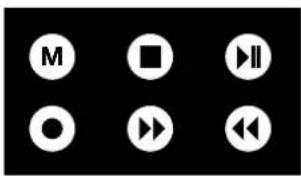
text_image
M □ ▶II ○ ▶ ◀text_image
H G F C B E D ATurntable
USB
AUX-IN
Record