
CYBER-SHOT DSC-HX7V - Camera SONY - Free user manual and instructions
Find the device manual for free CYBER-SHOT DSC-HX7V SONY in PDF.


| Product type | Compact digital camera |
| Brand | Sony |
| Model | Cyber-shot DSC-HX7V |
| Sensor | CMOS Exmor R 7.77 mm (1/2.3 type), 16.2 effective megapixels |
| Lens | Sony G 10x zoom, f=4.25-42.5 mm (equiv. 24-250 mm), F3.5-5.5 |
| Stabilization | Optical SteadyShot |
| LCD screen | 7.5 cm (3.0 inches), 921,600 dots |
| Built-in flash | Range: 0.05-4.8 m (W), 1.0-3.1 m (T) |
| Recording resolution | Still images: up to 16 MP; Video: AVCHD Full HD 1080i, MP4 |
| File formats | JPEG (DCF/Exif/MPF), MPO (3D), MPEG-4 AVC/H.264 |
| Storage media | Internal memory 19 MB, Memory Stick Duo, SD/SDHC/SDXC |
| Power source | Rechargeable battery NP-BG1 (3.6 V); AC adapter AC-UB10/UB10B (5 V) |
| Battery life (photos) | Approx. 300 shots (CIPA standard) |
| Battery life (video) | Approx. 70 minutes (AVCHD) |
| Dimensions (W x H x D) | 101.6 x 57.6 x 28.6 mm |
| Weight (with battery and card) | Approx. 178 g |
| Connectivity | Mini HDMI, Multi connector (USB/AV/DC), TransferJet (depending on model) |
| Built-in GPS | Yes (model DSC-HX7V) |
| Special features | 3D shooting, Smile detection, Panorama, HDR, Scene recognition |
| Care and cleaning | Clean with a slightly damp soft cloth; avoid solvents |
| Safety | Do not expose to water; do not disassemble the battery; use a Sony charger |
| Spare parts | Battery NP-BG1, AC adapter AC-UB10, USB cable, wrist strap |
| Operating temperature | 0 °C to 40 °C |
Frequently Asked Questions - CYBER-SHOT DSC-HX7V SONY
User questions about CYBER-SHOT DSC-HX7V SONY
0 question about this device. Answer the ones you know or ask your own.
Ask a new question about this device
Download the instructions for your Camera in PDF format for free! Find your manual CYBER-SHOT DSC-HX7V - SONY and take your electronic device back in hand. On this page are published all the documents necessary for the use of your device. CYBER-SHOT DSC-HX7V by SONY.
USER MANUAL CYBER-SHOT DSC-HX7V SONY
The model and serial numbers are located on the bottom. Record the serial number in the space provided below. Refer to these numbers whenever you call your Sony dealer regarding this product.
Model No. DSC-HX7/DSC-HX7V
Serial No. ____
Model No. AC-UB10/UB10B
Serial No. ____
WARNING
To reduce fire or shock hazard, do not expose the unit to rain or moisture.
IMPORTANT SAFETY INSTRUCTIONS -SAVE THESE INSTRUCTIONS DANGER TO REDUCE THE RISK OF FIRE OR ELECTRIC SHOCK, CAREFULLY FOLLOW THESE INSTRUCTIONS
If the shape of the plug does not fit the power outlet, use an attachment plug adaptor of the proper configuration for the power outlet.
CAUTION
Battery pack
If the battery pack is mishandled, the battery pack can burst, cause a fire or even chemical burns. Observe the following cautions.
- Do not disassemble.
- Do not crush and do not expose the battery pack to any shock or force such as hammering, dropping or stepping on it.
- Do not short circuit and do not allow metal objects to come into contact with the battery terminals.
- Do not expose to high temperature above 60^ (140°F) such as in direct sunlight or in a car parked in the sun.
-
Do not incinerate or dispose of in fire.
-
Do not handle damaged or leaking lithium ion batteries.
- Be sure to charge the battery pack using a genuine Sony battery charger or a device that can charge the battery pack.
- Keep the battery pack out of the reach of small children.
- Keep the battery pack dry.
- Replace only with the same or equivalent type recommended by Sony.
- Dispose of used battery packs promptly as described in the instructions.
AC Adaptor
Connect the AC Adaptor to the nearest wall outlet (wall socket).
If some trouble occurs while using the AC Adaptor, immediately shut off the power by disconnecting the plug from the wall outlet (wall socket).
The power cord (mains lead), if supplied, is designed specifically for use with this camera only, and should not be used with other electrical equipment.
For Customers in the U.S.A. and Canada
I RECYCLING LITHIUM-ION BATTERIES
Lithium-Ion batteries are recyclable.
You can help preserve our environment by returning your used rechargeable batteries to the collection and recycling location nearest you.
For more information regarding recycling of rechargeable batteries, call toll free
1-800-822-8837, or visit http://www.rbrc.org/

text_image
RECYCLE RBRC Li-Ion 7.800.822.8837Caution: Do not handle damaged or leaking Lithium-Ion batteries.
Battery pack
This device complies with Part 15 of the FCC Rules. Operation is subject to the following two conditions:
(1) This device may not cause harmful interference, and (2) this device must accept any interference received, including interference that may cause undesired operation.
This Class B digital apparatus complies with Canadian ICES-003.
For Customers in the U.S.A.
UL is an internationally recognized safety organization.
The UL Mark on the product means it has been UL Listed.
If you have any questions about this product, you may call:
Sony Customer Information Center
The number below is for the FCC related matters only.
Regulatory Information
Declaration of Conformity
Trade Name: SONY
Model No.: DSC-HX7V
Responsible Party: Sony Electronics Inc.
Address: 16530 Via Esprillo,
San Diego, CA 92127 U.S.A.
Telephone No.: 858-942-2230
This device complies with Part15 of the FCC Rules. Operation is subject to the following two conditions: (1) This device may not cause harmful interference, and (2) this device must accept any interference received, including interference that may cause undesired operation.
CAUTION
You are cautioned that any changes or modifications not expressly approved in this manual could void your authority to operate this equipment.
I Note:
This equipment has been tested and found to comply with the limits for a Class B digital device, pursuant to Part 15 of the FCC Rules.
These limits are designed to provide reasonable protection against harmful interference in a residential installation. This equipment generates, uses, and can radiate radio frequency energy and, if not installed and used in accordance with the instructions, may cause harmful interference to radio communications. However, there is no guarantee that interference will not occur in a particular installation. If this equipment does cause harmful interference to radio or television reception, which can be determined by turning the equipment off and on, the user is encouraged to try to correct the interference by one or more of the following measures:
– Reorient or relocate the receiving antenna.
– Increase the separation between the equipment and receiver.
- Connect the equipment into an outlet on a circuit different from that to which the receiver is connected.
- Consult the dealer or an experienced radio/TV technician for help.
The supplied interface cable must be used with the equipment in order to comply with the limits for a digital device pursuant to Subpart B of Part 15 of FCC Rules.
CE
GB
Hereby, Sony Corporation, declares that this DSC-HX7V Digital Still Camera is in compliance with the essential requirements and other relevant provisions of the Directive 1999/5/EC. For details, please access the following URL: http://www.compliance.sony.de/
Notice for the customers in the countries applying EU Directives
The manufacturer of this product is Sony Corporation, 1-7-1 Konan Minato-ku Tokyo, 108-0075 Japan. The Authorized Representative for EMC and product safety is Sony Deutschland GmbH, Hedelfinger Strasse 61, 70327 Stuttgart, Germany. For any service or guarantee matters please refer to the addresses given in separate service or guarantee documents.
This product has been tested and found compliant with the limits set out in the EMC regulation for using connection cables shorter than 3 meters (9.8 feet).
Attention
The electromagnetic fields at the specific frequencies may influence the picture and sound of this unit.
Notice
If static electricity or electromagnetism causes data transfer to discontinue midway (fail), restart the application or disconnect and connect the communication cable (USB, etc.) again.
Disposal of Old Electrical & Electronic Equipment (Applicable in the European Union and other European countries with separate collection systems)

natural_image
Symbol of a trash bin crossed with no text or numbers, representing environmental restriction (no text present)This symbol on the product or on its packaging indicates that this product shall not be treated as household waste. Instead it shall be handed over to the applicable collection point for the recycling of electrical and electronic equipment. By ensuring this product is disposed of correctly, you will help prevent potential negative consequences for the environment and human health, which could otherwise be caused by inappropriate waste handling of this product. The recycling of materials will help to conserve natural resources. For more detailed information about recycling of this product, please contact your local Civic Office, your household waste disposal service or the shop where you purchased the product.
Disposal of waste batteries (applicable in the European Union and other European countries with separate collection systems)

natural_image
Symbol of a trash bin crossed out by two crossed lines (no text or numbers present)This symbol on the battery or on the packaging indicates that the battery provided with this product shall not be treated as household waste. On certain batteries this symbol might be used in combination with a chemical symbol. The chemical symbols for mercury (Hg) or lead (Pb) are added if the battery contains more than 0.0005% mercury or 0.004% lead. By ensuring these batteries are disposed of correctly, you will help prevent potentially negative consequences for the environment and human health which could otherwise be caused by inappropriate waste handling of the battery. The recycling of the materials will help to conserve natural resources.
In case of products that for safety, performance or data integrity reasons require a permanent connection with an incorporated battery, this battery should be replaced by qualified service staff only. To ensure that the battery will be treated properly, hand over the product at end-of-life to the applicable collection point for the recycling of electrical and electronic equipment.
For all other batteries, please view the section on how to remove the battery from the product safely.
Hand the battery over to the applicable collection point for the recycling of waste batteries. For more detailed information about recycling of this product or battery, please contact your local Civic Office, your household waste disposal service or the shop where you purchased the product.
Notice for customers in the United Kingdom
A moulded plug complying with BS 1363 is fitted to this equipment for your safety and convenience.
Should the fuse in the plug supplied need to be replaced, a fuse of the same rating as the supplied one and approved by ASTA or BSI to BS 1362, (i.e., marked with an ◇ or ⚙ mark) must be used.
If the plug supplied with this equipment has a detachable fuse cover, be sure to attach the fuse cover after you change the fuse. Never use the plug without the fuse cover. If you should lose the fuse cover, please contact your nearest Sony service station.
Refer to "Cyber-shot User Guide" (HTML) on supplied CD-ROM
For details on advanced operations, please read “Cyber-shot User Guide” (HTML) on the CD-ROM (supplied) using a computer.
GB

natural_image
Illustration of a desktop computer setup with CD, monitor, keyboard, and mouse (no text or symbols)Insert the CD-ROM into the CD-ROM drive.
For Windows users:
① Click [User Guide] → [Install].
② Start “User Guide” from the shortcut on the desktop.
For Macintosh users:
① Select the [User Guide] folder and copy [eng] folder stored in [User Guide] folder to your computer.
② After copying is complete, double-click “index.html” in [eng] folder.
Checking the accessories supplied
- Rechargeable battery pack NP-BG1 (1)/Battery case (1)
- Multi-use terminal USB cable (1)
• AC Adaptor AC-UB10/UB10B (1) - Power cord (mains lead) (not supplied in the USA and Canada) (1)
- Wrist strap (1)
- CD-ROM (1)
– Cyber-shot application software - “Cyber-shot User Guide”
- Instruction Manual (this manual) (1)
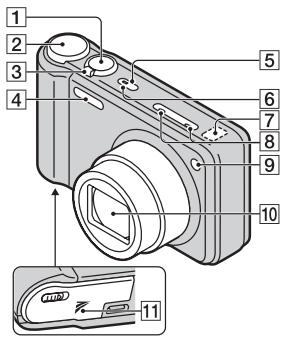
Identifying parts

text_image
Diagram of a digital camera with numbered parts and an inset showing a close-up view of the lens.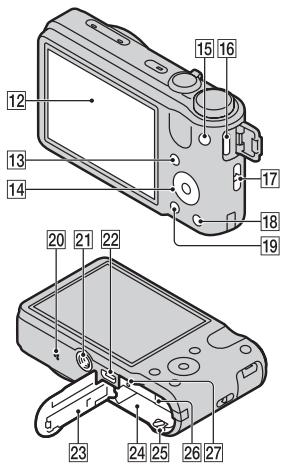
text_image
Technical diagram of a digital camera with numbered parts for identification1 Shutter button
2 Mode dial
③ For shooting: W/T (Zoom) lever
For viewing: 🔒 (Playback zoom) lever/☐ (Index) lever
4 Flash
5 ON/OFF (Power) button
6 Power/Charge lamp
7 GPS sensor (built-in, DSC-HX7V only)
8 Microphone
⑨ Self-timer lamp/Smile Shutter lamp/AF illuminator
10 Lens
11 (TransferJetTM) mark
12 LCD screen
13 ▶ (Playback) button
14 Control wheel
15 MOVIE (Movie) button
16 HDMI connector
17 Hook for wrist strap
18 ?/☑ (In-Camera Guide/Delete) button
19 MENU button
20 Speaker
21 Tripod receptacle
- Use a tripod with a screw less than 5.5 mm (7/32 inches) long. Otherwise, you cannot firmly secure the camera, and damage to the camera may occur.
22 Multi connector (Type3b)
23 Battery/memory card cover
24 Battery insertion slot
25 Battery eject lever
26 Memory card slot
27 Access lamp
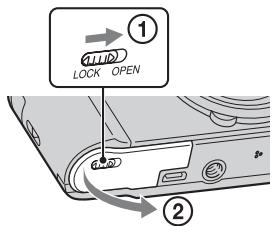
Inserting the battery pack
text_image
① LOCK OPEN ②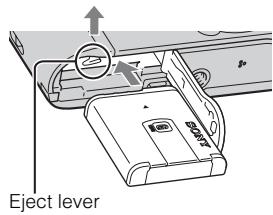
text_image
Eject leverGB
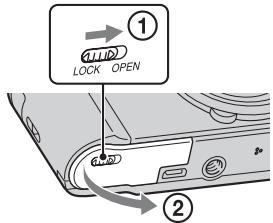
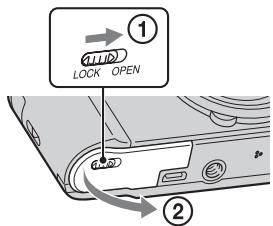
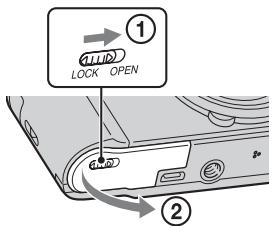
1 Open the cover.
2 Insert the battery pack.
- While pressing the battery eject lever, insert the battery pack as illustrated. Make sure that the battery eject lever locks after insertion.
Charging the battery pack
For customers in the USA, Canada
text_image
Power cord (Mains lead)For customers in countries/regions other than the USA and Canada
natural_image
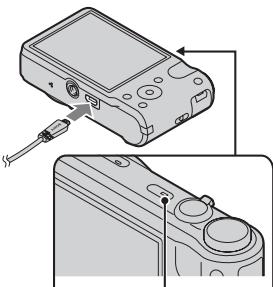
Diagram showing a device being inserted into a camera module, with no visible text or symbols.Power/Charge lamp Lit: Charging Off: Charging finished Flash: Charging error
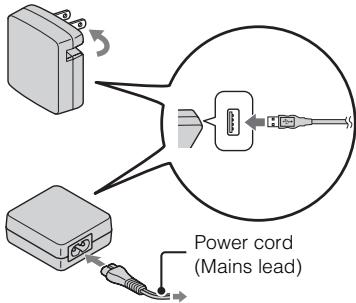
1 Connect the camera and the AC Adaptor (supplied), using the multi-use terminal USB cable (supplied).
2 Connect the AC Adaptor to the wall outlet (wall socket).
The Power/Charge lamp lights orange, and charging starts.
- Turn off the camera while charging the battery.
- You can charge the battery pack even when it is partially charged.
- When the Power/Charge lamp flashes and charging is not finished, remove and re-insert the battery pack.
Notes
- When the Power/Charge lamp on the camera does not lit even if the AC Adaptor is connected to the camera and the wall outlet (wall socket), it indicates that the charging stops temporarily on standby. The charging stops and enters the standby status automatically when the temperature is outside of the recommended operating temperature. When the temperature gets back within the appropriate range, the charging resumes. We recommend charging the battery pack in an ambient temperature of between 10^ to 30^ ( 50^ to 86^ ).
- Connect the AC Adaptor (supplied) to the nearest wall outlet (wall socket). If any malfunctions occur while using the AC Adaptor, disconnect the plug from the wall outlet (wall socket) immediately to disconnect the power source.
- When charging is finished, disconnect the AC Adaptor from the wall outlet (wall socket).
- Be sure to use only genuine Sony brand battery packs, multi-use terminal USB cable (supplied) and AC Adaptor (supplied).
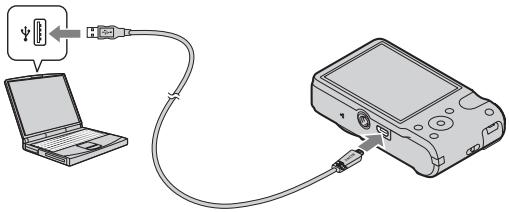
Charging by connecting to a computer
The battery pack can be charged by connecting the camera to a computer using a multi-use terminal USB cable.
text_image
Diagram showing a laptop connected to a device via cable, with a USB symbol pointing to the device's cable.GB
Note
- Note the following points when charging via a computer:
- If the camera is connected to a laptop computer that is not connected to a power source, the laptop battery level decreases. Do not charge for an extended period of time.
- Do not turn on/off or restart the computer, or wake the computer resume from sleep mode when a USB connection has been established between the computer and the camera. The camera may cause a malfunction. Before turning on/off, or restarting the computer or waking the computer from sleep mode, disconnect the camera and the computer.
- No guarantees are made for charging using a custom-built computer or a modified computer.
Charging time
The charging time is approximately 270 min. using the AC Adaptor (supplied).
Note
- The above charging time applies when charging a fully depleted battery pack at a temperature of 25^ ( 77^ ). Charging may take longer depending on conditions of use and circumstances.
Battery life and number of images you can record and view
| Battery life | Number of images | |
| Shooting (still images) | Approx. 150 min. | Approx. 300 images |
| Viewing (still images) | Approx. 220 min. | Approx. 4400 images |
| Shooting (movies) | Approx. 70 min. | — |
Notes
- The above number of images applies when the battery pack is fully charged. The number of images may decrease depending on the conditions of use.
-
The number of images that can be recorded is for shooting under the following conditions:
-
Using Sony “Memory Stick PRO Duo” (Mark2) media (sold separately)
- The battery pack is used at an ambient temperature of 25^ (77°F).
- [GPS setting] is set to [Off] (DSC-HX7V only).
- The number for “Shooting (still images)” is based on the CIPA standard, and is for shooting under the following conditions:
(CIPA: Camera & Imaging Products Association)
- DISP (Display Setting) is set to [ON].
– Shooting once every 30 seconds.
– The zoom is switched alternately between the W and T ends.
– The flash strobes once every two times.
– The power turns on and off once every ten times.
- The battery life for movies applies shooting under the following conditions:
– Movie quality: AVCHD HQ
- When continuous shooting ends because of set limits (page 22), press the MOVIE (Movie) button again and continue shooting. Shooting functions such as the zoom do not operate.
Supplying power
The camera can be supplied with power from the wall outlet (wall socket) by connecting to the AC Adaptor, using the multi-use terminal USB cable (supplied).
You can import images to a computer without worrying about wearing down the battery pack by connecting the camera to a computer using the multi-use terminal USB cable.
GB
Notes
- Power cannot be supplied when the battery pack is not inserted in the camera.
- Power supply from the wall outlet (wall socket) is available only when the camera is in playback mode or when a connection is made between the camera and a computer. If the camera is in shooting mode or while you are changing the settings of the camera, power is not supplied even if you make a USB connection using the multi-use terminal USB cable.
- If you connect the camera and a computer using the multi-use terminal USB cable when the camera is in playback mode, the display on the camera is changed from the playback screen to the USB connection screen. Press ▶ (Playback) button to switch to the playback screen.
Inserting a memory card (sold separately)
text_image
① 1 LID LOCK OPEN ②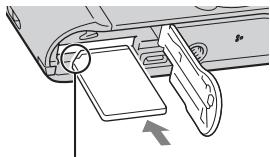
natural_image
Diagram of a device's internal components, showing a handle and slide assembly (no text or symbols)Ensure the notched corner faces correctly.
1 Open the cover.
2 Insert the memory card (sold separately).
- With the notched corner facing as illustrated, insert the memory card until it clicks into place.
3 Close the cover.
- Closing the cover with the battery inserted incorrectly may damage the camera.
■ Memory cards that you can use
| Memory card | For still images | For movies | |
| A | Memory Stick PRO Duo | ○ | ○ (Mark2 only) |
| Memory Stick PRO-HG Duo | ○ | ○ | |
| Memory Stick Duo | ○ | — | |
| B | SD memory card | ○ | ○ (Class 4 or faster) |
| SDHC memory card | ○ | ○ (Class 4 or faster) | |
| SDXC memory card | ○ | ○ (Class 4 or faster) |
- In this manual, products in A are collectively referred to as “Memory Stick Duo” media, and products in B are collectively referred to as SD card.
To remove the memory card/battery pack
Memory card: Push the memory card in once.
Battery pack: Slide the battery eject lever. Be sure not to drop the battery pack.
Note
- Never remove the memory card/battery pack when the access lamp (page 8) is lit. This may cause damage to data in the memory card/internal memory.
Setting the clock
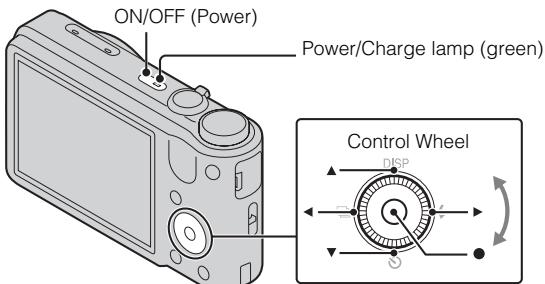
text_image
ON/OFF (Power) Power/Charge lamp (green) Control Wheel DSPSelect items: ▲/▼/◄/►
Set the numeric value of date and
time: ↗/↓
Set: ●
GB
1 Press the ON/OFF (Power) button.
Date & Time setting is displayed when you press the ON/OFF (Power) button for the first time.
- It may take time for the power to turn on and allow operation.
2 Select a desired language.
3 Select the desired area following the instructions on the screen, then press ●.
4 Set [Date & Time Format], [Daylight Savings] or [Summer Time] and [Date & Time], then select [OK] → [OK].
• Midnight is indicated as 12:00 AM, and noon as 12:00 PM.
5 Select the desired display color and the GPS setting (DSC-HX7V only), following the instructions on the screen.
- The battery pack will run out quickly if you set [GPS setting] to [On] (DSC-HX7V only).
6 When an [In-Camera Guide] introductory message is appeared on the screen, select [OK].
Shooting still images/movies
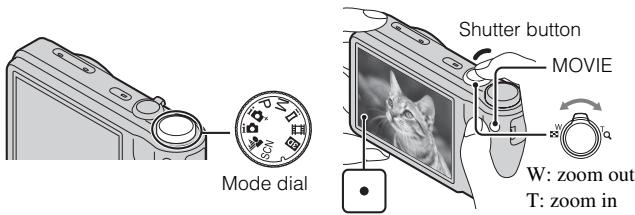
text_image
Mode dial Shutter button MOVIE W: zoom out T: zoom ini: Intelligent Auto
Movie Mode
Shooting still images
1 Press the shutter button halfway down to focus.
When the image is in focus, a beep sounds and the ● indicator lights.
2 Press the shutter button fully down.
Shooting movies
1 Press the MOVIE (Movie) button to start recording.
- Use the W/T (zoom) lever to change the zoom scale.
2 Press the MOVIE button again to stop recording.
Notes
- The sound of the lens and lever operating will be recorded when the zoom function operates while shooting a movie. The sound of the MOVIE button operating may also be recorded when movie recording is finished.
- Continuous shooting is possible for approximately 29 minutes at one time at the camera's default settings and when the temperature is approximately 25^ (77^) . When movie recording is finished, you can restart recording by pressing the MOVIE button again. Recording may stop to protect the camera depending on the ambient temperature.
Viewing images
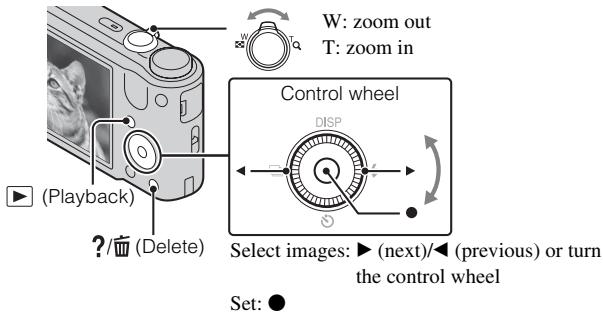
text_image
W: zoom out T: zoom in Control wheel DISP Select images: ▶ (next)/◀ (previous) or turn the control wheel Set: ●GB
1 Press the ▶ (Playback) button.
- When images on a memory card recorded with other cameras are played back on this camera, the registration screen for the data file appears.
■ Selecting next/previous image
Select an image by pressing ▶ (next)/◀ (previous) on the control wheel or by turning the control wheel. Press ● in the center of the control wheel to view movies.
■ Deleting an image
① Press ?/ (Delete) button.
② Select [This Image] with ▲ on the control wheel, then press ●.
■ Returning to shooting images
Press the shutter button halfway down.
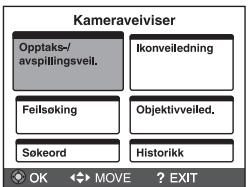
In-Camera Guide
This camera contains an internal function guide. This allows you to search the camera's functions according to your needs.
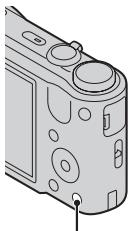
natural_image
Diagram of a camera module with no visible text or symbols- When viewing images, [Delete/In-Camera Guide] is displayed. Select [In-Camera Guide].
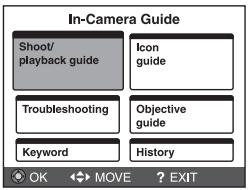
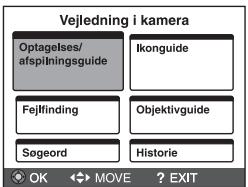
2 Select a search method from [In-Camera Guide].
Shoot/ playback guide: Search for various operation functions in shooting/viewing mode.
Icon guide: Search the function and meaning of displayed icons.
Troubleshooting: Search common problems and their solution.
Objective guide: Search functions according to your needs.
Keyword: Search functions by key words.
History: Display the last 12 items displayed in [In-Camera Guide].
Introduction of other functions
Other functions used when shooting or playing back can be operated using the control wheel or MENU button on the camera. This camera is equipped with a Function Guide that allows you to easily select from the functions. While displaying the guide, try the other functions.
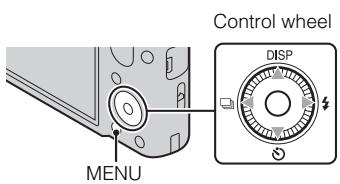
text_image
Control wheel DISP MENU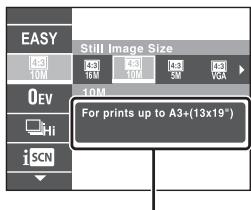
text_image
EASY 43 10M Still Image Size 43 16M 43 10M 43 5M 43 VGA 0EV Hi i SCN For prints up to A3+(13x19*)Function Guide
Control wheel
DISP (Display Setting): Allows you to change the screen display.
(Self-Timer): Allows you to use the self-timer.
☐ (Burst Settings): Allows you to use the burst shooting mode.
◀ (Flash): Allows you to select a flash mode for still images.
Menu Items
* DSC-HX7V only
Shooting
| Movie shooting scene | Select movie recording mode. |
| 3D Shooting | Select the 3D image shooting mode. |
| Scene Selection | Select pre-set settings to match various scene conditions. |
| Easy Mode | Shoot still images using minimal functions. |
| Defocus Effect | Set the level of background defocus effect when shooting in Background Defocus mode. |
| Still Image Size/ Panorama Image Size/Movie Size/ Movie Quality | Select the image size and the quality for still images, panoramic images or movie files. |
| EV | Adjust the exposure manually. |
| ISO | Adjust the luminous sensitivity. |
| White Balance | Adjust color tones of an image. |
| Focus | Select the focus method. |
| Metering Mode | Select the metering mode that sets which part of the subject to measure to determine the exposure. |
| Burst Shooting Interval | Select the number of images taken per second for Burst shooting. |
| Bracket Setting | Set the type of the bracket shooting. |
| Scene Recognition | Set to automatically detect shooting conditions. |
| Soft Skin Effect | Set the Soft Skin Effect and the effect level. |
| Smile Shutter | Set to the camera automatically release the shutter when a smile is detected. |
| Smile Detection Sensitivity | Set the Smile Shutter function sensitivity for detecting smiles. |
| Face Detection | Select to detect faces and adjust various settings automatically. |
| Anti Blink | Set to automatically shoot two images and select image in which the eyes are not blinking. |
| Movie SteadyShot | Set the strength of SteadyShot in Movie Mode. |
| Position Information* | Check triangulating status. |
| In-Camera Guide | Search the camera's functions according to your needs. |
Viewing
| Slideshow | Select a method of continuous playback. |
| 3D Viewing | Set to play back images shot in 3D mode on a 3D TV. |
| Send by TransferJet | Transfer data by closely aligning two products equipped with TransferJet. |
| View Mode | Select the display format for images. |
| Display Burst Group | Select to display burst images in groups or display all images during playback. |
| Retouch | Retouch an image using various effects. |
| Delete | Delete an image. |
| Protect | Protect the images. |
| Print (DPOF) | Add a print order mark to a still image. |
| Rotate | Rotate a still image to the left or right. |
| In-Camera Guide | Search the camera's functions according to your needs. |

Setting items
If you press the MENU button while shooting or during playback,
☑ (Settings) is provided as a final selection. You can change the default settings on the ☑ (Settings) screen.
| Treadal Shooting Settings | Movie format/AF Illuminator/Grid Line/Digital Zoom/Wind Noise Reduct./Red Eye Reduction/Blink Alert/Write Date |
| Dreadal Main Settings | Beep/Panel Brightness/Language Setting/Display color/Demo Mode/Initialize/Function Guide/CTRL FOR HDMI/USB Connect Setting/USB Power Supply/LUN Setting/Download Music/Empty Music/GPS setting*1/GPS assist data *1/TransferJet/Eye-Fi/Power Save |
| Dreadal Memory Card Tool*2 | Format/Create REC.Folder/Change REC.Folder/Delete REC.Folder/Copy/File Number |
| Dreadal Clock Settings | Area Setting/Date & Time Setting/Auto Clock ADJ*1/Auto Area ADJ*1 |
^1 DSC-HX7V only
^2 If a memory card is not inserted, ☐ (Internal Memory Tool) will be displayed and only [Format] can be selected.
Number of still images and recordable time of movies
The number of still images and recordable time may vary depending on the shooting conditions and the memory card.
Still images
(Units: Images)
| Size\Capacity | Internal memory | Memory card |
| Approx. 19 MB | 2 GB | |
| 16M | 3 | 335 |
| VGA | 98 | 9600 |
| 16:9(12M) | 3 | 355 |
Movies
The table below shows the approximate maximum recording times. These are the total times for all movie files. Continuous shooting is possible for approximately 29 minutes. The maximum size of an MP4-format movie file is up to approximately 2 GB.
(h (hour), m (minute))
| Size\Capacity | Internal memory | Memory card |
| Approx. 19 MB | 2 GB | |
| AVC HD 24M (FX) | — | 10m(10m) |
| AVC HD 9M (HQ) | — | 25m(15m) |
| MP4 12M | — | 15m |
| MP4 3M | — | 1h 10m |
The number in ( ) is the minimum recordable time.
- The recordable time of movies varies because the camera is equipped with VBR (Variable Bit Rate), which automatically adjusts image quality depending on the shooting scene. When you record a fast-moving subject, the image is clearer but the recordable time is shorter because more memory is required for recording.
The recordable time also varies depending on the shooting conditions, the subject or the image quality/size settings.
Notes on using the camera
Functions built into this camera
- This manual describes each of the functions of TransferJet compatible/incompatible devices, 1080 60i-compatible devices and 1080 50i-compatible devices.
- To determine whether your camera supports the GPS function, check the model name of your camera.
GPS-compatible: DSC-HX7V
GPS-incompatible: DSC-HX7
- To check if your camera supports the TransferJet function, and whether it is a 1080 60i-compatible device or 1080 50i-compatible device, check for the following marks on the bottom of the camera.
TransferJet-compatible device: ↗ (TransferJet)
1080 60i-compatible device: 60i
1080 50i-compatible device: 50i
- In an airplane, make sure to turn off the camera following cabin announcements.
- Do not watch 3D images shot with this camera for extended periods of time on 3D-compatible monitors.
- When you view 3D images shot with this camera on a 3D-compatible monitor, you may experience discomfort in the form of eye strain, fatigue, or nausea. To prevent these symptoms, we recommend that you take regular breaks. However, you need to determine for yourself the length and frequency of breaks you require, as they vary according to the individual. If you experience any type of discomfort, stop viewing the 3D images until you feel better, and consult a physician as necessary. Also refer to the operating instructions supplied with the device or software you have connected or are using with this camera. Note that a child's eyesight is still at the development stage (particularly children below the age of 6). Consult a pediatrician or ophthalmologist before letting your child view 3D images, and make sure he/she observes the above precautions when viewing such images.
On GPS-compatible devices (DSC-HX7V only)
- Use GPS in accordance with regulations of countries and regions where you use it.
- If you do not record the direction or location information, set [GPS setting] to [Off].
On use and care
Avoid rough handling, disassembling, modifying, physical shock, or impact such as hammering, dropping, or stepping on the product. Be particularly careful of the lens.
Notes on recording/playback
- Before you start recording, make a trial recording to make sure that the camera is working correctly.
- The camera is neither dust-proof, nor splash-proof, nor water-proof.
- Avoid exposing the camera to water. If water enters inside the camera, a malfunction may occur. In some cases, the camera cannot be repaired.
- Do not aim the camera at the sun or other bright light. It may cause the malfunction of the camera.
- If moisture condensation occurs, remove it before using the camera.
- Do not shake or strike the camera. It may cause a malfunction and you may not be able to record images. Furthermore, the recording media may become unusable or image data may be damaged.
Do not use/store the camera in the following places
- In an extremely hot, cold or humid place
In places such as in a car parked in the sun, the camera body may become deformed and this may cause a malfunction.
• Under direct sunlight or near a heater
The camera body may become discolored or deformed, and this may cause a malfunction. - In a location subject to rocking vibration
- Near a location that generates strong radio waves, emits radiation or is strongly magnetic place. Otherwise, the camera may not properly record or play back images.
• In sandy or dusty places
Be careful not to let sand or dust get into the camera. This may cause the camera to malfunction, and in some cases this malfunction cannot be repaired.
On carrying
Do not sit down in a chair or other place with the camera in the back pocket of your trousers or skirt, as this may cause malfunction or damage the camera.
Notes on the LCD screen and lens
The LCD screen is manufactured using extremely high-precision technology so over 99.99% of the pixels are operational for effective use. However, some tiny black and/or bright dots (white, red, blue or green) may appear on the LCD screen. These dots are a normal result of the manufacturing process, and do not affect the recording.
Grip
If dark materials or leather rub against the grip, in some cases the color of the grip may change.
On camera's temperature
Your camera and battery may get hot due to continuous use, but it is not a malfunction.
On the overheat protection
Depending on the camera and battery temperature, you may be unable to record movies or the power may turn off automatically to protect the camera.
A message will be displayed on the LCD screen before the power turns off or you can no longer record movies. In this case, leave the power off and wait until the camera and battery temperature goes down. If you turn on the power without letting the camera and battery cool enough, the power may turn off again or you may be unable to record movies.
On charging the battery
If you charge a battery that has not been used for a long time, you may be unable to charge it to the proper capacity.
This is due to the battery characteristics, and is not a malfunction. Charge the battery again.
Warning on copyright
Television programs, films, videotapes, and other materials may be copyrighted. Unauthorized recording of such materials may be contrary to the provisions of the copyright laws.
No compensation for damaged content or recording failure
Sony cannot compensate for failure to record or loss or damage of recorded content due to a malfunction of the camera or recording media, etc.
Cleaning the camera surface
Clean the camera surface with a soft cloth slightly moistened with water, then wipe the surface with a dry cloth. To prevent damage to the finish or casing:
- Do not expose the camera to chemical products such as thinner, benzine, alcohol, disposable cloths, insect repellent, sunscreen or insecticide.
Specifications
Camera
[System]
Image device: 7.77 mm (1/2.3 type) Exmor R CMOS sensor
Total pixel number of camera: Approx. 16.8 Megapixels
Effective pixel number of camera: Approx. 16.2 Megapixels
Lens: Sony G 10× zoom lens f = 4.25 mm - 42.5 mm (25 mm - 250 mm (35 mm film equivalent)) F3.5 (W) - F5.5 (T) While shooting movies (16:9): 28 mm - 280 mm While shooting movies (4:3): 34 mm - 340 mm
SteadyShot: Optical
Exposure control: Automatic exposure, Manual exposure, Scene Selection (15 modes)
White balance: Automatic, Daylight, Cloudy, Fluorescent 1/2/3, Incandescent, Flash, One Push
Signal format: For 1080 50i: PAL color, CCIR standards HDTV 1080/50i specification For 1080 60i: NTSC color, EIA standards HDTV 1080/60i specification
File format:
Still images: JPEG (DCF Ver. 2.0, Exif Ver. 2.3, MPF Baseline) compliant, DPOF compatible 3D still images: MPO (MPF Extended (Disparity Image)) compliant Movies (AVCHD format): AVCHD Video: MPEG-4 AVC/H.264 Audio: Dolby Digital 2ch, equipped with Dolby Digital Stereo Creator • Manufactured under license from Dolby Laboratories.
Movies (MP4 format):
Video: MPEG-4 AVC/H.264 Audio: MPEG-4 AAC-LC 2ch
Recording media: Internal Memory (Approx. 19 MB), “Memory Stick Duo” media, SD cards
Flash: Flash range (ISO sensitivity (Recommended Exposure Index) set to Auto):
Approx. 0.05 m to 4.8 m (2 inches to 15 feet 9 inches) (W)/ Approx. 1.0 m to 3.1 m (3 feet 3 3/8 inches to 10 feet 2 1/8 inches) (T)
[Input and Output connectors]
Multi connector: Type3b (AV-out/USB/DC-in): Video output Audio output (Stereo) USB communication
USB communication: Hi-Speed USB (USB 2.0)
[LCD screen]
LCD panel: 7.5 cm (3.0 type) TFT drive
Total number of dots: 921 600 (640 × 3 (RGB) × 480) dots
[Power, general]
Power: Rechargeable battery pack NP-BG1, 3.6 V NP-FG1 (sold separately), 3.6 V AC Adaptor AC-UB10/UB10B, 5 V
Power consumption (during shooting): 1.1 W
Operating temperature: 0 °C to 40 °C (32 °F to 104 °F)
Storage temperature: -20 ^ to +60 ^ (-4 ^ to +140 ^)
Dimensions (CIPA compliant): 101.6 mm × 57.6 mm × 28.6 mm (4 inches × 2 3/8 inches × 1 3/16 inches) (W/H/D)
Mass (CIPA compliant) (including NP-BG1 battery pack, “Memory Stick Duo” media): Approx. 178 g (6.3 oz)
Microphone: Stereo
Speaker: Monaural
Exif Print: Compatible
PRINT Image Matching III: Compatible
AC Adaptor AC-UB10/UB10B
Power requirements: AC 100 V to 240 V, 50 Hz/60 Hz, 70 mA
Output voltage: DC 5 V, 0.5 A
Operating temperature: 0 °C to 40 °C (32 °F to 104 °F)
Storage temperature: -20 ^ to +60 ^ (-4 ^ to +140 ^)
Dimensions: Approx. 50 mm × 22 mm × 54 mm (2 inches × 7/8 inches × 2 1/4 inches) (W/H/D)
Mass: For the USA and Canada:
Approx. 48 g (1.7 oz)
For countries or regions other than the USA and Canada:
Approx. 43 g (1.5 oz)
Rechargeable battery pack NP-BG1
Used battery: Lithium-ion battery
Maximum voltage: DC 4.2 V
Nominal voltage: DC 3.6 V
Maximum charge voltage: DC 4.2 V
Maximum charge current: 1.44 A
Capacity: typical: 3.4 Wh (960 mAh)
minimum: 3.3 Wh (910 mAh)
Design and specifications are subject to change without notice.
Trademarks
• The following marks are trademarks of Sony Corporation.
Cyber-shot, “Cyber-shot,” “Memory Stick PRO Duo,” “Memory Stick PRO-HG Duo,” “Memory Stick Duo”
- Windows is registered trademark of Microsoft Corporation in the United States and/or other countries.
• Macintosh is registered trademark of Apple Inc. - SDXC logo is a trademark of SD-3C, LLC.
- “” and “PlayStation” are registered trademarks of Sony Computer Entertainment Inc.
- In addition, system and product names used in this manual are, in general, trademarks or registered trademarks of their respective developers or manufacturers. However, the ^TM or ^® marks are not used in all cases in this manual.

Works with PlayStation®3
- Add further enjoyment with your PlayStation 3 by downloading the application for PlayStation 3 from PlayStation Store (where available.)
- The application for PlayStation 3 requires PlayStation Network account and application download. Accessible in areas where the PlayStation Store is available.
Additional information on this product and answers to frequently asked questions can be found at our Customer Support Website.
http://www.sony.net/
Printed using VOC (Volatile Organic Compound)-free vegetable oil based ink.
GB
Français
Aide-mémoire
text_image
RECYCLE RBRC Li-Ion 1.800.822.8837Responsible : Sony Electronics Inc.
Adresse : 16530 Via Esprillo, San Diego, CA 92127 É.-U.
natural_image
Symbol of a trash bin crossed with no text or numbers, representing waste sorting or disposal (no text present)natural_image
Symbol of a trash bin crossed out by two diagonal lines (no text or numbers present)natural_image
Illustration of a desktop computer setup with CD, monitor, keyboard, and mouse (no text or symbols)text_image
Diagram of a digital camera with numbered parts and an inset showing a clip labeled 11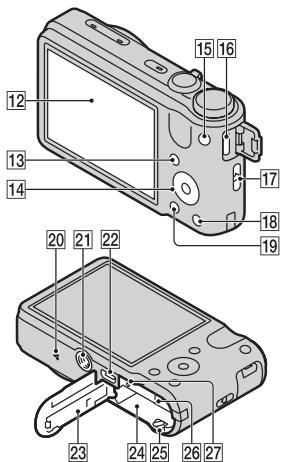
text_image
Technical diagram of a digital camera module with numbered parts for identification1 Déclencheur
2 Sélecteur de mode
5 Touche ON/OFF (Alimentation)
11 Marque ↗ (TransferJet™)
12 Écran LCD
13 Touche ▶ (Lecture)
text_image
Diagram showing a laptop connected to a device via cable, with a USB symbol pointing to the device's cable.FR
Remarque
(CIPA : Camera & Imaging Products Association)
text_image
1 LOCK OPEN ① ②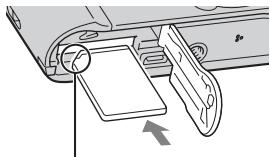
natural_image
Diagram of a device's internal components, showing a slide and handle assembly (no text or symbols)natural_image
Line drawing of a camera module with no visible text or symbols(h (heures), m (minutes))
| Taille\Capacité | Mémoire interne | Carte mémoire |
| Environ 19 Mo | 2 Go | |
| AVC HD 24M (FX) | — | 10m(10m) |
| AVC HD 9M (HQ) | — | 25m(15m) |
| MP4 12M | — | 15m |
| MP4 3M | — | 1h 10m |
Films (format AVCHD) : AVCHD
Films (format MP4) :
Works with PlayStation®3
natural_image
Symbol of a trash bin crossed out by two crossed lines, with no text or labels present.natural_image
Symbol of a trash bin crossed out by two crossed lines (no text or numbers present)natural_image
Illustration of a desktop computer setup with CD, monitor, keyboard, and mouse (no text or symbols)text_image
Diagram of a digital camera with numbered parts and an inset showing a device labeled 11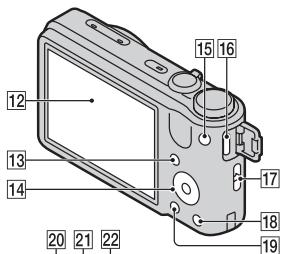
text_image
Labeled diagram of a mechanical device with numbered parts for identification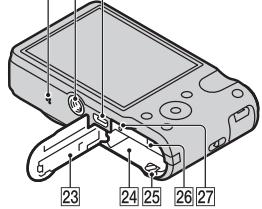
text_image
23 24 25 26 27natural_image
Diagram showing a device being inserted into a digital camera module, with no visible text or symbols.text_image
Diagram showing a laptop connected to a device via cable, with a USB symbol pointing to the device's cable.IT
Nota
(CIPA: Camera & Imaging Products Association)
text_image
① LOCK OPEN ②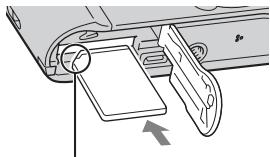
natural_image
Diagram of a device's internal components, showing a slide and handle assembly (no text or symbols)natural_image
Diagram of a camera module with no visible text or symbolsWorks with PlayStation®3
natural_image
Symbol of a trash bin crossed out by two crossed lines, with no text or labels present.natural_image
Symbol of a trash bin crossed out by two crossed lines (no text or numbers present)natural_image
Illustration of a desktop computer setup with CD, monitor, keyboard, and mouse (no text or symbols)text_image
Diagram of a digital camera with numbered parts and an inset showing a device labeled 11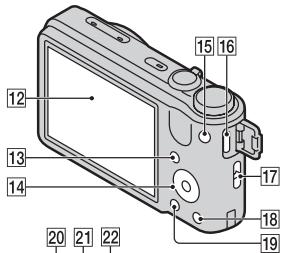
text_image
Labeled diagram of a mechanical device with numbered parts for identification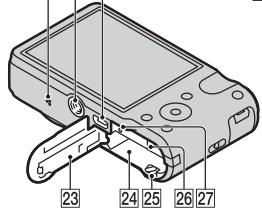
text_image
23 24 25 26 27text_image
Diagram showing a laptop connected to a device via cable, with a USB symbol pointing to the device's cable.ES
Nota
(CIPA: Camera & Imaging Products Association)
natural_image
Diagram of a device's internal components, showing a slide and handle assembly (no text or symbols)natural_image
Diagram of a camera module with no visible text or symbolsWorks with PlayStation®3
natural_image
Symbol of a trash bin crossed out by two crossed lines, with no text or labels present.natural_image
Symbol of a trash bin crossed out by two crossed lines (no text or numbers present)natural_image
Illustration of a desktop computer setup with CD, monitor, keyboard, and mouse (no text or symbols)text_image
Diagram of a digital camera with numbered parts and an inset showing a close-up view labeled 11.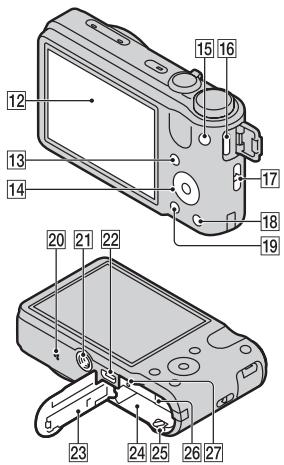
text_image
Technical diagram of a digital camera with numbered parts for identification11 Marca (TransferJetTM)
12 Ecrã LCD
text_image
① LOCK OPEN ②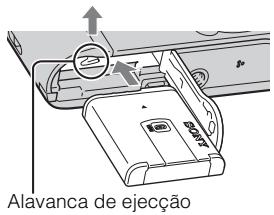
text_image
Diagram showing a laptop connected to a device via cable, with a USB symbol pointing to the device's cable.Nota
(CIPA: Camera & Imaging Products Association)
natural_image
Diagram of a mechanical device with a handle and internal components, showing no text or symbols.Certifique-se de que o canto recortado está virado correctamente.
1 Abra a tampa.
2 Insira o cartão de memória (vendido separadamente).
natural_image
Line drawing of a camera module with no visible text or symbols(Saída AV/USB/Entrada CC):
Saída Vídeo
Saída de áudio (Estéreo)
Comunicação USB
Works with PlayStation®3
natural_image
Symbol of a trash bin crossed out by two crossed lines, with no text or labels present.natural_image
Symbol of a trash bin crossed out by two diagonal lines (no text or numbers present)natural_image
Illustration of a desktop computer setup with CD, monitor, keyboard, and mouse (no text or symbols)text_image
Labeled diagram of a digital camera with numbered parts and an inset showing internal components.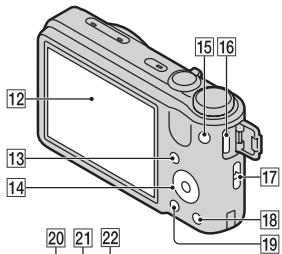
text_image
12 13 14 20 21 22 15 16 17 18 19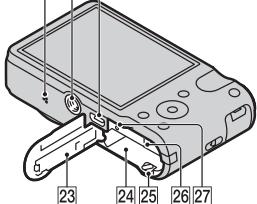
text_image
23 24 25 26 27text_image
1 LID LOCK OPEN ① ②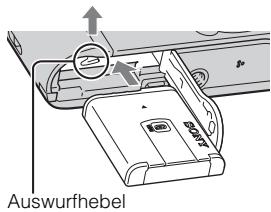
text_image
Diagram showing a laptop connected to a device via cable, with a USB symbol pointing to the device's cable.Hinweis
(CIPA: Camera & Imaging Products Association)
natural_image
Diagram of a device's internal components, showing a slide and handle assembly (no text or symbols)Works with PlayStation®3
natural_image
Symbol of a trash bin crossed out by two crossed lines, with no text or labels present.natural_image
Symbol of a trash bin crossed out by two diagonal lines (no text or numbers present)natural_image
Illustration of a desktop computer setup with CD, monitor, keyboard, and mouse (no text or symbols)text_image
Diagram of a digital camera with numbered parts and an inset showing the internal component.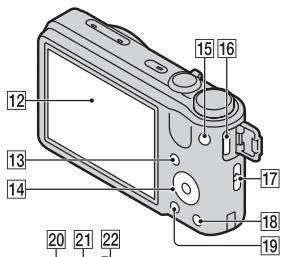
text_image
Labeled diagram of a camera module with numbered parts for identification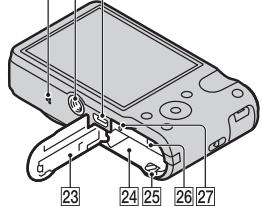
text_image
23 24 25 26 27text_image
① LOCK OPEN ②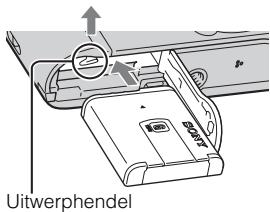
text_image
Uitwerphendelnatural_image
Diagram showing a device being inserted into a digital camera module, with no visible text or symbols.Aan-/oplaadlampje
Brandt: opladen
Uit: opladen klaar
Knippert: oplaadfout
text_image
Diagram showing a laptop connected to a device via cable, with a USB symbol pointing to the device's cable.Opmerking
(CIPA: Camera & Imaging Products Association)
- DISP (Weergave-instelling) is ingesteld op [AAN].
natural_image
Diagram of a device's internal components with an arrow indicating a specific part (no text or symbols present)natural_image
Diagram of a camera module with no visible text or symbolsWorks with PlayStation®3
natural_image
Symbol of a trash bin crossed with no text or numbers, representing environmental restriction (no text present)natural_image
Symbol of a trash bin crossed out by two diagonal lines (no text or numbers present)natural_image
Illustration of a desktop computer setup with CD, monitor, keyboard, and mouse (no text or symbols)text_image
Labeled diagram of a digital camera with numbered parts and an inset showing a clip labeled 11.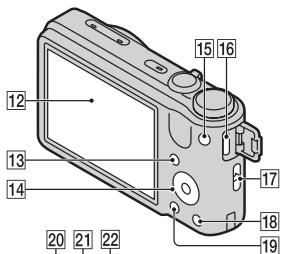
text_image
12 13 14 20 21 22 15 16 17 18 19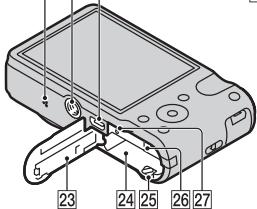
text_image
23 24 25 26 27natural_image
Diagram showing a device being inserted into a digital camera module, with no visible text or symbols.text_image
Diagram showing a laptop connected to a device via cable, with a USB symbol pointing to the device's connector.Uwaga
(CIPA: Camera & Imaging Products Association)
text_image
1 LOCK OPEN ① ②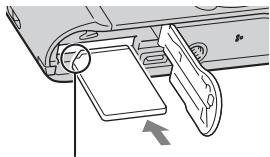
natural_image
Diagram of a device's internal components, showing a handle and slide assembly (no text or symbols)natural_image
Diagram of a camera module with no visible text or symbolsWorks with PlayStation®3
natural_image
Symbol of a trash bin crossed with no text or numbers, representing environmental restriction (no text present)natural_image
Symbol of a trash bin crossed out by two crossed lines (no text or numbers present)natural_image
Illustration of a desktop computer setup with CD, monitor, keyboard, and mouse (no text or symbols)text_image
Diagram of a digital camera with numbered parts and an inset showing a close-up view of the lens.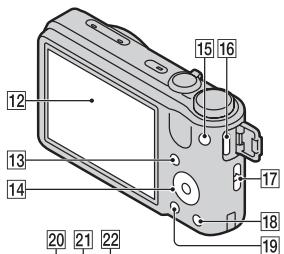
text_image
Labeled diagram of a mechanical device with numbered parts for identification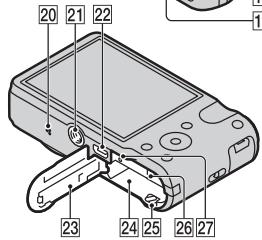
text_image
20 21 22 5 23 24 25 26 27text_image
① LOCK OPEN ②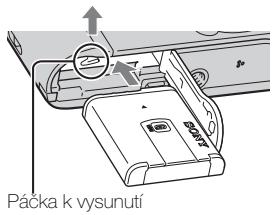
text_image
Diagram showing a laptop connected to a device via cable, with a USB symbol pointing to the device's cable.Poznámka
(CIPA: Camera & Imaging Products Association)
natural_image
Diagram of a device's internal components, showing a slide and handle assembly (no text or symbols)natural_image
Line drawing of a camera module with no visible text or symbolsWorks with PlayStation®3
natural_image
Symbol of a trash bin crossed out by two crossed lines, with no text or labels present.natural_image
Symbol of a trash bin crossed out by two crossed lines (no text or numbers present)natural_image
Illustration of a desktop computer setup with CD, monitor, keyboard, and mouse (no text or symbols)text_image
Diagram of a digital camera with numbered parts and an inset showing a component labeled 11.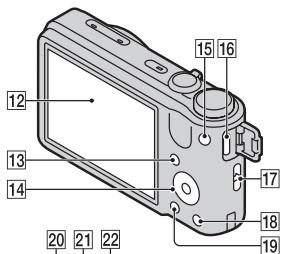
text_image
12 13 14 15 16 17 18 19 20 21 22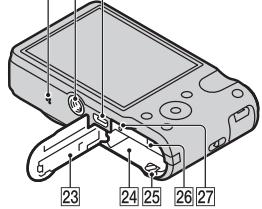
text_image
23 24 25 26 27text_image
① LOCK OPEN ②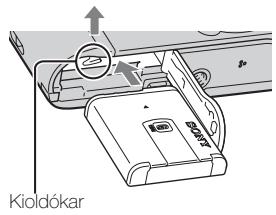
text_image
Kioldókarnatural_image
Diagram showing a device with a sensor and control buttons, connected to a camera module (no text or symbols present)text_image
Diagram showing connection between a laptop and an electronic device via USB cable, with Chinese label 'USB' pointing to the device.Megjegyzés
(CIPA: Camera & Imaging Products Association)
text_image
① LOCK OPEN ②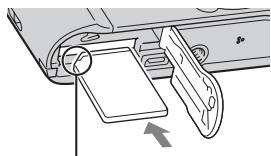
natural_image
Diagram of a device's internal components, showing a slide and handle assembly (no text or symbols)Works with PlayStation®3
natural_image
Symbol of a trash bin crossed with no text or numbers, representing environmental restriction (no text present)natural_image
Symbol of a trash bin crossed out by two crossed lines (no text or numbers present)natural_image
Illustration of a desktop computer setup with CD, monitor, keyboard, and mouse (no text or symbols)text_image
Labeled diagram of a digital camera with numbered parts and an inset showing internal components.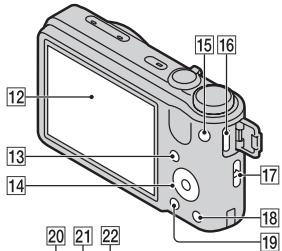
text_image
12 13 14 20 21 22 15 16 17 18 19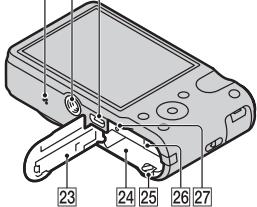
text_image
23 24 25 26 27text_image
1 LOCK OPEN ① ②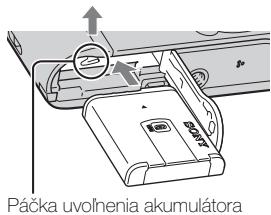
text_image
Diagram showing a laptop connected to an electronic device via USB cable, with a USB symbol pointing to the device's connector.Poznámka
(CIPA: Camera & Imaging Products Association)
- DISP (Display Setting) je nastavené na [ON].
– Snímanie každých 30 sekúnd.
– Zoom sa striedavo prepína medzi koncovými hodnotami W a T.
– Blesk blysne pri každom druhom zábere.
– Napájanie sa vypína a zapína po každom desiatom zábere.
natural_image
Diagram of a device's internal components, showing a handle and slide assembly (no text or symbols)natural_image
Diagram of a camera module with no visible text or symbols? / ☐ (In-Camera Guide)
text_image
In-Camera Guide Shoot/ playback guide Icon guide Troubleshooting Objective guide Keyword History OK ↔ MOVE ? EXIT1 Stlačte tlačidlo ?/皿 (In-Camera Guide).
- Pri prezeraní záberov sa zobrazuje [Delete/In-Camera Guide]. Zvolte [In-Camera Guide].
2 Spôsob vyhl'adávania zvol'te z [In-Camera Guide].
| [12] Shooting Settings | Movie format/AF Illuminator/Grid Line/Digital Zoom/Wind Noise Reduct./Red Eye Reduction/Blink Alert/Write Date |
| [13] Main Settings | Beep/Panel Brightness/Language Setting/Display color/Demo Mode/Initialize/Function Guide/CTRL FOR HDMI/USB Connect Setting/USB Power Supply/LUN Setting/Download Music/Empty Music/GPS setting * ^4 /GPS assist data * ^1 /TransferJet/Eye-Fi/Power Save |
| [14] Memory Card Tool * ^2 | Format/Create REC.Folder/Change REC.Folder/Delete REC.Folder/Copy/File Number |
| [15] Clock Settings | Area Setting/Date & Time Setting/Auto Clock ADJ * ^1 /Auto Area ADJ * ^1 |
^1 Len DSC-HX7V
^2 Ak nie je vo fotoaparáte vložená pamäťová karta, zobrazí sa ☐ (Internal Memory Tool), pričom bude možné zvolit len [Format].
Works with PlayStation®3
natural_image
Symbol of a trash bin crossed out by two crossed lines, with no text or labels present.natural_image
Symbol of a trash bin crossed out by two crossed lines (no text or numbers present)natural_image
Illustration of a desktop computer setup with CD, keyboard, mouse, and monitor (no text or symbols)text_image
Diagram of a digital camera with numbered parts and an inset showing a device labeled 11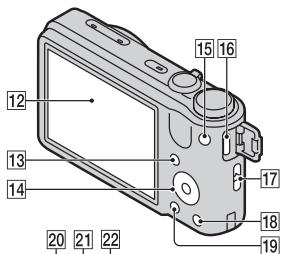
text_image
12 13 14 15 16 17 18 19 20 21 22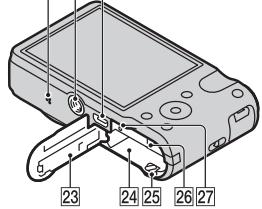
text_image
23 24 25 26 2715 MOVIE (film)-knapp
16 HDMI-uttag
text_image
① LOCK OPEN ②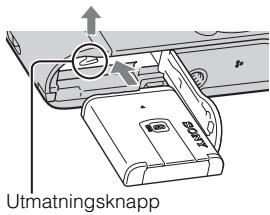
text_image
Utmatningsknapp1 Öppna locket.
2 Sätt i batteripaketet.
text_image
Diagram showing a laptop connected to a device via cable, with a USB symbol pointing to the device's cable.Observera
(CIPA: Camera & Imaging Products Association)
natural_image
Diagram of a device's internal components, showing a slide and handle assembly (no text or symbols)text_image
? /盲 (Kameraguide)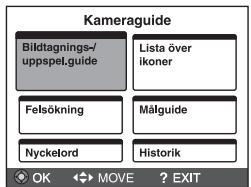
Cyber-shot, "Cyber-shot", "Memory Stick PRO Duo", "Memory Stick PRO-HG Duo", "Memory Stick Duo"
Works with PlayStation®3
natural_image
Symbol of a trash bin crossed with no text or numbers, representing waste sorting or disposal (no text present)natural_image
Symbol of a trash bin crossed out by two diagonal lines (no text or numbers present)natural_image
Illustration of a desktop computer setup with CD, monitor, keyboard, and mouse (no text or symbols)text_image
Diagram of a digital camera with numbered parts and an inset showing a close-up view of the lens.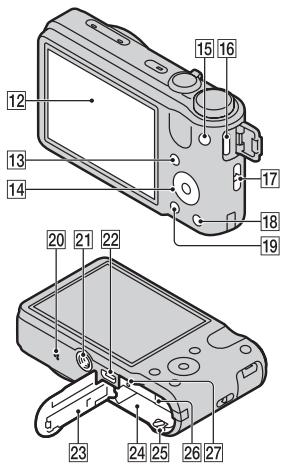
text_image
Technical diagram of a digital camera with numbered parts for identification13 ▶ (toisto) painike
14 Säädinpyörä
15 MOVIE (video) -painike
16 HDMI-liitin
text_image
① LOCK OPEN ②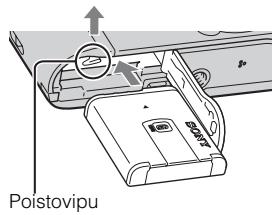
text_image
Poistoviputext_image
Diagram showing a laptop connected to a device via cable, with a USB symbol pointing to the device's cable.Huomaa
(CIPA: Camera & Imaging Products Association)
natural_image
Diagram of a device's internal components, showing a slide and handle assembly (no text or symbols)natural_image
Diagram of a camera module with no visible text or symbolsWorks with PlayStation®3
natural_image
Symbol of a trash bin crossed out by two crossed lines, with no text or labels present.natural_image
Symbol of a trash bin crossed out by two diagonal lines (no text or numbers present)Dette symbolet på batteriet eller på forpakningen betyr at batteriet ikke skal behandles som vanlig husholdningsavfall.
natural_image
Illustration of a desktop computer setup with CD, monitor, keyboard, and mouse (no text or symbols)– Cyber-shot-programvare
- "Cyber-shot Brukerveiledning"
- Bruksanvisning (denne håndboken) (1)
Identifisere deler
text_image
Diagram of a digital camera with numbered parts and an inset showing a device labeled 11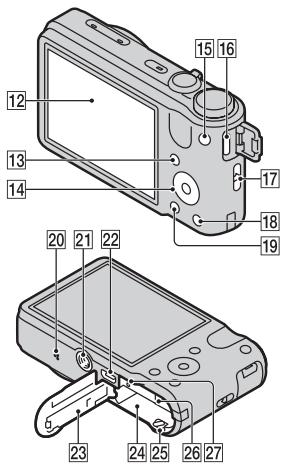
text_image
Technical diagram of a digital camera module with numbered parts for identification① Lukkerknapp
2 Modusvelger
③ For opptak:
W/T-spak (Zoomespak)
For visning:
Q (Avspillingszoomespak)/ (indeksspak)
4 Blits
5 ON/OFF (strømbryter)
6 Strøm/ladelampe
7 GPS-sensor (innebygd, kun DSC-HX7V)
8 Mikrofon
9 Selvutløserlampe/Smilutløserlampe/AF-lys
10 Linse
11 (TransferJetTM)-merke
12 LCD-skjerm
13 ▶-knapp (avspilling)
14 Kontrollhjul
15 MOVIE (Filmknapp)
16 HDMI-kontakt
17 Krok for håndleddsrem
18 ?/盲 (Kameraveiviser-/sletteknapp)
19 MENU-knapp
20 Høyttaler
21 Skruehull for stativ
natural_image
Diagram of a digital camera with sensor and control buttons, shown from top and side views (no text or symbols)text_image
Diagram showing a laptop connected to a device via cable, with a USB symbol pointing to the device's cable.Merk
(CIPA: Camera & Imaging Products Association)
natural_image
Diagram of a device's internal components with an arrow indicating a specific part (no text or symbols present)natural_image
Diagram of a camera module with no visible text or symbols? /血 (Kameraveiviser)
(h (time), m (minutt))
| Størrelse\Kapasitet | Internminne | Minnekort |
| Ca. 19 MB | 2 GB | |
| AVC HD 24M (FX) | — | 10m(10m) |
| AVC HD 9M (HQ) | — | 25m(15m) |
| MP4 12M | — | 15m |
| MP4 3M | — | 1h 10m |
Vekselstrømadapter AC-UB10/UB10B, 5 V
Works with PlayStation®3
natural_image
Symbol of a trash bin crossed out by two crossed lines, with no text or labels present.natural_image
Symbol of a trash bin crossed out by two diagonal lines (no text or numbers present)natural_image
Illustration of a desktop computer setup with CD, monitor, keyboard, and mouse (no text or symbols)text_image
Diagram of a digital camera with numbered parts and an inset showing a device labeled 11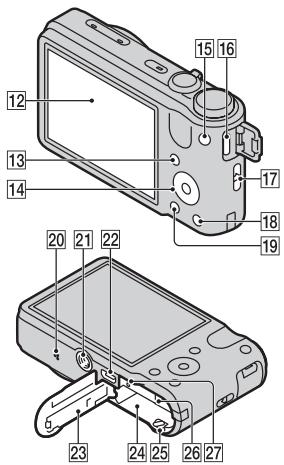
text_image
Technical diagram of a device with numbered parts for identification1 Udløserknap
2 Funktionsvælger
3 Ved optagelse: W/T (Zoom)-knap
Ved visning: Q
(Afspilningszoom)-knap/☐
(Indeks)-knap
4 Blitz
5 ON/OFF (Strøm)-knap
15 MOVIE (Film)-knap
16 HDMI-stik
text_image
Diagram showing a laptop connected to a device via cable, with a USB symbol pointing to the device's cable.Bemærk
natural_image
Diagram of a device's internal structure showing a tray, handle, and scroll (no text or symbols)natural_image
Diagram of a camera module with no visible text or symbols? /血 (Vejledning i kamera)
(h (timer), m (minutter))
| Størrelse\Kapacitet | Intern hukommelse | Hukommelseskort |
| Ca. 19 MB | 2 GB | |
| AVC HD 24M (FX) | — | 10m(10m) |
| AVC HD 9M (HQ) | — | 25m(15m) |
| MP4 12M | — | 15m |
| MP4 3M | — | 1h 10m |
Works with PlayStation®3
natural_image
Symbol of a trash bin crossed with no text or numbers, representing environmental restriction (no text present)natural_image
Symbol of a trash bin crossed out by two diagonal lines (no text or numbers present)Ova oznaka na bateriji ili na ambalaži označava da se baterija ne smije zbrinjavati kao ostali kućni otpad.
Na nekim baterijama se uz ovaj simbol može nalaziti kemijski simbol. Kemijski simboli za živu (Hg) ili olovo (Pb) dodaju se ako baterija sadrži više od 0,0005% žive ili 0,004% olova.
natural_image
Illustration of a desktop computer setup with CD, monitor, keyboard, and mouse (no text or symbols)Umetnite CD-ROM u CD-ROM pogon.
Za korisnike OS Windows:
① Kliknite na [Korisnički priručnik] → [Install].
② Pokrenite »Korisnički priručnik« pritiskom na ikonu na radnoj površini.
Za korisnike OS Macintosh:
① Odaberite mapu [Korisnički priručnik] i kopirajte mapu [hr] spremljenu u mapi [Korisnički priručnik] na svoje računalo.
② Nakon završenog kopiranja, dvaput pritisnite na »index.html« u mapi [hr].
text_image
Diagram of a digital camera with numbered parts and an inset showing a device labeled 11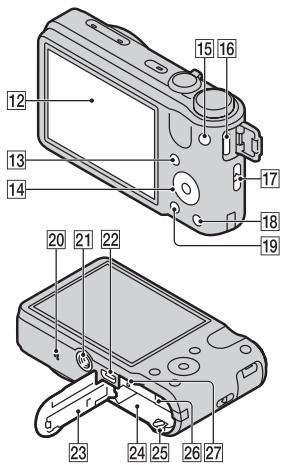
text_image
Technical diagram of a digital camera with numbered parts for identification1 Okidač
2 Birač moda
3 Za snimanje: Tipka zuma (W/T)
Za pregledavanje: Poluga Q
(Zum pri reprodukciji)/poluga
(Indeks)
4 Bljeskalica
5 Tipka napajanja ON/OFF
6 Svjetlo napajanja/punjenja
7 GPS senzor (ugrađeni, samo DSC-HX7V)
8 Mikrofon
9 Svjetlo samookidača/indikator okidanja na osmjeh/AF svjetlo
10 Objektiv
11 (TransferJetTM) oznaka
12 LCD zaslon
13 Tipka ▶ (reprodukcija)
14 Kotačić za upravljanje
15 Tipka MOVIE (Videozapis)
16 HDMI priključnica
17 Kukica za vrpcu za nošenje
18 Tipka ?/皿 (Vodič kroz fotoaparat/Brisanje)
19 Tipka MENU
20 Zvučnik
21 Navoj za tronožac
- Koristite tronožac s vijkom duljine manje od 5,5 mm. U protivnom fotoaparat nećete moći dobro učvrstiti i može se oštetiti.
22 Višenamjenska priključnica (Type3b)
23 Poklopac baterije/memorijske kartice
24 Utor za umetanje baterije
25 Polugica za vađenje baterije
26 Utor za memorijsku karticu
27 Svjetlo pristupa podacima
Umetanje baterijske jedinice
text_image
1 LOCK OPEN 2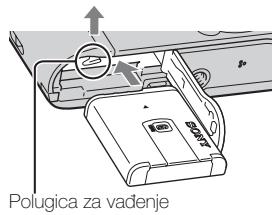
text_image
Polugica za vadenje1 Otvorite poklopac.
2 Umetnite baterijsku jedinicu.
- Dok pritišćete polugu za vađenje baterije, umetnite baterijsku jedinicu kako je prikazano. Osigurajte da se poluga za vađenje baterije nakon umetanja zaključa.
Punjenje baterijske jedinice
text_image
Diagram showing a laptop connected to a device via cable, with a USB symbol pointing to the laptop's connector.Napomena
(CIPA: Camera & Imaging Products Association)
- DISP (Postavljanje prikaza) je postavljena na [UKLJUČENO].
– Jedno okidanje svakih 30 sekundi.
– Zum se uključuje/isključuje pritiskom na W odnosno T stranu.
natural_image
Diagram of a device's internal components, showing a slide with a handle and a separate clip with a scroll (no text or symbols)natural_image
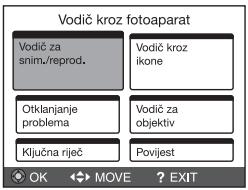
Diagram of a camera module with no visible text or symbols? / ☒ (Vodič kroz fotoaparat)
text_image
Vodič kroz fotoaparat Vodič za snim./reprod. Vodič kroz ikone Otklanjanje problema Vodič za objektiv Ključna riječ Povijest OK ➡→ MOVE ? EXIT1 Pritisnite tipku ?/血 (Vodič kroz fotoaparat).
- Pri pregledavanju slika prikazuje se [Brisanje/Vodič kroz fotoap.]. Odaberite [Vodič kroz fotoaparat].
2 Odaberite način pretraživanja iz [Vodič kroz fotoaparat].
Vodič za snim./reprod.: Pretražujte funkcije različitih operacija u načinu snimanja/gledanja.
Works with PlayStation®3
natural_image
Symbol of a trash bin crossed out by two crossed lines, with no text or labels present.natural_image
Symbol of a trash bin crossed out by two diagonal lines (no text or numbers present)natural_image
Illustration of a desktop computer setup with CD, monitor, keyboard, and mouse (no text or symbols)text_image
Diagram of a digital camera with numbered parts and an inset showing a close-up view of the lens.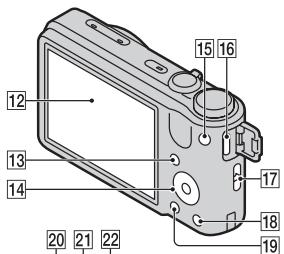
text_image
12 13 14 15 16 17 18 19 20 21 22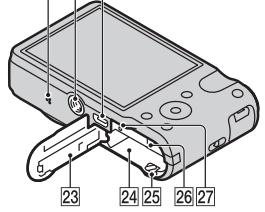
text_image
23 24 25 26 27Introducerea accumulatorilor
text_image
① LOCK OPEN ②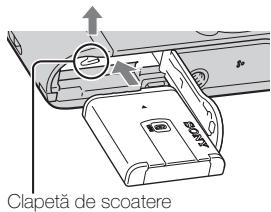
natural_image
Technical line drawing of a mechanical component with circular features and a pointer (no text or symbols)text_image
Diagram showing a laptop connected to an electronic device via cable, with a USB symbol pointing to the device.Observatie
(CIPA: Camera & Imaging Products Association)
natural_image
Technical diagram of a mechanical device with a handle and internal components, showing no text or symbols.Filme (format AVCHD): AVCHD
Video: MPEG-4 AVC/H.264
Audio: Dolby Digital 2 canale, include Dolby Digital Stereo Creator
Works with PlayStation®3
natural_image
Symbol of a trash bin crossed with no text or numbers, representing waste sorting or disposal (no text present)natural_image
Symbol of a trash bin crossed out by two diagonal lines (no text or numbers present)natural_image
Illustration of a desktop computer setup with CD, monitor, keyboard, and mouse (no text or symbols)text_image
Diagram of a digital camera with numbered parts and an inset showing a device labeled 11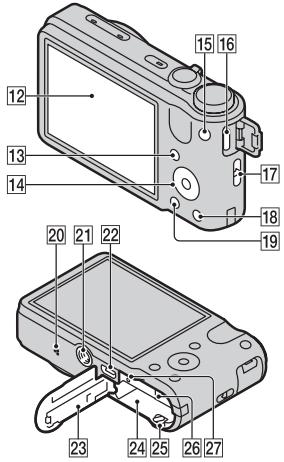
text_image
Technical diagram of a digital camera with numbered parts for identificationtext_image
① LOCK OPEN ②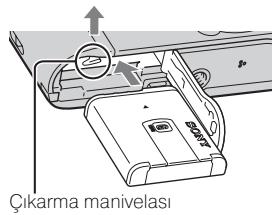
text_image
Diagram showing a laptop connected to a device via USB cable, with a USB symbol pointing to the device's connector.Not
(CIPA: Camera & Imaging Products Association)
natural_image
Diagram of a mechanical device with a handle and internal components, showing no text or symbols.natural_image
Line drawing of a camera module with no visible text or symbols(DCF Ver. 2.0, Exif Ver. 2,3,
(Yaklaşık 19 MB), “Memory
Cyber-shot, "Cyber-shot", "Memory Stick PRO Duo", "Memory Stick PRO-HG Duo", "Memory Stick Duo"
Works with PlayStation®3
1-7-1 Konan, Minato-ku, Tokyo, 108-0075 Japan
natural_image
Symbol of a trash bin crossed with no text or numbers, representing waste sorting or disposal (no text present)natural_image
Symbol of a trash bin crossed out by two diagonal lines (no text or numbers present)natural_image
Illustration of a desktop computer setup with CD, monitor, keyboard, and mouse (no text or symbols)text_image
Diagram of a digital camera with numbered parts and an inset showing a close-up view of the lens.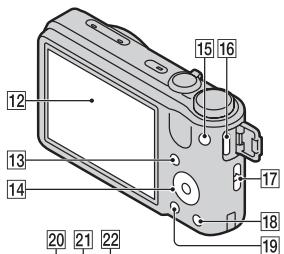
text_image
12 13 14 15 16 17 18 19 20 21 22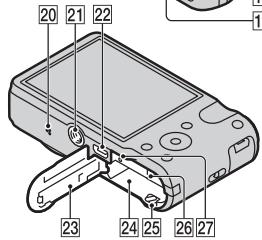
text_image
20 21 22 6 23 24 25 26 27text_image
1 LOCK OPEN ① ②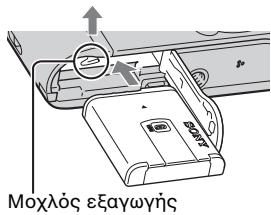
natural_image
Diagram showing a digital camera with a screwdriver inserted, and its rear view of the camera module (no text or symbols present)text_image
Diagram showing a laptop connected to a device via USB cable, with a USB symbol pointing to the device's connector.Παρατήρηση
natural_image
Diagram of a device's internal components with an arrow indicating a specific part (no text or symbols present)natural_image
Diagram of a camera module with no visible text or symbolsCyber-shot, "Cyber-shot", "Memory Stick PRO Duo", "Memory Stick PRO-HG Duo", "Memory Stick Duo"
Works with PlayStation®3