
AIR 192|6 - DJ Equipment M-AUDIO - Free user manual and instructions
Find the device manual for free AIR 192|6 M-AUDIO in PDF.


| Product Type | USB 2.0 Audio Interface |
| Brand | M-Audio |
| Model | AIR 192|6 |
| Category | DJ / Studio Equipment |
| Power Supply | USB Bus (via USB-C) |
| Computer Connectivity | USB-C (compatible with USB-A using included cable) |
| Combo Inputs | 2 (XLR / 1/4" TRS) |
| Instrument Inputs | 2 (1/4" TS, high impedance) |
| Main Outputs | 2 (1/4" TRS) |
| Headphone Output | 1 (1/4" TRS) |
| MIDI | 1 In and 1 Out (5-pin DIN) |
| Phantom Power | Yes, +48V (switchable) |
| Audio Resolution | 24-bit |
| Max Sample Rate | 192 kHz |
| Direct Monitoring | Yes, with USB/Direct button |
| LED Indicators | Meters, power, phantom power, MIDI in/out |
| Kensington Lock | Yes |
| Operating Systems | Windows (ASIO drivers required) and macOS (Core Audio) |
| Included Software | Pro Tools | First M-Audio Edition, Ableton Live Lite |
| Maintenance | Clean with a soft, dry cloth. Do not use abrasive products. |
| Safety | Do not expose to moisture. Use only the provided cables. Follow the instructions in the manual. |
| Warranty | See manufacturer's warranty at m-audio.com |
Frequently Asked Questions - AIR 192|6 M-AUDIO
User questions about AIR 192|6 M-AUDIO
0 question about this device. Answer the ones you know or ask your own.
Ask a new question about this device
Download the instructions for your DJ Equipment in PDF format for free! Find your manual AIR 192|6 - M-AUDIO and take your electronic device back in hand. On this page are published all the documents necessary for the use of your device. AIR 192|6 by M-AUDIO.
USER MANUAL AIR 192|6 M-AUDIO
User Guide (English)
Introduction
Box Contents
AIR 192|6
USB-C-to-USB-C Cable
USB-C-to-USB-A Cable
Software Download Cards
User Guide
Safety & Warranty Manual
Support
For the latest information about this product (system requirements, compatibility information, etc.) and product registration, visit m-audio.com.
For additional product support, visit m-audio.com/support.
Quick Start
Windows users: Before connecting AIR 1926 to your computer, install the drivers:
- Go to m-audio.com/drivers and download the latest AIR 192|6 driver for your operating system.
- Open the file you downloaded and double-click the driver installer file.
- Follow the on-screen instructions to install the drivers.
Software: We've included Pro Tools | First M-Audio Edition and Ableton Live Lite with your AIR 192|6 so you can get started making music with professional software right out of the box. Register your AIR 192|6 on m-audio.com, and follow the install instructions in your User Account. Also, visit ableton.com to check for any available software updates.
Virtual Instruments: Follow the instructions on the software download card for installing the included virtual instrument plugins. After installation, most DAWs will not load virtual instrument plugins automatically. In order to access the virtual instrument plugins with Pro Tools | First M-Audio Edition and Ableton Live Lite, you will need to choose the plugin folder for the software to scan:
Pro Tools | First M-Audio Edition (AAX) plugin folders:
Windows (32-bit): C:\Program Files (x86)\Common Files\Avid\Audio\Plug-Ins
Windows (64-bit): C:\Program Files\Common Files\Avid\Audio\P Plug-Ins
macOS: Macintosh HD/Library/Application Support/Avid/Audio/Plug-Ins
Ableton (VST) Plugins:
Windows (32-bit): C:\Program Files (x86)\VSTplugins
Windows (64-bit): C:\Program Files\VSTplugins
macOS: Macintosh HD\Library\Audio\Pugin\VST
To set your plugin folder in Ableton Live Lite:
- Go to the Preferences menu.
- Select the File Folder tab. Under Plug-In Sources click Browse and select the appropriate plugin folder.
- After making your selection, the Use VST Custom Plug-In Folder button should be ON. If it is not, click the button to turn it on.
- Exit the Preferences menu.
Connection Diagram
Items not listed under Introduction > Box Contents are sold separately.
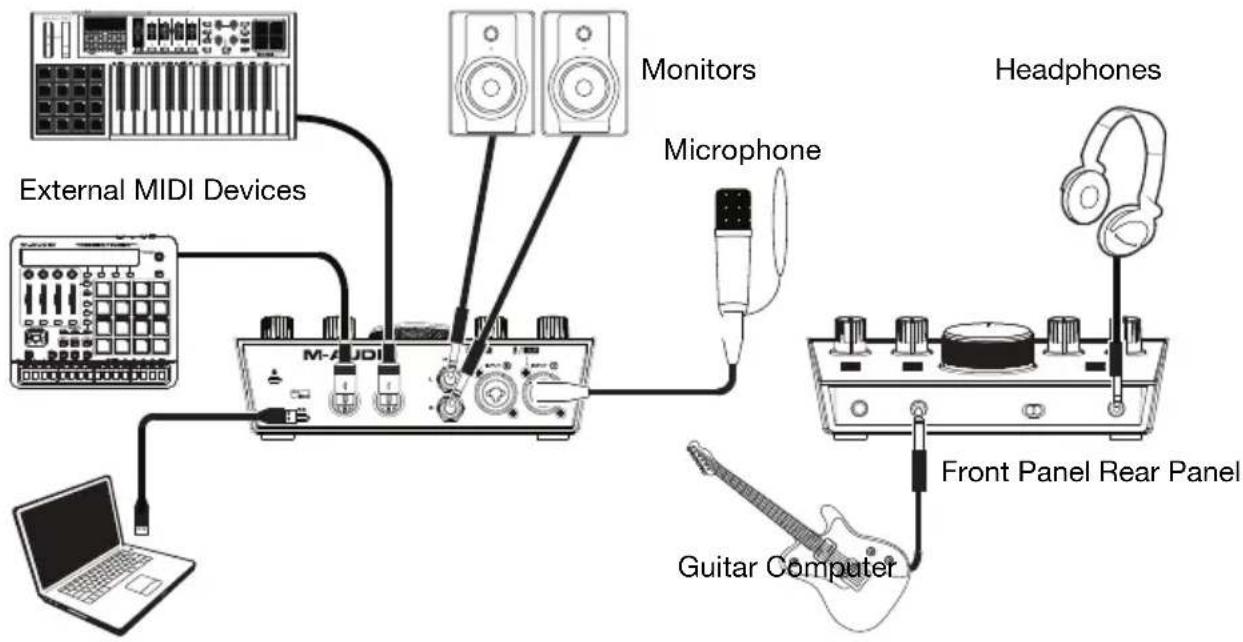
Note:
- Use the +48V (Phantom Power) Switch only if a microphone requires phantom power. Most dynamic microphones and ribbon microphones do not require phantom power, but most condenser microphones do. Consult your microphone's documentation to find out whether it needs phantom power.
Setting Up AIR 192|6 with Your Software
Setting Up AIR 192|6 with Pro Tools | First M-Audio Edition
- Use the included USB cable to connect the AIR 192|6 to your computer.
- Open Pro Tools | First M-Audio Edition.
- Go to Setup > Playback Engine....
- Open the Playback Engine dropdown menu and select M-Audio AIR 192|6.
Note: You may need to save and restart your project.
- Select your Sample Rate and then click OK to close the Setup window.
- Go to the Setup > I/O and select M-Audio AIR 1926 for the Input and Output devices.
You can now add tracks to send and receive audio and MIDI from sources connected to AIR 192|6 inputs and stream recorded audio back through the AIR 192|6 outputs.
Setting Up AIR 192|6 with Ableton Live Lite
- Use the included USB cable to connect the AIR 192|6 to your computer.
- Open Ableton Live Lite.
- Go to Preferences > Audio tab.
- Click on Driver Type to select CoreAudio (Mac) or ASIO (Windows).
- Select AIR 192|6 in the Input and Output Config section.
- Select your Sample Rate and then close the audio preferences window.
You can now add tracks to send and receive audio and MIDI from sources connected to AIR 192|6 inputs and stream recorded audio back through the AIR 192|6 outputs.
Features
Top Panel
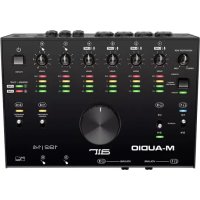
- Input Gain: Adjusts the input's gain level. Set this knob so the corresponding LED Meter (located below the knob) displays a "healthy" level during performance—but not so high that the meter "clips" or peaks, causing distortion in the audio.
- LED Meters: Indicates the input signal level from the Combo Inputs or Instrument Inputs.
- USB / Direct Blend: Adjusts the mix of the audio signal from your inputs (Direct) and the audio output of your computer (USB) that will be sent to the Main Outputs and Headphone Output.
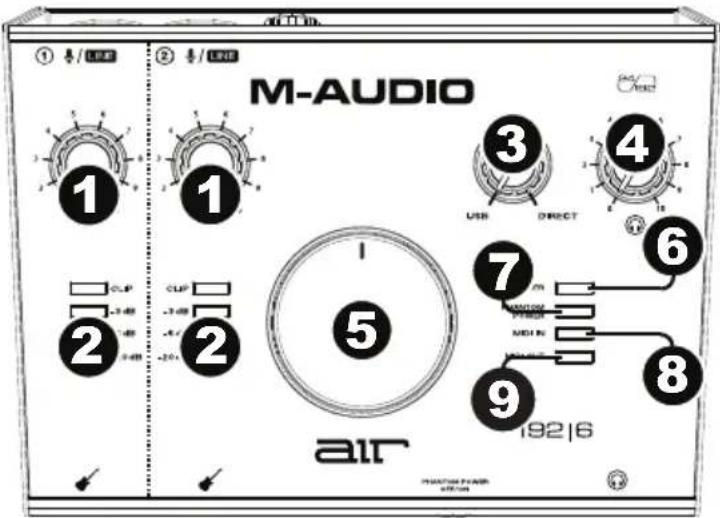
This knob is useful for dealing with "latency" when you are recording in your DAW. Latency is a delay in sound that may occur between the incoming sound (playing your instrument, singing, etc.) and outgoing sound (when you hear it in the DAW).
Latency is often the result of the "buffer size" setting, which is usually located in your DAW's Preferences, Options, or Device Setup menu. Higher buffer sizes generally result in higher latency. In some cases, lower buffer size settings can consume a lot of your computer's CPU and cause audio glitches. To prevent these audio glitches, you will need to use a higher buffer setting, and this may result in latency.
If you are experiencing latency when recording, adjust the knob towards the Direct position to increase the blend of unprocessed audio from your inputs directly to your Main Outputs and Headphone Output. This will let you hear the incoming audio from your inputs without latency while still being able to hear the audio from your DAW. When listening to the playback, adjust the knob all the way to the USB position.
If your computer is powerful enough, you may be able to set the buffer size setting in your DAW low enough such that you may never need to listen to the direct audio signal from your inputs. In this case, set the USB / Direct Blend knob all the way to the USB position to monitor only the audio output of your DAW.
- Headphone Level: Adjusts the output volume of the Headphone Output.
- Monitor Level: Adjusts the output volume of Main Outputs, which should be connected to your powered monitors or amplifier system.
- Power LED: Lights up when a valid USB connection has been established between your computer and AIR 192|6. Use this light to verify that AIR 192|6 is receiving power and is ready to use.
- +48V (Phantom Power) LED: Lights up when phantom power is engaged.
- MIDI In LED: Flashes when MIDI data is received from an external MIDI controller.
- MI DI Out LED: Flashes when MIDI data is sent from your software to AIR 192|6's MIDI Out.
Rear Panel
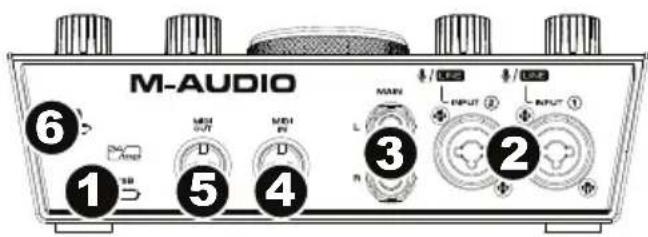
- USB Port (Type C): This connection will allow you to send audio and MIDI data to and from a computer. Use the included USB-C-to-USB-C or USB-C-to-USB-A cables to connect the AIR 192|6 to a computer. The AIR 192|6 requires a USB 2.0 connection (or higher).
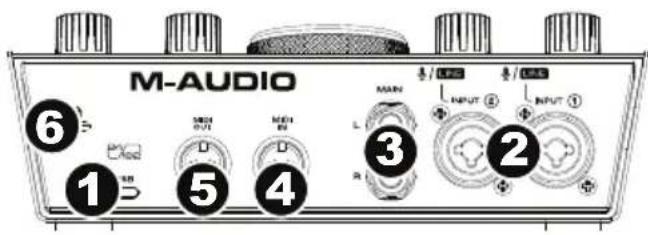
- Combo Inputs: Connect microphones, a guitar or bass with an active pickup, or line-level devices to these inputs. For microphones, use an XLR or 1/4'' (6.35 mm) TRS cable. For a guitar or bass with an active pickup, use a standard 1/4'' (6.35 mm) TS cable. For line-level signals, use a 1/4'' (6.35 mm) TRS cable. View the input signal levels with the LED Meters.
- Main Outputs: Use standard 1/4" (6.35 mm) TRS cables to connect these outputs to your powered monitors, amplifier system, etc. The mix you hear from these outputs will be determined by the USB / Direct Blend knob. The level of these outputs is controlled by the Monitor Level knob.
- MIDI In: Use a standard five-pin MIDI cable to connect this input to the MIDI Out of an external MIDI device.
- MIDI Out: Use a standard five-pin MIDI cable to connect this output to the MIDI In of an external MIDI device.
- Kensington Lock Slot: You can use this Kensington lock slot to secure AIR 192|6 to a table or other surface.
Front Panel
- Headphone Output: Connect 1/4'' (6.35 mm) TRS headphones to this output. The mix you hear from this output will be determined by the USB / Direct Blend knob. The level of this output is controlled by the Headphone Level knob.
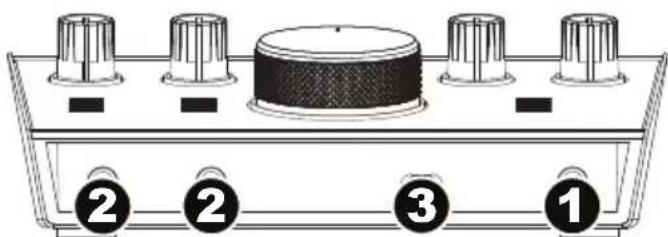
- Instrument Inputs: Connect a guitar with a passive pickup or other high-impedance signal to this input with a 1/4'' (6.35 mm) TS cable. View the input signal levels with the LED Meters.
Note: Using an Instrument Input will mute the Combo Input on the corresponding channel.
- +48V (Phantom Power) Switch: This switch activates and deactivates phantom power. When activated, phantom power supplies +48 volts to the Combo Inputs. Please note that most dynamic microphones and ribbon microphones do not require phantom power, while most condenser microphones do. Consult your microphone's documentation to find out whether it needs phantom power.
macOS: Macintosh HD/Library/Application Support/Avid/Audio/Plug-Ins
Plugins de Ableton (VST):
Windows (32-bit): C:\Program Files (x86)\VSTplugins
Windows (64-bit): C:\Program Files\VSTplugins
macOS: Macintosh HD\Library\Audio\Plugins\VST
Para establerc su carpeta de plugins en Ableton Live Lite:
macOS : Macintosh HD/Bibliothèque/Application Support/Avid/Audio/Plug-ins
Plug-ins Ableton (VST) :
Pro Tools | First M-Audio Edition (AAX) cartelle plugin:
Windows (32-bit): C:\Program Files (x86)\Common Files\Avid\Audio\Plug-Ins
Windows (64-bit): C:\Program Files\Common Files\Avid\Audio\Plug-Ins
macOS: Macintosh HD/Library/Application Support/Avid/Audio/Plug-Ins
Plugin Ableton (VST):
Windows (32-bit): C:\Program Files (x86)\VSTplugins
Windows (64-bit): C:\Program Files\VSTplugins
macOS: Macintosh HD\Library\Audio\Plugins\VST
Per configurare la cartella plugin in Ableton Live Lite:
- Porta USB (tipoc): Anything that is not a part of the USB port is considered to be a port.
- Porta USB (C): what type of port is considered to be a port?
- Porta USB (D): what type of port is considered to be a port?
- Porta USB (E): what type of port is considered to be a port?
- Porta USB (F): what type of port is considered to be a port?
- Porta USB (G): what type of port is considered to be a port?
- Porta USB (H): what type of port is considered to be a port?
- Porta USB (I): what type of port is considered to be a port?
- Porta USB (J): what type of port is considered to be a port?
- Porta USB (K): what type of port is considered to be a port?
- Porta USB (L): what type of port is considered to be a port?
- Porta USB (M): what type of port is considered to be a port?
- Porta USB (N): what type of port is considered to be a port?
- Porta USB (O): what type of port is considered to be a port?
macOS: Macintosh HD/Library/Application Support/Avid/Audio/Plug-Ins
Ableton (VST) Plugins:
Windows (32-bit): C:\Programme(x86)\VSTplugins
Windows (64-bit): C:\Programme\VSTplugins
macOS: Macintosh HD\Library\Audio\PuginsvST
Technical Specifications
All specifications are measured at 20kHz bandwidth. Specifications are subject to change without notice.
| Mic Inputs 1-2 (balanced XLR) | |
| Frequency Response | 20 Hz - 20 kHz (±0.1 dB) |
| Dynamic Range | 104 dB (A-weighted) |
| Signal-to-Noise Ratio | 104 dB (+1.0 dBu, A-weighted) |
| THD+N | 0.002% |
| Preamp EIN | -128 dBu (max gain, 150 Ω sourceA-weighted) |
| Max Input Level | +1.5 dBu |
| Gain Range | 55 dB |
| Line Input 1-2 (balanced 1/4” [6.35 mm] TRS) | |
| Frequency Response | 20 Hz – 20 kHz (±0.05 dB) |
| Signal-to-Noise Ratio | 101 dB (1 kHz, +4 dBu, A-weighted) |
| THD+N | 0.002% |
| Max Input Level | 16 dBu |
| Gain Range | 55 dB |
| Inst Input 1-2 (unbalanced 1/4” [6.35 mm] TS) | |
| Frequency Response | 20 Hz – 20 kHz (±0.05 dB) |
| Dynamic Range | 100 dB (A-weighted) |
| Signal-to-Noise Ratio | 98 dB (+ 4 dBu, A-weighted) |
| THD+N | 0.005% |
| Max Input Level | 6 dBu |
| Input Impedance | 1 MΩ |
| Gain Range | 24 dB |
| Main Outputs, L and R (balanced 1/4” [6.35 mm] TRS) | |
| Frequency Response | 20 Hz – 20 kHz (±0.05 dB) |
| Dynamic Range / Signal-to-Noise Ratio | 106 dB (A-weighted) |
| THD+N | 0.005% |
| Max Output Level | +13 dBu (1 kHz, -1 dBFS) |
| Headphone Output (1/4" [6.35 mm] TRS) | |
| THD+N | 0.005% |
| Output Impedance | 10 Ω |
General
| Power | USB-bus-powered |
| Dimensions (width x depth x height) | 8.0” x 6.0” x 2.75” |
| 204.2 x 152.4 x 70.1 mm | |
| Weight | 2.1 lbs. |
| 0.95 kg |
Trademarks and Licenses
M-Audio and AIR Music Tech are trademarks of inMusic Brands, Inc., registered in the U.S. and other countries.
Windows is a registered trademark of Microsoft Corporation in the United States and other countries.
Macintosh and macOS are trademarks of Apple Inc., registered in the U.S. and other countries.
AAX, Avid, and Pro Tools are registered trademarks of Avid Technology, Inc. in the U.S. and other countries.
Ableton is a trademark of Ableton AG.
ASIO and VST are trademarks of Steinberg Media Technologies GmbH.
Kensington and the K & Lock logo are registered trademarks of ACCO Brands.
All other product or company names are trademarks or registered trademarks of their respective owners.
m-audio.com


- User Guide (English)
- Introduction
- Box Contents
- Support
- Quick Start
- Connection Diagram
- Note:
- Setting Up AIR 192|6 with Your Software
- Setting Up AIR 192|6 with Pro Tools | First M-Audio Edition
- Setting Up AIR 192|6 with Ableton Live Lite
- Features
- Top Panel
- Rear Panel
- Front Panel
- Technical Specifications
- Trademarks and Licenses
- m-audio.com
Brand : M-AUDIO
Model : AIR 192|6
Category : DJ Equipment