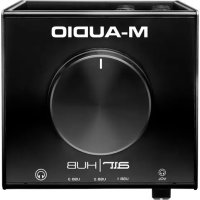
AIR 192|HUB - DJ Equipment M-AUDIO - Free user manual and instructions
Find the device manual for free AIR 192|HUB M-AUDIO in PDF.


| Brand | M-Audio |
| Model | AIR 192|HUB |
| Product Type | USB audio interface with USB hub |
| Power Supply | 5 V DC, 3 A power adapter, center positive (included) |
| Connectivity | USB-C (to computer), 2 x TRS 6.35 mm main outputs, 1 x TRS 6.35 mm headphone output, 2 additional USB hub ports |
| Audio Resolution | 24-bit |
| Sampling Rate | Up to 192 kHz |
| Main Outputs | 2 x TRS 6.35 mm (jack), controlled by the Monitor button |
| Headphone Output | 1 x TRS 6.35 mm, adjustable volume |
| USB Hub Ports | 2 USB ports (for additional peripherals), requires power adapter |
| Compatibility | Windows (drivers required), macOS, iOS via adapter (not included) |
| Included Software | Pro Tools | First M-Audio Edition, virtual instruments (download cards) |
| Box Contents | AIR Hub, power adapter, USB-C to USB-C cable, USB-C to USB-A cable, software download cards, user guide |
| Care and Cleaning | Clean with a soft, dry cloth. Do not use liquids. |
| Safety | Follow the safety instructions provided with the device. Use only the supplied adapter. |
| Repairability | Spare parts are not listed. Contact M-Audio support for any repair. |
| Warranty | Limited warranty (see m-audio.com for details) |
Frequently Asked Questions - AIR 192|HUB M-AUDIO
User questions about AIR 192|HUB M-AUDIO
0 question about this device. Answer the ones you know or ask your own.
Ask a new question about this device
Download the instructions for your DJ Equipment in PDF format for free! Find your manual AIR 192|HUB - M-AUDIO and take your electronic device back in hand. On this page are published all the documents necessary for the use of your device. AIR 192|HUB by M-AUDIO.
USER MANUAL AIR 192|HUB M-AUDIO
User Guide (English)
Introduction
Box Contents
AIR Hub
Power Adapter
USB-C to USB-C Cable
USB-C to USB-A Cable
Software Download Cards
User Guide
Safety & Warranty Manual
Support
For the latest information about this product (system requirements, compatibility information, etc.) and product registration, visit m-audio.com.
For additional product support, visit m-audio.com/support.
Quick Start
Windows users: Before connecting AIR Hub to your computer, install the drivers:
- Go to m-audio.com/drivers and download the latest AIR Hub driver for your operating system.
- Open the file you downloaded and double-click the driver installer file.
- Follow the on-screen instructions to install the drivers.
Software: We've included Pro Tools | First M-Audio Edition with your AIR Hub so you can get started making music with professional software right out of the box. Register your AIR Hub on m-audio.com, and follow the Pro Tools | First M-Audio Edition install instructions in your User Account.
Virtual Instruments: Follow the instructions on the software download card for installing the included virtual instrument plugins. After installation, most DAWs will not load virtual instrument plugins automatically. In order to access the virtual instrument plugins with Pro Tools | First M-Audio Edition, you will need to choose the plugin folder for the software to scan:
Pro Tools | First M-Audio Edition (AAX) plugin folders:
Windows (32-bit): C:\Program Files (x86)\Common Files\Avid\Audio\Plug-Ins
Windows (64-bit): C:\Program Files\Common Files\Avid\Audio\Plug-Ins
macOS: Macintosh HD/Library/Application Support/Avid/Audio/Plug-Ins
Connection Diagram
Windows users: Before connecting AIR Hub to your computer, install the drivers:
- Go to m-audio.com/drivers and download the latest AIR Hub driver for your operating system.
- Open the file you downloaded and double-click the driver installer file.
- Follow the on-screen instructions to install the drivers.
Items not listed under Introduction > Box Contents are sold separately.
Example 1
Note: Remember to select AIR Hub as your sound card in your Control Panel or System Preferences.
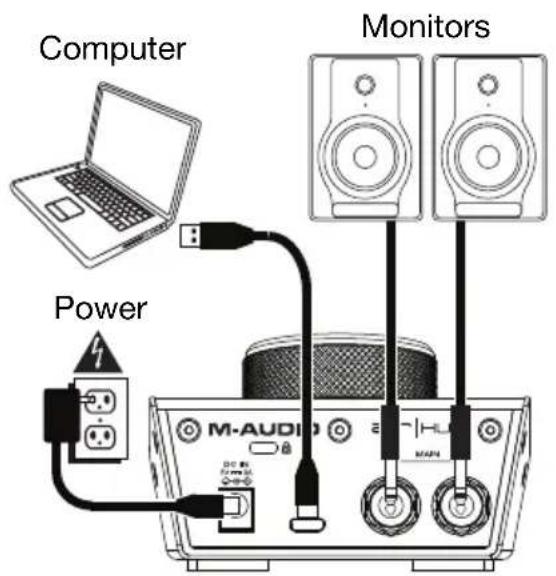
Rear Panel
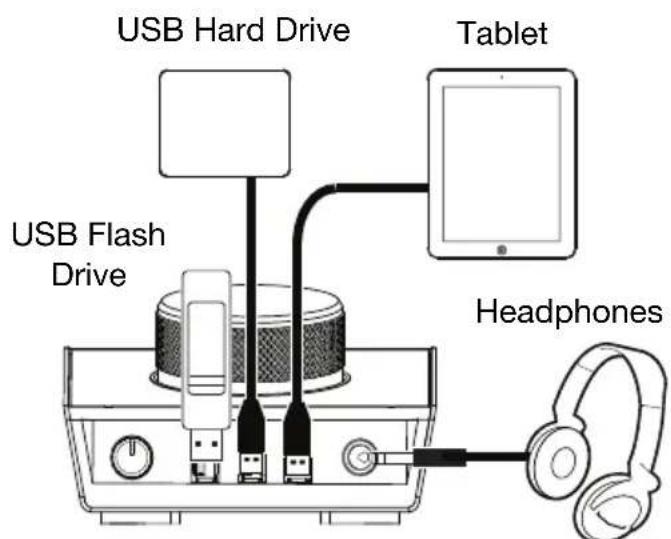
Front Panel
Example 2
Note: Remember to select AIR Hub as your interface in the Preferences, Options, Device Setup, etc. in your digital audio workstation (DAW).
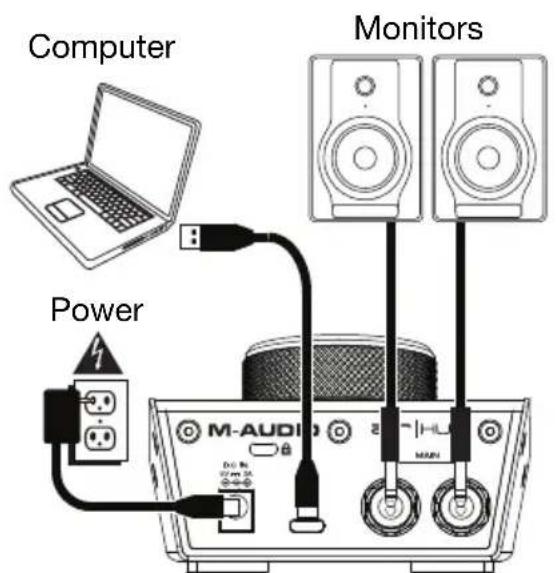
Rear Panel
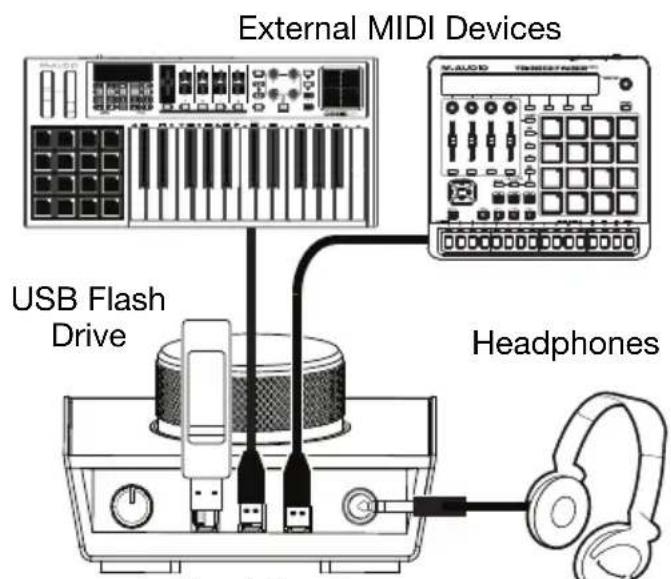
Front Panel
Setting Up AIR Hub with Pro Tools | First M-Audio Edition
- Use the included USB cable to connect the AIR Hub to your computer.
- Open Pro Tools | First M-Audio Edition.
- Go to Setup >Playback Engine....
- Open the Playback Engine dropdown menu and select M-Audio AIR Hub.
Note: You may need to save and restart your project.
- Select your Sample Rate and then click OK to close the Setup window.
- Go to the Setup > I/O and select M-Audio AIR Hub as the Output device.
You can now add tracks and stream recorded audio back through the AIR Hub outputs.
Features
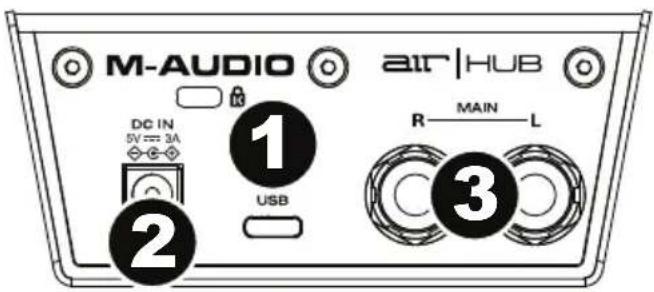
Rear Panel
- USB Port: This connection will allow you to send audio, MIDI, and other data to and from a computer. Use a USB cable to connect the AIR Hub to a computer. The AIR Hub requires a USB 2.0 connection (or higher).
- Power Input: Connect the included power adapter (5 V, 3 A, center-positive) here, then connect the adapter to a power outlet.
- Main Outputs: Use standard 1/4'' (6.35 mm) TRS cables to connect these outputs to your powered monitors, an amplifier system, etc. Use the Monitor Level knob to adjust their levels.
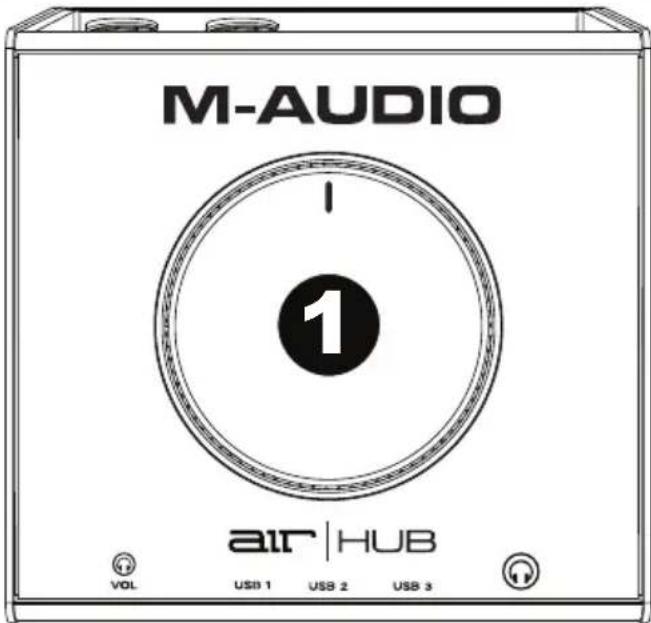
Front Panel
- Headphone Output: Connect 1/4'' (6.35 mm) TRS headphones to this output.
- Headphone Volume: Adjusts the output volume of the Headphone Output.
- USB Hub Outputs: You can connect additional USB devices (controllers, hard drives, etc.) to these powered USB ports. In addition to being an audio interface, these ports allow AIR Hub to function as a powered USB hub. This can be useful if you run out of available USB ports on your computer.
Note: In order to use the USB hub outputs, AIR Hub must be connected to the power adapter.
Top Panel
- Monitor Level: Adjusts the output volume of Main Outputs, which should be connected to your powered monitors or amplifier system.
macOS: Macintosh HD/Library/Application Support/Avid/Audio/Plug-Ins
macOS : Macintosh HD/Bibliothèque/Application Support/Avid/Audio/Plug-ins
Scheme de connexion
Pro Tools | First M-Audio Edition (AAX) cartelle plugin:
Windows (32-bit): C:\Program Files (x86)\Common Files\Avid\Audio\Plug-Ins
Windows (64-bit): C:\Program Files\Common Files\Avid\Audio\Plug-Ins
macOS: Macintosh HD/Library/Application Support/Avid/Audio/Plug-Ins
macOS: Macintosh HD/Library/Application Support/Avid/Audio/Plug-Ins
Anschlussdiagramm
Technical Specifications
| Inputs | 3 USB ports |
| Outputs | 3 1/4” (6.35 mm) TRS 1 USB port |
| Power | 5 V, 3 A, center-positive |
| Dimensions (width x depth x height) | 4.0” x 4.2” x 2.5” 100.6 x 106.7 x 64.0 mm |
| Weight | 0.75 lbs. 0.34 kg |
Specifications are subject to change without notice.
Trademarks and Licenses
M-Audio is a trademark of inMusic Brands, Inc., registered in the U.S. and other countries.
Macintosh and macOS are trademarks of Apple Inc., registered in the U.S. and other countries.
Avid and Pro Tools are registered trademarks of Avid Technology, Inc. in the U.S. and other countries.
Kensington and the K & Lock logo are registered trademarks of ACCO Brands.
Windows is a registered trademark of Microsoft Corporation in the United States and other countries.
All other product or company names are trademarks or registered trademarks of their respective owners.
m-audio.com


- User Guide (English)
- Introduction
- Box Contents
- Support
- Quick Start
- Connection Diagram
- Example 1
- Example 2
- Setting Up AIR Hub with Pro Tools | First M-Audio Edition
- Features
- Rear Panel
- Front Panel
- Top Panel
- Scheme de connexion
- Anschlussdiagramm
- Technical Specifications
- Trademarks and Licenses
- m-audio.com
Brand : M-AUDIO
Model : AIR 192|HUB
Category : DJ Equipment