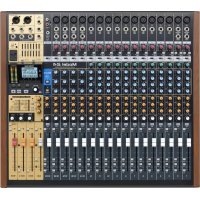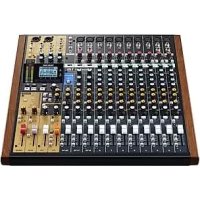
Model 16 - Mixer TASCAM - Free user manual and instructions
Find the device manual for free Model 16 TASCAM in PDF.



| Product Type | Analog/Digital Multitrack Mixer Recorder |
| Brand | Tascam |
| Model | Model 16 |
| Dimensions (W x H x D) | 430 x 112.9 x 463 mm (with side panels) |
| Weight | 7 kg |
| Power Supply | AC 100-240 V, 50/60 Hz, 40 W |
| Recording Media | SD/SDHC/SDXC cards (Class 10 or higher) |
| Number of Input Channels | 14 channels (MIC/Line/Instrument) |
| Recording Channels | Up to 16 tracks (14 channels + stereo mix) |
| Sampling Frequency | 44.1 / 48 kHz |
| Resolution | 16 / 24 bits |
| USB Audio Interface | USB 2.0, 16 inputs/outputs |
| Equalizers | 3-band semi-parametric on channels, 4-band on output |
| Compressors | On channels 1-8 |
| Built-in Effects | 16 Tascam effects (reverb, delay, etc.) |
| Bluetooth | Bluetooth 5.0 audio receiver (A2DP, SBC/AAC codecs) |
| Microphone Inputs | 8 x XLR (phantom power +48 V) |
| Line Inputs | 10 x 6.35mm TRS jacks, 2 x RCA, 1 x stereo mini-jack |
| Outputs | Main XLR, Sub, Aux, Control Room, Headphone |
| Recording Functions | Punch in/out, loop playback, markers, pre-roll |
| Cleaning and Maintenance | Dry, soft cloth; avoid chemical products |
| Safety | Phantom power, SD card write protection, headphone warning |
| Spare parts and repairability | Power cord supplied; repair by qualified after-sales service |
Frequently Asked Questions - Model 16 TASCAM
User questions about Model 16 TASCAM
0 question about this device. Answer the ones you know or ask your own.
Ask a new question about this device
Download the instructions for your Mixer in PDF format for free! Find your manual Model 16 - TASCAM and take your electronic device back in hand. On this page are published all the documents necessary for the use of your device. Model 16 by TASCAM.
USER MANUAL Model 16 TASCAM
TASCAM is a registered trademark of TEAC Corporation.
-SDXC Logo is a trademark of SD-3C, LLC.

The Bluetooth® word mark and logo are the property of Bluetooth SIG, Inc. and are used by TEAC Corporation with permission.
Microsoft, Windows and Windows Media are either registered trademarks or trademarks of Microsoft Corporation in the United States and/or other countries.
Apple, Mac, macOS, iPad, iPadOS and iTunes are trademarks of Apple Inc. in the United States and other countries.
Lightning is a trademark of Apple Inc.
- App Store is a service mark of Apple Inc.
- IOS is a trademark or registered trademark of Cisco in the U.S. and other countries and is used under license
ASIO is a trademark of Steinberg Media Technologies GmbH.

- Other company names, product names and logos in this document are the trademarks or registered trademarks of their respective owners.
Information is given about products in this manual only for the purpose of example and does not indicate any guarantees against infringements of third-party intellectual property rights and other rights related to them. TEAC Corporation will bear no responsibility for infringements on third-party intellectual property rights or their occurrence because of the use of these products.
Properties copyrighted by third parties cannot be used for any purpose other than personal enjoyment and the like without the permission of the right holders recognized by copyright law. Always use this equipment properly. TEAC Corporation will bear no responsibility for rights infringements committed by users of this product.
| CAUTION RISK OF ELECTRIC SHOCK DO NOT OPEN | CAUTION: TO REDUCE THE RISK OF ELECTRIC SHOCK, DO NOT REMOVE COVER (OR BACK). NO USER-SERVICEABLE PARTS INSIDE. REFER SERVICING TO QUALIFIED SERVICE PERSONNEL. |
| The lightning flash with arrowhead symbol, within equilateral triangle, is intended to alert the user to the presence of uninsulated “dangerous voltage” within the product’s enclosure that may be of sufficient magnitude to constitute a risk of electric shock to persons. | |
| The exclamation point within an equilateral triangle is intended to alert the user to the presence of important operating and maintenance (servicing) instructions in the literature accompanying the appliance. |
WARNING: TO PREVENT FIRE OR SHOCK HAZARD, DO NOT EXPOSE THIS APPLIANCE TO RAIN OR MOISTURE.
For U.S.A.
Declaration of Conformity
Model Number: Model 16
Trade Name:TASCAM
Responsible party: TEAC AMERICA, INC.
Address: 10410 Pioneer Blvd. Suite #1, Santa
Fe Springs, California 90670, U.S.A.
Telephone number: 1-323-726-0303

This device complies with Part 15 of the FCC Rules. Operation is subject to the following two conditions: (1) this device may not cause harmful interference, and (2) this device must accept any interference received, including interference that may cause undesired operation.
INFORMATION TO THE USER
This equipment has been tested and found to comply with the limits for a Class B digital device, pursuant to Part 15 of the FCC Rules. These limits are designed to provide reasonable protection against harmful interference in a residential installation. This equipment generates, uses, and can radiate radio frequency energy and, if not installed and used in accordance with the instruction manual, may cause harmful interference to radio communications. However, there is no guarantee that interference will not occur in a particular installation. If this equipment does cause harmful interference to radio or television reception, which can be determined by turning the equipment off and on, the user is encouraged to try to correct the interference by one or more of the following measures.
a) Reorient or relocate the receiving antenna.
b) Increase the separation between the equipment and receiver.
c) Connect the equipment into an outlet on a circuit different from that to which the receiver is connected.
d) Consult the dealer or an experienced radio/TV technician for help.
CAUTION
Changes or modifications to this equipment not expressly approved by TEAC CORPORATION for compliance could void the user's authority to operate this equipment.
IN USA/CANADA, USE ONLY ON 120 V SUPPLY.
For Canada
THIS CLASS B DIGITAL APPARATUS COMPLIES WITH CANADIAN ICES-003.
CET APPAREIL NUMERIQUE DE LA CLASSE B EST CONFORME A LA NORME NMB-003 DU CANADA.

This product complies with the European Directives request and the other Commission Regulations.
- Read these instructions.
- Keep these instructions.
- Heed all warnings.
- Follow all instructions.
- Do not use this apparatus near water.
- Clean only with dry cloth.
- Do not block any ventilation openings. Install in accordance with the manufacturer's instructions.
- Do not install near any heat sources such as radiators, heat registers, stoves, or other apparatus (including amplifiers) that produce heat.
- Do not defeat the safety purpose of the polarized or grounding-type plug. A polarized plug has two blades with one wider than the other. A grounding type plug has two blades and a third grounding prong. The wide blade or the third prong are provided for your safety. If the provided plug does not fit into your outlet, consult an electrician for replacement of the obsolete outlet.
- Protect the power cord from being walked on or pinched particularly at plugs, convenience receptacles, and the point where they exit from the apparatus.
- Only use attachments/accessories specified by the manufacturer.
- Use only with the cart, stand, tripod, bracket, or table specified by the manufacturer, or sold with the apparatus. When a cart is used, use caution when moving the cart/ apparatus combination to avoid injury from tip-over.

- Unplug this apparatus during lightning storms or when unused for long periods of time.
- Refer all servicing to qualified service personnel. Servicing is required when the apparatus has been damaged in any way, such as power-supply cord or plug is damaged, liquid has been spilled or objects have fallen into the apparatus, the apparatus has been exposed to rain or moisture, does not operate normally, or has been dropped.
The apparatus draws nominal non-operating power from the AC outlet with its POWER or STANDBY/ON switch not in the ON position.
- The mains plug is used as the disconnect device, the disconnect device shall remain readily operable.
- Caution should be taken when using earphones or headphones with the product because excessive sound pressure (volume) from earphones or headphones can cause hearing loss.
- If you are experiencing problems with this product, contact TEAC for a service referral. Do not use the product until it has been repaired.
WARNING
- Products with Class! construction are equipped with a power supply cord that has a grounding plug. The cord of such a product must be plugged into an AC outlet that has a protective grounding connection.
WARNING
- To prevent possible hearing damage, do not listen at high volume levels for long periods.

CAUTION
- Do not expose this apparatus to drips or splashes.
- Do not place any objects filled with liquids, such as vases, on the apparatus.
- Do not install this apparatus in a confined space such as a book case or similar unit.
- The apparatus should be located close enough to the AC outlet so that you can easily grasp the power cord plug at any time.
- If the product uses batteries (including a battery pack or installed batteries), they should not be exposed to sunshine, fire or excessive heat.
- CAUTION for products that use replaceable lithium batteries: there is danger of explosion if a battery is replaced with an incorrect type of battery. Replace only with the same or equivalent type.
For European Customers
Disposal of electrical and electronic equipment and batteries and/or accumulators
(a) All electrical/electronic equipment and waste batteries/ accumulators should be disposed of separately from the municipal waste stream via collection facilities designated by the government or local authorities.
(b) By disposing of electrical/electronic equipment and waste batteries/accumulators correctly, you will help save valuable resources and prevent any potential negative effects on human health and the environment.
(c) Improper disposal of waste electrical/electronic equipment and batteries/accumulators can have serious effects on the environment and human health because of the presence of hazardous substances in the equipment.
(d) The Waste Electrical and Electronic Equipment (WEEE) symbols, which show wheeled bins that have been crossed out, indicate that electrical/electronic equipment and batteries/accumulators must be collected and disposed of separately from household waste.
If a battery or accumulator contains more than the specified values of lead (Pb), mercury (Hg), and/or cadmium (Cd) as defined in the Battery Directive (2006/66/EC, 2013/56/EU), then the chemical symbols for those elements will be indicated beneath the WEEE symbol.

Pb,Hg,Cd
(e) Return and collection systems are available to end users. For more detailed information about the disposal of old electrical/electronic equipment and waste batteries/ accumulators, please contact your city office, waste disposal service or the shop where you purchased the equipment.
For China
Compliance of radio transmitter and interference
This product has the function of broadband transmitter using 2.4GHz Band.
Use frequency range: 2400 MHz - 2480 MHz
Maximum output power:Bluetooth® Class 2 (less than 2.5mW )
Please use only in the country where you purchased the product. Depending on the country, restrictions on the use of Bluetooth wireless technology might exist.
Model for USA
Declaration of Conformity
Responsible party: TEAC AMERICA, INC.
Address: 10410 Pioneer Blvd. Suite #1 Santa Fe Springs, California 90670, U.S.A.
Telephone number: 1-323-726-0303

This device complies with Part.15 of FCC Rules. Operation is subject to the following two conditions: (1) this device may not cause harmful interference, and (2) this device must accept any interference received, including interference that may cause undesired operation.
Labeling of authorization
FCC ID: XEG-MODEL16
Model for Canada
Compliance of radio transmitter
This device complies with Industry Canada's licence-exempt RSSs.
Operation is subject to the following two conditions:
1) This device may not cause interference
2) This device must accept any interference, including interference that may cause undesired operation of the device.
Labeling of authorization
IC: 1559C-MODEL16
Model for EEA (European Economic Area)

Hereby, TEAC Corporation declares that the radio equipment type is in compliance with Directive 2014/53/EU., and the other Directives, and Commission Regulations.
The full text of the EU declaration of conformity is available at the following internet address: Please contact us by e-mail.
http://tascam.eu/en/kontakt.html
EU Importer: TEAC Europe GmbH
Radiation Exposure requirements
This equipment meets the regulation, which is recognized internationally, for the case of human exposure to radio waves generated by the transmitter.
Statement of compliance
Model for USA
This equipment complies with FCC radiation exposure limits set forth for an uncontrolled environment and meets the FCC radio frequency Exposure Guidelines.
Model for Canada
This equipment complies with IC RSS-102 radiation exposure limits set forth for an uncontrolled environment.
Model for USA/Canada
This Class B digital apparatus complies with Canadian ICES-003. This equipment complies with FCC/IC radiation exposure limits set forth for an uncontrolled environment and meets the FCC radio frequency (RF) Exposure Guidelines and RSS-102 of the IC radio frequency (RF) Exposure rules. This equipment has very low levels of RF energy that it deemed to comply without maximum permissive exposure evaluation (MPE). But it is desirable that it should be installed and operated keeping the radiator at least 20cm or more away from person's body (excluding extremities: hands, wrists, feet and ankles).
Model for EEA (European Economic Area)
This equipment complies with EN.62311; Assessment of electronic and electrical equipment related to human exposure restrictions for electromagnetic fields; the harmonised standard of DIRECTIVE 2014/53/EU.
INSTRUCTIONS DE SECURITE IMPORTANTES
Canada applicable aux appeareils radio exempts de licence.
Responsible: TEAC AMERICA, INC.
Santa Fe Springs, California
90670,U.S.A.
Responsible: TEAC AMERICA, INC.
Santa Fe Springs, California
90670,U.S.A.
Telefon:1-323-726-0303

IMPORTANT SAFETY INSTRUCTIONS 3
Wireless equipment precautions 6
1- Introduction 17
Features 17
Items included with this product. 17
Conventions used in this manual. 17
Precautions for placement and use. 18
Notes about power supply. 18
Beware of condensation 18
Cleaning the unit 18
About SD cards 18
Precautions for use 18
SD card write protection. 18
Note about formatting. 18
Bluetooth 19
Profiles. 19
Codes 19
Content protection 19
Transmission security 19
Using the TEAC Global Site. 19
Product registration. 19
About TASCAM customer support service 19
2 - Names and Functions of Parts 20
Top panel 20
Analog input jack section. 21
Input channel mixing section 22
Analog output jack section 23
Screen operation section 24
Built-in effects operation section 25
Analog output adjustment section 25
Rear panel. 26
Home Screen 26
Meters Screen. 27
Meter Screen details. 28
Menu structure 28
Basic MENU screen operations 29
Menu operation procedures 29
3-Preparation 30
Connecting other equipment 30
Connecting microphones 31
Connecting guitars, basses and similar instruments. 31
Connecting electronic devices and other audio equipment 31
Connecting monitor speakers. 31
Connecting headphones. 31
Connecting a computer. 31
Connecting with Bluetooth devices.. 31
Inserting and removing SD cards 32
Inserting SD cards 32
Removing SD cards. 32
SD card write protection switches 32
Turning the power on and off 32
Setting the built-in clock date and time 33
Adjusting the display 33
Adjusting the display contrast 33
Adjusting the display brightness 33
Preparing an SD card for use 33
4-Managing Songs 34
Viewing the song list 34
Song Operation 34
Creating a New Song 34
Loading Songs 35
Saving the current song 35
Viewing song information 35
Clearing all marks 35
Deleting songs 35
Protecting/unprotecting songs. 36
Editing song names 36
Editing text 36
Loading songs created on different TASCAM Model series products. 37
5-Basic recording 38
Selecting the input source 38
Setting the MODE switch. 38
Setting phantom power 38
Monitoring 38
SIG indicators and level meters 39
Recording 39
Undoing operations 40
Undoing the previous operation. 40
Using the built-in effects. 40
Setting the built-in effect 40
6-Recorder functions 42
Locate function 42
Changing the playback position. 42
Using the direct locate function to locate. 42
Repeat playback function. 42
Punch in/out function 42
Using the footswitch to punch in/out 42
Setting up the footswitch 43
Setting the footswitch polarity 43
Automatic punch in/out function 43
Setting the punch in/out points 43
Setting a pre roll point 44
Rehearsing punching in and out. 44
Using automatic punching in and out 44
7-Track editing 45
Clearing tracks 45
Importing tracks 45
Mixing down. 46
Stereo mix export function 46
8-Mark functions. 47
Using mark functions 47
Adding marks 47
Moving between marks. 47
Clearing individual marks 47
9- Settings and Information. 48
Viewing information. 48
CARD Screen 48
SONG Screen 48
FIRMWARE Screen 48
Setting the song name format. 48
Setting the WORD item. 48
Setting MIDI time code operation 49
Restoring factory default settings 49
Formatting SD cards 49
Playing WAV files on SD cards (SD PLAY mode) 50
Contents
10 - Using a computer to transfer data 51
Connecting with a Computer 51
Disconnecting 52
Loading WAV files from a computer. 52
11-USBaudiointerfacefunctions. 53
Installing the dedicated software. 53
Installing the Windows dedicated software. 53
Installing the Mac dedicated software 54
Working with Gatekeeper 54
Uninstalling the dedicated software 56
Uninstalling the Windows dedicated software 56
Uninstalling the Mac dedicated software 56
Opening the Settings Panel 56
Windows 56
Mac. 56
Settings Panel overview 56
Notification function 57
Setting Sound Properties 57
Simultaneous ASIO/WDM playback. 57
USB audio mode 58
Setting procedures for use with OBS Studio and other streaming applications 58
12-Messages 60
13 - Troubleshooting 62
14-Specifications. 64
General 64
Inputs and outputs. 64
Analog audio input and output ratings.. 64
Control input/output 65
Computer system requirements 65
Windows 65
Mac 65
iOS device 65
Supported audio drivers. 65
Audio performance 65
Bluetooth 66
Other 66
Thank you very much for purchasing the TASCAM Model 16 Multitrack Live Recording Console.
Before using this unit, read this Owner's Manual carefully so that you will be able to use it correctly and enjoy working with it for many years. After you have finished reading this manual, please keep it in a safe place for future reference.
You can also download this Owner's Manual from the TEAC
Global Site (http://teac-global.com/).
Features
- 14 input analog mixer with 14 line and 10 mic inputs
- Multitrack recording and playback with 16-track recording (14 input channels and MAIN MIX L/R bus)
-
USB audio interface functions built-in
-
16 tracks (14 input channels and MAIN MIX L/R bus) can be input to the computer
14 track outputs and computer outputs can be assigned to channel inputs
Supports USB 2.0 audio with resolutions up to 24-bit and 48kHz sampling frequency -
Analog compressors included on channel 1-8 inputs
- 60mm faders enable precise adjustments
LINE/INST (BAL) input jacks that support high impedance (Hi-Z) on channels 1-2 - Channel inserts (INSERT) on channels 1-2
- Multiple buses include stereo main (MAIN MIX L/R bus), sub (SUB L/R bus) and monitor (MONITOR OUT 1/2)
3 AUX sends (MON 1/MON 2/FX) - Input channels have 3-band semi-parametric EQs with adjustable mid frequencies
4-band semi-parametric equalizer for output
16 TASCAM preset effects can be used for a variety of applications - Multitrack recording and playback possible using SD cards
- Bluetooth® audio playback and recording supported
- Punching in and out function per track (including punching in and out automatically and with footswitches)
- SD/SDHC cards and SDXC cards (Class 10 or more)
- Multiple footswitch functions available (select play/pause, effect muting or punch in/out)
- CONTROL ROOM L/R and PHONES outputs built-in (levels can be adjusted and PFL/AFL L/R bus monitoring can be enabled separately)
Items included with this product
This product includes the following items.
Take care when opening the package to avoid damaging the items. Keep the packing materials for transportation in the future. Please contact the store where you purchased this unit if any of these items are missing or have been damaged during transportation.
- Main unit. x 1
Power cord. X1
Owner's Manual (this document) including warranty. x 1
Conventions used in this manual
In this manual, we use the following conventions:
- When we show characters that appear on the display, the typeface looks like this: HEMU.
The four buttons under the display are called the function buttons. From left to right, they are shown as buttons F1,
F2, F3 and F4. Moreover, the functions at the bottoms of the screens will be shown after the button names.
Examples:F1 n,F4 butt.FX
- SD/SDHC/SDXC memory cards are referred to as "SD cards".
- Computers, portable audio devices and other equipment connected to this unit using Bluetooth are called "Bluetooth devices".
- Groups of recorded data are referred to as "songs".
The song that is currently selected is called the "current song".
Information shown on a computer display is written like this: OK. - As necessary, additional information is provided under TIP, NOTE and CAUTION headings.
TIP
These are tips about how to use the unit.
NOTE
These provide additional explanations and describe special cases.
ATTENTION
Failure to follow these instructions could result in damage to equipment or lost data, for example.
CAUTION
Failure to follow these instructions could result in injury.
Precautions for placement and use
- The operating temperature range of this unit is 5 - 35^
- Do not install this unit in the following types of locations. Doing so could make the sound quality worse or cause malfunction.
Places with significant vibrations
Next to a window or in another location exposed to direct sunlight
Near heaters or other extremely hot places
Extremely cold places
Very humid or poorly ventilated places
Very dusty places
- To enable good heat dissipation, do not place anything on top of the unit.
- Do not place this unit on top of a power amplifier or other device that generates heat.
Notes about power supply
- Insert the included power cord all the way into the AC IN connector.
- Do not connect a power supply other than one that is AC100V - 240V (50/60Hz).
- Hold the power cord by its plug when connecting or disconnecting it.
Beware of condensation
Condensation could occur if the unit is moved from a cold place to a warm place, it is used immediately after a cold room has been heated or it is otherwise exposed to a sudden temperature change.
To prevent this, or if this occurs, let the unit sit for one or two hours at the new room temperature before using it.
Cleaning the unit
Use a dry soft cloth to wipe the unit clean. Do not wipe with chemical cleaning cloths, thinner, alcohol or other chemical agents. Doing so could damage the surface or cause discoloration.
About SD cards
This unit uses SD cards for recording and playback.
This unit can use SD cards that are Class 10 or higher and compatible with SD, SDHC or SDXC standards.
A list of SD cards that have been confirmed for use with this unit can be found on our web site. Please access to a product page of this product from the TEAC Global Site (http://teac-global.com) to find the list or contact the TASCAM customer support service.
Precautions for use
SD cards are delicate media.
In order to avoid damaging SD cards, please take the following precautions when handling them.
- Do not leave them in extremely hot or cold places.
- Do not leave them in extremely humid places.
- Do not let them get wet.
- Do not put things on top of them or twist them.
- Do not hit them.
- Do not remove or insert them during recording, playback, data transmission or other access.
- When transporting them, put them into cases, for example.
SD card write protection
This unit writes track information to the media in order to improve operation performance. Since, for example, setting information cannot be written to SD cards that are write-protected, settings will not be retained when the unit is restarted and performance will be otherwise affected.
Note about formatting
SD cards formatted by this unit are optimized to improve performance during recording. Use this unit to format the SD cards to be used with it. Errors might occur when recording with this unit using an SD card formatted by a computer or other device.
Bluetooth®
This unit has a built-in Bluetooth audio receiver, and can input sound played on a computer or portable audio device that supports Bluetooth (Bluetooth device).
ATTENTION
The Bluetooth function of this unit is not guaranteed to enable connection or operation with all Bluetooth devices.
Profiles
This unit supports the following Bluetooth profiles.
A2DP (Advanced Audio Distribution Profile)
In order to transfer audio by Bluetooth, the Bluetooth device must support A2DP.
Even if a Bluetooth device supports the same profiles, though, its functions might differ according to its specifications.
CODECS
This unit supports the following codecs. It will automatically select one of them during audio transfer.
SBC
AAC
The unit will select the appropriate codec to use according to the codec compatibility of the other Bluetooth device and communication conditions.
NOTE
- You cannot select the codec to be used by pressing a button, for example.
- Due to characteristics of Bluetooth wireless technology, playback from this unit will be slightly delayed compared to playback from the Bluetooth device.
Content protection
This unit supports SCMS-T as a form of content protection when transmitting audio, so it can play protected audio.
Transmission security
This unit supports security functions during Bluetooth transmission in accordance with the Bluetooth standard specifications, but it does not guarantee the privacy of such transmissions.
TEAC CORPORATION will bear no responsibility should an information leak occur during transmission by Bluetooth.
Using the TEAC Global Site
You can download updates for this unit from the TEAC Global Site:
http://teac-global.com/
In the TASCAM Downloads section, select the desired language to open the Downloads website page for that language.
Product registration
Customers in the USA, please visit the following TASCAM website to register your TASCAM product online.
https://tascam.com/us/
About TASCAM customer support service
TASCAM products are supported and warranted only in their country/region of purchase.
To receive support after purchase, on the TASCAM Distributors list page of the TEAC Global Site (http://teac-global.com/), search for the local company or representative for the region where you purchased the product and contact that organization.
When making inquiries, the address (URL) of the shop or web shop where it was purchased and the purchase date are required.
Moreover, the warranty card and proof of purchase might also be necessary.
Top panel

A Analog input jack section
Use this section to connect the input jacks for each channel and to adjust the input levels.
Input channel mixing section
Use this section to choose input sources for each channel, adjust compressors and equalizers, and set levels sent to each bus (MAIN MIX L/R, PFL/AFL L/R, MONITOR OUT 1/2, FX, SUB L/R).
Analog output jack section
Use this section to connect the output jacks and adjust the output equalizer.
① Screen operation section
Use this section to operate the meter, home and HENU screens shown on the display.
Built-in effects operation section
Operate the built-in effects and adjust the output levels for each output in this section.
F Analog output adjustment section
Adjust the output levels from the FX, MAIN OUTPUT, SUB OUTPUT and CONTROL ROOM output connectors.
Analog input jack section
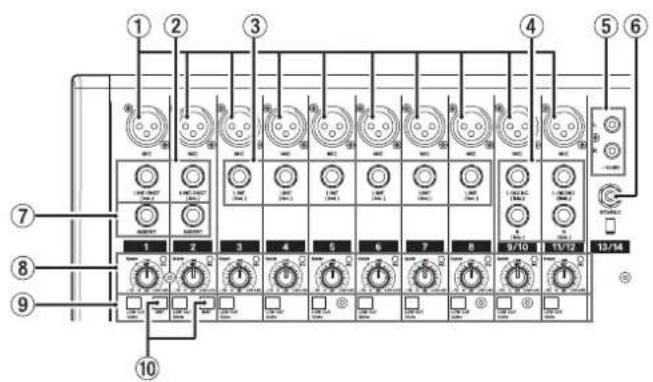
MIC input jacks (1-8, 9/10-11/12)
These are balanced XLR jacks for mic input.
- XLR (1: GND, 2: HOT, 3: COLD)
LINE/INST (BAL) mono input jacks (1-2)
These standard TRS jacks are mono line inputs.
When directly connecting a guitar, bass or other instrument, set the INST switch to on (pushed in).
- TRS (Tip: HOT, Ring: COLD, Sleeve: GND)
LINE (BAL) input jacks (3-8)
These standard TRS jacks are line inputs.
- TRS (Tip: HOT, Ring: COLD, Sleeve: GND)
④ L/MONO (BAL)/R (BAL) stereo input jacks (9/10-11/12)
These standard TRS jacks are stereo line inputs.
If only the L/MONO (BAL) jack in a pair is connected, the same signal was be sent to both left and right channels.
- TRS (Tip: HOT, Ring: COLD, Sleeve: GND)
-10dBV (external input) jacks (13/14, RCA pin)
These RCA pin jacks are analog line inputs.
Use RCA cables to connect CD players and similar devices to these jacks.
⑥ STEREO input jack (13/14, stereo mini)
This stereo mini jack is a line input jack.
Use this to connect with the line output jack of a tablet or other external device.
⑦ INSERTJacks(1-2,standard)
Use these standard TRS jacks to connect external devices (effects).
- TRS (Tip: SEND, Ring: RETURN, Sleeve: GND)
GAIN knobs and SIG indicators (1-8, 9/10-11/12)
Use the GAIN knobs to adjust the input levels of each channel.
its SIG indicator will light green when a signal is input (-40dB or higher).
If a SIG indicator stays lit red continuously, lower the GAIN knob.
LOW CUT switches (1-8, 9/10-11/12)
Turn this switch on (pushed in) to enable low cut filters that cut noise and other sounds at low frequencies.
10 INST switches (1-2)
Set according to the LINE/INST (BAL) input jack input sources. Turn the INST switch on (pushed in) when connecting an guitar, bass or other equipment with high output impedance. Turn the INST switch off (not pushed in) when connecting electronic instruments, audio devices, mics and other equipment.
Input channel mixing section
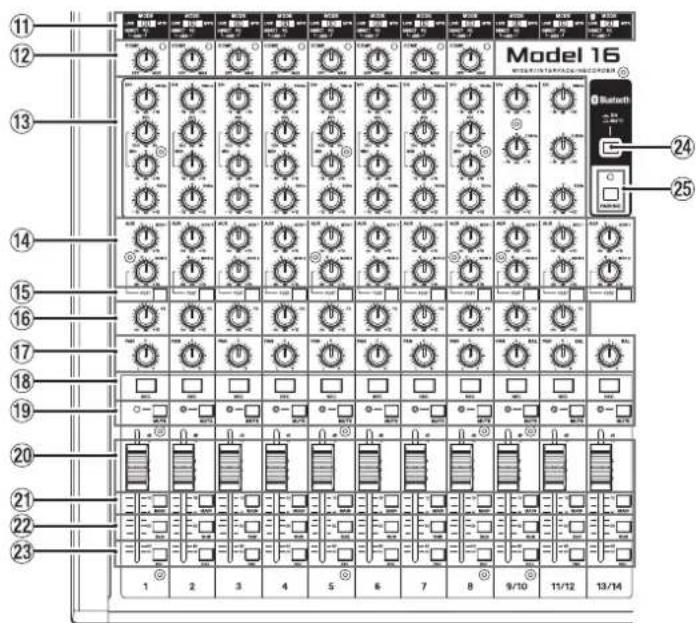
MODE switches (1-8, 9/10-11/12, 13/14)
Use these to select the input source for each channel. (See "Setting the MODE switch" on page 38)
12 COMP knobs and indicators (1-8)
Use these knobs to adjust the compression thresholds for the signals input to each channel.
When compression is activated, the COMP indicators light.
③ EQ knobs (1-8, 9/10-11/12)
- Use these to boost and attenuate the HIGH, MID and LOW bands of each channel.
Setting range: ± 15 dB
The central frequencies of the MID bands can be set for channels 1-8.
Setting range: 100Hz - 8kHz (default: 600Hz )
Channels 9/10-11/12 are fixed at 2.5kHz
14 MON 1/MON 2 knobs (1-8,9/10-11/12,13/14)
Use these to adjust the levels of signals sent to the MONITOR OUT 1/2 buses.
15 POST switches (1-8, 9/10-11/12, 13/14)
Turn these switches on to send signals to the MONITOR OUT 2 bus after the channel faders.
16 FX knobs (1-8, 9/10-11/12)
Use to adjust the levels of the signals sent to the FX bus.
17 PAN knobs (1-8, 9/10-11/12, 13/14)
Use to adjust the stereo positions of the signals input to each channel.
NOTE
- When PAN knobs are centered (C), signals are reduced by 3 dB and sent to both left and right MAIN MIX L/R buses.
- When a PAN knob is turned all the way to the left (L), that channel signal is sent only to the left MAIN MIX L/R bus. It is not sent to the right bus.
- When a PAN knob is turned all the way to the right (R), that channel signal is sent only to the right MAIN MIX L/R bus. It is not sent to the left bus.
18 REC buttons and indicators (1-8, 9/10-11/12, 13/14)
Use these to select the channels to record to the SD card.
19 MUTE switches and indicators (1-8, 9/10-11/12, 13/14)
When these switches are on (pushed in, MUTE indicator lit), those channels are muted.
20 Channel faders (1-8, 9/10-11/12, 13/14)
Use these to adjust the send levels of channel signals.
21 MAIN switches (1-8, 9/10-11/12, 13/14)
Turn these switches on (pushed in) to send channel signals to the MAIN MIX L/R bus.
SUB switches (1-8, 9/10-11/12, 13/14)
Turn these switches on (pushed in) to send channel signals to the SUB L/R bus.
23 PFL switches (1-8, 9/10-11/12, 13/14)
Turn these switches on (pushed in) to send channel signals to the PFL/AFL L/R bus.
24 ON/MUTE switch
Set this switch to ON to input audio from a paired Bluetooth device.
PAIRING button and indicator
Press and hold this button to activate Bluetooth pairing mode.
Press when pairing to end pairing mode. (See "Connecting with Bluetooth devices" on page 31)
Analog output jack section
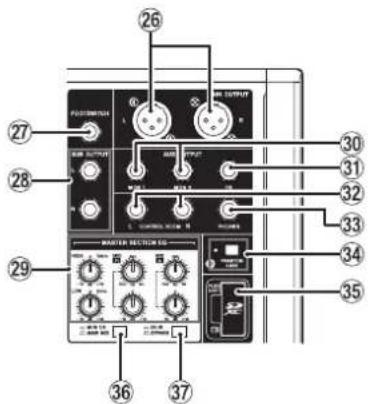
26 MAIN OUTPUT L/R jacks
These analog outputs are XLR jacks.
- XLR (1: GND, 2: HOT, 3: COLD)
FOOTSWITCHjack
This standard TS jack is for connecting a footswitch.
TS (Tip: HOT, Sleeve: GND)
NOTE
This unit was designed to be used with unlatched (momentary) footswitches that have to be pushed to function (shorted when pushed).
SUB OUTPUT L/R jacks
These standard TRS jacks are analog outputs.
- TRS (Tip: HOT, Ring: COLD, Sleeve: GND)
29 MASTER SECTION EQ knobs
This 4-band semi-parametric equalizer affects signals output from the MAIN OUTPUT and AUX OUTPUT MON 1/2 jacks.
30 AUX OUTPUT MON 1/2 jacks
These standard TRS jacks are analog outputs.
- TRS (Tip: HOT, Ring: COLD, Sleeve: GND)
③ AUX OUTPUT FX jack
This standard TRS jack is an analog output.
When an external effect is connected, signals will not be sent to the built-in effect.
When using an external effect, turn the built-in effect off.
- TRS (Tip: HOT, Ring: COLD, Sleeve: GND)
32 CONTROL ROOM L/R jacks
These standard TRS jacks are analog outputs. Use these to monitor signals from the MAIN MIX L/R bus or PFL/AFL L/R bus.
- TRS (Tip: HOT, Ring: COLD, Sleeve: GND)
33 PHONESjack
Use this standard stereo jack to connect stereo headphones. Use an adapter to connect headphones with a mini plug. Use this to monitor signals from the MAIN MIX L/R bus or PFL/AFL L/R bus. (See "Block diagram / Schema fonctionnel / Diagrama de bloques" on page 172)
34 PHANTOM +48V switch and indicator
Use this switch to supply +48V phantom power to the 1-2, 3-8 and 9/10-11/12 MIC input jacks on the top of the unit. The indicator lights when the PHANTOM +48V switch is set to on (pushed in). (See "Setting phantom power" on page 38)
35 SD card slot
Insert SD cards in this slot. (See "Inserting and removing SD cards" on page 32)
36 MON 1/2/MAIN MIX switch
Set which output signals are affected by the equalizer.
MON 1/2: Equalizer is applied to signals sent from the MONITOR OUT 1/2 buses.
MAIN MIX: Equalizer is applied to signals sent from the MAIN MIX L/R bus.
NOTE
Also set the EQ IN/BYPASS switch to "EQ IN".
37 EQ IN/BYPASS switch
When this switch is EQ IN, the equalizer will affect the output signals set with the MON 1/2/MAIN MIX switch.
When set to BYPASS, the equalizer will not be applied regardless of the MON 1/2/MAIN MIX switch setting.
Screen operation section
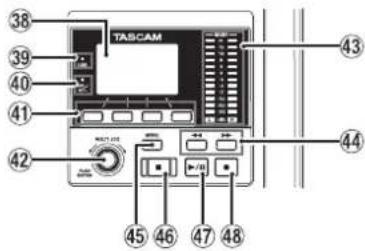
38 Display
Shows a variety of information.
39 USBindicator
This lights when the USB connection is working.
40 PFL/AFLindicator
This indicator lights when at least one channel PFL switch is on or when the AFL switch for the MON 1 or MON 2 knob or the FX fader is on.
41 Function buttons
The functions of these buttons change depending on the screen shown on the display. The functions shown at the bottom of the display are the currently assigned functions.
NOTE
For convenience, the four buttons under the display are called the function buttons in this manual. From left to right, they are called the F1, F2, F3 and F4 buttons.
42 MULTI JOG dial
This dial functions as a dial when turned and as a button when pressed.
Dial functions
- Turn when the Home Screen is open to move the file playback position. (See "Locate function" on page 42)
- When a HENU Screen is open, turn to select items and change setting values. (See "Basic MENU screen operations" on page 29)
Button function
- Press when the Home Screen is open to designate a locate point. (See "Locate function" on page 42)
- When a Menu Screen is open, press to confirm selections and settings (ENTER button function).
43 Output level indicators
These show the output levels of the MAIN OUTPUT jacks. When the PFL/AFL indicator is lit, these show the output levels from the PFL/AFL L/R bus.
44

buttons
- When stopped and during playback, press and hold these buttons to search backward/forward.
- When the Home Screen is open, press the button to locate to the beginning of the current song (00:00:00, which is the zero point).
- When the Home Screen is open, press the button to locate to the end of the current song.
- If the current song has auto punch in or out points set, you can also locate to those points.
- If the current song has marks set, these can also be used to locate to them.
While pressing the button, press the button to locate to the point where recording last started.
While pressing the button, press the button to locate to the point where recording last stopped.
- When the SD PLAY Screen is in playback state, press to skip a file. (See "Playing WAV files on SD cards (SD PLAY mode)" on page 50)
45 MENU button
- When the Meter Screen is open, press to open the Home Screen.
- When the MENU Screen or a menu item settings screen is open, press to return to the Home Screen.
- When the Home Screen is open, press to open the MENU Screen. (See "Menu structure" on page 28) and (See "Basic MENU screen operations" on page 29)
46 button/indicator
Press to stop playback or recording. This button lights when stopped.
Press this button when paused to return to the beginning of the song or file.
47 button/indicator
Press this button to start playback.
This button lights during playback and recording. This button blinks when paused.
48 ● button/indicator
Press this button to start recording. This button lights during recording.
Press this button during playback to start recording (Manual punch in).
Built-in effects operation section
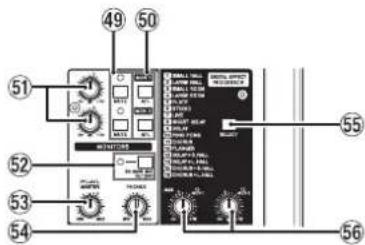
49 MUTE switch/indicator (MON 1, MON 2)
When MUTE switches are on (MUTE indicators lit), signals to the AUX OUTPUT MON 1/2 jacks are muted.
50 AFL switches (MON 1/MON 2)
When these switches are on (pushed in), the AUX OUTPUT MON 1/2 jack output signals are sent to the PFL/AFL L/R bus.
5 MON 1/MON 2 knobs
Use to adjust the output levels of the AUX OUTPUT MON 1/2 jacks.
SD MAIN MIX RETURN switch
When this switch is on (pushed in), playback of stereo master files recorded on the SD card is output from the MAIN OUTPUT jacks.
ATTENTION
Be aware that when this switch is on (pushed in), the sound of the MAIN MIX L/R bus is not output.
53PFL/AFL MASTER knob
Use this to adjust the send level from the PFL/AFL L/R bus.
54 PHONES knob
Use this to adjust the headphone output level.
CAUTION
Before connecting headphones, minimize the volume with the PHONES knob. Failure to do so could result in a sudden loud noise that could harm hearing, for example.
55 SELECT button
Open the EFFECT Screen and make built-in effect settings. (See "Using the built-in effects" on page 40)
The built-in effect return signal is sent to the following buses.
- MAIN MIX L/R bus
- PFL/AFL L/R bus
- MONITOR OUT 1/2 buses
- SUB L/R bus
56 TO MON 1/TO MON 2 knobs
Use these to adjust the levels of signals sent from the built-in effects to the MONITOR OUT 1/2 buses.
Analog output adjustment section
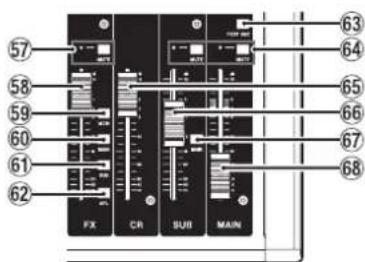
57 MUTE switch and indicator (FX)
When the MUTE switch are on (pushed in, MUTE indicator lit), the signal from the built-in effect is muted.
58 FXfader
Use to adjust the levels of signals sent from the built-in effect to the following buses.
MAIN MIX L/R bus
PFL/AFL L/R bus
- MONITOR OUT 1/2 buses
- SUB L/R bus
59 MON switch (FX)
When this switch is on, signals from the built-in effect are sent to the MONITOR OUT 1/2 buses.
60 MAIN switch (FX)
When this switch is on, signals from the built-in effect are sent to the MAIN MIX L/R bus.
61 SUB switch (FX)
When this switch is on, signals from the built-in effect are sent to the SUB L/R bus.
62 AFL switch (FX)
When this switch is on, signals from the built-in effect are sent to the PFL/AFL L/R bus.
63 POST REC switch
Select the send position of the signal recorded to the SD card.
When this switch is on, signals from after the MAIN fader are recorded to the SD card.
64 MUTE switches and indicators (SUB, MAIN)
When MUTE switches are on (MUTE indicators lit), signals to the SUB OUTPUT/MAIN OUTPUT jacks are muted.
65 Crfader
Use to adjust the output levels of the CONTROL ROOM L/R jacks.
66 SUBfader
Use to adjust the output level of the SUB OUTPUT jacks.
67 MAIN switch (SUB)
When this switch is on (pushed in), the SUB OUTPUT jack output signal is sent to the MAIN MIX L/R bus.
68. MAINfader
Use to adjust the output level of the MAIN OUTPUT jacks.
Rear panel
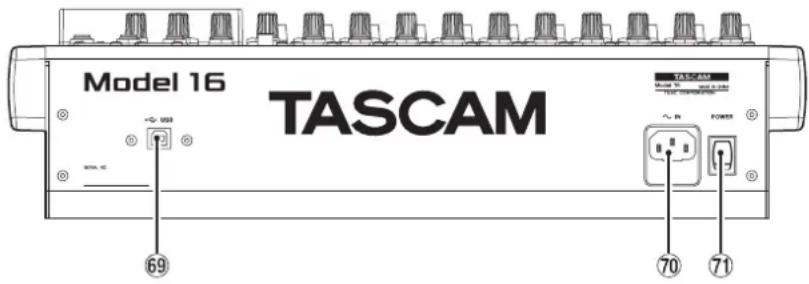
69 USBport
This is a B-type USB port. Use a USB cable (Type-A to Type-B) to connect the unit to a computer. (See "Connecting with a Computer" on page 51)
ATTENTION
The unit should be connected directly to the computer, not through a USB hub. Moreover, noise could be picked up if the cable is too long.
70 AC IN connector
Connect the included power cord here.
7 POWER switch
Press to turn the unit on and off.
CAUTION
Before turning the unit on, lower the volumes of connected equipment to their minimum levels.
Failure to do so might cause sudden loud noises, which could harm your hearing or result in other trouble.
NOTE
Do not do this when the unit is operating (including recording, playing back or writing data to an SD card). Doing so could cause proper recording to fail and recorded data to be lost.
Home Screen
When the Meter Screen is open, press the MENU button to open the Home Screen.
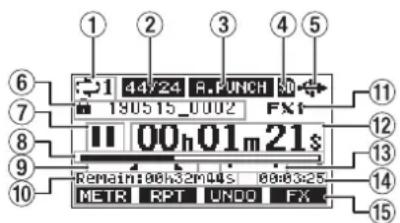
① Repeat playback status
An icon appears when the repeat playback function is on. (See "Repeat playback function" on page 42)
② Song format
This shows the current song file format.
44.16 44.1 kHz, 16 bit
44/24 44.1 kHz, 24 bit
48/16 48 kHz, 16 bit
48/24 48 kHz, 24 bit
NOTE
If no song is loaded, the operation format of the unit will be shown like 4d/23 13/24
③ Automatic punch in/out function on/off status
The P.Punch pears when the automatic punch in/out function is on. (See "Automatic punch in/out function" on page 43)
④ SD card present status
When an SD card is loaded, the icon appears.
When an SD card is protected, the con appears.
Since system files cannot be updated when the icon appears, automatic punch in/out settings will not be retained and previously loaded songs will not be loaded when the unit is turned on again.
⑤ USB connection status
During USB connection, the 出 appears.
⑥ Song name
This shows the name of the current song. If a song is protected, an con appears before the file name. (See "Protecting/unprotecting songs" on page 36) If a song has unsaved marks, an ton appears before the file name. (See "Adding marks" on page 47)
⑦ Transport status
This icon shows the recorder operation status.
| Indicator Meaning | |
| ■ | Stopped at the beginning of the file |
| II | Paused |
| ● | Recording |
| ► | Playback |
⑧Playback position
The current playback position is shown by a bar.
Automatic punch in/out point setting status
When the automatic punch in/out function is on, these show the status of automatic punch in/out point setting.
Punch in point
Punch out point
10 Remaining time
The remaining time available for recording on the SD card is shown (in hours: minutes: seconds).
NOTE
The remaining time that can be recorded on an SD card varies according to the number of recording channels, song format and SD card capacity.
① Built-in effect status
When a built-in effect is on, the number of the effect in use is shown.
When the built-in effect is off, the FxHUTE pears. (See "Using the built-in effects" on page 40)
12 Recorder time counter
This shows the elapsed time from the beginning of the song.
13 Mark indicators
An icon is shown at each mark.
14 Song length
This shows the length of the current song (in hours: minutes: seconds).
Function button functions
This shows the functions assigned to the function button on the Home Screen.
- FETRton: This opens the Meter Screen.
- FRETton: This turns the repeat playback function on/off.
- FLUICULTON: This returns to the state before the previous operation.
- FERMENT: This restores the state after the previous operation.
F: F3:ton: This turns the built-in effect on/off. - 14131 ton: This adds/deletes marks.
NOTE
- The F3 button UNDO and REDO indicators appear when those operations are possible.
- Set the F4 button function on the KEY FUNCTION screen. (See "Using mark functions" on page 47)
Meters Screen
This shows the levels of the signals being input to the unit.
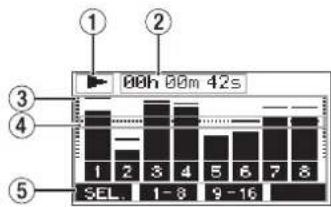
① Transport status
This icon shows the recorder operation status.
② Recorder time counter
This shows the elapsed time from the beginning of the song.
③ Track level meters
These show the signal levels of each channel.
NOTE
Channels 15/16 show the MAIN MIX L/R bus levels.
④ Level meter guide
This provides guidance for level adjustment. The guide is shown at the -12dB level.
⑤ Function button functions
This shows the functions assigned to the function button on the Meter Screen.
- FUEL.ress to change the input sources shown on the Meter Screen.
- F1-8ress to show the level meters for channel 1-8 signals on the Meter Screen.
- F - Tress to show the level meters for channel 9-16 signals on the Meter Screen.
Meter Screen details
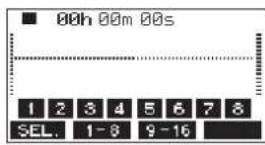
When the Meter Screen is open, press the F1 on to change the signal sources shown by the meters.
Channel input level screens
The levels of signals input on each channel are shown depending on their MODE switch settings.
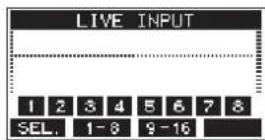
LIVE INPUT Screen
This shows the levels of signals being input to the input jacks.
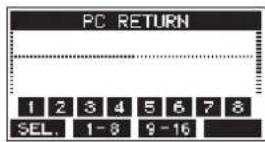
PC RETURN Screen
This shows the levels of signals output from a computer when used as a USB audio interface.
NOTE
Output from the computer, including from Windows Media Player and iTunes, is sent to channels 1-2.
MTR RETURN Screen
This shows the playback signal levels of songs recorded on SD cards.
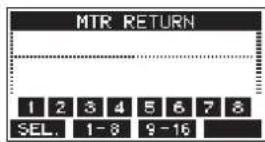
1234 Channels that have recording data in the song 1234 Channels that do not have recording data in the song
Menu structure
When the Home Screen is open, press the MENU button to open the HENUscreen.
The various menu items are as follows.
| Menu item Function | Page | |
| SONG | Work with songs on an SD card | page 34 |
| TRACK CLEAR | Clear specific tracks or all tracks | page 45 |
| AUTO PUNCH | Set the auto punch in/out function | page 43 |
| A. PUNCH PRE ROLL | Set the pre-roll point page 44 | |
| IMPORT | Import chosen WAV files to song tracks | page 45 |
| STEREO MIX EXPORT | Use stereo mix export function | page 46 |
| SD PLAY | Play WAV files on an SD card | page 50 |
| STORAGE | SD cards can be accessed from a computer | page 51 |
| SYSTEM Open the SYSTEM Screen | See below | |
On the MENU Screen, select SYSTEM to open the SYSTEM Screen. The menu items on the SYSTEM Screen are as follows.
| Menu item Function | Page | |
| INFORMATION | View SD card information, song information and the firmware version | page 48 |
| DATE/TIME | Date and time settings page 33 | |
| SONG NAME | Set the song name format page 48 | |
| DISPLAY | Adjust the display page 33 | |
| KEY FUNCTION | Set the function of the function button | page 47 |
| FOOTSW | Make footswitch settings page 43 | |
| MIDI TIME CODE | Set the MIDI time code page 49 | |
| USB AUDIO | Make USB audio settings page 58 | |
| INITIALIZE | Restore factory default settings | page 49 |
| MEDIA FORMAT | Format the SD card | page 49 |
NOTE
The settings for all menu items are retained even when the unit is turned off.
Basic MENU screen operations
After using the MENU button to open the HENU Screen, it can be operated in the following manner.
This is an overview of basic operations. Function button assignments differ according to the screen shown on the display.
Selecting items (moving vertically on a page):
Turn the MULTI JOG dial.
Opening a submenu from a page:
Press the MULTI JOG dial.
Confirming a selected item:
Press the MULTI JOG dial (ENTER button function).
Returning to the previous screen without confirming the selected item:
Press the F1EXTn.
NOTE
Some menu items are confirmed as soon as they are selected.
Going back one step in a menu:
Press the F1EXTn.
Returning to the Home Screen from a MENU Screen:
Menu operation procedures
This explanation uses an example of setting the pre-roll point.
- Press the MENU button to open the Home Screen.
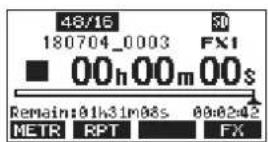
- Press the MENU button to open the MENU Screen.
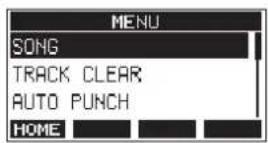
NOTE
Press the F1 HORE on to return to the Home Screen.
- Turn the MULTI JOG dial to select the menu item.
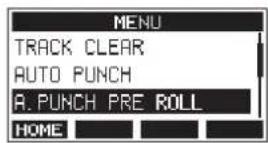
A.PUNCH PRE ROLL selected
- Press the MULTI JOG dial to open the settings screen.
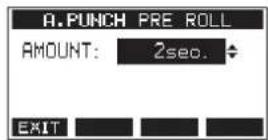
A.PUNCH PRE ROLL Screen open
- Turn the MULTI JOG dial to change the setting.
- To set another item on the same screen, press the MULTI JOG dial to move the cursor to the next setting.
- Repeat steps 5 to 6 as necessary to set other items.
- Press the F1 to return to the MENU Screen.
Connecting other equipment
This is an example of Model 16 connections.
Precautions before making connections
- Carefully read the operation manuals of the devices to be connected and then connect them correctly.
- Before making connections, turn this unit and all equipment to be connected off (standby).
- Install all connected devices, including this unit, so that they are powered from the same line. When using a power strip or similar device, be sure to use one that has high current capacity (thick cable) in order to minimize fluctuations in power voltage.
- Before connecting audio equipment, set the following knobs and faders to their lowest values. Failure to do so could cause sudden loud noises from monitoring equipment, and this could damage the equipment or harm hearing.
GAIN knobs (channels 1-8, 9/10-11/12)
- Channel faders (channels 1-8, 9/10-11/12, 13/14)
- SUB fader
- MON 1/MON 2 knobs
- MAIN fader
CRfader
PHONES knob
- Set the PHANTOM +48V switch to off.
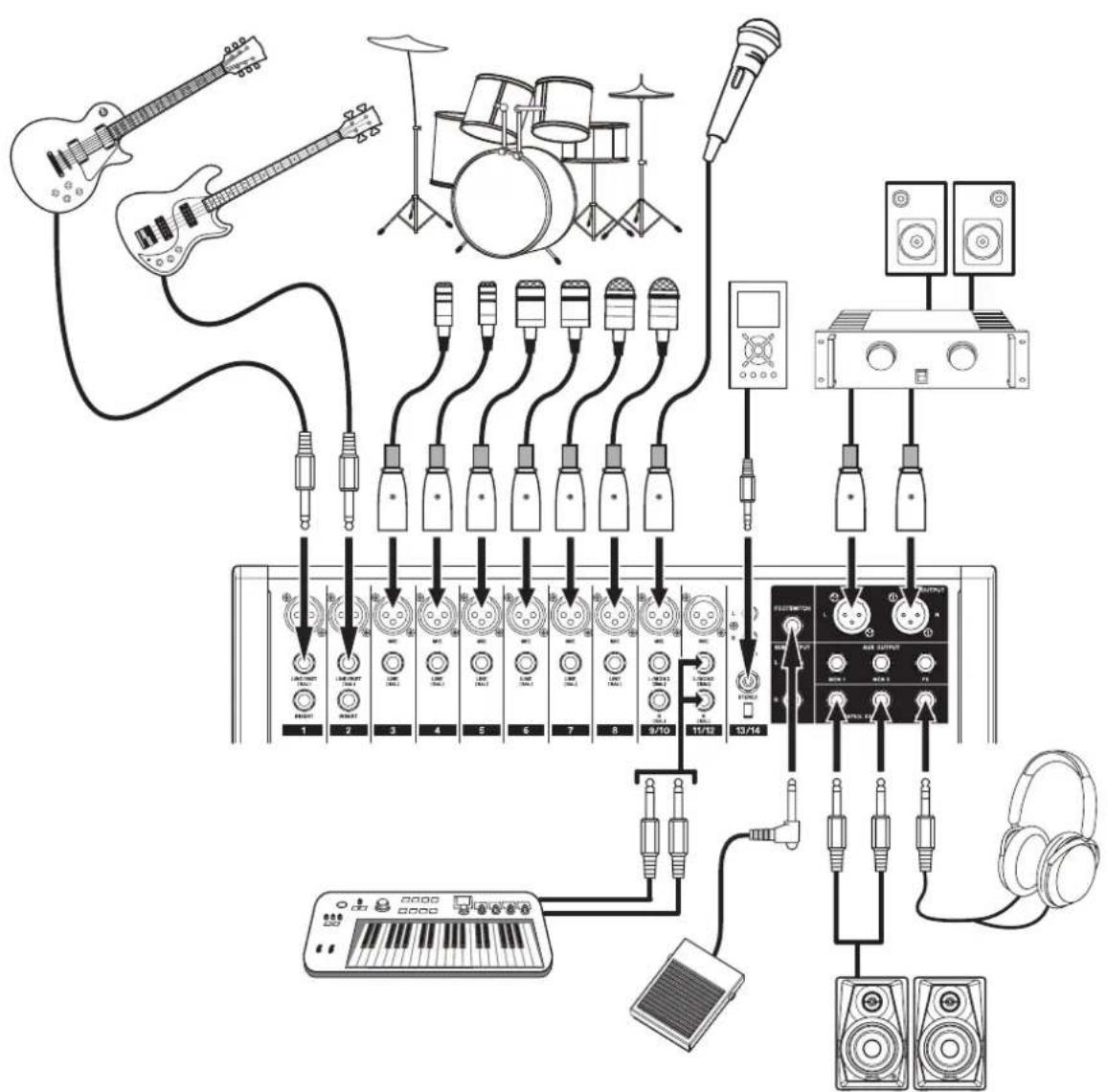
Examples of connections to a Model 16
Connecting microphones
Dynamic mics
Connect to MIC input jacks.
Condenser mics
When using a condenser microphone that requires phantom power, connect it to a MIC input jack and then turn the PHANTOM +48V switch on (pushed in). (See "Setting phantom power" on page 38)
The PHANTOM +48V indicator lights when the PHANTOM +48V switch is on (pushed in).
Connecting guitars, basses and similar instruments
When connecting a guitar, bass or other instrument with high impedance output (Hi-Z) directly to this unit, use the LINE/INST (BAL) jacks on channels 1-2 and turn the INST switch on (pushed in) for that jack.
NOTE
When connecting an instrument with active output or when the sound passes through an effects unit, for example, that is connected to this unit, the INST switch does not need to be set to on.
Connecting electronic devices and other audio equipment
Use the following inputs to connect electronic devices and other audio equipment.
LINE/INST (BAL) input jacks*
LINE (BAL) input jacks
L/MONO (BAL)/R (BAL) input jacks
- 10dBV input jacks (13/14)
STEREO input jack (13/14)
- When an INST switch is on (pushed in), input through the LINE/INST (BAL) input jack will be unbalanced.
Connecting monitor speakers
Connect monitor speakers (powered speakers or an amplifier and speaker system) to the CONTROL ROOM L/R jacks. Depending on the PFL switch and AFL switch settings, signals from the MAIN MIX L/R bus and PFL/AFL L/R bus can be monitored.
Use the CR fader to adjust the speaker volume.
Connecting headphones
Connect headphones to the PHONES jack (standard stereo). Depending on the PFL switch and AFL switch settings, signals from the MAIN MIX L/R bus and PFL/AFL L/R bus can be monitored.
CAUTION
Before connecting headphones, minimize the volume with the PHONES knob. Failure to do so could result in a sudden loud noise that could harm hearing, for example.
Connecting a computer
Use a commercially-available Type-A-Type-B USB cable to connect the unit to a computer USB 2.0 port.
When the USB connection is working, the USB indicator in the screen operation section lights.
ATTENTION
The unit should be connected directly with the computer instead of via a USB hub. Moreover, noise could be picked up if the cable is too long.
Connecting with Bluetooth devices
This unit can input sound from a computer, portable audio device or other equipment that supports Bluetooth (A2DP).
Pairing
Follow the procedures below to enable communication with a Bluetooth device.
NOTE
Pairing also requires operation of the Bluetooth device. Refer to the operation manual of the Bluetooth device for procedures.
- Press the ON/MUTE switch to set it to ON.
- Confirm that the PAIRING indicator on this unit is blinking. If it is unlit, press the PAIRING button.

NOTE
When the unit is turned on, it automatically becomes ready for pairing. If 2 minutes pass in pairing mode, it will end. Press this button to reactivate pairing mode when it is disabled.
- Select "Model 16" (this unit) on the other Bluetooth device. When pairing succeeds, the PAIRING indicator will stop blinking and remain lit, and connection with the other device will be complete.
NOTE
- Some older Bluetooth devices require the input of a passkey. Enter "0000" in such cases.
- Pairing will automatically end if connection is not confirmed within two minutes.
- When this unit is turned on, it will automatically try to connect with the Bluetooth device to which it was previously connected. At this time, pairing will automatically end after five minutes if connection is not possible because that Bluetooth device is not turned on or its Bluetooth function is turned off.
Unpairing
The Bluetooth device that is currently connected can be unpaired from the unit.
- Press and hold the PAIRING button for at least two seconds.
- This ends the pairing. The PAIRING indicator will start blinking and the unit will be ready to pair.
Inserting and removing SD cards
Inserting SD cards
Insert an SD card into the SD card slot on the top of the unit to enable playback and recording by this unit.
NOTE
SD cards can be inserted whether or not the unit is on or off.
- Open the SD card slot cover.
- The SD card should be inserted with its label facing left.
- Close the SD card slot cover.
Removing SD cards
Turn the unit off or stop operation before removing an SD card.
CAUTION
Never remove an SD card when the unit is operating (including recording, playing back, or writing data to the SD card). Doing so could cause proper recording to fail, data to be lost, and sudden loud noises from monitoring equipment, which might damage the equipment, harm hearing or cause other trouble.
- Press the SD card in gently to make it to come up.
- Pull the SD card out.
SD card write protection switches
SD cards have write-protection switches that prevent writing new data to them.
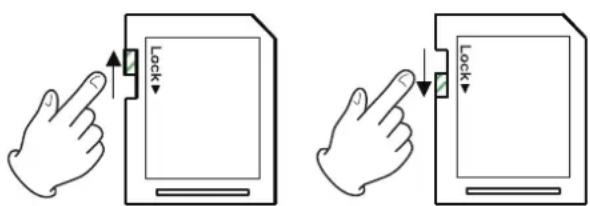
If you slide the write-protection switch to the "LOCK" position, writing will not be possible. Move the write-protection switch to the unlocked position in order to record, erase and otherwise edit data on the card.
Turning the power on and off
CAUTION
- Turn down the volume of the sound system connected to the unit before starting up or shutting down the unit.
- Do not wear connected headphones when turning the unit on and off. Loud noises could damage the speakers or harm your hearing.
Before turning the power on
-
Make the following settings on the top of the unit.
-
Other knobs all the way left
- Faders all the way down
-
Switches off (not pushed in)
-
Minimize the output levels of audio sources and input levels of amplifiers connected to this unit.
Turning the power on
- Use the POWER switch on the back of the unit to turn its power on.

Startup screen

Meter Screen
After the unit starts and the Startup Screen is shown, the Meter Screen will open.
NOTE
After the unit is turned on, the PAIRING indicator will blink for a set amount of time.
- Turn connected input audio source devices on.
- Finally turn amplifiers on.
Turning the power off
Before turning the power off, minimize the levels of output faders and knobs, and then follow the procedures above in reverse.
Failure to follow the correct order could result in clicking noises, for example, that might damage equipment.
CAUTION
Do not disconnect the power cord when the unit is operating (including recording, playing back, or writing data to an SD card). Doing so could cause proper recording to fail, recorded data to be lost, and sudden loud noises from monitoring equipment, which might damage the equipment, harm hearing or cause other trouble.
NOTE
When the unit is started up for the first time (or when the built-in clock is reset after being left unused without power for a long time), the DATE/TIME Screen appears before the Startup Screen to allow the date and time of the built-in clock to be set. (See "Setting the built-in clock date and time" on page 33)
Setting the built-in clock date and time
Using its internal clock, this unit includes the date and time when a file is recorded.
- On the SYSTEM Screen, select DATE/TIME to open the DATE/TIME Screen. (See "Menu operation procedures" on page 29)
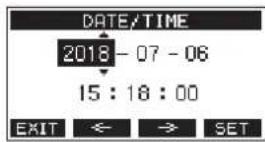
- Turn the MULTI JOG dial to change a value, and press the MULTI JOG dial to confirm it and move the cursor to the next item.
NOTE
Use the F2 F3 butt move the cursor.
- Change the year, month, day, hour and minute in order, and complete the date and time setting.
- Press the F4 SET to confirm the setting and return to the SYSTEM Screen.
NOTE
- When making a setting, you can press the F1 EXIT button to cancel the changes and return to the SYSTEM Screen.
- When setting the time, the time display will be stopped.
- By setting the TYPE item to "DATE" on the SONG NAME Screen, the date and time set here can be used for song names. (See "Setting the song name format" on page 48)
Adjusting the display
The display contrast and brightness can be adjusted.
Adjusting the display contrast
- On the SYSTEM Screen, select DISPLAY to open the DISPLAY Screen. (See "Menu operation procedures" on page 29)
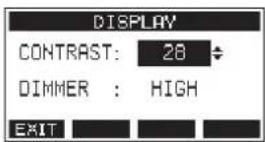
- Adjust the display contrast.
Options:18-40(default:28)
- Press the MULTI JOG dial to confirm the setting.
- Press the F1 EXIT button to return to the MENU Screen.
Adjusting the display brightness
- On the SYSTEM Screen, select DISPLAY to open the DISPLAY Screen. (See "Menu operation procedures" on page 29)
- Press the MULTI JOG dial to move the cursor to the DIMMER item.
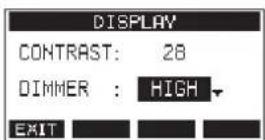
- Adjust the display brightness.
Options: HIGH (default), LOW
- Press the MULTI JOG dial to confirm the setting.
- Press the F1 EXIT button to return to the MENU Screen.
Preparing an SD card for use
In order to make an SD card usable in this unit, whether for recording or playback, this unit must be used to create a system file on it first.
ATTENTION
In order to record, this unit must be used to format it first. (See " Formatting SD cards" on page 49)
- "No sys file. Make sys file. Are you sure?" appears in a pop up when a new card or a card formatted by another device is inserted into the unit.
- Press the MULTI JOG dial to create a system file. When system file creation is complete, the Home Screen will reopen.
4 - Managing Songs
This recorder treats each recording data group as one song and manages data by song.
For one song, WAV files are saved for 14 tracks and a stereo master file.
To record or produce music, a song that has already been created needs to be loaded or a new song needs to be created.
This chapter describes functions that range from basic operations such as procedures for loading songs and creating new songs to various song management functions.
NOTE
The maximum recording time for a single song is 23:59:59.
Viewing the song list
To open a list of songs saved on an SD card, select SONG on the MENU Screen, and press the MULTI JOG dial to open the SONG Screen. (See "Menu operation procedures" on page 29)
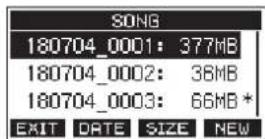
On the SONG Screen, the following functions are assigned to the function buttons.
- Press the F1 EXIT button to return to the MENU Screen.
- Press the F2 DATE button to show the date on the S01NG Screen.
- Press the F3 SIZE button to show the size on the SONG Screen.
- Press the F4 NEW button to open the NEW Screen where you can create a new song. (See "Creating a New Song" on page 34)
Song Operation
Select the desired song file on the SONG Screen and press the MULTI JOG dial to open a pop-up menu list with possible song operations.
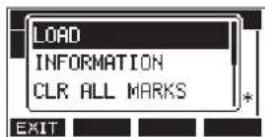
To use a song operation, turn the MULTI JOG dial to select the desired item, and press the MULTI JOG dial.
LOAD/SAVE
Loads the selected song.
When the selected song is the current song, SAE will appear and information about it will be saved.
INFORMATION
View information about the selected song.
CLR ALL MARKS
Clear all marks in the song.
DELETE
Deletes the selected song.
PROTECT
Protect the selected song.
UNPROTECT
Stop protection of the selected song.
RENAME
Edits the name of the selected song.
Creating a New Song
To record or play with this unit, you must create and load a song. The following procedure can be used to create a new song.
- Open the SONG Screen when the recorder is stopped. (See "Menu operation procedures" on page 29)
- Press the F4 New button to open the NEW Screen.
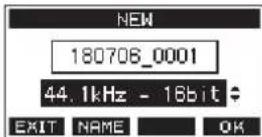
- Turn the MULTI JOG dial to select the recording file format. Options: 44.1kHz - 16bit (default), 44.1kHz - 24bit, 48kHz - 16bit, 48kHz - 24bit
- Edit the name of the song as necessary. To edit the name of the song, press the F2 NAME to open the NAME EDIT Screen.
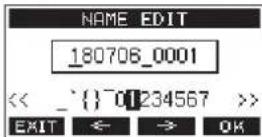
For details about how to edit song names, see "Editing text" on page 36.
TIP
The song name can also be edited later using the RENAME Screen.
- Press the F4 to save the currently loaded song and create a new song. When song creation completes, the SONG Screen reopens.
NOTE
- To cancel song creation, press the F1 EXIT button.
- A maximum of 100 songs can be created on a single SD card.
Songs are created in the MTR folder on the SD card.
Loading Songs
Use the following procedure to load the song you want.
- Open the 50HG Screen when the recorder is stopped. (See "Menu operation procedures" on page 29)
NOTE
The icon appears for a song currently being loaded. An icon will appear before protected songs.
- Select the song that you want to load and press the MULTI JOG dial to open the menu list pop-up.
- Select LOAD, and press the MULTI JOG dial. After the selected song loads, the SONG Screen will reopen.
Saving the current song
Song information, including marks added during playback of the current song as well as deleted marks, can be saved.
- Open the SONG Screen when the recorder is stopped. (See "Menu operation procedures" on page 29)
- Select the current song, and press the MULTI JOG dial to open the menu list pop-up.
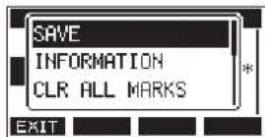
- Select SHAE, and press the MULTI JOG dial. This saves the song information.
ATTENTION
After saving, undoing or redoing the previous operation will no longer be possible.
Viewing song information
You can check the song name (title), sampling frequency, bit rate, size, and date and time last written.
- Open the SONG Screen when the recorder is stopped. (See "Menu operation procedures" on page 29)
- Select the song with information that you want to check and press the MULTI JOG dial to open the menu list pop-up.
- Select INFORMATION, and press the MULTI JOG dial. The INFORMATION Screen will open.
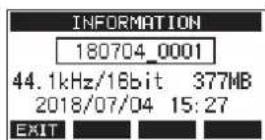
The song name, sampling frequency, bit rate, size, date and time last written will be shown.
- After checking, press the F1 to return to the SONG Screen.
Clearing all marks
This operation clears all marks added to the selected song.
- Open the SONG Screen when the recorder is stopped. (See "Menu operation procedures" on page 29)
- Select the song with the marks that you want to delete and press the MULTI JOG dial to open the menu list pop-up.
- Select CLR ALL MARKS, and press the MULTI JOG dial. The CLR ALL MARKS Screen will open.
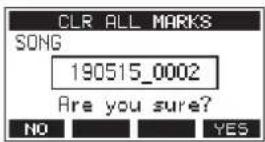
- Press the F4 YES to confirm deletion of marks. When mark deletion completes, the SONG Screen reopens.
ATTENTION
Deleted marks cannot be restored.
Deleting songs
You can delete songs.
Deleting unnecessary songs when the SD card space is low can create more open space.
- Open the 50NG Screen when the recorder is stopped. (See "Menu operation procedures" on page 29)
- Select the song that you want to delete and press the MULTI JOG dial to open the menu list pop-up.
- Select DELETE, and press the MULTI JOG dial. The DELETE Screen will open.
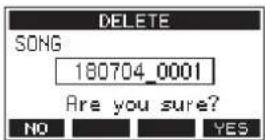
- Press the F4 to confirm deletion. When song deletion completes, the S0HG Screen reopens.
ATTENTION
Deleted songs cannot be restored.
NOTE
To cancel song deletion, press the F1 No button.
- The current song cannot be deleted. To delete the current song, load another song first.
Protecting/unprotecting songs
By protecting a song, you can disable editing, recording and deletion operations for that song.
You can protect and stop protecting songs.
- Open the SONG Screen when the recorder is stopped. (See "Menu operation procedures" on page 29)
- Select the song that you want to protect or unprotect and press the MULTI JOG dial to open the menu list pop-up.
- Select PROTECT or UNPROTECT, and press the MULTI JOG dial. The PROTECT or UNPROTECT screen will open.
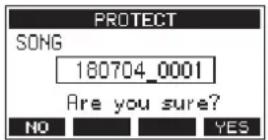
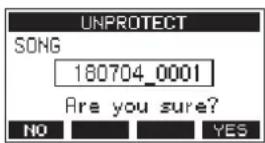
- Press the F4 WEAH to protect or unprotect the song.
NOTE
To cancel protection or unprotection, press the F1 NO button.
- When song protection or unprotection completes, the SONG Screen reopens.
NOTE
icons appear before songs that are protected in the song list shown for copying, deletion and other operations.
- If you try to execute a prohibited operation (editing, recording, deletion) on a protected song, "Song is protected." will appear in a pop-up message on the display.
Editing song names
- Open the SONG Screen when the recorder is stopped. (See "Menu operation procedures" on page 29)
- Select the song with name that you want to change and press the MULTI JOG dial to open the menu list pop-up.
- Select RENAHE, and press the MULTI JOG dial. The RENAHE Screen will open.
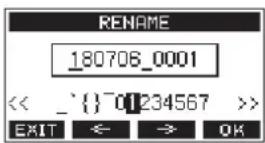
- Edit the song name.
For details about how to edit song names, see "Editing text" below.
NOTE
To cancel song name editing, press the F1EXTn.
- When finished editing the song name, press the F4 OK button to confirm the song name.
When song name editing is complete, the 50MG Screen reopens.
Editing text
Use these operations to edit text.
Changing the cursor (editing point) position:
Use the F2 3 butt
You can also press the MULTI JOG dial to move to the next character.
Deleting the character at the cursor position:
Turn the MULTI JOG dial.
You can input up to 11 characters, including symbols, numbers, and uppercase and lowercase letters.
Leaving a single space open:
Turn the MULTI JOG dial to select a blank space at the left end of any row, and press the MULTI JOG dial.
Canceling edits:
Press the F1EXTn.
Confirming the changes:
Press the F4 OK n.
Loading songs created on different TASCAM Model series products
Songs created on TASCAM Model series products with different channel counts can be loaded on this unit.
Use the following procedure to load the song you want.
- Open the SONG Screen when the recorder is stopped. (See "Menu operation procedures" on page 29)
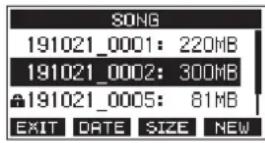
- Select the song that you want to load and press the MULTI JOG dial to open the menu list pop-up.
The name of the product used to create the song will be shown next to the LOAD item if it is different from this unit.
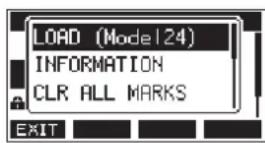
Loading a song made on a Model 24
- Select L0AD, and press the MULTI JOG dial.
After the selected song loads, the SONG Screen will reopen.
Loading a song from a unit with fewer channels on a unit with more channels
When loading a song from a unit with fewer channels on a unit with more channels, empty tracks will be created for the additional channels and the song will be converted for use with the model with more channels before loading.
Example: Loading a song from a Model 16 to a Model 24
| Source song Song after loading | |
| Tracks 1-14 Tracks 1-14 | are loaded. |
| - | Empty tracks are created for tracks 15-22. |
| Track 15 (MAIN MIX L) | This is loaded as track 23 (MAIN MIX L). |
| Track 16 (MAIN MIX R) | This is loaded as track 24 (MAIN MIX R). |
NOTE
- If the SD card is write-protected, the song will be loaded without conversion. See "SD card write protection switches" on page 32 for details about SD card write protection.
- If a song is protected, it will be loaded without conversion. It will automatically be converted if protection is disabled. See "Protecting/unprotecting songs" on page 36 for details about song protection.
Loading a song from a unit with more channels on a unit with fewer channels
When loading a song from a unit with more channels on a unit with fewer channels, some tracks will not be available for recording and playback.
The unit will load tracks up to its number of channels from the song in order from the first.
MAIN MIX L/R tracks will be loaded as MAIN MIX L/R tracks. The song will not be converted.
Example: Loading a song from a Model 24 to a Model 16
| Source song Song after loading | |
| Tracks 1–14 Tracks 1–14 are loaded. | |
| Tracks 15–22 These are not loaded. | |
| Track 23 (MAIN MIX L) | This is loaded as track 15 (MAIN MIX L). |
| Track 24 (MAIN MIX R) | This is loaded as track 16 (MAIN MIX R). |
Selecting the input source
This unit has 14 inputs (14 line/10 mic inputs) with separate MIC and standard jacks.
The LINE/INST (BAL) input jacks on channels 1-2 support high impedance input, including direct guitar input.
Turn the INST switch on (pushed in) when connecting an guitar or similar instrument directly.
ATTENTION
Do not connect to both the MIC jack and the standard input jack (LINE/INST (BAL), LINE (BAL), L/MONO (BAL) or R (BAL)) on a channel at the same time.
TIP
Set the INST switch to off (not pushed in) when connecting an electric-acoustic guitar with a built-in preamp or an active electric guitar, as well as when an effect is connected between an guitar and this unit.
Setting the MODE switch
Using the MODE switch settings of each channel to select their input sources individually.
LIVE: Use the signal from the input jack as the input source.
PC: Use a signal from a computer connected to the USB port as the input source.
MTR: Use a playback signal from the SD card as an input source.
When a MODE switch is set to "MTR", the signal from the input jack on that channel will be recorded.
This function is useful when recording and playing back repeatedly because the monitored sound is automatically switched according to the recording or playback status.
Sounds on channels when in MTR mode
| Transport status | REC button off | REC button on |
| Stop Muted | Sound from input jack | |
| Playing back Playback | sound only | Playback sound only + sound from input jack |
| Recording Playback | sound only | Sound from input jack |
Setting phantom power
When connecting a condenser mic that requires phantom power, press the PHANTOM +48V switch when the recorder is stopped to turn phantom power on/off.
When phantom power is on, the PHANTOM +48V indicator lights, and phantom power is supplied to the MIC input jacks (1-8, 9/10-11/12).
CAUTION
Set the following knobs and faders to their minimum values before changing the PHANTOM +48V switch on/off setting. Depending on the connected mics, sudden loud noises from monitoring equipment could occur, and this could damage the equipment or harm hearing.
GAIN knobs
- Channel faders
- SUB fader
- MON 1/MON 2 knobs
- MAIN fader
CRfader
PHONES knob
ATTENTION
- Before connecting condenser mics, turn this unit and all equipment to be connected off (standby).
- The PHANTOM +48V switch turns it on/off for the input channels (1-8, 9/10-11/12) simultaneously. Do not turn the PHANTOM +48V switch on (pushed in) when connecting a mic that does not require phantom power.
- Do not connect or disconnect mics when the PHANTOM +48V switch is on (pushed in). Doing so could cause a loud noise and might damage this unit and connected equipment.
- Turn the PHANTOM +48V switch on (pushed in) only when using a condenser microphone that requires phantom power. Turning the PHANTOM +48V switch on (pushed in) when a dynamic mic or other mic that does not require it is connected could damage this unit and connected equipment.
- When using condenser mics that require phantom power and dynamic mics together, be sure to use balanced dynamic mics. Unbalanced dynamic mics cannot be used when phantom power is enabled.
- Supplying phantom power to some ribbon mics could break them. If you are unsure, do not supply phantom power to a ribbon mic.
Monitoring
Monitoring is important when recording and mastering.
With this unit, monitoring is possible using an external monitoring system (powered monitor speakers or an amp and speakers) or using stereo headphones.
Use the CR fader and PHONES knob to adjust the level of the monitoring system.
SIG indicators and level meters
The channel 1-8, 9/10-11/12 SIG indicators and level meters shown on the Meter Screen can be used to check the levels of this unit's audio signals.
The level meters are for visually checking signal levels and can also be used to check whether or not signals are being input to this unit.
For example, even if nothing can be heard when monitoring, if the Meter Screen level meters are moving, signals are being input to this unit.
The SIG indicators light green when signals (of at least -40 dB) are input through their channels.
If a SIG indicator lights red, the input source signal is too loud or the GAIN knob is turned up too far.
If the SIG indicator lights red even when the GAIN knob is turned all the way to the left, the input source signal is to loud. Lower its volume.
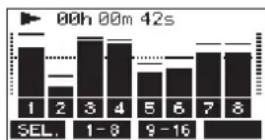
Track level meters (1-8, 10/11-11/12)
The show track playback signal or track input signal levels. Channels for which the MODE switch is set to "MTR" will show the following signal levels according to the operation status.
| REC button | Transport status | Level meter display |
| Unlit PLAY Track playback signal | ||
| Blinking (recording standby) | PLAY | Playback signalTrack input + playback signal |
| Stop Track input | signal | |
| Blinking (recording) | Record Track input | signal |
NOTE
When the playback signal is shown, the level of the recorded signal on the track is being shown, so the levels of the level meters cannot be changed.
When the input signal is shown, adjusting channel 1-8, 9/10-11/12 GAIN knobs will change the levels of the level meters.
TIP
Please see "Meter Screen details" on page 28 for details about the Meter Screen.
MAIN MIX L/R level meters (MAIN)
These show the MAIN MIX L/R bus levels.
Recording
This unit can simultaneously record up to 16 tracks, including 14 channel inputs and the MAIN MIX L/R bus.
The following recording operations assume that mics, guitars and other things to record have been connected to the unit, input signals have been assigned as track recording sources, monitoring equipment has been connected and a song has been loaded.
- Press the REC buttons for channel to record.
Press the REC button to start recording standby. It will blink red.
When a MODE switch is set to "MTR", the signal from the input jack on that channel will be recorded. (See "Setting the MODE switch" on page 38)
NOTE
- The MAIN MIX L/R bus does not have a REC button, but it is always in recording standby. The signals of the MAIN MIX L/R bus will always be recorded if the button is pressed.
-
When the REC buttons of tracks that already have recordings is blinking, press them to make them unlit.
-
Set the recording levels.
Use the GAIN knobs of each channel to adjust their input levels.
Watch the SIG indicators above and to the right of the GAIN knobs, and set the levels suitably.
At the same time, check that the sound heard through headphones or a monitoring system is not distorted and that an unintended effect has not been set.
NOTE
If an input is too loud, the SIG indicator will light red.
If the SIG indicator lights red even when its GAIN knob is turned all the way to the left, lower the volume of the input source.
- Press the button.
Recording will start and the and buttons will light.
The REC buttons for tracks to record will stop blinking and stay lit.
-
When recording has completed, press the button.
-
Use the / buttons and button, for example to locate to a position you want to check.
TIP
For details about the locate function, see "Locate function" on page 42.
- Press the / button to play the recorded tracks.
Use the channel and MAIN faders to adjust the playback levels.
Use the volume of the monitoring system to adjust the final monitoring level.
Use the PAN knobs of each channel to set the position of each track signal between left and right speakers.
NOTE
- The channel PAN knobs and channel faders control the playback output signals of already recorded tracks or the monitoring volume of input signals. They do not control signals to be recorded.
- If you are not satisfied with a recording, repeat the above procedure from the beginning.
Undoing operations
If you make a mistake operating the unit or want to do a recording over, for example, the operation last conducted can be undone. Editing, recording and other operations can be undone. The following types of operations can be undone.
- Recording operations
- Auto punch in/out operations
- Track clearing operations
If a song is loaded or the unit is turned off, Information used for undoing and redoing will be lost, so undoing and redoing previous operations will no longer be possible.
NOTE
Files used for undoing are temporarily saved on the SD card. If you want to delete those files to make more space on the SD card, reload the current song on the SONG Screen.
Undoing the previous operation
- When the Home Screen is open, press the F3 Hoc
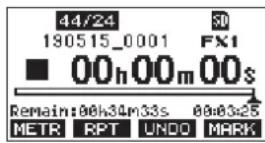
The following confirmation pop-up message will appear.
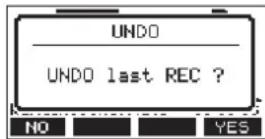
- Press the F4 WEE to return to the state before the previous operation.
NOTE
To cancel undoing, press the F1 H0 on.
Redoing an undone operation
- After undoing, when the "Repairs on the Home Screen, press the F3 button.
The following confirmation pop-up message will appear.
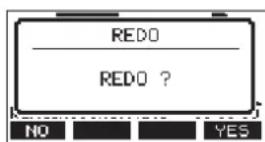
- Press the F4 YES to restore the previous operation and return to the state before undoing.
NOTE
To cancel redoing, press the F1 NO on.
Using the built-in effects
This unit has built in effects, so you can apply effects without an external effect device.
Channels 1-8 and 9/10-11/12 can have an effect applied. Their signals are sent to the built-in effect by the FX bus.
The return signal is returned to the MAIN MIX L/R and MONITOR OUT 1/2 buses.
- Use the FX knobs of each channel to adjust the levels of signals sent to the FX bus.
- Use the EFFECT Screen to select the type of effect. (See "Setting the built-in effect" on page 40)
- Use the FX fader and TO MON 1/TO MON 2 knobs to adjust the return levels for the MAIN MIX L/R and MONITOR OUT 1/2 buses.
- When the AFL switch is on (pushed in), use the CR fader/PHONES knob to adjust the return level.
NOTE
The sound with the effect applied can be monitored from the CONTROL ROOM L/R jacks or PHONES jack.
Setting the built-in effect
- Press the SELECT button to open the EFFECT Screen.
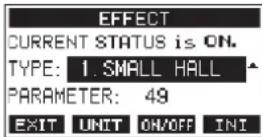
- Turn the MULTI JOG dial, and set the built in effect type.
Options:1.SMALLHALL(default),2.LARGEHALL,
- SHALL ROOM, 4. LARGE ROOM
5.PLATE,6.STUDIO - LIVE,8.SHORT DELAY
- DELAY,18. PING PONG
11.CHORUS, 12.FLANGER -
DELAY+SHALL, 14. DELAY+LHALL
15.CHORUS+SHALL,16.CHORUS+LHALL -
Press the MULTI JOG dial to select the PARAMETER item.
-
Turn the MULTI JOG, and adjust the set effect. You can check the effect as you change it.
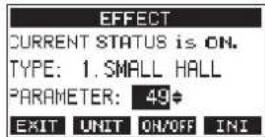
NOTE
- Press the F2 UNIT button to show the unit for the currently selected effect. The effect itself is the same regardless of whether the PARAMETER or the unit are shown.
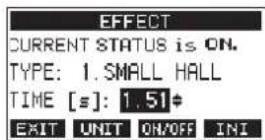
-
Press the F4 INI button to set the PARAMETER value for the currently selected TYPE to its default.
-
Press the F3 to turn the built-in effect on/off. The CURRENT STATUS item shows the state of the built-in effect.
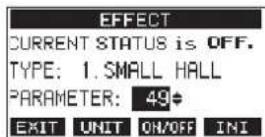
- Press the F1EXT to return to the Home Screen.
6 - Recorder functions
Locate function
When the Home Screen is open, you can use the MULTI JOG dial to set the locate point.
On the Home Screen, the current position of the recorder is shown as a time in hours (h), minutes (m) and seconds (s). By setting the time in this display area, you can change the current position of the recorder.
Changing the playback position
When the Home Screen is open and the recorder is stopped or playing back, you can use the MULTI JOG dial to set the locate point.
Using the direct locate function to locate
- When the Home Screen is open and the recorder is stopped, press the MULTI JOG dial to enable direct locate mode. A cursor will appear at the location to be changed in the recorder counter.
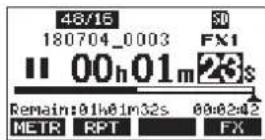
- Turn the MULTI JOG dial to change a value, and press the MULTI JOG dial to confirm it and move the cursor to the next item.
- Change the seconds, minutes and hours in that order to move to that time as the current recorder position.
- Press the / button to start playback or the button to start recording from that position.
Repeat playback function
The repeat playback function can be used to play something over and over.
When the Home Screen is open, press the F2 EPT on to set the repeat playback function.
Nothing shown: The current song will keep playing regardless of whether the area is recorded or not.
S1 The current song will play and then stop. 口 1 The current song will play repeatedly.
Punch in/out function
Punching in and out is a technique used to replace parts of already recorded tracks.
You can start playback of a recording, switch to recording when it reaches the part to be replaced (punch in), and then switch back to playback when the end of that part is reached (punch out) and stop after two seconds.
-
Determine the part you want to replace in advance. Select a point where the replacement audio can be combined well with the original track audio.
-
Press the REC button for the track with the part to be replaced to enter recording standby (REC button blinks).
NOTE
- Set the punch in and out points at least one second apart.
-
Punch in recording is not possible when the REC button is on for eight or more channels.
-
Start playback before the part to be replaced.
-
When the part to be replaced is reached, press the button, and perform the part. Recording will start (punch in).
- When the end of the part to be replaced is reached, press the button. The unit will switch to playback and then stop after two seconds.
Using the footswitch to punch in/out
By connecting the recommended TASCAM RC-1F footswitch (sold separately) to the FOOTSWITCH jack on the top of the unit, you can use it to punch in/out.
To use a footswitch to punch in/out, you must set the foot switch function assignment to "PUNCH IN/OUT" in advance. (See "Setting up the footswitch" on page 43)
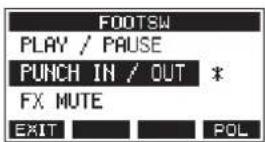
At step 4 above, press the footswitch instead of the button, and at step 5 press it again instead of the button.
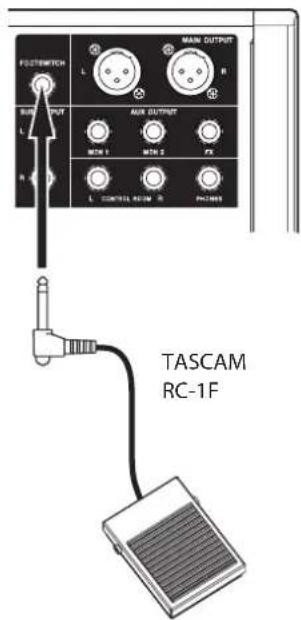
NOTE
This unit was designed to be used with unlatched (momentary) footswitches that have to be pushed to function (shorted when pushed).
Setting up the footswitch
Use the FOOTTSW Screen to set the footswitch.
- Open the F00TSW Screen when the recorder is stopped. (See "Menu operation procedures" on page 29)
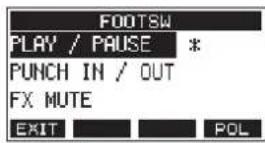
- Turn the MULTI JOG dial to select the function to assign to the footswitch.
| Option Meaning | |
| PLAY / PRISE (default) | Press to start playback when stopped or paused. Press to pause when playing. |
| PUNCH IN / OUT | Press during playback to punch in. Press when recording to punch out. |
| FX MUTE | Mute the built-in effect signal. |
- Press the MULTI JOG dial to confirm the assigned function. A appears next to the selected function.
- Press the F1 EXIT button to return to the HENU Screen.
Setting the footswitch polarity
The setting of this unit can be changed according to the polarity of the footswitch being used.
- Open the F00TSW Screen when the recorder is stopped. (See "Menu operation procedures" on page 29)
- Press the F4 POL button to open the POLARITY Screen, and turn the MULTI JOG dial to set the footswitch polarity. Select "NORMALLY OPEN" or "NORMALLY CLOSED" so that the actual footswitch movement matches that shown by the illustration on the screen.
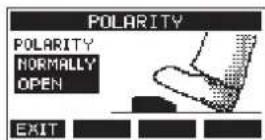
Options: NORMALLY OPEN (default), NORMALLY CLOSED
NOTE
When using a TASCAM RC-1F, set the POLARITY switch to N. OPEN.
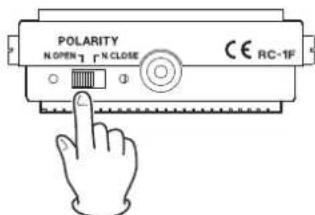
- Press the F1 EXIT button to return to the F00TSW Screen.
Automatic punch in/out function
Using the automatic punch in/out function, you can automatically record between punch in and out points set in advance.
To use the automatic punch in/out functions, start playback from a pre-roll point before the punch in point where recording will start.
Recording will stop when the punch out point is reached, but playback will continue for two seconds before stopping.
Setting the punch in/out points
- Open the AUTO PUNCH Screen when the recorder is stopped. (See "Menu operation procedures" on page 29)
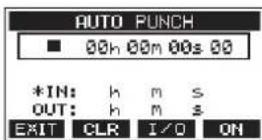
- Press the button to start playback.
- Press the MULTI JOG dial to set the punch in and out points. The set points are shown next to the IN and OUT items.
NOTE
- You can also turn the MULTI JOG dial to set the points.
-
Set the punch in and out points at least one second apart.
-
Press the F2 CLR button to clear set punch in and out points.
-
Press the F3 I/O button to select either the punch in or out point. An will appear next to the selected item.
-
Press the button to stop playback.
- Press the F4 to turn the automatic punch in/out function on.
The PUNCH pears on the AUTO PUNCH Screen.
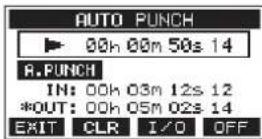
- Press the F1 EXIT button to return to the MENU Screen.
TIP
- By setting only the punch in point, you can start recording with automatic punch in and then continue recording until you press the button to stop.
- By setting only the punch out point, you can start recording by pressing the button and then stop recording with automatic punch out.
Setting a pre roll point
When using automatic punch in, the amount of playback time before the punch in point can be set (pre roll point).
- Select A.PUNCH PRE ROLL on the HENU screen to open the A.PUNCH PRE ROLL screen. (See "Menu operation procedures" on page 29)
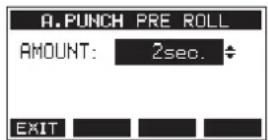
- Set the pre-roll point.
| Option Meaning | |
| 0FF | Do not locate to a point before the punch in point. Manually moving to somewhere before the punch in point beforehand will be necessary. |
| 1sec. - 10sec. (default: 2sec.) | Locate to a pre roll point the set time before the punch in point and start playback. |
- Press the F1 EXIT button to return to the HENU Screen.
Rehearsing punching in and out
You can rehearse before punch in/out recording. In rehearsal, recording will not occur, but monitoring will be the same as if recording.
- Press the MENU button when the recorder is stopped to open the Home Screen.
Confirm that the F. PUNICENTears on the Home Screen.
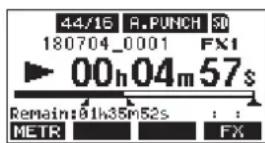
- Press the REC buttons for the tracks you want to record using automatic punch in/out.
NOTE
Punch in recording is not possible when the REC button is on for eight or more channels.
- Press the button.
Auto punch in/out rehearsal starts.
- The transport starts playback from the pre-roll point. Both track playback and input source signals can be monitored. (See "Setting a pre roll point" on page 44)
- When the punch in point is reached, only the input source signal will be monitored. The button will blink showing that it is rehearsal mode.
- When the punch out point is reached, both track playback and input source signals will be monitored. The button will become unlit.
- Playback will automatically stop two seconds after the punch out point. The button will blink.
Rehearsal can be repeated.
Using automatic punching in and out
Follow these procedures to punch in and out automatically and record.
- Confirm that the R.FUANYears on the Home Screen.
- Press the REC buttons for the tracks you want to record using automatic punch in/out.
NOTE
Punch in recording is not possible when the REC button is on for eight or more channels.
-
Press the button.
-
The transport starts playback from the pre-roll point. Both track playback and input source signals can be monitored. (See "Setting a pre roll point" on page 44)
- When the punch in point is reached, only the input source signal will be monitored. The button will light.
- When the punch out point is reached, both track playback and input source signals will be monitored. The button will become unlit.
- Playback will automatically stop two seconds after the punch out point. The button will blink.
Clearing tracks
The selected track will be cleared.
- Open the TRACK CLEAR Screen when the recorder is stopped. (See "Menu operation procedures" on page 29)
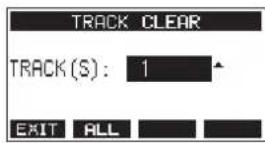
- Turn the MULTI JOG dial to select the track to clear, and press the MULTI JOG dial.
A confirmation message will appear.
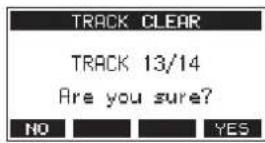
NOTE
Press the F2 BLL on to open a message asking to confirm that you want to clear all tracks.
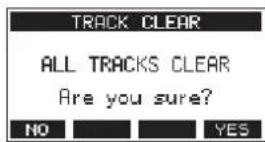
- Press the F4 key to clear the track(s).
NOTE
- To cancel clearing tracks, press the F1 NO button.
-
Undoing is possible only for the last cleared track.
-
After clearing tracks completes, the TRACK CLEAR Screen will reopen.
Importing tracks
You can import audio files that you have to tracks in the current song.
Files that can be imported to tracks must be WAV (BWF) format ("WAV" extension).
To import an audio file with a different format (.mp3, etc.) to this unit, it must be converted to a WAV file that matches the format of the song it will be imported into beforehand.
- Connect this unit with a computer. (See "Connecting with a Computer" on page 51)
- Use the computer to copy WAV files on it to this unit's MUSIC folder.
-
Follow the proper disconnection procedures on the computer before disconnecting the USB cable. (See "Disconnecting" on page 52)
-
Open the TRACK IMPORT Screen when the recorder is stopped. (See "Menu operation procedures" on page 29) WAV files in the MUSIC folder will be shown.
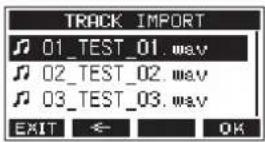
-
Select a WAV file to import.
-
Turn the MULTI JOG dial to select a WAV file.
- Press the MULTI JOG dial when a folder is selected to show its contents.
- Press the F1 EXIT button to return to the HENU Screen.
-
Press the F2 button to move up one level.
-
Press the F4 OK h.
A confirmation message will appear if the bit length of the WAV file to be imported differs from the current song.
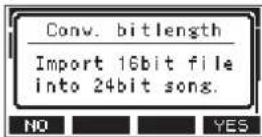
Confirmation message example
- Press the F1 NO button to return to the TRACK IMPORT screen.
- Press the F4 YES button to continue to the TRACK IMPORT screen. In this case, the file will be imported and the bit length will be changed to match the current song.
NOTE
- If there are no openings for tracks to import, an "Import error. No track" pop-up message will appear.
-
To cancel importing a track, press the F1 No button.
-
Importing is not possible under the following conditions.
-
Not enough open space is available on the SD card
- There are no empty tracks
If the sampling frequency of the WAV file you are trying to import differs from the current song
Example: Trying to import a 48kHz WAV file when the current song is 44.1kHz
If there is no file that can be imported, a "No File" pop-up message will appear.
- Select the track to import, and press the F4 YE6 to import it.
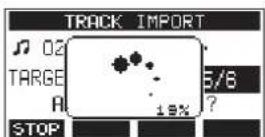
When importing completes, the TRACK IMPORT Screen reopens.
NOTE
- Press the FSTOP ton to cancel importing.
The part of the track imported before canceling will remain; it will not be deleted.
Mixing down
A mixdown is when the volume, panning and other settings of individual track recordings are adjusted and combined into a well-balanced stereo mix.
The MAIN MIX L/R bus does not have a REC button, but it is always in recording standby. Pressing the button always records the signals on this bus.
By mixing down with the desired adjustments after recording, stereo mix files can be created from the track audio recorded on each channel.
-
Adjust the recorded sound and play it back.
-
Set the MODE switches of the recorded tracks to "MTR".
- Turn on the MAIN switches of the recorded tracks. (Turn off the MAIN switches of unrecorded tracks.)
- While using speakers or headphones, for example, to listen to the sounds of all the recorded tracks being output from the MAIN OUTPUT jacks, adjust the channel faders and EQ and PAN knobs.
After confirming, stop playback at the beginning of the song.
-
Mix down the playback sound.
-
With the REC buttons off (unlit) on each channel, press the
- button to create a stereo mix from the playback sounds of all the recorded tracks.
- During mixdown, all fader and EQ and PAN knob adjustments will be recorded from the time that the button is pressed and track playback is started until the button is pressed to stop playback.
This will overwrite the existing stereo file.
Stereo mix export function
MAIN MIX L/R bus recording files (mono) can be converted to a single stereo file.
Converted stereo files are saved in the MUSIC folder.
Saved files are named according to the song name. For example, the file name will be "181228_0002_2-HIH_01.wav" if the song name is "181228_0002".
If the size of the converted file would exceed 2 GB, multiple files will be created with numbers like "02" and "03" at their ends.
- Load the song to be exported as a stereo mix in advance. For details about loading songs, see "Loading Songs" on page 35.
- When the recorder is stopped, open the HENU screen and select the STEREO HIX EXPORT item.
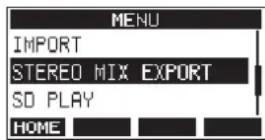
For details about menu operation, see "Menu operations procedures" on page 29.
- Press the MULTI JOG dial to open the STEREO MIX EXPORT screen.
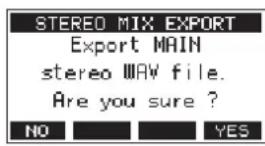
- Press the F4 YE5 to start conversion.
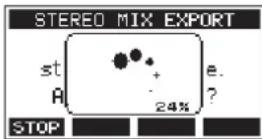
NOTE
- If a converted file already exists, a message to confirm overriding appears.
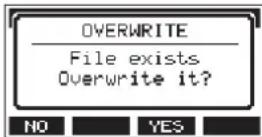
Press the F3 YEB on to delete the existing file and start conversion. This operation cannot be undone.
- Conversion is not possible if no MAIN MIX L/R bus file has been recorded. The message shown below will appear.
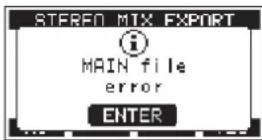
- During conversion, press the F1 STOP button to cancel conversion. A file with the part converted before canceling will remain.
- When conversion completes, the HENU Screen will reopen.
NOTE
Converted files can be played using this unit's SD PLAY mode. For details about playback with the SD PLAY mode, see "Playing WAV files on SD cards (SD PLAY mode)" on page 50.
Marks can be used to cue for playback, for example.
In addition to use with this unit, mark information added to WAV files can be used with software, for example, that supports the BWF format.
Using mark functions
In order to set and clear marks, the Home Screen F4 button function must be switched from FX MARK
- On the SYSTEM Screen, select KEY FUNCTION to open the KEY FUNCTION Screen. (See "Menu operation procedures" on page 29)
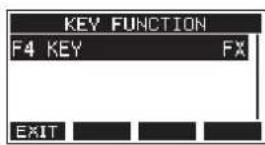
- Press the MULTI JOG dial to open the F4 KEY Screen.
- Turn the MULTI JOG dial to select MARK.
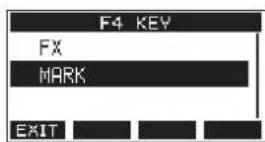
- Press the MULTI JOG dial to confirm the setting. The KEY FUNCTION Screen reopens.
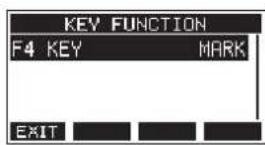
NOTE
When the F4 n function has been changed, the built in effect can be turned on/off with the F3 on off on the EFFECT Screen. (See "Setting the built-in effect" on page 40)
Adding marks
When playing or recording, press the F4 n to add a mark at the current point.
When a mark is added, a pull-up showing the mark number appears at the bottom of the display.
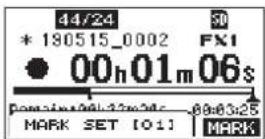
Mark 1 cons appear below the playback position bar where marks are set.
The [ ] in the mark name is a number given to all marks that is incremented in order.
- Marks added during recording will automatically be saved in the song when recording stops.
- Marks added during playback will not be automatically saved. Save song information after stopping playback to save mark data. (See "Saving the current song" on page 35)
NOTE
If an con appears at the beginning of a song name, it has unsaved mark data. Save the song information to save the mark data. (See "Saving the current song" on page 35)
Moving between marks
When stopped, paused or playing back, press the or button to move (skip) to the previous or next mark. When skipping, the mark name appears in a pull-up at the bottom of the display.
Clearing individual marks
Marks can be cleared when stopped or paused.
- Skip to a mark that you want to delete when stopped or paused. (See "Adding marks" on page 47)
- Press the F4 MGRK to open the Mark Clear confirmation screen.
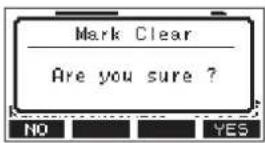
- Press the F4 YES to clear the mark.
NOTE
- Repeat steps 1 - 3 to clear multiple marks.
To clear all marks in the current song, select the CLR ALL MARKS item from the menu list shown on the SONG Screen. (See "Clearing all marks" on page 35)
Viewing information
Use the INFORMATION screen to view various types of information about the unit. Follow the procedures below to view the INFORMATION screen.
- On the SYSTEM Screen, select INFORMATION to open the Information Screen. (See "Menu operation procedures" on page 29)
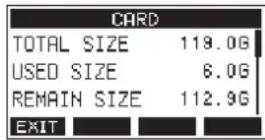
The Information Screen has 3 pages. The CARD page opens first.
- Turn the MULTI JOG dial to cycle through the CARD, SONG and F I R M W A R E screens.
CARD Screen
Shows the use status of the currently loaded SD card.
50HG Screen
Shows the number of songs on the loaded SD card.
FIRWARE Screen
Shows the unit's system firmware version.
- Press the F1 EXIT button to return to the HENU Screen.
CARD Screen
The CARD Screen shows the status of the currently loaded SD card.
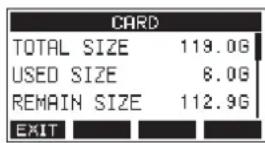
TOTAL SIZE
Shows the total amount of space on the SD card.
USED SIZE
Shows the amount of space used on the SD card.
REMAIN SIZE
Shows the amount of space unused on the SD card.
SONG Screen
The SONG Screen shows the use status of the MTR folder.
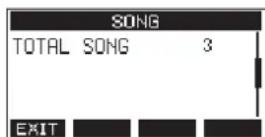
TOTAL SONG
This shows the total number of songs in the MTR folder.
FIRMWARE Screen
The F I R H W A R E S c r e n s h o w s t h e f i r m w a r e v i s i o n.

VERSION
This shows the system firmware version of this unit.
Setting the song name format
Set the name format used by the unit for created songs.
- On the SYSTEM Screen, select SONG NAME to open the SONG NAME Screen. (See "Menu operation procedures" on page 29)
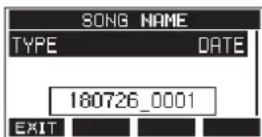
- Set the file name format.
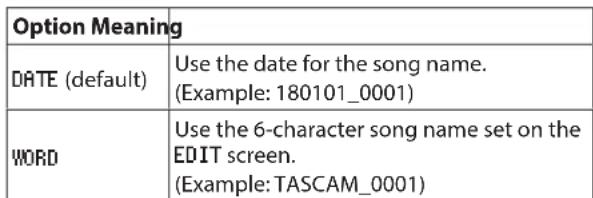
NOTE
The date is set using the unit's internal clock. (See "Setting the built-in clock date and time" on page 33)
Setting the WORD item
To set the characters, select WORD on the TYPE Screen. An EDIT item will appear on the SONG NAME Screen that can open the WORD EDIT Screen.
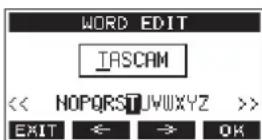
For details about how to set characters, see "Editing text" on page 36.
9 - Settings and Information
Setting MIDI time code operation
When connected to a computer, this unit can send MIDI time code (MTC) as a USB MIDI device.
When MIDI time code is enabled, it sends quarter-frame messages during playback and recording. It sends full messages when locating.
A DAW, for example, can be set to synchronize with the MIDI time code from this unit so it can operate in time with the recorder of this unit.
For details, check the operation manual of that application being used.
-
When the recorder is stopped, on the SYSTEM Screen, select MIDI TIME CODE to open the MIDI TIME CODE Screen. (See "Menu operation procedures" on page 29)
-
Select MODE, and press the MULTI JOG dial. This opens the MODE Screen.
- Turn the MULTI JOG dial to set MIDI time code operation.
Option Meaning
OFF (default) MIDI time code is not transmitted.
HTC MASTER MIDI time code is transmitted.
The MIDI time code frame type sent by this unit is 30 frames per second (non-drop).
Restoring factory default settings
You can restore the various settings stored in the memory of the unit to their factory default values.
Use the following menu procedures to do so.
- On the System Screen, select INITIALIZE to open the INITIALIZE Screen. (See "Menu operation procedures" on page 29)
- Press the F4 button to restore the factory default settings.
-
When the setting completes, the S15TE1 Screen will reopen.
-
Press the F1 button to cancel execution.
- The date and time setting is not initialized.
Formatting SD cards
Formating erases all music files on the SD card and automatically creates new MTR, MUSIC and UTILITY folders as well as a tascam_m.sys file.
- Formatting an SD card erases all the data on it. This cannot be undone.
-
Always use this unit to format media to be used with it. Operation of this unit might be affected when using an SD card that has been formatted by a computer or other device.
-
On the SYSTEM Screen, select HEDIA FORMAT to open the HEDIA FORMAT Screen. (See "Menu operation procedures" on page 29)
QUICK: Execute quick formatting.
ERASE (Recommendation): Erase and format the card.
- Select the format method, and press the MULTI JOG dial. A confirmation message will appear on the QUICK or ERASE Screen.
Shown when QUICK selected
Press the F1 button to cancel formatting and return to the previous screen.
3. Press the F4 button to start formatting.
4. When formatting is complete, the SYSTEM Screen will reopen.
-
Pressing the F1 button during an ERASE format will cancel erasure and execute a QUICK format instead.
-
The writing speeds to SD cards and other storage media that use flash memory tend to decrease after writing occurs repeatedly.
If the writing speed decreases, this could have a negative impact on recording.
Using the ERASE function of this unit should restore the writing speed of the SD card.*
For this reason, we recommend using the ERRSE function at the following times.
- Whenever the card has been written to until it became completely full
-
On a regular schedule (about once per month)
Before starting important recordings -
Writing speed might not be restored depending on the SD card condition (including malfunction and age).
Playing WAV files on SD cards (SD PLAY mode)
The WAV files in the MUSIC folder on an SD card can be played back. (See "Loading WAV files from a computer" on page 52)
To play files recorded on this unit, use the stereo mix export function to convert the recorded (mono) files to a single stereo file. Then, use the SD PLAY mode to play it. (See "Stereo mix export function" on page 46)
The following audio file formats can be played back in SD PLAY mode.
WAV:44.1/48kHz, 16/24-bit
BWF:44.1/48kHz, 16/24-bit
NOTE
Playback signal is sent from channels 13 and 14.
- Set the channel 13/14 MODE switch to "MTR".
- Set the channel 13/14 MON 1/MON 2 and BAL knobs and the channel fader to their middle positions.
- Open the SD PLAY Screen when the recorder is stopped. (See "Menu operation procedures" on page 29)
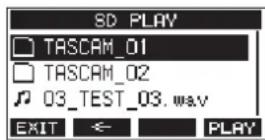
-
Select a file to play back.
-
Turn the MULTI JOG dial to select a WAV file.
- Press the MULTI JOG dial when a folder is selected to show its contents.
- Press the F1 EXIT button to return to the MENU Screen.
- Press the F2 button to move up one level.
NOTE
Only WAV files can be played back.Unsupported files will not be shown.
- Press the F4 PLAY button or button to start WAV file playback.
The SD PLAY Screen will show playback status.
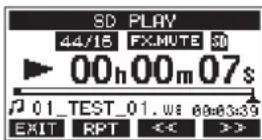
- Press the F1 EXIT button to return to the file selection screen.
- Press the F2 RPT button to turn the repeat playback function on and select the repeat playback mode.
| Display Meaning | |
| No indicator | The folder that contains the currently playing WAV file will play back, and then playback will stop. |
| 1 | The currently playing WAV file will play back repeatedly. |
| Fill | The folder that contains the currently playing WAV file will play back repeatedly. |
- Press the F3 button to skip to the beginning of the WAV file. Press near the beginning of the WAV file to skip to the beginning of the track before it.
-
Press the F4 >> button to skip to the beginning of the next WAV file.
-
Press the F1 EXIT button twice to return to the MENU Screen.
10 - Using a computer to transfer data
By connecting this unit with a computer using a commercially-available USB cable, you can back up song data on the SD card in the unit to the computer, as well restore backed up song data to the unit. You can also export track and stereo master files from songs to the computer and import audio files from the computer.
Backed up data can be restored to other Model 16 units. Since this allows you to freely move files between Model 16 units, you can easily conduct additional recording or mixing at different locations.
ATTENTION
You can conduct the same operations by removing the SD card from the unit and connecting it directly to a computer or by using a card reader instead of using USB to connect the unit and the computer. Turn the unit's power off or stop operation before removing the SD card.
This unit can transfer the following data to a computer.
Entire songs
This unit can transfer all the data for a song from the MTR folder to a computer. This operation is called "backing up". Data backed up to a computer can also be transferred to the MTR folder, and restored as a song file. This operation is called "restoring".
ATTENTION
Do not change names, delete or otherwise alter individual files inside the MTR folder. Doing so could prevent loading data as a song and make proper recording and playback operations impossible.
WAV files
By placing WAV files from the computer into the MUSIC folder, you can import them to song tracks. Moreover, WAV files in the MUSIC folder can be played back in SD PLAY mode.
Connecting with a Computer
To connect with a computer, use a Type-A to Type-B USB2.0 cable to connect the USB port on the back of this unit to a USB port on the computer.
The USB cable can be connected either before or after turning this unit on.
ATTENTION
-
If using this unit as external storage media with a computer, recorder functions, including recording and playback, cannot be used when in USB storage mode.
-
The unit should be connected directly with the computer instead of via a USB hub. Moreover, noise could be picked up if the cable is too long.
-
Use a USB cable (Type-A to Type-B) to connect the computer to this unit's USB port.
-
On the MENU Screen, select STORAGE to open the STORAGE Screen. (See "Menu operation procedures" on page 29)
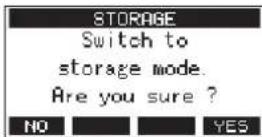
- To connect with the computer, press the F4 YES h. The unit enters USB storage mode and connects with the computer.
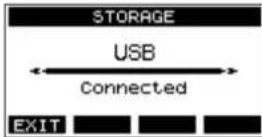
Make sure that the SD card is inserted properly.
- This unit appears on the computer as an external drive named TASCAM_M (if the card was formatted by this unit).
NOTE
Follow these procedures to open This PC.
Windows 10
Left-click the Windows Start button, and from Windows System select PC.
Windows 8.1
Left-click the Windows Start button, click the down arrow icon on the Start screen, and select This PC under Windows System in the application list.
Windows 7
Left-click the Windows Start button, and select Computer in the Start menu.
- Click the TASCAM_M drive on the computer to show the MTR, MUSIC and UTILITY folders.
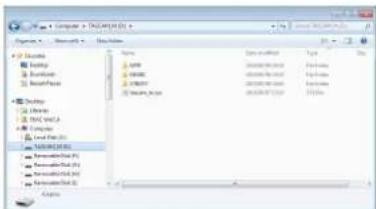
ATTENTION
- This unit receives power through its power cord. It cannot be powered by USB.
- Do not disconnect the power cord or turn off the power during data transfer. Data will be lost if the power is interrupted during transfer. Lost data cannot be restored.
Do not change the names of folders in TASCAM_M.
NOTE
-
Do not change names, delete or otherwise alter individual files inside the MTR folder.
The UTILITY folder is used when updating the unit system, for example. -
Press the F1 to return to the Meter Screen.
Disconnecting
Before disconnecting the USB cable, use the proper procedures for your computer to unmount the unit (as an external drive). See the computer's operation manual for instructions about how to unmount an external volume.
Press the F1 EXYAT on to disconnect from the computer and return to the Home Screen.
Loading WAV files from a computer
- Use a USB cable (Type-A to Type-B) to connect the computer to this unit's USB port. (See "Connecting with a Computer" on page 51)
- Click the "Model 16" drive on the computer to show the MTR, MUSIC and UTILITY folders.
- Drag and drop files on the computer that you want to transfer to the unit to the MUSIC folder.
ATTENTION
- The UTILITY folder is used when updating the unit system, for example.
- Do not change names, delete or otherwise alter individual files inside the MTR folder. Doing so could prevent loading data as a song and make proper recording and playback operations impossible.
TIP
- You can manage the content of MTR or MUSIC folders from the computer.
- You can create sub folders in the MUSIC folder up to the second level for use with this unit. The Model 16 cannot recognize subFolders and files located at the third layer level or below.
11 - USB audio interface functions
Installing the dedicated software
To use this unit as a USB audio interface with a Windows computer, dedicated software must be installed on the computer.
Download the latest software from the product page on the TEAC Global Site (http://teac-global.com/).
Installing the dedicated software will install a driver and a Settings Panel application.
ATTENTION
Before starting to install software, quit other applications.
NOTE
With a Mac, the standard OS driver will be used, so installation of dedicated software is not strictly necessary. We recommend installing this software, however, because it has a notification function about updates for the unit firmware and software.
Installing the Windows dedicated software
Follow the procedures below to install the Windows dedicated software.
ATTENTION
- Complete installation of the Windows dedicated software on the computer before connecting the unit to it with the USB cable.
- If you connected the unit to the computer using the USB cable before installing the Windows dedicated software and the "Found New Hardware Wizard" launched, close the Wizard and disconnect the USB cable.
Windows dedicated software installation procedures
- Download the latest Windows dedicated software from the TEAC Global Site (http://teac-global.com/) and save it on the computer to be used with the unit.
- Uncompress the saved software (zip file) on the computer desktop or another location.
- Double-click the "TASCAM_model_Mixer Installer_x.xx.exe" file in the folder that appears after uncompressed to launch the installation software.
ATTENTION
If you open a zip file without decompressing it and double-click the "TASCAM_model_Mixer Installer_x.xx.exe" file in the folder that opens, installation will not start. Right-click the zip file and select "Extract All", for example, to decompress it and then try again.
-
When a Security Warning or User Account Control screen appears, click the Yes button.
-
Read the contents of the User License Agreement, and select "I accept the agreement" if you agree to the terms. Then, click the Next > button.
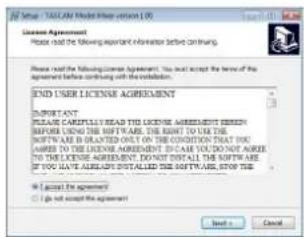
- Next, click the Install button.

- Next, click the Install button to start installation. (Windows 7 only)
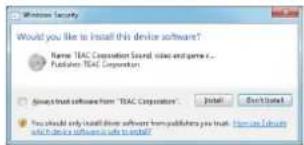
- The following screen appears when installation has completed. The following screen appears when installation has completed.
Click the Finish button.
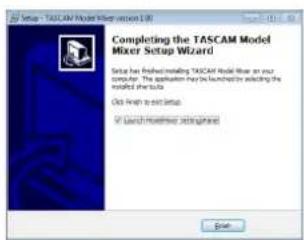
The installer will quit and the Windows Settings Panel will launch.
NOTE
The first time you connect the unit by USB to the computer after installing the software, installation of the device driver will be executed. Some time might be necessary before the unit is recognized because Windows Update will be automatically searched at this time. If the unit is still not recognized after a while, open the software installation screen from the notification area at the bottom right of the computer display, and click "Skip obtaining driver software from Windows Update" to stop the search.
11 - USB audio interface functions
Installing the Mac dedicated software
NOTE
-
Install the Mac dedicated software on the computer before connecting the unit to it with the USB cable.
-
Depending on the Gatekeeper setting, a warning message might appear during installation. Please see "Working with Gatekeeper" on page 54 for information about Gatekeeper.
Mac dedicated software installation procedures
- Download the latest Mac dedicated software for the operating system you are using from the TEAC Global Site (http://teac-global.com/) and save it on the computer to be used with the unit.
- Double-click "TASCAM_MODEL MIXER Installer_x.xx.dmg", which is the saved disk image file for the Mac dedicated software, and double-click "ModelMixer Installer pkg" inside the folder that opens.

ModelMixer Installer pkg
NOTE
Depending on the computer's settings, the downloaded zip file might not have been uncompressed automatically. In this case, uncompressed the zip file first and then double-click the disk image file.
- When the installer starts, click the Continue button.
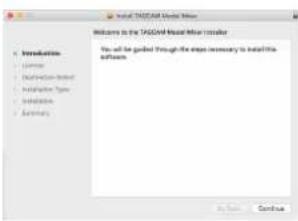
- Next, select the desired language and click the Continue button.
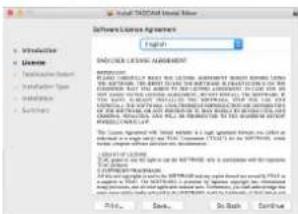
- Click the Read License button and check the contents of the Software License Agreement. If you agree to the contents of the license, click Agree.
Then, click the Next button.
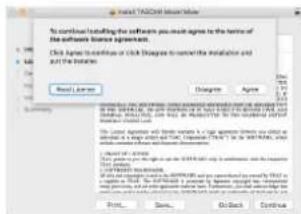
- Next, click the Install button to start installation.

- The following screen appears when installation has completed.
Click the Close button.
Working with Gatekeeper
When using macOS, depending on the Gatekeeper security function setting, a warning message might appear during installation.
The solution depends on the warning message shown.
See the following explanations for details.
When the Gatekeeper setting is "Allow applications downloaded from: the Mac App Store"
The following security warning might be shown: "ModelMixer Installer pkg' can't be opened because it was not downloaded from the Mac App Store."
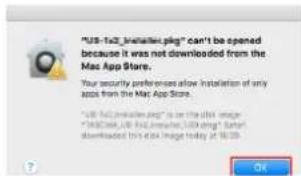
In this case, click the "OK" button to close the message. Then, control-click (or right-click) the file and click Open in the menu.
When the "ModelMixer Installer,pkg' can't be opened because it was not downloaded from the Mac App Store. Are you sure you want to open it?" security warning message appears, click the Open button.
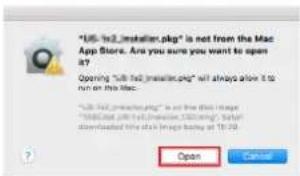
This warning message might also appear when the Gatekeeper setting is something other than "Allow applications downloaded from: the Mac App Store."
The file still might not open and "ModelMixer Installer.png" can't be opened because it was not downloaded from the Mac App Store." might appear again.
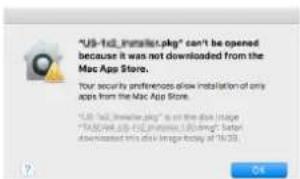
In this case, copy the file from the folder where it is to the desktop or another folder, and then open it. Alternatively, change the Gatekeeper settings to "Allow apps downloaded from: App Store and identified developers" and try opening it again.
When the Gatekeeper setting is "Allow applications downloaded from: the Mac App Store"
"TASCAM_MODEL MIXER Installer_x.xx.dmg' is an application downloaded from the Internet. Are you sure you want to open it?" might appear as a security warning message. In this case, click the Open button.
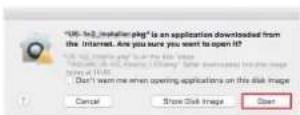
Changing the Gatekeeper setting
The Gatekeeper setting can be changed using the Allow applications downloaded from: item on the General page of the Security & Privacy pane of the System Preferences.
To change this, you must click the lock icon ( ) at the bottom left and enter a password to unlock the settings.
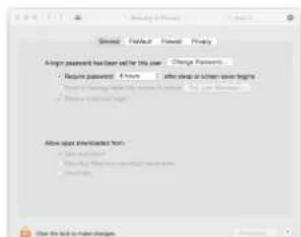
This setting will lock again when you close the System Preferences by clicking the button or typing command-Q, for example, or when you click Show All to close the open pane.
ATTENTION
Changing the Gatekeeper settings could result in security risks.
If you changed the Gatekeeper setting to decrease security (use one of the lower settings), set it back to the original setting after updating the driver and/or firmware.
Uninstalling the dedicated software
NOTE
Normally, there is no need to uninstall the dedicated software. Follow these procedures if a problem occurs or you no longer intend to use the unit with the computer.
Uninstalling the Windows dedicated software
- Open the "Uninstall or change a program" screen using the procedures for the operating system being used (Windows 10/Windows 8.1/Windows 7).
- Select TASCAM Model_Mixer x.xx from the list, and double-click it.
- Then, follow the instructions that appear on the screen.
Uninstalling the Mac dedicated software
Delete TASCAM Model_Mixer from the Application folder to complete uninstallation.
Opening the Settings Panel
Open the Settings Panel in the following manner.
Windows
From the Start menu select TASCAM Model Mixer under TASCAM.
Mac
-
On the Launchpad, click TASCAM Model Mixer.
-
Using the Finder, open the Applications folder and click TASCAM Model Mixer to open the Settings Panel.
- In the Audio Devices window of the Audio MIDI Setup application, control-click (right-click) TASCAM Model Mixer. Alternatively, click the button and click Configure device... from the menu that appears to open the Settings Panel.
Settings Panel overview
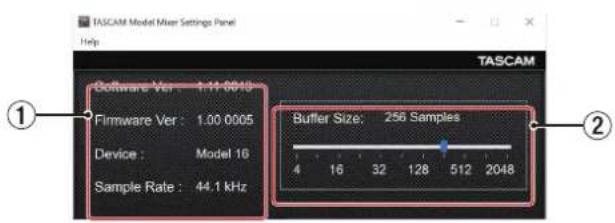
Windows Settings Panel
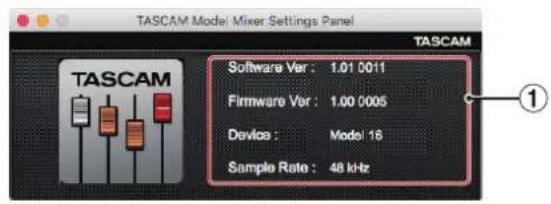
Mac Settings Panel
① Status display area
This shows the current status of the software.
| Item displayed | Meaning |
| Software Ver This is the software version. | |
| Firmware Ver | This is the firmware version used by the connected unit. |
| Device | This is the name of the connected unit. (No Device is shown when no device is connected.) |
| Sample Rate | This shows the sampling frequency of the current song. If an SD card is not loaded, this shows the sampling frequency set by the computer. |
② Buffer Size (Windows only)
You can adjust the size of the buffer used to handle the audio input and output signals transferred to and from the computer.
Smaller buffer sizes result in less audio signal delay (latency), but require high-speed processing by the computer.
If the processing cannot keep up, for example, due to other system operations, clicking and popping noises might occur and the audio signal might even drop out.
Increasing the buffer size will stabilize operation and suppress negative effects on audio signals, but the delay in audio signals sent to the computer will increase.
You can use the slider on the panel to adjust the buffer size for this unit according to the use conditions.
Options
4,8,16,24,32,64,128,256(default),512,1024,2048
Notification function
If the computer you are using is connected to the Internet, the latest information about unit firmware and software, for example, can be shown when the Settings Panel is launched.
NOTE
Put a check in the Do not show the same message again checkbox to prevent the same message from being shown the next time it is launched.
Setting Sound Properties
- Open the OS Control Panel.
NOTE
Follow these procedures to open the Control Panel.
Windows 10
Left-click the Windows Start button, and from Windows System select Control Panel.
Windows 8.1
Right-click the Windows Start button, and select Control Panel.
Windows 7
Left-click the Windows Start button, and select Control Panel in the Start menu.
- Double-click Sound in the Control Panel.
NOTE
If the Control Panel is set to be viewed as icons, a Sound icon will appear.
- On the Playback page, right-click Model 16, and click Set as Default Device in the pop-up menu that appears.
When you do this, the green check mark appears next to the selected device.
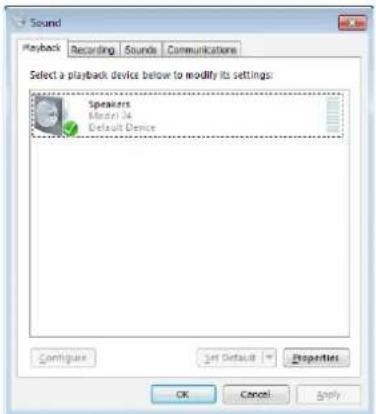
Windows 7 screen
NOTE
Set the default device according to the ASIO device being used on the Recording tab in the same manner as on the Playback tab.
- After completing the setting, click the OK button.
- Launch Windows Media Player and start playback to input the playback sound from the computer to channels 1 and 2 on the Model 16. (MODE switches: PC)
NOTE
- If you change the setting while Windows Media Player is running, the software will not recognize that the device has been changed. In this case, restart Windows Media Player.
- If you still cannot hear sound after making the settings and completing the procedures above, restart the computer.
- If you make this setting, sound will be output through this unit, but no sound will be output from the computer's speakers or headphone jack.
Simultaneous ASIO/WDM playback
The driver for this unit can simultaneously play ASIO output from a DAW and WDM output from Windows Media Player, for example. The sample rates of both sources must be set to the same value for simultaneous playback to be possible. Moreover, the sample rate must also be set to the same value for both playback and recording in the Windows Sound Properties.
When the sample rates are the same
Example: Windows (WDM) at 44100 Hz, ASIO at 44100 Hz
The Windows audio and ASIO sound are mixed and played simultaneously.
When the sample rates are different
Example: Windows (WDM) at 48000 Hz, ASIO at 44100 Hz
Only sound from a DAW and other ASIO sources are output. Sound from Windows Media Player and other WDM sources are not output.
When the DAW is shut down, for example, and output from ASIO sources stops, sound from Windows Media Player and other WDM sources will become audible.
11 - USB audio interface functions
USB audio mode
The sound input to the computer can be changed to allow the MAIN MIX L/R bus signal to be sent to communication applications and streaming software.
- When the recorder is stopped, select USB AUDIO on the SPECT Screen, and open the USB AUDIO Screen. (See "Menu operation procedures" on page 29)
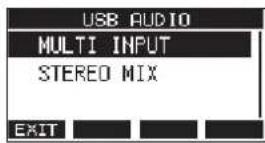
- Turn the MULTI JOG dial to set USB audio mode.
| Option Meaning | |
| MULTI INPUT (default) | The inputs of channels 1-8, 9/10-13/14 and the output of the MAIN MIX L/R bus are input to USB channels 1-16. |
| STEREO MIX | The output of the MAIN MIX L/R bus is input to USB channels 1-2. |
Setting procedures for use with OBS Studio and other streaming applications
Conduct the procedures in this document before launching the streaming application.
Model 16 unit settings
ATTENTION
The following content is supported by Model 16 firmware V1.30 and later. If using a firmware version older than V1.30, update it to use these features. (See "FIRMAre Sceen" on page 48)
-
Set the MODEL 16 USB audio mode to STEREO MIX. For setting procedures, see the following "USB audio mode" section about this new feature. (See "USB audio mode" on page 58)
-
Turn the POST REC switch on to enable the MAIN fader for streamed audio. (See "Analog output adjustment section" on page 25)
For Macs, the above settings make use with streaming applications possible.
Windows computer sound settings
Set the input and output device, sampling frequency, bit rate, and number of channels according to the setup.
- Open the Sound Settings screen.
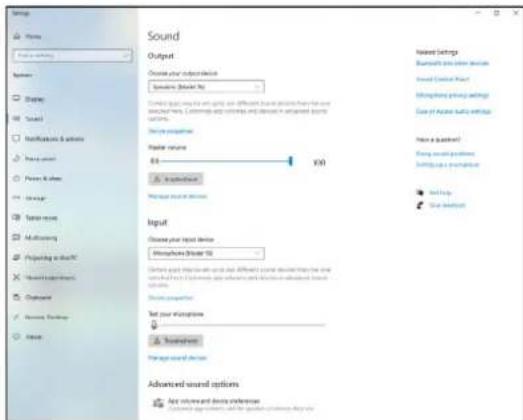
NOTE
This can also be opened by right-clicking the sound icon at the bottom right of the desktop screen, selecting "Open Sound settings" and then selecting "Sound".
- Set the output device to "Speakers (Model 16)".
- Set the input device to "Microphone (Model 16)".
- Click "Sound Control Panel" to open the Sound window.
- Open the Recording tab, and select "Model 16".
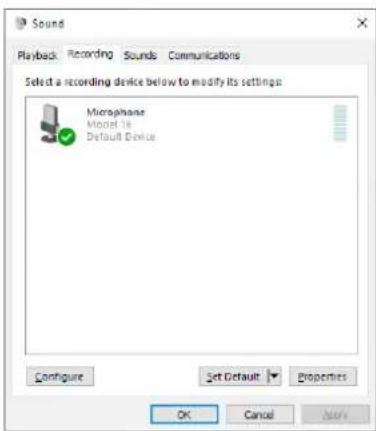
-
Click "Properties" for "Model 16" to open the Microphone Properties screen.
-
Open the Advanced tab, and set the Default Format.
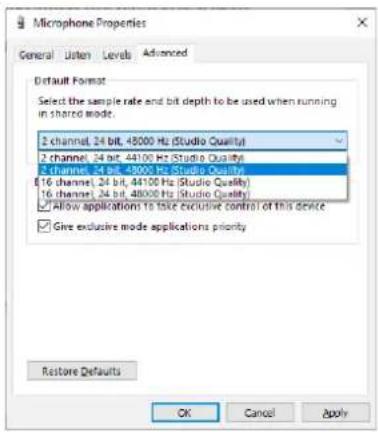
- Select a 2-channel setting when using OBS Studio or another application that supports 2-channel audio devices. Otherwise, select a 16-channel setting.
-
Select the sample rate according to the sample rate of the song loaded in the unit. Any sample rate can be used when not loading a song.
-
Open the Playback tab, and select "Speakers (Model 16)".
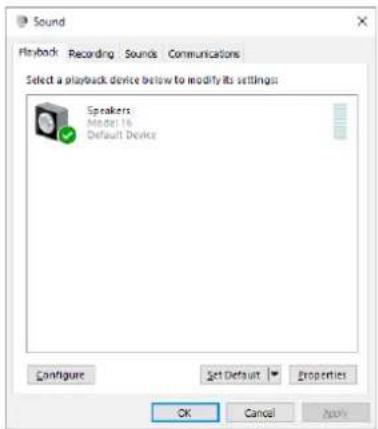
-
Click "Properties" for "Speakers (Model 16)" to open the Speakers Properties screen.
-
Open the Advanced tab, and set the Default Format. Set the sample rate and bit depth for the Default Device on the Play tab to the same values set on the Record tab.
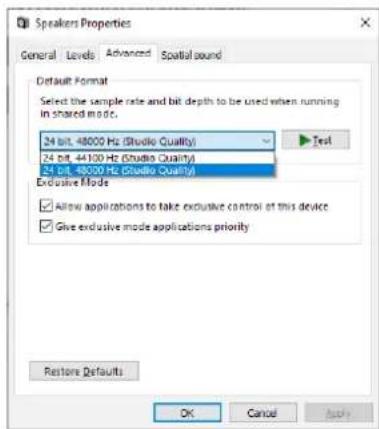
- Launch the streaming application, and proceed with streaming and other functions.
-
After completing streaming, restore the settings to multichannel to use multiple channels with other applications as necessary.
-
In step 1, set the USB audio mode to MULTI INPUT.
- In step 7, set the Microphone Properties to 16-channel.
The following is a list of messages that appear in pop-up windows.
Refer to this list if one of these pop-up messages appears on the Model 16 and you want to check the meaning or determine a proper response.
| Message Meaning and response | |
| Card Error | The SD card cannot be recognized properly. Replace the SD card. |
| Card Full | The SD card has no remaining capacity. Erase unnecessary files or transfer them to a computer. |
| Dup File Name | A file with the same name already exists. Change the file name. |
| File Not Found | The file cannot be found or the file may be damaged. Check the relevant file. |
| No sys file | The system file is missing. This unit requires a system file for operation. |
| Make sys file | When this message appears, press the MULTI JOG dial to create a system file. |
| Song Protected | This operation is not possible because the song is protected. Remove protection. |
| Invalid Card Change Card | Something might be wrong with the SD card. Change the SD card. |
| I/O Too Short | The time between the punch in and out points is too short. Set them with at least 1 second between them. |
| MBR error | The SD card is not formatted properly or the card is broken. |
| Init card | Change the SD card or press the MULTI JOG dial while this message is being shown to format the card. Formatting will erase all the data on the SD card. |
| No Card | A SD card is not set. Insert a recordable SD card. |
| Non-supported | The file format is not supported. Please see "Playing WAV files on SD cards (SD PLAY mode)" on page 50 for file formats that this unit can use. |
| Card Protected | The SD card is write-protected. Disable SD card write-protection. |
| USB Fs mismatch | The sampling rate of the current song and the USB audio interface are not the same. Change the sampling rate of one so that they are the same. |
| Current Song | The current song cannot be deleted. To delete the current song, load another song first. |
| Invalid I/O point | The punch in/out point settings on the HUT0 PUNCH Screen are not set correctly. Automatic punching in/out occurred at an invalid position for the punch in or out point. Start the automatic punch operation from a valid point. |
| Write error | Writing to the SD card timed out. This has caused audio to be interrupted and noise to occur. |
| REC continue | |
| REC stop | Writing to the SD card timed out, and recording stopped. |
| Card slow | SD card writing performance has become worse. Execute the erase format function or change the SD card. |
| Need to set | Neither the punch in or out points are set for the automatic punch in/out function. Either the punch in or out point must be set. |
| I/O point. | |
| Sample rate | The sampling frequency of the WAV file to be imported does not match the current song. |
| Unmatch | Select a WAV file with the same sampling frequency as the current song or convert the sampling frequency before importing. |
| Remain time is | The SD card does not have enough open space, so importing is not possible. |
| not enough | Erase unnecessary files or transfer them to a computer. |
| & track | The maximum number of tracks for punch in recording is eight. |
| punch in limit | Press REC buttons to reduce the number of recording tracks to eight or less. |
| Song is not loaded | No song is loaded. Create a new song or load a song. |
| Song number full | The maximum number of songs that can be created on an SD card is 100. Erase unnecessary songs. |
| SD PLAY: cannot record | SD PLAY mode is for playback only. Recording is not possible. |
| SD CARD cluster size error | Recording is not possible because the SD card cluster size is not right. Back up the contents of the SD card on a computer and then format it with this unit. Then, restore the data from the computer. |
| Import error. | Importing is not possible because there are no open tracks. |
| No track | Use TRACK CLEAR to clear a track. (See "Clearing tracks" on page 45) |
| Already protected | The selected song is already protected. |
| Already unprotected | The selected song is already unprotected. |
| Can't Save Data | If any of these errors occurs, turn the unit off and restart it. If these error messages continue to appear frequently, please contact the store where you purchased this unit or TASCAM customer support. |
| Device Error | |
| File Error | |
| Not Continued | |
| Player Error | |
| UND0 not available | |
| Writing Failed | |
| Sys Rom Err | |
| System Err HH (HX is a number.) | |
13 - Troubleshooting
If you are having trouble with the operation of this unit, please try the following before seeking repair.
If these measures do not solve the problem, please contact the store where you bought the unit or TEAC customer support (see the back cover).
The unit will not turn on
- Confirm that the power plug and other connectors are inserted completely.
The SD card is not recognized
- Confirm that the SD card is inserted completely.
No sound is output
- Are the input sources and MODE switches set properly?
- Are that channel faders raised to suitable levels?
Is the MAIN fader raised to a suitable level?
Is a monitoring system correctly connected to the PHONES jack or CONTROL ROOM L/R jacks? Is the monitoring system set up correctly?
Is the PHONES knob or CONTROL ROOM knob place to a suitable level?
Is the SD MAIN MIX RETURN switch on (pushed in, during playback of anything other than a stereo master file)?
The sound I want to record is distorted
- Are the channel GAIN knobs set too high?
- Are the input source levels to high?
Is the EQ set too high? - Are any channel faders or the MAIN fader raised too high?
Is the monitoring level too high, causing the monitoring system to distort?
Noise occurs when a passive guitar or bass is connected directly
- Connecting another device to the unit's SUB OUTPUT jacks (stereo output) could reduce noise.
- It could be affected by interference noise from another device, for example. If a power amplifier or other device with a large transformer, or a fluorescent light, for example, is nearby, changing the distance or orientation of such devices could reduce noise.
Playback is not possible
- If you are trying to play a WAV file, confirm that it uses a sampling frequency (44.1/48 kHz) and a bit depth (16/24-bit) that are supported by this unit.
There is noise
- Confirm that the connection cables do not have contact issues.
Sound via Bluetooth breaks up or is noisy
- Are there any wireless LAN devices, other Bluetooth devices, microwave ovens or similar equipment nearby?
- Keep such devices as far away as possible during use.
- Try reducing the distance between this unit and the other Bluetooth device. Try changing the positions of this unit and the other Bluetooth device.
- The operation of apps other than for music playback on the smartphone could cause the sound to break up. In this case, stop operation of apps other than the one used for music playback.
Cannot connect or communication is interrupted when using Bluetooth
- Confirm that the other Bluetooth device power is on and that its Bluetooth function is on.
- Confirm that the other Bluetooth device is not too far away. Are there walls or other obstacles, for example, between this unit and the other Bluetooth device?
Try changing the positions of this unit and the other Bluetooth device.
- Turn OFF and restart the Model 16.
- Remove the "Model 16" pairing record from the other Bluetooth device, and try pairing the unit with that Bluetooth device again. (See "Connecting with Bluetooth devices" on page 31)
Cannot pair with another Bluetooth device
- Confirm that the other Bluetooth device supports A2DP.
- Confirm that the other Bluetooth device is in a state that allows transmission. For details, check the operation manual of that Bluetooth device.
- Turn the power off for both this unit and the other Bluetooth device once, turn them both on again and try pairing them.
- Turn off Bluetooth devices other than the one that you are trying to pair with.
- Remove the "Model 16" pairing record from the other Bluetooth device, and try pairing the unit with that Bluetooth device again. (See "Connecting with Bluetooth devices" on page 31)
A computer does not recognize the unit when connected by USB
- Has the dedicated software been installed? (See "Installing the dedicated software" on page 53)
- This unit cannot be used with USB 1.1. Use a USB 2.0 or USB 3.0 port.
- Do not use a USB hub with this unit. Always connect the unit directly to a USB port on the computer.
- If the above methods do not resolve the problem, connect the unit to a different USB port on the computer.
When connected by USB, sound breaks up or noise occurs
The processing load on the computer causes sound to break up and noise to occur.
- If a wireless LAN or background software, including antivirus software, is running, turn it off during use of this unit. In addition, please use "computer's power option" as "high performance setting".
- Use the shortest USB cable possible.
- Use a USB port built into the computer because the computer USB port affects the USB connection.
General
Supported media
SD cards (Class 10 or more)
SDHC cards (Class 10 or more)
SDXC cards (Class 10 or more)
File System
SD card: FAT16
SDHC card: FAT32
SDXC card: exFAT
Recording file formats
WAV (BWF): 44.1/48kHz, 16/24-bit (Maximum file size: 2 GB)
Playback file formats
WAV (BWF): 44.1/48kHz, 16/24-bit
Recordable Channel
Max. 16 channels (14ch + 2 stereo mix)
Inputs and outputs
Analog audio input and output ratings
MIC input jacks (1-8, 9, 11)
Connectors: XLR-3-31 (1: GND, 2: HOT, 3: COLD)
Maximum input level: +10 dBu
Nominal input level: -8 dBu
Minimum input level: -58 dBu
Gain adjustment range: 0 - 50 dB
Input impedance: 1.8k
LINE/INST (BAL) input jacks (1-2)
Connectors: 6.3mm (1 / 4^ ) standard TRS jacks
(Tip: HOT, Ring: COLD, Sleeve: GND)
Maximum input level: +22 dBu
Nominal input level: +4 dBu
Gain adjustment range: -10 - +40 dB
Input impedance: 22k (LINE)/1 MΩ (INST)
LINE (BAL) input jacks (3-8)
Connectors: 6.3mm (1/4") standard TRS jacks
(Tip: HOT, Ring: COLD, Sleeve: GND)
Maximum input level: +22 dBu
Nominal input level: +4 dBu
Gain adjustment range: -10 +40 dB
Input impedance: 22k
L/MONO (BAL) / R (BAL) input jacks (9/10-11/12)
Connectors: 6.3mm (1 / 4^ ) standard TRS jacks
(Tip: HOT, Ring: COLD, Sleeve: GND)
Maximum input level: +22 dBu
Nominal input level: +4 dBu
Gain adjustment range: -20 +30 dB
Input impedance: 18k
INSERT jacks (1-2)
Connectors: 6.3mm (1/4^ ) standard TRS jacks
(Tip:SEND,Ring:RETURN,Sleeve:GND)
RETURN (Ring)
Maximum input level: +18 dBu
Nominal input level: 0 dBu
Input impedance: 10k
SEND (Tip)
Maximum output level: +18 dBu
Nominal output level: 0 dBu
Output impedance: 100
-10dBV input jacks (13/14)
Connectors: RCA pin jacks
Maximum input level: +8 dBV
Nominal input level: -10 dBV
Input impedance: 10k
STEREO input jack (13/14)
Connector: 3.5mm stereo mini jack
Maximum input level: +8 dBV
Nominal input level: -10 dBV
Input impedance: 10k
MAIN OUTPUT L/R jacks
Connectors: XLR-3-32 (1: GND, 2: HOT, 3: COLD)
Maximum output level: +22 dBu
Nominal output level: +4 dBu
Output impedance: 200
SUB OUTPUT L/R jacks
Connectors: 6.3mm (1 / 4^ ) standard TRS jacks
(Tip: HOT, Ring: COLD, Sleeve: GND)
Maximum output level: +16 dBu
Nominal output level: -2 dBu
Output impedance: 200
AUX OUTPUT MON 1/2 jacks
Connectors: 6.3mm (1 / 4^ ) standard TRS jacks
(Tip: HOT, Ring: COLD, Sleeve: GND)
Maximum output level: +16 dBu
Nominal output level: -2 dBu
Output impedance: 200
AUX OUTPUT FX jack
Connector: 6.3mm (1 / 4^ ) standard TRS jack
(Tip: HOT, Ring: COLD, Sleeve: GND)
Maximum output level: +16 dBu
Nominal output level: -2 dBu
Output impedance: 200 Ω
CONTROL ROOM L/R jacks
Connectors: 6.3mm (1 / 4^ ) standard TRS jacks
(Tip: HOT, Ring: COLD, Sleeve: GND)
Maximum output level: +16 dBu
Rated output level: -2 dBu
Output impedance: 200
PHONES jack
Connector: 6.3mm (1 / 4^ ) standard stereo jack
Maximum output: 80mW + 80mW (32Ω load)
Control input/output
FOOTSWITCH jack
Connector: 6.3mm (1 / 4^n) standard TS jacks (Tip: HOT, Sleeve: GND, Unlatch type correspondence)
USB port
Connector: 4-pin USB B-type
Protocol: USB 2.0 HIGH SPEED (480 Mbps)
Computer system requirements
Check the TEAC Global Site (http://teac-global.com/) for the latest information about supported operating systems.
Windows
Supported operating systems
Windows 10 32-bit
Windows 10 64-bit
Windows 8.1 32-bit
Windows 8.1 64-bit
Windows 7 32-bit SP1 or later
Windows 7 64-bit SP1 or later
(Windows 8, Windows Vista and Windows XP are not supported)
Computer hardware requirements
Windows computer with a USB 2.0 (or higher) port
CPU/processor speed
2 GHz or faster dual core processor (x86)
Memory
2 GB or more
ATTENTION
Operation of this unit was confirmed using standard computers that meet the above requirements. This does not guarantee operation with all computers that meet the above requirements. Even computers that meet the same system requirements might have processing capabilities that differ according to their settings and other operating conditions.
Mac
Supported operating systems
macOS Catalina (10.15)
macOS Mojave (10.14 or later)
macOS High Sierra (10.13 or later)
Computer hardware requirements
Mac with a USB 2.0 (or higher) port
CPU/processor speed
2 GHz or faster dual core processor
Memory
2 GB or more
iOS device
Operation has been confirmed with Apple devices running the following iOS versions.
iPadOS13
iOS13
iOS12
iOS11
ATTENTION
To connect an iOS device that has a Lightning connector, a genuine Apple Lightning to USB Camera Adapter (sold separately) is necessary.
Supported audio drivers
Windows
ASIO2.0, WDM
Mac
Core Audio
iOS device
Core Audio
Audio performance
Noise
Residual output noise (22kHz, A-weighted)
MAIN MIX OFF: -100 dBu
MAIN MIX -0dB, 1ch-0dB: -80 dBu
Equivalent input noise (EIN)
-127 dBu (Rs=150Ω, MIC IN → INSERT SEND, gain knob at MAX, A-weighted)
Total harmonic distortion ratio (THD+N)
(gain knob at MIN, 1kHz)
MIC IN MAIN OUT: 0.01% or less
MIC IN MAIN OUT: 0.004% @ + 4dBu
Frequency response
(All GAIN knobs minimized, 1 kHz)
20 Hz to 30 kHz (+0.5/-1.0 dB: analog)
20 Hz to 20 kHz (+0.5/-1.0 dB: digital)
Crosstalk
(PAN knobs turned completely left or right, 1 kHz)
Between channels: -80 dB
Between input and output: -80 dB
Maximum gain
(All GAIN knobs maximized, PAN knobs turned completely left or right, EQ knobs and MASTER SECTION EQ knobs at middle positions)
MIC MAIN OUT:74 dB
MIC INSERT OUT: 54 dB
MIC SUB OUT:74 dB
MIC CONTROL ROOM OUT: 79 dB
MIC MONITOR OUT: 75 dB
MIC FX OUT: 75 dB
USB/SD MAIN OUT: 24 dB
Phantom Power
+48V
Bluetooth
Bluetooth version: 5.0
Output class: 2 (about 10m^* unobstructed transmission distance)
Supported profile: A2DP
Supported A2DP codesc: SBC, AAC
Supported A2DP content protection: SCMS-T
- The transmission distance is only an estimate and might vary depending on the surrounding environment and radio wave conditions.
Other
Power
AC100-240V, 50-60 Hz
Power consumption
40W
Dimensions
With side panels
430.0 × 112.9 × 463.0 ~mm (W × H × D, including
protrusions)
Without side panels
390.0 × 112.9 × 463.0 ~mm (W × H × D, including
protrusions)
Weight
7kg
Operating temperature range
5-35°C (41 - 95°F)
- Illustrations in this manual might differ in part from the actual product.
- Specifications and external appearance might be changed without notification to improve the product.
INSTRUCTIONS DE SECURITE IMPORTANTES 7
- 3 points (TRS, pointe = point chaud, bague = point froid et manchon = masse)
- 3 points (TRS, pointe = point chaud, bague = point froid et manchon = masse)
④ Prises d'entrée stéreo L/MONO (BAL)/R (BAL) (9/10- 11/12)
- 3 points (TRS, pointe = point chaud, bague = point froid et manchon = masse)
⑤ Prises-10dBV(entre externe) (13/14, RCA)
-3 points (TRS, pointe = départ, bague = retour et manchon = masse)
Boutons GAIN et voyants SIG (1-8, 9/10-11/12)
26 Prises MAIN OUTPUT L/R
-3 points (TRS, pointe = point chaud, bague = point froid et manchon = masse)
29 Boutons MASTER SECTION EQ
-3 points (TRS, pointe = point chaud, bague = point froid et manchon = masse)
31 Prise AUX OUTPUT FX
-3 points (TRS, pointe = point chaud, bague = point froid et manchon = masse)
32 Prises CONTROL ROOM L/R
-3 points (TRS, pointe = point chaud, bague = point froid et manchon = masse)
33 Prise PHONES
53 Bouton PFL/AFL MASTER
- Bus MAIN MIX L/R
Bus PFL/AFL L/R
Bus MONITOR OUT 1/2
Bus SUB L/R
56 Boutons TO MON 1/TO MON 2
- Bus MAIN MIX L/R
Bus PFL/AFL L/R
Bus MONITOR OUT 1/2
Bus SUB L/R
44/15 44,1 kHz, 16 bit
44/24 44,1 kHz, 24 bit
48/15 48 kHz, 16 bit
48/24 48 kHz, 24 bit
NOTE
Écran F I R M W A R E
WAV:44,1/48 kHz,16/24 bit
BWF:44,1/48kHz,16/24bit
NOTE
WAV (BWF): 44,1/48 kHz, 16/24 bit
WAV/BWF:44,1/48 kHz, 16/24 bit
Prises MAIN OUTPUT L/R
Prises SUB OUTPUT L/R
Alternatively, you can use the following instructions to start with the following text.
\section*{Característica}
37 Interruptor EQ IN/BYPASS
Interruptores AFL (MON 1/MON 2)
53 Mando PFL/AFL MASTER
- Bus MAIN MIX L/R
Bus PFL/AFL L/R
Buses MONITOR OUT 1/2 - Bus SUB L/R
56 Mandos TO MON 1/TO MON 2
- Bus MAIN MIX L/R
Bus PFL/AFL L/R
Buses MONITOR OUT 1/2
Bus SUB L/R
59 Interruptor MON (FX)
60 Interruptor MAIN (FX)
⑥ Interruptor SUB (FX)
62 Interruptor AFL (FX)
64 Interruptor/indicator MUTE (SUB, MAIN)
67 Interruptor MAIN (SUB)
| CARD | |
| TOTAL SIZE | 119.0G |
| USED SIZE | 8.0G |
| REMAIN SIZE | 112.9G |
| EXIT | |
TOTAL SIZE
WAV:44.1/48 kHz, 16/24 bits
BWF:44.1/48 kHz, 16/24 bits
NOTA
Si el ajuste de Gatekeeper es "Allow applications downloaded from: the Mac App Store"
Cuando aparezca el mensaje de advertencia "ModelMixer Installer.pkg' can't be opened because it was not downloaded from the Mac App Store. Are you sure you want to open it?", hagablick en el boton Open.
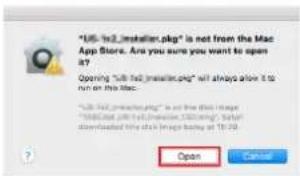
Cuando el ajuste del Gatekeeper no sea "Allow applications downloaded from: the Mac App Store"
② Buffer Size (solo Windows)
Conectores MAIN OUTPUT
Conectores: XLR-3-32 (1: masa, 2: activo, 3: pasivo)
Nivel de salute maxima: 200 dBu
Nivel de salute nominal: +4 dBu
Conector: TRS standard de 6.3 mm (1/4")
This warranty gives you specific legal rights and you may also have other rights which vary from state to state. This warranty is only valid within the country the unit was originally purchased.
WHAT IS COVERED AND WHAT IS NOT COVERED
Except as specified below, this warranty covers all defects in materials and workmanship in this product. The following are not covered by the warranty:
- Damage to or deterioration of the external cabinet.
- Damage resulting from accident, misuse, abuse or neglect.
- Damage resulting from failure to perform basic daily maintenance and/or calibration or otherwise resulting from failure to follow instructions contained in your owner's manual.
- Damage occurring during shipment of the product. (Claims must be presented to the carrier)
- Damage resulting from repair or attempted repair by anyone other than TEAC or an authorized TASCAM service station.
- Damage resulting from causes other than product defects, including lack of technical skill, competence, or experience of the user.
- Damage to any unit which has been altered or on which the serial number has been defaced, modified or is missing.
WHOIS COVERED UNDER THE WARRANTY
This warranty may be enforced only by the original purchaser. This warranty is not valid if the product was purchased through an unauthorized dealer.
LENGTH OF WARRANTY
All parts except heads and disk drives are warranted for one (1) year from the date of original purchase. Heads and disk drives are warranted for ninety (90) days from date of original purchase. Labor is warranted for ninety (90) days from date of original purchase.
WHAT WE WILL PAY FOR
We will pay all labor and material expenses for items covered by the
warranty. Payment of shipping charges is discussed in the next section of this warranty.
HOW YOU CAN GET WARRANTY SERVICE
Your unit must be serviced by an authorized TASCAM service station in the United States. (This warranty is not enforceable outside the U.S.) If you are unable to locate an authorized TASCAM service station in your area, please contact us. We either will refer you to an authorized service station or instruct you to return the unit to the factory. Whenever warranty service is required, you must present a copy of the original dated sales receipt from an Authorized TASCAM Dealer.
You must pay any shipping charges if it is necessary to ship the product to service. However, if the necessary repairs are covered by the warranty, we will pay return surface shipping charges to any destination within the United States.
LIMITATION OF IMPLIED WARRANTYIS
Any implied warranties, INCLUDING WARRANTY OF MERCHANTABILITY AND FITNESS FOR A PARTICULAR PURPOSE, are limited in duration to the length of this warranty.
EXCLUSION OF DAMAGES
TEAC's liability for any defective product is limited to repair or replacement of the product, at TEAC's option. TEAC shall not be liable for:
-
Damages based upon inconvenience, loss of use of the product, loss of time interrupted operation or commercial loss; or
-
Any other damages, whether incidental, consequential or otherwise.
Some states do not allow limitations on how long an implied warranty lasts and/or do not allow the exclusion or limitation of incidental or consequential damages, so the above limitations and exclusions may not apply to you.
To locate an Authorized Service Center in Your Area
CALL 1-323-726-0303
This product is subject to the legal warranty regulations of the country of purchase. In case of a defect or a problem, please contact the dealer where you bought the product.
This warranty gives you specific legal rights, and you may also have other rights that vary by country, state or province.
If you have a warranty claim or request, please contact the dealer where you bought the product.
If you require repair services for your TASCAM equipment, please contact the dealer where the product was purchased from or the TASCAM Distributor in your country. A list of TASCAM Distributors can be found on our website at: https://teac-global.com/
TASCAM
TEAC CORPORATION
10410 Pioneer Blvd. Suite #1 Santa Fe Springs, California 90670, U.S.A.
TEAC UK Ltd.
https://www.tascam.eu/en/
Phone: +44-1923-797205
Meridien House, Ground Floor,69-71, Clarendon Road, Watford, Hertfordshire, WD17 1DS, United Kingdom
TEAC EUROPE GmbH https://www.tascam.en/de/
Phone: +49-611-71580
Room 817, Xinian Center A, Tairan Nine Road West, Shennan Road, Futian District, Shenzhen, Guangdong Province 518040, China
Printed in China 1020. MA-2995C
WARRANTY
Address/Adresse/Adresse