Monet Deluxe - Digital photo frame AIPTEK - Free user manual and instructions
Find the device manual for free Monet Deluxe AIPTEK in PDF.



| Product type | Digital photo frame |
| Brand | Aiptek |
| Model | Monet Deluxe |
| Screen size | 8 inches |
| Screen type | LCD TFT |
| Screen resolution | 800 x 600 pixels (RGB) |
| Brightness | 250 cd/m² |
| Image format | JPEG (YUV code) up to 30 megapixels |
| Supported video formats | AVI, MP4, MOV, 3GP (H.264, MPEG4, MJPEG codecs) |
| Audio format | MP3 |
| Internal memory | 1 GB |
| External storage | USB (≤4 GB), CF type I (≤4 GB), SD/MMC (≤4 GB), MS Pro (≤4 GB) |
| Connectivity | USB 2.0 |
| Power supply | AC adapter: input 100-240 V AC, 50/60 Hz, output 5 V DC 1.8 A |
| Power consumption | ≤ 9 W |
| Dimensions without stand | 264 x 206 x 31.1 mm |
| Dimensions with stand | 264 x 206 x 103.4 mm |
| Weight | 625 g |
| Operating temperature | 0 °C to 40 °C |
| Operating humidity | 0 to 90% (non-condensing) |
| Main functions | Slideshow, music, video, calendar, alarm, file manager |
| Package contents | Frame, stand, remote control, USB cable, USB adapter, interchangeable frame, AC adapter, quick guide, service guide |
| Safety | Do not expose to water, high temperatures; do not disassemble; keep out of reach of children; use only recommended accessories |
Frequently Asked Questions - Monet Deluxe AIPTEK
User questions about Monet Deluxe AIPTEK
0 question about this device. Answer the ones you know or ask your own.
Ask a new question about this device
Download the instructions for your Digital photo frame in PDF format for free! Find your manual Monet Deluxe - AIPTEK and take your electronic device back in hand. On this page are published all the documents necessary for the use of your device. Monet Deluxe by AIPTEK.
USER MANUAL Monet Deluxe AIPTEK
Monet Deluxe Quick Start Guide
Welcome to Aiptek
ENDE
Thank you for purchasing this Monet Deluxe from Aiptek. Monet Deluxe is an 8" digital picture frame with photo as well as video and MP3 file playback function. Therefore, nothing prevents you from your multimedia experience in a relaxed atmosphere. With 1GB internal memory and support for all common memory cards, all your recordings can be transferred easily to and playbacked on the device. And this regardless whether you sit on the couch or directly in front of the device. The large viewing angle of the first-class display and the supplied remote control turn each minute with the device into an ultimate experience.
Before you start using the product, we recommend reading this manual step by step to obtain the best results with your new picture frame. We wish you a lot of fun.
Best regards
Your Aptek Team
Monet Deluxe Quick Start Guide
Precautions
- Do not let the picture frame fall down, and do not damage or deattach the product; otherwise your warranty will be void.
- Avoid any contact of the device with water and dry your hands before using the device.
- Do not expose the picture frame to high temperatures and direct sunlight.
- Handle the product with care. Avoid contact with sharp objects. Keep device off from metallic objects.
- For your own safety, do not use the picture frame during thunderstorms or lightning.
- Do not use batteries with other specifications.
- Remove the battery when you do not use the device for an extended period of time since defective batteries may impair the remote control function.
- Remove the battery if signs of leakage of deformation are noted.
- Only use accessories recommended from the manufacturer.
- Keep the picture frame out of reach from children.
- There is a risk of explosion when a battery is replaced with a wrong type.
- Dispose of used batteries according to instructions.
If the life time of the product ends, try to recycle all components, if possible.
Batteries and rechargingable batteries must not be disposed with household waste!



Please dispose them at a local recycling center. Together we all contribute to the protection of our environment.
Monet Deluxe Quick Start Guide
Table of Contents
ENDE
Precautions. Page 3
Package Content
Picture Frame Overview . 6
Base Installation Page 7
Operation
Insert memory card.. Page 7
Function Overview Page 8
Photo Page 11
Music
Video Page 14
Supported video formats . 15
File Manager.. Page 16
Settings. Page 17
PC Connection Page 18
Specifications.. Page 19
Warranty
Technical Data Page 20
Monet Deluxe Quick Start Guide
Package Content
Please check that the package contains the following items:
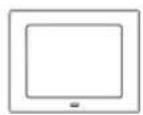
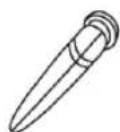
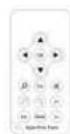
Picture frame Base Remote control
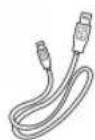
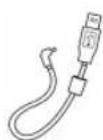
USB cable USB Adapter Frames×2
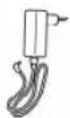

Power adapter This Quick Reference Guide
Service Guide
In case the package content is not complete, please contact your dealer immediately.
Picture Frame Overview
Monet Deluxe provides several connections and buttons for operation:
- Back side:
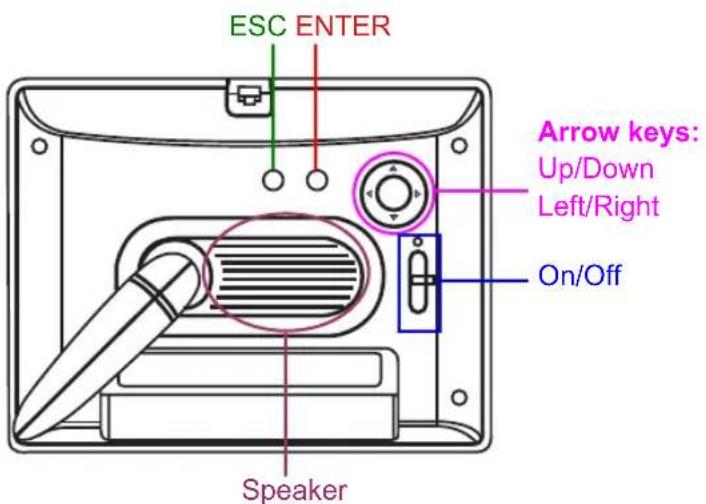
- Bottom side:
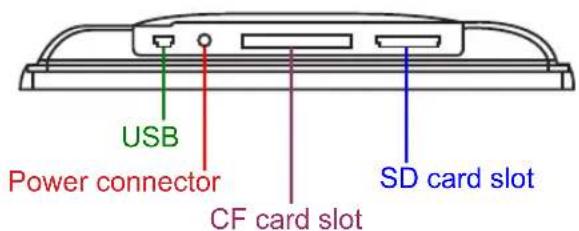
Note: The picture frame can also be conveniently controlled via the remote control. The functions are described in the several sections of the following pages.
Monet Deluxe Quick Start Guide
Base Installation
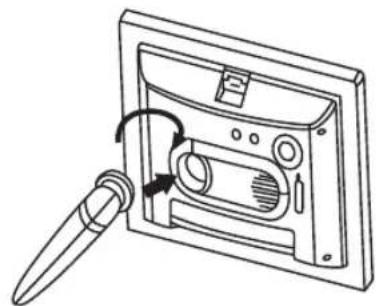
Put the base, as shown in the picture, in front of the picture frame and turn it into clockwise direction until it locks into place. For removing the base, please turn it in counter-clockwise direction and remove it from the device.
ENDE
Operation
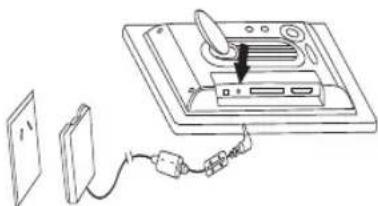
Before you can use the picture frame, it has to be connected to the power supply. Plug the connection cable of the power adapter into the respective plug of the picture frame and plug the power adapter into a wall outlet.
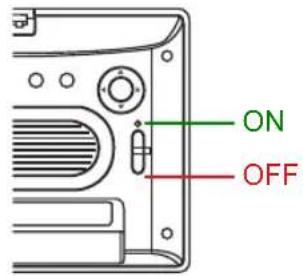
Turn on the picture frame by turning the switch on the back side into the ON Position. The green indicator light will light up and the device will show the Welcome screen. Some moments later, the automatic slide show of some pictures that we put into the internal memory will start.
To turn off the picture frame, turn the switch into the OFF position. The indicator light will turn off.
Insert memory card
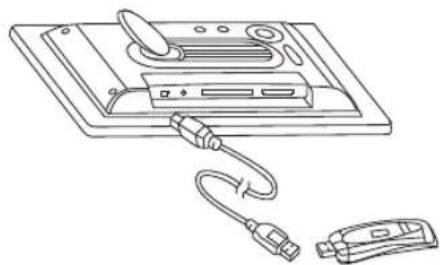
Push the memory card (not included) gently into the respective card slot until it stops. When inserting a SD/MMC card, make sure that the contacts show to the back. CF cards should be inserted with the front side showing to the back. For the connection of an USB stick, please use the supplied adapter cable and connect it to the device and the USB stick as shown.
The following memory cards are supported:
USB sticks up to 4GB CF cards type CF I up to 4GB SD/MMC cards up to 4GB MS Pro cards up to 4GB
Note: After inserting a memory card, it has to be selected at the memory level (refer to next section).
Function Overview
This picture frame is seperated into several function levels, which are as follows:
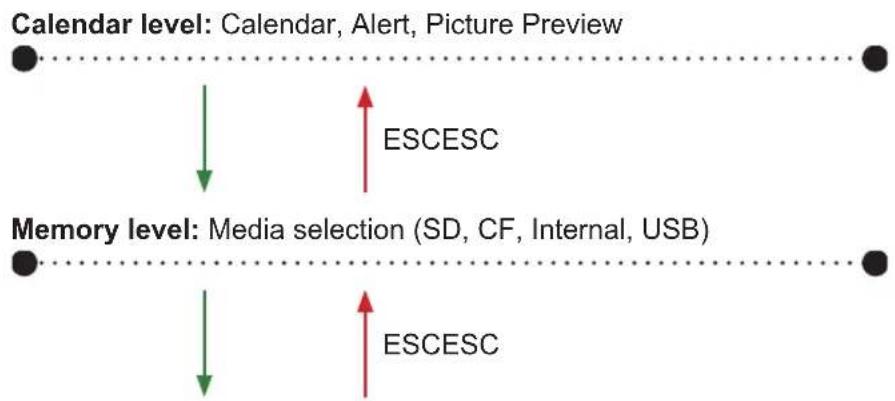
Function level: Pictures, Music, Video, File Manager, Settings
To switch between the levels, press the above described buttons ENTER (OK) or ESC.
Monet Deluxe Quick Start Guide
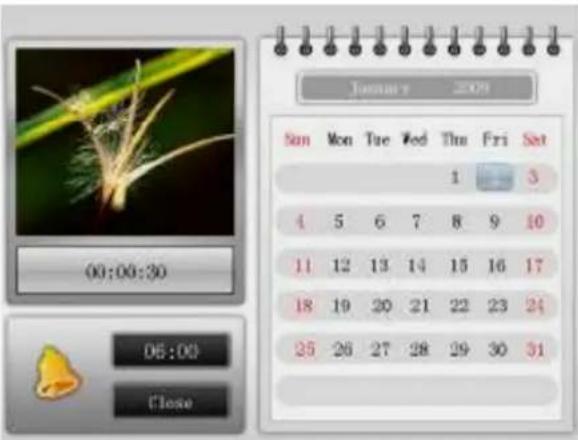
Calendar level: The calendar level shows the calendar, the time, the current alert setting, as well as a preview of the pictures of the last selected memory media. If it contains music, it will also be playbacked. Following operations are available:
| Button Remote control Function | |
| ENTER OK | Pause or start music playback |
| Left/right Left | ft/right Change picture in preview window |
| Up/down Up | down Change month in calendar view |
| ESC ESC R | return to memory level |
Note: The alert can be set in the Settings menu (description further below) at the function level.
The display time of the picture in the preview windows is the same than the display time of a slide show and can be set in the Settings menu (description further below) at the function level.
Monet Deluxe Quick Start Guide
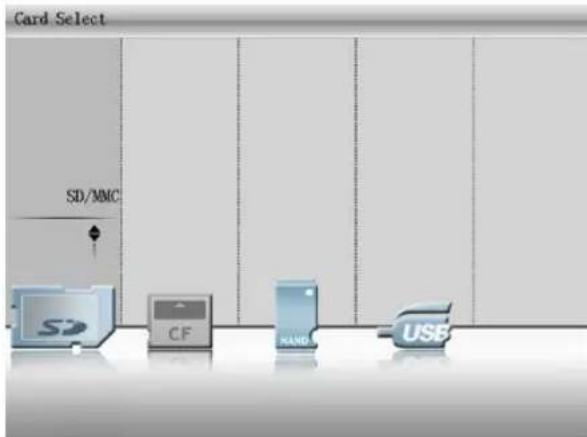
Memory level: At the memory level, you can select the memory media, from which you want to playback files. You can select among SD/MMC card, a CF card, the internal memory, or an USB stick. Following operations are available here:
Button Remote control Function
| Left/right Left/right Switches among the memory media | |
| ENTER OK | |
| ESC ESC Return to calendar level | |
Note: Only memory media that are connected to the device can be selected.
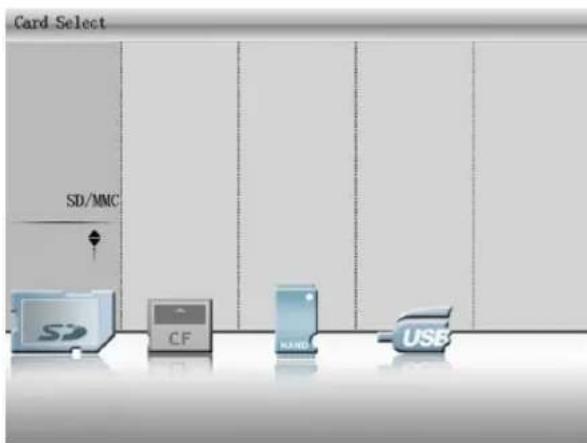
Function level: At the function level, you can playback your media of the previously selected memory. Furthermore, device settings can also be adjusted. Use left/right to toggle between Photo, Music, Video, File Manager, and Settings. Confirm your selection with ENTER (OK).
Monet Deluxe Quick Start Guide

In the Photo Mode, all your pictures of the selected memory media will be displayed in a preview list of nine pictures. Use the Up/Down and left/right keys to navigate through the pictures. The currently selected picture is indicated by a yellow frame. The picture index at the right bottom shows you the number of the current picture in contrast to the number of all pictures.
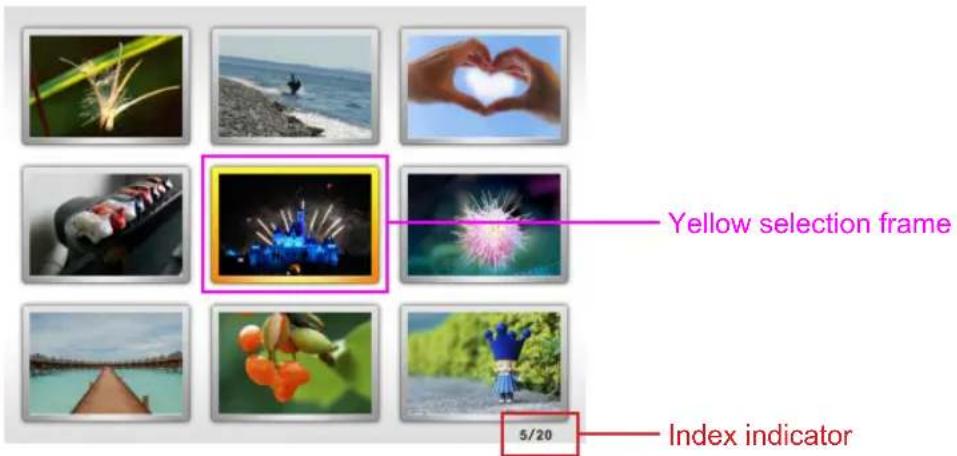
Press ENTER (OK) to display a photo in full screen mode. The right bottom of the photo will temporarily show the note Single image. Following options are now available:
Button Remote control Function
| Left/right Left/right Switch to next previous picture | ||
| ENTER | Mode | Toggle between the three-playback modes Single image, Slideshow and Slideshow with music. The currently selected mode is indicated by a short flash at the right bottom in the picture. |
| Up Up | Open the brightness setting. You can adjust it with left/right and close the menu with ESC. | |
| Down Down | Open the volume setting. You can adjust it with left/right and close the menu with ESC. (only in Slideshow with music mode) | |
| ESC ESC Exit full screen mode | ||
| Zoom | Enlarges the current picture. Pressing Zoom again will further enlarge the picture (125% → 150% → 175% → 200% → 225% → 250% → original size) Use the arrow keys to move the position in the picture | |
| V-, V+, Mute | Adjust volume (only in Slideshow with music mode) | |
| Info Show file name and display size | ||
| Turn Left/right Rotate the picture counter-clockwise/clockwise | ||
Note: The image changing and transition effects' speeds can be adjusted in the Settings.
The pictures will be sorted by date. Newest pictures are always displayed on top of the list.
Monet Deluxe Quick Start Guide

In the music mode, you can playback MP3 files. They are displayed in the playback list on the right side. Navigate with the up/down keys and select a file for playback with OK. The playback will start and the ID3 tags (file information), if available, will be displayed on the left side.
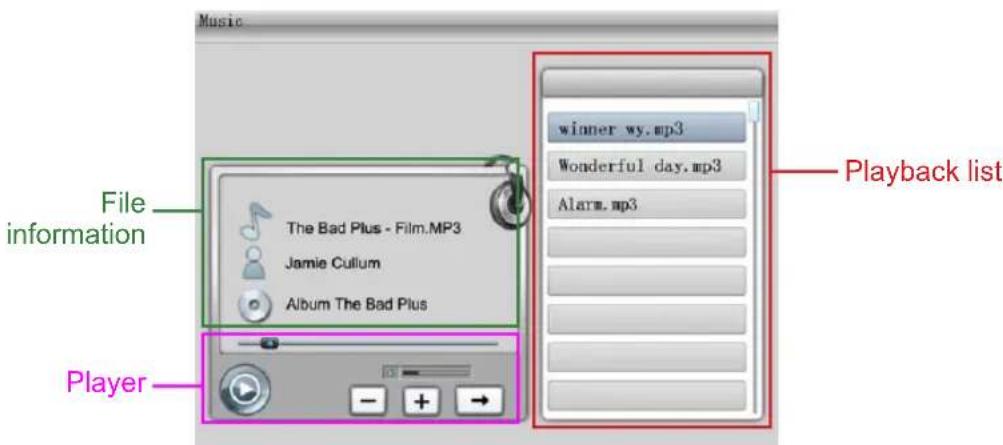
Following functions are available during playback:
Button Remote control Function
| up/down up/down | Toggle between tracks in the playback list. Selection with OK |
| left/right left/right | Toggle between player functions. Selection with OK |
| ESC ESC Exit music mode | |
| V-, V+, Mute Adjust the volume | |
| Mode Adjust the playback type. The current selection is displayed at the right bottom of the player. Normal playback Repeat current track Repeat all tracks of the playback list |
Monet Deluxe Quick Start Guide

In the video mode, your video files are displayed in the left playback list. Use up/down to navigate through the playback list. Information on date and file size are displayed in the right video preview screen after selecting a video. Press ENTER (OK) to start playback in full screen mode.
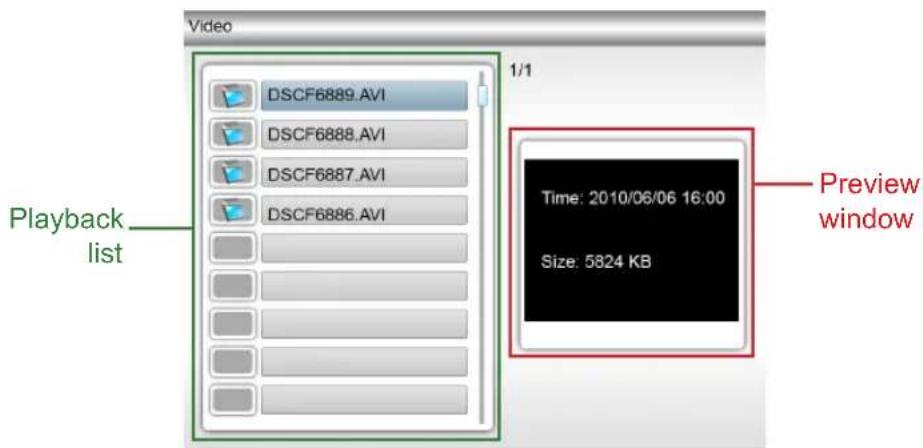
Following options are available during video playback:
Button Remote control Function
| left/right up/down Switch to previous video | ||
| left/right | Fast rewind/fast forward. Pressing left/right once more will playback the video normally again. | |
| ENTER OK | Pause video | |
| ESC ESC Exit video mode | ||
| up/down V-, V+, Mute Adjust volume | ||
| Mode | Toggles between full screen size and original size of the video. | |
Supported video formats
Since there is a great variety of video formats, we provide a list with formats supported by Monet Deluxe. If a video cannot be playbacked or if the message "File not supported" appears on the screen, a conversion (also called Transcoding) is necessary. You can find a lot of tools in the Internet, which are suitable for various file formats.
| File format | Video format | Profiles & Level | Max. Video resolution | Max. Bit rate | Audio format | Sample rate | Bit rate |
| *.avi | H.264 | baseline 3.1 ref pic max 1 | 720x480,30fps, or 720x576,25fps | 1.4M MP3 44.1K | 128K | ||
| MPEG4 | simple profile (codec MP4) | 720x480,30fps, or 720x576,25fps | 2.4M ADPCM 48K | 128K | |||
| MJPEG | baseline 3.1 ref pic max 1 | 640x480 30fps 2.5M | MP3 44.1K 128K | ||||
| *.mp4 | H.264 | baseline 3.1 ref pic max 1 | 720x480,30fps, or 720x576,25fps | 1.4M MP3 44.1K | 128K | ||
| MPEG4 | simple profile (codec MP4) | 720x480,30fps, or 720x575,25fps | 2.4M AAC 48K 128K | ||||
| MJPEG | baseline 3.1 ref pic max 1 | 640x480 30fps 2.5M | MP3 44.1K 128K | ||||
| *.mov | H.264 | baseline 3.1 ref pic max 1 | 720x480,30fps, or 720x576,25fps | 1.4M MP3 44.1K | 128K | ||
| MPEG4 | simple profile (codec MP4) | 720x480,30fps, or 720x579,25fps | 2.4M MP3 48K 128K | ||||
| MJPEG | baseline 3.1 ref pic max 1 | 640x480 30fps 2.5M | MP3 44.1K 128K | ||||
| *.3gp | H.264 | baseline 3.1 ref pic max 1 | 720x480,30fps, or 720x576,25fps | 1.4M AAC 44.1K | 32K | ||
| MPEG4 | simple profile (codec MP4) | 720x480,30fps, or 720x576,25fps | 2.4M AAC 48K 128K |
Monet Deluxe Quick Start Guide

In the File Manager, you can view, delete, or copy all your data to the internal memory. Use up/down to navigate through the file list (bundles). Pictures are displayed in the right preview window.
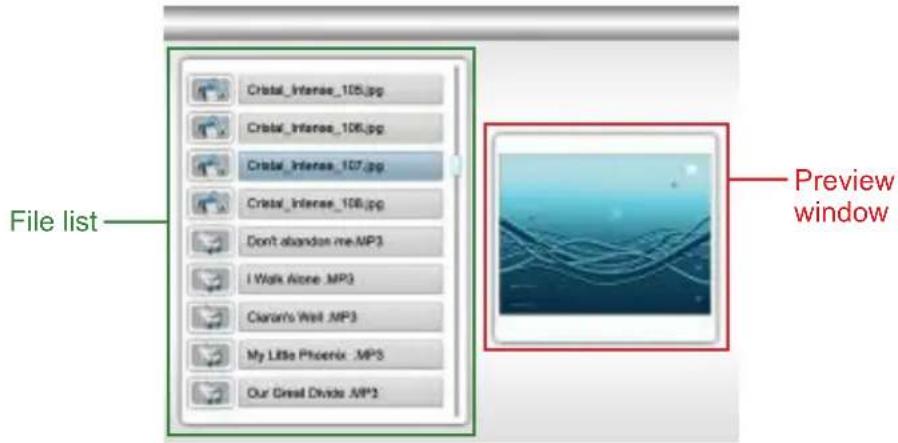
Following Options are available
Button Remote control Function
| left left | Opens the window for the deletion of the selected file. | |
| right right | Opens the menu for copying a file to the internal memory (only possible when an external memory has been selected as media) |
ESC ESC Exit File Manager / Folder
Monet Deluxe Quick Start Guide

Settings
In the Settings menu, you can configure your picture frame and adjust it according to your preferences. Use up/down to navigate through the main options on the left side and use ENTER (OK) to select a menu option. Setting options are displayed on the right side. The currently selected setting is marked with a yellow mark. For changes, navigate to the respective value and confirm with ENTER (OK).
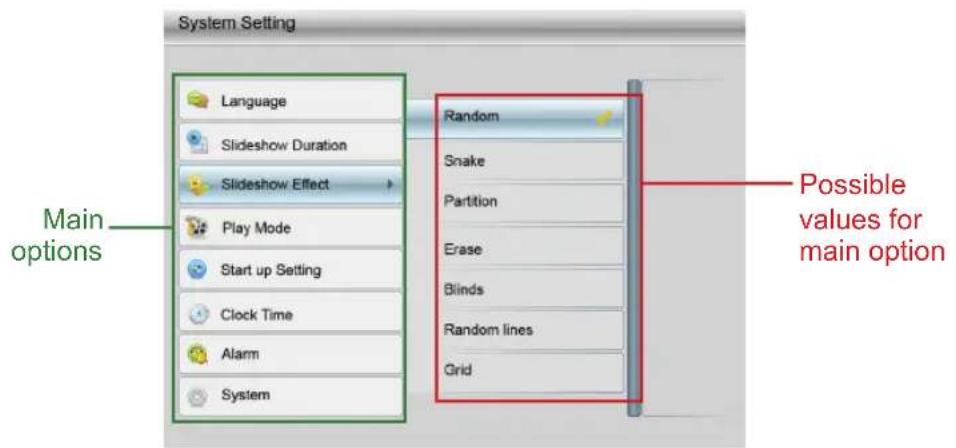
The following options can be adjusted:
Main option Description
| Language Select the menu language of the picture frame | |
| Slideshow duration | Select the time for how long a picture is displayed in the slideshow mode |
| Slideshow effects | Select the transition effects that should be displayed between the pictures |
| Video settings | Use left/right to adjust video size and playback type. Use ESC to return to the main options |
| Start settings Select | into which mode the picture frame should start |
| Adjust time | Adjust time and date of the picture frame. Use left/right to decrease/increase the values. Use ESC to return to the main options |
Monet Deluxe Quick Start Guide
Main option Description

Alert

System settings
Use left/right to adjust alert time, interval, alarm signal and snooze, and use ESC to return to the main options
Use left/right to adjust brightness, contrast, and saturation, and use ESC to return to the main options. You can furthermore use ENTER (OK) to check the version or reset the device to its factory default settings
PC Connection
For copying data into the internal memory, you can connect Monet Deluxe via the USB connection directly with the PC. Connect the picture frame to the power
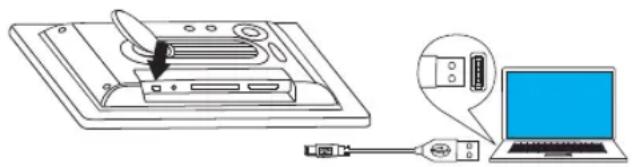
adapter as previously described, and turn it on. Then, use the supplied USB cable and connect it to the picture and your PC. Now, all necessary system drivers are installed and after a few seconds, a popup window will appear and display, that the picture frame can now be used as data storage. Copy, as known from Windows, the files into the picture frame.
Specifications
| LCD Display | LCD Display 8" TFT | LCD |
| Background lighting | LED | |
| Resolution 800 x 60 | RGB | |
| Active Area 162mm | × 121.5mm (W x H) | |
| Aspect ratio 4:3 | ||
| Brightness 250 cd/m | 2 | |
| Picture playback | Format JPEG (YUV) | Code) |
| Max. Resolution 30 | Mega-pixel | |
| Automatic Slideshow | Yes | |
| Video playback Video formats Refer to table page 13/14 | ||
| Music playback Audio formats MP3 | ||
| Storage | Internal memory | 1GB |
| USB Sticks up to 4GB | ||
| CF card | CF Type I up to 4GB | |
| SD/MMC Card | up to 4GB (no SDHC cards) | |
| MS Pro Card | up to 4GB | |
| Power adapter | Input | 110-240V +/- 10%, 50/60 Hz, 0.5A |
| Output | 5V, 1.8A | |
| Power consumption | ≤ 9W | |
| Weight & Dimensions | Size | 264mm x 206mm x 31.1mm (without base) 264mm x 206mm x 103.4mm (with base) |
| Weight | 625g | |
| Environment | Temperature range | 0°C - 40°C |
| Humidity | 0 - 90% (non-condensing) | |
ENDE
Monet Deluxe Quick Start Guide
Warranty
Please note the supplied warranty card to learn more about warranty conditions, the Aiptek Service, and contact information for your country.
Technical Data
Power adapter
Type:APS-E01205018W-G
Model: myACT
Manufacturer: ACT
Input: AC 100-240V 50/60Hz 0.35A max
Output: DC 5V 1.8A
Type:APS-A150518-G
Model: myACT
Manufacturer: ACT
Input: AC 100-240V 50/60Hz 0.35A max
Output: DC 5V 1.8A
Device:
Model name: P8V5


This picture frame is seperated into several function levels, which are as follows:
Menu principal Description
Menu principal Description

- Monet Deluxe Quick Start Guide
- Welcome to Aiptek
- ENDE
- Precautions
- Table of Contents
- Package Content
- Picture Frame Overview
- Base Installation
- Operation
- Insert memory card
- The following memory cards are supported:
- Function Overview
- Supported video formats
- Settings
- Main option Description
- PC Connection
- Specifications
- Warranty
- Technical Data
- Power adapter
- Device:
Brand : AIPTEK
Model : Monet Deluxe
Category : Digital photo frame