ManualGo.com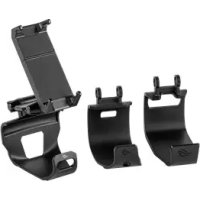
ROG Clip - Uncategorized ASUS - Free user manual and instructions
Find the device manual for free ROG Clip ASUS in PDF.



| Title | Description |
|---|---|
| Compatibility | Compatible with game controllers and smartphones. |
| Connection type | Wireless connection via Bluetooth. |
| Dimensions | Compact dimensions for optimal portability. |
| Weight | Lightweight for easy transport. |
| Usage | Makes mobile gaming easier by allowing the controller to be attached to the smartphone. |
| Materials | Made with durable materials for prolonged use. |
| Maintenance | Clean with a soft cloth, avoid exposure to moisture. |
| Safety | Use only with compatible devices to avoid damage. |
| Additional information | Check your device compatibility before purchase. |
Frequently Asked Questions - ROG Clip ASUS
How do I connect the ASUS ROG Clip to my controller?
To connect the ASUS ROG Clip to your controller, align the clip with the handles of the controller and make sure it is securely attached. Then, use the locking button to secure the connection.
Is the ASUS ROG Clip compatible with all controllers?
The ASUS ROG Clip is mainly designed to be compatible with Xbox controllers and some PlayStation controllers. Check specific compatibility on the ASUS website.
How do I adjust the angle of the ASUS ROG Clip?
You can adjust the angle of the ASUS ROG Clip by slightly unscrewing the screw located at the back of the clip, then tilting the clip to the desired angle before tightening the screw.
Can the ASUS ROG Clip be used with large smartphones?
Yes, the ASUS ROG Clip is designed to accommodate smartphones of different sizes, including larger models. Make sure to properly adjust the clip for a secure hold.
What should I do if the ASUS ROG Clip does not hold on my controller?
If the ASUS ROG Clip does not hold well on your controller, check that the clip is properly aligned and that the locking button is fully engaged. If the problem persists, consult the user manual for other solutions.
Is the ASUS ROG Clip adjustable for different viewing angles?
Yes, the ASUS ROG Clip is adjustable to offer multiple viewing angles to optimize your gaming experience. Adjust it according to your preferences for better comfort.
How do I clean the ASUS ROG Clip?
To clean the ASUS ROG Clip, use a soft, slightly damp cloth. Avoid harsh chemicals that could damage the material.
Does the ASUS ROG Clip require external power?
No, the ASUS ROG Clip does not require external power. It works only with the controller and smartphone, without needing an additional battery.
Where can I find accessories for the ASUS ROG Clip?
You can find compatible accessories for the ASUS ROG Clip at online retailers, electronics stores, or directly on the official ASUS website.
Download the instructions for your Uncategorized in PDF format for free! Find your manual ROG Clip - ASUS and take your electronic device back in hand. On this page are published all the documents necessary for the use of your device. ROG Clip by ASUS.
USER MANUAL ROG Clip ASUS
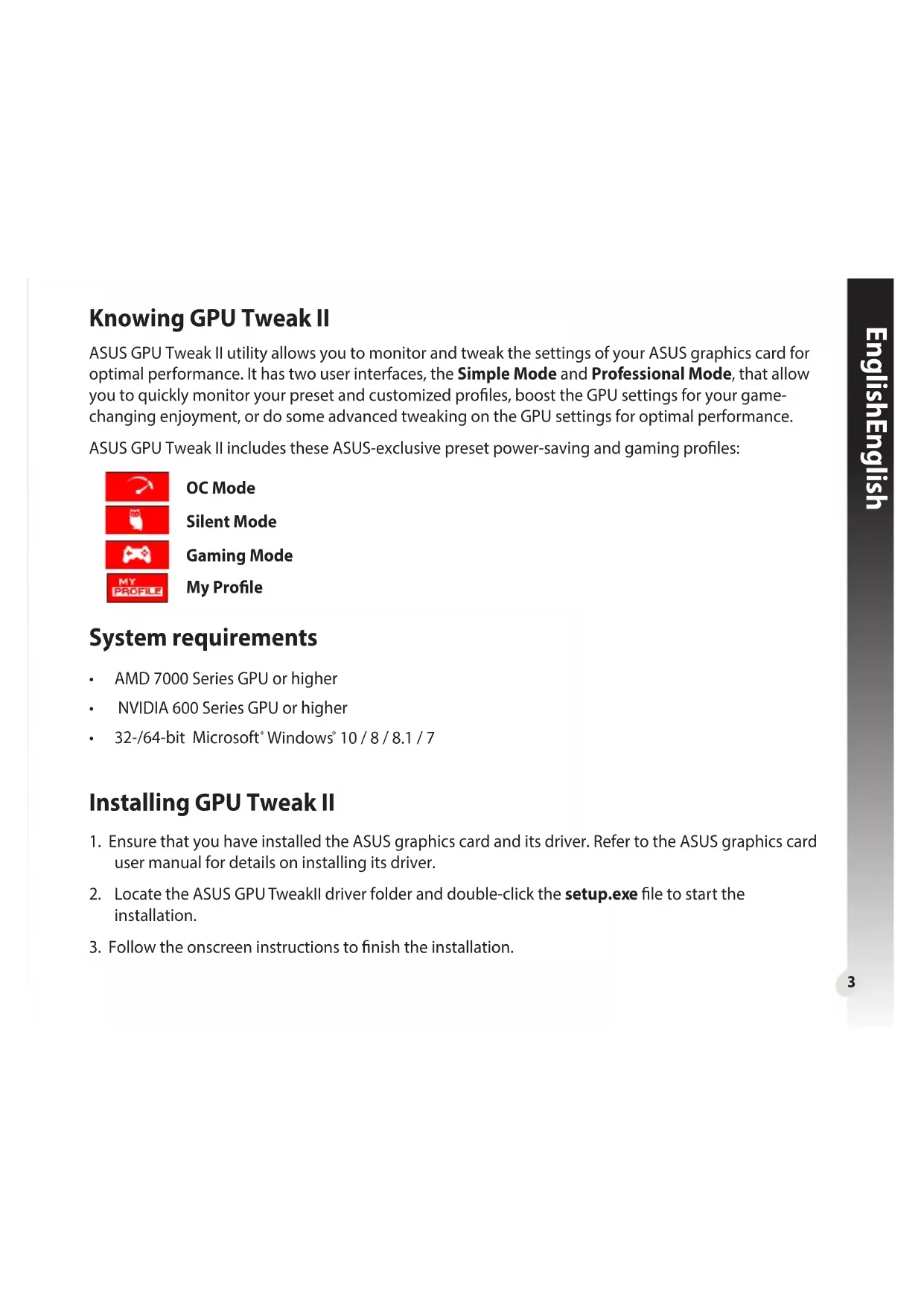
1. Ensure that you have installed the ASUS graphics card and its driver. Refer to the ASUS graphics card
user manual for details on installing its driver.
2. Locate the ASUS GPU TweakII driver folder and double-click the setup.exe le to start the
3. Follow the onscreen instructions to nish the installation.4
EnglishEnglish Launching GPU Tweak II
- Double-clicktheGPUTweakicon on the desktop.
- ClickStart > All Programs > ASUS > GPU Tweak II to launch the program. Simple Mode SimpleModeprovidesyouwithaquickwaytomonitoryourGPUsettingsinreal-time,andtweaksome system settings via Gaming Booster for your game-changing enjoyment. Characteristicsofa preset prole ASUS pre- set/custom proles GPU info and Live Update Settings Enable/disablefanrotation(0dB Fan)*
- Appears only on an ASUS Graphics card with 0dB Fan function. Link/unlinkthe Monitorpanel Launch Gaming Booster LaunchProfessionalMode Monitorpanel Launch XSplit5 EnglishEnglish Gaming Booster Get that game-changing performance edge with Gaming Booster, which helps optimize your system for a seamless and faster game play in your computer games. GamingBoosteroersyouthesethree(3)functions:
- Visual Eects: Lets you turn o the Windows® visual eects to intensify the processor performance.
- System Services: Lets you to automatically or manually turn o Windows® services or processes.
- System Services setting: Lets you to manually choose the services or processes that you want to stop.
- System Memory defragmentation: Lets you rearrange and clean your system memory without closing any processes.6 English English Professional Mode ConguretheGPUsettingslikeapro,andgettheoptimalperformancefromyourASUSGraphicscard. ASUS pre- set/custom proles VGAinfoand Live Update Settings Link/unlinkthe Monitorpanel Monitorpanel Return to the Simple Modescreen Congurable GPU settings Customizethe item arrange- ment Add, delete, or save a prole Launch XSplit Clicktolockthe GPU settings Indicates when the prole is applied7 English English Conguring a prole
1. Select the prole that you want to congure.
2. Select the GPU setting, then key in your preferred value.
- Selecttheprole,thenclick to apply the prole. Deleting a prole
- Selecttheprole,thenclick to delete the prole.8 English English Getting the VGA info and Live Update TheInfoscreenprovidesyouwithinformationandliveupdatesaboutyourASUSVGAcard. NOTE: Ensure that your computer is connected to the Internet to get the Live Update.9 English English Launching XSplit Install and launch XSplit Gamecaster from GPU Tweak II.10 English English Using the Settings screen The Settings screen allows you to congure the GPU Tweak II settings such as Main, Tuning Settings, Live Update, and Keyboard Shortcuts. Main FromtheMainsettings,youcanselectanyoftheseoptionsonlaunchingGPUTweakII:
- AutomaticallylaunchGPUTweakIIoritsMonitorpanelonWindows®startup.
- MinimizeGPUTweakIIoritsMonitorpaneloncelaunched.
- Turnthenoticationwindowon/o. MonitorpanelMainsettings11 English English Tuning Settings From the Tuning Settings, you can select any of these options on applying the GPU Tweak II settings:
- SettheUpdate check frequency as to when you want to receive the Live Update.
- SelectanyoftheLiveUpdateoptions:
- Download updates but let me choose whether to install them: Select this option to automatically download updates, and decide whether to manually install them.
- Download important updates but let me choose whether to install them: Select this option to automatically download critical updates, and decide whether to manually install them.
- Notify me but do not automatically download or install updates: Select this option to receive notications only, and decide whether to manually download and install the updates. Live Update settings13 English English Keyboard Shortcuts Turnon/otheKeyboardShortcutstoquicklyshowthemainscreenorapplysomequickadjustments. KeyboardShortcutssettings14
- Augmenterlaplaged'overclocking.