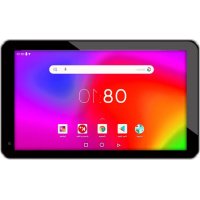
X70 - Tablet WOXTER - Free user manual and instructions
Find the device manual for free X70 WOXTER in PDF.


| Product type | Touchscreen tablet |
| Brand | Woxter |
| Model | X70 |
| Dimensions (approx.) | 190 x 110 x 10 mm |
| Weight (approx.) | 300 g |
| Screen | High-definition touchscreen LCD (approx. 7 inches) |
| Power supply | 5V power adapter (included), USB cable |
| Connectivity | Wi-Fi 802.11b, Bluetooth, USB, HDMI |
| Storage | Internal NAND Flash memory, TF card (microSD) slot |
| Main functions | Camera, camcorder, video/audio playback, Internet browsing, file management, Android applications |
| Maintenance and cleaning | Avoid moisture, clean with a soft dry cloth |
| Safety | Do not use while driving, follow medical guidelines, avoid high temperatures and humidity, do not disassemble |
| Spare parts and repairability | Contact Woxter customer service |
| General information | Android operating system, user manual included |
Frequently Asked Questions - X70 WOXTER
User questions about X70 WOXTER
0 question about this device. Answer the ones you know or ask your own.
Ask a new question about this device
Download the instructions for your Tablet in PDF format for free! Find your manual X70 - WOXTER and take your electronic device back in hand. On this page are published all the documents necessary for the use of your device. X70 by WOXTER.
USER MANUAL X70 WOXTER
gen 5-2
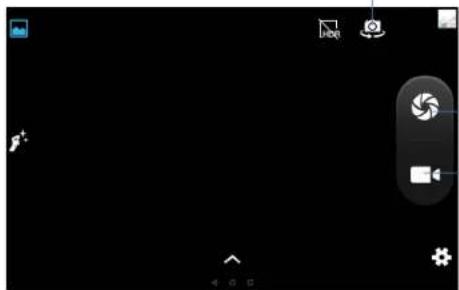
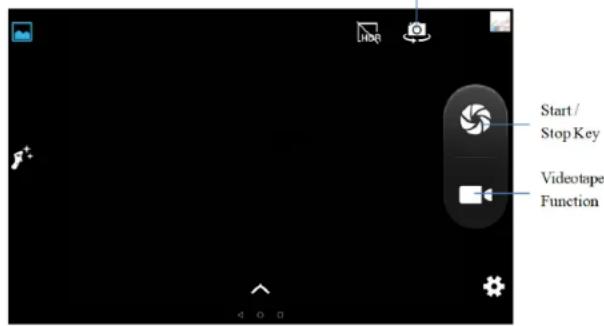
Start/ StopKey
Videotape Function
5.2 HDMI
1.1 Acknowledgements
Many thanks for you choosing this product. The product belongs to Woxter X70, which is a kind of mobile internet device, delicate, small and exquisite, and also portable. It is also equipped with a piece of touch LCD of high definition, which can be used to watch videos and pictures of high definition. It supports installation of multiple application programs on office and entertainment. The fantastic operation interface will give you a brand-new user experience.
This manual systematically introduces diversified functions, using skills and matters needing attention of this Woxter X70, please read this manual carefully before using it.
1.2 Safety Notice
Before using Woxter X70, please read information in this section, and make your children learn about the information. About more detailed information, please refer to safety instructions and matters needing attention.
- Please don't use Woxter X70 when you are driving, for fear of hindering safe driving.
In medical places, please observe relevant stipulations and regulations. And in regions near the medical devices, please shut down Woxter X70. - Please shut down Waxter X70 or enable the airplane made when boarding, so that the wireless signals will not interfere control signal of the airplane.
- Please shut down Woxter X70 neighboring electronic equipments with high accuracy, otherwise, breakdown of electronic equipments may be brought about.
- Please don't dismantle the Woxter X70 and its accessories on yourself, and only the authorized agency can maintain this Woxter X70.
- Please keep Woxter X70 far away from magnetic equipment, radiation from Woxter X70 will erase information stored on the magnetic equipment.
- Please don't use Woxter X70 in places with high temperature and inflammable gas (such as nearby gas station).
- Please put Woxter X70 and its accessories in places beyond children's touch, please don't let children use Woxter X70 without supervision.
- During using of this Woxter X70, please observe related laws and regulations, respect privacy and legitimate rights of others.
- Please strictly abide by relevant explanations in this manual when using USB data line, otherwise, Woaxter X70 or personal computer may be damaged.
- Please don't use the Woxter X70 in humid environment such as bathroom, etc., and the Woxter X70 being soaked or rinsed by liquid must be avoided.
1.3 Abbreviation/term
| Abbreviation/term | Full name Explanations | |
| Woxter X70 | Mobile Internet Device | Mobile internet terminal |
| WIFI Wireless Fidelity | Wireless Local Area Network based on IEEE 802.11b standard | |
| TF Trans Flash | Alternate name Micro SD, super miniature storage card | |
| HDMI | High Definition Multi-media Interface | High definition multi-media interface |
2. Brief introduction
2.1 Diagram for Woxter X70 complete machine
WOXTER X70 front view:
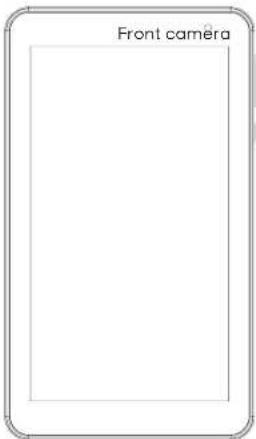
Figure 2-1
woxter.es
WOxTER X70 side view;
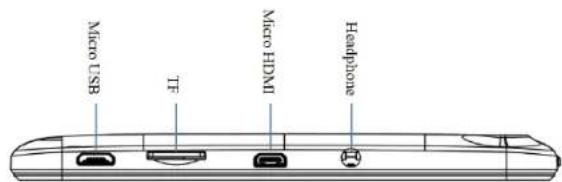
Figure 2-2
WOxTER X70 side view; WOxTER X70 rear view
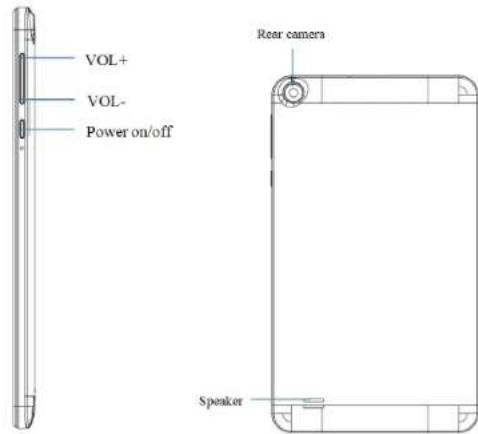
Figure 2-3
Figure 2-4
waxter.es
2.2 Introduction to accessories
Packing list
The following articles are included in your packing box of Woxter X70:
Woxter X70
Power adaptor
- USB connecting line
- User's manual
2.3 Woxter X70 state and notice
Iconograph for notification
When a prompt message shows on your notice panel, please click the column box and slide on the screen with your finger to open the notice list. Click options needing to check to see detailed information. Then you may click the message box and slide upwards to close the message window. The following are iconography for icons in status bar:
| Mail notice | Mute | ||
| Gmail notice Without SD card | |||
| Computer and Tablet are connected through USB line | Uploading/Down-loading | ||
| Events waiting to be done | Downloading finished | ||
| Alarm clock opening | General notice (for example: synchronous error) | ||
| Playing music in data synchronism | |||
| ! | Insufficient space of SD card | + | More |
| WiFi service is connec-ted, network is available | Battery symbol | ||
| Airplane mode Charging | |||
| Bluetooth is already connected | |||
3. Quick start
3.1 Key function
Descriptions for key function:
| Power key●Press this key for a long time to start up ●Under starting up state, press this key for a long time to pop up shutdown option ●Under starting up state, press this key to close the screen. Under starting up state or when breakdown appears, press the power key for 7 seconds to make your device enter into shut-down state | |
| Menu key●Press this key to open menu of the current interface | |
| Return key●Press this key to return the last operating step or the previous operating interface | |
| Homepage key | ●Press this key to return back main function interface from any interface |
3.2 Starting up and turning off
Starting up
Press the power key for 3 seconds; you can see the starting up picture. After the system is started, the machine enters into screen lock state, please unlock according to direction indication of sliding icon on the interface.
Turning off
After pressing the power key for a long time, the shutdown option will pop up.
Click OK.
3.3 Unlocking and closing of the screen
The machine will close automatically when the screen is left unused
- After the screen being left unused for a period of time, the machine will close screen automatically, so as to save battery power.
- Under screen on state, press the power key, the screen will close immediately.
Prompt: If you want to inquire how to set turn-off time of screen, please refer to chapter 9.1.
Turning on under screen off state
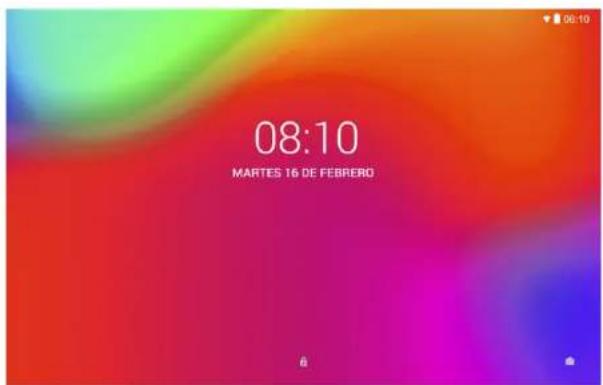
If the screen is in off state, you can unlock the screen by pressing power key for a short time or the return key for a long time. After opening, the screen will enter lock state, press "lock" icon by your finger and slide upward, the screen will be unlocked, slide on the camera icon, you can enter the camera function.
woxter.es
Figure 3-1
3.4 Use of touch screen
Operating mode in Woxter X70
There are various ways to skim the main screen, menu and application program, etc. on your Woxter X70.
Click to select
When you want to use screen keyboard entry, and you want to select items on the homepage interface such as application program, you only use your finger to click.
Press on
If you want to unlock the available option of a certain item (such as textbox or interlinkage in the webpage), or move shortcut on the homepage interface and menu of main program, only press the item.
Slide quickly or slide
Quick sliding or sliding means doing rapid vertical or horizontal drag movement by using finger on the picture.
Drag
Before you starting to drag, you must press it with your finger and impose a certain pressure, and don't loosen the finger before dragging to the wanted position.
Rotate
Aiming at most of pictures, only turn the Woxter X70 in side direction, the screen direction can be shifted from cross direction to vertical direction. For example, when you input characters, watch cinema, etc.
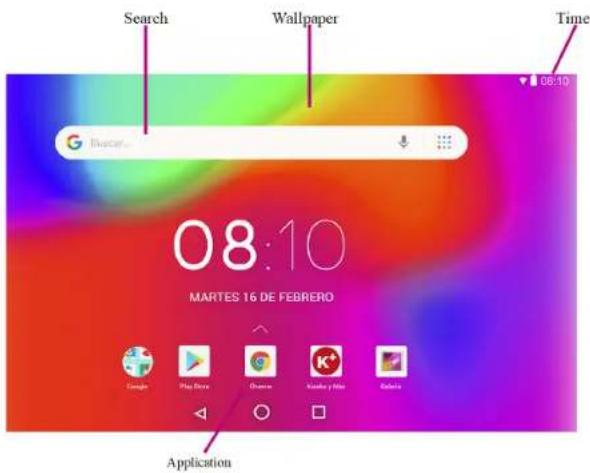
All application programs on the machine will be displayed on the main menu screen. You may use application program, shortcut and user-defined mode to set wallpaper of your homepage interface
woxter.es
User manual Waxter X70 English
Figure 3-2
Skill: in any application programs, you can press homepage key to return homepage interface.
Custom homepage Interface
Change desktop wallpaper
Press blank region on the homepage interface to pop up the menu.
When the menu popping up, choose source of homepage interface wallpaper you want to change.
After clicking source of wallpaper, click picture you want, and then select "setting wallpaper".
woxter.es
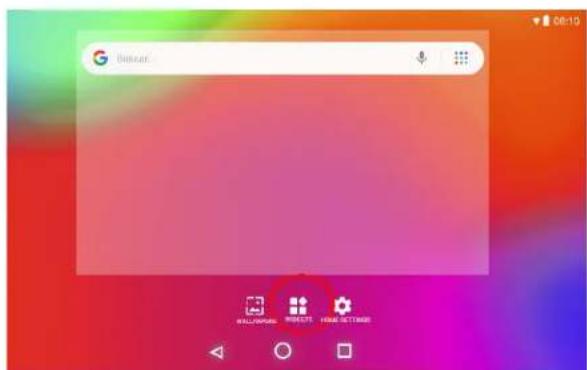
Figure 3-3
3.6 USB connection
Storage setting of Woxter X70
Before transmitting document, you must set storage mode for your tablet firstly:
Connect Woxter X70 with computer by using USB transmission line. Notice bar will show the notice prompt.
Click status bar, options of status bar show.
Among options of status, click to choose USB connected, then click to open USB storage device.
At this time, USB has already been connected.
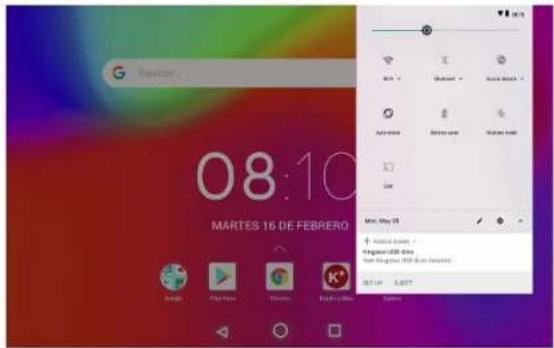
Figure 3-4
woxter.es
Copy the document to storage card
Connect Woxter X70 and computer together with USB cable.
After setting according to storage of Woxter X70, connect with computer successfully.
Open your computer, in my computer, examine content in 'removable disk (x)'.
Find the document you want to copy, copy it to 'removable disk(x)'.
After completion of copying, click "safely remove hardware" in taskbar of your computer to unload.
Content of Woxter X70 storage device
NAND FLASH storage device, space for Woxter X70 to store document itself.
TF removable memory card.
The two above-mentioned storage devices both can be visited through connection with your computer with USB.
Attention: when your Woxter X70 is connected with USB cable, if you start up USB storage device, you will cannot visit the memory card through Tablet, if you want to visit memory card in Woxter X70, only disconnect USB cable.
3.7 Memory card
Copy the document to storage card
You can transmit document between Woxter X70 and computer, such as music and picture, etc. If you want to see documents in Woxter X70, only click the file browser to look through content in the SD card.
Delete documents on the storage card of Woxter X70
Find document you want to delete.
Press the document name you need to delete; a file menu will pop up. Click delete.
Removing storage card when the Woxter X70 is in starting up state
If need to remove storage card under starting up state of Woxter X70, you must unload the storage card firstly for fear of failure or damage of the storage card.
In the homepage interface, press the menu key, and then click setting.
Pull the setting menu downwards, and then click storage.
Click SD card setting.
Click to install the SD card.
woxter.es
4. Wireless networks
4.1 WIFI Connection
Your Woxter X70 can be connected onto Wi-Fi network to connect the operation:
On the homepage interface, click and select the menu key and pop up the menu setting;
Click and select the System Setting:
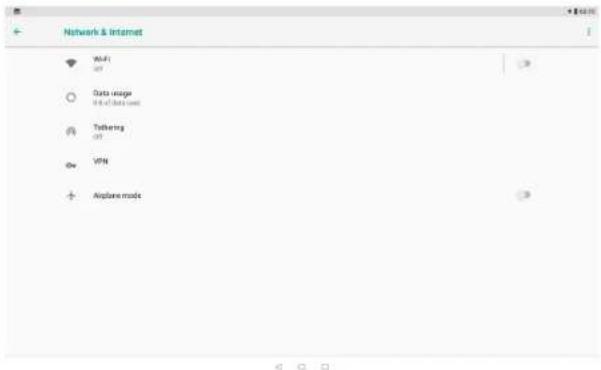
»Click Wi-Fi and open Wi-Fi switch;
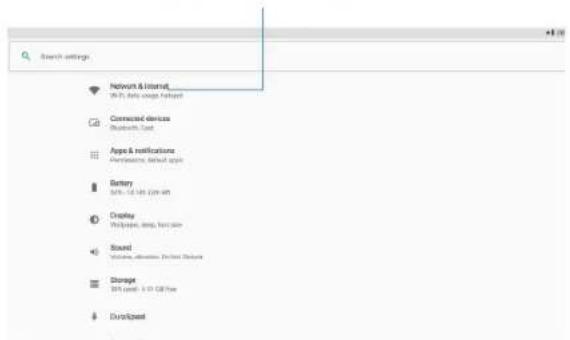
After opening Wi-Fi, the searched Wi-Fi network can be scanned automatically from the equipment in the windows on the right.
Select the Wi-Fi network required to be connected, if the password is added, pop up the password input windows and input the corresponding password.
Click the Connection
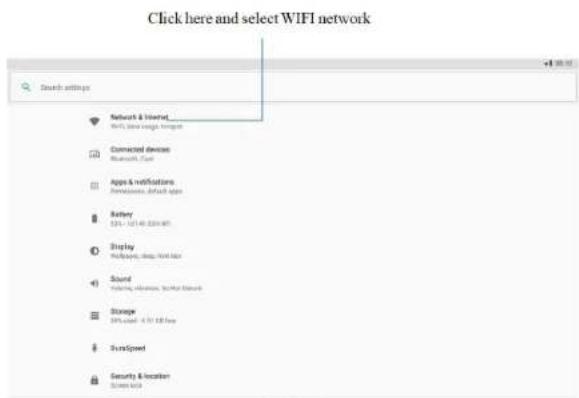
Figure 4-1
User manual Woxter X70 English
Figure 4-2
4.2 Bluetooth Connection
Functions of Bluetooth:
You can exchange the files between two Bluetooth. You can exchange the files with other computers, mobile phones and PDA.
You can synchronously exchange pins data with mobile phones, PDA and laptop to support the Bluetooth (data of outlook E-mail address).
»You can exchange the electronic name card with mobile phones, PDA and laptop to support the Bluetooth.
»You can connect the keyboard, mouse and joystick to support the Bluetooth.
Application of Bluetooth (Figure 4-3)
Setting procedure of entering into Bluetooth: set -> Bluetooth set, open the Bluetooth equipment
»Name of equipment: you can randomly change the name of Bluetooth for your Woxter X70 by pressing Menu key.
Detectability: open this function by clicking the place for name of Bluetooth, which indicates that your Woxter X70 Bluetooth can be searched by other Bluetooth equipments, this default time for this opening is of 120 seconds.
Scan and look for equipment: you can detect the equipment desired to be connected by utilizing this function.
Bluetooth: after employing the scan to look for the equipment, all Bluetooth equipments searched by your Woxter X70 can display under this function.
woxter.es
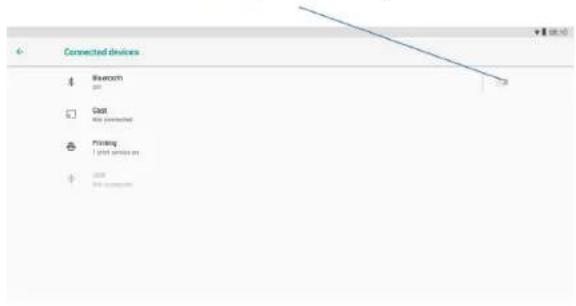
Click this and open the detectability function
Figure 4-3
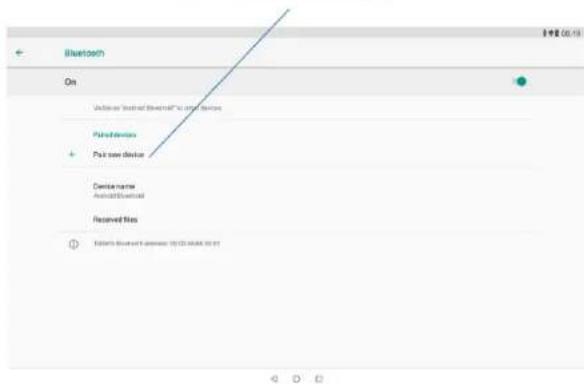
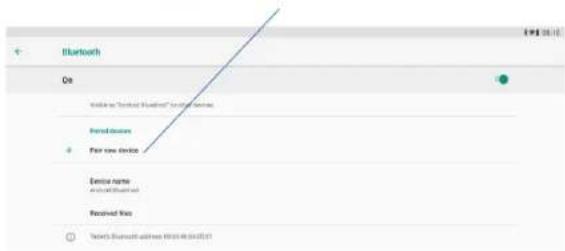
Click this scan to search for the equipment
Figure 4-4
woxter.es
5. Communication
5.1 Camera
Camera functions
Click and select the camera;
The system enters into the camera interface;
Click and select the Photo button and easily take the photos;
Set such functions as photo size, storage location, white balance and focal length regulating;
After completion of taking photo, there is the display for previewed minimap.
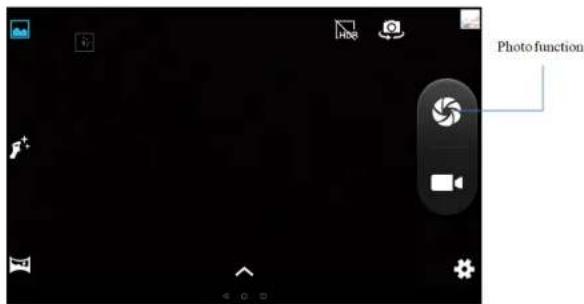
Figure 5-1
Videotape function
»Click the videotape icon and convert it as video recorder mode;
»Click and select the red videotape button to take video;
Set such setting functions as color effect, white balance and video quality;
Switch 720P and 480P high-definition video recording.
Click and select the video recording button, end the video recording, and observe the previewed video
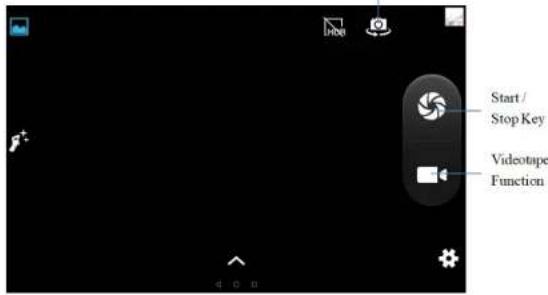
Cut Front or Rear
Figure 5-2
5.2HDMI
HDMI High-definition video interface
The Woxter X70 and the high-definition television are connected by a standard HDMI cable. This interface supports the picture with highest quality of 1080p resolution ratio.
Waxter X70 is in the boot status.
» The Woxter X70 and the high-definition television are connected by a standard HDMI cable.
The system interface on Woxter X70 is automatically synchronized with the high-definition TV screen.
Click Display in the settings menu.
»Click Output Select to switch HDMI mode.
Click Resolution to set the resolution ratio of HD TV.
6. Other Applications
6.1 File Management
Browse files
Slide the desktop to locate the File browser.
You can use the file browser to manage, edit and delete the files and folders, or to create sharing and FTP server to achieve resource sharing.
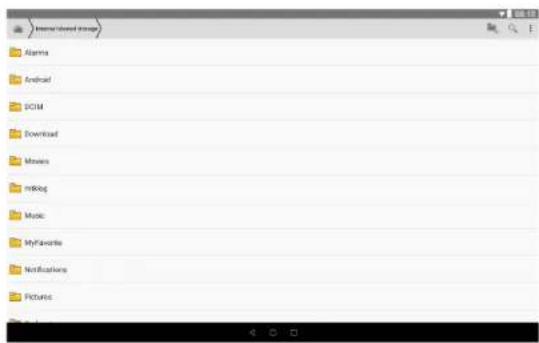
User manual Woxter X70 English
Figure 5-3
Cut and copy files
In the file browser, press and select the file you want to operate.
Pop up operating menus, including Cut, Copy, Delete, Rename, Move to, Copy to, Play music, Select all, Set home directory and Attributes, etc.
Click Cut or Copy file or folder.
Click into the folder you want to paste, and pop up menu by pressing the Menu key.
Click Operate and then click Paste.
Delete files
In the file browser, press the file you want to delete.
Click Delete.
Click OK to delete file.
Folder setup
In the file browser, pop up menu by pressing the Menu key.
»Click Create.
Click Folder,
Click pop-up window and input the name of the new folder in the text box.
Click OK to create the folder.
Quick search
In the toolbar of the file browser
»Click Search icon.
wxxter.es
"Pop up the search panel and enter the keywords you need to find.
Click OK and the search progress bar will appear in the notification bar.
When the search is completed, pop up the dialog box to confirm whether to show the results.
Click OK to show the search results.
Create sharing
Load ES file browser. (Fig. 5-4)
» Click 'Local' at the upper left corner and select 'Share' in the pop-up window.
Click the menu bar 'Create', and select 'Search' in the pop-up window.
The system will automatically search all the computers within the LAN, and each drive of your computer can be seen by clicking OK.
You can Copy, Delete, Rename here.
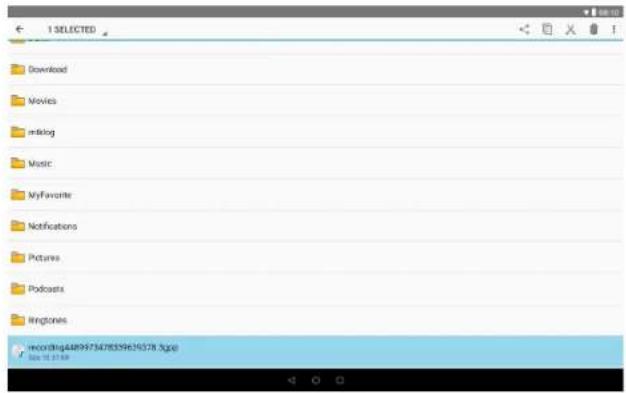
Figure 5-4
7. Important. Attention:
The indicated storage capacity corresponds to the amount of memory installed in your device. The operating system and the pre-installed applications occupy part of that memory, so the available memory capacity will be lower.
wxxter.es
TIPS TO TAKE INTO ACCOUNT FOR THE CORRECT LOADING OF YOUR TABLET.
Load preferably in places away from flammable products.
Monitor and control the loading period (not to exceed the recommended period).
Use only the original charger
Do not leave the Tablet charging at night.
Do not leave the Tablet on textile surfaces during loading.
The images in this document are only referential; they may be different from the device interface. The design of the interface may change due to device updates or changes made to its settings.
8. Technical security requirement
The power adapter is the device disconnect device. The socket outlet must be close to the equipment and easily accessible.
Google, Android, Google Play and other marks are trademarks of Google LLC.
1. Einführung
1.1 Danksagung
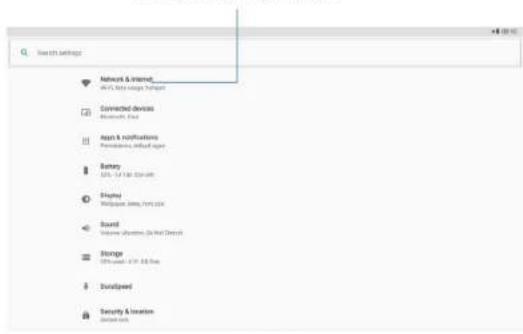
Click here and select WFI network
Image 4-1
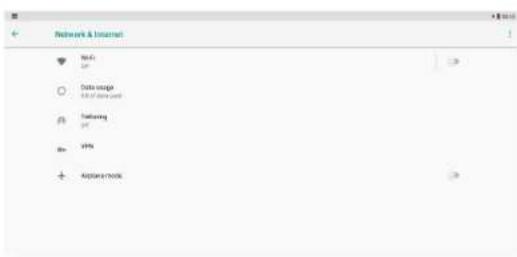
Image 4-2
4.2 Connexion Bluetooth
Fonctions Bluetooth:
Applications Bluetooth (Figure 4-3)
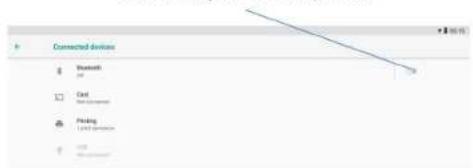
Click this and open the detectability function
Image 4-3
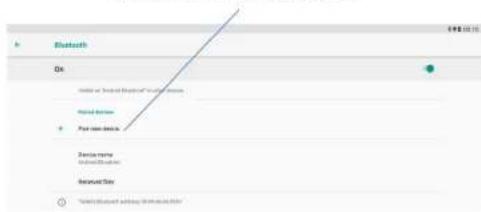
Click this scan to search for the equipment
Image 4-4
waxter.es
7. Important Attention:
4. Concessioni wireless
4.1 Conexión WiFi
Click here and select WIFI network
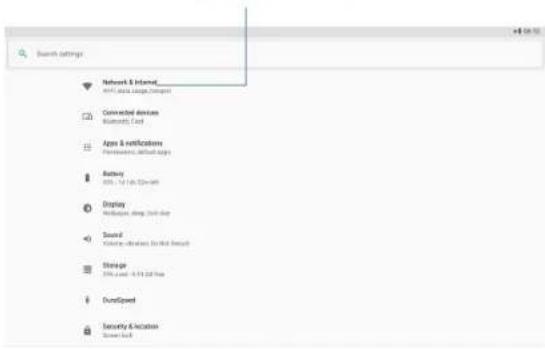
Immagine 4-1
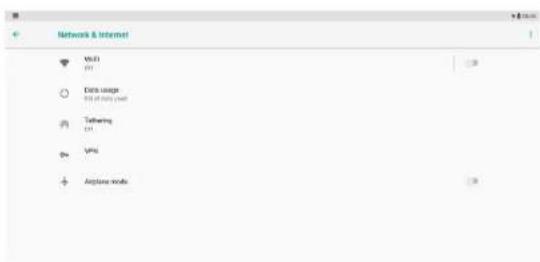
Immagine 4-2
4.2 Connessione Bluetooth
Funzioni Bluetooth:
Click this and open the detectability function
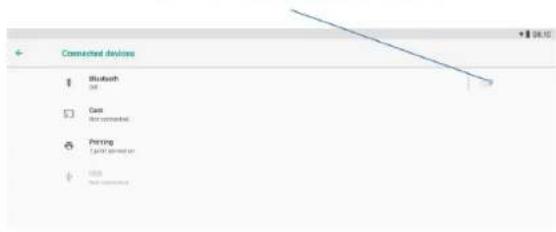
Imagine 4-3
Click this scan to search for the equipment
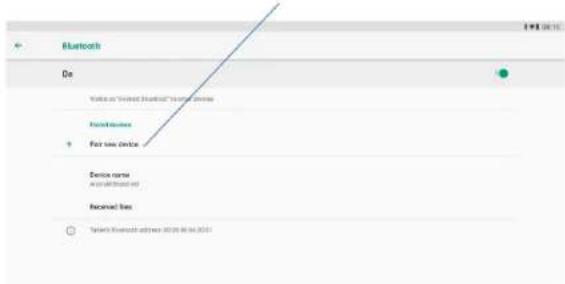
Immagine 4-4
waxter.es
5. Comunicazione
5.1 Fotocamera
Click here and select WIFI network
Imagen 4-1
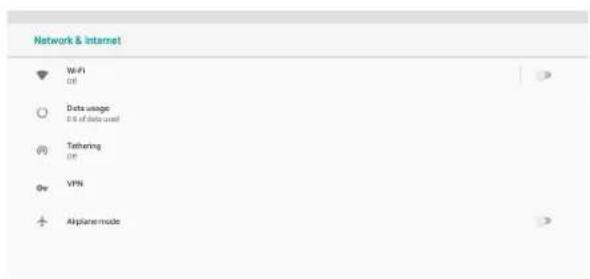
Imagen 4-2
woxter.es
4.2 Conexão Bluetooth
Funções Bluetooth:
Click this scan to search for the equipment
Imagen 4-4
5. Comunicação
5.1 Camera
Funções da camera
Cut Front or Rear
Imagen 5-2