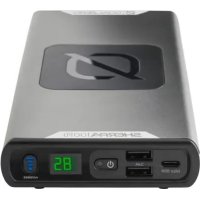
Sherpa 100PD - Power bank GOAL ZERO - Free user manual and instructions
Find the device manual for free Sherpa 100PD GOAL ZERO in PDF.



| Product type | Portable battery |
| Brand | Goal Zero |
| Model | Sherpa 100PD |
| Dimensions | 19.53 × 9.68 × 2.59 cm |
| Weight | 680 g |
| Battery capacity | 25600 mAh @ 3.7 V |
| Battery chemistry | Li-ion NMC |
| Charge time (USB-C PD 60 W) | Approximately 2 hours |
| USB-C PD port (input/output) | Input: 5 V-20 V up to 3 A (60 W max); Output: 5 V-20 V up to 5 A (100 W max) |
| USB-A ports (output) | 5 V, up to 2.4 A (12 W max) per port |
| Wireless charging | Up to 15 W max |
| Operating temperature | 0 °C to 40 °C |
| Warranty | 2 years (online activation required) |
| Included accessories | USB-C to USB-C cable (1 m) |
| Care and cleaning | Keep clean and dry; do not expose to moisture |
| Safety | Protection against overcharge, deep discharge, and short circuit |
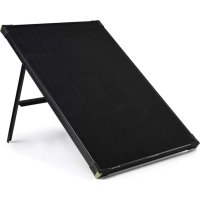
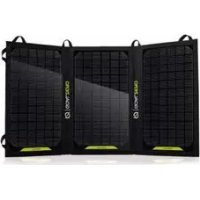
| Recommended solar panel | Goal Zero Nomad 20 (sold separately) |
Frequently Asked Questions - Sherpa 100PD GOAL ZERO
User questions about Sherpa 100PD GOAL ZERO
0 question about this device. Answer the ones you know or ask your own.
Ask a new question about this device
Download the instructions for your Power bank in PDF format for free! Find your manual Sherpa 100PD - GOAL ZERO and take your electronic device back in hand. On this page are published all the documents necessary for the use of your device. Sherpa 100PD by GOAL ZERO.
USER MANUAL Sherpa 100PD GOAL ZERO
Make sure your Goal Zero Sherpa 100PD is fully charged before using or storing. Keep your Goal Zero Sherpa 100PD plugged in when not in use.

IMPORTANT SAFETY INSTRUCTIONS

Read all instructions and cautions carefully before use to avoid personal injury or damage to the unit and any connected products.
Observe all Input/Output connectors ratings: To avoid fire or electrical shock hazard, observe all ratings on unit, and products you intend to use; check manuals for more information.
Use in a ventilated area: Ensure proper ventilation while in use. Inadequate ventilation may cause damage to the unit. During storage do not stack anything on top of unit.
DO NOT operate in wet conditions: In order to avoid short circuits or electric shock do not allow unit to get wet. Let unit dry completely before using.
Keep the unit clean and dry: Inspect the unit for dirt, dust, or moisture on a regular basis.
DO NOT insert foreign objects into outputs or ventilation holes. Any manipulation to the unit or its components will void all warranties.
Table of Contents
Get to Know Your Gear 2
Charge Before Use 3
Using the Sherpa 4
Frequently Asked Questions 5
Technical Specifications 6
Français 8
Deutsch 15
Espanol 22
Italiano 29
Portugues 36
43
Suomalainen 50
Nederlands 57
Svenska 64
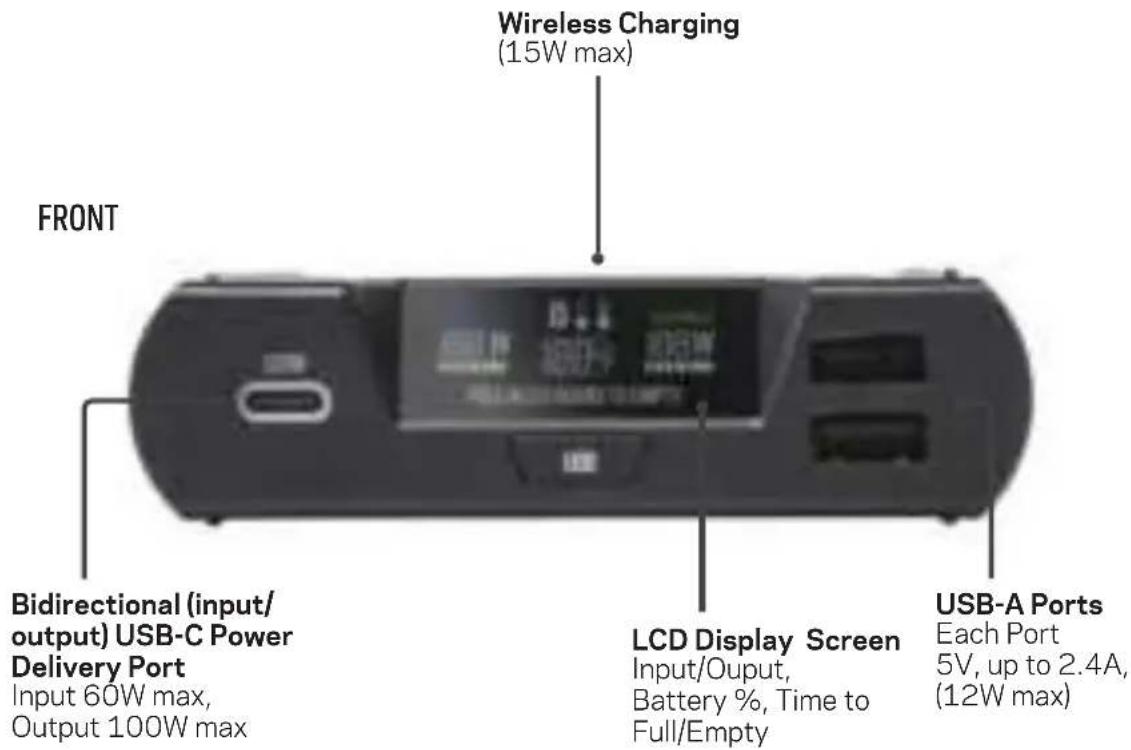
GET TO KNOW YOUR GEAR
Included Cable:
USB-C to USB-C
39in (1 meter)
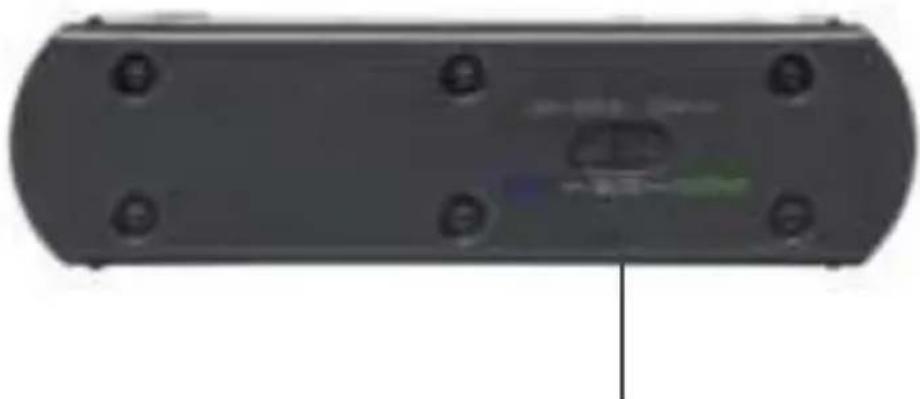
BACK
USB-C Input /Auto/Output
Selector switch for the
USB-C PD ports
CHARGE BEFOREUSE
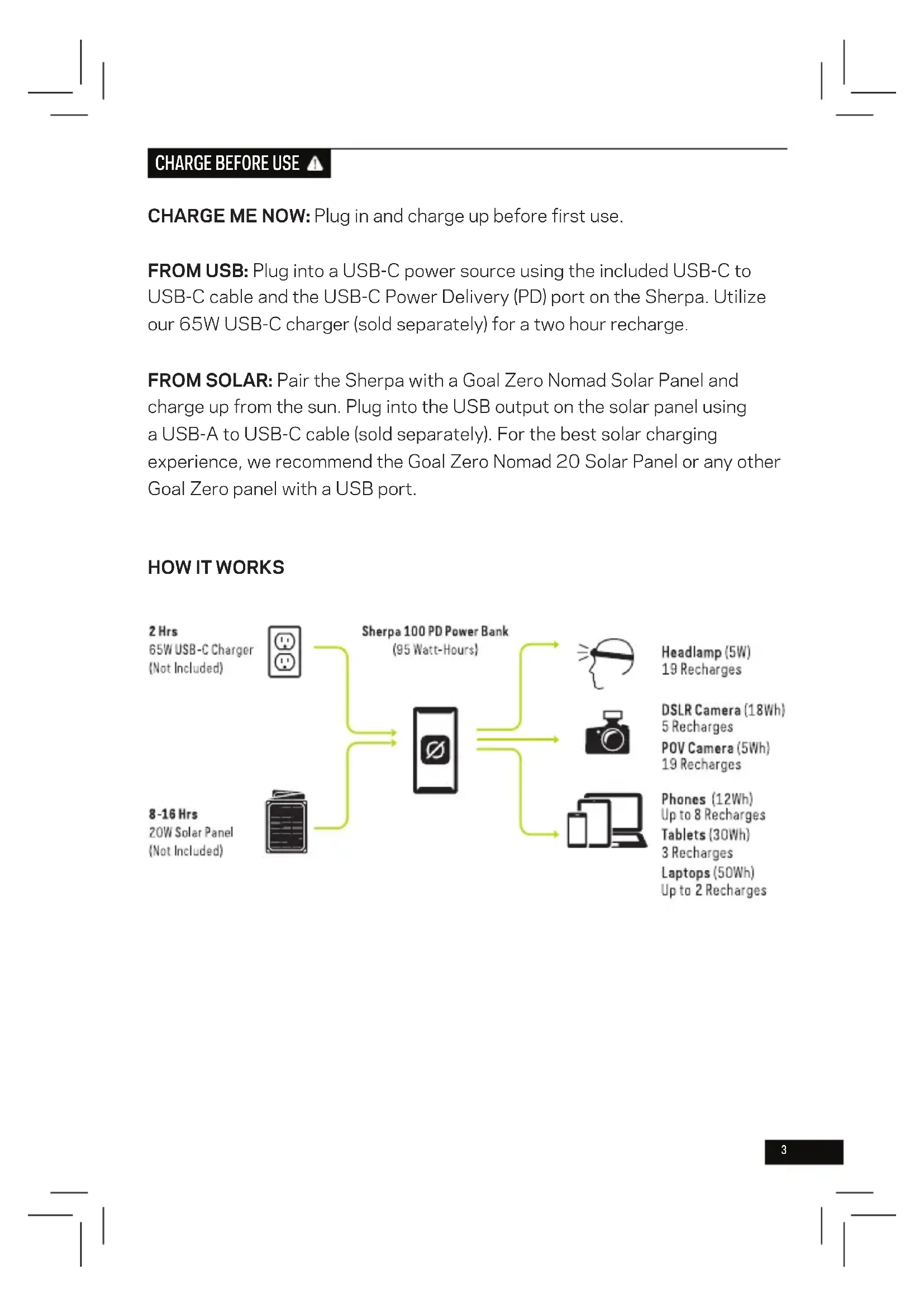
CHARGE ME NOW: Plug in and charge up before first use.
FROM USB: Plug into a USB-C power source using the included USB-C to USB-C cable and the USB-C Power Delivery (PD) port on the Sherpa. Utilize our 65W USB-C charger (sold separately) for a two hour recharge.
FROM SOLAR: Pair the Sherpa with a Goal Zero Nomad Solar Panel and charge up from the sun. Plug into the USB output on the solar panel using a USB-A to USB-C cable (sold separately). For the best solar charging experience, we recommend the Goal Zero Nomad 20 Solar Panel or any other Goal Zero panel with a USB port.
HOW IT WORKS
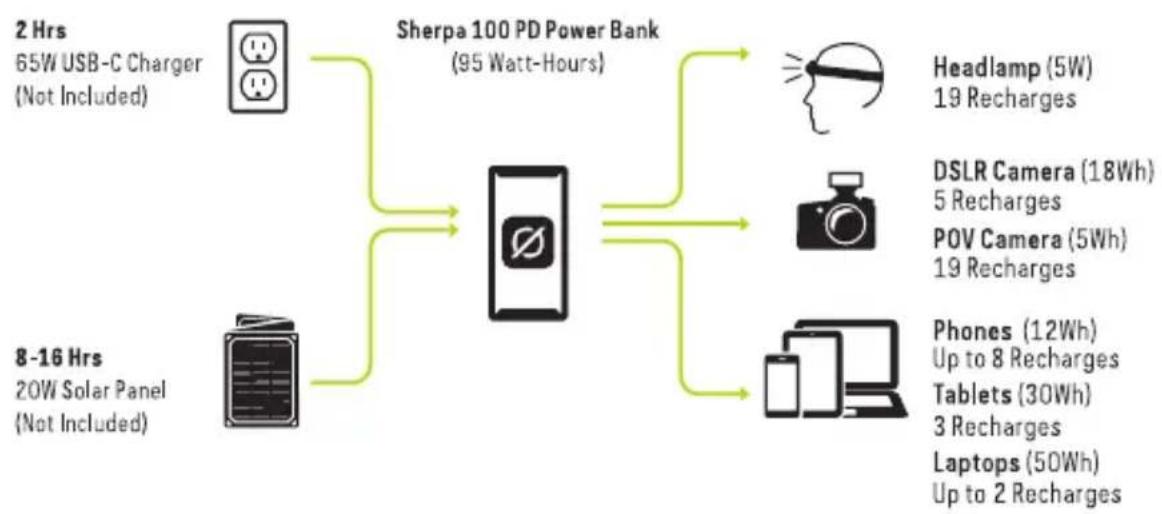
USING THE SHERPA
BUTTONS:
| Display | Turn on/off the display. |
| (3) | Turn on/off wireless charging. Button light is white when wireless charging is turned on and turns green when connection with the device is made and charging begins. Place your smartphone on top of the device on the black charging square to begin charging. |
| USB | Turn on/off the USB-A ports. |
| INPUT← AUTO← OUTPUT | Slide switch on the back of the Sherpa to change your USB-C ports between Input/Auto/Output. Input means you are inputting power to your Sherpa. Output means you are outputting power from your Sherpa. |
TIPS for LAPTOP CHARGING via USB-C PD:
We recommend using a USB-C to USB-C cable when recharging enabled laptops. Since USB-C PD ports are bidirectional, meaning they can function as an input to charge the Sherpa or an output to charge other devices, plugging in a laptop may cause the Sherpa to try charging from the laptop's internal battery, rather than charging the laptop. To fix this, slide the selector switch on the back of the Sherpa to "OUTPUT"
PASSTHROUGH CHARGING
The Sherpa can be charged and recharge other devices simultaneously. Keep in mind that if you are outputting more power than you are inputting you will drain the Sherpa battery and the device will turn off. Plug the Sherpa into a power source and make sure it is still powered on, then plug the phone/laptop/ tablet or other device into the Sherpa.
FREQUently ASKED QUESTIONS
Q: Why is my 100W USB-C port not outputting 100W?
A: Make sure that the cable you are using is capable of 100W. Use licensed and certified cables as some third party cables may not work.
Q: Why am I not getting 15W output with wireless charging?
A: The phone needs to be able to accept 15W wireless charging. It also depends on how full the battery is. There will be some power loss in the process. Make sure your phone is centered on the pad. Slightly adjusting your phone on the pad may help increase charging capabilities. Additionally, cell phone battery temperature could limit the wireless input.
Q: Why is the port light on my Sherpa device red?
A: An error has occurred in this case. Try to reset the port by pressing the corresponding button on/off. If the problem persists, call our Customer Solutions Center at 888-794-6250.
Q: Why is the USB-C port not charging my device?
A: Check to make sure the USB-C selector switch on the back of the Sherpa is set to either Auto or Output. Move the switch to Output if it is in Auto and not charging your device. If this does not fix the problem, check that the cable you are using is the cable that was included with the device. If the problem persists, call our Customer Solutions Center at 888-794-6250.
PRO TIPS
The length of your cable may affect wattage. When available, use the shortest cable possible for the best recharge times. This is related to the efficiency loss and the length of your cable.
By holding the display button for two seconds while the display is on, you can put the device in blackout mode. This turns off all the lights while the ports continue to output power. Turn blackout mode off by pressing any button.
TECHNICAL SPECIFICATIONS
Sherpa 100PD
Charge times:
USB-C PD Source 2 hrs (60W)
USB-A (2.4A) 9 hrs
Nomad 10 15-30 hrs
Nomad 20 8-16 hrs
Battery:
Cell chemistry Li-ion NMC
Cell type 18650 by LG chem
Single Cell Equivalent 25600mAh @ 3.7V Capacity
Lifecycles Hundreds of Cycles
Shelf-life Charge every 3-6 months
Management system
Charging and low-battery protection built-in
Ports:
Wireless (output) 15W max
USB-A ports (output) 5V, up to 2.4A (12W max), regulated,
USB-C PD port Input: 5V-20V up to 3A (60W max), regulated Output: 5V-20V up to 5A (100W max), regulated
General
Chainable No
Weight 1.5 lbs (680 g)
Dimensions 7.69 x 3.81 x 1.02 in (19.53 x 9.68 x 2.59 cm)
Operating usage 32-104F (0-40C) temp.
Certs

Warranty 2 years
Be sure to activate your warranty at goalzero.com/warranty


RECHARGEZ-MOI MAINTENANT

goalzero.com/warranty

CARICAMI ORA

1.02 in (19.53 x 9.68
× 2.59 cm )
Temperatura
32-104F (0-40C)
deutilizacao
Certificados


Garantias 2 anos
USB-A (2,4A) 9 timmar
Nomad 10 15-30 timmar
Nomad 208-16 timmar
Batteri:
Cellkemi Li-ion NMC
Designed in the U.S.A.
Made in China
Sherpa is a trademark
of Goal Zero.
IC Caution.
This device contains licence-exempt transmitter(s)/receiver(s) that comply with Innovation, Science and Economic Development Canada's licence-exempt RSS(s). Operation is subject to the following two conditions:
- This device may not cause interference.
- This device must accept any interference, including interference that may cause undesired operation of the device.
This device complies with part 15 of the FCC Rules. Operation is subject to the following two conditions: (1) This device may not cause harmful interference, and (2) this device must accept any interference received, including interference that may cause undesired operation.
Any Changes or modifications not expressly approved by the party responsible for compliance could void the user's authority to operate the equipment.
Note: This equipment has been tested and found to comply with the limits for a Class B digital device, pursuant to part 15 of the FCC Rules. These limits are designed to provide reasonable protection against harmful interference in a residential installation. This equipment generates uses and can radiate radio frequency energy and, if not installed and used in accordance with the instructions, may cause harmful interference to radio communications. However, there is no guarantee that interference will not occur in a particular installation. If this equipment does cause harmful interference to radio or television reception, which can be determined by turning the equipment off and on, the user is encouraged to try to correct the interference by one or more of the following measures:
-Reorient or relocate the receiving antenna.
-Increase the separation between the equipment and receiver.
-Connect the equipment into an outlet on a circuit different from that to which the receiver is connected
-Consult the dealer or an experienced radio/TV technician for help.
*RF warning for Portable device:
The device has been evaluated to meet general RF exposure requirement. The device can be used in portable exposure condition without restriction.

- IMPORTANT SAFETY INSTRUCTIONS
- Table of Contents
- GET TO KNOW YOUR GEAR
- CHARGE BEFOREUSE
- HOW IT WORKS
- USING THE SHERPA
- BUTTONS:
- TIPS for LAPTOP CHARGING via USB-C PD:
- PASSTHROUGH CHARGING
- FREQUently ASKED QUESTIONS
- PRO TIPS
- TECHNICAL SPECIFICATIONS
- Sherpa 100PD
- Charge times:
- Battery:
- Ports:
- General
- RECHARGEZ-MOI MAINTENANT
- CARICAMI ORA
- Batteri:
- IC Caution.
Brand : GOAL ZERO
Model : Sherpa 100PD
Category : Power bank