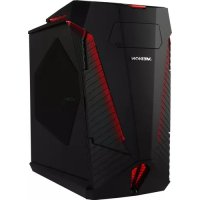
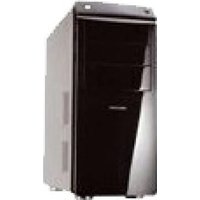
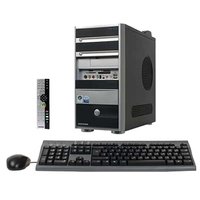
Erazer X87047 - Desktop computer MEDION - Free user manual and instructions
Find the device manual for free Erazer X87047 MEDION in PDF.



| Product Type | Desktop Computer |
| Brand | Medion |
| Model | Erazer X87047 |
| Dimensions (approx.) | 200 x 480 x 450 mm (L x W x H) |
| Weight (approx.) | 10 kg |
| Power supply | 220-240 V ~ 50 Hz, grounded plug |
| Power consumption | 500 W (power supply unit) |
| Main functions | Data processing, multimedia, digital communication, document management |
| Connectivity | USB, HDMI, Wi-Fi 5 GHz, Ethernet, audio ports |
| Optical drive | CD/DVD burner (Class 1 laser) |
| Maintenance and cleaning | Dust the ventilation grilles every 3 months; clean the case with a damp, lint-free cloth |
| Safety | Do not open the case; use surge protection; keep away from heat and moisture sources |
| Operating temperature | +5 °C to +30 °C |
| Operating humidity | 20% to 80% (non-condensing) |
| Storage temperature | -40 °C to 65 °C |
| Spare parts and repairability | CR2032 battery for motherboard; original cables; repair by authorized service center |
| Recycling | Device and packaging recyclable; do not dispose of with household waste |
| General information | User manual and safety instructions included; private use only |
Frequently Asked Questions - Erazer X87047 MEDION
User questions about Erazer X87047 MEDION
0 question about this device. Answer the ones you know or ask your own.
Ask a new question about this device
Download the instructions for your Desktop computer in PDF format for free! Find your manual Erazer X87047 - MEDION and take your electronic device back in hand. On this page are published all the documents necessary for the use of your device. Erazer X87047 by MEDION.
USER MANUAL Erazer X87047 MEDION
2.7. Audioanschlüsse
1. Information about these operating instructions

Thank you for choosing our product. We hope you enjoy using this device.
Read the operating instructions and safety instructions carefully before using the device for the first time. Note the warnings on the device and in the operating instructions.
Always keep the operating instructions close to hand. If you sell the device or give it away, please ensure that you also pass on these operating instructions. They are an essential component of the product.
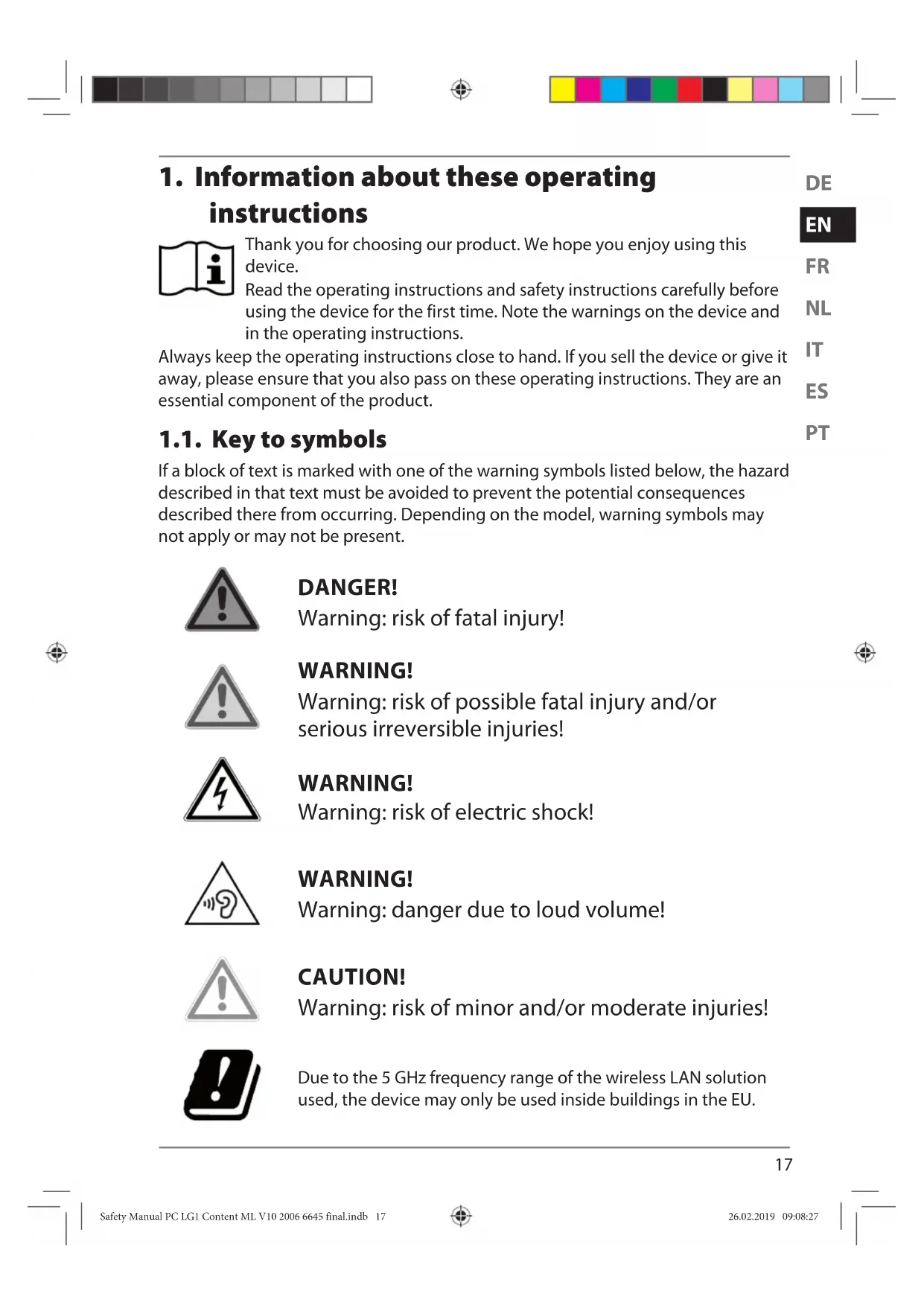
1.1. Key to symbols
If a block of text is marked with one of the warning symbols listed below, the hazard described in that text must be avoided to prevent the potential consequences described there from occurring. Depending on the model, warning symbols may not apply or may not be present.

DANGER!
Warning: risk of fatal injury!

WARNING!
Warning: risk of possible fatal injury and/or serious irreversible injuries!
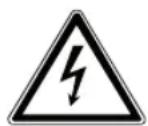
WARNING!
Warning: risk of electric shock!
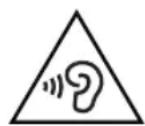
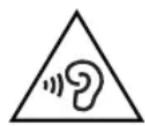
WARNING!
Warning: danger due to loud volume!

CAUTION!
Warning: risk of minor and/or moderate injuries!

Due to the 5 GHz frequency range of the wireless LAN solution used, the device may only be used inside buildings in the EU.

NOTICE!
Follow these instructions to prevent damage to the device!

Additional information on using the device!

Comply with the notes in the operating instructions.

Pull out the mains plug before opening
To avoid short-circuits and electric shocks, the mains plug must always be disconnected from the power supply when cleaning or carrying out maintenance and repairs to electrical equipment.

CE labelling
Products that feature this symbol meet the requirements of the EU directives (see chapter entitled "Declaration of conformity").
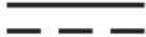
Symbol for direct current
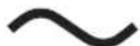
Symbol for AC current
- Bullet point/information on steps during operation
Instruction to be carried out
1.2. Proper use
This is an information electronics device.
This device is intended for the use, management and editing of electronic documents and multimedia content and is only intended for personal use, not industrial/commercial use.
Note that no liability will be accepted if the device is not used for its intended purpose:
- Do not modify the device without our express agreement and do not use any accessories that have not been supplied or approved by us.
- Only use replacement parts or accessories that we have supplied or approved.
- Comply with all the information in these operating instructions, especially the safety information. Any other use is considered improper and can cause personal injury or property damage.
- Do not use the device in extreme environmental conditions.
2. Safety information
2.1. Dangers for children and people with reduced ability to operate devices
This device may be used by children over the age of 8 and by persons with limited physical, sensory or mental abilities or by those without experience and knowledge, if they are supervised or have been instructed in the safe use of the device and have understood the dangers that result from it.
- Children must be supervised to ensure they do not play with this device.
- Cleaning and user maintenance may not be carried out by children unless they are supervised.
- Keep the device and accessories out of reach of children.

DANGER!
Risk of choking and suffocation!
The packaging material is not a toy!
Packaging film can be swallowed or used improperly, creating a risk of choking and suffocation.
- Keep packaging material such as plastic film or plastic bags away from children.
2.2. Operating safety
Read these installation instructions carefully and comply with the information provided in them. This will ensure that your PC works reliably and has a long service life.
If there is visible damage to the housing, connection cable or mains adapter, the device may not be used. This is to avoid hazards.
Liquids penetrating the device may impair the electrical safety of the product.
- Avoid exposing the device to water droplets or spray and do not place any liquid-filled containers (vases or similar) on or next to the device or the power pack.
The slots and openings on the PC are for ventilation purposes.
-
Do not cover these openings as this could cause overheating or even fire.
-
When setting up the PC, ensure a minimum clearance of 20 cm on all sides.
- Do not insert anything into the PC through the slots or openings. This could result in an electric short-circuit, electric shock or even fire, which will cause damage to your PC.
There is a risk of electric shock or fire when the PC housing is open.
Never open the PC housing!
Never operate the PC when the housing is open.
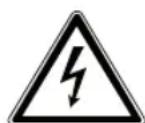
DANGER!
Risk of electric shock!
There is a risk of electric shock or fire when the PC is open.
- Never open the housing of the device or mains adapter.
Never operate the device when the housing is open. - Never manipulate the mains adapter or live components.
The optical drive (CD-RW, DVD, DVD RW) (optional) is classified as Class 1 laser equipment.
- Do not remove the drive cover, because invisible radiation can escape uncontrolled.
Turn off the PC immediately/do not turn on the PC in the first place and contact customer services if...
- the mains adapter or PC produces unusual noises or smoke.
- the mains cable or the attached plug is scorched or damaged.
Replace defective mains cables with original parts only. These parts should not be repaired under any circumstances. - the PC housing is damaged or liquid has penetrated it.
Have the PC checked first by the customer service department. Otherwise, it may not be possible to safely operate the PC and there may be a risk to life due to electric shock.
2.3. Never carry out repairs yourself
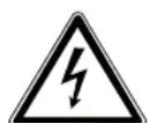
WARNING! Risk of electric shock!
There is a risk of electric shock if repairs are not carried out properly.
Never open the device housing.
Never attempt to open or repair the device yourself.
In the event of a fault, contact the Service Centre or another suitable professional repair workshop.
2.4. Data backup

Back up your data to external storage media before each update. We do not accept any liability for claims for compensation arising from loss of data or any consequential loss or damage.
2.5. Mains cable and power supply
- Only connect the device to an easily accessible mains socket (220–240 V ~ 50 Hz) that is close to where you have set up the device.
- The mains socket must be easily accessible so you can unplug the device from the mains quickly if necessary.
- When unplugging, always hold the plug itself and never pull on the cable.
- Never touch the mains plug with wet hands.
- Pull out the mains plug during thunder storms and remove the network cable and aerial cable (if present) in particular. For additional safety, we recommend using a surge protection device to protect the PC against damage due to voltage spikes or lightening strike from the power supply.
- Fully unwind the cable during use.
- You must position the mains cable and extension cable so that no one can trip over them.
- The cable may not touch any hot surfaces.
- Position the cables so that no one can tread on them or trip over them.
- Do not place any objects on the cables as they may be damaged.
2.6. Mouse

WARNING!
Risk of injury!
Prolonged or improper treatment of the LED on the bottom of the mouse can damage your eyes.
-
Never look at the laser beam, either directly or using optical instruments.
-
The mouse is not a toy. Keep it away from children and animals.
- Protect the mouse from extreme temperatures, direct sunlight, strong vibrations, high humidity and moisture.
- Do not expose the mouse to mechanical stress; impacts, shocks or the fall from even a low height can damage it.
- Stop using the mouse and protect it against unauthorised use if there is evidence of visible damage or it no longer works properly.
2.7. Audio connections
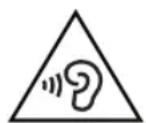
WARNING!
Damage to hearing!
Listening to a device at high volumes when using headphones or earphones and changing the basic settings of the equaliser, the driver, the software or the operating system creates excessive sound pressure and can result in damage to and/or loss of hearing.
Before pressing play, set the volume to the lowest setting.
Start playback and increase the volume to a comfortable level.
2.8. Optical drive

If your PC has an optical drive, the following information must be observed.
- The CD/DVD burner works using a laser. Do not open the housing of the CD/DVD burner under any circumstances.

NOTICE! Risk of damage!
The high speeds in the drive may break defective media and damage your device. Damage resulting from defective media is not covered under the warranty and fees will be charged for the repairs.
Do not use scratched, broken, dirty or poor quality discs or special types of discs.
Do not stick a protective film or any other stickers on the discs, because the adhesive can damage the surface of the disc and corrupt data.
Inspect discs carefully before inserting them. If damage or dirt is apparent, you may not use this disc
2.9. Installation location
- Place all devices onto a stable, flat and vibration-free surface and only operate them on this type of surface in order to prevent the PC malfunctioning.
- Keep your PC and all connected devices away from moisture and avoid dust, heat and direct sunlight. This will help to avoid malfunctions or damage to the PC.
- Your PC is not suitable for use at workstations in line with the regulation for computer workstations.
2.10. Ambient conditions
- The PC can be operated at an ambient temperature of +5ircC to +30ircC and at a relative humidity of 20% to 80% (non-condensing).
-
When switched off, the PC can be stored at temperatures of between -40ircC and 65ircC .
-
After transporting the PC, wait until it has reached ambient temperature before switching it on. Major changes in temperature or fluctuations in humidity can cause moisture to build up within the PC due to condensation – this can cause an electrical short circuit.
2.11 Connecting the cables
Follow the instructions below to connect your PC correctly and safely:
- Keep the device at a distance of at least one metre from sources of high-frequency or magnetic interference (televisions, speakers, mobile telephones, DECT telephones etc.) to avoid malfunctions and data loss.
- Please note that only shielded cables that are shorter than 3 metres may be connected to the external interfaces of this PC. Use only double-shielded cables for printer cables.
- Position the cables so that no one can tread on them or trip over them.
- Do not place any objects on the cables as they may be damaged.
- Do not crush or bend the cable to avoid cable breaks, this can result in a short-circuit.
- Do not apply force when connecting cables and plugs and make sure that connectors are the right way round.
- The only devices which may be connected to the PC are those which meet the requirements set out in the EN60950 standard "Information Technology Equipment - Safety" or the EN60065 standard "Audio, video and similar electronic apparatus - Safety requirements".
- Connect peripheral devices, such as keyboards, mouse and monitor etc., only when the PC is switched off to avoid damage to the PC or the devices. Some devices may also be connected while the PC is running. This is often the case for USB devices. In all cases, ensure
that the information provided in the relevant operating instructions is observed.
- When connecting your periphery devices, also ensure that you only use the connection cables supplied with those devices.
- Do not expose plug connections to impacts/pressure, e.g. from lateral forces. This could cause internal and external damage to the device.
- When you disconnect a cable from your device, pull it out by holding the plug and not the cable.
- Do not exchange the supplied cable for another one. Use only the supplied cable as this cable has been extensively tested in our laboratory.
- Take care to ensure that all connection cables are connected to their corresponding periphery device. Remove unnecessary cables to avoid interference radiation.
- Pull out the mains plug during thunder storms and remove the network cable and aerial cable (if present) in particular. For additional safety, we recommend using a surge protection device to protect the PC against damage due to voltage spikes or lightening strike from the power supply.
3. Transport
To avoid any transport damage, pack the PC in its original packaging.
4. Cleaning and care
Observing the following instructions can extend the operating life of your PC:

The PC housing does not contain any parts that require cleaning or maintenance.
- Always unplug the device and disconnect all cables before cleaning. Clean the PC with a damp, lint-free cloth.
- Clean the keyboard and mouse with a damp, lint-free cloth as well.
- Do not use solvents, corrosive or gaseous cleaning agents.
- Do not use CD-ROM cleaning discs or similar products that clean the lens of the laser to clean your optical drive (CD/DVD). The laser does not need cleaning.
- Dust can clog up the vents which can lead to overheating and malfunctions. Check that the vents are providing a sufficient level of air circulation at regular intervals (approx. every 3 months). Use a vacuum cleaner to remove the dust from the vents. If your device regularly attracts a lot of dust, then we also recommend that the interior of the PC housing is cleaned by a specialist.
5. Storage
- If you do not intend to use the PC over a longer period of time, store it in a cool, dry place and make sure that it is protected from dust and extreme temperature fluctuations.
- Remove all media from the optical drive, the USB ports and the card reader.
- Remove all cables and connected peripheral devices.

When storing the device if not in use, we recommend using a protective sleeve or suitable bag to protect the device from dust and dirt.
6. Upgrades/modifications and repairs
Upgrades and modifications to your PC should only be carried out by qualified specialists. If you do not possess the required qualifications, have the work carried out by a suitably qualified service technician. Please contact customer services if you have technical problems with your PC.
If a repair must be carried out, please contact only our authorised service partners.
6.1. Information for service technicians
- Disconnect all power and connection cables before opening the housing. If the PC is not disconnected from the power supply before opening, there is a risk of fatal electric shock. There is also a risk of components being damaged.
- Internal components in the PC can be damaged by electrostatic discharge (ESD). Carry out repairs, as well as system upgrades and modifications, at an ESD workplace. If such a workplace is not available, wear an antistatic cuff or ensure you are touching an earthed, metallic object. Fees will be charged for repairs to damage resulting from improper handling.
- Only use original replacement parts.


WARNING!
Risk of explosion!
A lithium battery is located on the motherboard. Batteries are hazardous waste and must be disposed of properly.
Never try to recharge the battery.
Never expose the battery to high temperatures or fire.
Observe the polarity when replacing the battery.
- Keep batteries away from children.
Only replace the battery with the same or equivalent type (CR 2032).
6.1.1. Information on laser radiation
- The PC may contain laser equipment classified as Laser Class 1 to Laser Class 3b. The equipment fulfils the requirements for Class 1 lasers.
- By opening the housing of the optical drive, you will have access to laser equipment classified up to Laser Class 3b.
The following should be observed when removing and/or opening this laser equipment:
- The integrated optical drive contains no parts that require repair or maintenance.
- Repairs to the optical drive are only to be carried out by the manufacturer.
- Do not look directly into the laser beam, even when using optical instruments.
- Do not expose the laser beam. Avoid exposing your eyes or skin to the laser beam, either directly or through scattered laser radiation.
7.Recyclinganddisposal
Please contact the retailer or our Service team if you have any questions about how to dispose of your device.

PACKAGING
The device has been packaged to protect it from damage in transit. Packaging materials are raw materials and can therefore be reused or recycled.

DEVICE
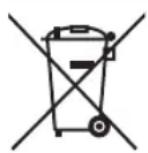
Do not dispose of old devices in normal household waste.
In accordance with Directive 2012/19/EU, all devices marked with the symbol illustrated must be properly disposed of at the end of their service life.
This involves separating the materials in the devices for the purpose of recycling and minimising the environmental impact.
Take old devices to a collection point for electrical scrap or a recycling centre.
Contact your local waste disposal company or your local authority for more information on this subject.
The device is fitted with an integrated battery. At the end of its service life, do not dispose of the device in the normal household rubbish. Instead, contact your local authority to find out how to dispose of it in an environmentally friendly manner at collection points for electrical and electronic scrap.
The battery cannot be removed. Take the entire device for disposal.
BATTERIES
Do not dispose of used batteries/rechargeable batteries with normal household rubbish. Batteries must be disposed of correctly. For this purpose, retailers that sell batteries and local collection points provide containers in which you can dispose of them. Contact your local waste disposal company or your local authority for more information.
In connection with the sale of batteries or the supply of devices containing batteries, we are obliged to draw your attention to the following:
As the end user, you are legally required to return used batteries. You can return used batteries that we stock or have stocked in our range as new batteries to our dispatch warehouse free of charge (shipping address). The symbols shown on the batteries have the following meanings:
The crossed-out wheelie bin symbol means that the battery must not be disposed of with household rubbish.
Pb = battery contains more than 0.004 mass percent lead
Cd = battery contains more than 0.002 mass percent cadmium
Hb = battery contains more than 0.0005 mass percent mercury.
- Audioanschlüsse
- Information about these operating instructions
- Key to symbols
- DANGER!
- WARNING!
- CAUTION!
- NOTICE!
- Pull out the mains plug before opening
- CE labelling
- Proper use
- Safety information
- Dangers for children and people with reduced ability to operate devices
- Risk of choking and suffocation!
- Operating safety
- Risk of electric shock!
- The optical drive (CD-RW, DVD, DVD RW) (optional) is classified as Class 1 laser equipment.
- Turn off the PC immediately/do not turn on the PC in the first place and contact customer services if...
- Never carry out repairs yourself
- WARNING! Risk of electric shock!
- Data backup
- Mains cable and power supply
- Mouse
- Risk of injury!
- Audio connections
- Damage to hearing!
- Optical drive
- NOTICE! Risk of damage!
- Installation location
- Ambient conditions
- Connecting the cables
- Transport
- Cleaning and care
- Storage
- Upgrades/modifications and repairs
- Information for service technicians
- Risk of explosion!
- Information on laser radiation
- 7.Recyclinganddisposal
- PACKAGING
- DEVICE
- BATTERIES
Brand : MEDION
Model : Erazer X87047
Category : Desktop computer