DVC135IP - Surveillance Camera ALECTO - Free user manual and instructions
Find the device manual for free DVC135IP ALECTO in PDF.



User questions about DVC135IP ALECTO
0 question about this device. Answer the ones you know or ask your own.
Ask a new question about this device
Download the instructions for your Surveillance Camera in PDF format for free! Find your manual DVC135IP - ALECTO and take your electronic device back in hand. On this page are published all the documents necessary for the use of your device. DVC135IP by ALECTO.
USER MANUAL DVC135IP ALECTO
natural_image
Line drawing of a mechanical device with a curved tool and circular components (no text or symbols)DVC-135IP
NL
PRODUCTOMSCHRIJVING
text_image
is carood LEDs 1 2 3 5 4 6 5. 6.2.2 INSTALLEER DE ALECTOCAM+ APP OP UW SMARTPHONE OF TABLET.
ANDROID:
natural_image
Alecto logo featuring a camera lens icon and stylized lettering (no readable text or symbols beyond the logo design)
natural_image
Alecto logo featuring a camera lens icon and stylized lettering (no readable text or symbols beyond the logo design)Display Resolution 1280 x 720 Pixels (1000K Pixels, i.e. 1.0 Megapixel)
Lens 3.6mm
Mini. Illumination 0.5 Lux
Viewing Angle 90 Degree
| Audio | Not | supported |
| Input | Not | supported |
| Output | Not | supported |
Image Compression H.264, MJPEG
Image Frame Rate 30fps (VGA), 30fps (QVGA)
Resolution 1280x720 (VGA), 640x480 (VGA), 320x240 (QVGA)
Flip Mirror Images Vertical / Horizontal
Light Frequency 50Hz, 60Hz, Outdoor
Ethernet interface Build in 10/100Mbps, Auto MDI/MDIX, RJ-45
Supported Protocol TCP/IP, HTTP DNS DHCP PPPoE SMTP FTP SSL TFTP NTP ARP/RARP NFS RTSP RTP RTCP
Compress rate level 128Kbps\~4Mbps
Wireless Standard IEEE 802.11b/g/n
Frequentie range 2412-2472 MHz
Transmitted power 19.27 dBm EIRP
Date Rate 802.11b: 11Mbps (max), 80211g: 54Mbps (max.), 802.11n: 150Mbps (max.)
Wireless Securtiy WEP & WPA WPA2 Encryption
Pan/tilt Angle Not supported
Infrared Light 24 IR LEDs, Night visibility up to 5 meters
Alarm Input / Output Not supported
TF/SD card Internal 8GB
Power Supply DC 5 V/2.0A (adapter)
Power Consumption 7 Watts (Max.)
Operate Temper. 0° \~ 55°C (14°F \~ 131°F)
Operating Humidity 20% \~ 85% non-condensing
Storage Temper. -10^ 60^ ( 14^ 140^ )
Operating Humidity 0% \~ 90% non-condensing
Certification CE, FCC, RoHS
GARANTIE
FR ESCRIPTION DU PRODUIT
natural_image
Alecto logo featuring a camera lens icon and stylized lettering (no readable text or symbols beyond the logo design)
natural_image
Alecto logo featuring a camera lens icon and stylized lettering (no readable text or symbols beyond the logo design)SMARTPHONE OU TABLETTE.
Méthode 1:
flowchart
graph TD
    A["Eye Manipulation"] --> B["Close-up of Eye"]
    B --> C["Close-up of Eye"]
    C --> D["Close-up of Eye"]
    D --> E["Close-up of Eye"]
    E --> F["Close-up of Eye"]
    F --> G["Close-up of Eye"]
    G --> H["Close-up of Eye"]
    H --> I["Close-up of Eye"]
    I --> J["Close-up of Eye"]
    J --> K["Close-up of Eye"]
    K --> L["Close-up of Eye"]
    L --> M["Close-up of Eye"]
6 DÉCLARATION DE CONFORMITÉ
Débit image 30fps (VGA), 30fps (QVGA)
Résolution 1280x720 (VGA), 640x480 (VGA),
320x240 (QVGA)
Images inverse Vertical / Horizontal
natural_image
Alecto logo featuring a camera lens icon and stylized lettering (no readable text or symbols beyond the logo design)
natural_image
Alecto logo featuring a camera lens icon and stylized lettering (no readable text or symbols beyond the logo design)2.3 KAMERAANSCHLUSS
text_image
Apparaat tovehogen Welcome Placement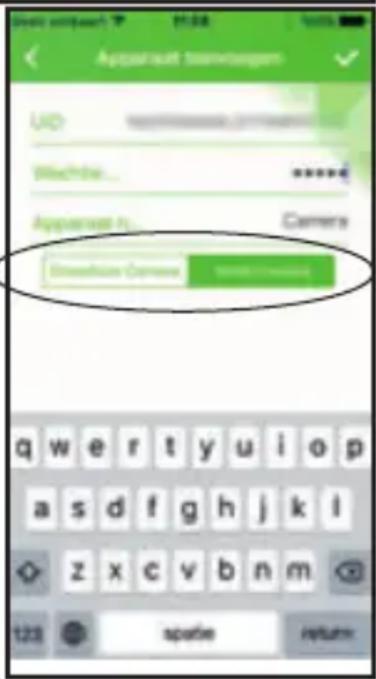
text_image
Apparelt tannwagen Up Blachte... Apparelt No... Camera Estimation Camera q w e r t y u i o p a s d f g h j k l z x c v b n m 123 spatie returnflowchart
graph TD
    A["Eye Manipulation"] --> B["Close-up of lens"]
    B --> C["Close-up of eye"]
    C --> D["Close-up of lens with arrow indicating rotation"]
    D --> E["Close-up of eye with arrow indicating rotation"]
    E --> F["Close-up of lens with arrow indicating rotation"]
    F --> G["Close-up of eye"]
This Alecto IP camera is a security monitor, suitable for both indoor and outdoor use. The camera is splash proof and should be installed where it's not fully exposed to rain. The device is often used for monitoring a garden or garage, but also for observing babies and small children or pets.
The camera transmits its signal to your internet modem via UTP cable or Wi-Fi. Using a tablet or smartphone you can view the camera images and rotate the lens by swiping over the screen.
Thanks to our Real Plug & Play system and the UID code (Unique IDentification) it's very easy to establish a connection with the camera via our app. This app is available for iOS and Android and can be downloaded via the App Store or Play Store. Refer to the user's manual of the AlectoCam app for a quick registration and/or additional information (www.alectosecurity.com). After the initial setup, you can also view the camera images via the GSM internet or external Wi-Fi connections.
The camera is provided with night lighting for a clear view of any objects within 5 meters from the camera in a dark environment. Because this night lighting consists of infra-red lights, people cannot see it but it's sufficient for the camera to show clear images. However, these images are of course in black/white.
When everything is working properly, you should first change your password. The default factory password is not unique, which would allow others to use your UID code and gain unauthorised access to your camera.
2 REGISTRATION
2.1 TO REGISTER THE CAMERA TO THE ROUTER.
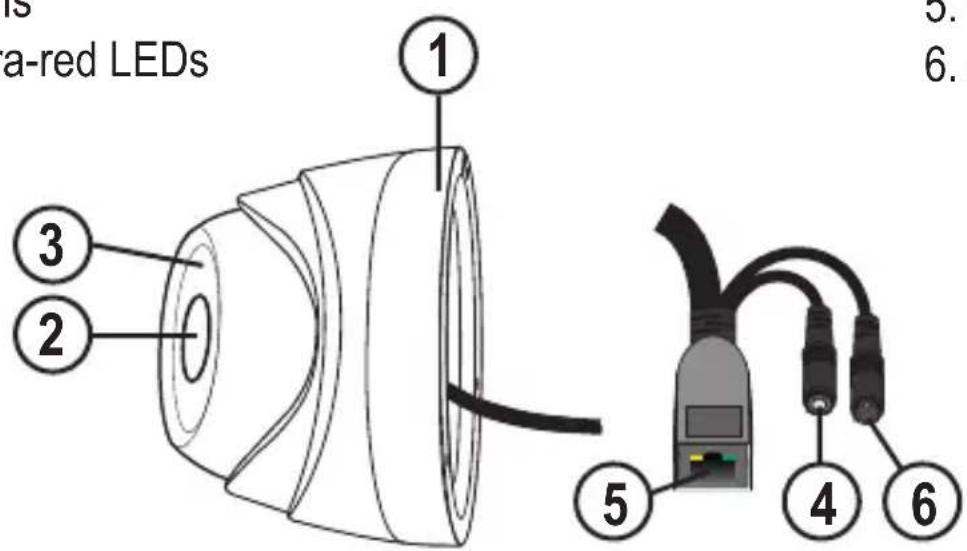
- Wall mount
- Lens
-
Infra-red LEDs
-
Reset
- UTP LAN connection
- Adaptor input
text_image
Is a-red LEDs 1 2 3 5 4 6 5. 6.2.2 TO INSTALL THE ALECTOCAM+ APP ON YOUR SMARTPHONE OR TABLET.
ANDROID:
Go to the Play Store. Search for AlectoCam Install the following APP:
IOS:
Go to the App Store. Search for AlectoCam Install the following APP:

natural_image
Alecto logo featuring a camera lens icon and stylized lettering (no readable text or symbols beyond the logo design)
natural_image
Alecto logo featuring a camera lens icon and stylized lettering (no readable text or symbols beyond the logo design)2.3 CAMERA CONNECTION.
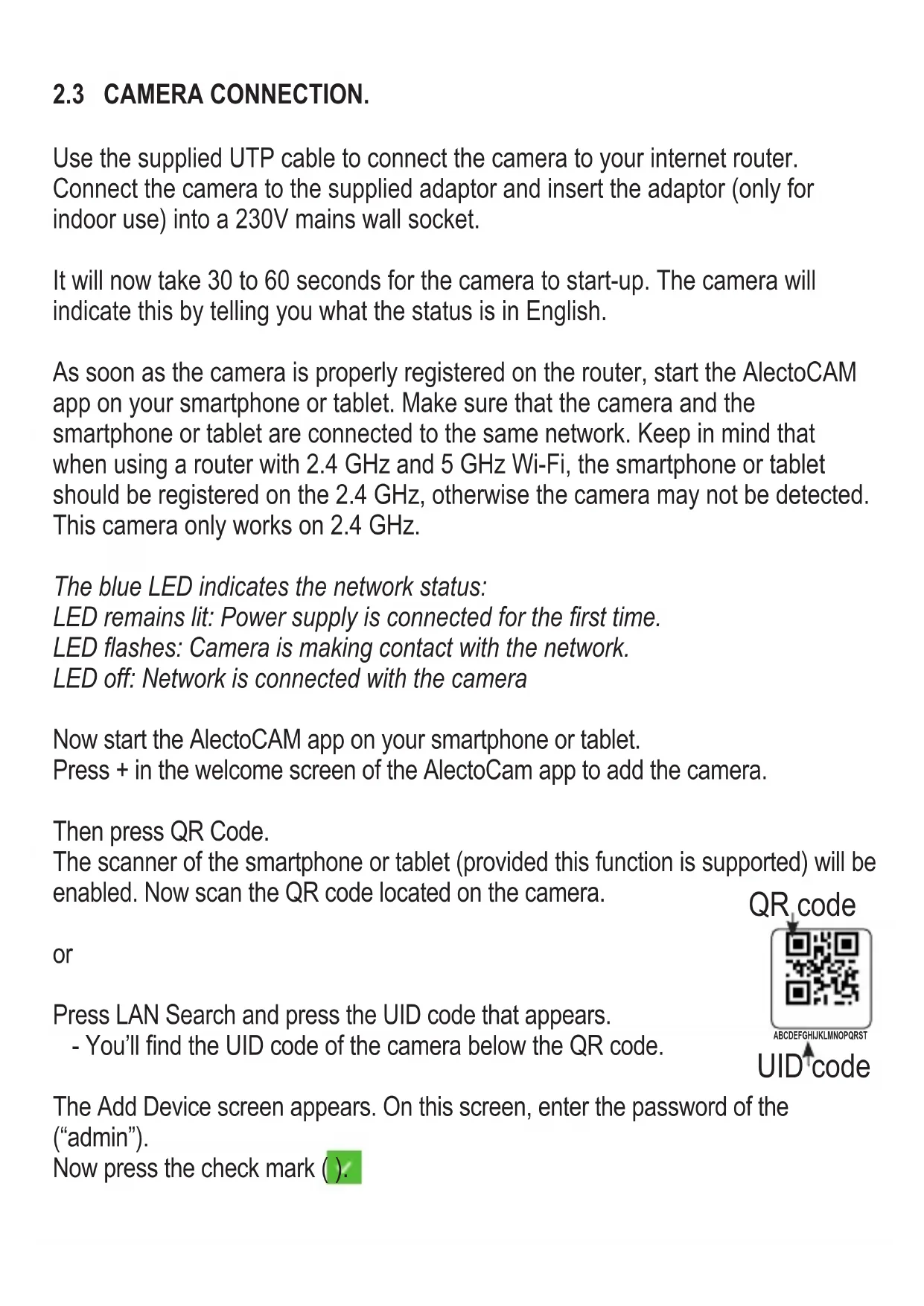
Use the supplied UTP cable to connect the camera to your internet router. Connect the camera to the supplied adaptor and insert the adaptor (only for indoor use) into a 230V mains wall socket.
It will now take 30 to 60 seconds for the camera to start-up. The camera will indicate this by telling you what the status is in English.
As soon as the camera is properly registered on the router, start the AlectoCAM app on your smartphone or tablet. Make sure that the camera and the smartphone or tablet are connected to the same network. Keep in mind that when using a router with 2.4 GHz and 5 GHz Wi-Fi, the smartphone or tablet should be registered on the 2.4 GHz, otherwise the camera may not be detected. This camera only works on 2.4 GHz.
The blue LED indicates the network status:
LED remains lit: Power supply is connected for the first time.
LED flashes: Camera is making contact with the network.
LED off: Network is connected with the camera
Now start the AlectoCAM app on your smartphone or tablet.
Press + in the welcome screen of the AlectoCam app to add the camera.
Then press QR Code.
The scanner of the smartphone or tablet (provided this function is supported) will be
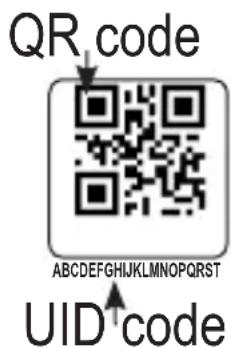
enabled. Now scan the QR code located on the camera.
or
Press LAN Search and press the UID code that appears.
- You'll find the UID code of the camera below the QR code.
text_image
QR code ABCDEFGHIJKLMNOPQRSTUVWXYZ UID codeThe Add Device screen appears. On this screen, enter the password of the (“admin”).
Now press the check mark ().
In some cases the camera of the smartphone or tablet may not be able to read the QR code.
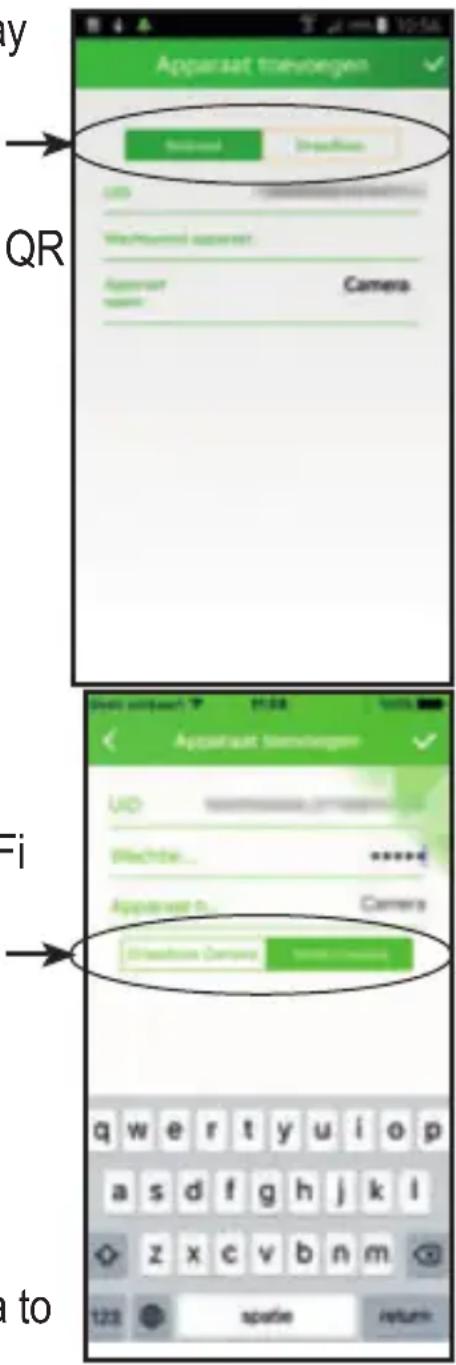
If this happens, press “Cannot use QR don’t change code” at the bottom of the screen. In the
UID field, enter the UID code located at the bottom of the QR code sticker and then enter the “admin” password.
Attention: Don't modify the Wired and Wireless buttons.
When the image appears, the camera is registered successfully.
Now press Camera Settings (choose the tab "Wi-Fi Settings" or "Wi-Fi Networks" and press the ">” arrow.
The Wi-Fi band will now be scanned and all available Wi-Fi network names appear. Now choose and click your own network. don't change
Enter the password of your Wi-Fi network and press “Connect” or “OK”. In the next screen, press “OK” or “Return” (depending on Android or iOS).
Make sure to disconnect the power supply to the camera, remove the UTP network cable and reconnect the camera to the mains.
text_image
Apparaat travelengen QR Camera Hi/23 Apparaat travelengen Wi Machte... Apparaat to... Camera Hi/23 apparaat travelengen Wi Machte... Apparaat to... Camera Hi/23 apparaat travelengen Wi Machte... Apparaat to... Camera Hi/23 apparaat travelengen Wi Machte... Apparaat to... Camera Hi/23 apparaat travelengen Wi Machte... Apparaat to... Camera Hi/23 Apparaat travelengen Wi Machte... Apparaat to... Camera Hi/23 apparaat travelengen Wi Machte... Apparaat to... Camera Hi/23 apparaat travelengen Wi Machte... Apparaat to... Camera Hi/23 apparaat travelengen Wi Machte... Apparaat to...2.4 REGISTERING THE CAMERA ON A SECOND SMARTPHONE OR TABLET
Method 1:
Make sure that the smartphone or tablet is registered on the same network as the network on which the camera is registered.
Press + in the welcome screen of the AlectoCAM app to add a camera.
Now press LAN Search in the pop-up screen.
The UID code of the camera with the IP address now appears. Select this UID code or the correct code when multiple cameras on the network are connected.
The "Add Device" screen appears.
Enter the password of the camera. The default password is "admin".
Please change this password when the camera is registered correctly.
Attention: Don't modify the Wired and Wireless buttons.
When the image appears, the camera is registered successfully. Now press Camera Settings and select Change Password to assign your own unique password to the camera. This is essential for safe use of the camera.
Method 2:
Make sure that the smartphone or tablet is registered on the same network as the network on which the camera is registered.
Press + in the welcome screen of the AlectoCAM app to add a camera.
Then press QR Code.
The scanner of the smartphone or tablet (provided this function is supported) will be enabled. Now scan the QR code located on the camera.
The Add Camera screen appears. In this screen, enter the password of the camera (“admin”).
Now press OK.
In some cases the camera of the smartphone or tablet may not be able to read the QR code. If this happens, press “Cannot use QR code” at the bottom of the screen. In the UID field, enter the UID code located at the bottom of the QR code sticker and then enter the “admin” password.
Attention: Don't modify the Wired and Wireless buttons.
When the image appears, the camera is registered successfully. Now press Camera Settings and select Change Password to assign your own unique password to the camera. This is essential for safe use of the camera.
3. TO MOUNT THE CAMERA ON A FIXED SPOT.
The camera can be mounted onto a fixed wall.
Attention: Make sure the camera is already registered to the Wi-Fi network. When the camera is installed and then connected to the mains, it'll re-establish the connection with the network. If a wired network connection can be used after mounting the camera, this will not be necessary.
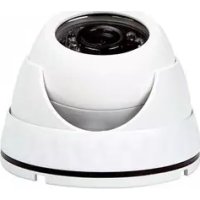
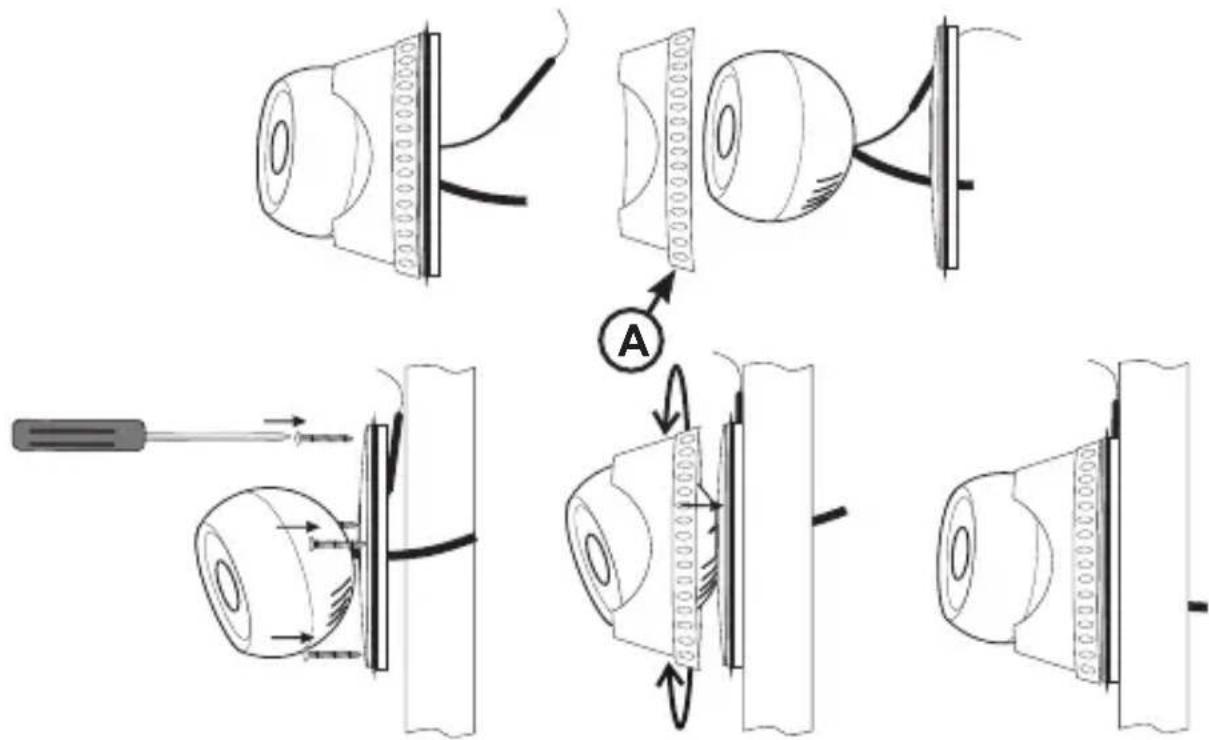
Unscrew ring A from the wall mount. In the bottom of the wall mount you’ll find 4 holes for fixing the wall mount onto the wall using screws. Use plugs when mounting onto a stone wall. When installing, make sure to lead the connecting wire with the connection for the adaptor, UTP cable, the reset button and antenna through the wiring grommet. The position of the cable outlet is not important; place it in the most suitable direction. Make sure that the antenna wire through the grommet exits at the top. Leave the dome somewhat removed from the wall mount, it can be rotated into the right direction later, and screw the wall mount onto the wall. Now screw the dome with the lens with ring A onto the wall mount. Before fully securing the dome, rotate the dome with lens in the right position and then fully fasten the ring until the dome is secured.
flowchart
graph TD
    A["Eye Manipulation"] --> B["Close-up of lens"]
    B --> C["Close-up of eye"]
    C --> D["Close-up of lens with arrow indicating rotation"]
    D --> E["Close-up of eye with arrow indicating rotation"]
    E --> F["Close-up of lens with arrow indicating rotation"]
    F --> G["Close-up of eye"]
TIP: If you consider the hole for in the wall to be too large, you may first mount a small box (not included) onto the wall for tucking away the cables and then screw the camera onto the box. You may also install the box next to it. Through the hole in the wall, now only the adaptor cable must be arranged allowing for a smaller hole.
4 RESET.
When contact with the camera is no longer possible and you can no longer determine what the IP address or the port number no longer corresponds, you can externally reset the camera to restore the default factory settings.
For this, a reset button is placed on the cable of the camera. Press and hold this button for at least 10 seconds after the camera is switched on.
The camera can then only be reached via the UTP network input. Use a UTP cable to connect the camera to your router. Now follow the registration process, see 2.3.
5 TIPS AND WARNINGS
5.1 GENERAL
- Read the user manual carefully and follow all instructions.
- Never place or use the adaptor in a wet or moist room or environment.
- Take care of proper heat dissipation; never cover the camera unit and/or the power supply adapter(s), and do not place them directly beside a heat source. The camera and adaptor already become warm themselves during operation.
- Only use the supplied connecting cables; connecting cables of a different type can be dangerous or cause damage to the electronics.
- Take care that the cables and the adapter do not get damaged, and prevent that they cause tripping or falling.
- Never disassemble the camera unit and/or adaptor; this may only be performed by qualified personnel.
- The video connection occurs via the public internet and is secure according to the current standards, but can still be hacked. We are not liable for this in any way. We advise you to instantly change the password, preferably using a combination of letters, numbers and special characters.
5.2 INSTALLATION
- Only connect the power wire or disconnect the adapter is removed from the wall socket.
- Never install the camera during thunder storms.
- Never touch non-insulated wires unless the plug or adapter is unplugged.
5.3 MAINTENANCE
- Only clean the camera with a moist cloth; never use chemical cleaners. Before any cleaning, you must disconnect the adapters.
5.4 ERROR
- In case the camera no longer shows any images and/or there's no more sound, please check the following:
- the camera is connected
- the correct UID code is used
- the correct password is used
- restart the camera by briefly interrupting its power supply
- press and hold the reset button for at least 10 seconds to reset the camera. The camera will now reboot. Repeat the entire setup and actions from the beginning, because all settings will be reset to the default factory settings
- restart your smartphone or tablet.
- When it becomes dark, the camera will switch to the night mode and turn on the infra-red lights. In certain environmental lighting conditions, the screen might start flashing. You can resolve this by increasing or decreasing the environmental light. When the IR LEDs are activated, the screen will be black/white.
- If you still see no images, please contact the service department of Alecto: www.alecto.nl
5.5 IMAGE DELAY
- Because of coding and decoding of the images, there will be a slight delay in the signal. The image quality also depends on changes in the bandwidth via internet. You may set a lower resolution.
- The camera may restart after changing certain settings. In this case it'll take some time (maximum 2 minutes) before the images return.
5.6 DATA USE
- If you're using a mobile network, please keep in mind that the data use can increase considerably while watching video. We recommend you to use a Wi-Fi network.
- Also the battery usage of your smartphone or tablet will increase.
5.7 ENVIRONMENT AND DISCARDING
- The packaging of this camera can be collected as old paper. However, we recommend you to save it, to adequately protect the camera during transport.
- When replacing this camera, please return it to the supplier to ensure environment-friendly processing.
6 DECLARATION OF CONFORMITY
The Alecto camera meets the essential requirements and other relevant provisions as stipulated by the European Guideline 2014/53/EU. The declaration of conformity is available on the website
http://DOC.hesdo.com/DVC-135IP-DOC.pdf
RF Frequency: 2407 – 2475 MHz
Maximum Power: < 20 dBm
7. SPECIFICATIONS CAMERA
Image Sensor 1/4" Color CMOS sensor
Display Resolution 1280 x 720 Pixels (1000K Pixels, i.e. 1.0 Megapixel)
Lens 3.6mm
Mini. Illumination 0.5 Lux
Viewing Angle 90 Degree
| Audio | Not | supported |
| Input | Not | supported |
| Output | Not | supported |
Image Compression H.264, MJPEG
Image Frame Rate 30fps (VGA), 30fps (QVGA)
Resolution 1280x720 (VGA), 640x480 (VGA), 320x240 (QVGA)
Flip Mirror Images Vertical / Horizontal
Light Frequency 50Hz, 60Hz, Outdoor
Ethernet interface Build in 10/100Mbps, Auto MDI/MDIX, RJ-45
Supported Protocol TCP/IP, HTTP DNS DHCP PPPoE SMTP FTP SSL TFTP NTP ARP/RARP NFS RTSP RTP RTCP
Compress rate level 128Kbps\~4Mbps
Wireless Standard IEEE 802.11b/g/n
Frequentie range 2412-2472 MHz
Transmitted power 19.27 dBm EIRP
Date Rate 802.11b: 11Mbps (max), 80211g: 54Mbps (max.), 802.11n: 150Mbps (max.)
Wireless Securtiy WEP & WPA WPA2 Encryption
Pan/tilt Angle Not supported
Infrared Light 24 IR LEDs, Night visibility up to 5 meters
Alarm Input / Output Not supported
TF/SD card Internal 8GB
Power Supply DC 5 V/2.0A (adapter)
Power Consumption 7 Watts (Max.)
Operate Temper. 0° \~ 55°C (14°F \~ 131°F)
Operating Humidity 20% \~ 85% non-condensing
Storage Temper. -10^ 60^ ( 14^ 140^ )
Operating Humidity 0% \~ 90% non-condensing
Certification CE, FCC, RoHS
WARRANTY
For the IP-camera you have a warranty of 24 months from the date of purchase. During this period, we guarantee the free repair of defects caused by material and workmanship errors. All this subjected to the final assessment of the importer.
HOW TO HANDLE: If you notice any defect, first refer to the user's manual. If the manual provides no definite answer, please contact the supplier of this camera via internet (www.alecto.nl) or contact customer service of Alecto: www.alecto.nl
THE WARRANTY BECOMES NULL AND VOID: In case of improper use, incorrect connections, leaking and/or incorrectly installed batteries, use of unoriginal parts or accessories, negligence and in case of defects caused by moisture, fire, flooding, lightning and natural disasters. In case of unauthorised modifications and/or repairs performed by third parties. In case of incorrect transportation of the device without adequate packaging and when the device is not accompanied by this warranty card and proof of purchase.
The warranty does not cover connecting cables, plugs and batteries. All further liability, especially concerning any consequential damages, is excluded.

text_image
Aledo®ServiceHelp




WWW.ALECTO.NL SERVICE@ALECTO.NL