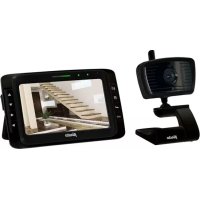
AVM500 - Surveillance Camera ALECTO - Free user manual and instructions
Find the device manual for free AVM500 ALECTO in PDF.



| Product Type | Wireless Surveillance Camera |
| Brand | Alecto |
| Model | AVM500 |
| Usage | Indoor Only |
| Range | Up to 50 meters indoors, up to 300 meters in open field |
| Frequency | 2400-2483.5 MHz |
| Monitor Power | Rechargeable Li-ion battery 3.7 V 1440 mAh, adapter 5 V DC 1000 mA (model ZD-C050100EUDW) |
| Camera Power | Adapter 5 V DC 600 mA (model ZD5C050100EUDW) |
| Monitor Display | 5-inch color LCD screen, 480x272 pixel resolution |
| Maximum Number of Cameras | Up to 4 cameras |
| Night Vision | Built-in infrared LEDs, range 6-8 meters, black and white image |
| Digital Zoom | Yes, zoom function in menu |
| Talk-back Function | Yes, dedicated button to speak to the camera |
| VOX Function | Automatic monitor on/off on sound detection, adjustable sensitivity |
| Lullabies / Alarm | 4 lullabies + alarm signal, 15-minute playback |
| Temperature Sensor | Yes, display in °C or °F, with adjustable high/low alert |
| Monitor Battery Life | 6 to 8 hours in normal use |
| Monitor Battery Charging Time | Approximately 4 hours (first charge: 15 hours) |
| Operating Temperature | 0°C to 40°C |
| Operating Humidity | 40% to 90% RH |
| Storage Temperature | -10°C to 50°C |
| Maintenance | Clean with a damp cloth, do not use chemicals, unplug before cleaning |
| Safety | Use only supplied adapters, do not expose to moisture, do not disassemble |
| Warranty | 24 months from date of purchase |
Frequently Asked Questions - AVM500 ALECTO
User questions about AVM500 ALECTO
0 question about this device. Answer the ones you know or ask your own.
Ask a new question about this device
Download the instructions for your Surveillance Camera in PDF format for free! Find your manual AVM500 - ALECTO and take your electronic device back in hand. On this page are published all the documents necessary for the use of your device. AVM500 by ALECTO.
USER MANUAL AVM500 ALECTO
AFLUISTEREN/AFTAPPEN:
RF Sensitivity: <= 85 dBm
Display: 5.0" color LCD display 480x272 pixels
Modulation: GFSK, FHSS
Modulation: GFSK, FHSS
- The Alecto AVM-500 is a cordless video observation system for indoor use.
- You can either watch and listen continuously or you can have the monitor switch on when the camera detects sound.
- The Alecto AVM-500 meets all essential requirements and other provisions as described in the European Directive 2014/53/EU.
- The declaration of conformity is available at: http://DOC.hesdo.com/AVM-500-DOC.pdf
- Use of this equipment is allowed in all countries of the EU. In France, Italy, Russia and Ukraine, only indoor use is allowed.
ATTENTION
Before you start using the set, please remove any protective foil from the monitor and camera.
About this user's manual:

This symbol represents a warning. To ensure safe use, always adhere to the instructions cited in this documentation.

This symbol is followed by a user's tip.
Always check the Alecto website for the most recent version of this user's manual.
INSTALLATION
CAMERA:
Power:
- Connect one of the supplied 5V power adaptors to the 5V DC input of the camera.
- Insert the adapter into a 230V wall socket.

Only use the supplied power adaptor.
Table model or wall model:
You may place the camera loose on a table, cabinet or desk or suspend it from a wall.
For wall mounting:
Drill two holes in the wall, next to each other and at a distance from 2.1cm, then insert plugs and screws. Leave the head of the screw protrude for several millimeters.
Suspend the camera by sliding the recesses in the camera support over the screws in the wall and then pressing the camera somewhat downward. Finally, neatly hide the adaptor cable using cable-ties.
Tips for placement:
- For use as a baby monitor: place the camera at least 1-1.5 meters away from your baby and make sure to safely tuck away the adapter cable.
- The temperature protrudes from the rear of the camera. Make sure this sensor hangs freely, unexposed to direct sunlight and avoid heat from e.g. light bulbs.
- For optimal range, it is advisable to set up the camera as high as possible, free from large metal surfaces.

The camera is not waterproof and therefore suitable for indoor use only.
MONITOR
Battery:
- Open the battery compartment by sliding and clicking off the battery cover at the rear.
- Connect the battery plug in the battery compartment according to the drawing in the battery compartment and install the battery.
- Click the battery cover back onto the monitor. Never connect the plug or install the battery by force.

Only install the supplied rechargeable Li-ion battery (3.7V, 1440mAh).
Power adapter:
- Connect the other 5V power adapter on the left side of the monitor.
- Insert the adapter into a 230V wall socket. The battery starts charging as soon as you connect the power adaptor. When using it for the first time, please charge the battery for at least 15 hours, even when the indicator shows a fully charged battery.

Only use the supplied power adaptor.
General:
Fold out the support at the rear to place the monitor onto a table or cabinet.
Keep the antenna of the monitor in an upright position for optimal range.

The monitor is not water-proof, hence is only suitable for indoor use.
FUNCTION OVERVIEW
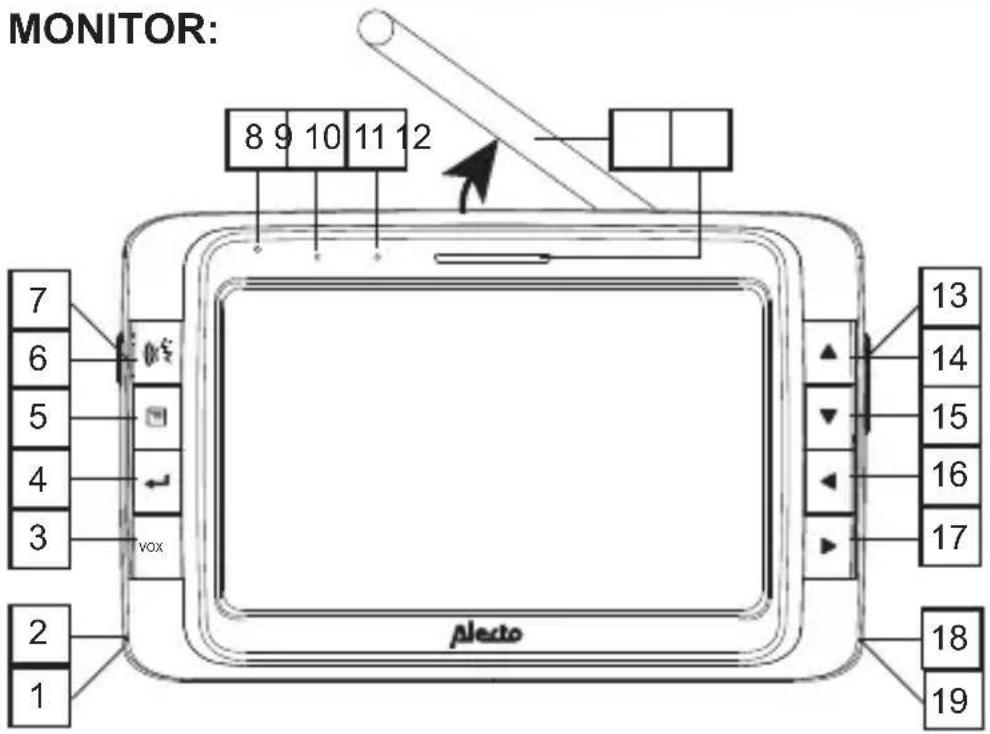
- Battery compartment (rear)
- Power adaptor input
- VOX on/off button
- ENTER button for menu settings
- MENU button
- Talk-back button
- Power on/off button
- Built-in microphone
- Power indicator:
monitor switched on, power adaptor not connected:
- green light during normal use
- red light when the battery capacity is low
- flashing red light when the monitor may switch off at any moment due to a low battery capacity
monitor switched on and power adaptor connected:
- flashing green light while the battery is being charged
- green light remains lit when the battery is fully charged
monitor switched off and power adaptor connected:
orange light while the battery is being charged
- green light remains lit when the battery is fully charged
- VOX indicator, illuminates when the VOX function is enabled
- Antenna
- Sound indicators, flashing when the camera detects sound
- Volume +/- buttons
14-17. ▲, ▼ and buttons - Built-in speaker (rear)
- Foldable table support (rear)
CAMERA:
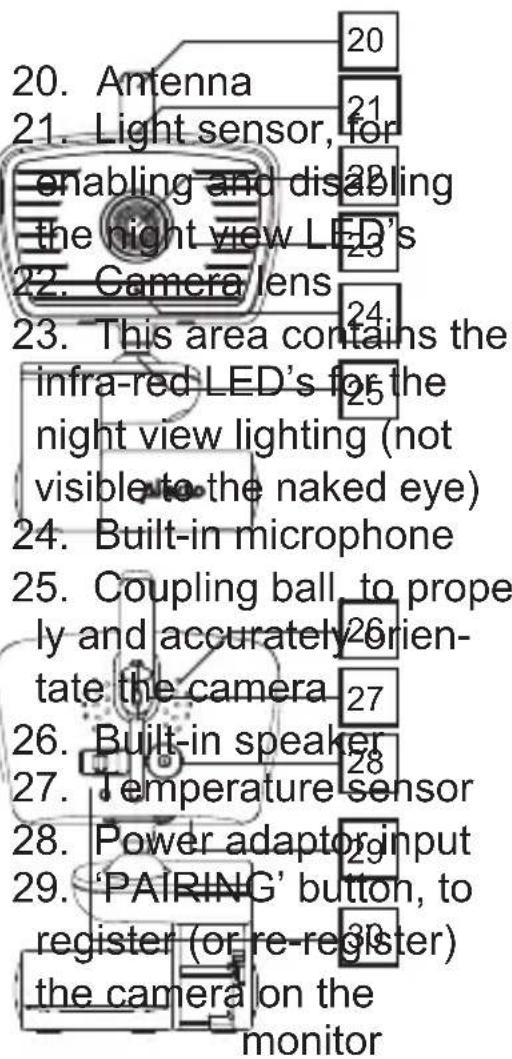
- On/off switch with indicator
SYMBOLS IN THE DISPLAY
While using the monitor, the following symbols may appear in the display:
In the upper left corner, the signal strength is indicated:
...strong reception
good reception
average reception
and poor reception
no reception

When talking to the camera, the talk-back symbol on the right side of the antenna symbol will illuminate.
CAM1 In the upper right corner, the camera you're currently watching is indicated. When multiple cameras are connected to the monitor and you've enabled the scan function (to automatically switch to the next camera screen every 10 seconds), also the symbol will appear.
Next to the camera indication, the battery capacity is shown:
battery full
battery 3/4 full
battery 2/4 full
battery 1/4 full
the outline is red and flashing: the battery is nearly exhausted and the monitor may switch off at any moment
no battery inserted or the battery is not connected. While charging, the battery symbol keeps scrolling until the battery is fully charged.

While adjusting the volume, the current volume level is shown in the right side of the display. When the volume level is set to
0 (sound off), the 'no sound' icon will appear here.
When the volume is turned off, the symbol appears in the upper part of the display to remind you that you've switched off the sound.
Press the button to open the menu. You'll
find a description of these functions further in this manual.
illuminates when the temperature alert is enabled. This symbol starts flashing when the set limit is exceeded.
USE
CAMERA:
Switching on/off:
Slide the ON/OFF switch at the rear to the ON position to turn on and slide to the OFF position to turn off. The green light underneath the ON/OFF switch illuminates several seconds after you've switched on the unit.
Automatic night vision:
The camera is provided with built-in infra-red LEDs; these LEDs will switch on automatically when the room turns dark and will switch of again when it becomes light.

The LEDs can illuminate objects up to a distance of approximately 6-8 meters.

When it's dark, that is when the night vision LEDs are switched on, the images on the
monitor will be displayed in black and white.

Attention: infra-red light cannot be perceived by the human eye; that means you cannot
tell whether the infra-red LEDs are switched on with the naked eye. Depending on the type of the infra-red LED, you might be able to see a red glow.
MONITOR:
Switching on/off:
press and hold for 2 seconds to turn off
Volume:
Use the + and - buttons to set the loudness of the sounds from the room you placed the camera in. While adjusting, the volume level will be indicated on the display.
Talk-back function:
When the screen is enabled, press the button to talk back to the camera. Press and hold the button for as long as you're talking and release the button to listen.
Sound indicators:
In the middle of the upper part of the display you'll find 4 sound indicators indicating whether the camera detects any sound.
Automatic on/off function: (VOX)
When the camera is not picking up any sounds, you may have the display and sound of the monitor switch off automatically and back on again as soon as the camera detects sound.
The sensitivity of the automatic on/off function can be adjusted (see chapter MENU further in this user's manual). Use the VOX push-button to enable or disable this function; the VOX indicator shows whether this function is enabled or disabled:
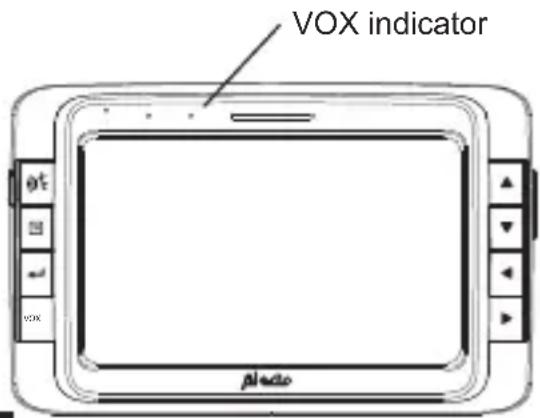
light off = VOX function off (the images and sound are transmitted continuously)
light on = VOX function on (display and sound off while there is no sound)
To check in the meantime:
By briefly pressing any button you may enable the display and sound again for a short check. After several seconds, the display and sound are turned off again.
Battery weak (empty) notification:
When in use, the battery symbol in the upper right corner of the display shows the battery capacity.
As soon as the battery capacity falls below 25% , the red power LED will illuminate to inform you of this. It's now recommended to connect the adaptor to recharge the battery.
When the battery capacity further decreases to nearly empty, this red battery symbol starts flashing. Also the power indicator starts flashing in red and every 30 seconds several alert tones are emitted for 10 to 15 minutes long. Now immediately connect the adaptor otherwise the monitor will switch itself off within this time period.
MENU-OPERATED FUNCTIONS
Briefly press the button to open the menu. Now use the direction buttons or to select one of the following functions:

Brightness:
Use and to select the desired brightness and press 三 to save your setting and leave the menu.

Keep in mind that more power is used at a high intensity level compared to a low
display intensity level. We recommend a lower intensity level for mobile use, i.e. when using the unit on battery power. You may set a higher intensity level when using the adaptor.

Lullabies / sirene
Use and to select the desired lullaby (choose 1-4) or select the sirene sound (5). When selecting all 4 lullabies are played in order.
Playback starts immediately and stops automatically after 15 minutes or you may select the option OFF to stop playback beforehand. Press to save your setting and leave the menu.
Keep in mind that the sound of the lullaby is returned to the parent unit via the microphone of the baby unit. In this case, you may want to set the sound of the parent unit to level 0 (= sound off).

Multi-camera:
Introduction:
You may register up to a maximum of 4 cameras on the AVM-500 monitor. When multiple cameras are registered to the monitor, you can manually switch to another camera or have the images of all registered cameras automatically shown one after the other.
Separate cameras are available via the Alecto service department via www.alecto.com (order number 'AVM-5001').
To register new cameras:
-
Connect the power adaptor to the camera and slide the ON/OFF switch at the rear to the ON position.
-
Open the menu on the monitor by pressing the button and use the and buttons to select the option
-
Use the and buttons to select the option and press the button.
-
Use the and buttons to select the next available free camera number and press the ← button.
-
Press and hold the PAIRING button at the bottom of the new camera until the green ON/OFF indicator starts flashing after several seconds to indicate that the camera is now searching for the monitor.
- After several seconds the images of the new camera will appear in the display of the monitor. Repeat these instructions if the registration process doesn't succeed the first time.
To select a camera:
- Open the menu on the monitor by pressing the button and use the and buttons to select the option
- Use the and buttons to select the option and press the button.
- Use and to select the desired camera number and press the ← button.
- After several seconds the monitor will show the images of the selected camera. In the right upper corner of the display the number is shown of the camera that is currently viewed.
Camera SCAN:
At the above instruction 2, select the option and press the ← button to enable the SCAN mode. The images and sound of all registered cameras are now played via the monitor, in order and 10 seconds for each camera.

Attention: The unit does NOT automatically switch to a camera where sound is being
detected.
To remove a camera:
Cameras that are defect or no longer being used must be removed from the system as follows:
-
Open the menu on the monitor by pressing the button and use the and buttons to select the option
-
Use the and buttons to select the option and press the button.
- Use and select the number of the camera that must be removed and press the ← button.
- The monitor will emit a tone and the selected camera is de-registered.

Zoom:
This menu allows you to enlarge the display (move somewhat closer).
Select for an enlarged view and select for a normal view.
When the zoom function is enabled, the icon appears in the upper part of the display.
Press to save your setting and leave the menu.

Temperature display and alert:
In the upper right corner of the monitor, the temperature is shown of the room where the camera is located.
Display in ° C or in ° F :
Choose the option ° C to set the temperature display to degrees Celsius or select the option ° F to have the temperature shown in degrees Fahrenheit.
Select the desired option and press the → to save your setting.
Display calibration (correcting):
Choose the option to correct the temperature display: select this option, press the ← button and use the and buttons to set the correct temperature. Press the ← button to save your setting and press the 三 button to leave the menu.
To check the alert values:
Choose the options HIGH and LOW to set the maximum and minimum temperature:
Select HIGH or LOW, press the ← button and use the and buttons to set the maximum or minimum value; press the ← button (or the button) to
save your setting and press the button to leave the menu.
Alarm on/off:
Choose the options ON and OFF to enable or disable the temperature alert. Select the desired option, press the button to save your setting and press the 三 button to leave the menu. When the alarm is enabled, the 三 symbol illuminates in the upper part of the screen.
How the temperature alert functions:
As soon as the minimum or maximum limit is exceeded, the temperature display and the symbol start flashing and every 10 seconds several warning beep tones are emitted.
As soon as the temperature returns to within the set limits, the alert tones will stop. You may also disable the temperature alert to stop the beep tones beforehand.

VOX:
This menu allows you to set how loud the noise must be before the display and sound will switch on when you've enabled the VOX function of the monitor:
- option (upper option in the screen): high sensitivity, switch-on on weak sounds
- option (middle option in the screen): average sensitivity, switch-on on average sounds
- option (lower option in the screen): low sensitivity, switch-on on loud sounds Press to save your setting and leave the menu.

When the display and sound turn off during use while there is still sound, set a higher
sensitivity level or disable the VOX function to watch and listen continuously.
TIPS AND WARNINGS
GENERAL:
- Thoroughly read the user's manual and follow all indications.
- Never place the camera or monitor in wet or humid room or environment.
- Ensure adequate heat dissipation; never cover the monitor, the camera and/or the power adapter(s) and never place them directly next to a heat source.
- Only use the supplied adapter(s); connecting a different type of adapter will damage the electronics.
- Make sure the adapter cables are free of any damage and ensure nobody can trip or fall because of these cables.
- Never dismantle the monitor, the camera and/or the power adapter(s); only qualified personnel is authorized to do so.
BATTERY:
The battery starts charging as soon as you connect the monitor to the power adaptor and insert this adaptor into a 230V wall socket.
- You may leave the adaptor connected at all times; the charging circuit for the battery is controlled electronically and there's no risk of overcharging.
- However, if you don't use the set for a longer period of time (>2 months), we recommend you to remove the adaptor from the wall socket and take out the battery from the monitor. When using the set again, first properly charge the battery.
INSTALLATION:
- Only connect or disconnect the power adapter to/from the camera or monitor when the power adapter is removed from the wall socket.
-
Never install the AVM-500 during thunder storms.
-
Never touch any non-isolated adapter cables, unless the adapters are removed from the wall socket.
INTERFERENCE-FREE:
- The signal of this AVM-500 is digitally coded. This means you will never receive signals from other devices, nor can the signal from your camera(s) be received by e.g. your neighbours.
- In case the camera(s) or monitor is placed in or in the close vicinity of electromagnetic fields, the signal (images or sound) can be slightly affected. If this happens, try a different location for the camera(s) or monitor or move, if possible, the source of the interference.
EAVESDROPPING/WIRETAPPING:
- Eavesdropping/wiretapping of the signals from this video monitor is nearly impossible. Not only must one be within range of the video monitor, one also needs some very costly equipment.
RANGE:
- The AVH-500 has a range of up to 300 meters in an open field and up to 50 meters indoors; this range depends on local circumstances.
- When the units get out of range of each other, the 'out of range' icon ( ) will appear and every minute several alert beep tones are emitted. As soon as the camera and monitor are back within range of each other, this warning will stop.
DELAY IN IMAGES AND SOUND:
- The camera transmits the images and sound to the monitor in digital blocks. The monitor converts these signals back to a recognizable image and a comprehensible sound. Therefore, there is a small delay between the moment of movement and making sounds and the display and sounds of the monitor.
Besides that, the sounds and images on the monitor are not exactly simultaneous.
MAINTENANCE:
- Only clean the AVM-500 with a moist cloth; never use chemical cleaners. Before any cleaning, you must disconnect the power adapters.
ENVIRONMENT AND DISCARDING:
-
The packaging of this video monitor can be discarded as waste paper. However, we advise you to save this packaging so you can adequately protect the devices for transportation.
-
Faulty or exhausted batteries or battery packs should be taken to your local depot for small chemical waste or to dedicated battery collection points. Never dispose of batteries or battery packs as normal household waste.
-
In case the video monitor is being replaced, please return it to your supplier; they will guarantee environment-friendlyly processing.
PROBLEMS:
-
no image, no sound:
-
are the monitor and camera switched on? (battery charged, battery full?)
- is the monitor within range of the camera?
- is the image and sound are not disabled because no sound is being detected? (VOX)
- is the volume at the monitor set to 0 (off)?
-
are the camera and monitor registered to each other?
-
If the above is all in order, remove the adapters from the wall sockets, take the rechargeable battery out of the monitor, wait at least one minute and then reconnect everything. Now, switch the monitor and camera back on.
-
If you still receive no images or sound, please contact the customer service of Alecto via internet www.alecto.nl
SPECIFICATIONS
Range: up to 50 meters indoors
up to 300 meters outdoors
Monitor power: 3.7V Li-1on battery pack,
1440mAh
5VDC 1000mA power adapter
model: ZD5C050100EUDW
Camera power: 5VDC 600mA power adapter
-
- (incl.)
model: ZD5C050100EUDW
Frequency: 2400-2483,5 MHz
Modulation: GFSK, FHSS
RF output: < 20 dBm
RF sensitivity: <= 85 dBm
Display: 5.0" color LCD display
480x272 pixels
Battery charging duration: + / - 4 hours (*)
Battery operation duration: 6~8 hours (*)
Operation temperature: 0°C - 40°C
Operation humidity: 40% 90% RH
Storage temperature: -10°C - 50°C
Accuracy: ± 2°C (at 25°C )
Monitor suitable for: 4 cameras
*: the times mentioned above are references only and depend on the usage, condition and quality of the batteries.
WARRANTY
For the Alecto AVM-500 you have a warranty of 24 months from the date of purchase. During this period, we guarantee the free repair of defects caused by material and workmanship errors. All this subjected to the final assessment of the importer.
HOW TO HANDLE: If you notice any defect, first refer to the user's manual. If the manual provides no definite answer, please contact the supplier of this video monitor or contact customer service of Alecto via the Internet www.alecto.nl
THE WARRANTY BECOMES NULL AND VOID: in case of improper use, incorrect connections, leaking and/or incorrectly installed batteries, use of unoriginal parts or accessories, negligence and in case of defects caused by moisture, fire, flooding, lightning and natural disasters. In case of unauthorised modifications and/or repairs performed by third parties. In case of incorrect transportation of the device without adequate packaging and when the device is not accompanied by this warranty card and proof of purchase. The warranty does not cover connecting cables, plugs and batteries. All further liability, especially concerning any consequential damages, is excluded.

- AFLUISTEREN/AFTAPPEN
- ATTENTION
- ABOUT THIS USER'S MANUAL
- INSTALLATION
- CAMERA
- POWER
- TABLE MODEL OR WALL MODEL
- FOR WALL MOUNTING
- TIPS FOR PLACEMENT
- MONITOR
- BATTERY
- POWER ADAPTER
- GENERAL
- FUNCTION OVERVIEW
- SYMBOLS IN THE DISPLAY
- USE
- SWITCHING ON/OFF
- AUTOMATIC NIGHT VISION
- VOLUME
- TALK-BACK FUNCTION
- SOUND INDICATORS
- AUTOMATIC ON/OFF FUNCTION: (VOX)
- BATTERY WEAK (EMPTY) NOTIFICATION
- MENU-OPERATED FUNCTIONS
- BRIGHTNESS
- LULLABIES / SIRENE
- MULTI-CAMERA
- INTRODUCTION
- TO REGISTER NEW CAMERAS
- TO SELECT A CAMERA
- CAMERA SCAN
- TO REMOVE A CAMERA
- ZOOM
- TEMPERATURE DISPLAY AND ALERT
- ALARM ON/OFF
- HOW THE TEMPERATURE ALERT FUNCTIONS
- VOX
- TIPS AND WARNINGS
- INTERFERENCE-FREE
- EAVESDROPPING/WIRETAPPING
- RANGE
- DELAY IN IMAGES AND SOUND
- MAINTENANCE
- ENVIRONMENT AND DISCARDING
- PROBLEMS
- SPECIFICATIONS
- WARRANTY
Brand : ALECTO
Model : AVM500
Category : Surveillance Camera