
SRP620 - Remote control PHILIPS - Free user manual and instructions
Find the device manual for free SRP620 PHILIPS in PDF.
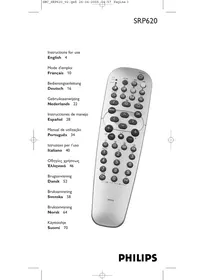


| Product Type | Universal remote control |
| Brand | Philips |
| Model | SRP620 |
| Power supply | 2 AA batteries (1.5 V) |
| Compatibility | Philips TVs (since 1985), Philips DVD players/recorders and VCRs |
| Main functions | TV, DVD, VCR control; teletext; PIP; switching mode; code setting |
| Display | Mode indicators (TV, DVD/VCR) |
| Weight (with batteries) | Approximately 150 g |
| Dimensions (W x D x H) | Approximately 250 x 50 x 25 mm |
| Spare parts | Batteries (not included after purchase) |
| Maintenance and cleaning | Clean with a soft, dry cloth. Do not use solvents. |
| Safety | Do not expose to moisture, do not open, do not throw into fire. |
| General information | User manual available in multiple languages. Telephone support. |
Frequently Asked Questions - SRP620 PHILIPS
User questions about SRP620 PHILIPS
0 question about this device. Answer the ones you know or ask your own.
Ask a new question about this device
Download the instructions for your Remote control in PDF format for free! Find your manual SRP620 - PHILIPS and take your electronic device back in hand. On this page are published all the documents necessary for the use of your device. SRP620 by PHILIPS.
USER MANUAL SRP620 PHILIPS
Instructions for use
English 4
Mode d'emploi
Français 10
Bedienungsanleitung
Deutsch 16
Gebruiksaanwijzing
Nederlands 22
Instructions for use
CONTENT
Introduction 4
Getting started 4
Inserting the batteries. 4 Testing the remote control. 4 Shift Mode 4 DVD/VCR Mode. 5
Keys and functions 5-6
Adjustments to your remote control. 6-7
Selecting the right VCR or DVD functions 7-8
Extra possibilities. 9
Need help? 9
INTRODUCTION
You just made a great choice by buying this Philips remote control! It can replace any Philips TV remote control manufactured since 1985.
If you also have a Philips DVD player/recorder, VCR or Combi TV with built-in VCR or DVD player,
you can operate these devices with the SRP620 as well.
GETTING STARTED
ADVICE
Carefully read the complete procedure before starting!
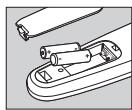
Inserting the batteries
The SRP620 needs two batteries of the type AA/R06 that are included in the packaging. Open the battery cover and place the batteries as indicated in the drawing.
Testing the remote control
The SRP620 is programmed to send out the most common functions used in Philips TVs. As the available functions vary over the different TV models, you might need to change some settings in the remote control to be able to control all TV functions.
First, test all the buttons on the remote and check whether the TV responds correctly to the commands of the SRP620.
NOTE
- If the TV does not respond correctly or not at all, go to chapter: 'Adjustments to your remote control'.
Shift Mode
To access some of the functions you have to use the SHIFT mode in combination with another key.
For turning on PIP mode e.g., press the Mode key once.
The Shift light starts blinking now. Press the Red button with the PIP symbol.
The PIP mode will now be activated and the Shift light stops blinking.
For a description of the functions on the SRP620, please go to the next chapter.
Instructions for use
DVD/VCR Mode
To control a Philips DVD or VCR you have to press the Mode key twice briefly.
The DVD/VCR light will turn on, indicating that you have selected the DVD/VCR mode.
Pressing the Mode key again, turns the remote back into TV mode.
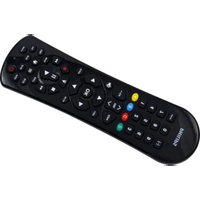
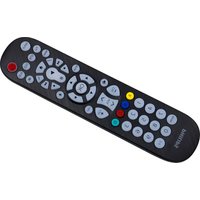
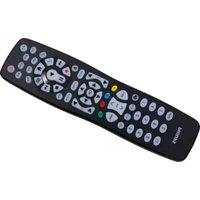
KEYS AND FUNCTIONS
| TV function | Shift TV function | DVD/VCR function | ||
| 1 | Standby | Standby, power on/off | Standby, power on/off | |
| 2 | Mode | |||
| 3 | EPG | EPG, guide | EPG record | Rewind |
| 4 | White | White | Fast Forward | |
| 5 | Red | Red | PIP dual screen | Record |
| 6 | Green | Green | PIP Swap | Pause |
| 7 | Yellow | Yellow | Freeze | Stop |
| 8 | Blue | Blue | PIP shift | Play |
| 9 | Sleep | Sleeptimer | Clock | Angle |
| 10 | OSD | Info, OSD | Main freeze | OSD |
| 11 | Wide screen | |||
| Screen, 16:9 | TV select | Zoom | ||
| 12 | Surround | |||
| Incredible surround | Subtitle | Surround sound, showview | ||
| 13 | I-II | Smart sound, sound preferences | I-II Mono/stereo | Audio, I-II |
| 14 | PP | Active control | Personal preference | Disc manager/disc menu |
| 15 | CC | Smart picture | Closed captioning | Title/chapter, Index |
| 16 | Menu | Menu | Search | Menu |
| 17 | OK | Cursor up | ||
| 18 | Cursor up | Cursor up | Brightness + | Cursor up |
| 19 | Cursor left | Cursor left | Color - | Cursor left |
| 20 | Cursor right | Cursor right | Color + | Cursor right |
| 21 | Cursor down | Cursor down | Brightness - | Cursor down |
| 22 | Volume + | Volume up | Balance Right | Volume up TV |
| 23 | Program + | Program up | Next | |
| 24 | Volume - | Volume down | Balance Left | Volume down TV |
| 25 | Mute | Mute | Channel/Program | Mute sound TV |
| 26 | Program - | Program down | Previous |
Instructions for use
4566


Smiley

Frownie


Text


txt mix


TV function Shift TV function DVD/VCR function
Smiley Conceal/reveal
Frowney Text enlarge
Text on/off Text cancel
Text hold Text mix
Short play/ g play, Options
Tuner
Select/VPS
Clear
1-9 +1: Radio 1-9
+2:TV
+3:HD
+4:PC


Ext


0


P-P/--
External input 1 External input 2
0 0
Previous program Double digit program selection
For installing TV channels on older Philips TVs, press and simultaneously. For leaving the teletext menu or the installation menu on older Philips TVs, press and simultaneously.
ADJUSTMENTS TO YOUR REMOTE CONTROL (TV)
This is only necessary if your TV does not respond at all or if the TV does not respond correctly to some of the keys on the SRP620. With a simple procedure you can adapt the SRP620 to your TV.
Teletext buttons are not working properly
Some TVs work with different Teletext commands.
Solution:
- Make sure the remote control is in TV mode (both Mode lights must be out).
- Press and hold the OK button and digit 8 simultaneously for 5 seconds till the mode lights blink twice.
- If Teletext still doesn't work, go to the next paragraph.

Teletext buttons do not work at all
Some Matchline TVs work with different Teletext commands.
Solution:
- Make sure the remote control is in TV mode (both Mode lights must be out).
- Press and hold the OK button and digit 6 simultaneously for 5 seconds till the mode lights blink twice.

Picture in Picture (PIP) is not working
Some Philips TVs work with different PIP commands.
Solution:
- Make sure the remote control is in TV mode (both Mode lights must be out).
- Press and hold the OK button and digit 2 simultaneously for 5 seconds till the mode lights blink twice.
Instructions for use
TV is not responding to any key
If your TV is purchased after 1999, it is possible that it uses the new RC6 remote control code.
Solution:
- Make sure the batteries are inserted as indicated in chapter 1.
- Make sure the remote control is in TV mode (both Mode lights must be out).
- Press and hold the OK button and digit 3 simultaneously for 5 seconds till the mode lights blink twice.

The Active control, smart sound and smart picture keys are not working
In some TV sets are different commands used.
Solution:
- Make sure the remote control is in TV mode (both Mode lights must be out).
- Press and hold the OK button and digit 5 simultaneously for 5 seconds till the mode lights blink twice.

The Active control key is not working
In some TV sets a different command is used for this function.
Solution:
- Make sure the remote control is in TV mode (both Mode lights must be out).
- Press and hold the OK button and digit 4 simultaneously for 5 seconds till the mode lights blink twice.

The Smart sound and Smart picture keys are not working
In some TV sets, different commands are used for these functions
Solution:
- Make sure the remote control is in TV mode (both Mode lights must be out).
- Press and hold the OK button and digit 8 simultaneously for 5 seconds until the mode lights blink twice.

SELECTING THE RIGHT VCR OR DVD FUNCTIONS
If you select the DVD/VCR function, the remote is set for DVD-player functions. Please read the steps below if you want to select VCR or DVD-recorder functions.
Setup VCR functions
If you want to operate a Philips videocassette recorder, do the following:
MODE

1. Select the DVD/VCR mode by pressing once on the mode key at the side.
- The DVD/VCR mode light should light up.

2. Press and hold 'OK' and digit 5 simultaneously for 5 seconds, until the mode lights blink twice.
- The DVD/VCR mode is now programmed for Philips VCRs.
NOTE
- You cannot operate the DVD functions anymore.
Instructions for use

Setup DVD-R functions
If you want to operate a Philips DVD-recorder do the following:
1 Select the DVD/VCR mode by pressing once on the mode key at the side.
- The DVD/VCR mode light should light up.

2 Press and hold 'OK' and digit 2 simultaneously for 5 seconds, until the mode lights blink twice.
- The DVD/VCR mode is now programmed for Philips DVD recorders.
Setup different RC systems for DVD/VCR
In case you have more than one VCR or DVD from Philips, you might have chosen the option to change the RC system of the VCR or DVD. If the DVD, DVD-R or VCR functions as described above don't work, you can try the following:

For VCR system 2:
1 Select the DVD/VCR mode by pressing once on the mode key at the side.
- The DVD/VCR mode light should light up.

2 Press and hold 'OK' and digit 6 simultaneously for 5 seconds, until the mode lights blink twice.
- The DVD/VCR mode is now programmed for Philips VCR system 2.

For DVD system 2:
1 Select the DVD/VCR mode by pressing once on the mode key at the side.
- The DVD/VCR mode light should light up.

2 Press and hold 'OK' and digit 3 simultaneously for 5 seconds, until the mode lights blink twice.
- The DVD/VCR mode is now programmed for Philips DVD system 2.

For DVD-R system 2:
1 Select the DVD/VCR mode by pressing once on the mode key at the side.
- The DVD/VCR mode light should light up.

2 Press and hold 'OK' and digit 4 simultaneously for 5 seconds, until the mode lights blink twice.
- The DVD/VCR mode is now programmed for Philips DVD-R system 2.
Instructions for use
EXTRA POSSIBILITIES
Restoring the original TV functions
If you want to restore the SRP620 to its original TV functions, do the following:

- Press and hold the OK button and digit 1 simultaneously for 5 seconds till the mode lights blink twice.
- The remote is now restored in the default TV functions.

Restoring the original functions on the entire remote control
To revert the SRP620 back to the factory default settings, do the following:
- Press 'OK' and '0' simultaneously for 5 seconds.
- The mode light will blink twice to confirm a successful reset.
NEED HELP?
If you have any questions about the SRP620, call our special helpline, You will find the telephone number on page 2 of this manual.
Read this manual carefully before you make a call.
You can solve most of the problems yourself.
If you cannot find any answers to your problems, write down the details of your TV, DVD or VCR. This will help our operators to assist you better and more quickly.
Look up the model numbers of your device in the instruction manual or at the back of your device. When you call our helpline, make sure the device is at hand so that our operators can help you determine whether your remote control is working properly.
The model number of your Philips remote control is SRP620
Date of purchase: ..../..../.... (day/month/year)
User manual
TABLE OF CONTENTS
Introduction 10
Getting started 10
DVD adaptations 14-15
Programmer Fregående
User manual
| TV fonction | Shift TV fonction | DVD/VCR fonction | ||
| 27 | Smiley | Smiley | Dölj/Visa | Kort/Lång, alternative |
| 28 | Frownie | Frowney | Förstora texten | Radio |
| 29 | Text | Text på/av | Text bort | Välj/VPS |
| 30 | txt mix | Text kvar | Textmix | Rensa |
| 31 | -® | 1-9 | + 1: Radio + 2: TV + 3: HD + 4: PC | 1-9 |
| 32 | Ext | Extern ingäng 1 | Extern ingäng 2 | |
| 33 | 0 | 0 | 0 | |
| 34 | P-P/--- | Föregående program | Val av flersiffrigt program |
PARTS AND FUNCTIONS
- INSTRUCTIONS FOR USE
- CONTENT
- INTRODUCTION
- GETTING STARTED
- INSERTING THE BATTERIES
- TESTING THE REMOTE CONTROL
- NOTE
- SHIFT MODE
- DVD/VCR MODE
- TV FUNCTION SHIFT TV FUNCTION DVD/VCR FUNCTION
- ADJUSTMENTS TO YOUR REMOTE CONTROL (TV)
- TELETEXT BUTTONS ARE NOT WORKING PROPERLY
- TELETEXT BUTTONS DO NOT WORK AT ALL
- PICTURE IN PICTURE (PIP) IS NOT WORKING
- TV IS NOT RESPONDING TO ANY KEY
- THE ACTIVE CONTROL, SMART SOUND AND SMART PICTURE KEYS ARE NOT WORKING
- THE ACTIVE CONTROL KEY IS NOT WORKING
- THE SMART SOUND AND SMART PICTURE KEYS ARE NOT WORKING
- SELECTING THE RIGHT VCR OR DVD FUNCTIONS
- SETUP VCR FUNCTIONS
- SETUP DVD-R FUNCTIONS
- SETUP DIFFERENT RC SYSTEMS FOR DVD/VCR
- EXTRA POSSIBILITIES
- RESTORING THE ORIGINAL TV FUNCTIONS
- RESTORING THE ORIGINAL FUNCTIONS ON THE ENTIRE REMOTE CONTROL
- NEED HELP
- USER MANUAL
- TABLE OF CONTENTS
Brand : PHILIPS
Model : SRP620
Category : Remote control