Pick your language and provide your email: we'll send you a specifically translated version.
This manual is not available in your language
Product type
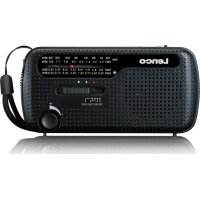
DAB+/FM radio with Bluetooth
Brand
Lenco
Model
MCR113 (ODR-160)
Dimensions (W x H x D)
212 x 224 x 188 mm
Weight
2650 g ± 50 g
Power supply
Rechargeable battery 7.4 V / 3600 mAh; charges via USB (5 V / 2 A adapter recommended, not included)
Battery life
Up to 30 hours (volume at 50%)
Charging time
Approximately 5 hours
Connectivity
Bluetooth 5.3, AUX input 3.5 mm, USB-A port (output 5 V / 2 A), TF card reader
Speakers
25 W (mid-bass) + 10 W (treble)
Key features
DAB+/FM radio (RDS), auto/manual search, 4 direct presets, alarm, sleep timer, equalizer (Normal/Jazz/Pop/Classic), backlight adjustment, automatic time update
Cleaning
Use a soft, dry cloth; do not use solvents or petroleum-based liquids
Safety
Do not open the device; avoid moisture and heat sources; operating temperature 0-35°C
Repairability
No user-serviceable parts; refer all repairs to qualified service
General information
Non-professional domestic use; warranty void if opened by unauthorized repairer
Frequently Asked Questions - MCR113 LENCO
What type of charger should I use for the speaker?
All standard USB chargers can be used, but we recommend a 5 V / 2 A adapter or higher. Do not use an adapter without safety certification.
What to do in case of noise or intermittent sound during playback?
The speaker can be used normally within a range of 10 meters in an obstruction-free environment. Beyond that or with obstacles, interference may occur. Move the devices closer or remove obstacles.
Why does the speaker automatically go into standby?
If no device is connected via Bluetooth for 10 minutes, the speaker automatically goes into standby to save battery. Briefly press the Power On/Off button to reactivate it.
How to pair a previously paired phone that no longer connects?
First delete the speaker's name ('Lenco ODR-160') from your phone's Bluetooth list, then restart the pairing process.
The speaker does not turn on normally, what should I do?
Plug in the charger and wait a few minutes, or use a toothpick to insert into the 3.5 mm audio input hole and press the internal reset button. If the problem persists, contact after-sales service.
How to set the alarm?
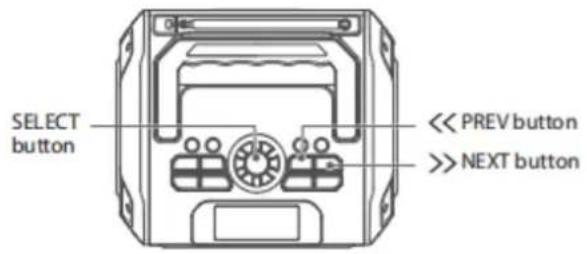
Briefly press the ALARM button (9) to access settings. Use the PREV/NEXT buttons or the SELECT dial to adjust the time, duration, alarm sound (Buzzer/DAB/FM), frequency, and volume. Confirm with SELECT.
How to save a favorite station?
In DAB or FM mode, tune to the desired station, then press and hold a preset button (1 to 4 or PRESET) for 2-3 seconds. The program is then saved. To recall, briefly press the same button.
How to switch between DAB, FM, Bluetooth, etc. modes?
Briefly press the MODE button (8) to switch between modes in order: DAB, FM, Bluetooth, AUX, TF (card). The screen displays the active mode.
What to do if the screen remains dark or the device doesn't respond?
Check that the battery is charged. If the screen is off, press and hold the Power On/Off button (6) for 2 seconds. If nothing happens, reset the device by inserting a thin object into the reset hole (AUX input).
How to adjust the equalizer?
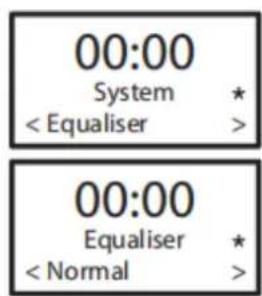
Press and hold MENU (12) to access the system menu. Turn the SELECT dial to choose Equalizer, then press to enter. Select the desired mode (Normal, Jazz, Pop, Classic) and confirm with SELECT. A ★ symbol indicates the active mode.
User questions about MCR113 LENCO
0 question about this device. Answer the ones you know or ask your own.
Ask a new question about this device
No questions yet. Be the first to ask one.
Download the instructions for your Radio in PDF format for free! Find your manual MCR113 -
LENCO and take your electronic device back in hand. On this page are published all the documents necessary for the use of your device. MCR113 by LENCO.
USER MANUAL MCR113 LENCO
User manual - High power outdoor DAB+/FM radio with bluetooth
Usage of controls or adjustments or performance of procedures other than those specified herein may result in hazardous radiation exposure.
KEEP THESE INSTRUCTIONS IN MIND:
Do not cover or block any ventilation openings. When placing the device on a shelf, leave 5cm (2^ ) free space around the whole device.
Install in accordance with the supplied user manual.
Keep the device away from heat sources such as radiators, heaters, stoves, candles and other heat-generating products or naked flame. The device can only be used in moderate climates. Extremely cold or warm environments should be avoided. Working temperature between 0^ and 35^
Avoid using the device near strong magnetic fields.
Electrostatic discharge can disturb normal usage of this device. If so, simply reset and restart the device following the instruction manual. During file transmission, please handle with care and operate in a static-free environment.
Warning! Never insert an object into the product through the vents or openings. High voltage flows through the product and inserting an object can cause electric shock and/or short circuit internal parts. For the same reason, do not spill water or liquid on the product.
Do not use this device when condensation may occur. When the unit is used in a warm wet room with damp, water droplets or condensation may occur inside the unit and the unit may not function properly; let the unit stand in power OFF for 1 or 2 hours before turning on the power: the unit should be dry before getting any power.
Although this device is manufactured with the utmost care and checked several times before leaving the factory, it is still possible that problems may occur, as with all electrical appliances. If you notice smoke, an excessive build-up of heat or any other unexpected phenomena, you should disconnect the plug from the main power socket immediately.
This device must operate on a power source as specified on the specification label. If you are not sure of the type of power supply used in your home, consult your dealer or local power company.
Keep away from animals. Some animals enjoy biting on power cords.
To clean the device, use a soft dry cloth. Do not use solvents or petrol based fluids.
To remove severe stains, you may use a damp cloth with dilute detergent.
The supplier is not responsible for damage or lost data caused by malfunction, misuse, modification of the device or battery replacement.
Do not interrupt the connection when the device is formatting or transferring files. Otherwise, data may be corrupted or lost.
If the unit has USB playback function, the USB memory stick should be plugged into the unit directly. Don't use an USB extension cable because it can cause interference resulting in failing of data.
The rating label has been marked on the bottom or back panel of the device.
This device is not intended for use by people (including children) with physical, sensory or mental disabilities, or a lack of experience and knowledge, unless they're under supervision or have received instructions about the correct use of the device by the person who is responsible for their safety.
This product is intended for non professional use only and not for commercial or industrial use.
Make sure the unit is adjusted to a stable position. Damage caused by using this product in an unstable position vibrations or shocks or by failure to follow any other warning or precaution contained within this user manual will not be covered by warranty.
Never remove the casing of this device.
Never place this device on other electrical equipment.
Do not allow children access to plastic bags.
Only use attachments/accessories specified by the manufacturer.
Refer all servicing to qualified service personnel. Servicing is required when the device has been damaged in any way, such as the power supply cord or the plug, when liquid has been spilled or objects have fallen into the device, when the device has been exposed to rain or moisture, does not operate normally, or has been dropped.
Long exposure to loud sounds from personal music players may lead to temporary or permanent hearing loss.
If the product is delivered with power cable or AC power adaptor:
If any trouble occur, disconnect the AC power cord and refer servicing to qualified personnel.
Don't step on or pinch the power adaptor. Be very careful, particularly near the plugs and the cable's exit point. Do not place heavy items on the power adaptor, which may damage it. Keep the entire device out of children's reach! When playing with the power cable, they can seriously injure themselves.
Unplug this device during lightning storms or when unused for a long period.
The socket outlet must be installed near the equipment and must be easily accessible.
Do not overload ac outlets or extension cords. Overloading can cause fire or electric shock.
Devices with class 1 construction should be connected to a main socket outlet with a protective earthed connection.
Devices with class 2 construction do not require a earthed connection.
Always hold the plug when pulling it out of the main supply socket. Do not pull the power cord. This can cause a short circuit.
Do not use a damaged power cord or plug or a loose outlet. Doing so may result in fire or electric shock.
If the product contains or is delivered with a remote control containing coin/cell batteries: Warning:
"Do not ingest battery, Chemical Burn Hazard" or equivalent working.
[The remote control supplied with] This product contains a coin/button cell battery. If the battery is swallowed, it can cause severe internal burns in just
2 hours and can lead to death.
Keep new and used batteries away from children.
If the battery compartment does not close securely, stop using the product and keep it away from children.
If you think batteries might have been swallowed or placed inside any part of the body, seek immediate medical attention.
Caution about the use of Batteries:
Danger of explosion if battery is incorrectly replaced. Replace only with the same or equivalent type.
Battery cannot be subjected to high or low extreme temperatures, low air pressure at high altitude during use, storage or transportation.
Replacement of a battery with an incorrect type that can result in an explosion or the leakage of flammable liquid or gas.
Disposal of a battery into fire or a hot oven, or mechanically crushing or cutting of a battery, that can result in an explosion.
Leaving a battery in an extremely high temperature surrounding environment that can result in an explosion or that leakage of flammable liquid or gas.
A battery subjected to extremely low air pressure that may result in an explosion or the leakage of flammable liquid or gas.
Attention should be drawn to the environmental aspects of battery disposal.
INSTALLATION
Unpack all parts and remove protective material.
Do not connect the unit to the mains before checking the mains voltage and before all other connections have been made.
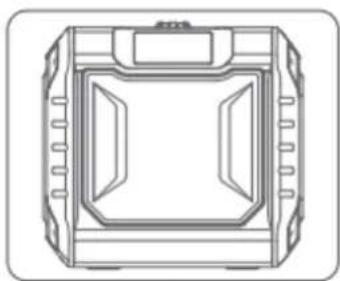
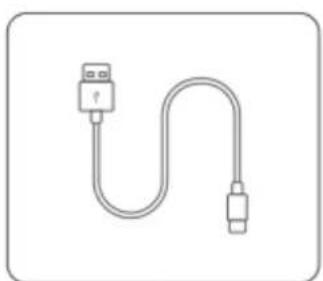
What's in the box
A ODR-160
B Charging Cable
C User Manual
A
B
C
01
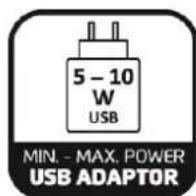
PLEASE USE A USB
ADAPTOR DELIVERING MINIMUM 5W
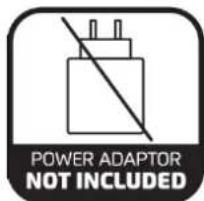
No USB Power
adaptor included
BASIC FUNCTION
Basic Function
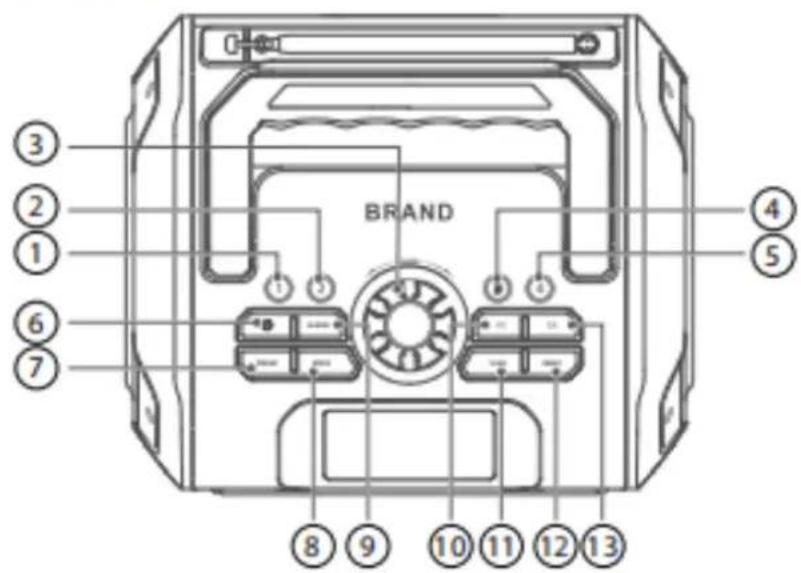
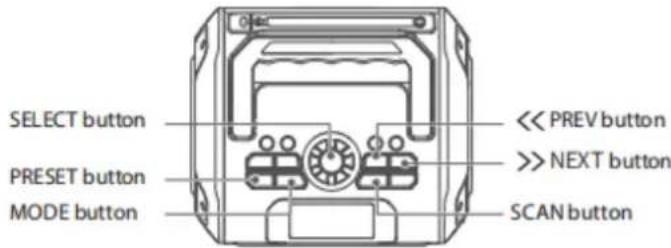
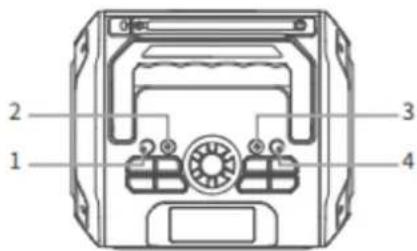
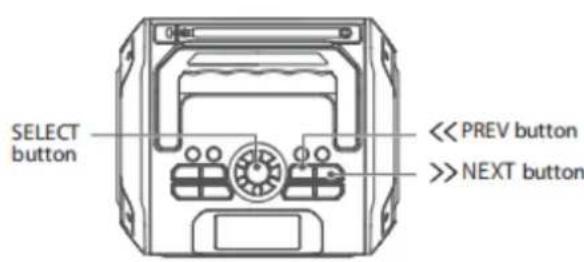
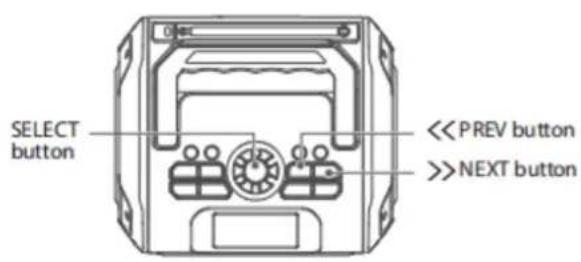
①②Station storage: Short press to recall favorite station, long press to store favorite station (FM,DAB);
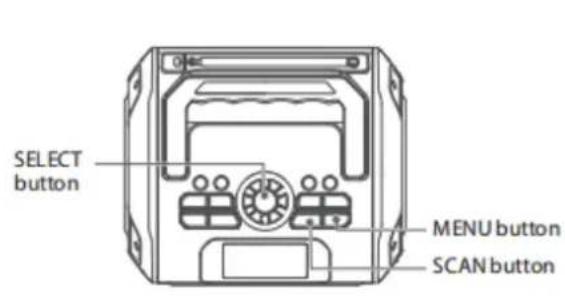
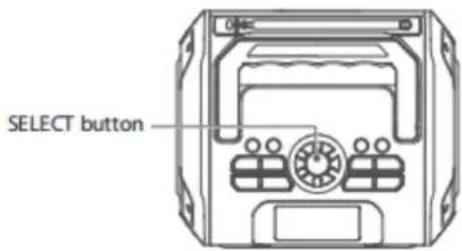
③ Multi-function knob: Rotate volume up/down, short press to pause/play (Mute/Unmute)、SELECT/SNOOZE;
(4)(5) Station storage: Short press to recall favorite station, long press to store
favorite station (FM,DAB);
⑥ Power ON/OFF: Long press for 2 seconds to power on/off, short press to standby/activate;
⑦ PRESET: Short press to preset the station list, long press to store the preset stations.
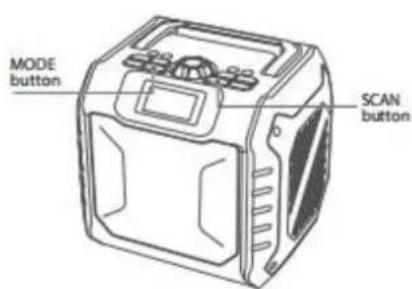
⑧ MODE : Short press to switch mode (DAB/FM/BT/TF/AUX);
⑨ALARM: Short press to enter alarm setting;
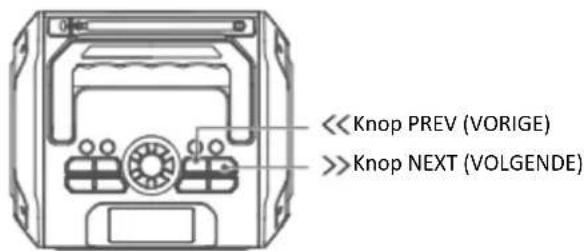
PREV Knot : Short press on the previous song/Tune to previous radio station
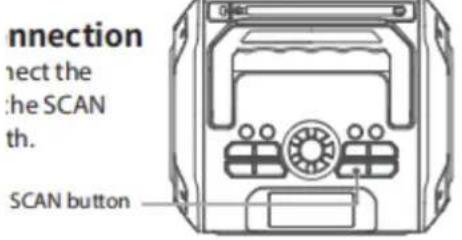
①SCAN : Short press to scan station automatically, long press to disconnect Bluetooth Pairing;
(12) MENU : Short press to view station information, long press to enter system setting menu;
(13)NEXT Knot : Short press the next song/Tune to next radio station
OPERATION GUIDE
1. Power on/off
Long press "⑥" for 2 seconds to power ON/OFF the device, it will enter playback mode.
If the device is idle (no Bluetooth pairing or playback) for 10 minutes, it will switch to standby mode with Clock Display automatically.
In standby mode, short press the "Power" button to activate and enter the current mode.
2. DAB radio mode
2.1 Enter DAB source
Short press the "MODE" button to switch modes and switch to DAB mode.
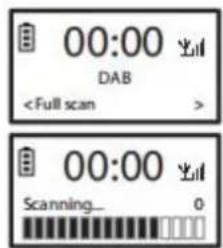
2.2 Full scan
Scan for channels in the full frequency band and sort all the programs found by the Short label in the dictionary in order.
Save them in the DAB program list; if the DAB program list is empty, the DAB menu mode will be displayed all the time.
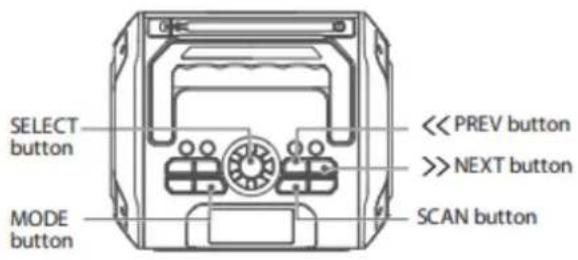
You can also enter the automatic scanning mode by short pressing the "SCAN" button on the playback interface.
2.3 Manual tune
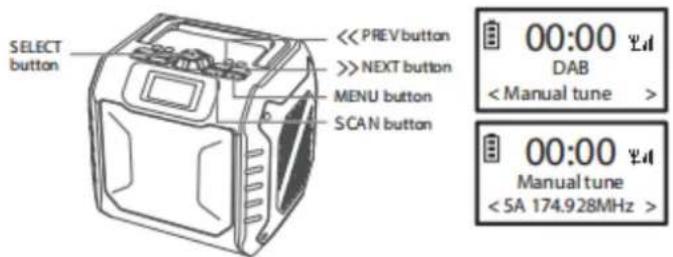
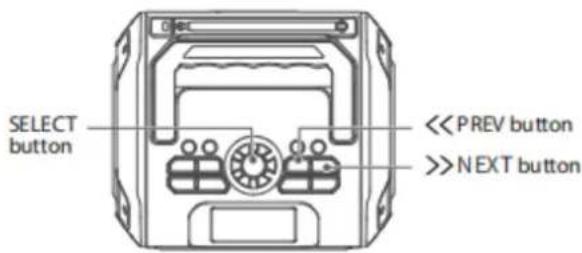
In DAB mode, long press the MENU button to enter the menu; short press the PREV/NEXT button or rotate the SELECT button to select the menu, select the Manual tune option and short press the SELECT button to enter the manual search, and then short press the MENU button to exit the manual search.
Manual tune menu DAB frequency list, short press the PREV/NEXT button or rotate the SELECT button to select a frequency, and then short press the SELECT button to enter the manual search state. At this time, the interface displays the signal strength of the frequency.
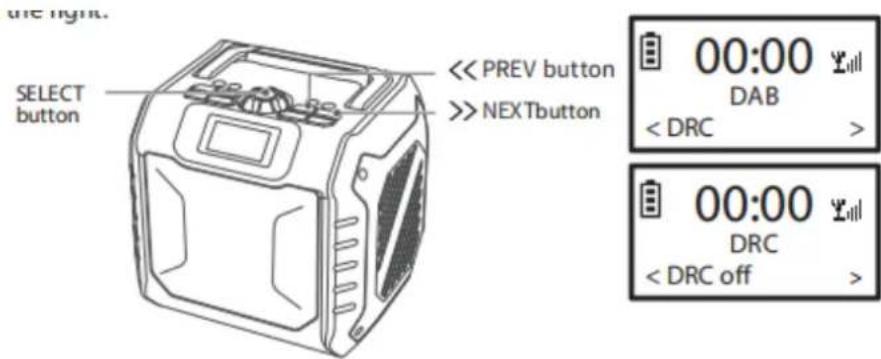
2.4 DRC
Dynamic range control of DAB, setting options include DRC off/DRC low/DRC high. Short press PREV/NEXT button or rotate SELECT button to switch different modes,
short press SELECT button to confirm, the selected mode has a * mark on the right.
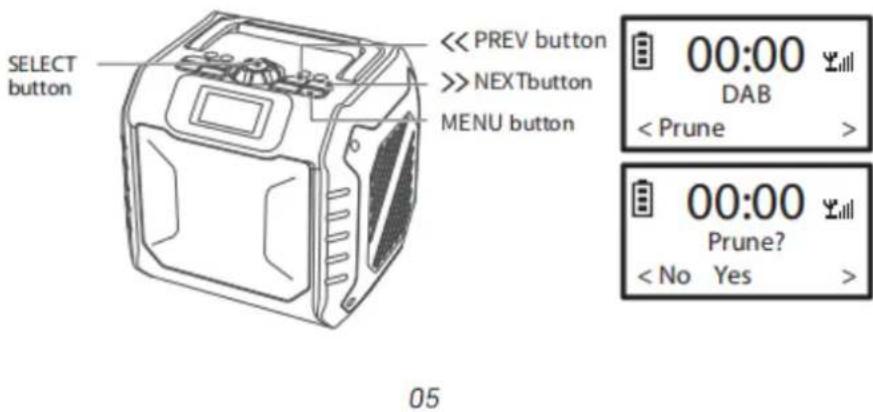
2.5 Prune
This function will clear invalid radio stations, that is, invalid radio stations marked with ? in the program list.
In DAB mode, long press the "MENU" button to enter the menu; short press the PREV/NEXT button or rotate the SELECT button to select the menu, select the Prune option and short press the SELECT button to enter the mode
2.6Playback information
When a DAB program is playing, the first line displays the name of the DAB program. Short press the MENU button to view the relevant information of the DAB program in sequence:
Dynamic Label segment (DLS): dynamic text information, if not, it will display Playing;
Program Type (PTY): program type, if not, it will display No PTY;
Ensemble Name: radio station name:
Frequency and Channel: radio station frequency, such as 7A188,928MHz;
Signal Strength: display the signal strength of the current program;
Signal error: 0: bit error rate 0% ;
Bit rate and Audio status: bit rate, such as 128kbps/DAB;
Date: radio station date
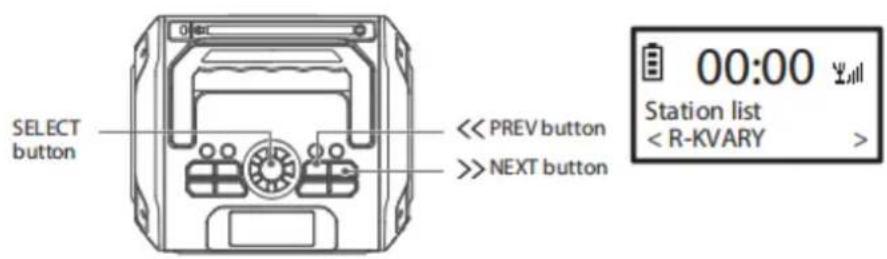
2.7 DAB program list
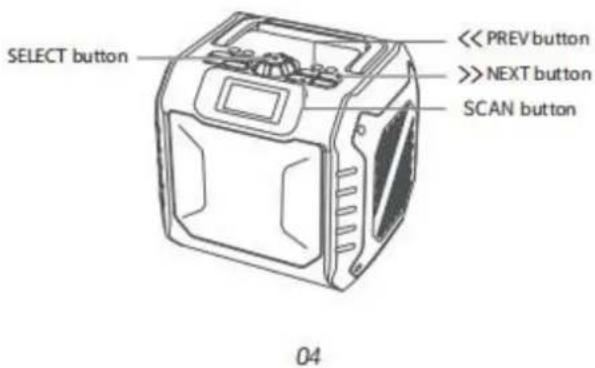
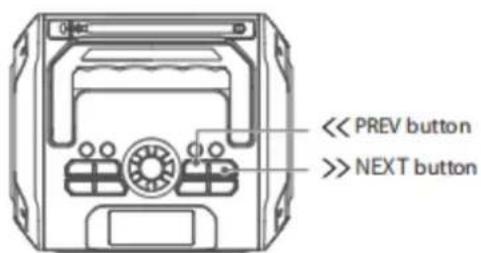
Long press the PREV/NEXT button to browse all DAB programs in sequence. After selecting a program, short press the SELECT button to select and play the program.
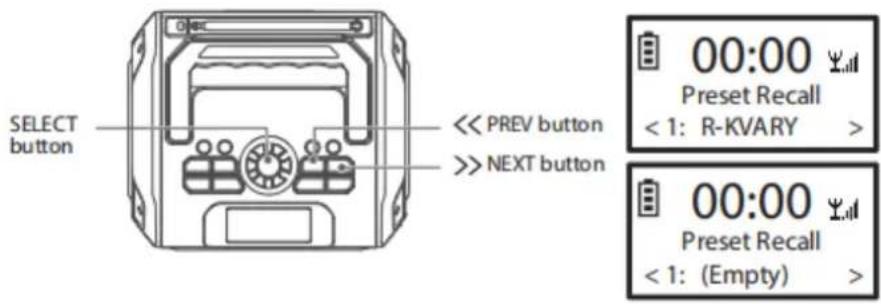
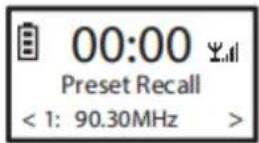
2.8 Preset Recall
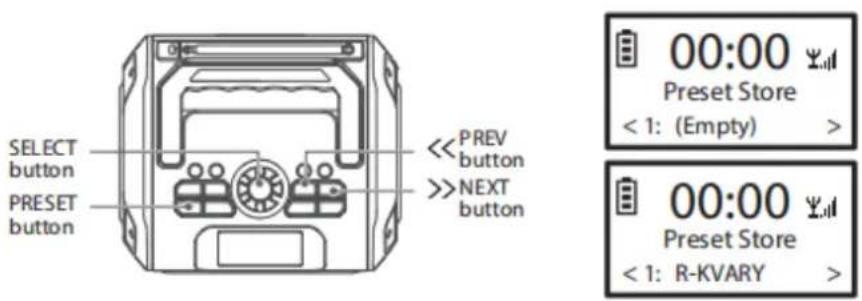
Recall preset station: short press the PRESET button to enter the preset station interface, use the PREV/NEXT button or rotate the SELECT button to view the program at each memory point.
After selecting a memory point program, short press the SELECT button to recall and play the program at this memory point. If the memory point is empty, it will display Empty.
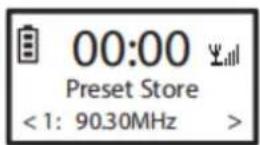
2.9 Preset Store
Store preset station: long press the PRESET button to enter the storage program, use the PREV/NEXT button or rotate the SELECT button to view the program at each memory point. If the memory point is empty, it will display Empty. After selecting a memory point, short press the SELECT button to save the currently playing program to the memory point.
FM radio mode
3.1 Enter FM source
Short press the MODE button to switch modes and switch to FM mode.
3.2 Auto search
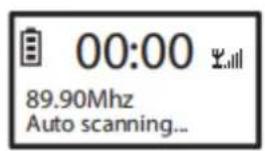
Auto scanning: Press the SCAN button, the system will scan for stations in the full frequency band according to the default scan sensitivity, and save the scanned stations to the preset stations.
-In FM mode, short press the Scan button to enter full automatic search.
-In FM mode, long press the PREV/NEXT button to enter semi-automatic search.
-In FM mode, short press the SELECT button to mute/unmute.
3.3 Manual scanning
Short press PREV/NEXT button to perform manual frequency tuning with an adjustment step of 0.05MHz.
08
3.4 Automatic search settings
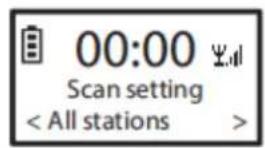
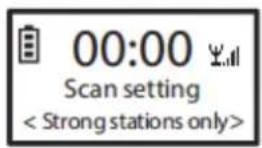
Long press the MENU button to set: Scan setting and System
Scan setting: and , rotate the SELECT button to select, and press the SELECT button to confirm. The selected item is marked with a ** on the right; after confirmation, press the MENU button to exit the settings, and then press the Scan button again to search for radio stations.
-: high sensitivity;
: low sensitivity.
3.5 FM playback information
The first line displays the FM frequency. If there is a station name, the station name will be displayed; short press the MENU button to view the relevant information of the FM station.
-Program Type (PTY): Program type, if not, No PTY is displayed;
-Name: Station name, if not, No Name is displayed;
-Time: Station time;
-Date: Station date;
3.6 Preset Recall
Recall preset stations, the operation method is the same as DAB.
3.7 Preset Store
Store preset radio stations, the operation method is the same as DAB.
4. Bluetooth mode
4.1 Bluetooth connection
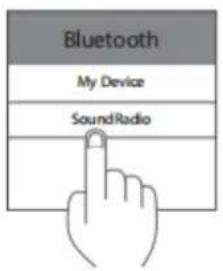
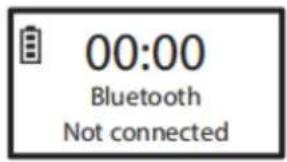
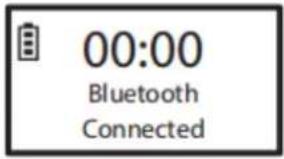
Turn on Bluetooth on the mobile device, then find the device named "Lenco ODR-160" from the list and start pairing. If the connection is successful, "Connected" will be displayed on the screen, otherwise "Not connected" will be displayed. If there is no Bluetooth device connected for 10 minutes, it will automatically enter standby mode.
4.2 Disconnect Bluetooth connection
Long press the SCAN button to disconnect the Bluetooth connection, and long press the SCAN button again to reconnect the Bluetooth.
4.3Playback control
Play/pause: Press the SELECT button to play/pause the music on the device;
2.PREV/NEXT: Press the PREV/NEXT button to switch to the previous/next song;
3.SCAN: Long press the SCAN button to disconnect Bluetooth/reconnect Bluetooth;
SELECT: Rotate the SELECT button to increase or decrease the volume.
5. AUX mode
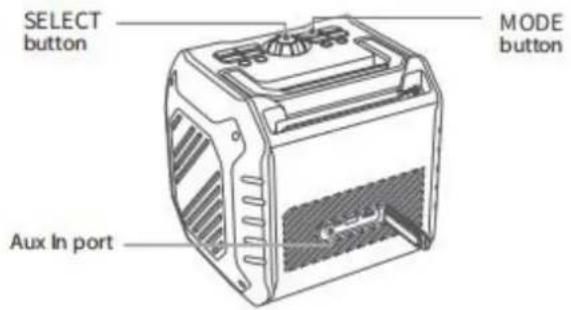
Aux In mode allows you to connect an external audio source to the Aux In 3.5 mm port for audio playback.
5.1 Enter AUX mode
Press the MODE button to switch modes and switch to AUX mode.
5.2 Audio playback
Connect an external audio source to the Aux In 3.5 mm port to play music.
Play/pause: Short press the SELECT button to mute/unmute the music on the device;
Rotate the SELECT button to increase or decrease the volume.
6. CARD mode
6.1 Read CARD
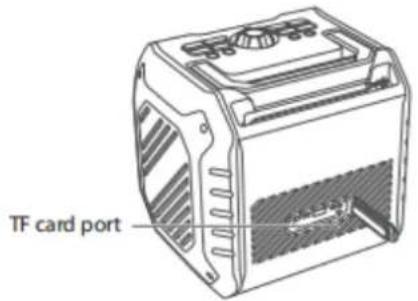
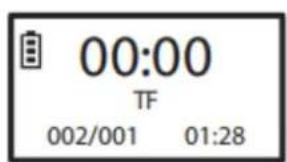
When the TF card is connected, the system will automatically read the audio file on the CARD and start playing.
6.2Playback control
6.2.1 Play/pause: Short press the SELECT button to control the pause/play of the music on the device; rotate the SELECT button to increase or decrease the volume;
6.2.2 PREV/NEXT: Short press the PREV / NEXT button to switch to the previous song/next song;
6.2.3 PRESET: Loop mode control, short press the PRESET button to switch between sequential play/random play/single loop.
Shortcut key
The product has 4 program shortcut keys (1~4 buttons).
In DAB and FM modes, you can store your favorite programs by long pressing the 1 4 buttons respectively. When you select your favorite program, long press any shortcut button for 2-3S to store the current program, and long press again to overwrite the previous program.
When the program shortcut key has a program stored, you can quickly switch to the stored program.
12
8. System settings
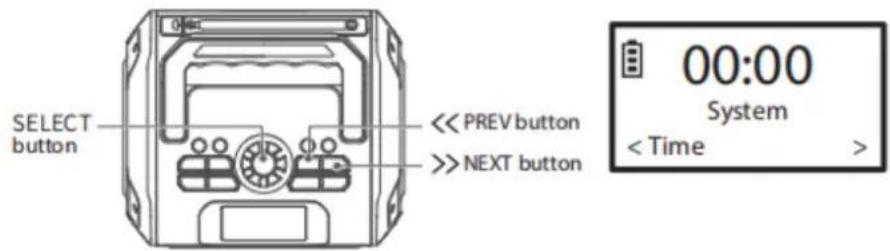
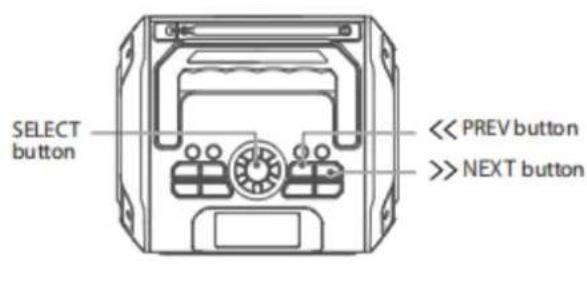
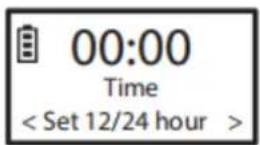
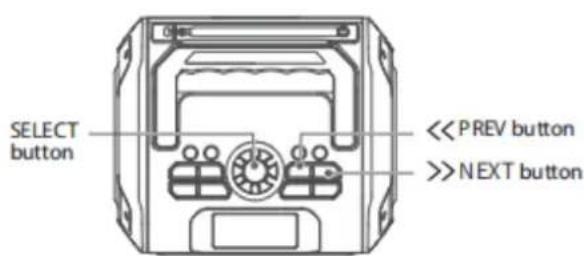
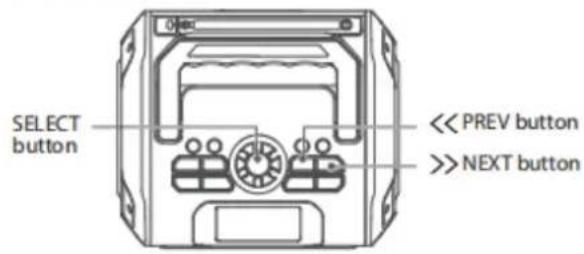
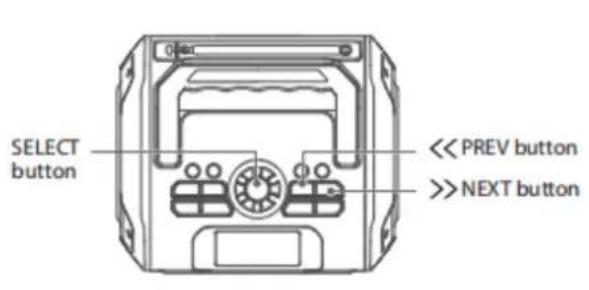
Press the MENU button for 2 seconds to enter the System menu, which includes: Time, Backlight, Language, Equa liser, Factory Reset, SW Version. Short press the PREV/NEXT button or rotate the SELECT button to select the next menu, and press the SELECT button to enter the menu. It will automatically exit to the playback interface after 10 seconds of no operation.
8.1
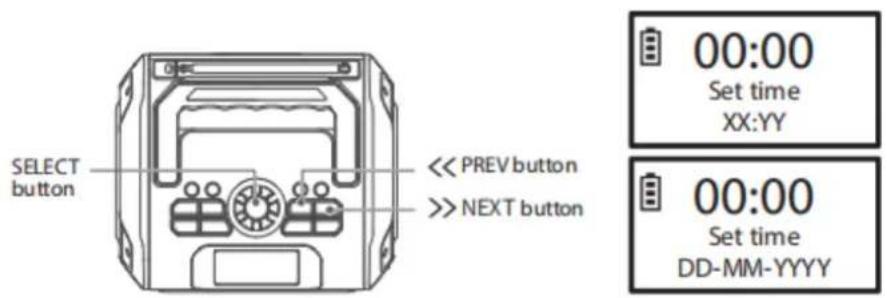
Press the SELECT button to enter the time setting interface, the setting items include , . . , short press the SELECT button to select.
8.1.1 Time and date setting
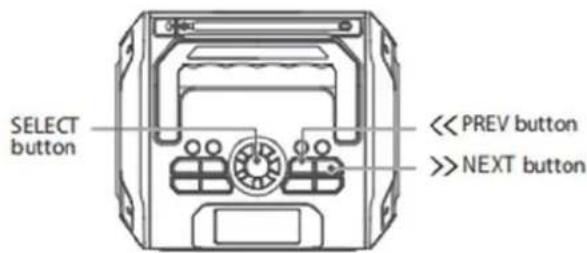
Press the SELECT button to enter the time/date setting interface. You can adjust the time and date by pressing the PREV/NEXT button or rotating the SELECT button, and then press the SELECT button to confirm.
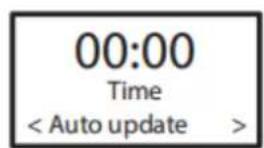
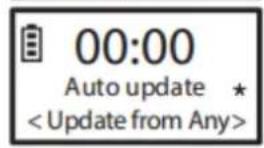
8.1.2 Time and date automatic update setting
Press the SELECT button to enter the time format setting interface. You can select by pressing the PREV/NEXT button or rotating the SELECT button, and then press the
SELECT button to confirm. The selected item has a “ ” mark on the right.
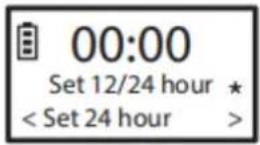
8.1.3 Time format setting
Press the SELECT button to enter the time format setting interface. You can press the
PREV/NEXT button or rotate the SELECT button to select, and then press the SELECT
button to confirm. There is a “ ” mark on the right of the selected item
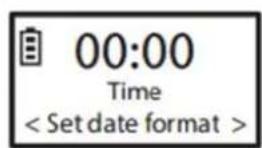
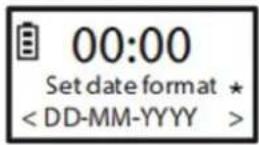
8.1.4 Date format setting
Press the SELECT button to enter the date format setting interface. You can press the PREV/NEXT button or rotate the SELECT button to select, and then press the SELECT
button to confirm. There is a “ ” mark on the right of the selected item
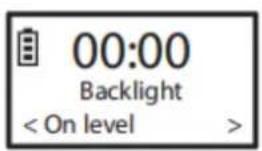
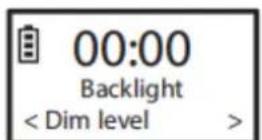
8.2Backlight setting
Press the SELECT button to enter the backlight setting interface. The setting items
include , , . You can select by pressing the PREV/NEXT button or rotating the SELECT button.
8.2.1Duration setting
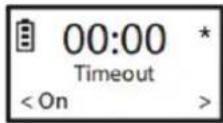
Short press the SELECT button to enter the setting interface for the duration before the background brightness dims when there is no operation.
You can select the duration by pressing the PREV/NEXT button or rotating the SELECT button, and then press the SELECT button to confirm. The selected item has a “ ” mark on the right;
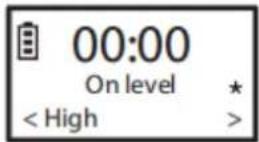
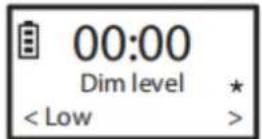
8.2.2 Backlight brightness
Press the SELECT button to enter the backlight brightness setting interface. You can press the PREV/NEXT button or rotate the SELECT button to select, and then press the SELECT button to confirm. The selected item has a “ ” mark on the right.
8.2.3
Press the SELECT button to enter the backlight brightness setting interface when no operation is performed. You can press the PREV/NEXT button or rotate the SELECT button to select, and then press the SELECT button to confirm. The selected item has
a mark on the right;
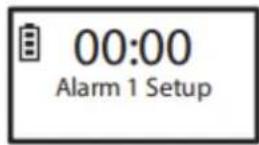
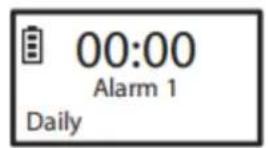
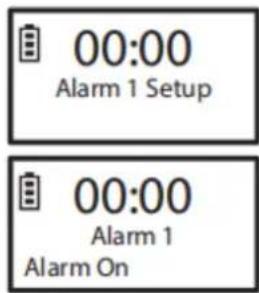
8.3 Alarm Setting
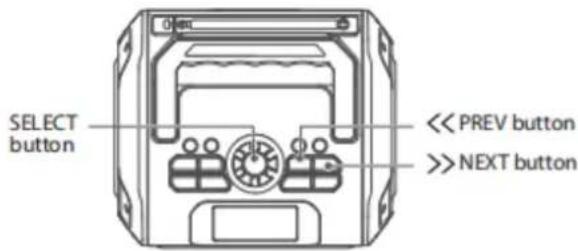
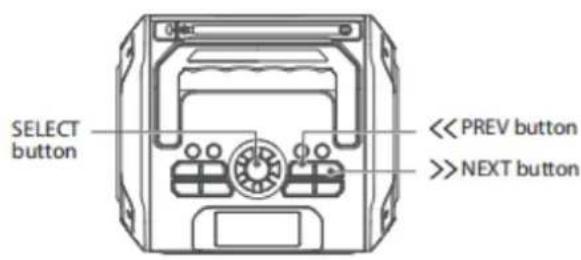
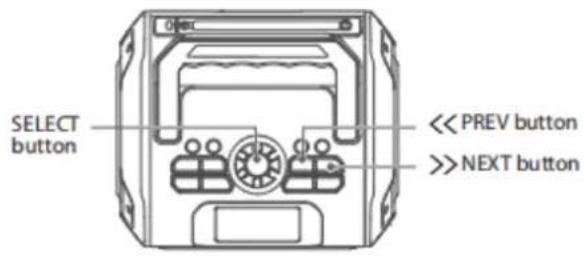
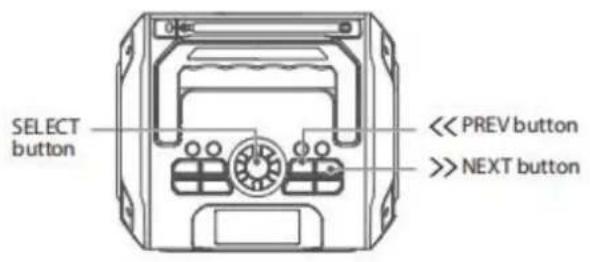
The system supports setting two alarms. You can select by short pressing the PREV/NEXT button or rotating the SELECT button, and then short press the SELECT
button to confirm.
SELECT 1 button to connrm.
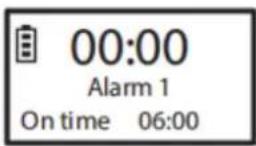
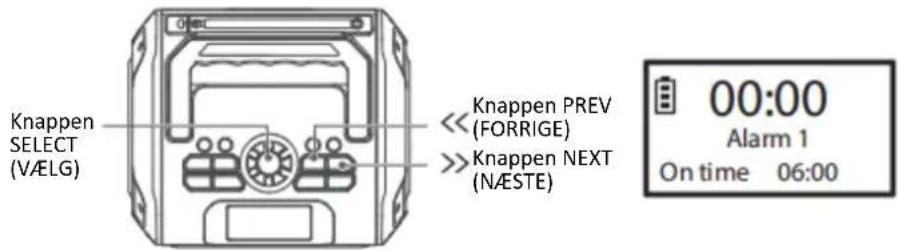
8.3.1 Wake-up time
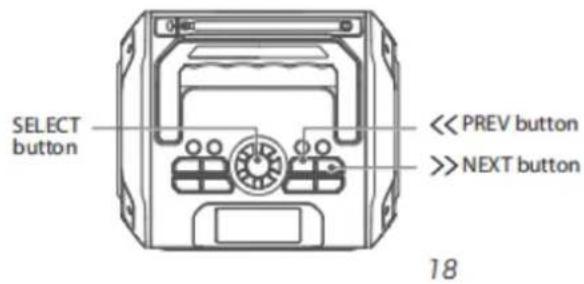
You can select by short pressing the PREV/NEXT button or rotating the SELECT button, and then short pressing the SELECT button to confirm.
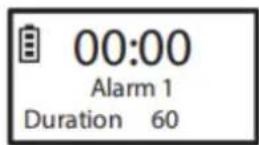
8.3.2 Duration
You can select by short pressing the PREV/NEXT button or rotating the SELECT button, and then short pressing the SELECT button to confirm.
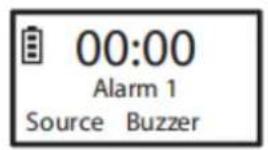
8.3.3 Alarm ringtone
The setting options include Buzzer\DAB\FM, which can be selected by short pressing the PREV/NEXT button or rotating the SELECT button, and then short press the
SELECT button to confirm.
8.3.4 Alarm frequency
The setting options include Daily\Once\weekends\weekday, which can be selected by short pressing the PREV/NEXT button or rotating the SELECT button, and then short press the SELECT button to confirm.
8.3.5 Alarm volume
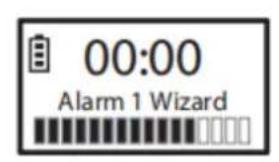
You can select by short pressing the PREV/NEXT button or rotating the SELECT button, and then short press the SELECT button to confirm.
8.3.6 Snooze
When the alarm rings, short press the SELECT button to enter the SNOOZE mode. The alarm will ring again after 5 minutes, and the cycle will be unlimited. Press any other button to end the alarm for the day.
8.4 System sleep
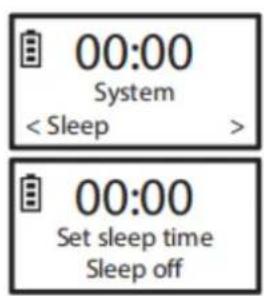
Press the SELECT button to enter the sleep time setting interface. You can select by short pressing the PREV/NEXT button or rotating the SELECT button. The selected sleep time is 15/30/45/60/90 minutes. Short press the SELECT button to confirm.
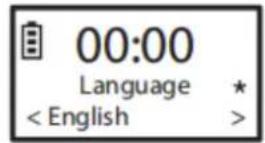
8.5System language
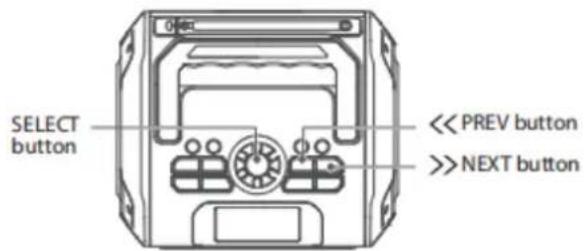
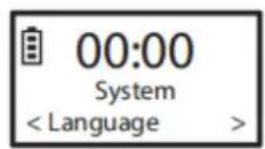
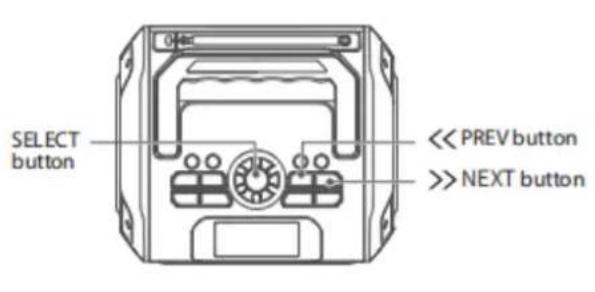
Press the SELECT button to enter the language setting interface. You can select by short pressing the PREV/NEXT key or rotating the SELECT key; the available languages include English /Francais / Deutsch /Italiano; short press SELECT again to confirm,
and the selected item will be marked with a on the right.
27
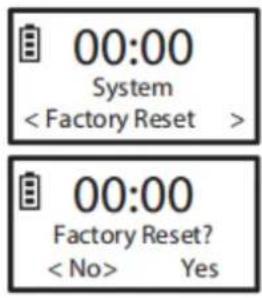
8.6
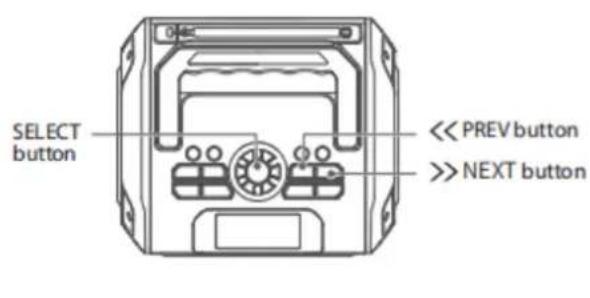
Short press the SELECT button to enter factory reset, short press the PREV/NEXT button or rotate the SELECT button to select NO/YES, and then press the SELECT button to confirm. After reset, all states will be restored to the factory default state.
8.7 sound effect settings
Short press the SELECT button to enter the EQ setting interface. Default mode is normal sound effects.
Short press the PREV/NEXT button or rotate the SELECT button to select sound effects including /Normal/JAZZ/Popular/Classic; short press SELECT again to confirm, and the selected item will be marked with a “ ” on the right.
FREQUENTLY ASKED QUESTIONS
9.Important notice:
Do not use the power adapter which has no any safety certificate.
Suggest to use output 5V/2A(or above) adapter to charge.
Please charge it as soon as possible when you hear low battery prompt voice.
10. Battery saving
The radio speaker will switch standby mode automatically to save battery when there is no any device connected in 10 minutes.
11.Charging
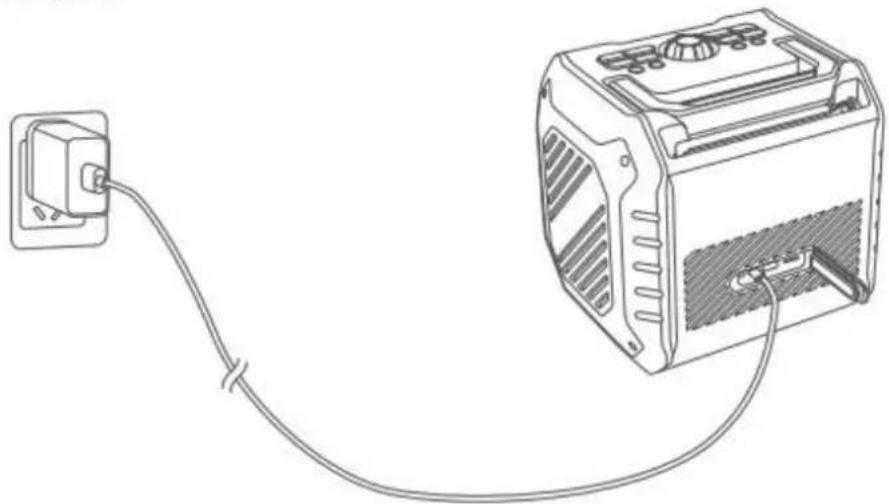
Connect the charging cable to charge and display the charging status.
In the charging state: the battery icon displays three bars of power jumping in sequence.
Fully charged status: The battery icon displays three bars of power and is always on.
23
SPECIFICATIONS
Product Name
SoundRadio
Bluetooth version
5.3
Battery Capacity
7.4V/3600mAh
Play time
30 hours (50% volume)
Charging time
about 5 hours
Charging specification
5V=2A
USB-A output
5V=2A
Speaker Unit parameters
Mid-bass 25W, treble 10W
Product Dimension
212 x 224 x 188 mm
Product weight
2650g±50
Product Name : Lenco ODR-160
Bluetooth version 5.3
Battery Capacity:7.4V/3600mAh
Play time : 30 hours (50% volume)
Charging time : about 5 hours
Charging specification 5V-2A
USB-A output 5V-2A
Speaker Unit parameters: Mid-bass 25W, treble 10W
Product Dimension 212x224x188 mm
Product weight 2650g± 50
Frequently Asked Questions
Q1: What kind of charger should we use for the speaker?
A: All common USB chargers can be used, while we suggest the ones 5V/2A or above 2A.
Q2: What if there is noise or discontinuous sound during playing?
A:The speaker can be normally used within 10m under no obstruction environment. If it is beyond 10m or with obstruction, there might be noise or discontinuous sound.
Q3: Why does the speaker automatically go into standby mode if there is no operation after it is turned on?
A: When there is no Bluetooth pairing in 10 minutes, the speaker will be on standby mode automatically to reduce power consumption.
Q4: Why does the speaker cannot connect the once-paired cellphone?
A: First, remove the speaker's paired name from the cellphone's Bluetooth List and then restart pairing.
Q5:The speaker cannot be turned on in a normal situation.
A: If the speaker cannot be turned on normally by pressing the power button, please plug in the charger and try again a few minutes later, or use a toothpick to stab the 3.5 audio input hole and reset the internal reset button.
GUARANTEE
Commaxx B.V. offers service and warranty in accordance to European law, which means that in case of repairs (both during and after the warranty period) you should contact your local dealer.
Important note: It is not possible to send products that need repairs to Commaxx B.V. directly.
Important note: If this unit is opened or accessed by a non-official service center in any way, the warranty expires.
This device is not suitable for professional use. In case of professional use, all warranty obligations of the manufacturer will be voided.
DISCLAIMER
Updates to Firmware and/or hardware components are made regularly. Therefore some of the instruction, specifications and pictures in this documentation may differ slightly from your particular situation. All items described in this guide for illustration purposes only and may not apply to particular situation. No legal right or entitlements may be obtained from the description made in this manual.
DISPOSAL OF THE OLD DEVICE
This symbol indicates that the relevant electrical product or battery should not be disposed of as general household waste in Europe. To ensure the correct waste treatment of the product and battery, please dispose them in accordance to any applicable local laws of requirement for disposal of electrical equipment or batteries. In so doing, you will help to conserve natural resources and improve standards of environmental protection in treatment and disposal of electrical waste (Waste Electrical and Electronic Equipment Directive).
DECLARATION OF CONFORMITY
Hereby, Commaxx declares that the radio equipment type [Lenco ODR-160] is in compliance with directive 2014/53/EU. The full text of the EU declaration of conformity is available at the following internet address: https://commaxx-certificates.com/doc/odr-160.doc.pdf
Type RF
Frequency range (MHz)
Power (dBm)
Bluetooth
2402-2480
<6
DAB
174-240
-
FM
87.5-108
-
SERVICE
For more information and helpdesk support, please visit www.lenco.com Commaxx B.V. Wiebachstraat 37, 6466 NG Kerkrade, The Netherlands
Nederlandss
VOORZICHTIG:
3.3 Handmatig scanners
Druk kort op de knop PREV/NEXT (VORIGE/VOLGENDE) om de frequente handmatig af te stemmen in stappen van 0,05 MHz.
08
AFVOER VAN HET OUDE APPARAAT
SELECT 1 button to confirm.
8.3.1 (Taendt) Opvågningstid
Du kan vælge ved at trykke på knappen PREV/NEXT (FORRIGE/NæSTE) eller dreje på knappen SELECT (VæLG) og derefter trykke på knappen SELECT (VæLG) for at bekråfte.
OFTE STILLDE SPØRGSMÁL
Other manuals LENCO
Discover other manuals and user guides for the brand LENCO
💬 Hi! I'm your manual assistant.I know your LENCO MCR113.
How can I help you? (use, settings, error codes, maintenance, explaining a step from the manual, etc.)💡 Examples :
• How do I use it ?
• Error code E3 ?
• How do I clean it ?