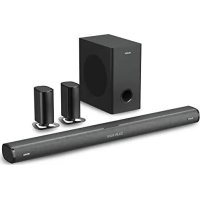
Everest - Soundbar Majority - Free user manual and instructions
Find the device manual for free Everest Majority in PDF.

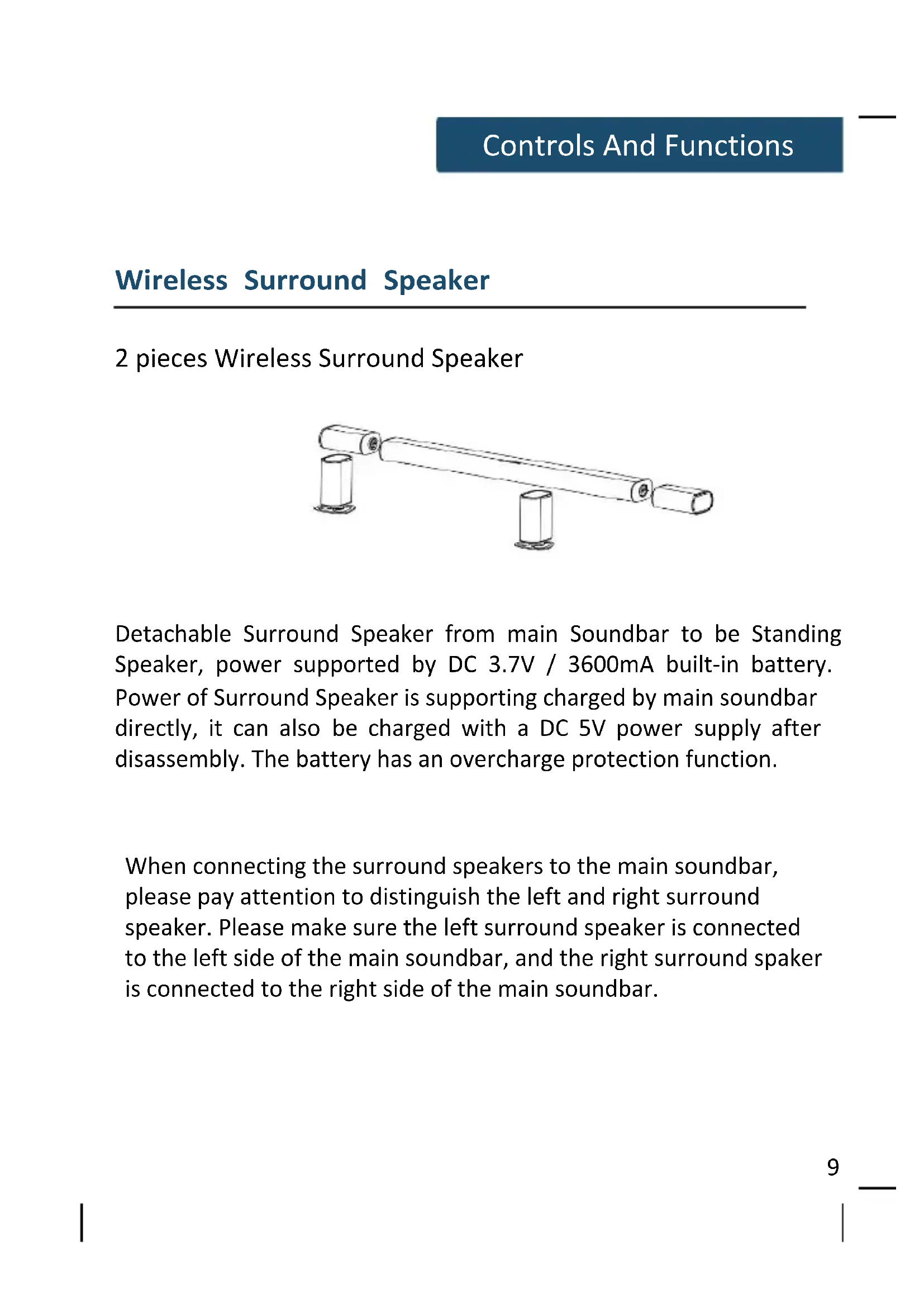


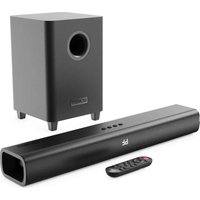
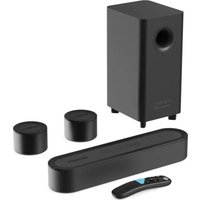
| Product type | Soundbar with wireless subwoofer and detachable surround speakers |
| Brand | Majority |
| Model | Everest |
| Soundbar dimensions (W x D x H) | 90 x 9.83 x 6.56 cm |
| Subwoofer dimensions (W x D x H) | 31 x 28 x 17 cm |
| Surround speaker dimensions (W x D x H) | 9.83 x 6.56 x 16.8 cm |
| Soundbar power supply | DC 24V / 2.0 A (power adapter) |
| Subwoofer power supply | DC 18V / 2 A (power adapter) |
| Surround speaker power supply | DC 5V / 2 A or built-in battery 3.7V / 3600 mAh |
| Total power consumption | 100 W |
| Frequency response | 70 Hz - 15 kHz |
| Bluetooth version | 5.0 |
| Bluetooth range | ≥ 10 m |
| Wireless connectivity of subwoofer | UHF 865 MHz, range ≥ 10 m |
| Wireless connectivity of surround speakers | UHF 756 MHz (left) / 676 MHz (right), range ≥ 10 m |
| Number and type of speakers (soundbar) | 2 x 2.25" full range + 4 x 2.25" mid-tweeter |
| Subwoofer speaker | 5.25" (1x) |
| Surround speaker drivers | 2 x 2.25" full range |
| Main functions | Bluetooth, HDMI ARC, optical input, AUX IN, Line In (3.5 mm), USB, remote control, music/video/news modes, bass/treble adjustments and independent volume controls (surround, center, front, subwoofer) |
| Surround speaker battery life | ~4 hours at maximum volume |
| Maintenance and cleaning | Unplug before cleaning; use a dry cloth only |
| Safety | Do not expose to water or moisture; ensure adequate ventilation; use only the provided adapters; keep out of reach of children |
| Box contents | Soundbar, subwoofer, 2 surround speakers, remote control, 4 power adapters (for soundbar, subwoofer, 2 surrounds), AUX IN cable, Line In 3.5 mm cable, user manual, wall mount brackets |
Frequently Asked Questions - Everest Majority
User questions about Everest Majority
0 question about this device. Answer the ones you know or ask your own.
Ask a new question about this device
Download the instructions for your Soundbar in PDF format for free! Find your manual Everest - Majority and take your electronic device back in hand. On this page are published all the documents necessary for the use of your device. Everest by Majority.
USER MANUAL Everest Majority
What's In The Box? 1
Controls And Functions 2-10
Support 11
Connecting to the Everest soundbar 12
Instructions Guide 13-19
Using the AUX IN Cable 13
Using the HDMI (ARC) Input 14
Using the Optical Input 15
Using the MP3 Link Connection (Line In) 16
Connecting to the Mains Supply 17
Using the Bluetooth Operation 18
Using the USB Operation 19
Troubleshooting 20
Specifications 21
Wall Mount Installation Guide 22-23
Quick System Installation Guide- 24
Safety Information 25
What's In The Box?
Box Contents
- Majority Everest Soundbar
- Remote Control
- Power Adapter x 4
- AUX IN Cable
- 3.5mm to 3.5mm Line In Cable
-
User Manual
-
Surround
- Subwoofer
- Aluminium Pedestal
- Side cover accessories
- Wall mount adaptor
1. Majority Everest Soundbar
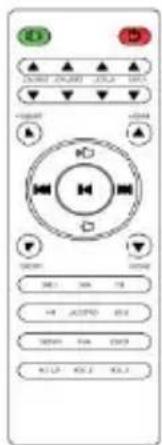
2. Remote Control
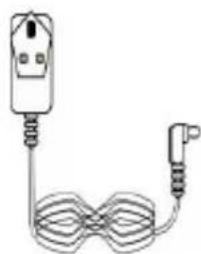
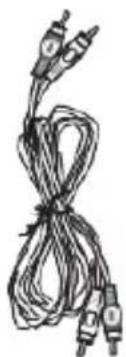
3. Power Adapter
4. AUX IN Cable

- 3.5mm to

6. User Manual
3.5mm Line In Cable



-
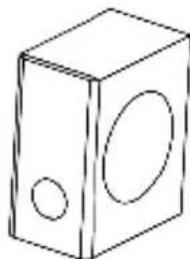
Surroundx2 8. Subwoofer x 1
-
Aluminium Pedestal
10
. Side1down mount
accessories
adaptor
Controls And Functions
Side View/Control Buttons
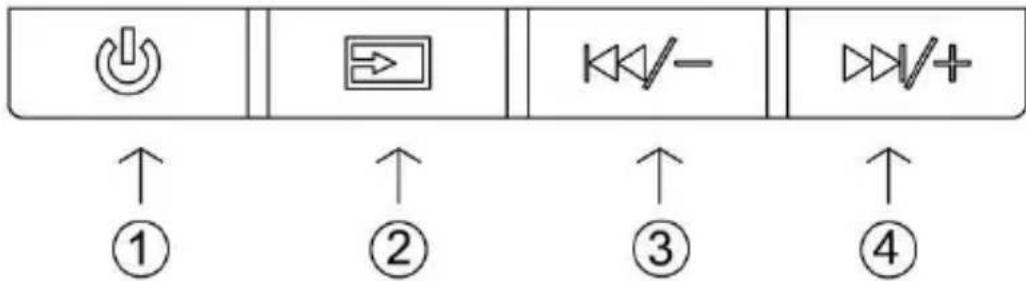
- Power On/Off 3. Volume-/Previous
- Source 4. Volume+/Next
Back View
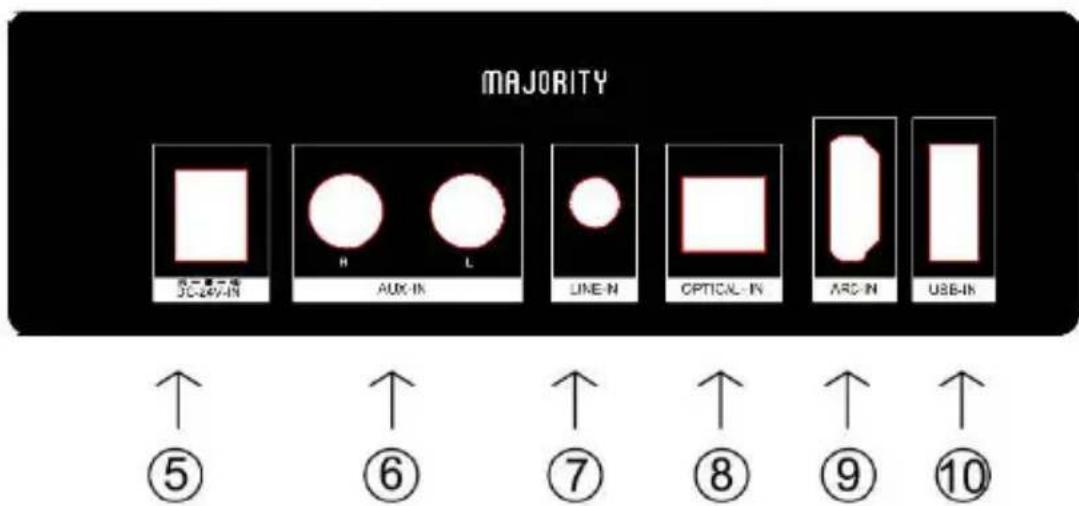
- DC Power Input
- AUX-In Input
-
Line-In Input
-
Optical Input
- ARC Input
10.USB Input
Controls And Functions
Remote Control
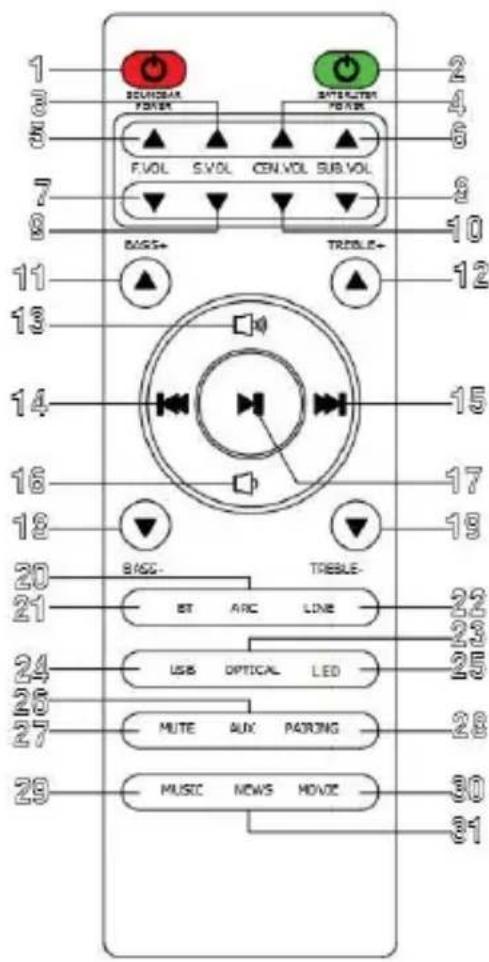
Remote Control
- Soundbar Power On/Off Short press the button to turn on/off
- Saterliter Power On/Off Short press the button to turn on Long press the button to turn on
- S.VOL (Volume + for Wireless Surround) Press to increase the volume for wireless surrounds
- CEN.VOL (Volume + for Center Tone) Press to increase the volume for center tone
- F.VOL (Volume + for Front Tone) Press to increase the volume for front tone
- SUBVOL (Volume + for Subwoofer) Press to increase the volume for subwoofer
- F.VOL (Volume - for Front Tone) Press to decrease the volume for front tone
- SUB.VOL (Volume - for Subwoofer) Press to decrease the volume for subwoofer
- S.VOL (Volume - for Wireless Surround) Press to decrease the volume for wireless surrounds
- CEN.VOL (Volume - for Center Tone) Press to decrease the volume for center tone
Controls And Functions
Remote Control
- Bass Increase
Press to increase the bass
- Treble Increase
Press to increase the treble
- Master.vol (Master Volume+ for the Whole Kit)
Press to increase the volume for the whole kit
- Back Step (Previous)
Use in AUX In, Line In or Bluetooth mode to go back a track
- Forward Step (Next)
Use in AUX In, Line In or Bluetooth mode to go forward a track
- Master.VOL (Master Volume- for the Whole Kit)
Press to decrease the volume for the whole kit
- Play / Pause
Press to play and pause
- Bass Decrease
Press to decrease the bass
- Treble Decrease
Press to decrease the treble
20.HDMI (ARC) Mode
Press the button to enter HDMI (ARC) mode
- Bluetooth Mode
Press the button to enter Bluetooth mode
Controls And Functions
Remote Control
- Line In Mode
Press the button to enter Line In mode
- Optical Mode
Press the button to enter optical mode
- USB Mode
Press the button to enter USB mode
- LED Mode
Press the button to enter power off screen
- AUX In Mode
Press the button to enter AUX In mode
- Mute Mode
Press the button to enter mute mode
- Pairing Mode
Press the button to enter pairing bluetooth
- Music Mode
Press the button to enter music mode
- Movie Mode
Press the button to enter movie mode
- News Mode
Press the button to enter news mode
Using the Remote Control
The remote control sensor at the front of the soundbar is sensitive to the remote control's commands up to a maximum of 8 metres away and within a maximum arc of 30 degrees.
Please note that the operating distance may vary depending on the brightness of the room.
Automatic Display Dimmer - after 20s if no button is pressed the display is dimmed to off. Press any button on soundbar or remote control to reactivate the display.
Soundbar Wall Mount Dimensions

Controls And Functions
Subwoofer
5.25 Inch Wireless Subwoofer
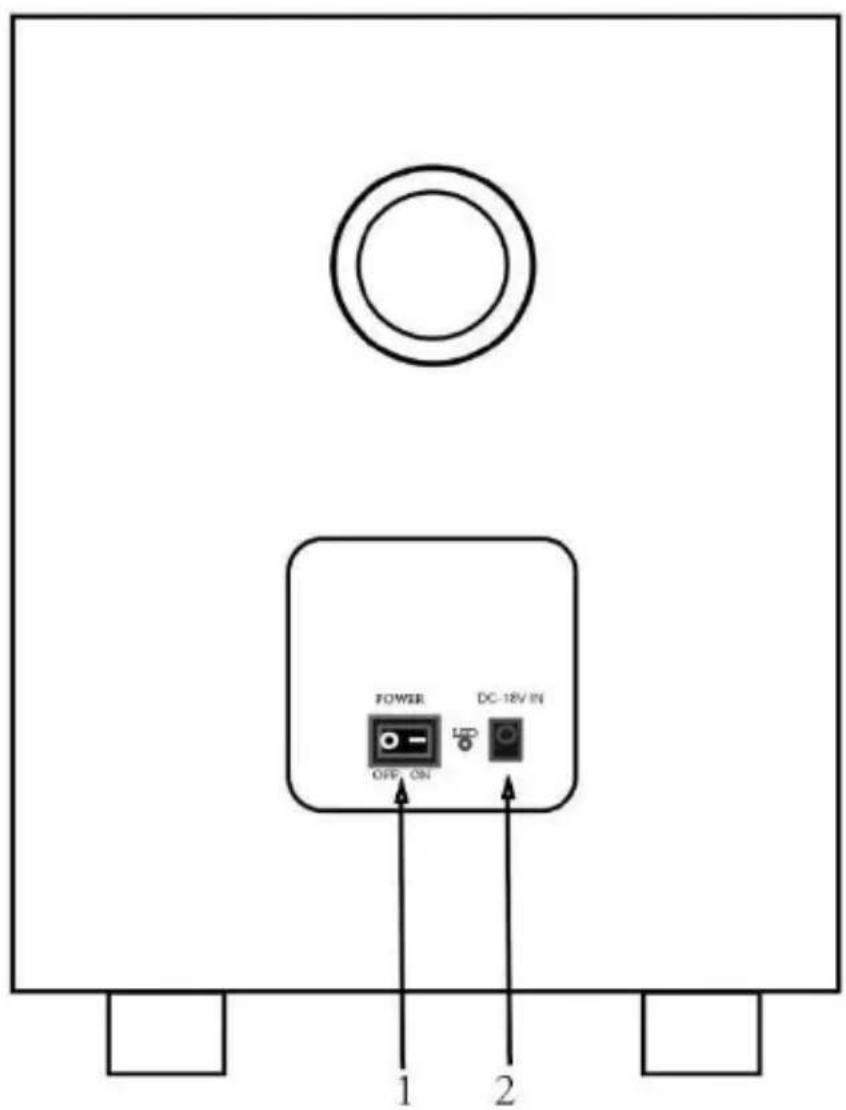
- Power Switch
- DC Adapter Input
Wireless Surround Speaker
2 pieces Wireless Surround Speaker
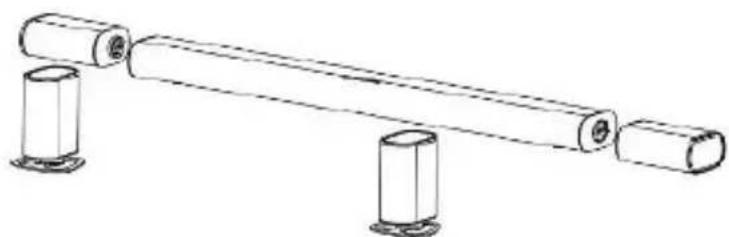
Detachable Surround Speaker from main Soundbar to be Standing Speaker, power supported by DC 3.7V / 3600mA built-in battery. Power of Surround Speaker is supporting charged by main soundbar directly, it can also be charged with a DC 5V power supply after disassembly. The battery has an overcharge protection function.
When connecting the surround speakers to the main soundbar, please pay attention to distinguish the left and right surround speaker. Please make sure the left surround speaker is connected to the left side of the main soundbar, and the right surround spaker is connected to the right side of the main soundbar.
Controls And Functions
Wireless Surround Speaker
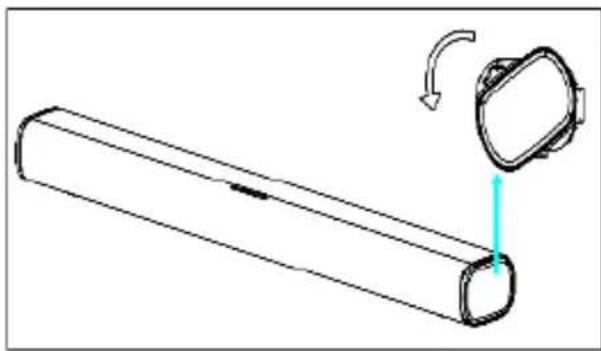
Remove the left and right cover by rotating in the direction of the arrow.
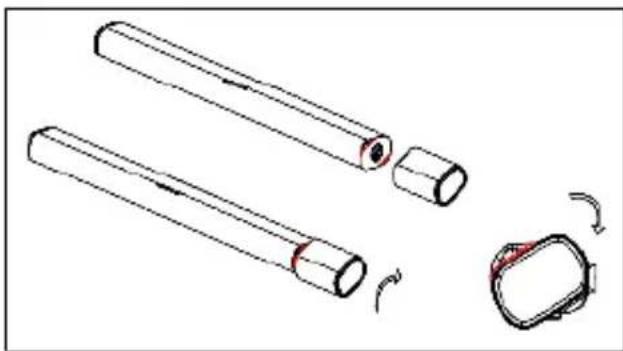
Install left and right surround speakers : Set the angle between the incline of the surround and the grain on the side cover (red), rotate according to the arrow, then install the speaker.

Install the metal base of the surround speaker removed from the main soundbar at the angle shown in the picture.
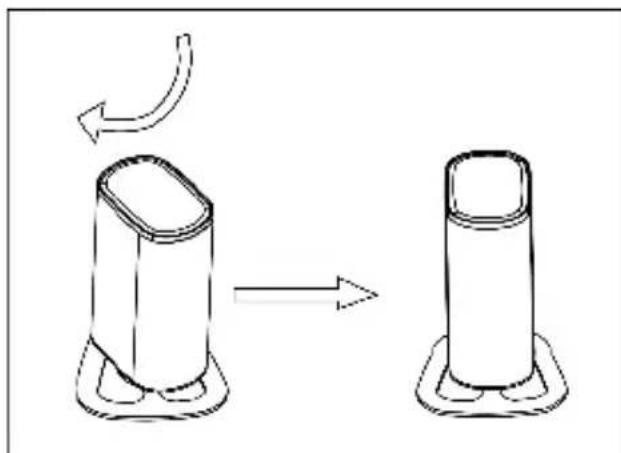
Keep the metal base stationary and turn the surround speaker clockwise (as shown in the figure) to install the surround speaker
Support
Support
Thank you for your purchasing the Majority Everest Soundbar.
Please follow the guidance of the user manual to set up your new purchase and begin enjoying its features.
For further technical support and warranty registration, please visit our website www.majority.co.uk
Connecting to the Everest soundbar
Connecting to the Everest soundbar
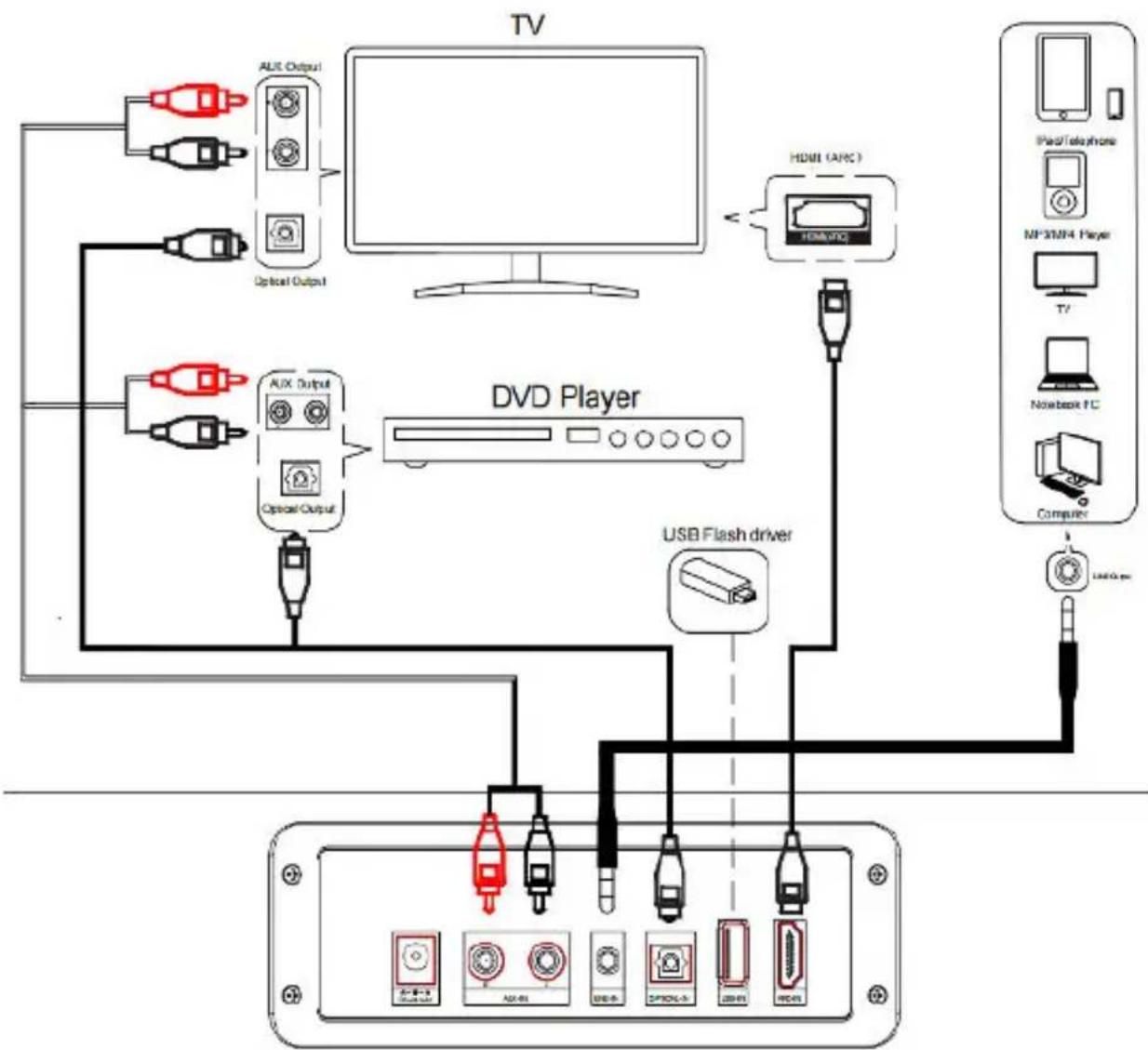
Instructions Guide
Using the AUX IN Cable
Use the AUX Stereo Audio Cable (included) to connect the TV's stereo AUX (L/R) audio output socket.
Connect the audio output cable of the soundbar via the 'AUX' input sockets of the unit.
Press the POWER button on the soundbar or POWER button directly on the remote control (Remt) switch on the unit.
Then press MODE on the remote conRem.26) or press the Mode button on the unit to scroll to the AUX IN function.
Turn on your television
Troubleshooting: If you are not receiving a picture or encountering interference, please ensure that the AUX cable is being connected to 'output'AUX port on your TV set. This will ensure that the sound is being exported correctly.
If your TV does not have 'output' AUX port, please use an alternative connection method.
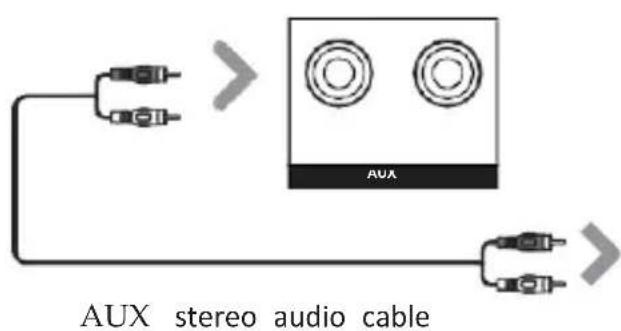
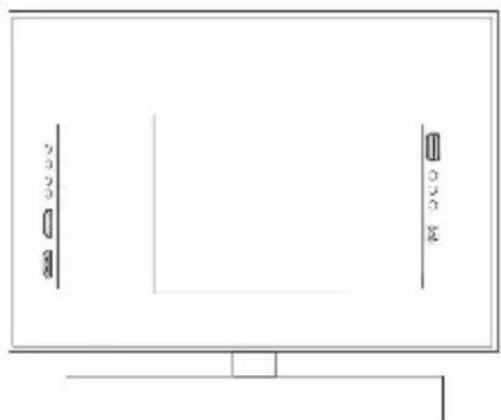
Rear view of the unit
Instructions Guide
Using the HDMI ARC Input
You will need: An audio source with an ARC Audio Output and a ARC Audio cable (not included).
Connect the ARC Audio cable to the ARC output on the audio source and to the ARC Input on the soundbar.
Press the POWER button on the soundbar or POWER button directly on the remote control (Remt) switch on the unit.
Long press (2-3 seconds) the MODE button on the remote control Rem.20) to switch to ARC mode or select the Mode button on main unit repeatedly to select the ARC mode.
Using the native controls on your connected device, make sure the audio settings are set to ARC or HDMI Audio and are turned on. Audio from the connected audio source will now be played through the speakers.
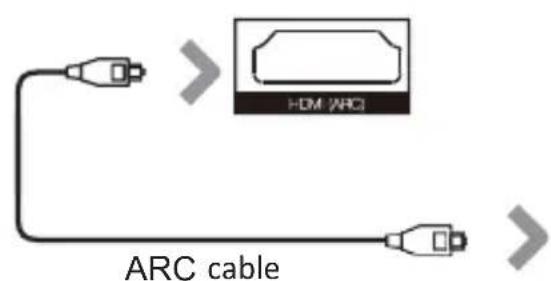
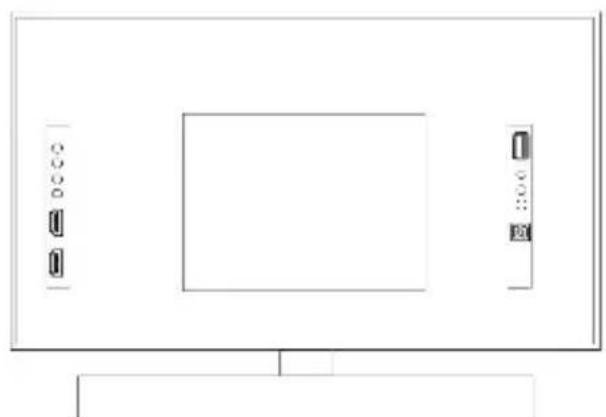
Rear view of the unit
Instructions Guide
Using the Optical Input
You will need: An audio source with an Optical Audio Output and a Digital Optical Audio cable (not included).
Connect the Digital Optical Audio cable to the optical output on the audio source and to the Optical Input on the soundbar.
Press the POWER button on the sound bar or POWER button directly on the remote control (Rem) switch on the unit.
Press the MODE button on the remote corReh.23)to switch to Optical mode or select the Mode button on main unit repeatedly to select the Optical mode.
Using the native controls on your connected device, make sure the audio settings are set to PCM or Optical Audio and are turned On. Audio from the connected audio source will now be played through the speakers.
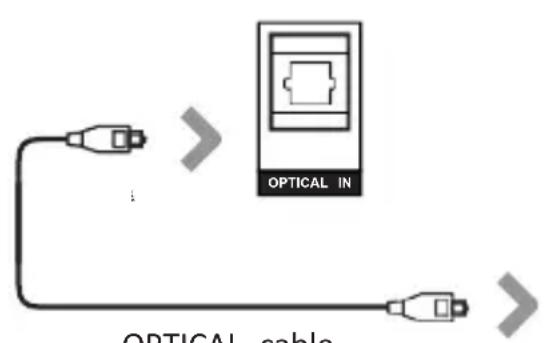

Rear view of the unit
Instructions Guide
Using the MP3 Link Connection (Line In)
Plug one end of a 3.5mm to 3.5mm Line In cable (included) into the Line In port on the unit. Before use, disconnect any cables connected to the Stereo RCAInputs.
Plug the other end of the cable into the audio output/ headphone output on an MP3 player or other audio source.
Press the Power button on the soundbar or POWER button directly on the remote contrRm.1)to switch on the unit.
Press the Mode button repeatedly on the soundbar or press the MODE button on remote control (Rem.22) repeatedly to enter LINE in mode.
Audio played through the connected device will now be heard through the speakers.
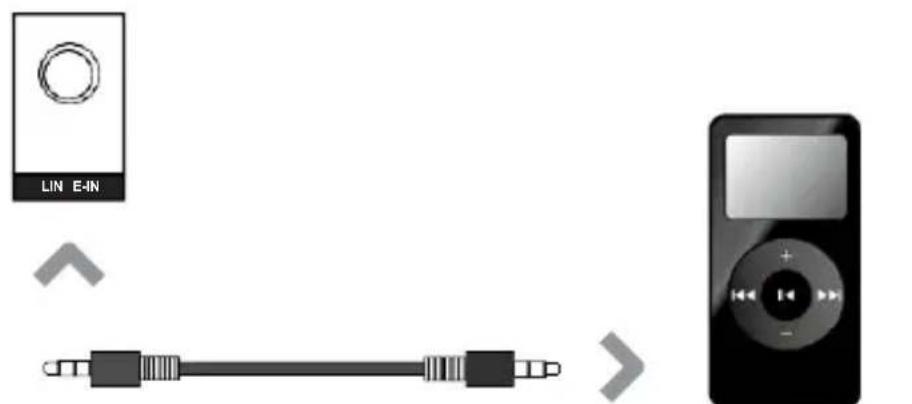
3.5mm to 3.5mn Line In cable
Audio device
Connecting to the Mains Supply
Ensure that the power supply voltage is in the voltage of 100V 240V .
This unit is designed to use adapter.
Connecting the unit to any other power source may cause damage to the unit.
Unwind the mains cable to its full length.
Connect the mains plug to a mains socket.
Make sure the mains plug is fully inserted into the mains socket.
Connect the adapter to the unit via the DC input Socket. (DC-24V-IN)
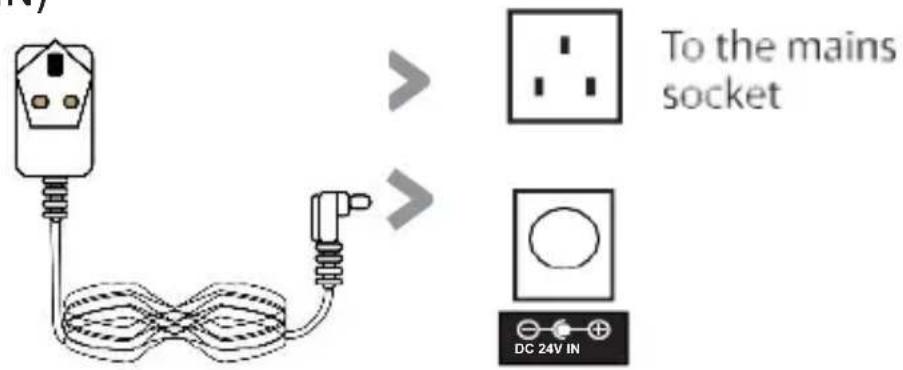
DC-In Power Cable

Ensure all audio connections of the unit are connected before connecting to the mains power socket.
Unplug the power cord from the outlet when the unit is use for an extended period of time.
Instructions Guide
Using the Bluetooth Operation
Pairing a Bluetooth Device for the First Time
Press the POWER button on the unit or the POWER button on the remote control (Rem.1) to switch on the unit.
Select and press the MODE button repeatedly on the remote control until in Bluetooth mode (Rem.21) or press the Mode button repeatedly on the sound bar to enter Bluetooth mode.
Using the native controls on your Bluetooth device, select the "Majority Everest" in your Bluetooth settings to pair.
Refer to the user manual for your specific device for instructions on pairing and connecting Bluetooth devices.
When successfully paired and connected, a beep will issue from the unit. After initial pairing, the unit will stay paired unless unpaired manually by the user.
If your device should become unpaired or you find it is unable to connect, repeat the above steps.
Instructions Guide
Playing Audio Wirelessly
Follow the instructions for pairing a Bluetooth device.
Use the native controls on the connected Bluetooth Device to select a track.
To Play/Pause the track or Skip Forwards/Backwards to a selected track, use the remote control (Rem.17,14,15).
Audio played through the connected Bluetooth device will now be heard through thespeakers.
Using the USB Operation
Insert USB to Play Music Automatically.
Select and press the MODE button repeatedly on the remote control until in USB mode (Rem)24r press the Mode button repeatedly on the soundbar to enter USB mode.
To Play/Pause the track or Skip Forwards/Backwards to a selected track, use the remote control (Rem.17,14,15).
Audio played through the connected USB device will now be heard through the speakers.
Troubleshooting
Troubleshooting
If the soundbar does not work properly as desired, please check the following.
| Malfunction | Possible causes/measures |
| No power / function | Check whether the power is switched on off at the wall. Check whether the power adaptor is properly connected to power outlet or no |
| No sound | Check whether cables are properly installed. If they are, please try alternative cable to connect to your TV if possible. Check unit is out of standby and in mod |
| No sound from bluetooth connection | Forget the soundbar from your device an reconnect. |
| Function disturbance | Switch off and unplug the unit. Leave it 2 minutes and switch it on again. If a particular mode is causing problems, please try an alternative connection to your TV such as Optical or Bluetooth. |
| Remote control does not work [properly] | Check whether the battery run out or not Replace with a new one if necessary. Check whether there is obstacle on the front of remote sensor. |
Specifications
| Power Supply (Soundbar) | DC 24V / 2.0A |
| Power Supply (Subwoofer) | DC 18V / 2A |
| Power Supply (Surround Speaker) | DC 5V / 2A |
| Power Supply (Surround Speaker) | DC 3.7V / 3600mA Built-in Battery |
| Surrounds Built-in Battery Playing Time | 4 Hours (at maximum volume) |
| Power Consumption | 100W |
| Speaker Size & Number of Speakers (Soundbar) | 2.25'' Full Ranges Speaker x 2 + 2.25'' Mid-Tweeter x 4 |
| Speaker Size (Subwoofer) | 5.25 Inch x 1 |
| Speaker Size & Number of Speakers (Surround Speaker) | 2.25'' Full Ranges Speaker x 2 |
| Working Environment (Temperature) -10~+55C | |
| Relative Humidity | 5% ~ 90% |
| Frequency Response | 70Hz - 15KHz |
| Bluetooth Version V 5.0 | |
| Bluetooth Distance | ≥10M |
| Connection subwoofer with Soundbar by | UHF 865MHz ≥ 10M |
| Connection left surround with Soundbar by | UHF 756MHz ≥ 10M |
| Connection right surround with Soundbar by | UHF 676MHz ≥ 10M |
| Dimension (LxDxH) | 90 x 9.83 x 6.56 cm (Soundbar) |
| Dimension (LxDxH) 3 1 x 28 x 17cm (Subwoofer) | |
| Dimension (LxDxH) | 9.83 x 6.56 x 16.8 cm (Surround) |
Hang the soundbar
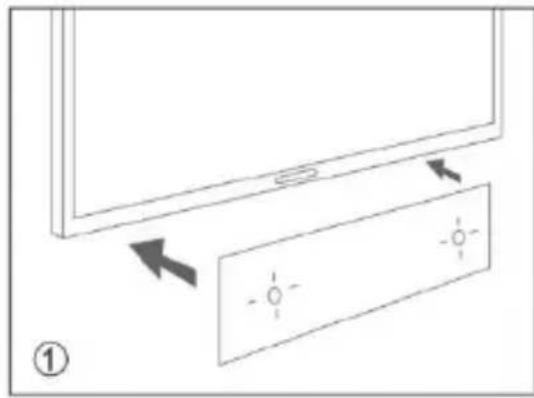
Place the paper guide on the wall where you want to hang the soundbar.
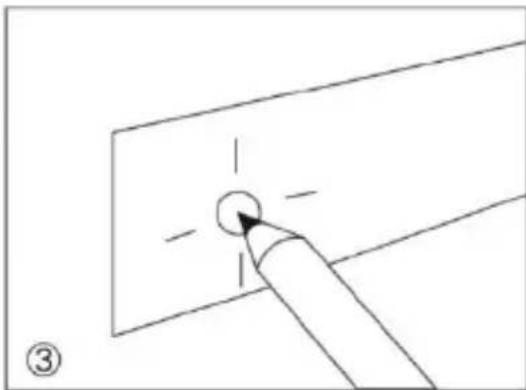
Locate the screw holes on the paper guide and mark a point with a pencil.
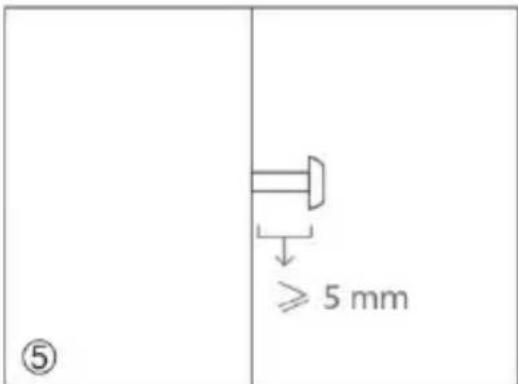
It is advisable to leave no more than 5mm between the head of the screw and the wall to minimize the inclination angle of the soundbar.
Wall Mount Installation Guide
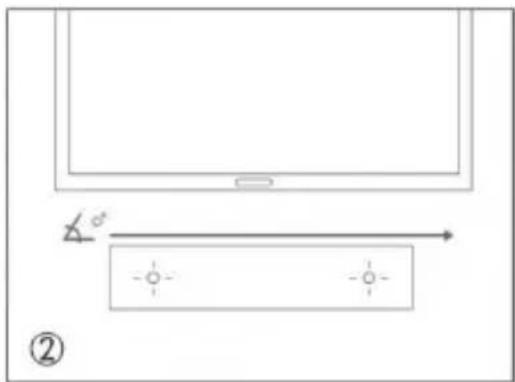
Verify with a level gauge that the inclination angle of the soundbar is zero degrees.
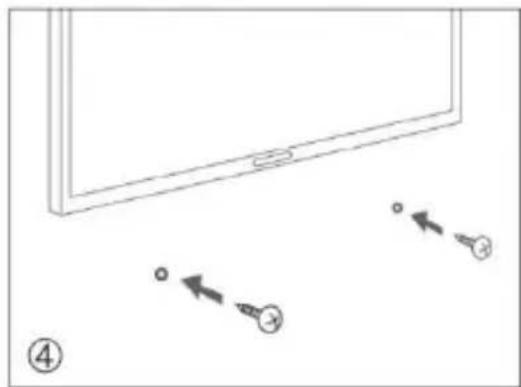
Make the holes with the corresponding drill bit according to the type of wall.
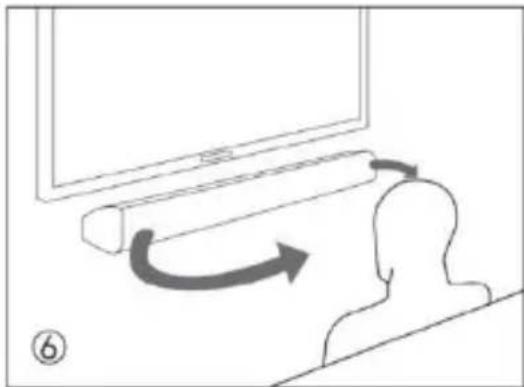
For a better sound experience, it is advisable to place the soundbar at the same height of the ear.
Hang the surround speaker
Step 1: Fix a point
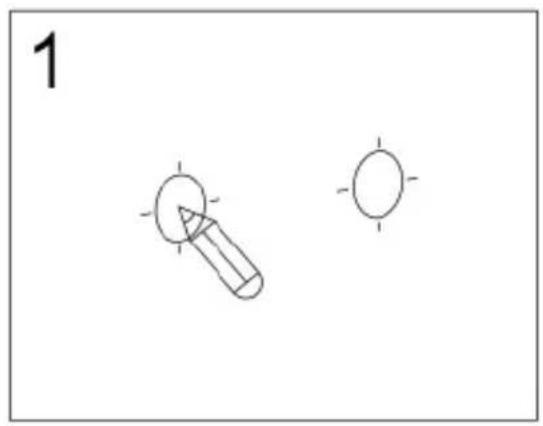
Use a pencil to fix a point
Step 2: Punch
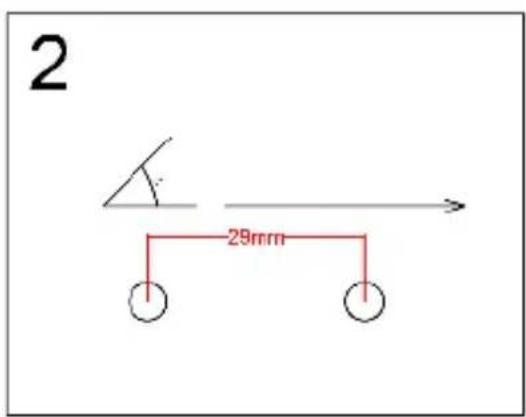
Use a level to check whether the two holes are tilted, and drill holes based on the actual hole spacing of wall mount adaptor
Step 3: Fix the wall mount adaptor
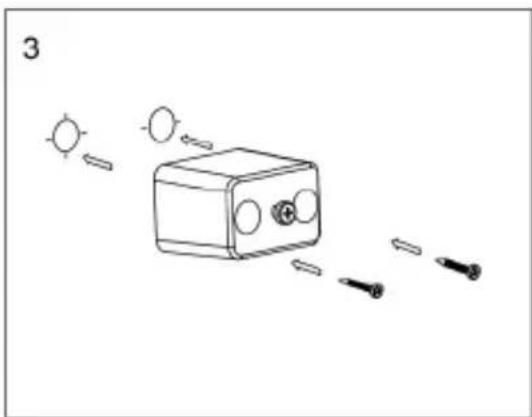
After drilling the hole, tighten the wall mount adaptor with the screws provided
Step 4: Install the surround speaker
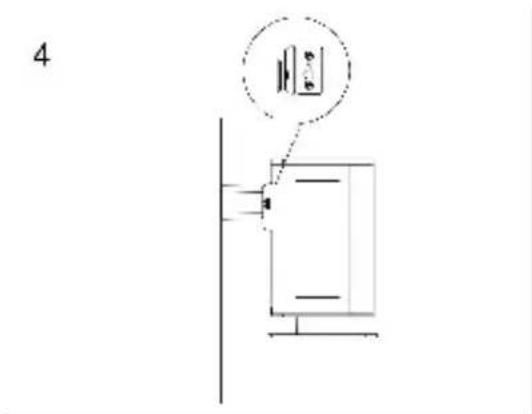
Align the hook hole of the speaker with the protruding screw of the wall mount adaptor, and hang
Quick System Installation Guide
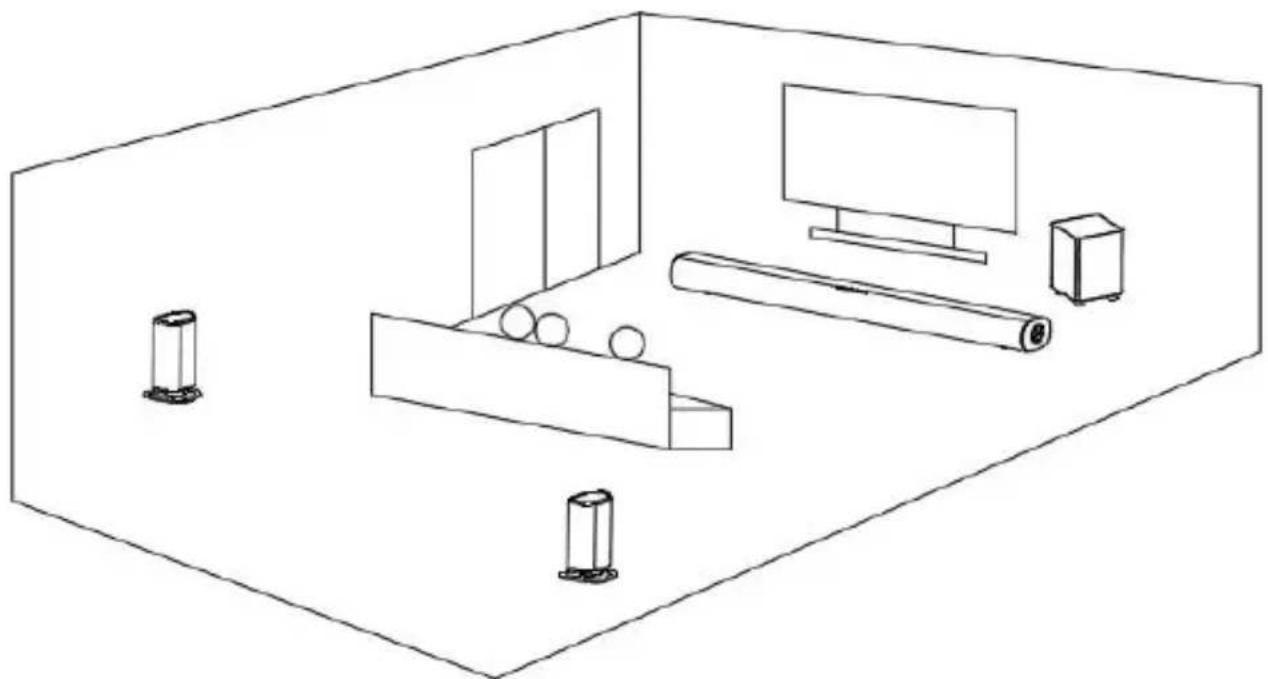
When all the kits connecting with power supply, the subwoofer is flat placed in the middle under the soundbar, or placed closely on the left and right side of the soundl but not too far from the soundbar.
Detached Surround Speaker from main Soundbar to be Standing Speaker.
Each wireless surround speaker is flat placed on the left and right sides of the sofa, their speakers are facing right and left ears of people setting on the sofa.
For a better sound, the distance from left & right surround speaker to the soundbar cannot be far than 10 meters, it is better within 7 meters.
Soundbar is supported to hang on the wall by installing with a screw.
Everest
Benutzerhandbuch
MAJORITY
Inhalt
Encienda la television
EN Safety and Usage Guidelines (All where applicable)
General Safety Information - Read and Retain: Review all safety and operating instructions before use; keep them for future reference. Follow Instructions: Adhere strictly to all safety and operational guidelines. Water Exposure: Keep the device away from water; avoid placing liquids near it. Ventilation: Ensure ventilation openings are unobstructed to prevent overheating. Heat Sources: Keep the device away from heat-emitting appliances. Wall Mounting - Installation Safety: Follow the manufacturer's instructions and use approved mounting kits only. Avoid drilling into areas with cables, gas, or water lines. Use proper tools and safety apparatus. Regular Maintenance: Inspect regularly for wear or damage, especially if wall-mounted. Relocation: Detach from the wall mount before moving. Child Safety: Keep out of children's reach and ensure heavy items are securely mounted. Seismic Precautions: Use specialized mounts in earthquake-prone areas. Electrical Safety - Power Source: Use the specified power source; consult an electrician if unsure. Cable Management: Protect the power cord from damage. Power Disconnection: Keep the main plug accessible; unplug during storms or long periods of non-use. Battery Safety - Charging: Use the manufacturer's charger; avoid extreme conditions. Heat Exposure: Keep batteries away from heat to prevent explosion or leakage. Battery Condition: Discontinue use if the battery is damaged; dispose of it properly. Replacement: Only use recommended batteries; incorrect types can cause hazards. External Batteries: Use only specified types, observing correct polarity. Battery Removal: Remove batteries if not used for an extended period. Disposal: Follow local regulations for battery disposal; do not incinerate. Connectivity Safety - Cable Connections: Power off devices before connecting or disconnecting cables. Bluetooth Pairing: Ensure a secure connection; avoid interference from other devices. Volume Control: Keep volume moderate to prevent hearing damage. Connectivity and Data Security - Wireless Security: Review privacy policies and secure your network. Software Updates: Keep software updated for security and performance. Children's SafetyWarnings - Product Use: Intended for adults; keep away from children. Battery Warning: Keep batteries and items containing batteries out of children's reach. Volume Control: Maintain a safe volume level to protect children's hearing. Fire Hazard - Flammable Materials: Do not place open flames near the product. Overheating: Avoid covering the product to prevent overheating and fire risks. Disposal and Recycling - Product Disposal: Dispose of at a recycling centre according to local laws. Environmental Compliance: Follow regulations for battery and electronic waste disposal. User Maintenance - Cleaning: Unplug before cleaning; use a dry cloth only. Servicing: Only qualified personnel should perform repairs. Data Protection: Reset to factory settings before returning or disposing of the product. Disclaimer: Failure to follow these instructions may result in injury, death, or property damage. The manufacturer is not liable for damage caused by improper use.
Declaration of Conformity:
We, Izilla Ltd, Newton House, 2 Pioneer Court, Histon, Cambridge, CB24 9PT declare under our sole responsibility that the product:
Product Name: Everest Soundbar Model: 1000002689/1000002690/1000002691
Brand Name: Majority
To which this declaration referred is in conformity to the following harmonized standards or normative documents (CE & Rohs 2.0);
EN 55035:2017, EN 55032:2015, EN61000-3-2:2014, EN61000-3-3:2013, EEN62368-1:2004+A11:2017, ETSI EN 301 489-1 V2.2.3(2019-11), ETSI EN 301 489-17, V3.2.2(2019-12), ETSI EN 300 328 V2.2.2 (2019-07), EN 62479: 2010, IEC 62321-3-1:2013, IEC 62321-4:2013, IEC 62321-5:2013, IEC 62321-6:2015, IEC 62321-7-1:2015, IEC 62321-7-2:2017, IEC 62321-8:2017, (EC)NO 1275/2008,EN50564:2011, (EC)NO 801/2013.
Complying with the requirements or provisions of Council Directives which relate to:
EMC Directive 2014/30/EU, RED Directive 2014/53/EU, LVD Directive 2014/35/EU, Directive (2011/65/EU) and its amendment directives 2015/863/EU (RoHS 2.0) of the, European parliament, ERP Directive 2009/125/EC.
All essential test suites have been carried out.
Point of Contact: Eddie Latham Founder
Signed: Date of Issue: January 2024 Place of Issue: Cambridge, UK
Importer's Addresses:
UK: iZilla Ltd, Newton House, 2 Pioneer Court, Histon, Cambridge, CB24 9PT
Email: techsupport@majority.co.uk
EURP: AR Experts, Po Box 5047, 3620 AA Breukelen, The Netherlands
Email: info@ar-experts.eu
US: iZilla Ltd C/O A.N.Deringer Inc, 19520 Wilmington Ave, Rancho
Dominguez, CA, 90220
Email: techsupport@majority.co.uk

ATTENTION
RISK OF ELECTRIC SHOCK DO
NOT OPEN


CAUTION
RISQUE D' ELECTROCUTION NE
PAS OUVRIR


IMPORTANT: Please read all instructions carefully before use and keep for future reference

MAJORITY
www.majority.co.uk


A DEPOSER EN MAGASIN
A DEPOSSEMENT ENDECTRERSE



- What's In The Box?
- Box Contents
- Majority Everest Soundbar
- Controls And Functions
- Side View/Control Buttons
- Back View
- Remote Control
- Using the Remote Control
- Soundbar Wall Mount Dimensions
- Subwoofer
- Inch Wireless Subwoofer
- Wireless Surround Speaker
- Support
- Connecting to the Everest soundbar
- Instructions Guide
- Using the AUX IN Cable
- Using the HDMI ARC Input
- Using the Optical Input
- Using the MP3 Link Connection (Line In)
- Connecting to the Mains Supply
- Using the Bluetooth Operation
- Pairing a Bluetooth Device for the First Time
- Playing Audio Wirelessly
- Using the USB Operation
- Troubleshooting
- Specifications
- Hang the soundbar
- Wall Mount Installation Guide
- Hang the surround speaker
- Quick System Installation Guide
- Everest
- Benutzerhandbuch
- Inhalt
- EN Safety and Usage Guidelines (All where applicable)
- Declaration of Conformity:
- To which this declaration referred is in conformity to the following harmonized standards or normative documents (CE & Rohs 2.0);
- Complying with the requirements or provisions of Council Directives which relate to:
- Importer's Addresses:
- ATTENTION
- CAUTION
- MAJORITY
Brand : Majority
Model : Everest
Category : Soundbar