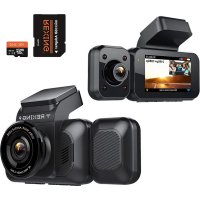
V5C - Dashcam Rexing - Free user manual and instructions
Find the device manual for free V5C Rexing in PDF.



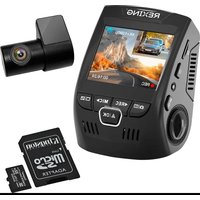
| Product Type | Dashcam |
| Brand | Rexing |
| Model | V5C |
| Recording Resolution | 1080P+1080P (front and rear) |
| Viewing Angle | Wide angle (not specified but typical ~170°) |
| Power Supply | 12V DC via cigarette lighter, adapter included (12 ft cable) |
| Memory Card Type | Micro SD, Class 10/UHS-1 or higher, up to 256 GB |
| Connectivity | Built-in Wi-Fi (Rexing Connect app), Built-in GPS |
| Main Functions | Continuous video recording, emergency mode (EMR), photo, playback, parking monitor |
| Screen | Built-in (size not specified, typical 2-3 inches) |
| Sensor | Front and rear (rear camera sold separately) |
| GPS | Yes, with speed display and GPS video player (Windows/Mac) |
| Parking Monitor | Available with smart wiring kit (sold separately) |
| Emergency Lock | Dedicated button to record and lock a 20-second video |
| Installation | Windshield mount with 3M adhesive pad, cable routing under trim |
| Maintenance | Format memory card in camera before first use; clean lens with a soft cloth |
| Included Accessories | Car charger, USB cable, 3M adhesive pad, cable management tool, quick start guide |
| Warranty | After-sales support by email (care@rexingusa.com) |
| Weight | Approximately 80 g (estimate) |
| Dimensions | Approximately 8 x 5 x 3 cm (estimate) |
Frequently Asked Questions - V5C Rexing
User questions about V5C Rexing
0 question about this device. Answer the ones you know or ask your own.
Ask a new question about this device
Download the instructions for your Dashcam in PDF format for free! Find your manual V5C - Rexing and take your electronic device back in hand. On this page are published all the documents necessary for the use of your device. V5C by Rexing.
USER MANUAL V5C Rexing
The information in this manual is subject to change without notice.
Rexing All Rights Reserved
www.rexingusa.com
Table of Contents
English
Overview 2
What's in the Box 3
Camera Overview 4
Installation 6
Basic Operation 11
Warranty & Support 17
Italiano
Descrizione 50
Nella Confezione 51
Thank you for choosing REXING!
We hope you love your new products as much as we do. If you need assistance, or have any suggestions to improve it, please contact us.

care@rexingusa.com

(877) 740-8004
Our support team will respond you as soon as possible.
Always a surprise in Rexing.
Check us out here
- https://www.facebook.com/rexingusa/
- https://www.instagram.com/rexingdashcam/
- https://www.rexingusa.com/support/registration/
- https://www.rexingusa.com/support/product-support/

Facebook Instagram Site Product Support


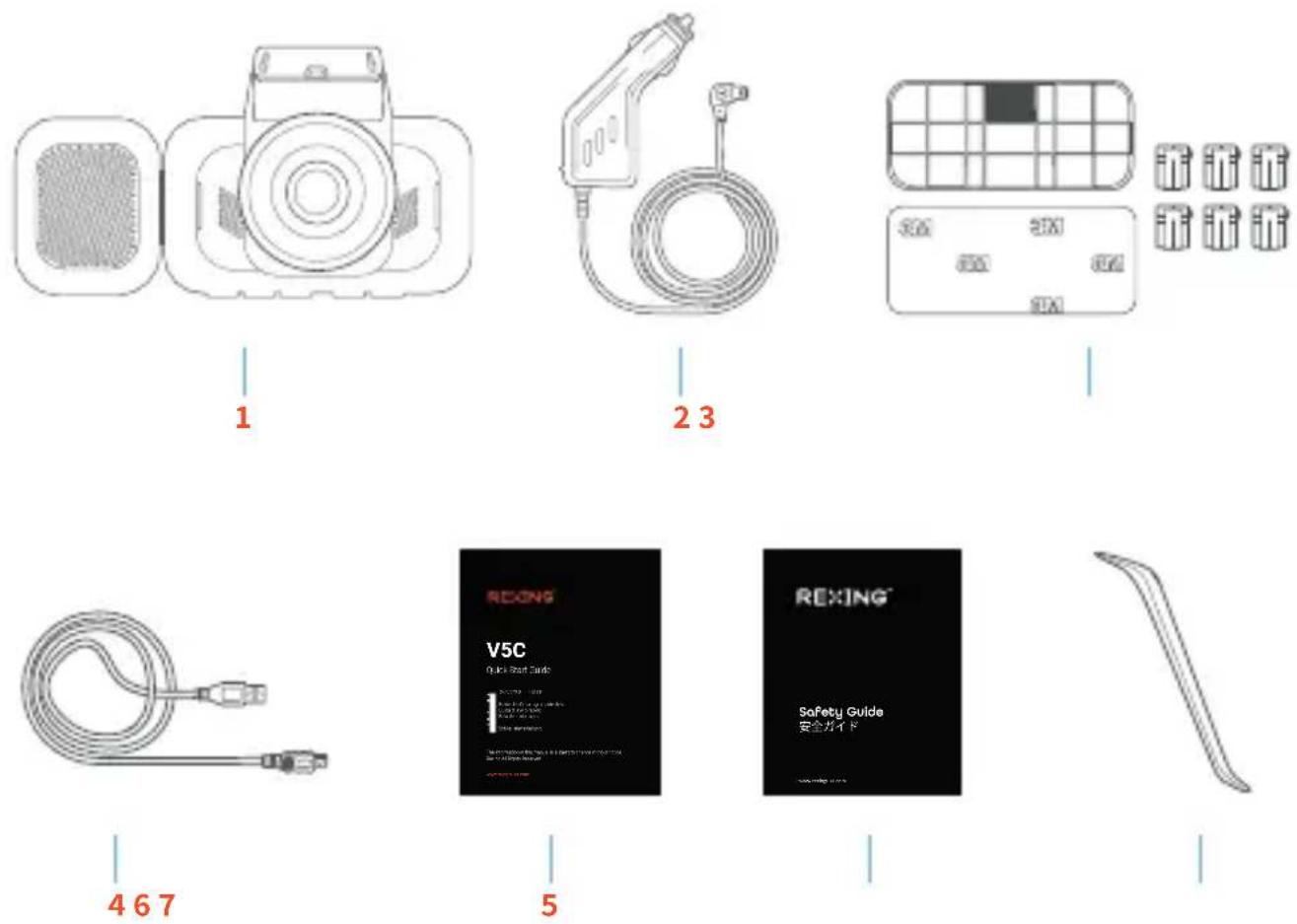
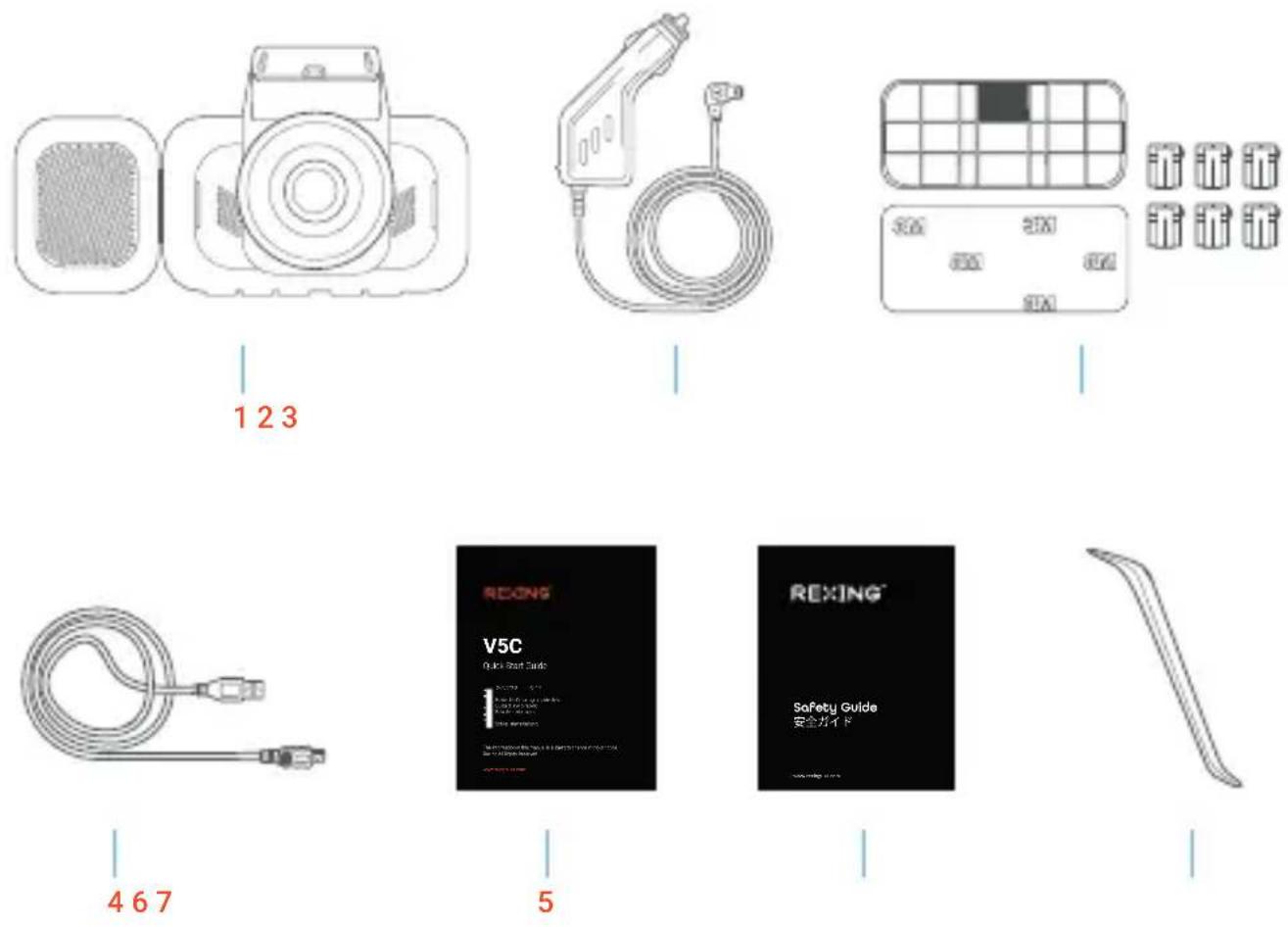
2. What's in the box?
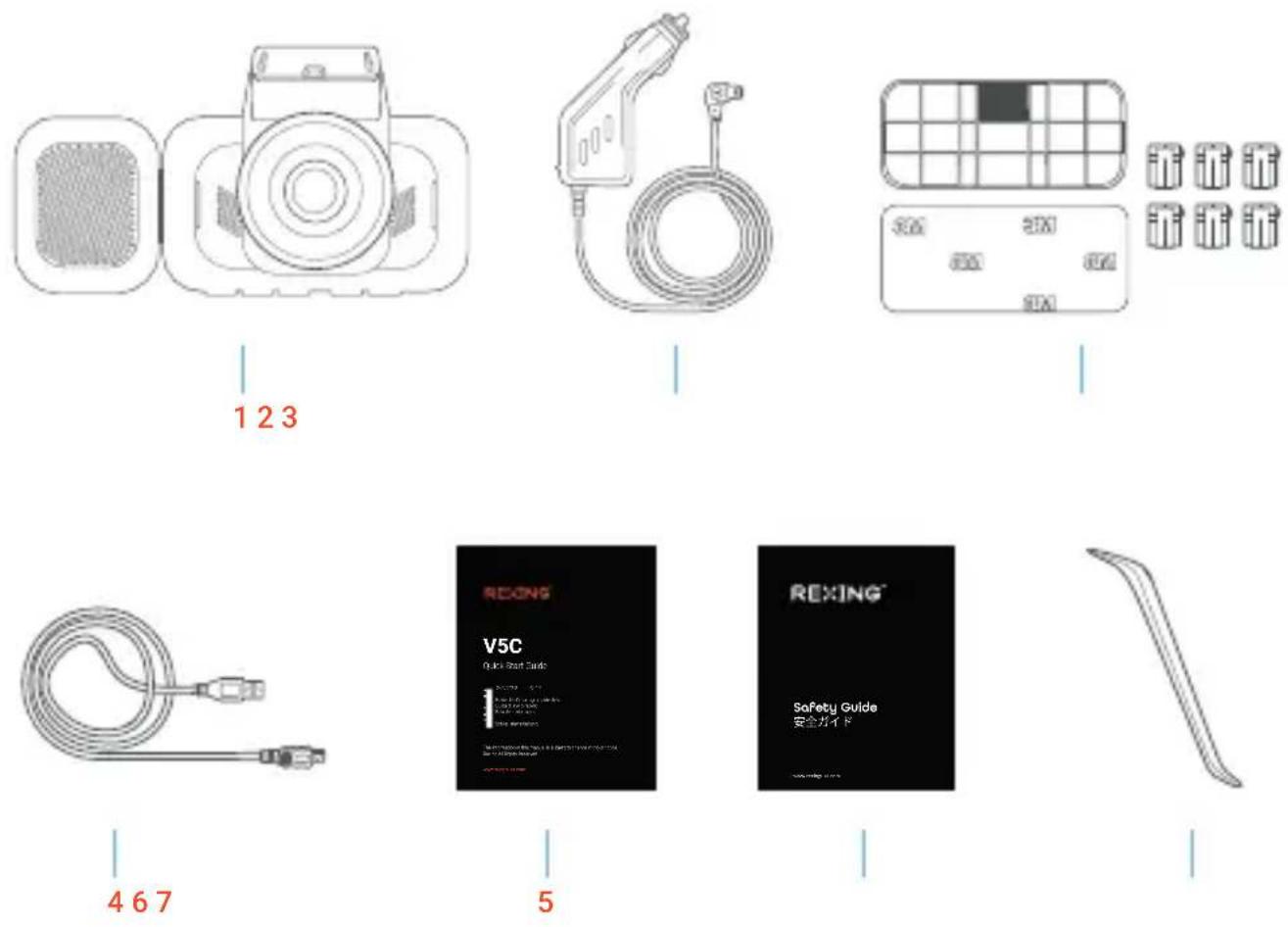
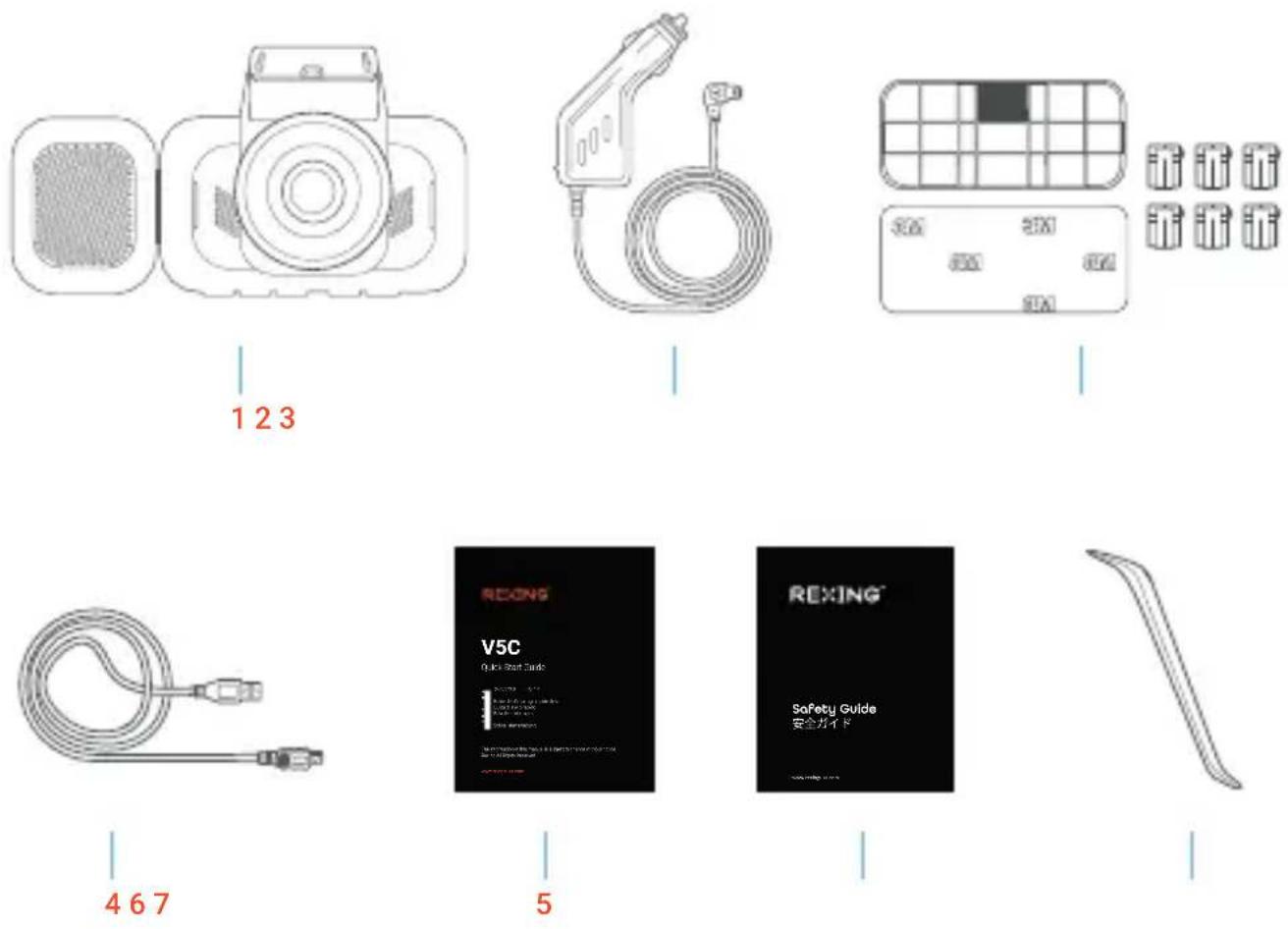
- Rexing V5C Dashboard Camera
- Car Power Connector (12ft)
- 3M Adhesive Mount
-
USB Cable
-
Quick Start Guide
- Safety Guide
- Cable Management Tool
3. Camera Overview
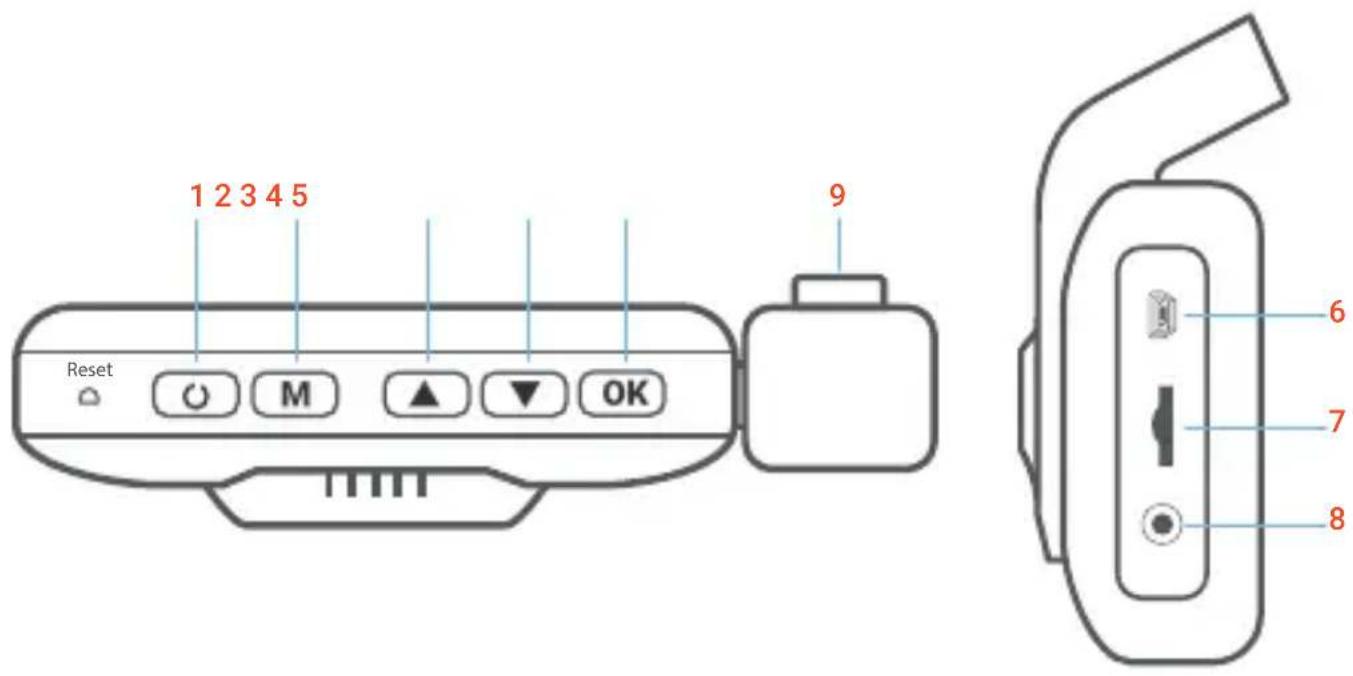
- Power Button / Screen Toggle Button
- Menu Button / Mode Button
- Up Navigation Button / Emergency Lock Button
- Down Navigation Button
- OK (Confirm) Button / Record Button
- USB Charging Port
- Micro SD Card Slot
- Rear Camera Port (Rear camera need to purchase separately)
- Cabin-facing camera
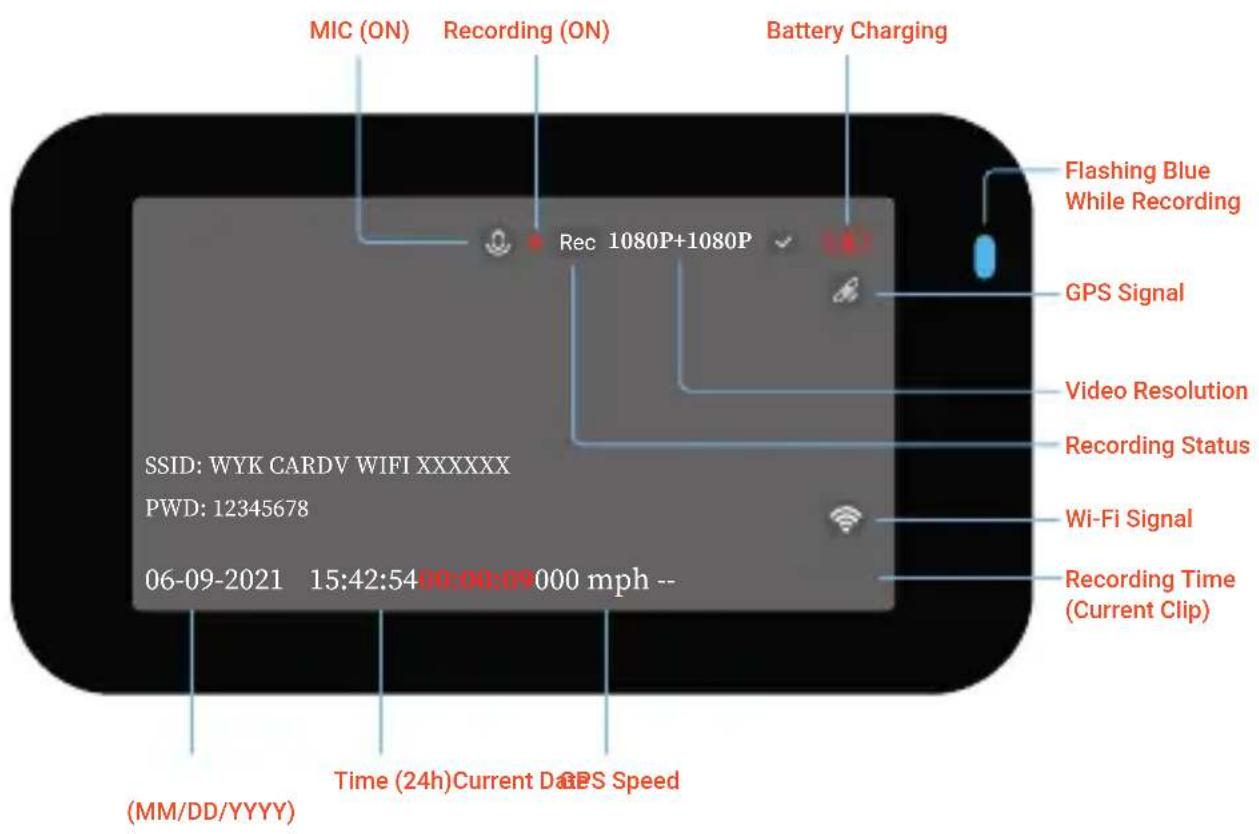
Screen Icons
4. Installation
Step 1
Install the Dash Cam
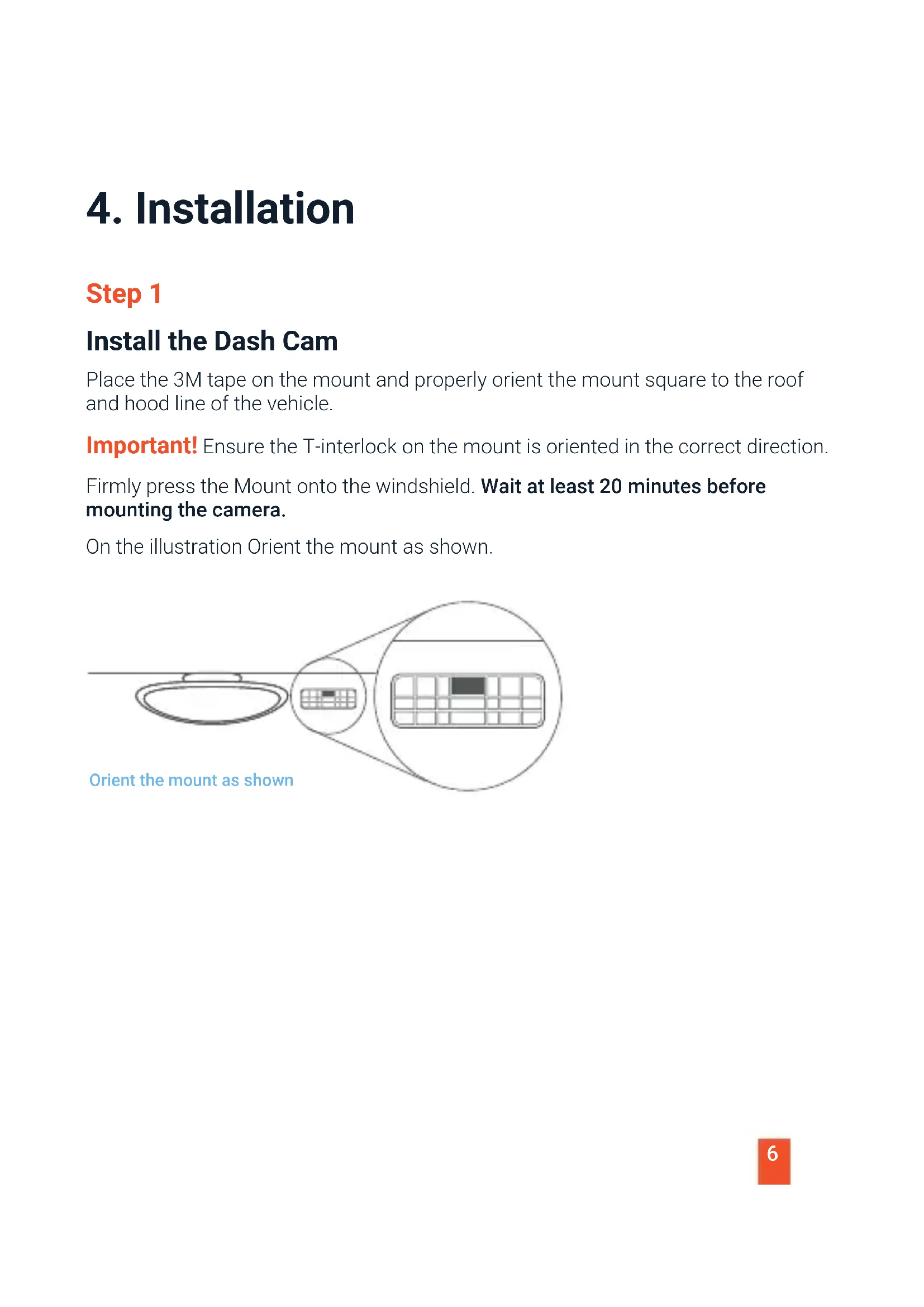
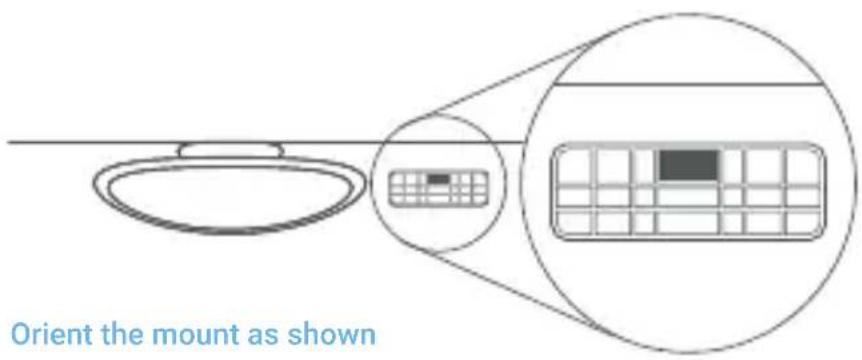
Place the 3M tape on the mount and properly orient the mount square to the roof and hood line of the vehicle.
Important! Ensure the T-interlock on the mount is oriented in the correct direction.
Firmly press the Mount onto the windshield. Wait at least 20 minutes before mounting the camera.
On the illustration Orient the mount as shown.
Step 2
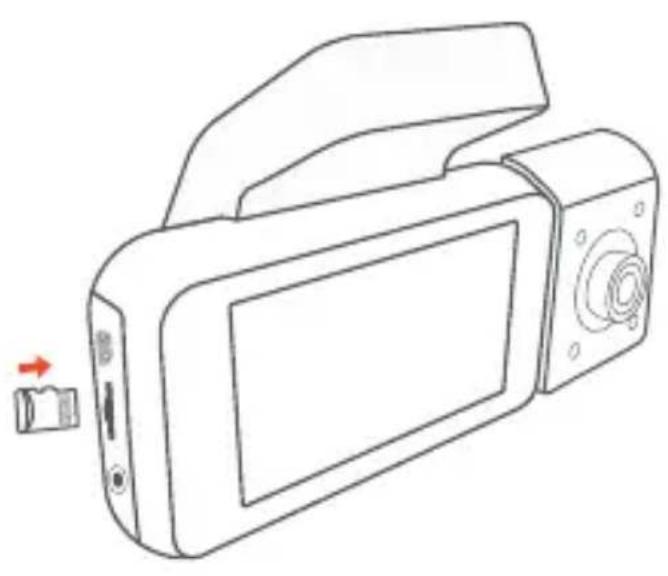
Insert the Memory Card
The Rexing V5C accepts [Class 10/UHS-1 or higher] Micro SD memory cards up to 256GB. You will need to insert a memory card before you can begin recording.
Before inserting or removing a memory card, first ensure you've powered down the device. Gently push the memory card in until you hear a click, and allow the spring release to push the card out.
natural_image
Line drawing of a digital camera with an attached device and a red arrow indicating the left side (no text or symbols present)Step 3
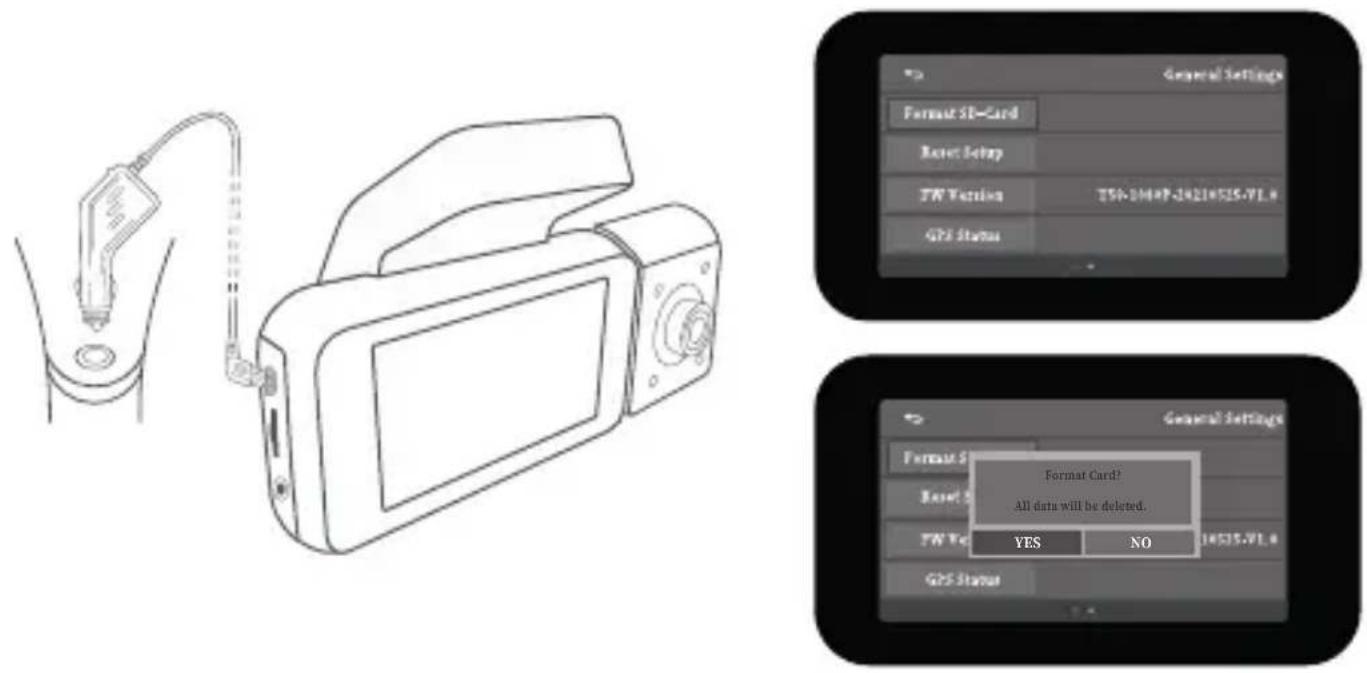
Power on the Camera and Format the Memory Card
Power on the camera by connecting the charger to the car cigarette lighter and camera. To ensure the V5C records to your memory card properly and without error. Before you start using a new memory card, you must format the card within the camera using the format function. Always backup important data stored on the memory card before formatting.
To format the memory card, make sure you have inserted your memory card, then turn on the device by connecting to a power source. Press OK to stop recording. Then press the MENU button twice to enter the System Setup Menu. Use the ▲ and ▼ buttons and toggle to the Format setting. Press the OK button to confirm the selection.
You may now disconnect from power. The camera will shut down after 3 seconds. The camera should begin recording automatically the next time it is powered on.
Step 4
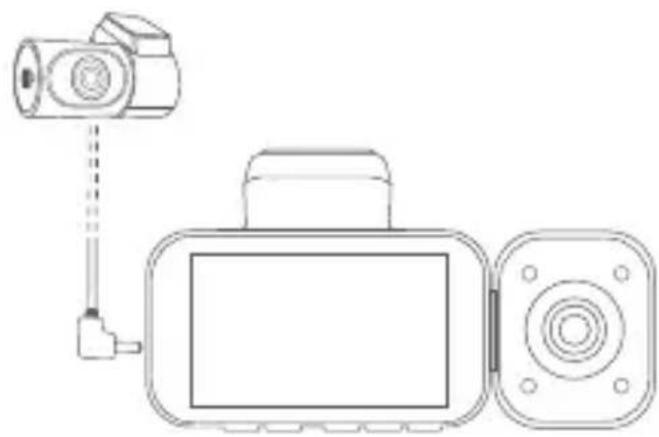
Mount the Rear Camera
Rear cam needs to purchase separately.
Mount the rear camera as shown below. Use rear camera cable to connect the rear camera to the V5C camera.
natural_image
Line drawing of a digital camera with lens and external casing (no text or symbols)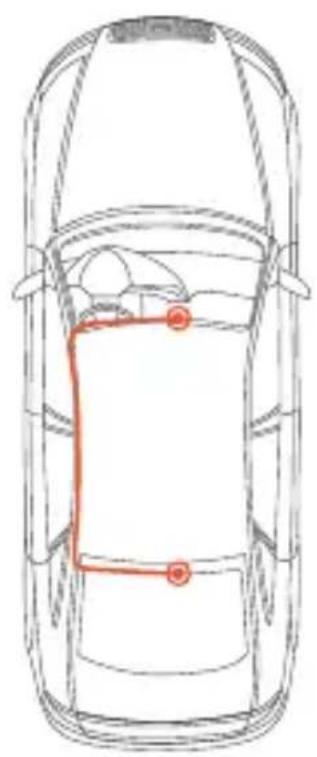
natural_image
Top-down line drawing of a car showing the roof, side seats, and dashboard (no text or symbols)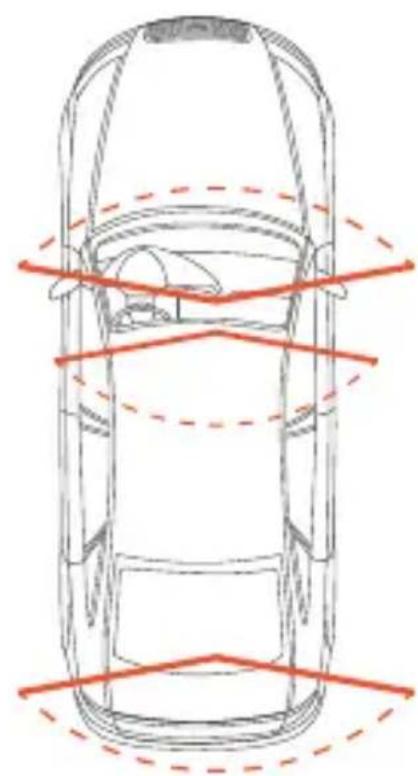
natural_image
Top-down line drawing of a car with red dashed lines indicating horizontal and vertical measurement lines (no text or symbols)front
cabin
rear
Step 5
Installing the Camera onto the Windshield
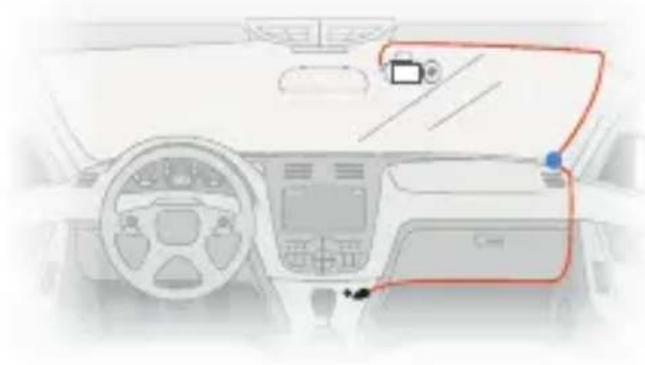
Place the camera on the mount and carefully route the power cable around the windscreen and tuck in under the trim.
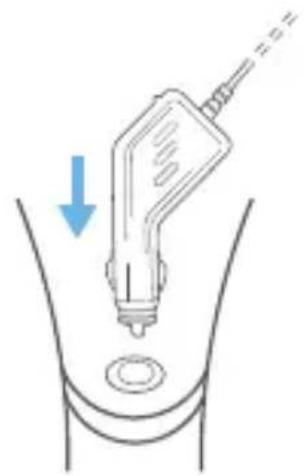
Plug the Car Charger Cable into a 12V DC power outlet or the car cigarette lighter.
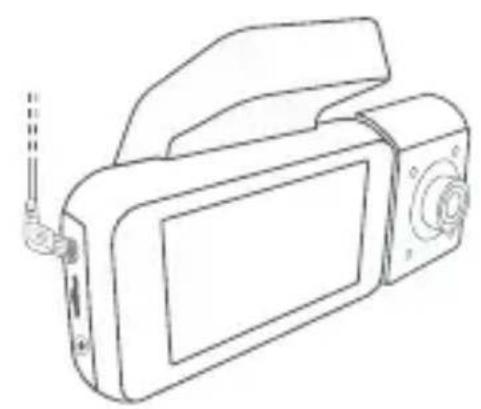
Connect car charger to the camera. The camera will auto-start recording once powered on.
Route power cable to the Dashcam
natural_image
Interior view of a car dashboard and steering wheel (no visible text or symbols)Plug Mini USB Connector to the Dashcam
natural_image
Line drawing of a digital camera with attached antenna (no text or symbols)Plug charger into power outlet or cigarette lighter
natural_image
Diagram of a medical device in progress, showing a catheter insertion into a body cavity with a blue arrow indicating direction (no text or symbols present)5. Basic Operation
Device Power
The device is automatically powered on when plugged into a 12V accessory socket or cigarette lighter and received a charge (i.e.: the vehicle is started).
To turn the device on manually, press and hold the Power button until the welcome screen appears.
The camera will automatically start recording when power on.
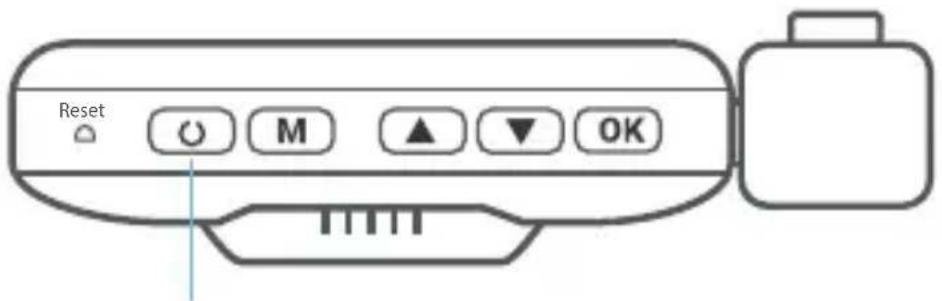
Press and hold the Power button to turn the device on manually
Menu Settings
Power the camera On. If the camera is recording, press the OK button to stop recording.
Hold the MENU button and toggle to the desired mode. Press the MENU button once to enter the settings menu for a Mode. Press the MENU button twice to enter the System Settings (Set up).
Video Recording
The camera will automatically start recording when the device receives charge. The LED lights and red dot will blink device when recording. Press the OK button to stop recording.
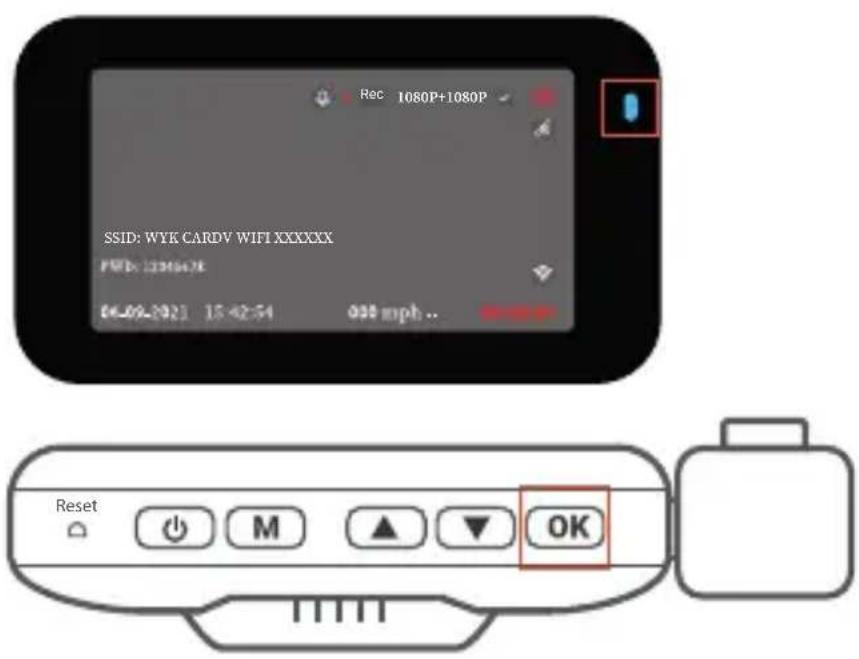
The camera automatically starts recording when powered on
EMR Mode
To use the Emergency Record Mode, hold the ▲ button to manually record a 20 second video that is automatically saved and locked.
View EMR recordings by pressing the menu/playback button.
Video Playback
Playback of videos can be done on the device or a computer. To playback a video on the device, toggle to the Playback mode. Use the ▲ and ▼ buttons to toggle to the desired video. Press the OK button to play.
During playback use the OK (pause), ▲ (rewind) and ▼ (fast forward) buttons to control the video playback.
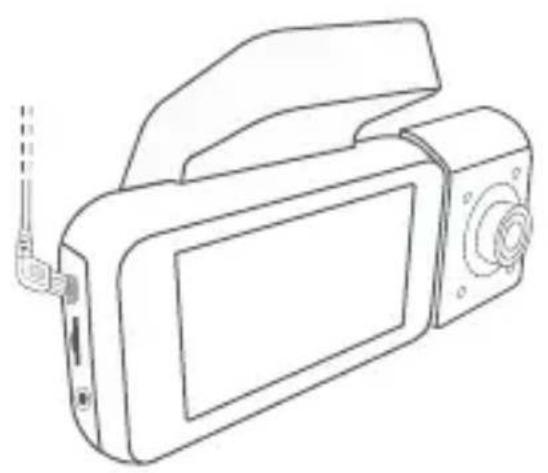
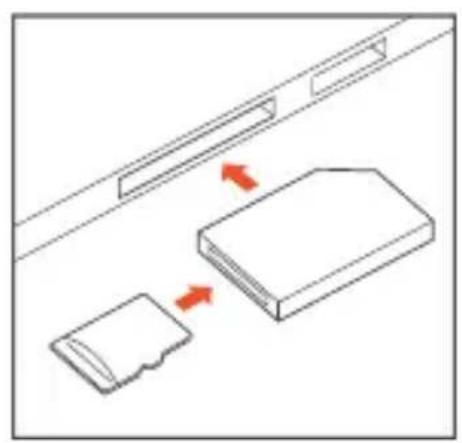
To playback a video on the computer, either use an SD card adapter or connect the device to the computer directly using the USB cable.
To playback a video using an SD card adapter, remove the memory card and insert it into an SD card adapter. Place the adapter in the computer.
natural_image
Line drawing of a digital camera with antenna and screen (no text or symbols)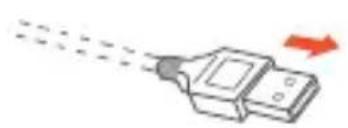
natural_image
Illustration of a device emitting a droplet with a red arrow indicating motion (no text or symbols)Connect USB connector to computer
natural_image
Diagram showing two devices with red arrows indicating movement or interaction (no text or symbols present)
Select Mass Storage
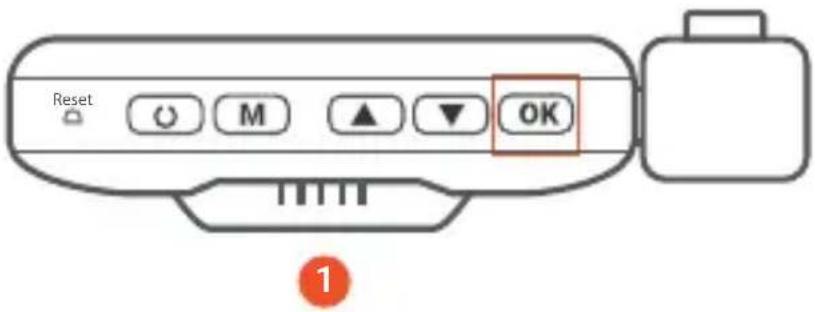
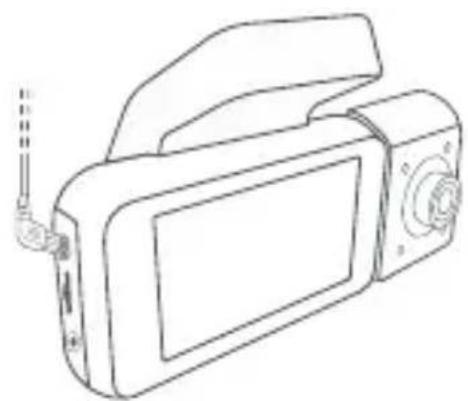
To playback a video using USB cable, connect the USB Cable to the device and the computer. After the device powers up, press the OK Button to select Mass Storage.
On the computer, navigate to device drive. The videos are stored at: \CARDV\MOVIE. Select the video to playback.
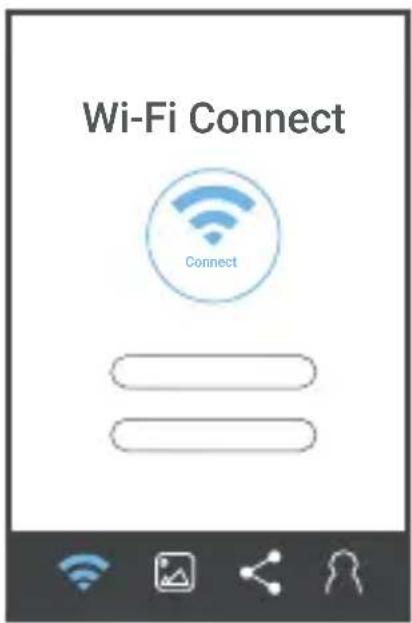
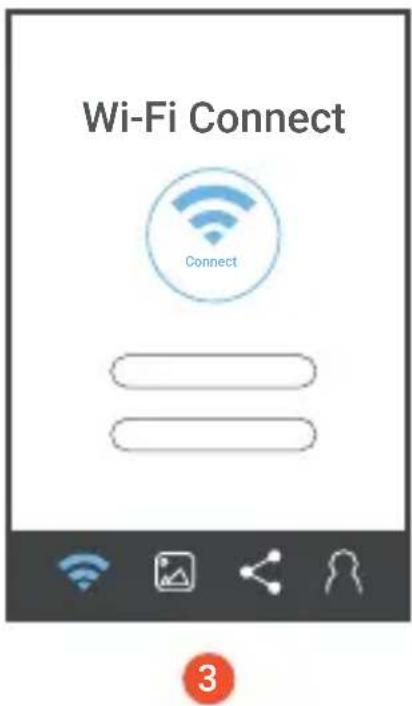
Wi-Fi Connect


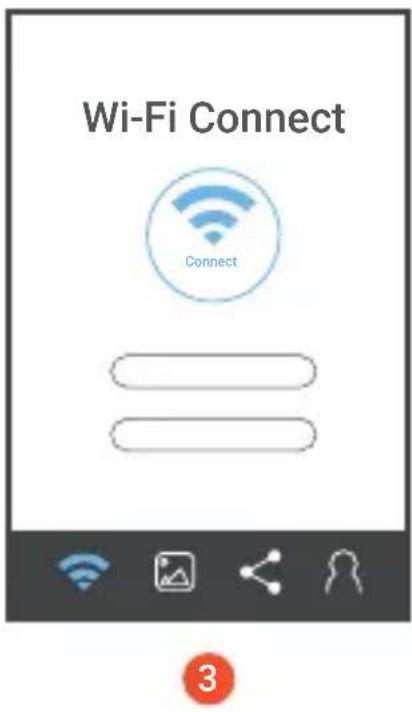
Download Rexing Connect app from the App Store/Google Play Store.
- To access and exit the app, hold down OK Button
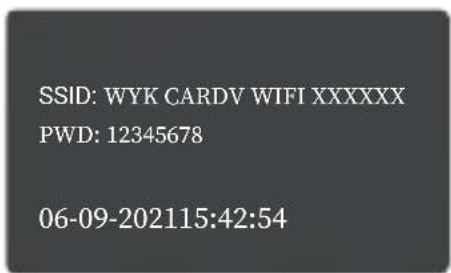
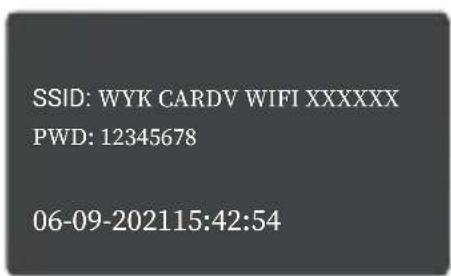
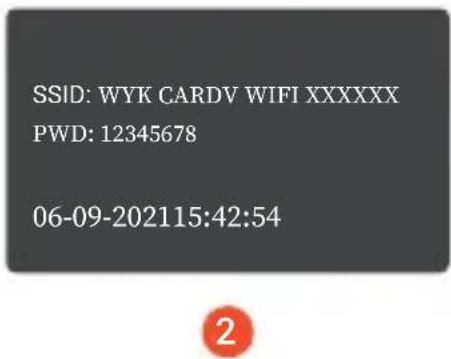
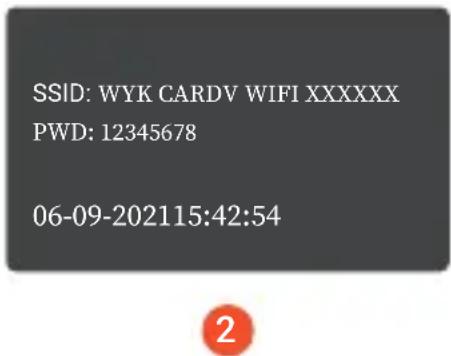
- Open Wi-Fi settings on your phone, find "SSID" from the list, tap to connect. (Default password: 12345678)
- Open the Rexing Connect app, tap "Connect" to enter the realtime video streaming page.
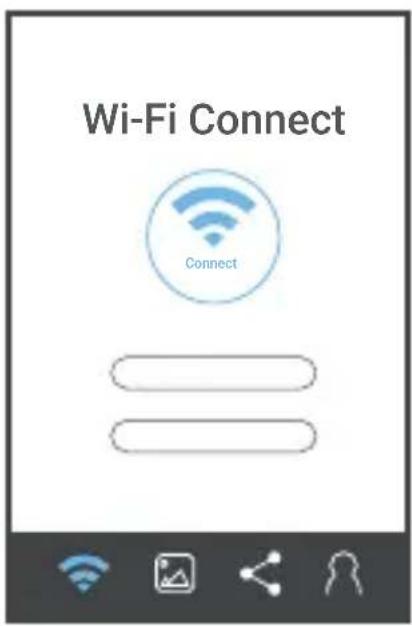
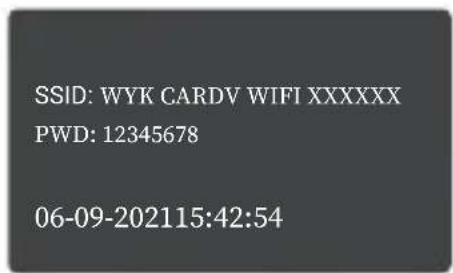


- Once connected, the dash cam screen will switch to the camera view and will display "WiFi Connected" message. Using the Rexing Connect app, you can view a live preview of the dash cam screen, start / stop recording, as well as view and save your captures with your mobile device.
For further instruction regarding the Wi-Fi Connect feature, please visit www.rexingusa.com/wifi-connect/.
GPS Logger
You can then access this information while playing back your recordings using the GPS Video player (For Windows and Mac, available at rexingusa.com).
The dash cam will automatically search for the GPS signal once it's connected to the power source. Press the MENU button twice and go to System Settings. Toggle the GPS Speed Unit setting, and select your favorite speed unit.
After a GPS signal is found, the screen icon will turn from red to green as per the below icons. It will record the speed and location of your vehicle as you drive.
0.00km/h GPS function active
0.00km/h GPS Signal (not connected)
Parking Monitor
Connect the dash cam to the Smart Hardwire Kit (need to purchase separately) to activate the parking monitor function. Please visit support.rexingusa.com to watch a video tutorial.
Taking Photos
To take a photo, stop video recording and hold down the ▼ button.
To view a photo, stop video recording and hold on MENU button to the Playback Mode.
Press ▲ the ▼ and Buttons to toggle through your photos.
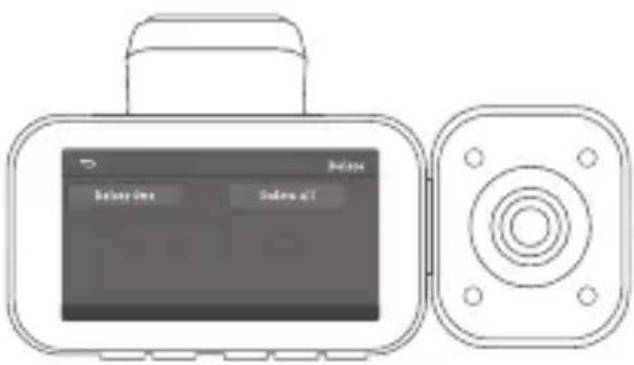
To delete a photo, stop video recording and toggle to the Playback Mode and toggle through the videos and photos to the one you want to delete.
Press the MENU to toggle the Delete option.
Press the OK Button and select Delete Current or Delete All.
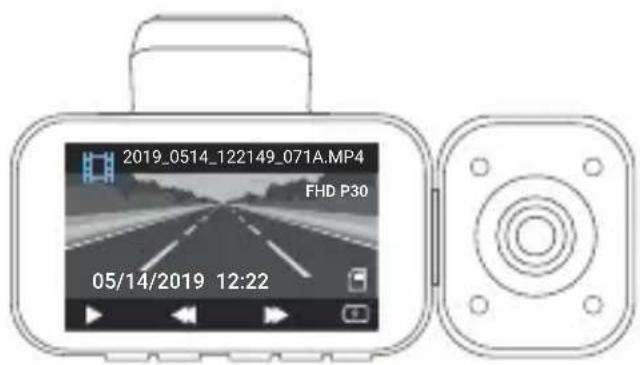
select a photo to view
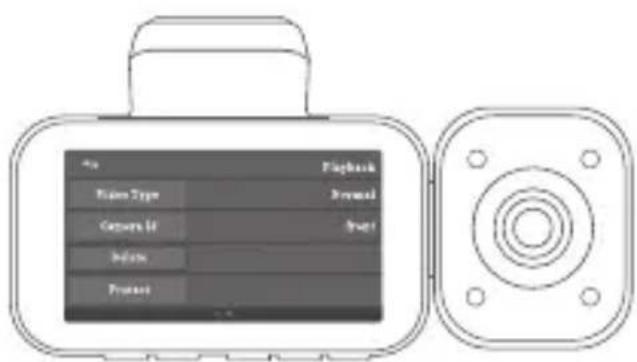
Toggle to the Delete option Toggle to the Playback m
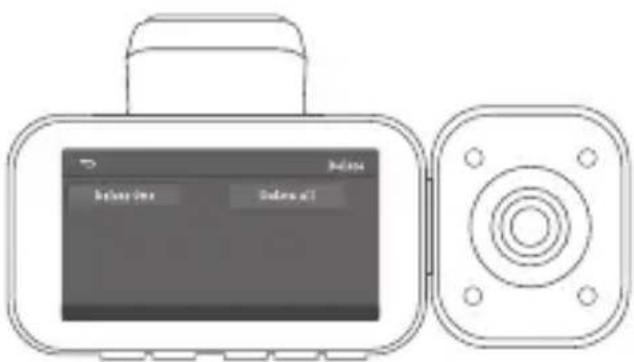
Choose the desired option
Warranty & Support
Warranty
The Rexing V5C Dash Cam comes with a full 12-month warranty. If you register your product on our official site (https://www.rexingusa.com/support/registration), you can extend the warranty to 18 months.
Support
If you have any questions regarding your product, please do not hesitate to contact us at care@rexingusa.com, or call us at (877) 740-8004. Queries are typically answered within 12-24 hours.
Your opinion matters
Rexing is firmly committed to always improving our products, services, and user experience. If you have any thoughts on how we can do even better, we welcome your constructive feedback and suggestions.
Connect with us today at care@rexingusa.com
Thank you for choosing Rexing!
1. はじめに
- https://www.facebook.com/rexingjp
- https://www.instagram.com/rexingdashcam/
- https://www.rexingusa.com/support/registration/
- https://www.rexingusa.com/support/product-support/







2. セット内容
natural_image
Diagram showing a monitor and keyboard inside a mirror, with no text or symbols present.ステップ 2:
メモリーカードを挿入する
natural_image
Line drawing of a digital camera with a small inset showing a device and a red arrow pointing to it (no text or symbols present)ステップ 3:
natural_image
Line drawing of a digital camera with an external cable and screen, no text or symbols present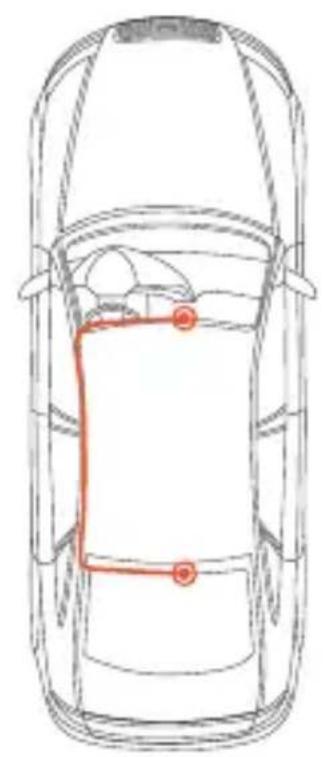
natural_image
Top-down line drawing of a car showing the roof, dashboard, and side panel with no text or symbols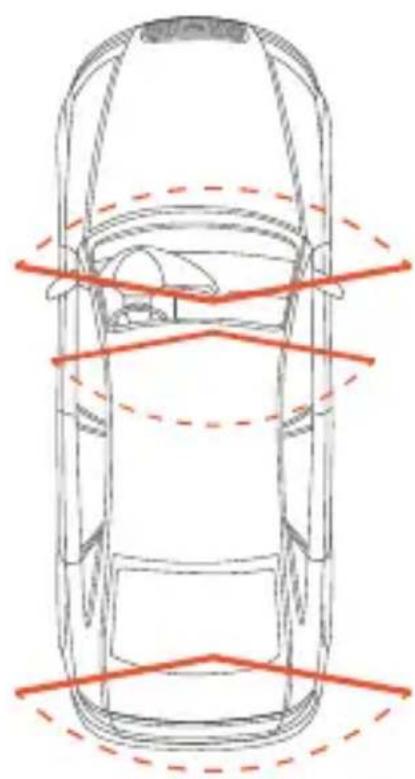
natural_image
Top-down line drawing of a car with red dashed lines indicating horizontal and vertical measurement lines (no text or symbols)フロント
車内
リア
ステップ 5:
フロントガラスへのカメラの取り付け
natural_image
Interior view of a car dashboard and steering wheel (no visible text or symbols)natural_image
Line drawing of a digital camera with antenna and screen (no text or symbols)natural_image
Diagram of a medical device in progress, showing a needle inserted into a body with a blue arrow indicating direction (no text or symbols present)5. 基本操作
機器の電源
natural_image
Line drawing of a digital camera with antenna and screen (no text or symbols)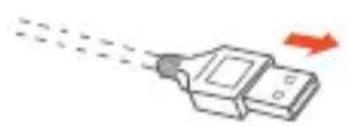
natural_image
Illustration of a handheld device emitting light with a red arrow indicating direction (no text or symbols)natural_image
Diagram showing two devices with red arrows indicating movement or interaction (no text or symbols present)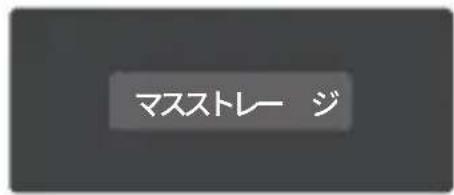
マスストレージを選択
2
3
削除オプションに切り替えます
希望のオプションを選択します
保証&サポート
保証
- https://www.facebook.com/rexingusa/
- https://www.instagram.com/rexingdashcam/
- https://www.rexingusa.com/support/registration/
- https://www.rexingusa.com/support/product-support/

Facebook Instagram Site Product Support







2. What's in the box?
natural_image
Line drawing of a digital camera with a small connector and a red arrow indicating action (no text or symbols)Étape 3
natural_image
Line drawing of a digital camera with lens, showing front and side views (no text or symbols)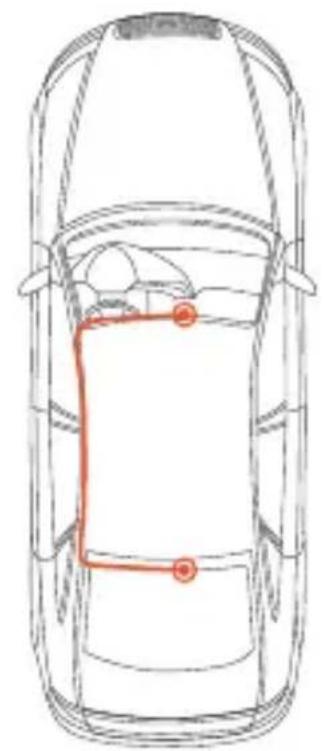
natural_image
Top-down line drawing of a car showing the roof, dashboard, and side panel with a red rectangular outline (no text or symbols)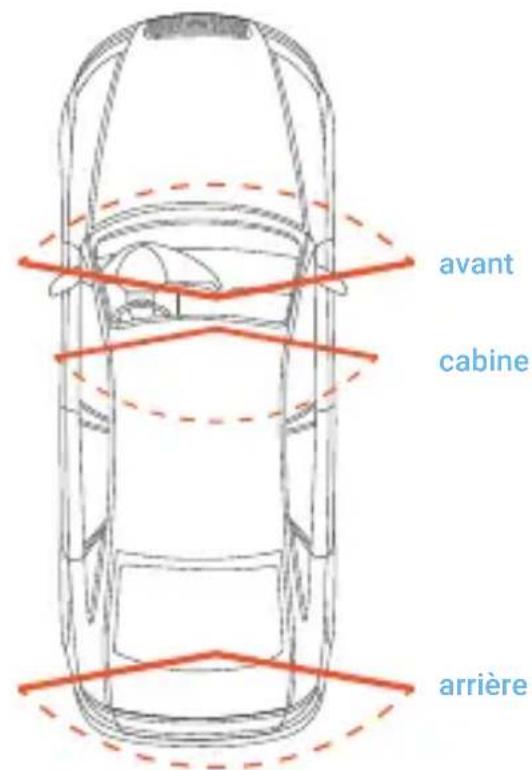
natural_image
Interior view of a car dashboard and steering wheel (no visible text or symbols)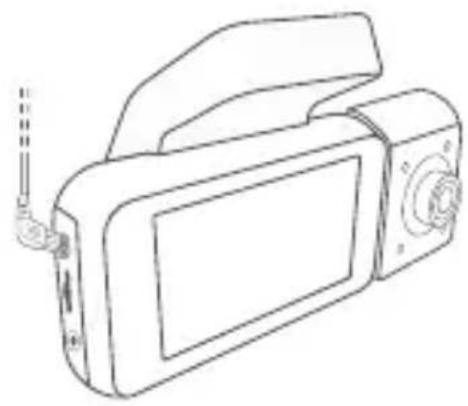
natural_image
Line drawing of a digital camera with antenna and screen (no text or symbols)natural_image
Line drawing of a digital camera with antenna and screen (no text or symbols)
natural_image
Illustration of a device emitting a light beam with a red arrow indicating direction (no text or symbols)natural_image
Diagram showing two components with red arrows indicating movement or flow, no text or symbols present
2
3
The Rexing V5C Dash Cam comes with a full 12-month warranty. If you register your product on our official site (https://www.rexingusa.com/support/registration), you can extend the warranty to 18 months.
Support
If you have any questions regarding your product, please do not hesitate to contact us at care@rexingusa.com, or call us at (877) 740-8004. Queries are typically answered within 12-24 hours.
Your opinion matters
Rexing is firmly committed to always improving our products, services, and user experience. If you have any thoughts on how we can do even better, we welcome your constructive feedback and suggestions.
Connect with us today at care@rexingusa.com
Thank you for choosing Rexing!
1. Panoramica
- https://www.facebook.com/rexingusa/
- https://www.instagram.com/rexingdashcam/
- https://www.rexingusa.com/support/registration/
- https://www.rexingusa.com/support/product-support/

Facebook Instagram Site Product Support







2. Nella Confezione
natural_image
Line drawing of a digital camera with a small connector and a red arrow indicating action (no text or symbols)Passo 3
Passo 4
Montare la telecamera posteriore
natural_image
Line drawing of a digital camera with lens and external casing (no text or symbols)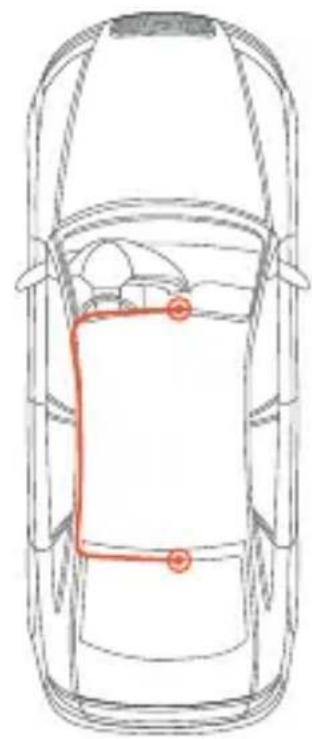
natural_image
Top-down line drawing of a car showing the roof, side seats, and a red rectangular route (no text or symbols)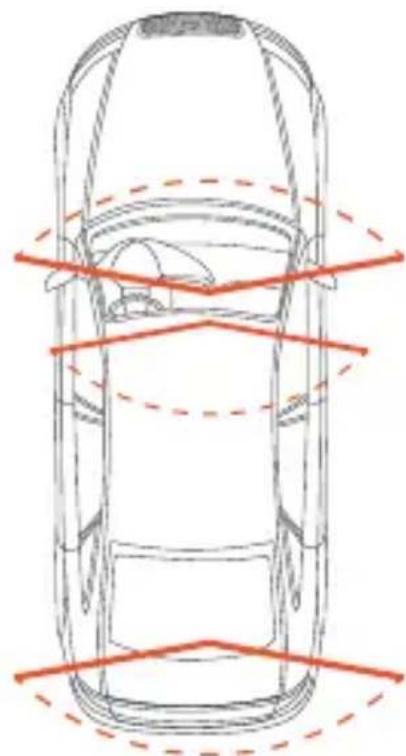
natural_image
Top-down line drawing of a car with red dashed lines indicating horizontal and vertical measurement lines (no text or symbols)anteriore
cabina
posteriore
Passo 5
natural_image
Interior view of a car dashboard and steering wheel (no visible text or symbols)natural_image
Line drawing of a digital camera with antenna and screen (no text or symbols)natural_image
Line drawing of a digital camera with antenna and screen (no text or symbols)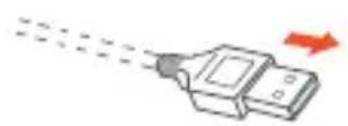
natural_image
Illustration of a device emitting a droplet with a red arrow indicating motion (no text or symbols)natural_image
Diagram showing two devices with red arrows indicating movement or interaction (no text or symbols present)
The Rexing V5C Dash Cam comes with a full 12-month warranty. If you register your product on our official site (https://www.rexingusa.com/support/registration), you can extend the warranty to 18 months.
Support
If you have any questions regarding your product, please do not hesitate to contact us at care@rexingusa.com, or call us at (877) 740-8004. Queries are typically answered within 12-24 hours.
Your opinion matters
Rexing is firmly committed to always improving our products, services, and user experience. If you have any thoughts on how we can do even better, we welcome your constructive feedback and suggestions.
Connect with us today at care@rexingusa.com
Thank you for choosing Rexing!
1. Visión General
- https://www.facebook.com/rexingusa/
- https://www.instagram.com/rexingdashcam/
- https://www.rexingusa.com/support/registration/
- https://www.rexingusa.com/support/product-support/

Facebook Instagram Site Product Support





natural_image
Line drawing of a digital camera with an attached device and a red arrow indicating the left side (no text or symbols present)Paso 3
natural_image
Line drawing of a digital camera with lens, screen, and external casing (no text or symbols)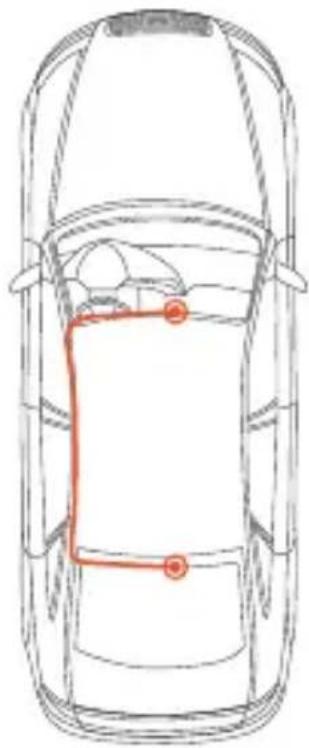
natural_image
Top-down line drawing of a car showing the roof, dashboard, and seat area with no text or symbols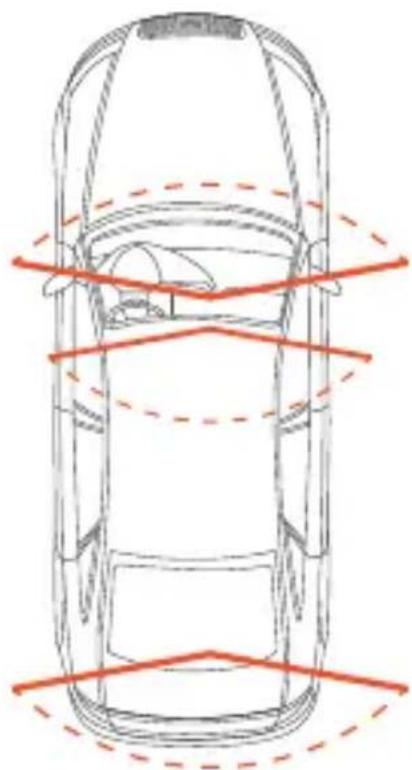
natural_image
Top-down line drawing of a car with red dashed lines indicating horizontal and vertical alignment (no text or symbols)delantero
cabina
trasero
Paso 5
natural_image
Interior view of a car dashboard with steering wheel, dashboard, and steering wheel (no visible text or symbols)Conecte el conector Mini de USB a la Dash Cam
natural_image
Line drawing of a digital camera with a flat screen and antenna (no text or symbols)natural_image
Line drawing of a digital camera with antenna and screen (no text or symbols)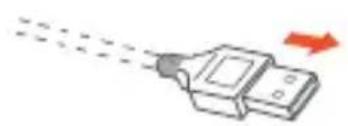
natural_image
Illustration of a device emitting a light beam with a red arrow indicating direction (no text or symbols)natural_image
Diagram showing two devices with red arrows indicating movement or interaction (no text or symbols present)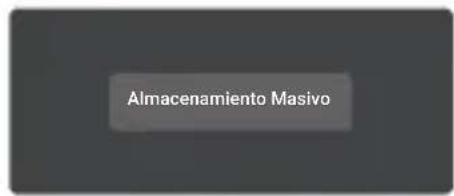

The Rexing V5C Dash Cam comes with a full 12-month warranty. If you register your product on our official site (https://www.rexingusa.com/support/registration), you can extend the warranty to 18 months.
Support
If you have any questions regarding your product, please do not hesitate to contact us at care@rexingusa.com, or call us at (877) 740-8004. Queries are typically answered within 12-24 hours.
Your opinion matters
Rexing is firmly committed to always improving our products, services, and user experience. If you have any thoughts on how we can do even better, we welcome your constructive feedback and suggestions.
Connect with us today at care@rexingusa.com
Thank you for choosing Rexing!
1. Übersicht
- https://www.facebook.com/rexingusa/
- https://www.instagram.com/rexingdashcam/
- https://www.rexingusa.com/support/registration/
- https://www.rexingusa.com/support/product-support/

Facebook Instagram Site Product Support





natural_image
Line drawing of a digital camera with a close-up view and a red arrow indicating the left side (no text or symbols present)Schritt 3
natural_image
Line drawing of a digital camera with attached lens and cable (no text or symbols)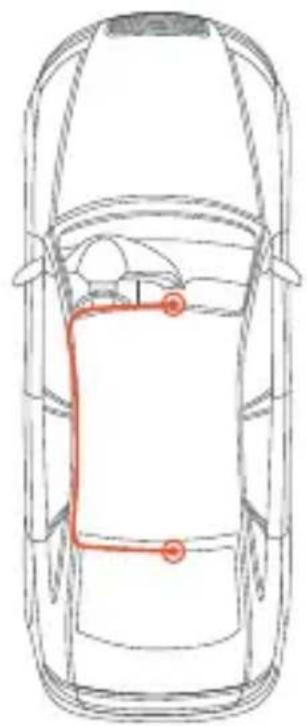
natural_image
Top-down line drawing of a car with a red route map outline (no text or symbols)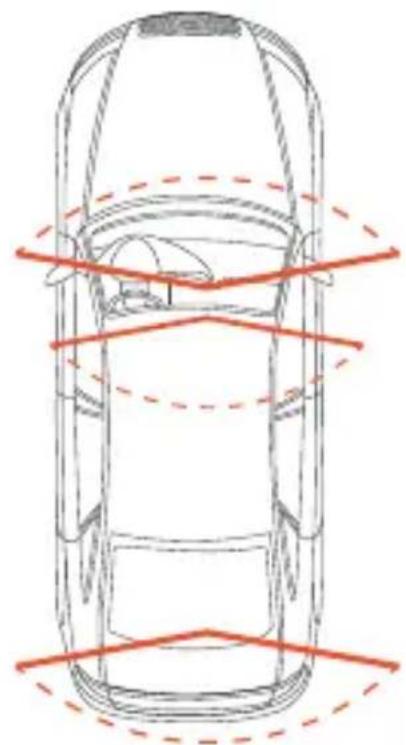
natural_image
Top-down line drawing of a car with red dashed lines indicating horizontal and vertical measurement lines (no text or symbols)vorne
Kabine
hinten
Schritt 5
natural_image
Interior view of a car dashboard and steering wheel (no visible text or symbols)natural_image
Line drawing of a digital camera with antenna and screen (no text or symbols)natural_image
Line drawing of a digital camera with attached cable and a USB connector (no text or symbols)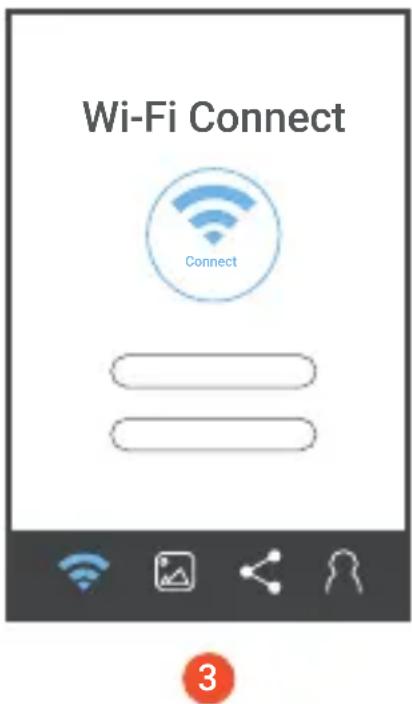
The Rexing V5C Dash Cam comes with a full 12-month warranty. If you register your product on our official site (https://www.rexingusa.com/support/registration), you can extend the warranty to 18 months.
Support
If you have any questions regarding your product, please do not hesitate to contact us at care@rexingusa.com, or call us at (877) 740-8004. Queries are typically answered within 12-24 hours.
Your opinion matters
Rexing is firmly committed to always improving our products, services, and user experience. If you have any thoughts on how we can do even better, we welcome your constructive feedback and suggestions.
Connect with us today at care@rexingusa.com
Thank you for choosing Rexing!
FCCID: 2AW5W-V5C
This device complies with part 15 of the FCC Rules. Operation is subject to the following two conditions: (1) This device may not cause harmful interference, and (2) this device must accept any interference received, including interference that may cause undesired operation.
Changes or modifications not expressly approved by the party responsible for compliance could void the user's authority to operate this equipment.
REXING®




MADE IN CHINA
- Table of Contents
- English
- Italiano
- Thank you for choosing REXING!
- Check us out here
- What's in the box?
- Camera Overview
- Screen Icons
- Installation
- Step 1
- Install the Dash Cam
- Step 2
- Insert the Memory Card
- Step 3
- Power on the Camera and Format the Memory Card
- Step 4
- Mount the Rear Camera
- Rear cam needs to purchase separately.
- Step 5
- Installing the Camera onto the Windshield
- Basic Operation
- Device Power
- Menu Settings
- Video Recording
- EMR Mode
- Video Playback
- Wi-Fi Connect
- GPS Logger
- Parking Monitor
- Taking Photos
- Warranty & Support
- Warranty
- Support
- Your opinion matters
- はじめに
- セット内容
- ステップ 2:
- メモリーカードを挿入する
- ステップ 3:
- ステップ 5:
- フロントガラスへのカメラの取り付け
- 基本操作
- 機器の電源
- 保証&サポート
- 保証
- Étape 3
- Panoramica
- Nella Confezione
- Passo 3
- Passo 4
- Montare la telecamera posteriore
- Passo 5
- Visión General
- Paso 3
- Paso 5
- Übersicht
- Schritt 3
- Schritt 5
- FCCID: 2AW5W-V5C
Brand : Rexing
Model : V5C
Category : Dashcam