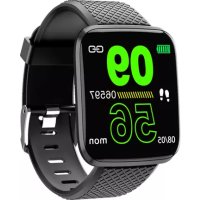
SW151 MK2 - Smartwatch DENVER - Free user manual and instructions
Find the device manual for free SW151 MK2 DENVER in PDF.



| Product type | Smartwatch |
| Brand | Denver |
| Model | SW151 MK2 |
| Compatible operating system | Android 4.2 and above, iOS 8.0 and above |
| Bluetooth version | BT4.0 |
| Battery | Rechargeable lithium polymer |
| Charging | Via charging cable (USB) |
| Mobile app | Fit pro (Apple Store and Google Play) |
| Pedometer | 24h recording, resets at midnight |
| Heart rate monitor | Automatic measurement, data in app |
| SPO₂ test | Automatic measurement of blood oxygen level |
| Blood pressure | Automatic measurement, data in app |
| Sleep tracking | Analysis of deep and light sleep phases |
| Reminders | Sedentary, drink, anti-loss, messages, calls |
| Additional functions | Weather, music control, remote photo trigger, find bracelet |
| Water resistance | 1 meter maximum depth |
| Operating temperature | 0°C to 40°C |
| Safety | Do not open, repairs by qualified personnel, keep out of reach of children |
Frequently Asked Questions - SW151 MK2 DENVER
User questions about SW151 MK2 DENVER
0 question about this device. Answer the ones you know or ask your own.
Ask a new question about this device
Download the instructions for your Smartwatch in PDF format for free! Find your manual SW151 MK2 - DENVER and take your electronic device back in hand. On this page are published all the documents necessary for the use of your device. SW151 MK2 by DENVER.
USER MANUAL SW151 MK2 DENVER
Please read the safety instructions carefully before using the product for the first time and keep the instructions for future reference.
- This product is not a toy. Keep it out of reach of children.
- Warning: This product includes lithium polymer battery.
- Keep product out of the reach of children and pets to avoid chewing and swallowing.
- Product operating and storage temperature is from 0 degree Celsius to 40 degree Celsius. Under and over this temperature might affect the function.
- Never open the product. Touching the inside electrics can cause electric shock. Repairs or service should only be performed by qualified personnel.
- Do not use for water depth below 1 meters!
- Please remove the Smart watch in case of any leakage or excessive heat from the product to avoid burns or rash.
-
Using other accessories than the ones delivered with the product can cause abnormal functionality.
-
Compatible System of Phone and BLE Version:
Android 4.2 and above
iOS 8.0 and above
BT4.0
- User Preparation
Please make sure the device is fully charged before using for the first time.
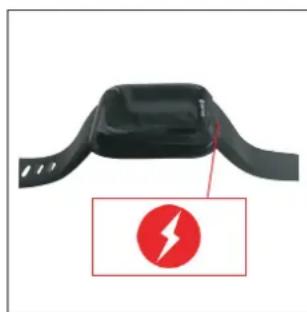
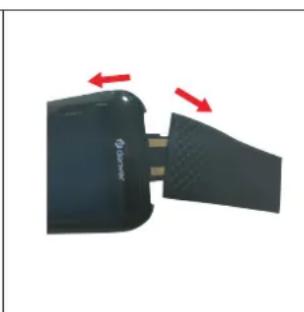
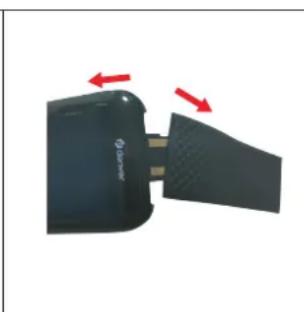
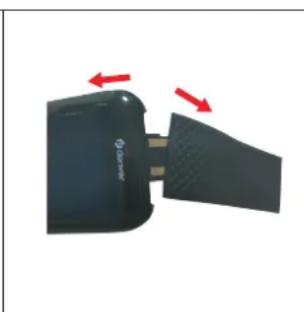
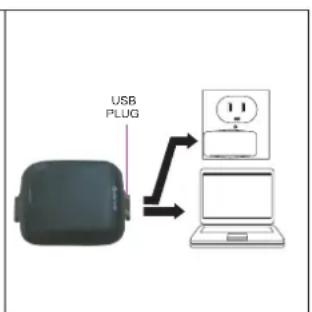
CHARGING INSTRUCTION
natural_image
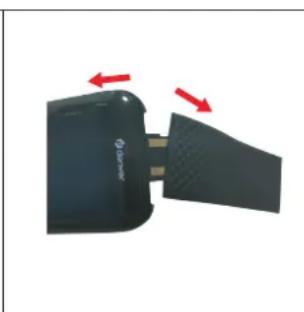
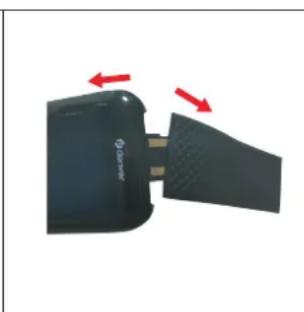
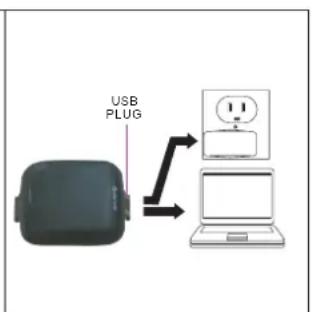
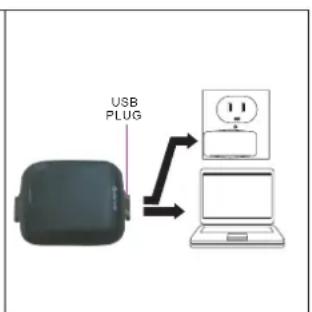
Black fitness tracker with red lightning bolt icon (no text or symbols on device)USB Charging port is placed behind the top strap
natural_image
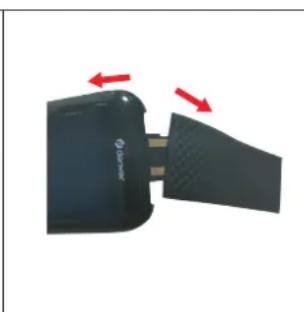
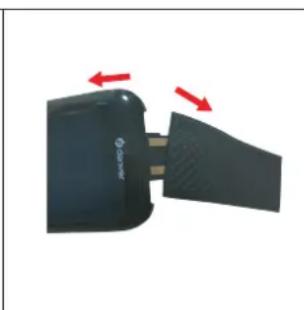
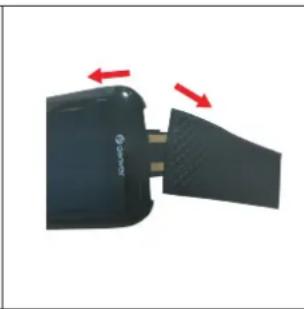
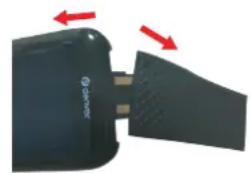
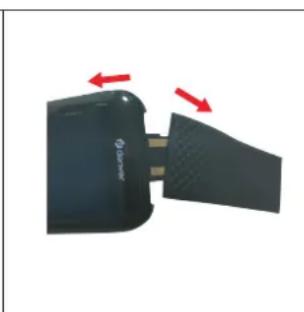
Close-up of a black USB flash drive with red directional arrows indicating compression or disassembly (no text or symbols)It is easiest by pulling sideways
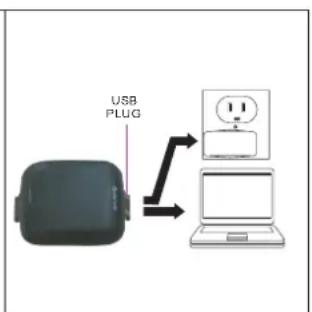
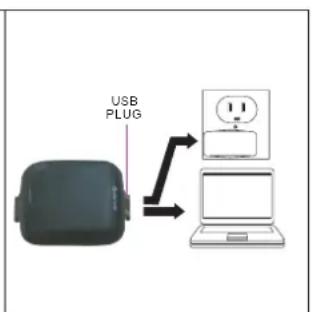
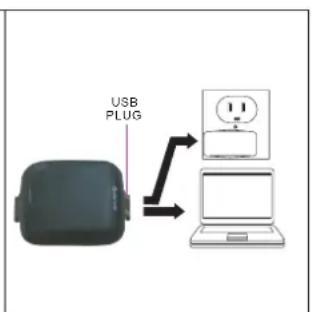
flowchart
graph TD
    A["USB PLUG"] --> B["Laptop with icon"]
    style A fill:#4A90E2,stroke:#333
    style B fill:#B2C41F,stroke:#333
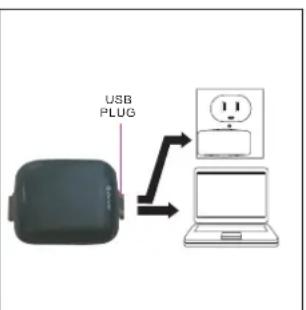
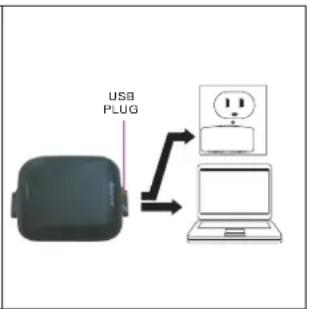
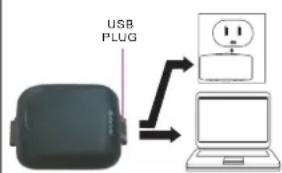
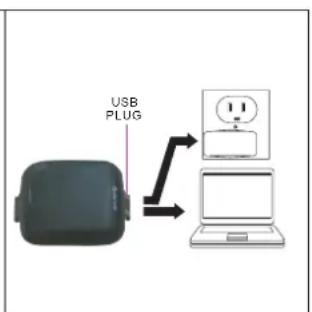
Please insert it into USB port to charge & pay attention to the USB plug direction
- "Fit pro" APP Download
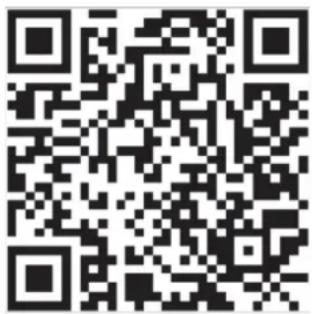
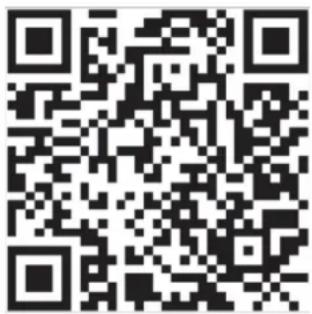
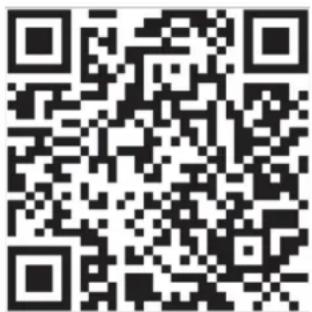
Scan the QR Code
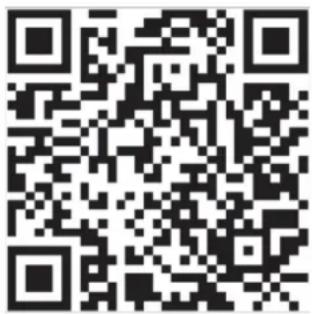
Download the "Fit pro" APP from the Apple store or the Android market
- Bracelet Connection
First, long press the touch button to turn on the bracelet, and make sure the Bluetooth on your phone is on; Second, open the "Fit pro" APP; tap the Function List on the top
left corner; tap the APP icon and "Search"; choose the right bracelet MAC number. Finally once "Bluetooth pairing request" pops up, tap "Pair" to connect.
5. Bracelet Operation
When the bracelet is successfully connected with the phone, the bracelet will synchronize the phone's time and date. And the APP will synchronize the bracelet's sports data, heart rate monitoring data, blood pressure data, etc. Short press the bracelet touch button to switch the functions, long press the touch button for entering the functions. To switch the watch off, enter the "OFF" menu and hold down the touch button for 3 seconds. To turn the watch on, press the touch button for 3 seconds.
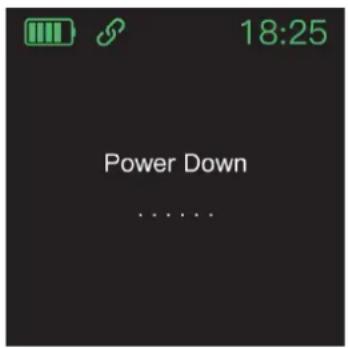
6. Function Instruction
Home Display: show Time, Date, Battery Level, etc;
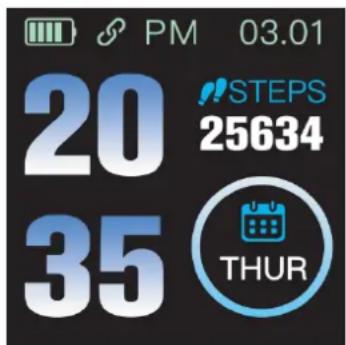
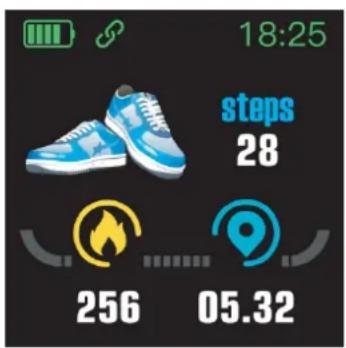
- Pedometor: 24 hours recording on the bracelet; clear bracelet data at 24:00; view history in the APP.
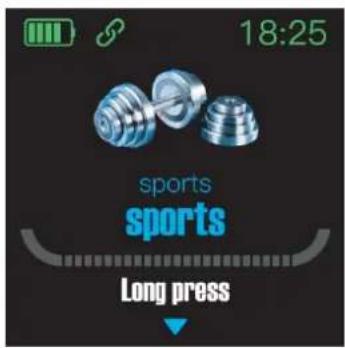
• Exercise: counts your daily exercise time; clear data at 24:00; view history in the APP.
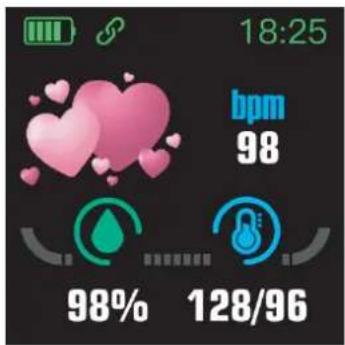
- Heart Rate Monitor: automatically measures the heart rate when the function is turned on, and the heart rate data will be saved in the APP.
- SPO2 Test: automatically measures the SPO2 rate when the function is turned on, and the SPO_2 rate data will be saved in the APP.
- Blood Pressure: automatically measures blood pressure when the function is turned on, and the blood pressure data will be saved in the APP.
- Smart Clock: find "Smart Clock" in the APP and set the time. Tap the time, you can set the repeat mode, and tap Complete to save the settings. The bracelet will vibrate when the set time is reached.
- Sleep Monitor: automatically records your sleep status and analyzes your deep sleep and light sleep hours. The data will be saved in the APP.
- Sedentary Reminder: open the function in the APP and set the time duration. The bracelet will vibrate when the set time is reached.
- Reminder for Drinking: open the function in the APP and set the time duration. The bracelet will vibrate when the set time is reached
- Anti-lost-: open the function in the APP. The bracelet will vibrate when the phone is taken away
- Message Reminder: open the function in the APP. The bracelet will vibrate when the phone receives a new message (SMS, QQ Facebook, Twitter, Whatsapp, Wechat).
- Call Reminder: Open the function in the APP, the bracelet will vibrate during incoming call.
- Weather: It could show the weather info of current and tomorrow on the weather page. Weather info is synced after connecting with the APP, it will not be updated after a long disconnected.
- Music: After connected the smart watch, you can remote control the music player on your phone.
- Shake the Bracelet to Take Photos: open the function in the APP. Enter into the camera by tapping “Shake the Bracelet to Take Photos” in the Function List. (Make sure the mobile phone setting is enabled: Allow the APP to take photos and save the photos)
- Find Bracelet: Tap "Find Bracelet" in the Function List in the APP and the bracelet will vibrate.
- Restore Factory Settings: the data of the bracelet can be cleared by synchronizing one day later or setting the time to the previous day in the mobile APP;
* The company reserves the right to make changes to the contents of the specifications without notice.
Please notice - All products are subject to change without any notice. We take reservations for errors and omissions in the manual.
ALL RIGHTS RESERVED, COPYRIGHT DENVER A/S

denver.eu
UK CA CE
natural_image
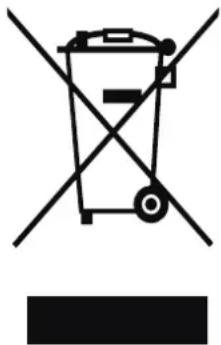
Symbol of a trash bin crossed with two crossed lines, no text or labels presentElectric and electronic equipment and included batteries contains materials, components and substances that can be hazardous to your health and the environment, if the waste material (discarded electric and electronic equipment and batteries) is not handled correctly.
Electric and electronic equipment and batteries is marked with the c-rossed out trash can symbol, seen above. This symbol signifies that electric and electronic equipment and batteries should not be disposed of with other household waste, but should be disposed of separately.
As the end user it is important that you submit your used batteries to the appropriate and designated facility. In this manner you make sure that the batteries are recycled in accordance with legislature and will not harm the environment.
All cities have established collection points, where electric and electronic equipment and batteries can either be submitted free of charge at recycling stations and other collection sites, or be collected from the households. Additional information is available at the technical department of your city.
Hereby, Denver A/S declares that the radio equipment type SW-151 MK2 is in compliance with Directive 2014/53/EU. The full text of the EU declaration of conformity is available at the following internet address: denver.eu and then click the search ICON on topline of website.
Write model number: SW-151 MK2. Now enter product page, and RED directive is found under downloads/other downloads.
Operating Frequency Range: 2412-2484 MHZ
Max Output Power: 0.555W
Denver A/S
Omega 5A, Soeften
DK-8382 Hinnerup
Denmark
facebook.com/Denver.eu
Sicherheitshinweise
natural_image
Black fitness tracker with red lightning bolt icon (no text or symbols on device)USB Charging port is placed behind the top strap
natural_image
Close-up of a black USB flash drive with red directional arrows indicating compression or disassembly (no text or symbols)It is easiest by pulling sideways
flowchart
graph TD
    A["USB PLUG"] --> B["Laptop with icon"]
    style A fill:#99ccff,stroke:#333
    style B fill:#cccccc,stroke:#333
Please insert it into USB port to charge & pay attention to the USB plug direction
natural_image
Symbol of a trash bin crossed with two crossed lines, no text or labels presentnatural_image
Black fitness tracker with red lightning bolt icon (no text or symbols on device)USB Charging port is placed behind the top strap
natural_image
Close-up of a black USB flash drive with red directional arrows indicating compression or disassembly (no text or symbols)It is easiest by pulling sideways
flowchart
graph TD
    A["USB PLUG"] --> B["Device"]
    B --> C["Laptop"]
Please insert it into USB port to charge & pay attention to the USB plug direction
- Download af appen "Fit pro"
Scan QR-koden
Download appen "Fit pro" fra Apple Store eller Android Market
natural_image
Symbol of a trash bin crossed with two crossed lines, no text or labels presentnatural_image
Black fitness tracker with red lightning bolt icon (no text or symbols on device)USB Charging port is placed behind the top strap
natural_image
Close-up of a black device with red arrows indicating movement or force, no visible text or symbolsIt is easiest by pulling sideways
flowchart
graph TD
    A["USB PLUG"] --> B["Laptop with icon"]
    B --> C["Output Device"]
Please insert it into USB port to charge & pay attention to the USB plug direction
- De "Fit pro"-app downloaden
Scan de QR-code
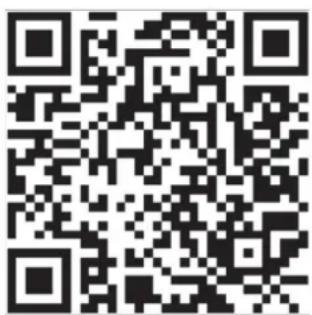
Download de "Fit pro"-app in de Apple store of Android market
- De armband verbinden
natural_image
Symbol of a trash bin crossed with two crossed lines, no text or labels presentnatural_image
Black fitness tracker with red lightning bolt icon (no text or symbols on device)USB Charging port is placed behind the top strap
natural_image
Close-up of a black electronic device with red arrows indicating motion or force, no visible text or symbolsIt is easiest by pulling sideways
flowchart
graph TD
    A["USB PLUG"] --> B["Output Device"]
    style A fill:#000,stroke:#fff,color:#fff
    style B fill:#fff,stroke:#000,stroke-width:2px
Please insert it into USB port to charge & pay attention to the USB plug direction
natural_image
Symbol of a trash bin crossed with two crossed lines, no text or labels presentnatural_image
Black fitness tracker with red lightning bolt icon (no text or symbols on device)USB Charging port is placed behind the top strap
natural_image
Close-up of a black device with red arrows indicating movement or change, no visible text or symbolsIt is easiest by pulling sideways
flowchart
graph TD
    A["USB PLUG"] --> B["Laptop"]
    B --> C["Interface"]
Please insert it into USB port to charge & pay attention to the USB plug direction
natural_image
Symbol of a trash bin crossed with two crossed lines, no text or labels presentnatural_image
Black fitness tracker with red lightning bolt icon (no text or symbols on device)USB Charging port is placed behind the top strap
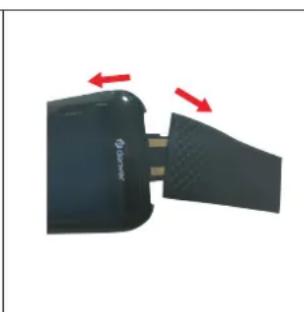
natural_image
Close-up of a black USB flash drive with red directional arrows indicating compression or disassembly (no text or symbols)It is easiest by pulling sideways
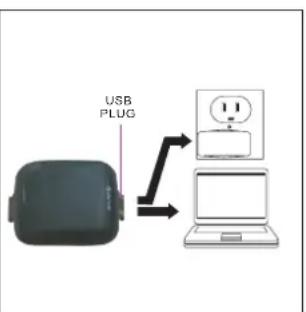
flowchart
graph TD
    A["USB PLUG"] --> B["Laptop with icon"]
    B --> C["Output Device"]
Please insert it into USB port to charge & pay attention to the USB plug direction
natural_image
Symbol of a trash bin crossed with two crossed lines, no text or labels presentnatural_image
Black fitness tracker with red lightning bolt icon (no text or symbols on device)USB Charging port is placed behind the top strap
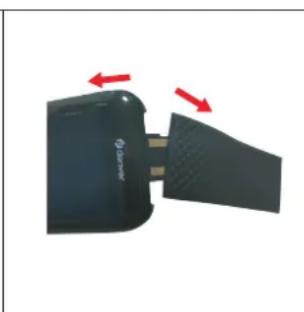
natural_image
Close-up of a black USB flash drive with red directional arrows indicating compression or disassembly (no text or symbols)It is easiest by pulling sideways
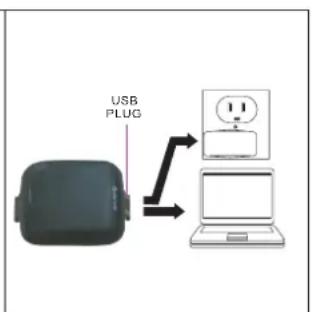
flowchart
graph TD
    A["USB PLUG"] --> B["Laptop with icon"]
    style A fill:#99ccff,stroke:#333
    style B fill:#cccccc,stroke:#333
Please insert it into USB port to charge & pay attention to the USB plug direction
natural_image
Symbol of a trash bin crossed with two crossed lines, no text or labels presentnatural_image
Black fitness tracker with red lightning bolt icon (no text or symbols on device)USB Charging port is placed behind the top strap
natural_image
Close-up of a black USB flash drive with red directional arrows indicating compression or disassembly (no text or symbols)It is easiest by pulling sideways
flowchart
graph TD
    A["USB PLUG"] --> B["Device"]
    B --> C["Laptop"]
Please insert it into USB port to charge & pay attention to the USB plug direction
- Ladda ned appen "Fit pro"
Skanna QR-koden
Ladda ned appen "Fit pro" i Apple Store eller Android Market
natural_image
Symbol of a trash bin crossed with two crossed lines, no text or labels presentnatural_image
Black fitness tracker with red lightning bolt icon (no text or symbols on device)USB Charging port is placed behind the top strap
natural_image
Close-up of a black USB flash drive with red directional arrows indicating compression or disassembly (no text or symbols)It is easiest by pulling sideways
flowchart
graph TD
    A["USB PLUG"] --> B["Laptop with icon"]
    style A fill:#99ccff,stroke:#333
    style B fill:#cccccc,stroke:#333
Please insert it into USB port to charge & pay attention to the USB plug direction
- "Fit pro" -SOVELLUKSEN lataaminen
Skannaa QR-koodi
Lataa "Fit pro" -SOVELLUS Apple Storesta tai Android Marketista
- Rannekkeen yhteys
natural_image
Symbol of a trash bin crossed with two crossed lines, no text or labels presentnatural_image
Black fitness tracker with red lightning bolt icon (no text or symbols on device)USB Charging port is placed behind the top strap
natural_image
Close-up of a black USB flash drive with red directional arrows indicating compression or disassembly (no text or symbols)It is easiest by pulling sideways
flowchart
graph TD
    A["USB PLUG"] --> B["Device"]
    B --> C["Laptop"]
Please insert it into USB port to charge & pay attention to the USB plug direction
Last ned APPEN "Fit pro" i Apple Store eller i Android Market
- Koble til armbåndet
natural_image
Symbol of a trash bin crossed with two crossed lines, no text or labels presentnatural_image
Black fitness tracker with red lightning bolt icon (no text or symbols on device)USB Charging port is placed behind the top strap
natural_image
Close-up of a black USB flash drive with red directional arrows indicating compression or disassembly (no text or symbols)It is easiest by pulling sideways
flowchart
graph TD
    A["USB PLUG"] --> B["Laptop with icon"]
    style A fill:#4A90E2,stroke:#333
    style B fill:#B2C41F,stroke:#333
Please insert it into USB port to charge & pay attention to the USB plug direction
natural_image
Symbol of a trash bin crossed with two crossed lines, no text or labels present(Push "2" for support)
For technical questions, please
write to:support@denver.eu
For all other questions please
write to:denver@denver.eu
Benelux/France
Denver Benelux BV
Barwoutswaarder 13C+D
3449 HE Woerden
The Netherlands
Phone: +31 348 420 029
E-Mail: support-nl@denver.eu
Spain/Portugal
Denver AS Spain S.A.
Denver Germany GmbH Service
Gutenbergstrasse 1
94036 Passau
Phone: +49 851 379 369 40
repair-germany@denver.eu
Fairfixx GmbH
Repair and service
(for TV, E-Mobility/Hoverboards/
Balanceboards,
Smartphones & Tablets)
Tel.: +49 851 379 369 69
If your country is not listed above, please write an email to
support@denver.eu

denver
Denver A/S
Omega 5A, Soeften
DK-8382 Hinnerup
Denmark
denver.eu
facebook.com/denver.eu

denver
Denver A/S
Omega 5A, Soeften
DK-8382 Hinnerup
Denmark
denver.eu
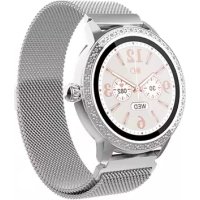
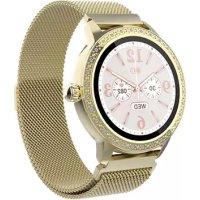
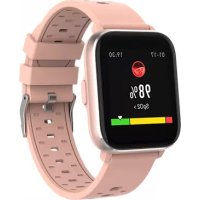
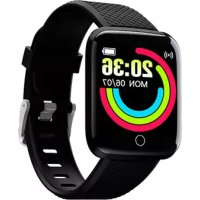
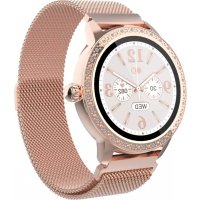
Brand : DENVER
Model : SW151 MK2
Category : Smartwatch