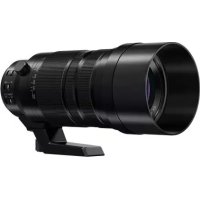
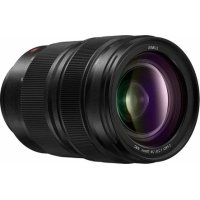
DG 100400mm f46.3 ASPH. POWER O.I.S - Camera lens PANASONIC - Free user manual and instructions
Find the device manual for free DG 100400mm f46.3 ASPH. POWER O.I.S PANASONIC in PDF.



| Product Type | Interchangeable lens for digital camera |
| Brand | Panasonic |
| Model | DG 100400mm f/4.6.3 ASPH. POWER O.I.S |
| Focal Length | 100 to 400 mm (35 mm equivalent: 200 to 800 mm) |
| Maximum Aperture | F4.0 (wide-angle) to F6.3 (telephoto) |
| Minimum Aperture | F22 |
| Optical Construction | 20 elements in 13 groups (1 aspherical lens, 2 ED lenses, 1 UED lens) |
| Minimum Focusing Distance | 1.3 m (FULL mode) / 5.0 m (5m-∞ mode) |
| Maximum Magnification | 0.25× (35 mm equivalent: 0.5×) |
| Optical Image Stabilization (O.I.S.) | Yes, with ON/OFF switch |
| AF/MF Switch | Yes, AF/MF toggle |
| Mount | Micro Four Thirds |
| Angle of View | 12° (wide-angle) to 3.1° (telephoto) |
| Filter Diameter | 72 mm |
| Maximum Diameter | Approx. 83.0 mm |
| Overall Length | Approx. 171.5 mm (from tip to mount base) |
| Weight | Approx. 985 g (without tripod mount) |
| Weather Resistance | Dust and splash resistant |
| Supplied Accessories | Lens case, lens hood, lens cap, rear cap, tripod mount |
| Care and Cleaning | Soft, dry cloth; avoid solvents and chemicals |
| Safety | Do not expose to sunlight, avoid magnetic fields, use on tripod with O.I.S. off |
| Compatibility | Micro Four Thirds mount digital cameras |
Frequently Asked Questions - DG 100400mm f46.3 ASPH. POWER O.I.S PANASONIC
User questions about DG 100400mm f46.3 ASPH. POWER O.I.S PANASONIC
0 question about this device. Answer the ones you know or ask your own.
Ask a new question about this device
Download the instructions for your Camera lens in PDF format for free! Find your manual DG 100400mm f46.3 ASPH. POWER O.I.S - PANASONIC and take your electronic device back in hand. On this page are published all the documents necessary for the use of your device. DG 100400mm f46.3 ASPH. POWER O.I.S by PANASONIC.
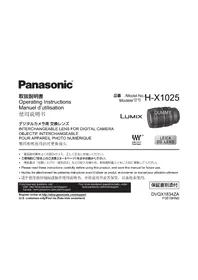
USER MANUAL DG 100400mm f46.3 ASPH. POWER O.I.S PANASONIC
Operating Instructions
INTERCHANGEABLE LENS FOR DIGITAL CAMERA
Model No. H-RS100400
LUMIX
natural_image
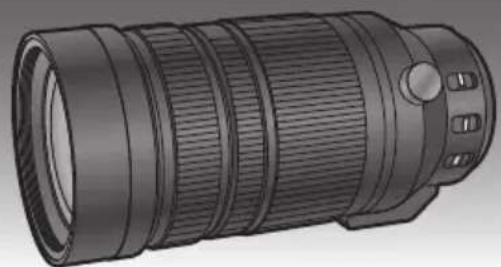
Illustration of a long, segmented optical lens with multiple lenses and mounting holes (no text or symbols)Please read these instructions carefully before using this product, and save this manual for future use.
MICRO FOURTHINDS
POWER
O.I.S.

LEICA
DG VARIO-ELMAR
SPLASH/DUST PROOF

SQT1200-1
F0116YD1056
Contents
Information for Your Safety.... 2
Precautions.... 3
Supplied Accessories 4
Names and Functions of Components .... 5
Attaching/Detaching the Lens.... 6
Using the Lens Hoods 6
Using the Tripod Mount 8
Cautions for Use....9
Troubleshooting....9
Specifications 10
Limited Warranty (ONLY FOR AUSTRALIA)... 11
Information for Your Safety
Keep the unit as far away as possible from electromagnetic equipment (such as microwave ovens, TVs, video games, radio transmitters, high-voltage lines etc.).
- Do not use the camera near cell phones because doing so may result in noise adversely affecting the pictures and sound.
- If the camera is adversely affected by electromagnetic equipment and stops functioning properly, turn the camera off and remove the battery and/or the connected AC adaptor. Then reinsert the battery and/or reconnect the AC adaptor and turn the camera on.
The lens can be used with a digital camera compatible with the lens mount standard for the "Micro Four Thirds™ System".
- It cannot be mounted on the Four Thirds™ mount specification camera.
- The digital camera illustrations in these operating instructions show DMC-GH4 as an example.
- The appearance and specifications of products described in this manual may differ from the actual products you have purchased due to later enhancements.
- Micro Four Thirds™ and Micro Four Thirds Logo marks are trademarks or registered trademarks of Olympus Imaging Corporation, in Japan, the United States, the European Union and other countries.
- Four Thirds™ and Four Thirds Logo marks are trademarks or registered trademarks of Olympus Imaging Corporation, in Japan, the United States, the European Union and other countries.
- G MICRO SYSTEM is an interchangeable lens type digital camera system of LUMIX based on a Micro Four Thirds System standard.
- LEICA is a registered trademark of Leica Microsystems IR GmbH. ELMAR is a registered trademark of Leica Camera AG. The LEICA DG lenses are manufactured using measurement instruments and quality assurance systems that have been certified by Leica Camera AG based on the company's quality standards.
- Other names of systems and products mentioned in these instructions are usually the registered trademarks or trademarks of the manufacturers who developed the system or product concerned.
-If you see this symbol-
Disposal of Old Equipment
Only for European Union and countries with recycling systems
This symbol on the products, packaging, and/or accompanying documents means that used electrical and electronic products must not be mixed with general household waste.
For proper treatment, recovery and recycling of
old products, please take them to applicable collection points in accordance with your national legislation.
By disposing of them correctly, you will help to save valuable resources and prevent any potential negative effects on human health and the environment.
For more information about collection and recycling, please contact your local municipality.
Penalties may be applicable for incorrect disposal of this waste, in accordance with national legislation.
Precautions
Lens Care
- This lens has a dust-proof and splash-proof construction.
When using it, please be careful of the following. If the lens is not working properly, consult the dealer or your nearest Service Centre.
- Please attach the lens to a dust-proof and splash-proof digital camera.
ENGLISH
- When detaching the lens from the digital camera, take care to ensure that sand, dust, splashes of water etc., do not get into the lens or the terminals.
- When using the built-in slide lens hood, ensure that particles such as sand and dust do not stick to the lens barrel, where the built-in slide lens hood slides.
- This lens is not waterproof and cannot be used to record underwater. For splash-proofing, the lens is constructed to resist the entry of water. If splashes of water etc. do adhere to the lens, wipe after use with a soft dry cloth.
- To improve the dust-proofing and splash-proofing of this lens, a lens mount rubber is used in the mounting portion. After changing the lens a number of times, you may find that the lens mount rubber has marked the mount portion of the digital camera body, which does not affect its performance.
For information on changing the lens mount rubber, contact your nearest Service Centre.
- Do not press the lens with excessive force.
- When there is dirt (water, oil, and fingerprints, etc.) on the surface of the lens, the picture may be affected. Lightly wipe the surface of the lens with a soft, dry cloth before and after taking pictures.
- To prevent dust and other particles from accumulating on or entering the lens, attach the lens rear cap when the lens is not in use.
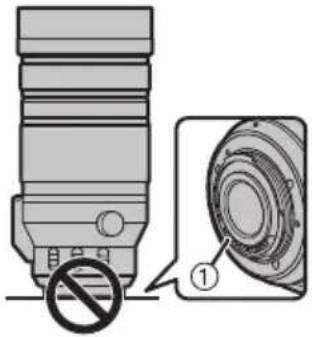
• To protect the lens contact points ①, do not place the lens with its mount surface facing down. In addition, do not allow the lens contact points to become dirty.
■ About Condensation (Fogging of the Lens)
- Condensation occurs when there are differences in temperature and humidity as described below.
Condensation can cause the lens to become dirty and lead to mold and malfunctioning, so exercise caution in the following situations: - When the camera is brought indoors from outside during cold weather
- When the camera is brought into an air-conditioned car
- When cold air from an air conditioner is directly blown onto the lens
– In humid places
- If condensation occurs, turn the power off and leave it for about two hours. Once the camera acclimatizes to the surrounding temperature the condensation will go away naturally.
Supplied Accessories
Product numbers correct as of January 2016. These may be subject to change.
| 1 | 2 | 3 | 4 |
| SFC0360 | SYQ0679 | SYF0074VFC4605 |
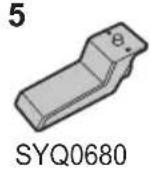
1 Lens Pouch
2 Lens Hood
3 Lens Cap
4 Lens Rear Cap
5 External tripod mount
- The lens rear cap and lens cap are attached to the interchangeable lens at the time of purchase.
Names and Functions of Components
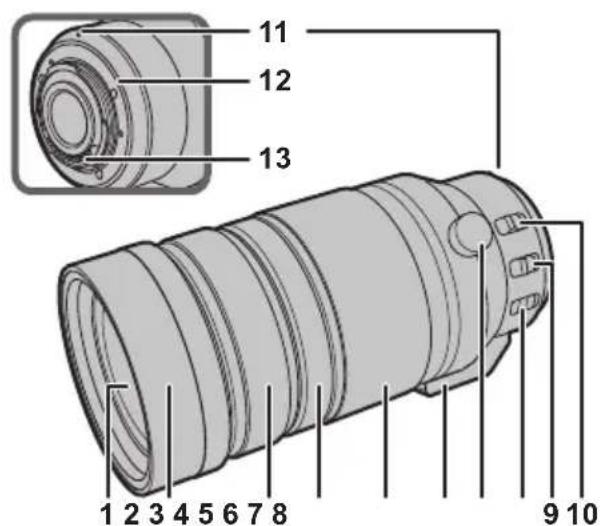
1 Lens surface
2 Built-in slide lens hood (P6)
3 Focus ring
Rotate to focus when taking pictures with manual focus (MF).
4 Zoom lock ring
When carrying the lens, rotate this ring to lock the zoom ring to prevent the lens from extending under its own weight.
LOCK: Locks the zoom ring.
UNLOCK: Unlocks the zoom ring.
- Do not rotate the zoom ring when the zoom lock ring is set to LOCK.
5 Zoom ring
Rotate the zoom ring when you wish to take large (tele) or wide (wide angle) pictures.
6 Tripod mount (P8)
7 Orientation locking knob (P8)
8 O.I.S. switch
When the lens is attached to the camera the stabiliser function is set to activate if the O.I.S. switch is set to [ON].
- We recommend setting the O.I.S. switch to [OFF] when using a tripod.
9 [AF/MF] switch
This allows you to switch between Auto Focus (AF) and Manual Focus (MF).
- When either the [AF/MF] switch of the lens or the setting of the camera is set to [MF], Manual Focus (MF) is enabled.
10 Focusing distance range selector switch
[FULL]: It can focus between the ranges of 1.3 m (4.27 feet) to ∞.
[5m-∞]: It can focus between the ranges of 5.0 m (16.4 feet) to ∞. The speed of focusing with auto focus will be faster.
11 Lens fitting mark
12 Lens mount rubber
13 Contact points

Note
- If you zoom after focusing, focusing errors may occur. After zooming, please perform the focusing again.
- In very quiet situations Auto Focus operating sounds may be recorded during motion picture recording. This is not a malfunction. In such situations, switching to Manual Focus will improve the situation.
- If you set the O.I.S. to [ON] when recording a motion picture, operating sounds may be recorded. If they become bothersome, we recommend setting the O.I.S. switch to [OFF] and mounting the camera on a tripod.
Attaching/Detaching the Lens
For information on how to attach and remove the lens, refer to the operating instructions for your digital camera.
- Before attaching or detaching the lens, check that the digital camera is turned off.
- Before attaching the lens to the digital camera, remove the lens rear cap. (1, 2)
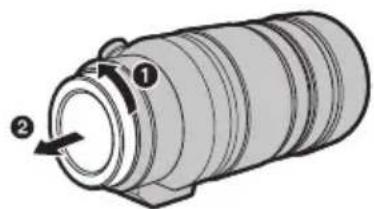
• To prevent dust and other particles from accumulating on or entering the lens, be sure to attach the lens cap/lens rear cap after detaching the lens from the digital camera.
■ Attaching Filters
- Vignetting may occur if using 2 or more filters at the same time.
- It is possible to attach the lens cap or the supplied lens hood with the filter already attached.
- You cannot attach a conversion lens or adaptor to this lens. A filter may be used, but attaching any other element may cause damage to the lens.
Using the Lens Hoods
The lens comes with a built-in slide lens hood and supplied lens hood. With the latter, you can block extra light even more effectively.
- The built-in slide lens hood and supplied lens hood can be used together at the same time.
• To use the built-in slide lens hood, slide it in the direction of the arrow.
We recommend locking the zoom ring with the zoom lock ring before performing operations.

natural_image
Diagram of a cylindrical pipe with a directional arrow indicating flow or movement (no text or symbols)■ Attaching the Lens Hood (Supplied Accessory)
1 Rotate the lens hood screw in the direction of the arrow to loosen it (①).
2 Insert the lens hood until it stops(②).
3 Rotate the lens hood screw in the direction of the arrow to fasten the lens hood securely (③).
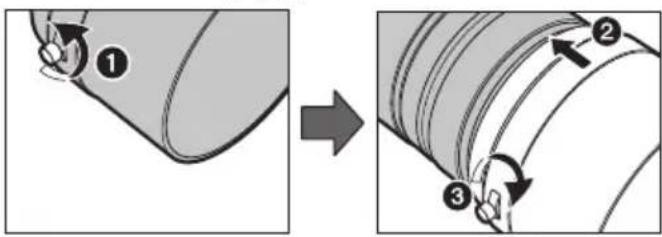

Note
- When using the lens with the supplied lens hood, check if the lens hood screw has become loose.
- If you use a lens hood and the flash at the same time, the lens hood will block the light from the flash, causing the lower portion of the screen to darken (vignetting) and making it impossible to adjust the amount of light. We recommend not using the lens hoods and flash at the same time.
- When carrying, the supplied lens hood can be temporarily attached in the reverse direction.
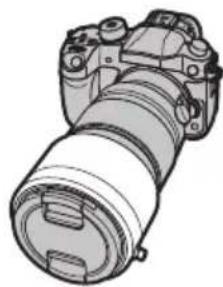
natural_image
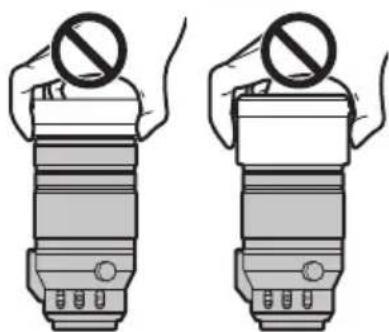
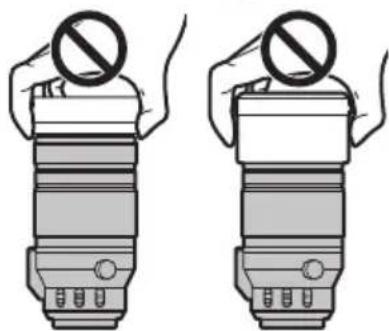
Line drawing of a DSLR camera with lens and frame (no text or symbols)- Do not carry the lens by holding only the built-in slide lens hood or the supplied lens hood.
natural_image
Illustration of two hands holding a cylindrical device with a prohibition symbol (no text or labels)Using the Tripod Mount
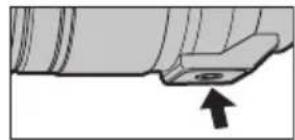
Attach a tripod to the tripod mount of the lens and not to that of the digital camera.
natural_image
Pure mechanical component diagram without any text, numbers, or symbolsIf the lens or digital camera prevents the tripod from being
attached, attach the supplied external tripod mount to the lens.
- When a battery grip (DMW-BGGH3) is in use, for example, it will come in contact with the head of your tripod, preventing the tripod from being attached. In this case, attach the supplied external tripod mount to the lens.
- An interface unit (DMW-YAGH/AG-YAGH) will also prevent a tripod from being attached even if you use the external tripod mount. In this case, attach your tripod to the appropriate tripod hole on the interface unit.
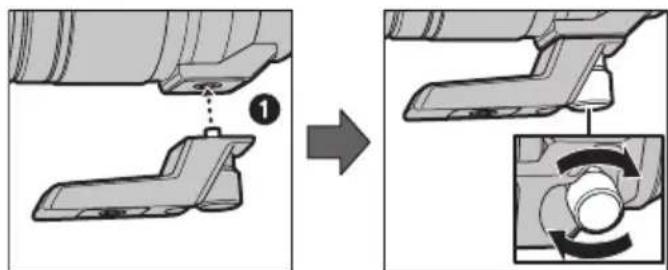
■ Attaching the external tripod mount (supplied)
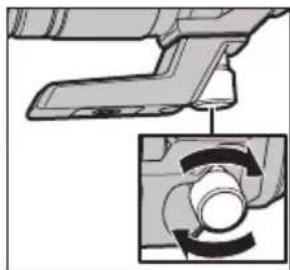
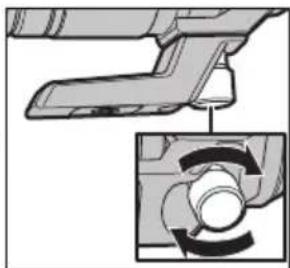
1 Insert the external tripod mount attachment screw (①) into the tripod mount of the lens.
2 Rotate the external tripod mount attachment screw in the direction of the arrows to fasten it firmly.
- Check that the external tripod mount attachment screw is not loose before use.
■ Changing the vertical/horizontal orientation
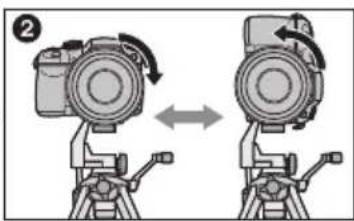
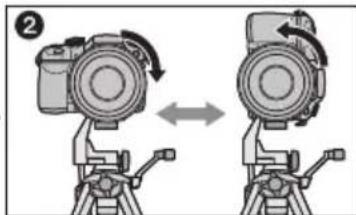
You can loosen the orientation locking knob (①) to rotate the lens together with the digital camera (②).
This way, you can quickly switch between the vertical and horizontal orientation while the tripod is in use.
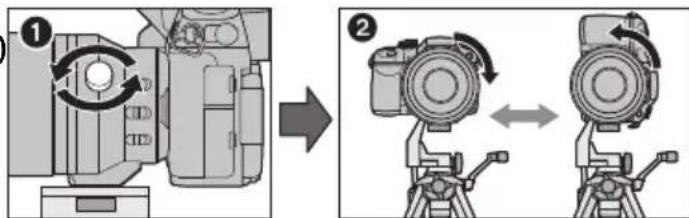
• After changing the orientation, tighten the orientation locking knob firmly and check that it is not loose.
Cautions for Use
Take care not to drop or knock the lens. Also take care not to put a lot of pressure on the lens.
- Take care not to drop the bag that you inserted the lens in as it may strongly shock the lens. The camera may stop operating normally and pictures may no longer be recorded. Also, the lens may be damaged.
- When carrying the digital camera with the lens attached, hold both the digital camera and the lens.
When using pesticides and other volatile substances around the camera make sure that they do not get onto the lens.
- If such substances get onto the lens they can damage the exterior case or cause the paint to peel.
Do not point the lens at the sun or other strong light sources.
- This could cause the lens to collect an excessive amount of light, resulting in fire and malfunction.
- Under no circumstances should the unit be stored in any of the following locations since doing so may cause problems in operation or malfunctioning.
– In direct sunlight or on a beach in summer
– In locations with high temperatures and humidity levels or where the changes in temperature and humidity are acute
– In locations with high concentrations of sand, dust or dirt
- Where there is fire
– Near heaters, air conditioners or humidifiers
– Where water may make the unit wet
- Where there is vibration
- Inside a vehicle
- Refer also to the operating instructions of the digital camera.
- When the unit is not going to be used for a prolonged period, we recommend storing with a desiccant (silica gel). Failure to do so may result in performance failure caused by mold, etc. It is recommended that you check the unit's operation prior to use.
- Do not leave the lens in contact with rubber or plastic products for extended periods of time.
- Do not touch the lens contact point. Doing so can cause failure of the unit.
- Do not disassemble or alter the unit.
Do not use benzine, thinner, alcohol or other similar cleaning agents to clean the lens glass or exterior cabinet.
- Using solvents can damage the lens or cause the paint to peel.
- Wipe off any dust or fingerprints with a soft, dry cloth.
- Use a dry, dust cloth to remove dirt and dust on the lens mount rubber, zoom ring, zoom lock ring, focus ring, or built-in slide lens hood.
- Do not use a household detergent or a chemically treated cloth.
Troubleshooting
When I turn on or off the camera or when I shake the lens, I hear a sound, for example a rattling sound.
- This is the sound of lens or aperture movement and is not a malfunction.
Specifications
Specifications are subject to change without notice.
INTERCHANGEABLE LENS FOR DIGITAL CAMERA
"LEICA DG VARIO-ELMAR 100-400 mm/F4.0-6.3 ASPH./POWER O.I.S."
| Focal length f=100 mm to 400 mm | (35 mm film camera equivalent: 200 mm to 800 mm) |
| Aperture type 9 diaphragm blades/circular aperture diaphragm | |
| Maximum aperture F4.0 (Wide) to F6.3 (Tele) | |
| Minimum aperture value F22 | |
| Lens construction | 20 elements in 13 groups (1 ED aspherical lens, 2 ED lenses, 1 UED lens) |
| In focus distance [FULL]: 1.3 m (4.27 feet) | to / [5 m- ]: 5.0 m (16.4 feet) to (from the focus distance reference line) |
| Maximum image magnification | 0.25 × (35 mm film camera equivalent: 0.5 × ) |
| Optical image stabiliser Available | |
| O.I.S. switch Available (Switching ON/OFF) | |
| [AF/MF] switch Available (Switching AF/MF) | |
| Mount “Micro Four Thirds Mount” | |
| Angle of view | 12° (Wide) to 3.1° (Tele) |
| Filter diameter 72 mm | |
| Max. diameter | Approx. 83.0 mm (3.3 inch) |
| Overall length | Approx. 171.5 mm (6.8 inch)(from the tip of the lens to the base side of the lens mount) |
| Mass | Approx. 985 g (2.17lb) (excluding the external tripod mount) |
| Dust-proof and splash-proof | Available |
Panasonic Warranty
- The product is warranted for 12 months from the date of purchase. Subject to the conditions of this warranty Panasonic or its Authorised Service Centre will perform necessary service on the product without charge for parts or labour, if in the opinion of Panasonic, the product is found to be faulty within the warranty period.
- This warranty only applies to Panasonic products purchased in Australia and sold by Panasonic Australia or its Authorised Distributors or Dealers and only where the products are used and serviced within Australia or it's territories. Warranty cover only applies to service carried out by a Panasonic Authorised Service Centre and only if valid proof of purchase is presented when warranty service is requested.
-
This warranty only applies if the product has been installed and used in accordance with the manufacturer's recommendations (as noted in the operating instructions) under normal use and reasonable care (in the opinion of Panasonic). The warranty covers normal domestic use only and does not cover damage, malfunction or failure resulting from use of incorrect voltages, incorrect installation, accident, misuse, neglect, build-up of dirt or dust, abuse, maladjustment of customer controls, mains supply problems, thunderstorm activity, infestation by insects or vermin, tampering or repair by unauthorised persons (including unauthorised alterations), introduction of sand, humidity or liquids, commercial use such as hotel, office, restaurant, or other business or rental use of the product, exposure to abnormally corrosive conditions or any foreign object or matter having entered the product.
-
This warranty does not cover the following items unless the fault or defect existed at the time of purchase: (a) Cabinet Part(s) (b) Video or Audio Tapes (c) SD cards or USB devices (d) User replaceable Batteries (e) DVD, Blu-ray or Recordable Discs (f) Video / Audio Heads from wear and tear in normal use (g) Information stored on Hard Disk Drive, USB stick or SD card (h) DTV reception issues caused by TV Aerial / Cabling / Wall socket(s) etc.
-
Some products may be supplied with Ethernet connection hardware. The warranty is limited on such products and will not cover (a) Internet and or DLNA connection / setup related problems (b) Access fees and or charges incurred for internet connection (c) The use of incompatible software or software not specifically stipulated in the product operations manual; and (d) Any indirect or consequential costs associated with the incorrect use or misuse of the hardware, its connection to the Internet or any other device.
-
To claim warranty service, when required, you should: • Telephone Panasonic's Customer Care Centre on 132600 or visit our website referred to below and use the Service Centre Locator for the name/address of the nearest Authorised Service Centre. • Send or take the product to a Panasonic Authorised Service Centre together with your proof of purchase receipt as a proof of purchase date. Please note that freight and insurance to and / or from your nearest Authorised Service Centre must be arranged by you. • Note that home or pick-up/delivery service is available for the following products in the major metropolitan areas of Australia or the normal operating areas of the nearest Authorised Service Centres:
- Plasma/LCD televisions / displays (screen size greater than 103 cm)
- The warranties hereby conferred do not extend to, and exclude, any costs associated with the installation, de-installation or re-installation of a product, including costs related to the mounting, de-mounting or remounting of any screen, (and any other ancillary activities), delivery, handling, freighting, transportation or insurance of the product or any part thereof or replacement of and do not extend to, and exclude, any damage or loss occurring by reason of, during, associated with, or related to such installation, de-installation, re-installation or transit. Panasonic Authorised Service Centres are located in major metropolitan areas and most regional centres of Australia, however, coverage will vary dependant on product. For advice on exact Authorised Service Centre locations for your product, please telephone our Customer Care Centre on 132600 or visit our website and use the Service Centre Locator. In addition to your rights under this warranty, Panasonic products come with consumer guarantees that cannot be excluded under the Australian Consumer Law. If there is a major failure with the product, you can reject the product and elect to have a refund or to have the product replaced or if you wish you may elect to keep the goods and be compensated for the drop in value of the goods. You are also entitled to have the product repaired or replaced if the product fails to be of acceptable quality and the failure does not amount to a major failure. If there is a major failure in regard to the product which cannot be remedied then you must notify us within a reasonable period by contacting the Panasonic Customer Care Centre. If the failure in the product is not a major failure then Panasonic may choose to repair or replace the product and will do so in a reasonable period of time from receiving notice from you.
THIS WARRANTY CARD AND THE PURCHASE DOCKET (OR SIMILAR PROOF OF PURCHASE) SHOULD BE RETAINED BY THE CUSTOMER AT ALL TIMES
If you require assistance regarding warranty conditions or any other enquiries, please visit the Panasonic Australia website www.panasonic.com.au or contact by phone on 132 600 If phoning in, please ensure you have your operating instructions available.
Panasonic Australia Pty. Limited
ACN 001 592 167 ABN 83 001 592 187
1 Innovation Road, Macquarie Park NSW 2113
PRO-031-F11 Issue: 4.0
Inhalt
natural_image
Diagram of a cylindrical mechanical component with labeled parts (1 and 2), showing internal structure without any text or symbols.natural_image
Diagram of a cylindrical pipe with a directional arrow indicating flow or movement (no text or symbols)
Hinweis
natural_image
Line drawing of a DSLR camera with lens and frame (no text or symbols)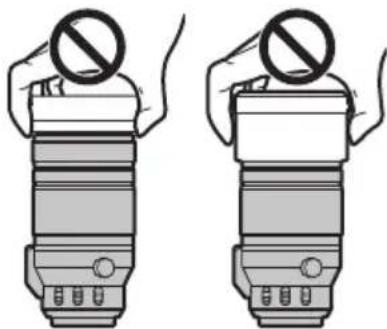
natural_image
Illustration of two hands holding a cylindrical device with a prohibition symbol above (no text or labels)Stativanschluss
natural_image
Pure mechanical component diagram without any text, numbers, or symbols9 Commutateur [AF/MF] (MPA/MP)
natural_image
Diagram of a cylindrical mechanical component with two numbered arrows indicating direction (no text or symbols present)natural_image
Diagram of a cylindrical pipe with a directional arrow indicating flow or movement (no text or symbols)■ Fixation du parasoleil (Fourni)

Note
natural_image
Line drawing of a DSLR camera with lens and frame (no text or symbols)natural_image
Illustration of two hands holding a camera lens with no visible text or symbolsnatural_image
Pure mechanical component diagram without any text, numbers, or symbolsnatural_image
Mechanical assembly diagram showing a component being inserted into a housing (no text or symbols present)
natural_image
Mechanical assembly diagram showing a lever and gear mechanism with no visible text or symbols
natural_image
Illustration of a camera setup with two identical cameras mounted on tripod stands, showing motion arrows (no text or symbols)8 Interruptor O.I.S.
natural_image
Diagram of a cylindrical mechanical component with two labeled parts (① and ②), showing internal structure without any text or symbols.natural_image
Diagram of a cylindrical pipe with a directional arrow indicating flow or movement (no text or symbols)
Nota
natural_image
Technical line drawing of a DSLR camera with lens and frame (no text or symbols)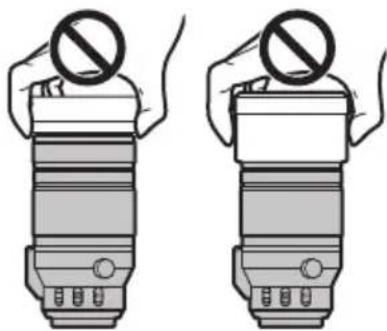
natural_image
Two identical illustrations of a handheld device with a prohibition symbol above it, no text or symbols present.natural_image
Pure mechanical component diagram without any text, numbers, or symbolsnatural_image
Diagram of a cylindrical mechanical component with labeled parts (1 and 2), showing internal structure and directional arrow (no text or symbols beyond labels)natural_image
Diagram of a cylindrical pipe with internal layered structure and an arrow indicating direction (no text or symbols)
Nota
natural_image
Technical line drawing of a DSLR camera module (no text or symbols)natural_image
Illustration of two identical camera lenses with no visible text or symbols, each holding a circular object above its head (no text or symbols present)natural_image
Pure mechanical component diagram without any text, numbers, or symbols■ 關於水汽凝結(鏡頭的霧化)
natural_image
Diagram of a cylindrical pipe with a directional arrow indicating flow or movement (no text or symbols)安裝鏡頭遮光罩(提供的附件)
注意
natural_image
Line drawing of a DSLR camera with lens and frame (no text or symbols)- 請勿靠僅持拿內置滑動鏡頭遮光罩或提供的鏡頭遮光罩來攜帶鏡頭。
natural_image
Illustration of two hands holding a cylindrical device with a prohibition symbol (no text or labels)使用三腳架台座
natural_image
Pure mechanical component diagram without any text, numbers, or symbolsnatural_image
Technical illustration of a mechanical component with a dashed line indicating a step (no text or symbols present)
natural_image
Mechanical assembly diagram showing a bracket and gear mechanism (no text or symbols)natural_image
Mechanical assembly diagram showing a rotating component with no visible text or symbols
natural_image
Illustration of a camera mounted on a tripod with directional arrows indicating rotation (no text or symbols)natural_image
Diagram of a cylindrical mechanical component with labeled parts (1 and 2), showing internal structure without any text or symbols.natural_image
Diagram of a cylindrical pipe with a directional arrow indicating flow or movement (no text or symbols)
Примечание
natural_image
Line drawing of a DSLR camera with lens and frame (no text or symbols)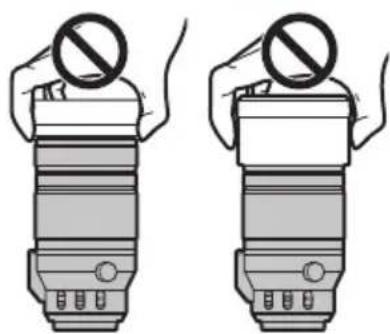
natural_image
Illustration of two hands holding a cylindrical device with a prohibition symbol (no text or labels)natural_image
Pure mechanical component diagram without any text, numbers, or symbolsManufactured by: Panasonic Corporation
Kadoma, Osaka, Japan
Importer for Europe: Panasonic Marketing Europe GmbH
Panasonic Testing Centre
Winsbergring 11, 22525 Hamburg, Germany
Panasonic Corporation
Web Site: http://www.panasonic.com
© Panasonic Corporation 2016
- Operating Instructions
- INTERCHANGEABLE LENS FOR DIGITAL CAMERA
- Model No. H-RS100400
- LUMIX
- Contents
- Information for Your Safety
- -If you see this symbol-
- Disposal of Old Equipment
- Only for European Union and countries with recycling systems
- Precautions
- Lens Care
- ENGLISH
- ■ About Condensation (Fogging of the Lens)
- Supplied Accessories
- Names and Functions of Components
- Note
- Attaching/Detaching the Lens
- ■ Attaching Filters
- Using the Lens Hoods
- ■ Attaching the Lens Hood (Supplied Accessory)
- Using the Tripod Mount
- ■ Attaching the external tripod mount (supplied)
- ■ Changing the vertical/horizontal orientation
- Cautions for Use
- Take care not to drop or knock the lens. Also take care not to put a lot of pressure on the lens.
- When using pesticides and other volatile substances around the camera make sure that they do not get onto the lens.
- Do not point the lens at the sun or other strong light sources.
- Do not use benzine, thinner, alcohol or other similar cleaning agents to clean the lens glass or exterior cabinet.
- Troubleshooting
- When I turn on or off the camera or when I shake the lens, I hear a sound, for example a rattling sound.
- Specifications
- Panasonic Warranty
- THIS WARRANTY CARD AND THE PURCHASE DOCKET (OR SIMILAR PROOF OF PURCHASE) SHOULD BE RETAINED BY THE CUSTOMER AT ALL TIMES
- Panasonic Australia Pty. Limited
- Inhalt
- Hinweis
- Stativanschluss
- ■ Fixation du parasoleil (Fourni)
- Nota
- ■ 關於水汽凝結(鏡頭的霧化)
- 安裝鏡頭遮光罩(提供的附件)
- 注意
- 使用三腳架台座
- Примечание
Brand : PANASONIC
Model : DG 100400mm f46.3 ASPH. POWER O.I.S
Category : Camera lens