USER MANUAL 28PT4404 PHILIPS
Thank you for purchasing this television set.
This handbook has been designed to help you install and operate your TV set. We would strongly advise you read it thoroughly.
Tuning in to the TV channels 2
Using other menus 4
Remote control keys 5
Teletext 6
Peripherals 7
The keys on the TV set 8
Tips 8
Installing your television set
Positioning the television set
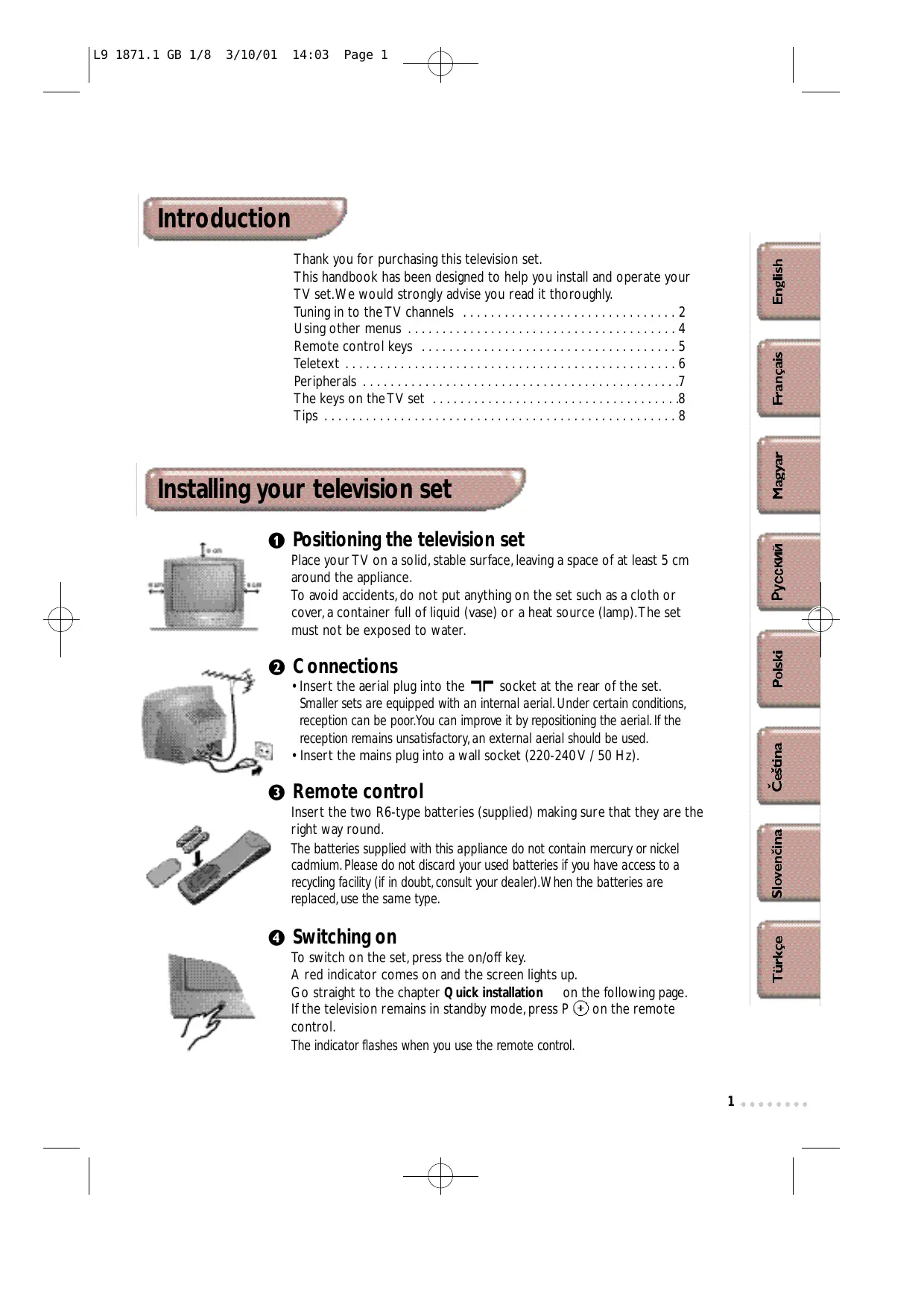
Place your TV on a solid, stable surface, leaving a space of at least 5 cm around the appliance.
To avoid accidents, do not put anything on the set such as a cloth or cover, a container full of liquid (vase) or a heat source (lamp). The set must not be exposed to water.
Connections
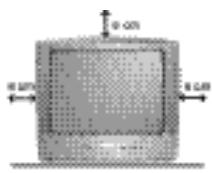
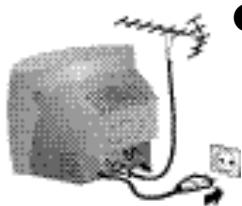
- Insert the aerial plug into the socket at the rear of the set
Smaller sets are equipped with an internal aerial. Under certain conditions, reception can be poor. You can improve it by repositioning the aerial. If the reception remains unsatisfactory, an external aerial should be used.
- Insert the mains plug into a wall socket (220-240V / 50 Hz).
Remote control
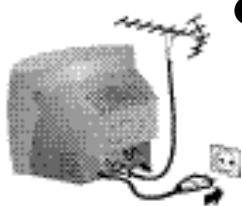
Insert the two R6-type batteries (supplied) making sure that they are the right way round.
The batteries supplied with this appliance do not contain mercury or nickel cadmium. Please do not discard your used batteries if you have access to a recycling facility (if in doubt, consult your dealer). When the batteries are replaced, use the same type.
4 Switching on
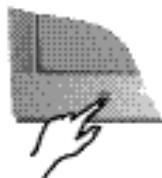
To switch on the set, press the on/off key.
A red indicator comes on and the screen lights up.
Go straight to the chapter Quick installation on the following page. If the television remains in standby mode, press P on the remote control.
The indicator flashes when you use the remote control.
Tuning in to channels
Quick installation (first use)
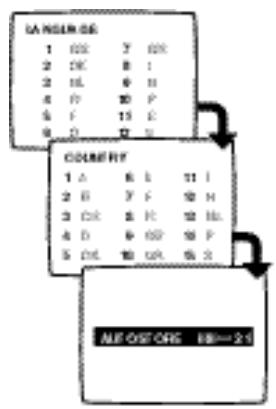
The first time you switch on the television, a menu appears on the screen. This menu asks you to choose the language of the other menus.
If the menu does not appear, hold down the PROGRAM- and PROGRAM+ keys (or and P-) on the set for 4 seconds to bring it up.
Use the keys numbered from ① to ⑨ on the remote control to choose your language (for English, press ①). Another menu appears.
2 Select your country (for GB, press 9).
As soon as your country is entered, tuning in starts automatically. The operation takes a few minutes. A display shows the search status and the number of programmes found. When it has finished, the menu disappears and the last programme is displayed.
If no programmes are found, refer to the chapter entitled Tips on p. 8.
If the transmitter or the cable network broadcasts the automatic sort signal, the programmes will be correctly numbered.
If not, the programmes found will be numbered in descending order starting at 99, 98, 97, etc. (or 79, 78,...). Use the SORT menu to renumber them.
Some transmitters or cable networks broadcast their own sort parameters (region, language, etc.). Where this is the case, make your choice using the keys and confirm with .
To renumber the programmes found
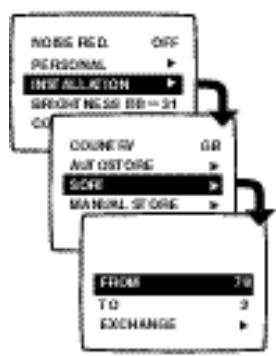
Press the key.The main menu is displayed.
Press once to select INSTALLATION, then press The INSTALLATION menu appears. The LANGUAGE option is activated.
Press 3 times to select SORT then press The SORT menu appears. The FROM option is activated.
4 Select the programme you wish to renumber using keys or 0 to 9. Example: to renumber programme 78 as 2, press ⑦ ⑧.
Select option A (key ) and enter the new number with keys or to 已 (for the example given, enter 2)
Select EXCHANGE (key) and press. The message EXCHANGED appears, the exchange takes place (to cancel). In our example, programme 78 is renumbered as 2 (and programme 2 as 78).
7 Select the option FROM (key) and repeat stages 4 to 6 as many times as there are programmes to renumber.
To exit from the menus, press
Manual tuning
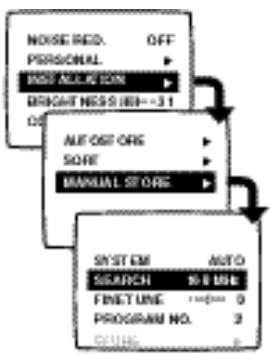
This menu allows you to store the programmes one by one.
Press The main menu comes up on the screen.
Press once to select INSTALLATION then press
3 Select MANUAL STORE (V) and press C. The MANUAL STORE menu appears.
4 Select SYSTEM (only available on certain models). Use > to select AUTO (automatic detection) or manual detection: EAST- EU (standard DK) or WEST- EU (standard BG).
5 Select SEARCH and press C>.The search begins. As soon as a programme is found, the search will stop. If you know the frequency of the programme required, simply enter its number using keys 0 to 9. If no programme is found, refer to the Tips chapter on p.8.
If reception is unsatisfactory, select FINE TUNE and press or to fine tune.
7 Select PROGRAM NO. and enter the required programme number using or ① to ⑨.
Select STORE and press. The message STORED appears. The programme has been stored.
Repeat steps 5 to 8 as many times as there are programmes to store. To exit the menus, press
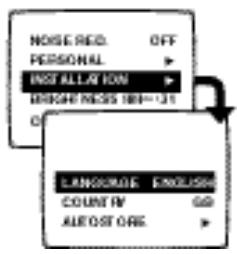
Press The main menu is displayed on-screen.
Press once to select INSTALLATION and press .The INSTALLATION menu appears.
Use to select a setting and to adjust.
- LANGUAGE: to change the menu language.
- COUNTRY: to select the country you are in (GB for Great Britain). This setting affects the automatic programme sort.
- AUTOSTORE: press to begin storing. The operation takes a few minutes. When it is complete, the INSTALLATION menu reappears automatically. For more information, see the Quick Installation chapter, steps 3 to 5 on the previous page. To exit or interrupt the search, press
- EXTERNAL: press to bring up the menu. You have access to a series of names which allow you to customise the names of the external sockets. When you next select an external socket, its chosen name will be displayed for a few seconds.
4 To exit from the menus, press

Display the menu.

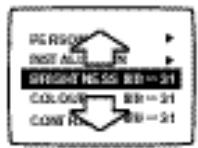
2 Select a setting.

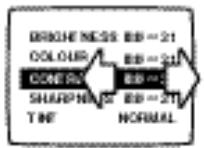
3 Adjust.
Note: the menus disappear automatically after 30 seconds if no further adjustments are made.
To exit from the menus, press (or to come back to the previous stage).
Adjusting the picture
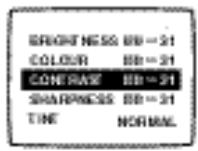
Press. You can adjust: BRIGHTNESS, COLOUR, CONTRAST, SHARPNESS, TINT, CONTRAST+ and NOISE RED..
- SHARPNESS: alters the crispness of the image,
- TINT: alters the colour balance. There are 3 options: COLD (blue tint), NORMAL (balanced) or WARM (red tint).
- CONTRAST+: automatically adjusts the image contrast according to content (the darkest part of the image is always black).
- NOISE RED.: alleviates fuzziness (snowy picture). This setting is useful when reception is difficult.
Adjusting the sound
(stereo models only)

Press You can adjust DELTA VOL. and, for stereo models only, BALANCE, TREBLE, BASS and AVL.
- AVL (Automatic Volume Leveler): automatic volume control used to avoid sudden increases in volume, particularly when changing programme or during advertisements.
Storing settings
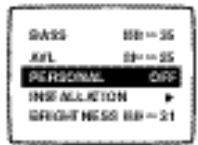
You can store your own sound and picture settings.
1 First carry out your menu settings.
Next, select PERSONAL and press .The message STORED is displayed. The settings are stored.
Note: volume and DELTA VOL. are automatically stored and do not need to be stored in the PERSONAL menu.
The keys on the remote control
Depending on the model, there are 2 different versions of the remote control.
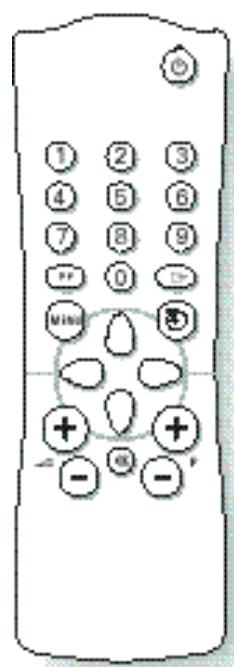
Press:

Standby

SelectProgramme

Numerical Keys

Volume

Mute

Menu

Favourite pages.

SelectEXT sockets

Timer

Screen Format (Only available on certain models)

Sound Mode (stereo models only)

Screen Information (stereo models only)
To obtain:
To set the TV to standby mode. The red indicator lights up. To switch the set back on, press P , P or ① to ⑨.
Brings up the previous or following programme.
For direct access to programmes For a 2-digit programme number, the second digit must be entered before the dash disappears. On certain programmes, the title of the programme is displayed for a few seconds at the bottom of the screen.
To adjust the sound level.
To disable or enable the sound.
To call up or exit from the menus. Use and to adjust. The menus disappear automatically after 30 seconds if no further command is given.
To retrieve the settings stored using the PERSONAL menu (see p.4).
Press several times to select EXT sockets (see p.7).
To select an automatic standby period (from 0 to 240 minutes).
The key allows the picture to be enlarged vertically to get rid of the black bands around cinema-format films. The key allows the picture to be compressed vertically (16:9 format).
To switch from STEREO (and NICAM STEREO) programmes to MONO or, for bilingual transmissions, to choose between DUAL I and DUAL II (and NICAM DUAL I, NICAM DUAL II and mono). NICAM is a process by which sound is transmitted as a digital quality.
Hold down for 5 seconds to permanently display the programme number. Press quickly to display or remove the programme number, the time and the sound mode.
Teletext
(Only available on certain models)
Teletext is an information system, broadcast by certain channels, which can be read like a newspaper. It also provides subtitles for people with hearing difficulties or those who are unfamiliar with the language in which a particular programme is being broadcast (cable networks, satellite channels, etc.).
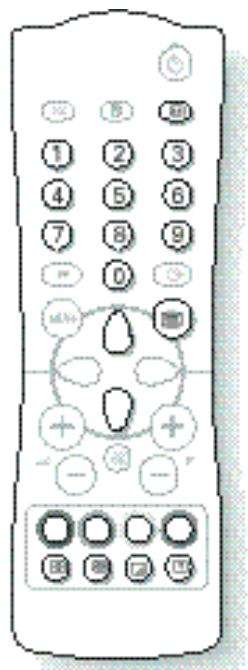
Press:

Switch teletext on/off

Selecting a teletext page


Table of contents

Direct access to subject headings
To obtain:
To call up or exit from teletext. At first, the main index page appears with a list of the items available. Each page has a corresponding 3-figure number.
If the selected channel does not broadcast teletext, 100 will appear and the screen will remain blank (in this case, exit from teletext and choose another channel).
Use keys ① to ⑨ or ⑩ to enter the page number required. For example: for page 120, press ① ② ⑩. The number is displayed in the top left-hand corner, the page counter starts searching and the page is displayed. Repeat the procedure to consult another page.
If the counter continues searching, this means that the selected page is not broadcast. Choose another number.
To return to the table of contents (normally page 100).
Coloured zones are displayed at the bottom of the screen. The 4 coloured keys give access to the corresponding subjects or pages.
The coloured zones flash when the subject or the page is not yet available.

Page enlargement

Stop the sequence of sub-pages
Press this key to display the upper, then lower part of the screen, and then to return to the normal page size.
Some pages contain sub-pages which follow on automatically from one another. This key allows sub-page sequence to be enabled or disabled. The sign appears in the top left hand corner.

Overla ying tex on the TV picture

Reveal
To activate or deactivate screen overlay.
Use this key to reveal/conceal hidden information (answers to puzzles).
Connecting other appliances
Depending on the model, the TV is equipped with 1 or 2 euroconnector sockets, EXT1 and EXT2.
The EXT1 socket controls audio video input/output and RGB input.
The EXT2 socket (if available) controls audio video input/output and S-VHS input.
Video recorder
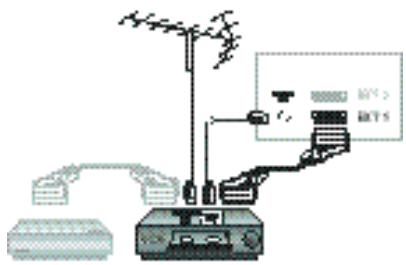
Video recorder (only)
Connect as shown using a good quality euroconnector cable.
If your video recorder does not have a euroconnector socket, the only connection possible is via the aerial cable. You will therefore need to tune in your video recorder test signal and assign it programme number 0 (see manual store, p. 3). To reproduce the video recorder picture, press ①
Video recorder with decoder
Connect the decoder to the second euroconnector on the video recorder. You can then record scrambled transmissions.
Other equipment
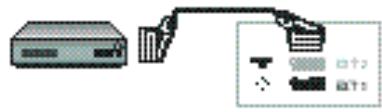
Satellite receiver, decoder, DVD, games, etc.
For sets equipped with two euroconnector sockets, it is best to connect the equipment which produces RGB signals (digital decoder, DVD drives, games, etc.) to EXT1 and the equipment which produces S-VHS signals (S-VHS and Hi-8 video recorders) to EXT2.
Front panel connections
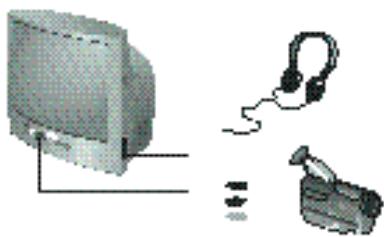
(Only available on certain models)
Depending on the model, sockets are on the front (sometimes under a flap) or on the right-hand side of the set.
Headphones (Only available on certain models)
When the earphones are plugged in, the sound on the set is cut off. Adjust the volume using the keys.
The headphones must have an impedance of between 32 and 600 ohms.
Camcorder
Certain models are equipped with AUDIO/VIDEO connections. You will find 1 video input + 1 sound input (mono versions) or 2 sound inputs left (L) and right (R) on stereo versions. Make the connections, then use the key to select EXT (or EXT2 for models with 2 euroconnector sockets). The switch between the front and rear sockets is automatic with priority on front sockets.
For a monophonic camera, connect the sound signal to the AUDIO L input. Use the - D key to reproduce the sound through the left and right TV speakers.
To select connected equipment
Press to select EXT(1) and, on models with 2 euroconnector sockets:EXT2 and Y/C2 (S-VHS signal on EXT2).
The switch is automatic on most appliances (decoders, etc.).
The keys on the TV set
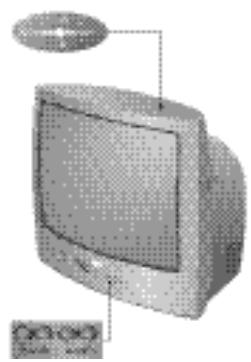
The television set has 4 keys which are located on the front or the top of the set depending on the model.
The VOLUME - + (- +) keys are used to adjust the sound level. The PROGRAM - + (- P +) keys are used to select the required programmes.
To access the menus, hold down the VOLUME - and VOLUME + keys simultaneously. Then use the PROGRAM - + keys to select an adjustment and the VOLUME - + keys to make the adjustment.
To exit from the menu, hold down the VOLUME - and VOLUME + keys for a few seconds.
Tips
Poor reception or no picture
The proximity of mountains or high buildings can cause ghost pictures, echoing or shadows. If this is the case, try tuning the picture using FINE TUNE (p. 3).
Do you have the right system (p. 3)?
Check that the aerial plug or euroconnector plug is properly connected. Check also that your aerial is capable of receiving broadcasts in this frequency range (UHF or VHF).
Adjusting the picture
In case of bad reception (fuzzy picture), set the NOISE RED to ON: p. 4.
The picture is in black and white
To read a video cassette, check that it is recorded in the same format as that of the video recorder (PAL, SECAM or NTSC).
No sound
If certain programmes have a picture but no sound, this is because you do not have the correct TV system (see p. 3).
Standby
The set switches automatically to standby if it receives no signals for a period of 15 minutes.
When it is in standby mode, the set uses energy. To save electricity, we advise you to switch it off using the on-off button.
Still having problems?
If the set breaks down, never try to repair it yourself. Consult your after-sales service department instead.
Recycling
The materials used in your set are either reusable or can be recycled.
To minimise environmental waste, specialist companies collect used appliances and dismantle them after retrieving any materials that can be used again (ask your dealer for further details).
Introduction
YcTaHOBka TeJIeBN3Opa
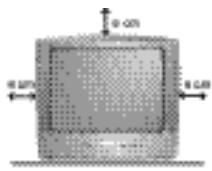
Pa3MeUeHne TeJeBn3Opa
YctaHOBtB TeLEBn3Op Ha npOHyIO u yCTOuHByIO NOBepxHocTb,
npEydCMOTpeB CBO6oDHOe npocTaPAnCTBO He MeHee 5 CM BOKpyr TeLEBn3Opa.
He HApkpbBaTb erO (cAnpTeKoI, cKaTePbTu I.T.I), He CTaBtB Ha Hero
npEmdTb, HAnOIHNHeHHBe KJNDKOCTBIO (Ba3b) NII IN BIDJeJIHOUe TEPIO (IamMb),
yTO6bI n36ExKaTb OAnchOCTeIN IIN IOBpeXJdEHN. He dOnyckaTb IonoJaHaHn
6bp3rOB BOdBHa TELEBn3Op.
2 PoiKJIIOUeHHe
BCTaBnTbФmKy aHTeHHb B pa3bem T, pacnoJoxKeHHb C 3aJHe CTOpOHb TeNeBu3Opa.
TeBUNOpbICKpaHOM ManofofopMaTObOpyObaHbKOmHaTHOH aHTeHHoB. BHeKOTopbIX ycNoBnX npEm nepeauch moKeT 6bTb 3atpydneH. BbMoKeTe yNywnTb npEm, Bpaaun nnImnImeHraKaIOH aHTeHHb. Ecnn KaueCTBO npEema OCTaETC NocpeCTBeHHbIM, HJxHO INCNOJIb3OBaT BHEUHIO aHTeHHy.
BkIIOHTe Hnyp nITaHnB CeTb (220-240 B / 50 Tc).
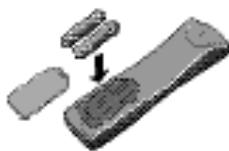
(CyuecTBY TnHb Ha HeKOTOpbIX MoJenX)
TeIeKCT -3TO CNTema Npepaun INHΦopMaunn IO ONpeJeHHbIM KaHaJIaM, C KOTopoM MOKHO 03NaKOMNtBa cak C rataToJ. 3Ta CNTema IIO3BONrE TaKKe BBIOJNTb Ha 3KpA H cy6TITpb dnn IIOe Co CnaBIM CNyXOM mIIN drr IIOe, pIOXO 3HaIOUnx R3bIK pepaun (Ka6eNbHbIe CETn, CnyTHNKOBBe IporpAmMbI n T. d.).
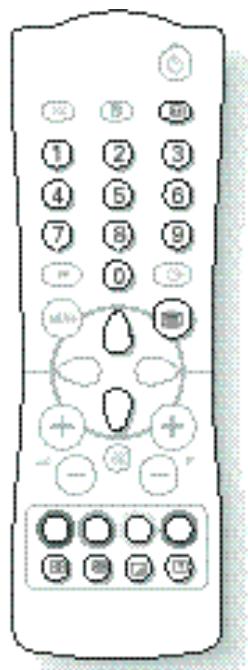
HaxMNTe Ha :

BbIOB/BbXoN3 TeTeKCTa

Bb6op cTpaHnCbl TeneTeKCTa

OrnaBneHne

PpMOn Doctyn K py6pnkam
BbI nonyuaete :
Дя Вьзова ил Вьхова n3 Teletekcta.
В 1ы ра з на Зкране польгетсг олавление счпском рубр,在 KКOTOBМ bI IMMeTe DOCTyn.
Kakdя рубриkaобзанeHa 3-нанbIM HOMEpOM CTpaHnUcIy.
Ecnвьбрань канн He nepedaet Teletekcta,Зркан OCTaETCЯрн И пOBнETcR 3нak 100 (ВТOM CNYaE,БИйTN n3 Teletekcta n BvBpaTb dpyroн KaHan).
C NOMOJIIO KJIABNIOT ① NO ⑨ H6paTb
JekaemblHomep cTpaHnIbI. PImep: cTp. 120,
HaKaTb Ha KJIABNIUI ① ② ①
Homep noBHeTcB B ePxHem JEBOM yrIy 3KpaHa,
pa6otaet cHTyNK, 3aTeM HA 3kPAn BbIOHTcR
Tpe6yMaar cTpaHnIa. NoBTopNt bpoUeDpy dIa
DOctYKn KdyrUm cTpaHnAm.
Ecnn CHTyHK pOdoJnaeT nonck, 3TO O3HaueT, 4TO
3Ta cTpaHnA He nepeJaTeC. Bb6paTb pyrO Hiomep
ДявOBВРATA K CПИСКУ OСHOBHbIX pyбпK (ОьИЧО CTp. 100).
B HnKHeJ qactn 3kpaHa BbCbeuBaIOCTa
ZbTeHbIe 3ObH.4 ZbETbIX KNaBnU ONoB0JIOT
NONyHTb DOctyn K yOpknam n
COOTBEcTBYIOUM CTpaHnCaM.
ZbEtHbIe 3ObH MeIbKaIoT,ecnIOCTyn K
CTpaHnCe IIN pyOpNIe HeBO3MOKeH.
Pa3bEmEXT1ImeetBxObl-BxOblIpyaIO-nBnDeoannapatypbIINxoBtRGB.
Pa3bemEXT2(ecnuecb)ImeetBxOdbi-BbxOdbIyrayno- uBnOeaoaapatypuBxOdbS-VHS.
BnndeomarHHTOΦoH
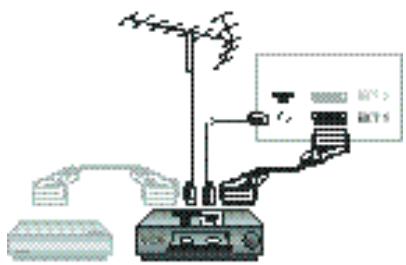
ToIbKO BnEOMaHHTOPOH
OcuyecTBnTe yka3aHbIe Ha npucyHKe POnkIoueHnI, nCNoJIb3yIuHyp "nePntJI" xopoWero KaueCTBa.
Ecn y BaWero BnDeOmaHrHToΦoHa Het pa3bema nepuTeNb, TO BO3MOXHa JINiMb CBa3bYepe3 Ka6eNb aHTEHb. BbI DOnJXbI HauTn TcTe-CnHaN BaWero BnDeOmaHrHToΦoHa n pncBOUTb EMy Homep nporpaMMb 0 (CM.pyHoe 3aONMHaHne, Ctp.3).
3aTeMДIЯBOCPON3BedeHnI N3O6paJxEHn BIneOmaHHToΦoHa HaKaTaHa KNaBnUly ⑧
BndeomarHHTOcoH n DeKoDpyUooee yctpoiCTBO
(CyuctbyT NnHb Ha HEKOTOpBx MOeJnx)
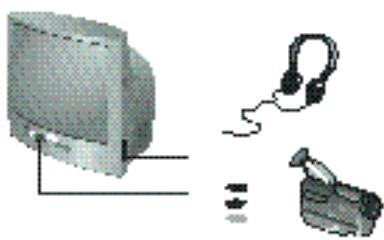
B 3aBcIMOCtN OT MOJEn, pa3bEmb MoYr HaxOuTbcra Ha nepeJeH CTeHKe (HOrda PoI d UToPko) IIN C ppaBOI cToPOHb TeneBu3Opa.
HayuHnKn (CyueCTByT Nusb Ha HeKOTOpbIX MoeJnx) IIOKnIOUeyHn HayuHnKOB 3ByK TeJeBn3Opa OTKIIouaETc KnaBnUs +no3BOJHOt peryInpoBaT bpOMKoctb.
COPOTIBJIHHeHayUHHIOB JOnJHO COCTaBnTb OT 32 Do 600 Om.
Bundeokamepa
HekotopbIe moJen o6OpuObaHb bXoJaMn AUDIO/VIDEO.BbI hainTe 1 BxO BnJeO + 1 BxO ayDIO (Ha moJenX MoHO) IIN 2 BxoJa,JIeBb (L) nIpaBb (R) Ha moJenX Ctepeo.OcUeCTBNTb IOKnIOHeHne, a 3aTeM Bbl6PaTb, c NOMOJIbIO KlaBIMN ,EXT (IIIN EXT2,IIN MOJEN C DByMaPbAeMaMn nepiTeJIb).
KOMmyTaIy MexNy IpeDnHIMN 3aIHNM BxOaMn FbJIeTcABTOMATUeCKo, C pInOpNTetOM dIЯ IpeDnIX BXOIOB.
Ди BADEOKaMepb CO 3ByKOM MOHO, NOKIOUHTb 3ByKOBOU CNHAn K BXOy AUDIO L. IVcNoIb3OBaTb KnaBnUy HIN DnI BOCIpOn3BeHnA 3Byka NeBbIM nPabBIM rPoMKoROOpNTeNAM TeneBu3Opa.

Дя Вьобopa поклioуeHHbIX annapaTOB
IcnoB3OBAbKJIaBnUy DnI BbIbopaEXT1nnEXT2uY/C2dna MoDJIeN Cdbympa3bEmamPiepntel (CnHAn S-VHS HaEXT2). BoIbWHCTBO aIInapaTOB CAMNOCUYIeCTBIAIOKOMMyTaIIO (JeKOepeN T. d.).
KlaBnI TeJIeBn3Opa
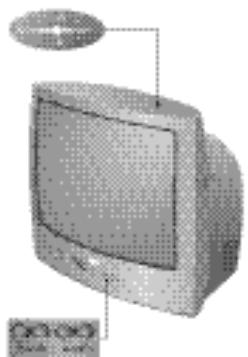
TeJIeBn3Op IMeET 4 KNaBnSi, KOtOpbIe HaxoJrTcR JIo6 Ho Na nepeJeHc TcEHKe, JIo6 Ho HA BepxHeI IOBePxHOCTN, B 3aBNCIMOCTN OT MOJeEi.
KnaBnVOLUME-+(-+)no3BOJNtpeynpoBaTbypoBeH3Byka. KnaBnVPROGRAM-+(-P+)no3BOJNtBb6IpaT nporpaMMbl. IaIOCTynKaMeHOHaKaTbOHOBpeMeHHOHaKnaBnVOLUME-VOLUME+.3aTEMKnBnVPROGRAM-+no3BOJNtBb6paT bHaCTpOky,aKnaBnVOLUME-+npou3BecTNHaCTpOky. IaBBXoJaN3MeHOdepKaTbHaKaTbIMnKnaBnVOLUME-N VOLUME+.
Cobetbl
Плохoe KauectBO n306paJxHnIa
БлзocьгориИВысOKИX 3дани можетбытпprчню pa3dBaVBHЯ n3obpaЖeHЯ,OTpaЖeHHbIX CnHaNOBиIIMTeMHbIX yuactKOB B n3obpaЖeHЯ. B 3tOM cIyuae Heo6xOДМО ckorpeKtUPOBaT bHaCTpoIky n3obpaЖeHЯ c nomoцьTOY.HACTPOIKA"(cTp.3)
Privolanie teletextu

Vyber stranky


Obsah

Priamy pristup k rubrikám
Dostanete: