Apex XD50 - Thermal scope PULSAR - Free user manual and instructions
Find the device manual for free Apex XD50 PULSAR in PDF.



| Product type | Thermal imaging riflescope |
| Brand and model | Pulsar Apex XD50 |
| Detector | Uncooled microbolometer, 384×288 pixels, 8–14 μm |
| Refresh rate | 50 Hz |
| Optical magnification | 2× – 4× (continuous) |
| Objective lens | F50 mm, F/1.2 |
| Digital zoom | 2× (gradual 1× – 2× in 0.1× steps) |
| Field of view (H×V) | 11° × 8.2° (without zoom) / 5.5° × 4.1° (2× zoom) |
| Eye relief | 67 mm |
| Diopter adjustment | −4 to +3.5 diopters |
| Detection range (1.7×0.5 m target) | 1250 m |
| Minimum focusing distance | 5 m |
| Display | OLED 640×480 pixels |
| Reticle | 10 switchable types, adjustable black/white color |
| Impact point correction (click) | 30 mm/30 mm at 100 m |
| Reticle adjustment range | 6000/6000 mm at 100 m (H/V) |
| Power supply | 4–6 V (2 CR123A batteries) or external 8–15 V |
| Battery life | 5 hours (economy mode) |
| Dimensions (L×W×H) | 343 × 80 × 75 mm |
| Weight (without batteries and mount) | 0.7 kg |
| Protection rating | IPX7 (waterproof) |
| Shock resistance | 6000 J (on rifled firearms) |
| Operating temperature | −25 °C to +50 °C |
| Main functions | Operating modes (rocks, forest, reconnaissance), manual/semi-automatic/automatic calibration, PiP, Freeze, white hot/black hot, memory for 3 weapons, PAL/NTSC video output, wireless remote control, Weaver rail for accessories |
| Maintenance and cleaning | Clean optical surfaces with a soft cloth and special products; store in a dry place with the lens cover; remove batteries for long-term storage |
| Safety | Do not aim at the sun or intense light sources; do not disassemble the device under warranty; check the mounting fixation before each use |
| Spare parts and repairability | Contact the manufacturer or a specialized workshop; use only quality CR123A/16340 batteries; available accessories: EPS3/EPS5 external power supply, video recorder, remote control |
| General information | Complete manual available in PDF format at notice-facile.com; SKU reference: 76425 |
Frequently Asked Questions - Apex XD50 PULSAR
User questions about Apex XD50 PULSAR
0 question about this device. Answer the ones you know or ask your own.
Ask a new question about this device
Download the instructions for your Thermal scope in PDF format for free! Find your manual Apex XD50 - PULSAR and take your electronic device back in hand. On this page are published all the documents necessary for the use of your device. Apex XD50 by PULSAR.
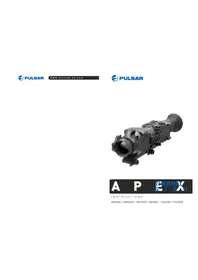
USER MANUAL Apex XD50 PULSAR
natural_image
Exterior view of a mechanical optical device (no visible text or symbols)A
P
THS
ERMAL
I G AH
INSTRUCTIONS
ENGLISH / FRANÇAIS / DEUTSCH / ESPAÑOL / ITALIANO / PYCCKIЙ
Attention!
Export of models 76415/76425/76475 with a refresh rate of 50Hz may have export limitations depending on the laws in your region.
Attention!
* Max. detection range of an object measuring 1.7x0.5 m
** Operation in power saving mode.

PACKAGE CONTENTS
• Thermal imaging sight APEX
- Carrying case
• Wireless remote control
- Mount (with screws and hex-nut key)***
• Video cable / External power supply cable
- Usermanual
- Lens cleaning cloth
- Warranty card
*** Mount may not be included for certain orders.
For improvement purposes, design of this product is subject to change.

DESCRIPTION
Thermal imaging sights Apex are designed for the use on hunting rifles both in the nighttime and in the daylight in inclement weather conditions (fog, smog, rain) to see through obstacles hindering detection of targets (branches, tallgrass, thick bushes etc.). Unlike the image intensifier tube based night vision riflescopes, thermal imaging sights Apex do not require an external source of light and are not affected by bright light exposure. The Apex sights have a wide range application including night hunting, observation and terrain orientation, search and rescue operations.

FEATURES
Optics:
• Long eye relief (67 mm)
• Accurate Internal Focus Adjustment
• Optical magnification from 1.5x to 3x
- Wide field of view
Electronics:
• 384x288 pixels Microbolometer sensor
• 640x480 pixels quality OLED display
• 2x continuous digital zoom
• Function PiP («picture in picture»)
- Three calibration modes - manual, semiautomatic and automatic
- Three operation modes – "Rocks", "Forest", "Identification"
• Image inversion modes: "White hot" and "Black hot"
- Wide choice of selectable reticles in sight's memory
• One shot zeroing and zeroing with FREEZE function
- Memorization of zero-in parameters for three types of weapon or distances
• Choice of reticle colour (white/black)
Extras:
• Power saving mode
• External power supply option
• High shock resistance
• IPX7 Degree of protection (fully waterproof)
• Video output enabling recording
• Defective pixel repair option
• Extra Weaver rail for accessories
• Wireless remote control
- Wide range of display brightness and contrast adjustment with memorization of user settings
- Display off function – protects against decamouflage and quick power on for immediate use

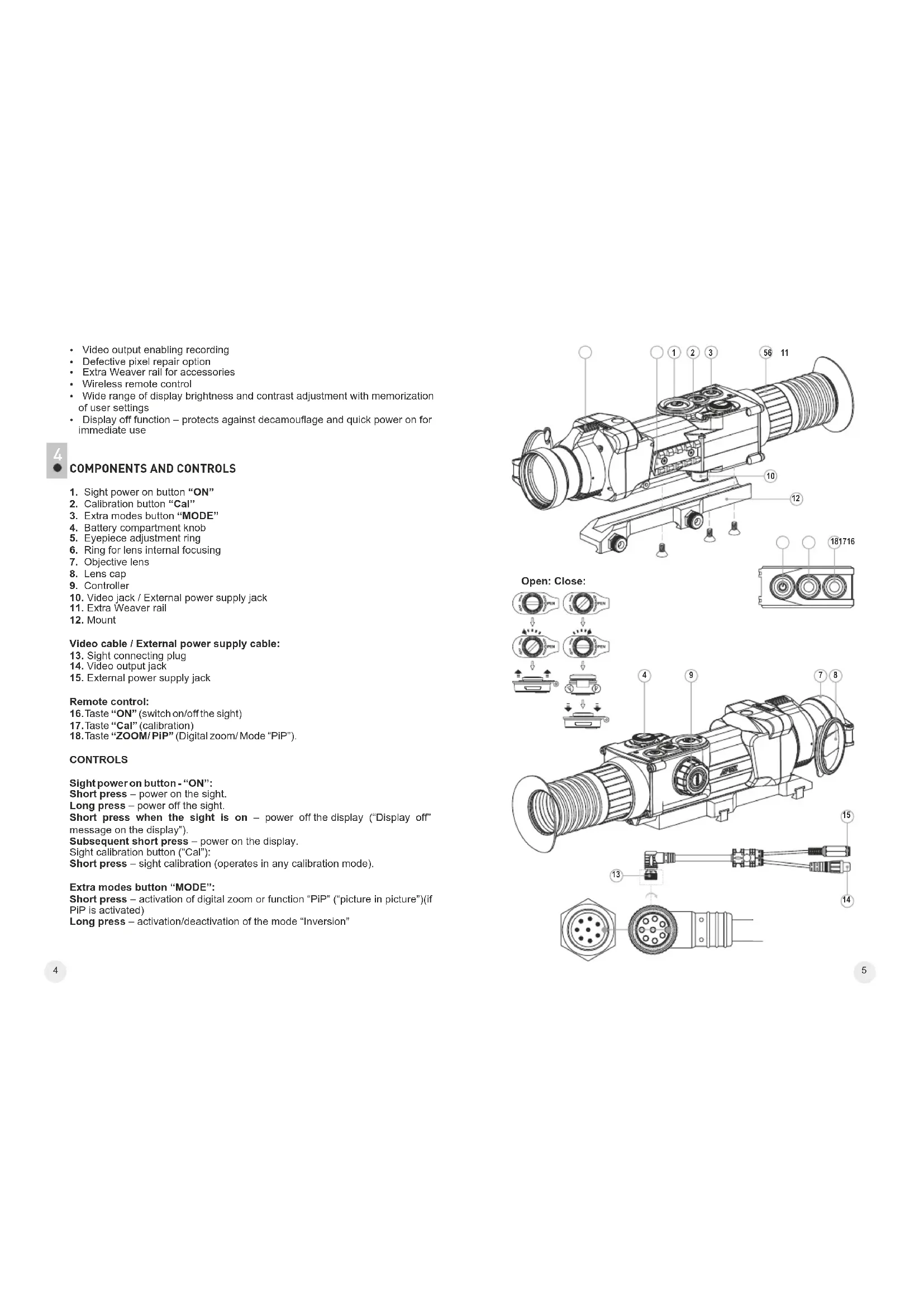
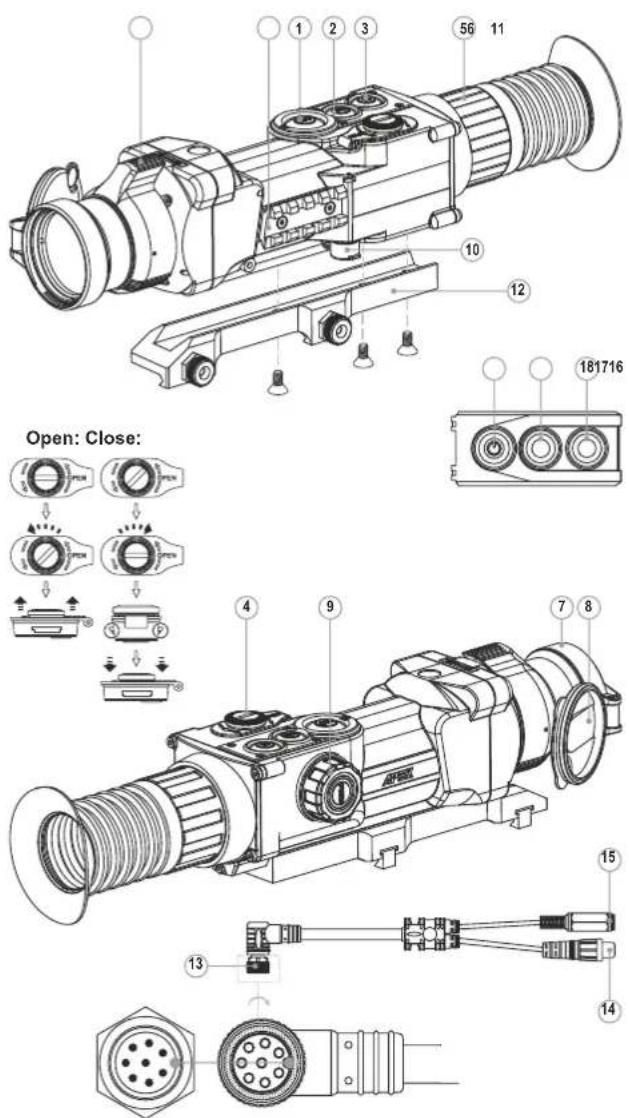
COMPONENTS AND CONTROLS
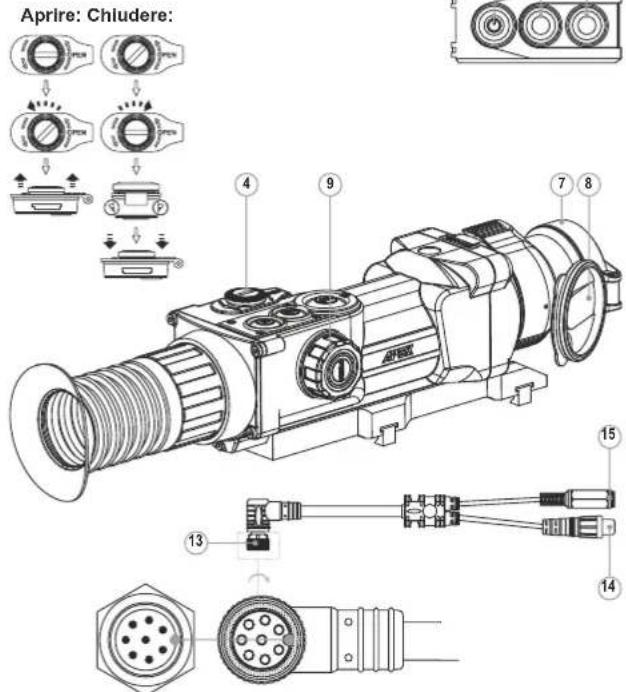
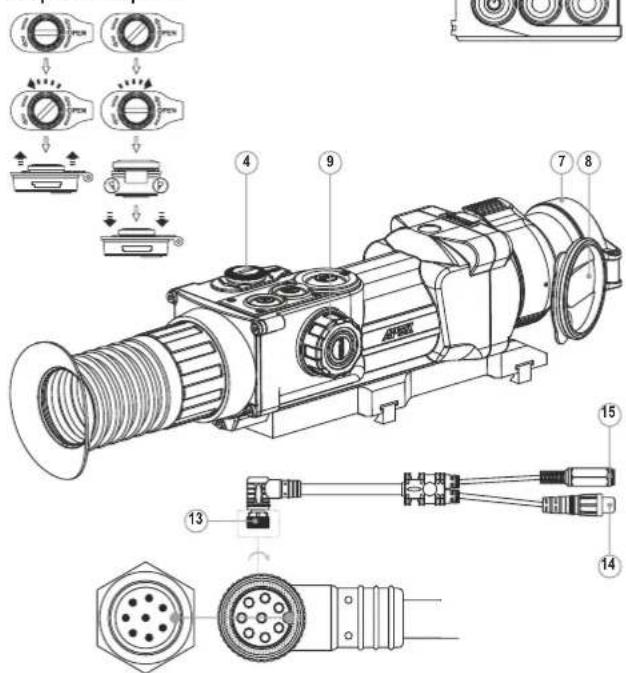
- Sight power on button "ON"
- Calibration button "Cal"
- Extra modes button "MODE"
- Battery compartment kno
- Eyepiece adjustment ring
- Ring for lens internal focusing
- Objective lens
- Lens cap
- Controller
- Video jack / External power supply jack
- Extra Weaver rail
- Mount
Video cable / External power supply cable:
-
Sight connecting plug
-
Video output jack
-
External power supply jack
Remote control:
-
Taste "ON" (switch on/off the sight)
-
Taste "Cal" (calibration)
-
Taste "ZOOM/ PiP" (Digital zoom/ Mode "PiP").
CONTROLS
Sight power on button - "ON":
Short press – power on the sight.
Long press – power off the sight.
Short press when the sight is on – power off the display ("Display off" message on the display").
Subsequent short press – power on the display.
Sight calibration button ("Cal"):
Short press - sight calibration (operates in any calibration mode).
Extra modes button "MODE":
Short press – activation of digital zoom or function "PiP" ("picture in picture") (if PiP is activated)
Long press - activation/deactivation of the mode "Inversion"
Controller:
Rotation (by default) – display brightness adjustment
Short press – switching between brightness and contrast adjustment modes, gradual digital zoom.
Rotation (followed by a short press) – display contrast adjustment
Rotation (followed by a short press) – continuous digital zoom (from 1x to 2x with 0.1x increment)
Long press – entering the menu.

MENU/STATUS BAR ICONS
▲ Operation mode "Rocks"
▲ Operation mode "Forest"
Operation mode "Identification"
M Manual calibration
H Semiautomatic calibration
A Automatic calibration
PAL/NTSC video output signal selection / disable
Clock setup
Brightness control of onscreen symbols
x2 2x continuous digital zoom
⊕ Defective pixel repair option
✗ Cross for defective pixel repair
- Display brightness and contrast adjustment
Image inversion mode: "White hot"/"Black hot"
Return to default settings
Low battery indicator
- Operation on external power supply
Please refer to section 11 "Main menu" for other icons.

The sight has been designed for long-term use. To ensure sustainable performance, please adhere to the following:
- Before use make sure that you have installed and fixed the mount according to the instructions of the section "Installation of mount" (section 9 "Operation").
- Store with the lens cap on in the carrying case.
- Switch off the scope after use.
- Attempts to disassemble or repair the scope will void the warranty!
- Clean the scope's optical surfaces only if necessary, and use caution. First, remove (by blowing with a blower brush or canned air) any dust or sand particles. Then proceed to clean by using camera/lens cleaning equipment approved for use with multicoated lenses. Do not pour the solution directly onto the lens!
- The sight can be used in various operating temperatures. However, if it has been brought indoors from cold temperatures, do not turn it on for 2 to 3 hours. This will prevent external optical surfaces from fogging.
- If the sight is unable to mount onto the rifle securely, or you have doubts about the mounting system, see a qualified gunsmith. Using the weapon with a poorly mounted scope can lead to inaccurate target shooting!
- To ensure reliable performance, it is recommended to carry out regular technical inspections of the unit.
- Do not leave batteries in the unit if it is not going to be used for an extended period.
- Batteries shall not be exposed to excessive heat such as sunshine, fire or the like.
WARNING! Do not point the objective lens of the unit at bright sources of light such as the sun. This may disable electronic components of the unit. The warranty does not cover damage caused by improper operation.

BATTERY INSTALLATION
- Turn the battery compartment knob (4) counterclockwise to the "Open" position and remove it.
• Install two CR123A batteries (or rechargeable batteries) according to the marking on the battery compartment cover and inside it.
- Turn the battery compartment knob (4) clockwise – the latch will pull out (see the drawing).
- Replace the battery cover and press it until its clicking position - the cover will close.
- Battery charge level is displayed on the status bar.
- In case of complete battery discharge, icon is flashing on the status bar and in the centre of the display.
Note: to ensure long and reliable operation it is recommended that you use quality rechargeable batteries 16340 (CR123A) with a capacity of at least 800 mAh. Please do not use batteries of different types or batteries with various charge levels.

EXTERNAL POWER SUPPLY
The sight can be powered with an external DC power supply (2.1mm pin) with stabilized voltage ranging from 8V to 15V or a 12V vehicle socket.
- Connect the plug (13) of the cable to the jack (10) of the sight by matching the notch in the plug connector and the protrusion of the jack (10) (see the scheme).
- Secure the cable by turning clockwise the locking ring of the plug (13).
- Connect the external power supply (AC/DC) or car adapter to the jack (15) of the cable.
Note: central pin of the power supply that you connect to the "power" jack of the sight, must have marking "+".
• The power supply may have marking@-+
- Connection of an external power supply (icon: on the status bar) automatically cuts off power supply from batteries.
• External power supply DOES NOT charge the batteries in the sight!
Attention! We suggest that you use battery packs EPS3 or EPS5 ensuring from 9 to 20 hours of continuous operation.

OPERATION
Installation of mount
Before using the sight you need to install the mount (12).
The sight can be used with various mount types such as Weaver, Europrism, Los, Side mount, MAK adapter etc. that allow the scope to be installed on different types of rifles.
The mounting holes in the base of the sight enable the mount to be installed in one of the multiple positions. The choice of the mounting position helps the user to ensure the correct eye relief depending on the rifle type.
- Attach the mount to the base of the sight using a hex-nut wrench and screws (see installation scheme).
• Install the scope on the rifle and check if the position is suitable for you. - If you are happy with its position, remove the scope, unscrew the screws halfway, apply some thread sealant onto the thread of the screws and tighten them fully (do not overtighten). Let the sealant dry for a while.
• The sight is ready to be installed on a rifle and to be zeroed. - After first installation of your sight on a rifle, please follow instructions in the section "Zeroing".
Note. Please check that your sight is duly zeroed after changing a mount.
Powering on and calibration
- Press briefly the "ON" (1) button to power on the sight. In case of low battery icon will start flashing.
- Do the calibration of image. Calibration levels background temperature of the microbolometer and eliminates image flaws.
- There are three calibration modes: manual (M), semiautomatic (H) and automatic (A).
Manual (silent) calibration mode
• The lens cap (8) should be closed.
- Power on the sight with the "ON" (1) button, hold down the controller (9) for two seconds to enter the menu.
- Rotate the controller to select option Cal. Press the controller.
- Rotate the controller to select mode M. Press the controller to confirm. To exit the menu, press and hold the controller (9) for two seconds or wait 10 seconds for automatic exit.
- Press the CAL (2) button to calibrate. The image will freeze for 1-2 seconds. Then open the lens cap. Calibration is completed.
- In case you see image flaws (such as frozen image, vertical stripes etc.) recalibrate the unit with the lens cap closed.
Semiautomatic calibration mode
• Power on the unit, open the lens cap.
- Hold down the controller (9) for two seconds to enter the menu.
- Rotate the controller to select option Cal. Press the controller.
- Rotate the controller to select mode H. Press the controller to confirm.
- Press the CAL (2) button to calibrate. The image will freeze for 1-2 seconds and you will hear the sound of the internal shutter. Calibration is completed.
Automatic calibration mode
With the automatic calibration mode the thermal imager calibrates by itself according to the software algorithm. The detector (microbolometer) is closed with the shutter automatically. User assisted calibration with the CAL (2) button is allowed in this mode.
• Power on the unit, open the lens cap.
- Hold down the controller (9) for two seconds to enter the menu.
- Rotate the controller to select option Cal. Press the controller.
- Rotate the controller to select mode A. Press the controller to confirm.
- At the moment of the automatic calibration the image will freeze for 1-2 seconds and you will hear the sound of the internal shutter.
- Time intervals between calibrations depend on the heat of the detector. The unit may require calibration more frequently on activation.
Focusing and image adjustment
- Open the lens cap (8).
- Adjust sharp image of the display icons by turning the eyepiece ring (5).
- To adjust display brightness, rotate the controller (9). Brightness level (from 0 to 20) will appear next to the brightness icon in the top right corner of the display.
- To adjust display contrast, press the controller (icon appears) and rotate it. Contrast level (from 0 to 20) will appear next to the contrast icon in the top right corner of the display.
- Point the unit at a warm object located at a certain distance, 100 meters, for example.
- Adjust the focus by turning the ring for lens internal focusing (6).
- After this adjustment no further dioptre adjustment should be required, regardless of distance or other factors. Adjust image quality only with the ring (6) for lens internal focusing.
- Hold down the "MODE" (3) button to activate colour inversion mode (functions "White hot" and "Black hot"). When function "White hot" is used, warm objects are represented in shades of bright colour; "Black hot" renders objects in shades of dark colour.

ZEROING
The sight features two zeroing methods - "one shot" zeroing and using FREEZE function.
Zeroing should be done at operating temperatures, by following the order of these steps:
One shot zeroing
- Mount the rifle with the sight installed on a bench rest.
- Set a target at a distance of about 100m.
- Adjust the sight according to the instructions of Section 9 "OPERATION".
- Aim the firearm at the target using the mechanical sight.
- Take a shot. If the point of impact does not match the aiming point, press the controller (9) to enter menu M2 and rotate the controller to select option "Zeroing" marked with icon.
- Red auxiliary cross (C) appears in the centre of display. On the right of the icon appear horizontal arrows and coordinated of the auxiliary cross 11+0
- Holding the reticle in the aiming point, by rotating the controller (9) move the auxiliary cross (C) horizontally or vertically relative to the reticle until the auxiliary cross matches the point of impact (P) (see pic.).
- To switch between movement direction push the controller (9) to hear a click. Vertical lines appear next to the icon X=00 Y=00
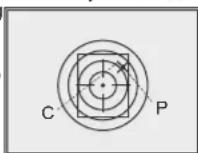
Note: the auxiliary cross moves only within the limiting frame (see pic.) that defines its travel range: 200 clicks horizontally (+100/-100) and 200 clicks vertically (+100/-100).
- Exit submenu "Zeroing" with a long press of the controller button. Message OK confirms successful operation. The reticle will now move to the point of impact.
Attention! Do not turn off the sight before zeroing settings are saved, otherwise your settings will be lost.
• Take another shot - the point of impact should now match the aiming point.
• The sight should now be zeroed-in for the specified distance.
Zeroing with "Freeze" function
• Before using this function, please take a shot.
- Select "Freeze" function in submenu M2.
- Sight will prompt you to press any button on the sight or wireless control within 30 seconds to freeze (memorize) the image. The status bar shows corresponding icon.
- Before pressing a button match the reticle of the sight with the aiming point (as a rule - target centre). After button is pressed, the image "freezes" and a limiting frame with an auxiliary cross appear. Rotating the controller, move
the auxiliary cross within the limiting frame until the cross matches the point of impact.
Note. After the image freezes, you do not need to keep your weapon pointed at the target.
- Pressing the controller button allows you to switch direction of auxiliary cross (horizontal or vertical). Long press of the controller button saves zeroing settings and exits the menu.
- Saving the settings is confirmed with "Ok" message displayed instead of the coordinates.
• After exiting the menu, the image returns to normal.
Note: zeroing parameters (coordinates X; Y) are saved in the sight's memory as number 1 in the menu option "Weapon choice". If you want to zero in the sight using another weapon or another distance, select option 2 or 3 (details in the menu option "Weapon choice" section 12) and do the zeroing.

MENU
OPERATING THE MENU
Long press of the controller – entering the menu.
Rotating the controller – menu navigation.
Short press of controller – entering menu option; selecting value in menu option, exiting menu option or moving to the next parameter (clock mode). Long press of controller – exiting menu option and menu (depending on the cursor actual position). Automatic exit the menu takes place after more than 10 seconds of inactivity (no navigation).
THE SIGHT HAS TWO MENUS
M1 - menu 1 (main menu);
M2 – menu 2 (additional menu);
Active submenu is highlighted with a frame. To switch to the other menu, rotate the controller and move the cursor (the frame will be flashing), press briefly the controller.
STATUS BAR
Status bar in the bottom part of the display shows information as follows:
- Number of weapon choice (1,2,3)
- Operation mode ("Rocks", "Forest", "Identification")
- Calibration modes - manual, semiautomatic and automatism
- 2x smooth digital zoom is on:2.0
- Image inversion is on
- Running time:00:00 AM
- Battery charge level or connected external battery

Menu M1 includes:
• Selection of operation modMode
• Selection of calibration modeCal
• Weapon selection (1:2:3)
• Selection of preloaded reticle
• Brightness control of onscreen symbols
(menu and status bar)*
• Reticle colour selection
- Function PiPPiP
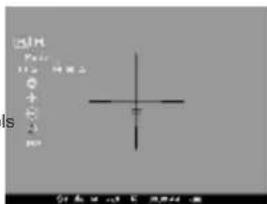
• Selection/disable of video output signal
(PAL, NTSC)
- Clock setup ^19
• Remote control activation
• Defective pixel repair option
• Return to default settings
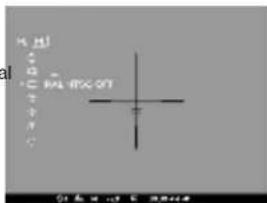
MENU M1
Operation modes
There are three automatic operating modes:
"Rocks" (enhanced contrast), "Forest" (low contrast) and "Identification" (improved detail rendering).
Each mode includes optimal combination of parameters (brightness, contrast, gain etc.) to deliver best possible image in specific viewing conditions.
• To select an option, press and rotate the controller.
- Short press of the controller to confirm your choice.
- Icon of the selected mode is shown in the status bar.
Weapon selection (1,2,3)
This menu option allows selection of three positions of the aiming point for various types of weapons or for various distances. Also this option allows you to save three types of reticle for each weapon.
- To select option, press controller button and select number out of the list (1; 2; 3).
- Confirm your choice by a short press of the controller button.
• Number of the selected variant of the weapon to use is shown in the status bar in the lower portion of the display.
Note. Originally the reticle for all the three variants is located in the display centre (coordinates X=0; Y=0). Further on, each type of weapon (distance) requires individual zeroing.
Selection of calibration mode
Please refer to section 9 "Operation".
Selection of preloaded reticle
This menu option allows selection of one of the 10 preloaded reticles. Menu option shows number of the reticle.
• To select option, press controller button and select reticle number out of the list. Corresponding reticle will be shown on the display.
- Confirm your choice by a short press of the controller.
- List and full description of the reticles can be found at www.pulsar-nv.com (Support => Download section).
Note: adequate operation of APEX reticles is supported for the basic magnification for each model (1.5x ; 2x ; 3x), and in the "PiP" mode ("Picture in Picture").
Brightness control of onscreen symbols
• To select option, rotate and press the controller (9).
- Rotate the controller to select brightness level of icons – from 1 to 10.
- Confirm your choice by a short press of the controller.
Reticle colour selection
- To switch between two reticle colours (black or white), press and rotate the controller.
- Confirm your choice by a short press of the controller.
Function PiP
Function PiP ("picture in picture") allows you to enlarge central area of the reticle twice which facilitates aiming without narrowing the field of view.
- Select "Yes" to activate the mode. Select "No" to deactivate.
- Confirm your choice by a short press of the controller.
Note: digital zoom does not work when function PiP is activated.
MENU M2
One shot zeroing
Please refer to section 10 "ZEROING".
Zeroing with "Freeze" function
Please refer to section 10 "ZEROING".
Selection/disable of video output signal
- Press the controller button and rotate it to select output video signal – PAL or NTSC (video output is disabled by default).
- To disable the video output, select option "OFF". Disabled video output reduces power consumption.
- Confirm your choice by a short press of the controller button.
Clock setup
- Press and rotate the controller (9) to select time format: 24/AM/PM.
- Press the controller to proceed to hour setup. Set the hour value rotating the controller.
- Press the controller to proceed to minute setup. Set the minute value.
- To exit submenu, hold down the controller (9) for two seconds. Or wait ten seconds to exit automatically.
Remote control activation
Please refer to section 12.
Defective pixel repair
- When operating the thermal imager, there is a possibility of defective (dead) pixels (bright or dark dots with constant brightness) appearing on the detector which are visible on the image.
- Thermal sights Apex provide an opportunity to repair defective pixels on the detector using a software-based method.
- Press and hold the controller (9) for two seconds to enter the menu.
- Rotate the controller to select icon and press the controller.
- Select icon in the pop-up submenu and press the controller.
- A cross ^< appears in the centre of display, coordinates (X;Y) ^< of the cross relative to the centre of display appear in the place of pop-up icons, icons disappear.
- Rotate the controller to align the cross with a defective pixel (if the alignment is correct, the defective pixel should go out).
- Switch direction of the cross from horizontal to vertical by a short press of the controller.
• After the centre of the cross is aligned with a defective pixel, press the MODE (3) button to repair the pixel. - In case of success a short "OK" message appears in the place of the coordinates.
- Further on, move the cross to repair another defective pixel. When moving the cross to the coordinates area, the latter goes to the lower right portion of the display.
Return to default defective pixel pattern
- If you wish to return to the default defective pixel pattern (i.e. restore all defective pixels previously repaired), select icon in the pop-up submenu and press the controller.
- Options "Yes" and "No" appear on the right of the icon.
- Rotate the controller to select "Yes" and press the controller.
- If you choose not to return to default pixel pattern, select "No" and press the controller.
- To exit the main menu, keep the controller pressed for two seconds or wait 10 seconds to exit automatically.
Attention! One or two pixels in the form of bright white or black 1-2 pixels dots are allowed on the display of thermal imager. These pixels cannot be repaired and are not a defect.
The following settings will return to their original status before the changes:
Operation mode – "Rocks";
Calibration mode - automatic;
Weapon selection - 1;
Selection of preloaded reticle - 1 (for all weapon types);
Reticle colour – black;
Brightness of onscreen symbols (menu and status bar) - 5;
Video output – off;
Display brightness level - 12;
Display contrast level - 12;
Digital zoom - x1;
Image inversion - off;
Function "PiP" - off
To cancel return to default settings, select "No" and press controller button to confirm.
Note: zeroing coordinates do not return to default for all types of weapon.

VIDEO OUTPUT
Video output is designed to connect external recording devices and to transmit video signal to monitors, TV sets etc.
- Connect the plug (13) of the cable to the jack (10) of the sight by matching the notch in the plug connector and the protrusion of the jack (10) (see the scheme).
- Secure the cable by turning clockwise the locking ring of the plug (13).
- Connect the signal receiver to the jack (14) of the cable.
- Turn on the sight – image will appear on the external device. Please make sure the external device is in the AV mode.
- To record video, you can use video recorders such as Yukon MPR (#27041) / CVR640 (#17044) and others.
Note: it is not recommended to attach the CVR640 on the sight because the video recorder is not designed for heavy shock resistance.

WIRELESS REMOTE CONTROL
The wireless remote control duplicates functions of the sight, calibration function and digital zoom/PiP function.
It has three buttons:
- Button "ON" (16) – turning the sight on/off (press for two seconds to deactivate).
- Button "CAL" (17) – image calibration.
- Button "ZOOM/PiP" (18) – digital zoom on/off or function "PiP" on/off.
To start using the wireless remote control you will need to activate it: - Turn on the scope and select menu option "RC activation" (icon ).
- Press controller button, a message "WAIT" will show up and countdown will start within which you need to press any button of the RC.
- If the activation is successful, a message "Complete" will show up next to icon. The RC is ready for use.
- If the RC does not work, replace the battery. To do this, unscrew the screws on the rear panel of the RC, remove the cover, pull out the old battery and insert a new CR2032 battery.

WEAVER RAIL 7/8"
With the help of the Weaver rail (11) you can attach accessories such as:
• External power supply EPS3 (#79111).

TECHNICAL INSPECTION
It is recommended that you inspect the sight before every use. Make sure to check for the following:
- Visually inspect that the unit is free from any physical damage; cracks, dents or signs of corrosion which may disqualify it from proper use.
- Check the sturdiness and proper fit of the mounting system.
- Ensure that the objective lens and eyepiece are free of cracks, grease spots, dirt, water stains and other residue before use.
- Visually inspect the condition of the battery and the battery compartment; the battery should be free of electrolyte and oxidation residue, especially where the battery makes contact with metal.
- Verify the proper function of the following: selector switch, display brightness adjustment knob and other operation buttons.
- Verify the smoothness of the objective lens focus knob, dioptre focus knob.

TECHNICAL MAINTENANCE
Technical maintenance should be done at least twice a year, includes the following steps:
- Clean the outside metal and plastic surfaces from dust, dirt and moisture; wipe the scope with a soft lint free cloth.
- Clean the battery compartment's electric contact points using an oil-free solvent.
- Inspect the eyepiece lens and the objective lens and gently blow off any dust and sand, and clean using lens cleaner and a soft cloth; see section 6 "GUIDELINES FOR OPERATION".

STORAGE
Always store the unit in its carrying case in a dry, well-ventilated space. For prolonged storage, remove the batteries.

TROUBLESHOOTING
Listed below are some potential problems that may occur when using the scope. Carry out the recommended checks and troubleshooting steps in the order listed. Please note that the table does not list all of the possible problems. If the problem experienced with the scope is not listed, or if the suggested action meant to correct it does not resolve the problem, please contact the manufacturer.
| PROBLEM | POSSIBLE CAUSE | CORRECTIVE ACTION |
| The sight will not turn on. | Batteries have been incorrectly installed. | Reinstall the batteries observing polarity. |
| Oxidized contact points in the battery compartment due to "leaky" batteries or contact points becoming exposed to a chemically reactive solution. | Clean the battery compartment, focusing on the contacts. | |
| The batteries are fully exhausted or one or several batteries are faulty. | Install fresh batteries. Use spare battery container. | |
| The image is blurry, with vertical stripes and uneven background. | Calibration is to be done. | Do the calibration according to section 9 "OPERATION". |
| The image is too dark. | The lowest brightness level is set. | Adjust brightness by rotating the controller (9). |
| The reticle is blurred and cannot be focused with the dioptre knob. | The dioptre cannot be adjusted to your eyesight. | If you wear prescription glasses with a range of +/- 4, keep glasses on when looking through the eyepiece. |
| With a crisp image of the reticle, the image of the observed target that is at least 30 m away is blurred. | Dust and condensate are covering the outside optical surfaces after the sight was brought in from the cold into a warm environment, for example. | Clean the lens surfaces with a blower and soft lens cloth.Let the sight dry by leaving it in a warm environment for 4 hours. |
| The objective lens is not focused. | Adjust the image by rotating the lens knob (6). | |
| The aiming point shifts after firing rounds. The sight will not focus. | The sight is not mounted securely or the mount was not fixed with thread sealant. | Check that the sight has been securely mounted, make sure that the same type and calibre bullets are being used as when the scope was initially zeroed; if your sight was zeroed during the summer, and is now being used in the winter (or the other way round), a small displacement of the aiming point is possible. |
| The sight will not focus. | Wrong settings. | Adjust the sight according to the instructions given in the Section 9 "OPERATION" and check the surfaces of the eyepiece and objective lenses and clean them if necessary from dust, condensation, frost, etc; to prevent fogging in cold weather, apply a special anti-fog solution. |
| The scope is used in day light at long working distance. | Check focusing of the scope in night conditions. | |
| The sight cannot be started with wireless remote control. | Remote control is not activated. | Activate the remote according to instructions in section 13. |
| Low battery. | Install a new CR2032 battery. | |
| The unit does not operate on external power supply. | Make sure your power supply provides output voltage. Make sure the central pin of the external power supply (15) and plug contacts (13) are intact. |
FRANÇAIS
DONNÉES TECHNIQUES
Video cable / External power supply cable:
Régimes "White hot / Black hot"
Открыть: Закрыть:
- Attention!
- PACKAGE CONTENTS
- DESCRIPTION
- FEATURES
- Optics:
- Electronics:
- Extras:
- COMPONENTS AND CONTROLS
- Video cable / External power supply cable:
- Remote control:
- CONTROLS
- Sight power on button - "ON":
- Extra modes button "MODE":
- Controller:
- MENU/STATUS BAR ICONS
- BATTERY INSTALLATION
- EXTERNAL POWER SUPPLY
- OPERATION
- Installation of mount
- Powering on and calibration
- Manual (silent) calibration mode
- Semiautomatic calibration mode
- Automatic calibration mode
- Focusing and image adjustment
- ZEROING
- One shot zeroing
- Zeroing with "Freeze" function
- MENU
- OPERATING THE MENU
- THE SIGHT HAS TWO MENUS
- STATUS BAR
- Menu M1 includes:
- MENU M1
- Operation modes
- Weapon selection (1,2,3)
- Selection of calibration mode
- Selection of preloaded reticle
- Brightness control of onscreen symbols
- Reticle colour selection
- Function PiP
- MENU M2
- Selection/disable of video output signal
- Clock setup
- Remote control activation
- Defective pixel repair
- Return to default defective pixel pattern
- VIDEO OUTPUT
- WIRELESS REMOTE CONTROL
- WEAVER RAIL 7/8"
- TECHNICAL INSPECTION
- TECHNICAL MAINTENANCE
- STORAGE
- TROUBLESHOOTING
- FRANÇAIS
Brand : PULSAR
Model : Apex XD50
Category : Thermal scope