AS5000 - Hi-fi system OLYMPUS - Free user manual and instructions
Find the device manual for free AS5000 OLYMPUS in PDF.



| Product Type | Digital Audio Transcription System |
| Mark | Olympus |
| Model | AS5000 |
| Supported Audio Formats | DSS, DSS Pro, WMA, MP3, WAV/AIFF |
| Foot Pedal Included | RS27/RS28 (USB or Serial connection) |
| Headset Included | E62 (stereo) |
| Playback Features | Variable speed, tone control, noise cancellation |
| Speech Recognition | Dragon NaturallySpeaking 8.0+ compatibility (Windows only) |
| File Transfer | FTP support (passive and SSL), email sending |
| File Management | Sorting by sender, document/dictation association |
| System Compatibility | Windows 2000/XP/Vista/Server 2003, Mac OS X 10.3.9-10.5 |
| Minimum Windows Configuration | 500 MHz processor, 128 MB RAM, 70 MB disk space, USB port |
| Minimum Mac Configuration | PowerPC G3 500 MHz or Intel 1.5 GHz, 256 MB RAM, 200 MB disk space |
| Power Supply | USB (pedal), headset via PC audio jack |
| Compliance | CE, WEEE, Category B restrictions (Canada) |
| Technical Support | 1-888-553-4448 (USA/Canada), dss.support@olympus-europa.com (Europe) |
Frequently Asked Questions - AS5000 OLYMPUS
User questions about AS5000 OLYMPUS
0 question about this device. Answer the ones you know or ask your own.
Ask a new question about this device
Download the instructions for your Hi-fi system in PDF format for free! Find your manual AS5000 - OLYMPUS and take your electronic device back in hand. On this page are published all the documents necessary for the use of your device. AS5000 by OLYMPUS.
USER MANUAL AS5000 OLYMPUS
PC TRANSCRIPTION KIT
AS-5000
INSTRUCTIONS
EN INSTRUCTIONS
FR MODE D'EMPLOI
ES INSTRUCCIONES
DE BEDIENUNGSANLEITUNG
IT ISTRUZIONI
RU ИНСТРУКЦИЯ
EN
DSS Player Pro Transcription Module Features
- Plays DSS, DSS Pro, WMA, MP3 and WAV/AIFF audio formats in the background when another application is running, such as a word processor.
- Enables foot switch control of the playback process.
- Transcription can be done by combining the playback sound with the adjustable playback speed, tone control, and noise cancellation.
However, it is not possible to playback while setting the playback speed and noise cancellation simultaneously with the Macintosh version. - Receives dictation files and sends created document files by e-mail or FTP.*
- Expand FTP support to include Passive mode and SSL.*
- Sorts received dictation files by sender, and automatically sends created document files.*
- Manages created document files in association with dictation files.*
- Voice recognition of dictation files is possible with the Dragon Naturally Speaking 8.0 and later.*
- Supports Citrix and Terminal Service.*
- Search filter to the List View pane columns.*
- Audio capture function for the line-in recording.*
- Automatic software update through Internet.*
- Background dictation notification support.*
- 2 modes/views of operation for Transcribe bar.*
- Transcribing time left indicator instead of time commenced.*
* Windows only
- OLYMPUS IMAGING CORP. holds the copyrights for DSS Player Pro Transcription Module software and the instructions (this manual).
●Microsoft and Windows are registered trademarks of Microsoft Corporation.
●Apple, Macintosh, iMac, eMac, Mac, and PowerMac are trademarks or registered trademarks of Apple Computer, Inc.
Intel and Pentium are registered trademarks of Intel Corporation. - Dragon NaturallySpeaking is registered trademark of Nuance Communications, Inc.
- Other product and brand names mentioned herein may be the trademarks or registered trademarks of their respective owners.
Table of Contents
Introduction
Minimum Requirement 4
Getting Ready
Installing DSS Player Software .... 5
Uninstalling DSS Player Software ..... 6
Using Online Help....7
Let's Get Started
Running DSS Player Software .... 8
Connecting the RS27/RS28 Foot Switch .... 10
Connecting the E62 Headset 11
Window Names.... 12
User Support
Technical Assistance and Support ..... 13
Minimum Requirement
Windows
| Operating System: | Windows 2000 Professional Service Pack4; Windows XP Professional/XP Home edition Service Pack2; Windows XP 64-bit; Windows Vista Ultimate/Enterprise/Business/Home Premium/Home Basic; Windows Vista Ultimate 64-bit edition/Enterprise 64-bit edition/Business 64-bit edition/Home Premium 64-bit edition/Home Basic 64-bit edition; Windows Server 2003; Windows Server 2003 x64 edition |
| CPU: | Windows 2000/XP: 500MHz processor or more Windows Vista: 800MHz processor or more Windows Server 2003: 550MHz processor or more |
| RAM: | Windows 2000/XP: 128MB or more Windows Vista: 512MB or more Windows Server 2003: 256MB or more |
| Hard drive space: | Dictation Module: 70MB or more; Microsoft .NET Framework Version 2.0: 150MB |
| Drive: | CD or DVD drive |
| Display: | 800 x 600 pixels or more, 65536 colors more |
| USB port: | One or more free ports |
| Audio I/O terminals: | Windows-compatible sound device |
Macintosh
Operating System: Mac OS 10.3.9 - 10.5
CPU: PowerPC G3 500MHz or more
Intel Core Solo/Duo 1.5GHz or more
RAM: 256MB or more (512MB or more is recommended)
Hard drive space: 200MB or more
Display: 1024 x 768 pixels or more, 32,000 colors more
USB port: One or more free ports
Note
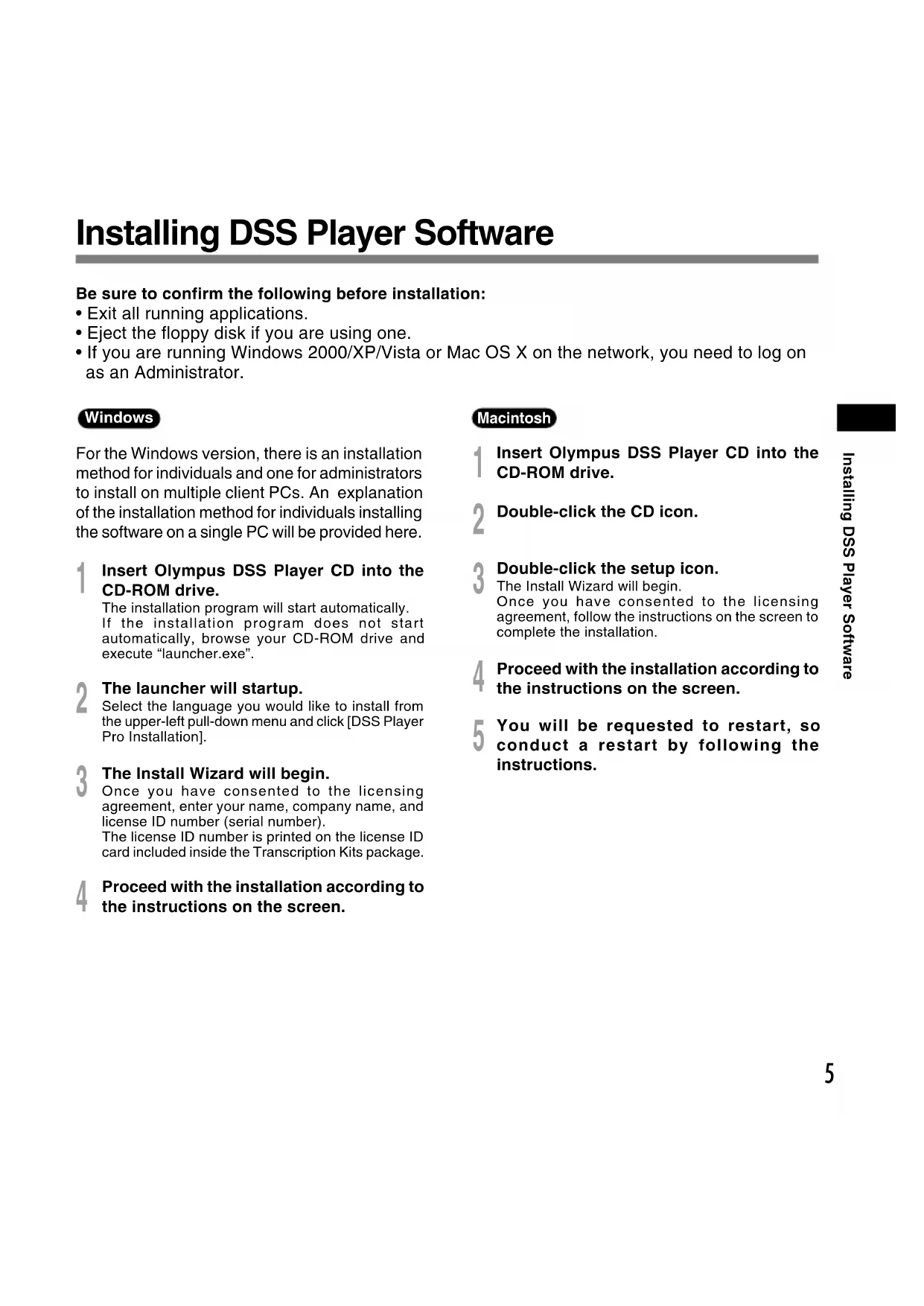
Installing DSS Player Software
Be sure to confirm the following before installation:
- Exit all running applications.
- Eject the floppy disk if you are using one.
- If you are running Windows 2000/XP/Vista or Mac OS X on the network, you need to log on as an Administrator.
Windows
For the Windows version, there is an installation method for individuals and one for administrators to install on multiple client PCs. An explanation of the installation method for individuals installing the software on a single PC will be provided here.
1 Insert Olympus DSS Player CD into the CD-ROM drive.
The installation program will start automatically. If the installation program does not start automatically, browse your CD-ROM drive and execute "launcher.exe".
2 The launcher will startup.
Select the language you would like to install from the upper-left pull-down menu and click [DSS Player Pro Installation].
3 The Install Wizard will begin.
Once you have consented to the licensing agreement, enter your name, company name, and license ID number (serial number).
The license ID number is printed on the license ID card included inside the Transcription Kits package.
4 Proceed with the installation according to the instructions on the screen.
Macintosh
1 Insert Olympus DSS Player CD into the CD-ROM drive.
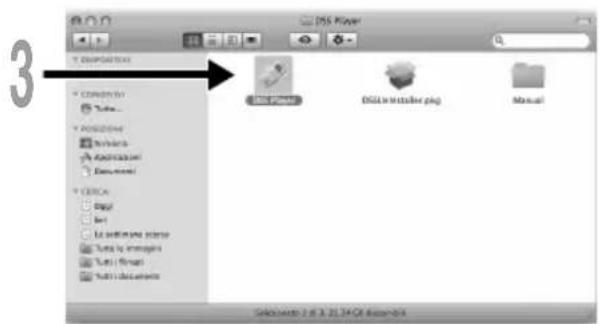
2 Double-click the CD icon.
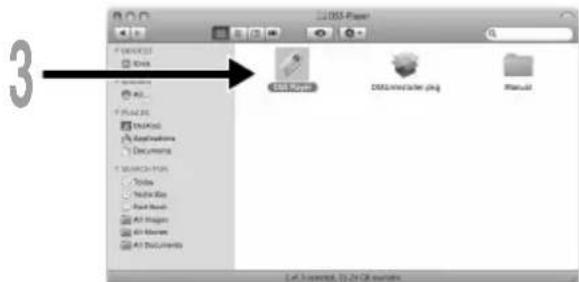
Double-click the setup icon.
The Install Wizard will begin.
Once you have consented to the licensing agreement, follow the instructions on the screen to complete the installation.
4 Proceed with the installation according to the instructions on the screen.
5 You will be requested to restart, so conduct a restart by following the instructions.
Uninstalling DSS Player Software
Windows
Exit DSS Player program.
2 Click the [start] button on the taskbar.
3 Select [Add/Remove programs] from the [Control Panel].
A list of installed applications is displayed.
4 Select [Olympus DSS Player Pro], then click the [Change/Remove] button.
5 Proceed with the uninstallation according to the instructions on the screen.
Macintosh
Exit DSS Player program.
2 Double click "DSS Uninstaller" in [Application] → [DSS Player] folder.
An uninstaller is displayed.
3 Proceed with the uninstallation according to the instructions on the screen.
Note
- The dictation files you made are stored in the [MESSAGE] folder. If you don't need them, delete them. You can confirm the location of the [MESSAGE] folder by clicking on [Options] in the [Tools] menu before uninstalling.
Using Online Help
For information on the DSS Player usage and features, refer to the online Help.
To start online Help:
Windows
1 Click the [start] button, then select [All Programs], [Olympus DSS Player], [Dictation Help].
2 While DSS Player is running, select the [Help] menu, [Contents].
3 While DSS Player is running, press F1 on the keyboard.
Macintosh
While DSS Player is running, select [DSS Player Help] from the [Help] menu.
Note
- Online Help is available after the DSS Player is installed (P.5).
Running DSS Player Software
By default, connecting the recorder to your PC, will start the application automatically. Connecting to your PC Using the Cradle.
Windows
Disabling Automatic Start
1 Right-click the Device Detector in the System Tray in the lower right-hand corner of the screen, then select [Settings startup application].
2 Click [DSS Player Pro]. The check mark on [DSS Player Pro] disappears.
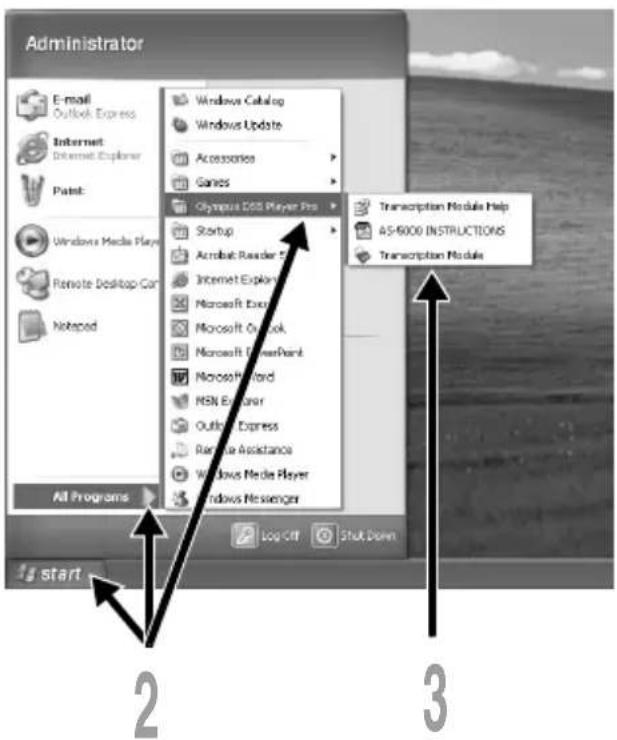
Manual Start
1 Start Windows.
2 Click the [start] button, then select [All Programs]. All program menu will be displayed.
3 Select [Olympus DSS Player Pro], then click [Transcription Module].
Note
- If you install DSS Player Pro, Device Detector that makes DSS Player run automatically when connecting Olympus Digital Voice Recorder will be installed.Device Detector will always be displayed as icon in the task tray.
Macintosh
Disabling Automatic Start
1 Click the Dock's System Preferences.
Click Device Detector.
2 Turn the automatic startup setting Off.
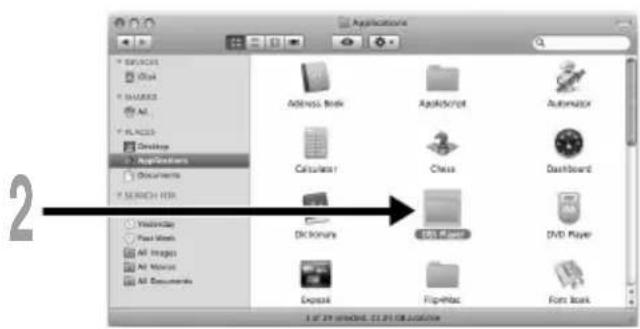
Manual Start
1 Start your Macintosh.
2 Double click the DSS Player icon for the folder in [Application] → [DSS Player].
All program menu will be displayed.
Register user information
The user's registration screen will be displayed at the time of initial startup. Please input the serial number. Please see the seal attached to the CD-ROM package included with the DSS Player, for the serial number. After the input has ended, click [OK] to complete the registration.
Connecting the RS27/RS28 Foot Switch
Windows Macintosh
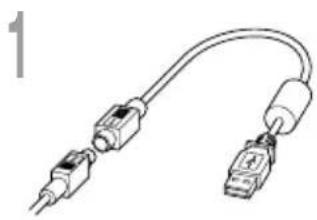
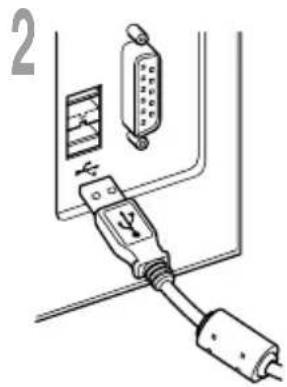
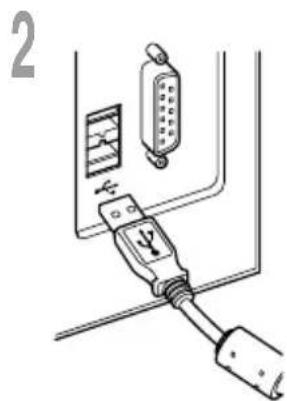
Connecting to a USB Port
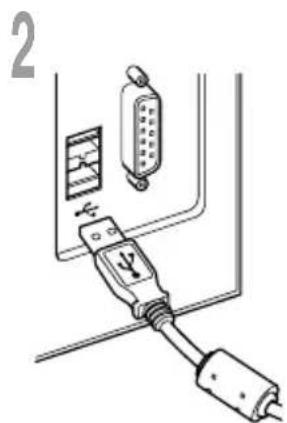
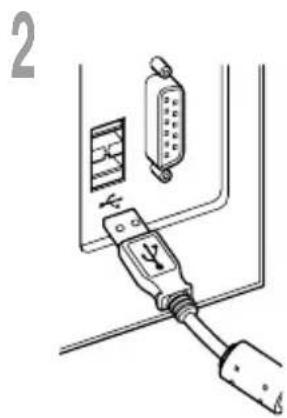
1 Connect the foot switch cable to the USB adapter cable.
2 Connect the USB adapter cable to the PC's USB port.
natural_image
Line drawing of a USB cable with two connectors (no text or symbols)USB adapter
natural_image
Diagram of a cable connector with connectors and wires, no text or symbols presentWindows
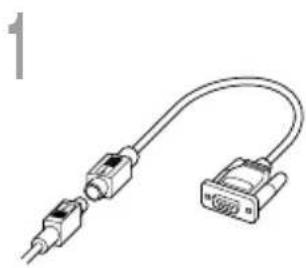
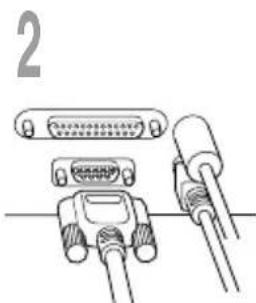
Connecting to a Serial Port
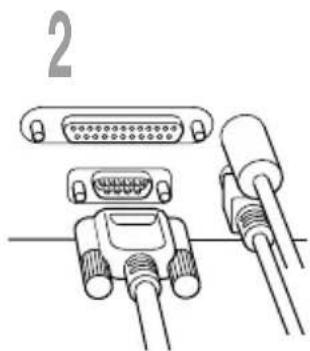
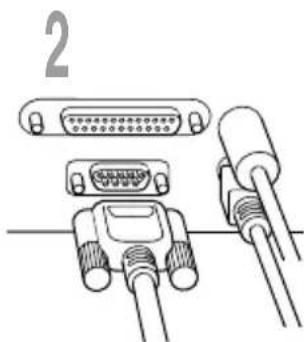
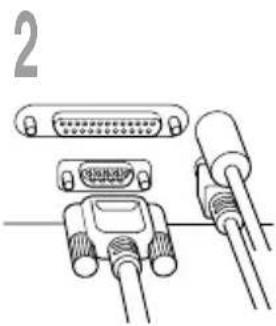
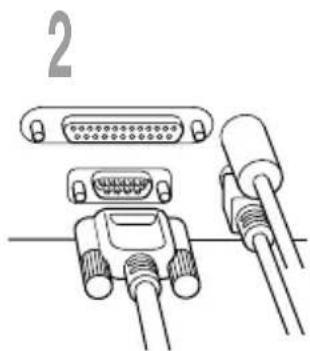
1 Connect the foot switch cable to the serial adapter cable.
2 Connect the serial adapter cable to the PC's serial port.
natural_image
Line drawing of a USB cable with connector and port (no text or symbols)Serial adapter
natural_image
Diagram of two connected electronic connectors with I/O ports, no text or symbols presentNote
• The RS27/RS28 foot switch works only with the DSS Player.
Connecting the E62 Headset
The E62 is a stereo headset. When playing stereo sound, wear the set properly, observing the L and R markings.
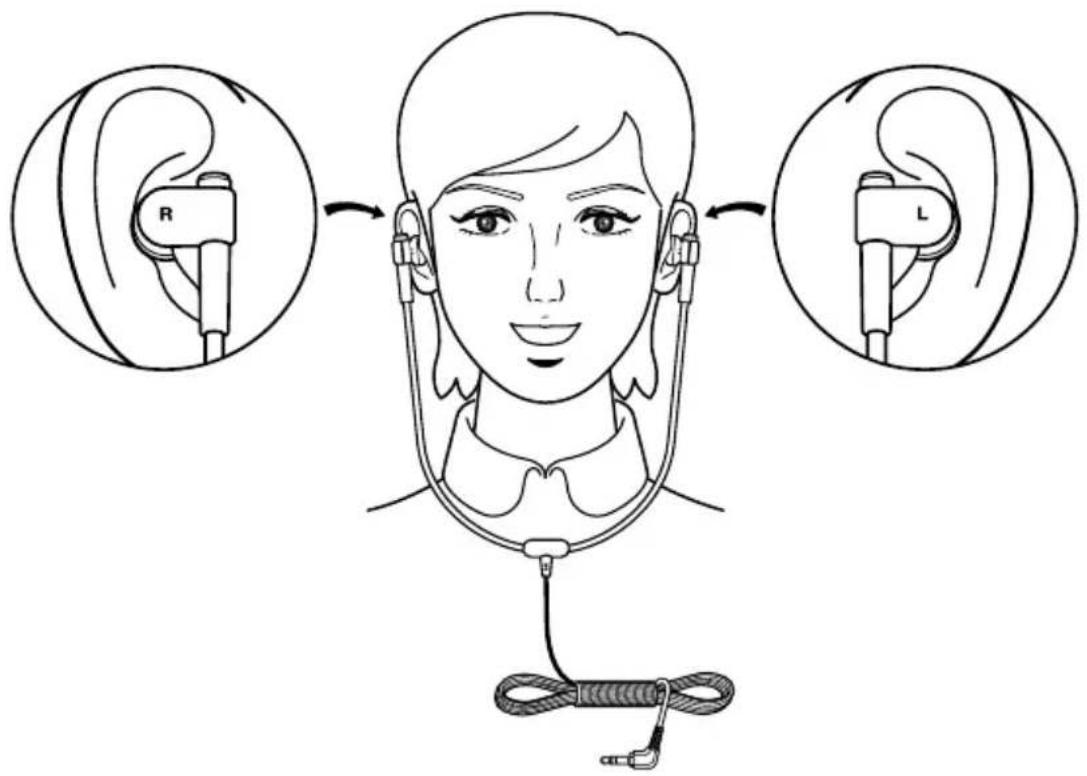
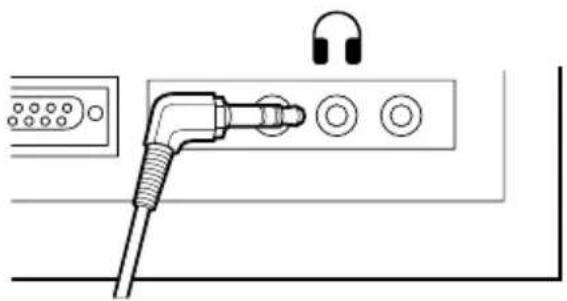
Plug the headset into the PC's earphone terminal
natural_image
Line drawing of a plug inserted into an electronic device with two circular buttons and an ear connector (no text or symbols)Note
- If your PC does not have a terminal marked with plug the headset into a terminal marked with or.
Window Names
Windows
* Main screen is displayed when DSS Player is started.
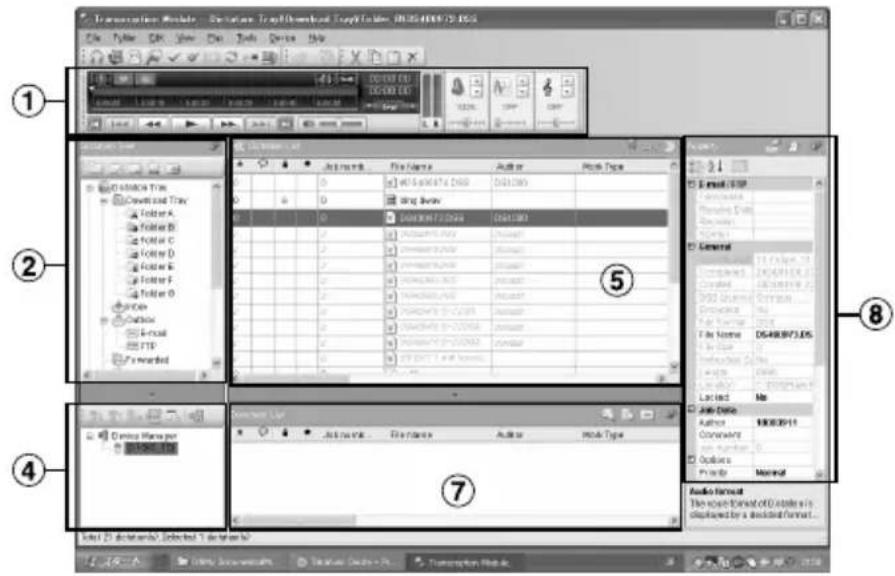
Macintosh
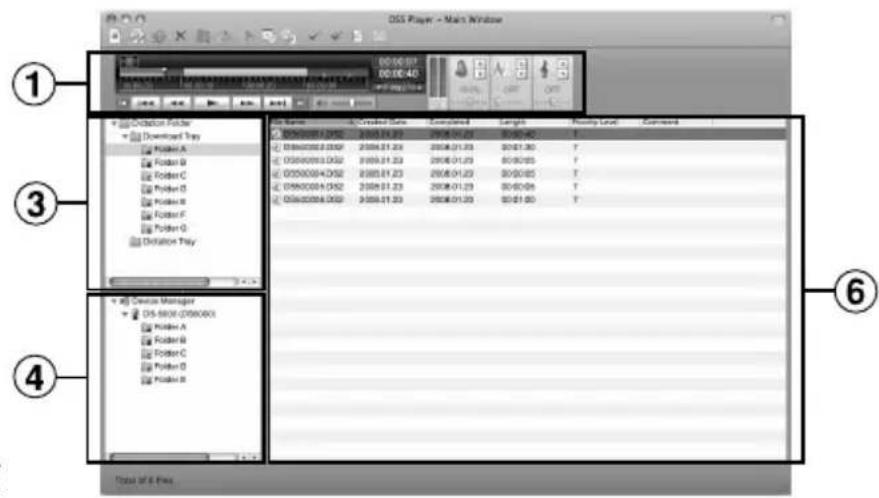
①Playback Control Bar
Control buttons to play and stop dictation files.
②Transcription Tree View
Displays the directory structure of the folders in which dictation files and document files are stored.
③Dictation Tree View
Displays the directory structure of the folders in which dictation files are stored.
④Device Tree View
Displays the directory structure of the folders in the recorder.
⑤Contents List View
Displays the dictation and document files in the folder selected in ② and ④.
⑥Dictation List View
Displays the dictation files in the folder selected in ③and ④.
⑦Information View
② Displays the document list view in "My Document" folder, selected document preview and the transferred mail contents of voice file.
⑧Property View
Displays the folder and file properties which are selected ② and ⑤.
Technical Assistance and Support
AS-5000 is part of the Olympus Professional Dictation System. Your dealer is trained to troubleshoot and fix many common problems that you may be having with this system. If you encounter problems using your AS-5000, we recommend that you contact your Olympus Professional Dealer that sold you the system. If your dealer cannot fix your problem, please call our technical hotline number or send an E-mail.
◆For customers in the U.S. and Canada
Phone: 1-888-553-4448
E-mail: distec@olympus.com
◆For customers in Europe
E-mail : dss.support@olympus-europa.com
OLYMPUS®
KIT DE TRANSCRIPTION PC
AS-5000
MODE D'EMPLOI
Windows Vista Ultimate/Enterprise/Business/Home Premium/Home Basic;
Windows Vista Ultimate 64-bit edition/Enterprise 64-bit edition/Business 64-bit edition/Home Premium 64-bit edition/Home Basic 64-bit edition;
Windows Server 2003;
Windows Server 2003 x64 edition
CPU:
natural_image
Diagram of a cable connector with plug and socket, no text or symbols presentWindows
natural_image
Line drawing of a USB cable with two connectors and a separate VGA connector (no text or symbols)L'adaptateur série
natural_image
Diagram of two connected VGA connectors with cable ties, no text or symbols presentRemarque
natural_image
Diagram of a plug inserted into an electronic device with two connectors (no text or symbols)Remarque
natural_image
Pure electrical connector diagram showing two connected ports with no text or symbolsAdaptador USB
Windows
natural_image
Line drawing of a USB cable with two connectors and a port (no text or symbols)Adaptador serie
natural_image
Diagram of a V12 connector with two cables (no text or symbols)Nota
natural_image
Pure electrical circuit lines without any symbolsnatural_image
Line drawing of a USB cable with two connectors and an external VGA connector (no text or symbols)Serieller Adapter
natural_image
Diagram of two connected VGA connectors with cable links (no text or symbols)Hinweis
natural_image
Pure electrical circuit lines without any symbolsHinweis
natural_image
Pure electrical connector diagram showing two connected ports with a cable (no text or symbols)Adattatore USB
natural_image
Diagram of a cable connector with plug and socket, no text or symbols presentWindows
natural_image
Line drawing of a USB cable with two connectors and a separate VGA connector (no text or symbols)Adattatore seriale
natural_image
Diagram of two connected VGA connectors with cable ties, no text or symbols presentNota
natural_image
Line drawing of an audio jack connected to a control panel with two buttons and an ear (no text or symbols)Nota
natural_image
Line drawing of a USB cable with two connectors and a connector pin (no text or symbols)Адаптер USB
Windows
natural_image
Line drawing of a USB cable with two connectors (no text or symbols)natural_image
Line drawing of three types of VGA connectors (no text or symbols)Примечание
natural_image
Line drawing of an audio jack connected to a control panel with earphones (no text or symbols)Примечание
For customers in North and South America
Declaration of Conformity
Model Number: RS27/RS28
Trade Name: PC TRANSCRIPTION KIT
Responsible Party: OLYMPUS IMAGING AMERICA INC.
Address: 3500 Corporate Parkway, P.O. Box 610, Center Valley, PA 18034-0610, U.S.A.
Telephone Number: 1-888-553-4448
This device Complies with Part 15 of the FCC Rules. Operation is subject to the following two conditions:
(1) This device may not cause harmful interference, and (2) this device must accept any interference received, including interference that may cause undesired operation.

Tested To Comply
With FCC Standards
FOR HOME OR OFFICE USE
Canadian RFI
This digital apparatus does not exceed the Class B limits for radio noise emissions from digital apparatus as set out in the Radio Interference Regulations of the Canadian Department of Communications.
For customers in Europe

“CE” mark indicates that this product complies with the European requirements for safety, health, environment and customer protection.

This symbol [crossed-out wheeled bin WEEE Annex IV] indicates separate collection of waste electrical and electronic equipment in the EU countries.
Please do not throw the equipment into the domestic refuse.
Please use the return and collection systems available in your country for the disposal of this product.
(Premises/Goods delivery) Wendenstrasse 14-18, 20097 Hamburg, Germany. Tel. 040-237730
(Letters) Postfach 10 49 08. 20034 Hamburg, Germany.
OLYMPUS UK LTD.
Vision House 19 Colonial Way Watford Herts WD24 4JL London EC1Y 0TX. Tel. +44(0) 1923 831000
http://www.olympus.com
E1-BS0055-01
AP0803
- PC TRANSCRIPTION KIT
- AS-5000
- INSTRUCTIONS
- DSS Player Pro Transcription Module Features
- Table of Contents
- Introduction
- Getting Ready
- Let's Get Started
- User Support
- Minimum Requirement
- Windows
- Macintosh
- Note
- Installing DSS Player Software
- Uninstalling DSS Player Software
- Using Online Help
- Running DSS Player Software
- Disabling Automatic Start
- Manual Start
- Connecting the RS27/RS28 Foot Switch
- Windows Macintosh
- Connecting to a USB Port
- Connecting to a Serial Port
- Connecting the E62 Headset
- Window Names
- Technical Assistance and Support
- CPU:
- Remarque
- Nota
- Hinweis
- Примечание
- For customers in North and South America
- Tested To Comply
- With FCC Standards
- FOR HOME OR OFFICE USE
- Canadian RFI
- For customers in Europe
- OLYMPUS UK LTD.
Brand : OLYMPUS
Model : AS5000
Category : Hi-fi system