DSS Player 2002 - Hi-fi system OLYMPUS - Free user manual and instructions
Find the device manual for free DSS Player 2002 OLYMPUS in PDF.



| Product type | DSS audio file management software |
| Brand | Olympus |
| Model | DSS Player 2002 |
| Required operating system | Windows 98/98SE/Me/2000 Professional/NT Workstation 4.0 (SP4+) / XP Professional and Home Edition |
| Processor | Intel Pentium II 333 MHz or higher |
| RAM | 64 MB minimum |
| Hard disk space | 10 MB minimum |
| CD-ROM drive | 2x or higher |
| Sound card | Creative Labs Sound Blaster 16 or 100% compatible |
| Display | 800 × 600 pixels, 256 colors or more |
| USB port | 1 free port |
| Audio I/O terminals | Headphone or speaker output |
| Main functions | Play DSS files, convert to WAVE, send by email, direct recording from DS-2000, voice recognition (with third-party software) |
| Hardware compatibility | Olympus DS-2000 digital recorder |
| License required | Yes - license identity provided with product |
| Installation | Via CD-ROM (automatic or manual installation), requires acceptance of license agreement and entry of identification number |
| Uninstallation | Via Start > Programs > Olympus DSS Player 2002 > Uninstall |
| Safety and precautions | Do not connect the DS-2000 before installing the software; do not remove the USB cable during a communication session |
| Technical support | USA/Canada: 1-888-553-4448; Europe: 0080067108300 (toll-free) or +49 180 567 1083 (chargeable) |
Frequently Asked Questions - DSS Player 2002 OLYMPUS
User questions about DSS Player 2002 OLYMPUS
0 question about this device. Answer the ones you know or ask your own.
Ask a new question about this device
Download the instructions for your Hi-fi system in PDF format for free! Find your manual DSS Player 2002 - OLYMPUS and take your electronic device back in hand. On this page are published all the documents necessary for the use of your device. DSS Player 2002 by OLYMPUS.
USER MANUAL DSS Player 2002 OLYMPUS
DSS Player 2002 Features
DSS Player 2002 can be installed by using a license ID that is supplied with the product. Functions provided by DSS Player 2002 are summarized below:
- Allows speech recorded on the DS-2000 to be stored and managed as DSS audio files on a PC.
- Plays audio files.
- Converts DSS files to WAVE files.
- Allows DSS files to be recorded directly from the DS-2000 to a PC.
- Allows recorded speech to be converted to text when used in conjunction with speech recognition software.
- Olympus Optical Co., Ltd. holds the copyrights for DSS Player 2002 software and the instructions (this manual).
IBM and ViaVoice are registered trademarks of IBM Corporation.
Microsoft and Windows are registered trademarks of Microsoft Corporation.
Intel and Pentium are registered trademarks of Intel Corporation.
Adobe and Acrobat Reader are registered trademarks of Adobe Systems Incorporated.
CORTOLOGIC is a registered trademark of Cortologic AG. - Other product and brand names mentioned herein may be the trademarks or registered trademarks of their respective owners.

Contents
Introduction
Operating Environment 4
Using This Book 5
Using Online Help 5
Getting Ready
Installing DSS Player 2002 7
Uninstalling DSS Player 2002 11
Connecting the DS-2000
Digital Recorder 12
Let's Get Started
Starting DSS Player 2002 13
User Support
Technical Assistance And Support .... 14
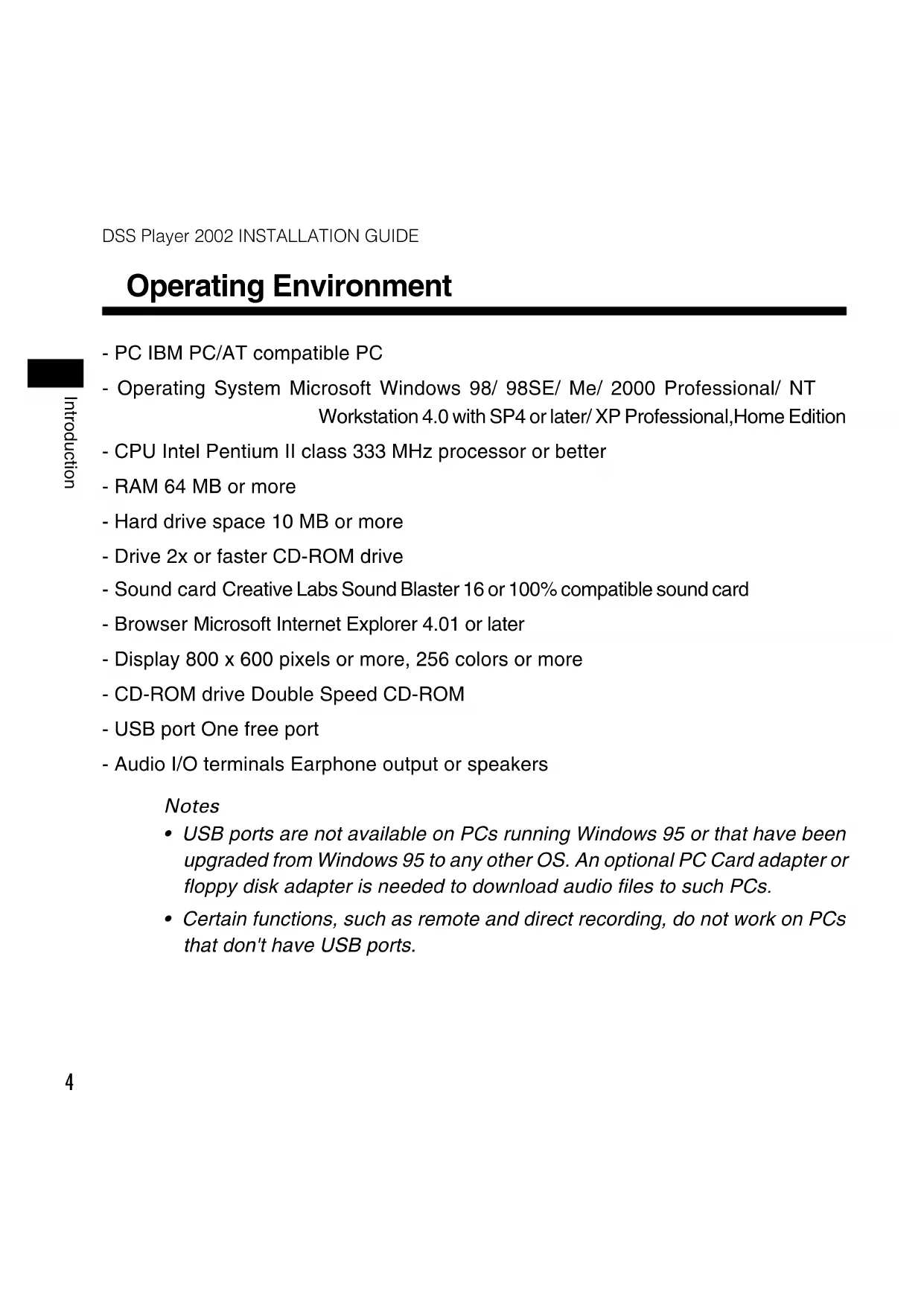
Operating Environment
-PC IBM PC/AT compatible PC
- Operating System Microsoft Windows 98/ 98SE/ Me/ 2000 Professional/ NT Workstation 4.0 with SP4 or later/ XP Professional,Home Edition
- CPU Intel Pentium II class 333 MHz processor or better
- RAM 64 MB or more
- Hard drive space 10 MB or more
- Drive 2x or faster CD-ROM drive
- Sound card Creative Labs Sound Blaster 16 or 100% compatible sound card
- Browser Microsoft Internet Explorer 4.01 or later
- Display 800 × 600 pixels or more, 256 colors or more
- CD-ROM drive Double Speed CD-ROM
- USB port One free port
- Audio I/O terminals Earphone output or speakers
Notes
- USB ports are not available on PCs running Windows 95 or that have been upgraded from Windows 95 to any other OS. An optional PC Card adapter or floppy disk adapter is needed to download audio files to such PCs.
- Certain functions, such as remote and direct recording, do not work on PCs that don't have USB ports.
Using This Book
This book explains how to install DSS Player 2002 and connect the hardware. For more detailed instructions, view the Online Help after the software has been installed.
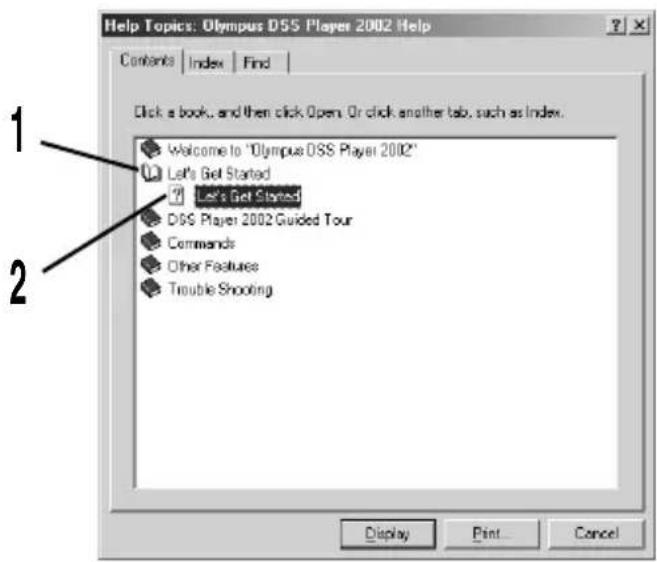
Using Online Help
To open Online Help, do either of the following:
- Click on the [Start] button, select [Programs], then [Olympus DSS Player 2002], then click on [Help].
- While DSS Player 2002 is running, choose [Contents] from the [Help] menu.
<
After opening Online Help
Double-click on the icon of the desired topic heading.
The title of the topic is displayed.
2 Double-click on the ?icon of the desired topic.
An explanation of the topic is displayed.
<>
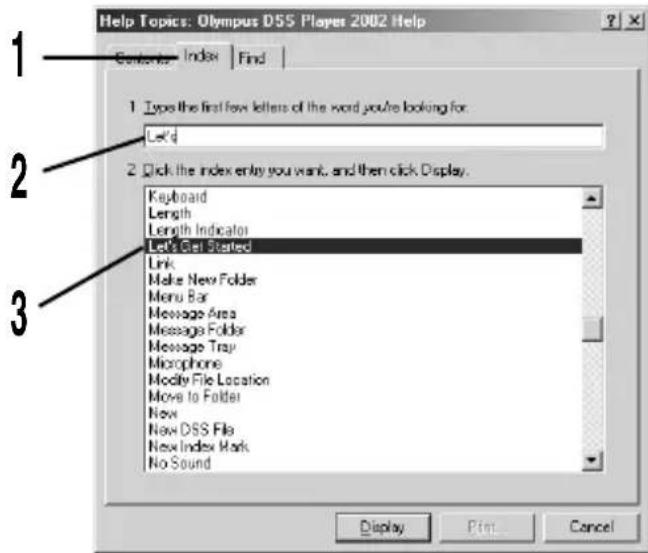
After opening Online Help
4 Click on the Index tab.
A list of keywords by which you can search is displayed.
Enter text.
Matching keywords are located automatically.
Choose a topic, then click on [Display].
An explanation of the topic is displayed.
Installing DSS Player 2002
You need to enter the license ID that is supplied with the product during installation to run this software.
Notes
- If you intend to use speech recognition software, install it first. For instruction on installing the speech recognition software, refer to the user's guide supplied with the speech recognition software.
- If you are running Windows 2000/XP (Professional only) on a network, you need to log on as an administrator.
Insert the DSS Player CD-ROM into the CD-ROM drive. The installation program will start automatically.
Note
If the installer does not launch automatically, follow these steps (it is assumed that the CD-ROM drive is assigned drive letter D:):
(1) Click on the [Start] button and select [Run].
(2) Enter “D:/Setup.exe” in the [Open] field and click on [OK].
The installation Language Selection dialog box opens. Click on the desired language to select it.
3 Click on [Next] when the DSS Player 2002 opening screen appears.
4 Confirm your acceptance of the terms of the Licensing Agreement. You must accept the terms of the Licensing Agreement to install DSS Player 2002. If you accept them, click on [Yes].
Register user information. Register user information. Enter your name, company name, and license ID number (serial number). The license ID number is printed on the license ID card. Click on [Next]. A confirmation dialog box opens, click on [Yes].
Select where to install DSS Player 2002. This lets you specify the folder in which to install DSS Player 2002. Click on [Browse] to find the desired installation folder. To accept the default folder, click on [Next].
Note
If the installation folder does not exist, a confirmation dialog box opens to get your permission to create a folder for this purpose. Click on [Yes].
7 Select a program menu folder.
You may change the program menu folder to another one, such as [Start Up]. To accept the default folder, click on [Next].
0 Authorizing the start of file copying.
Confirm all "Current Settings". To accept them, click on [Next].
Note
To change the program menu folder or installation folder, click on [Back].
Copy files.
Wait until DSS Player 2002 is installed on your PC, then click on [Finish].
10 Set up Acrobat Reader.
When the Acrobat Reader Setup dialog box opens, click on [Next].
44 Select where to install Acrobat Reader.
Specify the folder in which to install Acrobat Reader. To accept the default folder, click on [Next].
Setup Status.
Wait until Acrobat Reader is installed on your PC.
Exit Acrobat Reader setup.
When the Exit Setup dialog box opens, click on [OK].
1 Install Shield Wizard complete.
You may be requested to restart your PC when setup is complete. If so, make sure that [Yes, I want to restart my PC now.] is selected before clicking on [Finish]. Then, when the message to do so appears, shut your PC off and restart it.
Note
When you start Windows after DSS Player 2002 has been installed, is displayed on the taskbar.
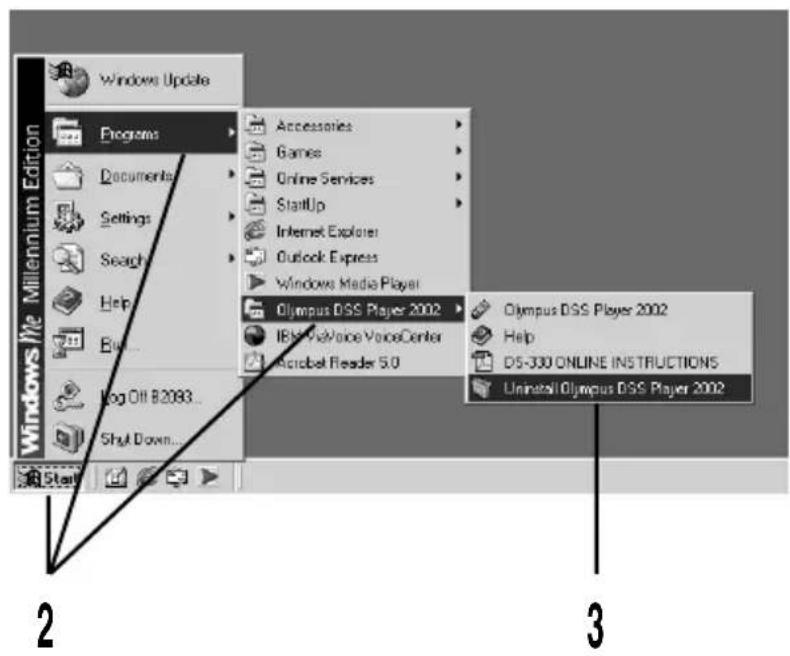
Uninstalling DSS Player 2002
The process of removing software installed on your PC is called uninstalling. Perform uninstalling when you no longer need the software.
Exit DSS Player.
2 Click on the [Start] button, select [Programs], then [Olympus DSS Player 2002].
(in Windows XP, click on the [Start] button, select [All Programs], then [Olympus DSS Player 2002].)
Click on [Uninstall Olympus DSS Player 2002].
4 Follow the directions on screen to start the uninstall process.
Connecting the DS-2000 Digital Recorder
Notes
- Make sure you finish installing DSS Player 2002 before connecting the DS-2000. If you connect the DS-2000 before installing DSS Player 2002, the "Add New Hardware Wizard" dialog box will open. If this happens, click on [Cancel] to exit the wizard, then install DSS Player 2002 (P.7).
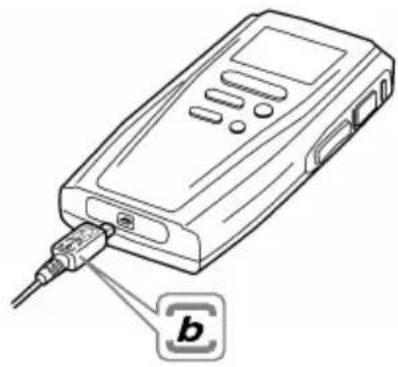
- Before connecting the USB cable to the DS-2000, make sure that the DS-2000 is in the stop mode, with its rear-panel POWER/LOCK switch ON and that the HOLD switch is not set to the HOLD position.
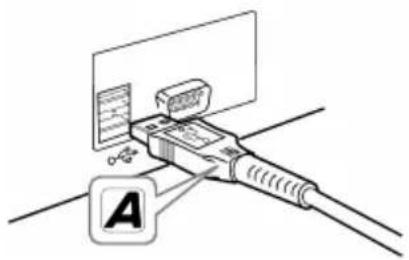
Insert end A of the USB cable to your PC's USB port or USB hub.
2 Confirm that the DS-2000 is not in use before attaching end b of the USB cable to the PC terminal port of the DS-2000.
Notes
- Refer to the user's manual for your PC regarding the USB port or USB hub on your PC.
- Be sure to push the cable connector all the way in. Otherwise, the recorder may not operate properly.
- Never remove the USB cable while a communication session is in progress. Data files could be damaged if you do.
Starting DSS Player 2002
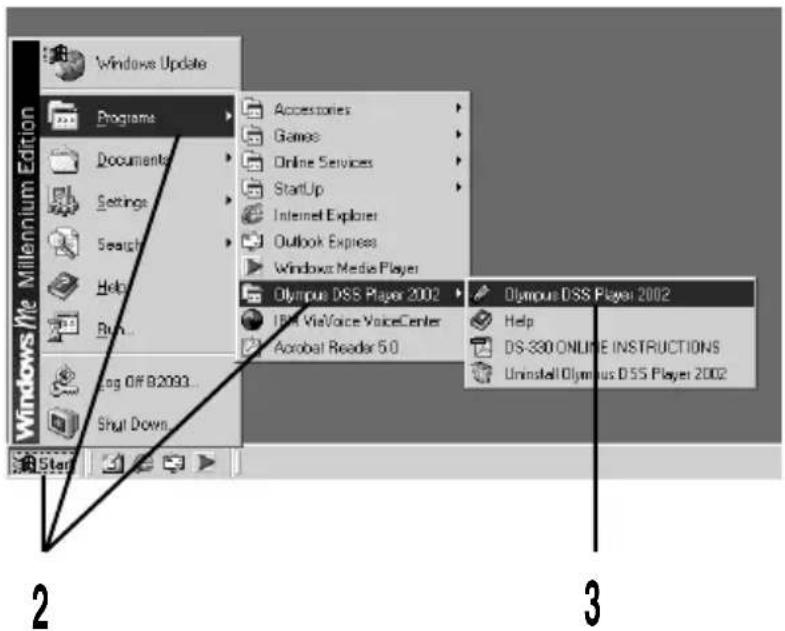
To start DSS Player 2002, follow these steps:
Note
It is assumed that the DSS Player 2002 has been installed. For installation instructions, see "Installing DSS Player 2002" (P.7).
1 Start Windows.
2 Click on the [Start] button, select [Programs], then [Olympus DSS Player 2002].
(in Windows XP, click on the [Start] button, select [All Programs], then [Olympus DSS Player 2002].)
3 Click on [Olympus DSS Player 2002].
Technical Assistance And Support
The following are for only technical questions and support about OLYMPUS DSS player.
Technical Hotline Number in the U.S. and Canada
1-888-553-4448
User Support E-mail address in the U.S. and Canada
distec@olympus.com
Technical Hotline Number in Europe
Toll free number
0080067108300
available for Austria, Belgium, Denmark, France, Germany, Netherlands, Norway, Sweden, Switzerland, United Kingdom
Charged numbers
+49 180 567 1083
available for Finland, Italy, Luxembourg, Portugal, Spain and Czech Republic
+49 40 23773 899
available for Greece, Croatia, Hungary and the rest of Europe
User Support E-mail address in Europe
dss.support@olympus-europa.com
For technical questions and support about IBM ViaVoice.
http://www.ibm.com/software/speech/support/faqolympus.html
OLYMPUS
DSS Player 2002
GUIDE D'INSTALLATION
Assistance technique et support 14
Assistance technique et support
http://www.ibm.com/software/speech/support/faqolympus.html
OLYMPUS
DSS Player 2002
http://www.ibm.com/software/speech/support/faqolympus.html
OLYMPUS
DSS Player 2002
http://www.ibm.com/software/speech/support/faqolympus.html
OLYMPUS
DSS Player 2002
http://www.ibm.com/software/speech/support/faqolympus.html
(Premises/Goods delivery) Wendenstrasse 14-18, 20097 Hamburg, Germany. Tel. 040-237730
(Letters) Postfach 10 49 08. 20034 Hamburg. Germany.
OLYMPUS OPTICAL CO.(U.K.) LTD.
2-8 Honduras Street, London EC1Y OTX, United Kingdom Tel. 020-7253-2772
http://www.olympus.com/
E1-2888-01
- DSS Player 2002 Features
- Contents
- Introduction
- Getting Ready
- Let's Get Started
- User Support
- Operating Environment
- Notes
- Using This Book
- Using Online Help
- <>
- Installing DSS Player 2002
- Insert the DSS Player CD-ROM into the CD-ROM drive. The installation program will start automatically.
- Note
- The installation Language Selection dialog box opens. Click on the desired language to select it.
- Click on [Next] when the DSS Player 2002 opening screen appears.
- Exit Acrobat Reader setup.
- Install Shield Wizard complete.
- Uninstalling DSS Player 2002
- Connecting the DS-2000 Digital Recorder
- Starting DSS Player 2002
- Technical Assistance And Support
- OLYMPUS
- DSS Player 2002
- GUIDE D'INSTALLATION
- Assistance technique et support
- OLYMPUS OPTICAL CO.(U.K.) LTD.
Brand : OLYMPUS
Model : DSS Player 2002
Category : Hi-fi system