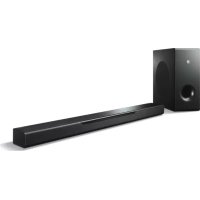
MusicCast BAR 400 - Soundbar YAMAHA - Free user manual and instructions
Find the device manual for free MusicCast BAR 400 YAMAHA in PDF.



| Product Type | Soundbar with wireless subwoofer |
| Brand | YAMAHA |
| Model | MusicCast BAR 400 (YAS-408) |
| Dimensions (W x H x D) | 980 x 60 x 110.5 mm (main unit) |
| Weight | 2.7 kg (main unit), 9.4 kg (subwoofer) |
| Power Supply | 110-240 V AC, 50/60 Hz (depending on region) |
| Power Consumption | 30 W (main unit), 19 W (subwoofer) |
| Amplifier | 50 W x 2 channels (front), 100 W (subwoofer) |
| Speaker Type | Front: acoustic suspension (non-magnetic shielding), subwoofer: bass-reflex |
| Frequency Response | 160 Hz - 9 kHz (front), 40 Hz - 160 Hz (subwoofer) |
| Supported Audio Formats | PCM, Dolby Digital, DTS (up to 5.1 channels) |
| Connectivity | HDMI (1 input, 1 output ARC), optical, analog (3.5 mm mini-jack), network (Ethernet/Wi-Fi), Bluetooth 4.2 |
| Network Functions | MusicCast, AirPlay, internet radio, streaming |
| Bluetooth | Version 4.2, profiles A2DP/AVRCP, codecs SBC/AAC |
| Wi-Fi | IEEE 802.11 a/b/g/n/ac, 2.4 GHz and 5 GHz bands |
| Special Features | Clear Voice, bass enhancement, Dolby Pro Logic II, auto standby |
| Supplied Accessories | Remote control (battery included), optical audio cable, power cords (x2), wall mount template |
| Care and Cleaning | Wipe with a soft, dry cloth. Do not use chemical products. |
| Spare Parts and Repairability | Contact an authorized Yamaha service center for any repairs. No spare parts available for self-service. |
Frequently Asked Questions - MusicCast BAR 400 YAMAHA
User questions about MusicCast BAR 400 YAMAHA
0 question about this device. Answer the ones you know or ask your own.
Ask a new question about this device
Download the instructions for your Soundbar in PDF format for free! Find your manual MusicCast BAR 400 - YAMAHA and take your electronic device back in hand. On this page are published all the documents necessary for the use of your device. MusicCast BAR 400 by YAMAHA.
USER MANUAL MusicCast BAR 400 YAMAHA
Front Surround System
Part names and functions 6
Installation 9
Connections 10
PLAYBACK
Operations. 13
NETWORKS
Connecting to a network. 18
Specifications. 22
About this Quick Start Guide
This Quick Start Guide provides basic setup to use the unit and feature of the unit. The unit is equipped with a number of other functions not described in this document. For more information about this product, refer to the Owner's Manual on the Yamaha website.
Follow one of the methods described below to view the latest Owner's Manual. In HTML format
- Scan the QR code found on the front cover of this document.
- Visit the following website.
https://manual.yamaha.com/av/18/yas408/
In PDF format
- Visit the following website.
https://download.yamaha.com/
[For U.S. customers only]
Visit the following website for additional information, FAQ's, downloads such as
"Owner's Manual" and product updates.
http://usa.yamaha.com/support/
- In this booklet, iOS and Android mobile devices are collectively referred to as "mobile devices". The specific type of mobile device is noted in explanations a needed.
- Trademarks and trade names used in this document are those of their respective owners. See the Owner's Manual for more information.
This manual uses the following signal words for the important information:
![YAMAHA MusicCast BAR 400 - [For U.S. customers only] - 1](/content/2026/02/422476/images/1b324ad9c164610d95aa5e50aa30f259ad5ee03cbf80699979be76a28cf33ecc.jpg)
This content indicates "risk of serious injury or death."
![YAMAHA MusicCast BAR 400 - [For U.S. customers only] - 2](/content/2026/02/422476/images/3817849f1a99e4a2c1a6204a91dcede786afaa331ee6349c97fb1b157ac7ef1a.jpg)
This content indicates "risk of injury."
NOTICE
Indicates points that you must observe in order to prevent product failure, damage
or malfunction and data loss, as well as to protect the environment.
NOTE
Indicates notes on instructions, restrictions on functions, and additional
information that may be helpful.
Before using the unit
Features
Introduction
This front surround system allows for the enjoyment of dynamic sound with video played on a TV.
TV
The unit
- Play audio from a TV or BD/DVD player in surround sound.
- Play audio from a Bluetooth device with excellent quality.
- Play audio over a network with superior sound quality.
Supplied items
Make sure you have received all of the following items.

Center unit (YAS-CU408)
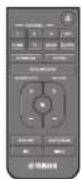
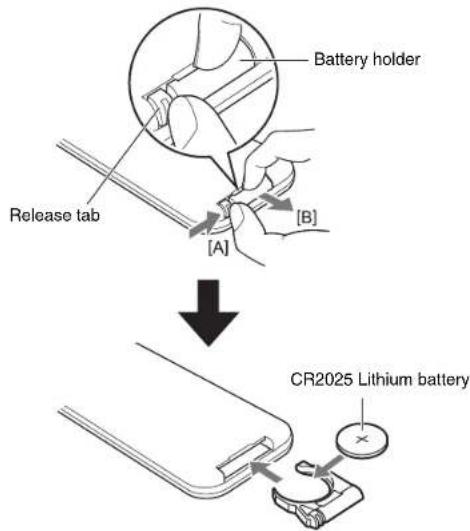
Remote control A CR2025 Lithium battery has already been inserted into the remote control.
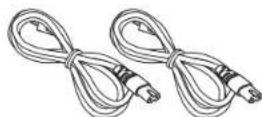
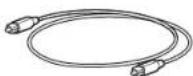
Optical digital audio cablePower cord × 2
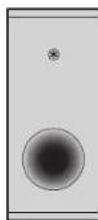
Wireless subwoofer (NS-WSW43) In this manual, the wireless subwoofer is referred to as "subwoofer".

Mounting template Use when mounting the center unit on a wall

Quick Start Guide (this booklet)
Safety Brochure
Preparing the remote control
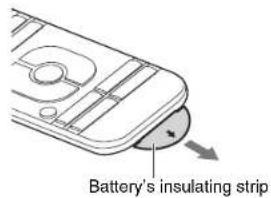
Remove the battery's insulating strip before attempting to use the remote control.
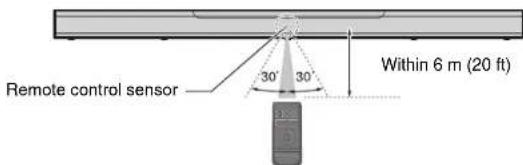
Operating range of the remote control
Operate the remote control within the range as shown below.
Replacing the battery in the remote control
Press and hold the release tab firmly in the direction indicated by [A], and slide the battery holder out in the direction indicated by [B].
Part names and functions
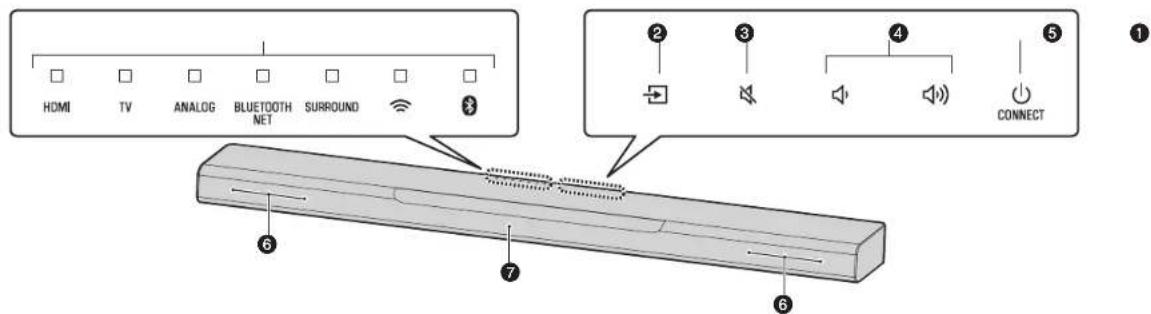
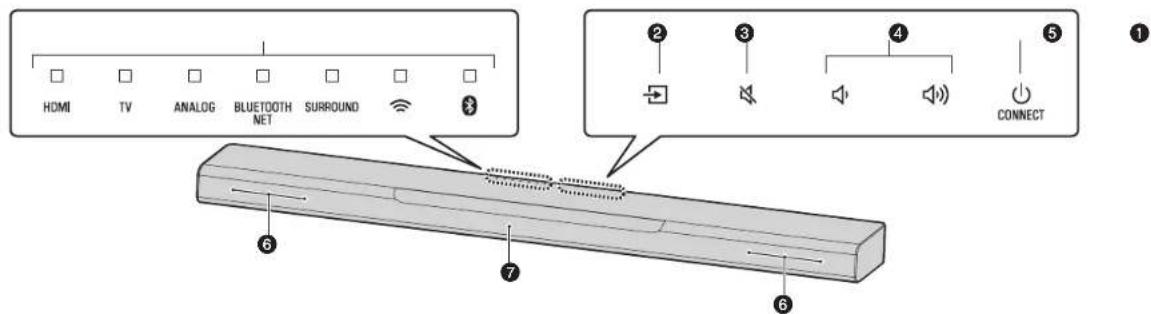
Center unit (front panel/top panel)
Indicators
The indicators on the top panel flash or glow, to show the operation and setting status. In this manual, indicators status, such as off, glowing, and flashing, are shown a illustrations below.

:Off:Glows:Flashes

NOTE
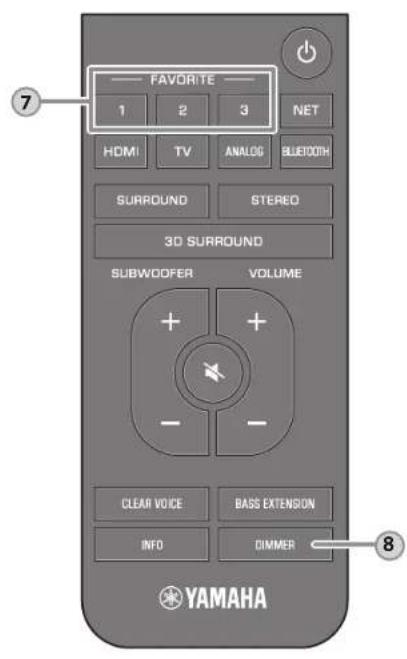
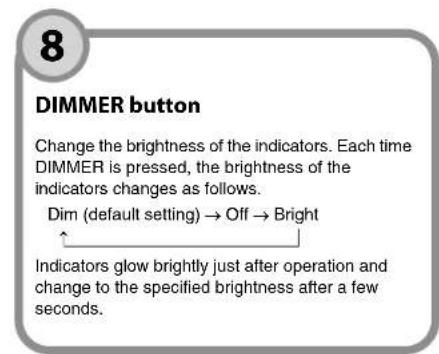
The brightness of the indicators can be changed using DIMMER on the remote control (p. 17).
- (input)
Select an input source to be played back (p. 14).
一 (mute)
Mute the audio output. Touch again to unmute (p. 15).
4 volume+/-
Adjust the volume (p. 15).
5 (power)/CONNECT
Turn on or off the unit (p. 13).
Use to connect the unit to a network using the MusicCast CONTROLLER app (p. 19).
NOTE
- The unit may automatically turn off when the auto power standby function is enabled. For details, see "Setting the auto power standby function" in the Owner's Manual.
6Speakers
Remote control sensors
Receive infrared signals from the remote control of the unit (p. 13).
NOTE
- 2, 3, 4 and 5 are touch sensors. Touch icons with your finger to control functions.
- Do not place any objects on the touch panel as doing so may result in unintended operations.
- When touch panel control is disabled, no operations can be performed using the unit's touch panel. This prevents accidental operation of the unit. For details, see "Enabling/disabling touch panel control (child lock function)" in the Owner's Manual.
Center unit (rear panel)
The illustrations in this manual include labels next to the jacks on the bottom of the unit for easy identification.
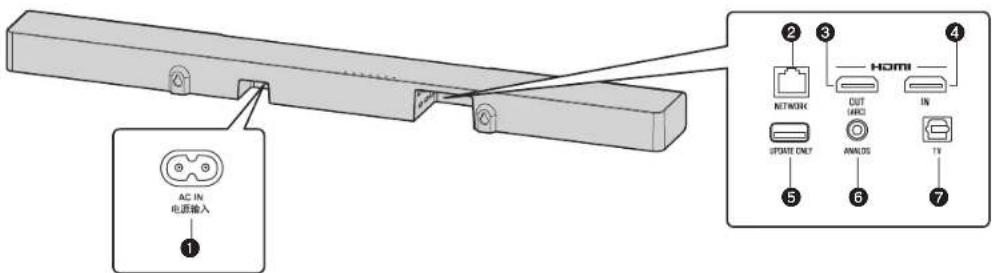
AC IN jack
Connect the power cord of the center unit (p. 11).
2 NETWORK jack
For connecting to a network with a network cable (p. 18).
HDMI OUT (ARC) Jack
For connecting to an HDMI-compatible TV and outputting video/audio signals (p. 10).
When a TV that supports Audio Return Channel (ARC) is used, TV audio signal can also be input through this jack.
HDMI IN jack
For connecting to an HDMI-compatible playback device, such as a BD/DVD player, a satellite and cable TV tuner, and a game console, and inputting video/audiosignals (p.10).
5 UPDATE ONLY jack
Use to update this unit's firmware.
Refer to the instructions supplied with the firmware for details.
6ANALOG Input Jack
For connecting to an external device with a 3.5 mm stereo mini plug cable and inputting audio signals (p. 11).
7TV input jack
For connecting to a TV with an optical digital audio cable and inputting audio signals (p.10).
Subwoofer
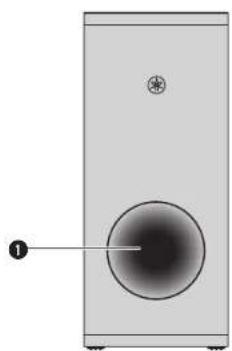
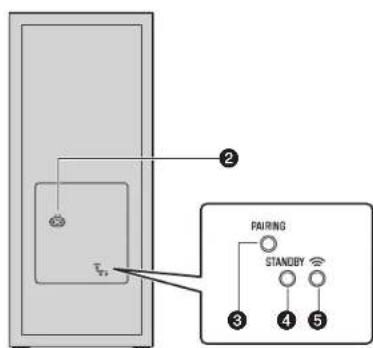
Bass reflex port
AC IN jack
Connect the power cord of the subwoofer (p. 11).
PAIRING button
Use to pair the center unit with the subwoofer manually.
4STANDBYindicator
Shows subwoofer's status (p. 13).
5 ≈ Indicator
Glows when the center unit and subwoofer are connected wirelessly (p. 12).
Installation
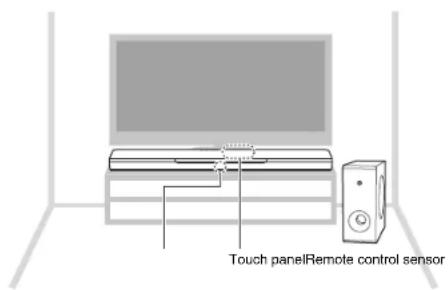
The center unit can be installed on a TV stand, etc.
Position the subwoofer to the left or right of the center unit. Angle the subwoofer slightly toward the center of the room to prevent sound from reflecting off of walls.
Installing the center unit on a TV stand
Position the center unit with the touch panel facing up.
NOTICE
- Do not stack the center unit and a BD player or other device directly on each other. Doing so may cause a malfunction due to vibrations.
- Avoid touching, and never place any weight or pressure on, the subwoofer's speaker (portion covered with fabric). Doing so may damage the speakers.
- Do not install the subwoofer where the speaker (portion covered with fabric) is too close to a wall, or cover the subwoofer's bass reflex port. Doing so may reduce sound volume.
The subwoofer can only be used in its upright position. Do not position the subwoofer on its side.
This unit contains non-magnetic shielding speakers. Do not place magnetically sensitive items (hard disk drive, etc.) near the unit. - The center unit and subwoofer communicate wirelessly. Do not place objects that block or interfere with wireless signals, such as metallic furniture or devices, between the center unit and the subwoofer as wireless communication may be adversely affected.
NOTE
- The center unit can also be mounted on a wall. Some knowledge of building construction is required for safe installation. Please have a qualified contractor or dealer install the center unit on a wall. For details, see "Information for qualified contractors or dealers" in the Owner's Manual.
Connections
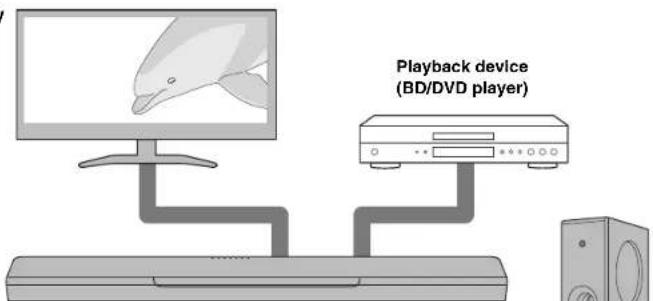
1 Connecting a TV and set-top box
For the cable connection, follow the procedure below.
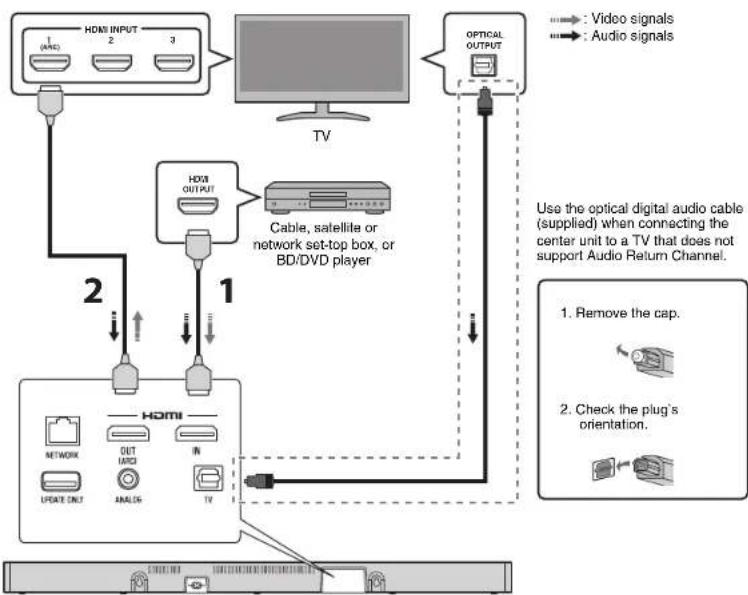
1 HDMI cable (sold separately)
The digital audio/video signals from the set-top box or BD/DVD player are input to this unit.
2 HDMI cable (sold separately)
Digital video from the set-top box or BD/DVD player is displayed on the TV.
NOTE
- Use a 19-pin HDMI cable with the HDMI logo printed on it. A cable with a maximum length of 5m (16 ft) is recommended to prevent degradation of signal quality.
- Use of a flat HDMI cable may make installing the center unit difficult because the cable will be bent by the bottom of the center unit when connected. Confirm the layout and position of jacks on the center unit before choosing an appropriate HDMI cable.
- This unit supports HDCP version 2.2, a copy protection technology. For playback of 4k video, connect the unit to the HDMI input jack (one compatible with HDCP 2.2) on an HDCP 2.2-compliant TV, and to the HDMI output jack on a HDCP 2.2-compliant BD/DVD player.
- Use a premium high-speed HDMI cable for playback of 3D and 4K video content.
Audio Return Channel (ARC) supported TV
- Connect an HDMI cable to the audio return channel supported jack (the jack with "ARC" indicated) on TV.
Video and audio content from playback devices can be output from the TV even when this unit is off (HDMI signal pass-through).
What is Audio Return Channel (ARC)?
In order for the unit to play audio from a TV, the TV must usually be connected to the unit via an audio cable as well as an HDMI cable. If, however, the TV supports Audio Return Channel (ARC), TV audio signals can be input to the unit via the HDMI cable that outputs video signals from the unit to the TV.
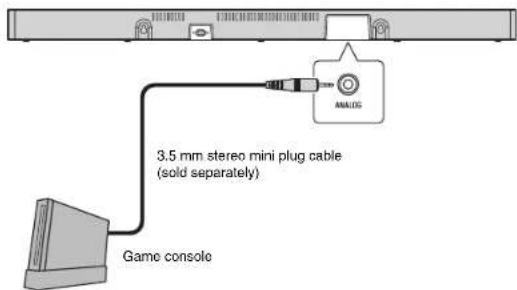
2Connecting a game console via the analog jack
Connect an external device, such as a game console or TV that does not have an optical digital audio output, to the ANALOG input jack of the center unit.
CAUTION
- If volume can be adjusted on the device connected to the unit's ANALOG input jack, set that device's volume to the same level as that of other devices connected to the unit's HDMI jacks to prevent volume from being louder than expected.
3Connecting the power cord
Once all connections have been made, connect the supplied power cords to the AC IN Jacks on the center unit and subwoofer respectively, and plug the power cords into AC wall outlets.
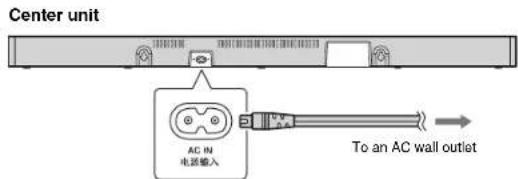
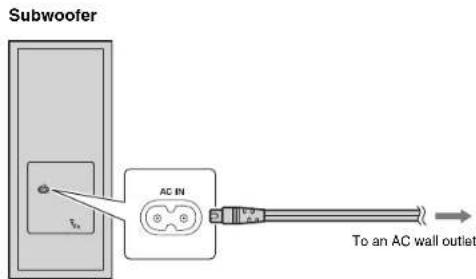
4Turning on the unit
Press (power) on the remote control or touch /CONNECT on the center unit. The unit turns on and the center unit and subwoofer are automatically connected via wireless connection. Once the connection has been successfully established, the ≈ indicator on the subwoofer's rear panel glows, and the unit is ready for playback.
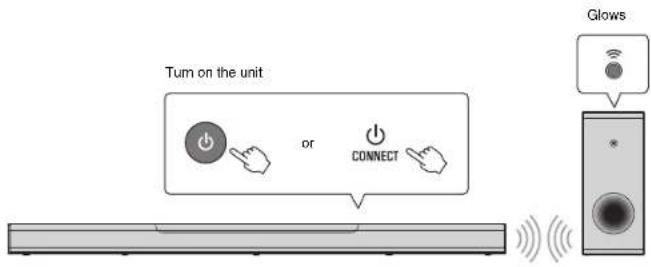
NOTE
If the indicator on the subwoofer does not glow properly, see "No sound is coming from the subwoofer" in the Owner's Manual.
Operations
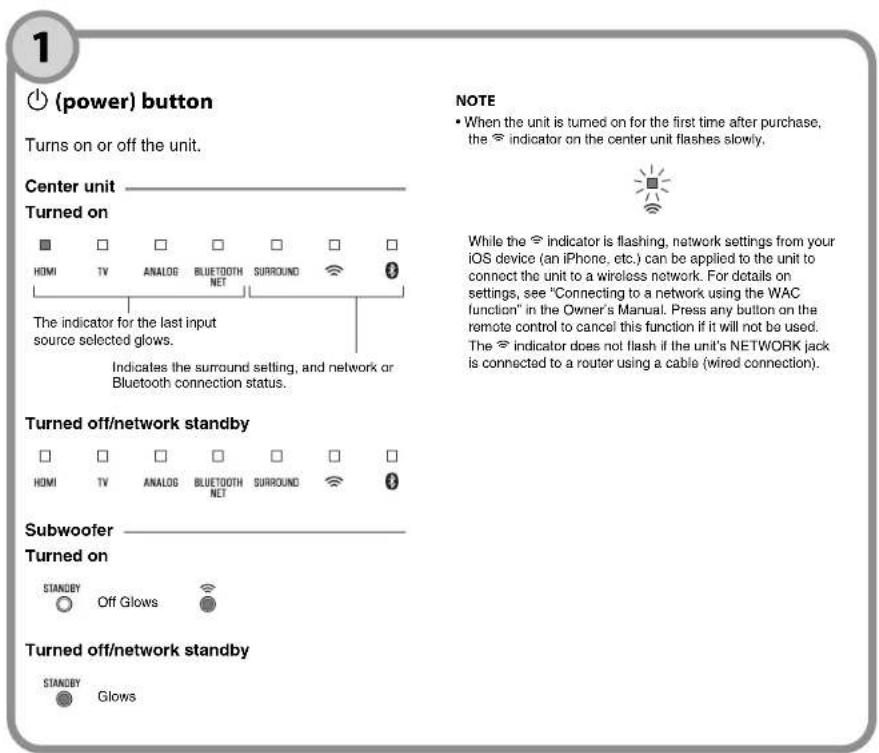
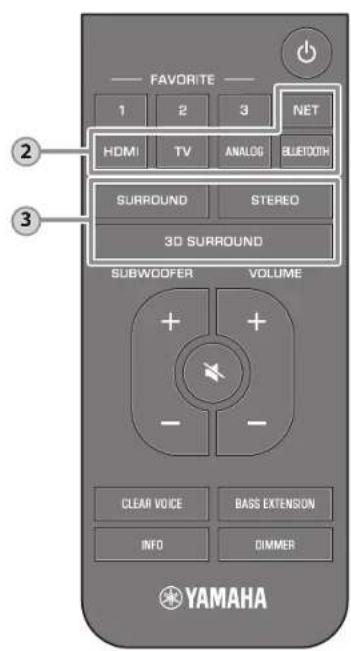
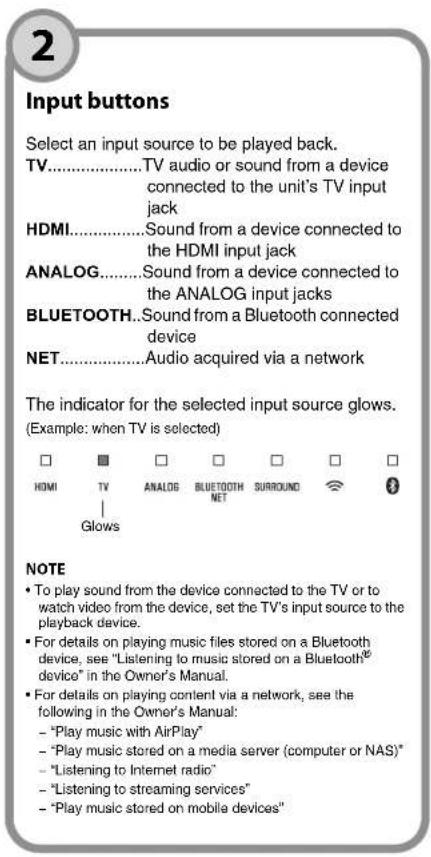
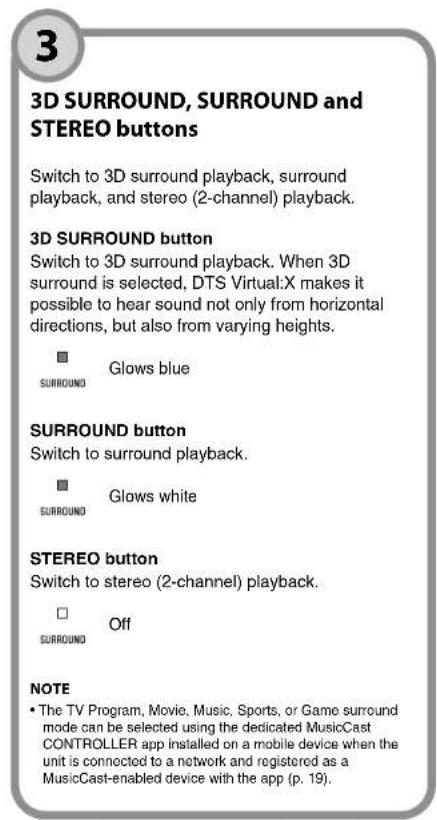
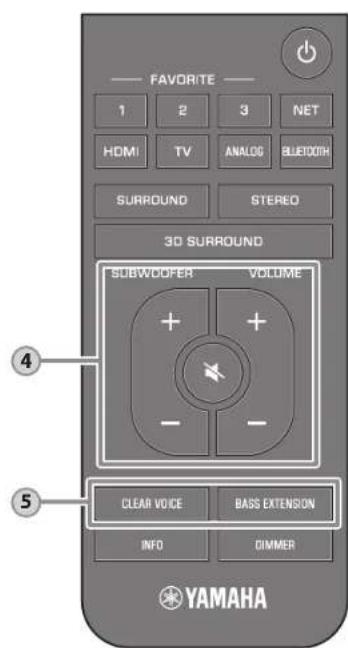
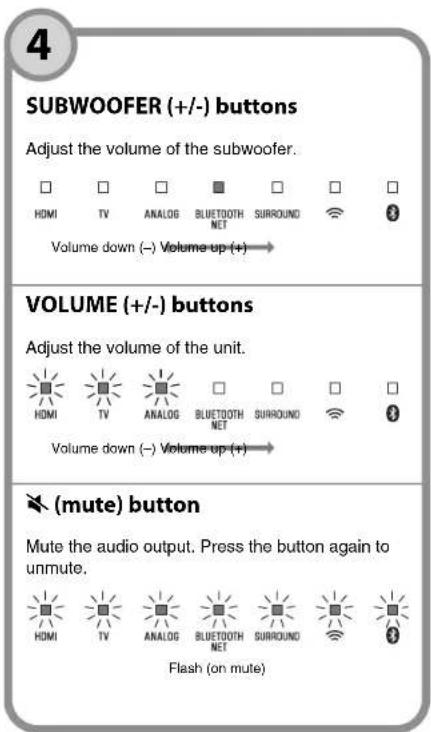
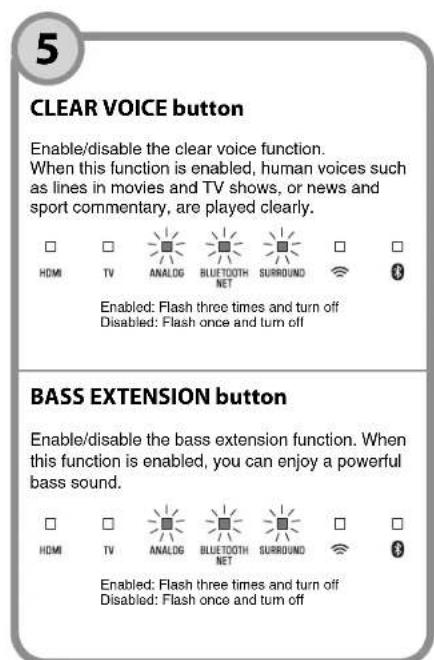
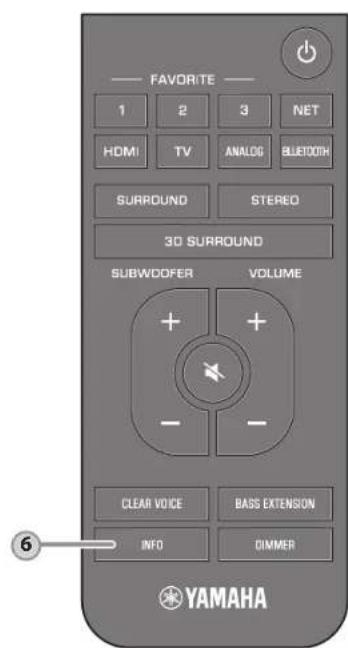
6
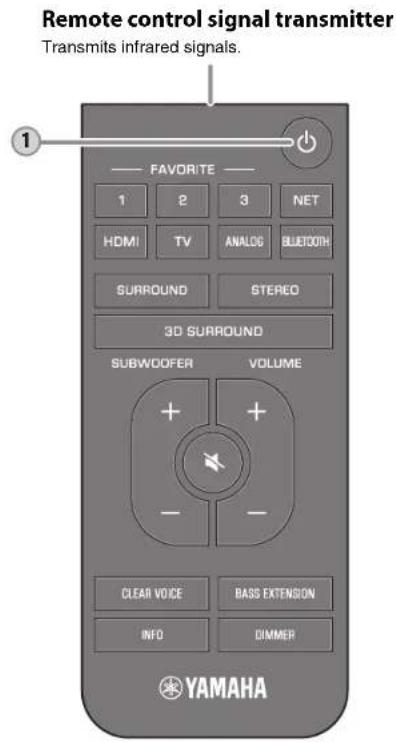
INFO button
Press INFO to confirm the type of audio signal being played, as well as settings for functions such as the
base extension function.
The indicators on the unit will show the following audio information for three seconds immediately after INFO is pressed.
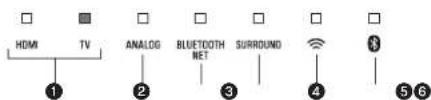
Show the type of audio signal.
HDMI glows (white): Dolby Digital
HDMI glows (red): DTS
TV glows (white): AAC
HDMI and TV off: PCM/analog input/no input
Show whether Dolby Pro Logic II is enabled or disabled. Dolby Pro Logic II is enabled automatically when 2-channel stereo signals are played in surround sound. Glows: Enabled Off: Disabled
Show the bass extension function setting. Glows:Enabled Off:Disabled
Show the clear voice function setting. Glows:Enabled Off:Disabled
Show the network standby function setting. Glows:Enabled Off:Disabled
Show the Bluetooth function setting. Glows (blue): Enabled Off: Disabled
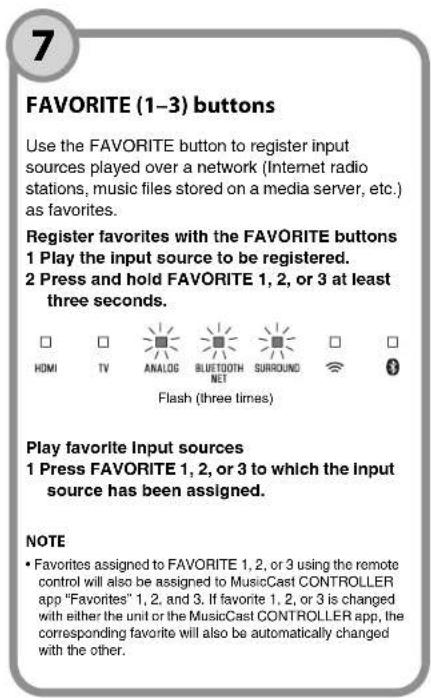
Connecting to a network
Network functions and the MusicCast CONTROLLER app
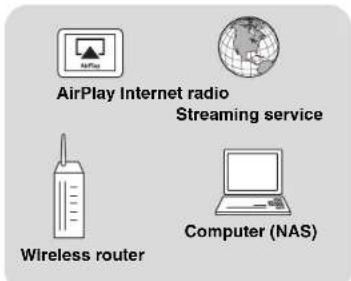
A network connection allows you to listen to Internet radio stations or music streaming services, and to use AirPlay to play music files, or to play music files stored on your computer (media server) via this unit. Most playback requires the "MusicCast CONTROLLER" app for mobile devices. Install and use the MusicCast CONTROLLER app on your mobile device to play music files.
Proceed from network connection to playback in the following sequence.
1 Choose a wired network connection (p. 18) or a wireless network connection (p. 19).

2 Use the MusicCast CONTROLLER app to connect the unit to a network, and register the unit as a MusicCast-enabled device (p. 19).

- Use the MusicCast CONTROLLER app* to play music over a network. For details on playing music over a network, refer to the Owner's Manual.
AirPlay can be used to play music files without using the MusicCast CONTROLLER app.
NOTE
To use network function, the unit, your computer and mobile device must be connected to the same router.
- When using a multiple SSID router, access to the unit might be restricted depending on the SSID to
connect. Connect the unit and mobile device to the same SSID
- Some security software installed on your computer, or network device settings (such as a firewall), may block the unit's access to your computer or Internet radio stations. Should this occur, change security software and/or network device settings.
- A network connection cannot be established if the MAC address filter on your router is enabled. Check your router's settings.
To configure your router's subnet mask manually, apply the same subnet used by this unit to all devices.
- Use of a broadband connection is recommended when using Internet services.
- The unit cannot be connected to a network that requires manual setup. Connect the unit to a DHCP-enabled router.
Wired network connections
To use a wired network connection, connect the unit to a router via an STP network cable (category 5 or higher straight cable; sold separately).
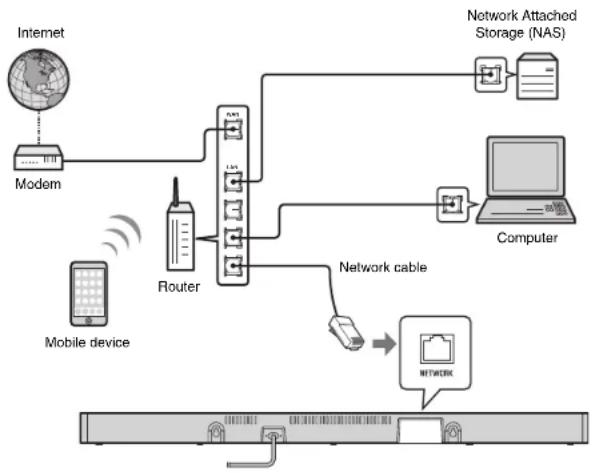
NOTE
- If network connections or settings are changed, use the MusicCast CONTROLLER app to connect the unit to a network and register the unit as a MusicCast-enabled device again (p. 19).
Wireless network connections
Connect the unit to a wireless router (access point) to use a network.
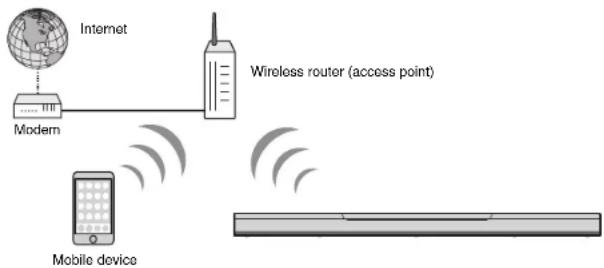
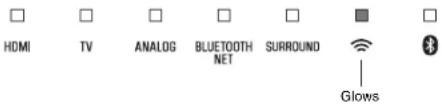
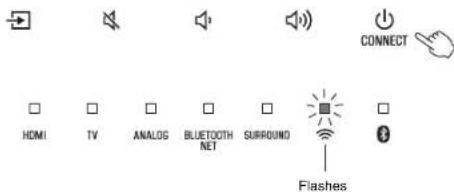
The indicator on the unit glows when the unit is connected to a wireless network.
NOTE
- If the unit and the wireless router (access point) are too far apart, the unit may not connect to a wireless router (access point). In such case, place them close to each other.
Connecting with the MusicCast CONTROLLER app (registering the unit as a MusicCast-enabled device)
Install the MusicCast CONTROLLER app on your mobile device to connect the unit to a network and register it as a MusicCast-enabled device.
NOTE
- Confirm that your mobile device is connected to your home router before beginning.
This section uses MusicCast CONTROLLER app screens displayed in English on an iPhone as examples.
MusicCast CONTROLLER app screens and menu labels are subject to change without prior notice.
1 Install the MusicCast CONTROLLER app on your mobile device, and open the app. Search for "MusicCast CONTROLLER" on the App Store or Google Play.
2 Tap "Setup".
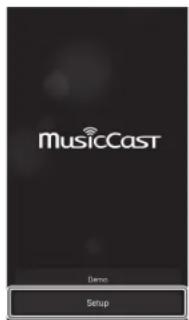
3 Turn on the unit, and then tap "Next".
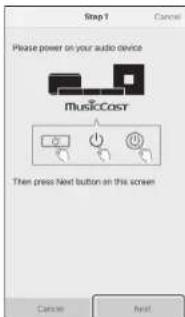
4 Touch and hold CONNECT until the Indicator on the unit starts flashing.
5 Follow the on-screen instructions to configure network settings.
NOTE
- When a screen like that below is displayed, follow the on-screen instructions to configure network settings.
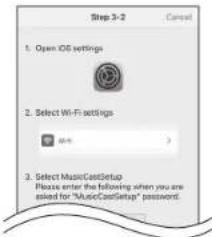
- Use the Home button on your mobile device to return to the Home screen.
- Select "Wi-Fi" from "Settings"
- Select "MusicCastSetup" from "CHOOSSE A NETWORK...". If the on-screen instructions prompt you to enter the MusicCastSetup password, enter the password displayed on the screen.
-
Use the Home button to return to the MusicCast CONTROLLER app.
-
When a screen like that at left below is displayed, select the network to which the unit will be connected and enter the router's password (encryption key). The router's password (encryption key) is often noted on the router itself. Refer to documentation supplied with the router for details.
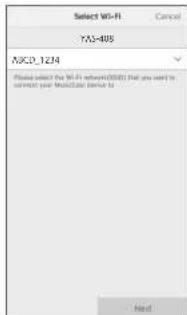

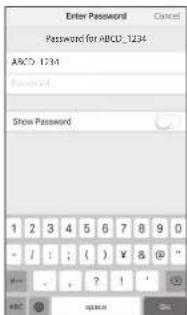
6 To register the unit as a MusicCast-enabled device, configure the following items.
-
Location name ("home", "John's house", etc.)
-
Name and photo of the room where the unit is installed
The location name, and the name and photo of the room where the unit is installed can be changed later.
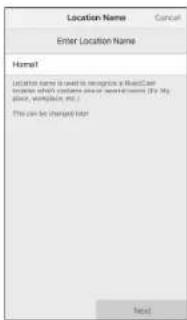
Network connection with the MusicCast CONTROLLER app is now complete, and the unit has been registered as a MusicCast-enabled device.
NOTE
- If a different MusicCast-enabled device is already registered with the MusicCast CONTROLLER app, tap (Settings) in the room selection screen, and then select "Add New Device" to add the unit to the app.
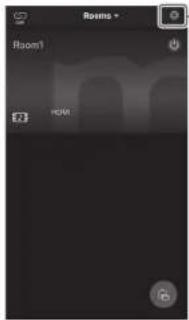
Tap

Specifications
Specifications (YAS-CU408)
| Amplifier section | ||
| Maximum rated output power | Front L/R 50 W x 2ch | |
| Speaker section | ||
| Front L/R Type Acoustic suspe | sion type | (non-magnetic shielding) |
| Driver 4.6 cm (1-3/4") cone x 4 | ||
| Frequency response 160 Hz to 9 kHz | ||
| Impedance 4 Ω (8 Ω x 2) | ||
| Tweeter Driver 2.5 cm (1") dome | x 2 | |
| Frequency response 9 kHz to 23 kHz | ||
| Impedance 4 Ω | ||
| Decoder | |
| Supported audio signal (HDMI/optical input) | PCM (up to 5.1ch) Dolby Digital (up to 5.1ch) DTS Digital Surround (up to 5.1ch) |
| Input jacks | |
| HDMI 1 (HDMI IN) | |
| Digital (Optical) 1 (TV) | |
| Analog (3.5 mm stereo mini) 1 (ANALOG) | |
| Output jacks | |
| HDMI 1 (HDMI OUT (ARC)) | |
| Other Jacks | |
| USB 1 (UPDATE ONLY) | |
| LAN 1 (NETWORK) | |
| Bluetooth | ||
| Bluetooth version Ver 4.2 | ||
| Supported profiles A2DP, AVRP | CP | |
| Supported codecs | Sink: SBC, AAC | |
| Bluetooth class | Bluetooth Class 2 | |
| Range (line-of-sight) | Approx. 10 m (33 ft) | |
| Supported content protection method | SCMS-T (sink) | |
| Radio frequency | U.K. and Europe models | 2402 MHz to 2480 MHz |
| Maximum output power (EIRP) | U.K. and Europe models | 6.5 dBm (4.5 mW) |
| Network | |
| Ethernet standard | 100BASE-TX/10BASE-T |
| Supported codescs | WAV (PCM format only) /AIFF/FLAC: up to 192 kHzALAC: up to 96 kHzMP3/WMA/MPEG-4 AAC: up to 48 kHz |
| PC client functionAirPlay supportedInternet radio | |
| Wi-Fi | |||
| Wireless LAN standards | IEEE 802.11 a/b/g/n/ac* * 20 MHz channel bandwidth only | ||
| Radio frequency band | 2.4 GHz/5 GHz | ||
| Available security method | WEP, WPA2-PSK (AES), Mixed Mode | ||
| Radio frequency | U.K. and Europe models | 2.4 GHz band | 2402 MHz to 2482 MHz (20 MHz) |
| 5 GHz band | 5170 MHz to 5250 MHz (20 MHz)5250 MHz to 5330 MHz (20 MHz)5490 MHz to 5710 MHz (20 MHz)5735 MHz to 5835 MHz (20 MHz) | ||
| Maximum output power (EIRP) | U.K. and Europe models | 2.4 GHz band | 19.2 dBm (83.2 mW) |
| 5 GHz band | 5170 MHz to 5250 MHz (20 MHz):21.5 dBm (141.3 mW)5250 MHz to 5330 MHz (20 MHz):21.8 dBm (151.4 mW)5490 MHz to 5710 MHz (20 MHz):24.1 dBm (257.0 mW)5735 MHz to 5835 MHz (20 MHz):13.5 dBm (22.4 mW) | ||
| General | |||
| Power supply U.S.A. and Canada models AC 120 V, 60 Hz | |||
| Australia model AC 240 V, 50 Hz | |||
| Europe, Asia, and Russia models | AC 110 to 240 V, 50/60 Hz | ||
| U.K. model AC 230 V, 50 Hz | |||
| Taiwan model AC 110 V, 60 Hz | |||
| China model AC 220 V, 50 Hz | |||
| Korea model AC 220 V, 60 Hz | |||
| Power consumption | 30 W | ||
| Standby power consumption | U.S.A., Canada and Taiwan models | HDMI control off, network standby off | 0.4 W |
| HDMI control off, network standby on (Wired/Wi-Fi/Bluetooth) | 1.6/1.8/1.7 W | ||
| HDMI control on, network standby off | 0.7 W | ||
| HDMI control on, network standby on | 2.2 W | ||
| U.K. and Europe models and other models | HDMI control off, network standby off | 0.4 W | |
| HDMI control off, network standby on (Wired/Wi-Fi/Bluetooth) | 1.6/1.8/1.7 W | ||
| HDMI control on, network standby off | 0.7 W | ||
| HDMI control on, network standby on | 2.2 W | ||
| Dimensions(W x H x D) | 980 x 60 x 110.5 mm (38-5/8" x 2-3/8" x 4-3/8") | ||
| Weight 2.7 kg (6 lbs) | |||
Specifications (NS-WSW43)
The specifications of the subwoofer are as follows.
| Amplifier section | |
| Maximum rated output power | 100 W |
| Speaker section | ||
| Type Bass reflex type (non-magnetic shielding type) | ||
| Driver 16 cm (6-1/2") cone x 1 | ||
| Frequency response 40 Hz to 160 Hz | ||
| Impedance 2 Ω | ||
| Radio frequency band 2.4 GHz | ||
| Radio frequency | U.K. and Europe models | 2405.35 MHz to 2477.35 MHz |
| Maximum output power (EIRP) | U.K. and Europe models | 9.0 dBm (8 mW) |
| Transmission range | 10 m ([33 ft] without interference) | |
| General | ||
| Power supply | U.S.A. and Canada models AC | 20 V, 60 Hz |
| Europe, Asia, and Russia models | AC 110 to 240 V, 50/60 Hz | |
| U.K. model AC 230 V, 50 Hz | ||
| Taiwan model AC 110 V, 60 Hz | ||
| Korea model AC 220 V, 60 Hz | ||
| China model AC 220 V, 50 Hz | ||
| Australia model AC 240 V, 50 Hz | ||
| Power consumption | 19 W | |
| Standby power consumption | U.S.A., Canada and Taiwan models | 0.8 W |
| U.K. and Europe models and other models | 0.8 W | |
| Dimensions (W × H × D) | 180 × 417 × 405 mm (7-1/8" × 16-3/8" × 16") | |
| Weight | 9.4 kg (21 lbs) | |
NOTE
- The contents of this manual apply to the latest specifications as of the publishing date. To obtain the latest manual, access the Yamaha website then download the manual file.
Table des matieres
https://download.yamaha.com/
5 (alimentation)/CONNECT
1 Bouton (alimentation)
https://download.yamaha.com/
[Endast for kunder i USA]
Mittenhet (frontpanel/toppanel)
Indikatorer
https://download.yamaha.com/
Verbindingmakeemeteenetwork 150
Over deleze Snelstartgids
https://download.yamaha.com/
https://download.yamaha.com/
YAMAHA CORPORATION
10-1 Nakazawa-cho, Naka-ku, Hamamatsu, 430-8650 Japan
Manual Development Group
© 2018 Yamaha Corporation
Published 03/2020 KSOD-A0
AV17-0272