HWK000 - Smart Home SMARTWARES - Free user manual and instructions
Find the device manual for free HWK000 SMARTWARES in PDF.


Frequently Asked Questions - HWK000 SMARTWARES
User questions about HWK000 SMARTWARES
0 question about this device. Answer the ones you know or ask your own.
Ask a new question about this device
Download the instructions for your Smart Home in PDF format for free! Find your manual HWK000 - SMARTWARES and take your electronic device back in hand. On this page are published all the documents necessary for the use of your device. HWK000 by SMARTWARES.
USER MANUAL HWK000 SMARTWARES
text_image
home wizard WIFI RF PWRsmarthome connect kit
NL GEBRUIKERSHANDLEIDING 2
EN INSTALLATION INSTRUCTIONS 15
FR MANUEL D'UTILISATION 28
natural_image
3D illustration of a power plug with a blue cable inserted into a wall socket (no text or symbols)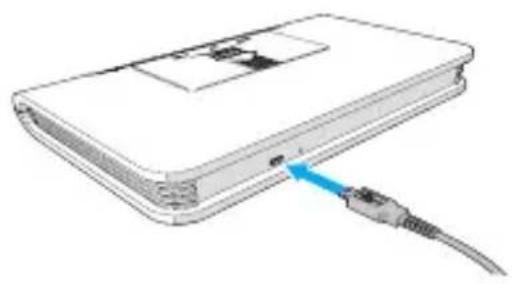
natural_image
Illustration of a computer device with a blue cable inserted into the rear panel (no text or symbols visible)natural_image
Three technical diagrams showing cable connections to a power outlet, no text or symbols presentnatural_image
Illustration of a device with a blue arrow pointing to its side panel (no text or symbols present)natural_image
Illustration of a remote control with a blue arrow pointing to the button (no text or symbols)natural_image
Illustration of a remote control with a blue arrow pointing to the button (no text or symbols)2 How do I install the HomeWizard? 16
2.1 Install HomeWizard for use via iOS and Android 16 2.2 Installing the HomeWizard if you do not have iOS or Android 17
3 How do I set the HomeWizard app? 19
4 How do I add devices to the HomeWizard app? 22
4.1 Adding a wireless switch 22 4.2 Adding other devices 26
5 How do I use the HomeWizard app? 27
5.1 How to activate or deactivate a wireless switch 27 5.2 Other uses 27
I Introduction
Thank you for purchasing this smarthome connect kit. This quick start guide will help you with the installation and use of the smarthome connect kit*. The manual contains a description of how to install the HomeWizard and how to connect the wireless switch.
We advise you to keep to the order of installation as described in this quick start guide.
If you require comprehensive information and/or support with regard to the smarthome connect kit or the many possible extensions, just go to www.homewizard.nl and look at the ‘product information’ or under ‘downloads’.
* Modifications reserved. The product is subject to changes and updates. For the most current manual, please visit our website www.homewizard.nl. If you experience difficulties with the installation of different parts, please refer to the original manual of the relevant product.
What's in the box of the smart home connect kit?
I The HomeWizard
a. Adapter
b. USB cable
2 Two wireless switches
a. Remote control
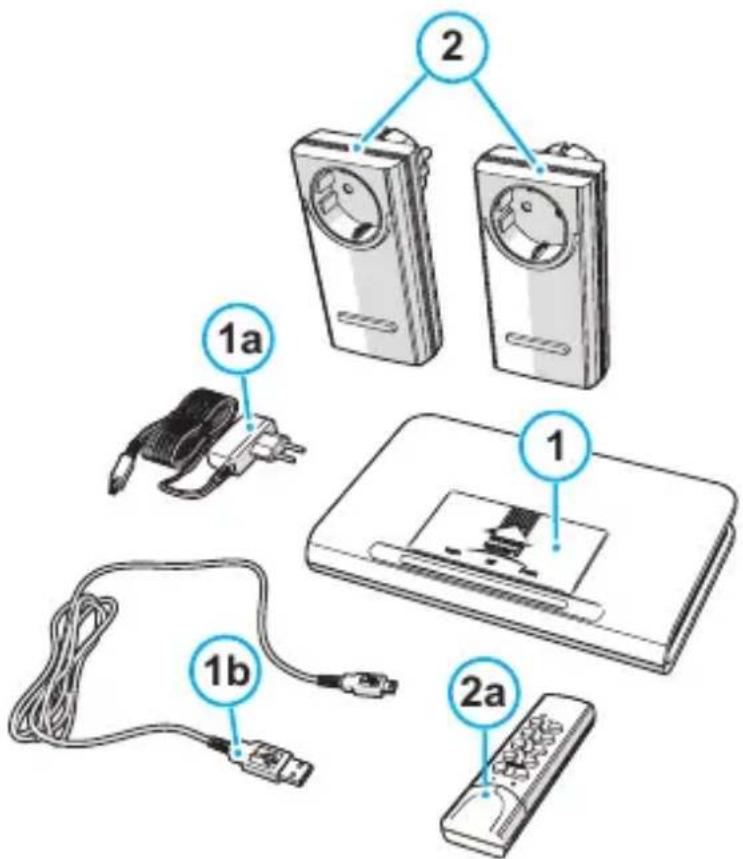
text_image
1a 2 1 1b 2a2 How do I install the HomeWizard?
2. I Install HomeWizard for use via iOS and Android
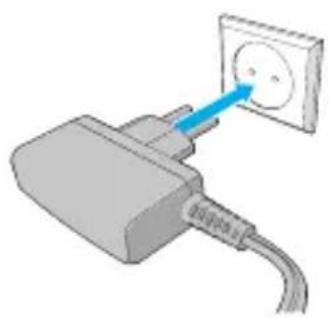
Connect the HomeWizard to the electrical outlet with the supplied adapter. The HomeWizard now sends a WI-FI signal under the name 'HomeWizard'.
Tip! For optimal range, place the HomeWizard in a central location in the house. Do not place the HomeWizard within a radius of 50 centimetres of the router.
natural_image
3D illustration of a power outlet plug with a blue cable inserted, no text or symbols present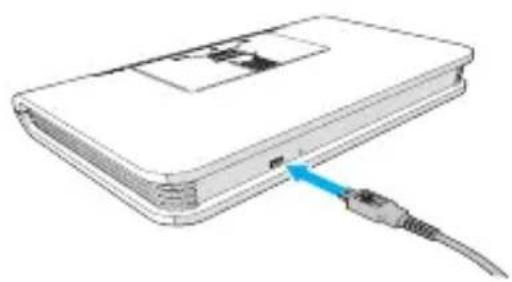
natural_image
Illustration of a computer interface with a blue cable inserted into the next port (no text or symbols visible)2 Go to the Appstore on your iPhone or iPad or to Google Play on your Android device. Install the HomeWizard app.
3 Go to the WI-Fl settings on your iPhone, iPad or Android device. Press on the WI-Fl network 'HomeWizard' in the list of available networks. Your iPhone, iPad or Android device will now connect to the Home Wizard.
4 Open the HomeWizard app and press 'Configure'. The app will guide you through the process in three steps to let the HomeWizard connect to your WI-FI network.
Note! It may occur that the app does not connect to the HomeWizard. Check your router settings (the HomeWizard does not support WEP security) and/or visit www.homewizard.nl/kb for more information.
You will receive an automatic email with login information from your HomeWizard Online Account.
5 Open the email.
6 Look at the illustration in the email. With this information you can activate your account.
Note! If you do not receive confirmation, please refer to the online manual (www.homewizard.nl) to see how to manually create an account.
2.2 Installing the HomeWizard if you have no iOS or Android
Download the 'Configuration Tool' on your computer via www.homewizard.nl/downloads.
2 Connect the HomeWizard with the supplied USB cable to the computer.
3 Start the 'Configuration Tool' and go through the steps to allow the HomeWizard to connect to your WI-FI network.
Tip! Click 'Scan again' if your wireless network is not displayed in the list of available wireless networks. Is your wireless network still not visible in the list of wireless networks? Check the settings of your router.
Tip! If the HomeWizard is unable to verify the network, it is possible that the user name and/or password of your wireless network have not been properly completed. It can also be caused by the security settings of your router. For instance: If you have a WEP encryption, you will need to adapt it to WPA or WPA2.
Tip! Make notes of your HomeWizard data on the last page of this manual.
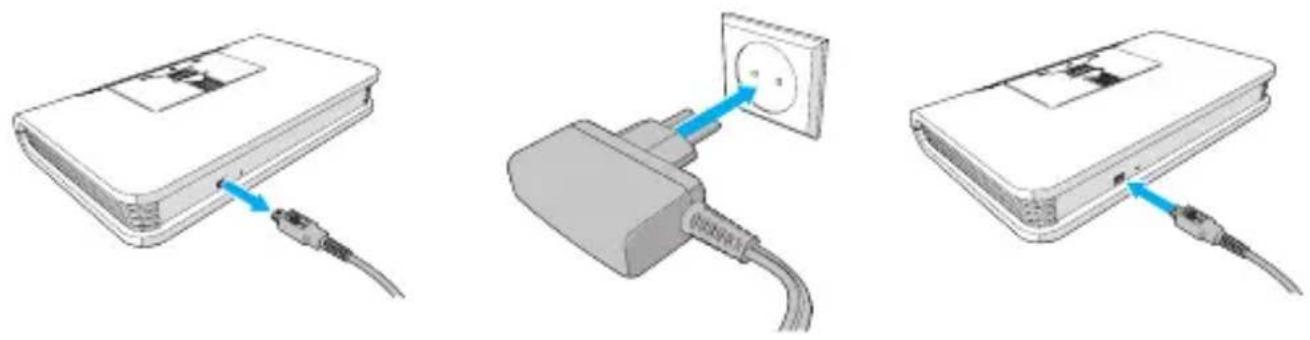
4 Remove the mini USB connector from the HomeWizard and connect the HomeWizard to the electrical outlet with the supplied adapter.
Tip! For optimal range, place the HomeWizard in a central location in the house. Do not place the HomeWizard within a radius of 50 centimetres of the router.
natural_image
Three technical illustrations showing a device with cable, a plug inserted into a power outlet, and a separate package with cables (no text or symbols present)5 You will receive an automatic email with login information of your HomeWizard Online Account.
6 Look at the illustration in the email. With this information you can activate your account.
Note! If you do not receive confirmation, please refer to the online manual (www.homewizard.nl) to see how to manually create an account.
3 How do I set the HomeWizard app?
If you received no confirmation email or if you have not been able to activate it, then first manually set up a HomeWizard Online account. Refer to the extended 'User manual HomeWizard package' on the HomeWizard website for the instructions.
Note! The Smartphone screens in the following chapters originate from the Android version of the HomeWizard app. These screens look a bit different in iOS. If there is a big difference, it is described in the text.
I Install the HomeWizard app via the Appstore or Google Play.
Note! Open the HomeWizard app. If you open the app for the first time, you are prompted to enter your login information. Enter your HomeWizard information.
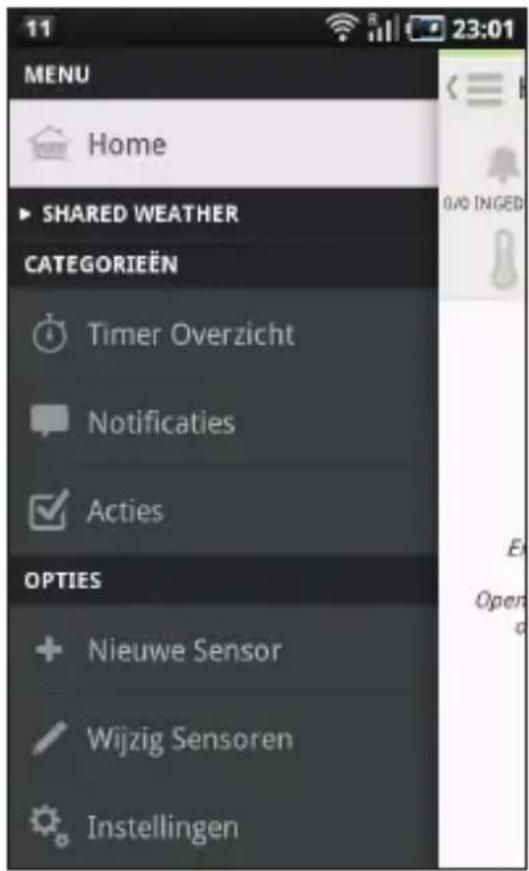
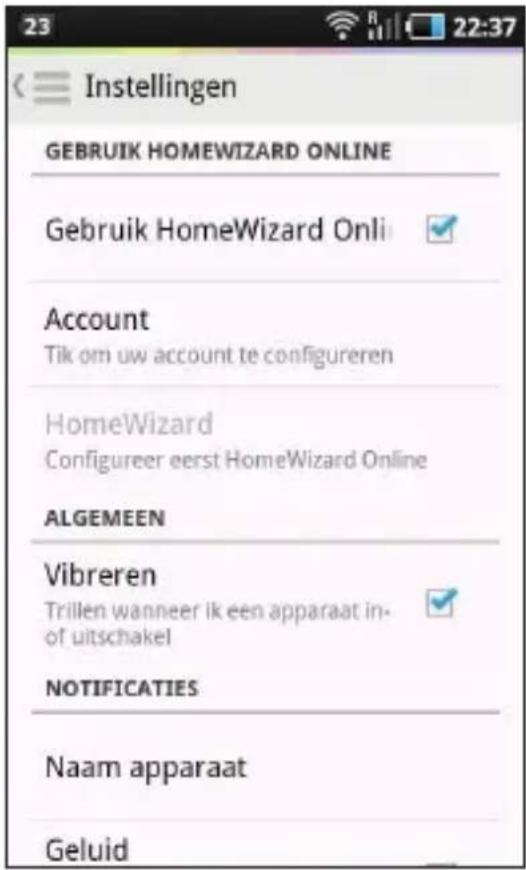
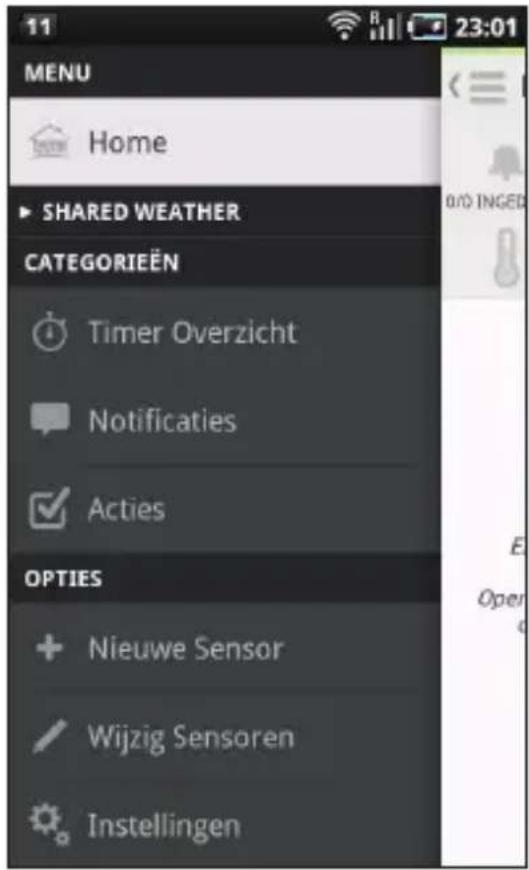
2 On the upper left corner of the Home screen, press the 'Menu' button (the three lines above each other). The Menu is displayed. Then press 'Settings'; the Settings screen appears.
The message "Account" is displayed.
iOS
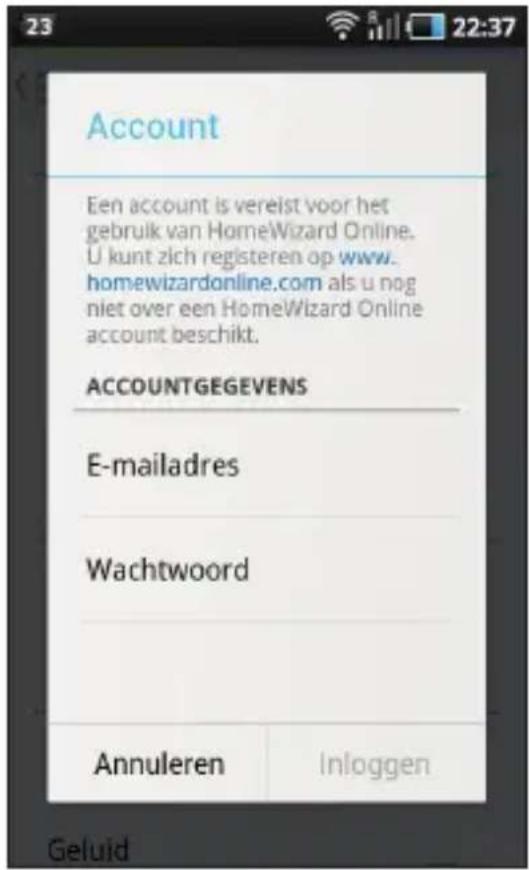
The Account screen appears.
5 Fill in the email address and password of your HomeWizard Online Account.
Press 'Login'. You are now logged into the HomeWizard via your online account.
iOS
Press to lock on 'HomeWizard' and in the screen that appears press 'HomeWizard' again.
4 How do I add devices to the HomeWizard app?
4.1 Adding a wireless switch
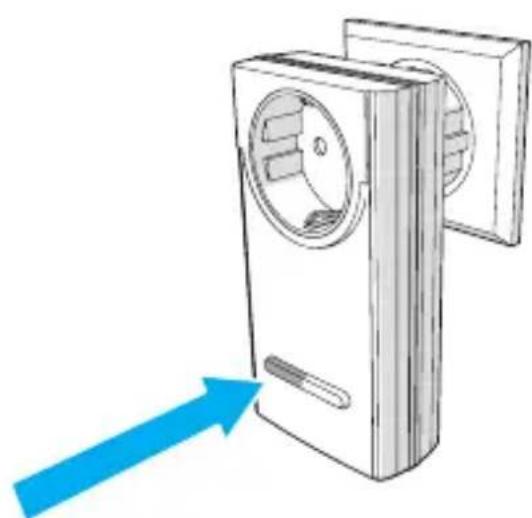
Place the wireless switch in the electrical outlet. A red LED lights up permanently.
2 Keep the button on the wireless switch pressed for 2 seconds and then release the button.
Note! The LED should flash after the button is released. If the LED flashes during pressing the button then the wireless switch cannot be added.
natural_image
Illustration of a dual-panel refrigerator with a blue arrow pointing to the front panel (no text or symbols)3 Press any button on the left side of the remote control. The switch is now paired up with the remote control.
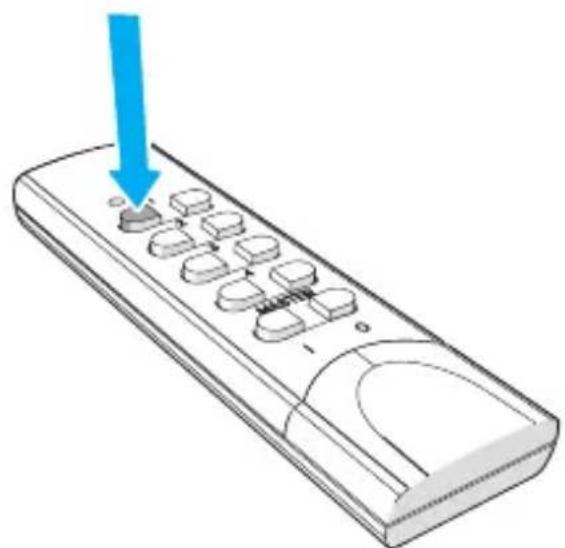
natural_image
Illustration of a remote control with a blue arrow pointing to the button (no text or symbols)4 Open the HomeWizard app on your smartphone or tablet and press the 'Menu' button in the upper left corner of the screen (the three lines above each other). The Menu is displayed.

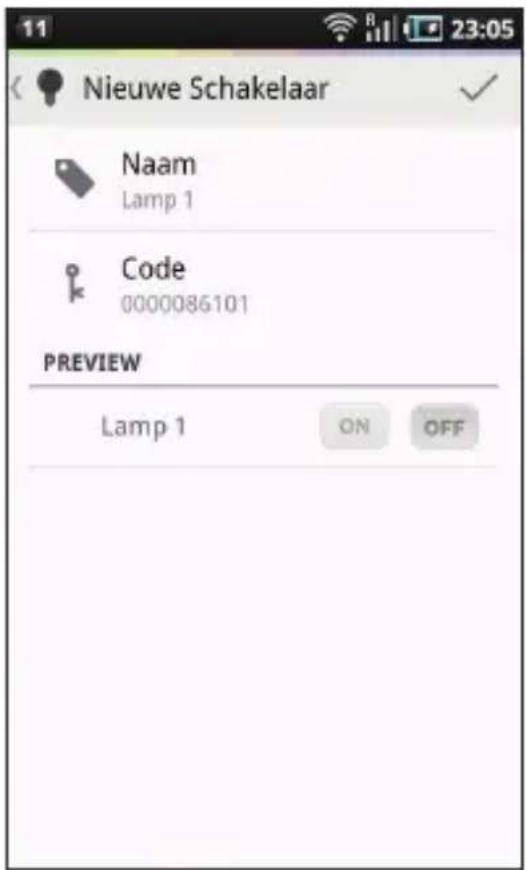
5 Tap on 'New Sensor'. The category screen appears.
Tip! Move your finger across the screen to search.
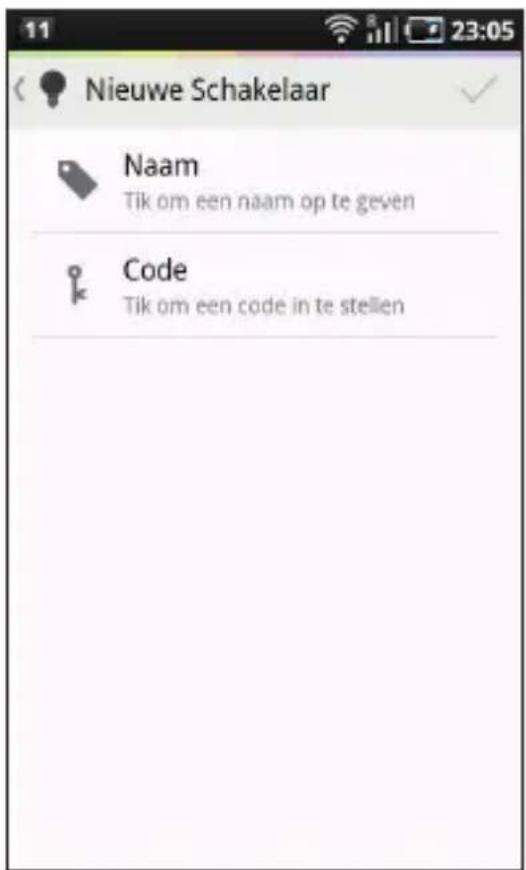
Fill in a preferred name for the device and press 'OK' (Android) or 'Ready' (iOS).
9 On the remote control press the same button as in step 3.
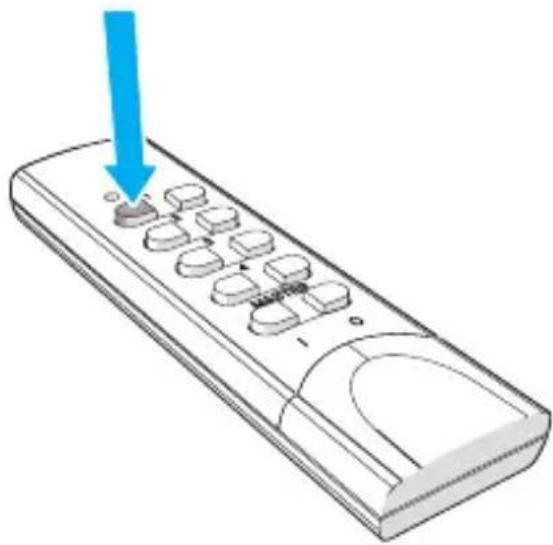
natural_image
Illustration of a remote control with a blue arrow pointing to the button (no text or symbols)10 In the upper right corner of the screen, press 'V' (Android) or 'Save' (iOS) to confirm. The message 'The switch has been added successfully' appears. The wireless switch has been added.
text_image
11 23:05 Nieuwe Schakelaar Naam Lamp 1 Code 0000086101 PREVIEW Lamp 1 ON OFF4.2 Add other devices
You can add different devices to your HomeWizard, such as magnetic contacts, smoke detectors, automatic shutters, lighting, IP cameras etc.
For more information about the options, visit www.homewizard.nl.
5 How do I use the HomeWizard app?
5. I How to activate or deactivate a wireless switch
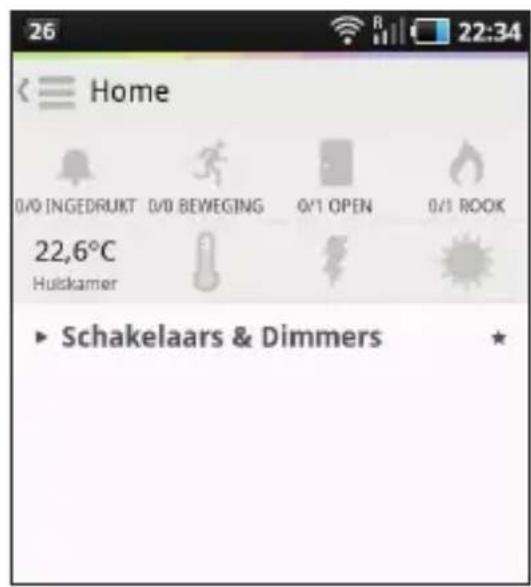
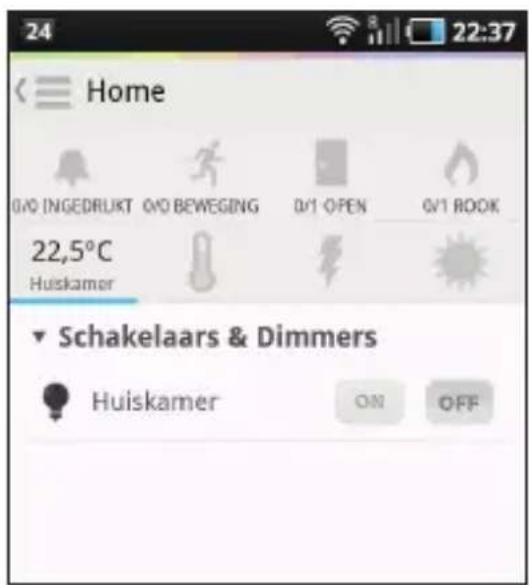
On the Home screen of the HomeWizard app press 'Switches & Dimmers'. A drop-down list appears with the wireless switch that you added.
text_image
Home 0/0 INGEDRUKT 0/0 BEWEGING 0/1 OPEN 0/1 ROOK 22,6°C Hulskamer ► Schakelaars & Dimmers ★2 Press 'ON' to turn on the switch or press 'OFF' to turn off the switch.
text_image
24 Home 0/0 INGEDRUKT 0/0 BEWEGING 0/1 OPEN 0/1 ROOK 22,5°C Huiskamer Schakelaars & Dimmers Huiskamer ON OFF5.2 Other uses
The HomeWizard app offers you various possibilities to use connected devices (e.g. setting timers, carrying out actions or receiving notifications). For inspiration refer to the included feature guide!
'For even more information and opportunities go to www.homewizard.nl. For detailed instructions on how to add other devices and the use of the HomeWizard, refer to the 'comprehensive manual HomeWizard package', available on www.homewizard.nl under 'Downloads'.

MANUEL D'UTILISATION
Table des matières
I Introduction 28
2 Comment installer le HomeWizard ? 29
natural_image
Two technical diagrams showing a power outlet connected to a device via cable (no text or symbols present)natural_image
Three technical illustrations showing a device with cable, a plug, and a power outlet (no text or symbols present)natural_image
Diagram of a device with a blue arrow pointing to its side panel (no text or symbols present)natural_image
Illustration of a remote control with a blue arrow pointing to the button (no text or symbols)natural_image
Illustration of a remote control with a blue arrow pointing to the button (no text or symbols)natural_image
3D illustration of a power outlet plug connecting a wall socket to a cable (no text or symbols)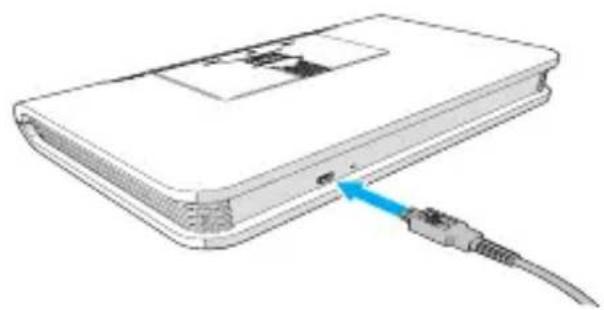
natural_image
Illustration of a computer device with a blue arrow pointing to a cable (no text or symbols present)natural_image
Three technical diagrams showing cable connections to a power outlet, no text or symbols presentnatural_image
Diagram of a device with a blue arrow pointing to its side panel (no text or symbols present)natural_image
Illustration of a remote control with a blue arrow pointing to the button (no text or symbols)natural_image
Illustration of a remote control with a blue arrow pointing to the button (no text or symbols)smartwares safety & lighting
Broekakkerweg 15 5126 BD Gilze The Netherlands
WWW.SMARTWARES.EU
NL : 0900-2088888 lokaal tarief
BE : 070-233031 lokaal tarief
FR : 0825 560 650 15ct/min.