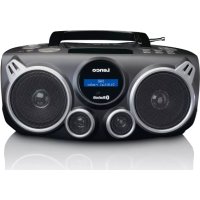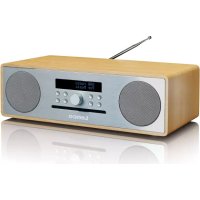
DAR070 - Cd player/recorder LENCO - Free user manual and instructions
Find the device manual for free DAR070 LENCO in PDF.


| Product type | CD player/recorder |
| Brand | Lenco |
| Model | DAR070 |
| Power supply | 200-240V~50/60Hz |
| Power consumption | 25 W |
| Standby power consumption | < 1 W |
| Output power | 2 x 18 W |
| Speaker impedance | 8 Ω |
| Signal-to-noise ratio (A-weighted) | ≥ 65 dB |
| Total harmonic distortion (1 kHz, 1 W) | 0.5 % |
| Frequency response | 40 Hz - 20 kHz |
| DAB frequency range | 174-240 MHz |
| FM frequency range | 87.5-108 MHz |
| Dimensions (W x H x D) | 396 x 120 x 205 mm |
| Bluetooth version | V2.1 + EDR |
| Bluetooth range | Approx. 10 m |
| Bluetooth protocols | A2DP, AVRCP |
| USB port | 5V 500 mA |
| Headphone output | Yes (3.5 mm) |
| AUX input | Yes (3.5 mm) |
| Compatible disc types | CD, CD-R, CD-RW (Audio/MP3/WMA) |
| Remote control batteries | 2 x AAA |
| Main functions | DAB+, FM, CD, USB, Bluetooth, AUX |
| Preset equalizer | Classic, Pop, Rock, Jazz, Normal |
| Sleep timer | Yes |
| Warranty | Compliant with European legislation |
Frequently Asked Questions - DAR070 LENCO
User questions about DAR070 LENCO
0 question about this device. Answer the ones you know or ask your own.
Ask a new question about this device
Download the instructions for your Cd player/recorder in PDF format for free! Find your manual DAR070 - LENCO and take your electronic device back in hand. On this page are published all the documents necessary for the use of your device. DAR070 by LENCO.
USER MANUAL DAR070 LENCO
Usage of controls or adjustments or performance of procedures other than those speci ed herein may result in hazardous radia on exposure.
This unit should not be adjusted or repaired by anyone except quali ed service personnel.
KEEP THESE INSTRUCTIONS IN MIND:
- Do not use this device near water.
- Clean only with a slightly damp cloth.
- Do not cover or block any ven la on openings. When placing the device on a shelf, leave 5 cm (2") free space around the whole device.
- Install in accordance with the supplied user manual.
-
- Don't step on or pinch the power adaptor. Be very careful, particularly near the plugs and the cable's exit point. Do not place heavy items on the power adaptor, which may damage it. Keep the entire device out of children's reach! When playing with the power cable, they can seriously injure themselves.
-
- Unplug this device during lightning storms or when unused for a long period.
- Keep the device away from heat sources such as radiators, heaters, stoves, candles and other heat-genera ng products or naked ame.
- Avoid using the device near strong magne c elds.
- Electrosta c discharge can disturb normal usage of this device. If so, simply reset and restart the device following the instruc on manual. During le transmission, please handle with care and operate in a sta c-free environment.
- Warning! Never insert an object into the product through the vents or openings. High voltage ows through the product and inserting an object can cause electric shock and/or short circuit internal parts. For the same reason, do not spill water or liquid on the product.
- Do not use in wet or moist areas such as bathrooms, steamy kitchens or near swimming pools.
- Do not use this device when condensa on may occur.
- Although this device is manufactured with the utmost care and checked several mes before leaving the factory, it is s ll possible that problems may occur, as with all electrical appliances. If you no ce smoke, an excessive build-up of heat or any other unexpected phenomena, you should disconnect the plug from the main power socket immediately.
- This device must operate on a power source as speci ed on the speci ca on label. If you are not sure of the type of power supply used in your home, consult your dealer or local power company.
-
- The socket outlet must be installed near the equipment and must be easily accessible.
-
- Do not overload ac outlets or extension cords. Overloading can cause re or electric shock.
-
- Devices with class 1 construc on should be connected to a main socket outlet with a protec ve earthed connec on.
-
- Devices with class 2 construc on do not require a earthed connec on.
- Keep away from rodents. Rodents enjoy biting on power cords.
-
- Always hold the plug when pulling it out of the main supply socket. Do not pull the power cord. This can cause a short circuit.
- Avoid placing the device on any surfaces that may be subject to vibra ons or shocks.
- To clean the device, use a so dry cloth. Do not use solvents or petrol based uids. To remove severe stains, you may use a damp cloth with dilute detergent.
- The supplier is not responsible for damage or lost data caused by malfunction on, misuse, modi ca on of the device or ba ery replacement.
-
Do not interrupt the connec on when the device is formang or transferring les. Otherwise, data may be corrupted or lost.
-
If the unit has USB playback func on, the usb memory s ck should be plugged into the unit directly. Don't use an usb extension cable because it can cause interference resul ng in failing of data.
- The apparatus shall not be exposed to dripping or splashing and make sure that no objects Iled with liquids, such as vases, are placed on or near the apparatus.
-
- To completely disconnect the power input, the mains plug of the apparatus shall be disconnected from the mains, as the disconnect device is the mains plug of apparatus.
- If the unit works with ba ery, Ba ery shall not be exposed to excessive heat such as sunshine, re or the like.
- A en on should be drawn to the environmental aspects of ba ery disposal.
- The apparatus can only be used in moderate extremely cold or climates warm environments should be avoided.
- The ra ng label has been marked on the bo om or back panel of the apparatus.
- This device is not intended for use by people (including children) with physical, sensory or mental disabilities, or a lack of experience and knowledge, unless they're under supervision or have received instruc ons about the correct use of the device by the person who is responsible for their safety.
- This product is intended for non professional use only and not for commercial or industrial use.
- Make sure the unit is adjusted to a stable position. Damage caused by using this product in an unstable position or by failure to follow any other warning or precaution on contained within this user manual will not be covered by warranty.
- Never remove the casing of this apparatus.
- Never place this apparatus on other electrical equipment.
- Do not use or store this product in a place where it is subject to direct sunlight, heat, excessive dust or vibra on.
- Do not allow children access to plas c bags.
- Only use a achments/accessories speci ed by the manufacturer.
- Refer all servicing to quali ed service personnel. Servicing is required when the apparatus has been damaged in any way, such as the power supply cord or the plug, when liquid has been spilled or objects have fallen into the apparatus, when the apparatus has been exposed to rain or moisture, does not operate normally, or has been dropped.
- *Do not use a damaged power cord or plug or a loose outlet. Doing so may result in re or electric shock.
- Prolonged exposure to loud sounds from personal music players may lead to temporary or permanent hearing loss.
INSTALLATION
- Unpack all parts and remove protec ve material.
- *Do not connect the unit to the mains before checking the mains voltage and before all other connec ons have been made.
*Those instruc on are related only to products using power cable or AC power adaptor.
Thank you for purchasing the DAR-070.
We recommend that you spend some time reading this instruction manual in order that you fully understand all the operational features it offers. You will also find trouble shooting to help you resolve any issues.
Read all the safety instructions carefully before use and keep this instruction manual for future reference.
Unpacking
Remove all packaging from the unit. Retain the packaging If you dispose of it please do so according to local regulations.
The following items are included:
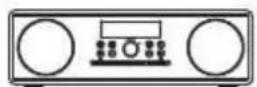
main unit

3.5mm to 3.5mm cable

AAA Batteries

AC Power Cord
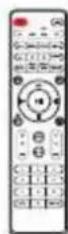
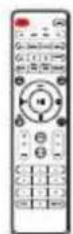
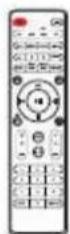
Remote Control
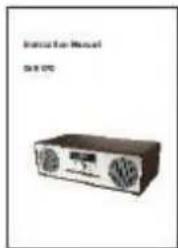
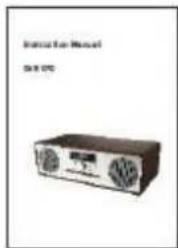
Instruction Manual
| EN | EN |
| main unit | main unit |
| AAA Batteries | AAA Batteries |
| Remote Control | Remote Control |
| 3.5mm to 3.5mm cable | 3.5mm to 3.5mm cable |
| AC Power Cord | AC Power Cord |
| Instruction Manual | Instruction Manual |
Product Overview
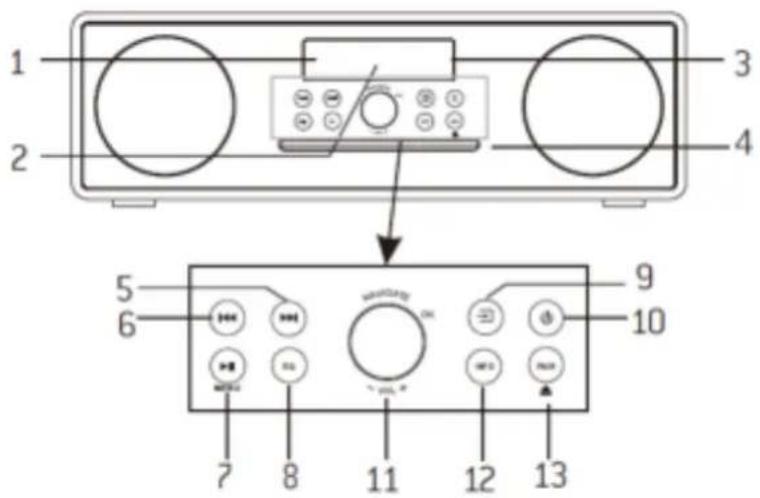
Front View
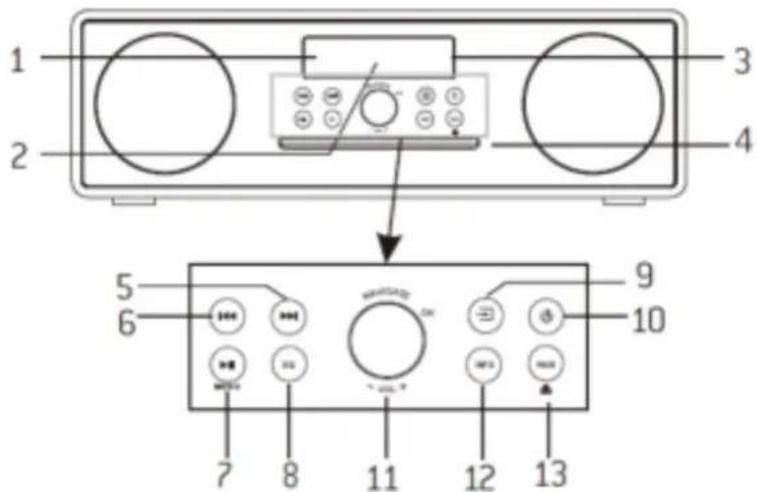
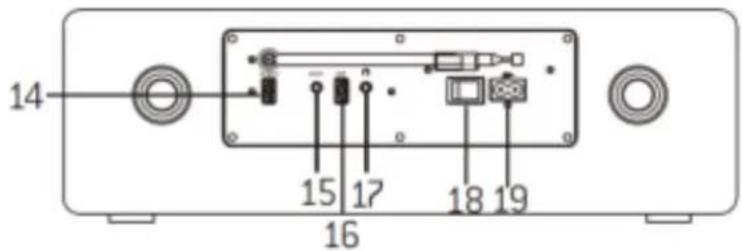
Rear View
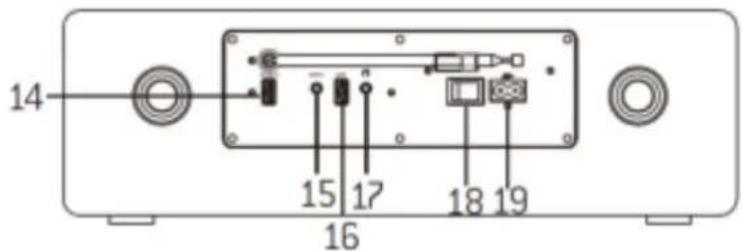
-
Remote Sensor
-
Display
-
Standby indicator
-
Disc Door
5.
-
Press to select next track in USB and CD.
-
Press and hold to display channel list in DABand FM.
-
Press to display preset channel list in DABand FM.
6.
-
Press to select previous track in USB and CD.
-
Press and hold to display channel list in DABand FM.
-
Press to display preset channel list in DABand FM.
7.
- Press to play and pause in CD, USB and BT.
MENU
- Press to display the menu in DAB and FM.
8. EQ
- Press to select sound characteristics:CLASS/POP/ROCK/JAZZ/NORMAL.
9.
- Press to change source after power on.
10.
- Press for power on and power off.
11. NAVIGATE
- Rotate to move down or move up on themenu screen in DAB and FM.
OK
- Press to select or skip to subsequent menuin DAB and FM.
VOL+/VOL-
- Rotate to increase and decrease the volumelevel.
12. INFO
- Press to on/off the ID3 information in CD andUSB.
- Press to view information in DAB and FM.
13. PAIR
- Pres and hold to activate the pairingfunction in BT and/or disconnect theexisting paired BT device.
#
- Press to put disc in/out in CD.
14. 5V TA output
- Connect to recharge for mobile device.
15. AUDIO input
16. USB
- Connect to a USB device for music playback.
17. Earphone
18. Power switch
19. AC input
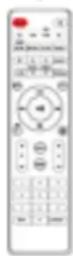
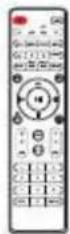
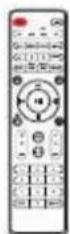
Remote Control
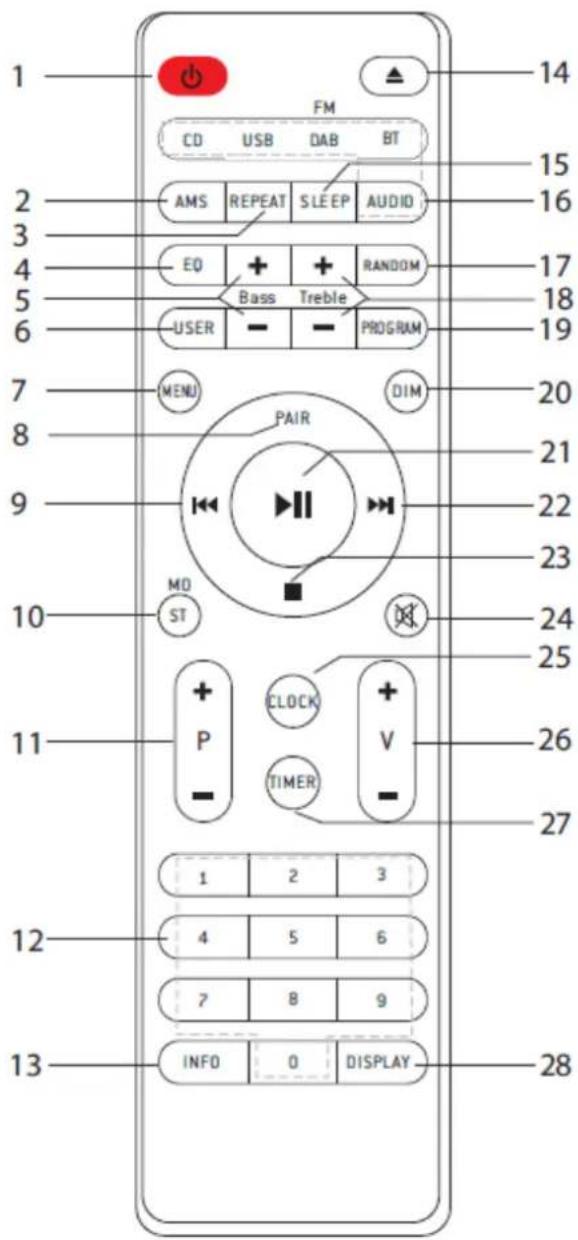


- Switch the unit between ON and STANDBYmodes.
2.AMS -
Press to automatically search for channel inFM, when in searching, press again can stop it.
-
REPEAT
-
Press to select a repeat playback mode in CD and USB.
- EQ
-
Press to select sound characteristics:CLASS/POP/ROCK/JAZZ/NORMAL.
-
BASS+/-
-
Press to adjust the BASS in USER mode.
6. USER
- Press to allow you to adjust the Bass and Treble.
7. MENU
- Press to display the menu in DAB and FM.
8. PAIR
- Press and hold to activate the pairing function in BT and/or disconnect the existing paired BTdevice.
9.
- Press and hold for fast backward in CD and USB;
- Press to select the previous track in CD and USB;
- Press to display channel list in DAB;
- Press to move up on the menu screen in DABand FM;
Press for fine tuning in FM.
10. MO/ST
- Press to set stereo or mono sound mode.
11. P_+ / -
- Press to skip to the beginning of a current/previous/subsequent album;
- Press to select previous/next preset track inDAB and FM;
- Press and hold for manual tuning in FM.
12. 0-9 Numeric.
13. INFO
- Press to on/off the ID3 information in CD andUSB;
- Press to view information in DAB and FM.
14. ▲
- Press to put disc in/out in CD.
15. SLEEP
- Press to set sleep timer.
16. CD/USB/DAB/FM/BT/AUDIO
Press to select the corresponding AUDIOSOURCE.(CD/USB/DAB/FM/BT/AUDIO)
17. RANDOM
- Press to play tracks randomly in CD and USB.
18. TREBLE +/-
- Press to adjust the TREBLE in USER mode.
19.PROGRAM
- Press to programme in CD, USB, DAB and FM.
20. DIM
- Press to select different levels of brightness for the display screen.
21.
- Press to play/pause in BT, CD and USB;
- To select or skip to subsequent menu in DABand FM.
22.
- Press and hold for fast forward in CD andUSB;
- Press to select the next track in CD and USB;
- Press to display channel list in DAB;
- Press to move down on the menu screen inDAB and FM;
Press for fine tuning in FM.
23.
- Press to stop playing in CD and USB.
24.
- Press to mute or resume the sound.
25. CLOCK
- Press and hold to set clock.(working standby mode only)
26. V_+ / -
- Press to increase/decrease the volumelevel.
27. TIMER(working in standby mode only)
- Press to turn on/off the timer function;
- Press and hold for timer setting.
28. DISPLAY
- Press to display the date in power on mode.
Operating Your Remote Control
- Press and slide the back cover to open the battery compartment of the remote control.
- Insert two AAA size batteries.
Make sure the (+) and (-) ends of the batteries match the (+) and (-) ends indicated in the battery compartment. - Close the battery compartment cover.
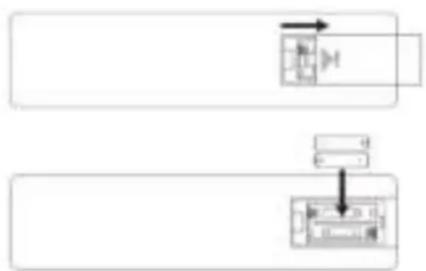
Handling the Batteries
- Improper or incorrect use of batteries may cause corrosion or battery leakage, which could cause fire, personal injury or damage to property.
- Install the batteries correctly by following the polarity (+ and -) indications in the battery compartment.
- When the batteries are exhausted, the remote control will not function.
- Only use the battery type indicated in this manual.
- Do not dispose of the used battery as domestic waste. Dispose of them in accordance with local regulations.
Handling the Remote Control
Be aware of your fingernails when removing the battery cover and the batteries.
- Do not drop the remote control.
- Do not allow anything to impact the remote control.
- Do not spill water or any liquid on the remote control.
- Do not place the remote control on a wet object.
- Do not place the remote control under direct sunlight or near sources of excessive heat.
- Remove the batteries from the remote control when not in use for a long period of time, as corrosion or battery leakage may occur and result in physical injury, and/or property damage, and/or fire.
Remote Control Operation Range
Point the remote control at the unit no more than 5 metres from the remote control sensor and within 60^ horizontally and 20^ vertically of the front of the unit. The operating distance may vary depending on the brightness of the room.

- Make sure that there is no obstacle between the remotesensor of the unit and remote control. If you install the unit on a TV stand, etc., the remote control range may decrease depending on the thickness or colour of the glass of the TV stand.
- Do not expose the infrared remote sensor to direct sunlight orother strong light, such as inverter fluorescent light.
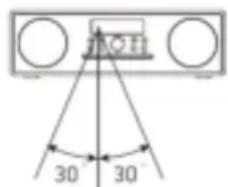
Within about 5 m
| EN | EN |
| Within about 5 m | Within about 5 m |
Connections
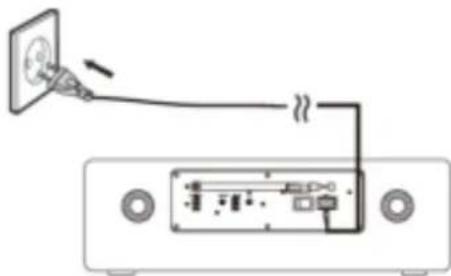
AC Power Connection
Caution:
- Risk of product damage! Ensure that the power supply voltage corresponds to the voltage printed on the rating label on the back or on the underside of the unit.
- Before connecting the AC power cable, ensure that you have completed all other connections.
- Connect the small end of AC socket at the back of unit and insert the plug of the AC power cable into a standard AC wall outlet.
- Be sure to unplug the power cable from the outlet when the system is not in use for an extended period of time.
- The MAINS plug or an appliance coupler is used as the disconnect device, the disconnect device shall remain readily operable.
Analogue Inputs Connection
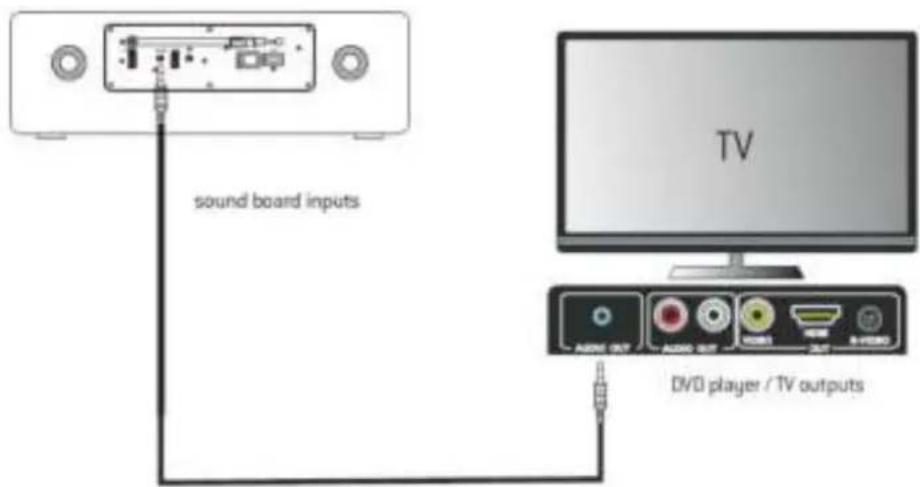
Connecting DVD player/TV outputs to analogue inputs from the sound board.
- Use the supplied 3.5mm to RCA audio cable to connect the DVD player/TV outputs with the AUX(L/R) input socket from the sound board.

| EN | EN |
| sound board inputs | sound board inputs |
| DVD player/TV outputs | DVD player/TV outputs |
Connecting DVD player/TV outputs to analogue inputs from the sound board.
- Use a line-in audio cable (Φ 3.5mm) (not supplied) to connect the DVD player/TV outputs with the AUDIO input socket from the sound board. You can also to connect an external audio device headphone socket to this AUDIO IN socket on the unit, such as MP3 player, Ipod®, or Iphone®, etc...
| EN | EN |
| sound board inputs | sound board inputs |
| DVD player/TV outputs | DVD player/TV outputs |
Headphones Connection
Connect your headphones to the headphones socket at the rear of the unit.
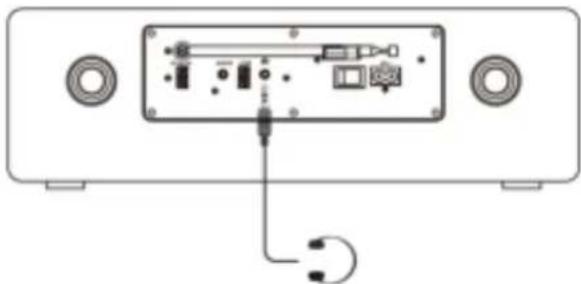

Not all headphones and earphones are supported.
- Excessive sound pressure from earphones and headphones can cause hearing loss.
- Be sure to turn down the volume before connecting or putting on headphones and earphones.
Basic Operation
Switching the Unit On
Press and hold the button at the top of the unit or on the remote control to switch the unit on.
Selecting modes
Press the button on the unit repeatedly to select DAB, FM, USB, BT, AUDIO or CD.
You can also press the short-cut buttons on the remote control (DAB, FM, USB, BT, AUDIO or CD) toselect your desired mode.

| EN | EN |
| USB | USB |
| BT | BT |
| AUDIO | AUDIO |
| FM | FM |
| DAB | DAB |
| CD | CD |
Note:
- If there is no signal, the unit will switch off automatically within 19 minutes to save energy (except in FM).
Setting the Clock
Setting the Clock Manually
- Set the unit to Standby mode.
- Press and hold the CLOCK button on the remote control.
- Input the date, hour and minutes by digital keys on RC.
- Press the CLOCK button to confirm setting.
Display the Date
In DAB or FM mode press the DISPLAY button on the remote control.
Setting the Sleep Timer
Use the sleep timer to turn the system off after a certain number of minutes in play mode. By setting the sleep timer, you can fall asleep to music and know that your system will turn on by itself rather than play all night.
To set the sleep timer press the SLEEP button on the remote control repeatedly, it changes thenumber of minutes shown on the display in this sequence:

| EN | EN |
| OFF | OFF |
After setting the number of minutes for the sleep timer, the display will return to the previous display.
The system is now set to turn off after the number of minutes you have set.
To Confirm the Sleep Timer
When the SLEEP button on the remote control is pressed once, the remaining sleep time is displayed. Wait for a second until the display returns to the original display.
To Cancel the Sleep Timer
Press the SLEEP button repeatedly on the remote control until "off" is displayed. Turning off the system also cancels the sleep timer.
Setting Timer
You can use the setting timer to make the unit automatically turn on and off at a certain time every day from standby.
The clock must be correctly set for the timer to operate correctly.
- Set the unit to Standby mode;
- Press the TIMER button to the on/off timer function;
- Press and hold the TIMER button for timer setting. Select source by (\text{串串串串串串串串串串串串串串串串串串串串串串串串串串串串串串串串串串串串串串串串串串串串串串串串串串串串串串串串串串串串串串串串串串串串串串串串串串串串串串串串串串串串串串串串串串串串串串串串串串串串单击。

If the selected source is BUZZER, then, the TIMER OFF setting is not available.
Sound Quality
Adjusting the Volume
To increase or decrease the volume, rotate the VOL + / - button on the unit or press the VOL + / - buttons on the remote control.
- If you want to turn off the sound, press the button on the remote control. Press the buttonagain or press the VOL+/- button to resume normal listening.
Note, if you adjust the volume above 26, then power off and power on again, the volume will restore to the factory setting automatically.
Adjusting the Bass
Press the USER button on the remote control, then press the BASS +/- buttons on the remote control to increase/decrease the bass.
Adjusting the Treble
Press the USER button on the remote control, then press the TREBLE +/- buttons on the remotecontrol to increase/decrease the treble.
Preset Equalizer
You can select sound characteristics such as CLASS/POP/ROCK/JAZZ/NORMAL by pressing the EQ button.
Bluetooth Operation
You can listen to tracks from a media device if it is connected to the unit via Bluetooth.
Pair Bluetooth-enabled Devices.
You need to pair your Bluetooth device with this unit before you connect them for the first time.
In order to avoid interferences, de-activate Wi-Fi on your device(Smartphone, tablet, etc...) when playing music using Bluetooth.
Pair Bluetooth-enabled Devices
Note:
- The operational range between this unit and a Bluetooth device is approximately 10 meters (without any object between the Bluetooth device and the unit).
- Before you connect a Bluetooth device to this unit, ensure that you know the device's capabilities.
- Any obstacle between this unit and the Bluetooth device can reduce e the operational range.
- If the signal strength is weak, your Bluetooth device may disconnect, but it will re-enter automatically into pairing mode.
- During ON mode, press the BT button on the remote control to select the Bluetooth mode or change source to BT by pressing on the unit. If the unit is not paired to any Bluetooth device, the system enters automatically into pairing mode; or you need to press and hold the PAIR button to start pairing.
- Activate the Bluetooth function on your device and select the search mode. "Lenco DAR-070" will appear on your Bluetooth device.
- To disconnect the Bluetooth function, switch to another function on the unit or disable thefunction from your Bluetooth device.
Tips:
- If there is already an existing connection, press the PAIR button to re-activate the pairingmode. The existing connection will be interrupted.
- The unit will also be disconnected when your device is moved beyond the operational range.
- If you want to reconnect your device to this unit, place it within the operational range.
- If the device is moved beyond the operational range, when it is brought back, check if the device is still connected to the unit.
If the connection is lost, follow the above instructions to pair your device again to the unit.
Listen to Music from Bluetooth Device
- If the connected Bluetooth device supports Advanced Audio Distribution Profile(A2DP), you can listen to music stored on the device through this unit.
-
If the device also supports Audio Video Remote Control Profile(AVRCP), you can use this unit's remote control to play music stored on the device.
-
Pair your device with this unit.
- Play music via your device (if it supports A2DP).
- Use supplied remote control to control play (if it supports AVRCP).
- To pause/resume play, press the button.
- To skip to a track, press the or buttons.
AUDIO IN Operation
- Press the AUDIO button on the remote control or press the button on the unit to select the desired source.
- Operate your audio device directly for playback features.
- Press the VOL +/- button to adjust the volume to your desired level.
DAB Operation
DAB radio mode receives DAB/DAB+ digital radio and displays information about the station and programme/track as broadcast.
DAB
1. Scanning for stations
The first time you use the unit, or if the station list is empty, the radio automatically performs a full scan to see what stations are available. You may also need to start a scan manually to update the list of stations for one of the following reasons:
- New stations may become available from time to time.
Stations close or can no longer be received (In the station list, invalid stations are indicated with a question mark in front of their name).
If reception was not good after the original scan (for example the antenna was not up), this may result in an empty or incomplete list of available stations. - If you have poor reception of some stations causing the audio to break up, you may wish to list only stations with good signal strength.
To do a full scan
Select MENU> Full scan.
Once a scan is complete, the radio returns to playing the previously -selected station or first station on thestation list.
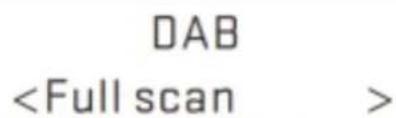
To remove stations that are listed but unavailable
Select MENU>Prune
This removes all invalid stations, indicated in the station list with a "?" in front of the station name.
2. Selecting stations
To change station
Use the button on the RC or Rotate NAVIGATE button onthe unit to scroll through the list of station, press theon RC or OK button on unit to change station.
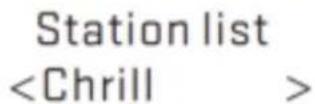
Some stations are secondary services associated with a Primary channel and only available at certain times. Any station that has associated secondary services is indicated with a double chevron pointing to the right. The Secondary service station stations are always listed next to their Primary station rather than the normal is indicated with a double chevron pointing left. In the Station List Secondary alphabetical order.
3. Presets
The unit has 40 preset memories for DAB.
To store a station in a preset memory
Press and hold the PROGRAM button 3~5 seconds until the display shows Preset Store. Presets (1-40) are displayed as either Empty or with the currently stored station name.
Use the button on the RC or Rotate NAVIGATE button onthe unit to choose a preset memory, then press the on RC or OK button on unit to store the currently - playing station. After confirming the preset station is stored the display reverts to the Now playing screen.
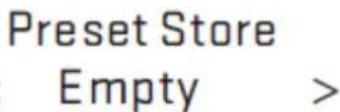
Preset 1 Stored
To recall a preset station
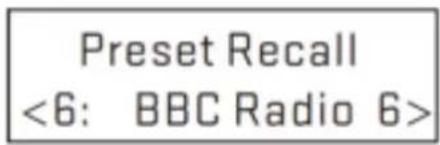
Press the PROGRAM button briefly, (the display will show Preset Recall). Select one of the listed presentations using the + / - buttons on the RC or button on unit, then press button on the RC or OK button on the unit to choose the displayed preset station.
4. Manual tune
As well as the normal method of scanning, you can also manually tune to a particular channel/frequency. This can be useful for adjusting your antenna to achieve the best possible reception and scanning a particular channel to update the station list.
To manually tune
Press MENU > Manual tune then use the button on the RC or NAVIGATE button on the
unitto display a particular channel/frequency, press the button on the RC or OK button on the unit to tune to thatchannel/frequency.
The display shows a live indication of the received signal strength on the selected frequency. Adjustments to your antenna will be manifested in the received signal strength displayed.
8c 187.507MHz
Note: The slightly larger rectangle indicates the audio quality threshold - if the signal strength, as indicated by the solid rectangles, falls below this threshold the audio quality will deteriorate. At the same time the unit scans for any DAB stations on the selected frequency and updates the station list with any new stations found. To listen to any stations found, return to the Now playing screen and select the required station from the station list as normal.
5. Now playing information
While a station is playing, the screen shows its name and DLS (Dynamic Label Segment) information broadcast by the station such asprogramme name, track title and contact details. If DLS info over 16 characters, info will scroll.
Heart Drivetime with E
To view further information
Press the INFO button.
Each time you press the INFO button the next set of information is displayed, cycling through: DLS text, DL Plus information (this is only displayed if broadcast by the station), signalstrength, programme type, ensemble name, channel number/frequency, signal errorrate, bit rate, codec/DAB variant, time and date.
Heart
Note: DL Plus presents additional information that can be broadcast by stations and storedtemporarily on your radio.
To return to the default Now playing screen at any time, press and hold the INFO button.
6. Other settings
Dynamic range compression (DRC)
This function reduces the difference between the loudest and quietest audio being broadcast.
Effectively, this makes quiet sounds comparatively louder, and loud sounds comparatively quieter.
Note: DRC only works if it is enabled by the broadcaster for a specific station.
To change the DRC setting
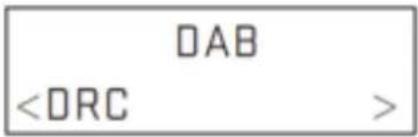
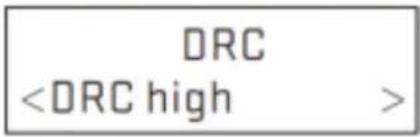
Select MENU > DRC > The options available are: DRC off | low | high.
FM Operation
FM radio mode receives analogue radio from the FMband and displays RDS (Radio Data System) information about the station and show (where broadcast).
1. Selecting stations
The first time you select FM radio, the unit is set tothe lowest frequency in the FM band.
To scan for a station in FM mode
Press the AMS button. The unit scans up through the FM band frequencies, showing the current frequency on the screen display. A scan stops when a signal is found. The unit can beset to stop at each station or only at stations with astrong signal (for details see Scan settings in Page GB-18).
Alternatively, you can use the buttons to tune, in 50 kHz steps.
FM
87.50MHz
89.45MHZ Scanning...
87.50MHz
2. Presets
The unit has 40 preset memories for FM, which work in the same way as DAB mode presets, asdescribed earlier in Presets on Page GB-16.
3. Now playing information
While FM radio is playing, the screen shows its frequency, or if RDS information is available, station name and any further "Radio Text" information. If no information is available just the frequency and aNO Radio Text message is shown.
ChoicFM P1 Number 1 for Hip
To view further information about the broadcast Press the INFO button.
Each time you press the INFO button the next setof information is displayed, cycling through:RDS Radio Text,programme type,frequency,mono/stereo,time and date.
ChoicFM P1 107.10MHz
To return to the default Now playing screen
Press and hold the INFO button.
4. Other settings
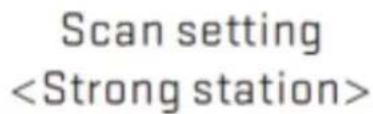
Scan settings
By default, FM scans stop at any available station(ALL
Stations). This may result in poor quality audio from weak stations.
Options: All stations | Strong stations only
To change the scan settings, to stop only at stations with good signal strength
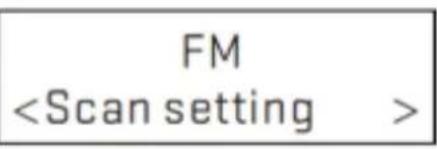
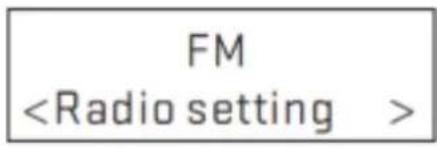
Select MENU > Scan setting then Strong stations only.
Note: In the example screen on the right, the asteriskindicates "Strong stations only" is the currentlyset value.
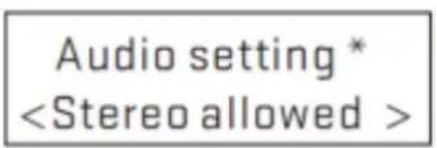
Audio settings
By default, all stereo stations are reproduced in stereo.
For weak stations, this may result in poor quality audio.
The audio quality can be improved using mono.
Options: Stereo allowed | Forced mono
To play weak stations in mono
Select MENU > Audio setting > Forced mono.
Note: In the example screen on the right, theasterisk indicates "Stereo allowed" is thecurrently set value.
CD Operation
Compatible Disc Types
| Disc Types | Disc Logo | Recorded Content |
| CD-R (CD Recordable - Audio/MP3/WMA) | # | AUDIO/MP3/WMA |
| CD-RW (CD-Rewritable - Audio/MP3/WMA) | # | AUDIO/MP3/WMA |
| AUDIO-CD (Compact Disc Digital Audio) | # | AUDIO |

Some recorded files may not be able to be played due to the type and format of disc or condition of the recording.
Not compatible with 8 cm mini CD
CD Playing
- Press the button repeatedly on the top of the unit until "CD" is displayed or press the CD button on the remote control to select CD function.
- Insert the disc into the disc door, the unit will read the disc and play it automatically.
- Press the button to eject the disc.

If in stop mode, press the button to start playing the disc.
- Press the button to pause the playback.
- To resume playback, press the button again.
- Press the button on the remote control to stop the disc playing.

While the CD is playing the current track number and the elapsed time will be displayed.
To Skip Search or Search and Play
- Press the button once or more to skip backward one or more tracks on the disc.
- Press the button once or more to skip forward one or more tracks on the disc.
- Press and hold the button on the remote control to search backward for the track position that you want to start playing from.
- Press and hold the button on the remote control to search forward for the track position that you want to start playing from.
Playing Repeatedly
For CD disc, ONE and ALL repeat play can be set by repeatedly pressing the REPEAT button on theremote control.
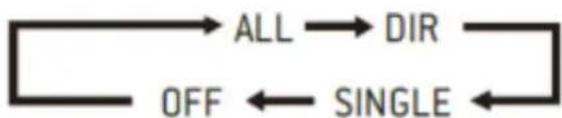
For CD disc, random play can be set by pressing the RANDOM button on the remote control.
Program
When playing back music, press the button on RC, then press the PROGRAM button, then the following information will be displayed on the screen.
P01 TO 01
You can choose track by RC digital key to store as P01, P02 etc. In this process, press the PROGRAM button to go to the next channel setting.
After finished setting, press the button to finalize.
In program playing back, the digital keys on RC is invalid, you can only press the buttons to change track.
Change source or press the button twice to clear program setting.
Using the USB
Connecting a USB mass storage device (including USB flash memory, USB flash players or memory cards) to this unit to enjoy the device's stored music through the powerful speakers of this unit.
- Insert the USB device's USB plug into the port at the rear of the unit.
- Press the button repeatedly on the top of the unit or press the USB button on the remotecontrol to select the USB function.
- The device's stored music will be played automatically.
Playing Repeatedly
For USB device, ONE and ALL repeat play can be set by repeatedly pressing the REPEAT button on the remote control.
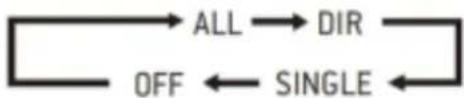
For music files in USB device, random play can be set by pressing the RANDOM button on theremote control.
Program
When playing back music, press the button on RC, then press the PROGRAM button, then the following information will be displayed on the screen.
P01 TO 01
You can choose a track by RC digital key to store as P01, P02 etc. In this process, press the PROGRAM button to go to next channel setting.
After finished setting, press the button to finalize.
In program playing back, the digital keys on RC is invalid, you can only press the buttons to change track.
Change source or press the button twice to clear program setting.

The max. Channel is 20.
For devices with a USB cable:
- Insert one plug of the USB cable (not supplied) to the USB socket at the rear of the unit.
- Insert the other plug of the USB cable to the USBOutput terminal of the USB device.
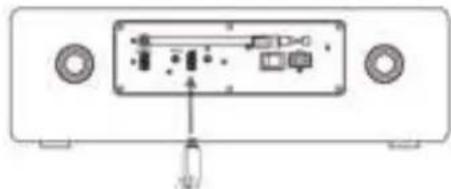
USB charging (5V-1A socket only)
You can plug an USB cable in the 5V-1A USB socket to charge the mobile device.

If the USB device is corrupted, this unit will not be able to detect and play the music stored. Format the USB mass storage device and restore the music on the device with a computer.
Maintenance
Cleaning the Unit

Ensure the unit is fully unplugged from the mains socket before cleaning.
- To clean the unit, wipe the case with a slightly moist, lint-free cloth.
- Do not use any cleaning fluids containing alcohol, ammonia or abrasives.
- Do not spray an aerosol at or near the unit.
Handling Discs
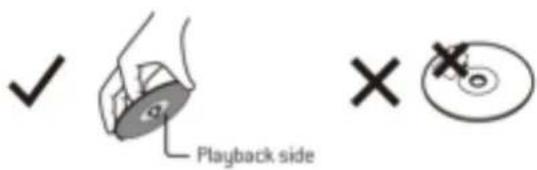
| EN | EN |
| Playback side | Playback side |
- Do not touch the playback side of the disc.
- Do not attach paper or tape to the disc.
Cleaning Discs
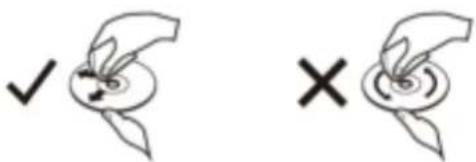
Fingerprints and dust on the disc cause picture and sound deterioration. Wipe the disc from the centre outwards with a soft cloth. Always keep the disc clean.
-
If you cannot wipe off the dust with a soft cloth, wipe the disc lightly with a slightly moistenedcloth and finish with a dry cloth.
-
Do not use any type of solvent such as thinner, benzine, commercially available cleaners orantistatic spray. They may damage the disc.
Storing Discs
Do not store discs in places subjected to direct sunlight or near heat sources.
- Do not store discs in places subjected to moisture and dust such as a bathroom or near ahumidifier.
- Store discs vertically in a case, stacking discs or placing objects on discs outside of their cases may cause warping.
Trouble Shooting
No power
- Ensure that the mains cable is connected securely.
- Ensure that the unit is switched on.
The remote control does not function
- Use the remote control near to the unit.
- Point the remote control at the remote control sensor on the unit.
- Replace the batteries in the remote control with new ones.
- Remove any obstacles between the remote control and the unit.
Loud hum or noise is heard
- The plugs and sockets are dirty. Wipe them with a cloth slightly moistened with an appropriatenon-abrasive cleaning solution.
The unit does not respond when pressing any buttons.
- The unit may freeze up during use. Switch off and then switch on the unit again at the mainssocket to reset it.
No sound output
- Make sure that the unit is not muted. Press the × button or V + button to resume normallistening.
- Ensure that the audio setting of the input source (e.g. TV, game console, DVD player, etc.) is set to PCM mode while using Optical connection.
I can't find the Bluetooth name of this unit on my Bluetooth device for Bluetoothpairing
- Ensure that the unit is switched on.
- Ensure that the Bluetooth function is activated on your Bluetooth device.
- The unit has a Bluetooth function that can receive a signal within 10 metres.
Disc in place but the unit won't play
- Ensure that the disc label is facing up.
- Ensure that the disc is clean.
- PAUSE mode may be activated, deactivate it.
- Disc may be damaged or dirty; check and clean the disc.
Disc skips
Ensure the unit is on a secure spot. Vibrations or jarring can cause the disc to skip.
FM reception
- Ensure the FM aerial wire is fully extended.
- Electrical interference in your home can cause poor reception. Move the unit away from them (especially those with motors and transformers).
The unit switches off automatically during playing
- Increase the volume level on your input source player like DVD player/TV etc.
Interferences in Speakers
- Check that you have not left a mobile phone near the unit.
Specifications
| Power Supply: | AC 200-240V~50/60Hz |
| Power Consumption: | 25 Watt |
| Power Consumption(standby mode): | < 1 Watt |
| Power Output: | 2 x 18 Watt |
| Speaker Impedance: | 8 Ohm |
| 5V -1A Output Socket: | 5V -1A Out |
| USB: | 5V -300mA |
| S/N(A Weight): | ≥ 65dB |
| THD(1kHz,1W): | 0.5% |
| Frequency Response: | 40Hz~20KHz |
| DAB Frequency range: | 174-240 MHz |
| FM Frequency range: | 87.5-108MHz |
| Dimensions: | 396x120x205mm |
| Bluetooth version: | V2.1+EDR |
| Work range: | approx. 10metres |
| Transmission frequency: | 2.402~2.480GHz |
| Protocols: | A2DP/AVRCP |

- Due to continual revision and improvement on our products design, specifications are subject to change without further notice.
- This product operates at 2400-2483.5 MHz and is designated only to be used inside a normalhousehold environment. This product is suited for this purpose within all EU counties.
EN
1. Guarantee
Lenco offers service and warranty in accordance to European law, which means that in case of repairs (both during and after the warranty period) you should contact your local dealer.
Important note: It is not possible to send products that need repairs to Lenco directly.
Important note: If this unit is opened or accessed by a non-official service center in any way, the warranty expires.
This device is not suitable for professional use. In case of professional use, all warranty obligations of the manufacturer will be voided.
2. Disclaimer
Updates to Firmware and/or hardware components are made regularly. Therefore some of the instruction, specifications and pictures in this documentation may differ slightly from your particular situation. All itemsdescribed in this guide for illustration purposes only and may not apply to particular situation. No legal right orentitlements may be obtained from the description made in this manual.
3. Disposal of the Old Device
This symbol indicates that the relevant electrical product or battery should not be disposed of as general household waste in Europe. To ensure the correct waste treatment of the product and battery, please dispose them in accordance to any applicable local laws of requirement for disposal of electrical equipment or batteries. In so doing, you will help to conserve natural resources and improve standards of environmental protection in treatment and disposal of electrical waste (Waste Electrical and Electronic Equipment Directive).
4. Service
For more information and helpdesk support, please visit www.lenco.com
Lenco Benelux BV, Thermiekstraat 1a, 6361 HB Nuth, The Netherlands.

3.5mm to 3.5mm cable

AAA Batteries

AC Power Cord
Remote Control
Instruction Manual
| EN | NL |
| main unit | hoofdapparaat |
| AAA Batteries | AAA-batterijen |
| Remote Control | Afstandsbediening |
| 3.5mm to 3.5mm cable | 3.5 mmaar 3.5 mm kabel |
| AC Power Cord | Netsnoer |
| Instruction Manual | Handleiding |
Productoverzicht
Vooranzicht
Achteraanzicht
Heart Drivetime with E

3.5mm to 3.5mm cable

AAA Batteries

AC Power Cord
Remote Control
Instruction Manual
Lenco Benelux BV, Thermiekstraat 1a, 6361 HB Nuth, The Netherlands.

3.5mm to 3.5mm cable

AAA Batteries

AC Power Cord
Remote Control
Instruction Manual
Heart Drivetime with E
Charge USB (5V TA unquivalent)

3.5mm to 3.5mm cable

AAA Batteries

AC Power Cord
Remote Control
Instruction Manual
| EN | ES |
| main unit | unidad principal |
| AAA Batteries | Pilas AAA |
| Remote Control | Mando a distancia |
| 3.5mm to 3.5mm cable | Cable de 3.5mm a 3.5mm |
| AC Power Cord | Cable de alimentación CA |
| Instruction Manual | Manual de instructcciones |
Heart Drivetime with E