WIFIR3 - TV signal amplifier VELLEMAN - Free user manual and instructions
Find the device manual for free WIFIR3 VELLEMAN in PDF.



| Product Type | TV Signal Amplifier / Wi-Fi Repeater |
| Brand | Velleman |
| Model | WIFIR3 |
| Wireless Standards | IEEE 802.11b/g/n (2.4 GHz) |
| Maximum Data Rate | 300 Mbps |
| Operating Frequency | 2.4 - 2.485 GHz |
| Power Supply | 230 VAC, 50 Hz |
| Network Interface | 1 RJ45 Port 10/100 Mbps |
| Antennas | Built-in |
| WPS Function | Yes, dedicated button |
| Wireless Security | WEP 64/128-bit, WPA, WPA2 |
| Operating Modes | Wi-Fi Repeater, Wireless Access Point |
| Installation | Windows/Mac software wizard, Web interface |
| Reset | Reset button, hold for 10 seconds |
| LED Indicators | Power, wireless connection, WPS, LAN |
| Operating Temperature | Indoor, away from moisture and extreme heat |
| Maintenance and Cleaning | Unplug before cleaning; use a dry cloth |
| Safety | Do not open the casing; risk of electric shock |
| Spare Parts and Repairability | No user-serviceable parts; contact the dealer |
| Warranty | 24 months for manufacturing defects (non-professional use) |
Frequently Asked Questions - WIFIR3 VELLEMAN
User questions about WIFIR3 VELLEMAN
0 question about this device. Answer the ones you know or ask your own.
Ask a new question about this device
Download the instructions for your TV signal amplifier in PDF format for free! Find your manual WIFIR3 - VELLEMAN and take your electronic device back in hand. On this page are published all the documents necessary for the use of your device. WIFIR3 by VELLEMAN.
USER MANUAL WIFIR3 VELLEMAN
WIRELESS-N WIFI REPEATER FOR WLAN - WPS
WIRELESS-N WIFI REPEATER VOOR WLAN - WPS
RÉPÉTEUR WIRELESS-N WIFI POUR WLAN - WPS
REPETIDOR WIRELESS-N WIFI PARA WLAN - WPS
WIRELESS-N WIFI REPEATER FÜR WLAN - WPS
REPETIDOR WIRELESS-N WIFI PARA WLAN - WPS
BEZPRZEWODOWY (WIRELESS-N) WZMACNIACZ SIECI WLAN Z FUNKCJĄ WPS
natural_image
White wireless router device with buttons and port (no visible text or symbols)USER MANUAL 3
GEBRUIKERSHANDLEIDING 20
MODE D'EMPLOI 38
MANUAL DEL USUARIO 57
natural_image
Three views of a white plastic electrical connector with mounting holes and a separate terminal block (no text or symbols visible)USER MANUAL
1. Introduction
To all residents of the European Union Important environmental information about this product

This symbol on the device or the package indicates that disposal of the device after its lifecycle could harm the environment. Do not dispose of the unit (or batteries) as unsorted municipal waste; it should be taken to a specialized company for recycling. This device should be returned to your distributor or to a local recycling service. Respect the local environmental rules.
If in doubt, contact your local waste disposal authorities.
Thank you for choosing Velleman! Please read the manual thoroughly before bringing this device into service. If the device was damaged in transit, don't install or use it and contact your dealer.
2. Safety Instructions

Keep this device away from children and unauthorized users.

Risk of electroshock when opening the cover. Touching live wires can cause life-threatening electroshocks. Do not open the housing yourself. Have the device repaired by qualified personnel.

There are no user-serviceable parts inside the device. Refer to an authorized dealer for service and/or spare parts.
3. General Guidelines
Refer to the Velleman® Service and Quality Warranty on the last pages of this manual.
- Indoor use only. Keep this device away from rain, moisture, splashing and dripping liquids.
- Keep this device away from dust and extreme heat.
- Protect this device from shocks and abuse. Avoid brute force when operating the device.
WIFIR3
- Familiarise yourself with the functions of the device before actually using it.
- All modifications of the device are forbidden for safety reasons.
- Only use the device for its intended purpose. Using the device in an unauthorised way will void the warranty.
- Damage caused by disregard of certain guidelines in this manual is not covered by the warranty and the dealer will not accept responsibility for any ensuing defects or problems.
4. Features
- with WPS function
- improves wireless coverage in all WLAN networks
• supports Wireless Repeater mode and Standard AP mode - WLAN 802.11n (Draft 2.0) for wireless high-speed access
- downward compatible with 802.11g (54 Mbit/s) and 802.11b standard (11 Mbit/s)
• supports 2.4 GHz WLAN networks
• maximum WLAN security with WPA2, WPA and WEP (128/64) - software wizard for simple setup via Windows or Mac
- antennas integrated
5. Overview
Refer to the illustrations on page 2 of this manual.
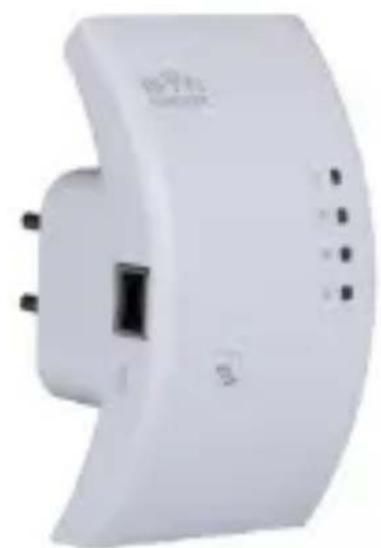
| 1 | Power indicator | 5 | WPS button |
| 2 | Wireless indicator | 6 | Reset button |
| 3 | WPS indicator | 7 | RJ45 network port |
| 4 | LAN indicator | ||
6. Choose an appropriate location
- The easiest place to configure the repeater is near your router/computer.
- Once setup is done, you can install the repeater on its final location.
- For best performance, it is recommended to install the repeater half-way between your router and the wireless computer with the weakest reception.
WIFI R3
Note : Plug
You can change the repeater's plug orientation so the repeater fits into any space.
Refer to the illustrations on page 2 of this manual.
- Gently press the button next to the plug [A] and pull the plug to detach it.
- Place the plug back in the socket in the desired orientation and turn it until it snaps into place.
Note: Wireless repeater or access point
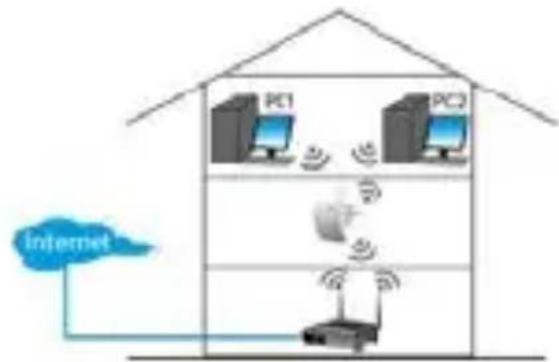
You can set up the repeater as a wireless repeater or as a wireless access point.
Wireless repeater
For wireless repeater mode, you need a WIFI AP/Router internet access.
flowchart
graph TD
    A["Router"] --> B["PC1"]
    A --> C["PC2"]
    B --> D["Internet"]
    C --> D
    D --> E["Wireless Link"]
    style A fill:#f9f,stroke:#333
    style B fill:#ccf,stroke:#333
    style C fill:#ccf,stroke:#333
    style D fill:#cfc,stroke:#333
    style E fill:#fcc,stroke:#333
Wireless access point
To use the device as a wireless access point mode, you need broadband router internet access. Connect the repeater to the router/switch with the included RJ-45 network cable.
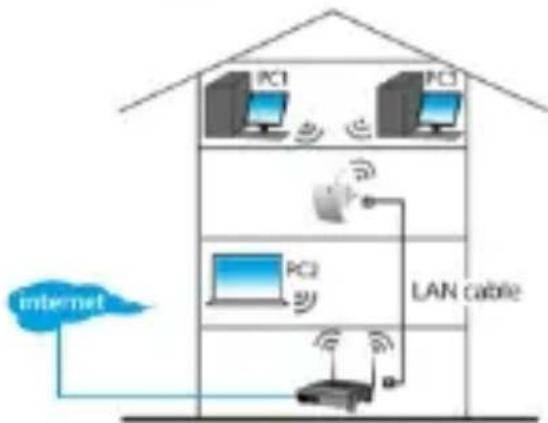
flowchart
graph TD
    A["PC1"] --> B["PC3"]
    C["PC2"] --> D["LAN cable"]
    E["Internet"] --> F["Wireless Device"]
    B --> G["Wireless Device"]
    D --> H["Wireless Device"]
7. Setup
During setup, you will:
- connect your router to the repeater
- connect the repeater to your computer
You can connect your router to the repeater:
• Manually (see section below)
• Using WPS (see section 9)
WIFI R3
7.1 Connect your router to the repeater
During setup, it is recommended to use a wired connection with the included RJ-45 network cable.
Once setup is done, you can use the repeater through Wi-Fi.
To connect the router, you need to
- configure network settings on your computer
- configure the repeater in the web management tool
- reset your computer's network settings
- connect the repeater to your computer
7.2 Configure network settings on your computer
The repeater has a fixed IP address. To be able to access the repeater during setup, you first need to configure your computer's network settings as follows:
- On your computer, click the Start button and choose Control Panel > Network & Sharing Center.
- In the list of networks, click on your network and then click the Properties button.
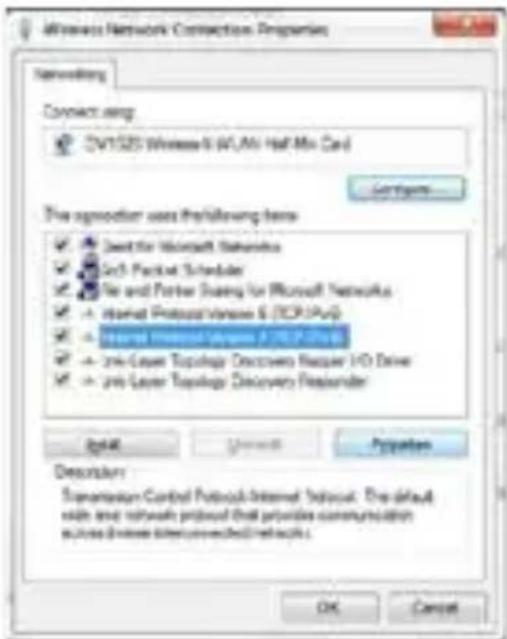
-
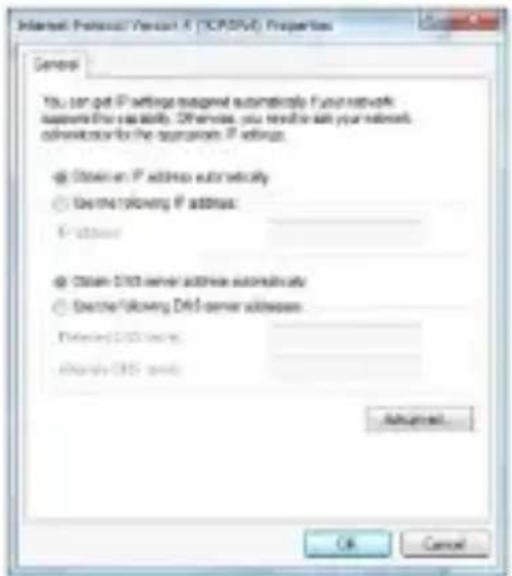
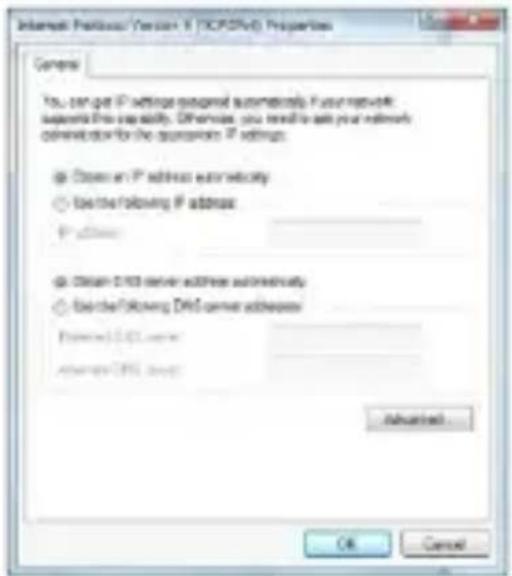
In the list, select Internet Protocol Version 4 (TCP/IPv4), then click the Properties button.
-
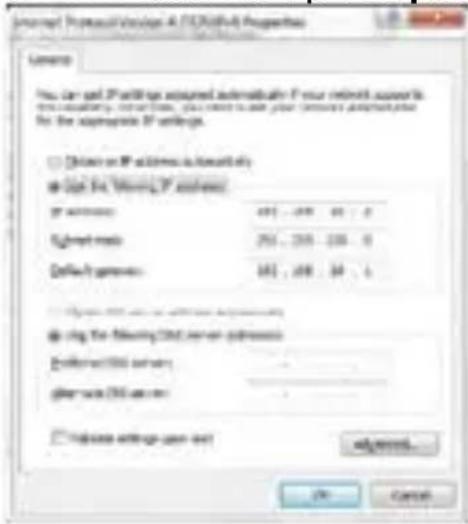
In the Properties window, select Use the Following IP Address.
- In the IP Address box, type 192.168.10.x where 'x' is a number from 2 to 254.
WIFI R3
○ In Subnet Mask, type 255.255.255.0.
- In Default Gateway, type the IP Address of your wireless router (default address is 192.168.10.1).
- Click OK to confirm.
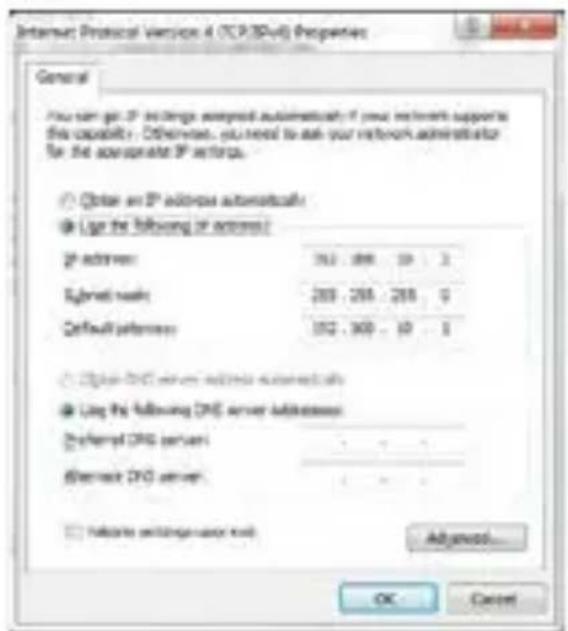
You can now access the repeater from your computer.
7.3 Configure the repeater in the web management tool
- Plug the repeater to a wall socket.
- Connect your computer and the repeater with the included RJ-45 network cable.
- Log on to your computer.
- Open your web browser and type the address http://192.168.10.1.

This will open the configuration page of the repeater. If the page does not open, reset the repeater (see section 12) and retry.
WIFI R3
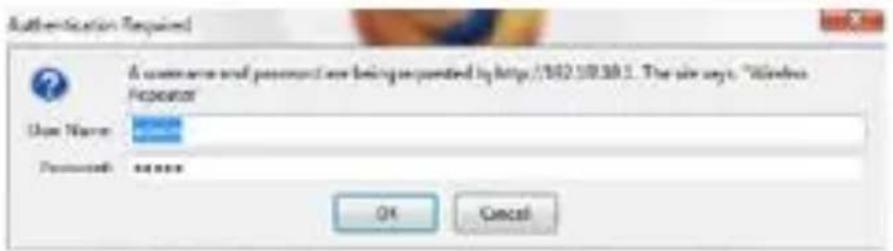
- Type the user name and password.
The default user name and password is admin.
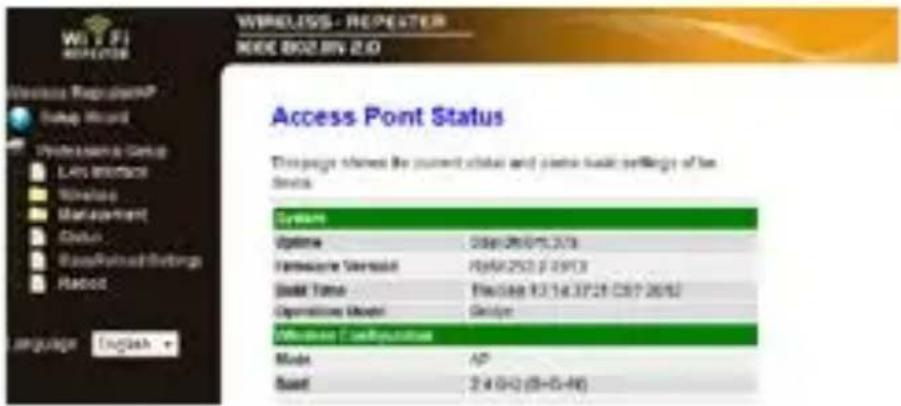
- In the menu on the left, click Setup Wizard.
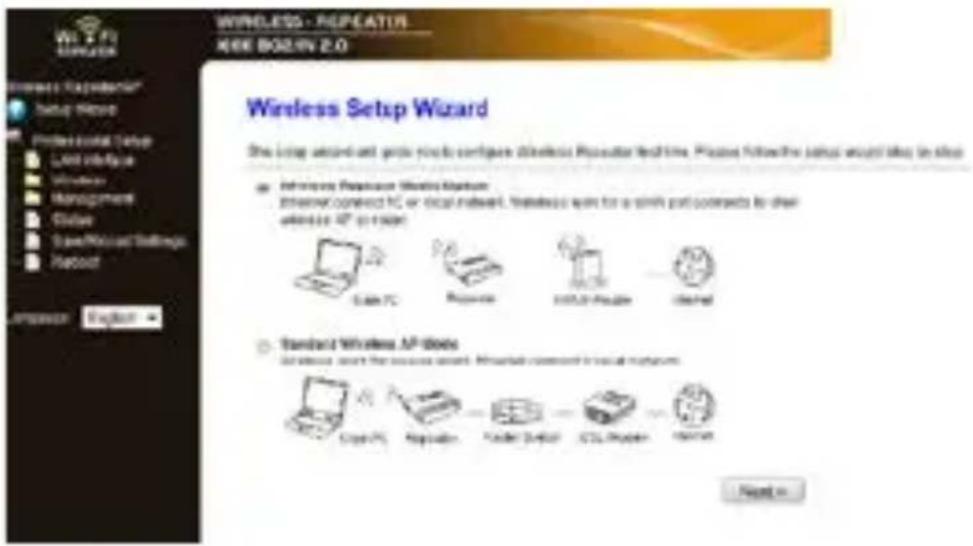
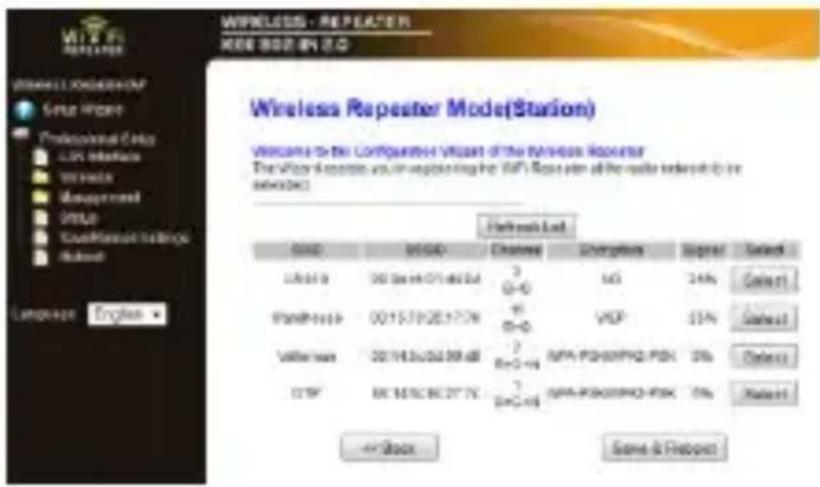
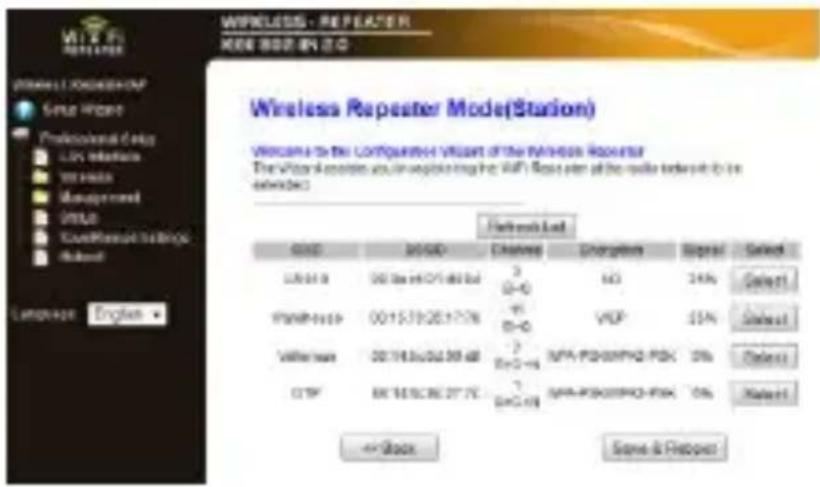
- Select Wireless Repeater Mode (Station) and click Next.
WIFI R3
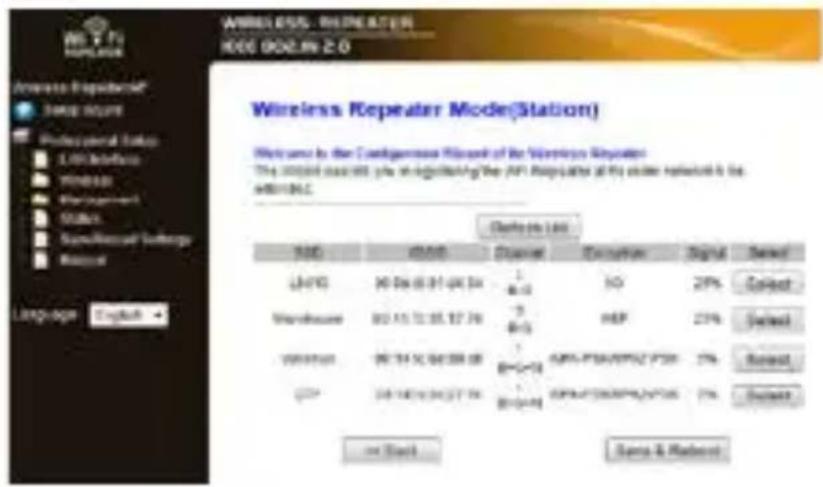
- The name of your network is listed in the SSID column. Click the button Select next to your wireless network.
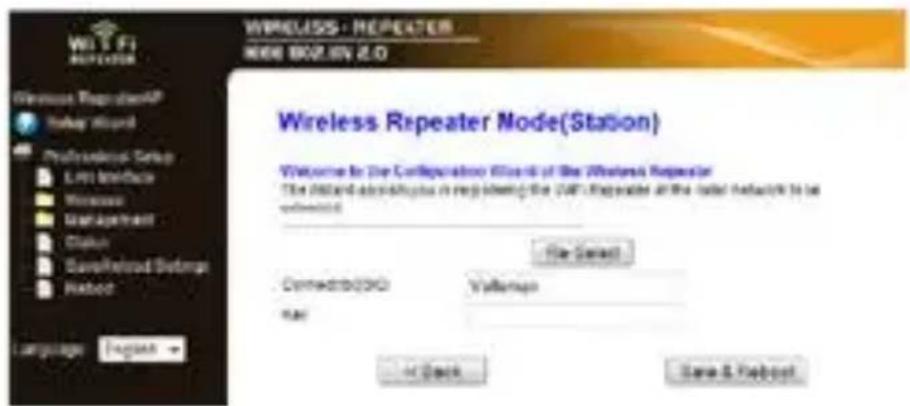
-
In the Key field, type your network security key.
-
This key is the same key as the key of your router.
- Leave the other settings unchanged.
- You will need the network name (SSID) in the next steps. Copy it or note it down on a piece of paper. The name is case sensitive.
- When done, click Save and Reboot.
WIFI R3
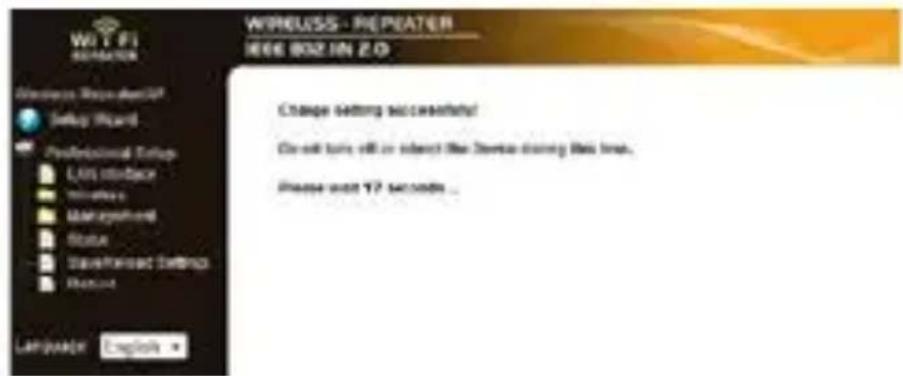
- Wait until the repeater has rebooted.
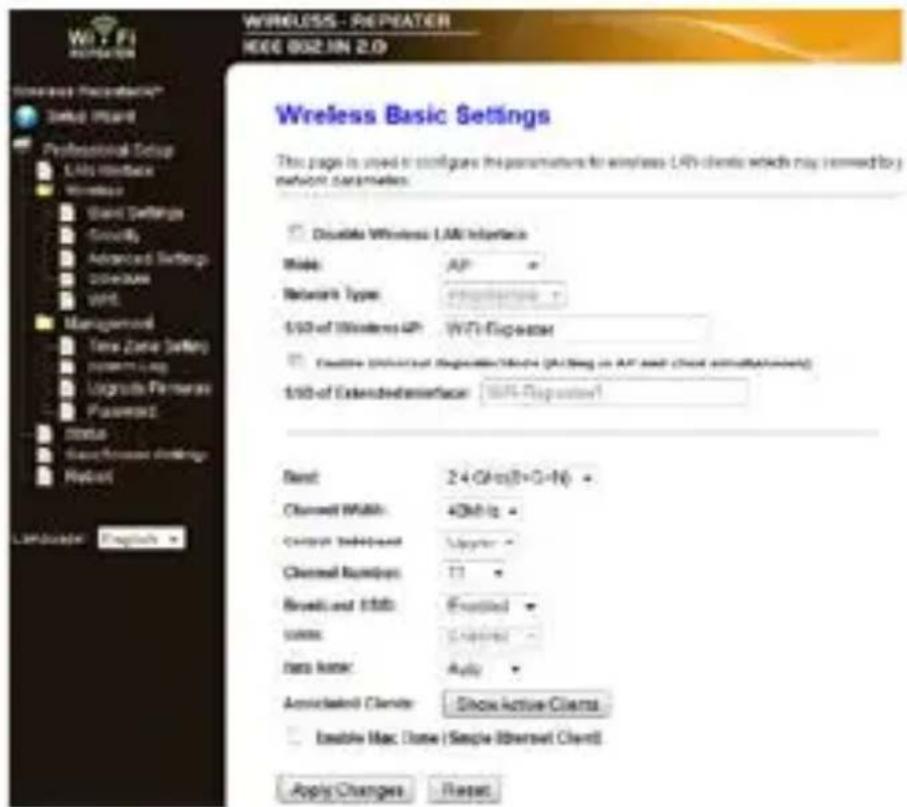
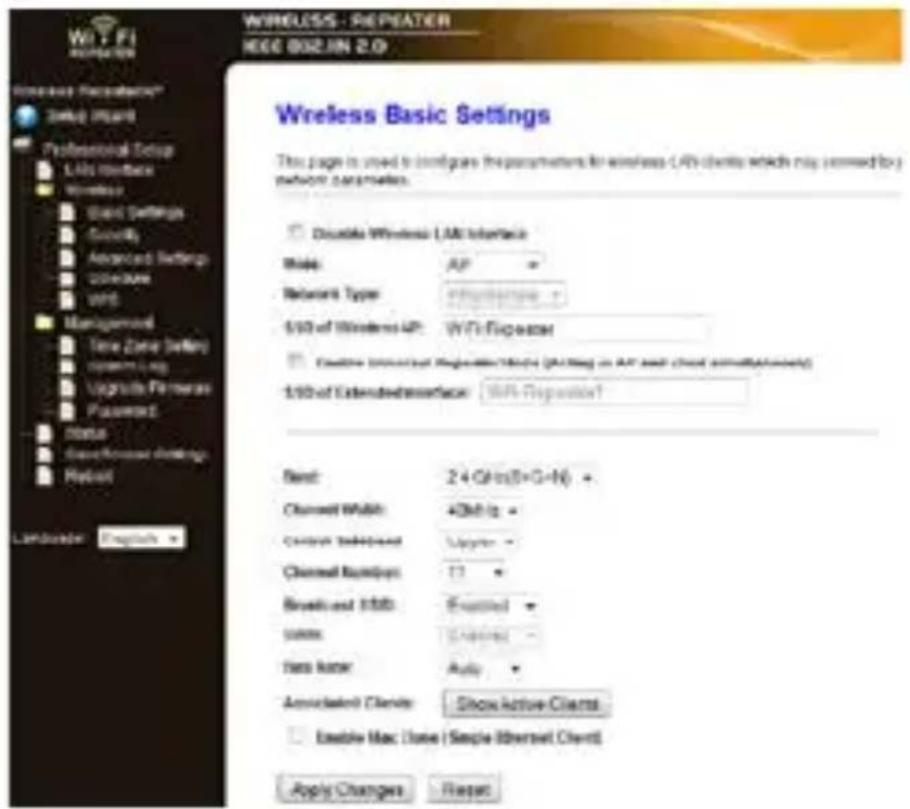
Now you need to make sure the SSID (network name) is set correctly in the Wireless Basic Settings of the tool.
- In the menu, click the folder Wireless, then click Basic Settings.
-
Check if the network name is correct. The name is used in two fields:
-
SSID of Wireless AP
- SSID of Extended Interface
WIFI R3
If not, enter or paste the correct name in both fields.
13. Click Apply Changes.
You can now
- close the web management tool.
- reset network settings on your computer to default.
7.4 Reset your computer's network settings
-
On your computer, click the Start button and choose Control Panel > Network & Sharing Center.
-
In the list of networks, click on your network and then click the Properties button.
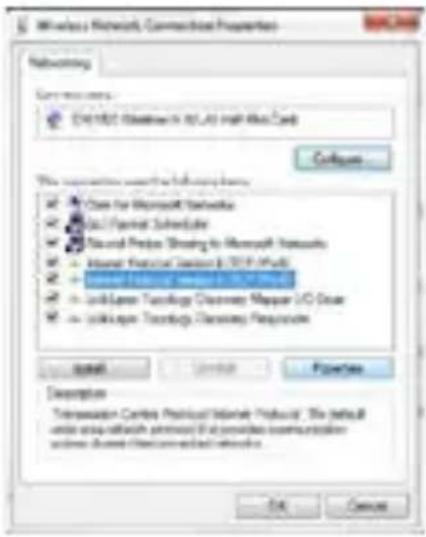
- In the list, select Internet Protocol Version 4 (TCP/IPv4), then click the Properties button.
WIFI R3
-
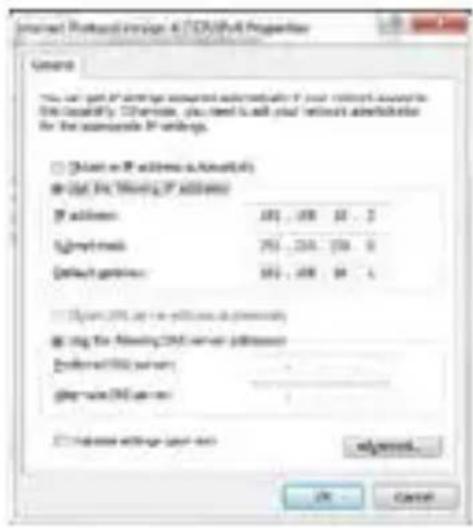
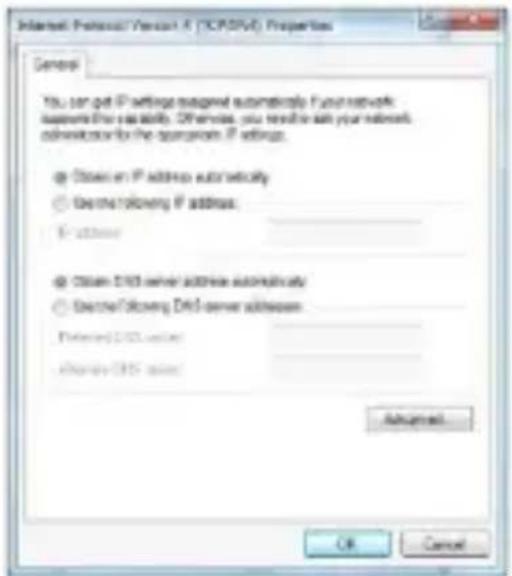
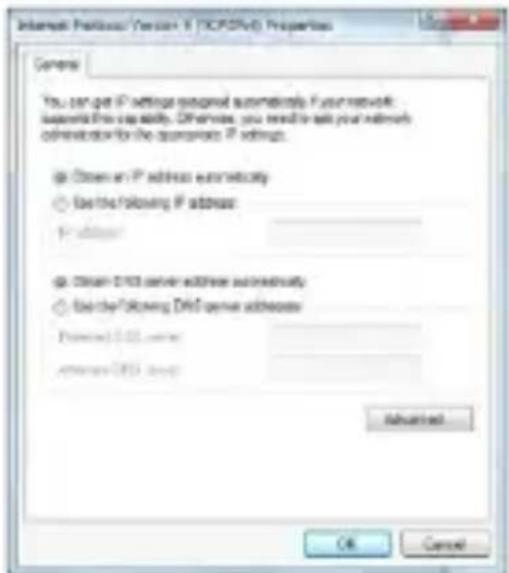
In the Properties window, select:
-
Obtain an IP address automatically.
- Obtain DNS server address automatically.
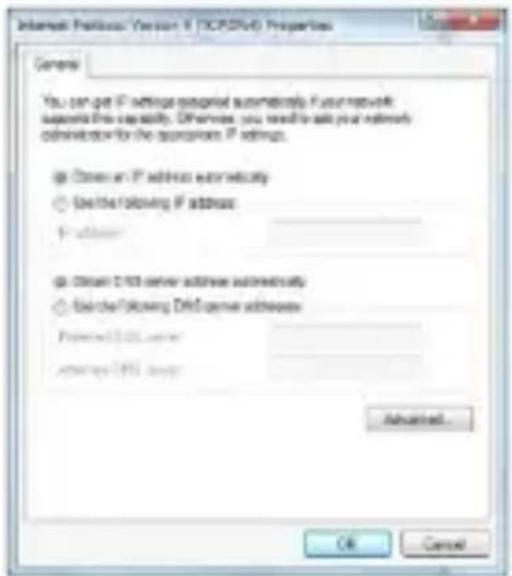
- Click OK to confirm.
You can now connect the repeater to your computer.
- Connect the repeater to your computer
To connect a computer to the repeater, proceed as follows:
- Log on to your computer.
- Click the network icon or at the bottom right of your screen. A list of networks appears.
- Select the repeater network from the list and then click Connect.
WIFIR3
- If required, type the network password and click OK to confirm. You will see a confirmation message when you are connected to the network.
Note: wired connection
You can also connect the repeater to your computer with an RJ45 network cable.
9. Connect the repeater using WPS
WPS is an automated way of connecting wireless devices.
The repeater supports WPS. If your router supports WPS, it will have a WPS button
Note: WPS may change network security key on router
On some wireless router brands, pressing the WPS button changes the router's existing network security key. This means you would have to reset all network security key on the devices you are already using. If you want to avoid this, connect the repeater manually (see section 7 Setup above).
To connect your router to the repeater using WPS:
- Plug the repeater to a wall socket.
- Make sure the repeater is set to Wireless Repeater Mode in the configuration tool (see section 7.3 above).
-
On your router, press and hold the WPS button (check your router's manual to know how long you need to press the button).
-
On the repeater, press and hold the WPS button for 7 to 10 seconds.
The router and the repeater will connect automatically. You can now connect your computer to the repeater: see section 8 above.
10. Set up the device as a wireless access point
To set up the device as a wireless access point, you need to perform the following steps:
10.1 Configure network settings
- Configure the network settings on your computer as described in section 7.2.
WIFI R3
10.2 Configure the access point in the web management tool
- Perform steps 1 to 6 as described in section 7.3.
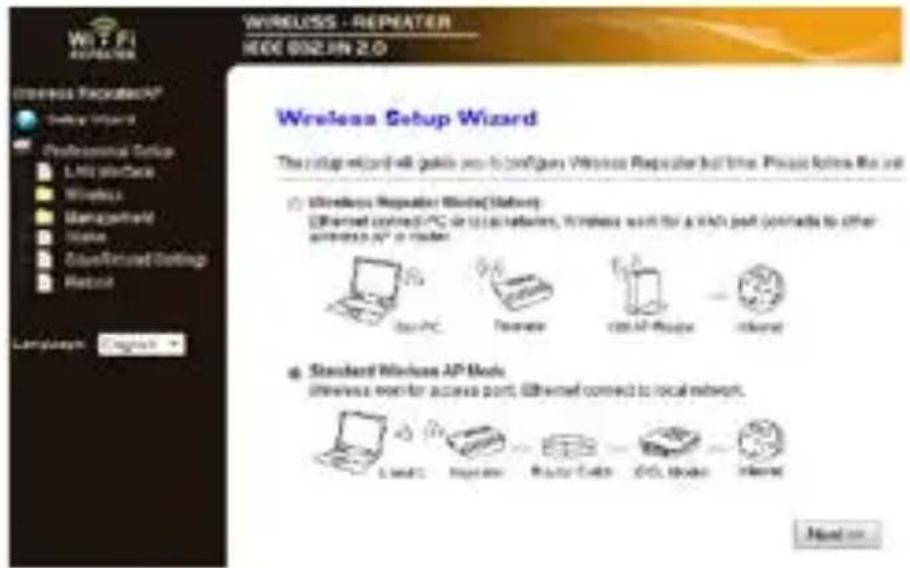
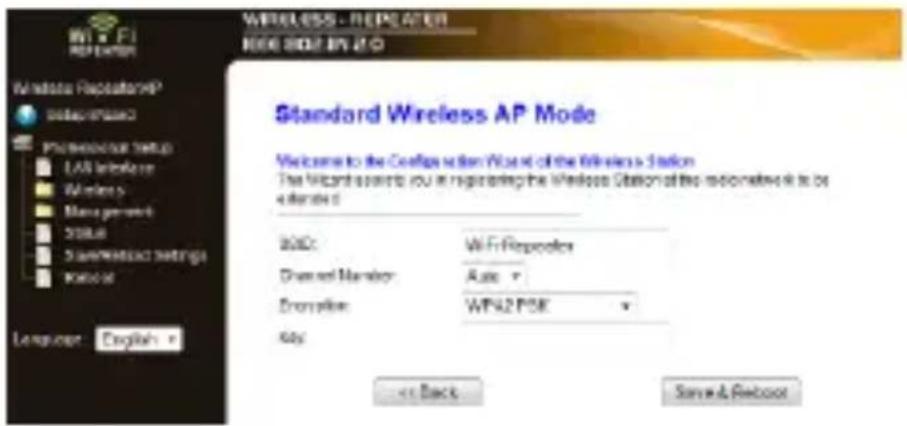
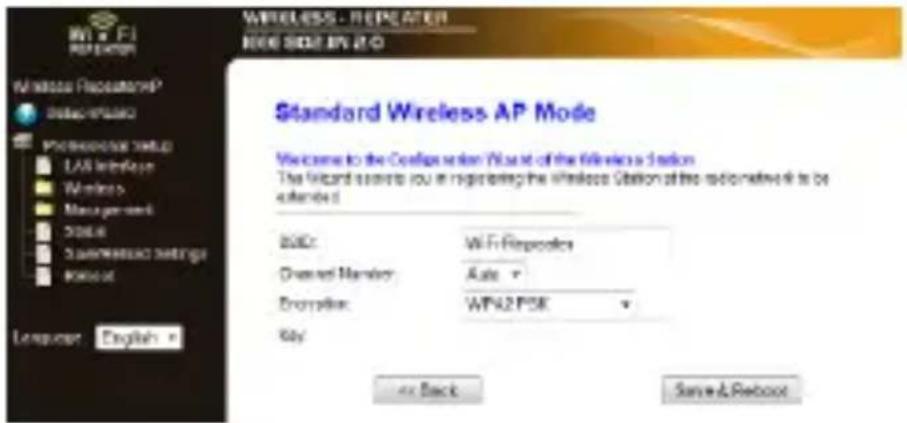
- Select Standard Wireless AP mode and click Next.
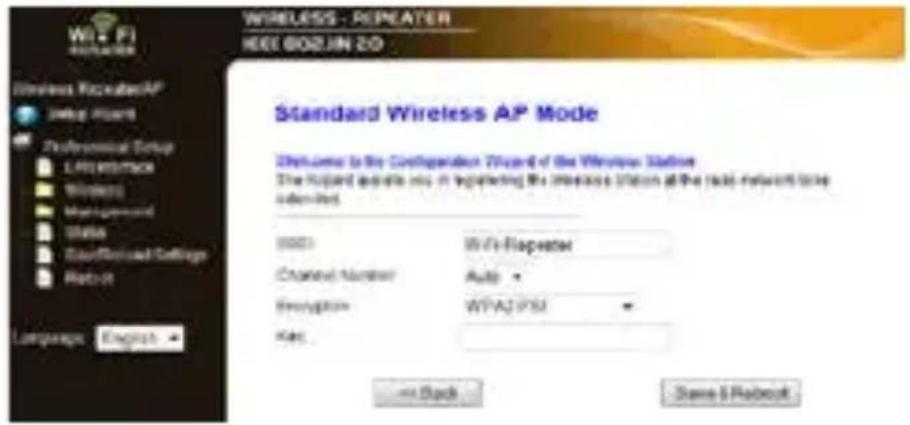
- If you want, you can select an Encryption type and enter a network security key.
- Click Save and Reboot.
- Wait until the repeater has rebooted. Now you need to make sure the SSID (network name) is set correctly in the Wireless Basic Settings of the tool.
- In the menu, click the folder Wireless, then Basic Settings.
WIFI R3
-
Verify if the network name is correct. The name is used in two fields:
-
SSID of Wireless AP
- SSID of Extended Interface
If not, enter or paste the correct name in both fields.
- Click Apply Changes.
You can now close the web management tool.
10.3 Reset your computers network settings
- Reset your computer's network settings as described in section 7.4.
10.4 Connect the wireless access point to your computer
To connect a computer to the wireless access, proceed as follows:
- Log on to your computer.
- Click the network icon or located at the bottom right of your screen. A list of networks appears.
WIFI R3
-
Select the repeater network from the list and then click Connect.
-
If required, type the network password and click OK to confirm. You will see a confirmation message when you are connected to the network.
11. Web Management Tool
Wireless basic settings
In your web browser, open the web management tool and select Wireless > Basic Settings.
The page contains various settings, including:
| Disable Wireless LAN Interface | If this option is selected, wireless network is switched off. |
| Mode | Supports AP and Repeater modes |
| SSID of Wireless AP | Main Service Set Identifier. This is the name of your wireless network. |
| SSID of Extended Interface | Universal Repeater Mode (acting as AP and repeater simultaneously) |
| Band | Supports 11B/11G/11N mixed modes. |
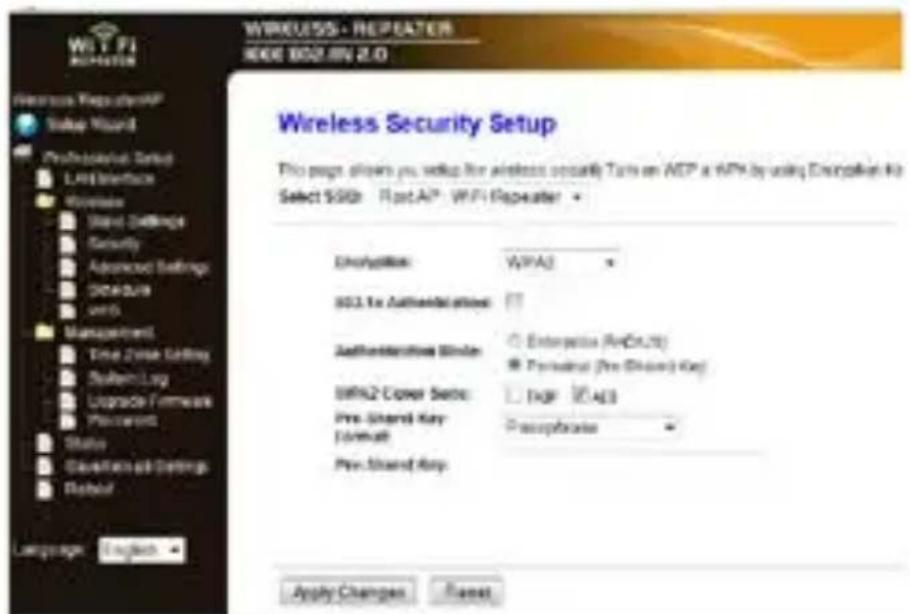
Wireless security settings
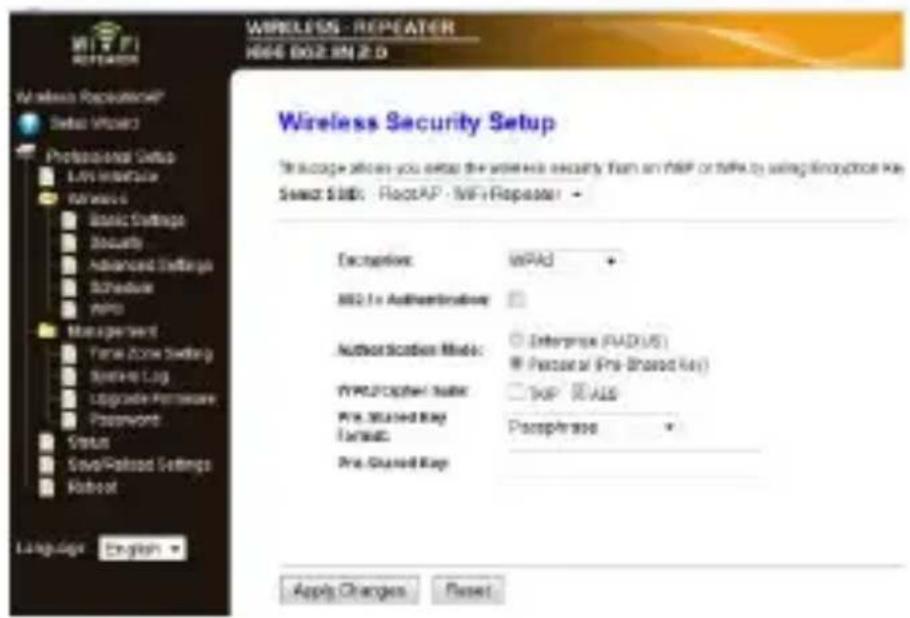
Set up the wireless security and encryption to prevent unauthorised access and monitoring. Supported encryption methods are: 64/128-bit WEP, WPA, and WPA2.
- Log on to the webtool and select Wireless > Security.
V. 01 - 22/08/2013
16
© Velleman nv
WIFI R3
2. In Select SSID, you can select:
| Root Client-XXXX | The password of the repeater is the same as the password of your XXXX router. |
| Repeater AP - WiFi-Repeater1 | Select this option to set up a password for the WiFi repeater. |
Reset, backup and restore
You can back up the settings of the repeater for security reasons. Also, if you use the device in different settings, you can easily save and reload the different settings.
- Log on to the management tool and select
Save/ Reload Settings.
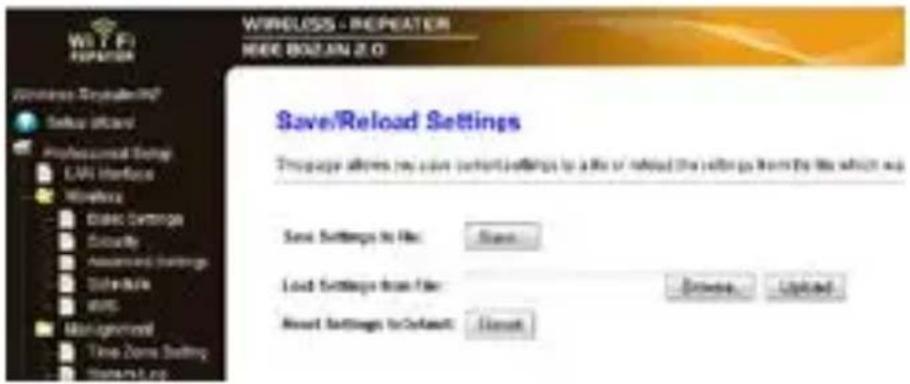
- To make a backup file of the current settings, click the Save button and choose a location for the settings file. You can save as many setting files as you need.
- To upload previously saved settings, click the Browse button and select the saved settings file on your computer. Next, click the Upload button to load the settings. The current settings will be replaced with the settings in the file that you loaded.
- To remove all the configuration settings you have made and reset the device to the factory defaults, click the Reset button.
Firmware upgrade
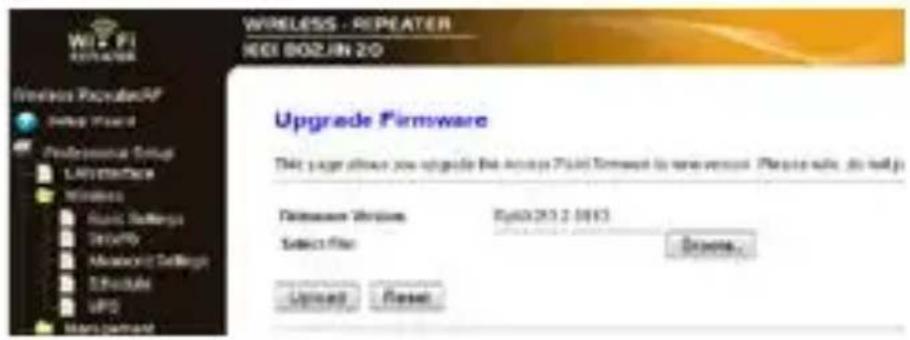
To upgrade the firmware of your repeater, proceed as follows:
- Download the new firmware from our website to your computer.
- Log on to the management tool and choose
Management > Upgrade Firmware.
WIFI R3
-
Click the Browse button and select the downloaded firmware file on your computer.
-
Click Upload. The upgrade procedure starts automatically. Caution: Upgrading may take several minutes to complete. Never interrupt the upgrade process by closing the web browser or disconnecting your computer from the router. The repeater may become unusable if you do. Interrupting the upgrade process will void the warranty.
Changing the password
The default password for the web management tool is “admin”. For security purposes, we strongly recommend that you modify the password.
- In the management tool, choose Management > Password.
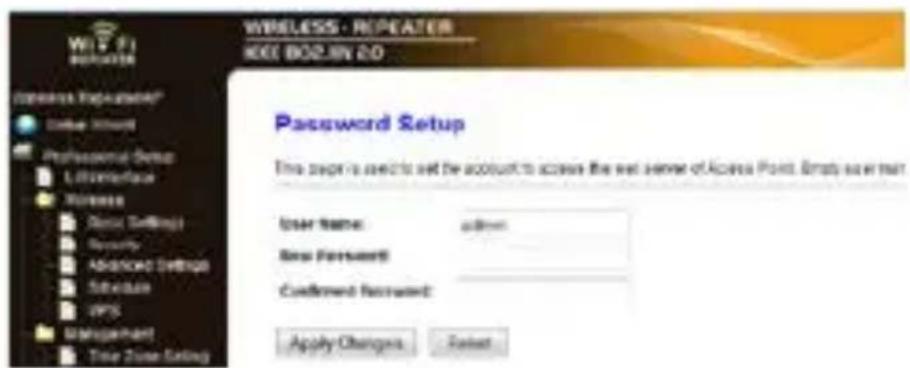
- Type a user name in User Name.
- Type a password in New Password, and type it again it in Confirmed Password.
- Click Apply Changes to confirm. If you want to keep the original password, click Reset.
WIFI R3
12. Reset
If necessary, you can reset the repeater with a needle. Press and hold the reset button for 10 seconds.
This will reset all the settings to factory defaults.
13. Power outage
If a power outage occurs, remove both the router and the repeater from their wall sockets and reconnect them.
14. Technical Specifications
| wireless standards | IEEE 802.11n / IEEE 802.11g / IEEE 802.11b |
| networking standards | 10/100 Mbps |
| frequency range | 2.4 - 2.485 GHz |
| wireless transfer rates | 11/54/150/270/300 Mbps |
| power supply 230 Vac 50 Hz | |
Use this device with original accessories only. Velleman nv cannot be held responsible in the event of damage or injury resulting from (incorrect) use of this device. For more info concerning this product and the latest version of this manual, please visit our website www.velleman.eu. The information in this manual is subject to change without prior notice.
Windows, Windows XP, Windows 2000, Windows Vista, Windows Aero, Windows 7, Windows 8, Windows Mobile, Windows Server are registered trademarks of Microsoft Corporation in the United States and other countries.
© COPYRIGHT NOTICE
The copyright to this manual is owned by Velleman nv. All worldwide rights reserved. No part of this manual may be copied, reproduced, translated or reduced to any electronic medium or otherwise without the prior written consent of the copyright holder.
GEBRUI KERSHANDLEIDING
1. Inleiding
WIFI R3
-
In de lijst, selecteer Internet Protocol Version 4 (TCP/IPv4) en klik daarna op Properties.
-
In het venster "Properties", selecteer Use the Following IP Address.
- Selecteer Wireless Repeater Mode (Station) en klik op Next.
WIFI R3
WIFI R3
Control Panel > Network & Sharing Center.
- In de lijst, selecteer Internet Protocol Version 4 (TCP/IPv4) en klik daarna op Properties.
- Obtain an IP address automatically.
WIFI R3
- Obtain DNS server address automatically.
- Selecteer "Standard Wireless AP mode" en klik op Next.
WIFIR3
natural_image
Symbol of a trash bin crossed with a diagonal line and a horizontal bar below (no text or labels)WIFI R3
WIFI R3
- Obtain DNS server address automatically.
WIFIR3
natural_image
Symbol of a trash bin crossed with no text or labels, accompanied by a black rectangular block below (no readable text or symbols)- En la lista, seleccione Internet Protocol Version 4 (TCP/IPv4) y haga clic en Properties.
- Seleccione Use the Following IP Address.
WIFI R3
- Seleccione Wireless Repeater Mode (Station) y haga clic en Next.
WIFIR3
-
Seleccione:
-
Obtain an IP address automatically.
- Obtain DNS server address automatically.
- Seleccione Standard Wireless AP mode y haga clic en Next.
WIFIR3
Wireless Access Point
-
Im Properties-Fenster, wählen Sie:
-
Obtain an IP address automatically.
- Obtain DNS server address automatically.
natural_image
Symbol of a trash bin crossed with no text or labels, accompanied by a black rectangular block below (no readable text or symbols)WIFI R3
64/128-bit WEP, WPA, e WPA2.
WIFI R3
- Entre na ferramenta web e seleccione Wireless > Security.
WIFIR3
WIFI R3
WIFI R3
R&TTE Declaration of Conformity

We, Velleman NV Address: Legen Heirweg, 33
9890 Gavere
Belgium
declare on our own responsibility that the finished product:
Brand:
VELLEMAN
Trade name:
Wireless-N WIFI repeater for WLAN
with WPS function - 300 Mbps
Type or model:
WIFIR3
constituting the subject of this declaration, conforms with the essential requirements and other relevant stipulations of the R&TTE Directive (1999/5/EC).
The product is in conformity with the following standards:
LVD: EN 60950-1:2006 +A11:2009 + A1:2010 +A12:2011
EN 301 489-1 V1.9.2
EMC: EN 301 489-17 V2.1.1
R&TTE: EN 300 328 V1.7.1
EN 50385:2002
Technical data are available and can be obtained from the address above.
Place and date of issue:
Gavere, 12/06/2013
Authorised signatory for the company:
Vince Van Balberghe – Quality Manager

natural_image
Abstract line drawing with overlapping curved shapes (no text or symbols)Wij, Velleman NV Adres: Legen Heirweg, 33
9890 Gavere
België
Vince Van Balberghe – Quality Manager

natural_image
Abstract line drawing with overlapping curved shapes (no text or symbols)Vince Van Balberghe – Quality Manager

natural_image
Abstract line drawing with intertwined loops and a central figure (no text or symbols)Vince Van Balberghe – Quality Manager

natural_image
Abstract line drawing with overlapping curved shapes (no text or symbols)Vince Van Balberghe – Quality Manager

natural_image
Abstract line drawing with intertwined loops and a small figure (no text or symbols)Vince Van Balberghe – Quality Manager

natural_image
Abstract line drawing with intertwined loops and a small figure (no text or symbols)EN
Velleman® Service and Quality Warranty
Since its foundation in 1972, Velleman® acquired extensive experience in the electronics world and currently distributes its products in over 85 countries.
All our products fulfil strict quality requirements and legal stipulations in the EU. In order to ensure the quality, our products regularly go through an extra quality check, both by an internal quality department and by specialized external organisations. If, all precautionary measures notwithstanding, problems should occur, please make appeal to our warranty (see guarantee conditions).
General Warranty Conditions Concerning Consumer Products (for EU):
- All consumer products are subject to a 24-month warranty on production flaws and defective material as from the original date of purchase.
- Velleman® can decide to replace an article with an equivalent article, or to refund the retail value totally or partially when the complaint is valid and a free repair or replacement of the article is impossible, or if the expenses are out of proportion.
You will be delivered a replacing article or a refund at the value of 100% of the purchase price in case of a flaw occurred in the first year after the date of purchase and delivery, or a replacing article at 50% of the purchase price or a refund at the value of 50% of the retail value in case of a flaw occurred in the second year after the date of purchase and delivery.
- Not covered by warranty:
- all direct or indirect damage caused after delivery to the article (e.g. by oxidation, shocks, falls, dust, dirt, humidity...), and by the article, as well as its contents (e.g. data loss), compensation for loss of profits;
- consumable goods, parts or accessories that are subject to an aging process during normal use, such as batteries (rechargeable, non-rechargeable, built-in or replaceable), lamps, rubber parts, drive belts... (unlimited list);
- flaws resulting from fire, water damage, lightning, accident, natural disaster, etc....;
- flaws caused deliberately, negligently or resulting from improper handling, negligent
maintenance, abusive use or use contrary to the manufacturer's instructions;
- damage caused by a commercial, professional or collective use of the article (the warranty validity will be reduced to six (6) months when the article is used professionally);
- damage resulting from an inappropriate packing and shipping of the article;
- all damage caused by modification, repair or alteration performed by a third party without written permission by Velleman®.
- Articles to be repaired must be delivered to your Velleman® dealer, solidly packed (preferably in the original packaging), and be completed with the original receipt of purchase and a clear flaw description.
- Hint: In order to save on cost and time, please reread the manual and check if the flaw is caused by obvious causes prior to presenting the article for repair. Note that returning a non-defective article can also involve handling costs.
• Repairs occurring after warranty expiration are subject to shipping costs. - The above conditions are without prejudice to all commercial warranties.
The above enumeration is subject to modification according to the article (see article's manual).
NL
- USER MANUAL
- Introduction
- To all residents of the European Union Important environmental information about this product
- If in doubt, contact your local waste disposal authorities.
- Safety Instructions
- General Guidelines
- WIFIR3
- Features
- Overview
- Choose an appropriate location
- WIFI R3
- Note : Plug
- Note: Wireless repeater or access point
- Wireless repeater
- Wireless access point
- Setup
- Connect your router to the repeater
- Configure network settings on your computer
- Configure the repeater in the web management tool
- Click Apply Changes.
- Reset your computer's network settings
- Note: wired connection
- Connect the repeater using WPS
- Note: WPS may change network security key on router
- Set up the device as a wireless access point
- Configure network settings
- Configure the access point in the web management tool
- Web Management Tool
- Wireless basic settings
- Wireless security settings
- In Select SSID, you can select:
- Reset, backup and restore
- Firmware upgrade
- Changing the password
- Reset
- Power outage
- Technical Specifications
- © COPYRIGHT NOTICE
- GEBRUI KERSHANDLEIDING
- Inleiding
- R&TTE Declaration of Conformity
- EN
- Velleman® Service and Quality Warranty
- General Warranty Conditions Concerning Consumer Products (for EU):
- NL
Brand : VELLEMAN
Model : WIFIR3
Category : TV signal amplifier