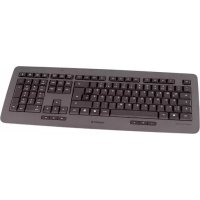
DW 5000 - Keyboard Cherry - Free user manual and instructions
Find the device manual for free DW 5000 Cherry in PDF.



| Product type | Wireless keyboard and mouse |
| Transmission technology | Radio frequency (RF) |
| Wireless range | 8 meters |
| Mouse sensor resolution | 1500 dpi |
| Keyboard power supply | 2 alkaline batteries LR03 (AAA) |
| Mouse power supply | 2 alkaline batteries LR6 (AA) |
| Keyboard consumption | max. 5 mA |
| Mouse consumption | max. 15 mA |
| Receiver consumption | max. 35 mA |
| Operating temperature | 0 °C to 40 °C |
| Storage temperature | -15 °C to 60 °C |
| Automatic shutdown (mouse) | Yes, after 2 minutes of inactivity |
| Programming software | KeyM@n (downloadable from cherry.de) |
| Maintenance and cleaning | Damp cloth with mild detergent; avoid solvents |
| Safety | Do not open, do not repair yourself |
| Warranty | Legal warranty |
| Compliance | CE (directive 1999/5/EC) |
| Manufacturer | ZF Friedrichshafen AG, Cherrystraße, 91275 Auerbach, Germany |
| Website | www.cherry-world.com |
Frequently Asked Questions - DW 5000 Cherry
User questions about DW 5000 Cherry
0 question about this device. Answer the ones you know or ask your own.
Ask a new question about this device
Download the instructions for your Keyboard in PDF format for free! Find your manual DW 5000 - Cherry and take your electronic device back in hand. On this page are published all the documents necessary for the use of your device. DW 5000 by Cherry.
USER MANUAL DW 5000 Cherry
Connecting the receiver
Changing the batteries for the mouse
Switching on the mouse
Activation de la souris
Encender el raton
Accensionedel mouse
Muis inschakelen
Ligorato
Changing the batteries for the keyboard
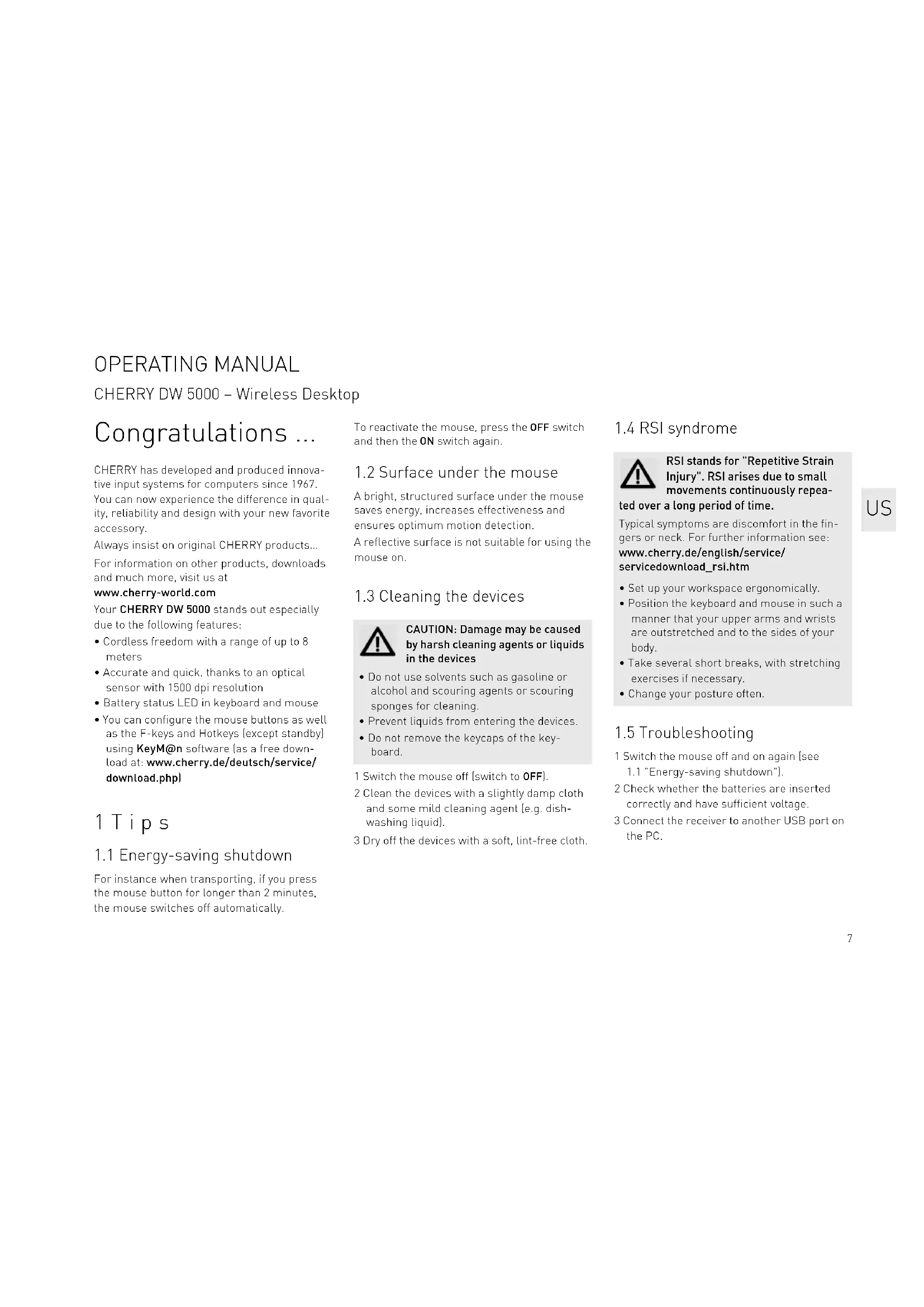
CHERRY has developed and produced innovative input systems for computers since 1967. You can now experience the difference in quality, reliability and design with your new favorite accessory.
Always insist on original CHERRY products... For information on other products, downloads and much more, visit us at
www.cherry-world.com Your CHERRY DW 5000 stands out especially due to the following features:
- Cordless freedom with a range of up to 8 meters
- Accurate and quick, thanks to an optical sensor with 1500 dpi resolution
- Battery status LED in keyboard and mouse
- You can configure the mouse buttons as well as the F-keys and Hotkeys (except standby) using KeyM@n software (as a free download at: www.cherry.de/deutsch/service/download.php)
1 Tips
1.1 Energy-saving shutdown
For instance when transporting, if you press the mouse button for longer than 2 minutes, the mouse switches off automatically.
To reactivate the mouse, press the OFF switch and then the ON switch again.
1.2 Surface under the mouse
A bright, structured surface under the mouse saves energy, increases effectiveness and ensures optimum motion detection.
A reflective surface is not suitable for using the mouse on.
1.3 Cleaning the devices

CAUTION: Damage may be caused by harsh cleaning agents or liquids in the devices
- Do not use solvents such as gasoline or alcohol and scouring agents or scouring sponges for cleaning.
- Prevent liquids from entering the devices.
- Do not remove the keycaps of the keyboard.
1 Switch the mouse off (switch to OFF).
2 Clean the devices with a slightly damp cloth and some mild cleaning agent (e.g. dishwashing liquid).
3 Dry off the devices with a soft, lint-free cloth.
1.4 RSI syndrome

RSI stands for "Repetitive Strain Injury". RSI arises due to small movements continuously repea
ted over a long period of time.
Typical symptoms are discomfort in the fingers or neck. For further information see: www.cherry.de/english/service/ servicedownload_rsi.htm
- Set up your workspace ergonomically.
- Position the keyboard and mouse in such a manner that your upper arms and wrists are outstretched and to the sides of your body.
Take several short breaks, with stretching exercises if necessary. - Change your posture often.
1.5 Troubleshooting
1 Switch the mouse off and on again (see 1.1 "Energy-saving shutdown").
2 Check whether the batteries are inserted correctly and have sufficient voltage.
3 Connect the receiver to another USB port on the PC.
OPERATING MANUAL
CHERRY DW 5000 - Wireless Desktop
4 Establish a new connection to the receiver:
- Disconnect the receiver from the USB port and plug it in again.
- Within 30 seconds, keep the mouse as near to the receiver as possible then press the scroll wheel and the right mouse button at the same time.
- Release the buttons when the battery status LED on the mouse flashes after approx. 3 seconds.
Within 30 seconds, keep the keyboard as near to the receiver as possible, then press the esc and Q keys at the same time.
- Release the keys when the battery status LED ON. The keyboard flashes after approx. 3 seconds.
2 Disposal
2.1 Disposing of the old units

Dispos of the old units via a collect ing point for electronic scrap or via your dealer.
2.2 Disposing of the batteries

This device contains alkaline batteries. Do not dispose of them in the household waste. Batteries may contain pol
lutants which can harm the environment and
health. Dispose of the batteries with the device in a retail outlet or at your local recycling depot. Returning the device is compulsory and free of charge.
All batteries are recycled. This enables valuable resources to be restored such as iron, zinc or nickel. Recycling batteries is the easiest contribution you can make towards environmental protection.
Thank you for your cooperation.
3 Technical data
Designation Value
| Supply voltage Keyboard/mouse: | |
| 2.2 ... 3.3 V SELV | |
| Receiver: | |
| 5.0 V/DC ±5 % SELV | |
| Current consump- tion | Keyboard: max. 5 mA |
| Mouse: max. 15 mA | |
| Receiver: max. 35 mA | |
| Keyboard batteries 2 alkaline batteries, type LR03 (AAA) | |
| Mouse batteries 2 alkaline batteries, type LR6 (AA) | |
| Storage temperature -15 °C ... +60 °C | |
| Operating tempera- ture | 0 °C ... +40 °C |
4 Contact
ZF Friedrichshafen AG Electronic Systems
CherrystaBe 91275 Auerbach
Germany
Internet: www.cherry-world.com
E-mail: info@cherry.de
Please provide the following information about the device when you make an enquiry:
- Item and serial no. of the product
Name and manufacturer of your system - Operating system and, if applicable, installed service pack version
5 General advice
We reserve the right to make technical modifications which serve the development of our products. Improper use and storage can lead to faults and damage to the product. The warranty expires completely once unauthorized modifications to the product have been carried out. Do not carry out any unauthorized repairs and do not open up the product. These instructions are only valid for the supplied product.
6 Warranty
The statutory warranty applies. Please contact your specialist dealer or contractual partner. You can find more information on the warranty under www.cherry-world.com.
7 Certifications
7.1 CE Declaration of Conformity
CE Hereby, ZF Friedrichshafen AG, Electronic Systems business area Auerbach/Opf., Germany, declares that this Radio-Frequency peripheral is in compliance with the essential requirements and other relevant provisions of Directive 1999/5/EC. The CE Declaration of Conformity can be retrieved by accessing the following internet address:
Once accessed, click on the relevant product name to retrieve the CE Declaration of Conformity.
7.2 Federal Communications Commission (FCC) Radio Frequency Interference Statement
Information to the user: This equipment has been tested and found to comply with the limits for Class B digital device, pursuant to Part 15 of the FCC Rules. These limits are designed to provide reasonable protection against harmful interference in a residential installation. This equipment generates, uses and can radiate radio frequency energy and, if not installed and used in accordance with the instructions, may cause harmful interference to radio communications. However, there is no guarantee that interference will not occur in a particular installation. If this equipment does cause harmful interference to radio or television reception, which can be determined by turning the equipment off and on, the user is encouraged to try to correct the interference by one or more of the following measures:
Reorientate or relocate the receiving antenna.
- Increase the separation between the equipment and receiver.
- Connect the equipment into an outlet on a circuit different from that to which the receiver is connected.
- Consult the dealer or an experienced radio/ TV technician for help.
Caution: Any changes or modifications not expressly approved by the party responsible for compliance could void the user's authority to operate the equipment.
7.3 For UL
For use with Listed Personal Computers only!
MODED'EMPLOI
CHERRY DW 5000 - Wireless Desktop
Felicitations...
Agradecemos a collaboration.
3 Dados技术和
(100000000000000000000000000000000000000000000000000000000
Pnneeddeu ooswieddege eey
snwnwnesosguesueBnE L
P
[du:dpeoumop/oeAes
peepneppeep
uWnueeae [aepesisieed] w
SS
eesssssssssees
-egd uonw g odof eewenwnn nupopor - 1eisoue uasynnsneu wuaeneus nssesfpeesnnnne 0009 M D A RREHO
mnnnne nnnnne nnnnne nnnnne nnnnne nnnnne nnnnne nnnnne nnnnne nnnnne nnnnne nnnnne nnnnne nnnnne nnnnne nnnnne nnnnne nnnnne nnnnne nnnnne nnnnne nnnnne nnnnne nnnnne nnnnne nnnnne
CH
aennnnnne nnnnne
essued
eannnnn nnnnnnnnnnnnne
…nntnnn
T
do#s
HOQ
epneppeepeppepepepepepepepepepepepepepepepepepepepepepepepepepepepepepepepepepepepepepepepepepepepepepepepepepepepepepepepepepepepepepepepepepepepepepepepepepepepepepepepepepepepepepepepepepepepe
eepn mnnnne nnnnne eae ene nee eeepepepepepepepepepepepepepepepepepepepepepepepepepepepepepepepepepepepepepepepepepepepepepepepepepepepepepepepepepepepepepepepepepepepepepepepepepepepepepepepepepepepepepepe pe
aeeedde ap eneonrA
J0A J4Z
yeppeeppeeppeeppeeppeeppeeppeeppeeppeeppeeppeeppeeppeeppeeppeeppeeppeeppeeppeeppeeppeeppeeppeeppeeppeeppeeppeeppeeppeeppeeppeeppeeppeeppeeppeeppeeppeeppeeppeeppeeppeeppeeppeeppeeppe
woupuws-1sR 7
eeppeep 1
oeaeeppeeppeeppeeppeeppeeppeeppeeppeeppeeppeeppeeppeeppeeppeeppeeppeeppeeppeeppeeppeeppeeppeeppeeppeeppeeppeeppeeppeeppeeppeeppeeppeeppeeppeeppeeppe
Joop 6u6peo8e:1370d0

eeppeeppeeppeeppeeppeeppeeppeeppeeppeeppeeppeeppeeppeeppeeppeeppeeppeeppeeppeeppeeppeeppeeppeeppeeppeeppe
puuBapusinu
sE KpseBn sKreRnAddopaeBds e
ue ppoqueesdo sntnneeppeeppeeppeeppeeppeeppeeppeeppeeppeeppeeppeeppeeppeeppeeppeeppeeppeeppeeppeeppeeppeeppeeppeeppeeppeeppeeppeeppeeppeeppeeppe
es eepneppeeepneppeepneppeepneppeepneppeepneppeepneppeepneppeepneppeepneppeepneppeepneppeepneppeepneppeepneppeepneppeepneppeepneppeepneppeepneppeep
Peppepepepepepepepepepepepepepepepepepepepepepepepepepepepepepepepepepepepepepepepepepepepepepepepepepepepepepepepepepepepepepepepepepepepepepepepepepepepepepepepepepepepepepepepepe
0000000000000000000000000000000000000000000
'spoeoopoeepoeepoeepoeepoeepoeepoeepoeepoeepoeepoeepoeepoeepoeepoeepoeepoeepoeepoeepoeepoeepoeepoeepoeepoeepoeepoeepoeepoeepoeepoeepoeepoeepoeepoeepoeepoeepoeepoeepoeepoeepoeepoeepoeepoeepoeepoe
Waeaaeaaaannnna
n nn nnnnneepnneepnneepnneepnneepnneepnneepnneepnneepnneepnneepnneepnneepnneepnneepnneepnneepnneepnneepnneepnneepnneepnneepnneepnneepnneepnneepnneepnneepnneepnneepnneepnneepnneep
e e
do#sessssse -0005MDORRHCH
GNIZrIMNVAVSAKINR8E9
eessssssssssssssssssssssssssssssssssssssssssssssssssssssssssssssssssssssssssssssssssssssssssssssssssssssssssssssssssssssssssssssssss
mnnn nnnnne nnnnne nnnnne nnnnne nnnnne nnnnne nnnnne nnnnne nnnnne nnnnne nnnnne nnnnne nnnnne nnnnne nnnnne nnnnne nnnnne nnnnne nnnnne nnnnne nnnnne nnnnne nnnnne nnnnne nnnnne nnnnnee nnnnne nnnnne nnnnne nnnnne nnnnne nnnnne nnnnne nnnnne nnnnne nnnnne nnnnne nnnnne nnnnne nnnnne nnnnne nnnnne nnnnne nnnnne nnnnne nannnee
1uege9
ed 15-8SNTepuee nnaepepepepepepepepepepepepepepepepepepepepepepepepepepepepepepepepepepepepepepepepepepepepepepepepepepepepepepepepepepepepepepepepepepepepepepepepepepepepepepepepepepepepepepepepepepepepepepepepe
bupueds
001 10000000000000000000000000000000000000000000000000
Jnne nnnnne nnnnne nnnnne nnnnne nnnnne nnnnne nnnnne nnnnne nnnnne nnnnne nnnnne nnnnne nnnnne nnnnne nnnnne nnnnne nnnnne nnnnne nnnnne nnnnne nnnnne nnnnne nnnnne nnnnne nnnnne nannne nnnnne nnnnne nnnnne nnnnne nnnnne nnnnne nnnnne nnnnne nnnnne nnnnne nnnnne nnnnne nnnnne nnnnne nnnnne nnnnne nnnnne nnnnne nnnnne nnnnne nnnnne nnnnne nnnnne nnnnne nennnee
n nn nnnnne nnnnne ne nnnnne
105
paWwJAsned gws aepH
pn nnnnne eae aee
je uapis pan bis npuiq papiuy 60 aue
-
Ksssspepepepepepepepepepepepepepepepepepepepepepepepepepepepepepepepepepepepepepepepepepepepepepepepepepepepepepepepepepepepepepepepepepepepepepepepepepepepepepepepepepepepepepepepepepepepepepepepepepepe
peoopoeAes
pnpq npnpeepnnepepepepepepepepepepepepepepepepepepepepepepepepepepepepepepepepepepepepepepepepepepepepepepepepepepepepepepepepepepepepepepepepepepepepepepepepepepepepepepepepepepepepepepepepepe
[ppn]
-epo 60
pnn nn nnae aennneaeedde 86
EEOe
eeppeeppeeppeeppeeppeeppeeppeeppeeppeeppeeppeeppeeppeeppeeppeeppeeppeeppeeppeeppeeppeeppeeppeeppeeppeeppeeppeeppeeppeeppeeppeeppeeppeeppeeppeeppe
aeppeapuipjoej6g
eppeeppeeppeeppeeppeeppeeppeeppeeppeeppeeppeeppeeppeeppeeppeeppeeppeeppeeppeeppeeppeeppeeppeeppeeppeeppeeppe
qayesuabepa60
Pnneeppeeppeeppeeppeeppeeppeeppeeppeeppeeppeeppeeppeeppeeppeeppeeppeeppeeppeeppeeppeeppeeppeeppeeppeeppeeppeeppeeppeeppeeppeeppeeppeeppeeppeeppeeppe
60nRnRnRnRnRnRnRnRnRnRnRnRnRnRnRnRnRnRnRnRnRnRnRnRnRnRnRnRnRnRnRnRnRnRnRnRnRnRnRnRnRnRnRnRnRnRnRnRnRnRn
abunpuae kexn nennrssrpoepoeq
6uusueeynq
e e
eep
nns
Ae As ae npod bo aaeabae
Jwwwnuaes bo -eKnpe sntnpoD
sibdo jedeedde
P
apfauayoju:sod-3
oep
pueyA
yepqanAe
eannnnnne
S
Aeaeepnepnepnepnepnepnepnepnepnepnepnepnepnepnepnepnepnepnepnepnepnepnepnepnepnepnepnepnepnepnepnepnepnepnepnepnepnepnepnepnepnepnepnepnepnepnepnepnepnep
Oo- pom-
epun nuee6 wouofseewu
nnnnnnnnnnnnnnnnnnnnnnnnnnnnnnnnnnnnnnnnnnnnnnnnnnnnnnnnnnnnnnnnnnnnnnnnnnnnnnnnnnnnnnnnnnnnnnnnnnnnnnnnnnnnnnnnnnn
nepnepnepnepnepnepnepnepnepnepnepnepnepnepnepnepnepnepnepnepnepnepnepnepnepnepnepnepnepnepnepnepnepnepnepnepnepnepnepnepnepnepnepnepnepnepnepnepnepnepn
XeTuOY
eae aee eae aeae aee eae aeae aee aeae aeae aeae aeae aeae aeae aeae aeae aeae aeae aeae aeae aeae aeae aeae aeae aeae aeae aeae aeae aeae aeae aeae aeae aeae aeae aeae aeae aeae aeae aeae aeae aeae aeae aeae aeae aeae aeae aeae aeae aeae aeae aeae aeae aeae aeae aeae aeae aeae aeae ae
eae

aee aee eae 2e
Pnepnnne nnnnne nee eae ene eee

aepedde aepuayy 2 6puayy
[1000000000000000000000000000000000000000000]
JewonpaandHg
doRssssss - 0005M Ds
NINSIANVRS
aepu
auiuipn pwn aasned gws ae e
Rnne nnnnne nee
aeneepepepepepepepepepepepepepepepepepepepepepepepepepepepepepepepepepepepepepepepepepepepepepepepepepepepepepepepepepepepepepepepepepepepepepepepepepepepepepepepepepepepepepepepepepepepepepepepepepepepepe pe
aew
Poeeppeeppeeppeeppeeppeeppeeppeeppeeppeeppeeppeeppeeppeeppeeppeeppeeppeeppeeppeeppeeppeeppeeppeeppeeppeeppeeppeeppeeppe
aennnnn nnnnnnnnnnnnnnnnnnnnnnnnnnnnnnnnnnnnnnnnnnnnnnnnnnnnnnnnnnnnnnnnnnnnnnnnnnnnnnnnnnnnnnn
Bnngnnnne nnnnne
sd!⊥l
dudpeoumop
/epneppeeppeeppeeppeeppeeppeeppeeppeeppeeppeeppeeppeeppeeppeeppeeppeeppeeppeeppeeppeeppeeppeeppeeppeeppeeppe
peu saeuee u@XaRpaW
aaynpodgdawumuaes 40-1y
:06e
Pn enepeedde no oonewonj npaefoa 6dd
apfJepoJySod-
wwom-wwom-wwom:
puey
peqnAe 5216
esssss
s
Ae
do#sessssseM-0005MDHREHR
GNINSIANVRSIN
| 0.07+***0.00 |
| 0.09+***0.01-0.00 |
| [∀] |
| ∀x y = x y |
| -uebuew-ηexe z snn |
| [∀y] |
| 0.07+***0.00 |
| -uebuew-ηexe z ploq |
| [∀z] |
| ∀w y ∈ w |
| :alebeW |
| ∀w y ∈ w |
| ∀w y ∈ w |
| :prooebuey⊥ kow |
| [∀s] |
| A7ES % ΣD/A 0'g |
| :alebeW |
| A7ES A'ε'' Z'Z |
| :snw/ploq |
| [∀s] |
eepnpeepneepneppeeppeeppeeppeeppeeppeeppeeppeeppeeppeeppeeppeeppeeppeeppeeppeeppeeppeeppeeppeeppeeppeeppeeppeeppeeppeeppeeppeeppeeppeeppeeppeeppeeppeeppeeppeeppeeppeeppeeppeeppeeppeeppeeppe
eepn n e pnnnepepepepepepepepepepepepepepepepepepepepepepepepepepepepepepepepepepepepepepepepepepepepepepepepepepepepepepepepepepepepepepepepepepepepepepe pe
yisowou6
eepn gessdssqueupessedy
Peepeepoeae
/oeaeysyBueaepm
Pnneepnnneepnneepnneepnneepnneepnneepnneepnneepnneepnneepnneepnneepnneepnneepnneepnneepnneepnneepnneepnneepnneepnneepnneepnneepnneepnneepnneepnneepnneepnneepnneepnneep
eepedd
e6dssddn 15y
-1eae e-d oepexssbuiuiea..
Aninunuuee

wopuAs-1S87
es
nwnnnnnnnnnnnnnnnnnnnnnnnnnnnnnnnnnnnnnnnnnnnnnnnnnnnnnnnnnnnnnnnnnnnnnnnnnnnnnnnnnnnnnnnnnnnnnnnnnnnnnnnnnnn
[apawxip:xx]
uipieepaepaeepaaepaeepaeepaeepaeepaeepaeepaeepaeepaeepaeepaeepaeepaeepaeepaeepaeepaeepaeepaeepaeepaeepaeepaeepaeepaeepaeepaeepaeepaeepaeepaeepaeepaeepaeepaeepaeepaeepaeepaeepaeepaeepaeepaeepaeepaeepaeepaeepaeepaeepaeepaee
eep
Jeepes Beepan 1nns 405173
BerapunsnW
NO 0d 0e 0g 100 eE 00
aee aee ees
1
-ewone ae aesn wsbuee Jnnnwn Zgea
y ddeuynnuee n pdsuee xpi
buiubussepeaepeedessb
sd!⊥
dudpeoumop
ppppeepgnnn paaeepaep
:
-Exsuaapueefjey 0005MADARHCHU
WOW
Kesag Jw W y
pppeau aennpndepue wou neeennnne
HCHHOHIOO pnnpe puea
nnpnd e uup

- Tips
- Energy-saving shutdown
- Surface under the mouse
- Cleaning the devices
- CAUTION: Damage may be caused by harsh cleaning agents or liquids in the devices
- RSI syndrome
- RSI stands for "Repetitive Strain Injury". RSI arises due to small movements continuously repea
- Troubleshooting
- OPERATING MANUAL
- CHERRY DW 5000 - Wireless Desktop
- Disposal
- Disposing of the old units
- Disposing of the batteries
- Technical data
- Contact
- General advice
- Warranty
- Certifications
- CE Declaration of Conformity
- Federal Communications Commission (FCC) Radio Frequency Interference Statement
- For UL
- MODED'EMPLOI
- Felicitations...
- Dados技术和
- aeeedde ap eneonrA
Brand : Cherry
Model : DW 5000
Category : Keyboard