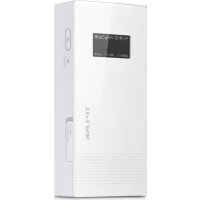
M5360 - Phone charger TP-LINK - Free user manual and instructions
Find the device manual for free M5360 TP-LINK in PDF.


Frequently Asked Questions - M5360 TP-LINK
User questions about M5360 TP-LINK
0 question about this device. Answer the ones you know or ask your own.
Ask a new question about this device
Download the instructions for your Phone charger in PDF format for free! Find your manual M5360 - TP-LINK and take your electronic device back in hand. On this page are published all the documents necessary for the use of your device. M5360 by TP-LINK.
USER MANUAL M5360 TP-LINK
TP-Link Technologies Co., Ltd.
South BuildingFloors 1,3/8 and 28Floors 1-4. Central Science & Technology Park,
Shenran Rd. Nanshan, Shenzhen, China
TP-Link UK Limited Unit 2 & 3 Riverview (142-144), CardIT Road, Reading, RG1 8EW
TP-Link talia S.r.l. Via Gocetti 2/A 20063 Cemusco su Naviglio (VI)
TP-Link France SARL. Bâtiment Equateur, 16-18 avenue Morane Saubier, 78140 Vélizy-Vilscoublay, France
TP-Link 3lg Teknolcijler Tic. Ltd. Şti. Şerfall Mevki, Barbaros Cad. Styleşl Sokak. No:15/2 Kat34134775 Ümrarilyevistanoul
TP-Link BERIA, S.L. Calle Quintensvides 17, 3°E, 28050 Madrid, Spain
TP Link Netherlands B.V. Archimedesban 18. 3439 ME Nieuwegein
TP-Link (Nordic) AB Fenrrväsen 14, Par 13, 131 53 Nørka, Sweden
TP-Link Helzs Ltd. Marathonocromou 77, Merous 151 24, Greece
Specifications are subject to change without notice. TP-Link is a registered trademark of TP-Link Technologies Co., Ltd. Other
brands and product names are trademarks or registered trademarks of their respective holders.
No part of the specifications may be reproduced in any form or by any means or used to make any derivative such as
translation, transformation, or adaptation without permission from TP-Link Technologies Co., Ltd. Copyright © 2017 TP-Link
Technologies Co., Ltd. All rights reserved.
www.tp-link.com
7106507506 REV2.1.0
Quick Installation Guide
Mobile Wi-Fi
CONTENTS
01 / Deutsch
05 / English
09 / Español
13 / Ελληνικά
17 / Français
21 / Italiano
25 / Português
29 / Suomi
33 / Nederlands
37 / Svenska
41 / Norsk
45 / Dansk
49 / Türkçe
natural_image
Simple line drawing of a closed rectangular object with a curved top and a dashed circular arrow pointing to its side (no text or symbols)2
natural_image
Simple line drawing of a rectangular device with internal compartments and a curved base (no text or symbols)MAC: XX-XX-XX-XX-XX- IMEI:XXXXXXXXXXXXXXX
SSID: TP-Link_XXXX Wireless Password: XXXXXXXX
3
natural_image
Isometric line drawing of a device casing with internal compartments and a highlighted section (no text or symbols)Hinweise:
natural_image
Illustration of a digital tablet with two labeled arrows (a and b) indicating directional movement or flow, no text or symbols present.natural_image
Line drawing of a laptop connected to a USB cable via a cable (no text or symbols)tpMiFi-App
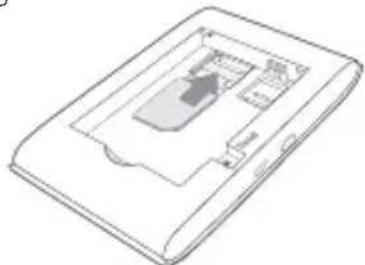
Install the SIM Card and Battery
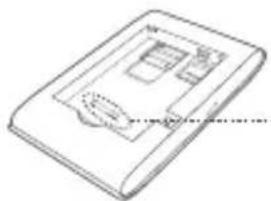
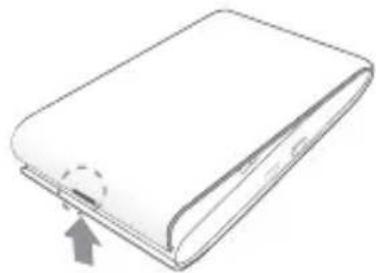
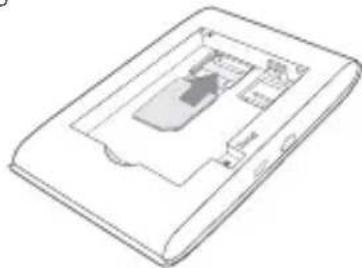
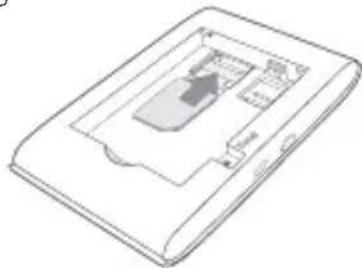
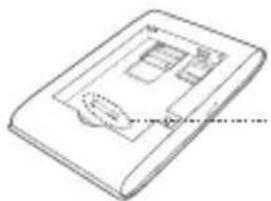
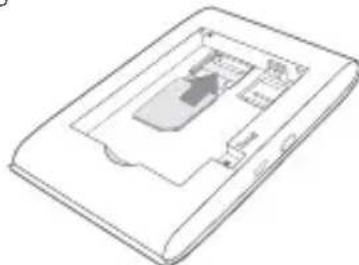
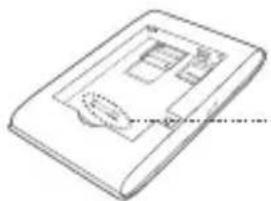
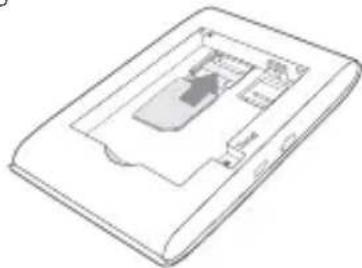
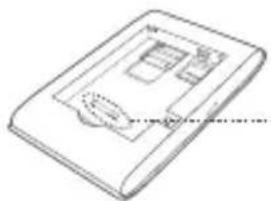
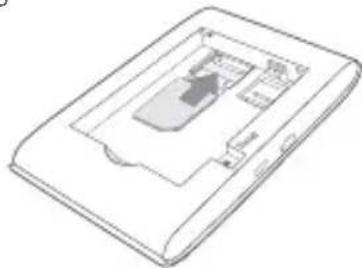
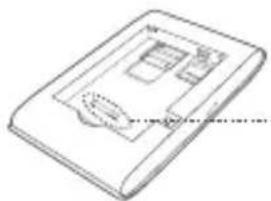
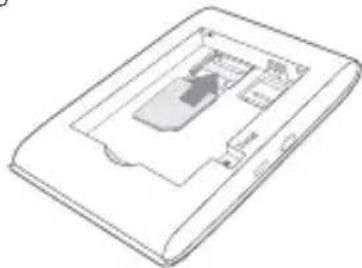
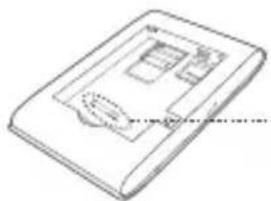
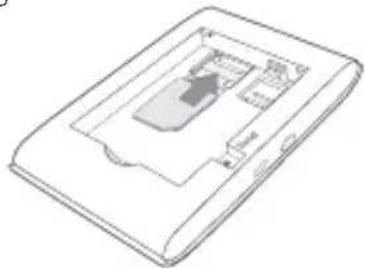
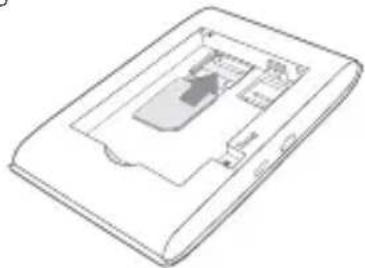
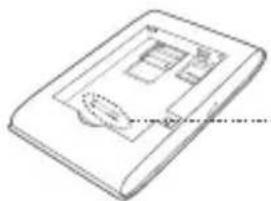
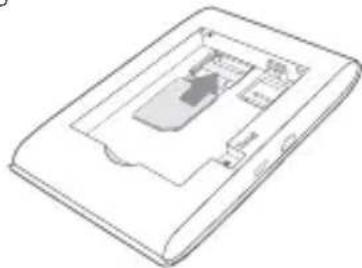
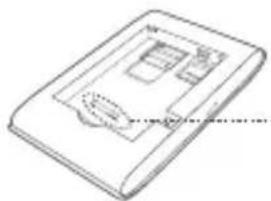
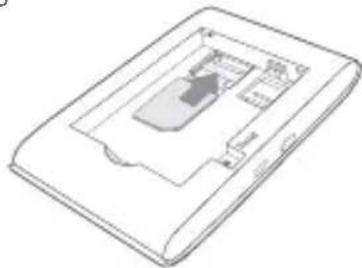
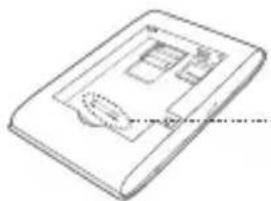
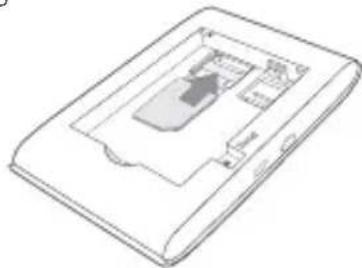
Remove the cover, and install the SIM card and battery as shown.
1
natural_image
Simple line drawing of a closed book with a bookmark and an arrow pointing to its cover (no text or symbols)2
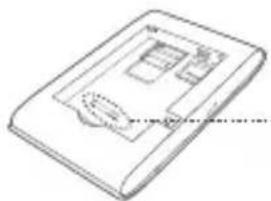
natural_image
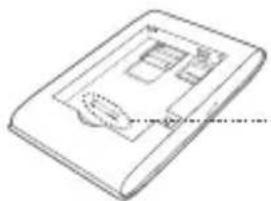
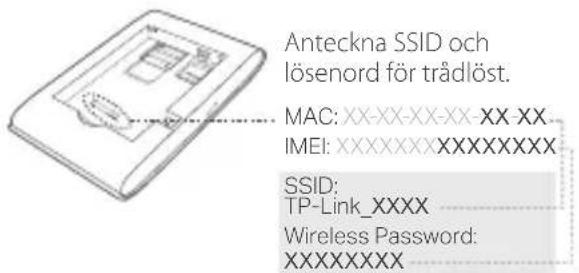
Simple line drawing of a rectangular device with internal components and a dashed line indicating a measurement or alignment (no text or symbols)Note down the default
SSID and Wireless
Password.
MAC: XX-XX-XX-XX-XX
IMEI:XXXXXXXXXXXXXXX
SSID:
TP-Link_XXXX
Wireless Password:
XXXXXXXXX
3
natural_image
Isometric line drawing of a device casing with internal compartments and a central component (no text or symbols)Note:
- Micro or Nano SIM card must be converted using the provided SIM card tray.
- SIM card and SD card are not included.
4
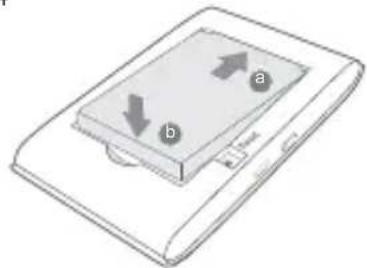
natural_image
Illustration of a digital device with two labeled arrows (a and b) pointing to its screen area, no text or symbols present.Connect to the Internet
- Press and hold the power button about 5 seconds to power on.
- On your wireless device, select the default SSID and enter the Wireless Password which you have
English
noted down.
Note: We highly recommend that you change the default wireless name and password for network security.
Enjoy!
Note:
- If you can't access the internet, please refer to FAQ > Q3.
- For power saving, the Mobile Wi-Fi will turn off the Wi-Fi connection if no wireless devices are connected to the Mobile Wi-Fi for 10 minutes. Press the ⏻ power button to resume the Wi-Fi connection.
Charging Your Mobile Wi-Fi
Method 1: Via a Wall Outlet (Recommended)
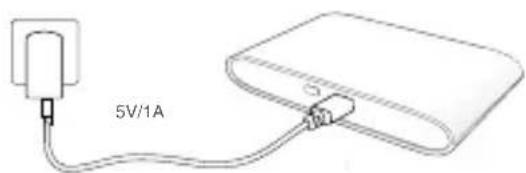
text_image
5V/1AMethod 2: Via a Computer
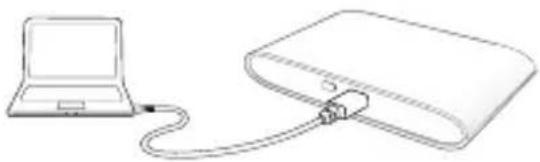
natural_image
Line drawing of a laptop connected to a USB cable via a plug (no text or symbols)tpMiFi App
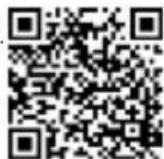
Download the tpMiFi App (for iOS and Android) to conveniently manage your Mobile Wi-Fi.
- Search for the tpMiFi App from the Apple Store or Google Play, or scan the QR code.
- Connect your wireless device to the Mobile Wi-Fi.
- Launch tpMiFi and enter admin to log in.
FAQ(Frequently Asked Questions)
English
Q1. Is there any other alternative to manage the Mobile Wi-Fi besides the tpMiFi app?
A. You can manage the Mobile Wi-Fi by using its web management page.
- Connect your Wi-Fi device to the Mobile Wi-Fi's wireless network.
- Open your web browser and type http://tplinkmifi.net or http://192.168.0.1 in the address bar, then enter the default password admin, and click Login.
Q2. What should I do if I cannot log in to the web management page?
- Verify that your device is connected to the Mobile Wi-Fi.
- Verify that you have entered http://tplinkmifi.net or http://192.168.0.1 correctly.
- Verify that your device is set to obtain an IP address automatically.
Q3. What should I do if I cannot access the internet?
A1. Check PIN status
- Refer to Q1 to log in to the web management page on your phone. If the current SIM card status is "PIN Locked", you will need to unlock it using the PIN code.
A2. Verify the ISP parameters
- Refer to Q1 to log in to the web management page on your phone. Go to Dial-up > View Profile Details and verify the parameters (i.e. APN, Username, and Password) provided by your ISP.
- If not, return to the Dial-up page and create a new profile with the correct information, then choose the new created profile from the Profile List.
A3. Check the Data Roaming settings
- If your SIM card is operated in a roaming service area, refer to Q1 to log in to the web management page on your phone.
- Go to Dial-up and enable the Data Roaming option.
English
A4. Check Mobile Data
- Refer to Q1 to log in to the web management page on your phone. Go to Dial-up to verify that Mobile Data is On. If not, enable this option.
A5. Check Data Limit
- Refer to Q1 to log in to the web management page on your phone. Go to Device > Data Usage Settings to check whether your data usage has exceeded the Total/Monthly allowance.
Q4. How do I restore the Mobile Wi-Fi to its factory default settings?
- With the Mobile Wi-Fi is powered on, remove the cover. Use a pin to press and hold the RESET button until the "Power Off" appears on the screen OR all LEDs turn on momentarily.
Note: Restoring the Mobile Wi-Fi to its factory defaults will clear all previous settings and you have to reconfigure it.
Safety Information
- Keep the device away from water, fire, humidity or hot environments.
- Do not attempt to disassemble, repair, or modify the device.
- Do not use damaged charger or USB cable to charge the device.
- Do not use any other chargers than those recommended.
- Do not use the device where wireless devices are not allowed.
- Do not disassemble, crush, puncture, short external contacts, or dispose of the battery in fire or water. CAUTION: RISK OF EXPLOSION IF BATTERY IS REPLACED BY AN INCORRECT TYPE. DISPOSE OF USED BATTERIES ACCORDING TO THE INSTRUCTIONS.
Please read and follow the above safety information when operating the device. We cannot guarantee that no accidents or damage will occur due to improper use of the device. Please use this product with care and operate at your own risk.
natural_image
Simple line drawing of a closed book with a bookmark and an arrow pointing to its cover (no text or symbols)2
natural_image
Simple line drawing of a rectangular device with internal compartments and a curved base (no text or symbols)MAC: XX-XX-XX-XX-XX IMEI: XXXXXXXX XXXXXXXX
SSID: TP-Link_XXXX Wireless Password: XXXXXXXX
3
natural_image
Isometric line drawing of a device casing with internal components (no text or symbols)Nota:
natural_image
Illustration of a digital tablet with two labeled arrows (a and b) pointing to its screen area (no text or symbols beyond labels)Conexión a Internet
natural_image
Line drawing of a laptop connected to a rectangular device via cable (no text or symbols)tpMiFi App
natural_image
Simple line drawing of a closed book with a bookmark and an arrow pointing to its cover (no text or symbols)2
natural_image
Simple line drawing of a rectangular device with internal compartments and a curved base (no text or symbols)MAC: XX-XX-XX-XX-XX- IMEI: XXXXXXXXXX
SSID: TP-Link_XXXX
Wireless Password: XXXXXXXX
3
natural_image
Isometric line drawing of a device casing with internal compartments and a highlighted slot (no text or symbols)Σημείωση:
natural_image
Illustration of a digital device with two labeled arrows (a and b) pointing to its screen area, no text or symbols present.natural_image
Line drawing of a laptop connected to a USB cable via a connector (no text or symbols)Εφαρμογή tpMiFi
natural_image
Simple line drawing of a closed book with a bookmark and an arrow pointing to its cover (no text or symbols)2
natural_image
Simple line drawing of a rectangular device with internal components and a dotted line indicating a measurement or alignment (no text or symbols)MAC: XX-XX-XX-XX-XX-XX IMEI: XXXXXXXX XXXXXXXX
SSID: TP-Link_XXXX Wireless Password: XXXXXXXX
3
natural_image
Isometric line drawing of a device casing with internal components (no text or symbols)Remarque :
natural_image
Illustration of a digital device with two labeled arrows (a and b) pointing to its screen area, no text or symbols present.natural_image
Line drawing of a laptop connected to a USB cable via a plug (no text or symbols)App tpMiFi
natural_image
Simple line drawing of a closed book with a bookmark and an arrow pointing to its cover (no text or symbols)2
natural_image
Simple line drawing of a rectangular device with internal compartments and a curved base (no text or symbols)Annotate SSID e Password Wireless di default.
MAC: XX-XX-XX-XX-XX- IMEI:XXXXXXXXXXXXXXX
SSID: TP-Link_XXXX Wireless Password: XXXXXXXX
3
natural_image
Isometric line drawing of a device casing with internal components (no text or symbols)Nota:
natural_image
Illustration of a digital device with two labeled arrows (a and b) pointing to its screen area, no text or symbols present.natural_image
Line drawing of a laptop connected to a USB cable via a USB port (no text or symbols)App tpMiFi
natural_image
Simple line drawing of a closed book with a bookmark and an arrow pointing to its cover (no text or symbols)2
natural_image
Simple line drawing of a rectangular device with internal compartments and a dashed line indicating a measurement or alignment (no text or symbols)MAC: XX-XX-XX-XX-XX- IMEI: XXXXXXXXXX
SSID: TP-Link_XXXX Wireless Password: XXXXXXXX
3
natural_image
Isometric line drawing of a device casing with internal components (no text or symbols)Nota:
natural_image
Illustration of a digital device with two labeled arrows (a and b) pointing to its screen area, no text or symbols present.Ligar à Internet
natural_image
Line drawing of a laptop connected to a USB cable via a cable (no text or symbols)tpMiFi App
2. Vá a Dial-up e ative a opção Data Roaming.
natural_image
Simple line drawing of a closed book with a bookmark and an arrow pointing to its cover (no text or symbols)2
natural_image
Simple line drawing of a rectangular device with internal components and a dashed line indicating a measurement or alignment (no text or symbols)MAC: XX-XX-XX-XX-XX IMEI: XXXXXXXXXX
SSID: TP-Link_XXXX Wireless Password: XXXXXXXX
3
natural_image
Isometric line drawing of a device casing with internal compartments and a highlighted internal area (no text or symbols)Huomautus:
natural_image
Illustration of a digital device with two labeled arrows (a and b) pointing to its screen area, no text or symbols present.natural_image
Line drawing of a laptop connected to a USB cable via a cable (no text or symbols)tpMiFi-sovellus
natural_image
Simple line drawing of a closed book with a dashed circular arrow pointing to its cover (no text or symbols)2

natural_image
Simple line drawing of a rectangular device with internal components and a dotted line indicating a measurement or alignment (no text or symbols)MAC: XX-XX-XX-XX-XX- IMEI:XXXXXXXXXXXXXXX
SSID: TP-Link_XXXX Wireless Password: XXXXXXXX
3
natural_image
Isometric line drawing of a device casing with internal components (no text or symbols)Opmerking:
natural_image
Illustration of a digital device with two labeled arrows (a and b) pointing to its screen area, no text or symbols present.natural_image
Line drawing of a laptop connected to a USB cable via a cable (no text or symbols)tpMiFi App
natural_image
Simple line drawing of a closed book with a bookmark and an arrow indicating compression (no text or symbols)2
natural_image
Isometric line drawing of a device casing with internal components (no text or symbols)Obs!
natural_image
Illustration of a digital tablet with two labeled arrows (a and b) pointing to its screen area (no text or symbols beyond labels)natural_image
Line drawing of a laptop connected to a USB cable via a connector (no text or symbols)tpMiFi App
natural_image
Simple line drawing of a closed book with a bookmark and an arrow pointing to its cover (no text or symbols)2
natural_image
Simple line drawing of a rectangular electronic device with internal components and a dashed line indicating a measurement or alignment (no text or symbols)MAC: XX-XX-XX-XX-XX- IMEI: XXXXXXXXXX
SSID: TP-Link_XXXX Wireless Password: XXXXXXXX
3
natural_image
Isometric line drawing of a device casing with internal components (no text or symbols)Merk:
natural_image
Illustration of a digital device with two labeled arrows (a and b) pointing to its screen area, no text or symbols present.Koble til Internett
natural_image
Line drawing of a laptop connected to a USB cable via a connector (no text or symbols)tpMiFi-app
natural_image
Simple line drawing of a closed book with a bookmark and an arrow pointing to its cover (no text or symbols)2
natural_image
Simple line drawing of a rectangular device with internal compartments and a curved base (no text or symbols)Noter standard SSID og adgangskode ned.
MAC: XX-XX-XX-XX-XX
IMEI:XXXXXXXXXXXXXXX
SSID: TP-Link_XXXX
Wireless Password:
XXXXXXXXX
3
natural_image
Isometric line drawing of a device casing with internal components (no text or symbols)Bemærk:
natural_image
Illustration of a digital tablet with two labeled buttons (a and b) on the screen, no text or symbols present.natural_image
Line drawing of a laptop connected to a USB cable (no text or symbols)tpMiFi App
natural_image
Simple line drawing of a closed book with a bookmark and an arrow pointing to its cover (no text or symbols)2
natural_image
Simple line drawing of a rectangular device with internal components and a dashed line indicating a measurement or alignment (no text or symbols)MAC: XX-XX-XX-XX-XX IMEI:XXXXXXXXXXXXXX
SSID: TP-Link_XXXX
Wireless Password: XXXXXXXX
3
natural_image
Isometric line drawing of a device casing with internal compartments and a central component (no text or symbols)Dikkat:
natural_image
Illustration of a digital device with two labeled arrows (a and b) pointing to its screen area, no text or symbols present.Internet'e Bağlanın
natural_image
Line drawing of a laptop connected to a USB cable via a connector (no text or symbols)tpMiFi App
TP-Link Three Years Limited Product Warranty
For TP-Link Branded Products Only.
THIS WARRANTY GIVES YOU SPECIFIC LEGAL RIGHTS, AND YOU MAY HAVE OTHER RIGHTS THAT VARY FROM STATE TO STATE (OR BY COUNTRY OR PROVINCE).
TO THE EXTENT ALLOWED BY LOCAL LAW, THIS WARRANTY AND THE REMEDIES SET FORTH ARE EXCLUSIVE AND IN LIEU OF ALL OTHER WARRANTIES, REMEDIES AND CONDITIONS.
TP-Link warrants the TP-Link branded hardware product contained in the original packaging against defects in materials and workmanship when used normally in according with TP-Link's guidelines for a period of THREE YEARS form the date of original retail purchase by the end-user purchaser.
Español
TP-Link hereby declares that the device is in compliance with the essential requirements and other relevant provisions of directives 2014/53/EU, 2009/125/EC and 2011/65/EU.
The original EU declaration of conformity may be found at http://www.tp-link.com/en/ce.